Posted on Leave a comment

Solidity Bytes and String Arrays, Concat, Allocating Memory, and Array Literals

Rate this post
YouTube Video

šŸ’” With this article, we’ll discover a new and fascinating world of bytes and strings, as well as ways to manipulate them, allocate memory arrays, and use array literals.

It’s part of our long-standing tradition to make this (and other) articles a faithful companion, or a supplement to the official Solidity documentation, starting with these docs for this article’s topics.

Types bytes and string

Besides the arrays we’ve already discussed, there are also some unique arrays, such as bytes and string arrays.

We have to note that the bytes type is very similar to bytes1[], however, the difference is that a bytes array is tightly packed in memory areas calldata and memory.

Furthermore, string is equal to bytes, but does not have a length property or support for index access.

Solidity doesn’t have string manipulation functions compared to other commonly used programming languages, but this can be worked around by including third-party string libraries.

With vanilla Solidity, we can concatenate two strings, e.g. string.concat(s1, s2), and compare two strings by using their keccak-256 hash, e.g.

keccak256(abi.encodePacked(s1)) == keccak256(abi.encodePacked(s2)).

Regarding the preferred use (we could consider this a design pattern), the bytes type is better than bytes1[], because bytes1[] is more expensive due to padding additional 31 bytes between the elements when used in memory.

The padding is absent in storage because of the tight packing used (docs).

šŸ‘ Note: A rule of thumb says that bytes should be used for arbitrary-length raw byte data and string for arbitrary-length string data in UTF-8.

šŸ’” Note: If our data can be stored in a variable containing a number of bytes up to 32, it is better to use one of the value types bytes1 ... bytes32, due to their low cost.

To access a byte representation of a string s, we could use the following construct: bytes(s)[7] = 'x'; with regard to the string length, bytes(s).length, e.g.

// SPDX-License-Identifier: GPL-3.0 pragma solidity >=0.7.0 <0.9.0; /** * @title String modification * @dev Demonstrates how to modify a string represented as bytes. */
contract StringModification { string public s = "Some string"; function modifyString() public { bytes(s)[7]='Q'; }
}

šŸ’” Note: By using this approach, we’re accessing bytes of the UTF-8 representation, not the individual characters.

Functions bytes.concat() and string.concat()

Concatenation is a synonym for joining or gluing together.

šŸŒ Recommended Tutorial: String Concatenation in Solidity

String Concatenation

The function string.concat() enables us to concatenate any number of string values.

The result of using the string.concat() function is a single-string memory array containing the concatenated strings without any added spacing or padding.

If we’d like to use function parameters of other types that are not implicitly convertible to the string type, we first have to convert them to the string type.

Byte Concatenation

In the same manner, the bytes.concat() function enables us to concatenate any number of bytes or bytes1 ... bytes32 values.

The function result is a single bytes memory array containing the arguments without padding.

If we’d like to use string parameters or other types not implicitly convertible to bytes type, we first convert them to the bytes type.

Example

Let’s use an example to show how a function performs both string and bytes concatenation:

// SPDX-License-Identifier: GPL-3.0
pragma solidity ^0.8.12; contract C { string s = "Storage"; function f(bytes calldata bc, string memory sm, bytes16 b) public view { string memory concatString = string.concat(s, string(bc), "Literal", sm); assert((bytes(s).length + bc.length + 7 + bytes(sm).length) == bytes(concatString).length); bytes memory concatBytes = bytes.concat(bytes(s), bc, bc[:2], "Literal", bytes(sm), b); assert((bytes(s).length + bc.length + 2 + 7 + bytes(sm).length + b.length) == concatBytes.length); }
}

By calling bytes.concat(...) and string.concat(...) without arguments, a result is an empty array.

Allocating Memory Arrays

We can dynamically resize the storage arrays by adding elements via the .push() member function.

In contrast, memory arrays cannot be dynamically resized and the .push() member function is not available.

However, by using the alternative approach, we can create dynamic-length memory arrays by using the new operator. Just before using the new operator, we have to calculate the required size in advance or create a new, empty array and populate it by copying all elements.

šŸ’” Note: Following the same rule of default values, the elements of freshly allocated arrays are initialized with their default values (docs).

Here we have an example showing arrays a and b, initialized by either a constant size or a parameter-given size.

// SPDX-License-Identifier: GPL-3.0
pragma solidity >=0.4.16 <0.9.0; contract C { function f(uint len) public pure { uint[] memory a = new uint[](7); bytes memory b = new bytes(len); assert(a.length == 7); assert(b.length == len); a[6] = 8; }
}

Array Literals

Array literal is represented by a comma-separated list of any number of expressions, which are listed in square brackets, e.g. [1, a, f(3)].

The array literal type is determined in the following way:

  1. The array literal is a statically-sized memory array, and its length is the number of expressions listed in the brackets;
  2. The base type of the array is determined by the type of the first expression T in the list that satisfies the condition: all other expressions must be implicitly convertible to T. If it’s not possible to find such an expression, a type error is thrown;
  3. Besides the convertibility condition (point 2.), one of the expressions must be of the T type.

The following example will clarify what the points above mean; the type of an array literal [1, 2, 3] is uint8[3] memory, because each of the expressions is of type uint8.

If we want to change the result to type uint[3] memory, we have to convert the first element to uint.

// SPDX-License-Identifier: GPL-3.0
pragma solidity >=0.4.16 <0.9.0; contract C { function f() public pure { g([uint(1), 2, 3]); } function g(uint[3] memory) public pure { // ... }
}

In contrast, the array literal [1, -2] is invalid because it doesn’t comply with point 2., stating that the first expression’s type is a target type T for implicit conversion of other expressions.

Since our first expression is of type uint8, and the second expression is of type int8 (including the negative numbers), the second expression cannot be implicitly converted to uint8.

To avoid a type error, we can declare our array literal as [int8(1), -1], forcing the first expression to be of compatible type int8.

In a more specific case of using, e.g. two-dimensional array literals, we’d step on a problem of fixed-size memory arrays that cannot be converted into each other, regardless of the compatibility of base types.

We can get around this problem by explicitly specifying a common base:

// SPDX-License-Identifier: GPL-3.0
pragma solidity >=0.4.16 <0.9.0; contract C { function f() public pure returns (uint24[2][4] memory) { uint24[2][4] memory x = [[uint24(0x1), 1], [0xffffff, 2], [uint24(0xff), 3], [uint24(0xffff), 4]]; // The following does not work, because some of the inner arrays are not of the right type. // uint[2][4] memory x = [[0x1, 1], [0xffffff, 2], [0xff, 3], [0xffff, 4]]; return x; }
}

We cannot assign fixed-size memory arrays to dynamically-sized memory arrays, as shown by the example:

// SPDX-License-Identifier: GPL-3.0
pragma solidity >=0.4.0 <0.9.0; // This will not compile.
contract C { function f() public { // The next line creates a type error because uint[3] memory // cannot be converted to uint[] memory. uint[] memory x = [uint(1), 3, 4]; }
}

To initialize dynamically-sized arrays, we’d have to resort to assigning the elements individually, as in the example:

// SPDX-License-Identifier: GPL-3.0
pragma solidity >=0.4.16 <0.9.0; contract C { function f() public pure { uint[] memory x = new uint[](3); x[0] = 1; x[1] = 3; x[2] = 4; }
}

Conclusion

In this article, we learned even more about reference types, in particular, bytes and string arrays and concatenation, memory array allocation, and array literals.

  1. First, we explained the uniqueness of the arrays based on bytes and string types, and also touched on some of the similarities with the akin types.
  2. Second, we’ve peeked into how to do string concatenation, comparison, and bytes concatenation.
  3. Third, we discovered the specifics of allocating memory arrays and got introduced to the new operator.
  4. Fourth, we got to know array literals with rules for determining the array literal base type. We also became aware of the invalid array literals and what can be done to make them valid.

What’s Next?

This tutorial is part of our extended Solidity documentation with videos and more accessible examples and explanations. You can navigate the series here (all links open in a new tab):

Posted on Leave a comment

How to Convert Pandas DataFrame/Series to NumPy Array?

5/5 – (1 vote)

šŸ’¬ Programming Challenge: Given a Pandas DataFrame or a Pandas Series object. How to convert them to a NumPy array?

How to Convert Pandas DataFrame/Series to NumPy Array?

In this short tutorial, you’ll learn (1) how to convert a 1D pandas Series to a NumPy array, and (2) how to convert a 2D pandas DataFrame to an array. Let’s get started with the first! šŸ‘‡

Convert Pandas Series to NumPy Array

First, let’s create a Pandas Series.

import pandas as pd # create dataframe df df = pd.Series([22,21,20,14], name= 'GSTitles', index= ['Nadal','Djokovic','Federer','Sampras'])
print(df)

Here’s the resulting Series df:

Nadal 22
Djokovic 21
Federer 20
Sampras 14
Name: GSTitles, dtype: int64

Now that we have our Pandas Series, you can convert this to a NumPy Array using the DataFrame.to_numpy() method.

Like so:

print(df.to_numpy())
# [22 21 20 14]

The resulting object is a NumPy array:

print(type(df.to_numpy()))
# <class 'numpy.ndarray'>

⚔ Attention: There is also the .values() method, but that is being deprecated now – when you look at the Pandas documentation, there is a warning “We recommend using DataFrame.to_numpy instead”.

With this method, only the values in the DataFrame or Series will return. The index labels will be removed.

Here’s how that’ll work:

print(df.values)
# [22 21 20 14]

This was a 1-dimensional array or a Series. Let’s move on to the 2D case next. šŸ‘‡šŸ‘‡šŸ‘‡

Convert DataFrame to NumPy Array

šŸ’¬ Question: Let’s try with a two-dimensional DataFrame — how to convert it to a NumPy array?

First, let’s print the dimension of the previous Series to confirm that it was, indeed, a 1D data structure:

print(df.ndim)
# 1

Next, you create a 2D DataFrame object:

import pandas as pd # Create a 2D DataFrame object
df2 = pd.DataFrame(data={'Nadal': [2, 14, 2, 4], 'Djokovic': [9, 2, 7, 3], 'Federer': [6, 1, 8, 5], 'Sampras': [2, 0, 7, 5]}, index=['AO', 'F', 'W', 'US']) print(df2)

Here’s the resulting DataFrame:

Nadal Djokovic Federer Sampras
AO 2 9 6 2
F 14 2 1 0
W 2 7 8 7
US 4 3 5 5

Now, let’s dive into the conversion of this DataFrame to a NumPy array by using the DataFrame.to_numpy() method.

# Convert this DataFrame to a NumPy array
print(df2.to_numpy())

The output shows a NumPy array from the 2D DataFrame — great! šŸ‘¾

[[ 2 9 6 2] [14 2 1 0] [ 2 7 8 7] [ 4 3 5 5]]

You can see that all indexing metadata has been stripped away from the resulting NumPy array!

Convert Specific Columns from DataFrame to NumPy Array

You can also convert specific columns of a Pandas DataFrame by accessing the columns using pandas indexing and calling the .to_numpy() method on the resulting view object.

Here’s an example:

print(df2[['Djokovic', 'Federer']].to_numpy())

The output:

[[9 6] [2 1] [7 8] [3 5]]

Summary

You can convert a Pandas DataFrame or a Pandas Series object to a NumPy array by means of the df.to_numpy() method. The indexing metadata will be removed.

You can also convert specific columns of a Pandas DataFrame by accessing the columns using pandas indexing and calling the .to_numpy() method on the resulting view object.


Thanks for reading through the whole tutorial! šŸ™‚

Posted on Leave a comment

What’s the Difference Between return and break in Python?

5/5 – (1 vote)

šŸ’¬ Question: What is the difference between return and break? When to use which?

Let’s first look at a short answer before we dive into a simple example to understand the differences and similarities between return and break.

Comparison

Both return and break are keywords in Python.

  • The keyword return ends a function and passes a value to the caller.
  • The keyword break ends a loop immediately without doing anything else. It can be used within or outside a function.
return break
Used to end a function Used to end a for or while loop
Passes an optional value to the caller of the function (e.g., return 'hello') Doesn’t pass anything to the “outside”

While they serve a different purpose, i.e., ending a function vs ending a loop, there are some cases where they can be used interchangeably.

Similar Use Cases

The following use case shows why you may have confused both keywords return and break. In both cases, you can use them to end a loop inside a function and return to the outside.

Here’s the variant using return:

def f(): for i in range(10): print(i) if i>3: return f()

And here’s the variant using break:

def f(): for i in range(10): print(i) if i>3: break f()

Both code snippets do exactly the same—printing out the first 5 values 0, 1, 2, 3, and 4.

Output:

0
1
2
3
4

However, this is where the similarity between those two keywords ends. Let’s dive into a more common use case where they both perform different tasks in the code.

Different Use Cases

The following example uses both keywords break and return. It uses the keyword break to end the loop as soon as the loop variable i is greater than 3.

So the line print(i) is never executed after variable i reaches the value 4—the loop ends.

But the function doesn’t end because break only ends the loop and not the function. That’s why the statement print('hi') is still executed, and the return value of the function is 42 (which we also print in the final line).

def f(): for i in range(10): if i>3: break print(i) print('hi') return 42 print(f())

Output:

0
1
2
3
hi
42

Summary

The keyword return is different and more powerful than the keyword break because it allows you to specify an optional return value. But it can only be used in a function context and not outside a function.

  • You use the keyword return to give back a value to the caller of the function or terminate the whole function.
  • You use the keyword break to immediately stop a for or while loop.

šŸ Rule: Only if you want to exit a loop inside a function and this would also exit the whole function, you can use both keywords. In that case, I’d recommend using the keyword return instead of break because it gives you more degrees of freedom, i.e., specifying the return value. Plus, it is more explicit which improves the readability of the code.


Thanks for reading over the whole tutorial—if you want to keep learning, feel free to join my email academy. It’s fun! šŸ™‚

Recommended Video

YouTube Video
Posted on Leave a comment

PHP Array to JSON String Convert with Online Demo

by Vincy. Last modified on October 22nd, 2022.

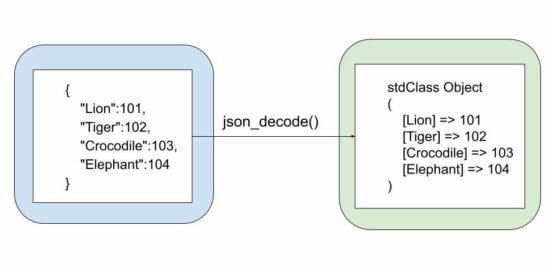
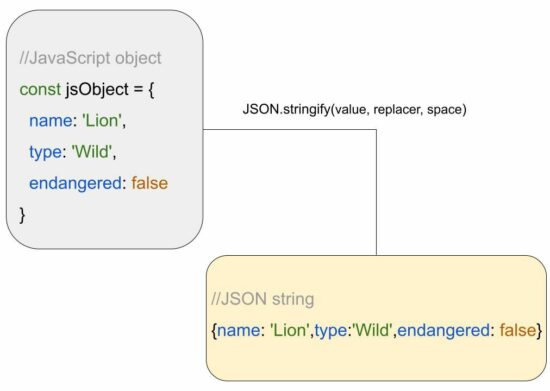
JSON is the best format to transfer data over network. It is an easily parsable format comparatively. That’s why most of the API accepts parameters and returns responses in JSON.

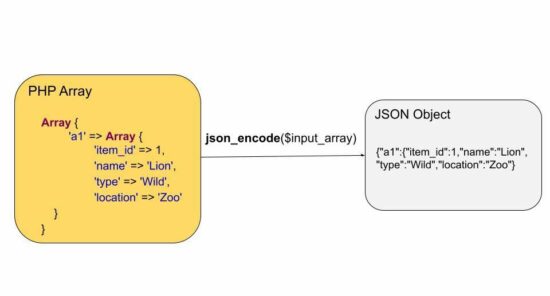
There are online tools to convert an array to a JSON object. This tutorial teaches how to create a program to convert various types of PHP array input into a JSON format.

It has 4 different examples for converting a PHP array to JSON. Those are too tiny in purpose to let beginners understand this concept easily.

Quick example

This quick example is simply coded with a three-line straightforward solution. It takes a single-dimensional PHP array and converts it to JSON.

<?php
$array = array(100, 250, 375, 400);
$jsonString = json_encode($array);
echo $jsonString;
?>

View Demo

The other different array-to-JSON examples handle simple to complex array conversion. It also applies pre-modification (like array mapping) before conversion. The four examples are,

  1. Simple to complex PHP array to JSON.
  2. Remove array keys before converting to JSON.
  3. Convert PHP array with accented characters to JSON
  4. PHP Array to JSON with pretty-printing

If you want the code for the reverse to decode JSON objects to an array, then the linked article has examples.

See this online demo to convert an array of comma-separated values into a JSON object.

php array to json

1) Simple to complex PHP array to JSON

This code handles 3 types of array data into a JSON object. In PHP, it is very easy to convert an array to JSON.

It is a one-line code by using the PHP json_encode() function.

<?php
// PHP Array to JSON string conversion for
// simple, associative and multidimensional arrays
// all works the same way using json_encode
// just present different arrays for example purposes only // simple PHP Array to JSON string
echo '<h1>PHP Array to JSON</h1>';
$array = array( 100, 250, 375, 400
);
$jsonString = json_encode($array);
echo $jsonString; // Associative Array to JSON
echo '<h2>Associative PHP Array to JSON</h2>';
$array = array( 'e1' => 1000, 'e2' => 1500, 'e3' => 2000, 'e4' => 2350, 'e5' => 3000
);
$jsonString = json_encode($array);
echo $jsonString; // multidimensional PHP Array to JSON string
echo '<h2>Multidimensional PHP Array to JSON</h2>';
$multiArray = array( 'a1' => array( 'item_id' => 1, 'name' => 'Lion', 'type' => 'Wild', 'location' => 'Zoo' ), 'a2' => array( 'item_id' => 2, 'name' => 'Cat', 'type' => 'Domestic', 'location' => 'Home' )
);
echo json_encode($multiArray);
?>

Output:

//PHP Array to JSON
[100,250,375,400] //Associative PHP Array to JSON
{"e1":1000,"e2":1500,"e3":2000,"e4":2350,"e5":3000} //Multidimensional PHP Array to JSON
{"a1":{"item_id":1,"name":"Lion","type":"Wild","location":"Zoo"},"a2":{"item_id":2,"name":"Cat","type":"Domestic","location":"Home"}}

2) Remove array keys before converting to JSON

This code handles a different scenario of JSON conversion which must be helpful if needed. For example, if the array associates subject=>marks and the user needs only the marks to plot it in a graph.

It removes the user-defined keys from an associative array and applies json_encode to convert it. It is a two-step process.

  1. It applies PHP array_values() to read the value array.
  2. Then, it applies json_encode on the values array.
<?php
// array_values() to remove assigned keys and convert to the original PHP Array key
echo '<h1>To remove assigned associative keys and PHP Array to JSON</h1>';
$array = array( 'e1' => 1000, 'e2' => 1500, 'e3' => 2000, 'e4' => 2350, 'e5' => 3000
); $jsonString = json_encode(array_values($array));
echo $jsonString;
?>

Output:

[1000,1500,2000,2350,3000]

3) Convert the PHP array with accented characters to JSON

It is also a two-step process to convert the array of data containing accented characters.

It applies UTF8 encoding on the array values before converting them into a JSON object.

For encoding all the elements of the given array, it maps the utf8_encode() as a callback using the PHP array_map() function.

We have seen PHP array functions that are frequently used while working with arrays.

<?php
// Accented characters
// to preserve accented characters during PHP Array to JSON conversion
// you need to utf8 encode the values and then do json_encode
echo '<h1>For accented characters PHP Array to JSON</h1>';
$array = array( 'w1' => 'résumé', 'w2' => 'château', 'w3' => 'façade', 'w4' => 'déjà vu', 'w5' => 'São Paulo'
);
$utfEncodedArray = array_map("utf8_encode", $array);
echo json_encode($utfEncodedArray);
?>

Output:

{"w1":"r\u00c3\u00a9sum\u00c3\u00a9","w2":"ch\u00c3\u00a2teau","w3":"fa\u00c3\u00a7ade","w4":"d\u00c3\u00a9j\u00c3\u00a0 vu","w5":"S\u00c3\u00a3o Paulo"}

4) PHP Array to JSON with pretty-printing

It applies to prettyprint on the converted output JSON properties in a neet spacious format.

The PHP json_encode() function accepts the second parameter to set the bitmask flag. This flag is used to set the JSON_PRETTY_PRINT to align the output JSON properties.

<?php
// to neatly align the output with spaces
// it may be useful when you plan to print the
// JSON output in a raw format
// helpful when debugging complex multidimensional PHP Arrays and JSON objects
// lot more constants are available like this, which might be handy in situations
echo '<h1>Convert PHP Array to JSON and Pretty Print</h1>';
$array = array( 'e1' => 1000, 'e2' => 1500, 'e3' => 2000, 'e4' => 2350, 'e5' => 3000
);
echo json_encode($array, JSON_PRETTY_PRINT);
?>

Output:

{ "e1": 1000, "e2": 1500, "e3": 2000, "e4": 2350, "e5": 3000 }

Download

↑ Back to Top

Posted on Leave a comment

Python | Split String into Characters

Rate this post

Summary: Use the list("given string") to extract each character of the given string and store them as individual items in a list.
Minimal Example:
print(list("abc"))

Problem: Given a string; How will you split the string into a list of characters?

Example: Let’s visualize the problem with the help of an example:

input = “finxter”
output = [‘f’, ‘i’, ‘n’, ‘x’, ‘t’, ‘e’, ‘r’]

Now that we have an overview of our problem let us dive into the solutions without further ado.

Method 1: Using The list Constructor

Approach: One of the simplest ways to solve the given problem is to use the list constructor and pass the given string into it as the input.

list() creates a new list object that contains items obtained by iterating over the input iterable. Since a string is an iterable formed by combining a group of characters, hence, iterating over it using the list constructor yields a single character at each iteration which represents individual items in the newly formed list.

Code:

text = "finxter"
print(list(text)) # ['f', 'i', 'n', 'x', 't', 'e', 'r']

šŸ’ŽRelated Tutorial: Python list() — A Simple Guide with Video

Method 2: Using a List Comprehension

Another way to split the given string into characters would be to use a list comprehension such that the list comprehension returns a new list containing each character of the given string as individual items.

Code:

text = "finxter"
print([x for x in text]) # ['f', 'i', 'n', 'x', 't', 'e', 'r']

Prerequisite: To understand what happened in the above code, it is essential to know what a list comprehension does. In simple words, a list comprehension in Python is a compact way of creating lists. The simple formula is [expression + context], where the “expression” determines what to do with each list element. And the “context” determines what elements to select. The context can consist of an arbitrary number of for and if statements. To learn more about list comprehensions, head on to this detailed guide on list comprehensions.

Explanation: Well! Now that you know what list comprehensions are, let’s try to understand what the above code does. In our solution, the context variable x is used to extract each character from the given string by iterating across each character of the string one by one with the help of a for loop. This context variable x also happens to be the expression of our list comprehension as it stores the individual characters of the given string as separate items in the newly formed list.

Multi-line Solution: Another approach to formulating the above solution is to use a for loop. The idea is pretty similar; however, we will not be using a list comprehension in this case. Instead, we will use a for loop to iterate across individual characters of the given string and store them one by one in a new list with the help of the append method.

text = "finxter"
res = []
for i in text: res.append(i)
print(res) # ['f', 'i', 'n', 'x', 't', 'e', 'r']

Method 3: Using map and lambda

Yet another way of solving the given problem is to use a lambda function within the map function. Now, this is complex and certainly not the best fit solution to the given problem. However, it may (or may not ;P) be appropriate when you are handling really complex tasks. So, here’s how to use the two built-in Python functions to solve the given problem:

import re
text = "finxter"
print(list(map(lambda c: c, text))) # ['f', 'i', 'n', 'x', 't', 'e', 'r']

Explanation: The map() function is used to execute a specified function for each item of an iterable. In this case, the iterable is the given string and each character of the string represents an individual item within it. Now, all we need to do is to create a lambda function that simply returns the character passed to it as the input. That’s it! However, the map method will return a map object, so you must convert it to a list using the list() function. Silly! Isn’t it? Nevertheless, it works!

Conclusion

Hurrah! We have successfully solved the given problem using as many as three different ways. I hope you enjoyed this article and it helps you in your Python coding journey. Please subscribe and stay tuned for more interesting articles!

Related Reads:
⦿ How To Split A String And Keep The Separators?
⦿
How To Cut A String In Python?


Posted on Leave a comment

How to Return a File From a Function in Python?

5/5 – (1 vote)

Do you need to create a function that returns a file but you don’t know how? No worries, in sixty seconds, you’ll know! Go! šŸ‘‡

A Python function can return any object such as a file object. To return a file, first open the file object within the function body, handle all possible errors if the file doesn’t exist, and return it to the caller of the function using the keyword operation return open(filename, mode='r').

Here’s a minimal example that tries to open a filename that was provided by the user via the input() function. If it fails, it prints an error message and asks for a different user input:

def open_file(): while True: filename = input('filename: ') try: return open(filename, mode='r') except: print('Error. Try again') f = open_file()
print(f.read()) 

If I type in the correct file right away, I get the following output when storing the previous code snippet in a file named code.py—the code reads itself (meta 🤯):

filename: code.py
def open_file(): while True: filename = input('filename: ') try: return open(filename, mode='r') except: print('Error. Try again') f = open_file()
print(f.read())

Note that you can open the file in writing mode rather than reading mode by replacing the line with the return statement with the following line:

open(filename, mode='w')

A more Pythonic way, in my opinion, is to follow the single-responsibility pattern whereby a function should do only one thing. In that case, provide the relevant input values into the function like so:

def open_file(filename, mode): try: return open(filename, mode=mode) except: return None def ask_user(): f = open_file(input('filename: '), input('mode: ')) while not f: f = open_file(input('filename: '), input('mode: ')) return f f = ask_user() print(f.read()) 

Notice how the file handling of a single instance and the user input processing are separated into two functions. Each function does one thing only. Unix style.


If you want to improve your programming skills and coding productivity creating massive success with your apps and coding projects, feel free to check out my book on the topic:


The Art of Clean Code

Most software developers waste thousands of hours working with overly complex code. The eight core principles in The Art of Clean Coding will teach you how to write clear, maintainable code without compromising functionality. The book’s guiding principle is simplicity: reduce and simplify, then reinvest energy in the important parts to save you countless hours and ease the often onerous task of code maintenance.

  1. Concentrate on the important stuff with the 80/20 principle — focus on the 20% of your code that matters most
  2. Avoid coding in isolation: create a minimum viable product to get early feedback
  3. Write code cleanly and simply to eliminate clutter 
  4. Avoid premature optimization that risks over-complicating code 
  5. Balance your goals, capacity, and feedback to achieve the productive state of Flow
  6. Apply the Do One Thing Well philosophy to vastly improve functionality
  7. Design efficient user interfaces with the Less is More principle
  8. Tie your new skills together into one unifying principle: Focus

The Python-based The Art of Clean Coding is suitable for programmers at any level, with ideas presented in a language-agnostic manner.


Related Tutorials

Programmer Humor

Q: How do you tell an introverted computer scientist from an extroverted computer scientist? A: An extroverted computer scientist looks at your shoes when he talks to you.
Posted on Leave a comment

Create Web Text Editor using JavaScript with Editor.js

by Vincy. Last modified on October 20th, 2022.

Editor.js is a JavaScript solution to create a web text editor. It is a WYSIWYG editor that allows inline editing of web text content.

Online-hosted editors provide more features to create and format content in an enriched manner. The Editor.js JavaScript library helps to create our own editor in an application.

There are numerous online editors with advanced tools. But, having a custom editor can be sleeker to use and maintain.

The Editor.js has many features to embed rich text content by creating placeholders in the editor with the help of its tools. Tools are enabled by using the external libraries developed for Editor.js.

Those library tools enrich the capability of this web text editor plugin. The following table shows the tools enabled with this Editor.js JavaScript initiation. These tools are used to create different types of rich text content in different formats.

This demo allows you to experience the features of an online editor by integrating this library.

View Demo

Tool Description
Header Creates the H1, H2, H3, H4, H5 and H6 heading blocks for the web editor.
Link embeds It lets pasting URL and extracts content from the link pasted into this input.
Raw HTML blocks It allows embedding raw HTML codes to the web text editor.
Simple image It accepts the image full path or allows to paste of copied image content to render images without server-side processing.
Image It supports choosing files, pasting URLs, pasting images or dragging and dropping images to the rich text content area.
Checklist It is used to create checklist items.
List It adds ordered and unordered list items.
Embeds It embeds content by loading iFrame to the content.
Quote It creates quote blocks that have a toolbar to format rich text content and add links.

The official getting started tutorial has detailed usage documentation about this JavaScript editor. The list of the above tools is described with appropriate linking to their 3-party library manual.

create web text editor javascript

How to install and initiate Editor.js

The Editor.js and its libraries can be integrated by using one of the several ways listed below.

  1. Node package modules.
  2. By using the available CDN URLs of this JavaScript library.
  3. By including the local minified library files downloaded to the application folder.

After including the required library files, the Editor.js has to be instantiated.

const editor = new EditorJS('editorjs');

[OR]

const editor = new EditorJS({ holder: 'editorjs'
});

Here, the ā€œeditorjsā€ is used as the holder which is referring the HTML target to render the web text editor.

Fill the editor with the initial data

If the editor has to display some default template, it requires creating a landing template to render into this. This web editor plugin class accepts rich text content template via a data property. The format will be as shown below.

{ time: 1452714582955, blocks: [ { "type": "header", "data": { "text": "Title of the Editor", "level": 2 } } ], version: "2.10.10"
}

Example: Integrate Editor.js with Raw HTML block, Image, Link embeds and more

This example has the code that teaches how to configure the most used tools of the Editor.js library. It renders HTML code blocks and embeds images, and link extracts.

The image upload and link extract tools are configured with the server-side endpoint. It handles backend action on the upload or the extract events.

On saving the composing rich text content, the Editor.js data will be saved to the database. The data shown in the web editor is dynamic from the database.

<?php
require_once __DIR__ . '/dbConfig.php';
$content = "''";
$sql = "SELECT * FROM editor";
$stmt = $conn->prepare($sql);
$stmt->execute();
$result = $stmt->get_result();
$row = $result->fetch_assoc();
if(!empty($row["content"])) { $content = $row["content"];
}
?>
<html>
<head>
<title>Create Web Text Editor using JavaScript with Editor.js</title>
<link href="style.css" rel="stylesheet" type="text/css" />
<link href="form.css" rel="stylesheet" type="text/css" />
<style>
#loader-icon { display: none; vertical-align: middle; width: 100px;
}
</style>
</head>
<body> <div class="phppot-container"> <h1>Create Web Text Editor using JavaScript with Editor.js</h1> <div id="editorjs" name="editor"></div> <input type="submit" onClick=save() value="save"> <div id="loader-icon"> <img src="loader.gif" id="image-size" /> </div> </div> <script src="https://cdn.jsdelivr.net/npm/@editorjs/editorjs@latest"></script> <script src="https://cdn.jsdelivr.net/npm/@editorjs/header@latest"></script> <script src="https://cdn.jsdelivr.net/npm/@editorjs/list@latest"></script> <script src="https://cdn.jsdelivr.net/npm/@editorjs/image@latest"></script> <script src="https://cdn.jsdelivr.net/npm/@editorjs/raw"></script> <script src="https://cdn.jsdelivr.net/npm/@editorjs/checklist@latest"></script> <script src="https://cdn.jsdelivr.net/npm/@editorjs/link@latest"></script> <script src="editor-tool.js"></script> <script> const editor = new EditorJS({ /** * Id of Element that should contain Editor instance */ holder: 'editorjs', tools: { header: Header, list: List, raw: RawTool, image: { class: ImageTool, config: { endpoints: { byFile: 'http://localhost/phppot/javascript/create-web-text-editor-javascript/ajax-endpoint/upload.php', // Your backend file uploader endpoint byUrl: 'http://localhost/phppot/javascript/create-web-text-editor-javascript/ajax-endpoint/upload.php', // Your endpoint that provides uploading by Url } } }, checklist: { class: Checklist }, linkTool: { class: LinkTool, config: { endpoint: 'http://localhost/phppot/jquery/editorjs/extract-link-data.php', // Your backend endpoint for url data fetching, } } }, data: <?php echo $row["content"]; ?>, });
</script>
</body>
</html>

It has the ladder of six tools of Editor.js with JavaScript code. In this example, it creates images, link embeds and more types of rich text content. Some of them are basic like header, list, the default text tool and more.

The Image and Link embed tools depend on the PHP endpoint URL to take action on the back end.

Image tool configuration keys and endpoint script

The image tool requires the PHP endpoint URL to save the uploaded files to the target folder. The JavaScript editor keys to configure the endpoint are listed below.

  1. byFile – This endpoint is used while pasting the file.
  2. byUrl – This endpoint is used while choosing the file, dragging and dropping files and all.
tools: { image: { class: ImageTool, config: { endpoints: { byFile: 'http://localhost/phppot/javascript/create-web-text-editor-javascript/ajax-endpoint/upload.php', byUrl: 'http://localhost/phppot/javascript/create-web-text-editor-javascript/ajax-endpoint/upload.php' } } }
}

PHP endpoint to upload file

This is simple and straightforward that performs the image upload operation in PHP. The image file is posted via JavaScript links to this server-side script.

<?php
$targetDir = "../uploads/";
$output = array();
if (is_array($_FILES)) { $fileName = $_FILES['image']['name']; if (is_uploaded_file($_FILES['image']['tmp_name'])) { if (move_uploaded_file($_FILES['image']['tmp_name'], $targetDir . $fileName)) { $output["success"] = 1; $output["file"]["url"] = "http://localhost/phppot/javascript/create-web-text-editor-javascript/ajax-endpoint/" . $targetDir . $fileName; } }
}
print json_encode($output);
?>

Extract content from link embeds

This tool is configured like below to set the PHP endpoint to extract the content.

In this example, it extracts contents like title, image, and text description from the embedded link.

tools: { linkTool: { class: LinkTool, config: { endpoint: 'http://localhost/phppot/jquery/editorjs/extract-link-data.php', // Your backend endpoint for url data fetching, } }
}

PHP endpoint to extract content from the remote file

It creates a cURL post request in the endpoint PHP file to extract the data from the link. After getting the cURL response, the below code parses the response and creates a DOM component to render the rich text content into the WYSIWYG web editor.

It uses the GET method during the cURL request to extract rich text content and image from the link. In a previous tutorial, we used the GET and POST methods on PHP cURL requests.

<?php
$output = array();
$ch = curl_init(); curl_setopt($ch, CURLOPT_HEADER, 0);
curl_setopt($ch, CURLOPT_RETURNTRANSFER, 1);
curl_setopt($ch, CURLOPT_URL, $_GET["url"]);
curl_setopt($ch, CURLOPT_FOLLOWLOCATION, 1); $data = curl_exec($ch);
curl_close($ch); $dom = new DOMDocument();
@$dom->loadHTML($data); $nodes = $dom->getElementsByTagName('title');
$title = $nodes->item(0)->nodeValue; $metas = $dom->getElementsByTagName('meta');
$body = "";
for ($i = 0; $i < $metas->length; $i ++) { $meta = $metas->item($i); if ($meta->getAttribute('name') == 'description') { $body = $meta->getAttribute('content'); }
} $image_urls = array();
$images = $dom->getElementsByTagName('img'); for ($i = 0; $i < $images->length; $i ++) { $image = $images->item($i); $src = $image->getAttribute('src'); if (filter_var($src, FILTER_VALIDATE_URL)) { $image_src[] = $src; }
} $output["success"] = 1;
$output["meta"]["title"] = $title;
$output["meta"]["description"] = $body;
$output["meta"]["image"]["url"] = $image_src[0];
echo json_encode($output);
?>

Save Editor content to the database

On clicking the ā€œSaveā€ button below the web text editor, it gets the editor output data and saves it to the database.

It calls the editor.save() callback to get the WYSIWYG web editor output. An AJAX call sends this data to the PHP to store it in the database.

function save() { editor.save().then((outputData) => { document.getElementById("loader-icon").style.display = 'inline-block'; var xmlHttpRequest = new XMLHttpRequest(); xmlHttpRequest.onreadystatechange = function() { if (xmlHttpRequest.readyState == XMLHttpRequest.DONE) { document.getElementById("loader-icon").style.display = 'none'; if (xmlHttpRequest.status == 200) { // on success get the response text and // insert it into the ajax-example DIV id. document.getElementById("ajax-example").innerHTML = xmlHttpRequest.responseText; } else if (xmlHttpRequest.status == 400) { // unable to load the document alert('Status 400 error - unable to load the document.'); } else { alert('Unexpected error!'); } } }; xmlHttpRequest.open("POST", "ajax-endpoint/save-editor.php", true); xmlHttpRequest.setRequestHeader('Content-type', 'application/x-www-form-urlencoded'); xmlHttpRequest.send("btnValue=" + JSON.stringify(outputData)); }).catch((error) => { console.log('Saving failed: ', error) });
}

PHP code to save Editor.js data

This is the endpoint PHP file to process the editor’s rich text output in the backend. It creates the query to prepare and execute the insert operation to save the rich text content to the database.

<?php
require_once __DIR__ . '/../dbConfig.php'; $sql = "SELECT * FROM editor";
$stmt = $conn->prepare($sql);
$stmt->execute();
$result = $stmt->get_result();
$row = $result->fetch_assoc();
if (isset($_POST['btnValue'])) { $editorContent = $_POST['btnValue']; if (empty($row["content"])) { $query = "INSERT INTO editor(content,created)VALUES(?, NOW())"; $statement = $conn->prepare($query); $statement->bind_param("s", $editorContent); $statement->execute(); } else { $query = "UPDATE editor SET content = ? WHERE id = ?"; $statement = $conn->prepare($query); $statement->bind_param("si", $editorContent, $row["id"]); $statement->execute(); }
}
?>

View DemoDownload

↑ Back to Top

Posted on Leave a comment

How to Print a NumPy Array Without Scientific Notation in Python

Rate this post

Problem Formulation

Ā» Problem Statement: Given a NumPy array. How to print the NumPy array without scientific notation in Python?

Note: Python represents very small or very huge floating-point numbers in their scientific form. Scientific notation represents the number in terms of powers of 10 to display very large or very small numbers. For example, the scientific notation for the number 0.000000321 is described as 3.21e07. 

In Python, the NumPy module generally uses scientific notation instead of the actual number while printing/displaying the array items.

Example: Look at the following code snippet:

arr = np.array([1, 5, 10, 20, 35, 5000.5])
print(arr)

Output:

[1.0000e+00 5.0000e+00 1.0000e+01 2.0000e+01 3.5000e+01 5.0005e+03]

Expected Output: Print the given array without scientific notation in Python as:

[ 1. 5. 10. 20. 35. 5000.5]

Without further ado, let’s dive into the different ways of solving the given problem.

ā˜›Method 1: Using set_printoptions() Function

The set_printoptions() is a function in the numpy module that is used to set how the floating-point numbers, NumPy arrays and numpy objects are to be displayed. By default, the very big or very small numbers of the array are represented using scientific notation. We can use the set_printoptions() function by passing the suppress as True to remove the scientific notation of the numpy array.

Approach:

  • Import the Numpy module to create the array.
  • Use the set_printoptions() function and pass the suppress value as True.
  • Print the array; it will get displayed without the scientific notation.

Code:

# Importing the numpy module
import numpy as np
# Creating a NumPy array
a = np.array([1, 5, 10, 20, 35, 5000.5])
print("Numpy array with scientific notation", a)
np.set_printoptions(suppress = True)
print("Numpy array without scientific notation", a)

Output:

Numpy array with scientific notation [1.0000e+00 5.0000e+00 1.0000e+01 2.0000e+01 3.5000e+01 5.0005e+03]
Numpy array without scientific notation [ 1. 5. 10. 20. 35. 5000.5]

Discussion: The set_printoptions() function only works for the numbers that fit in the default 8-character space allotted to it, as shown below:

Code:

import numpy as np
# Array with element index 1 having 8 digits
a = np.array([5.05e-5, 15.6, 2.1445678e5])
print("Numpy array with scientific notation", a)
np.set_printoptions(suppress = True)
print("Numpy array without scientific notation", a)

Output:

Numpy array with scientific notation [5.0500000e-05 1.5600000e+01 2.1445678e+05]
Numpy array without scientific notation [ 0.0000505 15.6 214456.78 ]

When we pass a number that is greater than 8 characters wide, exponential notation is imposed as shown below:

Code:

import numpy as np
# Array with element index 1 having more than 8 digits
a = np.array([5.05e-5, 15.6, 2.1445678e10])
print("Numpy array with scientific notation", a)
np.set_printoptions(suppress = True)
print("Numpy array without scientific notation", a)

Output:

Numpy array with scientific notation [5.0500000e05 1.5600000e+01 2.1445678e+10]
Numpy array without scientific notation [5.0500000e05 1.5600000e+01 2.1445678e+10]

ā˜›Method 2: Using set_printoptions() Function with .format

As in method 1, the set_printoptions() function does not work when the number has more than eight characters. That is when set_printoptions(formatter) is used to specify the options for printing and rounding. We have to set the function to print the float variable.

Python’s built-in format(value, spec) function transforms the input of one format into the output of another format defined by you. Specifically, it applies the format specifier spec to the argument value and returns a formatted representation of value. Read more about the “Python format() Function.”

Code:

import numpy as np
# Creating a NumPy array
# Array with element index 1 having more than 8 digits
a = np.array([5.05e-5, 15.6, 2.1445678e10])
print("Numpy array with scientific notation", a)
np.set_printoptions(suppress = True, formatter = {'float_kind':'{:f}'.format})
print("Numpy array without scientific notation", a)

Output:

Numpy array with scientific notation [5.0500000e-05 1.5600000e+01 2.1445678e+10]
Numpy array without scientific notation [0.000051 15.600000 21445678000.000000]

We can also format the output to only have 2 units precision by using '{:0.2f}' .format as shown below:

Code:

import numpy as np
# Array with element index 1 having more than 8 digits
a = np.array([5.05e-5, 15.6, 2.1445678e10])
print("Numpy array with scientific notation", a)
np.set_printoptions(suppress = True, formatter = {'float_kind':'{:0.2f}'.format})
print("Numpy array without scientific notation", a)

Output:

Numpy array with scientific notation [5.0500000e-05 1.5600000e+01 2.1445678e+10]
Numpy array without scientific notation [0.00 15.60 21445678000.00]

Discussion: The disadvantage of using this method to suppress the exponential notion in the numpy arrays is when the array gets a very large float value. When we try to print this array, we are going to get a whole page of numbers.

ā˜›Method 3: Using printoptions() Function

The printoption() function is a function in the Numpy module used as a context manager for setting print options. By passing the precision as 3 and suppress as True in the printoptions() function, we can remove the scientific notation and print the Numpy array.

Note: This function only works if you use NumPy versions 1.15.0 or later.

Approach:

  • Import the numpy module to create the array.
  • Use the printoption() function inside the “with” and pass the precision value as 3 and the suppress value as True.
  • Print the array; it will get displayed without the scientific notation.

Code:

import numpy as np
# Creating a NumPy array
a = np.array([1, 5, 10, 20, 35, 5000.5])
print("Numpy array with scientific notation", a)
print("Numpy array without scientific notation:")
with np.printoptions(precision = 3, suppress = True): print(a)

Output:

Numpy array with scientific notation [1.0000e+00 5.0000e+00 1.0000e+01 2.0000e+01 3.5000e+01 5.0005e+03]
Numpy array without scientific notation: [ 1. 5. 10. 20. 35. 5000.5]

ā˜›Method 4: Using array2string() Function

The array2string() is a function in the numpy module that returns a string representation of an array. We can use this function to print a NumPy array without scientific notation by passing the array as the argument and setting the suppress_small argument as True. When the suppress_small argument is True, it represents the numbers close to zero as zero.

Approach:

  • Import the numpy module to create the array.
  • Use the array2string() function and pass the suppress_small argument as True.
  • Finally, print the array. It will get displayed without the scientific notation.

Code:

import numpy as np
# Creating a NumPy array
a = np.array([1, 5, 10, 20, 35, 5000.5])
print("Numpy array with scientific notation", a)
a = np.array2string(a, suppress_small = True)
print("Numpy array without scientific notation:", a)

Output:

Numpy array with scientific notation [1.0000e+00 5.0000e+00 1.0000e+01 2.0000e+01 3.5000e+01 5.0005e+03]
Numpy array without scientific notation: [ 1. 5. 10. 20. 35. 5000.5]

Conclusion

Hurrah! We have successfully solved the mission-critical question in numerous ways in this article. I hope you found it helpful. Please stay tuned and subscribe for more such interesting articles. 

šŸ’ŽInteresting Read: How to Suppress Scientific Notation in Python?


Do you want to become a NumPy master? Check out our interactive puzzle book Coffee Break NumPy and boost your data science skills! (Amazon link opens in new tab.)

Coffee Break NumPy
Posted on Leave a comment

How to Count the Number of Unique Values in a List in Python?

Rate this post

Problem Statement:Ā Consider that you have been given a list in Python. How will you count the number of unique values in the list?

Example: Let’s visualize the problem with the help of an example:

Given:Ā 
li = [‘a’, ‘a’, ‘b’, ‘c’, ‘b’, ‘d’, ‘d’, ‘a’]
Output:Ā The unique values in the given list are ‘a’, ‘b’, ‘c’, ‘d’. Thus the expected output is 4.

Now that you have a clear picture of what the question demands, let’s dive into the different ways of solving the problem.

Method 1: The Naive Approach

Approach:

  • Create an empty list that will be used to store all the unique elements from the given list. Let’s say that the name of this list res.
  • To store the unique elements in the new list that you created previously, simply traverse through all the elements of the given list with the help of a for loop and then check if each value from the given list is present in the list “res“.
    • If a particular value from the given list is not present in the newly created list then append it to the list res. This ensures that each unique value/item from the given list gets stored within res.
    • If it’s already present, then do not append the value.
  • Finally, the list res represents a newly formed list that contains all unique values from the originally given list. All that remains to be done is to find the length of the list res which gives you the number of unique values present in the given list.

Code:

# Given list
li = ['a', 'a', 'b', 'c', 'b', 'd', 'd', 'a']
res = []
for ele in li: if ele not in res: res.append(ele)
print("The count of unique values in the list:", len(res)) # The count of unique values in the list: 4

Discussion: Since you have to create an extra list to store the unique values, this approach is not the most efficient way to find and count the unique values in a list as it takes a lot of time and space.

Method 2: Using set()

A more effective and pythonic approach to solve the given problem is to use theĀ set()Ā method. Set is a built-in data type that does not contain any duplicate elements.

Read more about sets here – “The Ultimate Guide to Python Sets

Approach:Ā Convert the given list into a set using the set() function. Since a set cannot contain duplicate values, only the unique values from the list will be stored within the set. Now that you have all the unique values at your disposal, you can simply count the number of unique values with the help of the len() function.

Code:

li = ['a', 'a', 'b', 'c', 'b', 'd', 'd', 'a']
s = set(li)
unique_values = len(s)
print("The count of unique values in the list:", unique_values) # The count of unique values in the list: 4

You can formulate the above solution in a single line of codeĀ by simply chaining both the functions (set() and len()) together, as shown below:

# Given list
li = ['a', 'a', 'b', 'c', 'b', 'd', 'd', 'a']
# One-liner
print("The count of unique values in the list:", len(set(li)))

Method 3: UsingĀ DictionaryĀ fromkeys()

Python dictionaries have a method known asĀ fromkeys()Ā that is used to return a new dictionary from the given iterable ( such as list, set, string, tuple) as keys and with the specified value. If the value is not specified by default, it will be considered as None.Ā 

Approach:Ā Well! We all know that keys in a dictionary must be unique. Thus, we will pass the list to theĀ fromkeys()Ā method and then use only the key values of this dictionary to get the unique values from the list. Once we have stored all the unique values of the given list stored into another list, all that remains to be done is to find the length of the list containing the unique values which will return us the number of unique values.

Code:

# Given list
li = ['a', 'a', 'b', 'c', 'b', 'd', 'd', 'a']
# Using dictionary fromkeys()
# list elements get converted to dictionary keys. Keys are always unique!
x = dict.fromkeys(li)
# storing the keys of the dictionary in a list
l2 = list(x.keys())
print("Number of unique values in the list:", len(l2)) # Number of unique values in the list: 4

Method 4: Using Counter

Another way to solve the given problem is to use the Counter function from the collections module. The Counter function creates a dictionary where the dictionary’s keys represent the unique items of the list, and the corresponding values represent the count of a key (i.e. the number of occurrences of an item in the list). Once you have the dictionary all you need to do is to extract the keys of the dictionary and store them in a list and then find the length of this list.

from collections import Counter
# Given list
li = ['a', 'a', 'b', 'c', 'b', 'd', 'd', 'a']
# Creating a list containing the keys (the unique values)
key = Counter(li).keys()
# Calculating the length to get the count
res = len(key)
print("The count of unique values in the list:", res) # The count of unique values in the list: 4

Method 5: Using Numpy Module

We can also use Python’s Numpy module to get the count of unique values from the list. First, we must import the NumPy module into the code to use the numpy.unique() function that returns the unique values from the list.

Solution:

# Importing the numpy module
import numpy as np
# Given list
li = ['a', 'a', 'b', 'c', 'b', 'd', 'd', 'a']
res = []
# Using unique() function from numpy module
for ele in np.unique(li): res.append(ele)
# Calculating the length to get the count of unique elements
count = len(res)
print("The count of unique values in the list:", count) # The count of unique values in the list: 4

Another approach is to create an array using the array() function after importing the numpy module. Further, we will use the unique() function to remove the duplicate elements from the list. Finally, we will calculate the length of that array to get the count of the unique elements.

Solution:

# Importing the numpy module
import numpy as np
# Given list
li = ['a', 'a', 'b', 'c', 'b', 'd', 'd', 'a']
array = np.array(li)
u = np.unique(array)
c = len(u)
print("The count of unique values in the list:", c) # The count of unique values in the list: 4

Method 6: Using List Comprehension

There’s yet another way of solving the given problem. You can use a list comprehension to get the count of each element in the list and then use the zip() function to create a zip object that creates pairs of each item along with the count of each item in the list. Store these paired items as key-value pairs in a dictionary by converting the zip object to a dictionary using the dict() function. Finally, return the dictionary’s keys’ calculated length (using the len() function).

Code:

# Given list
li = ['a', 'a', 'b', 'c', 'b', 'd', 'd', 'a']
# List comprehension using zip()
l2 = dict(zip(li, [li.count(i) for i in li]))
# Using len to get the count of unique elements
l = len(list(l2.keys()))
print("The count of the unique values in the list:", l) # The count of the unique values in the list: 4

Conclusion

In this article, we learned the different methods to count the unique values in a list in Python. We looked at how to do this using the counter, sets, numpy module, and list comprehensions. If you found this article helpful and want to receive more interesting solutions and discussions in the future, pleaseĀ subscribeĀ and stay tuned!


Python One-Liners Book: Master the Single Line First!

Python programmers will improve their computer science skills with these useful one-liners.

Python One-Liners

Python One-Liners will teach you how to read and write “one-liners”: concise statements of useful functionality packed into a single line of code. You’ll learn how to systematically unpack and understand any line of Python code, and write eloquent, powerfully compressed Python like an expert.

The book’s five chapters cover (1) tips and tricks, (2) regular expressions, (3) machine learning, (4) core data science topics, and (5) useful algorithms.

Detailed explanations of one-liners introduce key computer science concepts and boost your coding and analytical skills. You’ll learn about advanced Python features such as list comprehension, slicing, lambda functions, regular expressions, map and reduce functions, and slice assignments.

You’ll also learn how to:

  • Leverage data structures to solve real-world problems, like using Boolean indexing to find cities with above-average pollution
  • Use NumPy basics such as array, shape, axis, type, broadcasting, advanced indexing, slicing, sorting, searching, aggregating, and statistics
  • Calculate basic statistics of multidimensional data arrays and the K-Means algorithms for unsupervised learning
  • Create more advanced regular expressions using grouping and named groups, negative lookaheads, escaped characters, whitespaces, character sets (and negative characters sets), and greedy/nongreedy operators
  • Understand a wide range of computer science topics, including anagrams, palindromes, supersets, permutations, factorials, prime numbers, Fibonacci numbers, obfuscation, searching, and algorithmic sorting

By the end of the book, you’ll know how to write Python at its most refined, and create concise, beautiful pieces of “Python art” in merely a single line.

Get your Python One-Liners on Amazon!!

Posted on Leave a comment

How to Wait 1 Second in JavaScript?

by Vincy. Last modified on October 18th, 2022.

Wait is there every aspect of human life. Let’s get philosophical for a moment! For every good thing in life, you need to wait.

ā€œThere’s no such thing as failure – just waiting for success.ā€ – John Osborne

Like in life, wait in programming is also unavoidable. It is a tool, that you will need some day on desperate situations. For example, a slider, a fading animation, a bouncing ball, you never know.

In this tutorial, we will learn about how to wait one second in JavaScript? One second is an example. It could be a ā€œ5 secondsā€ or any duration your code needs to sleep before continuing with operation.

Refer this linked article to learn about PHP sleep.

Wait

JavaScript wait 1 second

I have used the good old setTimeout JavaScript function to wait. It sleeps the processing for the milliseconds duration set. Then calls the callback function passed.

You should put the code to execute after wait inside this callback function. As for the wait duration 1000 millisecond is one second. If you want to wait 5 seconds, then pass 5000.

This code will be handy if you are creating a news ticker like scroll animation.

	var testWait = function(milliseconds) { console.log('Before wait'); setTimeout(function() { console.log('After wait'); }, milliseconds); } testWait(1000);

JavaScript wait 1 second for promise

If you are using a modern browser, then you can use the below code. Modern means, your browser should support ES6 JavaScript standard.

In summary, you need support for JavaScript Promise. Here we use the setTimeout function. It resolves the promise after the defined milliseconds wait.

// Promise is available with JavaScript ES6 standard
// Need latest browsers to run it
const wait = async (milliseconds) => { await new Promise(resolve => { return setTimeout(resolve, milliseconds) });
}; const testWait = async () => { console.log('Before wait.'); await wait(1000); console.log('After wait.');
} testWait();

JavaScript wait 1 second in loop

If you want to wait the processing inside a loop in JavaScript, then use the below code. It uses the above Promise function and setTimeout to achieve the wait.

If yours is an old browser then use the first code given above for the wait part. If you need to use this, then remember to read the last section of this tutorial. In particular, if you want to ā€œwaitā€ in a mission critical JavaScript application.

const wait = async (milliseconds) => { await new Promise(resolve => { return setTimeout(resolve, milliseconds) });
}; const waitInLoop = async () => { for (let i = 0; i < 10; i++) { console.log('Waiting ...'); await wait(1000); console.log(i); } console.log("The wait is over.");
} waitInLoop();

JavaScript wait 1 second in jQuery

This is for people out there who wishes to write everything in jQuery. It was one of the greatest frontend JavaScript libraries but nowadays losing popularity. React is the new kid in the block. Here in this wait scenario, there is no need to look for jQuery specific code even if you are in jQuery environment.

Because you will have support for JavaScript. You can use setTimeout without any jQuery specific constructs. I have wrapped setTimeout in a jQuery style code. Its old wine in a new bottle.

// if for some strange reason you want to write // it in jQuery style // just wrapping the setTimout function in jQuery style $.wait = function(callback, milliseconds) { return window.setTimeout(callback, milliseconds); } $.wait(function() { $("#onDiv").slideUp() }, 1000);

Cancel before wait for function to finish

You may have to cancel the wait and re-initiate the setTimeout in special scenarios. In such a situation use the clearTimeout() function as below. Go through the next section to know about such a special wait scenario.

let timeoutId = setTimeout(() => { // do process }) // store the timeout id and call clearTimeout() function // to clear the already set timeout clearTimeout(timeoutId);

Is the wait real?

You need to understand what the JavaScript wait means. When the JavaScript engine calls setTimeout, it processes a function. When the function exits, then a timeout with defined milliseconds is set. After that wait, then JavaScript engine makes the callback.

When you want to know the total wait period for next consecutive call. You need to add the time taken by your function to process to the wait duration.

So that is a variable unit. Assume that the function runs for five seconds. And the setTimeout wait duration is one second. Then the actual wait will become six seconds for the next call.

If you want to precise call every five seconds, then you need to define a self adjusting setTimeout timer.

You should account the time taken to process, then reduce the time from the wait milliseconds. Then cancel the current setTimeout. And start new setTimeout with the new calculated time.

That’s going to be tricky. If you are running a mission critical wait call, then that is the way to go.

For example, general UI animations, the above basic implementations will hold good. But you need the self adjusting setTimeout timer for critical time based events.

setInterval will come closer for the above scenario. Any other UI process running in main thread will affect setInterval’s wait period. Then your one second wait may get converted to 5 seconds wait. So, you should define a self adjusting setTimeout wait for mission critical events.

↑ Back to Top