Posted on Leave a comment

How to Open a URL in Your Browser From a Python Script?

5/5 – (1 vote)

To open a URL in your standard browser (Win, macOS, Linux) from your Python script, e.g., call webbrowser.open('https://google.com') to open Google. Don’t forget to run import webbrowser first. But you don’t have to install the module because it’s already in Python’s standard library.

Example

Here’s an example Python script that opens the URL 'https://finxter.com':

import webbrowser
webbrowser.open('https://finxter.com/')

A new browser tab with your default browser (Chrome, Edge, Safari, Brave — whatever you set up as standard browser in your OS settings) opens, initialized with the URL provided as a string argument of the webbrowser.open() function:

About the Webbrowser Module

The webbrowser module is already part of the Python Standard Library, so you can import it without needing to install it first.

You can also run the module from your command line or terminal by using the following command:

python -m webbrowser -t "https://finxter.com"

Good to know if you ever want to open a URL from your operating system command line or terminal (Windows, macOS, Linux, Ubuntu) because the fact that you use Python makes it portable and operating system independent!

Webbrowser open()

You can specify additional arguments to get more control over which tab is opened by means of the new argument of the webbrowser.open() function.

webbrowser.open(url, new=0, autoraise=True)

The new argument allows you to control the browser window:

  • If you set new=0 (default), you open the URL in the same browser window.
  • If you set new=1, you open a new browser window.
  • If you set new=2, you open a new browser tab.

The autoraise argument allows you to raise the window (default behavior).

Webbrowser Open in New Tab

A short way of opening a given URL in a new tab from your Python script is to call webbrowser.open_new_tab() and pass your URL string as a single argument.

import webbrowser
my_url = 'https://finxter.com'
webbrowser.open_new_tab(my_url)

Select the Webbrowser

You can also return a controller object for a given browser by calling webbrowser.get() and passing the browser type into it. Now, you can call the open() or open_new_tab() methods on this controller object to open the URL in your desired web browser.

import webbrowser
webbrowser.get("chrome").open("https://finxter.com")

Here are the supported browser types:

Type Name Class Name
'mozilla' Mozilla('mozilla')
'firefox' Mozilla('mozilla')
'netscape' Mozilla('netscape')
'galeon' Galeon('galeon')
'epiphany' Galeon('epiphany')
'skipstone' BackgroundBrowser('skipstone')
'kfmclient' Konqueror()
'konqueror' Konqueror()
'kfm' Konqueror()
'mosaic' BackgroundBrowser('mosaic')
'opera' Opera()
'grail' Grail()
'links' GenericBrowser('links')
'elinks' Elinks('elinks')
'lynx' GenericBrowser('lynx')
'w3m' GenericBrowser('w3m')
'windows-default' WindowsDefault
'macosx' MacOSXOSAScript('default')
'safari' MacOSXOSAScript('safari')
'google-chrome' Chrome('google-chrome')
'chrome' Chrome('chrome')
'chromium' Chromium('chromium')
'chromium-browser' Chromium('chromium-browser')

Thanks for Reading ❤

To keep learning, feel free to check out our email academy and download our free Python cheat sheets. 🙂

Posted on Leave a comment

Learn the Basics of MicroPython for Absolute Python Beginners

5/5 – (1 vote)

When learning how to program your Raspberry Pi Pico, you need to learn basic concepts of a limited version of the Python programming language known as MicroPython.

It’s a great way to learn Python, as it is much simpler than Python, which can be very complicated and take a long time to master.

For the purposes of using a microcontroller, you only need to know some basics to get started.

Before we jump in, let’s take a quick moment to familiarize you with your Python IDE, Thonny.

Using Thonny

To get started, there are three parts of the interface that you should be aware of — the toolbar, the editor, and the shell.

(1) Toolbar 🪛

The toolbar has icons that will help you do a few things, such as creating new files, opening existing ones, and saving, just like you see with most programs.

The other things you’ll want to notice are the green button, which will run your programs that you write in the editor and the stop button which will end programs that run forever.

We’ll get into that in the next tutorial.

(2) Editor 📝

The editor is where you will write your programs that you will save and run by using the run button in the toolbar. You may also see or hear this referred to as the script area, as this is where you write your scripts.

(3) Shell ◼

The Python shell has two purposes.

You can run individual instructions by hitting the Enter key without having to write them in the editor and run them, but this only really is good for simple instructions. You won’t use it to write complex code.

The second purpose is to provide information about scripts that you have written, including where errors might be in your code.

This is sometimes referred to as REPL, which stands for

  • Read,
  • Evaluate,
  • Print, and
  • Loop.

In the following tutorial and video, I’ll show you how to get started with the Thonny IDE—feel free to check it out! 👇

🌍 Recommended Tutorial: Getting Started With Thonny – The Optimal IDE for the Raspberry Pi Pico

Writing Your First Code

Ok, so now that you know the parts of the interface, let’s try some code to get started.

We’ll begin with the universal first program, “Hello, World”. First, we’re going to try it in the shell since it’s only a one-line command.

Type the following command like so:

print("Hello, World!")

The results should be that the words "Hello, World!" print in the shell, but without quotation marks.

This is the syntax we use when we want to print something – print(), with whatever you want printed put inside the parentheses. If it’s words, we put them inside quotes.

Now, we’re going to run the program from the editor.

If you want to clear out anything you’ve done in the shell or just start fresh, then click in the shell and press either Command+k on a Mac or Control+k on a PC.

Personally, I like to keep my shell clean and clear when I’m doing something new.

Ok, so now that you’ve cleared the shell (if that’s what you chose to do), type the same command as before into the editor, then click the Save icon.

When prompted to decide where to save the file, choose the Raspberry Pi Pico and title your file "Hello_World.py". Don’t forget to add the ".py" to the end, as this is the file extension that denotes a Python file.

We’ll do that with every file we create with Thonny.

Once you’ve saved, click the green Run button in the toolbar, and you’ll see Hello, World! print in the shell as you did before.

There are two things going on here.

First, you are telling Thonny to print something out in the shell, and second, by using quotation marks, you are telling Thonny that what is to be printed is a string of text.

In programming languages like Python, there are what are known as “primitives”, which are basic data types to work with in your programming.

Those data types are:

  • Strings – just plain ol’ text, like "Hello World"
  • Integers – whole numbers, like 42
  • Floats – numbers with decimals, like 3.14
  • Booleans – choices between two options, like True or False

Loops and Indentation

Now you’re going to write your first loop, which is simply a term that refers to a set of instructions to be repeated.

You will be writing those instructions in a specific type of way. The reason for this is that Python programs run from top to bottom, but your interpreter is dumb.

It only knows what you tell it, so the way we give instructions to the Python interpreter is by grouping those instructions with indentations.

What we’re going to do is tell Thonny to print some text, run a loop, then print more text. When we give the instructions that are to be repeated by the loop, we will indent those instructions so that Thonny will “understand”.

There are two primary loop types, but today, we are only going to focus on what is called a “for loop”, which runs a defined number of times.

First, let’s start a new program by clicking the new file icon (the white piece of paper 📃) then writing some code in the editor like so:

print("Loop starting!")
for i in range(10):

Then hit the Enter (PC) or Return (Mac) key. 

What you’re doing is assigning a variable, i, for the loop to use as a counter and telling it that i will be every number in the range of 10 as the loop is performed.

In other words, the instructions will be repeated 10 times, as defined by the range.

💡 Info: Python is known as a 0-indexed language, which means the default start of the range is 0 rather than 1, so 10 is not included in the range. Therefore, numbers starting with 0 is the range 0-9, so i will be the numbers 0-9 in this example.

The other thing to notice here is the colon : at the end of the line.

That tells Thonny that you are about to give it instructions for the loop you just told it will be performed. When you hit the Enter or Return key, not only will a new line be created, but it will also automatically start at an indented 4 spaces in.

This is where you’re going to tell Thonny what instructions to repeat. For the sake of this exercise, we’re simply going to print to the shell.

However, this time, we’re going to print both a string and whatever number i happens to be for each repetition of the loop.

So to do that, type 

print("Loop number", i)

We need to separate multiple data types being printed on the same line with a comma so that Thonny “knows” that there are separate things to interpret because again, your interpreter only knows what you tell it.

After that, hit Enter or Return for a new line, but this time, hit the backspace key.

We don’t want Thonny to repeat the next instructions, so we need to make sure they are outside of the loop.

Then type 

print("Loop ended!")

Your whole program will look like this:

Here for copy&paste:

print("Loop starting!")
for i in range(10): print("Loop number", i)
print("Loop ended!")

Now go to the toolbar and click the save button. We’re going to call this “Indentation.py”. Once saved, click the green Run button, and you’ll see the results:

Ok, I think that’s enough for today. Try changing the range from 10 by adding a start and stop number like this:

for i in range(x, y):

With x and y being whatever numbers you choose.

For example, if you use range(3, 14), i will print as the numbers 3-13, since the last number is never included in the loop. If you want to print 1-10 instead of 0-9, you should use range(1, 11) and so on.

Thanks for Reading!

Next time, we will try a different kind of loop and explore what are known as “conditionals” that perform actions based on whether certain criteria are met. Until then, happy coding!

Posted on Leave a comment

How to Filter Data from an Excel File in Python with Pandas

5/5 – (1 vote)

Problem Formulation and Solution Overview

This article will show different ways to read and filter an Excel file in Python.

To make it more interesting, we have the following scenario:

Sven is a Senior Coder at K-Paddles. K-Paddles manufactures Kayak Paddles made of Kevlar for the White Water Rafting Community. Sven has been asked to read an Excel file and run reports. This Excel file contains two (2) worksheets, Employees and Sales.

To follow along, download the kp_data.xlsx file and place it into the current working directory.


💬 Question: How would we write code to filter an Excel file in Python?

We can accomplish this task by one of the following options:


Method 1: Use read_excel() and the & operator

This method uses the read_excel() function to read an XLSX file into a DataFrame and an expression to filter the results.

This example imports the above-noted Excel file into a DataFrame. The Employees worksheet is accessed, and the following filter is applied:

👀 Give me the DataFrame rows for all employees who work in the Sales Department, and earn more than $55,000/annum.

Let’s convert this to Python code.

import pandas as pd cols = ['First', 'Last', 'Dept', 'Salary']
df_emps = pd.read_excel('kp_data.xlsx', sheet_name='Employees', usecols=cols)
df_salary = df_emps[(df_emps['Dept'] == 'Sales') & (df_emps['Salary'] > 55000)] df_salary.to_excel('sales_55.xlsx', sheet_name='Sales Salaries Greater Than 55K') 

The first line in the above code snippet imports the Pandas library. This allows access to and manipulation of the XLSX file. Just so you know, the openpyxl library must be installed before continuing.

The following line defines the four (4) columns to retrieve from the XLSX file and saves them to the variable cols as a List.

💡Note: Open the Excel file and review the data to follow along.

Import the Excel File to Python

On the next line in the code snippet, read_excel() is called and passed three (3) arguments:

  • The name of the Excel file to import (kp_data.xlsx).
  • The worksheet name. The first worksheet in the Excel file is always read unless stated otherwise. For this example, our Excel file contains two (2) worksheets: Employees and Sales. The Employees worksheet can be referenced using sheet_name=0 or sheet_name='Employees'. Both produce the same result.
  • The columns to retrieve from the Excel workheet (usecols=cols).

The results save to df_emps.

Filter the DataFrame

The highlighted line applies a filter that references the DataFrame columns to base the filter on and the & operator to allow for more than one (1) filter criteria.

In Python, this filter:

df_salary = df_emps[(df_emps['Dept'] == 'Sales') & (df_emps['Salary'] > 55000)]

Equates to this:

👀 Give me the DataFrame rows for all employees who work in the Sales Department, and earn more than $55,000/annum.

These results save to sales_55.xlsx with a worksheet ‘Sales Salaries Greater Than 55K‘ and placed into the current working directory.

Contents of Filtered Excel File

YouTube Video

Method 2: Use read_excel() and loc[]

This method uses the read_excel() function to read an XLSX file into a DataFrame and loc[] to filter the results. The loc[] function can access either a group of rows or columns based on their label names.

This example imports the above-noted Excel file into a DataFrame. The Employees worksheet is accessed, and the following filter is applied:

👀 Give me the DataFrame rows for all employees who work in the IT Department, and live in the United States.

Let’s convert this to Python code.

import pandas as pd
from openpyxl import load_workbook cols = ['First', 'Last', 'Dept', 'Country']
df_emps = pd.read_excel('kp_data.xlsx', sheet_name='Employees', usecols=cols)
df_it = df_emps.loc[(df_emps.Dept == 'IT') & (df_emps.Country == 'United States')] book = load_workbook('kp_data.xlsx')
writer = pd.ExcelWriter('kp_data.xlsx', engine='openpyxl')
writer.book = book
df_it.to_excel(writer, sheet_name = 'IT - US')
writer.save()
writer.close()

The first line in the above code snippet imports the Pandas library. This allows access to and manipulation of the XLSX file. Just so you know, the openpyxl library must be installed before continuing.

The following line imports openpyxl. This is required, in this case, to save the filtered results to a new worksheet in the same Excel file.

The following line defines the four (4) columns to retrieve from the XLSX file and saves them to the variable cols as a List.

💡Note: Open the Excel file and review the data to follow along.

Import the Excel File to Python

On the next line in the code snippet, read_excel() is called and passed three (3) arguments:

  • The name of the Excel file to import (kp_data.xlsx).
  • The worksheet name. The first worksheet in the Excel file is always read unless stated otherwise. For this example, our Excel file contains two (2) worksheets: Employees and Sales. The Employees worksheet can be referenced using sheet_name=0 or sheet_name='Employees'. Both produce the same result.
  • The columns to retrieve from the Excel worksheet (usecols=cols).

The results save to df_it.

Filter the DataFrame

The highlighted line applies a filter using loc[] and passes the filter to return specific rows from the DataFrame.

In Python, this filter:

df_it = df_emps.loc[(df_emps.Dept == 'IT') & (df_emps.Country == 'United States')]

Equates to this:

👀 Give me the DataFrame rows for all employees who work in the IT Department, and live in the United States.

Saves Results to Worksheet in Same Excel File

In the bottom highlighted section of the above code, the Excel file is re-opened using load_workbook(). Then, a writer object is declared, the results filtered, and written to a new worksheet, called IT - US and the file is saved and closed.

YouTube Video

Method 3: Use read_excel() and iloc[]

This method uses the read_excel() function to read an XLSX file into a DataFrame and iloc[] to filter the results. The iloc[] function accesses either a group of rows or columns based on their location (integer value).

This example imports required Pandas library and the above-noted Excel file into a DataFrame. The Sales worksheet is then accessed.

This worksheet contains the yearly sale totals for K-Paddles paddles. These results are filtered to the first six (6) rows in the DataFrame and columns shown below.

import pandas as pd cols = ['Month', 'Aspire', 'Adventurer', 'Maximizer']
df_sales = pd.read_excel('kp_data.xlsx', sheet_name='Sales', usecols=cols)
df_aspire = df_sales.iloc[0:6]
print(df_aspire)

The results are output to the terminal.

Month Aspire Adventurer Maximizer
0 1 2500 5200 21100
1 2 2630 5100 18330
2 3 2140 4550 22470
3 4 3400 5870 22270
4 5 3600 4560 20960
5 6 2760 4890 20140

Method 4: Use read_excel(), index[] and loc[]

This method uses the read_excel() function to read an XLSX file into a DataFrame in conjunction with index[] and loc[] to filter the results. The loc[] function can access either a group of rows or columns based on their label names.

This example imports the required Pandas library and the above-noted Excel file into a DataFrame. The Sales worksheet is then accessed. This worksheet contains the yearly sale totals for K-Paddles paddles.

These results are filtered to view the results for the Pinnacle paddle using index[] and passing it a start and stop position (stop-1).

import pandas as pd cols = ['Month', 'Pinnacle']
df_pinnacle = pd.read_excel('kp_data.xlsx', sheet_name='Sales', usecols=cols)
print(df_pinnacle.loc[df_pinnacle.index[0:5], ['Month', 'Pinnacle']])

The results are output to the terminal.

Month Pinnacle
0 1 1500
1 2 1200
2 3 1340
3 4 1130
4 5 1740
YouTube Video

Method 5: Use read_excel() and isin()

This method uses the read_excel() function to read an XLSX file into a DataFrame using isin() to filter the results. The isin() function filters the results down to the records that match the criteria passed as an argument.

This example imports required Pandas library and the above-noted Excel file into a DataFrame. The Employees worksheet is then accessed.

These results are filtered to view the results for all employees who reside in Chicago.

import pandas as pd cols = ['First', 'Last', 'City']
df_emps = pd.read_excel('kp_data.xlsx', sheet_name='Employees', usecols=cols)
print(df_emps[df_emps.City.isin(['Chicago'])])

The results are output to the terminal.

First Last City
2 Luna Sanders Chicago
3 Penelope Jordan Chicago
9 Madeline Walker Chicago
34 Caroline Jenkins Chicago

Summary

This article has provided five (5) ways to filter data from an Excel file using Python to select the best fit for your coding requirements.

Good Luck & Happy Coding!


Programmer Humor – Blockchain

“Blockchains are like grappling hooks, in that it’s extremely cool when you encounter a problem for which they’re the right solution, but it happens way too rarely in real life.” source xkcd
Posted on Leave a comment

PHP array_push – Add Elements to an Array

by Vincy. Last modified on October 30th, 2022.

Adding elements to an array in PHP is very easy with its native function array_push().

This quick example shows the simplicity of this function to add more elements to the end of an array.

Quick example

<?php
$animalsArray = array( "Lion", "Tiger"
);
array_push($animalsArray, "Elephant", "Horse");
print_r($animalsArray);
?>

Output:

Array ( [0] => Lion [1] => Tiger [2] => Elephant [3] => Horse )

About PHP array_push()

PHP array_push() function add elements to an array. It can add one or more trailing elements to an existing array.

Syntax

array_push(array &$array, mixed ...$values): int
  • $array – The reference of a target array to push elements.
  • $values – one or more elements to be pushed to the target array.

When we see the PHP array functions, we have seen a short description of this function.

php array push

All possible ways of doing array push in PHP

In this tutorial, we will see all the possibilities for adding elements to an array in PHP. Those are,

  • Array push by assigning values to an array variable by key.
  • Pushing array elements in a loop.

When seeing the examples, it will be very simple and may be too familiar also. But recollecting all the methods at one glance will help to rejuvenate the skillset on basics.

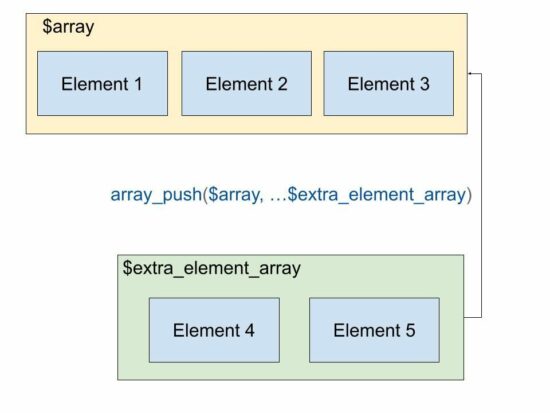
How to add an array of elements to a target array using array_push()

This example uses the PHP array_push() function to push an array of elements into a target array.

<?php
$animalsArray = array( "Lion", "Tiger"
);
$anotherArray = array( "Elephant", "Crocodile"
); array_push($animalsArray, ...$anotherArray);
print_r($animalsArray);
// this method adds elements from two arrays sequentially into the target array
// this is similar to merge
?>

Output:

Array ( [0] => Lion [1] => Tiger [2] => Elephant [3] => Crocodile )

The alternate method to array_push

The array_push function is useful if there is a requirement to push elements later after the alignment.

If you want to push the elements at an assignment level the following code shows the way to do it.

If you want to merge JSON array or object using PHP the linked article will be helpful.

<?php
// alternate to use array_push when you have a key value
// add elements as key value via index
$animalsArray['a1'] = 'Lion';
$animalsArray['a2'] = 'Tiger';
$animalsArray['a3'] = 'Elephant';
$animalsArray['a4'] = 'Horse';
print_r($animalsArray);
?>

Output:

Array ( [a1] => Lion [a2] => Tiger [a3] => Elephant [a4] => Horse )

Pushing elements into an array in a loop without using array_push

This code is the same as above but with a PHP for a loop. It pushes only the value to the array variable with a square bracket.

The output will have the array with a numerical key.

<?php
// another alternate to array_push
// add elements to an array with just []
$array = array();
for ($i = 1; $i <= 10; $i ++) { $array[] = $i;
}
print_r($array);
?>

If you want to push the key-value pair to form an associative array with a loop, the following code will be helpful.

Output:

Array ( [0] => 1 [1] => 2 [2] => 3 [3] => 4 [4] => 5 [5] => 6 [6] => 7 [7] => 8 [8] => 9 [9] => 10 )

Adding elements into an array using PHP array_merge()

The array_merge() and the array_push($array, …$array_sequence) gives same output.

It merges two array variables and results in a consolidated element array. If you want to merge JSON array or object in PHP the linked article has the code.

<?php
$animalsArray = array( "Lion", "Tiger"
);
$moreAnimalsArray = array( "Elephant", "Horse"
);
// to add elements in an array from existing arrays
$array = array_merge($animalsArray, $moreAnimalsArray);
print_r($array);
?>

Output:

Array ( [0] => Lion [1] => Tiger [2] => Elephant [3] => Horse )

PHP function to add elements to the beginning of an array

PHP also contains functions to add elements to an array at the beginning of an array. The array_unshift() function is used for this. See the following code that adds elements to an array using array_shift().

<?php
$animalsArray = array( "Lion", "Tiger"
);
array_unshift($animalsArray, "Elephant", "Horse");
print_r($animalsArray);
?>

Output:

Array ( [0] => Elephant [1] => Horse [2] => Lion [3] => Tiger )

Download

↑ Back to Top

Posted on Leave a comment

Hex String to Hex Integer in Python

5/5 – (1 vote)

💬 Question: Given a hexadecimal string such as '0xf' in Python. How to convert it to a hexadecimal number in Python so that you can perform arithmetic operations such as addition and subtraction?

The hexadecimal string representation with the '0x' prefix indicates that the digits of the numbers do have a hexadecimal base 16.

In this article, I’ll show you how to do some basic conversion and arithmetic computations using the hexadecimal format. So, let’s get started! 👇

Convert Hex to Decimal using int()

You can convert any hexadecimal string to a decimal number using the int() function with the base=16 argument. For example, '0xf' can be converted to a decimal number using int('0xf', base=16) or simply int('0xf', 16).

>>> int('0xf', base=16)
15
>>> int('0xf', 16)
15

Hexadecimal Number to Integer Without Quotes

Note that you can also write the hexadecimal number without the string quotes like so:

>>> 0xf
15

The 0x prefix already indicates that it is a hexadecimal number.

Using the eval() Function

That’s why an alternative way to convert a hexadecimal string to a numerical value (integer, base 10) is to use the eval('0xf') function like so:

>>> eval('0xf')
15

However, I wouldn’t recommend it over the int() function as the eval() function is known to be a bit tricky and poses some security risks.

Hex Arithmetic Operators

You can simply add or subtract two hexadecimal numbers in Python by using the normal + and - operators:

>>> 0xf + 0x1
16
>>> 0xf - 0xa
5
>>> 0x1 + 0x1
2

The result is always shown in decimal values, i.e., with base=10.

You can display the result with base=16 by converting it back to a hexadecimal format using the hex() built-in function. For example, the expression hex(0x1 + 0x1) yields the hexadecimal string representation '0x2'.

YouTube Video

Here are a couple of examples:

>>> hex(0x1 + 0x1) '0x2'
>>> hex(0xf + 0xf) '0x1e'
>>> hex(0xf * 16) '0xf0'

In the last line, you multiply with the base 16 which essentially shifts the whole number one digit and inserts a 0 digit at the right—much like multiplying with base 10 in a decimal system.

Adding Two Hex Strings

In the following example, you add together two hex strings '0xf' and '0xf'—both representing the decimal 15 so the result is decimal 30:

>>> int('0xf', 16) + int('0xf', 16)
30

If you need the result as a hex string, you can pass the whole computation into the hex() built-in function to obtain a hexadecimal representation of the decimal 30:

>>> hex(int('0xf', 16) + int('0xf', 16)) '0x1e'

Subtracting and Multiplying Two Hex Strings

You can also subtract or multiply two hex strings by converting them to integers from their base 16 representations using int(hex_str, 16), doing the computation in the decimal system using the normal - and * operators, and converting back to hexadecimal strings using the hex() function on the result.

See here:

>>> h1 = '0xf'
>>> h2 = '0x1'
>>> h1_int = int(h1, 16)
>>> h2_int = int(h2, 16)
>>> hex(h1_int - h2_int) '0xe'
>>> hex(h1_int * h2_int) '0xf'

Printing Hex String without Prefix ‘0x’

To print the hexadecimal string such as '0xffffff' without the '0x' prefix, you can simply use slicing hex_string[2:] starting from the third character and slice all the way to the right.

A minimal example:

>>> hex_string = '0xfffffff'
>>> hex_string[2:] 'fffffff'

Where to Go From Here?

Thanks for reading through the whole article, I’d love to see you around more often in the Finxter community to learn and improve your coding skills. ❤

If you also want to learn, join our free email academy and download our cheat sheets here:

Posted on Leave a comment

Python | Split String at Position

Rate this post

Summary: You can split a given string at a specific position/index using Python’s stringslicing syntax.

Minimal Example:

# Method 1:
s = "split string at position"
print(s[:12])
print(s[13:]) # Method 2:
import re
s = "split string at position"
pos = re.search('at', s)
l = s[:pos.start()]
r = s[pos.start():]
print(l)
print(r) # OUTPUT:
split string
at position

Problem Formulation

💬Problem: Given a string, how will you split the given string at any given position?

Let’s have a look at a couple of examples that demonstrate what the problem asks you to do:

Example 1

The following problem requires us to split the string into two parts. You have to cut the given string into two halves based on a certain index/position. The given cut position/index is 12.

# Input
s = "split string at position"
# Output
split string
at position

Example 2

The following problem asks us to split the string based on the position of a certain character (“,”) and a word (“or”) present in the string. Thus, in this case, you have not been given the exact position or index to split the string. Instead, you have to find the index/position of certain characters and then split the string accordingly based on the positions of the given characters and words and store the required sub-strings in different variables.

# Input
text = "Bob is the Relationship Manager, contact him at bob@xyz.abc or call him at 6546 "
# Output:
Personnel: Bob is the Relationship Manager
Email: contact him at bob@xyz.abc
Contact Info: call him at 6546

Now, let’s dive into the different ways of solving this problem.

Method 1: Using String Slicing

String slicing is the concept of carving a substring from a given string. Use slicing notation s[start :stop: step] to access every step-th element starting from index start (included) and ending in index stop (excluded). All three arguments are optional, so you can skip them to use the default values (start = 0, stop = len(string), step = 1.)

🌎 Related Tutorial: String Slicing in Python.

Example 1 Solution

Approach: Use string slicing to cut the given string at the required position. To do this, you have to use the square-bracket syntax within which you can specify the starting and ending indices to carve out the required sub-strings as shown in the solution below.

Code:

s = "split string at position"
print(s[:12])
print(s[13:])

Output:

split string
at position

Example 2 Solution

Approach: Use the index() method of the given character, i.e., “,” and the substring “or” within the given string. Then use this index to extract the required chunks of substrings by splitting the given string with the help of string slicing.

Code:

text = "Bob is the Relationship Manager, contact him at bob@xyz.abc or call him at 6546 "
# get the position of characters where you want to split the string
pos_comma = text.index(',')
pos_or = text.index('or')
# Slice the string based on the position of comma
personnel, email, phone = text[:pos_comma], text[pos_comma+1:pos_or], text[pos_or+2:]
print(f'Personnel: {personnel}\nEmail: {email}\nContact Info: {phone}')

Output:

Personnel: Bob is the Relationship Manager
Email: contact him at bob@xyz.abc Contact Info: call him at 6546 

Note: The index() method allows you to find the index of the first occurrence of a substring within a given string. You can learn more about Python’s index() method here: Python String index().

Method 2: Using regex

If a regular expression matches a part of your string, a lot of helpful information comes with it, for example, you can find out what’s the exact position of the match. The re.search(pattern, string) method is used to match the first occurrence of a specified pattern in the string and returns a match object. Thus, you can use it to solve the given problem.

🌎 Related read: Python Regex Search

Pre-requisite: match_object.start() is a method used to get the position of the first character of the match object and match_object.end() is the method to get the last character of the match object.

A Quick Look at The Official Documentation:

source: https://docs.python.org/3/library/re.html#re.Match.start

Example 1 Solution

Approach:

  • Import the regex module and then create a match object by using the re.search() method. You can do this by passing the substring/character that lies at the given split index/position. In this case, the substring that lies at the split index is “at“.
  • We can then split the string by accessing the start position of the matched string object by calling the method pos.start() where pos denotes the matched object. 
  • Then to get the first half of the split string, you can use string slicing as s[:pos.start()]. Here, we sliced the original string from the start index of the given string until the index of the searched character (not included) that was extracted in the previous step.
  • Further, we need the second section of the split string. Thus, we will now slice the original string from the index of the searched character to the end of the string, like so: s[pos.start():]

Code:

import re s = "split string at position"
pos = re.search('at', s)
l = s[:pos.start()]
r = s[pos.start():]
print(l)
print(r)

Output:

split string
at position

Example 2 Solution

The idea is pretty similar to the solution of example 1. You just need to adjust the start and stop indices within the slice syntax with the help of the start() and end() methods to extract the required split sub-strings one by one.

Code:

import re
text = "Bob is the Relationship Manager, contact him at bob@xyz.abc or call him at 6546"
# Look for the match objects
_comma = re.search(',', text)
_or = re.search('or', text)
# slice to get first substring
personnel = text[:_comma.start()]
# slice to get second substring
email = text[_comma.end()+1:_or.start()]
# slice to get third substring
phone = text[_or.end():]
# Final Output
print(f'Personnel: {personnel}\nEmail: {email}\nContact Info: {phone}')

Output:

Personnel: Bob is the Relationship Manager
Email: contact him at bob@xyz.abc or
Contact Info: call him at 6546

Conclusion

Woohoo! We have successfully solved splitting a string at the position using two different ways. I hope you enjoyed this article and it helps you in your coding journey. Please subscribe and stay tuned for more such interesting articles!

Related Reads:
⦿ Python | Split String by Whitespace
⦿
 How To Cut A String In Python?
⦿ Python | Split String into Characters


Google, Facebook, and Amazon engineers are regular expression masters. If you want to become one as well, check out our new book: The Smartest Way to Learn Python Regex (Amazon Kindle/Print, opens in new tab).

Posted on Leave a comment

Convert JSON to Array in PHP with Online Demo

by Vincy. Last modified on October 27th, 2022.

This tutorial covers the basic details of the PHP json_encode function. It gives examples of decoding JSON string input to a PHP array.

It also describes this PHP JSON function‘s conventions, rules and limitations. First, let’s see a quick example of converting JSON to an array.

Convert JSON to PHP Array

This example has a JSON string that maps the animal with its count. The output of converting this JSON will return an associative array.

It uses PHP json_decode() with boolean true as its second parameter. With these decoding params, the JSON will be converted into a PHP array.

Quick example

<?php
// JSON string in PHP Array
$jsonString = '{"Lion":101,"Tiger":102,"Crocodile":103,"Elephant":104}';
$phpArray = json_decode($jsonString, true); // display the converted PHP array
var_dump($phpArray);
?>

Output

array(4) { ["Lion"]=> int(101) ["Tiger"]=> int(102) ["Crocodile"]=> int(103) ["Elephant"]=> int(104)
}

See this online demo to get the converted array result from a JSON input.
View demo

See the diagram that shows the input JSON string and the output stdClass object of the JSON decoding. In the previous article, we have seen examples of the reverse operation that is converting a PHP array to a JSON string.
php json to array

PHP json_decode()

This native PHP function decodes the JSON string into a parsable object tree or an array. This is the syntax of this function.

json_decode( string $json, ?bool $associative = null, int $depth = 512, int $flags = 0
): mixed
  1. $json – Input JSON string.
  2. $associative – a boolean based on which the output format varies between an associative array and a stdClass object.
  3. $depth – the allowed nesting limit.
  4. $flag – Predefine constants to enable features like exception handling during the JSON to array convert.

You can find more about this function in the official documentation online.

Convert JSON to PHP Object

This program has a minute change of not setting the boolean flag to the PHP json_decode function. This will return a PHP stdClass object tree instead of an array.

<?php
// JSON string in PHP Array
$jsonString = '{"name":"Lion"}'; $phpObject = json_decode($jsonString);
print $phpObject->name;
?>

Output

Lion

Common mistakes during conversion from JSON to Array

The following JSON string is a valid JSON object in JavaScript, but not here in PHP. The issue is the single quote. It should be changed to a double quote.

If you want to see the JavaScript example to read and display JSON data the linked article has the code.

<?php
// 1. key and value should be within double quotes
$notValidJson = "{ 'lion': 'animal' }";
json_decode($notValidJson); // will return null // 2. without a quote is also not allowed
$notValidJson = '{ lion: "animal" }';
json_decode($notValidJson); // will return null // 3. should not have a comma at the end
$notValidJson = '{ "lion": "animal", }';
json_decode($notValidJson); // will return null
?>

How to convert JSON with large integers

This can be achieved by setting the bitmask parameter of the predefined JSON constants.

The JSON_BIGINT_AS_STRING constant is used to convert JSON with data having large integers.

<?php
$jsonString = '{"largeNumber": 12345678901234567890123}'; var_dump(json_decode($jsonString, false, 512, JSON_BIGINT_AS_STRING));
?>

Output

object(stdClass)#1 (1) { ["number"]=> string(20) "12345678901234567890123"
}

How to get errors when using json_decode

The function json_last_error() is used to return details about the last error occurrence. The following example handles the possible error cases of this PHP JSON function.

<?php
$jsonString = '{"Lion":101,"Tiger":102,"Crocodile":103,"Elephant":104}';
json_decode($jsonString); switch (json_last_error()) { case JSON_ERROR_DEPTH: echo 'Error: Nesting limit exceeded.'; break; case JSON_ERROR_STATE_MISMATCH: echo 'Error: Modes mismatch.'; break; case JSON_ERROR_CTRL_CHAR: echo 'Error: Unexpected character found.'; break; case JSON_ERROR_SYNTAX: echo 'Error: Syntax error, invalid JSON.'; break; case JSON_ERROR_UTF8: echo 'Error: UTF-8 characters incorrect encoding.'; break; default: echo 'Unexpected error.'; break;
}
?>

SURPRISE! JSON to Array and Array to JSON conversion is not symmetrical

<?php $jsonString = '{"0": "No", "1": "Yes"}'; // convert json to an associative array $array = json_decode($jsonString, true); print json_encode($array) . PHP_EOL;
?>

Output

["No","Yes"]

The PHP object is now changed to a PHP array. You may not expect it.

Encode -> Decode -> Encode

The above will not return the data to its original form.

The output of decoding to PHP arrays and encoding from PHP arrays are not always symmetrical. But, the output of decoding from stdClass objects and encoding to stdClass objects are always symmetrical.

So if you have plans to do cyclical conversion between the PHP array and a JSON string, then first convert the PHP array to an object. The convert the JSON.

View demo

↑ Back to Top

Posted on Leave a comment

6 Ways to Remove Python List Elements

5/5 – (2 votes)

Problem Formulation and Solution Overview

This article will show you how 6 ways to remove List elements in Python.

To make it more interesting, we have the following running scenario:

Suppose you have a Christmas List containing everyone to buy a gift for. Once a gift is purchased, remove this person from the List. Once all gifts have been purchased, remove the entire List.

xmas_list = ['Anna', 'Elin', 'Inger', 'Asa', 'Sofie', 'Gunnel', 'Linn']

💬 Question: How would we write code to remove items from a Python List?

We can accomplish this task by one of the following options:


Method 1: Use the del Keyword

This method uses Python’s del Keyword and highlights its ability to remove one List element and all List elements.

Remove One List Element

In this scenario, Asa's gift has been purchased and will be removed from the List.

xmas_list = ['Anna', 'Elin', 'Inger', 'Asa', 'Sofie', 'Gunnel', 'Linn']
del xmas_list[3]
print(xmas_list)

As shown on the highlighted line, Asa is removed from the List by using del, referencing xmas_list and specifying Asa’s location ([3]).

When xmas_list is output to the terminal, the following displays.

['Anna', 'Elin', 'Inger', 'Sofie', 'Gunnel', 'Linn']

Remove All List Elements

In this scenario, all gifts have been purchased, and all List elements will be removed.

xmas_list = ['Anna', 'Elin', 'Inger', 'Asa', 'Sofie', 'Gunnel', 'Linn']
del xmas_list
print(xmas_list)

As shown on the highlighted line, all elements of xmas_list are removed by using del and referencing xmas_list.

When xmas_list is output to the terminal, the following error is generated.

NameError: name 'xmas_list' is not defined

💡Note: This error is generated because the variable xmas_list no longer exists in memory.

YouTube Video

Method 2: Use remove() and a For Loop

This example uses the remove() function in conjunction with a for loop to remove one List element and all List elements.

Remove One List Element

In this scenario, Elin's gift has been purchased and will be removed from the List.

xmas_list = ['Anna', 'Elin', 'Inger', 'Asa', 'Sofie', 'Gunnel', 'Linn']
xmas_list.remove('Elin')
print(xmas_list)

As shown on the highlighted line, Elin is removed from the List using the remove() function and passing Elin’s name as an argument.

When xmas_list is output to the terminal, the following displays.

['Anna', 'Inger', 'Asa', 'Sofie', 'Gunnel', 'Linn']

Remove All List Elements

In this scenario, all gifts have been purchased, and all List elements will be removed.

xmas_list = ['Anna', 'Elin', 'Inger', 'Asa', 'Sofie', 'Gunnel', 'Linn']
for item in xmas_list.copy(): xmas_list.remove(item)
print(xmas_list)

As shown on the first highlighted line, a for loop is instantiated. This loop declares a shallow copy of the List to iterate.

On each iteration, the remove() function is called and passed the current name in xmas_list as an argument (see below) and removed.

For example:

Anna
Elin
Inger
Asa
Sofie
Gunnel
Linn

When xmas_list is output to the terminal, an empty List displays.

[]

💡Note: A shallow copy creates a reference to the original List. For further details, view the video below.

YouTube Video

Method 3: Use slicing

This method uses slicing to remove one List element and all List elements.

Remove One List Element

In this scenario, Anna's gift has been purchased and will be removed from the List.

xmas_list = ['Anna', 'Elin', 'Inger', 'Asa', 'Sofie', 'Gunnel', 'Linn']
xmas_list = xmas_list[1:]
print(xmas_list)

As shown on the highlighted line, Anna is removed from the List using slicing.

When xmas_list is output to the terminal, the following displays.

['Elin', 'Inger', 'Asa', 'Sofie', 'Gunnel', 'Linn']

Remove All List Elements

In this scenario, all gifts have been purchased, and all List elements will be removed.

xmas_list = ['Anna', 'Elin', 'Inger', 'Asa', 'Sofie', 'Gunnel', 'Linn']
xmas_list = []
print(xmas_list)

As shown on the highlighted line, all List elements are removed by declaring an empty List.

When xmas_list is output to the terminal, an empty List displays.

[]
YouTube Video

Method 4: Use pop()

This method uses the pop() function to remove one List element and all List elements.

Remove One List Element

In this scenario, Linn's gift has been purchased and will be removed from the List.

xmas_list = ['Anna', 'Elin', 'Inger', 'Asa', 'Sofie', 'Gunnel', 'Linn']
xmas_list.pop()
xmas_list.pop(2)
print(xmas_list)

As shown on the first highlighted line, the pop() method is appended to the xmas_list. This lets Python know to remove a List element from said List. Since no element is specified, the last element is removed (Linn).

On the second highlighted line, the pop() method is appended to the xmas_list and passed one (1) argument: the element to remove (2). This action removes Inger.

When xmas_list is output to the terminal, the following displays.

['Anna', 'Elin', 'Asa', 'Sofie', 'Gunnel']

💡Note: Both Linn and Inger are no longer in xmas_list.

Remove All List Elements

In this scenario, all gifts have been purchased, and all List elements will be removed.

xmas_list = ['Anna', 'Elin', 'Inger', 'Asa', 'Sofie', 'Gunnel', 'Linn'] for i in xmas_list.copy(): xmas_list.pop()
print(xmas_list)

As shown on the first highlighted line, a for loop is instantiated. This loop declares a shallow copy of the List to iterate.

On each iteration, the pop() method is called. Since no argument is passed, the last element is removed.

When xmas_list is output to the terminal, an empty List displays.

[]
YouTube Video

Method 5: Use List Comprehension

This method uses List Comprehension to remove all List elements that do not meet the specified criteria.

Remove One List Element

In this scenario, Gunnel's gift has been purchased and will be removed from the List.

xmas_list = ['Anna', 'Elin', 'Inger', 'Asa', 'Sofie', 'Gunnel', 'Linn']
xmas_list = [value for value in xmas_list if value != 'Gunnel']
print(xmas_list)

When xmas_list is output to the terminal, the following displays.

['Anna', 'Elin', 'Inger', 'Asa', 'Sofie', 'Linn']

💡Note: To remove all List elements, pass it empty brackets as shown follows: (xmas_list = []).

YouTube Video

Method 6: Use clear()

This method uses clear() to remove all List elements.

In this scenario, all gifts have been purchased, and all List elements will be removed.

xmas_list = ['Anna', 'Elin', 'Inger', 'Asa', 'Sofie', 'Gunnel', 'Linn']
xmas_list.clear()
print(xmas_list)

As shown on the highlighted line, all List elements are removed by appending the clear() function to xmas_list.

When xmas_list is output to the terminal, an empty List displays.

[]
YouTube Video

Summary

This article has provided six (6) ways to remove List elements to select the best fit for your coding requirements.

Good Luck & Happy Coding!


Programming Humor

💡 Programming is 10% science, 20% ingenuity, and 70% getting the ingenuity to work with the science.

~~~

  • Question: Why do Java programmers wear glasses?
  • Answer: Because they cannot C# …!

Feel free to check out our blog article with more coding jokes. 😉

Posted on Leave a comment

Convert JavaScript Object to JSON String

by Vincy. Last modified on October 26th, 2022.

JSON string conversion on the client and server side is an important requirement in data handling. Most programming languages contain native functions for handling JSON objects and string data.

The JSON format is a convenient way of structuring, transmitting, or logging hierarchical data. The JSON string is a bundled unit to transmit object properties over the API terminals.

In this tutorial, we will see how to convert a JavaScript object to a JSON string. The JSON.stringify() of the JS script is used to do this. This is a quick solution for converting the given JS object to a JSON.

Quick example

var jsObject = { "name": "Lion", "type": "wild"
};
var jsonString = JSON.stringify(jsObject)
console.log(jsonString);

Output

{"name":"Lion","type":"wild"}

javascript object to string

About JavaScript JSON.stringify()

The JSON.stringify() method accepts 3 parameters to convert JavaScript objects into JSON string. See the syntax and the possible parameters of this JavaScript method.

Syntax

JSON.stringify(value)
JSON.stringify(value, replacer)
JSON.stringify(value, replacer, space)

The replacer and space parameters are optional.

  • value – The JS object to be converted to a JSON string.
  • replacer – a  function or an array of specifications to convert JavaScript objects.
  • space – It is a specification used to format or prettify the output JSON.

The JSON.stringify() method can also accept JavaScript arrays to convert into JSON strings.

How to get a formatted JSON string from a JavaScript object

This example supplies the “space” parameter to the JSON.stringify method. This parameter helped to format the JSON string as shown in the output below the program.

When we see the PHP array to JSON conversion example, it used the PHP bitmask parameter to achieve prettyprinting of JSON output.

var jsObject = { "name": "Lion", "type": "wild"
}; // this is to convert a JS object to a formatted JSON string
var formattedJSON = JSON.stringify(jsObject, null, 2);
console.log(formattedJSON);

Output

{ "name": "Lion", "type": "wild"
}

How to store JSON string to a JavaScript localStorage

The localStorage is a mechanism to have persistent data or state on the client side. It accepts string data to be stored with a reference of a user-defined key.

In this example, we used this storage tool to keep the JSON string of cart session data.

This code pushes two records to the cart array. Then, it converts the array into the JSON string to put it into the localStorage.

Note: JSON.stringify() can also accepts array to convert into a JSON string.

We have already used this storage mechanism to create a JavaScript persistent shopping cart.

const cart = { cartItem: []
};
cart.cartItem.push({ product: "Watch", quantity: 3, unitPrice: 100 });
cart.cartItem.push({ product: "Smart Phone", quantity: 5, unitPrice: 600 }); // use case for converting JS object to a JSON string
// convert object to JSON string before storing in local storage
const cartJSONString = JSON.stringify(cart); localStorage.setItem("cartSession", JSON.stringify(cartJSONString)); // retrieving from local storage
let cartFromStorage = localStorage.getItem("cartSession");
const getCartItemFromSession = JSON.parse(cartFromStorage); console.log(getCartItemFromSession);

Output

{ "cartItem": [ {"product":"Watch","quantity":3,"unitPrice":100}, {"product":"Smart Phone","quantity":5,"unitPrice":600} ]
}

How dates in the JavaScript object behave during JSON stringify

The JSON.stringify() function converts the JavaScript Date object into an equivalent date string as shown in the output.

The code instantiates the JavaScript Date() class to set the current date to a JS object property.

// when you convert a JS object to JSON string, date gets automatically converted
// to equivalent string form
var jsObject = { "name": "Lion", "type": "wild", today: new Date()
};
const jsonString = JSON.stringify(jsObject);
console.log(jsonString);

Output

{"name":"Lion","type":"wild","today":"2022-10-23T10:58:55.791Z"}

How JSON stringify converts the JavaScript objects with functions

If the JS object contains functions as a value of a property, the JSON.stringify will omit the function. Then, it will return nothing for that particular property.

The resultant JSON string will have the rest of the properties that have valid mapping.

// when you convert a JS object to JSON string, // functions in JS object is removed by JSON.stringify var jsObject = { "name": "Lion", "type": "wild", age: function() { return 10; }
};
const jsonString = JSON.stringify(jsObject);
console.log(jsonString);

Output

{"name":"Lion","type":"wild"}

JavaScript toString() limitations over JSON.stringify: 

If the input JavaScript object contains a single or with a predictable structure, toString() can achieve this conversion.

It is done by iterating the JS object array and applying stringification on each iteration. Example,

let jsonString = { 'name': 'Lion', type: 'wild', toString() { return '{name: "${this.name}", age: ${this.type}}'; }
};
console.log(jsonString);

But, it is not an efficient way that has the probability of missing some properties during the iteration.

Why and how to convert the JSON string into a JSON object

The JSON string is a comfortable format during data transmission and data logging. Other than that it must be in a format of an object tree to parse, read from, and write to the JSON.

The JSON.parse() method is used to convert JSON String to a JSON Object. A JSON object will look like a JS object only. See the following comparison between a JS object and a JSON object.

//JavaScript object
const jsObject = { 'animal-name': 'Lion', animalType: 'wild', endangered: false
} //JSON object
{ "animal-name": "Lion", "animalType": "wild", "endangered": false
}

Download

↑ Back to Top

Posted on Leave a comment

Python | Split String by Whitespace

Rate this post

Summary: Use "given string".split() to split the given string by whitespace and store each word as an individual item in a list.
Minimal Example:
print("Welcome Finxter".split())
# OUTPUT: [‘Welcome’, ‘Finxter’]

Problem Formulation

Problem: Given a string, How will you split the string into a list of words using whitespace as a separator/delimiter?

Let’s understand the problem with the help of a few examples:

Example 1:
Input: text = “Welcome to the world of Python”
Explanation: Split the string into a list of words using a space ” ” as the delimiter to separate the words from the given string.
Output:
[‘Welcome’, ‘to’, ‘the’, ‘world’, ‘of’, ‘Python’]

Example 2:
Input:
text = “””Item_1
Item_2
Item_3″””
print(text.split(‘\n’))
Explanation: Split the string into a list of words using a newline “\n” as the delimiter to separate the words from the given string.
Output: [‘Item_1’, ‘Item_2’, ‘Item_3’]

Example 3:
text = “This is just a random text:\n New Line”
Explanation: The given string contains a combination of whitespaces between the words, such as space, multiple-spaces, a tab and a new line character. All of these whitespace characters have to be considered as delimiters while separating the words from the given string and storing them as items in a list. Here’s how the output looks:
Output:
[‘This’, ‘is’, ‘just’, ‘a’, ‘random’, ‘text:’, ‘New’, ‘Line’]

So, we have two situations at hand. One, that has a single whitespace used as a delimiter and another that has multiple whitespace characters as delimiters in the same string. Let’s dive into the numerous ways of solving this problem.

Method 1: Using split()

split() is a built-in method in Python which splits the string at a given separator and returns a split list of substrings. Here’s a minimal example that demonstrates how the split function works – finxterx42'.split('x') will split the string with the character ‘x’ as the delimiter and return the following list as an output: ['fin', 'ter', '42']. The default separator, i.e., when no value is passed to the split function is considered as any whitespace character, i.e., it will take into account any whitespace such as ‘\n’, ” “, ‘\t’, etc.

Read more about the split() method in this blog tutorial: Python String split().

Approach: Thus to split a string based on a given whitespace delimiter, you can simply pass the specific whitespace character as a separator/delimiter to the split('whitespace_character') function.

Code:

# Example 1:
text = "Welcome to the world of Python"
print(text.split(' '))
# OUTPUT: ['Welcome', 'to', 'the', 'world', 'of', 'Python'] # Example 2:
text = """Item 1
Item 2
Item 3"""
print(text.split('\n'))
# OUTPUT: ['Item_1', 'Item_2', 'Item_3'] # Example 3: text = "This is just a\trandom text:\nNew Line"
print(text.split()) # OUTPUT: ['This', 'is', 'just', 'a', 'random', 'text:', 'New', 'Line']

Note that to separate the words in the third example we did specify any separator within the split() function. This is because when you don’t specify the separator, then Python will automatically consider that any whitespace character that occurs within the given string is a separator.

Method 2: Using regex

Another extremely handy way of separating a string with whitespace characters as separators is to use the regex library.

Approach 1: Import the regex library and use its split method as re.split('\s+', text) where ‘\s+’ returns a match whenever the string contains one or more whitespace characters. Therefore, whenever any whitespace character is encountered, the string will be separated at that point.

Code:

import re
# Example 1:
text = "Welcome to the world of Python"
print(re.split('\s+', text))
# OUTPUT: ['Welcome', 'to', 'the', 'world', 'of', 'Python'] # Example 2:
text = """Item_1
Item_2
Item_3"""
print(re.split('\s+', text))
# OUTPUT: ['Item_1', 'Item_2', 'Item_3'] # Example 3:
text = "This is just a\trandom text:\nNew Line"
print(re.split('\s+', text))
# OUTPUT: ['This', 'is', 'just', 'a', 'random', 'text:', 'New', 'Line']

Related Tutorial: Python Regex Split

Approach 2: Another way of using the regex library to solve this question is to use the findall() method of the regex library. Import the regex library and use re.findall(r'\S+', text) where the expression returns all the characters/words in a list that do not contain any whitespace character. This essentially means that whenever Python finds and segregates a string that has no whitespace in it. As soon as a whitespace character is found it considers that as a breakpoint, therefore the next word that has a continuous sequence of characters without the presence of any whitespace character is taken into account.

Here’s a graphical representation of the above explanaton:

Code:

import re
# Example 1:
text = "Welcome to the world of Python"
print(re.findall(r'\S+', text))
# OUTPUT: ['Welcome', 'to', 'the', 'world', 'of', 'Python'] # Example 2:
text = """Item_1
Item_2
Item_3"""
print(re.findall(r'\S+', text))
# OUTPUT: ['Item_1', 'Item_2', 'Item_3'] # Example 3:
text = "This is just a random text:\n New Line"
print(re.findall(r'\S+', text))
# OUTPUT: ['This', 'is', 'just', 'a', 'random', 'text:', 'New', 'Line']

Related Tutorial: Python re.findall() – Everything You Need to Know

Do you want to master the regex superpower? Check out my new book The Smartest Way to Learn Regular Expressions in Python with the innovative 3-step approach for active learning: (1) study a book chapter, (2) solve a code puzzle, and (3) watch an educational chapter video.

Conclusion

We have successfully solved the given problem using different approaches. I hope you enjoyed this article and it helps you in your Python coding journey. Please subscribe and stay tuned for more interesting articles!

Related Reads:
⦿ How To Split A String And Keep The Separators?
⦿
 How To Cut A String In Python?
⦿ Python | Split String into Characters


Python Regex Course

Google engineers are regular expression masters. The Google search engine is a massive text-processing engine that extracts value from trillions of webpages.  

Facebook engineers are regular expression masters. Social networks like Facebook, WhatsApp, and Instagram connect humans via text messages

Amazon engineers are regular expression masters. Ecommerce giants ship products based on textual product descriptions.  Regular expressions ​rule the game ​when text processing ​meets computer science. 

If you want to become a regular expression master too, check out the most comprehensive Python regex course on the planet: