Posted on Leave a comment

AI-Powered MSBuild Investigation with the Microsoft Binlog MCP Server

MSBuild binary logs (.binlog files) contain a wealth of information about
your build — every property evaluation, target execution, task invocation,
error, and warning. But navigating that data manually can be overwhelming,
especially when you’re debugging a complex multi-project solution. What if your
AI coding assistant could do the investigation for you?

Today we’re introducing the Microsoft Binlog MCP Server, a
Model Context Protocol (MCP) server that
gives AI assistants like GitHub Copilot direct access to your build logs. It
parses .binlog files and exposes 15 specialized tools that enable AI-driven
build failure diagnosis, property tracing, performance analysis, and build
comparison — all through natural language conversation.

Why MCP for Build Logs?

The Model Context Protocol is an open
standard that lets AI assistants call external tools in a structured way. By
wrapping MSBuild binary log analysis in an MCP server, we give AI assistants
the ability to:

  • Investigate build failures by querying errors, warnings, and their full
    project/target/task context
  • Trace property origins to understand where a property got its value
  • Analyze performance bottlenecks by identifying the slowest projects,
    targets, and tasks
  • Compare two builds to spot differences in properties and packages
  • Read embedded source files captured during the build

Instead of manually scrolling through the
MSBuild Structured Log Viewer, you can simply ask
your AI assistant questions like “Why did my build fail?” or
“What’s making my build slow?”

15 Tools at Your AI Assistant’s Disposal

The Microsoft Binlog MCP Server provides tools organized into four
categories:

Build Investigation

Tool What It Does
binlog_overview Build status, duration, project count, error/warning counts
binlog_errors Build errors with full project, target, task, file, and line context
binlog_warnings Build warnings, filterable by warning code
binlog_search Full-text search using the StructuredLog Viewer search DSL
binlog_projects List all projects with build status and duration
binlog_properties MSBuild property values (curated defaults or filtered)
binlog_items MSBuild items like PackageReference, Compile, and more
binlog_imports Full import chain of .props and .targets files
binlog_explain_property Traces where a property gets its value — which file, target, or task set it

Embedded Files

Tool What It Does
binlog_files List or read source files captured during the build
binlog_search_files Search text across all embedded source files

Performance Analysis

Tool What It Does
binlog_expensive_projects Slowest projects by exclusive duration
binlog_expensive_targets Slowest targets across the entire build
binlog_expensive_tasks Slowest tasks across the entire build

Build Comparison

Tool What It Does
binlog_compare Diff two binlogs — compare properties, packages, and more

Getting Started

The easiest way to get started is through the
.NET Agent Skills repository. The
dotnet-msbuild plugin bundles the Microsoft Binlog MCP Server along with
curated skills and agents for MSBuild build investigation and optimization.
Pick the section below that matches your development environment.

Visual Studio

Visual Studio supports MCP servers through GitHub Copilot’s agent mode
(Visual Studio 17.14 or later). After installing the dotnet-msbuild
plugin, the Microsoft Binlog MCP Server is automatically discovered by
Copilot Chat in agent mode. Open the Copilot Chat window, switch to
Agent mode, and the binlog_* tools become available for any
conversation about a .binlog file in your solution.

Visual Studio Code

In VS Code, enable plugin support and add the marketplace to your
settings.json:

{ "chat.plugins.enabled": true, "chat.plugins.marketplaces": ["dotnet/skills"]
}

Then install the dotnet-msbuild plugin from the marketplace — the
Binlog MCP Server is configured automatically.

Prefer to wire up the MCP server directly? Add it to your
.vscode/mcp.json:

{ "servers": { "binlog-mcp": { "type": "stdio", "command": "dotnet", "args": ["tool", "run", "Microsoft.AITools.BinlogMcp"] } }
}

To pre-load a specific binlog at startup, pass the --binlog argument:

{ "servers": { "binlog-mcp": { "type": "stdio", "command": "dotnet", "args": ["tool", "run", "Microsoft.AITools.BinlogMcp", "--", "--binlog", "msbuild.binlog"] } }
}

Command Line (Copilot CLI / Claude Code)

For terminal-based AI assistants such as GitHub Copilot CLI or Claude
Code, install the plugin directly from the dotnet/skills marketplace:

/plugin marketplace add dotnet/skills
/plugin install dotnet-msbuild@dotnet-agent-skills

Restart your assistant and the binlog_* tools are ready to use. You can
verify they loaded with /skills.

Tip

To generate a binary log, add /bl to any
dotnet build, dotnet test, or dotnet pack command — for example:
dotnet build /bl.

Example: Diagnosing a Build Failure

Once the MCP server is running and your AI assistant has access to a
.binlog file, you can investigate build issues conversationally.

Here’s a typical workflow:

  1. Generate a binlog: Run dotnet build /bl to capture a binary log
  2. Ask your assistant: “My build failed. Can you investigate
    msbuild.binlog and tell me what went wrong?”
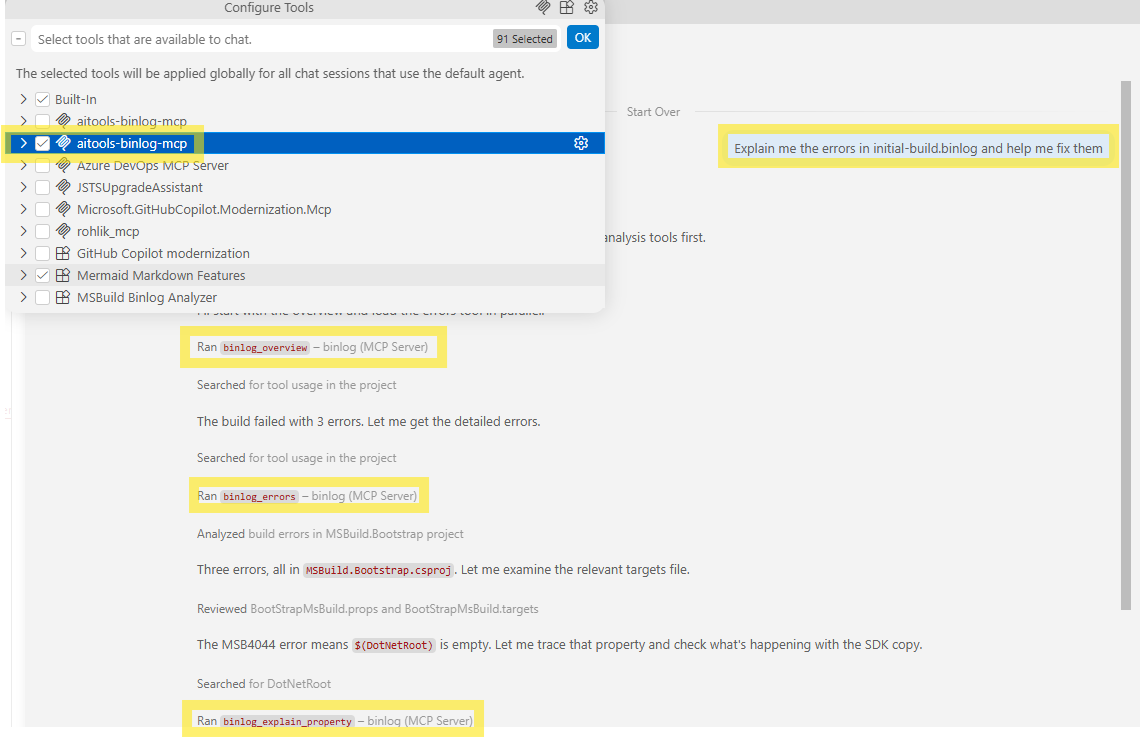
  3. The AI investigates: It calls binlog_overview to get the high-level
    status, then binlog_errors to retrieve the actual errors with full
    context, and may use binlog_explain_property or binlog_search to trace
    the root cause
  4. Get actionable guidance: The assistant synthesizes findings and suggests
    concrete fixes

For performance investigations, the AI uses the binlog_expensive_projects,
binlog_expensive_targets, and binlog_expensive_tasks tools to identify
bottlenecks and recommend optimizations.

The screenshot below shows this workflow in action inside VS Code.

GitHub Copilot in VS Code agent mode calling binlog MCP tools to diagnose an MSB4044 build failure

Try It Yourself: Compare Two Builds

Here’s a great way to take the MCP server for a spin right now. Pick a
repository you build regularly — your own product, or an open-source
project like dotnet/msbuild or
microsoft/testfx — and capture
two binary logs from different versions or configurations:

# Build version A
git checkout main
dotnet build /bl:build-a.binlog # Build version B (a different branch, SDK, or configuration)
git checkout my-feature-branch
dotnet build /bl:build-b.binlog

Then ask your AI assistant:

“Compare build-a.binlog and build-b.binlog. What MSBuild properties
and package versions changed, and did any of those changes affect build
performance?”

Behind the scenes, the assistant calls binlog_compare to diff properties
and packages, then uses binlog_expensive_projects and
binlog_expensive_targets on both logs to correlate the changes with
timing differences — turning what used to be a tedious side-by-side log
comparison into a single conversation.

Built on StructuredLogger

Under the hood, the Microsoft Binlog MCP Server uses the
MSBuild Structured Log Viewer
library — the same engine that powers the popular MSBuild Structured Log Viewer
desktop app. The binlog_search tool supports the full
StructuredLog Viewer search DSL,
including node type filters ($error, $warning, $task, $target,
$project), hierarchical scoping with under(), and exact phrase matching
with quoted strings.

Telemetry

The server emits anonymous usage telemetry (tool name, latency, result size,
success/failure) to help us improve the product. It follows the standard .NET
SDK approach: on by default, single opt-out via the
DOTNET_CLI_TELEMETRY_OPTOUT environment variable.

export DOTNET_CLI_TELEMETRY_OPTOUT=1

No binlog content, file paths, or raw error messages are ever collected — only
filenames are HMAC-SHA256 hashed for correlation.

What’s Next

The Microsoft Binlog MCP Server is in preview and we’re actively improving
it. We’d love your feedback — please file issues in the
dotnet/skills repository.

If you’re working with MSBuild builds and using AI coding assistants, give it
a try. Let your AI do the heavy lifting of build investigation while you focus
on writing code.

Posted on Leave a comment

Modernize .NET Anywhere with GitHub Copilot

Modernizing a .NET application is rarely a single step. It requires understanding the current state of the codebase, evaluating dependencies, identifying potential breaking changes, and sequencing updates carefully.

Until recently, GitHub Copilot modernization for .NET ran primarily inside Visual Studio. That worked well for teams standardized on the IDE, but many teams build elsewhere. Some use VS Code. Some work directly from the terminal. Much of the coordination happens on GitHub, not in a single developer’s local environment.

The modernize-dotnet custom agent changes that. The same modernization workflow can now run across Visual Studio, VS Code, GitHub Copilot CLI, and GitHub. The intelligence behind the experience remains the same. What’s new is where it can run. You can modernize in the environment you already use instead of rerouting your workflow just to perform an upgrade.

The modernize-dotnet agent builds on the broader GitHub Copilot modernization platform, which follows an assess → plan → execute model. Workload-specific agents such as modernize-dotnet, modernize-java, and modernize-azure-dotnet guide applications toward their modernization goals, working together across code upgrades and cloud migration scenarios.

What the agent produces

Every modernization run generates three explicit artifacts in your repository: an assessment that surfaces scope and potential blockers, a proposed upgrade plan that sequences the work, and a set of upgrade tasks that apply the required code transformations.

Because these artifacts live alongside your code, teams can review, version, discuss, and modify them before execution begins. Instead of a one-shot upgrade attempt, modernization becomes traceable and deliberate.

GitHub Copilot CLI

For terminal-first engineers, GitHub Copilot CLI provides a natural entry point.

You can assess a repository, generate an upgrade plan, and run the upgrade without leaving the shell.

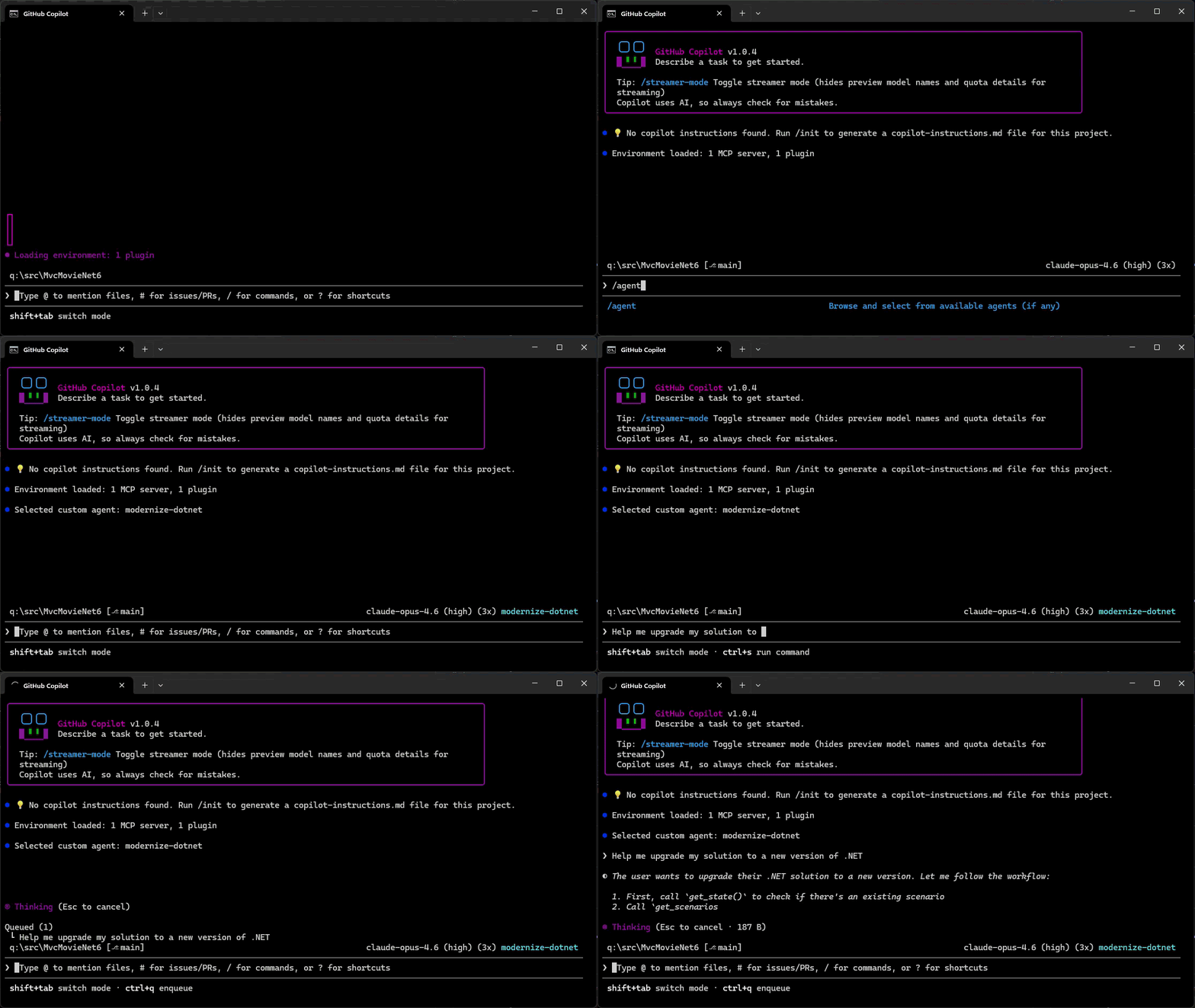
  1. Add the marketplace: /plugin marketplace add dotnet/modernize-dotnet
  2. Install the plugin: /plugin install modernize-dotnet@modernize-dotnet-plugins
  3. Select the agent: /agent to select modernize-dotnet
  4. Then prompt the agent, for example: upgrade my solution to a new version of .NET

Modernize .NET in GitHub Copilot CLI

The agent generates the assessment, upgrade plan, and upgrade tasks directly in the repository. You can review scope, validate sequencing, and approve transformations before execution. Once approved, the agent automatically executes the upgrade tasks directly from the CLI.

GitHub

On GitHub, the agent can be invoked directly within a repository. The generated artifacts live alongside your code, shifting modernization from a local exercise to a collaborative proposal. Instead of summarizing findings in meetings, teams review the plan and tasks where they already review code. Learn how to add custom coding agents to your repo, then add the modernize-dotnet agent by following the README in the modernize-dotnet repository.

VS Code

If you use VS Code, install the GitHub Copilot modernization extension and select modernize-dotnet from the Agent picker in Copilot Chat. Then prompt the agent with the upgrade you want to perform, for example: upgrade my project to .NET 10.

Visual Studio

If Visual Studio is your primary IDE, the structured modernization workflow remains fully integrated.

Right-click your solution or project in Solution Explorer and select the Modernize action to perform an upgrade.

Supported workloads

GitHub Copilot modernization supports upgrades across common .NET project types, including ASP.NET Core (MVC, Razor Pages, Web API), Blazor, Azure Functions, WPF, class libraries, and console applications.

Migration from .NET Framework to modern .NET is also supported for application types such as ASP.NET (MVC, Web API), Windows Forms, WPF, and Azure Functions, with Web Forms support coming soon.

The CLI and VS Code experiences are cross-platform. However, migrations from .NET Framework require Windows.

Custom skills

Skills are a standard part of GitHub Copilot’s agentic platform. They let teams define reusable, opinionated behaviors that agents apply consistently across workflows.

The modernize-dotnet agent supports custom skills, allowing organizations to encode internal frameworks, migration patterns, or architectural standards directly into the modernization workflow. Any skills added to the repository are automatically applied when the agent performs an upgrade.

You can learn more about how skills work and how to create them in the Copilot skills documentation.

Give it a try

Run the modernize-dotnet agent on a repository you’re planning to upgrade and explore the modernization workflow in the environment you already use.

If you try it, we’d love to hear how it goes. Share feedback or report issues in the modernize-dotnet repository.