Posted on Leave a comment

Video content creation with Kdenlive

Fedora Linux packages a suite of graphical software for content creators. This article introduces a use case and suggestions for creating tutorial videos with Kdenlive.

Plan tutorial

A question that you need to address is whether text and images are appropriate to share your knowledge. If you create resources for learners of graphical software, a tutorial video is something to consider.

Review abstract and draft script

An abstract in content writing helps reviewers look for key points of your tutorial. Depending on your workflow, you can submit this abstract to reviewers for comments, questions, or updates.

Once an abstract of the tutorial video is agreed upon by the reviewers, a video script is created and works like a manuscript for your tutorial. Break down process steps into each sequence. Check this link for an example.

Screen recording

Use your preferred recording tool that comes with the desktop environment or enable the ‘Screen Grab’ option in Kdenlive in the ‘View’ menu. Alternatively, you can install OBS Studio.

Kdenlive can process various container formats. You should transcode to a high-quality lossless matroska file (.mkv) that ensures high quality and compression ratio.

Installation

Kdenlive supports Linux, Mac, Windows and FreeBSD, which encourages collaboration among content creators. If you are Linux users, go to the packager manager of your distro to install Kdenlive. If you use Fedora Linux, we recommend the Fedora Linux RPM version or Flatpak.

Set up Kdenlive

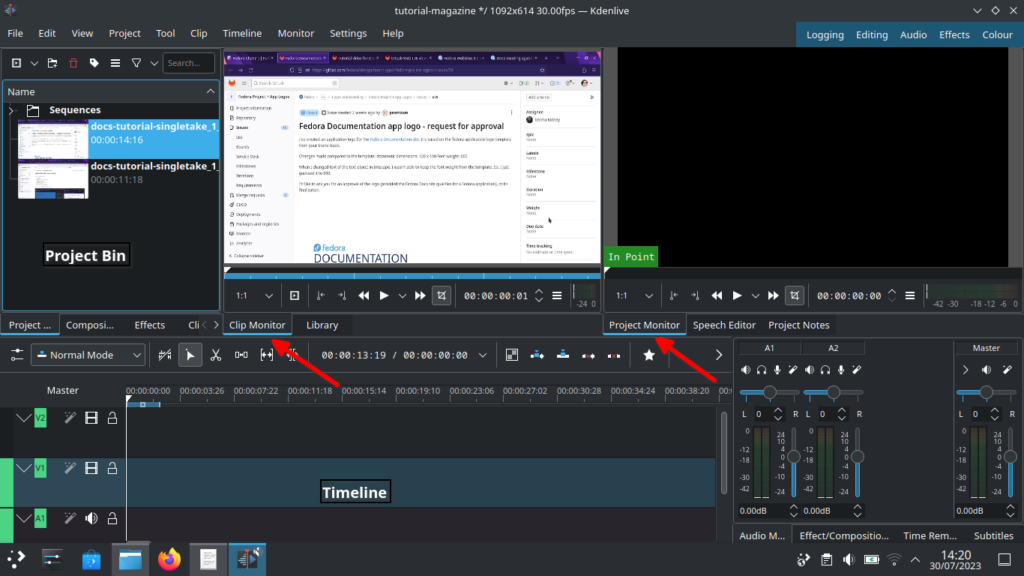
Let’s start with Kdenlive’s user interface and focus on three sections – Project bin, Monitors and Timeline.
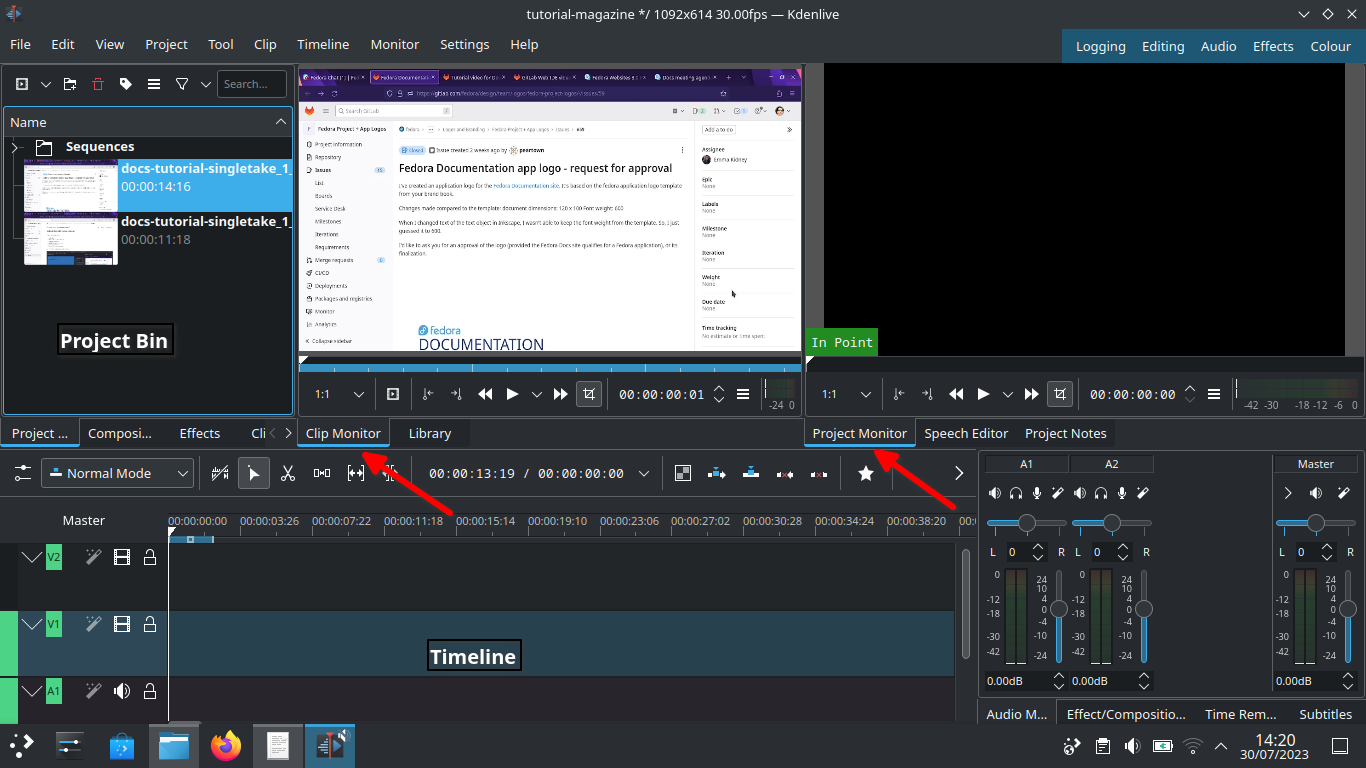
Kdenlive user interface

Project bin

Load video clips into Project Bin on the upper left. The Project Bin lists all the clips that are associated with your project. You can drag and drop the clips onto Project Bin.

Monitors

Clip Monitor on the left window displays the unedited clip that is currently selected in The Project Bin. If you have loaded multiple takes of the same scene (process steps), you need to know which one you’re going to choose and edit. If you changed your mind during editing processes, that’s no problem. You can move around a sequence with timeline and tracks after the initial cut.

The Project Monitor is a place to watch your edited footage.

Timeline

Timeline is a place for all selected clips you edit. Drag and drop the clips directly on to the Timeline from the Project Bin.

Editing processes

Cut and stitch

Timeline cursor, also known as playhead, indicates the position of clips you are working on and previewing in the Project Monitor.
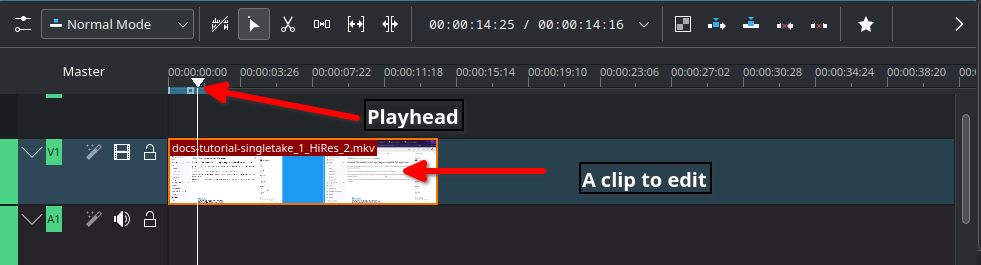
Timeline

The initial cut means editing on a scene by scene basis until you’re ready to stitch tracks together into a complete piece.

Cut when;
– Delayed, boring or repetitive part was recorded. This happens often when recording a scene for loading apps or waiting for rendering on web browser
– Transition pieces when a scene starts and ends
– Trim off a few frames before you tidy up
– Ensure basic continuity – let it flow!

In Timeline, video tracks (V2, V1) are cascaded up whereas audio tracks (A1, A2) are cascaded down as default.

Slide up trimmed video track and stitch frames you want to keep. Delete trimmed frames when you’re sure you don’t need them.
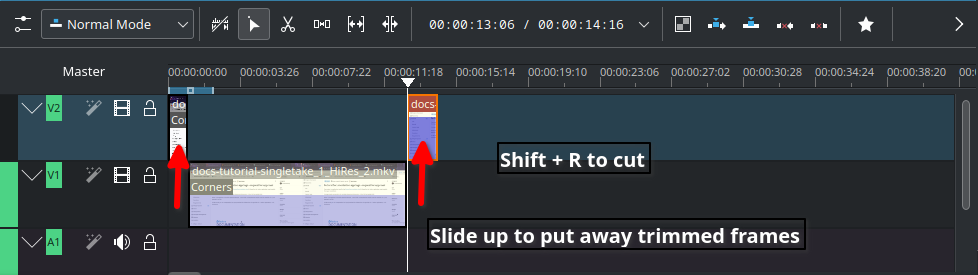
Cut

Timeline works like chef’s chopping board and takes time for new users to get familiar with it. Check the upstream documentation on this link.

Text effects with Titles

Titles are text elements that you can overlay to the timeline. To create Titles, right-click in the The Project Bin and open the Titles window as shown below. Select ‘Create Title’ to save it. Drag and drop the Title to the video track 2 in timeline. Check this link for more information.
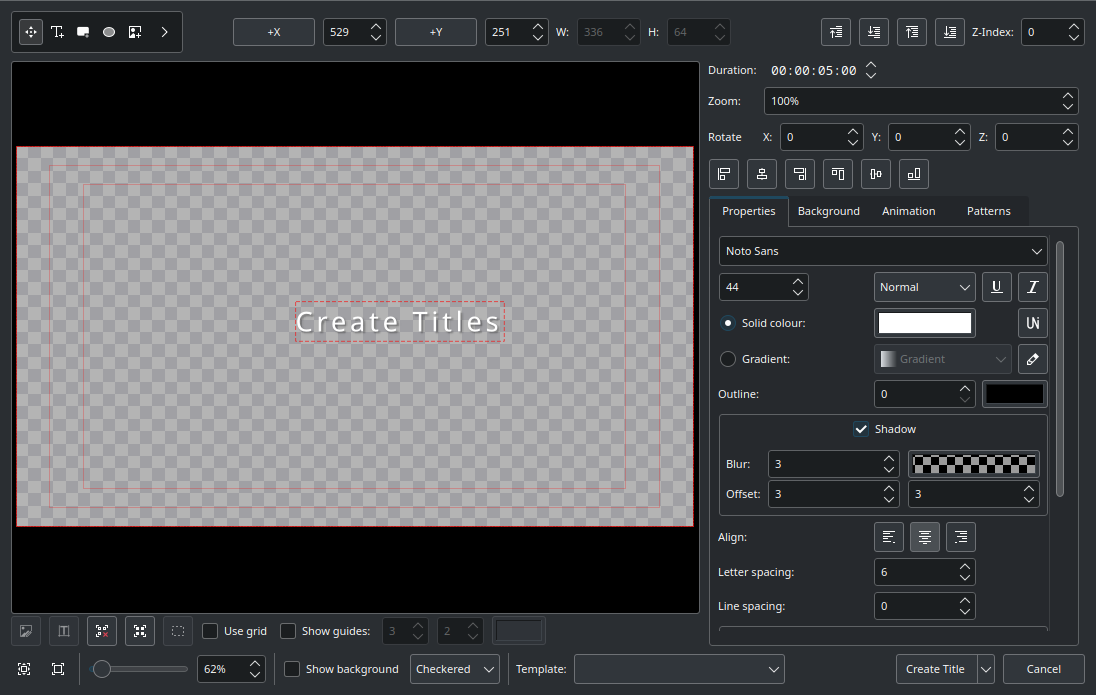
Titler

Sound effects

Ambient music could jazz up your video tutorial for the audience.

Go to top left corner of the Project Bin and select the arrow to list options. Select ‘Online Resources’. At the top right, ‘Service’ drop-down menu, choose ‘Freesound’. Select ‘Preview’ to play back and import to download and overlay to A1 audio track.
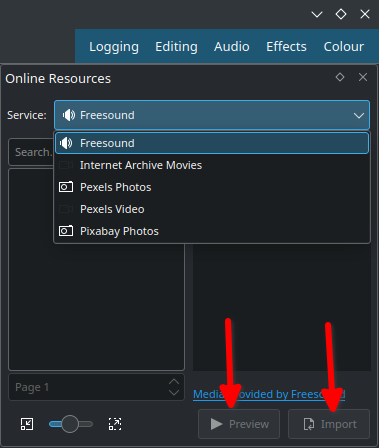
Sound

Transition and finishing touch

Text and sounds effects will blend well if tracks have transitions. Check this link for fine-tuning your final cut video.

Rendering

In the Render dialogue box (Ctrl + Return) on Project Bin, choose WebM as output file, select ‘More options’ to de-select the Export Audio option, and select ‘Render to File’ to save the clip.
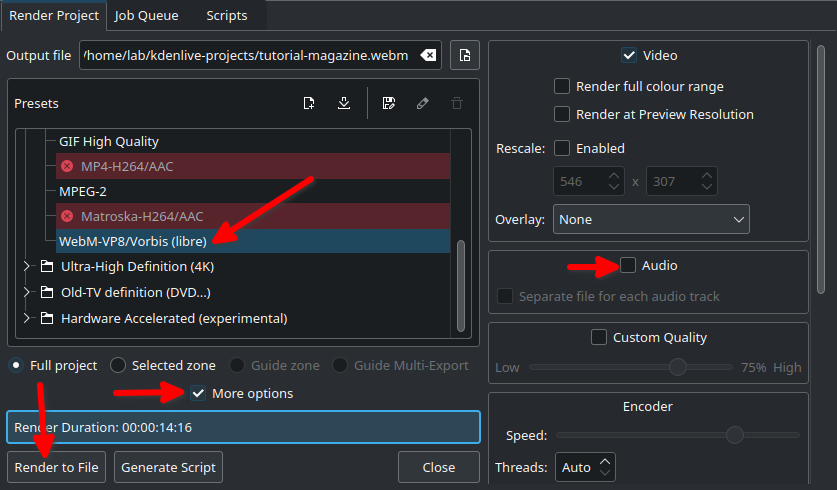
Rendering

WebM offers good compression and output.

Rendering speed is dependent on the number of CPU cores in your computer. If you work with high quality footage and visual effects in a computer with low-end CPU and RAM, adapt your workflow with proxy clips and use script for rendering.

Share your tutorial video

PeerTube is a video sharing platform that runs on GNU/Linux infra, and Open Source/Free Software. Just like Vimeo or YouTube, you can embed your content to your documentation site from PeerTube.

Credits and acknowledgements

Big thanks to Seth Kenlon who provided me with a great deal of inspiration from his publication in Opensource.com and Kdenlive workshop.

Kdenlive Version 23.04.2 was used for this article.

Posted on Leave a comment

Get ready to Flock to Fedora!

A letter from Fedora Project Leader Matthew Miller

Hello Fedora friends! In just about a week, we will kick off Flock to Fedora — our annual contributor conference. I hope you’re as excited as I am! For the last three years, we’ve run this as a virtual event — we stayed cozy at home with Nest. Now, we’re back to in-person, and I can’t wait to see so many of you again as we flock together to meet in Cork, Ireland.

Flock is different from other conferences — it’s not a showcase or sales pitch, and it’s not a corporate event where we stand up for or root for the companies we work for or are fans of. Of course, we are grateful for our sponsors and our employers, but in Fedora in general — and especially at Flock! — that’s not what things are about. We come together in a positive spirit to collaborate and build. We’re a community of people, and friendship is a cornerstone value. Fedora is our community, and Flock is where we come together.

This year, we’re combining forces with our friends at the CentOS Project: CentOS Connect will be co-located with Flock. CentOS is a different kind of project, but the same approach applies: this is about community. I know there are a lot of strong feelings around Red Hat and CentOS and rebuilds and downstreams lately. Fedora doesn’t control any of that, but it affects us — so, I’m sure we’ll talk about it. (We even have a session related to the topic.) As we talk, though, let’s all keep in mind the spirit of our projects: working together collaboratively to build a better world with free and open source software for everyone. 

The Nest events were wonderful: the best virtual events during the whole pandemic, I think. While I obviously am biased about this, I think it’s fair, since I didn’t really do any of the organizing work. (Thanks to everyone who did, and especially to Marie Nordin!) This year, while we wish everyone could be there in person, we want to make the event as accessible as possible to those who can’t be there, so we will live-stream and record the sessions. I hope you’ll join as many sessions as your local time zone permits.

I look forward to talking about our in-progress strategy, and our goal of doubling the number of active Fedora contributors. I want to hear what all of you are working on, all the ideas you have, all the proposals and plans for the future. Most of all, though, I’m looking forward to seeing so many of my friends again, and making new connections. I hope you are too!

Be sure to check out the schedule. If you haven’t registered yet, don’t forget to do that!

Posted on Leave a comment

How to Install and Update Fedora Linux on Android using Termux

If you’re interested in running Linux on your Android device, you’re in luck! It’s possible to install Fedora Linux on Android using Termux. Termux is a terminal emulator for Android that allows you to run Linux commands and utilities on your phone or tablet. It does not replace Android. In this article, we’ll walk you through the process of installing Fedora Linux on Android using Termux and show you how to keep it up to date with the latest versions.

Step by step process

Step 1: Install Termux

To get started, you need to install Termux from the Google Play Store. Once you have Termux installed, open it up and type the following command to update the package list:

pkg update

Note: Termux requires Android >= 7 to run. Support for Android 5 and 6 was dropped at v0.83 on 2020-01-01, but you can find old builds on archive.org ( https://archive.org/details/termux-repositories-legacy/ ) if needed.

Step 2: Install Proot-Distro

Next, you’ll need to install Proot-Distro. Proot-Distro is a tool that allows you to install and run Linux distributions in a chroot environment. To install Proot-Distro, run the following command:

pkg install proot-distro

Step 3: Install Fedora

With Proot-Distro installed, you can now use it to install Fedora. To install Fedora, run the following command:

proot-distro install fedora

This will download and install the latest version of Fedora.

Step 4: Configure dnf

Now that you have Fedora installed, you’ll need to configure dnf, Fedora’s package manager. By default, dnf may try to install SELinux packages, which won’t work properly in a chroot environment. To prevent this, exclude SELinux packages installation by editing the dnf configuration file. Run the following command to open the dnf configuration file for editing :

cd ../usr/var/lib/proot-distro/installed-rootfs/fedora/etc/dnf
vi dnf.conf

You may substitute the nano editor for vi, if it is more to your liking. Once you’re in the file, find the line that says excludepkgs= and add *selinux* to the end of the line, like so:

excludepkgs=*selinux*

It may be necessary to add the excludepkgs line. Save these changes and exit the editor.

Step 5: Install a Desktop Environment (Optional)

Fedora comes with a number of desktop environments to choose from. If you’d like to install a desktop environment, you can do so with the following commands:

proot-distro login fedora
dnf groupinstall "Fedora Workstation" --skip-broken

This will switch from termux into the chroot Fedora installation and install the GNOME desktop environment, along with a number of other packages. If you prefer a different desktop environment, you can replace Fedora Workstation with the name of the group for your preferred environment.

Step 6: Install VNC Server (Optional)

If you plan on using your Fedora installation with a graphical interface, you’ll need to install a VNC server. This will allow you to connect to the Fedora desktop from another computer or device. To install the TigerVNC server, run the following command:

dnf install tigervnc-server.aarch64 -y

This will install the VNC server, along with any necessary dependencies.

Step 7: Upgrading Fedora

Now that you have Fedora installed, you’ll want to keep it up to date with the latest versions. To upgrade Fedora, run the following commands:

sudo dnf upgrade --refresh
sudo dnf install dnf-plugin-system-upgrade
sudo dnf system-upgrade download –releasever=37
export DNF_SYSTEM_UPGRADE_NO_REBOOT=1
sudo -E dnf system-upgrade reboot
sudo -E dnf system-upgrade upgrade
sudo dnf upgrade --refresh

First command sudo dnf upgrade –refresh refreshes the package cache and updates any installed packages.

The second command sudo dnf install dnf-plugin-system-upgrade installs the dnf-plugin-system-upgrade package, needed for the upgrade process.

The third command sudo dnf system-upgrade download –releasever=37 downloads the necessary packages for the upgrade to version 37 of Fedora. Replace 37 with the desired release version.

The fourth command export DNF_SYSTEM_UPGRADE_NO_REBOOT=1 sets an environment variable to prevent the system from rebooting after the upgrade.

The fifth command sudo -E dnf system-upgrade reboot reboots the system to start the upgrade process. Make sure to save any important work before running this command.

The sixth command sudo -E dnf system-upgrade upgrade performs the upgrade process.

Finally, the seventh command sudo dnf upgrade –refresh updates any remaining packages and ensures that your system is fully up to date.

Errors Encountered

During the installation and upgrade process, you may encounter errors. Two common errors are described below, along with their solutions.

Error 1: sudo: /etc/sudo.conf is owned by uid 1001, should be 0
Solution: This error occurs when the ownership of the sudo.conf file is incorrect. To fix this, run the following command:

chmod +s /usr/bin/sudo

This sets the setuid bit on the sudo command, which allows it to run with root privileges.

Error 2: filesystem package didn’t get upgraded post OS upgrade
Solution: This error occurs when the filesystem package is not upgraded during the upgrade process. To fix this, run the following commands:

sudo rpm -e --nodeps filesystem
dnf download filesystem

The first command removes the filesystem package, and the second command downloads the latest version of the package. If you encounter any errors during the upgrade process, you can use rpmrebuild to rebuild the package with any necessary modifications.

Conclusion

In this article, we’ve shown you how to install Fedora Linux on Android using Termux and how to keep it up to date with the latest versions. While there may be some errors to overcome during the installation and upgrade process, following the steps outlined in this article should help you get Fedora up and running on your Android device in no time.

Posted on Leave a comment

Packit – how to trigger jobs manually

Packit is an open-source project aiming to ease the integration of your project with Fedora Linux, CentOS Stream, and other distributions. Projects that use Packit usually build RPM packages. This article will introduce new features. The new user onboarding process is available here.

Testing Farm execution

From Packit you can easily trigger your tests on Testing Farm without building the RPMs. This is very handy for projects that basically may not build RPMs, but just want to use these two services for verifying the code. As a good example, we refer to the Strimzi project where users consume container images.

In such cases, the users just want to trigger the tests, verify the code and see some output. This option is available from the beginning. Users can easily define when the tests will be executed – for every pull request, for every commit, or for releases. That sounds pretty cool. However, when you have complex tests (5h+ per test run as we have in Strimzi) you probably don’t want to trigger all tests for each commit. So how can the users achieve that?

Manual Trigger

We introduced a new configuration option, manual_trigger, to enable triggering Packit jobs only manually. With this new configuration of Packit jobs, users can easily enable the manual triggering of a job. The job will NOT automatically trigger when, for example, a new commit arrives to pull a request.

Users need to specify manual_trigger in the test’s job description. The value for this option must be boolean and will default to False. The following is an example of the use of this option. A more complete example is available here.

... - job: tests trigger: pull_request identifier: "regression-operators" targets: - centos-stream-9-x86_64 - centos-stream-9-aarch64 skip_build: true manual_trigger: true labels: - regression - operators - regression-operators - ro tf_extra_params: test: fmf: name: regression-operators
...

This new configuration option allows users to utilize a new flow. When a pull request is opened (for example in draft mode), users push new commits and fixes, or when they are about to finish the pull request, they can easily type /packit test as a pull request comment and all jobs defined in packit.yaml for pull request will be triggered.

Labeling and identifying

The above solution is very easy to use. There might be use cases, however, where users don’t want to trigger all the jobs. For example, when you have 10 jobs defined with different test scopes, you probably don’t want to trigger acceptance and regression tests at the same time since acceptance could be a subset of regression.

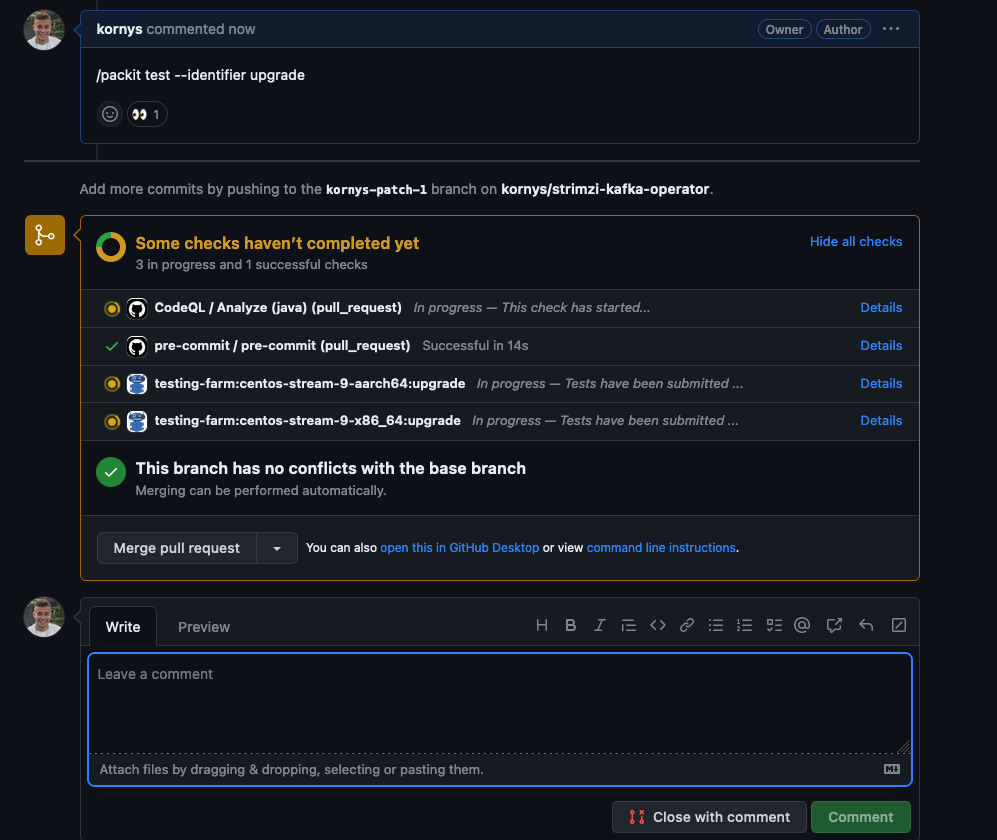
There are now two options to trigger a specific job. The first one is to trigger the job based on an identifier. If the user specifies identifier: test-1 in the job configuration, Packit comment command for execution of the tests will look like this /packit test –identifier test1. This command will execute jobs with the specific identifier (test-1) and nothing else.

An example how to trigger testing-farm test job via Packit with --identifier parameter.

The second option for triggering specific jobs allows you to execute more than one job based on their identifiers. You can use multiple identifiers in a comma-separated list but it might be cumbersome to specify long lists of identifiers every time. To add a better user experience we’ve introduced the labels configuration that allows grouping together multiple jobs. The command /packit test –labels upgrade,regression will trigger all jobs that contain upgrade or regression in the list of labels in the job configuration.

An example how to trigger testing-farm test job via Packit with --labels parameter.

Conclusion

If you hesitated to utilize Packit due to the limitation of missing manual triggering of the jobs or missing labeling, you can start now! As mentioned, Packit is an open-source service and these improvements were done as contributions from outside of the Packit team, everyone can contribute so if you are missing some features, feel free to open a pull request!

For more information about newly added options you should check the documentation. In case you are new to Packit you can also view the talk from the Packit team from DevConf 2023 or DevConf Mini 2023. ​

Posted on Leave a comment

Fedora Linux editions part 4: Alt Downloads

Fedora Alt Downloads is a remarkable resource provided by the Fedora Project, offering alternative distribution options for users seeking specific requirements or unique use cases. This article will delve into the diverse selection of Fedora Alt Downloads, highlighting their significance and how they cater to different needs within the Fedora community. You can find an overview of all the Fedora Linux variants in my previous article Introduce the different Fedora Linux editions.


Network Installer

The Fedora Network Installer is an efficient and flexible tool for installing Fedora Linux. This is Fedora’s online installer. Unlike the baked-in Live images that the main editions use, this installer allows you to customize which software packages will be installed at installation time. However, because the packages to be installed are not baked into this installer image, network access will be required at installation time to download the selected packages.

Don’t confuse this with network booting which is a method of initiating an operating system or operating system installer from a small Preboot Execution Environment. (Though it is possible for that sort of bootloader to chain-load Fedora’s network installer.)


Torrent Downlods

Fedora Torrent Downloads utilize the BitTorrent protocol, which is a peer-to-peer file sharing protocol. Instead of relying on a central server for downloads, BitTorrent enables users to download Fedora Linux images from multiple sources simultaneously. This decentralized approach enhances download speeds and reduces strain on individual servers, resulting in a faster and more reliable download experience. Fedora Torrent Downloads offer a fast, reliable, and community-driven method for obtaining Fedora Linux images. By harnessing the power of the BitTorrent protocol, Fedora leverages the collective bandwidth and resources of users worldwide, resulting in faster downloads and improved reliability.

Details are available at this link: https://torrent.fedoraproject.org/


Alternate Architectures

Fedora Alternate Architectures is an initiative by the Fedora Project that aims to expand the compatibility of the Fedora Linux operating systems by offering a range of architecture options. In addition to the standard x86_64 architecture, Fedora Alternate Architectures provides support for alternative architectures, including ARM AArch64, Power, and s390x. This initiative allows you to select the architecture that best suits their hardware requirements, enabling Fedora Linux to run on a diverse range of devices and systems. Whether you have a Raspberry Pi, a server with Power processors, or other specialized hardware, Fedora Alternate Architectures ensures that you have a tailored Fedora Linux experience that meets your specific needs.

Details are available at this link: https://alt.fedoraproject.org/alt/


Fedora Cloud

After I wrote my initial post in this series that introduced the main Fedora Linux editions, Fedora Cloud was restored to full edition status. There are still some links to the Fedora Cloud images on the Fedora Alt Downloads page. But they will be removed soon. The correct place to get the latest Fedora Cloud images is now https://fedoraproject.org/cloud/download/.

Fedora Cloud images are a collection of images provided by the Fedora Project for use in cloud environments. Fedora Cloud images are specifically designed to run applications in the cloud with efficiency and optimal performance. By using Fedora Cloud images, you can quickly deploy and run applications in the cloud without the need to spend time configuring the operating system from scratch. Fedora Cloud images also provide flexibility in terms of scalability, allowing you to easily adjust the size and capacity of resources according to the needs of your applications.


Testing Images

Fedora Testing Images are a collection of specialized system images designed for testing and contributing to the development of Fedora Linux. These images allow you to test the latest features, explore the recent changes in Fedora Linux, and report any issues encountered. By using Fedora Testing Images, you can actively participate in the development of Fedora Linux by providing valuable feedback and contributions.

Your participation in testing and contributing to Fedora Testing Images plays a vital role in maintaining and improving the quality and reliability of Fedora Linux. By reporting issues, testing software, and providing feedback, you can assist Fedora developers in fixing bugs, enhancing performance, and identifying areas for further improvement and development. Fedora Testing Images provide an easy and secure way for you to engage directly in the development of Fedora Linux, strengthening the community and resulting in a better and more reliable operating system for all Fedora users.


Rawhide

Fedora Rawhide is the development branch of the Fedora Linux operating system. It provides a continuously evolving and cutting-edge version of the Fedora Linux OS. It serves as a testing ground for new features, enhancements, and software updates that are targeted for inclusion in future stable releases of Fedora Linux. Fedora Rawhide offers early access to the latest software packages, allowing users to stay at the forefront of technology and contribute to the testing and refinement of Fedora Linux.

Using Fedora Rawhide comes with both benefits and considerations. On one hand, it provides a platform for early adopters, developers, and contributors to test and provide feedback on upcoming features and changes. This helps identify and address issues before they are included in stable releases. On the other hand, since Fedora Rawhide is constantly under development, it may encounter bugs, instability, and compatibility issues. Therefore, it is recommended only for experienced users who are comfortable with troubleshooting and actively contributing to the Fedora community.

Details are available at this link: https://docs.fedoraproject.org/en-US/releases/rawhide/


Conclusion

Fedora Alt Downloads provides an impressive array of alternative distributions, catering to diverse needs within the Fedora community. Whether it’s through Fedora Spins, Fedora Labs, Fedora Remixes, Fedora Silverblue, or ARM editions, users can find specialized distributions that suit their requirements, preferences, and use cases. This versatility and community-driven approach makes Fedora Alt Downloads a valuable resource for Fedora Linux enthusiasts, fostering innovation, and customization within the Fedora ecosystem. You can find complete information about Fedora Alt Downloads at https://alt.fedoraproject.org/

Posted on Leave a comment

Contribute at the Fedora Linux Test Week for Kernel 6.4

The kernel team is working on final integration for Linux kernel 6.4. This version was just recently released, and will arrive soon in Fedora Linux. As a result, the Fedora Linux kernel and QA teams have organized a test week from Sunday, July 09, 2023 to Sunday, July 16, 2023. The wiki page in this article contains links to the test images you’ll need to participate. Please continue reading for details.

How does a test week work?

A test week is an event where anyone can help ensure changes in Fedora Linux work well in an upcoming release. Fedora community members often participate, and the public is welcome at these events. If you’ve never contributed before, this is a perfect way to get started.

To contribute, you only need to be able to do the following things:

  • Download test materials, which include some large files
  • Read and follow directions step by step

The wiki page for the kernel test day has a lot of good information on what and how to test. After you’ve done some testing, you can log your results in the test day web application. If you’re available on or around the days of the event, please do some testing and report your results. We have a document which provides all the necessary steps.

Happy testing, and we hope to see you on one of the test days.

Posted on Leave a comment

The Community Platform Engineering F2F 2023 Experience – Part II

20 Mar 2023 – 23 Mar 2023

– Barcelona, Spain

Intro

If you have not already – now is the best time to read through the first part of the event report before getting into the second part here.

From left to right – Actually, never mind – there are too many people there.

Day 2
Wednesday, 22nd March 2023
The team members decided to start a bit late on the second day to ensure that everyone gets enough rest after the adventurous first day. Once the joint breakfast was completed in the hotel restaurant, the members started heading off to the office by 10 in the morning. They were were gracefully served Catalonian snacks by Lenka Segura, Japanese souvenirs by David Kirwan, and German sweets by Julia Bley for the duration of the meeting. Matthew Miller started the second day with his talk about the Fedora Project strategy and how Community Platform Engineering fits into the picture. This talk was followed by the one by Tomas Hrcka about how the Fedora Release Engineering team addresses its responsibilities. The team took a short break after the first couple of sessions, before heading into the next set.

From left to rightLenka Segura Matthew Miller Adam Samalik Troy Dawson

After a short break, the team continued with three lightning talks delivered about OpenShift operators by David Kirwan, Packit by Frantisek Lachman and Laura Barcziova, and Pulp by Miroslav Suchy. Miroslav Suchy delivered a thought-provoking talk about the scope of tooling for the Community Platform Engineering team, and how it contributes to Fedora Linux. With that, the folks dispersed into small groups for lunch. Once they were back in the office, Hunor Csomortáni delivered a talk about revisiting source-git and the plans for unifying package sources in the pipeline. This was followed by a talk by Carl George about the EPEL 10 plans for improvements that would be coming very soon. The final interesting talk of the day was delivered by Brian Stinson about the expectations of RHEL from Fedora Linux and CentOS Stream.

From left to rightEmma Kidney David Fan Michal Konecny Akashdeep Dhar Samyak Jain David Kirwan

In the evening, at around 19:00, the team members left for a regional burger restaurant, Tio Joe’s. This had been booked in advance and was near the hotel premises . With toasts made to the team members that were now united after a long time, they not only enjoyed the appetizing food that was served but also the company of the friends that they had bonded with over the course of the last couple days.

Once the dinner was over, at around 21:30, some folks headed back to the hotel for a respite. The remainder went to the Trompos Karaoke Bar to participate in the fun karaoke night session organized by Aurelien Bompard. People queued up their songs and soon began to collaborate in performing their favorite songs in duos and in choirs. This was a fitting end to the night, as late as 02:00, and a fun look at their singing preferences.

Day 3
Thursday, 23rd March 2023

This was the day of departure for a lot of people. Since they would miss out on the sessions on this third day, it was incredibly light in terms of the agenda and activities. Many of the team members checked out of their hotel rooms after breakfast at 09:00 and left their luggage with the hotel before leaving for the office.

Stefan Mattejiet started off the last day with his discussion session about CPE Futurespective, and understanding what direction the team should head in the coming times. The interesting discussion felt a lot inspired by the established logic model planning structure used for Fedora Council community initiatives. This structure starts off with planning the general objectives first and then going back to the implementation details later. 

From left to rightFabian Arrotin James Antill Adam Saleh Carl George Tomas Hrcka

The next session was hosted by Aoife Moloney who kicked off an interesting discussion about the limited-scope projects that the team undertakes and the maintainers for the applications that the team takes care of. The members participated in pointing out the things that currently work great and those that could use some improvements. This was the last planned session for the day and the group assembled to be a part of the “Community Platform Engineering family picture”. After that, they dispersed into small groups to have their lunches in their preferred places.

With no more planned talks after lunchtime, the team members were divided into smaller groups for breakout rooms to participate in more detailed discussions. Michal Konecny lead the one for the infrastructure and release engineering team. 

From left to rightMichal Konecny Carl George Akashdeep Dhar David Kirwan Nils Philippsen Fabian Arrotin Troy Dawson Diego Herrera

The team started slowly thinning down even more in the late afternoon, with the members bidding farewell to each other in the office and returning to the hotel. Some members decided to stay longer to explore Barcelona a bit more. Others began collecting their luggage from the hotel and leaving for the airport. With “goodbyes” waved to teammates and “resolves” about the next thing, the members departed from the face-to-face meeting with a new zeal and energy to contribute in an even better way to the community.

Even with minor hiccups and some teammates not being able to join the event, the meeting event turned out to be a grand success – both in uniting the members and in strategizing the team’s efforts. The members of the team surely look forward to the next time they get together. 

Posted on Leave a comment

Trying different desktop environments using “rpm-ostree rebase”

Fedora Linux Workstation features a GNOME desktop environment which is an easy to use, intuitive, and efficient desktop environment. But this is not the only option if you would like to use Fedora Linux. There are other spins that provide alternative desktop environments like KDE, XFCE, Cinnamon, etc. This article describes how you can try different desktop environments if you are using an OSTree based Fedora Linux spins.

Main version of Fedora Workstation

If you installed a non-OSTree Fedora Workstation or one of the Spins and would like to try different desktop environment, you have some possibilities:

  • install different desktop environment using dnf
  • dual boot multiple spins of Fedora

If you choose the first option, you have to install another desktop environment by using the dnf install command. This technique enables you to select which desktop environment you would like to use on the login screen after system boots. Using this method will pull in a lot of dependencies. This is especially true when you have a GTK based desktop environment (like GNOME) and install a QT based (like KDE), or vice-versa. It can be difficult to completely uninstall one of the installed desktop environment if you are not satisfied with them.

Another issue with this is that system apps may be doubled in the application menu on each environment. For example, if you have installed GNOME and install KDE, you have Nautilus and Dolphin for browsing files, GNOME Terminal and Konsole for terminal emulation, etc. You have to remember which app to use on which environment, because apps from KDE behave worse on GNOME and vice-versa.

If you choose the second option, you have to make some free unpartitioned space on your hard drive to install another Fedora spin alongside one you are currently using. In this way, the systems are separated from each other and the system apps will not be doubled. You can decide to share the /home partition between them. This technique enables you select the system to use in the bootloader menu before system boots. But if you use this method, you have to maintain these systems separately (for example installing updates) and it consumes a lot of free space on the hard drive.

OSTree based version of Fedora Workstation

Some variants of Fedora Linux are OSTree based. OSTree provides immutability and transactional upgrades with the possibility of rollback in case something goes wrong. You can read more about it in this great article. Right now, we have three OSTree based Fedora Workstation variants:

  • Silverblue – provides GNOME desktop environment
  • Kinoite – provides KDE Plasma desktop environment
  • Sericea – provides Sway window manager (not recommended for beginners)

If you are running one of these variants of Fedora Linux, you can easily switch your system to another OSTree compatible one to try different desktop environment. This process is similar to doing a system upgrade. OSTree guarantees that the operation is transactional (finishes successfully or nothing is changed) and you are able to rollback if you are not satisfied with the change. The operation does not consume much space on the hard drive, and system apps are not doubled.

How to use OSTree rebase to switch to a new variant

To start, I recommend executing the following command to pin the current deployment. This makes certain it will not be deleted automatically in the future and provides the ability to roll back to it.

$ sudo ostree admin pin 0

If you have a pending update, the command may fail with the message:

error: Cannot pin staged deployment

In this case, reboot your system to apply pending updates, and try again.

After pinning the deployment, execute:

$ ostree remote refs fedora

It outputs a list of all available branches that you can rebase into. Every branch has an architecture, version, and the name of the variant. Select carefully. In the following examples I assume you would like to rebase into the current stable version of Fedora for x86_64 (version 38).

  • for Fedora Silverblue, use fedora:fedora/38/x86_64/silverblue
  • for Fedora Kinoite, use fedora:fedora/38/x86_64/kinoite
  • for Fedora Sericea, use fedora:fedora/38/x86_64/sericea

Choose the branch you wish to rebase into and execute the following command (change the branch name provided in the example if necessary):

$ rpm-ostree rebase fedora:fedora/38/x86_64/kinoite

When this command succeeds, restart the system to begin using the new desktop environment. If it fails, the system should continue to work unmodified thanks to transactional updates provided by OSTree.

Undo the rebase into an OSTree variant

If you are not satisfied with the new environment the following command will return you to your original variant:

rpm-ostree rollback

Restart your system once again to switch back to the previous variant of Fedora.

Posted on Leave a comment

New AWS storage type for Fedora Linux

If you filter Fedora Linux AWS images using a script, you might notice a change in the image names. The Fedora Cloud SIG recently updated the image publishing configuration to use the latest generation storage option and simplify the image listings.

This involves two changes:

  • Replacing gp2 storage with gp3 storage by default for new images
  • Removing standard storage from new images

What’s the benefit of these changes?

The gp3 storage type appeared in 2020 and switching to that storage type for Fedora Linux users means more consistent performance for a lower cost. (For more details, read Corey Quinn’s helpful blog post.)

Removing standard storage from new image uploads means we’re creating half the AMIs we created before and it reduces the number of images you need to review when launching an instance. Finding the right Fedora Linux image for your deployment should be a little easier.

What if I really like the other storage types?

When you launch your instance, you can choose any storage type that is compatible with your instance in your preferred region. Although Fedora Linux images will have gp3 set as the default, you can choose from any other storage type at launch time.

How should I adjust my scripts that look for Fedora Linux images on AWS?

The format of the image names remains the same, but you’ll notice a new string in the storage type portion of the image name. As an example, here’s what you would see before the change was made:

Fedora-Cloud-Base-Rawhide-20230503.n.0.aarch64-hvm-us-east-1-standard-0
Fedora-Cloud-Base-Rawhide-20230503.n.0.aarch64-hvm-us-east-1-gp2-0
Fedora-Cloud-Base-Rawhide-20230503.n.0.x86_64-hvm-us-east-1-standard-0
Fedora-Cloud-Base-Rawhide-20230503.n.0.x86_64-hvm-us-east-1-gp2-0

After the change, there is only one image per release and architecture:

Fedora-Cloud-Base-Rawhide-20230504.n.0.aarch64-hvm-us-east-1-gp3-0
Fedora-Cloud-Base-Rawhide-20230504.n.0.x86_64-hvm-us-east-1-gp3-0

Why was this change made?

The Fedora Cloud SIG wants to make the Fedora Linux cloud experience the best it can possibly be on every public cloud platform. This change gives Fedora Linux a better performing default storage option at a lower cost, reduces the overhead from creating AMIs on AWS, and simplifies the Fedora Linux image listings.

Read the Fedora change proposals for removing standard storage and switching the default to gp3 for a lot more detail. As always, you can find members of the Fedora Cloud SIG and join our group on Fedora Matrix or on Libera IRC in #fedora-cloud.

Posted on Leave a comment

Contribute at the Fedora Linux Test Week for Kernel 6.3

The kernel team is working on final integration for Linux kernel 6.3. This version was just recently released, and will arrive soon in Fedora Linux. As a result, the Fedora Linux kernel and QA teams have organized a test week from Sunday, May 07, 2023 to Sunday, May 14, 2023. Refer to the wiki page in this article for links to the test images you’ll need to participate. Please continue reading for details.

How does a test week work?

A test week is an event where anyone can help make sure changes in Fedora Linux work well in an upcoming release. Fedora community members often participate, and the public is welcome at these events. If you’ve never contributed before, this is a perfect way to get started.

To contribute, you only need to be able to do the following things:

  • Download test materials, which include some large files
  • Read and follow directions step by step

The wiki page for the kernel test day has a lot of good information on what and how to test. After you’ve done some testing, you can log your results in the test day web application. If you’re available on or around the days of the event, please do some testing and report your results. We have a document which provides all the necessary steps.

Happy testing, and we hope to see you on one of the test days.