Flock to Fedora is more than a conference — it’s where the Fedora community comes alive. As part of the #In the CommitHistory campaign, we sat down with confirmed Flock 2026 speakers to hear their stories: what brought them to Fedora, what Flock means to them personally, and what they’re hoping for in Prague this June. This is one of those conversations.
Aleksandra Fedorova’s journey into Fedora started with a sticker. At LinuxTag in Berlin, her first properly organised Linux community event she approached the Fedora booth simply wanting a sticker. What happened next changed everything. The people behind the booth invited her to join them on their side of the table. That single gesture dismantled the wall between user and contributor, and she never looked back.
For Aleksandra, Flock isn’t the place for deep technical work. Instead, it’s where the Fedora Council reads the room, sensing priorities, spotting coordination gaps, and picking up on tensions before they become real problems. She’s also refreshingly honest about Flock’s limitations: the costs of attending mean it’s not always a fully representative cross-section of the community, and understanding the broader Fedora ecosystem requires deliberate effort beyond the event itself.
But what Flock offers that nothing else can? The human element. No mailing list or Matrix channel lets you simply walk up to someone and start a conversation without a formal introduction. At Flock, the hallway is as valuable as the schedule. For Flock 2026, Aleksandra hopes the event helps ease current tensions; the reminder that everyone is working toward the same goal, even when they disagree on how to get there, is something only being in the same room together can provide.
Flock to Fedora 2026 takes place June 14–16 in Prague. Registration is at capacity but you can join the waitlist. Can’t make it in person? Follow along live on the Fedora YouTube channel.We hope to see you there!
Note: AI (Google Gemini) was used in drafting this article. The content was reviewed and verified before publishing.
Yes, the Fedora 43 upgrade brought an interesting revelation for all Outlook users—one that Microsoft is unlikely to be thrilled about. Outlook was not encrypting email connections, even though SSL/TLS was clearly enabled in the account settings. It looks like, that bug dates back to at least Outlook 2007, which is the oldest Outlook version I was informed about.
Let us start with the beginning
Every six months, Fedora Servers require and upgrade to the next release version, as you all know This May we had to upgrade from 42 to 43 and in this upgrade, Dovecot POP/IMAP server switched to version 2.4.3. Dovecot did us all an unexpected favor, because it required a full rewrite of the used service config, because it’s not backwards compatible. This change introduced a new paradigm: PLAIN TEXT passwords are no longer allowed over unencrypted connections.
This is a major break with the oldest RFCs (i.e. RFC 1081) regarding POP3 behavior, but a good one IMHO. No one should still use unencrypted connections to any form of service on the internet when we have easy to use encryption protocols like STARTTLS (STLS) at hand in any major client.
The Day After
After the upgrade, “we” (admins & customers) did not even know about the now broken auth-mechanism. This came a day later when customers started to call the support line about rquesters popping up for them to enter their passwords again. This is a normal behavior if auth fails… and it failed hard
As all admins know, such upgrades will result in higher amounts of support calls. To my surprise it was all Outlook clients that called. The oldest version so far was Outlook 2007. We even had an old MACOS Outlook :-). They all had in common, that the mailbox prefs had “SSL/TLS” enabled, but used Port 110, which is the old cleartext port for POP3, where port 995 is the correct SSL port. A normal mailclient would change the port number to 995 as soon as you enable SSL/TLS encryption. This is because you can’t “speak” SSL on a non-ssl port, except if you choose STARTTLS. This starts as a cleartext connection, but upgrades itself to ssl-encrypted later.
“Look, there is something out there!”
Outlook did the worst move you can take as a security enhanced app. It silently ignored the choosen SSL option and used the unencrypted port 110 without any notice to the user. After our server upgrade, the following message popped up:
German version of the error message
“-ERR [AUTH] Cleartext authentication disallowed on non -secure ( SSL/TLS ) connections.“ popped up if you tried to open your inbox. The server logs revealed it clearly: the user used a non-secure connection and got this message correctly. This never got noticed since the EU GDRP only states, that corporations and organisations need to protect their data via a transport encryption like TLS. Normal persons don’t need to do so.
Even some of the notable folks of Fedora did not use encryption, which I personally advise to change immediately. Having this in mind, who are we to judge if you encrypt your connection or not?
Really folks: use TLS encryption for your mailboxes!
You can easily check if TLS encryption is working. Send yourself an mail and open the mail headers, you will find lines like this:
Received: from bastion01.fedoraproject.org ([38.145.32.11] helo=bastion.fedoraproject.org) by s113.resellerdesktop.de with esmtps (TLS1.3) tls TLS_AES_256_GCM_SHA384 (Exim 4.99.2) (envelope-from <updates@fedoraproject.org>) … Any good MTA ( Exim, Postfix, etc. ) will note if the connection was encrypted or not.
If you don’t see an encryption notice, you can use this command:
tcpdump -A -n -n port 110 or port 143
in a root terminal and see if the unencrypted port is used for transport. If so, if it’s cleartext or if it’s using STLS.
So… THANKS Fedora 43 and Dovecot 2.4 … you revealed a 20 year old security bug in Outlook \o/
Disclaimer: It is possible that MS patched the Outlook UI in the past in a way that only old accounts are affected by this major fail. As Fedora users we had no Outlook available to test this
Valentin Rothberg’s journey into container-native Linux didn’t start with a grand plan – it started with the work. After over 8 years at Red Hat contributing to projects like Podman and bootable containers, Fedora felt like the natural home for his next chapter. In Summer 2025 he began working on Project Hummingbird, which builds directly on top of Fedora. Flock 2026 is where he wants to share what he’s learned.
His first Flock was in Budapest in 2019 – and he remembers it vividly. Stepping in at the last minute for Dan Walsh, he ended up presenting for over three hours straight on container technologies. Not a bad way to make an entrance.
For Valentin, Flock’s value isn’t primarily technical. Technical decisions tend to be made comparatively fast once a group of people rally around a cause. What matters is finding that cause together, and in-person time is what makes that possible. The implementation details, he says, are just details.
He’s also refreshingly honest about where Fedora stands in the container ecosystem. Despite being the birthplace of tools like Podman, Fedora containers don’t see wide use outside the community. Valentin has ideas about why, and how to change that. He’s coming to Flock not to present answers, but to hear other perspectives and build something together.
Flock to Fedora is more than a conference – it’s where the Fedora community comes alive. As part of the “CommitHistory” campaign, we sat down with confirmed Flock 2026 speakers to hear their stories: what brought them to Fedora, what Flock means to them personally, and what they’re hoping for in Prague this June. This is one of those conversations.
Jef Spaleta came back to Fedora at exactly the right moment. After years away, working across software startups and following his spouse’s move back to the east coast, the timing aligned perfectly with the previous project leader stepping down. With a sharpened skill set and fresh perspective, Jef felt ready to lead.
But leading Fedora in 2026 isn’t just about keeping the lights on. Jef sees the project at a critical crossroads. There is a generational transition where original founders are stepping away and institutional knowledge risks disappearing with them. His focus? Mentoring the next wave of contributors to keep Fedora sustainable for the next five to ten years.
On the state of the project, Jef is honest: Fedora continues to ship high-quality releases on schedule, a streak held for five or six years. But stability isn’t enough. He is developing a new Fedora innovation lifecycle, a dedicated space for experimental work where things can be tried, broken, and learned from without disrupting the mature processes the project depends on.
For Jef, Flock’s value is simple but profound. Digital tools work well when everyone agrees, but they fall apart when things get hard. Flock is where relationship repair happens, where tone and intent can finally be communicated in ways text never can. Looking ahead to Flock 2026, he is focusing on two priorities. First, migrating Forge infrastructure to meet the expectations of the next generation of developers, and second, shaping Fedora’s approach to AI-assisted development before the conversation shapes itself. Flock to Fedora 2026 takes place June 14–16 in Prague. Registration is at capacity but you can join the waitlist. Can’t make it in person? Follow along live on the Fedora YouTube channel. We hope to see you there!
Note: AI (Google Gemini) was used in drafting this article. The content was reviewed and verified before publishing.
Maybe it was a one-line typo fix in the docs. Perhaps it was a package you’d been maintaining in secret for months before you finally submitted it. Maybe it was completely terrifying, or maybe it just felt like the most natural thing in the world. Whatever it was we want to hear about it.
Ahead of Flock to Fedora 2026 (June 14–16, Prague), We the Fedora CommOps team are launching #Commit History: a community campaign to collect the origin stories of Fedora contributors – the moments that brought people into this project and kept them here.
The best stories will be featured in a Fedora Magazine article published before Flock 2026, celebrating the people who make this project what it is.
Here are the questions used to get started-
What was your first contribution to Fedora – and what made you take that first step?
What did it feel like? What went wrong (or right)?
Looking back, what did that moment mean for your open source journey?
There are no wrong answers. First commits come in all shapes code, documentation, translations, design, bug reports, community work. If you’ve ever contributed to Fedora, your story belongs here.
How to share: Drop your story in the comments below, or share it on Mastodon with the hashtag #Commit History.
Whether you’ve been contributing for a decade or made your first commit last week – we want to hear from you.
A year ago, a family member gave me a 2019 laptop that wouldn’t run Windows anymore. And of course, I immediately installed Fedora Linux on it. While my day-to-day Fedora Linux system is a desktop PC, it’s nice to have a laptop to take with me when I do workshops or conference demos.
However, the laptop has a physical “spinning heads” hard disk, so it is really slow to boot. I timed it; the laptop takes almost two minutes to go from “power on” to “login prompt.” And that’s a very long time when you’re at the front of the room, waiting to start a demo.
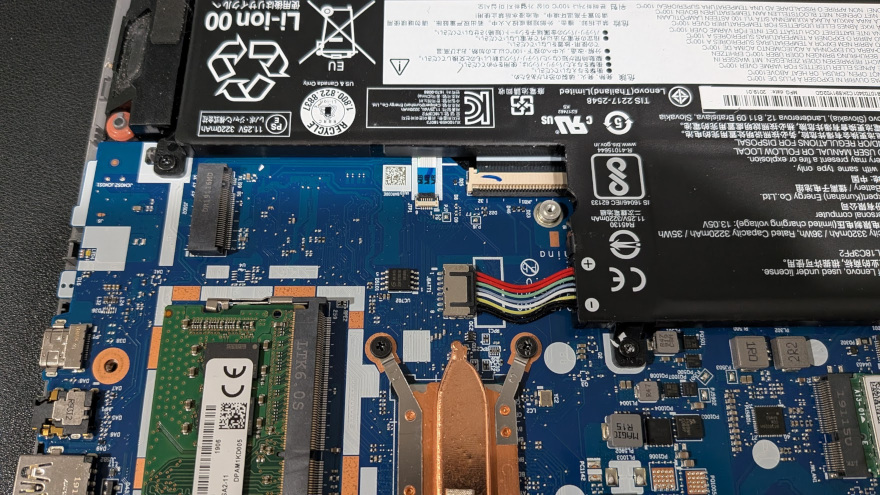
I thought about replacing the hard disk with a solid state drive, but when I opened the laptop to make sure the drive was replaceable, I saw that the laptop also supports an NVMe solid state drive in addition to the hard disk.
This presented an interesting opportunity: I could put in an NVMe drive and install Fedora Linux across two disks. Specifically, I wanted to boot Fedora Linux from the NVME drive, and keep extra apps and other data on the hard disk. I use several big third-party apps for my demos, which I install in both /opt and /usr/local, and it’s a huge pain to download and install those extra applications whenever I upgrade Fedora Linux. (I prefer to wipe and reinstall when I upgrade Fedora Linux, so I always have a clean starting point.) If I could keep /opt and /usr/local on the hard disk, I could preserve those when I install the next version of Fedora Linux.
Installing Fedora Linux to the NVMe
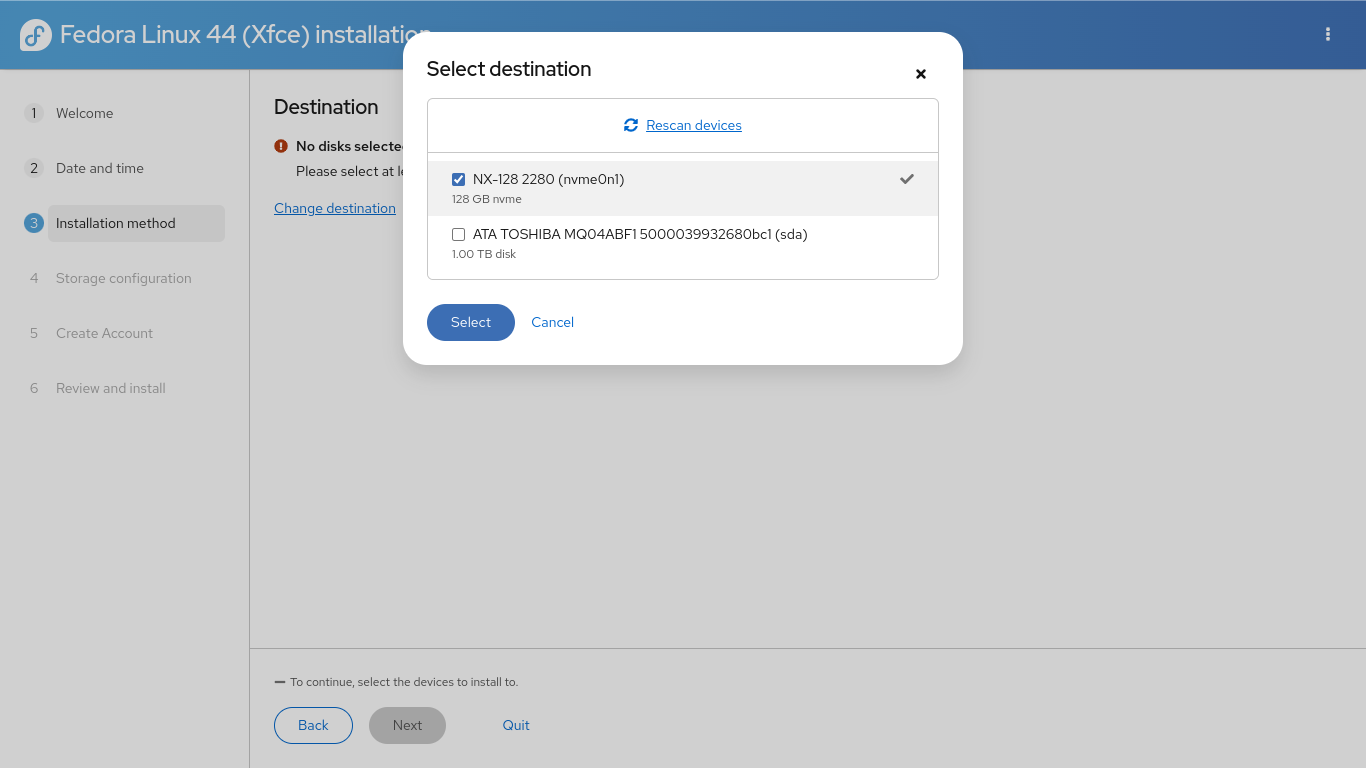
After installing a new NVMe drive in the laptop, I needed to reinstall Fedora Linux. I prefer the Xfce desktop, so I downloaded the Fedora Xfce spin and booted the installer. When the installer reached the “Destination” step, it prompted me for the target disk. I clicked “Choose destination” and selected the NVMe disk:
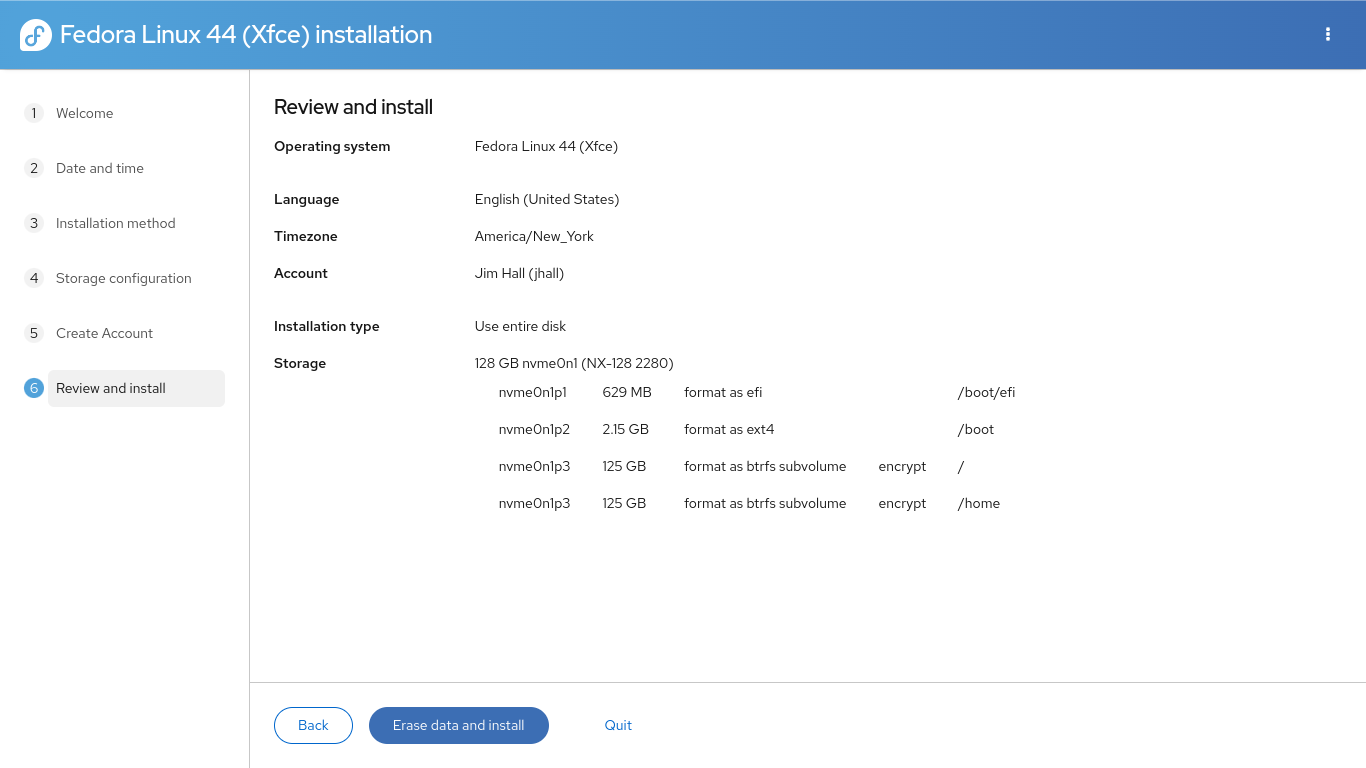
The rest of the installation ran normally. The Fedora Linux installer set up the partitions automatically on the new NVMe drive, encrypted my data, and installed the operating system.
With Fedora Linux on the NVMe drive, booting took seconds instead of minutes. Again, I timed it: about 20 seconds to go from “power on” to “login prompt.” That’s a huge improvement!
Setting up partitions on the hard disk
The disk partition app in the Fedora Xfce is GParted, which makes it easy to set up the hard disk with new partitions. However, GParted’s main limitation is that it can’t set up encrypted volumes for you. If you want to use encryption, you’ll need to use the command line and run cryptsetup on your own.
However, I’m not very concerned about encrypting my /opt and /usr/local partitions. These are just third-party apps, not private data. My personal data will be saved to my home directory, which is safely encrypted on the NVMe drive. So I decided to set up regular partitions, formatted as ext4 filesystems.
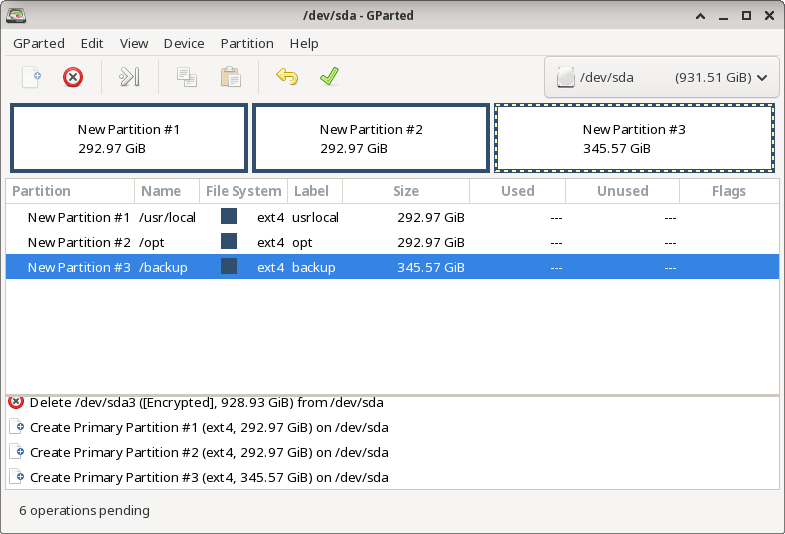
I used GParted to delete the old partitions on the hard disk, and define three partitions that were each about 300 GB: /opt (which I labeled as opt), /usr/local (labeled usrlocal) and /backup (labeled backup). GParted created the partitions and wrote an ext4 filesystem on each.
However, the /usr/local filesystem has a directory tree in it already, such as /usr/local/bin and /usr/local/lib, although these directories will be empty after installing Fedora Linux. I wanted to copy the original directories to the new filesystem. The easiest way to do that is to add the new usrlocal partition somewhere else and then copy the old /usr/local to the new partition. Adding a partition to a directory is called mounting, and the directory itself is called a mount point.
First, I needed to create a new mount point for the usrlocal partition, which can be located anywhere on the filesystem. Since this was temporary, I created it under /tmp then mounted the new partition using the mount command:
$ sudo mkdir /tmp/usrlocal
$ sudo mount LABEL=usrlocal /tmp/usrlocal
Then I copied the contents of the old /usr/local to the new /tmp/usrlocal mount point. The -a or –archive option copies everything:
$ cd /usr/local
$ sudo cp --archive * /tmp/usrlocal
After the process is complete, I unmounted the new partition:
$ sudo umount /tmp/usrlocal
Adding the partitions to the system
To make sure the new partitions are automatically mounted every time my laptop reboots, I needed to add them to my /etc/fstab file. This is a special file that contains the filesystem table, which is a list of partitions that the system can find on the disk and where to mount them. For example, my default /etc/fstab file looks like this:
#
# /etc/fstab
# Created by anaconda on Sat May 23 20:15:13 2026
#
# Accessible filesystems, by reference, are maintained under '/dev/disk/'.
# See man pages fstab(5), findfs(8), mount(8) and/or blkid(8) for more info.
#
# After editing this file, run 'systemctl daemon-reload' to update systemd
# units generated from this file.
#
UUID=c10ec138-be4b-4513-89b7-749ef4a0605e / btrfs subvol=root,compress=zstd:1,x-systemd.device-timeout=0 0 0
UUID=a87b1ed4-4951-4da1-a4a4-a5c48f1f3b28 /boot ext4 defaults 1 2
UUID=9AD9-2C52 /boot/efi vfat umask=0077,shortname=winnt 0 2
UUID=c10ec138-be4b-4513-89b7-749ef4a0605e /home btrfs subvol=home,compress=zstd:1,x-systemd.device-timeout=0 0 0
Each line in the /etc/fstab file is divided into several fields: the identifier for the filesystem (to learn more about these, see Persistent Identifiers for Storage Devices in the Fedora online documentation), the mount point, the filesystem type, a list of mount options, and two optional fields that control if backup software should “dump” the filesystem to backup media (use 0 for never) and what order the fsck command should check filesystems when needed (usually 1 for the root filesystem, or 2 for other filesystems). I added these lines to my /etc/fstab file, which defined the mount points for each of my new filesystems:
This is an internal drive, so it should be there every time the laptop boots up. If you add removable storage to the /etc/fstab file, such as a USB drive, you should add the nofail option to this list of mount options. Otherwise, if the partition is not available when Linux starts up, the system will hang.
With these lines in the /etc/fstab file, I ran these commands to reload the /etc/fstab file, create the /backup mount point, and mount each of the filesystems:
$ sudo systemctl daemon-reload
$ sudo mkdir /backup $ sudo mount /backup
$ sudo mount /opt
$ sudo mount /usr/local
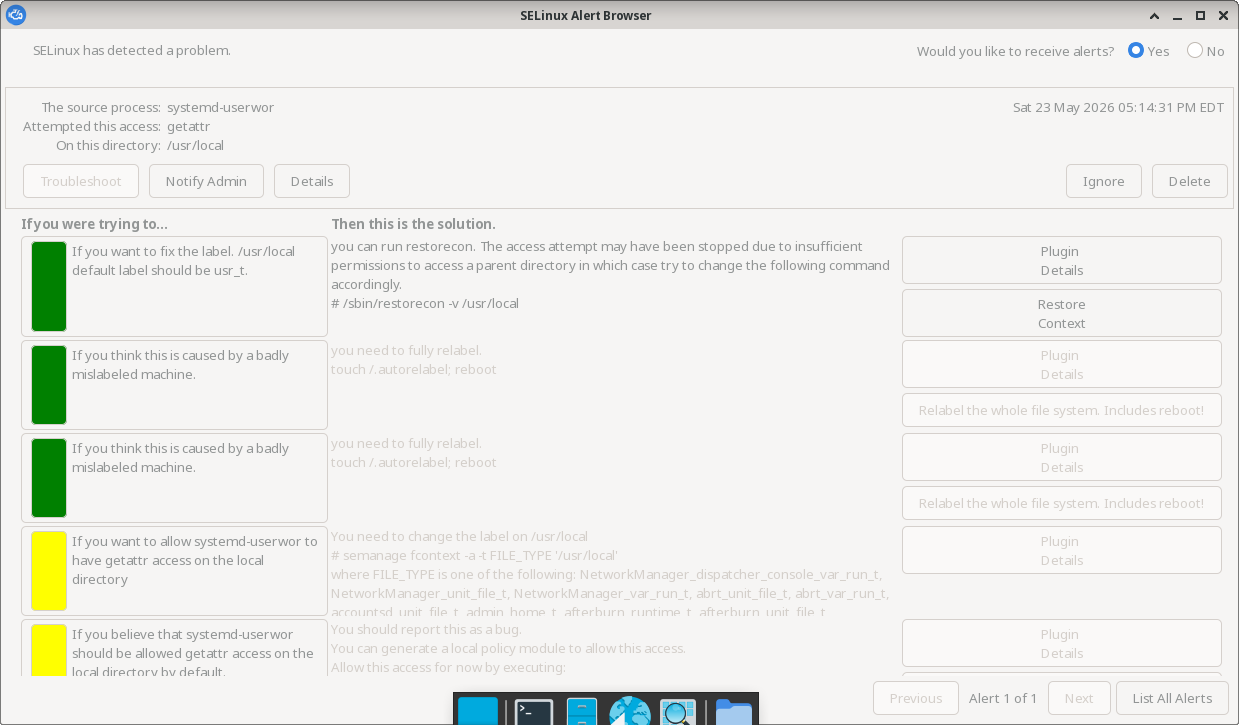
This generated an SELinux alert right away, complaining that the new /usr/local filesystem lacked the correct security context. The security information wasn’t “carried over” when copying the old /usr/local directory tree. Fortunately, the SELinux error provides the solution:
To restore the default SELinux security contexts to the new /usr/local directory tree, I ran the restorecon command. The -v option will print what it does to fix the system:
$ sudo restorecon -v /usr/local
Relabeled /usr/local from system_u:object_r:unlabeled_t:s0 to system_u:object_r:usr_t:s0
Relabeled /usr/local/lost+found from system_u:object_r:unlabeled_t:s0 to system_u:object_r:usr_t:s0
Filesystem flexibility
With just a few extra steps, I was able to use two disks with Fedora Linux, which lets me take full advantage of the storage on my laptop. The operating system now runs from the very fast NVMe drive, while my big third-party applications in /usr/local and /opt run from the hard disk.
Introduction Earlier this year, the community was invited to share their thoughts on a potential new initiative called “Fedora Verified“. The goal of this survey was not to make final decisions, but to listen – to understand what contributors value, where opinions differ, and what questions still need answering.
This is a summary of what we found.
Note: Fedora Verified is still a conceptual idea under discussion by the Fedora Council. Nothing has been finalized. The Council plans to continue these conversations with the community in the coming months, including at Flock.
Who responded?
The survey received 90 fully completed responses from contributors across the Fedora community. We focused our analysis exclusively on these full responses to ensure we are looking at complete, thoughtful feedback.
What the community said
Key Takeaways – When we looked at the data, a few incredibly clear themes emerged regarding what contributors want this program to look like if it moves forward:
Code isn’t everything: This was the loudest piece of feedback. A massive 66% of respondents explicitly stated that all types of contributions – including documentation, design, event organization, and community support – must carry the exact same weight as code contributions.
Keep the door open for newcomers: Nearly 40% of respondents expressed concern that adding a “Verified” status might intimidate new contributors and make it harder for them to get started. Any future model needs a welcoming, clear on-ramp.
12 months is too short: We proposed that the Verified status would expire after 12 months of inactivity. A majority (52%) rejected this, feeling that life gets in the way and a 12-month expiry is too strict.
Show us our progress: To help navigate the path to becoming Verified, 53% of respondents asked for a visual contribution tracking dashboard (similar to an enhanced Fedora Badges experience).
The Tension: Structure vs. Flexibility
The results also reveal two interesting and contrasting groups within the community regarding governance of the program.
A notable portion of contributors expressed a desire for more rigidity, wanting clearly defined milestones (43%) and formal committee reviews. At the same time, a similarly sizable group preferred less structure, with 62% asking for a moderately or lightly structured path, feeling that too much formality could discourage participation.
This tension was one of the most valuable findings of the survey. It shows that the Fedora Verified concept touches on something the community feels strongly about in different directions. Both perspectives are valid – setting clear expectations while leaving room for diverse contribution styles. The Council must achieve a careful balance as it moves forward.
What comes next?
These findings are being shared with the Fedora Council and relevant SIGs to inform future community conversations. The full analysis report, including a detailed breakdown of all survey responses, is available here: “Analysis Report.”
If you have thoughts or feedback on these findings, we’d love to hear from you on “Fedora Discussion.”
The last few weeks have seen a significant spike in reports of security vulnerabilities in the Linux Kernel. CopyFail, DirtyFrag, and Fragnesia have all exposed a path for a malicious user to escalate their privileges on a system from a standard user to root, and it’s possible there are more vulnerabilities that will be found. The Fedora Project is committed to keeping its users secure and patched against vulnerabilities as quickly as possible when they are disclosed, so let’s talk about how we try to do that.
Recent developments in machine learning have lead to a veritable gold rush for security researchers who can now rely on LLMs to analyze massive code bases like the Linux Kernel and find vulnerabilities at a rate well above what was previously possible. LLMs are also being used to weaponize these vulnerabilities once they’ve been found, allowing attackers to significantly shorten the gap between vulnerability disclosure and exploitation in the wild (source). All this means that it’s more important than ever for Fedora to have a robust process for tracking these vulnerabilities and distributing fixes for them.
What Fedora is doing
There are a number of ways the Fedora Package Maintainers get notified of new security vulnerabilities, the simplest of which is through security bulletins. Many projects post about their security updates on places like the oss-security mailing list and several Fedora contributors monitor these mailing lists for relevant vulnerabilities. The Red Hat Product Security team will also often raise Bugzilla bugs against Fedora packages for CVEs they are tracking, allowing Fedora to take advantage of the work being done to support RHEL customers.
Often security updates will flow through the usual Fedora package update process. Fedora uses tools like Anitya and Packit to monitor for new releases of upstream packages and automatically prepare updates for them. This automation helps across all updates with achieving Fedora’s “First” foundation, but they’re especially helpful for security updates which can be extremely time-sensitive to publish. If everything works as designed, by the time a human gets involved in preparing the update, there could already be a pull request and scratch build ready for testing.
Once the Fedora Package Maintainers are aware of a security vulnerability in a package we distribute, we’ll evaluate the best way to make the patch available to users of supported Fedora releases. Often this just means publishing the latest version of the package, but sometimes this isn’t possible. If the fix has not yet been merged in the upstream project (as happened with the recent kernel vulnerabilities) or if the latest version is too far from the current package version in that Fedora release (more information), the fix may be applied as a standalone patch. This can lead to a situation where a fixed version of the package is available but the version number still shows the vulnerable version, so you can use the dnf changelog command to check the update history for the package and see if a patch has been applied.
Keeping your system secure
It may sound cliché, but for most users the best thing you can do to keep your system secure is regularly updating it. Security package updates in Fedora are tagged with their severity and CVE numbers, so you can keep track of when security updates are published into Bodhi (for example). You can also apply all the pending security updates on your system using the following command:
dnf update --security
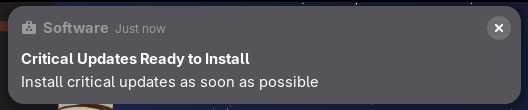
Some desktop environments will proactively notify users if there are pending security updates for their system. For example, GNOME Software will periodically check for pending updates and send the user a toast notification like the one below prompting to install the updates.
If you’d like to automate patching vulnerable packages, dnf-automatic can be configured to automatically download and apply security updates on a schedule, although applying kernel upgrades will require rebooting the system. You can learn more about this in the documentation here.
Getting involved
If this kind of Open Source security sounds interesting to you, why not consider becoming a Fedora contributor? We’re always looking for more people to get involved with projects like the Security SIG and Kernel Maintenance!
We are happy to announce the general availability of Fedora Asahi Remix 44. This release brings Fedora Linux 44 to Apple Silicon Macs.
Fedora Asahi Remix is developed in close collaboration with the Fedora Asahi SIG and the Asahi Linux project. This release incorporates all of the exciting improvements brought by Fedora Linux 44. Fedora Asahi Remix 44 also retires our vendored Mesa and virglrenderer packages. Users who have not already manually done so will be automatically transitioned to the upstream Mesa and virglrenderer packages provided by the upstream Fedora repositories.
Fedora Asahi Remix offers KDE Plasma 6.6 as our flagship desktop experience, with all of the new and exciting features brought by Fedora KDE Plasma Desktop 44. Plasma Setup replaces the previous Calamares-based setup wizard, providing a Plasma-native experience for user account creation and system setup. Additionally, Plasma Login Manager is now the default greeter and session manager, replacing SDDM. This applies to new installs only; users upgrading from previous versions of Fedora Asahi Remix will not have their configuration changed.
A GNOME variant is also available, featuring GNOME 50, with both desktop variants matching what Fedora Linux offers. Fedora Asahi Remix also provides a Fedora Server variant for server workloads and other types of headless deployments. Finally, we offer a Minimal image for users that wish to build their own experience from the ground up.
You can install Fedora Asahi Remix today by following our installation guide. Existing systems running Fedora Asahi Remix 42 or 43 can be updated following the usual Fedora upgrade process. Upgrades via GNOME’s Software application are unfortunately not supported; either KDE’s Plasma Discover or DNF’s System Upgrade command must be used.
Fedora has released Fedora KDE Plasma Desktop Edition 44 to the public.
The Fedora KDE Plasma Desktop Edition is suitable for many needs. It combines the reliable and trusted Fedora Linux base with the KDE Plasma Desktop environment. It provides a selection of KDE applications that are simple by default, but powerful when needed.
KDE Plasma 6.6
The KDE community makes your life easier with the latest release of KDE Plasma. It builds upon the foundations of Plasma 6 to provide a seamless, friendly, and familiar experience.
Fedora KDE 44 ships with Plasma 6.6.4 featuring:
Custom global theme creation by saving the current theme setup
More options for using color accent in windows with tint intensity for window frames
Support for connecting to Wi-Fi networks by scanning QR codes
Per-application volume adjustment from the task manager
New grayscale filter for colorblindness correction
New screen magnifier feature that tracks the mouse pointer
New “Slow keys” and “reduced motion” settings
Spectacle can do OCR scanning of images to capture text
Per-window filter from screencast through the menu in the title bar
Beyond just the updates included in KDE Plasma 6.6, there are some major new features with Fedora KDE on Fedora Linux 44.
Fresh installations now use the brand-new Plasma Setup and Plasma Login Manager. These provide a more cohesive and integrated experience from the moment the computer is powered on the first time. The installation process has been simplified. It now enables you to easily set up a computer with Fedora KDE Plasma Desktop for a friend or a loved one.
The on-screen keyboard uses the new Plasma Keyboard, providing a fresh and future-forward implementation for keyboard input.
Fedora Linux 44 general updates
Some broader changes in Fedora Linux also directly impact Fedora KDE Plasma Desktop Edition, notably:
PackageKit now uses version 5 of the DNF package manager as the backend.
Support for select Qualcomm-based laptops.
The /etc/pki/tls/cert.pem file no longer exists by default. This may impact some programs that expect this file to provide system CA certificates instead of leveraging behaviors built into cryptographic security libraries to offer this information.
Fedora Ready is ready for Fedora KDE
The Fedora KDE Plasma Desktop 44 edition is fully supported within the Fedora Ready program. Fedora KDE is actively engaging with hardware vendors to support Fedora KDE Plasma Desktop on their devices.
We are pleased to announce that Star Labs offers preinstalled Fedora KDE Plasma Desktop as an option for their portfolio of devices. As makers of computers with an open source ethos embedded into the core of their products with even open source firmware powered by Coreboot, they share many of the same principles the Fedora community values. This is a very exciting moment for Fedora KDE and we look forward to deepening our collaboration with Fedora Ready participants and extending to other vendors. If you are a vendor potentially interested in Fedora Ready, please reach out!


 This May we had to upgrade from 42 to 43 and in this upgrade, Dovecot POP/IMAP server switched to version 2.4.3. Dovecot did us all an unexpected favor, because it required a full rewrite of the used service config, because it’s not backwards compatible. This change introduced a new paradigm: PLAIN TEXT passwords are no longer allowed over unencrypted connections.