Posted on Leave a comment

How to Convert .blf (CAN) to .csv in Python

5/5 – (1 vote)

Problem Formulation

πŸ’¬ How to convert .blf from a CAN bus to .csv in Python?

πŸ’‘ What is BLF? The Binary Logging Format (BLF) is a proprietary
CAN log format from the automative company Vector Informatik GmbH.

πŸ’‘ What is CAN? The Controller Area Network (CAN bus) is a message-based protocol standard for microcontrollers in vehicles to communicate without a host computer.

Method 1: Using BLF Reader and CSV Writer

To convert the BLF file 'my_file.blf' to the CSV file 'my_file.csv', you can first iterate over the bus messages using can.BLFReader('my_file.csv') and add the data to a list of lists. Then, you can use the csv.writer() approach to write the list of lists to a CSV file.

Here’s an example that improves upon this SO thread:

import can
import csv log = [] for msg in list(can.BLFReader("my_file.blf")): msg = str(msg) row = [msg[18:26], msg[38:40], msg[40:42], msg[46], msg[62], msg[67:90]] log.append(row) with open("my_file.csv", "w", newline='') as f: writer = csv.writer(f, delimiter=',', quotechar='\"', quoting=csv.QUOTE_ALL) writer.writerows(log)

A more sophisticated version of this code is provided in this Github repository. Here’s a screenshot of the code — notice the more advanced processing of a single message compared to our solution:

Method 2: Using the candas Library

The candas library provides utility functions to work with .blf files and the CAN bus. Among other things, it helps you with the conversion from BLF to CSV as outlined here.

This is the provided example:

import candas as cd db = cd.load_dbc("dbc_folder") # This is the BLF file 'my_file.blf':
log = cd.from_file("my_file") # This prints a signal from the messages in the BLF:
print(log["AVGcellTemperature"])

Method 3: Using Custom Solution from python-can Library

You can use your tailor-made solutions by combining the Readers and Writers provided in the python-can library.

It provides multiple utility functions such as:

  • Listener
  • BufferedReader
  • RedirectReader
  • Logger
  • Printer
  • CSVWriter
  • SqliteWriter
  • ASC
  • Log
  • BLF

Chances are you’ll find what you’re looking for when going over those functions!

Related Video

Still not satisfied? I found the following relevant video when searching for a solution to this problem. I think you’ll find some nice tricks in the video!

Posted on Leave a comment

How to Convert a CSV to NumPy Array in Python?

5/5 – (1 vote)

Problem Formulation

Given a CSV file (e.g., stored in the file with name 'my_file.csv').

INPUT: file 'my_file.csv'
9,8,7
6,5,4
3,2,1
How to Convert a CSV to NumPy Array in Python?

Challenge: How to convert it to a NumPy Array?

OUTPUT: 2D NumPy Array
[[9. 8. 7.] [6. 5. 4.] [3. 2. 1.]]

Method 1: np.loadtxt()

np.loadtxt()

You can convert a CSV file to a NumPy array simply by calling np.loadtxt() with two arguments: the filename and the delimiter string. For example, the expression np.loadtxt('my_file.csv', delimiter=',') returns a NumPy array from the 'my_file.csv' with delimiter symbols ','.

Here’s an example:

import numpy as np array = np.loadtxt('my_file.csv', delimiter=',')
print(array)

Output:

[[9. 8. 7.] [6. 5. 4.] [3. 2. 1.]]

Method 2: np.loadtxt() with Header

np.loadtxt() + header

You can convert a CSV file with first-line header to a NumPy array by calling np.loadtxt() with three arguments: the filename, skiprows=1 to skip the first line (header), and the delimiter string. For example, the expression np.loadtxt('my_file.csv', skiprows=1, delimiter=',') returns a NumPy array from the 'my_file.csv' with delimiter symbols ',' while skipping the first line.

Figure: Skip the first header line in the CSV using the skiprows argument of the np.loadtxt() function.

Here’s an example:

import numpy as np array = np.loadtxt('my_file.csv', skiprows=1, delimiter=',')
print(array)

Output:

[[9. 8. 7.] [6. 5. 4.] [3. 2. 1.]]

Method 3: CSV Reader

CSV Reader

To convert a CSV file 'my_file.csv' into a list of lists in Python, use the csv.reader(file_obj) method to create a CSV file reader. Then convert the resulting object to a list using the list() constructor. As a final step, you can convert the nested list to a NumPy array by using the np.array(list) constructor.

Here’s an example:

import numpy as np
import csv csv_filename = 'my_file.csv' with open(csv_filename) as f: reader = csv.reader(f) lst = list(reader) print(lst)

The output is the list of lists:

[['9', '8', '7'], ['6', '5', '4'], ['3', '2', '1']]

Now, if you need to convert it to a NumPy array, you can simply use the np.array() function on the newly-created list like so:

array = np.array(lst)
print(array)

Output:

[['9' '8' '7'] ['6' '5' '4'] ['3' '2' '1']]

🌎 Related Tutorial: How to Convert CSV to List of Lists in Python

Method 4: np.genfromtxt()

np.genfromtxt()

You can convert a CSV file to a NumPy array simply by calling np.genfromtxt() with two arguments: the filename and the delimiter string. For example, the expression np.genfromtxt('my_file.csv', delimiter=',') returns a NumPy array from the 'my_file.csv' with delimiter symbol ','.

Here’s an example:

import numpy as np array = np.loadtxt('my_file.csv', delimiter=',')
print(array)

Output:

[[9. 8. 7.] [6. 5. 4.] [3. 2. 1.]]

Method 5: Pandas read_csv() and df.to_numpy()

read_csv() and df.to_numpy()

A quick and efficient way to read a CSV to a NumPy array is to combine Pandas’ pd.read_csv() function to read a given CSV file to a DataFrame with the df.to_numpy() function to convert the Pandas DataFrame to a NumPy array.

Here’s an example:

import pandas as pd df = pd.read_csv('my_file.csv', header=None)
array = df.to_numpy() print(array)

Output:

[[9 8 7] [6 5 4] [3 2 1]]

🌎 Related Tutorial: 17 Ways to Read a CSV File to a Pandas DataFrame

Summary

We have seen five ways to convert a CSV file to a 2D NumPy array:

  • Method 1: np.loadtxt()
  • Method 2: np.loadtxt() with Header
  • Method 3: CSV Reader
  • Method 4: np.genfromtxt()
  • Method 5: Pandas read_csv() and df.to_numpy()

Our preferred way is np.loadtxt() for its simplicity and Pandas for its extensibility.

Posted on Leave a comment

How to Install psycopg2 in Python?

5/5 – (1 vote)
pip install psycopg2

The Python psycopg2 library is among the top 100 Python libraries, with more than 15,749,750 downloads. This article will show you everything you need to get this installed in your Python environment.

How to Install psycopg2 on Windows?

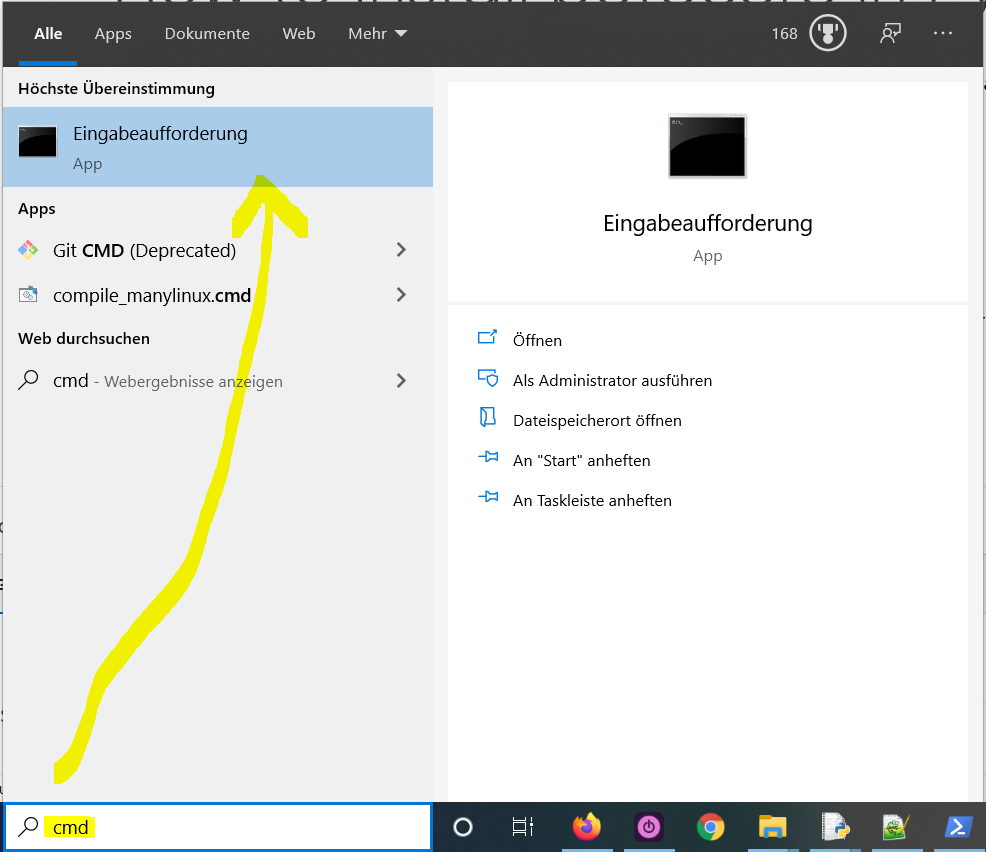
  1. Type "cmd" in the search bar and hit Enter to open the command line.
  2. Type “pip install psycopg2” (without quotes) in the command line and hit Enter again. This installs psycopg2 for your default Python installation.
  3. The previous command may not work if you have both Python versions 2 and 3 on your computer. In this case, try "pip3 install psycopg2" or “python -m pip install psycopg2“.
  4. Wait for the installation to terminate successfully. It is now installed on your Windows machine.

Here’s how to open the command line on a (German) Windows machine:

Open CMD in Windows

First, try the following command to install psycopg2 on your system:

pip install psycopg2

Second, if this leads to an error message, try this command to install psycopg2 on your system:

pip3 install psycopg2

Third, if both do not work, use the following long-form command:

python -m pip install psycopg2

The difference between pip and pip3 is that pip3 is an updated version of pip for Python version 3. Depending on what’s first in the PATH variable, pip will refer to your Python 2 or Python 3 installation—and you cannot know which without checking the environment variables. To resolve this uncertainty, you can use pip3, which will always refer to your default Python 3 installation.

How to Install psycopg2 on Linux?

You can install psycopg2 on Linux in four steps:

  1. Open your Linux terminal or shell
  2. Type “pip install psycopg2” (without quotes), hit Enter.
  3. If it doesn’t work, try "pip3 install psycopg2" or “python -m pip install psycopg2“.
  4. Wait for the installation to terminate successfully.

The package is now installed on your Linux operating system.

How to Install psycopg2 on macOS?

Similarly, you can install psycopg2 on macOS in four steps:

  1. Open your macOS terminal.
  2. Type “pip install psycopg2” without quotes and hit Enter.
  3. If it doesn’t work, try "pip3 install psycopg2" or “python -m pip install psycopg2“.
  4. Wait for the installation to terminate successfully.

The package is now installed on your macOS.

How to Install psycopg2 in PyCharm?

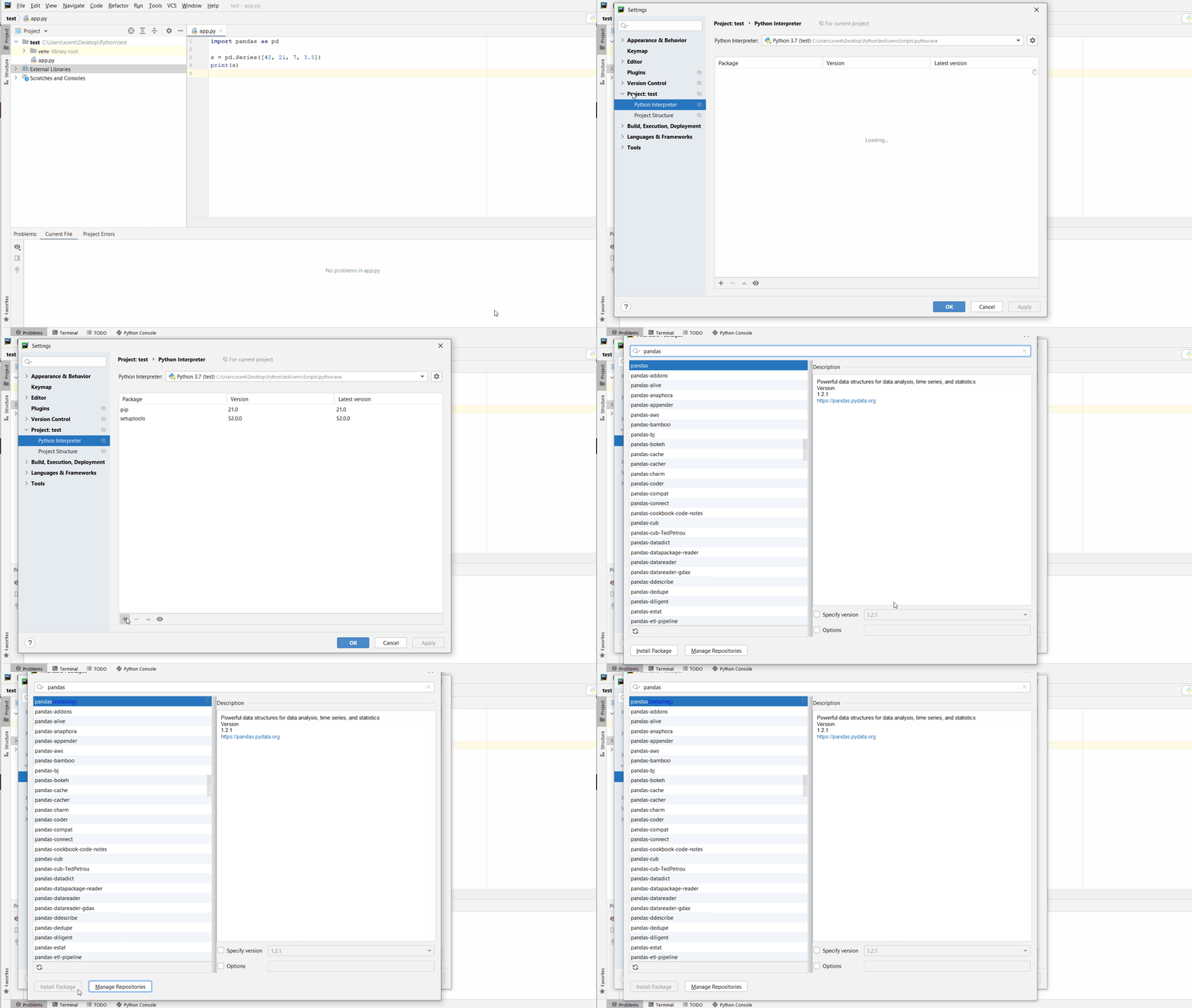
Given a PyCharm project. How to install the psycopg2 library in your project within a virtual environment or globally? Here’s a solution that always works:

  • Open File > Settings > Project from the PyCharm menu.
  • Select your current project.
  • Click the Python Interpreter tab within your project tab.
  • Click the small + symbol to add a new library to the project.
  • Now type in the library to be installed, in your example "psycopg2" without quotes, and click Install Package.
  • Wait for the installation to terminate and close all pop-ups.

Here’s the general package installation process as a short animated videoβ€”it works analogously for psycopg2 if you type in “psycopg2” in the search field instead:

Make sure to select only “psycopg2” because there may be other packages that are not required but also contain the same term (false positives):

How to Install psycopg2 in a Jupyter Notebook?

To install any package in a Jupyter notebook, you can prefix the !pip install my_package statement with the exclamation mark "!". This works for the psycopg2 library too:

!pip install my_package

This automatically installs the psycopg2 library when the cell is first executed.

How to Resolve ModuleNotFoundError: No module named ‘psycopg2’?

Say you try to import the psycopg2 package into your Python script without installing it first:

import psycopg2
# ... ModuleNotFoundError: No module named 'psycopg2'

Because you haven’t installed the package, Python raises a ModuleNotFoundError: No module named 'psycopg2'.

To fix the error, install the psycopg2 library using “pip install psycopg2” or “pip3 install psycopg2” in your operating system’s shell or terminal first.

See above for the different ways to install psycopg2 in your environment.

Improve Your Python Skills

If you want to keep improving your Python skills and learn about new and exciting technologies such as Blockchain development, machine learning, and data science, check out the Finxter free email academy with cheat sheets, regular tutorials, and programming puzzles.

Join us, it’s fun! πŸ™‚

Posted on Leave a comment

Layout of a Solidity Source File

5/5 – (1 vote)

In this article, I am going to explain the fundamentals of a Solidity source file structure. In a way, a rookie (like me and you) can understand the basics of Ethereum programming.

First things first – the Solidity file that stores your code will have a .sol extension.

Take action.

  1. In your favorite browser go to https://remix.ethereum.org/ 
  2. Using Create New File create a new finxter.sol file

Well done. Your file – empty so far – is ready for more actions!

In this article, we’ll add (i) license identifier, (ii) pragma, (iii) another file via import, and (iv) add some comments.

The actual smart contract code is out of scope here but check out other Finxter tutorials – there is plenty of that.

License Identifier

I know you are eager to get to the meat, but before you jump there, bear with me.  The so-called SPDX license identifier is the first element you need to jot down.

What the heck is that? SPDX, or the Software Package Data Exchange, is an international, open standard for communicating software information including licenses or copyrights. 

Being a standard means that many companies and organizations have agreed to do some things in a certain way. And Solidity has also adopted that standard.

Why bother, you ask?

Well, your code will be transparent in a blockchain and that transparency triggers copyright issues. The SPDX identifier hence allows you to specify what you allow others to do with your code. And vice versa, you learn what you can do with other people’s code too.

An example comment line with an identifier would be:

// SPDX-License-Identifier: MIT

What this means is:

πŸ‘©β€βš–οΈ Permission is hereby granted, free of charge, to any person obtaining a copy of this software and associated documentation files (the “Software”), to deal in the Software without restriction, [etc etc…]

SPDX license list has over 450 various license identifiers!

But don’t worry too much now, we are here to learn Solidity, not the legal twists. So for now, take my word and use MIT as your default one. Or if you do not want to specify a license or if the source code is not open-source, please use the special value UNLICENSED.

πŸ›‘ Caution here folks – UNLICENSE (without ‘d’ at the end) is a completely different license! Open door type of one. It offers free and unencumbered software released into the public domain.

By the way, a good rule of thumb is to use the OSI-approved ones when browsing https://spdx.org/licenses/. β€œOnly” about 120+ options for consideration.

Does that identifier do anything technically to your code? No, it won’t break how it works. After all, it is a comment.

But from Solidity >=0.6.8 (so 0.6.8 and any higher), that comment must be part of your code. Otherwise expect a Warning in your compiler.

The compiler checks the existence but does not know if your identifier is the right one (if it exists in the SPDX list). Starting in Solidity 0.8.8 it checks for multiple SPDX license identifiers next to each other and validates them. It still allows you to play with it though πŸ™‚

In 0.8.7 you could easily get away with some crazy identifier.

// SPDX-License-Identifier: cheating_on_you pragma solidity 0.8.7;

From 0.8.8 onwards it actually starts to pay attention and throws errors. Note the red error icon on the left in line 1.

Same happens when you add multiple licenses inappropriately. 

This one below goes unnoticed though – compiler says OK.

// SPDX-License-Identifier: cheatingonyou pragma solidity 0.8.15;

Since SPDX info is a comment, it is recognized by the compiler anywhere in the file at the file level, but for clarity put it at the very top of the file.

Lastly, the identifier will become part of your metadata once it’s compiled. And that is machine-readable so others will find it easy to query.

Take action.

1. Add the license-related comment to your code (finxter.sol)

// SPDX-License-Identifier: MIT

Pragmas

The second important keyword is pragma. It comes in several shapes and forms – as a version pragma, ABI Coder pragma or experimental pragma.

⭐ Note: A pragma directive is always local to a source file. So you must add it to all your files if you want to enable it in your whole project.

Remember also that if you import another file, the pragma from that file does not automatically apply to the importing file.

1. Version pragma defines for which versions of Solidity the code is written.

In the example:

pragma solidity >= 0.8.7;

we can expect that no compiler on version 0.8.7 or higher will throw any pragma errors.

Other examples – for illustration and education – how to define pragma versions:

pragma solidity 0.6.8; //single instance
pragma solidity >= 0.6.8; //0.6.8 and any above
pragma solidity ^0.6.8; //0.6.8 and any above but less than 0.7.0
pragma solidity 0.6.8 ^0.7.5; // single instance AND any above 0.7.5 but less than 0.8 -> this AND condition cannot be met here
pragma solidity 0.8.1 || ^0.8.10; // one instance OR any from 0.8.10 but less than 0.9.0

For practical reasons, the version pragma is the only type you should really care about when you start your Solidity journey.

2. ABI Coder pragma

As per Solidity documentation, you have two options to choose from:

pragma abicoder v1;
pragma abicoder v2;

However as of Solidity 0.8.0 the ABIEncoder is activated by default so for a rookie like you and me, there’s nothing to worry about anymore.

With version 0.8.0+ you can already enjoy the benefits of working more effectively with arrays and structs. These are just some of data types but explaining this goes way beyond this tutorial.

And no need to call this pragma additionally, as you had to do in the past, e.g.:

// SPDX-License-Identifier: GPL-3.0
pragma solidity ^0.4.16;
pragma experimental ABIEncoderV2;

3. Experimental pragma

Getting here is a risky business so better do not try it yourself at home πŸ™‚

Solidity might be offering features that are – as labeled – experimental.

So if you have some technical appetite and skills and want to play, showcase to your potential clients or whatever the purpose, go ahead. But if again, you are still early in the game, just park for now. 

Take Action.

1. Add a version pragma directive to your code

pragma solidity ^0.8.15;

Importing other Source Files

You can import files in Solidity. That sounds obvious but let’s say this upfront.

Importing other files is important since you can break down your code into multiple files, which makes it more modular, easier to manage and control, and – best of all – re-usable.

The simplest way to import is using this line of code:

import "filename";

In our quick Remix exercise, imagine we have another file called β€œhelloWorld.sol” located in the same directory. In order to import it to our finxter.sol file, one would use:

import "./helloWorld.sol";

Note: Pythonic  import "helloWorld.sol" would not work here.

For education purposes and in very simple implementations, this is the shortest way to import. Its disadvantage is that it pollutes the namespace by importing all global symbols from the imported file into the current global system.

That approach carries also a risk of importing symbols that are imported into the file we are importing. That file can contain symbols imported for yet another file and so on. Such subsequent importing may lead to confusion about where the symbols come from and where actually they are defined.

Solidity recommends using a variant, which may look more complex at first. But it only adds one new global symbol to the namespace, here symbolName, whose members are symbols from the imported file.

Makes sense?

import * as symbolName from "filename";

The best approach however would be to import relevant symbols explicitly.

So for instance, if the imported file β€œhelloWorld.sol” would have a contract named β€œsayHello”, one could use only that. Rule of thumb here: import only the things you will use. 

import {something} from "filename";

Take action:

1. Add a new file named β€œhelloWorld.sol” that contains this code

// SPDX-License-Identifier: MIT pragma solidity ^0.8.0; contract sayHello { // empty contract
}

2. In the β€œfinxter.sol” file, add import 

import {sayHello} from "./helloWorld.sol";

Comments

Commenting the code is possible in the two following ways:

1. Regular comments

1.1 Single-line comment, e.g.

// this is a single-line regular comment

1.2 Multi-line comment, e.g.

/*
This
comment
spans
many
lines
*/

2. NatSpec comments

NatSpec stands for Ethereum Natural Language Specification. It is a special form of comments to provide rich documentation for functions, return variables, and more. 

The recommendation is that Solidity contracts are fully annotated using NatSpec for all public interfaces (everything in the ABI).

Use NatSpecs comments directly above function declarations or statements.e.g.

2.1 Single-line

/// single-line NatSpec comment

2.2 Multi-line

/**
multi-line
NatSpec
comment
*/

CODE example

// SPDX-License-Identifier: GPL-3.0
pragma solidity >=0.4.16 <0.9.0; /// @author The Solidity Team
/// @title A simple storage example
contract SimpleStorage { uint storedData; /// Store `x`. /// @param x the new value to store /// @dev stores the number in the state variable `storedData` function set(uint x) public { storedData = x; } /** Return the stored value. @dev retrieves the value of the state variable `storedData` @return the stored value */ function get() public view returns (uint) { return storedData; }
}

Take action:

1. Add a regular multi-line comment to your finxter.sol file

/*
This
tutorial
comes
from
finxter.com
*/

Reference: This article is based on some contents from the documentation. Check out this awesome resource too!


Learn Solidity Course

Solidity is the programming language of the future.

It gives you the rare and sought-after superpower to program against the “Internet Computer”, i.e., against decentralized Blockchains such as Ethereum, Binance Smart Chain, Ethereum Classic, Tron, and Avalanche – to mention just a few Blockchain infrastructures that support Solidity.

In particular, Solidity allows you to create smart contracts, i.e., pieces of code that automatically execute on specific conditions in a completely decentralized environment. For example, smart contracts empower you to create your own decentralized autonomous organizations (DAOs) that run on Blockchains without being subject to centralized control.

NFTs, DeFi, DAOs, and Blockchain-based games are all based on smart contracts.

This course is a simple, low-friction introduction to creating your first smart contract using the Remix IDE on the Ethereum testnet – without fluff, significant upfront costs to purchase ETH, or unnecessary complexity.

Posted on Leave a comment

How to Create an Empty List in Python?

5/5 – (1 vote)

To create an empty list in Python, you can use two ways. First, the empty square bracket notation [] creates a new list object without any element in it. Second, the list() initializer method without an argument creates an empty list object too.

Both approaches are shown in the following code:

# Way 1 to create an empty list:
my_list = [] # Way 2 to create an empty list:
my_list = list()

Next, you’ll learn many more related Python concepts you need to know that concern creation of lists. Keep reading to keep improving your skills and answer any subsequent question you may have!

Python list() — Quick Guide

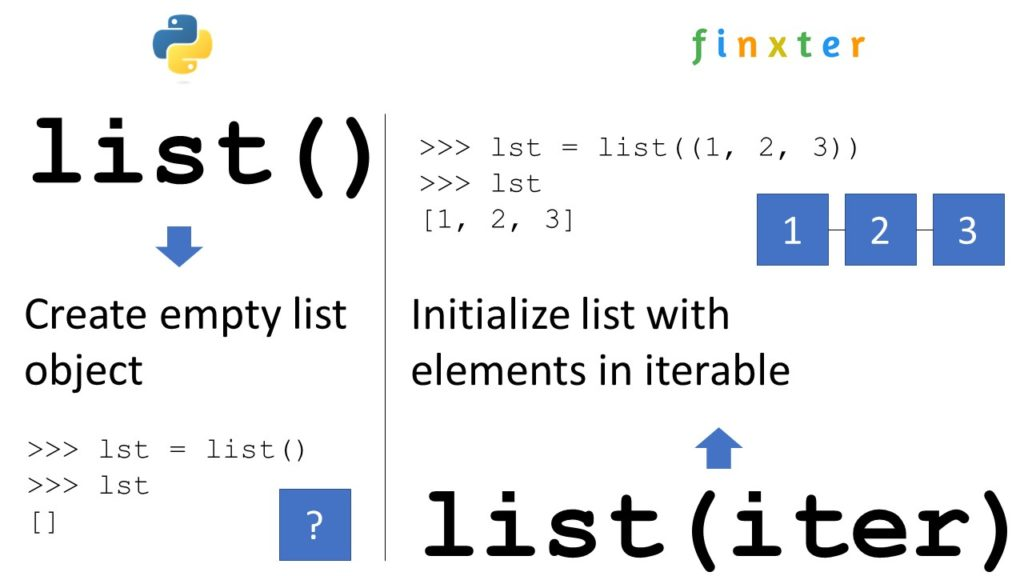
Python’s built-in list() function creates and returns a new list object. When used without an argument, it returns an empty list. When used with the optional iterable argument, it initializes the new list with the elements in the iterable.

You can create an empty list by skipping the argument:

>>> list()
[]

If you pass an iterableβ€”such as another list, a tuple, a set, or a dictionaryβ€”you obtain a new list object with list elements obtained from the iterable:

>>> list([1, 2, 3])
[1, 2, 3]

🌍 Read More: Read our full tutorial on the Finxter blog to learn everything you need to know.

Python Create Empty List of Size

To create a list of n placeholder elements, multiply the list of a single placeholder element with n.

For example, use [None] * 5 to create a list [None, None, None, None, None] with five elements None.

You can then overwrite some elements with index assignments.

In the example, lst[2] = 42 would result in the changed list [None, None, 42, None, None].

# Create a list with n placeholder elements
n = 5
lst = [None] * n # Print the "placeholder" list:
print(lst)
# [None, None, None, None, None] # Overwrite the placeholder elements
lst[0] = 'Alice'
lst[1] = 0
lst[2] = 42
lst[3] = 12
lst[4] = 'hello'
print(lst)
# ['Alice', 0, 42, 12, 'hello']

🌍 Read More: Read our full tutorial on the Finxter blog to learn everything you need to know.

Python Create Empty List of Lists

You can create an empty list of lists do not use [[]] * n because this creates a nested list that contains the same empty list object n times which can cause problems because if you update one, all inner lists change!

To create an empty list of lists with n empty inner lists, use the list comprehension statement [[] for _ in range(n)] that creates a fresh empty list object n times.

n = 5
my_list = [[] for _ in range(n)]
print(my_list)
# [[], [], [], [], []]

List comprehension is a powerful Python feature and I’ve written a full blog tutorial on it—feel free to watch my general explainer video and read the associated blog article!

🌍 Read More: Read our full tutorial on the Finxter blog to learn everything you need to know.

Python Create Empty List and Append in Loop

Follow these three easy steps to create an empty list and append values to it in a for loop:

  1. my_list = [] creates the empty list and assigns it to the name my_list.
  2. for i in range(10): initializes the for loop to be repeated 10 times using loop variable i that takes on all values between 0, 1, …, 9.
  3. my_list.append(i) is the loop body that appends the integer value of the loop variable i to the list.

Here’s the code example:

my_list = []
for i in range(10): my_list.append(i) print(my_list)
# [0, 1, 2, 3, 4, 5, 6, 7, 8, 9]

However, a better Python one-liner alternative is using list comprehension for this:

my_list = [i for i in range(10)]

Python Create List of Empty Strings

To create a list of n empty strings, you can use the expression [''] * n because it places the same empty string literal '' into the list n times. This doesn’t cause any problems due to the fact that all list elements refer to the same empty string object because strings are immutable and cannot be modified anyways.

>>> [''] * 5
['', '', '', '', '']
>>> [''] * 20
['', '', '', '', '', '', '', '', '', '', '', '', '', '', '', '', '', '', '', '']

Python Create Empty List of Dictionaries

To create a list of n dictionaries, each dict being empty, use the list comprehension statement [dict() for _ in range(n)] with the underscore _ as a throw-away “loop variable” and the dict() built-in dictionary creation function.

my_list = [dict() for _ in range(10)]
print(my_list)
# [{}, {}, {}, {}, {}, {}, {}, {}, {}, {}]

Note that if you update one of the dictionaries, all other dictionaries are unaffected by this because we really created n independent dictionary objects.

# update first dictionary:
my_list[0]['foo'] = 'bar' print(my_list)
# [{'foo': 'bar'}, {}, {}, {}, {}, {}, {}, {}, {}, {}]

Python Create Empty List of Class Objects

To create an empty list of class objects, you can use list comprehension statement my_list = [MyClass() for _ in range(n)] that repeats n times the creation of an empty class object MyClass and adding it to the list. You can then later change the contents of the n different MyClass objects.

class MyClass(object): pass my_list = [MyClass() for _ in range(5)] print(my_list)
# [<__main__.MyClass object at 0x000001EA45779F40>, <__main__.MyClass object at 0x000001EA47533D00>, <__main__.MyClass object at 0x000001EA475334C0>, <__main__.MyClass object at 0x000001EA4758E070>, <__main__.MyClass object at 0x000001EA4758E4F0>]

Python Create Empty List of Type

Python is a dynamic language so there is no concept of a “list of type X”. Instead of creating a list of a fixed type, simply create an empty list using [] or list() and assign it to a variable such as my_list. Using the variable, you can then fill into the existing list any data type you want!

Here we create an empty list and fill in an integer, a list, and a string—all into the same list!

my_list = []
# Alternative: my_list = list() # Add integer to list:
my_list.append(42) # Add list to list:
my_list.append([1, 2, 3]) # Add string to list:
my_list.append('hello world') # Print all contents of list:
print(my_list)
# [42, [1, 2, 3], 'hello world']

Python Create Empty List of Integers

To initialize a list with certain integers such as zeroes 0, you can either use the concise list multiplication operation [0] * n or you use list comprehension [0 for _ in range(n)].

>>> [0] * 5
[0, 0, 0, 0, 0]
>>> [0] * 10
[0, 0, 0, 0, 0, 0, 0, 0, 0, 0]
>>> [42] * 5
[42, 42, 42, 42, 42]
>>> [42 for _ in range(5)]
[42, 42, 42, 42, 42]

Python Create Empty List of Tuples

To create an empty list and later add one tuple at-a-time to it, first initialize the empty list using the [] square bracket operator and then use the list.append(t) to append one tuple t at a time.

Here we add three tuples to the initially empty list:

# create empty list:
my_list = [] # append tuples
my_list.append((1, 2))
my_list.append(('alice', 'bob', 'carl'))
my_list.append(tuple()) print(my_list)
# [(1, 2), ('alice', 'bob', 'carl'), ()]
Posted on Leave a comment

CSV to XML – How to Convert in Python?

4/5 – (1 vote)

Problem Formulation

python csv to xml

Input: You have some data in a CSV file stored in 'my_file.csv' where the first row is the header and the remaining rows are values associated to the column names in the header.

Name,Job,Age,Income
Alice,Programmer,23,110000
Bob,Executive,34,90000
Carl,Sales,45,50000

Desired Output: You want to store the data in an XML file 'my_file.xml' so that each row is represented by an XML <row> tag and each column value is associated with a specific column header tag.

<data> <row id='Alice'>
 <Name>Alice</Name>
 <Job>Programmer</Job>
 <Age>23</Age>
 <Income>110000</Income> </row>
 <row id='Bob'>
 <Name>Bob</Name>
 <Job>Executive</Job>
 <Age>34</Age>
 <Income>90000</Income> </row>
 <row id='Carl'>
 <Name>Carl</Name>
 <Job>Sales</Job>
 <Age>45</Age>
 <Income>50000</Income> </row>
</data>

Python CSV to XML – Basic Example

You can convert a CSV to an XML using the following approach:

  • Read the whole CSV file into your Python script.
  • Store the first row as header data that is needed to name your custom XML tags (e.g., <Name>, <Job>, <Age>, and <Income> in our example).
  • Create a function convert_row() that converts each row separately to an XML representation of that row using basic string formatting.
  • Iterate over the data row-wise using csv.reader() and convert each CSV row to XML using your function convert_row().

Here’s the code for copy&paste:

# Convert CSV file to XML string
import csv filename = 'my_file.csv' def convert_row(headers, row): s = f'<row id="{row[0]}">\n' for header, item in zip(headers, row): s += f' <{header}>' + f'{item}' + f'</{header}>\n' return s + '</row>' with open(filename, 'r') as f: r = csv.reader(f) headers = next(r) xml = '<data>\n' for row in r: xml += convert_row(headers, row) + '\n' xml += '</data>' print(xml)

Output:

<data>
<row id="Alice"> <Name>Alice</Name> <Job>Programmer</Job> <Age>23</Age> <Income>110000</Income>
</row>
<row id="Bob"> <Name>Bob</Name> <Job>Executive</Job> <Age>34</Age> <Income>90000</Income>
</row>
<row id="Carl"> <Name>Carl</Name> <Job>Sales</Job> <Age>45</Age> <Income>50000</Income>
</row>
</data>

Yay!

Note that instead of printing to the shell, you could print it to a file if this is what you need. Here’s how:

🌍 Learn More: How to print() to a file in Python?

Pandas CSV to XML

You can also use pandas instead of the csv module to read the CSV file into your Python script. Everything else remains similar—I highlighted the lines that have changed in the following code snippet:

import pandas as pd def convert_row(headers, row): s = f'<row id="{row[0]}">\n' for header, item in zip(headers, row): s += f' <{header}>' + f'{item}' + f'</{header}>\n' return s + '</row>' df = pd.read_csv("my_file.csv")
headers = df.columns.tolist()
xml = '<data>\n' for _, row in df.iterrows(): xml += convert_row(headers, row) + '\n' xml += '</data>'
print(xml)

Related CSV Conversion Tutorials

Posted on Leave a comment

How to Skip a Line in Python using \n?

5/5 – (1 vote)

Skip Line \n

Summary:

  • Python’s newline character \n indicates the end of a line of text.
  • The built-in print() function automatically adds a newline character \n at the end.
  • You can customize this behavior of separating two lines using a single newline character '\n' by changing the default end='\n' argument of the print() function to your desired string.
  • Another way to skip a line in the Python output is to add an empty print() statement that will just print an empty line and do nothing else.

Python’s newline character to indicate the end of a line of text is \n.

If you print a string to the shell using the built-in print() function, Python automatically adds a newline character \n at the end.

PYTHON CODE:
print('hello\nworld\n\nPython is great!') OUTPUT:
hello
world Python is great!

For example, if you iterate over the text in a file using a for loop and print each line in the loop body, the lines are separated with single new lines.

#################################
# File: my_filename.txt #
#################################
# My #
# File #
# Content #
################################# with open('my_filename.txt', 'r') as my_file: for line in my_file.readlines(): print(line) # Output:
My
File
Content

You can customize this behavior of separating two lines using a single newline character '\n' by changing the default end='\n' argument of the print() function to your desired string.

For example, you can skip two lines in Python using print(my_string, end='\n\n') by chaining two newline characters '\n\n'.

with open('my_filename.txt', 'r') as my_file: for line in my_file.readlines(): print(line, end='\n\n') # Output:
My File Content # End Output

Another way to skip a line in the Python output is to add an empty print() statement that will just print an empty line and do nothing else.

with open('my_filename.txt', 'r') as my_file: for line in my_file.readlines(): print(line) print() # Output:
My File Content # End Output
Posted on Leave a comment

Ten Best Python 3 Online Compilers [Visual List]

5/5 – (1 vote)

Do you want to run your Python 3 script online? These are the 10 best Python compilers online:

#1 – Repl.it Online Python 3 Compiler

🌍 Link: https://repl.it/languages/python3

#2 – Programiz Online Python 3 Compiler

🌍 Link: https://www.programiz.com/python-programming/online-compiler/

#3 – OnlineGDB Python 3 Compiler

🌍 Link: https://www.onlinegdb.com/online_python_compiler

#4 – Online-Python.com Compiler

🌍 Link: https://www.online-python.com/

#5 – W3Schools Python Online Compiler

🌍 Link: https://www.w3schools.com/python/trypython.asp?filename=demo_compiler

#6 – OneCompiler.com Python Online Compiler

🌍 Link: https://onecompiler.com/python/

#7 – Geekflare.com Python Online Compiler

🌍 Link: https://geekflare.com/de/online-compiler/python

#8 – MyCompiler.io Online Python Compiler

🌍 Link: https://www.mycompiler.io/new/python

#9 – PyNative.com Online Python Compiler

🌍 Link: https://pynative.com/online-python-code-editor-to-execute-python-code/

#10 – Official Python.org Python Shell Online

🌍 Link: https://www.python.org/shell/

Posted on Leave a comment

Python foreach Loop

5/5 – (1 vote)

πŸ’‘ Question: Does Python have a for each or foreach loop? If so, how does it work? If not, what is the alternative?

This article will shed light on these questions. I’ll give you the summary first and dive into the details later:

Python For Each Loop

Python has three alternatives to the “for each” loop:

  1. A simple for ... in ... loop
  2. A map() function
  3. A list comprehension statement.

You’ll learn about those alternatives in the following paragraphs, so keep reading!

Let’s get started with the most important question:

What is a “Foreach Loop”?

Definition: A foreach or for each loop is a programming control flow statement for iterating over elements in a sequence or collection. Unlike other loop constructs, the foreach loop iterates over all elements rather than maintaining a counter, loop variable, or checking a condition after each loop iteration.

Figure: Example of a for each loop (pseudocode) that iterates over elements 10, 20, and 30 and prints their value.

Here are three examples of a foreach loop in three different programming languages PHP, C#, and Perl:

// PHP
foreach ($set as $value) { // Do something to $value;
} // C#
foreach (String val in array) { console.writeline(val);
} // Perl
foreach (1, 2, 3, 4) { print $_;
}

Does Python have a foreach Loop?

The Python language doesn’t support the keywords foreach or for each loops in a literal syntactical way. However, “for each” in Python is done using the “for … in …” expression. For example, to iterate over each element in the list [10, 20, 30] in Python, you’d write for x in [10, 20, 30].

Here’s a full Python code example with semantical equivalence to a “foreach” statement:

# 'foreach' or 'for each' in Python is done using 'for'
for x in [10, 20, 30]: print(x)

Output:

10
20
30

🌍 Learn More: Feel free to check out our full article on Python loops on the Finxter blog.

“For Each” Meaning “Apply Function to Each Element”

If you’re reading this and you haven’t been satisfied with the answers provided so far, chances are that you’re really searching for the map function functionality in Python.

Many programming languages with “for each” support provide a syntax that applies a function to each element of an iterable like so:

# Other programming languages:
foreach(function, iterable)

This can be done in Python by means of the map() function:

# Python:
map(function, iterable)

Here’s a simple example of how you’d use the map() function in Python that applies the function f to each element of the list [1, 2, 3], incrementing each of its elements by 1 to obtain [2, 3, 4]:

lst = [1, 2, 3] def f(x): return x + 1 print(map(f, lst))
# [2, 3, 4]

You can watch my explainer video on map() in the following video:

🌍 Learn More: Feel free to check out our full article on map() on the Finxter blog.

“For Each” as Python List Comprehension

Python’s list comprehension feature is syntactical sugar to create a new iterable by applying a (possibly identity) function to each element of an existing iterable.

πŸ’‘ Many coders would view the list comprehension feature as Python’s way to provide a functional “foreach” statement because it enables you to perform a function “for each” element of an iterable such as a sequence.

List comprehension is a compact way of creating lists. The simple formula is [expression + context].

  • Expression: What to do with each list element?
  • Context: What elements to select? The context consists of an arbitrary number of for and if statements.

The example [x+10 for x in [1, 2, 3]] creates the list [11, 12, 13].

lst = [1, 2, 3]
new_lst = [x+10 for x in lst]
print(new_lst)
# [11, 12, 13]

You can watch my explainer video on list comprehension in case you’re interested in how it works:

🌍 Learn More: Feel free to check out our full article on Python list comprehension on the Finxter blog.


Programmer Humor

It’s hard to train deep learning algorithms when most of the positive feedback they get is sarcastic. — from xkcd
Posted on Leave a comment

How to use a List as an SQLite Parameter in Python

5/5 – (1 vote)

Problem Formulation and Solution Overview

This article works with the fictitious Finxter database to retrieve three (3) specific users, via a SQLite query using the IN command.

To follow along, click here to download this file and move it into the current working directory.


Preparation

Add the following code to the top of the code snippet. This snippet will allow the code in this article to run error-free.

import sqlite3

πŸ’‘Note: The SQLite library is built into Python and does not need to be installed but must be referenced.


Overview

The Finxter database file contains 25 records in tuple format. Below is a snippet from this file.

(30022145, 'Steve', 'Hamilton', 'Authority')
(30022192, 'Amy', 'Pullister', 'Beginner')
(30022331, 'Peter', 'Dunn', 'Basic Knowledge')
(30022345, 'Marcus', 'Williams', 'Experienced Learner')
(30022359, 'Alice', 'Miller', 'Authority')
(30022361, 'Craig', 'Driver', 'Autodidact')
...

The structure of the users table is as follows:

DATA TYPE FIELD NAME
INTEGER FID
TEXT First_Name
TEXT Last_Name
TEXT Rank

Now that the overview is complete, let’s connect to the database, filter, and output the results.


Connect to a SQLite Database

This code connects to an SQLite database and is placed inside a try/except statement to catch any possible errors.

try: conn = sqlite3.connect('finxter_users.db') cur = conn.cursor() except Exception as e: print(f'An error occurred: {e}.') exit()

The code inside the try statement executes first and attempts to connect to finxter_users.db. A Connection Object (conn), similar to below, is produced, if successful.

<sqlite3.Connection object at 0x00000194FFBC2140>

Next, the Connection Object created above (conn) is used in conjunction with the cursor() to create a Cursor Object. A Cursor Object (cur), similar to below, is produced, if successful.

<sqlite3.Cursor object at 0x0000022750E5CCC0>

πŸ’‘Note: The Cursor Object allows interaction with database specifics, such as executing queries.

If the above line(s) fail, the code falls inside except capturing the error (e) and outputs this to the terminal. Code execution halts.


Prepare the SQLite Query

Before executing any query, you must decide the expected results and how to achieve this.

try: conn = sqlite3.connect('finxter_users.db') cur = conn.cursor() fid_list = [30022192, 30022450, 30022475] fid_tuple = tuple(fid_list) f_query = f'SELECT * FROM users WHERE FID IN {format(fid_tuple)}' except Exception as e: print(f'An error occurred: {e}.') exit()

In this example, the three (3) highlighted lines create, configure and save the following variables:

  • fid_list: this contains a list of the selected Users’ FIDs to retrieve.
  • fid_tuple: this converts fid_list into a tuple format. This is done to match the database format (see above).
  • f_query: this constructs an SQLite query that returns all matching records when executed.

Query String Output

If f_query was output to the terminal (print(f_query)), the following would display. Perfect! That’s exactly what we want.

SELECT * FROM users WHERE FID IN (30022192, 30022450, 30022475)

Executing the SQLite Query

Let’s execute the query created above and save the results.

try: conn = sqlite3.connect('finxter_users.db') cur = conn.cursor() fid_list = [30022192, 30022450, 30022475] fid_tuple = tuple(fid_list) f_query = f'SELECT * FROM users WHERE FID IN {format(fid_tuple)}' results = cur.execute(f_query)
except Exception as e: print(f'An error occurred: {e}.') exit()

The highlighted line appends the execute() method to the Cursor Object and passes the f_query string as an argument.

If the execution was successful, an iterable Cursor Object is produced, similar to below.

<sqlite3.Cursor object at 0x00000224FF987A40>

Displaying the Query Results

The standard way to display the query results is by using a for a loop.
We could add this loop inside/outside the try/except statement.

try: conn = sqlite3.connect('finxter_users.db') cur = conn.cursor() fid_list = [30022192, 30022450, 30022475] fid_tuple = tuple(fid_list) f_query = f'SELECT * FROM users WHERE FID IN {format(fid_tuple)}' results = cur.execute(f_query)
except Exception as e: print(f'An error occurred: {e}.') exit() for r in results: print(r)
conn.close()

The highlighted lines instantiate a for loop to navigate the query results one record at a time and output them to the terminal.

Query Results

(30022192, 'Amy', 'Pullister', 'Beginner')
(30022450, 'Leon', 'Garcia', 'Authority')
(30022475, 'Isla', 'Jackson', 'Scholar')

Finally, the Connection Object created earlier needs to be closed.


Summary

In this article you learned how to:

  • Create a Connection Object.
  • Create a Cursor Object.
  • Construct and Execute a SQLite Query.
  • Output the results to the terminal.

We hope you enjoyed this article.

Happy Coding!


Programmer Humor

πŸ‘±β€β™€οΈ Programmer 1: We have a problem
πŸ§”β€β™‚οΈ Programmer 2: Let’s use RegEx!
πŸ‘±β€β™€οΈ Programmer 1: Now we have two problems

… yet – you can easily reduce the two problems to zero as you polish your “RegEx Superpower in Python“. πŸ™‚