Posted on Leave a comment

Hybrid Blazor apps in the Mobile Blazor Bindings July update

Eilon Lipton

Eilon

I’m excited to announce we are releasing the Mobile Blazor Bindings July update! This release adds support for building Hybrid Blazor apps, which contain both native and web UI.

Hybrid apps are a composition of native and web UI in a single app. With Mobile Blazor Bindings this means you can write the native UI of your app using Blazor, and also create web UI in your app using Blazor. A major advantage of hybrid apps is that the HTML part of the app can reuse content, layout, and styles that are used in a regular web app, while enabling rich native UI to be composed alongside it. You can reuse code, designs, and knowledge, while still taking full advantage of each platform’s unique features. This feature supports Android, iOS, Windows (WPF), and macOS. And it’s all Blazor, C#, .NET, and Visual Studio. Woohoo!

You can mix and match native and web UI in whatever structure makes sense for your app. Here’s a simple example:

Blazor Hybrid app in iOS Simulator

These are the major new features in the 0.4 Preview 4 release:

  • New Hybrid Apps feature enables mixing Blazor native UI components with Blazor web UI components in the same page. This one is HUGE!
  • Hybrid Apps are hosted in a new BlazorWebView component that uses a browser component to contain the web part of the app. No remote or local web server; all your code runs in the app’s process.
  • New blazorhybrid project template that supports Android, iOS, Windows (WPF), and macOS for creating hybrid apps
  • Updated dependencies: Xamarin.Forms 4.7, Xamarin.Essentials 1.5, and other libraries.
  • .NET Core 3.1 SDK is required to use the new preview

How does it work?

In hybrid apps all the code (both for the native UI parts and the web UI parts) runs as .NET code on the device. There is no local or remote web server and no WebAssembly (WASM). The .NET code for the entire app runs in a single process. The native UI components run as the device’s standard UI components (button, label, etc.) and the web UI components are hosted in a browser view (such as WebKit, Chromium, and Edge WebView2). The components can share state using standard .NET patterns, such as event handlers, dependency injection, or anything else you are already using in your apps today.

Get started

To get started building a Blazor Hybrid app with Experimental Mobile Blazor Bindings preview 4, install the .NET Core 3.1 SDK and then run the following command:

dotnet new -i Microsoft.MobileBlazorBindings.Templates::0.4.74-preview

And then create your first project by running this command:

dotnet new blazorhybrid -o MyHybridApp

Now open it in Visual Studio and run it on Android, iOS, Windows, or macOS. That’s it! You can find additional docs and tutorials on https://docs.microsoft.com/mobile-blazor-bindings/.

Blazor Hybrid code sample

Here’s the code for an app similar to what was seen at the top of this post. It has native UI and web UI sharing the same app state, running together in the same app process (no web server or HTTP). The native UI uses the new <BlazorWebView> component to specify which web component to load and where to locate static web assets. Blazor does all the work.

This is the main native UI page /Main.razor:

@inject CounterState CounterState <ContentView> <StackLayout> <StackLayout Margin="new Thickness(20)"> <Label Text="@($"You pressed {CounterState.CurrentCount} times")" FontSize="30" /> <Button Text="Increment from native" OnClick="@CounterState.IncrementCount" Padding="10" /> </StackLayout> <BlazorWebView ContentRoot="WebUI/wwwroot" VerticalOptions="LayoutOptions.FillAndExpand"> <FirstBlazorHybridApp.WebUI.App /> </BlazorWebView> </StackLayout>
</ContentView> @code { // initialization code
}

And this is the embedded HTML UI page /WebUI/App.razor:

@inject CounterState CounterState <div style="text-align: center; background-color: lightblue;"> <div> <span style="font-size: 30px; font-weight: bold;"> You pressed @CounterState.CurrentCount times </span> </div> <div> <button style="margin: 20px;" @onclick="ClickMe">Increment from HTML</button> </div>
</div> @code
{ private void ClickMe() { CounterState.IncrementCount(); } // initialization code
}

Upgrade an existing project

To update an existing Mobile Blazor Bindings project please refer to the Migrate Mobile Blazor Bindings From Preview 3 to Preview 4 topic for full details.

More information

Check out last month’s ASP.NET Community Standup where I talked a bit about these new features and did a demo of Blazor hybrid apps (starts at 30:35):

For more information please check out:

Thank you to contributors

This release had several major contributions from Jan-Willem Spuij. Jan-Willem had already built his own BlazorWebView component and kindly helped us get this functionality into the Mobile Blazor Bindings project with many great improvements. Thank you Jan-Willem!

What’s next? Let us know what you want!

This project relies on your feedback to help shape the future of Blazor for native and hybrid scenarios. Please share your thoughts on this blog post or at the GitHub repo so we can keep the discussion going.

Posted on Leave a comment

INDEPENDENT WORK: CHOICE, NECESSITY, AND THE GIG ECONOMY

McKinsey Authors: James Manyika | San FranciscoSusan Lund | WashingtonJacques Bughin | BrusselsKelsey Robinson | San FranciscoJan Mischke | ZurichDeepa Mahajan | San Francisco

Download Link (PDF)

Anyone who has ever felt trapped in a cubicle, annoyed by a micromanaging boss, or fed up with office politics has probably dreamed of leaving it all behind and going it alone.

The powerful opening line from the 148 page report (published in 2014) sets the tone of the report and shows one of the underlying reasons the freelancer market has grown double-digits since then.

In this article, I’ll summarize the most important points and statistics of the report. I’ll also give some quotes. You can see the original document here. The report is based on 8000 participants of a McKinsey survey.

Statistics

The report states the following statistics (highlights by me):

  • 20 to 30 percent of the working-age population in the United States and the EU-15, or up to 162 million individuals, engage in independent work
  • At least 15 percent of workers use online platforms such as Uber and Upwork (in 2015)
  • 30 percent are “free agents,” who actively choose independent work and derive their primary income from it.
  • Approximately 40 percent are “casual earners,” who use independent work for supplemental income and do so by choice
  • “Reluctants,” who make their primary living from independent work but would prefer traditional jobs, make up 14 percent.
  • The “financially strapped,” who do supplemental independent work out of necessity, account for 16 percent.

Quotes

Interesting Nuggets

Posted on Leave a comment

Image Editor: Move Scale Skew Rotate and Spin with CSS Transform

Last modified on July 22nd, 2020.

Are you interested in creating an image editor tool? If so, this article will help you to get started with it.

An image editor will have a range of tools. It can be very basic with only tools like resize, rotate and crop. Or it can be super extensive like a Photoshop.

Rotate is a basic and essential tool that is part of any image editor. Let us start with something easy and basic like rotate then add some more essential tools.

I will be using CSS transform property as the core and add JavaScript to enrich the tool.

This can become a basic starter toolkit that can be expanded to a full fledged image editor in the future.

Following is a preview of the things to come.

What is inside?

  1. How to edit an image?
  2. A quick glance on CSS transform and image editing
  3. Examples and demo on image editing
  4. Conditions and exceptions on applying transform property
  5. Importance of respecting system preferences

How to edit an image?

Do not underestimate the power of CSS. Gone or those days, where CSS just applies decoration on top of HTML and beautifies the document. CSS3 and beyond, with the combined support of HTML5, advancements in the browser support has change CSS to a powerful UI tool.

It complements well with the JavaScript. When we combine it together, we can create wonders. The divide between thin-client and thick-client has vanished. The CSS is a very good beginner’s tool to start with simple image editor features.

When you work on image editing capabilities with CSS, you must consider browser compatibility. Some browsers will not render as you code. So, we have to be carefully choosing the properties.

I have used CSS keyframesrules to set the core properties.

In an older article, we have see several animation effects with CSS and Javascript.

In this article, you can find the example code of the below items with a demo.

  • Rotation and spin
  • Skew
  • Scale
  • Translation

A quick glance on CSS transform and image editing

CSS transform property can be used to do basic image editing. It supports functions like rotation, skew, scale and translate.

The key functions are rotate()skew()scale(), translate().

The transform functions have classification based on the axis of animation. For example rotateX(), rotateY() and more. This can be used for image animation.

We can apply the transform functions in a combination way for a single UI element’s selector. When we use many transform function, the animation effects happen in a right to left order.

Examples and demo on image editing

Scaling an image

The scaling is a transform function that allows us to scale up or down the element’s dimension. The scaling transform output varies based on the function used and its parameters.

The scale() function can have single or dual parameters. With a single parameter, it applies uniform scaling in both x, y-axis. When we supply separate values for the x, y-axis, then the scaling range will vary.

With three params the scale3d() function allows scaling in x,y,z axis.

We can also apply scaling with respect to single axis by using scaleX(), scaleY() or scaleZ().

The above demo has a slider to scale up and down an image.

Below code has the UI elements to apply scaling transform on an image element. It has a pallet with an image element and animation tools.

image-scale/index.php

<!DOCTYPE html>
<html>
<head>
<meta name="viewport" content="width=device-width, initial-scale=1">
<link href="../assets/css/phppot-style.css" type="text/css" rel="stylesheet" />
<link href="./assets/css/style.css" type="text/css" rel="stylesheet" />
<link href="../vendor/jquery/ui/jquery-ui.min.css" type="text/css" rel="stylesheet" />
<script src='../vendor/jquery/jquery-3.3.1.js' type='text/javascript'></script>
<script src='../vendor/jquery/ui/jquery-ui.min.js' type='text/javascript'></script>
</head> <body> <div class="phppot-container"> <div class="container"> <div class="image-demo-box"> <div id="slider"> <div id="scale-handle" class="ui-slider-handle"></div> </div> <img src='../sweet.jpg' id='image' /> </div> </div> </div> <script src='./assets/js/scale.js'></script>
</body>
</html>

This jQuery script initiates UI slider by setting the min max ranges. The slider handle will show the scaling factor.

On dragging the slider, the script applies scaling transform on the image element. The slider’s step property defines the scaling multiples.

On dragging the slider handle, the script will populate the scaling factor in the handle.

image-scale/assets/js/scale.js

$(document).ready(function() { var scaleX = 2; var handle = $("#scale-handle"); $("#slider").slider({ min : 1, max : 2.5, value: scaleX, step: 0.1, create : function() { handle.text(scaleX+"x"); scale(scaleX); }, slide : function(event, ui) { scaleX = ui.value; handle.text(scaleX + "x"); scale(scaleX); } });
}); function scale(scaleX) { $('#image').css('transform', 'scale(' + scaleX + ')');
}

Translating image element

Like other transform functionality, the translate() function performs 2D, 3D translation.

The translate() function with one or two params results in 2D translation. The two params are to move the image in the x, y-axis of a 2D plane. With single param, the translate() will happen in a horizontal direction.

The translateX() and translateY() are for implementing translation in a particular direction.

The translate3d() with x, y, z factors allows creating 3D animation.

In this demo, there are two sliders in horizontal and vertical directions. On dragging the handle of these sliders, it moves the image on the 2D plane shown above.

This HTML shows the template elements to set the image-translate demo.

image-translate/index.php

<!DOCTYPE html>
<html>
<head>
<meta name="viewport" content="width=device-width, initial-scale=1">
<link href="../assets/css/phppot-style.css" type="text/css" rel="stylesheet" />
<link href="./assets/css/style.css" type="text/css" rel="stylesheet" />
<link href="../vendor/jquery/ui/jquery-ui.min.css" type="text/css" rel="stylesheet" />
<script src='../vendor/jquery/jquery-3.3.1.js' type='text/javascript'></script>
<script src='../vendor/jquery/ui/jquery-ui.min.js' type='text/javascript'></script>
</head> <body> <div class="phppot-container"> <div class="container"> <div class="image-demo-box"> <div id="slider"> <div id="translate-x" class="ui-slider-handle"></div> </div> <div id="v-slider"> <div id="translate-y" class="ui-slider-handle"></div> </div> <img src='../sweet.jpg' id='image' /> </div> </div> </div> <script src='./assets/js/translate.js'></script>
</body>
</html>

This script sets the horizontal and vertical translation slider properties. The horizontal slider has the range between o -160. And, the vertical translation ranges between  0 to 50.

image-translate/assets/js/translate.js

$(document).ready(function() { var translateX; var handle = $("#translate-x"); $("#slider").slider({ range : "min", min : 0, max : 160, create : function() { handle.text($(this).slider("value") + " px"); }, slide : function(event, ui) { translateX = ui.value; handle.text(translateX + " px"); translate(translateX); } }); var translateY; var vhandle = $("#translate-y"); $("#v-slider").slider({ range : "min", min : 0, max : 50, orientation : "vertical", create : function() { vhandle.text($(this).slider("value") + " px"); }, slide : function(event, ui) { translateY = ui.value; vhandle.text(translateY + " px"); translatey(translateY); } }); }); function translate(translateX) { $('#image').css('transform', 'translateX(' + translateX + 'px)');
} function translatey(translateY) { $('#image').css('transform', 'translateY(' + translateY + 'px)');
}

Tools for rotating an image

Ah yes, we have reached the rotate tool. This is a core feature in any image editor. Rotation spins the image or other UI elements based on the angle specified.

With a negative degree, the animation will happen in counter-clockwise rotation.

Like scale and translate, rotate function also has classification based on the axis. Those are,

  • rotate(angle)
  • rotate3d(x, y, z, angle)
  • rotateX(angle)
  • rotateY(angle)
  • rotateZ(angle)

The rotate3d() function needs the angle and the x, y, z co-ordinates of the rotation axis.

A spin will make the image rotate from 0 to 360 degrees. You can stop spinning or refresh the image orientation back to its original.

image-rorate/index.php

<!DOCTYPE html>
<html>
<head>
<meta name="viewport" content="width=device-width, initial-scale=1">
<link href="../assets/css/phppot-style.css" type="text/css" rel="stylesheet" />
<link href="./assets/css/style.css" type="text/css" rel="stylesheet" />
<link href="../vendor/jquery/ui/jquery-ui.min.css" type="text/css" rel="stylesheet" />
<script src='../vendor/jquery/jquery-3.3.1.js' type='text/javascript'></script>
<script src='../vendor/jquery/ui/jquery-ui.min.js' type='text/javascript'></script>
</head> <body> <div class="phppot-container"> <div class="container"> <input type='text' id='txtInputAngle' class="degree" value="10" /> <input type='button' id='btnRotate' value='Rotate' /> <input type='button' id='btnSpin' value='Spin' data-state='off' /> <input type='button' id='btnRefresh' value='Refresh' /> <div class="image-demo-box"> <div id="slider"> <div id="rotation-angle" class="ui-slider-handle"></div> </div> <img src='../sweet.jpg' id='image' /> </div> </div> </div> <script src='./assets/js/rotate.js'></script>
</body>
</html> 

I have used CSS keyframes to allow continuous spinning. Below CSS shows the styles used for the image rotation demo.

image-rorate/assets/css/style.css

.image-demo-box { border: #CCC 1px solid; text-align: center; margin: 15px 0px; } input[type=button] { width: 65px; margin-right: 8px; outline: none; background: #f6f5f6;
} input.degree
{ width: 50px;
} #image { margin: 50px auto; border: #f6f5f6 10px solid; width: 200px;
}
.rotate { animation: rotation 8s infinite linear;
} div#slider { border-bottom: 1px solid #c5c5c5;
} #slider .ui-slider-range { background: #c5c5c5; } #rotation-angle { width: 50px; padding: 3px 5px 1px 5px; font-size: 0.8em; text-align: center; border-radius: 2px; outline: none; } .ui-slider-handle.ui-corner-all.ui-state-default { border: 1px solid #c5c5c5; background: #f6f6f6; font-weight: normal; color: #454545;
} @keyframes rotation { from { transform: rotate(0deg); } to { transform: rotate(359deg); }
}

When you click the rotation tool, a jQuery script rotates the image based on the specified angle.

It changes the images’ transform property using jQuery $.css() function.

The rotation slider ranges from 0 to 360 degrees. I have added the rotation script below. It shows how to turn on a jQuery UI slider to rotate an image element.

image-rorate/assets/js/rotate.js

$(document).ready(function() { var rotationAngle; var handle = $("#rotation-angle"); $("#slider").slider({ range : "min", min : 0, max : 360, create : function() { handle.text($(this).slider("value") + " deg"); }, slide : function(event, ui) { $('#image').removeClass('rotate'); rotationAngle = ui.value; handle.text(rotationAngle + " deg"); rotate(rotationAngle); } }); $('#btnSpin').on('click', function() { if ($(this).data('state') == 'off') { spin($(this)); } else { stopSpin($(this)); } }); $('#btnRotate').on('click', function() { $('#image').removeClass('rotate'); rotationAngle = $('#txtInputAngle').val(); rotate(rotationAngle); }); $('#btnRefresh').on('click', function() { $('#image').removeClass('rotate'); rotate(0); });
}); function spin(buttonElement) { $('#image').addClass('rotate'); $("#image").css("animation-play-state", "running"); $(buttonElement).data('state', 'on'); $(buttonElement).val('Stop');
} function stopSpin(buttonElement) { $("#image").css("animation-play-state", "paused"); $(buttonElement).data('state', 'off'); $(buttonElement).val('Spin');
} function rotate(rotationAngle) { if ($('#btnSpin').data('state') == 'on') { stopSpin($('#btnSpin')); } $('#image').css('transform', 'rotate(' + rotationAngle + 'deg)');
}

Apply skew transform

By changing each point of the element in a fixed direction will skew the element. This change will tilt or skews the elements layout based on the specified angle.

The skew transform functions skewX(), skewY(), skewZ() tilting element boxes along with the X, Y, Z axis.

image-skew/index.php

<!DOCTYPE html>
<html>
<head>
<meta name="viewport" content="width=device-width, initial-scale=1">
<link href="../assets/css/phppot-style.css" type="text/css" rel="stylesheet" />
<link href="./assets/css/style.css" type="text/css" rel="stylesheet" />
<link href="../vendor/jquery/ui/jquery-ui.min.css" type="text/css" rel="stylesheet" />
<script src='../vendor/jquery/jquery-3.3.1.js' type='text/javascript'></script>
<script src='../vendor/jquery/ui/jquery-ui.min.js' type='text/javascript'></script>
</head> <body> <div class="phppot-container"> <div class="container"> <div class="image-demo-box"> <div id="slider"> <div id="skew-angle" class="ui-slider-handle"></div> </div> <img src='../sweet.jpg' id='image' /> </div> </div> </div> <script src='./assets/js/skew.js'></script>
</body>
</html>

image-skew/assets/js/skew.js

$(document).ready(function() { var skewAngle; var handle = $("#skew-angle"); $("#slider").slider({ range : "min", min : 0, max : 40, create : function() { handle.text($(this).slider("value") + " deg"); }, slide : function(event, ui) { skewAngle = ui.value; handle.text(skewAngle + " deg"); skew(skewAngle); } }); });
function skew(skewAngle) { $('#image').css('transform', 'skew(' + skewAngle + 'deg)'); }

Conditions and exceptions on applying transform property

The CSS transform property will not work with some UI elements.

For example, table column element <col>, table column group element <col-group>, and more. Those are non-transformable elements.

What are transformable elements?

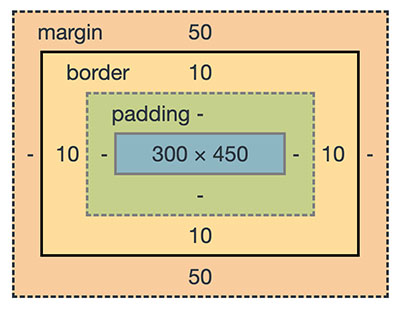
Most of the UI elements enclosed with the CSS box model are transformable. The following image shows the HTML element layout enclosed by a CSS box model.

CSS Box Model

Also, renderable graphical elements, clipPath elements are also known as a transformable element.

Importance of respecting system preferences

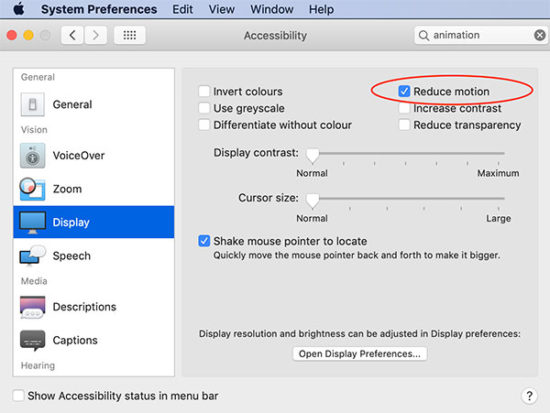
The system preferences will affect the motion of elements. If your system preferences is set to reduce animation is on, it will omit the animation effect of the above demo.

To respect this settings we have to add a CSS media rule to set the
prefers-reduced-motion. The possible values are no-preferences and reduce.

This media rule with reduce option provides a CSS block to suppress animation.

@media (prefers-reduced-motion: reduce) { .rotate { transform: none; }
}

In the above examples, I have used the media rule to respect the user’s system preferences. You can test this with the demo by enabling the reduced-motion.

System Preferences to Reduce Animation

Conclusion

We have seen the CSS transform based image editing. This is just a beginning only. This can serve as a bootstrap for building a full fledged image editor.

With CSS transform, we have added JavaScript and enriched the tool. We have also added various motion effects.

I have added most of the template files and the jQuery scripts above. But you can find the complete bundle with the downloadable source code here below.

Download

↑ Back to Top

Posted on Leave a comment

NumPy argpatition()

numpy.argpartition(a, kth, axis=-1, kind='introselect', order=None)

The NumPy argpatition function performs an indirect partition along the given axis using the algorithm specified by the kind keyword. It returns an array of indices of the same shape as a that index data along the given axis in partitioned order.

Arguments Type Description
c array_like or poly1d object The input polynomials to be multiplied
kth integer or sequence of integers Element index to partition by. The k-th element will be in its final sorted position and all smaller elements will be moved before it and all larger elements behind it. The order all elements in the partitions is undefined. If provided with a sequence of k-th it will partition all of them into their sorted position at once.
axis integer or None (Optional.) Axis along which to sort. The default is -1 (the last axis). If None, the flattened array is used.
kind {'introselect'} (Optional.) Selection algorithm. Default is 'introselect'.
order string or list of strings (Optional.) When a is an array with fields defined, this argument specifies which fields to compare first, second, etc. A single field can be specified as a string, and not all fields need be specified, but unspecified fields will still be used, in the order in which they come up in the dtype, to break ties.

The following table shows the return value of the function:

Type Description
Return Value index_array : ndarray, int Array of indices that partition a along the specified axis. If a is one-dimensional, a[index_array] yields a partitioned a. More generally, np.take_along_axis(a, index_array, axis=a) always yields the partitioned a, irrespective of dimensionality.

Related: See partition for notes on the different selection algorithms.

Let’s dive into some examples to show how the function is used in practice:

Examples

One-dimensional array:

import numpy as np x = np.array([3, 4, 2, 1]) print(x[np.argpartition(x, 3)])
# [2 1 3 4] print(x[np.argpartition(x, (1, 3))])
# [1 2 3 4]

Multi-dimensional array:

import numpy as np x = np.array([3, 4, 2, 1]) print(x[np.argpartition(x, 3)])
# [2 1 3 4] print(x[np.argpartition(x, (1, 3))])
# [1 2 3 4] x = [3, 4, 2, 1]
print(np.array(x)[np.argpartition(x, 3)])
# [2 1 3 4]

Any master coder has a “hands-on” mentality with a bias towards action. Try it yourself—play with the function in the following interactive code shell:

Exercise: Change the parameters of your polynomials and print them without the comparisons. Do you understand where they come from?

Master NumPy—and become a data science pro:

Coffee Break NumPy

Related Video

Posted on Leave a comment

ASP.NET Core Updates in .NET 5 Preview 7

Avatar

Sourabh

.NET 5 Preview 7 is now available and is ready for evaluation. Here’s what’s new in this release:

  • Blazor WebAssembly apps now target .NET 5
  • Updated debugging requirements for Blazor WebAssembly
  • Blazor accessibility improvements
  • Blazor performance improvements
  • Certificate authentication performance improvements
  • Sending HTTP/2 PING frames
  • Support for additional endpoints types in the Kestrel sockets transport
  • Custom header decoding in Kestrel
  • Other minor improvements

Get started

To get started with ASP.NET Core in .NET 5 Preview 7 install the .NET 5 SDK.

You need to use Visual Studio 2019 16.7 Preview 5 or newer to use .NET 5 Preview 7. .NET 5 is also supported with the latest preview of Visual Studio for Mac. To use .NET 5 with Visual Studio Code, install the latest version of the C# extension.

Upgrade an existing project

To upgrade an existing ASP.NET Core app from .NET 5 Preview 6 to .NET 5 Preview 7:

  • Update all Microsoft.AspNetCore.* package references to 5.0.0-preview.7.*.
  • Update all Microsoft.Extensions.* package references to 5.0.0-preview.7.*.
  • Update System.Net.Http.Json package references to 5.0.0-preview.7.*.

See the full list of breaking changes in ASP.NET Core for .NET 5.

Upgrade existing Blazor WebAssembly projects

To upgrade an existing Blazor WebAssembly project, update the following properties:

From

<TargetFramework>netstandard2.1</TargetFramework>
<RazorLangVersoin>3.0</RazorLangVersion>

To

<TargetFramework>net5.0</TargetFramework>
<RuntimeIdentifier>browser-wasm</RuntimeIdentifier>
<UseBlazorWebAssembly>true</UseBlazorWebAssembly>

Also, remove any package references to Microsoft.AspNetCore.Components.WebAssembly.Build, as it is no longer needed.

What’s new?

Blazor WebAssembly apps now target .NET 5

Blazor WebAssembly 3.2 apps have access only to the .NET Standard 2.1 API set. With this release, Blazor WebAssembly projects now target .NET 5 (net5.0) and have access to a much wider set of APIs. Implementing Blazor WebAssembly support for the APIs in .NET 5 is a work in progress, so some APIs may throw a PlatformNotSupportedException at runtime. We’d love to hear from you if you’re blocked by the lack of support for specific APIs.

Updated debugging requirements for Blazor WebAssembly

To enable debugging of Blazor WebAssembly apps in Visual Studio Code, you previously needed to install the JavaScript Debugger (Nightly) extension. This is no longer required as the JavaScript debugger extension is now shipped as part of VS Code. If you’ve previously installed the JavaScript Debugger (Nightly) extension you can now uninstall it. Enabling the preview version of the JavaScript debugger through the Visual Studio Code settings is still required.

Blazor accessibility improvements

The built-in Blazor input components that derive from InputBase now render aria-invalid automatically when the validation fails.

Blazor performance improvements

One of the major areas of investment for Blazor WebAssembly in .NET 5 is improving runtime performance. This is a multifaceted effort. Below are some of the high-level areas being optimized:

  • .NET runtime execution
  • JSON serialization
  • JavaScript interop
  • Blazor component rendering

Improving Blazor WebAssembly runtime performance for .NET 5 in an ongoing effort. This release contains some initial performance improvements, and we expect to share more details on the results of this performance work for future .NET 5 updates.

Certificate authentication performance improvements

We have added caching to certificate authentication in ASP.NET Core. Caching certificate validation significantly improves the performance of certificate authentication. Our benchmarks show a 400% improvement in requests per second once caching was enabled.

You don’t need to make any changes to your app to take advantage of performance improvements; caching is on by default. There are options to tune or disable caching if you wish.

Find out more about certificate authentication in ASP.NET Core in the docs.

Sending HTTP/2 PING frames

HTTP/2 has a mechanism for sending PING frames as a way of ensuring whether an idle connection is still functional. This is especially useful to have when working with long-lived streams that are often idle but only intermittently see activity (for example, gRPC streams). We have added the ability to send periodic PING frames in Kestrel by setting limits on KestrelServerOptions.

public static IHostBuilder CreateHostBuilder(string[] args) => Host.CreateDefaultBuilder(args) .ConfigureWebHostDefaults(webBuilder => { webBuilder.ConfigureKestrel(options => { options.Limits.Http2.KeepAlivePingInterval = TimeSpan.FromSeconds(10); options.Limits.Http2.KeepAlivePingTimeout = TimeSpan.FromSeconds(1); }); webBuilder.UseStartup<Startup>(); });

Support for additional endpoints types in the Kestrel sockets transport

Building upon new API introduced in System.Net.Sockets, the sockets transport (default) in Kestrel now allows you to bind to both existing file handles and unix domain sockets. Support for binding to existing file handles enables using the existing Systemd integration without requiring you to use the libuv transport.

Custom header decoding in Kestrel

We added the ability to specify which System.Text.Encoding to use to interpret incoming headers based on the header name instead of defaulting to UTF-8. You can set the RequestHeaderEncodingSelector property on KestrelServerOptions to specify which encoding to use.

public static IHostBuilder CreateHostBuilder(string[] args) => Host.CreateDefaultBuilder(args) .ConfigureWebHostDefaults(webBuilder => { webBuilder.ConfigureKestrel(options => { options.RequestHeaderEncodingSelector = encoding => { switch (encoding) { case "Host": return System.Text.Encoding.Latin1; default: return System.Text.Encoding.UTF8; } }; }); webBuilder.UseStartup<Startup>(); });

Other improvements

  • For preview 7, we’ve started applying nullable annotations to ASP.NET Core assemblies. We intend on annotating most of the common public API surface of the framework during the 5.0 release.
  • CompareAttribute can now be applied to properties on Razor Page model.
  • Parameters and properties bound from the body are considered required by default.
  • We’ve started applying nullable annotations to ASP.NET Core assemblies. We intend to annotate most of the common public API surface of the framework during the .NET 5 release.
  • Authorization when using endpoint routing now receives the HttpContext rather than the endpoint instance. This allows the authorization middleware to access the RouteData and other properties of the HttpContext that were not accessible though the Endpoint class. The endpoint can be fetched from the context using context.GetEndpoint().
  • The default format for System.Diagnostics.Activity now defaults to the W3C format. This makes distributed tracing support in ASP.NET Core interoperable with more frameworks by default.
  • CompareAttribute can now be applied to properties on a Razor Page model.
  • FromBodyAttribute now supports configuring an option that allows these parameters or properties to be considered optional:

    C#
    public IActionResult Post([FromBody(EmptyBodyBehavior = EmptyBodyBehavior.Allow)] MyModel model) { ... }

Give feedback

We hope you enjoy this release of ASP.NET Core in .NET 5! We are eager to hear about your experiences with this latest .NET 5 release. Let us know what you think by filing issues on GitHub.

Thanks for trying out ASP.NET Core!

Posted on Leave a comment

Python One Line For Loop With If

This tutorial will teach you how to write one-line for loops in Python using the popular expert feature of list comprehension. After you’ve learned the basics of list comprehension, you’ll learn how to restrict list comprehensions so that you can write custom filters quickly and effectively.

Are you ready? Let’s roll up your sleeves and learn about list comprehension in Python!

List Comprehension Basics

The following section is based on my detailed article List Comprehension [Ultimate Guide]. Read the shorter version here or the longer version on the website—you decide!

This overview graphic shows how to use list comprehension statement to create Python lists programmatically:

List Comprehension

List comprehension is a compact way of creating lists. The simple formula is [expression + context].

  • Expression: What to do with each list element?
  • Context: What elements to select? The context consists of an arbitrary number of for and if statements.

The example [x for x in range(3)] creates the list [0, 1, 2].

Have a look at the following interactive code snippet—can you figure out what’s printed to the shell? Go ahead and click “Run” to see what happens in the code:

Exercise: Run the code snippet and compare your guessed result with the actual one. Were you correct?

Now, that you know about the basics of list comprehension (expression + context!), let’s dive into a more advanced example where list comprehension is used for filtering by adding an if clause to the context part.

List Comprehension for Filtering (using If Clauses)

You can also modify the list comprehension statement by restricting the context with another if statement:

Problem: Say, we want to create a list of squared numbers—but you only consider even and ignore odd numbers.

Example: The multi-liner way would be the following.

squares = [] for i in range(10): if i%2==0: squares.append(i**2) print(squares)
# [0, 4, 16, 36, 64]

You create an empty list squares and successively add another square number starting from 0**2 and ending in 8**2—but only considering the even numbers 0, 2, 4, 6, 8. Thus, the result is the list [0, 4, 16, 36, 64].

Again, you can use list comprehension [i**2 for i in range(10) if i%2==0] with a restrictive if clause (in bold) in the context part to compress this in a single line of Python code:

print([i**2 for i in range(10) if i%2==0])
# [0, 4, 16, 36, 64]

This line accomplishes the same output with much less bits.

Related Article: Python One Line For Loop

Python One-Liners Book

Python programmers will improve their computer science skills with these useful one-liners.

Python One-Liners

Python One-Liners will teach you how to read and write “one-liners”: concise statements of useful functionality packed into a single line of code. You’ll learn how to systematically unpack and understand any line of Python code, and write eloquent, powerfully compressed Python like an expert.

The book’s five chapters cover tips and tricks, regular expressions, machine learning, core data science topics, and useful algorithms. Detailed explanations of one-liners introduce key computer science concepts and boost your coding and analytical skills. You’ll learn about advanced Python features such as list comprehension, slicing, lambda functions, regular expressions, map and reduce functions, and slice assignments. You’ll also learn how to:

  Leverage data structures to solve real-world problems, like using Boolean indexing to find cities with above-average pollution
  Use NumPy basics such as array, shape, axis, type, broadcasting, advanced indexing, slicing, sorting, searching, aggregating, and statistics
  Calculate basic statistics of multidimensional data arrays and the K-Means algorithms for unsupervised learning
  Create more advanced regular expressions using grouping and named groups, negative lookaheads, escaped characters, whitespaces, character sets (and negative characters sets), and greedy/nongreedy operators
  Understand a wide range of computer science topics, including anagrams, palindromes, supersets, permutations, factorials, prime numbers, Fibonacci numbers, obfuscation, searching, and algorithmic sorting

By the end of the book, you’ll know how to write Python at its most refined, and create concise, beautiful pieces of “Python art” in merely a single line.

Get your Python One-Liners Now!!

Where to Go From Here?

Enough theory, let’s get some practice!

To become successful in coding, you need to get out there and solve real problems for real people. That’s how you can become a six-figure earner easily. And that’s how you polish the skills you really need in practice. After all, what’s the use of learning theory that nobody ever needs?

Practice projects is how you sharpen your saw in coding!

Do you want to become a code master by focusing on practical code projects that actually earn you money and solve problems for people?

Then become a Python freelance developer! It’s the best way of approaching the task of improving your Python skills—even if you are a complete beginner.

Join my free webinar “How to Build Your High-Income Skill Python” and watch how I grew my coding business online and how you can, too—from the comfort of your own home.

Join the free webinar now!

Posted on Leave a comment

This 5-Step Free Python Learning Path Will Unlock Your Coding Superpower [Absolute Beginners]

In this article, I’ll show you five free resources you can study to reach an intermediate Python level being an absolute beginner. Studying all the resources will take 20-40 hours. But after you’ve completed these steps, you’ll have created yourself a new high-income skill Python development. So, let’s get started!

Step 1: Complete Python Crash Course

The purpose of this tutorial is to help you refresh your knowledge of all the basic Python keywords, data structures, and fundamentals. I wrote it for the intermediate Python programmer who wants to reach the next level of programming expertise.

The way of achieving an expert-level is through studying the basics. Computer science professors usually have an extremely profound knowledge of the basics in their field. This enables them to argue from “first principles” rather than from the state-of-the-art—it’s easier for them to identify research gaps because they know about the ground rules in their field rather than being blinded by the latest technology and state-of-the-art. If you want to reach the next level in coding, take your time and study the basics carefully.

This tutorial provides you with the most important Python basics which serve as a foundation for more advanced topics.

Table of Contents:

Python Keywords
Python Basic Data Structures
Python Container Data Structures
Membership Operator
List and Set Comprehension
Summary

Complete full tutorial now: Python Programming Tutorial [+Cheat Sheets]

Step 2: Study Cheat Sheets

Don’t have much time to learn Python? Cheat sheets to the rescue!

Cheat sheets are among the most efficient ways to acquire knowledge. A great cheat sheet focuses on the key learning material and skips the rest. If you read over them every day, you’ll quickly learn all the basics you need to know to master Python.

In this tutorial, we’ll share the top 11 Python cheat sheets with you. Download them, print them, put them on your wall and watch your Python skills grow!

Complete full tutorial now: [Collection] 11 Python Cheat Sheets Every Python Coder Must Own

Step 3: Solve Python Puzzles to Discover Your True Skill Level

Python Puzzle Discover

Do you belong to the top 50% of Python coders? This article poses you 10 intermediate-level Python puzzles to test yourself. By solving all 10 Python puzzles and tracking your success rate, you will discover your exact Python skill level.

How to do this? The idea of solving rated Python puzzles to measure your skill level is inspired by the Elo rating system in chess. Two chess players play against each other fighting for Elo rating points. If you have collected enough points, you can become a chess grandmaster. We transformed this idea to Python coding: you play against the Python puzzle. If you solve it (=you win), you get points – but if you don’t, you lose points.

The Python puzzles and the test originate from our experience of teaching 23,464 online students at Finxter.com. (It’s free.)

You have read this far – you have skin in the game. Hereby, I officially challenge you to take the test and prove to yourself that you, indeed, belong to the top-50% of Python coders.

But first things first:

What is a Python Puzzle?

A Python puzzle is an educative snippet of Python source code that teaches a single computer science concept by activating the learner’s curiosity and involving them in the learning process.

Complete full tutorial now: Solve 10 Python Puzzles to Discover Your True Skill Level

Step 4: Master Python Data Structures

Data structures are at the heart of every algorithm. Understanding data structures is the secret weapon of master coders. So, without further ado, let’s dive into the three most important Python data structures!

Complete full tutorials now:

Step 5: Master the Single Line of Code

Python Ternary Operator

You cannot understand any advanced code base without understanding the single line. Mastering the single line is at the heart of any non-trivial Python project.

You may ask: what is a Pyhton one-liner anyway?

A Python one-liner is a snippet of code that solves a problem in a single line.

In this resource, you will find 50 (!) one-liner videos. Watch all of them so that you truly have mastered everything there is to know about the single line of Python code. As a result, you’ll truly master an essential skill that will prove valuable throughout your career!

Complete full tutorial now: PythonOneLiners.com

Where to Go From Here

If you’ve studied all the tutorials I proposed in this article, you should now be able to solve practical code projects by yourself. This is how you reach expert level. Close the room, turn off your smartphone, and dive into your dream practical code project in Python!

You can join our free email academy to gradually polish your skills over the upcoming months and access free Python resources for continuous improvement:

Posted on Leave a comment

HTML Parsing using Python and LXML

In this article, you’ll learn the basics of parsing an HTML document using Python and the LXML library.

Introduction

Data is the most important ingredient in programming. It comes in all shapes and forms. Sometimes it is placed inside documents such as CSV or JSON, but sometimes it is stored on the internet or in databases. Some of it is stored/transferred or processed through the XML format, which is in many ways similar to HTML format, yet its purpose is to transfer and store data, unlike HTML, whose main purpose is to display the data. On top of that, the way of writing HTML and XML is similar. Despite the differences and similarities, they supplement each other very well.

Both Xpath and XML are engineered by the same company W3C, which imposes that Xpath is the most compatible Python module to be used for parsing the XML documents. Since one of the programing principals which would push you towards the programming success is to “not reinvent the wheel”, we are going to refer to the W3C (https://www.w3.org/) consortium document and sources in regarding the syntax and operators on our examples to bring the concept of XPath closer to the people wishing to understand it better and use it on real-life problems. 

The IT industry has accepted the XML way of transferring data as one of its principles. Imagine if one of your tasks was to gather information from the internet? Copying and pasting are one of the simplest tools to use (as it is regularly used by programmers as well); it might only lead us to gather some simple data from the web, although the process might get painfully repetitive. Yet, in case if we have more robust data, or more web pages to gather the data from, we might be inclined to use more advanced Python packages to automate our data gathering.

Before we start looking into scraping tools and strategies, it is good to know that scraping might not be legal in all cases, therefore it is highly suggested that we look at the terms of service of a particular web site, or copyright law regarding the region in which the web site operates.

For purposes of harvesting the web data, we will be using several Python libraries that allow us to do just that. The first of them is the requests module. What it does is that it sends the HTTP requests, which returns us the response object. It only used if urge to scrape the content from the internet. If we try to parse the static XML file it would not be necessary.

There are many parsing modules. LXML, Scrapy and BeautifulSoup are some of them. To tell which one is better is often neglected since their size and functionality differs from one another. For example, BeautifulSoup is more complex and serves you with more functionality, but LXML and Scrapy comes lightweight and can help you traversing through the documents using XPath and CSS selectors.

There are certain pitfalls when trying to travel through the document using XPath. Common mistake when trying to parse the XML by using XPath notation is that many people try to use the BeautifulSoup library. In fact that is not possible since it does not contain the XPath traversing methods. For those purposes we shall use the LXML library.

The requests library is used in case we want to download a HTML mark-up from the particular web site.

The first step would be to install the necessary packages. Trough pip install notation all of the modules above could be installed rather easily.

Necessary steps:

  1. pip install lxml (xpath module is a part of lxml library)
  2. pip install requests (in case the content is on a web page)

The best way to explain the XML parsing is to picture it through the examples.

The first step would be to install the necessary modules. Trough pip install notation all of the modules above could be installed rather easily.

What is the XPath?

The structure of XML and HTML documents is structurally composed of the nodes (or knots of some sort), which is a broader picture that represents the family tree-like structure. The roof instance, or the original ancestor in each tree, is called the root node, and it has no superior nodes to itself. Subordinate nodes are in that sense respectively called children or siblings, which are the elements at the same level as the children. The other terms used in navigating and traversing trough the tree are the ancestors and descendants, which in essence reflect the node relationship the same way we reflect it in real-world family tree examples. 

XPath is a query language that helps us navigate and select the node elements within a node tree. In essence, it is a step map that we need to make to reach certain elements in the tree.  The single parts of this step map are called the location steps, and each of these steps would lead us to a certain part of the document.

The terminology used for orientation along the axis (with regards to the current node) is very intuitive since it uses regular English expressions related to real-life family tree relationships.

XPath Selector

XPath selector is the condition using which we could navigate through an XML document. It describes relationships as a hierarchical order of the instances included in our path.  By combining different segment of XML syntax it helps us traverse through to the desired parts of the document. The selector is a part of the XPath query language. By simply adding different criteria, the XPath selector would lead us to different elements in the document tree.  The best way to learn the XPath selector syntax and operators is to implement it on an example. In order to know how to configure the XPath selector, it is essential to know the XPath syntax. XPath selector is compiled using an etree or HTML module which is included within the LXML package. The difference is only if we are parsing the XML document or HTML.

The selector works similarly as a find method with where it allows you to select a relative path of the element rather than the absolute one, which makes the whole traversing less prone to errors in case the absolute path gets too complicated.

XPath Syntax

XPath syntax could be divided into several groups. To have an exact grasp of the material presented we are going to apply further listed expressions and functions on our sample document, which would be listed below. In this learning session, we are going to use a web site dedicated to scraping exercises.

Node selection:

Expression Description
nodename Selects all nodes with the name “nodename
/ Selects from the root node
// Selects nodes in the document from the current node that match the selection no matter where they are.
. Selects the current node
.. Selects the parent of the current node
@ Selects attributes

Using “..”  and “.” we can direct and switch levels as we desire. Two dot notations would lead us from wherever we are to our parent element, whereas the one dot notations would point us to the current node. 

The way that we travel from the “context node” (our reference node), which is the milestone of our search, is called “axes”, and it is noted with double slash //. What it does is that it starts traversing from the first instance of the given node. This way of path selection is called the “relative path selection”. To be certain that the // (empty tag) expression would work, it must precede an asterisk (*) or the name tag. Trough inspecting the element and copying its XPath value we are getting the absolute path.

XPath Functions and Operators

here are 6 common operators which are used inside the XPath query. Operators are noted the same way as in plain Python and serve the same purpose. The functions are meant to aid the search of desired elements or their content.

Path Expression Result
= Equal to
!= Not equal to
Is greater than
Is less than
=> Is greater or equal to
=< Is less or equal to

To add more functionality to our XPath expression we can use some of LXML library functions. Everything that is written in-between the “[]” is called a predicate and it is used to closer describe the search path. Most frequently used functions are contains() and starts-with(). Those functions and their results would be displayed in the table below.

Going Up and Down the Axis

The conventional syntax used to traverse up and down the XPath axes is ElementName::axis.

To reach the elements placed above or below our current axes, we might use some of the following axes.

Up the axes Examples  
ancestor //ul/li/a[contains(@href, 'categ')]/ancestor::node()  
parent //ul/li/a[contains(@href, 'categ')]/parent::node()  
preceding //ul/li/a[contains(@href, 'categ')]/preceding::div  
preceding-sibling //a[contains(@href, 'categ')]/preceding-sibling::*  
Down the axes Examples  
descendant //a[starts-with(@href, 'catalogue')]/descendant::*  
following /html/body/div/div/ul/li[1]/a  
following-sibling /html/body/div/div/ul/li[1]/a/following::li  
child //div/div/section/div[2]/ol/li[1]/article/h3/child::*  

A Simple Example

The goal of this scraping exercise is to scrape all the book genres placed at the left-hand side of the web site. It almost necessary to see the page source and to inspect some of the elements which are we aiming to scrape.

from lxml import html
import requests url = 'http://books.toscrape.com/' # downloading the web page by making a request objec
res = requests.get(url) # making a tree object
tree = html.fromstring(res.text) # navingating the tree object using the XPath
book_genres = tree.xpath("//ul/li/a[contains(@href, 'categ')]/text()")[0:60] # since the result is the list object, we iterate the elements,
# of the list by making a simple for loop
for book_genre in book_genres: print (book_genre.strip())

Resources:

  1. https://lxml.de/
  2. https://scrapinghub.github.io/xpath-playground/
  3. https://2.python-requests.org/en/master/
  4. ‘http://books.toscrape.com/
Posted on Leave a comment

Python One Line If Without Else

Crafting beautiful Python one-liners is as much an art as it is a science. In this tutorial, you’ll learn how to compress an if statement without an else branch into a single line of Python code.

Problem: What’s the one-liner equivalent of the simple if statement without an else branch?

Here’s an example:

condition = True if condition: print('hi') # hi

You may want to (i) print something, (ii) assign a value to a variable, or (iii) append an element to a list if the condition holds.

In this article, I’ll show you four methods of how to accomplish this goal. All four methods are generally applicable—and you can easily customize them to your specific application.

Let’s have a quick overview of the four methods in our interactive code shell:

Exercise: Run the code for both True and False conditions. Are all methods semantically equivalent?

Method 1: One-Liner If Statement

The first is also the most straightforward method: if you want a one-liner without an else statement, just write the if statement in a single line! There are many tricks (like using the semicolon) that help you create one-liner statements. But for an if body with only one statement, it’s just as simple as avoiding the line break.

condition = True # Method 1: One-Liner If
if condition: print('hi')
# hi

This method is perfectly valid and you could see it in practice. Yet, I have to mention that it “violates” the PEP8 standard (multiple statements in a single line). Therefore, you shouldn’t consider this to be Pythonic code (there are worse things under the sun though).

Method 2: Ternary with Throw-Away Else Branch

Sure, you can also use the ternary operator:

Python Ternary Operator

If you need a quick refresher on the ternary operator, check out my detailed blog article. The ternary operator is commonly used to conditionally assign values. But you can also throw away the return value by not assigning the result to any variable. In this case, it doesn’t matter if you use None or any other “dummy” return value as the result of the else branch:

condition = True # Method 2: Ternary with Dummy
print('hi') if condition else None

It’s readable, short, and concise and I like this (well, I may be a bit biased as author of the book Python One-Liners). Sure, people will ask why you didn’t write it in multiple lines. But where is the fun there?

Method 3: Ternary with Default Value for Assignment

If you need to assign a value conditionally to a variable, but you want to do so without an else branch, you can do the following:

condition = True # Method 3: Ternary with Dummy for Assignment
x = 42 if condition else None

If the condition does not hold, the “dummy” value None is assigned to the variable.

Method 4: Short Circuiting

This method I like most. It uses a Python optimization called “short circuiting” for Boolean operators: the logical and operator simply returns the second operand if the first is True. There’s no Boolean conversion of the second operand, it’s just returned as is.

If the first operand is False, the second operand is not even evaluated.

You can use this to conditionally execute the if branch print('hi') or any other code function.

condition = True # Method 4: Short circuiting
condition and print('hi')

There are two options:

  • condition == True: As the first operand is True, the second operand is returned. Thus, the statement print('hi') is executed and the string hi appears on the screen.
  • condition == False: As the first operand is False, the second operand is not even evaluated because the result of the logical and operation is False anyway. Thus, the statement print('hi') is never executed.

Where to Go From Here?

Enough theory, let’s get some practice!

To become successful in coding, you need to get out there and solve real problems for real people. That’s how you can become a six-figure earner easily. And that’s how you polish the skills you really need in practice. After all, what’s the use of learning theory that nobody ever needs?

Practice projects is how you sharpen your saw in coding!

Do you want to become a code master by focusing on practical code projects that actually earn you money and solve problems for people?

Then become a Python freelance developer! It’s the best way of approaching the task of improving your Python skills—even if you are a complete beginner.

Join my free webinar “How to Build Your High-Income Skill Python” and watch how I grew my coding business online and how you can, too—from the comfort of your own home.

Join the free webinar now!

Posted on Leave a comment

NumPy polymulx()

numpy.polynomial.polynomial.polymulx(c)

The numpy.polymulx function multiplies the polynomial c with a value x which is the independent variable.

Arguments Type Description
c array_like or poly1d object The input polynomials to be multiplied

The following table shows the return value of the function:

Type Description
Return Value ndarray or poly1d object The polynomial resulting from the multiplication of the inputs. If either inputs is a poly1d object, then the output is also a poly1d object. Otherwise, it is a 1D array of polynomial coefficients from highest to lowest degree.

Let’s dive into some examples to show how the function is used in practice:

Examples

import numpy as np
import numpy.polynomial.polynomial as poly print(poly.polymulx([0]) == [0])
print(poly.polymulx([1]) == [0, 1])
for i in range(1, 5): ser = [0]*i + [1] tgt = [0]*(i + 1) + [1] print(poly.polymulx(ser) == tgt) '''
[ True]
[ True True]
[ True True True]
[ True True True True]
[ True True True True True]
[ True True True True True True] '''

This function is inspired from this Github repository.

Any master coder has a “hands-on” mentality with a bias towards action. Try it yourself—play with the function in the following interactive code shell:

Exercise: Change the parameters of your polynomials and print them without the comparisons. Do you understand where they come from?

Master NumPy—and become a data science pro:

Coffee Break NumPy

Related Video