Posted on Leave a comment

How to Create an Empty List in Python?

5/5 – (1 vote)

To create an empty list in Python, you can use two ways. First, the empty square bracket notation [] creates a new list object without any element in it. Second, the list() initializer method without an argument creates an empty list object too.

Both approaches are shown in the following code:

# Way 1 to create an empty list:
my_list = [] # Way 2 to create an empty list:
my_list = list()

Next, you’ll learn many more related Python concepts you need to know that concern creation of lists. Keep reading to keep improving your skills and answer any subsequent question you may have!

Python list() — Quick Guide

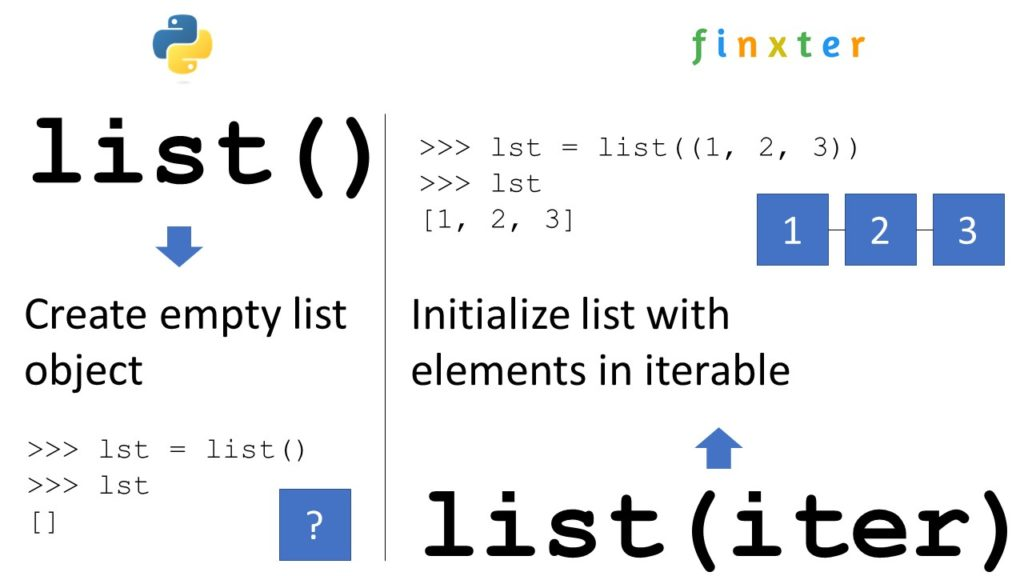
Pythonโ€™s built-in list() function creates and returns a new list object. When used without an argument, it returns an empty list. When used with the optional iterable argument, it initializes the new list with the elements in the iterable.

You can create an empty list by skipping the argument:

>>> list()
[]

If you pass an iterableโ€”such as another list, a tuple, a set, or a dictionaryโ€”you obtain a new list object with list elements obtained from the iterable:

>>> list([1, 2, 3])
[1, 2, 3]

๐ŸŒ Read More: Read our full tutorial on the Finxter blog to learn everything you need to know.

Python Create Empty List of Size

To create a list of n placeholder elements, multiply the list of a single placeholder element with n.

For example, use [None] * 5 to create a list [None, None, None, None, None] with five elements None.

You can then overwrite some elements with index assignments.

In the example, lst[2] = 42 would result in the changed list [None, None, 42, None, None].

# Create a list with n placeholder elements
n = 5
lst = [None] * n # Print the "placeholder" list:
print(lst)
# [None, None, None, None, None] # Overwrite the placeholder elements
lst[0] = 'Alice'
lst[1] = 0
lst[2] = 42
lst[3] = 12
lst[4] = 'hello'
print(lst)
# ['Alice', 0, 42, 12, 'hello']

๐ŸŒ Read More: Read our full tutorial on the Finxter blog to learn everything you need to know.

Python Create Empty List of Lists

You can create an empty list of lists do not use [[]] * n because this creates a nested list that contains the same empty list object n times which can cause problems because if you update one, all inner lists change!

To create an empty list of lists with n empty inner lists, use the list comprehension statement [[] for _ in range(n)] that creates a fresh empty list object n times.

n = 5
my_list = [[] for _ in range(n)]
print(my_list)
# [[], [], [], [], []]

List comprehension is a powerful Python feature and I’ve written a full blog tutorial on it—feel free to watch my general explainer video and read the associated blog article!

๐ŸŒ Read More: Read our full tutorial on the Finxter blog to learn everything you need to know.

Python Create Empty List and Append in Loop

Follow these three easy steps to create an empty list and append values to it in a for loop:

  1. my_list = [] creates the empty list and assigns it to the name my_list.
  2. for i in range(10): initializes the for loop to be repeated 10 times using loop variable i that takes on all values between 0, 1, …, 9.
  3. my_list.append(i) is the loop body that appends the integer value of the loop variable i to the list.

Here’s the code example:

my_list = []
for i in range(10): my_list.append(i) print(my_list)
# [0, 1, 2, 3, 4, 5, 6, 7, 8, 9]

However, a better Python one-liner alternative is using list comprehension for this:

my_list = [i for i in range(10)]

Python Create List of Empty Strings

To create a list of n empty strings, you can use the expression [''] * n because it places the same empty string literal '' into the list n times. This doesn’t cause any problems due to the fact that all list elements refer to the same empty string object because strings are immutable and cannot be modified anyways.

>>> [''] * 5
['', '', '', '', '']
>>> [''] * 20
['', '', '', '', '', '', '', '', '', '', '', '', '', '', '', '', '', '', '', '']

Python Create Empty List of Dictionaries

To create a list of n dictionaries, each dict being empty, use the list comprehension statement [dict() for _ in range(n)] with the underscore _ as a throw-away “loop variable” and the dict() built-in dictionary creation function.

my_list = [dict() for _ in range(10)]
print(my_list)
# [{}, {}, {}, {}, {}, {}, {}, {}, {}, {}]

Note that if you update one of the dictionaries, all other dictionaries are unaffected by this because we really created n independent dictionary objects.

# update first dictionary:
my_list[0]['foo'] = 'bar' print(my_list)
# [{'foo': 'bar'}, {}, {}, {}, {}, {}, {}, {}, {}, {}]

Python Create Empty List of Class Objects

To create an empty list of class objects, you can use list comprehension statement my_list = [MyClass() for _ in range(n)] that repeats n times the creation of an empty class object MyClass and adding it to the list. You can then later change the contents of the n different MyClass objects.

class MyClass(object): pass my_list = [MyClass() for _ in range(5)] print(my_list)
# [<__main__.MyClass object at 0x000001EA45779F40>, <__main__.MyClass object at 0x000001EA47533D00>, <__main__.MyClass object at 0x000001EA475334C0>, <__main__.MyClass object at 0x000001EA4758E070>, <__main__.MyClass object at 0x000001EA4758E4F0>]

Python Create Empty List of Type

Python is a dynamic language so there is no concept of a “list of type X”. Instead of creating a list of a fixed type, simply create an empty list using [] or list() and assign it to a variable such as my_list. Using the variable, you can then fill into the existing list any data type you want!

Here we create an empty list and fill in an integer, a list, and a string—all into the same list!

my_list = []
# Alternative: my_list = list() # Add integer to list:
my_list.append(42) # Add list to list:
my_list.append([1, 2, 3]) # Add string to list:
my_list.append('hello world') # Print all contents of list:
print(my_list)
# [42, [1, 2, 3], 'hello world']

Python Create Empty List of Integers

To initialize a list with certain integers such as zeroes 0, you can either use the concise list multiplication operation [0] * n or you use list comprehension [0 for _ in range(n)].

>>> [0] * 5
[0, 0, 0, 0, 0]
>>> [0] * 10
[0, 0, 0, 0, 0, 0, 0, 0, 0, 0]
>>> [42] * 5
[42, 42, 42, 42, 42]
>>> [42 for _ in range(5)]
[42, 42, 42, 42, 42]

Python Create Empty List of Tuples

To create an empty list and later add one tuple at-a-time to it, first initialize the empty list using the [] square bracket operator and then use the list.append(t) to append one tuple t at a time.

Here we add three tuples to the initially empty list:

# create empty list:
my_list = [] # append tuples
my_list.append((1, 2))
my_list.append(('alice', 'bob', 'carl'))
my_list.append(tuple()) print(my_list)
# [(1, 2), ('alice', 'bob', 'carl'), ()]
Posted on Leave a comment

CSV to XML โ€“ How to Convert in Python?

4/5 – (1 vote)

Problem Formulation

python csv to xml

Input: You have some data in a CSV file stored in 'my_file.csv' where the first row is the header and the remaining rows are values associated to the column names in the header.

Name,Job,Age,Income
Alice,Programmer,23,110000
Bob,Executive,34,90000
Carl,Sales,45,50000

Desired Output: You want to store the data in an XML file 'my_file.xml' so that each row is represented by an XML <row> tag and each column value is associated with a specific column header tag.

<data> <row id='Alice'>
 <Name>Alice</Name>
 <Job>Programmer</Job>
 <Age>23</Age>
 <Income>110000</Income> </row>
 <row id='Bob'>
 <Name>Bob</Name>
 <Job>Executive</Job>
 <Age>34</Age>
 <Income>90000</Income> </row>
 <row id='Carl'>
 <Name>Carl</Name>
 <Job>Sales</Job>
 <Age>45</Age>
 <Income>50000</Income> </row>
</data>

Python CSV to XML – Basic Example

You can convert a CSV to an XML using the following approach:

  • Read the whole CSV file into your Python script.
  • Store the first row as header data that is needed to name your custom XML tags (e.g., <Name>, <Job>, <Age>, and <Income> in our example).
  • Create a function convert_row() that converts each row separately to an XML representation of that row using basic string formatting.
  • Iterate over the data row-wise using csv.reader() and convert each CSV row to XML using your function convert_row().

Here’s the code for copy&paste:

# Convert CSV file to XML string
import csv filename = 'my_file.csv' def convert_row(headers, row): s = f'<row id="{row[0]}">\n' for header, item in zip(headers, row): s += f' <{header}>' + f'{item}' + f'</{header}>\n' return s + '</row>' with open(filename, 'r') as f: r = csv.reader(f) headers = next(r) xml = '<data>\n' for row in r: xml += convert_row(headers, row) + '\n' xml += '</data>' print(xml)

Output:

<data>
<row id="Alice"> <Name>Alice</Name> <Job>Programmer</Job> <Age>23</Age> <Income>110000</Income>
</row>
<row id="Bob"> <Name>Bob</Name> <Job>Executive</Job> <Age>34</Age> <Income>90000</Income>
</row>
<row id="Carl"> <Name>Carl</Name> <Job>Sales</Job> <Age>45</Age> <Income>50000</Income>
</row>
</data>

Yay!

Note that instead of printing to the shell, you could print it to a file if this is what you need. Here’s how:

๐ŸŒ Learn More: How to print() to a file in Python?

Pandas CSV to XML

You can also use pandas instead of the csv module to read the CSV file into your Python script. Everything else remains similar—I highlighted the lines that have changed in the following code snippet:

import pandas as pd def convert_row(headers, row): s = f'<row id="{row[0]}">\n' for header, item in zip(headers, row): s += f' <{header}>' + f'{item}' + f'</{header}>\n' return s + '</row>' df = pd.read_csv("my_file.csv")
headers = df.columns.tolist()
xml = '<data>\n' for _, row in df.iterrows(): xml += convert_row(headers, row) + '\n' xml += '</data>'
print(xml)

Related CSV Conversion Tutorials

Posted on Leave a comment

How to Skip a Line in Python using \n?

5/5 – (1 vote)

Skip Line \n

Summary:

  • Python’s newline character \n indicates the end of a line of text.
  • The built-in print() function automatically adds a newline character \n at the end.
  • You can customize this behavior of separating two lines using a single newline character '\n' by changing the default end='\n' argument of the print() function to your desired string.
  • Another way to skip a line in the Python output is to add an empty print() statement that will just print an empty line and do nothing else.

Python’s newline character to indicate the end of a line of text is \n.

If you print a string to the shell using the built-in print() function, Python automatically adds a newline character \n at the end.

PYTHON CODE:
print('hello\nworld\n\nPython is great!') OUTPUT:
hello
world Python is great!

For example, if you iterate over the text in a file using a for loop and print each line in the loop body, the lines are separated with single new lines.

#################################
# File: my_filename.txt #
#################################
# My #
# File #
# Content #
################################# with open('my_filename.txt', 'r') as my_file: for line in my_file.readlines(): print(line) # Output:
My
File
Content

You can customize this behavior of separating two lines using a single newline character '\n' by changing the default end='\n' argument of the print() function to your desired string.

For example, you can skip two lines in Python using print(my_string, end='\n\n') by chaining two newline characters '\n\n'.

with open('my_filename.txt', 'r') as my_file: for line in my_file.readlines(): print(line, end='\n\n') # Output:
My File Content # End Output

Another way to skip a line in the Python output is to add an empty print() statement that will just print an empty line and do nothing else.

with open('my_filename.txt', 'r') as my_file: for line in my_file.readlines(): print(line) print() # Output:
My File Content # End Output
Posted on Leave a comment

Ten Best Python 3 Online Compilers [Visual List]

5/5 – (1 vote)

Do you want to run your Python 3 script online? These are the 10 best Python compilers online:

#1 – Repl.it Online Python 3 Compiler

๐ŸŒ Link: https://repl.it/languages/python3

#2 – Programiz Online Python 3 Compiler

๐ŸŒ Link: https://www.programiz.com/python-programming/online-compiler/

#3 – OnlineGDB Python 3 Compiler

๐ŸŒ Link: https://www.onlinegdb.com/online_python_compiler

#4 – Online-Python.com Compiler

๐ŸŒ Link: https://www.online-python.com/

#5 – W3Schools Python Online Compiler

๐ŸŒ Link: https://www.w3schools.com/python/trypython.asp?filename=demo_compiler

#6 – OneCompiler.com Python Online Compiler

๐ŸŒ Link: https://onecompiler.com/python/

#7 – Geekflare.com Python Online Compiler

๐ŸŒ Link: https://geekflare.com/de/online-compiler/python

#8 – MyCompiler.io Online Python Compiler

๐ŸŒ Link: https://www.mycompiler.io/new/python

#9 – PyNative.com Online Python Compiler

๐ŸŒ Link: https://pynative.com/online-python-code-editor-to-execute-python-code/

#10 – Official Python.org Python Shell Online

๐ŸŒ Link: https://www.python.org/shell/

Posted on Leave a comment

Python foreach Loop

5/5 – (1 vote)

๐Ÿ’ก Question: Does Python have a for each or foreach loop? If so, how does it work? If not, what is the alternative?

This article will shed light on these questions. I’ll give you the summary first and dive into the details later:

Python For Each Loop

Python has three alternatives to the “for each” loop:

  1. A simple for ... in ... loop
  2. A map() function
  3. A list comprehension statement.

You’ll learn about those alternatives in the following paragraphs, so keep reading!

Let’s get started with the most important question:

What is a “Foreach Loop”?

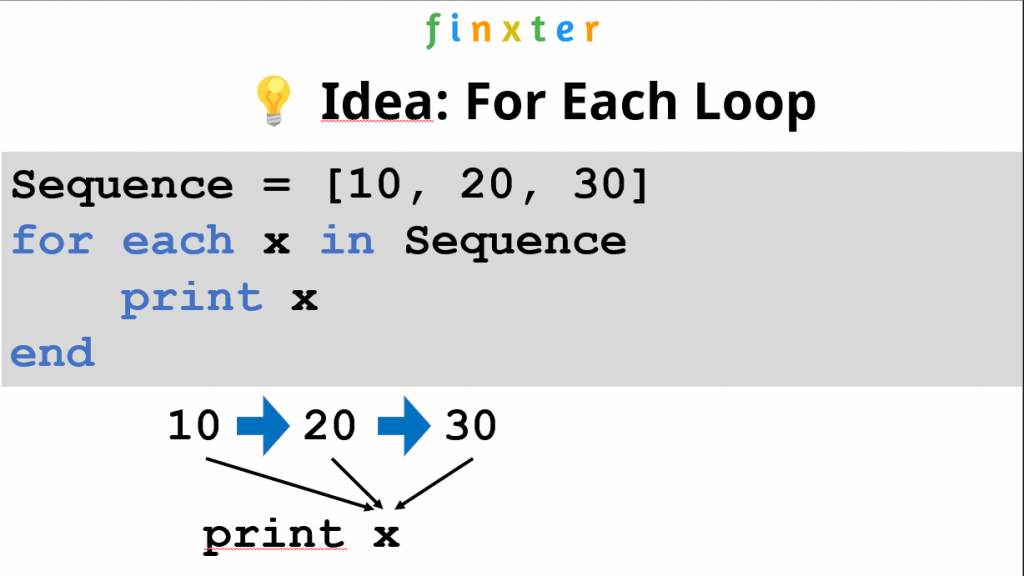
Definition: A foreach or for each loop is a programming control flow statement for iterating over elements in a sequence or collection. Unlike other loop constructs, the foreach loop iterates over all elements rather than maintaining a counter, loop variable, or checking a condition after each loop iteration.

Figure: Example of a for each loop (pseudocode) that iterates over elements 10, 20, and 30 and prints their value.

Here are three examples of a foreach loop in three different programming languages PHP, C#, and Perl:

// PHP
foreach ($set as $value) { // Do something to $value;
} // C#
foreach (String val in array) { console.writeline(val);
} // Perl
foreach (1, 2, 3, 4) { print $_;
}

Does Python have a foreach Loop?

The Python language doesn’t support the keywords foreach or for each loops in a literal syntactical way. However, “for each” in Python is done using the “for … in …” expression. For example, to iterate over each element in the list [10, 20, 30] in Python, you’d write for x in [10, 20, 30].

Here’s a full Python code example with semantical equivalence to a “foreach” statement:

# 'foreach' or 'for each' in Python is done using 'for'
for x in [10, 20, 30]: print(x)

Output:

10
20
30

๐ŸŒ Learn More: Feel free to check out our full article on Python loops on the Finxter blog.

“For Each” Meaning “Apply Function to Each Element”

If you’re reading this and you haven’t been satisfied with the answers provided so far, chances are that you’re really searching for the map function functionality in Python.

Many programming languages with “for each” support provide a syntax that applies a function to each element of an iterable like so:

# Other programming languages:
foreach(function, iterable)

This can be done in Python by means of the map() function:

# Python:
map(function, iterable)

Here’s a simple example of how you’d use the map() function in Python that applies the function f to each element of the list [1, 2, 3], incrementing each of its elements by 1 to obtain [2, 3, 4]:

lst = [1, 2, 3] def f(x): return x + 1 print(map(f, lst))
# [2, 3, 4]

You can watch my explainer video on map() in the following video:

๐ŸŒ Learn More: Feel free to check out our full article on map() on the Finxter blog.

“For Each” as Python List Comprehension

Python’s list comprehension feature is syntactical sugar to create a new iterable by applying a (possibly identity) function to each element of an existing iterable.

๐Ÿ’ก Many coders would view the list comprehension feature as Python’s way to provide a functional “foreach” statement because it enables you to perform a function “for each” element of an iterable such as a sequence.

List comprehension is a compact way of creating lists. The simple formula is [expression + context].

  • Expression: What to do with each list element?
  • Context: What elements to select? The context consists of an arbitrary number of for and if statements.

The example [x+10 for x in [1, 2, 3]] creates the list [11, 12, 13].

lst = [1, 2, 3]
new_lst = [x+10 for x in lst]
print(new_lst)
# [11, 12, 13]

You can watch my explainer video on list comprehension in case you’re interested in how it works:

๐ŸŒ Learn More: Feel free to check out our full article on Python list comprehension on the Finxter blog.


Programmer Humor

It’s hard to train deep learning algorithms when most of the positive feedback they get is sarcastic. — from xkcd
Posted on Leave a comment

How to use a List as an SQLite Parameter in Python

5/5 – (1 vote)

Problem Formulation and Solution Overview

This article works with the fictitious Finxter database to retrieve three (3) specific users, via a SQLite query using the IN command.

To follow along, click here to download this file and move it into the current working directory.


Preparation

Add the following code to the top of the code snippet. This snippet will allow the code in this article to run error-free.

import sqlite3

๐Ÿ’กNote: The SQLite library is built into Python and does not need to be installed but must be referenced.


Overview

The Finxter database file contains 25 records in tuple format. Below is a snippet from this file.

(30022145, 'Steve', 'Hamilton', 'Authority')
(30022192, 'Amy', 'Pullister', 'Beginner')
(30022331, 'Peter', 'Dunn', 'Basic Knowledge')
(30022345, 'Marcus', 'Williams', 'Experienced Learner')
(30022359, 'Alice', 'Miller', 'Authority')
(30022361, 'Craig', 'Driver', 'Autodidact')
...

The structure of the users table is as follows:

DATA TYPE FIELD NAME
INTEGER FID
TEXT First_Name
TEXT Last_Name
TEXT Rank

Now that the overview is complete, let’s connect to the database, filter, and output the results.


Connect to a SQLite Database

This code connects to an SQLite database and is placed inside a try/except statement to catch any possible errors.

try: conn = sqlite3.connect('finxter_users.db') cur = conn.cursor() except Exception as e: print(f'An error occurred: {e}.') exit()

The code inside the try statement executes first and attempts to connect to finxter_users.db. A Connection Object (conn), similar to below, is produced, if successful.

<sqlite3.Connection object at 0x00000194FFBC2140>

Next, the Connection Object created above (conn) is used in conjunction with the cursor() to create a Cursor Object. A Cursor Object (cur), similar to below, is produced, if successful.

<sqlite3.Cursor object at 0x0000022750E5CCC0>

๐Ÿ’กNote: The Cursor Object allows interaction with database specifics, such as executing queries.

If the above line(s) fail, the code falls inside except capturing the error (e) and outputs this to the terminal. Code execution halts.


Prepare the SQLite Query

Before executing any query, you must decide the expected results and how to achieve this.

try: conn = sqlite3.connect('finxter_users.db') cur = conn.cursor() fid_list = [30022192, 30022450, 30022475] fid_tuple = tuple(fid_list) f_query = f'SELECT * FROM users WHERE FID IN {format(fid_tuple)}' except Exception as e: print(f'An error occurred: {e}.') exit()

In this example, the three (3) highlighted lines create, configure and save the following variables:

  • fid_list: this contains a list of the selected Users’ FIDs to retrieve.
  • fid_tuple: this converts fid_list into a tuple format. This is done to match the database format (see above).
  • f_query: this constructs an SQLite query that returns all matching records when executed.

Query String Output

If f_query was output to the terminal (print(f_query)), the following would display. Perfect! That’s exactly what we want.

SELECT * FROM users WHERE FID IN (30022192, 30022450, 30022475)

Executing the SQLite Query

Let’s execute the query created above and save the results.

try: conn = sqlite3.connect('finxter_users.db') cur = conn.cursor() fid_list = [30022192, 30022450, 30022475] fid_tuple = tuple(fid_list) f_query = f'SELECT * FROM users WHERE FID IN {format(fid_tuple)}' results = cur.execute(f_query)
except Exception as e: print(f'An error occurred: {e}.') exit()

The highlighted line appends the execute() method to the Cursor Object and passes the f_query string as an argument.

If the execution was successful, an iterable Cursor Object is produced, similar to below.

<sqlite3.Cursor object at 0x00000224FF987A40>

Displaying the Query Results

The standard way to display the query results is by using a for a loop.
We could add this loop inside/outside the try/except statement.

try: conn = sqlite3.connect('finxter_users.db') cur = conn.cursor() fid_list = [30022192, 30022450, 30022475] fid_tuple = tuple(fid_list) f_query = f'SELECT * FROM users WHERE FID IN {format(fid_tuple)}' results = cur.execute(f_query)
except Exception as e: print(f'An error occurred: {e}.') exit() for r in results: print(r)
conn.close()

The highlighted lines instantiate a for loop to navigate the query results one record at a time and output them to the terminal.

Query Results

(30022192, 'Amy', 'Pullister', 'Beginner')
(30022450, 'Leon', 'Garcia', 'Authority')
(30022475, 'Isla', 'Jackson', 'Scholar')

Finally, the Connection Object created earlier needs to be closed.


Summary

In this article you learned how to:

  • Create a Connection Object.
  • Create a Cursor Object.
  • Construct and Execute a SQLite Query.
  • Output the results to the terminal.

We hope you enjoyed this article.

Happy Coding!


Programmer Humor

๐Ÿ‘ฑโ€โ™€๏ธ Programmer 1: We have a problem
๐Ÿง”โ€โ™‚๏ธ Programmer 2: Letโ€™s use RegEx!
๐Ÿ‘ฑโ€โ™€๏ธ Programmer 1: Now we have two problems

… yet – you can easily reduce the two problems to zero as you polish your “RegEx Superpower in Python“. ๐Ÿ™‚

Posted on Leave a comment

How to Add Custom Field to Product in WooCommerce

by Vincy. Last modified on June 29th, 2022.

WooCommerce is the best among the top eCommerce software which is free. It is based on WordPress platform. Setting up a shopping cart is quite easy with WooCommerce.

In previous articles, we have seen some WooCommerce-based code for the following utilities.

The WooCommerce product showcase displays the information that meets the customer demand. Sometimes preliminary details cannot convey all and let the customer identify their destiny.

This is something that needs adding additional information using custom-field integration. WooCommerce plugins support adding custom fields to products via the admin interface.

We will see those options below and their usage methodologies of them.

Why a WooCommerce shop admin needs Custom Fields

Before adding custom fields to a product, learn why a WooCommerce shop needs this.

Because, some of the shops have a routine product gallery with usual data like title, image and price. In that case, the custom fields are not required.

The below list shows the advantages of this custom fields feature on a WooCommerce shop.

  • To add product metadata that is for displaying additional information about products.
  • To allow customers to provide more specifications on the products to purchase.
  • To add user-friendly interactive fields to save their effort on giving customizations.
  • To add promotions, offers, discounts and all.
  • To support end-user to specify a delivery date, time and place.
  • To apply tax, and shipping by toggling the custom switch.

Types of custom fields creation supported by WooCommerce plugins

The available WooCommerce plugins can add two types of custom fields for products.

  1. Data fields โ€“ The field accepts information to be displayed on the UI.
  2. Add-on fields โ€“ Fields that collect data from the user on the storefront.

1. Data fields โ€“ The field accepts information to be displayed on the UI

This custom field is for showing more information apart from the regular title, price and all. This will help to show product metadata about features, version, rating and all.

For example, a monitor, to show extra information like,

Brand Dell
Model Dell 20H
Screen Size 23
Features HDMI, Anti-glare

2. Add-on fields โ€“ Fields that collect data from the user on the storefront

This type of custom field is about creating options for the customer to interact with. It is to allow adding more specifications or customization on the pursued product.

It is for adding personalized information by the customers on the product purchase. Example,

  • A multi-option field to select the size or color of a T-shirt.
  • A text field to collect a brand name to be engraved on a purchased pen.

Methods of adding custom fields display in WooCommerce

  1. Using WooCommerce plugins.
  2. Adding code to display custom fields for products.

Method 1: Using the plugin

We have taken three plugins to support adding custom fields to a product in a WooCommerce shop. Those are having advanced features and are also easy to set up.

  1. Advanced Product Fields for WooCommerce
  2. Product Addons for WooCommerce
  3. Advanced Custom Fields

1. Advanced Product Fields for WooCommerce

This plugin is used for adding additional fields to the WooCommerce product page. It helps to embed product add-on fields to allow customers to personalize the order.

Look into the plugin details and prerequisites below.

Version 4.5 or higher
Active installations 20,000+
PHP version 5.6 or higher
Last updated 2 weeks ago

Features

  • The custom product field selected on the product page can be carried over to the cart and checkout pages. It is persistent on the entire flow until the order receipt.
  • Smooth product field builder in the backend with a seamless experience.
  • It has the option to add multiple prices to manipulate the base price of the products on selection.
  • It supports all possible interactive fields with the show hide option.
  • It allows products and custom-field mapping interfaces to control the visibility.
  • WooCommerce tax figure customization is possible.
  • Multi-lingual in translation-ready themes.

Steps to use

Download this plugin from the official WordPress repository. Then install and activate it for the WooCommerce shop. If you are new to WordPress, then see here how to set up a plugin.

  1. Go to Product -> Add New via the WooCommerce admin menu.
  2. Click โ€œCustom fieldsโ€ under the โ€œProduct dataโ€ panel.
  3. Configure โ€œField group layoutโ€ settings. It is to specify the position of the label or a field note if any. Also, it helps to mark a field as mandatory.
  4. Select โ€œAdd the first fieldโ€ or โ€œAdd fieldโ€ and specify field type, label, and all.
  5. Add conditional rules to add dependencies between fields to be displayed.

This is the WooCommerce admin interface to add the custom fields for products. I have added the Size option for the product as a ratio group.

advanced product field setting

This will show the added custom field on the product front end as a radio option.

advanced product field output

2. Product Addons for WooCommerce

This plugin says the purpose clearly by its name itself. Yes, it is to add more add-on fields to let the customer interact with the shop to personalize the purchase.

An easy custom form builder allows for building a field group for the WooCommerce shop pages. Have a look at the version and other details below.

WordPress Version 4.0 or higher
Active installations 30,000+
PHP version 5.6 or higher
Last updated at 3 weeks ago

Download this plugin from the WordPress repository linked. The plugin provides a drag-and-drop interface to build custom field groups for products.

Features

  • Capable of personalizing the purchase order.
  • It saves the customerโ€™s personalized data via a custom field added for products in the backend.
  • For builder helps to design a group of the custom fields.
  • Allows more types of fields like text, number and email fields, combo fields and all.
  • In the base version, it allows adding <p> and <h*> tags to display product meta in the front end.

Steps to use

There are a few steps to add and display a custom field on a product page of a WooCommerce theme.

  1. Go to Products->Custom Product Addons via the WordPress admin menu.
  2. Add a new form of product custom fields group and publish it.
  3. Go to Products and open a new or edit product panel.
  4. Choose โ€œCustom Product Optionsโ€ from the Product data group.
  5. Check the form to add a mapping between custom fields and products.

See the following two screenshots to add custom fields and map them for the product.

product addons settings

product addons mapping

Then, the WooCommerce shop will show the custom fields on the single product page.

product addons output

3. Advanced Custom Fields

It supports full control of the WordPress edit screen and custom form data.

WordPress Version 4.7 or higher
Active Installations 2+ million
PHP Version 5.6 or higher
Last updated 6 days ago

The simple and intuitive plugin has powerful functions and over 30 field types

Features

  • It provides powerful functions to customize and add custom fields for the product
  • Good and simple backend interface to add custom field group on a need basis.
  • Supports 30+ field types to set more data apart from the standard custom product fields.

Steps to customize

Download or install via admin to enable this plugin before going to read the below steps.

  1. Add and customize the field group.
  2. Add form fields into the group.
  3. Add data for the custom fields on the product page.
  4. Display the product information on the front end.

Step 1: Add and customize field group

Go to Custom Fields via the admin menu. Add a new field group and specify the UI location and other settings.

It helps to set states and styles to add and show the custom fields on a product page. It manages the relative position and alignment of the field on the UI.

Fields can also be mapped for posts, products, pages and more.

Step 2: Add form fields into the group

The field add interface allows the following data to enter. For combo fields, it asks to enter multiple options to the loaded.

  • label, name, type.
  • Field notes or helps text.
  • If the field is required or not.
  • Place holder and default value.
  • Content to prepend or append.
  • Character restriction, Rules.
  • Field wrapper classes or ids.

Step 3: Add data for the custom fields based on products

If the custom field group is mapped for the location of product pages, then the add/edit page will show it.

Add the data for the custom fields which will be displayed on the WooCommerce product at the shop.

##image

Step 4: Display the product information on the front-end

Then display the custom fields data on the product single page at the front-end.

In this plugin, we need to add a simple shortcode to display the custom fields on the product page.

The [acf field=โ€<field-id or slug>โ€] shortcode is used for displaying the custom field group.

There are a couple of functions in WordPress to display the fields for a WooCommerce product.

<php
the_field("<field-id or slug>");
?>

or

<php
$customFieldGroup = get_field("<field-id or slug>");
echo $customFieldGroup;
?>

Method 2: Adding custom fields via the program

Thus, we have seen how to add product custom fields in a WooCommerce platform using plugins. If you want to implement the same without using plugins, itโ€™s very simple with a few steps.

These steps render the custom fields on the WooCommerce product page. After collecting the user inputs in the product page, the custom code will display them on the cart page.

Steps to implement this method by adding custom code are listed below.

  1. Add a custom field in the product data panel on the WooCommerce admin.
  2. Save added custom field data into cart metadata.
  3. Display an input field in a product single page.
  4. Passing the values on the cart and checkout pages.

Add this custom code in the WordPress active themeโ€™s function.php file.

1. Adding custom fields in the product data panel

Create code for displaying custom fields in the WooCommerce product data panel. The woocommerce_product_options_general_product_data hook is used to call this code.

/* Add product meta field for the WooCommerce admin */
function woocommerce_custom_select_dropdown(){ $select = woocommerce_wp_select(array( 'id' => '_select_color', 'label' =>__('Select color', 'woocommerce'), 'options' => array( 'Black' => __('Black','woocommerce'), 'Blue' => __('Blue','wooocommerce'), 'Pink'=> __('Pink','woocommerce') ), ));
}
add_action('woocommerce_product_options_general_product_data', 'woocommerce_custom_select_dropdown');

This example adds a dropdown as a custom field for products. So, it uses the woocommerce_wp_select function to set the following parameters.

  • id
  • label
  • description
  • desc_tip
  • options

There are similar functions to add other types of form fields. For example,

  • woocommerce_wp_textarea_input
  • woocommerce_wp_checkbox
  • woocommerce_wp_hidden_input

2. Save the user input in the custom fields to cart metadata.

Then, another action hook is added to save the custom field value on the product meta. This will be called on saving the product details. It calls the woocommerce_process_product_meta action and hooks the handler.

/* Save custom field data for the product */
function woocommerce_product_custom_fields_save($post_id)
{ $woocommerce_select_color_field = $_POST['_select_color']; if (!empty($woocommerce_select_color_field)) { update_post_meta($post_id, '_select_color', esc_attr($woocommerce_select_color_field)); }
}
add_action('woocommerce_process_product_meta', 'woocommerce_product_custom_fields_save');

3. Display an input field in a product single page

In this section, it prepares an add-on field HTML if the product meta is not empty.

First, the admin chooses and saves the product color option. Then this code will add a dropdown field on the product single page.

It reads the current product meta with the reference of the global post object. Then, it fetches the product meta by the custom field id.

In the WooCommerce product page, this custom field is added before the cart button. It is because of hooking the action woocommerce_before_add_to_cart_button to call this handler.

/* Show add-on field based on the saved custom field */
function woocommerce_display_select_option_value()
{ global $post; $product = wc_get_product($post->ID); $select_option_title_field = $product->get_meta('_select_color'); if ($select_option_title_field) { printf('
<div><select name="color_option" class="input-text text">
<option value="Default Color">Default Color</option>
<option value="' . $select_option_title_field . '">' . $select_option_title_field . '</option> </select></div>', esc_html($select_option_title_field)); }
}
add_action('woocommerce_before_add_to_cart_button', 'woocommerce_display_select_option_value');

4. Display the selected option in the cart and checkout pages

The following filter hooks handle the functions to display the selected custom option. It has the cart and checkout pages as its target to render the UI component.

This code is triggered on loading the cart item data. It calls the filter hook woocommerce_add_cart_item_data and displays the selected custom field value.

It adds the data into the cart item array which will be later used in the checkout page UI.

/* Display selected option in the cart */
function woocommerce_add_custom_field_item_data($cart_item_data, $product_id)
{ if (! empty($_POST['color_option'])) { $cart_item_data['select_field'] = $_POST['color_option']; } return $cart_item_data;
}
add_filter('woocommerce_add_cart_item_data', 'woocommerce_add_custom_field_item_data', 10, 2);

This is to parse the cart item array and display the custom field value on the checkout page.

It uses the woocommerce_cart_item_name hook to do this change in the checkout UI.

/* Display selected option in the checkout */
function woocommerce_cart_display($name, $cart_item, $cart_item_key)
{ if (isset($cart_item['select_field'])) { $name .= sprintf('<p>%s</p>', esc_html($cart_item['select_field'])); } return $name;
}
add_filter('woocommerce_cart_item_name', 'woocommerce_cart_display', 10, 3);

Conclusion

Thus, we have seen both methods to add custom fields to products. It is with or without plugins to enable WooCommerce product custom fields.

I hope, this article gives a basic knowledge in this area. Also, it might help you to understand and replicate the steps to customize your shop.

โ†‘ Back to Top

Posted on Leave a comment

pd.agg() โ€“ Aggregating Data in Pandas

5/5 – (1 vote)

The name agg is short for aggregate. To aggregate is to summarize many observations into a single value that represents a certain aspect of the observed data.

The .agg() function can process a dataframe, a series, or a grouped dataframe. It can execute many aggregation functions, e.g. โ€˜meanโ€™, โ€˜maxโ€™,โ€ฆ in a single call along one of the axis. It can also execute lambda functions. Read on for examples.ย ย ย ย 

We will use a dataset of FIFA players. Find the dataset here.

Basic Setup using Jupyter Notebook

Letโ€™s start by importing pandas and loading our dataset.

import pandas as pd
df_fifa_soccer_players = pd.read_csv('fifa_cleaned.csv')
df_fifa_soccer_players.head()

To increase readability, we will work with a subset of the data. Let’s create the subset by selecting the columns we want to have in our subset and create a new dataframe.

df_fifa_soccer_players_subset = df_fifa_soccer_players[['nationality', 'age', 'height_cm', 'weight_kgs', 'overall_rating', 'value_euro', 'wage_euro']]
df_fifa_soccer_players_subset.head()

Basic Aggregation

Pandas provides a variety of built-in aggregation functions. For example, pandas.DataFrame.describe. When applied to a dataset, it returns a summary of statistical values.ย 

df_fifa_soccer_players_subset.describe()

To understand aggregation and why it is helpful, let’s have a closer look at the data returned. 

Example: Our dataset contains records for 17954 players. The youngest player is 17 years of age and the oldest player is 46 years old. The mean age is 25 years. We learn that the tallest player is 205 cm tall and the average player’s height is around 175 cm. With a single line of code, we can answer a variety of statistical questions about our data. The describe function identifies numeric columns and performs the statistical aggregation for us. Describe also excluded the column nationality that contains string values.

To aggregate is to summarize many observations into a single value that represents a certain aspect of the observed data.

Pandas provides us with a variety of pre-built aggregate functions.

Functions Description
mean() returns the mean of a set of values
sum() returns the sum of a set of values
count() returns the count of a set of values
std() returns the standard deviation of a set of values
min() returns the smallest value of a set of values
max() returns the largest value of a set of values
describe() returns a collection of statistical values of a set of values
size() returns the size of a set of values
first() returns the first value of a set of values
last() returns the last value of a set of values
nth() returns the nth value of a set of values
sem() returns the standard error of the mean of a set of value
var() returns the variance of a set of values
nunique() returns the count of unique values of a set of values

Let’s use another function from the list above. We can be more specific and request the โ€˜sumโ€™ for the โ€˜value_euroโ€™ series. This column contains the market value of a player. We select the column or series โ€˜value_euroโ€™ and execute the pre-build sum() function.

df_fifa_soccer_players_subset['value_euro'].sum()
# 43880780000.0

Pandas returned us the requested value. Let’s get to know an even more powerful pandas method for aggregating data.

The โ€˜pandas.DataFrame.aggโ€™ Method

Function Syntax

The .agg() function can take in many input types. The output type is, to a large extent, determined by the input type. We can pass in many parameters to the .agg() function.ย 

The โ€œfuncโ€ parameter:

  • is by default set to Noneย 
  • contains one or many functions that aggregate the data
  • supports pre-defined pandas aggregate functions
  • supports lambda expressions
  • supports the dataframe.apply() method for specific function calls

The โ€œaxisโ€ parameter:

  • is by default set to 0 and applies functions to each column
  • if set to 1 applies functions to rows
  • can hold values:
    • 0 or โ€˜indexโ€™
    • 1 or โ€˜columnsโ€™

What about *args and **kwargs:

  • we use these placeholders, if we do not know in advance how many arguments we will need to pass into the function
  • when arguments are of the same type, we use *args
  • When arguments are of different types, we use **kwargs.

Agg method on a Series

Letโ€™s see the .agg() function in action. We request some of the pre-build aggregation functions for the โ€˜wage_euroโ€™ series. We use the function parameter and provide the aggregate functions โ€Œwe want to execute as a list. And letโ€™s save the resulting series in a variable.ย 

wage_stats = df_fifa_soccer_players_subset['wage_euro'].agg(['sum', 'min', 'mean', 'std', 'max'])
print(wage_stats)

Pandas uses scientific notation for large and small floating-point numbers. To convert the output to a familiar format, we must move the floating point to the right as shown by the plus sign. The number behind the plus sign represents the amount of steps.

Let’s do this together for some values.

The sum of all wages is 175,347,000โ‚ฌ (1.753470e+08)

The mean of the wages is 9902.135โ‚ฌ (9.902135e+03)

We executed many functions on a series input source. Thus our variable โ€˜wage_statsโ€™ is of the type Series because.ย 

type(wage_stats)
# pandas.core.series.Series

See below how to extract, for example, the โ€˜minโ€™ value from the variable and the data type returned.

wage_stats_min = wage_stats['min']
print(wage_stats_min)
# 1000.0 print(type(wage_stats_min))
# numpy.float64

The data type is now a scalar.

If we execute a single function on the same data source (series), the type returned is a scalar.

wage_stats_max = df_fifa_soccer_players_subset['wage_euro'].agg('max')
print(wage_stats_max)
# 565000.0 print(type(wage_stats_max))
# numpy.float64

Letโ€™s use one more example to understand the relation between the input type and the output type.

We will use the function โ€œnuniqueโ€ which will give us the count of unique nationalities. Letโ€™s apply the function in two code examples. We will reference the series โ€˜nationalityโ€™ both times. The only difference will be the way we pass the function โ€œnuniqueโ€ into our agg() function.

nationality_unique_series = df_fifa_soccer_players_subset['nationality'].agg({'nationality':'nunique'})
print(nationality_unique_series)
# nationality 160
# Name: nationality, dtype: int64 print(type(nationality_unique_series))
# pandas.core.series.Series

When we use a dictionary to pass in the โ€œnuniqueโ€ function, the output type is a series.

nationality_unique_int = df_fifa_soccer_players_subset['nationality'].agg('nunique')
print(nationality_unique_int)
# 160 print(type(nationality_unique_int))
# int

When we pass the โ€œnuniqueโ€ function directly into agg() the output type is an integer.

Agg method on a DataFrame

Passing the aggregation functions as a Python list

One column represents a series. We will now select two columns as our input and so work with a dataframe.

Letโ€™s select the columns โ€˜height_cmโ€™ and โ€˜weight_kgsโ€™.

We will execute the functions min(), mean() and max(). To select a two-dimensional data (dataframe), we need to use double brackets. We will round the results to two decimal points.

Letโ€™s store the result in a variable.

height_weight = df_fifa_soccer_players_subset[['height_cm', 'weight_kgs']].agg(['min', 'mean', 'max']).round(2)
print(height_weight)

We get a data frame containing rows and columns. Let’s confirm this observation by checking the type of the โ€˜height_weightโ€™ variable.

print(type(height_weight))
# pandas.core.frame.DataFrame

We will now use our newly created dataframe named โ€˜height_weightโ€™ to use the โ€˜axisโ€™ parameter. The entire dataframe contains numeric values.

We define the functions and pass in the axis parameter. I used the count() and sum() functions to show the effect of the axis parameter. The resulting values make little sense. This is also the reason why I do not rename the headings to restore the lost column names.

height_weight.agg(['count', 'sum'], axis=1)

We aggregated along the rows. Returning the count of items and the sum of item values in each row.

Passing the aggregation functions as a python dictionary

Now let’s apply different functions to the individual sets in our dataframe. We select the sets โ€˜overall_ratingโ€™ and โ€˜value_euroโ€™. We will apply the functions std(), sem() and mean() to the โ€˜overall_ratingโ€™ series, and the functions min() and max() to the โ€˜value_euroโ€™ series.

rating_value_euro_dict = df_fifa_soccer_players_subset[['overall_rating', 'value_euro']].agg({'overall_rating':['std', 'sem', 'mean'], 'value_euro':['min', 'max']})
print(rating_value_euro_dict)

The dataframe contains calculated and empty (NaN) values. Letโ€™s quickly confirm the type of our output.

print(type(rating_value_euro_dict))
# pandas.core.frame.DataFrame

Passing the aggregation functions as a Python tuple

We will now repeat the previous example.

We will use tuples instead of a dictionary to pass in the aggregation functions. Tuple have limitations. We can only pass one aggregation function within a tuple. We also have to name each tuple.ย 

rating_value_euro_tuple = df_fifa_soccer_players_subset[['overall_rating', 'value_euro']].agg(overall_r_std=('overall_rating', 'std'),overall_r_sem=('overall_rating', 'sem'),overall_r_mean=('overall_rating', 'mean'),value_e_min=('value_euro', 'min'),value_e_max=('value_euro', 'max'))
print(rating_value_euro_tuple)

Agg method on a grouped DataFrame

Grouping by a single column

The โ€˜groupbyโ€™ method creates a grouped dataframe. We will now select the columns โ€˜ageโ€™ and โ€˜wage_euroโ€™ and group our dataframe using the column โ€˜ageโ€™. On our grouped dataframe we will apply the agg() function using the functions count(), min(), max() and mean().

age_group_wage_euro = df_fifa_soccer_players_subset[['age', 'wage_euro']].groupby('age').aggage(['count', 'min', 'max', 'mean'])
print(age_group_wage_euro)

Every row represents an age group. The count value shows how many players fall into the age group. The min, max and mean values aggregate the data of the age-group members.

Multiindex

One additional aspect of a grouped dataframe is the resulting hierarchical index. We also call it multiindex.

We can see that the individual columns of our grouped dataframe are at different levels. Another way to view the hierarchy is to request the columns for the particular dataset.

print(age_group_wage_euro.columns)

Working with a multiindex is a topic for another blog post. To use the tools that we have discussed, let’s flatten the multiindex and reset the index. We need the following functions:

  • droplevel()
  • reset_index()
age_group_wage_euro_flat = age_group_wage_euro.droplevel(axis=1, level=0).reset_index()
print(age_group_wage_euro_flat.head())

The resulting dataframe columns are now flat. We lost some information during the flattening process. Letโ€™s rename the columns and return some of the lost context.

age_group_wage_euro_flat.columns = ['age', 'athlete_count', 'min_wage_euro', 'max_wage_euro', 'mean_wage_euro']
print(age_group_wage_euro_flat.head())

Grouping by multiple columns

Grouping by multiple columns creates even more granular subsections.

Letโ€™s use โ€˜ageโ€™ as the first grouping parameter and โ€˜nationalityโ€™ as the second. We will aggregate the resulting group data using the columns โ€˜overall_ratingโ€™ and โ€˜height_cmโ€™. We are by now familiar with the aggregation functions used in this example.

df_fifa_soccer_players_subset.groupby(['age', 'nationality']).agg({'overall_rating':['count', 'min', 'max', 'mean'], 'height_cm':['min', 'max', 'mean']})

Every age group contains nationality groups. The aggregated athletes data is within the nationality groups.

Custom aggregation functions

We can write and execute custom aggregation functions to answer very specific questions.

Letโ€™s have a look at the inline lambda functions.

๐Ÿ’ก Lambda functions are so-called anonymous functions. They are called this way because they do not have a name. Within a lambda function, we can execute multiple expressions. We will go through several examples to see lambda functions in action.

In pandas lambda functions live inside the โ€œDataFrame.apply()โ€ and the โ€œSeries.appy()โ€ methods. We will use the DataFrame.appy() method to execute functions along both axes. Letโ€™s have a look at the basics first.

Function Syntax

The DataFrame.apply() function will execute a function along defined axes of a DataFrame. The functions that we will execute in our examples will work with Series objects passed into our custom functions by the apply() method. Depending on the axes that we will select, the Series will comprise out of a row or a column or our data frame.

The โ€œfuncโ€ parameter:

  • contains a function applied to a column or a row of the data frame

The โ€œaxisโ€ parameter:

  • is by default set to 0 and will pass a series of column data
  • if set to 1 will pass a series of the row data
  • can hold values:
    • 0 or โ€˜indexโ€™
    • 1 or โ€˜columnsโ€™

The โ€œrawโ€ parameter:

  • is a boolean value
  • ย is by default set to False
  • can hold values:
    • False -> a Series object is passed to the function
    • True -> a ndarray object is passed to the function

The โ€œresult_typeโ€ parameter:

  • can only apply when the axis is 1 or โ€˜columnsโ€™
  • can hold values:
    • โ€˜expandโ€™
    • โ€˜reduceโ€™
    • โ€˜broadcastโ€™

ย The โ€œargs()โ€ parameter:

  • additional parameters for the function as tuple

The **kwargs parameter:

  • additional parameters for the function as key-value pairs

Filters

Letโ€™s have a look at filters. They will be very handy as we explore our data.

In this code example, we create a filter named filt_rating. We select our dataframe and the column overall_rating. The condition >= 90 returns True if the value in the overall_rating column is 90 or above.

Otherwise, the filter returns False.

filt_rating = df_fifa_soccer_players_subset['overall_rating'] >= 90
print(filt_rating)

The result is a Series object containing the index, and the correlated value of True or False.

Letโ€™s apply the filter to our dataframe. We call the .loc method and pass in the filter’s name as a list item. The filter works like a mask. It covers all rows that have the value False. The remaining rows match our filter criteria of overall_rating >= 90.

df_fifa_soccer_players_subset.loc[filt_rating]

Lambda functions

Letโ€™s recreate the same filter using a lambda function. We will call our filter filt_rating_lambda.

Letโ€™s go over the code. We specify the name of our filter and call our dataframe. Pay attention to the double square brackets. We use them to pass a dataframe and not a Series object to the .appy() method.

Inside .apply() we use the keyword โ€˜lambdaโ€™ to show that we are about to define our anonymous function. The โ€˜xโ€™ represents the Series passed into the lambda function.

The series contains the data from the overall_rating column. After the semicolumn, we use the placeholder x again. Now we apply a method called ge(). It represents the same condition we used in our first filter example โ€œ>=โ€ (greater or equal).

We define the integer value 90 and close the brackets on our apply function. The result is a dataframe that contains an index and only one column of boolean values. To convert this dataframe to a Series we use the squeeze() method.

filt_rating_lambda = df_fifa_soccer_players_subset[['overall_rating']].apply(lambda x:x.ge(90)).squeeze()
print(filt_rating_lambda)

Letโ€™s use our filter. Great, we get the same result as in our first filter example.

df_fifa_soccer_players_subset.loc[filt_rating_lambda]

We now want to know how many players our filter returned. Letโ€™s first do it without a lambda function and then use a lambda function to see the same result. We are counting the lines or records.

df_fifa_soccer_players_subset.loc[filt_rating_lambda].count()
df_fifa_soccer_players_subset.apply(lambda x:x.loc[filt_rating_lambda]).count()

Great. Now letโ€™s put us in a place where we actually need to use the apply() method and a lambda function. We want to use our filter on a grouped data-frame.

Letโ€™s group by nationality to see the distribution of these amazing players. The output will contain all columns. This makes the code easier to read.

df_fifa_soccer_players_subset.groupby('nationality').loc[filt_rating_lambda]

Pandas tells us in this error message that we can not use the โ€˜locโ€™ method on a grouped dataframe object.

Letโ€™s now see how we can solve this problem by using a lambda function. Instead of using the โ€˜locโ€™ function on the grouped dataframe we use the apply() function. Inside the apply() function we define our lambda function. Now we use the โ€˜locโ€™ method on the variable โ€˜xโ€™ and pass our filter.ย 

df_fifa_soccer_players_subset.groupby('nationality').apply(lambda x:x.loc[filt_rating_lambda])

Axis parameter of the apply() function

Now letโ€™s use the axis parameter to calculate the Body-Mass-Index (BMI) for these players. Until now we have used the lambda functions on the columns of our data.

The โ€˜xโ€™ variable was a representation of the individual column. We set the axis parameter to โ€˜1โ€™. The โ€˜xโ€™ variable in our lambda function will now represent the individual rows of our data.

Before we calculate the BMI letโ€™s create a new dataframe and define some columns. We will call our new dataframe โ€˜df_bmiโ€™.ย 

df_bmi = df_fifa_soccer_players_subset.groupby('nationality')[['age', 'height_cm', 'weight_kgs']].apply(lambda x:x.loc[filt_rating_lambda])
print(df_bmi)

Now letโ€™s reset the index. 

df_bmi = df_bmi.reset_index()
print(df_bmi)

We calculate the BMI as follows. We divide the weight in kilogram by the square of the height in meters. 

Let’s have a closer look at the lambda function. We define the โ€˜axisโ€™ to be โ€˜1โ€™. The โ€˜xโ€™ variable now represents a row. We need to use specific values in each row. To define these values, we use the variable โ€˜xโ€™ and specify a column name. At the beginning of our code example, we define a new column named โ€˜bmiโ€™. And at the very end, we round the results.

df_bmi['bmi'] = df_bmi.apply(lambda x:x['weight_kgs']/((x['height_cm']/100)**2), axis=1).round()
print(df_bmi)

Great! Our custom function worked. The new BMI column contains calculated values.

Conclusion

Congratulations on finishing the tutorial. I wish you many great and small insights for your future data projects. I include the Jupyter-Notebook file, so you can experiment and tweak the code.


Nerd Humor

Oh yeah, I didn’t even know they renamed it the Willis Tower in 2009, because I know a normal amount about skyscrapers.xkcd (source)
Posted on Leave a comment

Top 6 Mobile App Development Career Paths in 2023

Rate this post

Mobile app development is a massive skill in the 21st century. In fact, the revenue of the mobile app market worldwide is mobile app revenue in 2022 is $437 billion USD. (Statista)

A mobile app developer is a programmer who focuses on software creation for mobile devices such as smartphones or wearables.

Most mobile app developers create smartphone apps for the Android, macOS, or Windows mobile operating system.

This article will show you the five areas of focus you could pursue to become a mobile app developer.

#1 – Android App Developer

An Android app developer is a programmer who focuses on software creation for mobile devices such as smartphones or wearables using the Android operating system.

How much does an Android App Developer make per year?

Figure: Average Income of an Android App Developer in the US by Source.

The average annual income of an Android App Developer in the United States is between $85,000 and $126,577 with an average of $106,923 and a statistical median of $107,343 per year.

๐ŸŒ Learn More: I’ve written a full guide on this career path and published it on the Finxter blog here.

#2 – iOS App Developer

An iOS app developer is a programmer who focuses on software creation for Apple mobile devices such as iPhones or wearables such as Apple Watches. Most mobile app developers create smartphone apps for the iOS or watchOS mobile operating systems using the Swift programming language.

How much does an iOS App Developer make per year?

iOS developer income by source (United States)

The average annual income of an iOS Developer in the United States is between $83,351 and $145,000 with an average of $110,331 and a statistical median of $111,716 per year.

๐ŸŒ Learn More: I’ve written a full guide on this career path and published it on the Finxter blog here.

#3 – Firebase Developer

Firebase is a Google-based platform to create mobile and web applications easily. Firebase developers are programmers who create mobile apps with Firebase

The average annual income of a Firebase Developer is approximately $80,000 according to PayScale (source).

๐ŸŒ Learn More: I’ve written a full guide on this career path and published it on the Finxter blog here.

#4 – Flutter Developer

A Flutter Developer developer creates, edits, analyzes, debugs, and supervises the development of Android mobile apps written in the Flutter programming framework using the Dart programming language.

The average income of a Flutter developer in the US is $112,125 per year or $57.50 per hour. Entry-level Flutter developers start with approximately $100,000 per year. Experienced developers make up to $159,900 per year. (source)

๐ŸŒ Learn More: I’ve written a full guide on this career path and published it on the Finxter blog here.

#5 – Kotlin Developer

A Kotlin Developer is an Android app programmer using the Kotlin programming language.

Kotlin is JVM compatible and, thus, fully compatible with Java. Thatโ€™s why itโ€™s often used as an alternative to Java when developing Android applications.

The average annual income of a Kotlin Developer is $102,000 according to PayScale and averages between $113,000 to $147,000 per year according to Ziprecruiter.

๐ŸŒ Learn More: I’ve written a full guide on this career path and published it on the Finxter blog here.

#6 – Swift Developer

A Swift developer is a programmer who creates software and mobile applications for the Swift programming language for iOS, iPadOS, macOS, tvOS, and watchOS. (Source)

The average annual income of a Swift Developer is between $93,000 (25th percentile) and $114,500 (75th percentile) according to Ziprecruiter (source).

๐ŸŒ Learn More: I’ve written a full guide on this career path and published it on the Finxter blog here.

Bonus #7 – Alexa Developer

Alexa is the cloud-based voice service distributed and sold by Amazon. It is available on hundreds of millions of devices and from third-party device manufacturers.

An Alexa developer creates voice applications, so-called Alexa Skills, that run on the Alexa mobile device using the Alexa developer environment.

The average income of an Alexa skill developer in the US is $88,617 per year according to ZipRecruiter. This is approximately $42 per hour, $1,704 per week, or $7,385 per month.

Conclusion

A mobile app developer is a programmer who focuses on software creation for mobile devices such as smartphones or wearables. Most mobile app developers create smartphone apps for the Android, macOS, or Windows mobile operating system.

This article has shown you six main areas of focus. The technologies presented here overlap significantly but I hope reading this article has given you an initial glimpse into the world of mobile app development.

Posted on Leave a comment

Python Convert CSV to Text File (.csv to .txt)

5/5 – (1 vote)

Basic Challenge

Hereโ€™s the content of an example CSV file "my_file.csv" used in our code snippet below:

Name,Job,Age,Income
Alice,Programmer,23,110000
Bob,Executive,34,90000
Carl,Sales,45,50000

If you visualize this CSV in table form, it looks like this:

Name Job Age Income
Alice Programmer 23 110000
Bob Executive 34 90000
Carl Sales 45 50000

The basic problem is to convert the CSV file "my_file.csv" to a new TXT file "my_file.txt" as is without changing its content

Name,Job,Age,Income
Alice,Programmer,23,110000
Bob,Executive,34,90000
Carl,Sales,45,50000

We start with exploring this basic challenge and build from there by changing the delimiter and using Pandas to access individual columns.

But first things first: How to convert a CSV file to a TXT file without changing its contents?

Method 1: CSV to TXT Unchanged

If you want to keep the content (including the delimiter ',') in the CSV file unmodified, the conversion is simple: read the .csv file and write its content into a new .txt file using the open(), read(), and write() functions without importing any library.

In other words, perform the three steps to write a CSV to a TXT file unmodified:

  1. Open the CSV file in reading mode and the TXT file in writing mode.
  2. Read the CSV file and store it in a variable.
  3. Write the content into the TXT file.

Here’s the code snippet that solves our basic challenge:

# 1. Open the CSV file in reading mode and the TXT file in writing mode
with open('my_file.csv', 'r') as f_in, open('my_file.txt', 'w') as f_out: # 2. Read the CSV file and store in variable content = f_in.read() # 3. Write the content into the TXT file f_out.write(content)

๐Ÿ˜ฒ Little-Known Fact: Python allows multiple expressions in the context manager (with opening line) if you separate them with a comma.

The content of the .csv and .txt files is identical:

Name,Job,Age,Income
Alice,Programmer,23,110000
Bob,Executive,34,90000
Carl,Sales,45,50000

So far, so good. But what if you have a slightly different problem:

Method 2: CSV to TXT Empty Space Delimiter

Challenge: How to convert a CSV file to a TXT file in Python by replacing the delimiter ',' with the empty space ' '?

Example: Convert the following file 'my_file.csv'

Name,Job,Age,Income
Alice,Programmer,23,110000
Bob,Executive,34,90000
Carl,Sales,45,50000

… to this file 'my_file.txt'

Name Job Age Income
Alice Programmer 23 110000
Bob Executive 34 90000
Carl Sales 45 50000

Here’s the simple solution to this challenge:

If you want to change the delimiter ',' to an empty string ' ' in the new TXT file, read the .csv file and write its content into a new .txt file using the open(), read(), string.replace(), and write() functions without importing any library.

To convert a CSV to a TXT file in Python, perform the following steps:

  1. Open the CSV file in reading mode and the TXT file in writing mode.
  2. Read the CSV file into a string.
  3. Create a new string by replacing all occurrences of the delimiter ',' with the empty string ' '.
  4. Write the content into the TXT file.
with open('my_file.csv', 'r') as f_in, open('my_file.txt', 'w') as f_out: content = f_in.read().replace(',', ' ') f_out.write(content)

So far, so good. But in Python, there are always many ways to solve a problem. Let’s have a look at a powerful alternative to the no-library approach used before:

Method 3: CSV to TXT using Pandas

Assuming you’ve already installed pandas in your local environment, you can write a CSV to a TXT file in Python pandas using the following four steps:

  1. Import the pandas library.
  2. Read the CSV file into a DataFrame using pd.read_csv().
  3. Convert the DataFrame to a String using the built-in str() function.
  4. Print the string to a file using the file argument of the print() function, for example.

Here’s the basic Python example:

import pandas as pd df = pd.read_csv('my_file.csv')
content = str(df)
print(content, file=open('my_file.txt', 'w'))

๐Ÿ˜ฒ Little-Known Fact: Python’s print() function allows you to write a string directly into a file object if you use the file argument as shown in the code snippet.

The output of the previous code snippet is as follows:

 Name Job Age Income
0 Alice Programmer 23 110000
1 Bob Executive 34 90000
2 Carl Sales 45 50000

Beautiful, isn’t it? ๐Ÿ’œ

Let’s have a look at the last variation of the “CSV to TXT” problem addressed in this tutorial:

Method 4: CSV Columns or Rows to TXT using Pandas

How to write one or more individual columns or rows of the CSV file into a TXT file using Python Pandas?

  1. Import the pandas library.
  2. Read the CSV file into a DataFrame using pd.read_csv().
  3. Select the column(s) or row(s) to write into the TXT file from the DataFrame using Pandas indexing or slicing.
  4. Call df.to_string() to convert the DataFrame to a string in a human-readable way.
  5. Print the string to a file using the file argument of the print() function, for example.
import pandas as pd df = pd.read_csv('my_file.csv')
content = str(df['Name'])
print(content, file=open('my_file.txt', 'w'))

The content in a new file 'my_file.txt':

0 Alice
1 Bob
2 Carl

Of course, you can also select individual rows or multiple columns like so:

import pandas as pd df = pd.read_csv('my_file.csv')
content = df['Name'][:2].to_string()
print(content, file=open('my_file.txt', 'w'))

The content of the new file 'my_file.txt' shows that only the first two rows have been taken due to the slicing operation [:2] in the previous code snippet:

0 Alice
1 Bob

Done! You’ve earned some programming enjoyment:

Programmer Humor

โ“ Question: How did the programmer die in the shower? ☠

Answer: They read the shampoo bottle instructions:
Lather. Rinse. Repeat.

Conclusion

I hope you enjoyed reading this article and learned something new. Feel free to join our email newsletter with free cheat sheets and weekly Python tutorials: