Quick Fix: Python raises the ModuleNotFoundError: No module named 'git' when you haven’t installed GitPython explicitly with pip install GitPython or pip3 install GitPython (Python 3). Or you may have different Python versions on your computer, and GitPython is not installed for the particular version you’re using.
You’ll learn how to fix this error below after diving into the concrete problem first.
Problem Formulation
You’ve just learned about the awesome capabilities of the GitPython library, and you want to try it out, so you start your code with the following statement:
import git
or even something like:
from git import Repo
This is supposed to import the git library into your (virtual) environment. However, it only throws the following ModuleNotFoundError: No module named 'git':
>>> import git
Traceback (most recent call last): File "<pyshell#6>", line 1, in <module> import git
ModuleNotFoundError: No module named 'git'
Solution Idea 1: Install Library GitPython
The most likely reason is that Python doesn’t provide GitPython in its standard library. You need to install it first!
To fix this error, you can run the following command in your Windows shell:
$ pip install GitPython
This simple command installs GitPython in your virtual environment on Windows, Linux, and MacOS. Uppercase or lowercase library name doesn’t matter.
This assumes that your pip version is updated. If it isn’t, use the following two commands in your terminal, command line, or shell (there’s no harm in doing it anyways):
Note: Don’t copy and paste the $ symbol. This is just to illustrate that you run it in your shell/terminal/command line.
Also, try the following variant if you run Python 3 on your computer:
pip3 install GitPython
Solution Idea 2: Fix the Path
The error might persist even after you have installed the GitPython library. This likely happens because pip is installed but doesn’t reside in the path you can use. Although pip may be installed on your system the script is unable to locate it. Therefore, it is unable to install the library using pip in the correct path.
To fix the problem with the path in Windows follow the steps given next.
Step 1: Open the folder where you installed Python by opening the command prompt and typing where python
Step 2: Once you have opened the Python folder, browse and open the Scripts folder and copy its location. Also verify that the folder contains the pip file.
Step 3: Now open the Scripts directory in the command prompt using the cd command and the location that you copied previously.
Step 4: Now install the library using pip install GitPython command. Here’s an analogous example:
After having followed the above steps, execute our script once again. And you should get the desired output.
Other Solution Ideas
The ModuleNotFoundError may appear due to relative imports. You can learn everything about relative imports and how to create your own module in this article.
You may have mixed up Python and pip versions on your machine. In this case, to install GitPython for Python 3, you may want to try python3 -m pip install GitPython or even pip3 install GitPython instead of pip install GitPython
If you face this issue server-side, you may want to try the command pip install – user GitPython
If you’re using Ubuntu, you may want to try this command: sudo apt install GitPython
You can also check out this article to learn more about possible problems that may lead to an error when importing a library.
Understanding the “import” Statement
import git
In Python, the import statement serves two main purposes:
Search the module by its name, load it, and initialize it.
Define a name in the local namespace within the scope of the import statement. This local name is then used to reference the accessed module throughout the code.
What’s the Difference Between ImportError and ModuleNotFoundError?
What’s the difference between ImportError and ModuleNotFoundError?
Python defines an error hierarchy, so some error classes inherit from other error classes. In our case, the ModuleNotFoundError is a subclass of the ImportError class.
You can see this in this screenshot from the docs:
You can also check this relationship using the issubclass() built-in function:
Specifically, Python raises the ModuleNotFoundError if the module (e.g., git) cannot be found. If it can be found, there may be a problem loading the module or some specific files within the module. In those cases, Python would raise an ImportError.
If an import statement cannot import a module, it raises an ImportError. This may occur because of a faulty installation or an invalid path. In Python 3.6 or newer, this will usually raise a ModuleNotFoundError.
Related Videos
The following video shows you how to resolve the ImportError:
How to Fix “ModuleNotFoundError: No module named ‘git’” in PyCharm
If you create a new Python project in PyCharm and try to import the GitPython library, it’ll raise the following error message:
Traceback (most recent call last): File "C:/Users/.../main.py", line 1, in <module> import git
ModuleNotFoundError: No module named 'git' Process finished with exit code 1
The reason is that each PyCharm project, per default, creates a virtual environment in which you can install custom Python modules. But the virtual environment is initially empty—even if you’ve already installed GitPython on your computer!
Here’s a screenshot exemplifying this for the pandas library. It’ll look similar for GitPython.
The fix is simple: Use the PyCharm installation tooltips to install Pandas in your virtual environment—two clicks and you’re good to go!
First, right-click on the pandas text in your editor:
Second, click “Show Context Actions” in your context menu. In the new menu that arises, click “Install Pandas” and wait for PyCharm to finish the installation.
The code will run after your installation completes successfully.
As an alternative, you can also open the Terminal tool at the bottom and type:
In my previous Wonderland walkthrough blog post, I highlighted an example of exploiting the ‘random’ module to switch users without knowing their password.
In this post, I’ll guide you through the setup and execution of the exploit. You can also watch the accompanying video tutorial here:
What is Python Library Hijacking?
When a user has permission to run a file as another user it is possible to create a spoof file that Python will load instead of the originally intended module or library. The necessary conditions for Python library hijacking are:
The user must have sudo permissions to run a Python file .py as another user
The Python path must be set to look first in the folder where the spoof file is stored
Setup
In order to re-create this vulnerability, I had to learn how to set up the above conditions for the exploit.
On my home network, I have a Raspberry Pi 3b running DietPi operating system. Originally I set this up to run Pi-hole to filter ads out from my home network.
In order to set up the permissions to run a file as another user I edited the sudoers file with visudo.
Visudo is a special editor specifically for editing the sudoers file. It only allows one user to edit the file at a time, and also checks user edits for correct syntax. I created a file called ‘checkmypermissions.py’ and granted sudo permissions to vulnerableuser to run it as user ben.
To do this I used the command ‘sudo visudo’ to edit sudoers file, and then I added the second line for vulnerable user:
# User privilege specification
root ALL=(ALL:ALL) ALL
vulnerableuser ALL=(ben:1001) /usr/bin/python3 /home/vulnerableuser/checkmypermissions.py
The nice thing about visudo is that it checks your formatting to make sure that there are not any errors, and it will even suggest changes to help you format the permissions correctly.
This functionality helped me save time getting the correct spacing and punctuation on the new sudoers line.
Running the Exploit
Once the permissions were set up I ssh’d into vulnerableuser@<raspberry pi IP>. Running the ‘sudo -l’ command showed me the granular sudo permissions.
The line above (ben : 1001) /usr/bin/python3 /home/vulnerableuser/checkmypermissions.py shows that as vulnerableuser I can execute the checkmypermissions.py file as the user Ben.
All that is left to do is to check the Python PATH to make sure that it checks first in the current directory, and then create a python file named numpy.py with code to spawn a shell. One way to check the Python PATH is:
Python
import sys
sys.path
In the example below, we can see that the python PATH is already set to search in the current working directory ('').
Next we create the numpy.py file to spawn a shell.
nano numpy.py
import os
os.system("/bin/bash")
It is important to first set up execute permissions on the spoofed numpy.py file:
chmod +x numpy.py
Now we can carry out the python library hijack and spawn a shell as user ben without knowing their password by running the following command:
sudo -u ben /usr/bin/python3 /home/vulnerableuser/checkmypermissions.py
Project Learnings
Learning #1
I learned that Visudo is a special editor within Linux to change the sudoers file /etc/sudoers.
It helps check formatting to avoid any errors or crashes from poorly written lines. The sudoers file allows the root user to granularize user permissions with the sudoers file on Linux.
Learning #2
Granting run as another user file permissions can expose a machine to library hijacking vulnerabilities.
Running sudo -l can help expose special user file permissions when enumerating for attack vectors to execute privilege escalation.
Learning #3
I found that it is helpful to compile a custom shortlist of Python and bash commands new to me for each project. I borrowed this strategy from my experience with language learning.
Over the years, I’ve improved my Mandarin by taking notes on new vocabulary words and grammar patterns. When working on a new topic area I would always create my own custom grammar and vocabulary lists for reference.
I’ve found that the simple act of focusing on recording a list helps to cement my learning and creates a nice reference for later use.
Quick Fix: Python raises the ModuleNotFoundError: No module named 'dotenv' when it cannot find the library dotenv. The most frequent source of this error is that you haven’t installed dotenv explicitly with pip install python-dotenv. Alternatively, you may have different Python versions on your computer, and dotenv is not installed for the particular version you’re using.
Other variants of the installation statement you should try if this doesn’t work are (in that order):
You’ve just learned about the awesome capabilities of the dotenv library and you want to try it out, so you start your code with the following statement:
from dotenv import load_dotenv load_dotenv() # take environment variables from .env.
This is supposed to import the dotenv library into your (virtual) environment. However, it only throws the following ImportError: No module named dotenv:
>>> import dotenv
Traceback (most recent call last): File "<pyshell#6>", line 1, in <module> import dotenv
ModuleNotFoundError: No module named 'dotenv'
Solution Idea 1: Install Library dotenv
The most likely reason is that Python doesn’t provide dotenv in its standard library. You need to install it first!
To fix this error, you can run the following command in your Windows shell:
$ pip install python-dotenv
This simple command installs dotenv in your virtual environment on Windows, Linux, and MacOS. It assumes that your pip version is updated. If it isn’t, use the following two commands in your terminal, command line, or shell (there’s no harm in doing it anyways):
Note: Don’t copy and paste the $ symbol. This is just to illustrate that you run it in your shell/terminal/command line.
Solution Idea 2: Fix the Path
The error might persist even after you have installed the dotenv library. This likely happens because pip is installed but doesn’t reside in the path you can use. Although pip may be installed on your system the script is unable to locate it. Therefore, it is unable to install the library using pip in the correct path.
To fix the problem with the path in Windows follow the steps given next.
Step 1: Open the folder where you installed Python by opening the command prompt and typing where python
Step 2: Once you have opened the Python folder, browse and open the Scripts folder and copy its location. Also verify that the folder contains the pip file.
Step 3: Now open the Scripts directory in the command prompt using the cd command and the location that you copied previously.
Step 4: Now install the library using pip install python-dotenv command. Here’s an analogous example:
After having followed the above steps, execute our script once again. And you should get the desired output.
Other Solution Ideas
The ModuleNotFoundError may appear due to relative imports. You can learn everything about relative imports and how to create your own module in this article.
You may have mixed up Python and pip versions on your machine. In this case, to install dotenv for Python 3, you may want to try python3 -m pip install python-dotenv or even pip3 install python-dotenv instead of pip install python-dotenv
If you face this issue server-side, you may want to try the command pip install – user python-dotenv
If you’re using Ubuntu, you may want to try this command: sudo apt install python-dotenv
You can also check out this article to learn more about possible problems that may lead to an error when importing a library.
Understanding the “import” Statement
import dotenv
In Python, the import statement serves two main purposes:
Search the module by its name, load it, and initialize it.
Define a name in the local namespace within the scope of the import statement. This local name is then used to reference the accessed module throughout the code.
What’s the Difference Between ImportError and ModuleNotFoundError?
What’s the difference between ImportError and ModuleNotFoundError?
Python defines an error hierarchy, so some error classes inherit from other error classes. In our case, the ModuleNotFoundError is a subclass of the ImportError class.
You can see this in this screenshot from the docs:
You can also check this relationship using the issubclass() built-in function:
Specifically, Python raises the ModuleNotFoundError if the module (e.g., dotenv) cannot be found. If it can be found, there may be a problem loading the module or some specific files within the module. In those cases, Python would raise an ImportError.
If an import statement cannot import a module, it raises an ImportError. This may occur because of a faulty installation or an invalid path. In Python 3.6 or newer, this will usually raise a ModuleNotFoundError.
Related Videos
The following video shows you how to resolve the ImportError:
How to Fix “ModuleNotFoundError: No module named ‘dotenv’” in PyCharm
If you create a new Python project in PyCharm and try to import the dotenv library, it’ll raise the following error message:
Traceback (most recent call last): File "C:/Users/.../main.py", line 1, in <module> import dotenv
ModuleNotFoundError: No module named 'dotenv' Process finished with exit code 1
The reason is that each PyCharm project, per default, creates a virtual environment in which you can install custom Python modules. But the virtual environment is initially empty—even if you’ve already installed dotenv on your computer!
Here’s a screenshot exemplifying this for the pandas library. It’ll look similar for dotenv.
The fix is simple: Use the PyCharm installation tooltips to install Pandas in your virtual environment—two clicks and you’re good to go!
First, right-click on the pandas text in your editor:
Second, click “Show Context Actions” in your context menu. In the new menu that arises, click “Install Pandas” and wait for PyCharm to finish the installation.
The code will run after your installation completes successfully.
As an alternative, you can also open the Terminal tool at the bottom and type:
In this article, we will use PyTorch to build a working neural network. Specifically, this network will be trained to recognize handwritten numerical digits using the famous MNIST dataset.
The code in this article borrows heavily from the PyTorch tutorial “Learn the Basics”. We do this for several reasons.
First, that tutorial is pretty good at demonstrating the essentials for getting a working neural network.
Second, just like importing libraries, it’s good to not reinvent the wheel when you don’t have to.
Third, when building your own network, it is very helpful to start with something that is known to work, then modify it to your needs.
Knowledge Background
This article assumes the reader has some necessary background:
Familiarity with Matplotlib. While this is not necessary to follow along, it is necessary if you want to be able to view image data yourself on your own datasets in the future (and you will want to be able to do this).
You can run PyTorch on your own machine, or you can run it on publically available computer systems.
We will be running this exercise using Google Colab, which allows running world-class computing capability, all accessible for free.
This article will cover all the necessary steps to build and test a working neural network using the PyTorch library.
PyTorch provides a framework that makes building, training, and using neural networks easier. Also under the hood, it is written using the very fast C++ language, so that those neural networks can provide world-class performance while using the popular Python language as the interface to create those networks.
Neural networks and the PyTorch library are rich subjects. So while we will cover all the necessary steps, each step will just scratch the surface of its respective subject.
For example, we will get the image data from datasets built into the PyTorch library. However, the user will eventually want to use neural networks on their own data, so the users will need to learn how to build and work with their own datasets.
So for each of these steps, the user will want to learn more on each subject to become a proficient PyTorch user.
Nevertheless, by the end of this article, you will have built your own working neural network, so you can be sure you will know how to do it!
Further learning will enrich those abilities. Throughout the article, we will point out some of the other things you will eventually want to learn for each step.
Here are the steps we will be taking:
Import necessary libraries.
Acquire the data.
Review the data to understand it.
Create data loaders for loading the data into the network.
Design and create the neural network.
Specify the loss measure and the optimizer algorithm.
Specify the training and testing functions.
Train and test the network using the specified functions.
Step 1: Import Necessary Libraries
Before we do anything, we will want to set up our runtime to use the GPU (again, assuming here you are using Colab).
Click on “Runtime” in the top menu bar, and then choose “Change runtime type” from the dropdown. Then from the window that pops up choose “GPU” under “Hardware accelerator”, and then click “Save”.
Next, we will need to import a number of libraries:
We will import the torch library, making PyTorch available for use.
From the torch module we will import the nn library, which is important for building the neural network.
From the torchvision module we will import the datasets library, which will help provide the image datasets.
From the data utilities module, we will import the DataLoader library. Data loaders help load data into the network.
From the torchvision.transforms module we will import the ToTensor library. This converts the image data into tensors so that they are ready to be processed through the network.
Here is the code importing the needed modules:
import torch
from torch import nn
from torchvision import datasets
from torch.utils.data import DataLoader
from torchvision.transforms import ToTensor
Step 2: Acquire the Data
As mentioned before, in this exercise, we will be getting the MNIST data as available directly through PyTorch libraries. This is the quickest and easiest approach to getting the data.
If you wanted to get the original datasets they are available at:
Even though we will get the data through the PyTorch libraries, it can still be helpful to review this page, as it provides some useful information about the dataset. (However we will provide everything you need to understand this dataset in the article).
Note: Firefox has trouble accessing this page, for some reason requiring a login to access it. Either view it using another browser, or view it as recorded on the Internet Archive Wayback Machine.
There are multiple datasets available through the PyTorch dataset libraries. Here are PyTorch webpages linking to Image Datasets, Text Datasets, and Audio Datasets.
To get data from a PyTorch dataset we create an instance from the respective dataset class. Here is the format:
dataset_instance = DatasetClass(parameters)
This creates a dataset object, and downloads the data. The data is then available by working with the dataset object.
Here is the code to create our MNIST datasets:
# Download MNIST data, put it in pytorch dataset
mnist_data = datasets.MNIST( root='mnist_nn', train=True, download=True, transform=ToTensor()
)
The root parameter specifies the directory where the downloaded data will be placed.
The train parameter determines whether training or testing data is downloaded.
The download=True parameter confirms the data should be downloaded if it hasn’t been already.
The transform parameter converts the data into tensors, in this case.
What parameters are available vary from dataset to dataset, as does how the data is structured, so refer to the dataset web pages mentioned above to review the details of what is available and needed.
While this method of getting data is convenient and easy, remember that you will eventually want to work with your own data, so eventually, you will want to learn how to create your own datasets.
Also, not all datasets contain images with uniform image size, so images may need to be cropped or stretched to fit the fixed number of input neurons.
Also, other transformations can be helpful as well.
For example, you can effectively expand your dataset by including subcrops from your original dataset as additional images to train on. So data transformations is something else you will want to learn that you might use at this stage in the process.
Step 3: Review the Dataset
Now that we have downloaded the data and created a dataset, let’s review the dataset to understand its contents and structure.
The type() function shows that our dataset is an object of the MNIST dataset class.
Conveniently, PyTorch datasets have been designed to be indexed like lists. Let’s take advantage of this and use the len() function to learn something about our datasets:
len(mnist_data)
# 60000
len(mnist_test_data)
# 10000
So our training dataset contains 60000 items, and our test dataset contains 10000 items, consistent with the number of images specified to be in each respective dataset.
Let’s use the type() and len() functions to examine the first item in the training dataset:
type(mnist_data[0])
# tuple
len(mnist_data[0])
# 2
So the items in the datasets are tuples containing 2 items.
Let’s use the type() function to learn about the first item in the tuple:
type(mnist_data[0][0])
# torch.Tensor
So the first item in the tuple is a tensor, likely some image data.
Let’s examine the shape attribute of the tensor to understand its shape:
mnist_data[0][0].shape
# torch.Size([1, 28, 28])
This is consistent with the 28*28 pixel structure of the image data, plus one additional dimension containing the entire image data.
Let’s examine the second item in the tuple:
type(mnist_data[0][1])
# int
mnist_data[0][1]
# 5
So the second item is the integer '5', apparently the label for an image of the digit '5'.
Let’s use Matplotlib to view the image:
import matplotlib.pyplot as plt
plt.imshow(mnist_data[0][0], cmap='gray')
Output:
TypeError Traceback (most recent call last)
<ipython-input-14-3e7278364eac> in <module>
----> 1 plt.imshow(mnist_data[0][0], cmap='gray') /usr/local/lib/python3.7/dist-packages/matplotlib/pyplot.py in imshow(X, cmap, norm, aspect, interpolation, alpha, vmin, vmax, origin, extent, shape, filternorm, filterrad, imlim, resample, url, data, **kwargs) 2649 filternorm=filternorm, filterrad=filterrad, imlim=imlim, 2650 resample=resample, url=url, **({"data": data} if data is not
-> 2651 None else {}), **kwargs) 2652 sci(__ret) 2653 return __ret /usr/local/lib/python3.7/dist-packages/matplotlib/__init__.py in inner(ax, data, *args, **kwargs) 1563 def inner(ax, *args, data=None, **kwargs): 1564 if data is None:
-> 1565 return func(ax, *map(sanitize_sequence, args), **kwargs) 1566 1567 bound = new_sig.bind(ax, *args, **kwargs) /usr/local/lib/python3.7/dist-packages/matplotlib/cbook/deprecation.py in wrapper(*args, **kwargs) 356 f"%(removal)s. If any parameter follows {name!r}, they " 357 f"should be pass as keyword, not positionally.")
--> 358 return func(*args, **kwargs) 359 360 return wrapper /usr/local/lib/python3.7/dist-packages/matplotlib/cbook/deprecation.py in wrapper(*args, **kwargs) 356 f"%(removal)s. If any parameter follows {name!r}, they " 357 f"should be pass as keyword, not positionally.")
--> 358 return func(*args, **kwargs) 359 360 return wrapper /usr/local/lib/python3.7/dist-packages/matplotlib/axes/_axes.py in imshow(self, X, cmap, norm, aspect, interpolation, alpha, vmin, vmax, origin, extent, shape, filternorm, filterrad, imlim, resample, url, **kwargs) 5624 resample=resample, **kwargs) 5625 -> 5626 im.set_data(X) 5627 im.set_alpha(alpha) 5628 if im.get_clip_path() is None: /usr/local/lib/python3.7/dist-packages/matplotlib/image.py in set_data(self, A) 697 or self._A.ndim == 3 and self._A.shape[-1] in [3, 4]): 698 raise TypeError("Invalid shape {} for image data"
--> 699 .format(self._A.shape)) 700 701 if self._A.ndim == 3: TypeError: Invalid shape (1, 28, 28) for image data
Oops, that extra one-item dimension (containing the whole image) is causing us problems. We can use the squeeze() method on the tensor to get rid of any one-element dimensions, and instead return a two-dimensional 28*28 tensor, instead of the three-dimensional tensor we had before.
Let’s try again:
plt.imshow(mnist_data[0][0].squeeze(), cmap='gray')
# <matplotlib.image.AxesImage at 0x7f5b5e336150>
Well, it’s a little sloppy, but that’s plausibly a number '5'. (This is reasonable to expect from a hand-written digit!).
So it looks like each item in the dataset is a tuple containing an image (in tensor format) and its corresponding label.
Let’s use Matplotlib to look at the first 10 images, and title each image with its corresponding label:
fig, axs = plt.subplots(2, 5, figsize=(8, 5))
for a_row in range(2): for a_col in range(5): img_no = a_row*5 + a_col img = mnist_data[img_no][0].squeeze() img_tgt = mnist_data[img_no][1] axs[a_row][a_col].imshow(img, cmap='gray') axs[a_row][a_col].set_xticks([]) axs[a_row][a_col].set_yticks([]) axs[a_row][a_col].set_title(img_tgt, fontsize=20)
plt.show()
So now we have a clear understanding of how our dataset is structured and what the data looks like. Much of this is explained in the dataset description page, but this kind of analysis is often very useful for getting a precise understanding of the dataset that might not be clear from the description.
Step 4: Create Dataloaders
Datasets make the data available for processing.
However, typically, we will want to process using randomized mini-batches from the dataset.
Data loaders make this easy. Dataloaders are iterables, and you’ll see later that every time you iterate a dataloader it returns a randomized minibatch from the dataset that can be processed through the neural network.
Let’s create some dataloader objects from our datasets:
So we have created two data loaders, one for the training dataset, and one for the test dataset.
The batch_size parameter specifies the number of image/label pairs in the minibatch that the dataloader will return for each iteration. The shuffle parameter determines whether or not the mini-batches are randomized.
Step 5: Design and Create the Neural Network
Check for GPU
We are about to design and create the neural network, but first, let’s check if a GPU is available.
One of the advantages PyTorch has as a neural network framework is that it supports the use of a GPU. The use of a GPU will implement parallel processing to greatly speed up computation.
Depending on the problem, at least an order of magnitude faster processing can be achieved.
Use of a GPU with PyTorch is very easy. First, use the function torch.cuda.is_available() to test if a GPU is available and properly configured for use by PyTorch (PyTorch uses the CUDA framework for using the GPU).
If a GPU is available, we will send the model and the data tensors to the GPU for processing.
The following tests for availability of a GPU, then sets a variable device to either 'cpu' or 'cuda' depending on what is available.
device = "cuda" if torch.cuda.is_available() else "cpu"
print(f"Using {device} device")
# Using cuda device
Create the Neural Network
Now let’s design and create the neural network. We do this by creating a class, which we have chosen to call NeuralNet, which is a subclass of the nn.Module library.
Here is the code to specify and then create our neural network:
class NeuralNet(nn.Module): def __init__(self): super().__init__() # Required to properly initialize class, ensures inheritance of the parent __init__() method self.flat_f = nn.Flatten() # Creates function to smartly flatten tensor self.neur_net = nn.Sequential( nn.Linear(28*28, 512), nn.ReLU(), nn.Linear(512, 256), nn.ReLU(), nn.Linear(256,10) ) def forward(self, x): x = self.flat_f(x) logits = self.neur_net(x) return logits model = NeuralNet().to(device)
There are a number of important details to review in this code.
First, our neural network definition class must have two methods included: an __init__() method, and a forward() method.
Classes in Python routinely include an __init__() method to initialize variables and other things in the object that is created. The class must also include a forward() method, which tells PyTorch how to process the data during the forward pass of the data.
Let’s go over each of these in more detail.
Creating the Model: __init__() Method
First, within the __init__() method note the super().__init__() command. When we create a subclass it inherits the parent class variables and methods.
However, when we write an __init__() method in the subclass, that overrides inheritance of the __init__() method from the parent class.
However there are features in the parent class’ __init__() that our class needs to inherit. The super()__.init__() command achieves this. In effect, it says “include the parent class __init__() within our child class”.
To make a long story short, this is necessary to properly initialize our child class, by including some things needed from the parent nn.Module class.
Next, note creating a function from the nn.Flatten() function. Even though our data is a 28×28 pixel two-dimensional image, the processing still works if we convert it into a one-dimensional vector, stacking row by row next to one another to form a 28×28 = 784 element vector (in fact making this change is a common choice).
The flatten() function achieves this. However, the standard flatten() (note the lower case 'f') function will flatten everything, turning a 100 image minibatch tensor of shape (100, 1, 28, 28) into a single vector of shape (78400).
Instead, if we create a function from the nn.Flatten() function (note the upper case 'F'), this is smart enough to know to eliminate the single-element dimension and merge the last two dimensions, resulting in a tensor of shape (100, 784), representing a list of 100 vectors of 784 elements.
Note: double-check to make sure your function is flattening properly. If not, the Flatten() function can include some parameters that specify which dimensions to flatten. See documentation for details.
The last thing we do in the __init__() method is specify the neural network structure using the nn.Sequential() function.
Here we list the neural network layers in sequence from beginning to end.
First, we list an input layer of 28×28=784 neurons, connecting through linear (weights * input + bias) connections to 512 neurons. These 512 neurons then pass data through a non-linear ReLU activation function layer.
Those signals then go through another linear layer connecting 512 neurons to 256 neurons. These signals then go through another ReLU activation function layer. Finally, the signals go through a final linear layer connecting the 256 neurons to 10 final output neurons.
'ReLU' stands for 'Rectified Linear Unit'. It is one of many non-linear activation functions which can be chosen.
It is defined as:
f(x) = x, if x>=0
else f(x) = 0
Here is a graph of the ReLU function:
Creating the Model: forward() Method
The second required method for our class is the forward() method.
As mentioned the forward() method tells PyTorch how to process the data during the forward pass. Here we first flatten our tensor using the flatten function we defined previously under __init__().
Then we pass the tensor through the self.neur_net() function we defined previously using the nn.Sequential() function. Finally, the results are returned.
Important point: the programmer will NOT be using forward() method in any classes or functions, it is just for PyTorch’s use. PyTorch expects such a method, so it must be written, but the programmer will not directly use it in any subsequent code.
Finally, we create the neural network (here named 'model') by creating an instance of our NeuralNet() class. In addition, we move the model to the GPU (if available) by including the .to(device) method.
Finally, we can choose to print the model to examine the neural network object we have built:
Next, we’ll need to specify our loss function and our optimizer algorithm.
Choosing Cross Entropy Loss
Recall the loss function measures how far the model’s guess is from the correct answer for a given input. Adjusting weights and biases to minimize loss is how neural networks learn (see the Finxter article “How Neural Networks Learn” for details.).
There are multiple choices of loss functions available, and learning about these various functions is something you will want to do, because which loss choice is most suitable depends on the particular kind of problem you are solving.
In this case, we are sorting images into multiple categories.
One of the most suitable loss choices for this case is cross-entropy loss. Cross entropy is an idea taken from information theory, and it is a measure of how many extra bits must be sent when sending a message using a sub-optimized code.
This is beyond the scope of this exercise, but we can understand its usefulness to our situation if we examine the calculation involved:
That is, for each category multiply the true probability t by the log of the model’s estimated probability p, and add them all up.
Of course, t is zero for each incorrect category, and 1 for the correct category.
Consequently, for any given image, just the correct category is selected to contribute to the loss calculation, and that loss is the negative of the log of the probability estimate.
Recall this is what the log() function looks like:
Since the network provides a probability estimate we are only interested in the interval (0,1]. Here is what the negative of the log() looks like over that interval:
So the loss is very large when the network gives a low probability estimate (near zero) for the correct category, and the loss is lowest (near zero) when the network gives a high probability estimate (near 1.0) for the correct category.
Here is the code specifying cross entropy loss as the loss function:
loss_fn = nn.CrossEntropyLoss()
Choosing Optimizer Algorithm
We also need to choose the optimizer algorithm. This is the method used to minimize the loss through training. Multiple different optimizers may be chosen, and you will want to learn about the various optimizers available.
All are variations on gradient descent.
For example, some include extinction of the learning rate; others include momentum that helps drive loss away from local minima.
In our case, we will choose plain-old vanilla stochastic gradient descent. Here is the code specifying the optimizer and its learning rate:
Now we define functions for training and testing the neural network.
Training Function
Here is the code specifying the training function:
def train_nn(dataloader, model, loss_fn, optimizer): size = len(dataloader.dataset) for batch, (X, y) in enumerate(dataloader): X, y = X.to(device), y.to(device) # For each image in batch X, compute prediction pred = model(X) # Compute average loss for the set of images in batch loss = loss_fn(pred, y) # Backpropagation optimizer.zero_grad() # Zero gradients loss.backward() # Computes gradients optimizer.step() # Update weights, biases according to gradients, factored by learning rate if batch % 100 == 0: # Report progress every 100 batches loss, current = loss.item(), batch * len(X) print(f"loss: {loss:>7f} [{current:>5d}/{size:>5d}]")
We pass into the function the dataloader, model, loss function, and optimizer objects.
The function then loops over minibatches from the dataloader.
For each loop, a minibatch of the input images X and the labels y is retrieved and then moved to the GPU (if available).
Then the neural network model calculates predictions from the input images X. These predictions and the correct labels y are used to calculate the loss (note this loss is a single number that is the average loss for the minibatch).
Once the loss is calculated, the function can adjust weights and biases (backpropagate) in three code steps.
First, gradient attributes are zeroed out using optimizer.zero_grad() (PyTorch defaults to accumulating gradient calculations, so they need to be zeroed out on each iteration of the loop, or else they’ll keep accumulating data).
Then the gradients are calculated using loss.backward(). Finally, weights and biases are updated according to the gradients using optimizer.step().
Finally, a small section is included to report progress every 100 batches. This prints out the current loss, and how many images of the total images have been completed.
Testing Function
Here is the code specifying the testing function:
def test_loop(dataloader, model, loss_fn): # After each epoch, test training results (report categorizing accuracy, loss) size = len(dataloader.dataset) # Number of image/label pairs in dataset num_batches = len(dataloader) test_loss, correct = 0, 0 # Initialize variables tracking loss and accuracy during test loop with torch.no_grad(): # Disable gradient tracking - reduces resource use and speeds up processing for X, y in dataloader: X, y = X.to(device), y.to(device) pred = model(X) # Get predictions from the neural network based on input minibatch X test_loss += loss_fn(pred, y).item() # Accumulate loss values during loop through dataset correct += (pred.argmax(1) == y).type(torch.float).sum().item() # Accumulate correct predictions during loop through dataset test_loss /= num_batches # Calculate average loss correct /= size # Calculate accuracy rate print(f"Test Error: \n Accuracy: {(100*correct):>0.1f}%, Avg loss: {test_loss:>8f} \n") # Report test results
This function tests the accuracy of the network using the test data.
First, we pass in the testing data loader, the model, and the loss function (for testing loss). Then the function initializes several variables, especially test_loss and correct for accumulating test results during the test loop.
The function does the next few steps within a with torch.no_grad(): subsection.
Here is why: PyTorch stores calculations from the forward pass for later use during the backpropagation gradient calculations.
The torch.no_grad() method turns that off while in this with subsection, since there will be only a forward pass during the testing. This saves resources and speeds up processing. You will want to do the same thing once you have a trained network that is used for classifying in production.
After leaving the with subsection the calculation-storing feature automatically resumes.
Note: be aware that storing calculations is turned on (requires_grad=True) because we are using Modules from the nn library (Linear, ReLU). Otherwise, PyTorch tensors default to requires_grad=False.
Then the function uses a for loop to iterate through the minibatches of the test dataloader. For each iteration, the neural network model computes predictions from the minibatch of images. The loss is calculated for the minibatch, which is then accumulated in test_loss.
Then the number of correct predictions for the minibatch is found as follows: first note that pred is a set of 10-element vectors, with each element an estimate of the probability of that element index being the correct prediction.
The .argmax(1) method returns the index of the largest estimate (the number 1 in the argmax() argument indicates which dimension to use for the operation). This list (tensor) of indices is compared to the list (tensor) of correct labels in y.
This results in a list (tensor) containing True where there is a match, and False otherwise. The type(torch.float) method converts these into floating point 1’s and 0’s.
The sum() method adds all the elements together. Then finally, the .item() method converts the totaled one-element tensor into a raw number (scalar).
Finally, we have the total number of correct predictions for that batch, which is added to the correct variable that accumulates the total number of correct predictions as the for loop iterates through the dataloader.
Train and Test the Network
Now we have written enough code, we can write a small main program loop to train and test the network. We specify how many epochs we wish to run, then we loop through those epochs, training and testing the network for each one.
Here is the code:
# The main program! epochs = 5
for t in range(epochs): print(f"Epoch {t+1}\n-------------------------------") train_nn(mnist_train_dl, model, loss_fn, optimizer) test_loop(mnist_test_dl, model, loss_fn)
print("Done!")
After just 5 epochs, the accuracy isn’t very good yet, but we can see that things are moving in the right direction.
Obviously, if we wanted to get good performance we would need to train for more epochs. Figuring out how much to train (being careful not to overfit!) is something a neural network engineer has to work out.
Reviewing the Big Picture
It may seem like we have gone over a lot, and we have, but if you step back and look at the big picture there isn’t a lot here.
It may seem like a lot because we have reviewed everything in detail to make sure we convey full understanding.
However, to gain some perspective, let’s show all the essential code, without all the extra description and explanation (note, we’re also skipping the code here used to review the dataset):
Import Necessary Libraries
import torch
from torch import nn
from torchvision import datasets
from torch.utils.data import DataLoader
from torchvision.transforms import ToTensor
Acquire the Data
# Download MNIST data, put it in pytorch dataset
mnist_data = datasets.MNIST( root='mnist_nn', train=True, download=True, transform=ToTensor()
)
def train_nn(dataloader, model, loss_fn, optimizer): size = len(dataloader.dataset) for batch, (X, y) in enumerate(dataloader): X, y = X.to(device), y.to(device) # For each image in batch X, compute prediction pred = model(X) # Compute average loss for the set of images in batch loss = loss_fn(pred, y) # Backpropagation optimizer.zero_grad() # Zero gradients loss.backward() # Computes gradients optimizer.step() # Update weights, biases according to gradients, factored by learning rate if batch % 100 == 0: # Report progress every 100 batches loss, current = loss.item(), batch * len(X) print(f"loss: {loss:>7f} [{current:>5d}/{size:>5d}]")
def test_loop(dataloader, model, loss_fn): # After each epoch, test training results (report categorizing accuracy, loss) size = len(dataloader.dataset) # Number of image/label pairs in dataset num_batches = len(dataloader) test_loss, correct = 0, 0 # Initialize variables tracking loss and accuracy during test loop with torch.no_grad(): # Disable gradient tracking - reduces resource use and speeds up processing for X, y in dataloader: X, y = X.to(device), y.to(device) pred = model(X) # Get predictions from the neural network based on input minibatch X test_loss += loss_fn(pred, y).item() # Accumulate loss values during loop through dataset correct += (pred.argmax(1) == y).type(torch.float).sum().item() # Accumulate correct predictions during loop through dataset test_loss /= num_batches # Calculate average loss correct /= size # Calculate accuracy rate print(f"Test Error: \n Accuracy: {(100*correct):>0.1f}%, Avg loss: {test_loss:>8f} \n") # Report test results
Train and Test the Network
# The main program! epochs = 5
for t in range(epochs): print(f"Epoch {t+1}\n-------------------------------") train_nn(mnist_train_dl, model, loss_fn, optimizer) test_loop(mnist_test_dl, model, loss_fn)
print("Done!")
Really we have written just a few dozen lines of code, comparable to the size program a hobbyist programmer might write.
Yet we’ve built a world-class neural network that converts hand-written digits to numbers a computer can work with. That’s pretty amazing!
Of course, this is all possible thanks to the efforts of the many engineers who wrote the many more lines of code within PyTorch. Thank you to all of you who have contributed to PyTorch!
This is another example of achieving great things by standing on the shoulders of giants!
Saving and Reloading the Network
We have built, trained, and tested a neural network, and that’s great. But really, the point of training a neural network is to put it to use. To support that, we need to be able to save and reload the network for later use.
Use the following code to save the weights and biases of your neural network (note: the common convention is to save these files with extension .pt or .pth):
To reload, first create an instance of your neural network (make sure you have access to the class/neural network you originally specified). In our example:
user_model = NeuralNet().to(device)
Then load the new instance with your saved weights and biases:
Some of the modules perform differently when in training rather than when in use.
Specifically, when in training mode, some of them implement various regularization methods which are used to resist the onset of overfitting.
These methods may include some randomness and can cause the network to give inconsistent results. To avoid this, make sure you are in evaluation mode and not training mode:
As you can see this command conveniently reports the neural network structure.
Let’s make sure our reloaded network works.
It would be best to test with some new handwritten digits, but for the sake of convenience lets just test it with the first ten test images (especially since the network was not trained very heavily).
Let’s look at these first ten images in the test dataset:
fig, axs = plt.subplots(2, 5, figsize=(8, 5))
for a_row in range(2): for a_col in range(5): img_no = a_row*5 + a_col img = mnist_test_data[img_no][0].squeeze() img_tgt = mnist_test_data[img_no][1] axs[a_row][a_col].imshow(img, cmap='gray') axs[a_row][a_col].set_xticks([]) axs[a_row][a_col].set_yticks([]) axs[a_row][a_col].set_title(img_tgt, fontsize=20)
plt.show()
Now let’s see if the network detects these images properly:
def eval_image(model, imgno): testimg = mnist_test_data[imgno][0] # assign first image to variable 'testimg' testimg = testimg.to(device) # move image data to GPU logits = model(testimg) # run image through network return logits.argmax().item() # argmax id's value, returns it for img_no in range(10): img_val = eval_image(model, img_no) print(img_val)
Output:
7
2
1
0
4
1
7
9
6
7
The results are not perfect, but for an incompletely trained network that’s not bad! The few failure are plausible given the incomplete training. Our network works with the saved and reloaded weights and biases!
Conclusion
We hope you have found this article educational, and we hope it inspires you to go and build your own working neural networks using PyTorch!
Quick Fix: Python raises the ModuleNotFoundError: No module named 'ffmpeg' when it cannot find the library ffmpeg. The most frequent source of this error is that you haven’t installed ffmpeg explicitly with pip install ffmpeg-python or even pip3 install ffmpeg-python for Python 3. Alternatively, you may have different Python versions on your computer, and ffmpeg is not installed for the particular version you’re using.
Problem Formulation
You’ve just learned about the awesome capabilities of the ffmpeg library and you want to try it out, so you start your code with the following statement:
The first line is supposed to import the ffmpeg library into your (virtual) environment. However, it only throws the following ImportError: No module named ffmpeg:
>>> import ffmpeg
Traceback (most recent call last): File "<pyshell#6>", line 1, in <module> import ffmpeg
ModuleNotFoundError: No module named 'ffmpeg'
Solution Idea 1: Install Library ffmpeg
The most likely reason is that Python doesn’t provide ffmpeg in its standard library. You need to install it first!
To fix this error, you can run the following command in your Windows shell:
$ pip install ffmpeg-python
This simple command installs ffmpeg in your virtual environment on Windows, Linux, and MacOS. It assumes that your pip version is updated. If it isn’t, use the following two commands in your terminal, command line, or shell (there’s no harm in doing it anyways):
Note: Don’t copy and paste the $ symbol. This is just to illustrate that you run it in your shell/terminal/command line.
Solution Idea 2: Fix the Path
The error might persist even after you have installed the ffmpeg library. This likely happens because pip is installed but doesn’t reside in the path you can use. Although pip may be installed on your system the script is unable to locate it. Therefore, it is unable to install the library using pip in the correct path.
To fix the problem with the path in Windows follow the steps given next.
Step 1: Open the folder where you installed Python by opening the command prompt and typing where python
Step 2: Once you have opened the Python folder, browse and open the Scripts folder and copy its location. Also verify that the folder contains the pip file.
Step 3: Now open the Scripts directory in the command prompt using the cd command and the location that you copied previously.
Step 4: Now install the library using pip install ffmpeg-python command. Here’s an analogous example:
After having followed the above steps, execute our script once again. And you should get the desired output.
Other Solution Ideas
The ModuleNotFoundError may appear due to relative imports. You can learn everything about relative imports and how to create your own module in this article.
You may have mixed up Python and pip versions on your machine. In this case, to install ffmpeg for Python 3, you may want to try python3 -m pip install ffmpeg-python or even pip3 install ffmpeg-python instead of pip install ffmpeg-python
If you face this issue server-side, you may want to try the command pip install – user ffmpeg-python
If you’re using Ubuntu, you may want to try this command: sudo apt install ffmpeg-python
You can also check out this article to learn more about possible problems that may lead to an error when importing a library.
Understanding the “import” Statement
import ffmpeg
In Python, the import statement serves two main purposes:
Search the module by its name, load it, and initialize it.
Define a name in the local namespace within the scope of the import statement. This local name is then used to reference the accessed module throughout the code.
What’s the Difference Between ImportError and ModuleNotFoundError?
What’s the difference between ImportError and ModuleNotFoundError?
Python defines an error hierarchy, so some error classes inherit from other error classes. In our case, the ModuleNotFoundError is a subclass of the ImportError class.
You can see this in this screenshot from the docs:
You can also check this relationship using the issubclass() built-in function:
Specifically, Python raises the ModuleNotFoundError if the module (e.g., ffmpeg) cannot be found. If it can be found, there may be a problem loading the module or some specific files within the module. In those cases, Python would raise an ImportError.
If an import statement cannot import a module, it raises an ImportError. This may occur because of a faulty installation or an invalid path. In Python 3.6 or newer, this will usually raise a ModuleNotFoundError.
Related Videos
The following video shows you how to resolve the ImportError:
How to Fix “ModuleNotFoundError: No module named ‘ffmpeg’” in PyCharm
If you create a new Python project in PyCharm and try to import the ffmpeg library, it’ll raise the following error message:
Traceback (most recent call last): File "C:/Users/.../main.py", line 1, in <module> import ffmpeg
ModuleNotFoundError: No module named 'ffmpeg' Process finished with exit code 1
The reason is that each PyCharm project, per default, creates a virtual environment in which you can install custom Python modules. But the virtual environment is initially empty—even if you’ve already installed ffmpeg on your computer!
Here’s a screenshot exemplifying this for the pandas library. It’ll look similar for ffmpeg-python.
The fix is simple: Use the PyCharm installation tooltips to install Pandas in your virtual environment—two clicks and you’re good to go!
First, right-click on the pandas text in your editor:
Second, click “Show Context Actions” in your context menu. In the new menu that arises, click “Install Pandas” and wait for PyCharm to finish the installation.
The code will run after your installation completes successfully.
As an alternative, you can also open the Terminal tool at the bottom and type:
This tutorial explains the Python decode() method with arguments and examples. Before we dive into the Python decode() method, let’s first build some background knowledge about encoding and decoding so you can better understand its purpose.
Encoding and Decoding – What Does It Mean?
Programs must handle various characters in several languages. Application developers often internationalize programs to display messages and error outputs in various languages, be it English, Russian, Japanese, French, or Hebrew.
Python’s string type uses the Unicode Standard to represent characters, which lets Python programs work with all possible characters.
Unicode aims to list every character used by human languages and gives each character its unique code. The Unicode Consortium specifications regularly update its specifications for new languages and symbols.
A character is the smallest component of the text. For example, ’a, ‘B’, ‘c’, ‘È’ and ‘Í’ are different characters. Characters vary depending on language or context. For example, the character for “Roman Numeral One” is ‘Ⅰ’, separate from the uppercase letter ‘I’. Though they look the same, these are two different characters that have different meanings.
The Unicode standard describes how code points represent characters. A code point value is an integer from 0 to 0x10FFFF. [1]
What are Encodings?
A sequence of code points forms a Unicode String represented in memory as a set of code units. These code units are mapped to 8-bit bytes. Character Encoding is the set of rules to translate a Unicode string to a byte sequence.
UTF-8 is the most commonly used encoding, and Python defaults to it. UTF stands for “Unicode Transformation Format”, and the ‘8’ refers to 8-bit values used in the encoding. [2]
Python decode()
Encoders and decoders convert text between different representations, and specifically, the Python bytesdecode() function converts bytes to string objects.
The decode() method converts/decodes from one encoding scheme for the argument string to the desired encoding scheme. It is the opposite of the Python encode() method.
decode() accepts the encoding of the encoded string, decodes it, and returns the original string.
Specifies the encoding to decode. Standard Encodings has a list of all encodings.
errors (optional)
Decides how to handle the errors:
'strict'[default], meaning encoding errors raise a UnicodeError.
Other possible values are:
'ignore' – Ignore the character and continue with the next
'replace' – Replace with a suitable replacement character
'xmlcharrefreplace' – Inserts an XML character reference
'backslashreplace' – Inserts a backslash escape sequence (\uNNNN) instead of un-encodable Unicode characters
'namereplace' – Inserts a \N{...} escape sequence and any other name registered via codecs.register_error()
Example 1
text = "Python Decode converts text string from one encoding scheme to the desired one."
encoded_text = text.encode('ubtf8', 'strict')
print("Encoded String: ", encoded_text)
print("Decoded String: ", encoded_text.decode('utf8', 'strict'))
Encoded String: b'Python Decode converts text from one encoding scheme to desired encoding scheme.'
Decoded String: Python Decode converts text from one encoding scheme to desired encoding scheme.
Example 2
>>> b'\x81abc'.decode("utf-8", "strict")
Traceback (most recent call last): File "<pyshell#55>", line 1, in <module> b'\x81abc'.decode("utf-8", "strict")
UnicodeDecodeError: 'utf-8' codec can't decode byte 0x81 in position 0: invalid start byte
>>> b'\x80abc'.decode("utf-8", "backslashreplace") '\\x80abc'
>>> b'\x80abc'.decode("utf-8", "ignore") 'abc'
With this article, we’re opening a new area of our study, that of units and globally available variables in Solidity.
To begin with, we’ll learn about ether units and time units. After that, we’ll start with a block of subsections on special variables and functions, stretching through this and the next two articles.
It’s part of our long-standing tradition to make this (and other) articles a faithful companion, or a supplement to the official Solidity documentation.
Ether Units
When mentioning Ether units of currency, we can express them with a literal number and a suffix of wei, gwei or ether.
These suffixes specify a sub-denomination of Ether. We assume amounts written without a suffix as Wei.
The purpose and effect of using sub-denomination is a multiplication of the denomination by a power (exponent) of ten.
Note: There can be found denominations, such as finney and szabo, but they were deprecated in Solidity v0.7.0.
Time Units
Solidity has a nice and natural way of expressing time units with suffixes, such as seconds, minutes, hours, days, and weeks.
Seconds are the base unit, and units are considered to correspond to:
1 == 1 seconds
1 minutes == 60 seconds
1 hours == 60 minutes
1 days == 24 hours
1 weeks == 7 days
When working with calendar calculations using these units, we should take extra care, because only some years have 365 days, and because of leap seconds, not even every day has 24 hours.
Since leap seconds are unpredictable, an exact calendar always has to be updated by an external source (oracle), which motivated Solidity authors to remove the suffix years in Solidity v0.5.0.
We should remember that these suffixes cannot be applied to variables, meaning if we want to interpret a function parameter expressed in days, we can easily do so like in the example below:
function f(uint start, uint daysAfter) public { if (block.timestamp >= start + daysAfter * 1 days) { // ... }
}
Special Variables and Functions
The global namespace contains special variables and functions primarily used to provide us with information about the blockchain. They are also available utility functions for general use.
Block and Transaction Properties
The following is a list of block and transaction properties, as shown in the official Solidity documentation. Parentheses next to each block/transaction property define the member type:
blockhash(uint blockNumber) returns (bytes32): hash of the given block when blocknumber is one of the 256 most recent blocks; otherwise returns zero
block.basefee (uint): current block’s base fee (as defined in Ethereum Improvement Proposals EIP-3198 and EIP-1559)
block.chainid (uint): current chain id
block.coinbase (address payable): current block miner’s address
block.difficulty (uint): current block difficulty
block.gaslimit (uint): current block gas limit
block.number (uint): current block number
block.timestamp (uint): current block timestamp as seconds since Unix epoch
gasleft() returns (uint256): remaining gas
msg.data (bytes calldata): complete calldata
msg.sender (address): the sender of the message (current call)
msg.sig (bytes4): first four bytes of the calldata (i.e. function identifier)
msg.value (uint): number of Wei sent with the message
tx.gasprice (uint): the gas price of the transaction
tx.origin (address): the sender of the transaction (full call chain)
Note: We should expect the values of all members of msg, including msg.sender and msg.value will change with every external function call. This expectation also applies to library functions.
Info: Off-chain computation is simply a computation that takes place outside a blockchain. Oracle networks can provide a trust-minimized form of off-chain computation to extend the capabilities of blockchains – this is known as oracle computation. (Chainlink)
Contracts can be evaluated both off-chain and on-chain, i.e. in the context of a transaction included in a block.
If a contract is evaluated off-chain, we should assume that block.* and tx.* members don’t refer to a specific block or transaction. Instead, the values we’d find in these members are provided by the EVM implementation executing the contract, and therefore, they can be completely arbitrary.
Note: It is suggested to avoid block.timestamp or blockhash member values as sources of randomness. The reason for this suggestion lies in the fact that, in some instances, miners can manipulate both the timestamp and the block hash. The timestamp of the current block must be strictly larger than the timestamp of the last block, and the only thing we can know for sure is that it will be between the timestamps of two neighboring blocks in the canonical chain; how far it will be from any particular block timestamp is not known.
Info: “The word canonical is used to indicate a particular choice from a number of possible conventions. This convention allows a mathematical object or class of objects to be uniquely identified or standardized.” (Wolfram.com)
Only the recent 256 blocks’ hashes are available, due to scalability reasons. A hash of any older block will be zero.
In Solidity versions prior to 0.5, the current blockhash(...) function was previously known and available as block.blockhash(...); the current gasleft(...) function was previously known and available as msg.gas(...).
In Solidity v0.7.0 the now alias (for block.timestamp) was removed.
ABI Encoding and Decoding Functions
The following list contains ABI-appropriate functions for low-level interactions with EVM, as laid out in the official Solidity documentation:
abi.decode(bytes memory encodedData, (...)) returns (...): ABI-decodes the given data, while the types are given in parentheses as second argument. Example: (uint a, uint[2] memory b, bytes memory c) = abi.decode(data, (uint, uint[2], bytes))
abi.encode(...) returns (bytes memory): ABI-encodes the given arguments
abi.encodePacked(...) returns (bytes memory): Performs packed encoding of the given arguments. Note that packed encoding can be ambiguous!
abi.encodeWithSelector(bytes4 selector, ...) returns (bytes memory): ABI-encodes the given arguments starting from the second and prepends the given four-byte selector
abi.encodeCall(function functionPointer, (...)) returns (bytes memory): ABI-encodes a call to functionPointer with the arguments found in the tuple. Performs a full type-check, ensuring the types match the function signature. Equivalent to abi.encodeWithSelector(functionPointer.selector, (...))
Note: “These encoding functions can be used to craft data for external function calls without actually calling an external function. Furthermore, keccak256(abi.encodePacked(a, b)) is a way to compute the hash of structured data (although be aware that it is possible to craft a “hash collision” using different function parameter types).” (docs)
Conclusion
In this article, we learned about ether and time units, followed by special variables and functions.
First, we introduced ether units and discussed the use of the main unit and its sub-denominations.
Second, we introduced time units and discussed the possibilities of expressing time in different time units.
Third, we took a closer look at the block and transaction properties, but also listed many of them with descriptions and notes on specific behaviors for a more thorough understanding.
Fourth, we also touched on the topic of ABI encoding and decoding functions, described them, and gave a usage hint in a form of a note.
What’s Next?
This tutorial is part of our extended Solidity documentation with videos and more accessible examples and explanations. You can navigate the series here (all links open in a new tab):
Now that we’ve covered Thonny and MicroPython, it’s time to get to know the components in your basic Raspberry Pi Pico kit.
Note: There is more than one kit out there, but it is this author’s opinion that the best value for beginners is the one from UCTRONICS. Most of them have similar components, but this one just happens to be my go-to and is the subject of this installment.
*If you have not yet read our previous installments on learning MicroPython for the Raspberry Pi Pico or Thonny, be sure you review those before moving beyond this short tutorial.
Alright, let’s jump in! Here’s what the kit looks like:
First things first, though. We’re going to start with the Pico itself. The main thing you’ll need to know about it (at least for the purposes of doing experiments) is its pins.
Your Pico and Its Pins
Your Pico talks to hardware through a series of pins along both its edges. Most of these pins work as a general-purpose input/output (GPIO) pin, meaning they can be programmed to act as either an input or an output and have no fixed purpose of their own.
Some pins have extra features and alternative modes for communicating with more complicated hardware;
Others have a fixed purpose, providing connections for things like power.
Raspberry Pi Pico’s 40 pins are labeled on the underside of the board, with three also labeled with their numbers on the top of the board: Pin 1, Pin 2, and Pin 39.
These top labels help you remember how the numbering works: Pin 1 is at the top left as you look at the board from above with the micro USB port to the upper side, Pin 20 is the bottom left, Pin 21 the bottom right, and Pin 39 one below the top right with the unlabeled Pin 40 above it.
While you will generally use actual pin numbers when writing your code, we may reference some of them by their functions, as well.
As you can see, there are several different kinds of pins with different functions. Here’s a quick reference guide to help you remember:
You’ll learn more about these functions in later tutorials as we get into projects. For now, all you need to focus on is the basics. This is not meant to be an exhaustive electronics course.
Other Electronic Components
Obviously, your Pico isn’t the only thing you’re going to need if you’re going to be conducting any experiments.
The other things are the components that your Pico’s pins will be controlling. There are tons of components out there, but the cool thing about this kit is that these are useful regardless of how complicated your projects ultimately get – and if you have fun with these, I guarantee you’ll start coming up with your own.
Breadboard
Anyway, let’s start with the second most important component (well, besides the micro USB cord that connects the Pico to your computer) – your breadboard.
This little beauty makes life a WHOLE lot easier. This unit eliminates the need for a circuit board and soldering. Instead, you can just shove – ok, maybe not shove, but insert – wires and pins into the right spots and remove them as needed to do new projects. Hard to beat that!
Jumper Wires
Next are your jumper wires, which connect components to circuits on your breadboard and take the place of those little “wire trails” you see on circuit boards.
That way, they aren’t permanent and can be moved as you see fit. They can also be used to lengthen wires or pins as needed.
To accomplish this, they come in 3 types – male-to-male (M2M), male-to-female (M2F), and of course F2F (can you guess?).
Momentary Switch
Next up, we have a push-button switch, or momentary switch. This doodad is exactly what it looks like – a button.
However, in this case, it’s not the same as a latching switch, which stays depressed once you click it. This one only has to be held down to make it keep working.
Now this one’s going to shock you. It’s called… a light-emitting diode, or LED! I know, I know, you’ve never heard of it, right?
I don’t think I have to say much of anything about these, but I will make two points.
First, not all LEDs are going to work with your Pico. 5V and 12V aren’t good, so if you decide to buy more, make sure you keep that in mind.
Second, the two legs are different lengths. The long one is positive, and the short is negative.
When we’re running a current through stuff, we can sometimes run the risk of blowing them out, especially the LEDs. So how do we prevent that from happening?
Resistor
With resistors, of course! Now, there are a lot of resistors out there with different stripes on them to tell you the level of resistance they provide in a unit called ohms(𝞨). I’m not going to get into that kind of detail here because it isn’t necessary for Pico jobs.
Suffice it to say that if you run out of resistors and want more, you’ll be using little 330𝞨 guys.
Just one little note – yours might not be the same color, but the stripes will be. The ones I got in my kit are blue, but that doesn’t matter; 330𝞨 is 330𝞨.
Piezoelectric Buzzer
Everyone’s favorite component to play with – well, as long as you have people in your place to annoy – is the piezoelectric buzzer. Oh, boy, this one’s fun! It does exactly what its name indicates, and it does it by vibrating two metal plates together when a current is run through it. Heh, heh.
I’m an avid guitar player, and I LOVE the electric guitar the most. I’m the heaviest of metal heads! Ok, maybe not that heavy. I only clock in at 5’7” and 140lb. Sorry – if you’re not an American reader, that ain’t big. Martial arts has done me a lot of good in life.
Aaaaaaaanyway, there are at least two knobs on an electric guitar – one for volume, and one for tone.
Potentiometer
These both use potentiometers that can be used either as a variable resistor (with two legs connected) or a voltage divider (with all three wired up). In other words, one hookup controls ohms and the other controls volts. I’ll let you guess which version controls which function on the guitar.
Motion Detector
Ever tried to break into somebody’s house, but they had one of those pesky motion detectors that lit up the whole property and nearly got you busted? No? I guess that’s just… a friend…
Well, you get one of those pesky… I mean… cool motion detectors, too. It’s actually called a passive infrared sensor (PIR), and it makes things happen when you wave your hand in front of it. Better than a button? You be the judge.
Screen and Display
Last but not least (I love overused, trite cliches, don’t you?), we have a screen. It’s actually called an inter-integrated circuit or I2C display. It can show all kinds of nifty stuff from text to pictures. There are some fun things to do with this baby!
Obviously, there are other components you can get like motors, current sensors, reverse-LEDs, and a whole host of things. Some of them require special drivers and such, though, so they wouldn’t be considered basic. For the purposes of this series, we will be focusing on more basic components and projects before graduating to higher-level (and more expensive) experiments.
Keep Learning!
Next time, we’ll get into our first project. It’s pretty easy, but it’s fun and totally worth it. I can’t wait to get started, so I’ll talk to you soon. Until then, try some more of the MicroPython I taught you before. Happy coding!
Quick Fix: Python raises the ImportError: No module named 'grpc' when it cannot find the library grpc. The most frequent source of this error is that you haven’t installed grpc explicitly with pip install grpcio. Alternatively, you may have different Python versions on your computer, and grpc is not installed for the particular version you’re using.
In most cases, you actually want to pip install grpcio and not grpc. If you really want to install grpcio, replace all occurrences of pip install grpc (and variants) with pip install grpcio.
Here are some examples that may work depending on your environment:
You’ve just learned about the awesome capabilities of the grpc library and you want to try it out, so you start your code with the following statement:
import grpc
This is supposed to import the gRPC library into your (virtual) environment. However, it only throws the following ImportError: No module named grpc:
>>> import grpc
Traceback (most recent call last): File "<pyshell#6>", line 1, in <module> import grpc
ModuleNotFoundError: No module named 'grpc'
By the way, this graphic shows the purpose of gRPC and what it is:
Solution Idea 1: Install Library grpc
The most likely reason is that Python doesn’t provide grpc in its standard library. You need to install it first!
To fix this error, you can run the following command in your Windows shell:
$ pip install grpc
or
$ pip install grpcio
This simple command installs grpc in your virtual environment on Windows, Linux, and MacOS. It assumes that your pip version is updated. If it isn’t, use the following two commands in your terminal, command line, or shell (there’s no harm in doing it anyways):
Note: Don’t copy and paste the $ symbol. This is just to illustrate that you run it in your shell/terminal/command line.
Solution Idea 2: Fix the Path
The error might persist even after you have installed the grpc library. This likely happens because pip is installed but doesn’t reside in the path you can use. Although pip may be installed on your system the script is unable to locate it. Therefore, it is unable to install the library using pip in the correct path.
To fix the problem with the path in Windows follow the steps given next.
Step 1: Open the folder where you installed Python by opening the command prompt and typing where python
Step 2: Once you have opened the Python folder, browse and open the Scripts folder and copy its location. Also verify that the folder contains the pip file.
Step 3: Now open the Scripts directory in the command prompt using the cd command and the location that you copied previously.
Step 4: Now install the library using pip install grpcio command. Here’s an analogous example:
After having followed the above steps, execute our script once again. And you should get the desired output.
Other Solution Ideas
The ModuleNotFoundError may appear due to relative imports. You can learn everything about relative imports and how to create your own module in this article.
You may have mixed up Python and pip versions on your machine. In this case, to install grpc for Python 3, you may want to try python3 -m pip install grpcio or even pip3 install grpcio instead of pip install grpcio
If you face this issue server-side, you may want to try the command pip install – user grpcio
If you’re using Ubuntu, you may want to try this command: sudo apt install grpcio
You can also check out this article to learn more about possible problems that may lead to an error when importing a library.
Understanding the “import” Statement
import grpc
In Python, the import statement serves two main purposes:
Search the module by its name, load it, and initialize it.
Define a name in the local namespace within the scope of the import statement. This local name is then used to reference the accessed module throughout the code.
What’s the Difference Between ImportError and ModuleNotFoundError?
What’s the difference between ImportError and ModuleNotFoundError?
Python defines an error hierarchy, so some error classes inherit from other error classes. In our case, the ModuleNotFoundError is a subclass of the ImportError class.
You can see this in this screenshot from the docs:
You can also check this relationship using the issubclass() built-in function:
Specifically, Python raises the ModuleNotFoundError if the module (e.g., grpc) cannot be found. If it can be found, there may be a problem loading the module or some specific files within the module. In those cases, Python would raise an ImportError.
If an import statement cannot import a module, it raises an ImportError. This may occur because of a faulty installation or an invalid path. In Python 3.6 or newer, this will usually raise a ModuleNotFoundError.
Related Videos
The following video shows you how to resolve the ImportError:
How to Fix “ModuleNotFoundError: No module named ‘grpc’” in PyCharm
If you create a new Python project in PyCharm and try to import the grpc library, it’ll raise the following error message:
Traceback (most recent call last): File "C:/Users/.../main.py", line 1, in <module> import grpc
ModuleNotFoundError: No module named 'grpc' Process finished with exit code 1
The reason is that each PyCharm project, per default, creates a virtual environment in which you can install custom Python modules. But the virtual environment is initially empty—even if you’ve already installed grpc on your computer!
Here’s a screenshot exemplifying this for the pandas library. It’ll look similar for grpc.
The fix is simple: Use the PyCharm installation tooltips to install Pandas in your virtual environment—two clicks and you’re good to go!
First, right-click on the pandas text in your editor:
Second, click “Show Context Actions” in your context menu. In the new menu that arises, click “Install Pandas” and wait for PyCharm to finish the installation.
The code will run after your installation completes successfully.
As an alternative, you can also open the Terminal tool at the bottom and type:
This article will show you various ways to work with an XML file.
XML is an acronym for Extensible Markup Language. This file type is similar to HTML. However, XML does not have pre-defined tags like HTML. Instead, a coder can define their own tags to meet specific requirements. XML is a great way to transmit and share data, either locally or via the internet. This file can be parsed based on standardized XML if structured correctly.
To make it more interesting, we have the following running scenario:
Jan, a Bookstore Owner, wants to know the top three (3) selling Books in her store. This data is currently saved in an XML format.
Question: How would we write code to read in and extract data from an XML file into a Python script?
We can accomplish this by performing the following steps:
In the current working directory, create a Python file called books.py. Copy and paste the code snippet below into this file and save it. This code reads in and parses the above XML file. If necessary, install the xmltodict library.
import xmltodict with open('books.xml', 'r') as fp: books_dict = xmltodict.parse(fp.read()) fp.close() for i in books_dict: for j in books_dict[i]: for k in books_dict[i][j]: print(f'Title: {k["title"]} \t Sales: {k["sales"]}')
The first line in the above code snippet imports the xmltodict library. This library is needed to access and parse the XML file.
The following highlighted section opens books.xml in read mode (r) and saves it as a File Object, fp. If fp was output to the terminal, an object similar to the one below would display.
Next, the xmltodict.parse() function is called and passed one (1) argument, fp.read(), which reads in and parses the contents of the XML file. The results save to books_dict as a Dictionary, and the file is closed. The contents of books_dict are shown below.
Note: The \t character represents the <Tab> key on the keyboard.
Method 2: Use minidom.parse()
This method uses the minidom.parse() function to read and parse an XML file. This example extracts the ID, Title and Sales for each book.
This example differs from Method 1 as this XML file contains an additional line at the top (<?xml version="1.0"?>) of the file and each <book> tag now has an id (attribute) assigned to it.
In the current working directory, create an XML file called books2.xml. Copy and paste the code snippet below into this file and save it.
In the current working directory, create a Python file called books2.py. Copy and paste the code snippet below into this file and save it.
from xml.dom import minidom doc = minidom.parse('books2.xml')
name = doc.getElementsByTagName('storename')[0]
books = doc.getElementsByTagName('book') for b in books: bid = b.getAttribute('id') title = b.getElementsByTagName('title')[0] sales = b.getElementsByTagName('sales')[0] print(f'{bid} {title.firstChild.data} {sales.firstChild.data}')
The first line in the above code snippet imports the minidom library. This allows access to various functions to parse the XML file and retrieve tags and attributes.
The first section of highlighted lines performs the following:
Reads and parse the books2.xml file and saves the results to doc. This action creates the Object shown as (1) below.
Retrieves the <storename> tag and saves the results to name. This action creates an Object shown as (2) below.
Retrieves the <book> tag for each book and saves the results to books. This action creates a List of three (3) Objects: one for each book shown as (3) below.
(1) <xml.dom.minidom.Document object at 0x0000022D764AFEE0> (2) <DOM Element: storename at 0x22d764f0ee0> (3) [<DOM Element: book at 0x22d764f3a30>, <DOM Element: book at 0x22d764f3c70>, <DOM Element: book at 0x22d764f3eb0>]
The last section of highlighted lines loop through the books Object and outputs the results to the terminal.
This method uses etree to read in and parses an XML file. This example extracts the Title and Sales data for each book.
The etree considers the XML file as a tree structure. Each element represents a node of said tree. Accessing elements is done on an element level.
This example reads in and parses the books2.xml file created earlier.
import xml.etree.ElementTree as ET xml_data = ET.parse('books2.xml')
root = xml_data.getroot() for books in root.findall('book'): title = books.find('title').text author = books.find('author').text sales = books.find('sales').text print(title, author, sales)
The first line in the above code snippet imports the etree library. This allows access to all nodes of the XML<tag> structure.
The following line reads in and parses books2.xml. The results save as an XML Object to xml_data. If output to the terminal, an Object similar to the one below displays.
<Element 'bookstore' at 0x000001E45E9442C0>
The following highlighted section uses a for loop to iterate through each <book> tag, extracting the <title>, <author> and <sales> tags for each book and outputting them to the terminal.
This example reads in and parses the books3.xml file shown below. If necessary, install the untangle library.
The untangle library converts an XML file to a Python object. This is a good option when you have a group of items, such as book names.
In the current working directory, create an XML file called books3.xml. Copy and paste the code snippet below into this file and save it. If necessary, install the untangle library.
In the current working directory, create a Python file called books3.py. Copy and paste the code snippet below into this file and save it.
import untangle book_obj = untangle.parse('books3.xml')
books = ','.join([book['name'] for book in book_obj.root.book]) for b in books.split(','): print(b)
The first line in the above code snippet imports the untangle library allowing access to the XML file structure.
The following line reads in and parses the books3.xml file. The results save to book_obj.
The next line calls the join() function and passes it one (1) argument: List Comprehension. This code iterates through and retrieves the name of each book and saves the results to books. If output to the terminal, the following displays:
Surrender,Going Rogue,Triple Cross
The next line instantiates a for loop, iterates through each book name, and sends it to the terminal.
Surrender
Going Rogue
Triple Cross
Summary
This article has shown four (4) ways to work with XML files to select the best fit for your coding requirements.
Good Luck & Happy Coding!
Programmer Humor – Blockchain
“Blockchains are like grappling hooks, in that it’s extremely cool when you encounter a problem for which they’re the right solution, but it happens way too rarely in real life.”source – xkcd

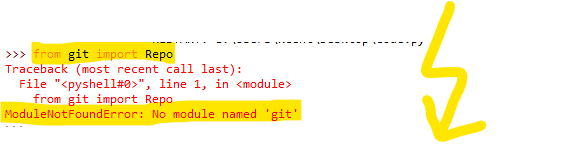


 Note: Don’t copy and paste the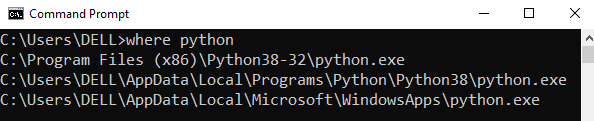
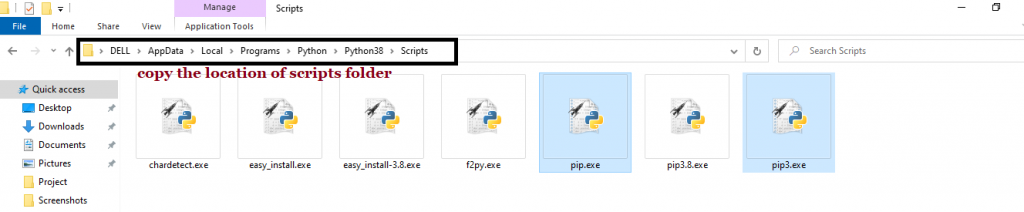

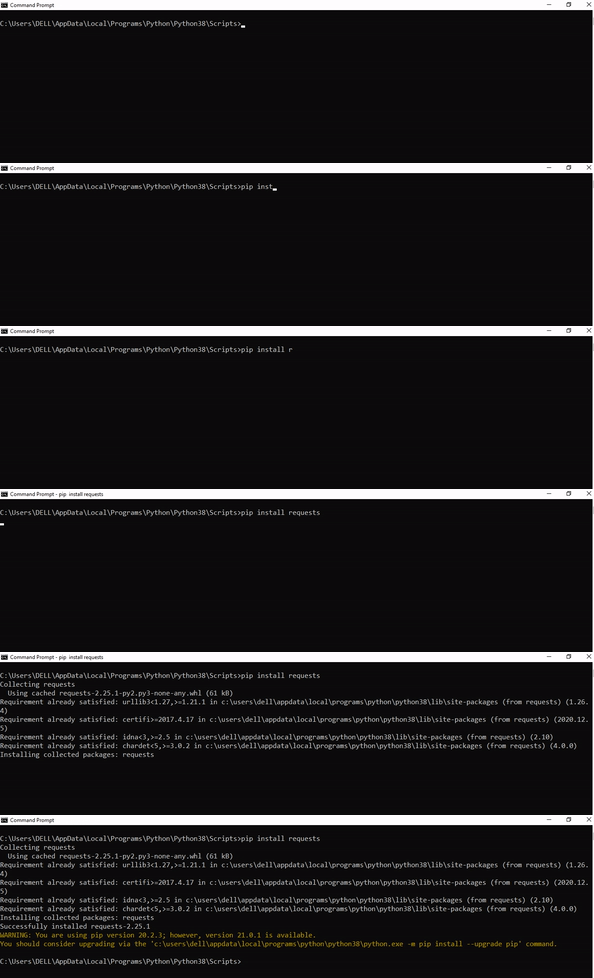
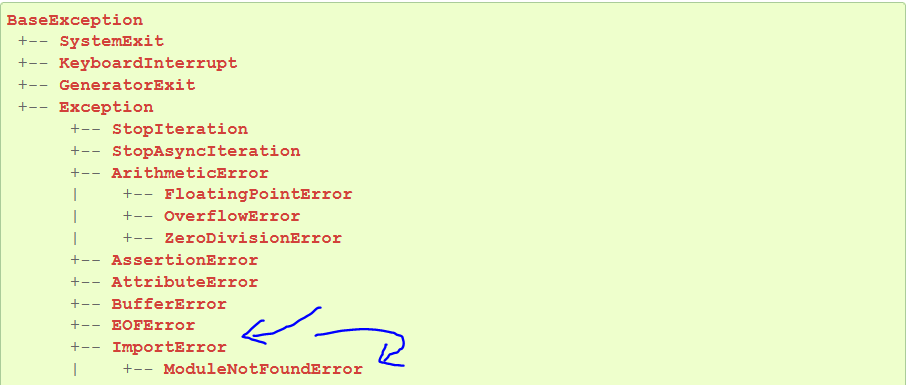


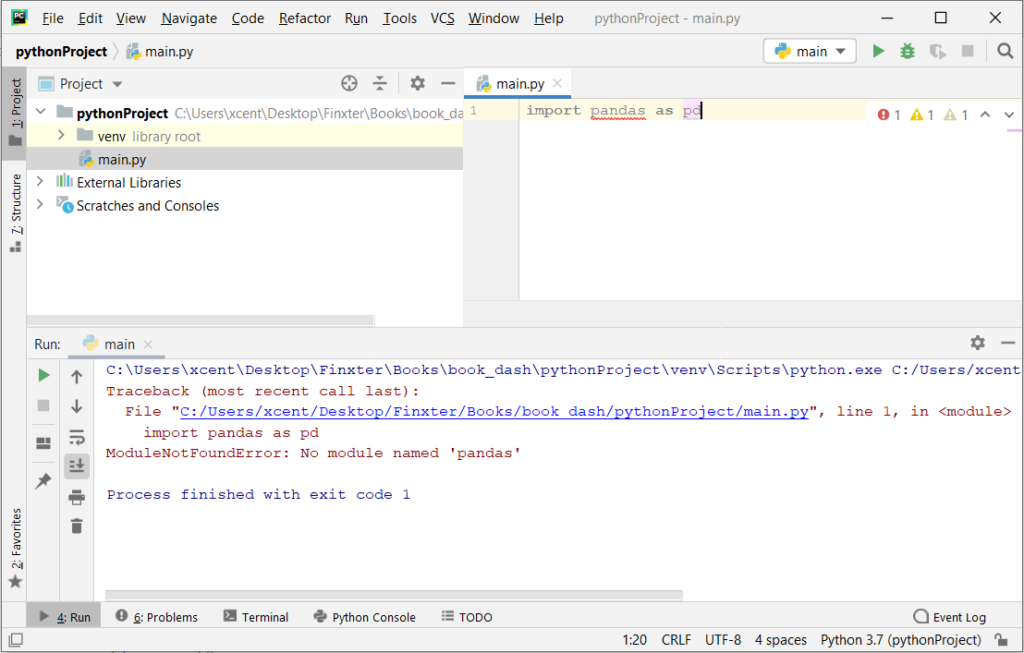
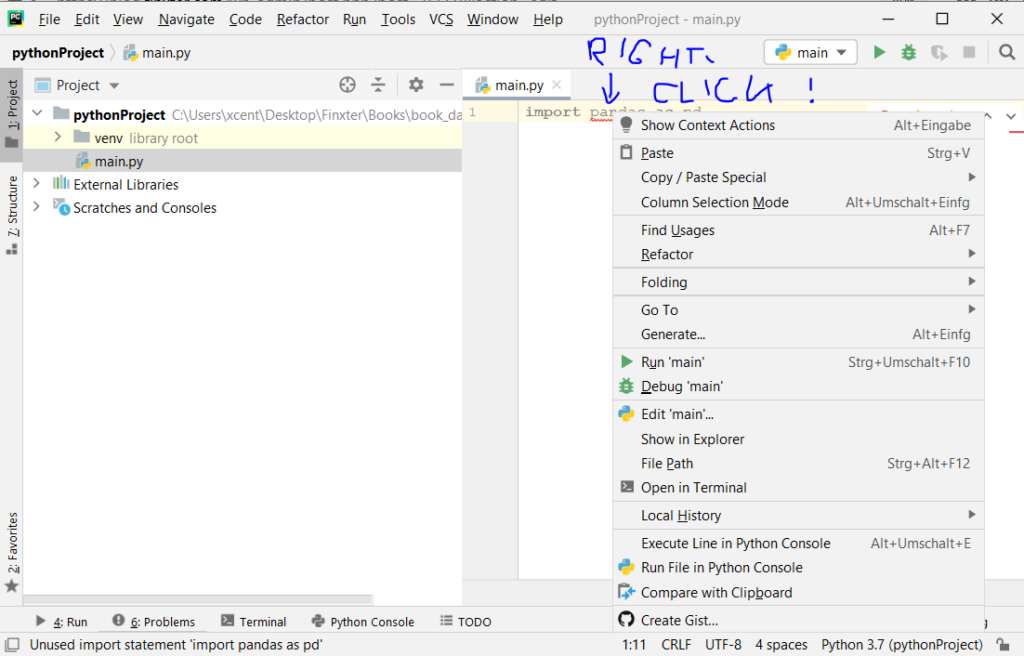
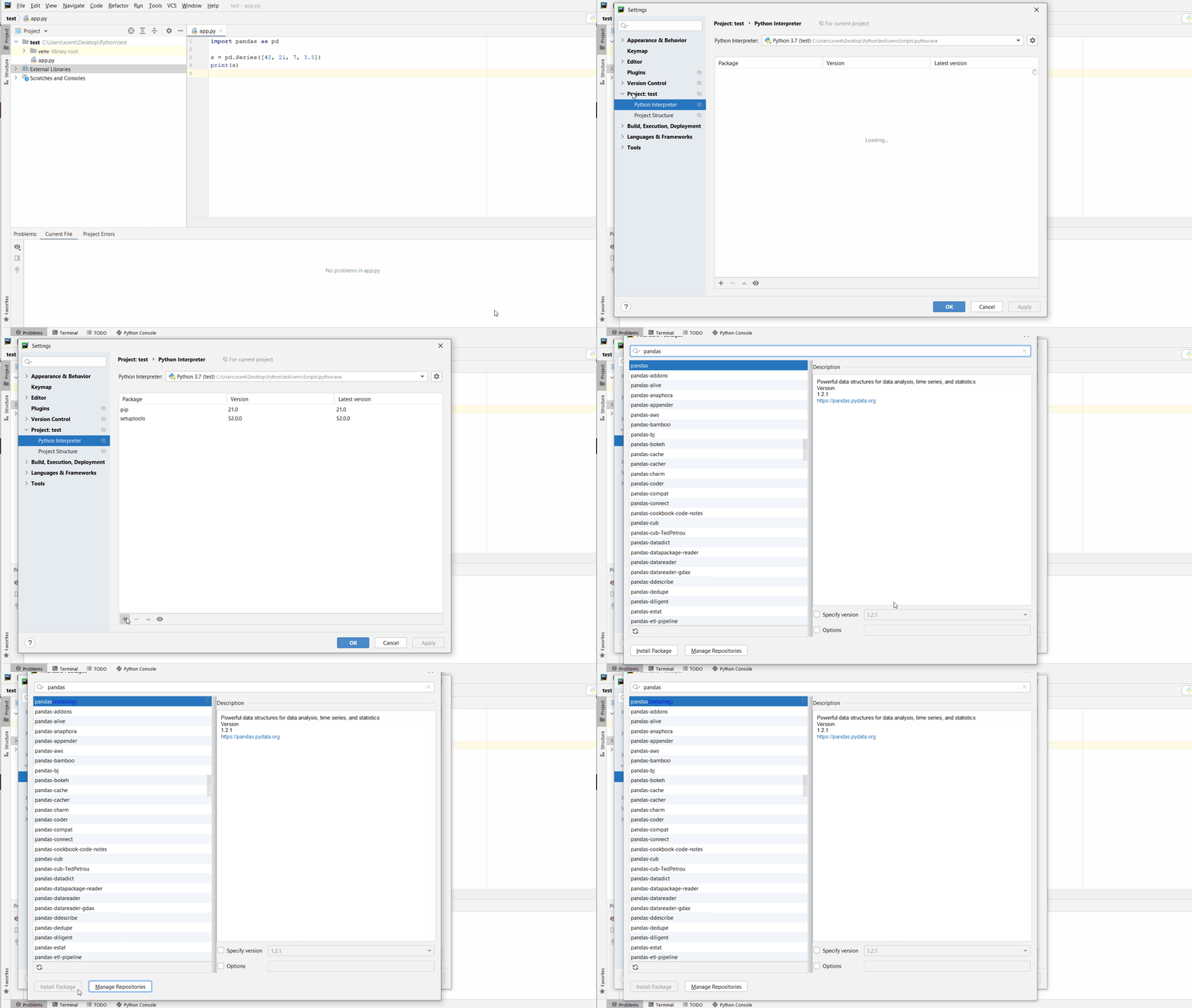


 Recommended: Other options for publically available computing are shown in the Finxter article





 Note: It is suggested to avoid

 Prev Tutorial
 Syllabus
 Next Tutorial
 Note: There is more than one kit out there, but it is this author’s opinion that the best value for beginners is the one from UCTRONICS. Most of them have similar components, but this one just happens to be my go-to and is the subject of this installment.


 Question: How would we write code to read in and extract data from an