Converting a HTML table to an excel file is a standard requirement of reporting websites. It will be simple and easier if the conversion is taking place on the client side.
There are many client-side and server-side plugins to perform the excel export. For example, PHPSpreadSheet allows writing data into excel and exporting.
This article will give different options and approaches to achieving the HTML table to excel conversion with JavaScript.
This simple example includes a few lines of JavaScript that build the template for excel export.
It uses the following steps to convert the exported excel report of tabular data.
Defines HTML template structure with required meta.
Include the table’s inner HTML into the template.
Marks the location by specifying the protocol to download the file via browser.
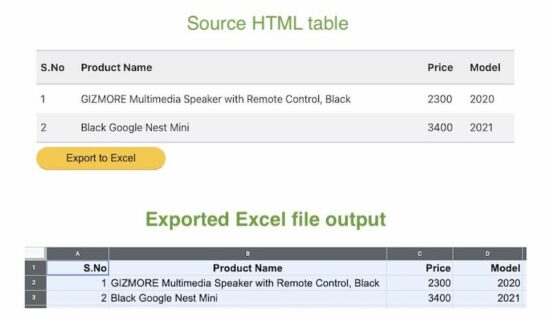
The below HTML table code displays a product listing and it is static. Refer jsPDF AutoTables examples to render a dynamic table by loading row by row.
The button below this table triggers the export to excel process on the click event. The exportToExcel() function handles the event and proceeds the client-side export.
This example uses the same HTML table source for the export operation. The difference is that the source table content marks some of the rows with no-export class.
This class is configured in the above script with exclude property of this plugin class.
Conclusion:
So, we have seen three simple implementations of adding HTML table to excel feature. Though the export feature is vital, we must have a component that provides a seamless outcome.
I hope, the above solution can be a good base for creating such components. It is adaptable for sure to dock more features to have an efficient excel report generation tool.
[www.indiegala.com] Colorful & enticing, smooth and yet prickly, the latest eroge bundle brings a bouquet of attractive adult 18+ games: Metempsychosis, Secret Kiss is Sweet and Tender, Magical Girl Noble Rose, Maken-shi Sara, Grayscale Memories, Meria and The Island of Orcs & Hero Zex.
Stray has only been out for a few days, and already PC modders are experimenting with the game by adding their own feline companions to it. And then there's a mod that replaces the lost ginger wanderer with a version of CJ from Grand Theft Auto: San Andreas that's pure nightmare fuel. That's one way to reskin a cat.
His body contorted and forced to trot around on all fours, CJ's inclusion by Sirgalahad172 is intended to be a joke, but in this and any other reality, it's a haunting reminder that no game is safe from the specter of CJ. "This mod is intended as a joke as CJ needs to be modded into any game that exists," Sirgalahad172 wrote in the cursed texts of the mod page.
Every Family has Secrets. Every Secret has a Price. As Dusk Falls is an original interactive drama from INTERIOR/NIGHT that explores the entangled lives of two families across thirty years. Starting in 1998 with a robbery-gone-wrong in small town Arizona, the choices you make have a powerful impact on the characters’ lives in this uncompromising story of betrayal, sacrifice and resilience. Drive the lives and relationships of multiple characters in a decades-spanning story told across two intense books.
Posted by: xSicKxBot - 07-25-2022, 09:17 AM - Forum: Python
- No Replies
The Ultimate Guide on Converting a CSV in Python
4/5 – (1 vote)
Abstract: In this article, we’ll quickly overview the best method, respectively, to convert a CSV file to JSON, Excel, dictionary, Parquet, list, list of lists, list of tuples, text file, DataFrame, XML, NumPy array, and list of dictionaries.
In this article, you’ve learned the best ways to perform the following conversions (click to read more):
You can convert a CSV file to a JSON file by using the following five steps:
Import the csv and json libraries
Open the CSV as a file object in reading mode using the open(path_to_csv, 'r') function in a context manager (=with environment).
Load the CSV content into Python using the csv.DictReader(fobj) and pass the file object just created.
Iterate over each row and update a newly-created dictionarymy_json using one of the column values as key: my_json[key] = row
Store the my_json dictionary data in a JSON file using the json.dumps(my_json) function.
import csv

import json csv_file = 'my_file.csv'

json_file = 'my_file.json' my_json = {}

with open(csv_file, 'r') as fobj: reader = csv.DictReader(fobj) for row in reader: # Use one of the CSV column names as a key key = row['Name'] my_json[key] = row with open(json_file,'w') as fobj: fobj.write(json.dumps(my_json, indent=2))
There are many more details to it, so if this didn’t answer your question yet, go here:
Learn More: Feel free to learn more about this conversion goal in our full guide on the Finxter blog with multiple CSV conversion methods and step-by-step explanations.
How to Convert CSV to Excel (XLSX) in Python?
The most pythonic way to convert a .csv to an .xlsx (Excel) in Python is to use the Pandas library.
Store the DataFrame in an Excel file by calling df.to_excel('my_file.xlsx', index=None, header=True)
import pandas as pd df = pd.read_csv('my_file.csv')

df.to_excel('my_file.xlsx', index=None, header=True)
Note that there are many ways to customize the to_excel() function in case
you don’t need a header line,
you want to fix the first line in the Excel file,
you want to format the cells as numbers instead of strings, or
you have an index column in the original CSV and want to consider it in the Excel file too.
Learn More: Feel free to learn more about this conversion goal in our full guide on the Finxter blog with multiple CSV conversion methods and step-by-step explanations.
How to Convert a CSV to a Dictionary in Python?
The best way to convert a CSV file to a Python dictionary is to create a CSV file object f using open("my_file.csv") and pass it in the csv.DictReader(f) method. The return value is an iterable of dictionaries, one per row in the CSV file, that maps the column header from the first row to the specific row value.
import csv csv_filename = 'my_file.csv' with open(csv_filename) as f: reader = csv.DictReader(f) for row in reader: print(row)
Learn More: Feel free to learn more about this conversion goal in our full guide on the Finxter blog with multiple CSV conversion methods and step-by-step explanations.
How to Convert a CSV to a Parquet Format in Python?
Here’s a step-by-step approach to reading a CSV and converting its contents to a Parquet file using the Pandas library:
Step 1: Run pip install pandas if the module is not already installed in your environment.
Step 3: Run pip install fastparquet to install the fastparquet module
Step 4: import pandas using import pandas as pd
Step 5: Read the CSV file into a DataFrame using df = pd.read_csv('my_file.csv').
Step 6: Write the Parquet file using df.to_parquet('my_file.parquet')
The code snippet to convert a CSV file to a Parquet file is quite simple (steps 4-6):
import pandas as pd

df = pd.read_csv('my_file.csv')

df.to_parquet('my_file.parquet')
Learn More: Feel free to learn more about this conversion goal in our full guide on the Finxter blog with multiple CSV conversion methods and step-by-step explanations.
How to Convert a CSV to a List in Python?
Here’s the code to convert that CSV file to a list of dictionaries, one dictionary per row by using the csv.DictReader(file) function:
import csv csv_filename = 'my_file.csv' with open(csv_filename) as f: reader = csv.DictReader(f) lst = list(*reader)
Learn More: Feel free to learn more about this conversion goal in our full guide on the Finxter blog with multiple CSV conversion methods and step-by-step explanations.
How to Convert a CSV to a List of Lists in Python?
To convert a CSV file 'my_file.csv' into a list of lists in Python, use the csv.reader(file_obj) method to create a CSV file reader. Then convert the resulting object to a list using the list() constructor.
import csv csv_filename = 'my_file.csv' with open(csv_filename) as f: reader = csv.reader(f) lst = list(reader)
Learn More: Feel free to learn more about this conversion goal in our full guide on the Finxter blog with multiple CSV conversion methods and step-by-step explanations.
How to Convert a CSV to a List of Tuples in Python?
To convert a CSV file 'my_file.csv' into a list of tuples in Python, use csv.reader(file_obj) to create a CSV file reader that holds an iterable of lists, one per row. Now, use the list(tuple(line) for line in reader) expression with a generator expression to convert each inner list to a tuple.
Here’s a simple example that converts our CSV file to a list of tuples using this approach:
import csv csv_filename = 'my_file.csv' with open(csv_filename) as f: reader = csv.reader(f) lst = list(tuple(line) for line in reader)
Learn More: Feel free to learn more about this conversion goal in our full guide on the Finxter blog with multiple CSV conversion methods and step-by-step explanations.
How to Convert a CSV to a Text File in Python?
If you want to keep the content (including the delimiter ',') in the CSV file unmodified, the conversion is simple: read the .csv file and write its content into a new .txt file using the open(), read(), and write() functions without importing any library.
In other words, perform the three steps to write a CSV to a TXT file unmodified:
Open the CSV file in reading mode and the TXT file in writing mode.
Read the CSV file and store it in a variable.
Write the content into the TXT file.
Here’s the code snippet that solves our basic challenge:
# 1. Open the CSV file in reading mode and the TXT file in writing mode

with open('my_file.csv', 'r') as f_in, open('my_file.txt', 'w') as f_out: # 2. Read the CSV file and store in variable content = f_in.read() # 3. Write the content into the TXT file f_out.write(content)
Learn More: Feel free to learn more about this conversion goal in our full guide on the Finxter blog with multiple CSV conversion methods and step-by-step explanations.
How to Convert a CSV to a Pandas DataFrame in Python?
To import a given CSV file into a newly-created Pandas DataFrame, use the pd.read_csv('my_file.csv') function that returns a DataFrame created with the content in the CSV file 'my_file.csv'.
Here’s a quick and generic code snippet showcasing this approach:
import pandas as pd

df = pd.read_csv('my_file.csv')

print(df)
Output:
 Name Job Age Income

0 Alice Programmer 23 110000

1 Bob Executive 34 90000

2 Carl Sales 45 50000
Learn More: Feel free to learn more about this conversion goal in our full guide on the Finxter blog with multiple CSV conversion methods and step-by-step explanations.
How to Convert a CSV to an XML in Python?
You can convert a CSV to an XML using the following approach:
Read the whole CSV file into your Python script.
Store the first row as header data that is needed to name your custom XML tags (e.g., <Name>, <Job>, <Age>, and <Income> in our example).
Create a function convert_row() that converts each row separately to an XML representation of that row using basic string formatting.
Iterate over the data row-wise using csv.reader() and convert each CSV row to XML using your function convert_row().
Here’s the code:
# Convert CSV file to XML string

import csv filename = 'my_file.csv' def convert_row(headers, row): s = f'<row id="{row[0]}">\n' for header, item in zip(headers, row): s += f' <{header}>' + f'{item}' + f'</{header}>\n' return s + '</row>' with open(filename, 'r') as f: r = csv.reader(f) headers = next® xml = '<data>\n' for row in r: xml += convert_row(headers, row) + '\n' xml += '</data>' print(xml)
Learn More: Feel free to learn more about this conversion goal in our full guide on the Finxter blog with multiple CSV conversion methods and step-by-step explanations.
How to Convert a CSV to a NumPy Array in Python?
You can convert a CSV file to a NumPy array simply by calling np.loadtxt() with two arguments: the filename and the delimiter string. For example, the expression np.loadtxt('my_file.csv', delimiter=',') returns a NumPy array from the 'my_file.csv' with delimiter symbols ','.
Here’s an example:
import numpy as np array = np.loadtxt('my_file.csv', delimiter=',')

print(array)
Output:
[[9. 8. 7.] [6. 5. 4.] [3. 2. 1.]]
Learn More: Feel free to learn more about this conversion goal in our full guide on the Finxter blog with multiple CSV conversion methods and step-by-step explanations.
How to Convert a CSV to a List of Dictionaries?
Convert a CSV file to a list of Python dictionaries in three steps:
Create a CSV file object f using open("my_file.csv") and pass it in the csv.DictReader(f) method.
The return value is an iterable of dictionaries, one per row in the CSV file. Each dictionary maps the column header from the first row to the specific row value.
As the last step, convert the iterable of dictionaries to a list using the Python built-in list() function.
Here’s the code to convert that CSV file to a list of dictionaries, one dictionary per row by using the csv.DictReader(file) function:
import csv csv_filename = 'my_file.csv' with open(csv_filename) as f: reader = csv.DictReader(f) lst = list(*reader)
Learn More: Feel free to learn more about this conversion goal in our full guide on the Finxter blog with multiple CSV conversion methods and step-by-step explanations.
Summary
You can find a more detailed article on each topic in the following table:
Release the Pressure with PowerWash Simulator! Wash away your worries with the soothing sounds of high-pressure water. Fire up your power washer and blast away every speck of dirt and grime you can find, all with the simple satisfaction of power-washing to a sparkling finish.
Posted by: xSicKxBot - 07-25-2022, 09:17 AM - Forum: Lounge
- No Replies
Best Gaming Keyboards In 2022
Your gaming keyboard choice is one of the most important decisions you can make for your setup. If you thought choosing a mouse or headset was hard, then you're in for quite the task with gaming keyboards. Between key switches, mechanical vs membrane keyboards, and all the extra features that keyboards tend to come with--such as multimedia keys and RGB lighting--there is a lot to consider. That's why we've tested and narrowed down the field of only the best gaming keyboards you can buy in 2022. For details on the differences between various keyboard switches, scroll down below the list. Our list of the best gaming keyboards includes wireless and wired options as well as keyboards with different form factors and switches.
Looking to complete your gaming keyboard and mouse combo, or just want more gaming peripherals to shop for? Check out our picks for the best gaming headset and best gaming mouse. And if you are trying to find something new to play, we have a roundup of the best PC games to play in 2022. We also have a list of the best Steam Deck games, if you've managed to get your hands on Valve's new handheld.
[freebies.indiegala.com] Dead Drop is a two-player local-multiplayer game of espionage and deception, where one player has to blend into a crowd and mimic AI movement to avoid detection from the other player.
Mothmen 1966 is a 'Pixel Pulp' - a visual novel featuring a fusion of exceptional writing and stunning illustration, inspired by mid-20th century pulp fiction and 80s home computer graphics - set amongst the strange occurrences of the Leonid meteor shower of 1966.
For PC gamers, choosing a gaming mouse is arguably the most important decision you can make when rounding out your setup. While picking out the right keyboard is also a key decision, your mouse is used almost constantly while performing any task on your computer. And when you throw gaming into the mix, you need an ultra-reliable mouse with some key features to help you get the best experience (and performance) possible while gaming--especially if you play competitive multiplayer games. The best gaming mouse for you often revolves around the type of games you play. We've rounded up the best gaming mice in 2022.
With so many different things to consider--and options to choose from--we at GameSpot have tested a large number of gaming mice to find the best ones out there. Below, we've listed the best of the best in each category of gaming mouse you can think of. This lists covers all the bases: programmable buttons, RGB lighting, wireless, scroll wheels, optical sensors, and more. If you've been looking for the best gaming mouse, you'll likely find it among these.





 Abstract: In this article, we’ll quickly overview the best method, respectively, to convert a CSV file to JSON, Excel, dictionary, Parquet, list, list of lists, list of tuples, text file, DataFrame, XML, NumPy array, and list of dictionaries.
 Learn More: Feel free to learn more about this conversion goal in our