Posted on Leave a comment

5 cool music player apps

Do you like music? Then Fedora may have just what you’re looking for. This article introduces different music player apps that run on Fedora. You’re covered whether you have an extensive music library, a small one, or none at all. Here are four graphical application and one terminal-based music player that will have you jamming.

Quod Libet

Quod Libet is a complete manager for your large audio library. If you have an extensive audio library that you would like not just listen to, but also manage, Quod Libet might a be a good choice for you.

Quod Libet can import music from multiple locations on your disk, and allows you to edit tags of the audio files — so everything is under your control. As a bonus, there are various plugins available for anything from a simple equalizer to a last.fm sync. You can also search and play music directly from Soundcloud.

Quod Libet works great on HiDPI screens, and is available as an RPM in Fedora or on Flathub in case you run Silverblue. Install it using Gnome Software or the command line:

$ sudo dnf install quodlibet

Audacious

If you like a simple music player that could even look like the legendary Winamp, Audacious might be a good choice for you.

Audacious probably won’t manage all your music at once, but it works great if you like to organize your music as files. You can also export and import playlists without reorganizing the music files themselves.

As a bonus, you can make it look likeWinamp. To make it look the same as on the screenshot above, go to Settings / Appearance, select Winamp Classic Interface at the top, and choose the Refugee skin right below. And Bob’s your uncle!

Audacious is available as an RPM in Fedora, and can be installed using the Gnome Software app or the following command on the terminal:

$ sudo dnf install audacious

Lollypop

Lollypop is a music player that provides great integration with GNOME. If you enjoy how GNOME looks, and would like a music player that’s nicely integrated, Lollypop could be for you.

Apart from nice visual integration with the GNOME Shell, it woks nicely on HiDPI screens, and supports a dark theme.

As a bonus, Lollypop has an integrated cover art downloader, and a so-called Party Mode (the note button at the top-right corner) that selects and plays music automatically for you. It also integrates with online services such as last.fm or libre.fm.

Available as both an RPM in Fedora or a Flathub for your Silverblue workstation, install it using the Gnome Software app or using the terminal:

$ sudo dnf install lollypop

Gradio

What if you don’t own any music, but still like to listen to it? Or you just simply love radio? Then Gradio is here for you.

Gradio is a simple radio player that allows you to search and play internet radio stations. You can find them by country, language, or simply using search. As a bonus, it’s visually integrated into GNOME Shell, works great with HiDPI screens, and has an option for a dark theme.

Gradio is available on Flathub which works with both Fedora Workstation and Silverblue. Install it using the Gnome Software app.

sox

Do you like using the terminal instead, and listening to some music while you work? You don’t have to leave the terminal thanks to sox.

sox is a very simple, terminal-based music player. All you need to do is to run a command such as:

$ play file.mp3

…and sox will play it for you. Apart from individual audio files, sox also supports playlists in the m3u format.

As a bonus, because sox is a terminal-based application, you can run it over ssh. Do you have a home server with speakers attached to it? Or do you want to play music from a different computer? Try using it together with tmux, so you can keep listening even when the session closes.

sox is available in Fedora as an RPM. Install it by running:

$ sudo dnf install sox

Photo by Malte Wingen on Unsplash.

Posted on Leave a comment

3 cool productivity apps for Fedora 28

Productivity apps are especially popular on mobile devices. But when you sit down to do work, you’re often at a laptop or desktop computer. Let’s say you use a Fedora system for your platform. Can you find apps that help you get your work done? Of course! Read on for tips on apps to help you focus on your goals.

All these apps are available for free on your Fedora system. And they also respect your freedom. (Many also let you use existing services where you may have an account.)

FocusWriter

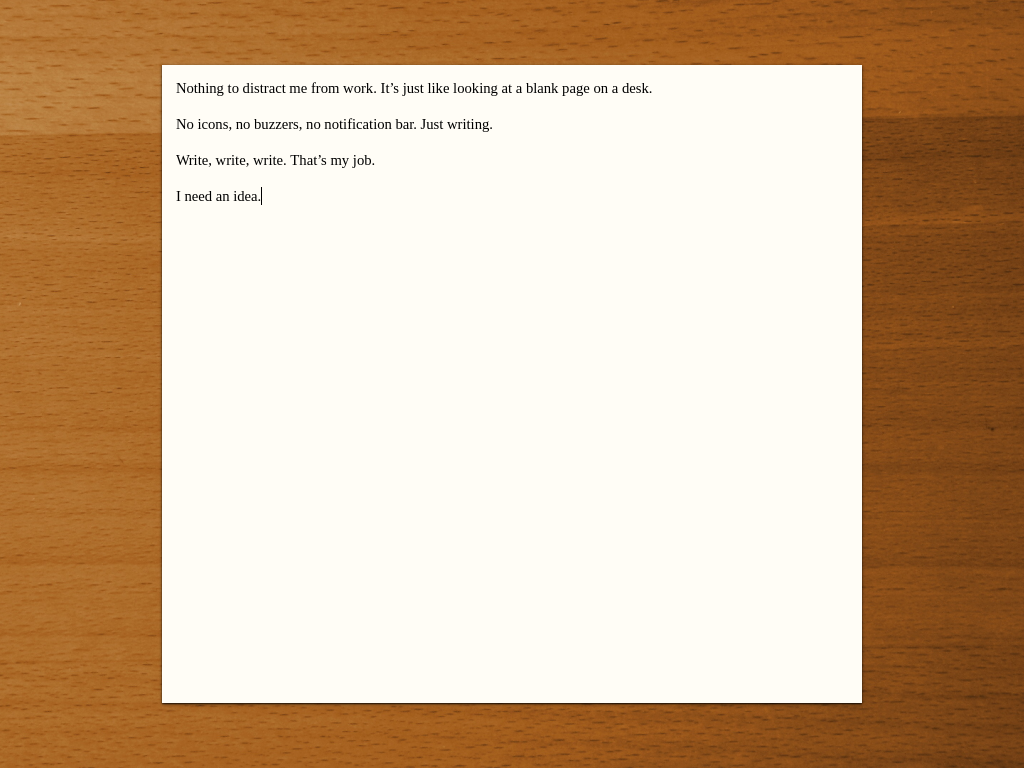
FocusWriter is simply a full screen word processor. The app makes you more productive because it covers everything else on your screen. When you use FocusWriter, you have nothing between you and your text. With this app at work, you can focus on your thoughts with fewer distractions.

Screenshot of FocusWriter

FocusWriter lets you adjust fonts, colors, and theme to best suit your preferences. It also remembers your last document and location. This feature lets you jump right back into focusing on writing without delay.

To install FocusWriter, use the Software app in your Fedora Workstation. Or run this command in a terminal using sudo:

sudo dnf install focuswriter

GNOME ToDo

This unique app is designed, as you can guess, for the GNOME desktop environment. It’s a great fit for your Fedora Workstation for that reason. ToDo has a simple purpose: it lets you make lists of things you need to get done.

Screenshot from GNOME ToDo on Fedora 28

Using ToDo, you can prioritize and schedule deadlines for all your tasks. You can also build as many tasks lists as you want. ToDo has numerous extensions for useful functions to boost your productivity. These include GNOME Shell notifications, and list management with a todo.txt file. ToDo can even interface with a Todoist or Google account if you use one. It synchronizes tasks so you can share across your devices.

To install, search for ToDo in Software, or at the command line run:

sudo dnf install gnome-todo

Zanshin

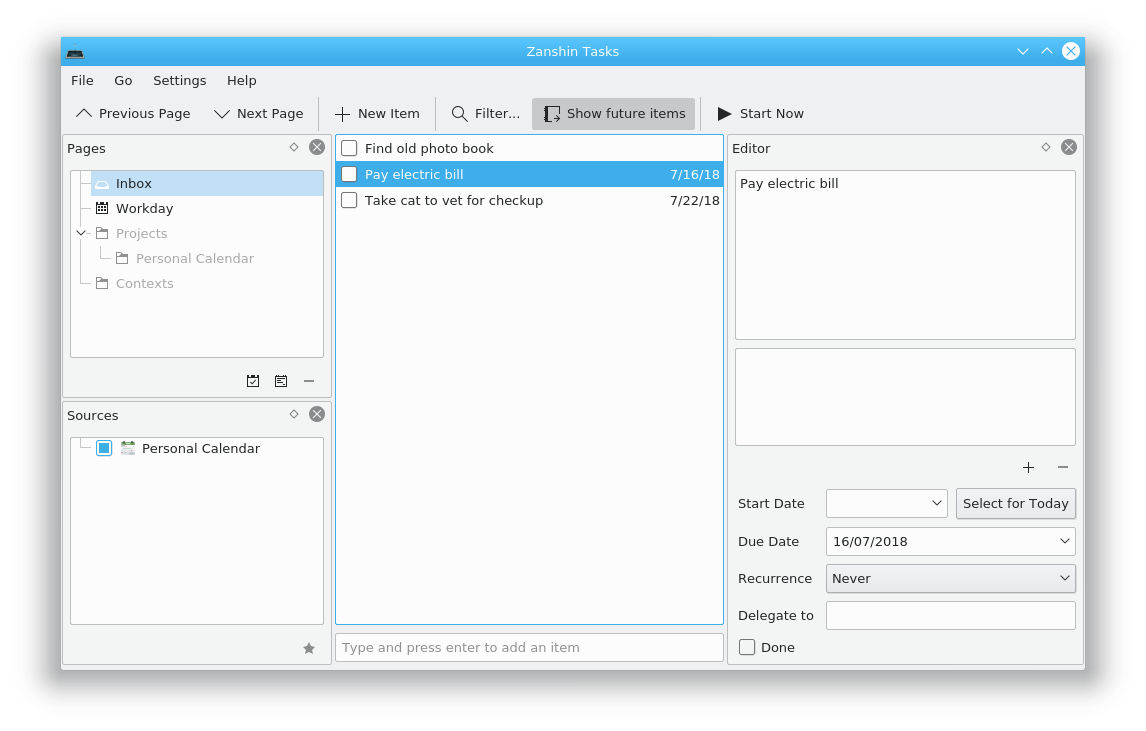
If you are a KDE using productivity fan, you may enjoy Zanshin. This organizer helps you plan your actions across multiple projects. It has a full featured interface, and lets you browse across your various tasks to see what’s most important to do next.

Screenshot of Zanshin on Fedora 28

Zanshin is extremely keyboard friendly, so you can be efficient during hacking sessions. It also integrates across numerous KDE applications as well as the Plasma Desktop. You can use it inline with KMail, KOrganizer, and KRunner.

To install, run this command:

sudo dnf install zanshin

Photo by Cathryn Lavery on Unsplash.

Posted on Leave a comment

Anaconda improvements in Fedora 28

Fedora 28 was released last month, and the major update brought with it a raft of new features for the Fedora Installer (Anaconda).  Like Fedora, Anaconda is a dynamic software project with new features and updates every release. Some changes are user visible, while others happen under the hood — making Anaconda more robust and prepared for future improvements.

User & Root configuration on Fedora Workstation

When installing Fedora Workstation from the Live media, the user and root configuration screens are no longer in the installer. Setting up users is now only done in the Initial Setup screens after installation.

The progress hub on a Fedora 28 Workstation live installation.

The progress hub on a Fedora 28 Workstation live installation.

The back story is that the Fedora Workstation working group aimed to reduce the number of screens users see during installation.  Primarily, this included screens that let a user set option twice: both Anaconda and the Gnome Initial Setup tool upon first boot. The working group considered various options, such as Anaconda reporting which screens have been visited by the user and then hiding them in Gnome Initial Setup. In the end they opted for just always skipping the user and root configuration screens in Anaconda and just configuring a user with sudo rights in Gnome Initial Setup.

Because of this the respective screen (user creation) shows up just once (in Gnome Initial Setup), making the installation experience more consistent.

It’s also worth noting that this change only affects the Fedora Workstation live image. All other images, including the Fedora Workstation netinst image and other live images, are unaffected.

Anaconda on DBus

Last year we announced the commencement of our next major initiative — modularizing Anaconda. The main idea is to split the code into several modules that will communicate over DBus. This will provide better stability, extensibility and testability of Anaconda.

Fedora 28 is the first release where Anaconda operates via DBus. At startup, Anaconda starts its private message bus and ten simple modules. For now, the modules just hold data that are provided by a kickstart file and modified by the UI. The UI uses the data to drive installation. This means that you can use DBus to monitor current settings, but you should use the UI to change them.

You can easily explore the current Anaconda DBus API with the live version of Fedora Workstation 28. Just keep in mind that the API is still unstable, so it might change in the future.

To do so, boot the live image and install the D-Feet application:

sudo dnf install d-feet

Start the installer and get an address of the Anaconda message bus:

cat /var/run/anaconda/bus.address

Start D-Feet, choose the option ‘Connect to other Bus’ and copy the first part of the Anaconda bus address to the text field (see the picture below). Click on the ‘Connect’ button. The application will open a new tab and show you a list of available DBus services. Now you can view the interfaces, methods, signals and properties of Anaconda DBus modules and interact with them.

Connecting to the Anaconda DBUS session.

Connecting to the Anaconda DBUS session.

The Anaconda DBUS API as visible in D-Feet.

The Anaconda DBUS API as visible in D-Feet.

Blivet 3.0 and Pykickstart 3.0

Fedora 28 provides version 3 of blivet and Pykickstart, and Anaconda uses the updated versions too.  While this is not really visible from end user perspective, changes like this are important to assure a robust and maintainable future for the Anaconda installer.

The main change in Pykickstart 3 is the switch from the deprecated optparse module to argparse for kickstart parsing. This not only brings all the features argparse has, it was also one of the prerequisites for having automatically generated kickstart documentation on Read the Docs.

Blivet 3 is less radical  update, but includes significant API improvements and cleanups. Some installer-related code still sitting in Blivet was finally moved to Anaconda.

Migrating from authconfig to authselect

The authconfig tool is deprecated and replaced with authselect in Fedora 28, so Anaconda deprecated the kickstart command authconfig and introduced a new command: authselect. You can still use the authconfig command, but Anaconda will install and run the authselect-compat tool instead.

Enabled hibernation

Previously, Hibernation didn’t work after installation because of a missing kernel option, so it had to be set up manually. Starting with Fedora 28, Anaconda adds the kernel option ‘resume’ with a path to the largest available swap device by default on x86 architectures.

Reducing Initial Setup dependencies

The Initial Setup tool is basically a lightweight launcher for arbitrary configuration screens from Anaconda. And while Anaconda often runs from a dedicated installation image, Initial Setup always runs directly on the installed system. This also means all the dependencies of Initial Setup will end up on users system, and unless they are uninstalled, they will take up space more or less forever.

The situation is even more dire on ARM, where users generally just dd a Fedora image to memory card or internal storage on the ARM board and Initial Setup basically acts as the installer, customizing the otherwise identical image for the given user. In this case Initial Setup dependencies directly dictate how small the Fedora image can be.

In Fedora 28, the new anaconda-install-env-deps metapackage  depends on all installation-time-only dependencies. The anaconda-install-env-deps package is always installed on installation images (netinst, live), but is not an Initial Setup dependency and should thus prevent all the unnecessary packages from being pulled in to the installed system. There is also a nice side effect of finally consolidating all the install-time-only dependencies in the Anaconda spec file.