Posted on Leave a comment

MLCube and Podman

MLCube is a new open source container based infrastructure specification introduced to enable reproducibility in Python based machine learning workflows. It can utilize tools such as Podman, Singularity and Docker. Execution on remote platforms is also supported. One of the chairs of the MLCommons Best Practices working group that is developing MLCube is Diane Feddema from Red Hat. This introductory article explains how to run the hello world MLCube example using Podman on Fedora Linux.

Yazan Monshed has written a very helpful introduction to Podman on Fedora which gives more details on some of the steps used here.

First install the necessary dependencies.

sudo dnf -y update
sudo dnf -y install podman git virtualenv \ policycoreutils-python-utils

Then, following the documentation, setup a virtual environment and get the example code. To ensure reproducibility, use a specific commit as the project is being actively improved.

virtualenv -p python3 ./env_mlcube source ./env_mlcube/bin/activate
git clone https://github.com/mlcommons/mlcube_examples.git cd ./mlcube_examples/hello_world
git checkout 5fe69bd
pip install mlcube mlcube-docker
mlcube describe

Now change the runner command from docker to podman by editing the file $HOME/mlcube.yaml so that the line

docker: docker

becomes

docker: podman

If you are on a computer with x86_64 architecture, you can get the container using

mlcube configure --mlcube=. --platform=docker

You will see a number of options

? Please select an image: ▸ registry.fedoraproject.org/mlcommons/hello_world:0.0.1 registry.access.redhat.com/mlcommons/hello_world:0.0.1 docker.io/mlcommons/hello_world:0.0.1 quay.io/mlcommons/hello_world:0.0.1

Choose docker.io/mlcommons/hello_world:0.0.1 to obtain the container.

If you are not on a computer with x86_64 architecture, you will need to build the container. Change the file $HOME/mlcube.yaml so that the line

build_strategy: pull

becomes

build_strategy: auto

and then build the container using

mlcube configure --mlcube=. --platform=docker

To run the tests, you may need to set SELinux permissions in the directories appropriately. You can check that SELinux is enabled by typing

sudo sestatus

which should give you output similar to

SELinux status: enabled
...

Josphat Mutai, Christopher Smart and Daniel Walsh explain that you need to be careful in setting appropriate SELinux policies for files used by containers. Here, you will allow the container to read and write to the workspace directory.

sudo semanage fcontext -a -t container_file_t "$PWD/workspace(/.*)?"
sudo restorecon -Rv $PWD/workspace

Now check the directory policy by checking that

ls -Z

gives output similar to

unconfined_u:object_r:user_home_t:s0 Dockerfile
unconfined_u:object_r:user_home_t:s0 README.md
unconfined_u:object_r:user_home_t:s0 mlcube.yaml
unconfined_u:object_r:user_home_t:s0 requirements.txt
unconfined_u:object_r:container_file_t:s0 workspace

Now run the example

mlcube run --mlcube=. --task=hello --platform=docker
mlcube run --mlcube=. --task=bye --platform=docker

Finally, check that the output

cat workspace/chats/chat_with_alice.txt

has text similar to

Hi, Alice! Nice to meet you.
Bye, Alice! It was great talking to you.

You can create your own MLCube as described here. Contributions to the MLCube examples repository are welcome. Udica is a new project that promises more fine grained SELinux policy controls for containers that are easy for system administrators to apply. Active development of these projects is ongoing. Testing and providing feedback on them would help make secure data management on systems with SELinux easier and more effective.

Posted on Leave a comment

3-2-1 Backup plan with Fedora ARM server

Fedora Server Edition works on Single Board Computers (SBC) like Raspberry Pi. This article is aimed at data backup and restoration of personal data for users who want to take advantage of solid server systems and built-in tools like Cockpit. It describes 3 levels of backup.

Pre-requisites

To use this guide, all you need is a working Fedora Linux workstation and the following items.

  • You should read, understand, and practice the requirements as documented in the Fedora Docs for server installation and administration
  • An SBC (Single Board Computer), tested for Fedora Linux. Check hardware status here.
  • Fedora ARM server raw image & ARM image installer
  • A choice of microSD Card (64 GB / Class 10) and SSD device
  • Ethernet cable / DHCP reserved IP or static IP
  • A Linux client workstation with ssh keys prepared
  • Make a choice of cloud storage services
  • Have an additional Linux workstation available

With this setup, I opted for Raspberry Pi 3B+/4B+ (one for hot-swap) because of the price and availability at the time of writing this article. While the Pi server is remotely connected using Cockpit, you can position the Pi near the router for a neat set-up.

Harden server security

After following through with server installation and administration on the SBC, it is a good practice to harden the server security with firewalld.

You must configure the firewall as soon as the server is online before connecting the storage device to the server. Firewalld is a zone-based firewall. It creates one pre-defined zone ‘FedoraServer’ after following through with the installation and administration guide in the Fedora Docs.

Rich rules in firewalld

Rich rules are used to block or allow a particular IP address or address range. The following rule accepts SSH connections only from the host with the registered IP (of client workstation) and drops other connections. Run the commands in Cockpit Terminal or terminal in client workstation connect to the server via ssh.

firewall-cmd --add-rich-rule='rule family=ipv4 source address=<registered_ip_address>/24 service name=ssh log prefix="SSH Logs" level="notice" accept'

Reject ping requests from all hosts

Use this command to set the icmp reject and disallow ping requests

firewall-cmd --add-rich-rule='rule protocol value=icmp reject'

To carry out additional firewall controls, such as managing ports and zones, please refer to the link below. Please be aware that misconfiguring the firewall may make it vulnerable to security breaches.

Managing firewall in Cockpit
firewalld rules

Configure storage for file server

The next step is to connect a storage device to the SBC and partition a newly attached storage device using Cockpit. With Cockpit’s graphical server management interface, managing a home lab (whether a single server or several servers) is much simpler than before. Fedora Linux server offers Cockpit as standard.

In this setup, an SSD device, powered by the USB port of the SBC, is placed in service without the need for an additional power supply.

  • Connect the storage device to a USB port of the SBC
  • After Cockpit is running (as set up in the pre-requisites), visit ip-address-of-machine:9090 in the web browser of your client workstation
  • After logging into Cockpit, click ‘Turn on administrative access’ at the top of the Cockpit page
  • Click the “Storage” on the left pane
  • Select the device under “Drives” section to format and partition a blank storage device
Cockpit Storage management
  • On the screen of the selected storage device create a new partition table or format and create new partitions. When prompted to initialize disk, in the “Partitioning” type, select GPT partition
  • For a file system type from the drop-down list (XFS and ext4), choose ext4. This is suitable for an SBC with limited I/O capability (like USB 2.0 port) and limited bandwidth (less than 200MB/s)
Create a partition in Cockpit
  • To create a single partition taking up all the storage space on the device, specify its mount point, such as “/media” and click “Ok”
  • Click “Create partition”, which creates a new partition mounted at “/media”.

Create backups and restore from backups

Backups are rarely one-size-fits-all. There are a few choices to make such as where the data is backed up, the steps you take to backup data, identify any automation, and determine how to restore backed-up data.

Backup workflow – version 1.0

Backup 1. rsync from client to file server (Raspberry Pi)

The command used for this transfer was:

rsync -azP ~/source syncuser@host1:/destination
Options:
-a, --archive
-z, --compress
-P, --progress

To run rsync with additional options, set the following flags:

Update destination files in-place

--inplace

Append data onto shorter files

--append

Source-side deduplication combined with compression is the most effective way to reduce the size of data to be backed up before it goes to backup storage.

I run this manually at the end of the day. Automation scripts are advantageous once I settled in with the cloud backup workflow.

For details on rsync, please visit the Fedora magazine article here.

Backup 2. rsync from file server to primary cloud storage

Factors to consider when selecting cloud storage are;

  • Cost: Upload, storage, and download fee
  • rsync, sftp supported
  • Data redundancy (RAID 10 or data center redundancy plan in place)
  • Snapshots

One of the cloud storage fitting these criteria is Hetzner’s hosted Nextcloud – Storage Box. You are not tied to a supplier and are free to switch without an exit penalty.

Generate SSH keys and create authorized key files in the file server

Use ssh-keygen to generate a new pair of SSH keys for the file server and cloud storage.

ssh-keygen Generating public/private rsa key pair.
Enter file in which to save the key . . . 

Insert the required public SSH keys into a new local authorized_keys file.

cat .ssh/id_rsa.pub >> storagebox_authorized_keys

Transfer keys to cloud storage

The next step is to upload the generated authorized_keys file to the Storage Box. To do this, create the directory .ssh with permission 700 and create the file authorized_keys with the public SSH keys and permission 600. Run the following command.

echo -e "mkdir .ssh \n chmod 700 .ssh \n put storagebox_authorized_keys .ssh/authorized_keys \n chmod 600 .ssh/authorized_keys" | sftp <username>@<username>.your-storagebox.de

Use rsync over ssh

Use rsync to synchronize the current state of your file directories to Storage Box.

rsync --progress -e 'ssh -p23' --recursive <local_directory> <username>@<username>.your-storagebox.de:<target_directory>

This process is called a push operation because it “pushes” a directory from the local system to a remote system.

Restore a directory from cloud storage

To restore a directory from the Storage Box, swap the directories:

rsync --progress -e 'ssh -p23' --recursive <username>@<username>.your-storagebox.de:<remote_directory> <local_directory>

Backup 3. Client backup to secondary cloud storage

Deja Dup is in the Fedora software repo, making it a quick backup solution for Fedora Workstation. It handles the GPG encryption, scheduling, and file inclusion (which directories to back up).

Backing up to the secondary cloud
Restoring files from cloud storage

Archive personal data

Not every data needs a 3-2-1 backup strategy. That is personal data share. I repurposed a hand-me-down laptop with a 1TB HDD as an archive of personal data (family photos).

Go to “Sharing” in settings (in my case, the GNOME file manager) and toggle the slider to enable sharing.

Turn on “file sharing”, “Networks” and “Required password”, which allows you to share your public folders with other workstations on your local network using WebDAV.

Prepare fallback options

Untested backups are no better than no backups at all. I take the ‘hot swap’ approach in a home lab environment where disruptions like frequent power outages or liquid damages do happen. However, my recommendations are far from disaster recovery plans or automatic failover in corporate IT.

  • Dry run restoration of files on a regular basis
  • Backup ssh/GPG keys onto an external storage device
  • Copy a raw image of the Fedora ARM server onto an SD card
  • Keep snapshots of full backups at primary cloud storage
  • Automate backup process to minimize human error or oversight

Track activity and troubleshoot with Cockpit

As your project grows, so does the number of servers you manage. Activity and alert tracking in Cockpit ease your administrative burden. You can achieve this in three ways using Cockpit’s graphical interface.

SELinux menu

How to diagnose network issues, find logs and troubleshoot in Cockpit

  • Go to SELinux to check logs
  • Check “solution details”
  • Select “Apply this solution” when necessary
  • View automation script and run it if necessary
SELinux logs

Network or storage logs

Server logs track detailed metrics that correlate CPU load, memory usage, network activity, and storage performance with the system’s journal. Logs are organized under the network or storage dashboard.

Storage logs in Cockpit

Software updates

Cockpit helps security updates on preset time and frequency. You can run all updates when you need them.

Software updates

Congratulations on setting up a file/backup server with the Fedora ARM server edition.

Posted on Leave a comment

Samba as AD and Domain Controller

Having a server with Samba providing AD and Domain Controller functionality will provide you with a very mature and professional way to have a centralized place with all users and groups information. It will free you from the burden of having to manage users and groups on each server. This solution is useful for authenticating applications such as WordPress, FTP servers, HTTP servers, you name it.

This step-by-step tutorial about setting up Samba as an AD and Domain Controller will demonstrate to you how you can achieve this solution for your network, servers, and applications.

Pre-requisites

A fresh Fedora Linux 35 server installation.

Definitions

Hostname: dc1
Domain: onda.org
IP: 10.1.1.10/24

Considerations

  • Once the domain was chosen, you can’t change it, be wise;
  • In the /etc/hosts file, the server name can’t be on 127.0.0.1 line, it must be on its IP address line;
  • Use a fixed IP address for the server, as a result, the server’s IP won’t change;
  • Once you provision the DC server, do not provision another one, join other ones to the domain instead;
  • For the DNS server, we will choose SAMBA_INTERNAL, so we can have the DNS forwarding feature;
  • It is necessary to have a time synchronization service running in the server, like chrony or ntp, so you can avoid numerous problems from not having the server and clients synchronized with the same time;

Samba installation

Let’s install the required software to get through this guide. It will provide all the applications you will need.

sudo dnf install samba samba-dc samba-client heimdal-workstation
Samba installation process
Samba installation

Configurations

For setting up Samba as an AD and Domain Controller, you will have to prepare the environment with a functional configuration before you start using it.

Firewall

You will need to allow some UDP and TCP ports through the firewall so that clients will be able to connect to the Domain Controller.

I will show you two methods to add them. Choose the one that suits you best.

First method

This is the most straightforward method, firewalld comes with a service with all ports needed to open Samba DC, which is called samba-dc. Add it to the firewall rules:

Add the service:

sudo firewall-cmd --permanent --add-service samba-dc

Second method

Alternatively, you can add the rules from the command line:

sudo firewall-cmd --permanent --add-port={53/udp,53/tcp,88/udp,88/tcp,123/udp,135/tcp,137/udp,138/udp,139/tcp,389/udp,389/tcp,445/tcp,464/udp,464/tcp,636/tcp,3268/tcp,3269/tcp,49152-65535/tcp}

Reload firewalld:

sudo firewall-cmd --reload

For more information about firewalld, check the following article: Control the firewall at the command line

SELinux

To run a Samba DC and running with SELinux in enforcing mode, it is necessary to set some samba booleans for SELinux to on. After these booleans are set, it should not be necessary to disable SELinux.

sudo setsebool -P samba_create_home_dirs=on samba_domain_controller=on samba_enable_home_dirs=on samba_portmapper=on use_samba_home_dirs=on

Restore the default SELinux security contexts for files:

sudo restorecon -Rv /

Samba

First, remove the /etc/samba/smb.conf file if it exists:

sudo rm /etc/samba/smb.conf

Samba uses its own DNS service, and for that reason, the service won’t start if systemd-resolved is running, that is why it is necessary to edit its configuration to stop listening on port 53 and use Samba’s DNS.

Create the directory /etc/systemd/resolved.conf.d/ if it does not exist:

sudo mkdir /etc/systemd/resolved.conf.d/

Create the file /etc/systemd/resolved.conf.d/custom.conf that contains the custom config:

[Resolve]
DNSStubListener=no
Domains=onda.org
DNS=10.1.1.10

Remember to change the DNS and Domains entries to be your Samba DC server.

Restart the systemd-resolved service:

sudo systemctl restart systemd-resolved

Finally, provision the Samba configuration. samba-tool provides every step needed to make Samba an AD server.

Using the samba-tool, provision the Samba configuration:

sudo samba-tool domain provision --server-role=dc --use-rfc2307 --dns-backend=SAMBA_INTERNAL --realm=ONDA.ORG --domain=ONDA --adminpass=sVbOQ66iCD3hHShg
Using samba-tool to provision a domain
Samba domain provisioning

The ‐‐use-rfc2307 argument provides POSIX attributes to Active Directory, which stores Unix user and group information on LDAP (rfc2307.txt).

Make sure that you have the correct dns forwarder address set in /etc/samba/smb.conf. Concerning this tutorial, it should be different from the server’s own IP address 10.1.1.10, in my case I set to 8.8.8.8, however your mileage may vary:

Changing the dns forwarder value on /etc/samba/smb.conf file

After changing the dns forwarder value, restart samba service:

sudo systemctl restart samba

Kerberos

After Samba installation, it was provided a krb5.conf file that we will use:

sudo cp /usr/share/samba/setup/krb5.conf /etc/krb5.conf.d/samba-dc

Edit /etc/krb5.conf.d/samba-dc content to match your organization information:

[libdefaults]
default_realm = ONDA.ORG
dns_lookup_realm = false
dns_lookup_kdc = true

[realms]
ONDA.ORG = {
default_domain = ONDA
}

[domain_realm]
dc1.onda.org = ONDA.ORG

Starting and enabling Samba on boot time

To make sure that Samba will start on system initialization, enable and start it:

sudo systemctl enable samba
sudo systemctl start samba

Testing

Connectivity

$ smbclient -L localhost -N

As a result of smbclient command, shows that connection was successful.

Anonymous login successful
        Sharename       Type      Comment
        ---------       ----      -------
        sysvol          Disk
        netlogon        Disk
        IPC$            IPC       IPC Service (Samba 4.15.6)
SMB1 disabled -- no workgroup available
Testing connection with smbclient tool
smbclient connection test

Now, test the Administrator login to netlogon share:

$ smbclient //localhost/netlogon -UAdministrator -c 'ls'
Password for [ONDA\Administrator]:
  .                              D        0  Sat Mar 26 05:45:13 2022
  ..                             D        0  Sat Mar 26 05:45:18 2022

                8154588 blocks of size 1024. 7307736 blocks available
smbclient Administrator connection test

DNS test

To test if the name resolution is working, execute the following commands:

$ host -t SRV _ldap._tcp.onda.org.
_ldap._tcp.onda.org has SRV record 0 100 389 dc1.onda.org.
$ host -t SRV _kerberos._udp.onda.org.
_kerberos._udp.onda.org has SRV record 0 100 88 dc1.onda.org.
$ host -t A dc1.onda.org.
dc1.onda.org has address 10.1.1.10

If you get the error:

-bash: host: command not found 

Install the bind-utils package:

sudo dnf install bind-utils

Kerberos test

Testing Kerberos is important because it generates the required tickets to let clients authenticate with encryption. It heavily relies on correct time.

It can’t be stressed enough to have date and time set correctly, and that is why it is so important to have a time synchronization service running on both clients and servers.

$ /usr/lib/heimdal/bin/kinit administrator
$ /usr/lib/heimdal/bin/klist
Kerberos ticket validation

Adding a user to the Domain

samba-tool provides us an interface for executing Domain administration tasks, so we can add a user to the Domain easily.

The samba-tool help is very comprehensive:

$ samba-tool user add --help

Adding user danielk to the domain:

sudo samba-tool user add danielk --unix-home=/home/danielk --login-shell=/bin/bash --gecos 'Daniel K.' --given-name=Daniel --surname='Kühl' --mail-address='danielk@onda.org'
Adding user to the Domain using samba-tool
Adding user to the Domain

To list the users on Domain:

sudo samba-tool user list

Wrap up and conclusion

We started out by installing Samba and required applications in a fresh Fedora Linux 35 installation. We’ve also explained the problems that this solution solves. Thereafter, we did an initial configuration that prepares the environment to be ready to Samba to operate as an AD and Domain Controller.

Then, we proceeded to cover how to have Samba up and running alongside Fedora Linux security features, like having it working with firewalld and SELinux enabled. We did some important testing to make sure everything was fine and ended by showing a bit on how to administrate users using samba-tool.

To summarize, if you want to establish a robust solution for centralizing authentication across your network, servers (If one wanted to, one could even join a Windows 10 client to this Samba domain [tested with Windows 10 Professional version 20H2]) and services, consider using this approach as part of your infrastructure.

Now that you know how to have a Samba as AD and Domain Controller solution, what would you like to see covered next? Share your thoughts in the comments below.

Posted on Leave a comment

Contribute at the Fedora Kernel 5.17, CoreOS, Cloud, IoT, and Audio test days

Fedora Linux test days are events where anyone can help make sure changes in Fedora work well in an upcoming release. Fedora community members often participate, and the public is welcome at these events. If you’ve never contributed to Fedora before, this is a perfect way to get started.

There are six upcoming test events in the next two weeks.

  • Sunday April 03 through April 10, is to test the Kernel 5.17 changes in Fedora.
  • Monday April 04 through April 11, this test week is focusing on testing Fedora CoreOS.
  • Wednesday April 06 , is to test the Fedora IoT Edition.
  • Friday April 08, is to test Fedora 36 Cloud Base Images.
  • Wednesday April 13, is to test Audio.
  • Thursday April 14, is to test Upgrade Path from Fedora 34 and 35 to Fedora 36.

Come and test with us to make the upcoming Fedora 36 even better. Read more below on how to do it.

Kernel test week

The kernel team is working on the final integration for kernel 5.17. This version was just recently released and will arrive soon in Fedora.

The Fedora kernel and QA teams have organized a test week for Sunday April 03 through April 10. Refer to the wiki page for links to the test images you’ll need to participate. This document clearly outlines the steps.

Fedora CoreOS test week

The Fedora CoreOS team released the first Fedora CoreOS next stream based on Fedora 36. They expect to promote this to the testing stream in two weeks, on the usual schedule.

The Fedora CoreOS and QA teams have organized a test week. It begins Monday, April 04 and runs through the end of the week. Refer to the wiki page for links to the test cases and materials you’ll need to participate.

Fedora IoT Edition test day

Fedora Internet of Things is a variant of Fedora focused on IoT ecosystems. Whether you work on a home assistant, industrial gateways, or data storage and analytics, Fedora IoT provides a trusted open source platform to build on. Fedora IoT produces a monthly rolling release to help you keep your ecosystem up-to-date.

The IoT and QA teams will have their test day on Wednesday, April 06. Refer to the wiki page for links and resources to test the IoT Edition.

Fedora Cloud test day

Now that the Fedora Linux 36 is coming close to the release date, the Fedora Cloud SIG would like to get the community together to find and squash some bugs.

The test day is organized for Friday April 08. This event will test Fedora Cloud Base content. See the wiki page for links to the Beta Cloud Base Images. We have qcow, AMI, and ISO images ready for testing.

Audio test day

As part of a recent proposal, Fedora replaced the PulseAudio daemon with a functionally compatible implementation based on PipeWire. This means that all existing clients using the PulseAudio client library will continue to work as before, as well as applications shipped as Flatpak. The last few releases noted significant issues in the community and hence the origin of this regression test day.

See this wiki page for information on testing that everything works as expected. This will occur on Wednesday, April 13.

Upgrade test day

As we come closer to Fedora Linux 36 release dates, it’s time to test upgrades. This release has a lot of changes and it becomes essential that we test the graphical upgrade methods as well as the command line methods.

As a part of this test day, we will test upgrading from a full updated F35 and F34 to F36 for all architectures (x86_64, ARM, aarch64) and variants (WS, cloud, server, silverblue, IoT). See this wiki page for information and details. This test day will happen on Thursday, April 14.

Posted on Leave a comment

Using Sourcegraph to Search 34,000+ Fedora Repositories

In October 2021, a Fedora Linux user asked a question about licensing. Fedora Project Leader Matthew Miller left a response: “Since we don’t have a complete, exploded, searchable repository of all of the packages in Fedora, I don’t have a quick way to check.” 

Followed by: “…or possibly pay Sourcegraph to do it for us. They seem like nice people.” He is correct, we (Sourcegraph) are nice people, but we don’t want your money. Instead, we wanted to team up with the Fedora community.

The Fedora Community can now search their universe of open source code—currently over 34,000 repositories and counting.

Introduction to code search

For those who aren’t familiar with the concept of code search, it enables teams to onboard to a new codebase and find answers faster, helps to identify security risks, and many other use cases. Sourcegraph has indexed over two-million repositories across multiple code hosts such as GitHub and GitLab. This article is going to focus strictly on code search for src.fedoraproject.org. Sourcegraph provides both a web app and CLI interface.

Using the Web app

When using the Sourcegraph web app you will need to start each search with repo:^src.fedoraprojects.org before entering any search queries. Using this link to the web app will include this initial string as shown here:

Sourcegraph web app interface

The following sections will provide some web app examples of searches that might be of interest.

Find repositories using popular OSI-approved licenses 

The following query will scan all the repositories for software that is compatible with the “Open Source Definition” (OSD).

repo:^src.fedoraproject.org/ lang:"RPM Spec" License: ^.*apache|bsd|gpl|lgpl|mit|mpl|cddl|epl.*$
License search

Find files with TODOs

The following query can find TODOs in 34k repositories. This is great for those looking to contribute to projects that need help.

repo:^src.fedoraproject.org/ "TODO"
Search for TODO

Find files being served via FTP

A co-worker of mine from back in the day told me “FTP is a dead protocol”. Is it? You can add to this query to find any other protocol such as irc, https, etc.

repo:^src.fedoraproject.org/ (?:ftp)://[A-Za-z0-9-]{0,63}(.[A-Za-z0-9-]{0,63})+(:d{1,4})?/*(/*[A-Za-z0-9-._]+/*)*(?.*)?(#.*)?
Search for protocol

Find files with a vulnerable version of Log4j

This query will find any files that are possibly vulnerable (false positives can happen) to CVE-2021-44228 aka Log4j. You can also search for other vulnerabilities that can then be reported to project maintainers.

repo:^src.fedoraproject.org/ org.apache.logging.log4j 2.((0|1|2|3|4|5|6|7|8|9|10|11|12|13|14|15)(.[0-9]+)) count:all
Search for log4j

Use the CLI

Sourcegraph also has a command-line interface tool called src, which allows you to do everything I just mentioned above, plus other useful commands like getting results in JSON for programmatic consumption.

src search -json 'repo:^src.fedoraproject.org/ lang:"RPM Spec" License: ^.*apache|bsd|g
pl|lgpl|mit|mpl|cddl|epl.*$'

JSON output

JSON output

Search Syntax

The examples shown may be a good starting point but are by no means the only queries that may be made. You can view all search query syntaxes and create your own as needed.

Conclusion

As you can see, with Sourcegraph, the Fedora Linux community can now quickly search for all code hosted at src.fedoraproject.org, regardless of whether they are literal or complex regex queries.

I appreciate the Fedora Linux community being so helpful and welcoming. If you have anything you want to add or questions, my team and I will be in the comments section below. You can also join us on Slack.

Special thanks to Vanesa Ortiz for making this collaboration happen, Ben Venker for his help fixing my broken regex (multiple times), as well as Rebecca Dodd and Nick Moore for their help with editing.

Posted on Leave a comment

Announcing the release of Fedora Linux 36 Beta

The Fedora Project is pleased to announce the immediate availability of Fedora Linux 36 Beta, the next step towards our planned Fedora Linux 36 release at the end of April.

Download the prerelease from our Get Fedora site:

Or, check out one of our popular variants, including KDE Plasma, Xfce, and other desktop environments, as well as images for ARM devices like the Raspberry Pi 2 and 3:

Beta Release Highlights

Fedora Workstation

Fedora 36 Workstation Beta includes GNOME 42, the newest release of the GNOME desktop environment. GNOME 42 includes a global dark style UI setting. It also has a redesigned screenshot tool. And many core GNOME apps have been ported to the latest version of the GTK toolkit, providing improved performance and a modern look. 

Other updates

Fedora Silverblue and Kinoite now have /var on a separate subvolume for new installs, which makes handling snapshots of dynamic data easier to manage independently from the system snapshots.

Fans of the lightweight LXQt desktop environment will be glad to see the upstream 1.0 release in Fedora Linux 36. You can install the LXQt Spin directly or install LXQt alongside your existing desktop environment.

If you use the proprietary NVIDIA driver, GDM sessions will now use Wayland by default.

Sometimes it’s the small changes that make the biggest improvements. Along that line, systemd now includes the unit names in the output so you can more easily understand what services are starting and stopping.

Of course, there’s the usual update of programming languages and libraries: Golang 1.18, Ruby 3.1, and more!

Testing needed

Since this is a Beta release, we expect that you may encounter bugs or missing features. To report issues encountered during testing, contact the Fedora QA team via the test mailing list or in the #fedora-qa channel on Libera.chat. As testing progresses, common issues are tracked on the Common F36 Bugs page.

For tips on reporting a bug effectively, read how to file a bug.

What is the Beta Release?

A Beta release is code-complete and bears a very strong resemblance to the final release. If you take the time to download and try out the Beta, you can check and make sure the things that are important to you are working. Every bug you find and report doesn’t just help you, it improves the experience of millions of Fedora Linux users worldwide! Together, we can make Fedora rock-solid. We have a culture of coordinating new features and pushing fixes upstream as much as we can. Your feedback improves not only Fedora Linux, but the Linux ecosystem and free software as a whole.

More information

For more detailed information about what’s new on Fedora Linux 36 Beta release, you can consult the Fedora Linux 36 Change set. It contains more technical information about the new packages and improvements shipped with this release.

Posted on Leave a comment

“March of the penguins” or “How the OS vendors get their ducks in a row”

Various engineers that work on the Fedora Linux product line are brewing up a storm again. To find out more about their plans for world domination, check out this video!

[youtube https://www.youtube.com/watch?v=kvVt3tqRVm4?feature=oembed&w=616&h=347]
Posted on Leave a comment

Fedora Workstation’s State of Gaming – A Case Study of Control (2019)

Back in the day, it used to irk me as to how GNU/Linux[1] distributions could not be even considered to be in the proximity of video games enthusiasts – less because of the performance of the video games themselves and more because of how inconvenient it could be for them to set it all up. Admittedly, it had been quite a while since an avid video games fan like me did that, so it was almost a no-brainer for me to try it out and see if things have changed. What I ended up finding surprised me – I like to think that it would be just as pleasing to both enthusiasts who have been playing video games on GNU/Linux distributions and to newcomers who have been scoping this, alike.

On a testing bench using an AMD RDNA2-based[2] GPU, the video game was configured to the highest possible graphical preset[3] to really stress the hardware into performing as much as its limiting factor. If the RDNA2 architecture reminds you of something, allow me to share that it is what forms the foundation of the GPU that no other than the widely acclaimed Steam Deck[4] makes use of. For that matter, if you factor in some performance scaling with respect to the handheld nature of the device and the optimized Proton compatibility layer, this article can be representative of what the Steam Deck is capable of when you use Fedora Workstation[5] as a platform of your choice for playing your favourite video games.

Figure 1 – GNOME Software helps to install Steam conveniently

To have an apples to apples comparison, we set up two environments – one with Windows 10 21H2[6] and one with Fedora Workstation 35. On the former, I installed MSI Afterburner[7] and ensured that the graphics drivers are up-to-date while I did not have to bother doing the same on the latter as they came preinstalled. The only extra thing that I did was to configure the Lutris v7.1 runner[8] after clicking my way through installing Lutris[9] and MangoHUD[10] from GNOME Software[11]. It is downright astonishing how much you can do these days on GNU/Linux distributions without actually having to interact with the command line, making the entry barrier very low and welcoming.

Figure 2 – GNOME Software helps to install Lutris conveniently

Before we get into some actual performance testing and comparison results, let me talk a bit about the video game that is at the centre of the case study. Control[12] is an action-adventure video game developed by Remedy Entertainment[13] and published by 505 Games[14]. The video game is centred around a fictitious organization about paranormal activities and takes inspiration from the likes of the SCP Foundation[15]. It is a well-optimized video game that exhibits great graphics and is a showcase of what the underlying hardware is capable of. I ran tests on both DirectX 11[16] and DirectX 12[17] versions of the video game with their compatibility layers[18], DXVK[19] and VKD3D[20], respectively.

Figure 3 – Lutris configured to play Control (2019) using the Wine runner

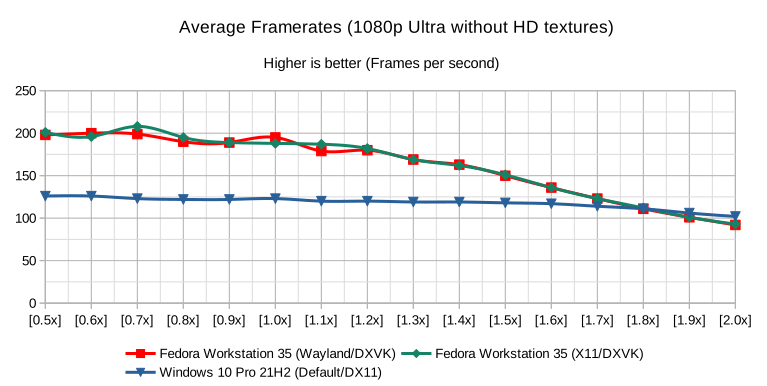
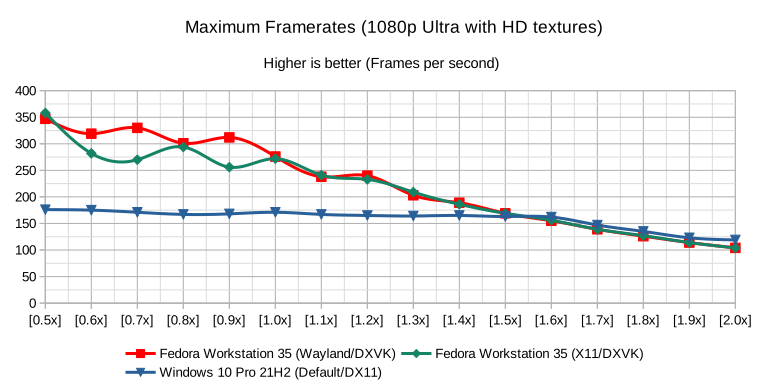
Following are the results of the tests. I made use of OBS Studio[21], which is available as both an installer binary and as a package in the RPM Fusion[22] repositories, to record around 15 seconds of in-menu gameplay and around 60 seconds of in-game gameplay. As the video game does not have any intrinsic benchmarking tool, the footage had to be broken down into segments of equal time periods to be able to pick up performance statistics on CPU usage, GPU usage and framerate. Please do note, even when OBS Studio introduces a certain overhead to the performance, the comparison still remains valid as in both the platforms the recording software is configured identically.

Metrics

  • Framerate
    • In the menus
Figure 4 – Framerate in the menus
  • In the game
Figure 5 – Framerate in the game
  • CPU usage
    • In the menus
Figure 6 – CPU usage in the menus
  • In the game
Figure 7 – CPU usage in the game
  • GPU usage
    • In the menus
Figure 8 – GPU usage in the menus
  • In the game
Figure 9 – GPU usage in the game

Please feel free to let your inner enthusiast loose in the statistics and try sharing as many performance differences as you have inferred so far in the comments section below. In the meanwhile, allow me to share mine –

  • With DXVK (DirectX 11), the loss of average in-menu framerate is around 19.87% and the same for average in-game framerate is barely 6.26%. DXVK is almost at the stage where a blind test of framerate smoothness could potentially confuse anyone as to which platform runs natively.
  • With VKD3D (DirectX 12), the loss of average in-menu framerate is barely 8.67% and the same for average in-game framerate is around 24.51%. VKD3D seems to be steadily catching up and very soon enough, video games would be able to run with minimal loss of performance.
  • With DXVK, there is only 1.40% of additional average CPU usage in the menus and around 17.88% of the same in the game. Closing this gap would help save battery life on handheld devices.
  • With VKD3D, the average CPU usage in the menus is around 1.47% less than the equivalent Windows platform and the same in the game is 1.62% more. VKD3D is a great choice for handheld devices.
  • With DXVK, the average GPU usage in the menus is around 13.40% more than that on Windows and the same in the game is around 1.04% more, making it more efficient in geometry rendering and less so in sprites.
  • With VKD3D, the average GPU usage in the game is around 8.13% more than that on Windows and the same in the game is around 9.34% less, thus helping save battery on handheld devices running these video games.
  • The CPU governor[23] makes a marginal difference in performance and hence, it is something that can be left alone untweaked. The marginal difference noticed can also be considered in the margin of error.
  • Fedora Workstation uses fewer system resources out of the box and hence, can easily dedicate a huge chunk of those to the video game in question but the same is not possible in Windows 10 21H2.

For someone who looked into GNU/Linux distributions as a platform for using interactive and entertainment software applications without having any fancy hardware requirements, these results almost feel like a breath of fresh air. With Valve[24] working on strengthening Proton[25] and other communities working on great solutions like Bottles[26] and Lutris, gaming on GNU/Linux distributions is no longer an elusive dream. Things are only going to get better with a great number of video games running at near-native performance as we go on. I do not know for certain if 2022 would be the year of Linux Desktop or not, but if you ask me whether 2022 would be the year of Linux Gaming – I would answer that with a resounding yes. Let me know your thoughts down below!

Appendix

  1. Highest possible graphical preset[3]
  2. Configuration differences[27]
  3. Performance measurements in the menus[28]
  4. Performance measurements in the game[29]

References

  1. https://en.wikipedia.org/wiki/Linux
  2. https://www.amd.com/en/technologies/rdna-2
  3. https://gist.github.com/t0xic0der/e6958f9404d395705a8b67a1ab39d024#file-preset-csv
  4. https://en.wikipedia.org/wiki/Steam_Deck
  5. https://getfedora.org/
  6. https://docs.microsoft.com/en-us/windows/release-health/status-windows-10-21h2
  7. https://www.msi.com/Landing/afterburner/graphics-cards
  8. https://lutris.net/runners
  9. https://lutris.net/
  10. https://github.com/flightlessmango/MangoHud
  11. https://gitlab.gnome.org/GNOME/gnome-software
  12. https://en.wikipedia.org/wiki/Control_(video_game)
  13. https://www.remedygames.com/
  14. https://505games.com/
  15. https://scp-wiki.wikidot.com/
  16. https://en.wikipedia.org/wiki/DirectX#DirectX_11
  17. https://en.wikipedia.org/wiki/DirectX#DirectX_12
  18. https://en.wikipedia.org/wiki/Compatibility_layer
  19. https://github.com/doitsujin/dxvk
  20. https://source.winehq.org/git/vkd3d.git/
  21. https://obsproject.com/
  22. https://rpmfusion.org/
  23. https://wiki.archlinux.org/title/CPU_frequency_scaling#Scaling_governors
  24. https://www.valvesoftware.com/en/
  25. https://github.com/ValveSoftware/Proton
  26. https://usebottles.com/
  27. https://gist.github.com/t0xic0der/e6958f9404d395705a8b67a1ab39d024#file-config-csv
  28. https://gist.github.com/t0xic0der/e6958f9404d395705a8b67a1ab39d024#file-in-menu-csv
  29. https://gist.github.com/t0xic0der/e6958f9404d395705a8b67a1ab39d024#file-in-game-csv
Posted on Leave a comment

Using Homebrew Package Manager on Fedora Linux

Introduction

Homebrew is a package manager for macOS to install UNIX tools on macOS. But, it can be used on Linux (and Windows WSL) as well. It is written in Ruby and provides software packages that might not be provided by the host system (macOS or Linux), so it offers an auxiliary package manager besides the OS package manager. In addition, it installs packages only to its prefix (either /home/linuxbrew/.linuxbrew or ~/.linuxbrew) as a non-root user, without polluting system paths. This package manager works on Fedora Linux too. In this article, I will try to show you how Homebrew is different from Fedora Linux package manager dnf , why you might want to install and use it on Fedora Linux, and how.

Warning

You should always inspect the packages and binaries you are installing on your system. Homebrew packages usually run as a non-sudoer user and to a dedicated prefix so they are quite unlikely to cause harm or misconfigurations. However, do all the installations at your own risk. The author and the Fedora community are not responsible for any damages that might result directly or indirectly from following this article.

How Homebrew Works

Homebrew uses Ruby and Git behind the scenes. It builds software from source using special Ruby scripts called formulae which look like this (Using wget package as an example):

class Wget < Formula homepage "https://www.gnu.org/software/wget/" url "https://ftp.gnu.org/gnu/wget/wget-1.15.tar.gz" sha256 "52126be8cf1bddd7536886e74c053ad7d0ed2aa89b4b630f76785bac21695fcd" def install system "./configure", "--prefix=#{prefix}" system "make", "install" end
end

How Homebrew is Different from dnf

Homebrew is a package manager that provides up-to-date versions of many UNIX software tools and packages e.g. ffmpeg, composer, minikube, etc. It proves useful when you want to install some packages that are not available in Fedora Linux rpm repositories for some reason. So, it does not replace dnf.

Install Homebrew

Before starting to install Homebrew, make sure you have glibc and gcc installed. These tools can be installed on Fedora with:

sudo dnf groupinstall "Development Tools"

Then, install Homebrew by running the following command in a terminal:

/bin/bash -c "$(curl -fsSL https://raw.githubusercontent.com/Homebrew/install/HEAD/install.sh)"

During the installation you will be prompted for your sudo password. Also, you will have the option to choose the installation prefix for Homebrew, but the default prefix is fine. During the install, you will be made the owner of the Homebrew prefix, so that you will not have to enter the sudo password to install packages. The installation will take several minutes. Once finished, run the following commands to add brew to your PATH:

echo 'eval "$(/home/linuxbrew/.linuxbrew/bin/brew shellenv)"' >> ~/.bash_profile
eval "$(/home/linuxbrew/.linuxbrew/bin/brew shellenv)"

Install and Investigate Packages

To install a package using a formula on Homebrew, simply run:

brew install <formula>

Replace <formula> with the name of the formula you want to install. For example, to install Minikube, simply run:

brew install minikube

You can also search for formulae with:

brew search <formula>

To get information about a formula, run:

brew info <formula>

Also, you can see all the installed formulae with the following command:

brew list

Uninstall Packages

To uninstall a package from your Homebrew prefix, run:

brew uninstall <formula>

Upgrade Packages

To upgrade a specific package installed with Homebrew, run:

brew upgrade <formula>

To update Homebrew and all the installed Formulae to the latest versions, run:

brew update

Wrap Up

Homebrew is a simple package manager that can be a helpful tool alongside dnf (The two are not related at all). Try to stick with the native dnf package manager for Fedora to avoid software conflicts. However, if you don’t find a piece of software in the Fedora Linux repositories, then you might be able to find and install it with Homebrew. See the Formulae list for what is available. Also, Homebrew on Fedora Linux does not support graphical applications (called casks in Homebrew terminology) yet. At least, I didn’t have any luck installing any GUI apps.

References and Further Reading

To learn more about Homebrew, check out the following resources:

Posted on Leave a comment

Contribute at the Fedora i18n and GNOME 42 test weeks

There are two upcoming test weeks in the coming weeks. The first is Monday 28 February through Monday 07 March. It is to test GNOME 42. The second is Monday 07 March through Sunday 13 March. It focuses on testing internationalization. Come and test with us to make the upcoming Fedora 36 even better. Read more below on how to do it.

GNOME test week

GNOME is the default desktop environment for Fedora Workstation and thus for many Fedora users. As a part of the planned change the GNOME megaupdate will land on Fedora which then will be shipped with Fedora 36. To ensure that everything works fine The Workstation Working Group and QA team will have this test week Monday 28 February through Monday 07 March. Refer to the GNOME test week wiki page for links and resources.

i18n test week

i18n test week focuses on testing internationalization features in Fedora Linux. The test week is March 07 through March 13.

How do test days work?

A test day is an event where anyone can help make sure changes in Fedora work well in an upcoming release. Fedora community members often participate, and the public is welcome at these events. If you’ve never contributed before, this is a perfect way to get started.

To contribute, you only need to be able to download test materials (which include some large files) and then read and follow directions step by step.

Detailed information about both test days are on the wiki pages above. If you’re available on or around the days of the events, please do some testing and report your results.

Fedora test days are events where anyone can help make sure changes in Fedora work well in an upcoming release. Fedora community members often participate, and the public is welcome at these events. If you’ve never contributed to Fedora before, this is a perfect way to get started.

Again, The two upcoming test days in the upcoming week are:

  • Monday 28 February through Monday 07 March, to test GNOME 42.
  • Monday 07 March through Sunday 13 March, focusing on testing internationalization.

Come and test with us to make the upcoming Fedora 36 even better.