Posted on Leave a comment

Contribute at the Fedora Kernel 5.17, CoreOS, Cloud, IoT, and Audio test days

Fedora Linux test days are events where anyone can help make sure changes in Fedora work well in an upcoming release. Fedora community members often participate, and the public is welcome at these events. If you’ve never contributed to Fedora before, this is a perfect way to get started.

There are six upcoming test events in the next two weeks.

  • Sunday April 03 through April 10, is to test the Kernel 5.17 changes in Fedora.
  • Monday April 04 through April 11, this test week is focusing on testing Fedora CoreOS.
  • Wednesday April 06 , is to test the Fedora IoT Edition.
  • Friday April 08, is to test Fedora 36 Cloud Base Images.
  • Wednesday April 13, is to test Audio.
  • Thursday April 14, is to test Upgrade Path from Fedora 34 and 35 to Fedora 36.

Come and test with us to make the upcoming Fedora 36 even better. Read more below on how to do it.

Kernel test week

The kernel team is working on the final integration for kernel 5.17. This version was just recently released and will arrive soon in Fedora.

The Fedora kernel and QA teams have organized a test week for Sunday April 03 through April 10. Refer to the wiki page for links to the test images you’ll need to participate. This document clearly outlines the steps.

Fedora CoreOS test week

The Fedora CoreOS team released the first Fedora CoreOS next stream based on Fedora 36. They expect to promote this to the testing stream in two weeks, on the usual schedule.

The Fedora CoreOS and QA teams have organized a test week. It begins Monday, April 04 and runs through the end of the week. Refer to the wiki page for links to the test cases and materials you’ll need to participate.

Fedora IoT Edition test day

Fedora Internet of Things is a variant of Fedora focused on IoT ecosystems. Whether you work on a home assistant, industrial gateways, or data storage and analytics, Fedora IoT provides a trusted open source platform to build on. Fedora IoT produces a monthly rolling release to help you keep your ecosystem up-to-date.

The IoT and QA teams will have their test day on Wednesday, April 06. Refer to the wiki page for links and resources to test the IoT Edition.

Fedora Cloud test day

Now that the Fedora Linux 36 is coming close to the release date, the Fedora Cloud SIG would like to get the community together to find and squash some bugs.

The test day is organized for Friday April 08. This event will test Fedora Cloud Base content. See the wiki page for links to the Beta Cloud Base Images. We have qcow, AMI, and ISO images ready for testing.

Audio test day

As part of a recent proposal, Fedora replaced the PulseAudio daemon with a functionally compatible implementation based on PipeWire. This means that all existing clients using the PulseAudio client library will continue to work as before, as well as applications shipped as Flatpak. The last few releases noted significant issues in the community and hence the origin of this regression test day.

See this wiki page for information on testing that everything works as expected. This will occur on Wednesday, April 13.

Upgrade test day

As we come closer to Fedora Linux 36 release dates, it’s time to test upgrades. This release has a lot of changes and it becomes essential that we test the graphical upgrade methods as well as the command line methods.

As a part of this test day, we will test upgrading from a full updated F35 and F34 to F36 for all architectures (x86_64, ARM, aarch64) and variants (WS, cloud, server, silverblue, IoT). See this wiki page for information and details. This test day will happen on Thursday, April 14.

Posted on Leave a comment

Using Sourcegraph to Search 34,000+ Fedora Repositories

In October 2021, a Fedora Linux user asked a question about licensing. Fedora Project Leader Matthew Miller left a response: “Since we don’t have a complete, exploded, searchable repository of all of the packages in Fedora, I don’t have a quick way to check.” 

Followed by: “…or possibly pay Sourcegraph to do it for us. They seem like nice people.” He is correct, we (Sourcegraph) are nice people, but we don’t want your money. Instead, we wanted to team up with the Fedora community.

The Fedora Community can now search their universe of open source code—currently over 34,000 repositories and counting.

Introduction to code search

For those who aren’t familiar with the concept of code search, it enables teams to onboard to a new codebase and find answers faster, helps to identify security risks, and many other use cases. Sourcegraph has indexed over two-million repositories across multiple code hosts such as GitHub and GitLab. This article is going to focus strictly on code search for src.fedoraproject.org. Sourcegraph provides both a web app and CLI interface.

Using the Web app

When using the Sourcegraph web app you will need to start each search with repo:^src.fedoraprojects.org before entering any search queries. Using this link to the web app will include this initial string as shown here:

Sourcegraph web app interface

The following sections will provide some web app examples of searches that might be of interest.

Find repositories using popular OSI-approved licenses 

The following query will scan all the repositories for software that is compatible with the “Open Source Definition” (OSD).

repo:^src.fedoraproject.org/ lang:"RPM Spec" License: ^.*apache|bsd|gpl|lgpl|mit|mpl|cddl|epl.*$
License search

Find files with TODOs

The following query can find TODOs in 34k repositories. This is great for those looking to contribute to projects that need help.

repo:^src.fedoraproject.org/ "TODO"
Search for TODO

Find files being served via FTP

A co-worker of mine from back in the day told me “FTP is a dead protocol”. Is it? You can add to this query to find any other protocol such as irc, https, etc.

repo:^src.fedoraproject.org/ (?:ftp)://[A-Za-z0-9-]{0,63}(.[A-Za-z0-9-]{0,63})+(:d{1,4})?/*(/*[A-Za-z0-9-._]+/*)*(?.*)?(#.*)?
Search for protocol

Find files with a vulnerable version of Log4j

This query will find any files that are possibly vulnerable (false positives can happen) to CVE-2021-44228 aka Log4j. You can also search for other vulnerabilities that can then be reported to project maintainers.

repo:^src.fedoraproject.org/ org.apache.logging.log4j 2.((0|1|2|3|4|5|6|7|8|9|10|11|12|13|14|15)(.[0-9]+)) count:all
Search for log4j

Use the CLI

Sourcegraph also has a command-line interface tool called src, which allows you to do everything I just mentioned above, plus other useful commands like getting results in JSON for programmatic consumption.

src search -json 'repo:^src.fedoraproject.org/ lang:"RPM Spec" License: ^.*apache|bsd|g
pl|lgpl|mit|mpl|cddl|epl.*$'

JSON output

JSON output

Search Syntax

The examples shown may be a good starting point but are by no means the only queries that may be made. You can view all search query syntaxes and create your own as needed.

Conclusion

As you can see, with Sourcegraph, the Fedora Linux community can now quickly search for all code hosted at src.fedoraproject.org, regardless of whether they are literal or complex regex queries.

I appreciate the Fedora Linux community being so helpful and welcoming. If you have anything you want to add or questions, my team and I will be in the comments section below. You can also join us on Slack.

Special thanks to Vanesa Ortiz for making this collaboration happen, Ben Venker for his help fixing my broken regex (multiple times), as well as Rebecca Dodd and Nick Moore for their help with editing.

Posted on Leave a comment

Announcing the release of Fedora Linux 36 Beta

The Fedora Project is pleased to announce the immediate availability of Fedora Linux 36 Beta, the next step towards our planned Fedora Linux 36 release at the end of April.

Download the prerelease from our Get Fedora site:

Or, check out one of our popular variants, including KDE Plasma, Xfce, and other desktop environments, as well as images for ARM devices like the Raspberry Pi 2 and 3:

Beta Release Highlights

Fedora Workstation

Fedora 36 Workstation Beta includes GNOME 42, the newest release of the GNOME desktop environment. GNOME 42 includes a global dark style UI setting. It also has a redesigned screenshot tool. And many core GNOME apps have been ported to the latest version of the GTK toolkit, providing improved performance and a modern look. 

Other updates

Fedora Silverblue and Kinoite now have /var on a separate subvolume for new installs, which makes handling snapshots of dynamic data easier to manage independently from the system snapshots.

Fans of the lightweight LXQt desktop environment will be glad to see the upstream 1.0 release in Fedora Linux 36. You can install the LXQt Spin directly or install LXQt alongside your existing desktop environment.

If you use the proprietary NVIDIA driver, GDM sessions will now use Wayland by default.

Sometimes it’s the small changes that make the biggest improvements. Along that line, systemd now includes the unit names in the output so you can more easily understand what services are starting and stopping.

Of course, there’s the usual update of programming languages and libraries: Golang 1.18, Ruby 3.1, and more!

Testing needed

Since this is a Beta release, we expect that you may encounter bugs or missing features. To report issues encountered during testing, contact the Fedora QA team via the test mailing list or in the #fedora-qa channel on Libera.chat. As testing progresses, common issues are tracked on the Common F36 Bugs page.

For tips on reporting a bug effectively, read how to file a bug.

What is the Beta Release?

A Beta release is code-complete and bears a very strong resemblance to the final release. If you take the time to download and try out the Beta, you can check and make sure the things that are important to you are working. Every bug you find and report doesn’t just help you, it improves the experience of millions of Fedora Linux users worldwide! Together, we can make Fedora rock-solid. We have a culture of coordinating new features and pushing fixes upstream as much as we can. Your feedback improves not only Fedora Linux, but the Linux ecosystem and free software as a whole.

More information

For more detailed information about what’s new on Fedora Linux 36 Beta release, you can consult the Fedora Linux 36 Change set. It contains more technical information about the new packages and improvements shipped with this release.

Posted on Leave a comment

“March of the penguins” or “How the OS vendors get their ducks in a row”

Various engineers that work on the Fedora Linux product line are brewing up a storm again. To find out more about their plans for world domination, check out this video!

[youtube https://www.youtube.com/watch?v=kvVt3tqRVm4?feature=oembed&w=616&h=347]
Posted on Leave a comment

Fedora Workstation’s State of Gaming – A Case Study of Control (2019)

Back in the day, it used to irk me as to how GNU/Linux[1] distributions could not be even considered to be in the proximity of video games enthusiasts – less because of the performance of the video games themselves and more because of how inconvenient it could be for them to set it all up. Admittedly, it had been quite a while since an avid video games fan like me did that, so it was almost a no-brainer for me to try it out and see if things have changed. What I ended up finding surprised me – I like to think that it would be just as pleasing to both enthusiasts who have been playing video games on GNU/Linux distributions and to newcomers who have been scoping this, alike.

On a testing bench using an AMD RDNA2-based[2] GPU, the video game was configured to the highest possible graphical preset[3] to really stress the hardware into performing as much as its limiting factor. If the RDNA2 architecture reminds you of something, allow me to share that it is what forms the foundation of the GPU that no other than the widely acclaimed Steam Deck[4] makes use of. For that matter, if you factor in some performance scaling with respect to the handheld nature of the device and the optimized Proton compatibility layer, this article can be representative of what the Steam Deck is capable of when you use Fedora Workstation[5] as a platform of your choice for playing your favourite video games.

Figure 1 – GNOME Software helps to install Steam conveniently

To have an apples to apples comparison, we set up two environments – one with Windows 10 21H2[6] and one with Fedora Workstation 35. On the former, I installed MSI Afterburner[7] and ensured that the graphics drivers are up-to-date while I did not have to bother doing the same on the latter as they came preinstalled. The only extra thing that I did was to configure the Lutris v7.1 runner[8] after clicking my way through installing Lutris[9] and MangoHUD[10] from GNOME Software[11]. It is downright astonishing how much you can do these days on GNU/Linux distributions without actually having to interact with the command line, making the entry barrier very low and welcoming.

Figure 2 – GNOME Software helps to install Lutris conveniently

Before we get into some actual performance testing and comparison results, let me talk a bit about the video game that is at the centre of the case study. Control[12] is an action-adventure video game developed by Remedy Entertainment[13] and published by 505 Games[14]. The video game is centred around a fictitious organization about paranormal activities and takes inspiration from the likes of the SCP Foundation[15]. It is a well-optimized video game that exhibits great graphics and is a showcase of what the underlying hardware is capable of. I ran tests on both DirectX 11[16] and DirectX 12[17] versions of the video game with their compatibility layers[18], DXVK[19] and VKD3D[20], respectively.

Figure 3 – Lutris configured to play Control (2019) using the Wine runner

Following are the results of the tests. I made use of OBS Studio[21], which is available as both an installer binary and as a package in the RPM Fusion[22] repositories, to record around 15 seconds of in-menu gameplay and around 60 seconds of in-game gameplay. As the video game does not have any intrinsic benchmarking tool, the footage had to be broken down into segments of equal time periods to be able to pick up performance statistics on CPU usage, GPU usage and framerate. Please do note, even when OBS Studio introduces a certain overhead to the performance, the comparison still remains valid as in both the platforms the recording software is configured identically.

Metrics

  • Framerate
    • In the menus
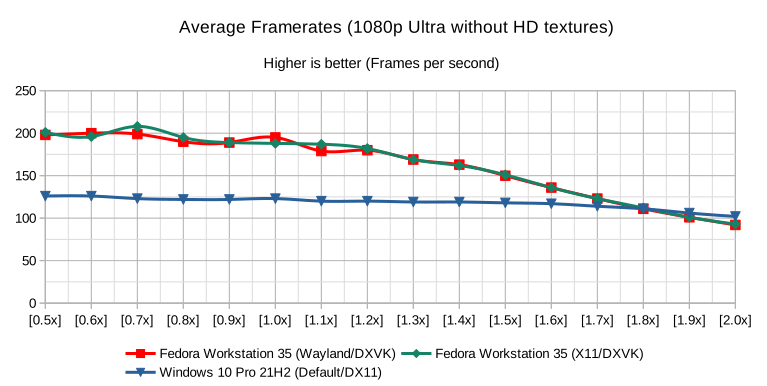
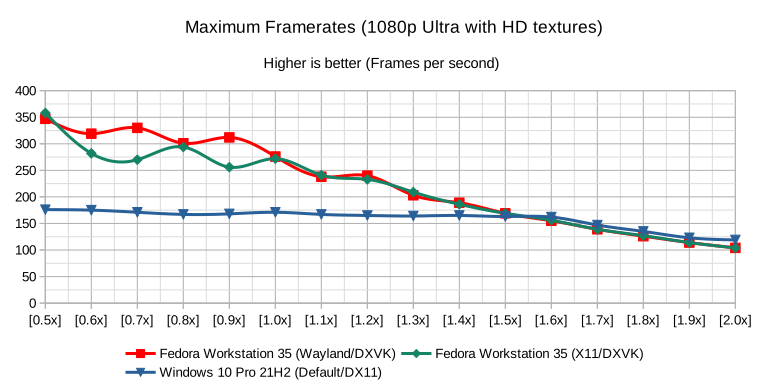
Figure 4 – Framerate in the menus
  • In the game
Figure 5 – Framerate in the game
  • CPU usage
    • In the menus
Figure 6 – CPU usage in the menus
  • In the game
Figure 7 – CPU usage in the game
  • GPU usage
    • In the menus
Figure 8 – GPU usage in the menus
  • In the game
Figure 9 – GPU usage in the game

Please feel free to let your inner enthusiast loose in the statistics and try sharing as many performance differences as you have inferred so far in the comments section below. In the meanwhile, allow me to share mine –

  • With DXVK (DirectX 11), the loss of average in-menu framerate is around 19.87% and the same for average in-game framerate is barely 6.26%. DXVK is almost at the stage where a blind test of framerate smoothness could potentially confuse anyone as to which platform runs natively.
  • With VKD3D (DirectX 12), the loss of average in-menu framerate is barely 8.67% and the same for average in-game framerate is around 24.51%. VKD3D seems to be steadily catching up and very soon enough, video games would be able to run with minimal loss of performance.
  • With DXVK, there is only 1.40% of additional average CPU usage in the menus and around 17.88% of the same in the game. Closing this gap would help save battery life on handheld devices.
  • With VKD3D, the average CPU usage in the menus is around 1.47% less than the equivalent Windows platform and the same in the game is 1.62% more. VKD3D is a great choice for handheld devices.
  • With DXVK, the average GPU usage in the menus is around 13.40% more than that on Windows and the same in the game is around 1.04% more, making it more efficient in geometry rendering and less so in sprites.
  • With VKD3D, the average GPU usage in the game is around 8.13% more than that on Windows and the same in the game is around 9.34% less, thus helping save battery on handheld devices running these video games.
  • The CPU governor[23] makes a marginal difference in performance and hence, it is something that can be left alone untweaked. The marginal difference noticed can also be considered in the margin of error.
  • Fedora Workstation uses fewer system resources out of the box and hence, can easily dedicate a huge chunk of those to the video game in question but the same is not possible in Windows 10 21H2.

For someone who looked into GNU/Linux distributions as a platform for using interactive and entertainment software applications without having any fancy hardware requirements, these results almost feel like a breath of fresh air. With Valve[24] working on strengthening Proton[25] and other communities working on great solutions like Bottles[26] and Lutris, gaming on GNU/Linux distributions is no longer an elusive dream. Things are only going to get better with a great number of video games running at near-native performance as we go on. I do not know for certain if 2022 would be the year of Linux Desktop or not, but if you ask me whether 2022 would be the year of Linux Gaming – I would answer that with a resounding yes. Let me know your thoughts down below!

Appendix

  1. Highest possible graphical preset[3]
  2. Configuration differences[27]
  3. Performance measurements in the menus[28]
  4. Performance measurements in the game[29]

References

  1. https://en.wikipedia.org/wiki/Linux
  2. https://www.amd.com/en/technologies/rdna-2
  3. https://gist.github.com/t0xic0der/e6958f9404d395705a8b67a1ab39d024#file-preset-csv
  4. https://en.wikipedia.org/wiki/Steam_Deck
  5. https://getfedora.org/
  6. https://docs.microsoft.com/en-us/windows/release-health/status-windows-10-21h2
  7. https://www.msi.com/Landing/afterburner/graphics-cards
  8. https://lutris.net/runners
  9. https://lutris.net/
  10. https://github.com/flightlessmango/MangoHud
  11. https://gitlab.gnome.org/GNOME/gnome-software
  12. https://en.wikipedia.org/wiki/Control_(video_game)
  13. https://www.remedygames.com/
  14. https://505games.com/
  15. https://scp-wiki.wikidot.com/
  16. https://en.wikipedia.org/wiki/DirectX#DirectX_11
  17. https://en.wikipedia.org/wiki/DirectX#DirectX_12
  18. https://en.wikipedia.org/wiki/Compatibility_layer
  19. https://github.com/doitsujin/dxvk
  20. https://source.winehq.org/git/vkd3d.git/
  21. https://obsproject.com/
  22. https://rpmfusion.org/
  23. https://wiki.archlinux.org/title/CPU_frequency_scaling#Scaling_governors
  24. https://www.valvesoftware.com/en/
  25. https://github.com/ValveSoftware/Proton
  26. https://usebottles.com/
  27. https://gist.github.com/t0xic0der/e6958f9404d395705a8b67a1ab39d024#file-config-csv
  28. https://gist.github.com/t0xic0der/e6958f9404d395705a8b67a1ab39d024#file-in-menu-csv
  29. https://gist.github.com/t0xic0der/e6958f9404d395705a8b67a1ab39d024#file-in-game-csv
Posted on Leave a comment

Using Homebrew Package Manager on Fedora Linux

Introduction

Homebrew is a package manager for macOS to install UNIX tools on macOS. But, it can be used on Linux (and Windows WSL) as well. It is written in Ruby and provides software packages that might not be provided by the host system (macOS or Linux), so it offers an auxiliary package manager besides the OS package manager. In addition, it installs packages only to its prefix (either /home/linuxbrew/.linuxbrew or ~/.linuxbrew) as a non-root user, without polluting system paths. This package manager works on Fedora Linux too. In this article, I will try to show you how Homebrew is different from Fedora Linux package manager dnf , why you might want to install and use it on Fedora Linux, and how.

Warning

You should always inspect the packages and binaries you are installing on your system. Homebrew packages usually run as a non-sudoer user and to a dedicated prefix so they are quite unlikely to cause harm or misconfigurations. However, do all the installations at your own risk. The author and the Fedora community are not responsible for any damages that might result directly or indirectly from following this article.

How Homebrew Works

Homebrew uses Ruby and Git behind the scenes. It builds software from source using special Ruby scripts called formulae which look like this (Using wget package as an example):

class Wget < Formula homepage "https://www.gnu.org/software/wget/" url "https://ftp.gnu.org/gnu/wget/wget-1.15.tar.gz" sha256 "52126be8cf1bddd7536886e74c053ad7d0ed2aa89b4b630f76785bac21695fcd" def install system "./configure", "--prefix=#{prefix}" system "make", "install" end
end

How Homebrew is Different from dnf

Homebrew is a package manager that provides up-to-date versions of many UNIX software tools and packages e.g. ffmpeg, composer, minikube, etc. It proves useful when you want to install some packages that are not available in Fedora Linux rpm repositories for some reason. So, it does not replace dnf.

Install Homebrew

Before starting to install Homebrew, make sure you have glibc and gcc installed. These tools can be installed on Fedora with:

sudo dnf groupinstall "Development Tools"

Then, install Homebrew by running the following command in a terminal:

/bin/bash -c "$(curl -fsSL https://raw.githubusercontent.com/Homebrew/install/HEAD/install.sh)"

During the installation you will be prompted for your sudo password. Also, you will have the option to choose the installation prefix for Homebrew, but the default prefix is fine. During the install, you will be made the owner of the Homebrew prefix, so that you will not have to enter the sudo password to install packages. The installation will take several minutes. Once finished, run the following commands to add brew to your PATH:

echo 'eval "$(/home/linuxbrew/.linuxbrew/bin/brew shellenv)"' >> ~/.bash_profile
eval "$(/home/linuxbrew/.linuxbrew/bin/brew shellenv)"

Install and Investigate Packages

To install a package using a formula on Homebrew, simply run:

brew install <formula>

Replace <formula> with the name of the formula you want to install. For example, to install Minikube, simply run:

brew install minikube

You can also search for formulae with:

brew search <formula>

To get information about a formula, run:

brew info <formula>

Also, you can see all the installed formulae with the following command:

brew list

Uninstall Packages

To uninstall a package from your Homebrew prefix, run:

brew uninstall <formula>

Upgrade Packages

To upgrade a specific package installed with Homebrew, run:

brew upgrade <formula>

To update Homebrew and all the installed Formulae to the latest versions, run:

brew update

Wrap Up

Homebrew is a simple package manager that can be a helpful tool alongside dnf (The two are not related at all). Try to stick with the native dnf package manager for Fedora to avoid software conflicts. However, if you don’t find a piece of software in the Fedora Linux repositories, then you might be able to find and install it with Homebrew. See the Formulae list for what is available. Also, Homebrew on Fedora Linux does not support graphical applications (called casks in Homebrew terminology) yet. At least, I didn’t have any luck installing any GUI apps.

References and Further Reading

To learn more about Homebrew, check out the following resources:

Posted on Leave a comment

Contribute at the Fedora i18n and GNOME 42 test weeks

There are two upcoming test weeks in the coming weeks. The first is Monday 28 February through Monday 07 March. It is to test GNOME 42. The second is Monday 07 March through Sunday 13 March. It focuses on testing internationalization. Come and test with us to make the upcoming Fedora 36 even better. Read more below on how to do it.

GNOME test week

GNOME is the default desktop environment for Fedora Workstation and thus for many Fedora users. As a part of the planned change the GNOME megaupdate will land on Fedora which then will be shipped with Fedora 36. To ensure that everything works fine The Workstation Working Group and QA team will have this test week Monday 28 February through Monday 07 March. Refer to the GNOME test week wiki page for links and resources.

i18n test week

i18n test week focuses on testing internationalization features in Fedora Linux. The test week is March 07 through March 13.

How do test days work?

A test day is an event where anyone can help make sure changes in Fedora work well in an upcoming release. Fedora community members often participate, and the public is welcome at these events. If you’ve never contributed before, this is a perfect way to get started.

To contribute, you only need to be able to download test materials (which include some large files) and then read and follow directions step by step.

Detailed information about both test days are on the wiki pages above. If you’re available on or around the days of the events, please do some testing and report your results.

Fedora test days are events where anyone can help make sure changes in Fedora work well in an upcoming release. Fedora community members often participate, and the public is welcome at these events. If you’ve never contributed to Fedora before, this is a perfect way to get started.

Again, The two upcoming test days in the upcoming week are:

  • Monday 28 February through Monday 07 March, to test GNOME 42.
  • Monday 07 March through Sunday 13 March, focusing on testing internationalization.

Come and test with us to make the upcoming Fedora 36 even better.

Posted on Leave a comment

Upgraded Fedora shirts

We’ve upgraded the Fedora shirt and sweatshirt collection we announced in March 2020.

A blue Fedora polo shirt. T-shirts ans sweatshirts are available too.

What’s new?

  • We do the embroidery with the new Fedora logo, but the old logo is still available as Fedora Classic.
  • A Fedora hoodie, and crewneck sweatshirt and a long-sleeve t-shirt. The last two are seasonal, only for February.
  • Faster shipping to the US, Canada and the UK. (We ship from Hungary, Europe.)

OK, but is it made with Linux?

A lot of questions come about as to how exactly do we make the embroidery. Do we use Windows for that? There is a short explanation on our website, but let’s give some more details.

You might have read here at Fedora Magazine that there is a good, fully free (as in freedom) solution to making embroidery designs with Inkscape and Inkstitch. This is the future for us too, and sooner or later we will make all of our embroidery with them. But — mainly because Inkstitch is quite new, and we have been embroidering Linux shirts for a decade — we are still using a manufacturer-independent, but “non-free” program, called Embird. We run it with Wine under Debian. This one is the only proprietary piece of software used here. And it must go, soon…

The Fedora embroidery design in Embird, under Linux.

The other software we use is quite standard for Linux: Inkscape, GIMP, ImageMagick, and of course all of the everyday tools you are using on your Fedora Linux desktop and server.

Check out the embroidered Fedora collection here! Don’t forget to use the FEDORA5 coupon code, for the $5 discount on every shirt and sweatshirt.

Posted on Leave a comment

How I Customize Fedora Silverblue and Fedora Kinoite

Hello everyone. My name is Yasin and I live in Turkey. I am 28 years old and have used Fedora Silverblue for two months and I am an active Fedora Kinoite user. I want to share the information I’ve learned in the process of using the systems. So I’ve decided to write this article. I hope you like it. Let’s get started.

When one says Fedora Linux, the first edition that comes to mind is Fedora Workstation. However, do not overlook the emerging editions Fedora Silverblue (featuring the GNOME desktop environment) and Fedora Kinoite (featuring the KDE desktop environment). Both of these are reprovisionable operating systems based on libostree. They are created exclusively from official RPM packages from the Fedora Project. In this article, I will demonstrate some common steps you might take after a clean installation of Fedora Silverblue or Fedora Kinoite. Everything listed in this article is optional. Exactly what you want to install or how you want to configure your system will depend on your particular needs. What is demonstrated below is just meant to give you some ideas and to provide some examples.

Disclaimer: Packages from Flathub, RPM Fusion, the Copr build system, GitHub, GitLab, et al. are not managed by the Fedora release team and they do not provide official software builds. Use packages from these sources at your own risk.

System upgrades

Fedora Linux in particular releases feature updates and security updates quite often. So you will want to run the below command regularly to keep your system up-to-date. Open the terminal and enter the following command. Afterwards, restart the computer so the changes will take effect.

$ rpm-ostree upgrade

If you want to preview which packages will be updated, use the follow command first.

$ rpm-ostree update --preview

It is also possible to configure automatic updates by editing the rpm-ostreed.conf file as demonstrated below.

$ sudo nano /etc/rpm-ostreed.conf

Change AutomaticUpdatePolicy to check. Then save the change and quit the editor. After that you need to reload rpm-ostree and enable the automatic timer.

$ rpm-ostree reload
$ systemctl enable rpm-ostreed-automatic.timer --now

Adding Flatpak remotes and other third-party repositories

Fedora Silverblue and Fedora Kinoite come preloaded with the basic Fedora Linux repos. In addition, you might want Flatpak, RPM Fusion or some Copr repos.

Flathub remotes

Flatpak is at the top of the list of ways to install applications on Fedora Silverblue and Fedora Kinoite because it is container-based and it does not require a reboot after installation. To add some remote software libraries and try it out, open the terminal again and enter the following commands.

Fedora Flatpaks remote:

$ flatpak remote-add --if-not-exists fedora oci+https://registry.fedoraproject.org

Flathub remote:

$ flatpak remote-add --if-not-exists flathub https://flathub.org/repo/flathub.flatpakrepo

Flabhub Beta remote:

$ flatpak remote-add --if-not-exists flathub-beta https://flathub.org/beta-repo/flathub-beta.flatpakrepo

KDE nightly remote:

$ flatpak remote-add --if-not-exists kdeapps --from https://distribute.kde.org/kdeapps.flatpakrepo

GNOME nightly remote:

$ flatpak remote-add --if-not-exists gnome-nightly https://nightly.gnome.org/gnome-nightly.flatpakrepo

After the repositories are added, you need to enter the code below in order to update the application catalog in the GNOME Software and Discover stores. In this way, you will be able to manage applications directly from the store without going to flathub.org.

$ flatpak update --appstream

After that, you can use the store to update Flatpak applications, or if you want to update directly from the terminal, you can enter the code below.

$ flatpak update

If you want to see all installed Flatpaks:

$ flatpak list

RPM Fusion repos

Another remote software library you can add is RPM Fusion. To add it on Fedora Silverblue or Fedora Kinoite, open the terminal, enter the following commands and restart.

$ sudo rpm-ostree install https://mirrors.rpmfusion.org/free/fedora/rpmfusion-free-release-$(rpm -E %fedora).noarch.rpm
$ sudo rpm-ostree install https://mirrors.rpmfusion.org/nonfree/fedora/rpmfusion-nonfree-release-$(rpm -E %fedora).noarch.rpm

Copr repos

Copr repos are yet another source of applications that can be installed on Fedora Silverblue and Fedora Kinoite. To add the repos, enter commands in the following form.

$ sudo ostree remote add <name-of-repo> <repository-url>

Example (Heroic Games launcher repo):

$ sudo ostree remote add heroic-games-launcher https://download.copr.fedorainfracloud.org/results/atim/heroic-games-launcher/fedora-$releasever-$basearch/

If you want another option, you can download the repository configuration file from Copr‘s own site and put it in the /etc/yum.repos.d folder.

Examples of popular Flatpak applications

Libre Office

$ flatpak install flathub org.libreoffice.LibreOffice

Lutris

$ flatpak install —user flathub-beta net.lutris.Lutris//beta

Steam

$ flatpak install flathub com.valvesoftware.Steam

VLC

$ flatpak install flathub org.videolan.VLC

Firefox

$ flatpak install flathub org.mozilla.firefox

Note: Fedora Firefox normally comes preloaded with Fedora Silverblue and Fedora Kinoite. However, the Flatpak version of Firefox has more comprehensive codec support.

Installing the Nvidia driver and a specific kernel

If you have installed RPM Fusion repositories, you can install the Nvidia driver by entering the code below and restarting the computer so the changes will take effect.

$ sudo rpm-ostree install akmod-nvidia xorg-x11-drv-nvidia

If you are using the Nvidia System Management Interface (nvidia-smi) or CUDA:

$ sudo rpm-ostree install akmod-nvidia xorg-x11-drv-nvidia-cuda

If you want to install specific kernel, you can always download a kernel from Koji and install it on Fedora Silverblue or Fedora Kinoite using the following command:

$ sudo rpm-ostree override replace ./kernel*.rpm

If you want to install multiple kernels, you will need to pin your deployment by issuing the ostree admin pin 0 command then use the same code above. After restarting, if you pin the new kernel, then you will have two deployments with specific kernels. Remember that you must update them individually because you cannot pin two deployments at the same time.

Toolbx

The Toolbx utility is used primarily for CLI apps, development and debugging tools, etc. However, you can install supported any operating system. In this article, I will give an example of Fedora 35 Workstation installation and use. Fedora Silverblue and Fedora Kinoite come preloaded with Toolbx. So you can start directly.

First, create a toolbox.

$ toolbox create

When the above is complete, enter:

$ toolbox enter

When you see the code that starts with toolbox, then you are in the container operating system. You can list the container(s) by means of:

$ toolbox list

If you want to remove the container, enter:

$ toolbox rmi <container name>

If you need more help, enter:

$ toolbox --help

Thanks to Toolbx, your main operating system will never break. You can pretend to be on Fedora Workstation, install and delete packages, and do things you cannot do on the libostree-based host system. Let’s illustrate with a few examples.

Many users use Toolbx for their developer tools. But it is a really useful tool for regular users as well. For example, you can install Xtreme Download Manager and combine it with Firefox to download content such as music and videos from the internet. It will make your job even easier if you download the file manager before downloading XDM. Now that you are in Toolbx, try installing Nautilus.

$ sudo dnf install nautilus

After that, you can get XDM from here:

https://github.com/subhra74/xdm/releases/download/7.2.11/xdm-setup-7.2.11.tar.xz

Start Nautilus with sudo nautilus while in Toolbx. Then unarchive XDM, open the folder, right click on some empty space and select Open in Terminal. Then enter the below code.

$ su -c ./install.sh

Congratulations! You have successfully installed XDM. After that you will need to open XDM, install Firefox and then open XDM again. Finally, you will want to make the XDM plugin available for Firefox.

$ sudo xdm
$ sudo dnf install firefox
$ sudo firefox

A few more example things that you could do in Toolbx include:

  • Add the repositories from Fedora Silverblue or Fedora Kinoite using the terminal. Alternatively, you could copy the repo files from /etc/yum.repos.d in Fedora Silverblue or Fedora Kinoite to /etc/yum.repos.d in Toolbx.
  • Keep the container updated by running sudo dnf update periodically. (Tip: For faster downloads, you might want to try adding the fastestmirror=1 and max_parallel_downloads=10 options to the container’s /etc/dnf/dnf.conf file.)
  • Use the dnf history command to see what changes you’ve made to the container.
  • You could install multimedia codecs and Windows fonts. But it’s not necessary because rpm-ostree can handle them and the google-croscore-fonts and liberation-fonts are both designed to be compatible with the most common MS fonts.

Layering packages

The package layering method modifies the existing installation. You can permanently install almost any RPM package on Fedora Silverblue or Fedora Kinoite. However, you should only layer packages that you consider essential because, after the layering is complete, you will need to reboot the system before you will be able to use the package. For most packages, I recommend using Toolbx.

Package layering is almost identical to installing a RPM package on Fedora Workstation. It’s just rpm-ostree replacing dnf. For example:

$ rpm-ostree install htop

If you want to remove layered packages:

$ rpm-ostree uninstall htop

If you want to see the all layered packages:

$ rpm-ostree status

If you want to remove all layered packages:

$ rpm-ostree uninstall --all

If you are wondering which packages I’ve chosen to layer on my libostree systems, here are my favorites.

  • tlp, tlp-rdw: helps to reduce the battery use on laptops
  • stacer: system optimizer and monitoring
  • WoeUSB: for preparing bootable Windows ISO images
  • unrar: for extracting and viewing RAR archives

Gaming

Some ways of playing games on Fedora Silverblue or Fedora Kinoite include the following.

  • Using platforms (Steam, Lutris, itch.io, GOG and other emulators)
  • Using compatibility tools (Wine, Proton and others)
  • Native Linux games (These games can be found in official or third-party repositories; or on their official website)
  • Other (Virtualbox, web browser games, etc.)

People are often advised to play games designed to run on Linux or Windows using Proton on Steam. However, not all Windows games are compatible with Proton; especially online games with cheat protection software. So it is useful to check the site below before installing the game.

https://www.protondb.com/

In Fedora Silverblue or Fedora Kinoite, there are two ways to install Proton.

From Flathub (using the terminal):

$ flatpak install com.valvesoftware.Steam.CompatibilityTool.Proton

From GitHub (manually):

https://github.com/GloriousEggroll/proton-ge-custom

My advice is to use the proton-ge-custom version (Gloruious Eggroll) because it contains extra patches and fixes for many popular games. You can read about how to install proton-ge-custom and how to activate it on Steam in the README.md file in the above GitHub repo.

If you do not want to use an online platform, it is possible to play the game using Wine. But you need to go to Wine‘s official site and read the reports about the game or try it yourself to see if the game works. Also, don’t think of it as just a game engine. Wine can run a wide verity of Windows programs. So how do you install Wine? Unfortunately, Wine cannot be directly installed on Fedora Silverblue or Fedora Kinoite as a layered package due to rpm-ostree’s lack of 32-bit support. It is possible, however, to install Wine using some indirect methods. The Winepak repo is dead now. So I’ll skip that.

Method 1: Use a Flathub application as a Wine launcher.

Lutris, Bottles, ProtonUp-Qt and finally Phoenicis PlayOnLinux

Method 2: Install Wine or Lutris in Toolbx with Steam.

$ sudo dnf install wine lutris steam

Method 3: Partially install Wine on rpm-ostree.

$ rpm-ostree install wine-core wine-core.i686 lutris

There are other methods of playing games on Linux. Native Linux games, for example, are available in many repositories. Browser games are also easy to access. Installing Windows in a virtual machine is another method. However, while a virtual machine may work for simpler games, I do not recommend it for games that require a lot of processing power.

Other tips and suggestions

In this final section, I would like to mention a few more things that do not depend on anything mentioned earlier in this article.

rpm-ostree tips

You can use the override sub-command to manage base packages. For example, to remove the pre-loaded Firefox:

$ rpm-ostree override remove firefox

If you want to remove all overlays, overrides and initramfs:

$ rpm-ostree ex reset

rpm-ostree provides an experimental live update feature so that you can avoid rebooting after installing packages.

$ rpm-ostree install --apply-live htop

Since you are on Fedora Silverblue or Fedora Kinoite, switching systems or updating to rawhide can be done with just a few commands. Also, reverting is easier than ever.

Substitute system with kinoite or silverblue in the below examples.

Switch systems:

$ rpm-ostree rebase fedora/35/x86_64/system

Upgrade to rawhide:

$ rpm-ostree rebase fedora/rawhide/x86_64/system

Rollback to a previous version:

$ rpm-ostree rollback fedora/35/x86_64/system

Listing packages

On Fedora Workstation you can use dnf to list the packages in the repositories. But this does not work on Fedora Silverblue or Fedora Kinoite. So how do you do it? If you want to list the installed RPM packages on your system, you can use the following command.

To list the installed RPM packages:

$ rpm -qa

However, if you want to list the packages in the repositories, you must either layer the dnfdragora package or enter Toolbx. Then you can use the following dnf commands.

To list all RPM packages (both installed and available):

$ dnf list

To search for a specific RPM package:

$ dnf search <packagename>

Miscellaneous tips

  • When you want to install an application, first look at the Flatpak remotes. If it’s not there, use Toolbx. Finally, if you cannot run it in Toolbx, layer the package. If you still cannot get what you want to install, the last option is to install Windows in a virtual machine or on a separate partition or hard drive and configure multi-booting.
  • I do not recommend using any other repositories besides the Fedora, RPM Fusion, and Copr repositories unless required.
  • Remember that only KDE (Fedora Kinoite) and GNOME (Fedora Silverblue) desktop environments are officially supported by the Fedora Project.
  • If you want your system to stay the same speed, you can try to avoid doing too much customization (global theme, Conky, Plank, etc.)
  • For Fedora Kinoite users: To add the option to open folder or file as root in the Dolphin file manager on the right click, install the “Dolphin as root” plugin from the Discover application.
  • If you want to preview video files without opening them, you can enter: $ rpm-ostree install ffmpegthumbs kffmpegthumbnailer.

    Note: For now, do not install Dolphin from Flatpak because it replaces the preinstalled Dolphin on the system. With the Flatpak version of Dolphin, you will not be able to preview videos because it does not contain the packages mentioned above

  • For Kinoite users: If you want to install a global theme, the installation from the system settings can sometimes cause problems. Instead, download the global theme file from the KDE Store and enter: $ kpackagetool5 -i /home/username/theme folder

Conclusion

Dear friends, you have come to the end of this article. If you have anything you want to add to this topic or if you have questions, I am waiting for you in the comments section below. Also, special thanks to Badhshah, Timothée Ravier and Daniels for helping me with some information in preparing this article. Finally, if you want to contribute to Fedora Silverblue or Fedora Kinoite or get more information, check the links below. Thank you for reading.

Posted on Leave a comment

Comparison of Fedora Flatpaks and Flathub remotes

In the previous article in this series, we looked at how to get started with Fedora Flatpaks and how to use it. This article compares and contrasts between the Fedora Flatpaks remote and the Flathub remote. Flathub is the de-facto standard Flatpak remote, whereas Fedora Flatpaks is the Fedora Project’s Flatpak remote. The things that differ between the remotes include but are not limited to their policies, their ways of distribution, and their implementation.

Goals and motivation

Fedora Flatpaks and Flathub share the same goals but differ in motivation. The goal is to make applications accessible in their respective field, maximize convenience and minimize maintenance.

Fedora Flatpaks’s motivation is to push RPMs that come directly from the Fedora Project and make them accessible throughout Fedora Linux regardless of the versions, spin, etc. So, in theory, it would be possible to get the latest and greatest applications from the Fedora Project without needing to upgrade to the latest version of Fedora Linux. Of course, it’s always advisable to keep everything up-to-date.

Flathub’s motivation is to simply make applications and tools as accessible as possible regardless of the distribution in use. Hence, all tools are available on GitHub. Filing issues for applications provided by Flathub is the same as filing issues on any project on GitHub.

Packages

Fedora Flatpaks and Flathub create Flatpak applications differently. First and foremost, Fedora Flatpaks literally converts existing RPMs to Flatpak-compatible files where developers can then easily bundle as Flatpak and redistribute them. Flathub, on the other hand, is more open when it comes to how developers bundle applications.

Types of packages published

Fedora Flatpaks only publishes free and open source software, whereas Flathub publishes free and open source software as well as proprietary software. However, Flathub plans to separate proprietary applications from free and open source applications, as stated by a recent blog post from GNOME.

Sources

Flathub is open with what source a Flatpak application (re)uses, whereas Fedora Flatpaks strictly reuses the RPM format.

As such, Flathub has tons of applications that reuse other package formats. For example, the Chrome Flatpak reuses the .deb package, the UnityHub Flatpak reuses the AppImage, the Spotify Flatpak reuses the Snap package, the Android Studio Flatpak uses a tar.gz archive, etc.

Alternatively, Flathub also compiles directly from source. Sometimes from a source archive, from running git clone, etc.

Number of applications

Fedora Flatpaks has fewer applications than Flathub. To list the applications available from a remote, run flatpak remote-ls --app $REMOTE. You can go one step further and get the number of applications by piping to wc -l:

[Terminal ~]$ flatpak remote-ls --app fedora | wc -l
86
[Terminal ~]$ flatpak remote-ls --app flathub | wc -l
1518

Here, at the time of writing this article, we can see that Flathub has 1518 applications available, whereas Fedora Flatpaks has only 86.

OSTree and OCI formats

Implementations are quite different too. Both Fedora Flatpaks and Flathub use Flatpak to help you install, remove, and manage applications. However, in terms of how these applications are published, they fundamentally work differently. Flathub uses the OSTree format to publish applications, whereas Fedora Flatpaks uses the OCI format.

OSTree format

OSTree (or libostree) is a tool to keep track of system binaries. Developers consider OSTree as “Git for binaries” because it is conceptually analogous to git. The OSTree format is the default format for Flatpak, which Flathub uses to publish packages and updates.

When downloading an application, OSTree checks the differences between the installed application (if installed) and the updated application, and intelligently downloads and changes the differences while keeping everything else unchanged, which reduces bandwith. We call this process delta updates.

OCI format

Open Container Initiative (OCI) is an initiative by several organizations to standardize certain elements of containers. Fedora Flatpaks uses the OCI format to publish applications.

This format is similar to how Docker works, which makes it fairly easy to understand for developers who are already familiar with Docker. Furthermore, the OCI format allows the Fedora Project to extend the Fedora Registry, the Fedora Project’s Docker registry, by creating Flatpak applications as Docker images and publishing them to a Docker registry.

This avoids the burden and complications of having to use additional tools to maintain an additional infrastructure just to maintain a Flatpak remote. Instead, the Fedora Project simply reuses the Fedora Registry, to make maintenance much easier and manageable.

Runtimes

Flatpak runtimes are core dependencies where applications reuse these dependencies without duplicating data, also known as “deduplication”. Runtimes may be based on top of other runtimes, or built independently.

Flathub decentralizes these runtimes, meaning runtimes are only available for specific types of applications. For example GTK applications use the GNOME runtime (org.gnome.Platform), Qt applications use the KDE runtime (org.kde.Platform), almost everything else uses the freedesktop.org runtime (org.freedesktop.Platform). The respective organizations maintain these runtimes, and publish them on Flathub. Both the GNOME and KDE runtimes are built on top of the freedesktop.org runtime.

Fedora Flatpaks, on the other hand, uses one runtime for everything, regardless the size of the application. This means, installing one application from Fedora Flatpaks will download and install the whole Fedora runtime (org.fedoraproject.Platform).

Conclusion

In conclusion, we can see that there are several philosophical and technical differences between Fedora Flatpaks and Flathub.

Fedora Flatpaks focuses on fully taking advantage of the existing infrastructure by providing more to an average user without using more resources. In contrast, Flathub strives to make distributing/publishing applications and using them as painless as possible for the developers and for users.

Both remotes are quite impressive with how rapid they improved in very little time. We hope both remotes get better and better, and become the standard across the majority of desktop Linux distributions.