The Fedora Project is pleased to announce the immediate availability of Fedora Linux 39 Beta, the next step towards our planned Fedora Linux 39 release at the end of October.
Get the the prerelease of any of our editions from our project website:
Or, try one of our many different desktop variants (like KDE Plasma, Xfce, or Cinnamon) from Fedora Linux Spins.
You can also update an existing system to the beta using DNF system-upgrade.
Beta release highlights
In some ways, this release might seem notable largely for what isn’t here. We’d planned to update the DNF package manager to a new, speedier version. We also hoped to showcase a long-awaited refresh to the user interface for Anaconda, our installation program. However, we decided these things just weren’t ready in time.
Don’t let this get you down, though — this is a healthy process at work. Years ago, we didn’t always have a good way to alter course once we’d accepted a change proposal. We often found ourselves in a situation where the only reasonable way forward was to forge ahead, even if we weren’t happy enough with the change for general users. Now, even though it’s somewhat disappointing, we’re recognizing that these big changes need more time to bake, and putting them back into the oven is a good thing.
I’ve got a kid that always wants to get 100% (or higher!) in every class. I keep telling her, “Really, you learn best when you’re right 80% of the time. Otherwise, you’re not getting enough of a challenge.” To keep up with Fedora’s commitment to innovation, we also need to take risks. If everything went according to plan, that would mean we’re not trying hard enough. At the same time, our process now allows us to take these risks while still making sure the Fedora Linux OS we ship for general use is of A+ quality.
We still plan to bring you these features in the near future, and if they’re of interest to you, please keep your eyes open for upcoming test announcements.
In the meantime, enjoy the many updates across all of Fedora Linux updates, ready for you to test in this new beta.
Notable updates
Fedora Workstation 39 Beta brings us GNOME 45 (itself also in beta). For everyone who needs a free and open source desktop suite, there’s LibreOffice 7.6.
Fedora Cloud images for AWS now default to less-expensive gp3 storage volumes.
We also have an update to the GNU Toolchain (gcc 13.2, binutils 2.40, glibc 2.38, gdb 13.2). Of course, developers appreciate that we include the latest tools, but these updates also include improvements to security and performance that will benefit everyone who uses Fedora Linux.
Testing needed
Since this is a beta release, we expect that you may encounter bugs or missing features. To report issues encountered during testing, contact the Fedora Quality team via the test mailing list or in the #quality channel on Fedora Chat. As testing progresses, common issues are tracked in the “Common Issues” category on Ask Fedora.
A beta release is code-complete and bears a very strong resemblance to the final release. If you take the time to download and try out the beta, you can check and make sure the things that are important to you are working. Every bug you find and report doesn’t just help you, it improves the experience of millions of Fedora Linux users worldwide! Together, we can make Fedora rock-solid. We have a culture of coordinating new features and pushing fixes upstream as much as we can. Your feedback improves not only Fedora Linux, but the Linux ecosystem and free software as a whole.
More information
For more detailed information about what’s new on the Fedora Linux 39 Beta release, you can consult the Fedora Linux 39 Change set. It contains more technical information about the new packages and improvements shipped with this release.
Fedora test days are events where anyone can help make certain that changes in Fedora Linux work well in an upcoming release. Fedora community members often participate, and the public is welcome at these events. If you’ve never contributed to Fedora Linux before, this is a perfect way to get started.
There are several test periods in the upcoming weeks.
Thursday 21 September and Friday 22 September, is to test Passkey Auth.
Sunday 24 September through Sunday 01 October, is to test Fedora IoT Edition.
Monday 25 September through Monday October 02, focuses on testing Fedora CoreOS .
Passkey Auth
Passwordless authentication methods to log into Linux systems became a hot topic in the past few years. Various organizations started to mandate more secure methods of authentication, including governments and regulated industries. FIDO2 tokens, and smartcards, represent two passwordless authentication methods mandated by the US government in their Zero Trust architecture.
FreeIPA, and SSSD in Fedora 39, enable the capability to log-in to a desktop or a console terminal with a FIDO2-compatible device, for centrally managed users enrolled in Active Directory. This is supported by the libfido2 library. Additionally, for FreeIPA, once the user is authenticated with the FIDO2-compatible device, a Kerberos ticket may be issued .
As a part of this changeset , we will be having test days on Thursday 21 September and Friday 22 September. The idea is to run through test cases and submit results here.
Fedora IoT
For this test week, the focus is all-around; test all the bits that come in a Fedora IoT release as well as validate different hardware. This includes:
Basic installation to different media
Installing in a VM
rpm-ostree upgrades, layering, rebasing
Basic container manipulation with Podman.
We welcome all different types of hardware, but have a specific list of target hardware for convenience. This test week will occur Sunday 24 September through Sunday 01 October.
Fedora 39 CoreOS Test Week
The Fedora 39 CoreOS Test Week focuses on testing FCOS based on Fedora 39. The FCOS next stream is already rebased on Fedora 38 content, which will be coming soon to testing and stable. To prepare for the content being promoted to other streams the Fedora CoreOS and QA teams have organized test days from Monday, 25 Septemberthrough 2 October. Refer to the wiki page for links to the test cases and materials you’ll need to participate. The FCOS and QA team will meet and communicate with the community in async over multiple matrix/element channels. The announcements will be made 48 hours prior to the start of test week. Stay tuned to official Fedora channels for more info.
How do test days work?
Test days or weeks are an event where anyone can help make certain that changes in Fedora work well in an upcoming release. Fedora community members often participate, and the public is welcome at these events. Test days are the perfect way to start contributing if you not in the past.
The only requirement to get started is the ability to download test materials (which include some large files) and then read and follow directions step by step.
Detailed information about all the test days are on the wiki page links provided above. If you are available on or around the days of the events, please do some testing and report your results.
Two years after the announcement of the current Fedora logo, we decided to clear our stock of shirts with the old logo. Soon our shirts will only be made and stocked with the new Fedora logo.
The Fedora jackets and hoodies are back again:
The old Fedora polo shirts are almost out of stock, so we have a new type with black buttons:
We have improved delivery too. No more taxes and customs paperwork within the European Union, the United States and the United Kingdom. If you have your own embroidery machine, the PES file for the Fedora embroidery is available here; for the Fedora Classic, here.
Check out theembroidered Fedora collection here and don’t forget to use the FEDORA5 coupon code, for the $5 discount on every Fedora shirt and sweatshirt.
When ordering, note that the old logo style items are labelled “Fedora Classic”.
Fedora test days are events where anyone can help make sure changes in Fedora Linux work well in an upcoming release. Fedora community members often participate, and the public is welcome at these events. If you’ve never contributed to Fedora Linux before, this is a perfect way to get started.
There are several test periods in the upcoming weeks. Here are the first two:
Sunday 10 Sept through Sunday 17 Sept , is to test Kernel 6.5.
Thursday 14 Sept focuses on testing Toolbx .
Kernel 6.5
The kernel team is working on final integration for Linux kernel 6.5. This recently released version, will arrive soon in Fedora Linux. As a result, the Fedora Linux kernel and QA teams have organized a test week from Sunday, Sept 10, 2023 to Sunday, Sept 17, 2023. This wiki page contains links to the test images you’ll need to participate. This is also going to be the release Kernel for Fedora 39 and any help testing regression for this Kernel will be very helpful.
A test day is an event where anyone can help make sure changes in Fedora Linux work well in an upcoming release. Fedora community members often participate, and the public is welcome at these events. If you’ve never contributed before, this is a perfect way to get started.
To contribute, you only need to be able to download test materials (which include some large files) and then read and follow directions step by step.
Detailed information about all the test days is available on the wiki pages mentioned above. If you’re available on or around the days of the events, please do some testing and report your results. All the test day pages receive some final touches which complete about 24 hrs before the test day begins. We urge you to be patient about resources that are, in most cases, uploaded hours before the test day starts.
Come and test with us to make the upcoming Fedora Linux 39 even better.
This article introduces projects available in Flathub with installation instructions.
Flathub is the place to get and distribute apps for all of Linux. It is powered by Flatpak, allowing Flathub apps to run on almost any Linux distribution.
Flatseal is a graphical utility to review and modify permissions from your Flatpak applications. This is one of the most used apps in the flatpak world, it allows you to improve security on flatpak applications. However, it needs to be used with caution because you can make your permissions be too open.
It’s very simple to use: Simply launch Flatseal, select an application, and modify its permissions. Restart the application after making the changes. If anything goes wrong just press the reset button.
You can install “Flatseal” by clicking the install button on the web site or manually using this command:
Reco is an audio recording app that helps you recall and listen to things you listened to earlier.
Some of the features include:
Recording sounds from both your microphone and system at the same time.
Support formats like ALAC, FLAC, MP3, Ogg Vorbis, Opus, and WAV
Timed recording.
Autosaving or always-ask-where-to-save workflow.
Saving recording when the app quits.
I used it a lot to help me record interviews for the Fedora Podcast
You can install “Reco” by clicking the install button on the web site or manually using this command:
flatpak install flathub com.github.ryonakano.reco
Mini Text
Mini Text is a very small and minimalistic text viewer with minimal editing capabilities. It’s meant as a place to edit text to be pasted, it doesn’t have saving capabilities. It uses GTK4 and it’s interface integrates nicely with GNOME.
I found this to be very useful just to keep data that I want to paste anywhere, it doesn’t have unwanted and/or unneeded rich text capabilities, just plain text with minimal editing features.
You can install “Mini Text” by clicking the install button on the web site or manually using this command:
The Workstation team is working on the final integration of Anaconda WebUI Installer for Fedora Linux Workstation. As a result, the Fedora Workstation Working Group and QA teams have organized a test week from Monday, Aug 28, 2023 to Monday, Sept 04, 2023. The wiki page in this article contains links to the test images you’ll need to participate. Please continue reading for details.
How does a test week work?
A test week is an event where anyone can help ensure changes in Fedora Linux work well in an upcoming release. Fedora community members often participate, and the public is welcome at these events. If you’ve never contributed before, this is a perfect way to get started.
To contribute, you only need to be able to do the following things:
Download test materials, which include some large files
Read and follow directions step by step
The wiki page for the Anaconda WebUI test week has a lot of good information on what and how to test. After you’ve done some testing, you can log your results in the test day web application. If you’re available on or around the days of the event, please do some testing and report your results. We have a document which provides all the necessary steps.
At the Fedora Linux 38 release party, the Docs team suggested that we take advantage of a virtual meetup to bring teamwork into documentation writing. Documentation writing shouldn’t be a solitary pursuit.
An interactive session at Flock 2023 helped exchange ideas on a collaborative way to run meetings and invite more contributions for documentation.
After months of waiting for ideas to be finalized, the Docs team is pleased to announce the workshop will begin September 2023.
If you fancy coming along, just let us know your preferred timeslot in the When-is-good scheduler by September 15 2023.
But why and how?
The idea behind a virtual writing session is to combine the power of the Fedora Podcast with advocacy of writing and maintaining excellent user documentation. Here is why.
Documentation in any free and open source software project provides reasons for users and contributors to stay loyal to the project and software.
The Docs workshop aims to facilitate individual and collaborative work through a supportive community of documentarians.
Documentation is more than a fix of visual presentation. We’re writing, reviewing, and deploying docs.
In accordance with the Fedora project motto “First”, we like to try new things in toolset, automation, and UI improvement.
Building on feedback from each session, the Docs team wants to empower people to learn about templates, issue tickets, review processes, and tool chains to improve documentation for Fedora Linux users and contributors.
Program agenda
A monthly agenda will be posted in Fedocal and Fosstodon (@fedora@fosstodon.org).
Track 1: Introduction and onboarding (odd months) – What the Docs team is all about. What role will interest you? – The types of user documentation Fedora Linux publishes – How you can help improve Fedora Documentation.
Track 2: Skill-based workshop (even months) – Technical review, Git workshop, AsciiDoc template and attributes – Use of local build and preview script – Test documentation quality
Format of Track 2 – Demo – Try it yourself – Q&A
If you come along to the Track 2 workshop, all you need is a Fedora account and Pagure account with your computer, preferably with Git and Podman (or Docker) installed.
In the meantime, if you have questions, feel free to drop by our Discussion forum. I’m looking forward to saying hello at our first virtual docs workshop someday in late September (the exact date depends on the when-is-good responses)! Let’s do it!
It probably sounds too good to be true: the ability to manage remote systems using an easy to use, intuitive graphical interface – without the need to install extra software on the remote systems, enable additional services, or make any other changes on the remote systems. This functionality, however, is now available with a combination of the recently introduced Python bridge for Cockpit and the Cockpit Client Flatpak! This allows Cockpit to manage remote systems, assuming only SSH access and that Python is installed on the remote host. Read on for more information on how this works and how to get started.
If you are not familiar with Cockpit, it is described on the project’s web site as a web-based graphical interface for servers. Cockpit is intended for everyone, especially those who are:
new to Linux (including Windows admins)
familiar with Linux and want an easy, graphical way to administer servers
expert admins who mainly use other tools but want an overview on individual systems
You can easily and intuitively complete a variety of tasks from Cockpit. These including tasks such as:
expanding the size of a filesystem
creating a network bond
modifying the firewall
viewing log entries
viewing real time and historical performance information
managing Podman containers
managing KVM virtual machines
and many additional tasks.
Objections to using Cockpit on systems
In the past, I’ve heard two main objections to using Cockpit on systems:
I don’t want to run the Cockpit web server on my systems. Additional network services like this increase the attack surface. I don’t want to open another port in the firewall. I don’t want more HTTPS certificates in my environment to manage and maintain.
I don’t want to install additional packages on my systems. I don’t even have access to install additional packages). The more packages installed, the larger my footprint is, and the more attack surface there is. For me to install additional packages in a production environment, I have to go through a change management process, etc. What a hassle!
Let’s address these one at a time. For the first concern, you have actually had several options for connecting to Cockpit over SSH, without running the Cockpit web server, for quite some time. These options include:
The ability to set up a bastion host, which is a host that has the Cockpit web server running on it. You can then connect to Cockpit on the bastion host using a web browser. From the Cockpit login screen on the bastion host you can use the Connect tooption to specify an alternate host to login to (refer to the LoginTo cockpit.conf configuration option). Another option is to authenticate to Cockpit on the bastion host, and use the Add new host option. In either case, the bastion Cockpit host will connect to these additional remote hosts over SSH (so only the bastion host in your environment needs to be running the Cockpit web server).
You can use the Cockpit integration available with the upstream Foreman, or downstream Red Hat Satellite, to connect to Cockpit on systems in your environment over SSH.
You can use the cockpit/ws container image. This is a containerized version of the Cockpit web server that acts as a containerized bastion host
For more information on these options, refer to the Connecting to the RHEL web console, part 1: SSH access methods blog post. This blog post focuses on the downstream RHEL web console, however, the information also applies to the upstream Cockpit available in Fedora.
This brings me to the second concern, and the main focus of this article. This is the concern that I don’t want to install additional packages on the remote systems I am managing. While there are several options for using the web console without the Cockpit web server, all of these options previously had a prerequisite that the remote systems needed to have at least the cockpit-system package installed. For example, previously if you tried to use the Cockpit Client Flatpak to connect to a remote system that didn’t have Cockpit installed, you’d see an error message stating that the remote system doesn’t have cockpit-bridge installed.
The Cockpit team has replaced the previous Cockpit bridge (implemented using C) with a new bridge written in Python. For a technical overview of the function of the Cockpit bridge, and how the new Python bridge was implemented, refer to the recent Monty Python’s Flying Cockpit DevConf presentation by Allison Karlitskaya and Martin Pitt.
This new Python bridge overcomes the previous limitation requiring Cockpit to be installed on the remote hosts.
Using the Cockpit Client Flatpak
With the Cockpit Client Flatpak application installed on a workstation, we can connect to remote systems over SSH and manage them using Cockpit.
Installation
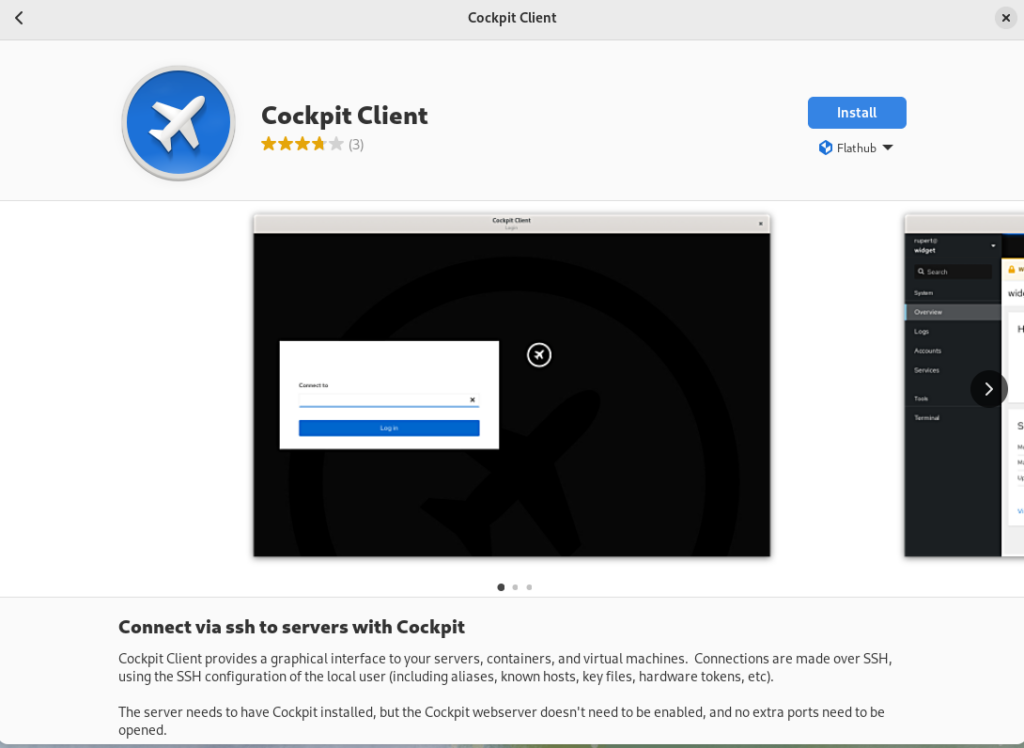
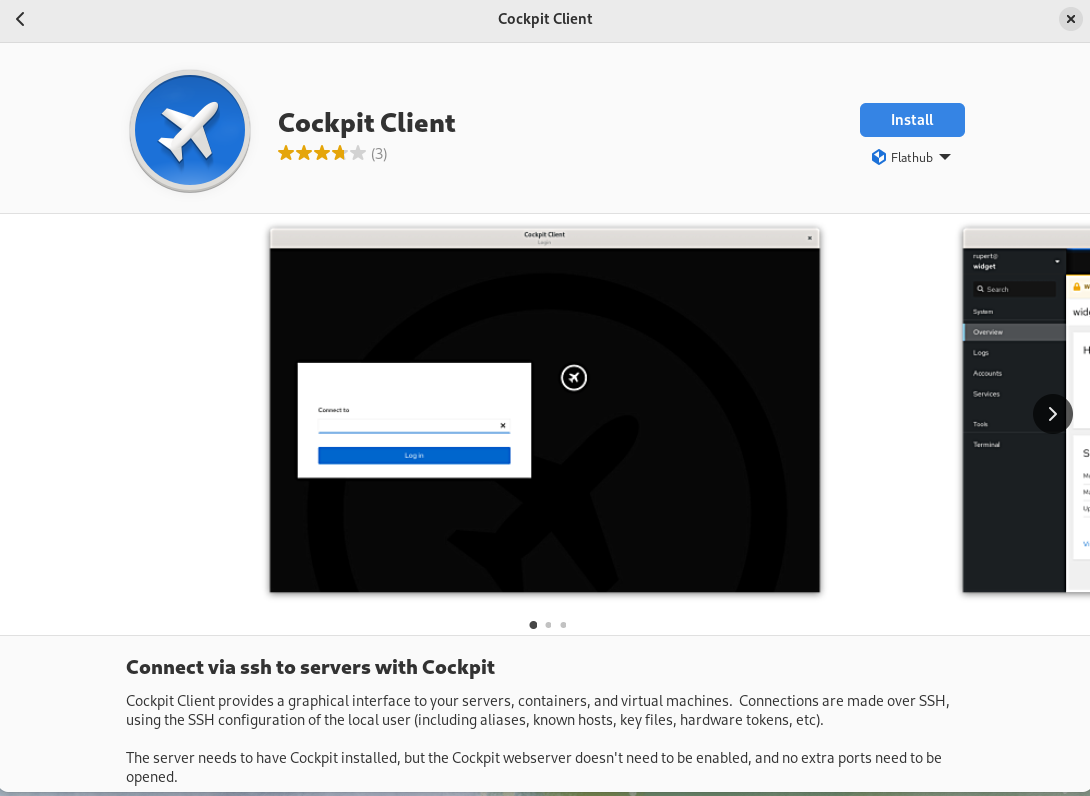
In the following example, I’m using a Fedora 38 workstation. Install the Cockpit Client Flatpak by simply opening the GNOME Software application and searching for Cockpit. Note that you’ll need to have Flathub enabled in GNOME Software.
Using the Cockpit Client
Once installed, you’ll see the following when opening the Cockpit Client:
You can type in a hostname or IP address that you would like to connect to. To authenticate as a user other than the user you are currently using, you can use the user@hostname syntax. A list of recent hosts that you’ve connected to will appear, if this is not the first time using the Cockpit Client. In that case, you can simply click on a host name to reconnect
If you have SSH key based authentication setup, you’ll be logged in to the remote host using the key based authentication. With out SSH keys setup, you’ll be prompted to authenticate with a password. In either case, if it is your first time connecting to the host over SSH, you’ll be prompted to accept the host key fingerprint.
As a special case, you can log into your currently running local session by connecting to localhost, without authentication.
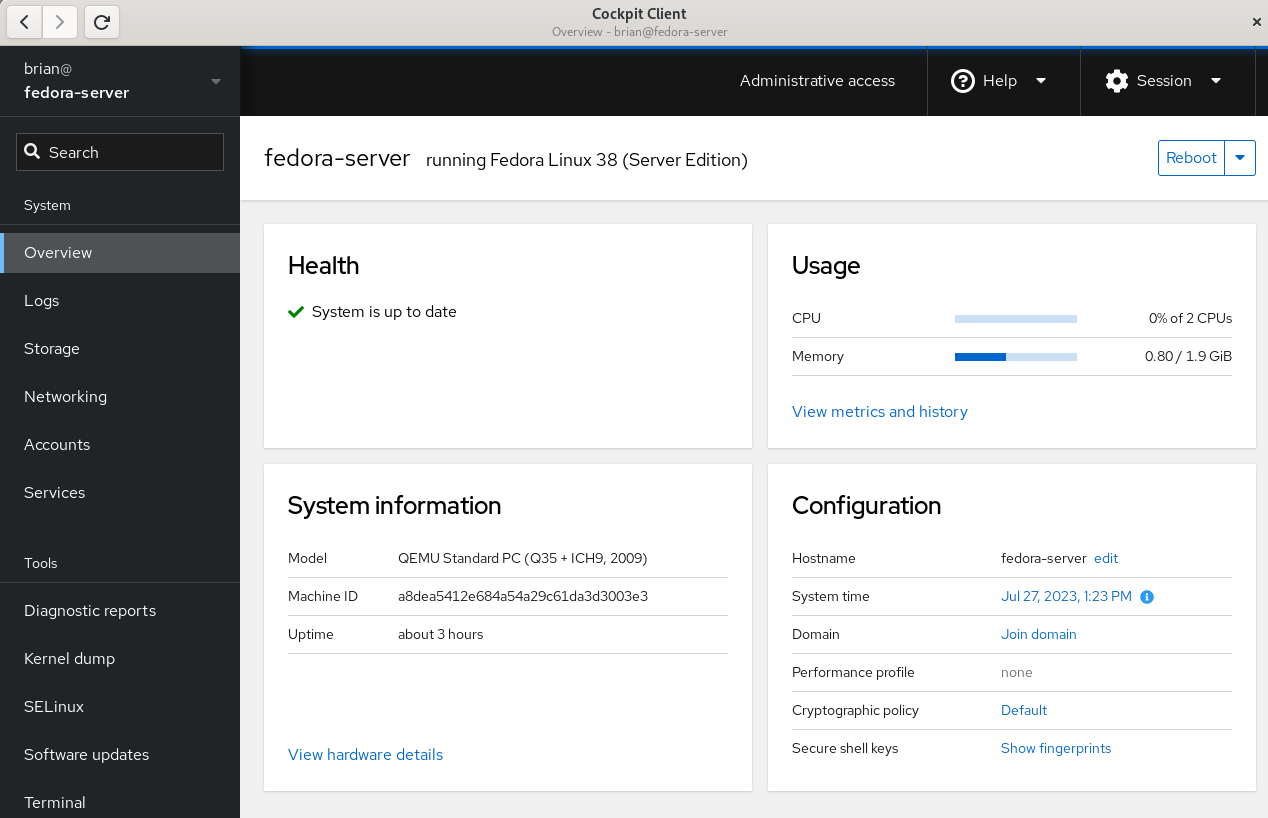
Once connected, you’ll see the Cockpit Overview page:
Cockpit overivew menu
Select the Terminal menu item in Cockpit to show that the remote system that I’m logged in to does not have any Cockpit packages installed:
Cockpit Terminal view
Prerequisites for connecting to systems with Cockpit Client
There are several prerequisites for utilizing Cockpit Client to connect to a remote system. If you are familiar with managing remote hosts with Ansible, you’ll likely already be familiar with the prerequisites. They are the same:
You must have connectivity to the remote system over SSH.
You must have a valid user account on the remote system that you can authenticate with.
If you need the ability to complete privileged operations in Cockpit, the user account on the remote system will need sudo privileges.
If you are connecting to a remote system that doesn’t have Cockpit installed, there are a couple of additional prerequisites:
Python 3.6 or later must be installed on the remote host. This is not usually an issue, with some exceptions, such as Fedora CoreOS which does not include Python by default.
An older version of Cockpit Client can not be used to connect to a newer operating system version. For example, if I installed Cockpit Client on my Fedora 38 workstation today and never updated it, it may not work properly to manage a Fedora 39 or Fedora 40 server in the future.
Frequently asked questions
Here are some frequently asked questions about this functionality:
Question: Cockpit is extendable via additional Applications. Which Cockpit applications are available if I use the Cockpit Client to connect to a remote system that doesn’t have Cockpit installed?
Answer: Currently, Cockpit Client includes
cockpit-machines (virtual machine management)
cockpit-podman (Podman container management)
cockpit-ostree (used to manage rpm-ostree based systems)
The Cockpit team is looking for feedback on what Cockpit applications you’d like to see included in the Cockpit Client. Post a comment below with your feedback.
Question: I connected to a remote system that doesn’t have Cockpit installed, but I don’t see Virtual Machines or one of the other applications listed in the menu. I thought you just said these were included in the Cockpit Client Flatpak?
Answer: When you login to a remote system that doesn’t have Cockpit packages installed, you’ll only see the menu options for underlying functionality available on the remote system. For example, you’ll only see Virtual Machines in the Cockpit menu if the remote host has the libvirt-dbus package installed.
Question: Can Cockpit applications available in the Cockpit Client be used with locally installed Cockpit applications on the remote host? In other words, if I need a Cockpit application not included in the Cockpit Client, can I install just that single package on the remote host?
Answer: No, you cannot mix and match applications included in the Cockpit Client flatpak and those installed locally on the remote host. For a remote host that has thecockpit-bridge package installed, Cockpit Client will exclusively use the applications that are installed locally on the remote host. If the remote host does not have the cockpit-bridge package installed, Cockpit Client will exclusively use the applications bundled in the Cockpit Client Flatpak.
Question: Can I use Cockpit Client to connect to the local host?
Answer: Yes! Simply open Cockpit Client and type in localhost and you’ll be able to manage the local host. You don’t need to have any Cockpit packages installed on the local host if you use this method. You only need the Cockpit Client Flatpak.
Question: What Linux distributions can I connect to using the Cockpit Client?
Answer: Cockpit is compatible with a number of different Linux distributions. For more information, see the Running Cockpit page. If connecting to a remote system that doesn’t have Cockpit installed, keep in mind the previously mentioned requirements regarding not connecting to newer OS’s from an older Cockpit Client.
Question: Does the Cockpit team have any future plans regarding this functionality?
Answer: The Cockpit team is planning on adding the ability to connect to remote hosts without Cockpit packages installed to the cockpit-ws container image. See COCKPIT-954 ticket for more info.
Have more questions not covered here? Ask them in the comments section below!
Conclusion
The new Python bridge, and the corresponding ability to use the Cockpit Client to connect to remote systems without installing Cockpit, makes it incredibly easy to use Cockpit in almost any circumstance.
Try this out! It’s easy to do. Simply install the Cockpit Client Flatpak, and use it to connect to either your localhost or a remote system. Once you’ve tried it, let us know what you think in the comments below.
Fedora test days are events where anyone can help make sure changes in Fedora Linux work well in an upcoming release. Fedora community members often participate, and the public is welcome at these events. If you’ve never contributed to Fedora Linux before, this is a perfect way to get started.
There are four test periods in the upcoming weeks:
Friday 11 August through Thursday 17 August , is to test DNF5.
Monday 14 August through Sunday 20 August, two test day periods focusing on testing GNOME Desktop and Core Apps.
Tuesday 5 September through Monday 11 September, is to test i18n.
Come and test with us to make the upcoming Fedora Linux 39 release even better. Read more below about how to do it.
DNF5
Since the brand new dnf5 package has landed in rawhide, we would like to organize a test week to get some initial feedback on it before it becomes the default. We will be testing DNF5 to iron out any rough edges.
The test week will be Friday 11 August through Thursday 17 August. The test week page is available here .
GNOME 45 test week
GNOME 45 has landed and will be part of the change for Fedora Linux 39. Since GNOME is the default desktop environment for Fedora Workstation, and thus for many Fedora users, this interface and environment merits a lot of testing. The Workstation Working Group and Fedora Quality team have decided to split the test week into two parts:
Monday 14 August through Thursday 17 August, we will be testing GNOME Desktop and Core Apps. You can find the test day page here.
Friday 18 August through Sunday 20 August, the focus will be to test GNOME Apps in general. This will be shipped by default. The test day page is here.
i18n test week
The i18n test week focuses on testing internationalization features in Fedora Linux.
The test week is Tuesday 5 September through Monday 11 September. The test week page is available here.
How do test days work?
A test day is an event where anyone can help make sure changes in Fedora Linux work well in an upcoming release. Fedora community members often participate, and the public is welcome at these events. If you’ve never contributed before, this is a perfect way to get started.
To contribute, you only need to be able to download test materials (which include some large files) and then read and follow directions step by step.
Detailed information about all the test days is available on the wiki pages mentioned above. If you’re available on or around the days of the events, please do some testing and report your results. All the test day pages receive some final touches which complete about 24 hrs before the test day begins. We urge you to be patient about resources that are, in most cases, uploaded hours before the test day starts.
Come and test with us to make the upcoming Fedora Linux 39 even better.
This article introduces projects available in Flathub with installation instructions.
Flathub is the place to get and distribute apps for all of Linux. It is powered by Flatpak, allowing Flathub apps to run on almost any Linux distribution.
Authenticator is a simple app that allows you to generate Two-Factor authentication codes. It has a very simple and elegant interface with support for a a lot of algorithms and methods. Some of its features are:
Time-based/Counter-based/Steam methods support
SHA-1/SHA-256/SHA-512 algorithms support
QR code scanner using a camera or from a screenshot
Lock the application with a password
Backup/Restore from/into known applications like FreeOTP+, Aegis (encrypted / plain-text), andOTP, Google Authenticator
You can install “Authenticator” by clicking the install button on the site or manually using this command:
Secrets is a password manager that integrates with GNOME. It’s easy to use and uses the KeyPass file format. Some of its features are:
Supported Encryption Algorithms:
AES 256-bit
Twofish 256-bit
ChaCha20 256-bit
Supported Derivation algorithms:
Argon2 KDBX4
Argon2id KDBX4
AES-KDF KDBX 3.1
Create or import KeePass safes
Add attachments to your encrypted database
Generate cryptographically strong passwords
Quickly search your favorite entries
Automatic database lock during inactivity
Support for two-factor authentication
You can install “Secrets” by clicking the install button on the site or manually using this command:
flatpak install flathub org.gnome.World.Secrets
Flatsweep
Flatsweep is a simple app to remove residual files after a flatpak is unistalled. It uses GTK4 and Libadwaita to provide a coherent user interface that integrates nicely with GNOME, but you can use it on any desktop environment.
You can install “Flatsweep” by clicking the install button on the site or manually using this command: