The Fedora CoreOS and QA teams are gearing up for Fedora 44, and we need your help! We are organizing a Test Week running from March 23 to March 27, 2026.
This event is a nice opportunity for the community to test Fedora CoreOS (FCOS) based on Fedora 44 content before it officially reaches the testing and stable streams. By participating, you help us ensure a smooth and reliable experience for all users.
How does a Test Week work?
A Test Week is an event where anyone can help verify that the upcoming release works as expected. If you’ve been looking for a way to get started with Fedora contribution, this is the perfect entry point.
To participate, you simply need to:
Download the FCOS test images.
Follow the step-by-step test cases provided.
Report whether the tests passed or failed on your hardware or VM.
The Wiki Page is your primary source of information for this event. Once you have completed your tests, please log your results here! Your contribution, big or small, makes a huge difference. Let’s work together to make this release a great one. Happy testing!
Join the Live Sync Session
Want to chat with the team? We are hosting a virtual in-person session on Tuesday, March 24, from 3:00 PM – 4:30 PM UTC. Drop in to ask questions and get help with testing!
We are happy to announce the general availability of Fedora Asahi Remix 43. This release brings Fedora Linux 43 to Apple Silicon Macs.
Fedora Asahi Remix is developed in close collaboration with the Fedora Asahi SIG and the Asahi Linux project. This release incorporates all the exciting improvements brought by Fedora Linux 43. Notably, package management is significantly upgraded with RPM 6.0 and the new DNF5 backend for PackageKit for Plasma Discover and GNOME Software ahead of Fedora Linux 44. It also continues to provide extensive device support. This includes newly added support for the Mac Pro, microphones in M2 Pro/Max MacBooks, and 120Hz refresh rate for the built-in displays for MacBook Pro 14/16 models.
Fedora Asahi Remix offers KDE Plasma 6.6 as our flagship desktop experience. It contains all of the new and exciting features brought by Fedora KDE Plasma Desktop 43. It also features a custom Calamares-based initial setup wizard. A GNOME variant is also available, featuring GNOME 49, with both desktop variants matching what Fedora Linux offers. Fedora Asahi Remix also provides a Fedora Server variant for server workloads and other types of headless deployments. Finally, we offer a Minimal image for users that wish to build their own experience from the ground up.
You can install Fedora Asahi Remix today by following our installation guide. Existing systems running Fedora Asahi Remix 41 or 42 should be updated following the usual Fedora upgrade process. Upgrades via GNOME’s Software application are unfortunately not supported. Either KDE’s Plasma Discover or DNF’s System Upgrade command must be used.
Writing a real-time audio plugin on Linux often conjures up images of a complex environment: C++, toolchains, CMake, CLAP / VST3 / LV2 SDK, ABI…
However, there is a much simpler approach : JSFX
This article offers a practical introduction to JSFX and YSFX on Fedora Linux: we’ll write some small examples, add a graphical VU meter, and then see how to use it as an CLAP / VST3 plugin in a native Linux workflow.
JSFX (JesuSonic Effects – created by REAPER [7]) allows you to write audio plugins in just a few lines, without compilation, with instant reloading and live editing.
Long associated with REAPER, they are now natively usable on Linux, thanks to YSFX [3], available on Fedora Linux in CLAP and VST3 formats via the Audinux repository ([4], [5]).
This means it’s possible to write a functional audio effect in ten lines, then immediately load it into Carla [8], Ardour [9], or any other compatible host, all within a PipeWire / JACK [11] environment.
A citation from [1] (check the [1] link for images):
In 2004, before we started developing REAPER, we created software designed for creating and modifying FX live, primarily for use with guitar processing.
The plan was that it could run on a minimal Linux distribution on dedicated hardware, for stage use. We built a couple of prototypes.
These hand-built prototypes used mini-ITX mainboards with either Via or Intel P-M CPUs, cheap consumer USB audio devices, and Atmel AVR microcontrollers via RS-232 for the footboard controls.
The cost for the parts used was around $600 each.
In the end, however, we concluded that we preferred to be in the software business, not the hardware business, and our research into adding multi-track capabilities in JSFX led us to develop REAPER. Since then, REAPER has integrated much of JSFX’s functionality, and improved on it.
So, as you can see, this technology is not that new. But the Linux support via YSFX [3] is rather new (Nov 2021, started by Jean-Pierre Cimalando).
A new programming language, but for what ? What would one would use JSFX for ?
This language is dedicated to audio and with it, you can write audio effects like an amplifier, a chorus, a delay, a compressor, or you can write synthesizers.
JSFX is good for rapid prototyping and, once everything is in place, you can then rewrite your project into a more efficient language like C, C++, or Rust.
JSFX for developers
Developing an audio plugin on Linux often involves a substantial technical environment. This complexity can be a hindrance when trying out an idea quickly.
JSFX (JesuSonic Effects) offers a different approach: writing audio effects in just a few lines of interpreted code, without compilation and with instant reloading.
Thanks to YSFX, available on Fedora Linux in CLAP and VST3 formats, these scripts can be used as true plugins within the Linux audio ecosystem.
This article will explore how to write a minimal amplifier in JSFX, add a graphical VU meter, and then load it into Carla as a CLAP / VST3 plugin.
The goal is simple: to demonstrate that it is possible to prototype real-time audio processing on Fedora Linux in just a few minutes.
No compilation environment is required: a text editor is all you need.
YSFX plugin
On Fedora Linux, YSFX comes in 3 flavours :
a standalone executable ;
a VST3 plugin ;
a CLAP plugin.
YSFX is available in the Audinux [5] repository. So, first, install the Audinux repository:
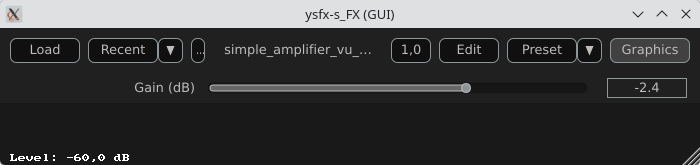
Here is a screenshot of YSFX as a VST3 plugin loaded in Carla Rack [8]:
You can :
Load a file ;
Load a recent file ;
Reload a file modified via the Edit menu ;
Zoom / Unzoom via the 1.0 button ;
Load presets ;
Switch between the Graphics and Sliders view.
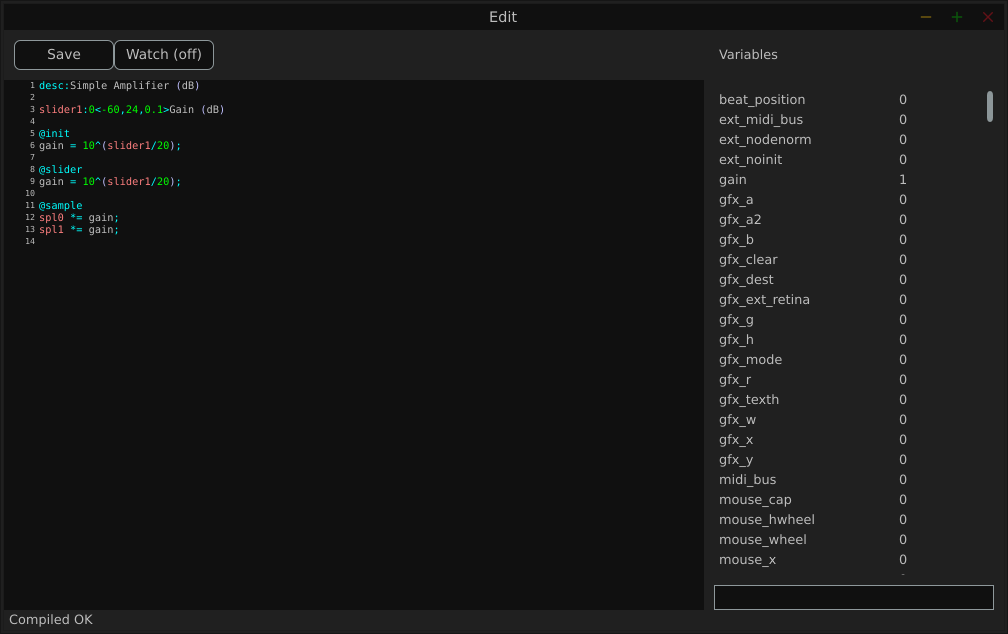
Here is a screenshot of the Edit window:
The Variables column displays all the variables defined by the loaded file.
Examples
We will use the JSFX documentation available at [4].
JSFX code is always divided into section.
@init : The code in the @init section gets executed on effect load, on samplerate changes, and on start of playback.
@slider : The code in the @slider section gets executed following an @init, or when a parameter (slider) changes
@block : The code in the @block section is executed before processing each sample block. Typically a block is the length as defined by the audio hardware, or anywhere from 128-2048 samples.
@sample : The code in the @sample section is executed for every PCM (Pulse Code Modulation) audio sample.
@serialize : The code in the @serialize section is executed when the plug-in needs to load or save some extended state.
@gfx [width] [height] : The @gfx section gets executed around 30 times a second when the plug-ins GUI is open.
A simple amplifier
In this example, we will use a slider value to amplify the audio input.
desc:Simple Amplifier
slider1:1<0,4,0.01>Gain @init
gain = slider1; @slider
gain = slider1; @sample
spl0 *= gain;
spl1 *= gain;
slider1, @init, @slider, @sample, spl0, spl1 are JSFX keywords [1].
Description:
slider1: create a user control (from 0 to 4 here);
@init: section executed during loading;
@slider: section executed when we move the slide;
@sample: section executed for each audio sample;
spl0 and spl1: left and right channels.
In this example, we just multiply the input signal by a gain.
Here is a view of the result :
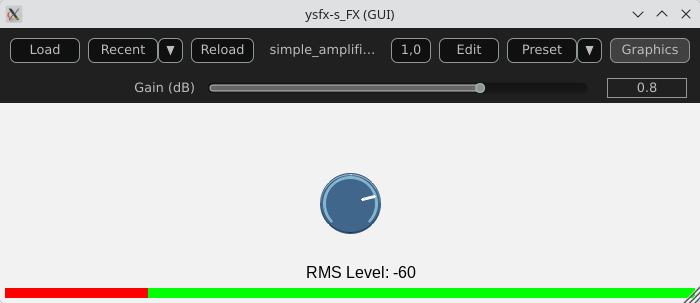
An amplifier with a gain in dB
This example will create a slider that will produce a gain in dB.
desc:Simple Amplifier (dB)
slider1:0<-60,24,0.1>Gain (dB) @init
gain = 10^(slider1/20); @slider
gain = 10^(slider1/20); @sample
spl0 *= gain;
spl1 *= gain;
Only the way we compute the gain changes.
Here is a view of the result :
An amplifier with an anti-clipping protection
This example adds protection against clipping and uses a JSFX function for that.
desc:Simple Amplifier with Soft Clip
slider1:0<-60,24,0.1>Gain (dB) @init
gain = 10^(slider1/20); @slider
gain = 10^(slider1/20);
function softclip(x) ( x / (1 + abs(x));
); @sample
spl0 = softclip(spl0 * gain);
spl1 = softclip(spl1 * gain);
Here is a view of the result :
An amplifier with a VU meter
This example is the same as the one above, we just add a printed value of the gain.
desc:Simple Amplifier with VU Meter
slider1:0<-60,24,0.1>Gain (dB) @init
rms = 0;
coeff = 0.999; // RMS smoothing
gain = 10^(slider1/20); @slider
gain = 10^(slider1/20); @sample
// Apply the gain
spl0 *= gain;
spl1 *= gain;
// Compute RMS (mean value of the 2 channels)
mono = 0.5*(spl0 + spl1);
rms = sqrt((coeff * rms * rms) + ((1 - coeff) * mono * mono)); @gfx 300 200 // UI part
gfx_r = 0.1; gfx_g = 0.1; gfx_b = 0.1;
gfx_rect(0, 0, gfx_w, gfx_h); // Convert to dB
rms_db = 20*log(rms)/log(10);
rms_db < -60 ? rms_db = -60; // Normalisation for the display
meter = (rms_db + 60) / 60;
meter > 1 ? meter = 1; // Green color
gfx_r = 0;
gfx_g = 1;
gfx_b = 0; // Horizontal bar
gfx_rect(10, gfx_h/2 - 10, meter*(gfx_w-20), 20); // Text
gfx_r = gfx_g = gfx_b = 1;
gfx_x = 10;
gfx_y = gfx_h/2 + 20;
gfx_printf("Level: %.1f dB", rms_db);
The global structure of the code:
Apply the gain
Compute a smoothed RMS value
Convert to dB
Display a horizontal bar
Display a numerical value
Here is a view of the result :
An amplifier using the UI lib from jsfx-ui-lib
In this example, we will use a JSFX UI library to produce a better representation of the amplifier’s elements.
Import and setup: The UI library is imported and then allocated memory (ui_setup) using @init;
UI controls: control_dial creates a thematic potentiometer with a label, integrated into the library;
Integrated VU meter: A small graph is drawn with ui_graph, normalizing the RMS value between 0 and 1;
UI structure: ui_start(“main”) prepares the interface for each frame. ui_push_height / ui_pop organize the vertical space.
Here is a view of the result :
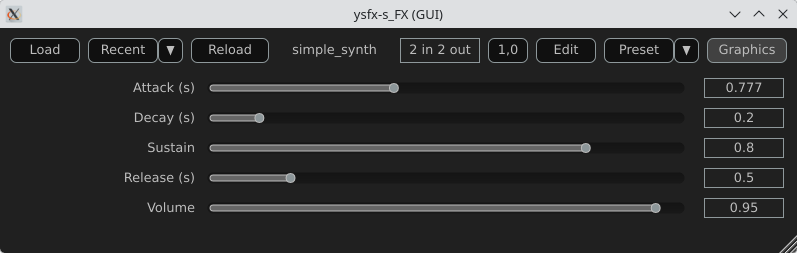
A simple synthesizer
Now, produce some sound and use MIDI for that.
The core of this example will be the ADSR envelope generator ([10]).
desc:Simple MIDI Synth (Mono Sine)
// Parameters
slider1:0.01<0.001,2,0.001>Attack (s)
slider2:0.2<0.001,2,0.001>Decay (s)
slider3:0.8<0,1,0.01>Sustain
slider4:0.5<0.001,3,0.001>Release (s)
slider5:0.5<0,1,0.01>Volume @init
phase = 0;
note_on = 0;
env = 0;
state = 0; // 0=idle,1=attack,2=decay,3=sustain,4=release @slider
// Compute the increment / decrement for each states
attack_inc = 1/(slider1*srate);
decay_dec = (1-slider3)/(slider2*srate);
release_dec = slider3/(slider4*srate); @block
while ( midirecv(offset, msg1, msg23) ? ( status = msg1 & 240; note = msg23 & 127; vel = (msg23/256)|0; // Note On status == 144 && vel > 0 ? ( freq = 440 * 2^((note-69)/12); phase_inc = 2*$pi*freq/srate; note_on = 1; state = 1; ); // Note Off (status == 128) || (status == 144 && vel == 0) ? ( state = 4; ); );
); @sample
// ADSR Envelope [10]
state == 1 ? ( // Attack env += attack_inc; env >= 1 ? ( env = 1; state = 2; );
); state == 2 ? ( // Decay env -= decay_dec; env <= slider3 ? ( env = slider3; state = 3; );
); state == 3 ? ( // Sustain env = slider3;
); state == 4 ? ( // Release env -= release_dec; env <= 0 ? ( env = 0; state = 0; );
); // Sine oscillator
sample = sin(phase) * env * slider5;
phase += phase_inc;
phase > 2*$pi ? phase -= 2*$pi; // Stereo output
spl0 = sample;
spl1 = sample;
Global structure of the example:
Receives MIDI via @block;
Converts MIDI note to frequency (A440 standard);
Generates a sine wave;
Applies an ADSR envelope;
Outputs in stereo.
Here is a view of the result :
Comparison with CLAP / VST3
JSFX + YSFX
Advantages of JSFX:
No compilation required;
Instant reloading;
Fast learning curve;
Ideal for DSP prototyping;
Portable between systems via YSFX.
Limitations:
Less performant than native C++ for heavy processing;
Less suitable for “industrial” distribution;
Simpler API, therefore less low-level control.
CLAP / VST3 in C/C++
Advantages:
Maximum performance;
Fine-grained control over the architecture;
Deep integration with the Linux audio ecosystem;
Standardized distribution.
Limitations:
Requires a complete toolchain;
ABI management/compilation;
Longer development cycle.
Conclusion
A functional audio effect can be written in just a few lines, adding a simple graphical interface, and then loaded this script as an CLAP / VST3 plugin on Fedora Linux. This requires no compilation, no complex SDK, no cumbersome toolchain.
JSFX scripts don’t replace native C++ development when it comes to producing optimized, widely distributable plugins. However, they offer an exceptional environment for experimentation, learning signal processing, and rapid prototyping.
Thanks to YSFX, JSFX scripts now integrate seamlessly into the Linux audio ecosystem, alongside Carla, Ardour, and a PipeWire-based audio system.
For developers and curious musicians alike, JSFX provides a simple and immediate entry point into creating real-time audio effects on Fedora Linux.
Available plugins
ysfx-chokehold
A free collection of JS (JesuSonic) plugins for Reaper.
Imagine that Fedora Workstation is your desk, and GNOME Shell extensions are small accessories you add to make it feel more personal. It’s like placing a pencil case on the right side, a lamp that helps you focus, or a small cabinet to keep your things from getting scattered. It’s the same desk—GNOME stays clean and minimal—but a few additions can make your routine more comfortable.
Extensions work on the GNOME interface: the top panel, the way you open applications, how notifications appear, and small details that usually stay hidden. These simple changes can be enough to make your Fedora Workstation feel different. With just one extension, you can make Fedora feel more “you.”
But like any accessories, choose only what truly helps—don’t install everything. Too many extensions can clutter your desktop or make things feel unstable. The goal isn’t to chase excitement, but to find a few small add-ons that better fit the way you work in Fedora Workstation.
Why use Extension Manager?
Once you see extensions as small “accessories” for GNOME, a question comes up fast: how do you install them without the hassle? This is where Extension Manager helps.
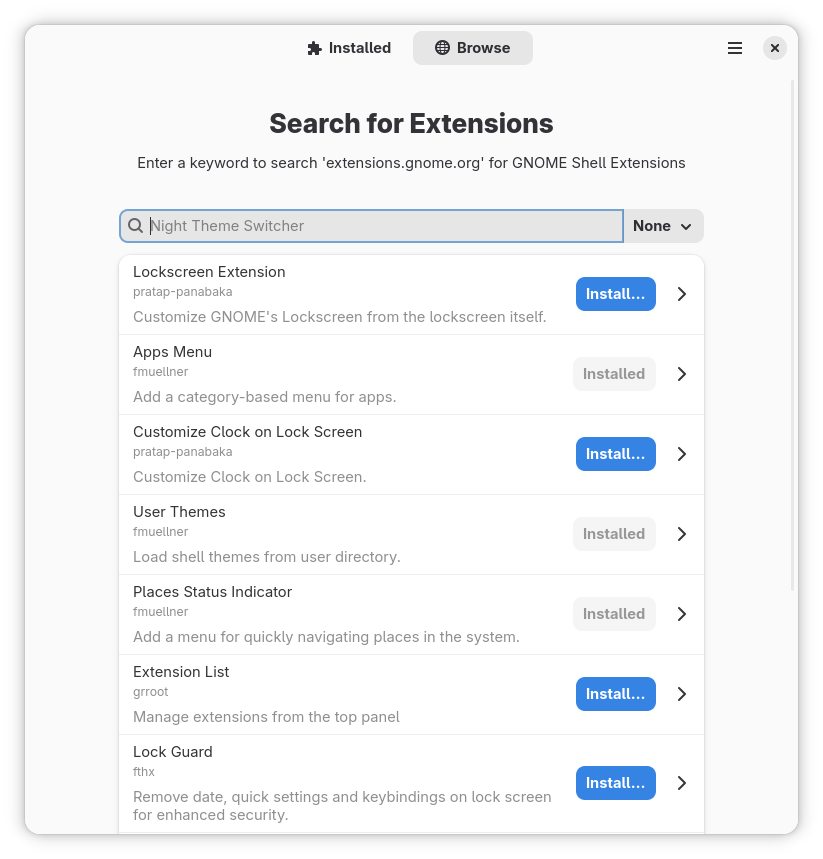
Instead of opening many browser tabs, you can do everything in one place. You can browse extensions. You can search for what you need. You can also read a short description before installing. As a result, the whole process feels calmer and more familiar.
More importantly, Extension Manager makes it easier to experiment safely. For example, you can try one extension to make the top panel more useful. If it doesn’t feel right, you can simply turn it off. Or you can uninstall it in seconds. That way, you stay in control.
Also, you’re not “modding” your whole system. You’re only adding small features. And if you change your mind, you can always go back to GNOME’s clean default look.
In short, Extension Manager is like a small drawer on your desk. It keeps your extensions in one spot. So they’re easy to find, easy to try, and easy to tidy up again.
Install Extension Manager
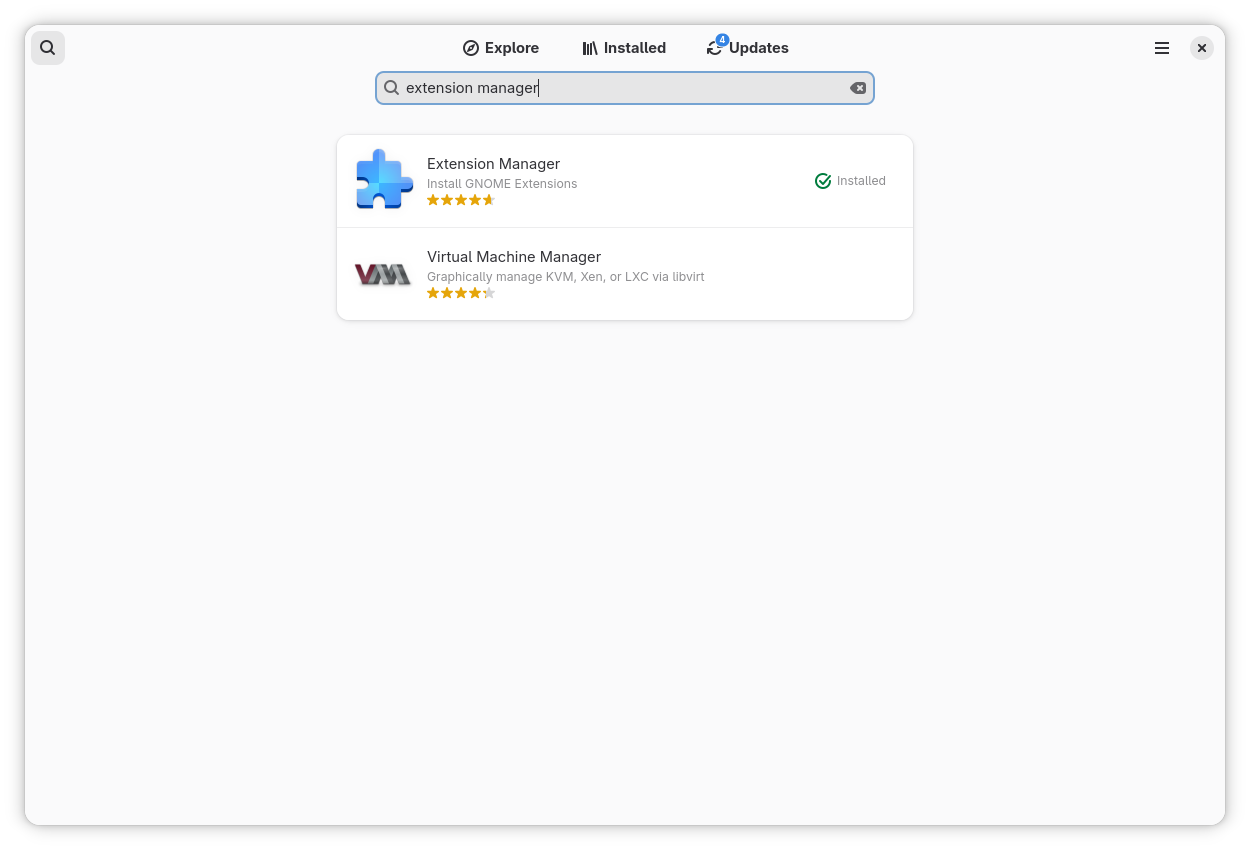
Let’s move to the easiest part: installing Extension Manager with just a few clicks. Open the Software app on Fedora Workstation, then search for Extension Manager using the search bar. Select the app and click Install. That’s it.
Once the installation is complete, open it from the app menu—look for Extension Manager. Now you’re ready to customize. Start slowly: try one extension first, then see if it fits your daily routine.
Find and Install an Extension
After you open Extension Manager, it can feel like opening an “accessories shop” for your Fedora Workstation. There are many options, from small tweaks to extensions that can change how you work.
Start with the search bar. Think about what you most often need in your day-to-day routine. For example, you might want quicker access to apps, tray icons for indicators, or a more informative top panel. When you find an extension that looks interesting, open its page for a moment. Read the short description, look at the screenshots, and then ask yourself whether it will really help your work flow.
If you’re sure, just click Install. In a few seconds, it will be installed, and you’ll notice the change right away. However, if it doesn’t feel right, don’t hesitate to uninstall it. At this stage, you’re simply trying things out—like picking the accessories that best fit your desk.
Enable/disable and adjust settings
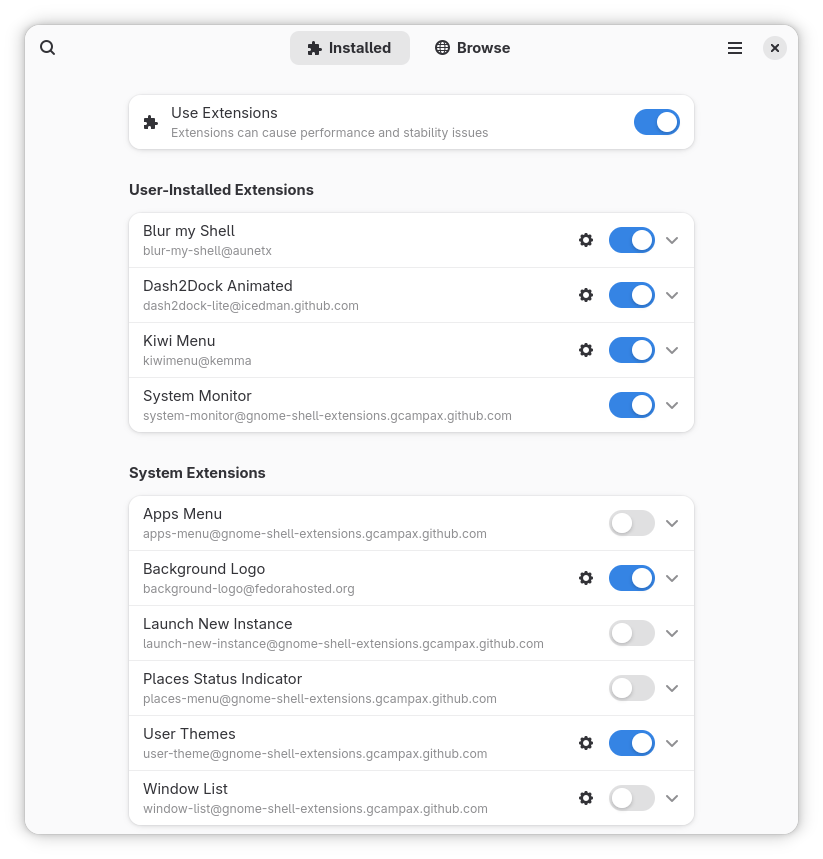
After you install a few extensions, you don’t have to stick with all of them. Sometimes an extension is useful, but you don’t need it all the time. That’s the nice thing about Extension Manager: you can enable or disable extensions at any time, without any drama.
Think of it like accessories on your desk. Some days you need a desk lamp to help you focus. On other days, you want your desk to stay clean and simple. Extensions work the same way. You can turn one on when you need it, and turn it off when you’re done.
If an extension has options, you’ll usually see a Settings or Preferences button. From there, you can tweak small details to match your style—icon placement, button behaviour, panel appearance, and more. This is what makes extensions feel personal. You’re not just installing something and forgetting it; you’re shaping it around your workflow.
And if one day your Fedora starts to feel too crowded, don’t panic. Just open the list of installed extensions and disable the ones you don’t need. Take it slow. The best customization isn’t about how many extensions you have, but how well they fit your daily activities.
Keep it safe: a few practical tips
At this point, you might start thinking, “Wow, there are so many things I can change.” And that’s true. However, if you want Fedora Workstation to stay light and comfortable, there are a few simple habits worth keeping in mind.
First, install extensions the same way you choose tools: only when you truly need them. If you stop using an extension after a few days, it’s better to disable it or remove it. A comfortable desktop isn’t the most crowded one—it’s the one with fewer distractions.
Second, try extensions one by one. If you install many at once, it’s hard to tell which one causes a problem. On the other hand, if you take it slowly, you can quickly feel what fits and what doesn’t.
Finally, remember that GNOME keeps evolving. Sometimes after a major update, an extension may not be ready yet. If something feels odd after an update, the safest move is simple: open Extension Manager and disable the extension you suspect. Once things are back to normal, you can wait for an update or choose an alternative.
In the end, Extension Manager isn’t a ticket to customize without limits. It’s more like a clean toolbox. If you use it with care and focus on what you really need, customization can stay enjoyable—without losing the clean, stable feel of Fedora Workstation.
Wrapping up: share your favorite extensions
Now you know how to customize your Fedora Workstation with Extension Manager. You’ve learned how to install the app, try a few extensions, and adjust their settings. And here’s the fun part: everyone ends up with a different mix of extensions, because we all have different needs and work styles.
If you have a favorite extension, share it. Which one do you rely on most, and what do you use it for? Maybe it helps you stay focused during presentations. Or maybe it makes the top panel more informative, brings back tray icons, or simply speeds up your work flow. Tell us why you like it, so others can picture the benefit.
Who knows—your list might inspire someone else. And you might also discover a new extension that fits your daily routine even better.
Silverblue is an operating system for your desktop built on Fedora Linux. It’s excellent for daily use, development, and container-based workflows. It offers numerous advantages such as being able to roll back in case of any problems. This article provides the steps to rebase to the newly released Fedora Linux 44 Beta, and how to revert if anything unforeseen happens.
NOTE: Before attempting an upgrade to the Fedora Linux 44 Beta, apply any pending upgrades to your current system.
Updating using the terminal
Because Fedora Linux 44 Beta is not available in GNOME Software, the whole process must be done through a terminal.
First, check if the 44 branch is available, which should be true now:
$ ostree remote refs fedora
You should see the following line in the output:
fedora:fedora/44/x86_64/silverblue
If you want to pin the current deployment (this deployment will stay as an option in GRUB until you remove it), you can do it by running:
# 0 is entry position in rpm-ostree status
$ sudo ostree admin pin 0
To remove the pinned deployment use the following command ( “2” corresponds to the entry position in the output from rpm-ostree status ):
$ sudo ostree admin pin --unpin 2
Next, rebase your system to the Fedora 44 branch.
$ rpm-ostree rebase fedora:fedora/44/x86_64/silverblue
The final thing to do is restart your computer and boot to Fedora Silverblue 44 Beta.
How to revert
If anything bad happens — for instance, if you can’t boot to Fedora Silverblue 44 Beta at all — it’s easy to go back. Pick the previous entry in the GRUB boot menu (you need to press ESC during boot sequence to see the GRUB menu in newer versions of Fedora Silverblue), and your system will start in its previous state. To make this change permanent, use the following command:
$ rpm-ostree rollback
That’s it. Now you know how to rebase to Fedora Silverblue 44 Beta and fall back. So why not do it today?
Because there are similar questions in comments for each blog about rebasing to newer version of Silverblue I will try to answer them in this section.
Question: Can I skip versions during rebase of Fedora Linux? For example from Fedora Silverblue 42 to Fedora Silverblue 44?
Answer: Although it could be sometimes possible to skip versions during rebase, it is not recommended. You should always update to one version above (42->43 for example) to avoid unnecessary errors.
Question: I have rpm-fusion layered and I got errors during rebase. How should I do the rebase?
Answer: If you have rpm-fusion layered on your Silverblue installation, you should do the following before rebase:
After doing this you can follow the guide in this article.
Question: Could this guide be used for other ostree editions (Fedora Atomic Desktops) as well like Kinoite, Sericea (Sway Atomic), Onyx (Budgie Atomic),…?
Yes, you can follow the Updating using the terminal part of this guide for every ostree edition of Fedora. Just use the corresponding branch. For example for Kinoite use fedora:fedora/44/x86_64/kinoite
On Tuesday, 10 March 2026, it is our pleasure to announce the availability of Fedora Linux 44 Beta! As with every beta release, this is your opportunity to contribute by testing out the upcoming Fedora Linux 44 Beta release. Testing the beta release is a vital way you can contribute to the Fedora Project. Your testing is invaluable feedback that helps us refine what the final F44 experience will be for all users.
We hope you enjoy this latest beta version of Fedora!
How to get the Fedora Linux 44 Beta release
You can download Fedora Linux 44 Beta, or our pre-release edition versions, from any of the following places:
The Fedora CoreOS “next” stream moves to the beta release one week later. Content for F44, however, is still available from their current branched stream to enjoy now.
You can also update an existing system to the beta using DNF system-upgrade.
The Fedora Linux 44 Beta release content may also be available for Fedora Spins and Labs.
Fedora Linux 44 Beta highlights
Like every Beta release, the Fedora Linux 44 Beta release is packed with changes. The following are highlights from the full set of changes for F44. They are ready for you to test drive in the Fedora Linux 44 Beta.
Installer and desktop Improvements
Goodbye Anaconda Created Default Network Profiles: This change impacts how Anaconda populates network device profiles. Only those devices configured during installation (by boot options, kickstart or interactively in UI) become part of the final system install. This behavior change addresses some long standing issues caused by populating network profiles for all network devices. These made it difficult to correctly reconfigure devices post-install.
Unified KDE Out of the Box Experience: This change introduces the post-install Plasma Setup application for all Fedora KDE variants. In the variants making use of this new setup application, the Anaconda configuration will be adjusted to disable redundant configuration stages that duplicate the functionality exposed in the setup application.
KDE Plasma Login Manager: This change introduced the Plasma Login Manager (PLM) for Fedora KDE variants instead of SDDM for the default login manager.
Reworked Games Lab: This change modernizes the Games Lab deliverable by leveraging the latest technologies. This offers a high quality gaming and game development experience. It includes a change from Xfce to KDE Plasma to take advantage of the latest and greatest Wayland stack for gaming.
Budgie 10.10: Budgie 10.10 is the latest release of Budgie Desktop. Budgie 10.10 migrates from X11 to Wayland. This ensures a viable long-term user experience for Fedora Budgie users and lays groundwork for the next major Budgie release.
LiveCD Improvements
Automatic DTB selection for aarch64 EFI systems: This change intends to make the aarch64 Fedora Live ISO images work out of the box on Windows on ARM (WoA) laptops. This will automatically select the right DTB at boot.
Modernize Live Media: This change modernizes the live media experience by switching to the “new” live environment setup scripts provided by livesys-scripts and leverage new functionality in dracut to enable support for automatically enabling persistent overlays when flashed to USB sticks.
System Enhancements
GNU Toolchain Update: The updates to the GNU Toolchain ensure Fedora stays current with the latest features, improvements, and bug and security fixes from the upstream gcc, glibc, binutils, and gdb projects. They guarantee a working system compiler, assembler, static and dynamic linker, core language runtimes, and debugger.
Reproducible Package Builds: Over the last few releases, we changed our build infrastructure to make package builds reproducible. This is enough to reach 90%. The remaining issues need to be fixed in individual packages. With this change, all package builds are expected to be reproducible in the F44 final release. Bugs will be filed against packages when an irreproducibility is detected. The goal is to have no fewer than 99% of package builds reproducible.
Packit as a dist-git CI: This change continues down the path of modernizing the Fedora CI experience by moving forward with the final phase of the plan to integrate Packit as the default CI for Fedora dist-git.
Remove Python Mock Usage: python-mock was deprecated with Fedora 34. However, it is still in use in many packages. We plan to go through the remaining usages and clean them up, with the goal of retiring python-mock from Fedora.
Adoption of new R Packaging Guidelines: This change introduces new rpm macros to help standardize and automate common R language packaging tasks resulting in a simplification of the rpm spec files.
Introduction of Nix Developer Tool: This change adds the nix package manager developer tool to Fedora.
Hardlink identical files in packages by default: With this change, all fedora packages will automatically hardlink files under /usr by default as a post install action. The mechanism introduced in this change is designed specifically to address reproducibility validation race conditions found in use by traditional hardlinking approaches.
Fedora Linux 44 Beta upgrades and removals
Golang 1.26: Fedora users will receive the most current and recent Go release. Being close to upstream allows us to avoid security issues and provide more updated features. Consequently, Fedora will provide a reliable development platform for the Go language and projects written in it.
MariaDB 11.8 as Distribution Default Version: The distribution default for MariaDB packaging will switch to 11.8. Multiple versions of the MariaDB packages will continue to be available. This change only impact which of the versioned packages presents itself as the unversioned “default”
IBus 1.5.34: Fedora users will benefit from better support of Wayland and Emoji features.
Django 6.x: Fedora Users can make use of the latest Django version; users who use Django add-ons that are not ready for 6.0 yet should be able to switch it out for python3-django5
TagLib 2: This change puts Fedora on the latest supported version, and it will benefit from improvements in future minor releases with a simple update.
Helm 4: Helm 4 has been released upstream with intentional backwards-incompatible changes relative to Helm 3. To ensure a smooth transition for Fedora, this Change introduces Helm 4 as the default helm package, while providing a parallel-installable helm3 package for users and tooling that still rely on Helm 3.
Ansible 13: Update from Ansible 11 and Ansible Core 2.18 to Ansible 13 and Ansible Core 2.20. This includes major robustness and security fixes to the templating engine which might break existing playbooks that had incorrect behavior. This was silently ignored in previous releases.
TeXLive 2025: With this change, we update to the latest version of TeXLive (2025). We also move to a modularized packaging system, which splits the “texlive” SPEC into a set of collection and scheme packages. This reflects the categorization that TeXLive upstream defines. Each collection package will package the immediate component dependencies as subpackages.
Drop QEMU 32-bit Host Builds: Fedora will stop building QEMU on i686 architecture. This change brings Fedora inline with the QEMU upstream project decision to deprecate support for 32-bit host builds. Upstream intends to start removing 32-bit host build support code in a future release and will assume 64-bit atomic ops in all builds.
Drop FUSE 2 libraries in Atomic Desktops: Remove FUSE 2 binaries and libraries from all Atomic Desktops
Drop compatibility for pkla polkit rules in Atomic Desktops: Remove support for deprecated pkla polkit rules from all Fedora Atomic Desktops
More information about Fedora Linux 44 Beta
Details and more information on the many great changes landing in Fedora Linux 44 are available on the Change Set page.
Fedora is heading back to sunny Southern California! As we gear up for SCaLE 23x, we are thrilled to announce a special edition of Fedora Hatch. This is taking place on Friday, March 6 as an embedded track at SCALE.
Whether you’re a long-time contributor, a curious user, or someone looking to make your very first pull request, Fedora Hatch is designed for you. This is our way of bringing the experience of Flock (our annual contributor conference) to a local level. It focuses on connection, collaboration, and community growth.
What’s Happening?
This year, Fedora has secured a dedicated track on Friday at SCALE. We’ve curated a line-up that balances technical deep dives with essential community initiatives.
When: Friday, March 6, 2026
Where: Room 208, Pasadena Convention Center
Who: You! (And a bunch of friendly Fedorans)
The Schedule Highlights
We have a packed morning featuring five talks and a hands-on workshop:
Getting Started in Open Source and Fedora (Amy Marrich): Are you new to the world of open source? Or are you looking to make your first contribution? This session will provide a guide for beginners interested in contributing to open source projects. It will focus on the Fedora project. We’ll cover a variety of topics, like finding suitable projects, making your first pull request, and navigating community interactions. Attendees will leave with practical tips, resources, and the confidence to embark on their open source journey.
Fedora Docs Revamp Initiative (Shaun McCance): The Fedora Council recently approved an initiative to revamp the Fedora docs. The initiative aims to establish a support team to maintain a productive environment for writing docs. It will establish subteams with subject matter expertise to develop docs in specific areas of interest. We’ll describe some of the challenges the Fedora docs have faced, and present the progress so far in improving the docs. You’ll also learn how you can help Fedora have better docs.
A Brief Tour of the Age of Atomic (Laura Santamaria): Ever wished to try a number of different desktop experiences quickly in your homelab? Maybe it’s time to explore Fedora Atomic or Universal Blue! The tour starts with what makes these experiences special. It will then review the options including Silverblue, Cosmic, Bluefin and Bazzite (yes, the gaming OS). We’ll briefly get under the hood to explore bootc, the technology powering Atomic. Finally, we’ll explore how you can contribute to the future of Fedora Atomic.
Accelerating CentOS with Fedora (Davide Cavalca): This talk will explore how CentOS SIGs are able to leverage the work happening in Fedora to improve the quality and velocity of packages in CentOS Stream. We’ll cover how the CentOS Hyperscale SIG is able to deliver faster-moving updates for select packages, and how the CentOS Proposed Updates SIG integrates bugfixes and improves the contribution process to the distribution.
Agentic Workloads on Linux: Btrfs + Service Accounts Architecture (David Duncan): As AI agents become more prevalent in enterprise environments, Linux systems need architectural patterns that provide isolation, security, and efficient resource management. This session explores an approach, using BTRFS subvolumes combined with dedicated service accounts, to build secure, isolated environments for autonomous AI agents in enterprise deployment.
RPM Packaging Workshop (Carl George): While universal package formats like Flatpak, Snap, and AppImage have gained popularity for their cross-distro support, native system packages remain a cornerstone of Linux distributions. These native formats offer numerous benefits. Understanding them is essential for those who want to contribute to the Linux ecosystem at a deeper level. In this hands-on workshop, we’ll explore RPM, the native package format used by Fedora, CentOS, and RHEL. RPM is a powerful and flexible tool. It plays a vital role in the management and distribution of software for these operating systems.
Don’t forget to swing by the Fedora Booth in the Expo Hall! Our team will be there all weekend (March 6–8) with live demonstrations of Fedora Linux 43, GNOME 49 improvements, and plenty of fresh swag to go around.
Registration Details
To join us at the Hatch, you’ll need a SCaLE 23x pass.
Location: Pasadena Convention Center, 300 E Green St, Pasadena, CA.
The Podman team and the Fedora Quality Assurance team are organizing a Test Week from Friday, February 27 through Friday, March 6, 2026. This is your chance to get an early look at the latest improvements coming to Podman and see how they perform on your machine.
What is Podman?
For those new to the tool, Podman is a daemonless, Linux-native engine for running, building, and sharing OCI containers. It offers a familiar command-line experience but runs containers safely without requiring a root daemon.
What’s Coming in Podman 5.8?
The upcoming release includes updates designed to make Podman faster and more robust. Here is what you can look forward to, and what you can try out during this Fedora Test Day.
A Modern Database Backend (SQLite)
Podman is upgrading its internal storage logic by transitioning to SQLite. This change modernizes how Podman handles data under the hood, aiming for better stability and long-term robustness.
Faster Parallel Pulls
This release brings optimizations to how Podman downloads image layers, specifically when pulling multiple images at the same time. For a deep dive into the engineering behind this, check out the developer blog post on Accelerating Parallel Layer Creation.
Experiment and Explore: Feel free to push the system a bit and try pulling several large images simultaneously to see if you notice the performance boost. Beyond that, please bring your own workflows. Don’t just follow the wiki instructions. Run the containers and commands you use daily. Your specific use cases are the best way to uncover edge cases that standard tests might miss.
Mrhbaan, Fedora community! I am happy to share that as of 10 February 2026, Fedora is now available in Syria. Last week, the Fedora Infrastructure Team lifted the IP range block on IP addresses in Syria. This action restores download access to Fedora Linux deliverables, such as ISOs. It also restores access from Syria to Fedora Linux RPM repositories, the Fedora Account System, and Fedora build systems. Users can now access the various applications and services that make up the Fedora Project. This change follows a recent update to the Fedora Export Control Policy. Today, anyone connecting to the public Internet from Syria should once again be able to access Fedora.
This article explains why this is happening now. It also covers the work behind the scenes to make this change happen.
Why Syria, why now?
You might wonder: what happened? Why is this happening now? I cannot answer everything in this post. However, the story begins in December 2024 with the fall of the Assad regime in Syria. A new government took control of the country. This began a new era of foreign policy in Syrian international relations.
This may seem like a small change. Yet, it is significant for Syrians. Some U.S. Commerce Department regulations remain in place. However, the U.S. Department of the Treasury’s policy change now allows open source software availability in Syria. The Fedora Project updated its stance to welcome Syrians back into the Fedora community. This matches actions taken by other major platforms for open source software, such as Microsoft’s GitHub.
Syria & Fedora, behind the scenes
Opening the firewall to Syria took seconds. However, months of conversations and hidden work occurred behind the scenes to make this happen. The story begins with a ticket. Zaid Ballour (@devzaid) opened Ticket #541 to the Fedora Council on 1 September 2025. This escalated the issue to the Fedora Council. It prompted a closer look at the changing political situation in Syria.
Jef Spaleta and I dug deeper into the issue. We wanted to understand the overall context. The United States repealed the 2019 Caesar Act sanctions in December 2025. This indicated that the Fedora Export Policy Control might be outdated.
During this time, Jef and I spoke with legal experts at Red Hat and IBM. We reviewed the situation in Syria. This review process took time. We had to ensure compliance with all United States federal laws and sanctions. The situation for Fedora differs from other open source communities. Much of our development happens within infrastructure that we control. Additionally, Linux serves as digital infrastructure. This context differs from a random open source library on GitHub.
However, the path forward became clear after the repeal of the 2019 Caesar Act. After several months, we received approval. Fedora is accessible to Syrians once again.
We wanted to share this exciting announcement now. It aligns with our commitment to the Fedora Project vision:
“The Fedora Project envisions a world where everyone benefits from free and open source software built by inclusive, welcoming, and open-minded communities.“
We look forward to welcoming Syrians back into the Fedora community and the wider open source community at large. Mrhbaan!
The Fedora Council is hosting a public video meeting to discuss the outcomes of the recent Fedora Council 2026 Strategy Summit. Fedora Project Leader Jef Spaleta will present a summary of the Summit, outlining the strategic direction for Fedora in 2026. Following the presentation, there will be an opportunity for the community to ask questions live to the Fedora Council during the call.
How to Participate
Join the Video Call: The meeting will take place on Google Meet at 14:00 UTC on February 25th.
Submit Questions Early: If you cannot attend or prefer to write your questions in advance, please post them in the Fedora Discussion topic. This topic also contains the daily written summaries from the Summit for context.









 I am happy to share that as of 10 February 2026, Fedora is now available in Syria. Last week, the Fedora Infrastructure Team