Posted on Leave a comment

A Simple Guide for Using Command Line Arguments in Python

5/5 – (2 votes)
YouTube Video

In this lesson, we will learn several methods for using arguments in the command line and how we can manipulate them to run in our pre-written Python scripts.

The three methods we will explore and compare are:

  • sys.argv
  • argparse
  • getopt

These are ordered for ease of use and simplicity. 

I’ve added the getopt() method for demonstration purposes and have included it at the end because I find it the least useful of the three – you may have a different opinion, so check it out and make your own conclusions.

Method 1- sys.argv

First, we will need to import the sys module – “System- specific parameters and functions.”

argv stands for “argument vector”, and is basically a variable that contains arguments passed through the command line.

I’m using the VScode text editor for my scripts, as you can see in the file path, and then follow that by calling “Python” before the actual file name and arguments.  This will be the same with each method. 

You can abbreviate Python as py after vscode if you wish to save on typing and that will work fine.

import sys print('What is the name of the script?', sys.argv[0])
print('How many arguments?', len(sys.argv))
print('What are the arguments?', str(sys.argv))
# Adding arguments on command line
(base) PS C:\Users\tberr\.vscode> python test_command.py 3 4 5 6

Output:

What is the name of the Script? test_command.py
How many arguments? 5
What are the arguments? ['test_command.py', '3', '4', '5', '6']

We can see that the file name is the first argument located at the [0] index position and the four integers are located at index[1:] (1, 2, 3, 4) in our list of strings.

Now let’s do some code that is a little more involved.

Simple script for adding numbers with the numbers entered on the command line.

import sys # total arguments
n = len(sys.argv)
print("Total arguments passed:", n) # Arguments passed
print("\nName of Python script:", sys.argv[0]) print("\nArguments passed:", end = " ")
for i in range(1, n): print(sys.argv[i], end = " ") # Addition of numbers
Sum = 0
# Using argparse module (we will talk about argparse next)
for i in range(1, n): Sum += int(sys.argv[i]) print("\n\nResult:", Sum)

Output with arguments entered on command line:

(base) PS C:\Users\tberr\.vscode> python test_command.py 4 5 7 8
Total arguments passed: 5 Name of Python script: test_command.py Arguments passed: 4 5 7 8 Result: 24

This gives the user the total arguments passed, the name of the script, arguments passed (not including script name), and the “Sum” of the integers.  Now let’s get to the argparse method.

💡 Note: If you are getting an ‘error’ or different results than expected when you pass arguments on the command line, make sure that the file you’re calling has been saved. If your Python file has been changed or is new it will not work until you do so.

Method 2 – argparse

Parser for command-line options, arguments, and sub-commands.

argparse is recommended over getopt because it is simpler and uses fewer lines of code.

Code:

import argparse # Initialize the parser
parser = argparse.ArgumentParser(description = 'process some integers.') # Adding Arguments
parser.add_arguments('integers', metavar = 'N', type = int, nargs = '+', help = 'an integer for the accumulator') parser.add_arguments(dest = 'accumulate', action = 'store_const", const = sum, help = 'sum the integers') args = parser.parse_args()
print(args.accumulate(args.integers))

We see that first, we initialize the parser and then add arguments with the ‘parser.add_arguments’ section of the code. 

We also add some help messages to guide the user on what is going on with the script.  This will be very clear when we enter arguments on the command line and see our output.

Output:

# Add arguments on the command line. -h (for help) and four integers (base) PS C:\Users\tberr\.vscode> python argparse.py -h 5 3 6 7
usage: argparse.py [-h] N [N ...] Process some integers. positional arguments: N an integer for the accumulator accumulate sum the integers optional arguments: -h, – help show this help message and exit # Run code again without the help argument, just sum the integers.
(base) PS C:\Users\tberr\.vscode> python argParse.py 5 3 6 7
21

This is an excellent, clean way to pass arguments on the command line, and the addition of the ‘help’ argument can make this very clear for the user.

For more details on arguments like [‘metavar’], [‘const’], [‘action’], and [‘dest’], check out this LINK

Method 3 – getopt

A method for parsing command line options and parameters, very similar to the getopt() function in the C language.  This is some basic code to get the name of the user on the command line.

Code:

import sys
import getopt def full_name(): first_name = None last_name = None argv = sys.argv[1:] try: opts, args = getopt.getopt(argv, "f:l:") except: print("Error") for opt, arg in opts: if opt in ['-f']: first_name = arg elif opt in ['-l']: last_name = arg print( first_name +" " + last_name) full_name() 

We have set arguments ‘f’ and ‘l’ for first and last name, and will pass them in the command line arguments.

Output in command line:

(base) PS C:\Users\tberr\.vscode> py getOpt.py -f Tony -l Berry Tony Berry

This is certainly a lot of code to get such a simple result as ‘Full Name’, and is the reason I prefer both the sys.argv and argparse modules over getopt.  That doesn’t mean you won’t find some value in the getopt module, this is simply my preference.

Summary

These are all powerful Python tools that can be helpful when users want to interact with your code and can make the process simple and clear. 

We have covered the basics here to get you started and give you an idea of a few built-in modules of Python. 

Good luck with your Python coding career!


Posted on Leave a comment

How to Convert Tab-Delimited File to CSV in Python?

5/5 – (1 vote)

The easiest way to convert a tab-delimited values (TSV) file to a comma-separated values (CSV) file is to use the following three lines of code:

  1. import pandas as pd
  2. df = pd.read_csv('my_file.txt', sep='\t', header=None)
  3. df.to_csv('my_file.csv', header=None)

We’ll explain this and other approaches in more detail next—scroll down to Method 3 for this exact method.

Problem Formulation

Given a tab-delimited file with one tab character '\t' between two values in a given column.

Input: 'my_file.tsv'

Figure: File 'my_file.tsv' with tab '\t' separated values.
Alice	DataScience	$100000
Bob	Programmer	$90000
Carl	Manager	$122000
Dave	Freelancer	$144000

How to convert the tab-delimited values (TSV) to a comma-separated values (CSV) file?

Output: 'my_file.csv'

0,Alice,DataScience,$100000
1,Bob,Programmer,$90000
2,Carl,Manager,$122000
3,Dave,Freelancer,$144000

We’ll also look at slight variations of this problem. Let’s go!

Method 1: String Replace Single Tab

The most straightforward way to convert a tab-delimited (TSV) to a comma-separated (CSV) file in Python is to replace each tabular character '\t' with a comma ',' character using the string.replace() method. This works if two values are separated by exactly one tabular character.

Here’s an example input file 'my_file.tsv':

Here’s an example of some code to convert the tab-delimited file to the CSV file:

with open('my_file.tsv') as f: # Read space-delimited file and replace all empty spaces by commas data = f.read().replace('\t', ',') # Write the CSV data in the output file print(data, file=open('my_file.csv', 'w'))

Output file 'my_file.csv':

If you have any doubts, feel free to dive into our related tutorials:

Method 2: Regex Replace Arbitrary Tabs

To replace one '\t' or more tabs '\t\t\t' between two column values with a comma ',' and obtain a CSV, use the regular expressions operation re.sub('[\t]+', ',', data) on the space-separated data.

If you have any doubts, feel free to dive into our related tutorials:

Here’s an example input file 'my_file.tsv', notice the additional tabular characters that may separate two column values:

Here’s an example of some code to convert the TSV to the CSV file:

import re with open('my_file.txt') as infile: # Read space-delimited file and replace all empty spaces by commas data = re.sub('[ ]+', ',', infile.read()) # Write the CSV data in the output file print(data, file=open('my_file.csv', 'w'))

Output file 'my_file.csv':

Method 3: Pandas read_csv() and to_csv()

To convert a tab-delimited file to a CSV, first read the file into a Pandas DataFrame using pd.read_csv(filename, sep='\t+', header=None) and then write the DataFrame to a file using df.to_csv(outfilename, header=None).

Here’s an example input file 'my_file.tsv':

Here’s an example of some code to convert the tab-delimited file to the CSV file:

import pandas as pd # Read space-delimited file
df = pd.read_csv('my_file.tsv', sep='\t+', header=None) # Write DataFrame to file
df.to_csv('my_file.csv', header=None)

Output file 'my_file.csv':

You can also use the simpler sep='\t' if you are sure that only a single tabular character separates two column values.

If you have any doubts, feel free to dive into our related tutorials:

Summary

We examined three great ways to convert a space-delimited to a comma-separated CSV file:

Thanks for taking the time to read this article, my friend! 🐍💛


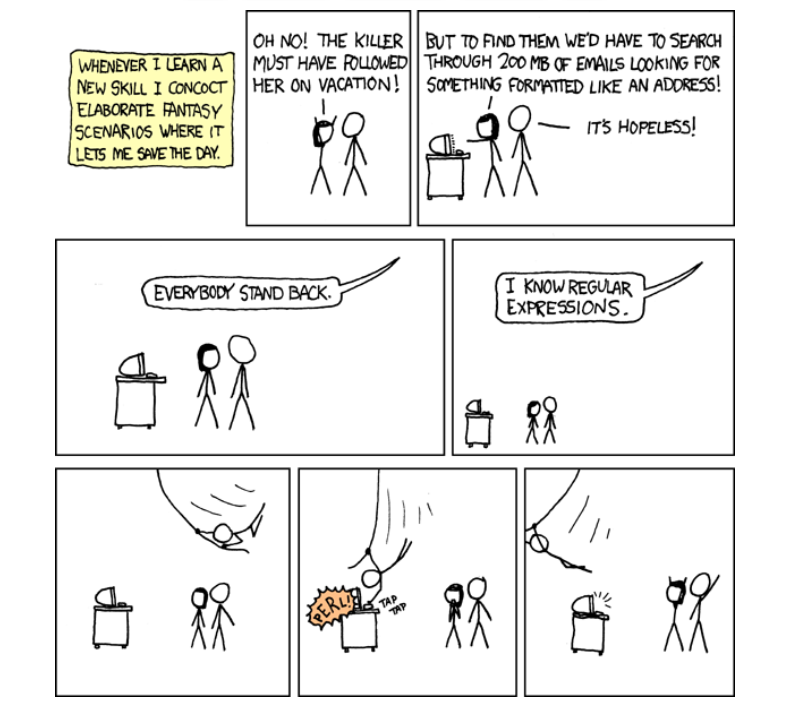
Regex Humor

Wait, forgot to escape a space. Wheeeeee[taptaptap]eeeeee. (source)
Posted on Leave a comment

How to Convert a List of Dicts to a CSV File in Python [4 Ways]

5/5 – (1 vote)

Problem: How to convert a list of dictionaries to a csv file?

Example: Given is a list of dicts—for example salary data of employees in a given company:

salary = [{'Name':'Alice', 'Job':'Data Scientist', 'Salary':122000}, {'Name':'Bob', 'Job':'Engineer', 'Salary':77000}, {'Name':'Carl', 'Job':'Manager', 'Salary':119000}]

Your goal is to write the content of the list of dicts into a comma-separated-values (CSV) file format. Your out file should look like this:

my_file.csv:

Name,Job,Salary
Alice,Data Scientist,122000
Bob,Engineer,77000
Ann,Manager,119000

Solution: There are four simple ways to convert a list of dicts to a CSV file in Python.

  1. Pandas: Import the pandas library, create a Pandas DataFrame, and write the DataFrame to a file using the DataFrame method DataFrame.to_csv('my_file.csv').
  2. CSV: Import the csv module in Python, create a CSV DictWriter object, and write the list of dicts to the file in using the writerows() method on the writer object.
  3. Python: Use a pure Python implementation that doesn’t require any library by using the Python file I/O functionality.
  4. Reduce Problem: You can first convert the list of dicts to a list of lists and then use our related tutorial’s methods to write the list of lists to the CSV.

My preference is Method 1 (Pandas) because it’s simplest to use, concise, and most robust for different input types (numerical or textual).

Method 1: Pandas DataFrame to_csv()

You can convert a list of lists to a Pandas DataFrame that provides you with powerful capabilities such as the to_csv() method. This is the easiest method and it allows you to avoid importing yet another library (I use Pandas in many Python projects anyways).

salary = [{'Name':'Alice', 'Job':'Data Scientist', 'Salary':122000}, {'Name':'Bob', 'Job':'Engineer', 'Salary':77000}, {'Name':'Carl', 'Job':'Manager', 'Salary':119000}] # Method 1
import pandas as pd
df = pd.DataFrame(salary)
df.to_csv('my_file.csv', index=False, header=True)

Output:

Name,Job,Salary
Alice,Data Scientist,122000
Bob,Engineer,77000
Carl,Manager,119000

You create a Pandas DataFrame—which is Python’s default representation of tabular data. Think of it as an Excel spreadsheet within your code (with rows and columns).

The DataFrame is a very powerful data structure that allows you to perform various methods. One of those is the to_csv() method that allows you to write its contents into a CSV file.

  • You set the index argument of the to_csv() method to False because Pandas, per default, adds integer row and column indices 0, 1, 2, …. Again, think of them as the row and column indices in your Excel spreadsheet. You don’t want them to appear in the CSV file so you set the arguments to False.
  • You set the and header argument to True because you want the dict keys to be used as headers of the CSV.

If you want to customize the CSV output, you’ve got a lot of special arguments to play with. Check out this article for a comprehensive list of all arguments.

🌍 Related article: Pandas Cheat Sheets to Pin to Your Wall

Method 2: Python CSV Module DictWriter

You can convert a list of dicts to a CSV file in Python easily—by using the csv library. This is the most customizable of all four methods.

Here are the six easy steps to convert a list of dicts to a CSV with header row:

  1. Import the CSV library with import csv.
  2. Open the CSV file using the expression open('my_file.csv', 'w', newline=''). You need the newline argument because otherwise, you may see blank lines between the rows in Windows.
  3. Create a csv.DictWriter() object passing the file and the fieldnames argument.
  4. Set the fieldnames argument to the first dictionary’s keys using the expression salary[0].keys().
  5. Write the header using writer.writeheader()
  6. Write the list of dicts using writer.writerows()

Here’s the full code for copy&paste:

salary = [{'Name':'Alice', 'Job':'Data Scientist', 'Salary':122000}, {'Name':'Bob', 'Job':'Engineer', 'Salary':77000}, {'Name':'Carl', 'Job':'Manager', 'Salary':119000}] # Method 2
import csv
with open('my_file.csv', 'w', newline='') as f: writer = csv.DictWriter(f, fieldnames=salary[0].keys()) writer.writeheader() writer.writerows(salary)

Output file named 'my_file.csv' and located in the same folder:

Name,Job,Salary
Alice,Data Scientist,122000
Bob,Engineer,77000
Carl,Manager,119000 

You can customize the CSV writer in its constructor (e.g., by modifying the delimiter from a comma ',' to a whitespace ' ' character). Have a look at the specification to learn about advanced modifications.

Method 3: Pure Python Without External Dependencies

If you don’t want to import any library and still convert a list of dicts into a CSV file, you can use standard Python implementation as well: it’s not complicated and very efficient.

This method is best if you won’t or cannot use external dependencies.

  • Open the file f in writing mode using the standard open() function.
  • Write the first dictionary’s keys in the file using the one-liner expression f.write(','.join(salary[0].keys())).
  • Iterate over the list of dicts and write the values in the CSV using the expression f.write(','.join(str(x) for x in row.values())).

Here’s the concrete code example:

salary = [{'Name':'Alice', 'Job':'Data Scientist', 'Salary':122000}, {'Name':'Bob', 'Job':'Engineer', 'Salary':77000}, {'Name':'Carl', 'Job':'Manager', 'Salary':119000}] # Method 3
with open('my_file.csv','w') as f: f.write(','.join(salary[0].keys())) f.write('\n') for row in salary: f.write(','.join(str(x) for x in row.values())) f.write('\n')

Output:

Name,Job,Salary
Alice,Data Scientist,122000
Bob,Engineer,77000
Carl,Manager,119000

In the code, you first open the file object f. Then you iterate over each row and each element in the row and write the element to the file—one by one. After each element, you place the comma to generate the CSV file format. After each row, you place the newline character '\n'.

Note: to get rid of the trailing comma, you can check if the element x is the last element in the row within the loop body and skip writing the comma if it is.

🌍 Finxter Recommended: Join the Finxter community and download your 8+ Python cheat sheets to refresh your code understanding.

Method 4: Converting to List of Lists First

A simple approach to convert a list of dicts to a CSV file is to first convert the list of dicts to a list of lists and then use the approaches discussed in the following article (code block given).

salary = [['Alice', 'Data Scientist', 122000], ['Bob', 'Engineer', 77000], ['Ann', 'Manager', 119000]] # Method 1
import csv
with open('file.csv', 'w', newline='') as f: writer = csv.writer(f) writer.writerows(salary) # Method 2
import pandas as pd
df = pd.DataFrame(salary)
df.to_csv('file2.csv', index=False, header=False) # Method 3
a = [[1, 2, 3], [4, 5, 6], [7, 8, 9]] import numpy as np
a = np.array(a)
np.savetxt('file3.csv', a, delimiter=',') # Method 4
with open('file4.csv','w') as f: for row in salary: for x in row: f.write(str(x) + ',') f.write('\n')

🌍 Related Tutorial: How to Convert a List to a CSV File in Python [5 Ways]

Where to Go From Here?

Enough theory. Let’s get some practice!

Coders get paid six figures and more because they can solve problems more effectively using machine intelligence and automation.

To become more successful in coding, solve more real problems for real people. That’s how you polish the skills you really need in practice. After all, what’s the use of learning theory that nobody ever needs?

You build high-value coding skills by working on practical coding projects!

Do you want to stop learning with toy projects and focus on practical code projects that earn you money and solve real problems for people?

🚀 If your answer is YES!, consider becoming a Python freelance developer! It’s the best way of approaching the task of improving your Python skills—even if you are a complete beginner.

If you just want to learn about the freelancing opportunity, feel free to watch my free webinar “How to Build Your High-Income Skill Python” and learn how I grew my coding business online and how you can, too—from the comfort of your own home.

Join the free webinar now!

Posted on Leave a comment

3 Simple Steps to Convert calendar.ics to CSV/Excel in Python

Rate this post

Step 1: Install csv-ical Module with PIP

Run the following command in your command line or PowerShell (Windows) or shell or terminal (macOS, Linux, Ubuntu) to install the csv-ical library:

pip install csv-ical

In some instances, you need to modify this command a bit to make it work. If you need more assistance installing the library, check out my detailed guide.

🌍 Full Guide: How to install a library/module in Python?

Step 2: Prepare files

Create a new Python code file with the extension .py or a Jupyter Notebook with the file extension .ipynb. This creates a Python script or Jupyter Notebook that can run the code in Step 3 to conver the .ics.

Now, put the .ics file to be converted in the same folder as the newly-created Python script.

Use Jupyter Notebook to create a new .ipynb file

Step 3: Convert

This step consists of running the code doing these three things:

  • Create and initialize a Convert object
  • Read the .ics file
  • Create the CSV object and save it at the specified location

Here’s the full code:

from csv_ical import Convert # Create and initialize a Convert object
convert = Convert()
convert.CSV_FILE_LOCATION = 'my_file.csv'
convert.SAVE_LOCATION = 'my_file.ics' # Read the .ics file
convert.read_ical(convert.SAVE_LOCATION) # Create the CSV object and save it at the specified location
convert.make_csv()
convert.save_csv(convert.CSV_FILE_LOCATION)

Thanks for going through the whole tutorial! <3


Posted on Leave a comment

How to Sort Words Alphabetically in Python?

5/5 – (1 vote)

Problem Formulation and Solution Overview

In this article, you’ll learn how to sort words alphabetically in Python.

To make it more fun, we have the following running scenario:

Some English sayings, also known as Tongue-Twisters, are fun to try and say quickly. They are also used to improve non-English speaking individuals and small children’s fluency and pronunciation of the English language.

Imagine how challenging tongue twisters would be if sorted in alphabetical order!


💬 Question: How would we write code to sort a string in alphabetical order?

We can accomplish this task by one of the following options:


Method 1: Use split() and sort()

This method uses Python’s built-in string library to reference split() and sort() to display the words in ascending alphabetical order.

twister = 'how much wood would a woodchuck chuck if a woodchuck could chuck wood?'.lower().split()
twister.sort()
print(twister)

Above declares a tongue twister, converts the entire string to lowercase (lower()) and breaks it apart (split()) by default, on the space (' ') character. The results save to twister in a List format. If output to the terminal, the following displays.

['How', 'much', 'wood', 'would', 'a', 'woodchuck', 'chuck', 'if', 'a', 'woodchuck', 'could', 'chuck', 'wood?']

The following line sorts twister (sort()) in ascending alphabetical order. If output to the terminal, the following would display.

['a', 'a', 'chuck', 'chuck', 'could', 'how', 'if', 'much', 'wood', 'wood?', 'woodchuck', 'woodchuck', 'would']
YouTube Video

Method 2: Use split(), sorted() and join()

This method uses Python’s built-in string library to reference split() and sorted() to display the words in descending alphabetical order.

twister = 'I scream, you scream, we all scream for ice cream!'.lower()
twister = ' '.join(sorted(twister.split(), reverse=True)) print(twister)

Above declares a tongue twister, then converts the string to lowercase (lower()). The results save to twister in a List format. If output to the terminal, the following would display.

['i', 'scream,', 'you', 'scream,', 'we', 'all', 'scream', 'for', 'ice', 'cream!']

The following line breaks it apart (split()) by default, on the space (' ') character. Then, twister is sorted (sorted()) in descending alphabetical order (reverse=True).

The words are combined using the join() function, saved to twister and output to the terminal.

['you', 'we', 'scream,', 'scream,', 'scream', 'ice', 'i', 'for', 'cream!', 'all']
YouTube Video

Method 3: Use Bubble Sort Algorithm

This method uses the famous Bubble Sort Algorithm. This function accepts a List and loops through each element, comparing two (2) values, the current element value and the next element value. The greater element floats to the top, and the loop continues until the List is sorted.

twister = 'Which wristwatches are Swiss wristwatches?'.lower().split() def bubblesort(lst): for passesLeft in range(len(lst)-1, 0, -1): for i in range(passesLeft): if lst[i] > lst[i + 1]: lst[i], lst[i + 1] = lst[i + 1], lst[i] return ' '.join(lst) print(bubblesort(twister)) 

Above declares a tongue twister, converts the entire string to lowercase (lower()) and breaks it apart (split()) by default, on the space (' ') character. The results save to twister in a List format. If output to the terminal, the following displays.

['which', 'wristwatches', 'are', 'swiss', 'wristwatches?']

Next, the bubblesort() function is declared and accepts one (1) argument, an iterable List. An explanation of this code is outlined above.

However, we modified the code slightly to return a new string containing the sorted List values.

The bubblesort() function is then called and passed twister as an argument. The results are output to the terminal.

are swiss which wristwatches wristwatches?
YouTube Video

Method 4: Use sort_values()

This function imports the Pandas Library to reference the sort_values() function. This function sorts column(s) in a DataFrame.

To run this code error-free, install the required library. Click here for installation instructions.

To follow along, click here to download the finxters.csv file. Move this file to the current working directory.

import pandas as pd df = pd.read_csv('finxters.csv', skip_blank_lines=True, usecols=['FID', 'Username', 'Rank'])
rank_sort = df.sort_values(by=["Rank"], ascending=True)
print(rank_sort)

Above, imports the Pandas library.

Then, the finxter.csv file is read in, omitting blank lines, selecting the three (3) stated columns and saving to df.

Next, sort is applied to the Rank column, which contains the words pertaining to a user’s achievement level. The DataFrame (df) is sorted based on this column and the results save to rank_sort and output to the terminal.

Below a snippet of the results displays.

FID Username Rank
0 30022145 wildone92 Authority
45 3002481 Moon_Star2 Authority
9 30022450 Gar_man Authority
4 30022359 AliceM Authority
24 3002328 Wall_2021 Authority
49 3002573 jJonesing Authority
47 3002521 KerrStreet Autodidact
YouTube Video

Summary

These four (4) methods of sorting words alphabetically should give you enough information to select the best one for your coding requirements.

Good Luck & Happy Coding!


Programmer Humor – Blockchain

“Blockchains are like grappling hooks, in that it’s extremely cool when you encounter a problem for which they’re the right solution, but it happens way too rarely in real life.” source xkcd

Posted on Leave a comment

Best Solidity Linter

Rate this post

💡 A code linter is a static code analysis tool to find programming errors, bugs, style mistakes, and suspicious constructs.

The best Solidity Linter is Ethlint with a close second Solhint. Most other linters are not well qualified to compete with those early tools!

Solidity Linter #1 – Ethlint

Ethlint comes with the popular slogan “yet another Solidity linting tool”.

I think the name is not well chosen because, due the fact that Solidity is super young, there is not a swamp of linting tools available, yet.

You can install it using the following expression:

npm install -g solhint

Here’s how you’d run this:

solhint [options] <file> […other_files]

💡 Learn More: Ethlint Linting Tool

Solidity Linter #2 – Solhint

Solhint is a linter for Solidity that provides security and a style guide validations.

You can install the Linter using this command:

npm install -g ethlintsolium -V

After initial configuration, the execution is as simple as running this command in your shell:

> npm run solhint

💡 Learn More: Solhint Linting Tool

I would recommend more but I think those are the two best tools at this point.

If you want to learn Soldity, I’d applause you because this means you rely less on Linters (a goal worth pursuing)! 🙂

You can check out our in-depth tutorial here:

Learn Solidity Course

Solidity is the programming language of the future.

It gives you the rare and sought-after superpower to program against the “Internet Computer”, i.e., against decentralized Blockchains such as Ethereum, Binance Smart Chain, Ethereum Classic, Tron, and Avalanche – to mention just a few Blockchain infrastructures that support Solidity.

In particular, Solidity allows you to create smart contracts, i.e., pieces of code that automatically execute on specific conditions in a completely decentralized environment. For example, smart contracts empower you to create your own decentralized autonomous organizations (DAOs) that run on Blockchains without being subject to centralized control.

NFTs, DeFi, DAOs, and Blockchain-based games are all based on smart contracts.

This course is a simple, low-friction introduction to creating your first smart contract using the Remix IDE on the Ethereum testnet – without fluff, significant upfront costs to purchase ETH, or unnecessary complexity.

Posted on Leave a comment

How to Read and Convert a Binary File to CSV in Python?

5/5 – (1 vote)

To read a binary file, use the open('rb') function within a context manager (with keyword) and read its content into a string variable using f.readlines(). You can then convert the string to a CSV using various approaches such as the csv module.

Here’s an example to read the binary file 'my_file.man' into your Python script:

with open('my_file.man', 'rb') as f: content = f.readlines() print(content)

Per default, Python’s built-in open() function opens a text file. If you want to open a binary file, you need to add the 'b' character to the optional mode string argument.

  • To open a file for reading in binary format, use mode='rb'.
  • To open a file for writing in binary format, use mode='rb'.

Now that the content is in your Python script, you can convert it to a CSV using the various methods outlined in this article:

🌍 Learn More: Convert a String to CSV in Python

After you’ve converted the data to the comma-separated values (CSV) format demanded by your application, you can write the string to a file using either the print() function with file argument or the standard file.write() approach.

Posted on Leave a comment

How to Convert Epoch Time to Date Time in Python

5/5 – (1 vote)

Problem Formulation and Solution Overview

In this article, you’ll learn how to convert Epoch Time to a Date Time representation using Python.

On January 1st, 1970, Epoch Time, aka Time 0 for UNIX systems, started as a date in history to remember. This date is relevant, not only due to this event but because it redefined how dates are calculated!

To make it more fun, we will calculate the time elapsed in Epoch Time from its inception on January 1, 1970, to January 1, 1985, when the first mobile phone call was made in Britain by Ernie Wise to Vodafone. This will then be converted to a Date Time representation.


💬 Question: How would we write code to convert an Epoch Date to a Date Time representation?

We can accomplish this task by one of the following options:


Method 1: Use fromtimestamp()

This method imports the datetime library and calls the associated datetime.fromtimestamp() function to convert Epoch Time into a Local Date Time representation.

To run this code error-free, install the required library. Click here for installation instructions.

import datetime epoch_time = 473398200
date_conv = datetime.datetime.fromtimestamp(epoch_time)
print(date_conv.strftime('%d-%m-%Y'))

Above, imports the datetime library. This allows the conversion of an Epoch Time integer to a readable Local Date Time format.

The following line declares an Epoch Time integer and saves it to epoch_time.

Next, the highlighted line converts the Epoch Time into a Local Date Time representation and saves it to date_conv. If output to the terminal at this point, it would display as follows:

1985-01-01 00:00:00

Finally, date_conv converts into a string using strftime() and outputs the formatted date to the terminal.

01-01-1985

Method 2: Use time.localtime()

This method imports the time library and calls the associated time.localtime() function to convert Epoch Time into a Local Date Time representation.

import time epoch_time = 473398200
date_conv = time.localtime(epoch_time)
print(date_conv)

Above, imports the time library. This allows the conversion of an Epoch Time to a readable Local Date Time format.

The following line declares an Epoch Time integer and saves it to epoch_time.

Next, the highlighted line converts the Epoch Time into a Local Date Time representation and saves it to date_conv as a Tuple as shown below:

time.struct_time(tm_year=1985, tm_mon=1, tm_mday=1, tm_hour=0, tm_min=0, tm_sec=0, tm_wday=1, tm_yday=1, tm_isdst=0)

The appropriate elements will need to be accessed to format a date or time. For this example, we will construct the date.

print(f'0{date_conv[1]}-0{date_conv[2]}-{date_conv[0]}')

The output is as follows:

01-01-1985
YouTube Video

Method 3: Use datetime.utcfromtimestamp

This method imports the datetime library and calls the associated datetime.utcfromtimestamp() function to convert an Epoch Time into a UTC Date Time representation.

To run this code error-free, install the required library. Click here for installation instructions.

import datetime epoch_time = 473398200
date_conv = datetime.datetime.utcfromtimestamp(epoch_time).strftime('%Y-%m-%d %H:%M:%S')
print(date_conv)

Above, imports the datetime library. This allows the conversion of an Epoch Time integer to a readable UTC Date Time format.

The following line declares an Epoch Time integer and saves it to epoch_time.

Next, the highlighted line accomplishes the following:

  • Converts an Epoch Time to a UTC Date Format.
  • Converts to a Date string (strftime()) into the stated format.
  • Saves the result to date_conv.

The output is sent to the terminal.

1985-01-01 03:30:00

💡Note: Universal Time (UTC) is the primary standard 24-hour time clock by which the World regulates clocks and time.

YouTube Video

Method 4: Use time.localtime() and time.strftime()

This method imports the time library in conjunction with the time.localtime()and time.strftime() functions to convert Epoch Time into a Local Date Time representation.

import time epoch_time = 473398200
date_conv = time.strftime('%c', time.localtime(epoch_time))
print('Formatted Date:', date_conv)

Above, imports the time library. This allows the conversion of an Epoch Time to a readable Local Date Time format.

The following line declares an Epoch Time integer and saves it to epoch_time.

Next, the highlighted line converts the Epoch Time into a Local Date Time representation, converts to a string (strftime()) format and saves it to date_conv.

The output is sent to the terminal.

Formatted Date: Tue Jan 1 00:00:00 1985

Summary

These four (4) methods of converting an Epoch Time to a Date Time representation should give you enough information to select the best one for your coding requirements.

Good Luck & Happy Coding!


Programmer Humor – Blockchain

“Blockchains are like grappling hooks, in that it’s extremely cool when you encounter a problem for which they’re the right solution, but it happens way too rarely in real life.” source xkcd
Posted on Leave a comment

Blockchain Basics of Smart Contracts and Solidity

5/5 – (1 vote)

This article will give you an overview of the blockchain basics, transactions, and blocks.

In the previous article of this series, we looked at how to create your own token using Solidity and, specifically, events for transactions.

YouTube Video

Blockchain Basics

Blockchain technology enables us to write programs without having to think about the details of the underlying communication infrastructure.

However, just to be aware of some of the keywords which are commonly used when studying the infrastructure, we’ll name just a few among others (borrowed from the Solidity documentation):

  • mining,
  • elliptic-curve cryptography,
  • peer-to-peer network.

Although it’s interesting to see how these technologies work “under the blockchain’s hood”, the beneficial fact is that you don’t have to be closely familiar with them. You can just implicitly utilize them and maybe even forget they’re there. However, they represent some of the key elements which make up Web3.

💡 Note: Here, we need to establish a firm distinction between the terms Web3 in the blockchain context that is the subject of our interest when discussing Solidity, and the Semantic Web, sometimes known as Web 3.0, which is an extension of the World Wide Web, intended to make Internet data machine-readable.

Transactions

One of the main roles of a blockchain is to preserve the data and make it temper-resistant. In that sense, we can easily consider a blockchain as a globally shared, transactional database.

A blockchain network is globally shared because any party in the network can access and read its contents.

It is transactional because any change to the blockchain has to be accepted by almost all, or at least the majority of other members, depending on the blockchain implementation.

In database theory and practice having a transactional property means two things: the change to the database is either applied completely or not at all (see here); no other transaction can modify the effect of a transaction being executed.

We regularly ensure the equivalent behavior of our smart contracts by using error handling and control structures available in Solidity (docs).

Blockchain Security

There is also a strong security property that is inherent in the way how blockchain works: each new block header includes the hash of the previous block.

To alter a block in a blockchain, an attacker would have to re-mine the targeted block and all the following blocks, therefore creating a chain fork.

Also, an attacker would need to invest more total work than was invested in the original chain segment to get his chain fork accepted by the rest of the network (source).

The latter would require immense computing power and energy, making the entire effort unfeasible in theory.

However, there have been successful attacks on blockchain networks, mostly due to the smaller scale of a particular network, where a fraudulent consensus (the verification process) was less difficult to fabricate, block creation errors, or insufficient security measures (source).

Example Application

An example to the story above is already given in part by the example we did in the previous article: a smart contract for (simulated) currency transfer between any two parties.

There was a list of accounts holding balances in a cryptocurrency, Wei, and our smart contract supported transfers of a given amount of currency from the sender to the receiver.

What’s important in the context of such transactions is that the same amount of currency should always be “simultaneously” deducted from the sender’s account and added to the receiver’s account.

What we mean by “simultaneously” is not a matter of happening at the same moment, but happening with the same, but the opposite consequence, i.e. if the amount gets successfully deducted from the sender’s account, it has to be added to the receiver’s account.

If an error occurs after the amount is decreased from the sender’s account, but before the amount is added to the receiver’s account, the operation should revert to the smart contract’s previous state, as it was before the transaction started.

This way, the blockchain behaves in a consistent, transactional manner and warrants that the transaction will be done entirely or not at all.

In the context of everything said so far, with our subcurrency example in mind, we may ask ourselves:

💬 Question: How would we enable an account owner to transfer the currency only from the account in his ownership?

The answer to the question is relatively simple:

💡 Answer: A transaction always bears the sender’s cryptographic signature, which serves as a seal in granting access to precisely defined modifications of (operations on) the database, such as currency transfer from the account owner originally holding the currency, to the account owner – receiver of the currency.

Blocks

There is no story about blockchain without actually mentioning the block itself. We will definitively return to talk about a block from some other angles, but with a security perspective in mind, we will focus on overcoming a significant obstacle known (in Bitcoin terms) a “double-spend attack” (source).

Some paragraphs ago, we mentioned a blockchain attack implying the majority of the network members’ acceptance, popularly known as the “51% attack”.

Let’s assume there are two transactions in the blockchain network, and each of them attempts to transfer all the account’s currency to another account, i.e. they will both attempt to empty the account.

Since there can be only one accepted, confirmed transaction (in contrast to two or more possible unconfirmed transactions), the transaction that gets confirmed first will end up bundled in a block. It is not under our control or, for that matter, not even a subject of our concern which block will be the first one.

What matters is that the second block will be rejected and the contention between the blocks/transactions will be resolved automatically, and the likelihood of the double-spend attack problem will decrease with each additional confirmation (source).

Blocks are sequentially added to a blockchain, ordered by the time of their arrival. Adding a block to the blockchain is mostly done in regular intervals, which last about 17 seconds for the Ethereum network.

Nonetheless, the blockchain tip can sometimes be reverted during the order selection mechanism. In that case, a confirmed block will get discarded and become a stale block, and the stale block’s successor blocks just get returned to the memory pool.

💡 Note: discarded or stale blocks are popularly and wrongly called orphan blocks. (source)

For block reversal to happen, two conditions should occur.

(1) First, multiple blocks should get created from the same parent block P simultaneously (by different miners) and get confirmed by the network, forming a fork with multiple subchains/branches at the tip (block) P of the blockchain.

As there are multiple successor block candidates (e.g. we will assume three blocks, A, B, and C), each block has an equal chance of becoming a permanent part of the blockchain.

Because blocks propagate through the blockchain network differently, miners will receive one of the blocks (A, B, or C) before the other blocks and start mining a new block on the block they received first.

(2) Second, one of the miners will mine and broadcast a new block, e.g.  C1 to the network before the other miners mine blocks A1 or B1 (these don’t exist as yet).

Since the fastest miner first received block C and then produced C1, it will extend the branch P-C, effectively making the branch P-C-C1 the longest one. Once the network detects there is a chain longer than the chains P-A and P-B, it will disqualify the candidate blocks A and B as stale blocks, thus resolving the contention.

All the miners who chose a different blockchain from the fork, e.g. P-A or P-B, and started building their blockchains on them, will experience a block reversal, as their chains will also get updated by the network with the blockchain P-C-C1 as the longest one.

The blockchain tip reversal gets less likely to happen as more blocks are confirmed and added to the blockchain. A common number of confirmations after we can be virtually certain that our block became a permanent part of a blockchain is six confirmations (source).

Conclusion

In this article, we first shortly made a short detour (sorry about that) to a missing part about Solidity events, and then boldly stepped into the direction of blockchain basics, transactions, and blocks.

First, we made friends with an event listener example based on web3.js library.

Second, we glanced at the blockchain basics. You already know the works: some basic terms, dry notes, etc. It’s just a scratch, really.

Third, we learned about how blockchain treats transactions and how it makes them feel secure,  shared and cared for. That’s why we mentioned some properties that make blockchain look like a database.

Fourth, we went into some light details on what a block is, what is its role in the blockchain ecosystem and what are some of the risks present in a blockchain network.


Learn Solidity Course

Solidity is the programming language of the future.

It gives you the rare and sought-after superpower to program against the “Internet Computer”, i.e., against decentralized Blockchains such as Ethereum, Binance Smart Chain, Ethereum Classic, Tron, and Avalanche – to mention just a few Blockchain infrastructures that support Solidity.

In particular, Solidity allows you to create smart contracts, i.e., pieces of code that automatically execute on specific conditions in a completely decentralized environment. For example, smart contracts empower you to create your own decentralized autonomous organizations (DAOs) that run on Blockchains without being subject to centralized control.

NFTs, DeFi, DAOs, and Blockchain-based games are all based on smart contracts.

This course is a simple, low-friction introduction to creating your first smart contract using the Remix IDE on the Ethereum testnet – without fluff, significant upfront costs to purchase ETH, or unnecessary complexity.

Posted on Leave a comment

How to Convert Multiple Text Files to a Single CSV in Python?

5/5 – (1 vote)

You can merge multiple text files to a single CSV file in Python by using the glob.glob('./*.txt') expression to filter out all path names of text files in a given folder. Then iterate over all those path names and use the open() function to read the file contents and write append them to the CSV.

Example: merge those files

Here’s the simple example:

import glob with open('my_file.csv', 'a') as csv_file: for path in glob.glob('./*.txt'): with open(path) as txt_file: txt = txt_file.read() + '\n' csv_file.write(txt) 

The resulting output CSV file shows that all text files have been merged:

You can replace the separator (e.g., from single empty space to comma) by using the txt.replace(' ', ',') function before writing it in the CSV:

import glob with open('my_file.csv', 'a') as csv_file: for path in glob.glob('./*.txt'): with open(path) as txt_file: txt = txt_file.read() + '\n' txt = txt.replace(' ', ',') csv_file.write(txt) 

The resulting CSV is neatly separated with comma characters:

In case you need some more advanced ways to convert the text files to the CSV, you may want to check out the Pandas read_csv() function to read the CSV into a DataFrame.

As soon as you have it as a DataFrame, you can do advanced processing such as merging, column selection, slicing, etc.

🌍 Related Tutorial: How to Read a CSV to a DataFrame?