Posted on Leave a comment

How I Built an OpenAI-Powered Web Assistant with Django

5/5 – (1 vote)

Django is a backend web framework that makes it easy to build web pages quickly using Python. There is no better way to learn Django than by building projects. In this tutorial, I will show you how I built an Artificial Intelligence-powered web assistant using Django.

Set Up

To get started, we will create a directory where every file will live in. In the directory, we will create and activate a virtual environment. Then we will install the required Python libraries for the project. I am using an Ubuntu terminal, so a basic knowledge of the command line will be an added advantage going forward.

mkdir project && cd project
python3 -m venv .venv
source .venv/bin/activate

In the project directory, we create and activate a virtual environment using the source command. You can also replace the source command with a dot .. Let’s now install the modules we will be using.

pip install django tzdata openai

Creating Django Project

Once the installation is complete, run the following command in your Ubuntu terminal to create a Django project.

django-admin startproject webassistant .

This creates a folder with the name webassistant.

  • The . tells Django to create the project in the current directory.
  • The manage.py file is used to execute several Django commands.
  • The settings.py in the webassistant folder is the project’s settings. In it, we will register the Django apps we are about to create.
  • The urls.py is where we will let Django know what it should display to the user.

We now check to ensure that the installation went successfully. In your terminal run the following command:

python3 manage.py runserver

Once you have seen the above image, congrats! You have successfully installed Django. You can use control C to close the server.

Creating Django Apps

Back to your terminal, run the following command to create a Django app.

python3 manage.py startapp assistant

Use the ls command to see what’s inside the assistant folder.

ls assistant
__init__.py admin.py apps.py migrations models.py tests.py views.py

The __init__.py file found in both the webassistant and assistant folders enables the folders to be imported as a Python package. The views.py is where we code what we want the browser to be displayed to the user. These files are what concern our project. To know more about other files, check the documentation.

Next, we go to the settings.py file, in INSTALLED_APPS section to register the name of the app we just created. Use the nano command.

nano webassistant/settings.py

...
INSTALLED_APPS = [ 'django.contrib.admin', 'django.contrib.auth', 'django.contrib.contenttypes', 'django.contrib.sessions', 'django.contrib.messages', 'django.contrib.staticfiles', # custom app 'assistant',
]

We also open the project’s urls.py file to register the app-level URLs.

from django.contrib import admin
from django.urls import path, include urlpatterns = [ path('admin/', admin.site.urls), path('', include('assistant.urls')),
]

The path() function is used to map the URL to the appropriate view. The include() function adds the URL of the app to the project-level urls.py. The empty quote means the home URL, that is, what we see when we run the local server.

If you have read Django tutorials including this one, you are gradually becoming familiar with the process. That’s how it is done in every Django application.

Getting the API Key

We need an API key to enable the OpenAI model to perform web assistant tasks for us. To get the API key, we first have to create an account on the official website of OpenAI. Once you have completed the signup process, go to the OpenAI API reference where you will be directed to a page to generate your API key.

⭐ Recommended: OpenAI API – or How I Made My Python Code Intelligent

Make sure you keep the API key safe. Create a file in your app-level folder and call it key.py.

API_KEY = 'YOUR SECRET API KEY'

Just replace the text in quotes with your own generated API key.

Integrating the OpenAI Model

To integrate the API with our Django application, create a file called engine.py in the app’s folder and input the following python script.

# engine.py from .key import API_KEY
import openai openai.api_key = API_KEY def model(request): prompt = request.POST.get('prompt') response = openai.Completion.create( engine='text-davinci-003', temperature=0.5 prompt=prompt, max_tokens=1000, ) text = response.choices[0].text chats = {'prompt': prompt, 'response': text } return chats

We import the API key and the openai module. We use the openai.api_key to load the API key. Then, in the function, we requested to get the prompt, which is the question asked by the user. We then return the response generated by the model in form of a dictionary.

The temperature affects the randomness of the output, and it’s between 0 and 1. The AI model employed to generate predictions is the text_davinci_003. The max_tokens specifies the maximum number of tokens or pieces of words that can be generated by the model.

To learn more about the parameters, perhaps this article can be of help. We will now import the function in our views.py file.

from django.shortcuts import render, redirect
from .engine import model def home(request): try: if request.method == 'POST': context = model(request) return render(request, 'home.html', context) else: return render(request, 'home.html') except: return redirect('error') def error_handler(request): return render(request, 'error.html')

Two functions indicate two separate HTML files. In the first function, we use a try statement to check the block of code for errors. If no errors were found, the code under the try statement will execute. But if there were errors, the code under the except statement will be executed.

🐍 Recommended: Python Try/Except Error Handling

The if statement checks if the request method is POST, if so, it will generate a response from the OpenAI model. But if otherwise, the else statement will be run in which no response will be generated.

The render() function renders or displays a response in the HTML files which we are yet to create. Notice that in the else statement, the render() function just renders the same homepage without the context because the request method was not POST. The redirect() function is used to redirect a user to another webpage.

Let’s now write a URL in the urls.py file to display our contents.

assistant/urls.py from django.urls import path
from .import views urlpatterns = [ path('', views.home, name='home'), path('error', views.error_handler, name='error_handler'),
]

The name argument is kind of an alias for the URL. So instead of writing long URLs, we can just reference them with the name given. Mostly used in HTML files.

Templates

We now want to render our templates. Create a folder named templates in the current directory. This is where we will keep our HTML files. Having created the folder, go to settings.py and let Django know that a templates folder is created.

In the settings.py file, scroll down to the ‘TEMPLATES’ section and add the following to DIRS.

…
TEMPLATES = [ { … 'DIRS': [os.path.join(BASE_DIR, 'templates')], … }
]

Be sure to import the os module. Then, create a file in the templates folder with the name base.html

<!DOCTYPE html>
<html lang="en">
<head> <meta charset="UTF-8"> <meta http-equiv="X-UA-Compatible" content="IE=edge"> <meta name="viewport" content="width=device-width, initial-scale=1.0"> <title>Web Assistant | {% block title %} {% endblock %}</title> <link href="https://cdn.jsdelivr.net/npm/bootstrap@5.3.0-alpha1/dist/css/bootstrap.min.css" rel="stylesheet">
</head>
<body> {% block content %} {% endblock %}
</body>
</html>

That’s our HTML boilerplate with bootstrap added to it for styling our web pages. Next is the home.html, the homepage that will inherit everything in the base.html template.

{% extends 'base.html' %}
{% block title %} Home {% endblock %}
{% block content %}
<div class="row justify-content-center my-4"> <div class="col-md-7 mt-4"> <div class="card"> <h1 class="card-header text-center">A.I WEB ASSISTANT</h1> <div class="card-body"> <pre>Hello, how can I help you?</pre> <form action="." method="POST"> <!-- this secures the form from malicious attacks during submission --> {% csrf_token %} <input class="form-control mb-2" required type="text" autofocus="autofocus" name="prompt" value="{{ prompt }}" id=""> <button class="btn btn-success fw-bold" type="submit"> GENERATE </button> </form> <hr> <pre> {{ response }} </pre> </div> </div> </div> </div>
</div>
{% endblock %}

Finally, the error.html will be displayed when an error occurs. It also inherits everything in the base.html.

{% extends 'base.html' %}
{% block title %} 404 {% endblock %}
{% block content %}
<div class="row justify-content-center my-4"> <div class="col-md-7 mt-4"> <h1>Page Not Found</h1> <p>Make sure you are connected to the internet or your query is correct</p> <a href="{% url 'home' %}" class="btn btn-secondary">Home</a> </div>
</div>
{% endblock %}

Certain things in these HTML files demand an explanation. Those strange syntaxes that begin with curly braces are Django templating language. When used with a block statement, it must end with an endblock statement. In base.html, we inserted the empty block statement in the title tag.

This makes it possible to override the home and error HTML files with a different word. But you can see the ‘Web Assistant’ remains the same in all files inheriting base.html.

The csrf_token is for security reasons. It’s compulsory. If you don’t add it, Django will throw an error. The prompt variable comes from the view.py file which in turn is imported from the engine.py file. The same applies to the response. Remember, we sent them here using the render() function.

The {% url 'home' %} syntax is Django’s way of displaying internal URLs. Go back to the app-level urls.py, you will see where we defined the name and this makes it possible to use it in HTML files.

Conclusion

Congrats on creating an AI-powered web assistant using Django. If you enjoy the tutorial, feel free to share it with others. Have a nice day.

⭐ Recommended: How I Created an URL Shortener App Using Django

Posted on Leave a comment

Python to .exe – How to Make a Python Script Executable?

5/5 – (1 vote)

I have a confession to make. I use Windows for coding Python.

This means that I often need to run my practical coding projects as Windows .exe files, especially if I work with non-technical clients that don’t know how to run a Python file.

In this tutorial, I’ll share my learnings on making a Python file executable and converting them to an .exe so that they can be run by double-click.

PyInstaller

To make a Python script executable as a .exe file on Windows, use a tool like pyinstaller. PyInstaller runs on Windows 8 and newer.

⭐ Pyinstaller is a popular package that bundles a Python application and its dependencies into a single package, including an .exe file that can be run on Windows without requiring a Python installation.

Here are the general steps to create an executable file from your Python script using Pyinstaller:

  1. Install Pyinstaller by opening a command prompt and running the command: pip install pyinstaller or pip3 install pyinstaller depending on your Python version.
  2. Navigate to the directory where your Python script is located in the command prompt using cd (command line) or ls (PowerShell).
  3. Run the command: pyinstaller --onefile your_script_name.py. This command creates a single executable file of your Python script with all its dependencies included.
  4. After the command completes, you can find the executable file in a subdirectory called dist.
  5. You can now distribute the executable file to users, who can run it on their Windows machines by double-clicking the .exe file.

What Does the –onefile Option Mean?

The --onefile file specifier is an option for Pyinstaller that tells it to package your Python script and all its dependencies into a single executable file.

By default, Pyinstaller will create a directory called dist that contains your script and a set of related files that it needs to run. However, using the --onefile option, Pyinstaller will generate a single .exe file, which is more convenient for the distribution and deployment of the application.

1-Paragraph Summary

To convert a Python file my_script.py to an executable my_script.exe using Pyinstaller, install Pyinstaller using pip install pyinstaller, navigate to the script directory in the command prompt, run pyinstaller --onefile my_script.py, then locate the executable file in the dist folder.

If you want to keep improving your coding skills, check out our free Python cheat sheets!

Posted on Leave a comment

PIP Install Django – A Helpful Illustrated Guide

5/5 – (1 vote)

As a Python developer, I love using Django for web development. Its built-in features and clear code structure make building scalable and robust web applications fast and efficient. In fact, I used Django to build my own web app for Python testing and training.

Here’s how you can install Django:

pip install django

Alternatively, you may use any of the following commands to install django, depending on your concrete environment. One is likely to work!

💡 If you have only one version of Python installed:
pip install django 💡 If you have Python 3 (and, possibly, other versions) installed:
pip3 install django 💡 If you don't have PIP or it doesn't work
python -m pip install django
python3 -m pip install django 💡 If you have Linux and you need to fix permissions (any one):
sudo pip3 install django
pip3 install django --user 💡 If you have Linux with apt
sudo apt install django 💡 If you have Windows and you have set up the py alias
py -m pip install django 💡 If you have Anaconda
conda install -c anaconda django 💡 If you have Jupyter Notebook
!pip install django
!pip3 install django

Let’s dive into the installation guides for the different operating systems and environments!

How to Install Django on Windows?

To install the updated Django framework on your Windows machine, run the following code in your command line or Powershell:

  • python3 -m pip install --upgrade pip
  • python3 -m pip install --upgrade django

Here’s the code for copy&pasting:

python3 -m pip install --upgrade pip
python3 -m pip install --upgrade django

I really think not enough coders have a solid understanding of PowerShell. If this is you, feel free to check out the following tutorials on the Finxter blog.

Related Articles:

How to Install Django on Mac?

Open Terminal (Applications/Terminal) and run:

  • xcode-select -install (You will be prompted to install the Xcode Command Line Tools)
  • sudo easy_install pip
  • sudo pip install django
  • pip install django

As an alternative, you can also run the following two commands to update pip and install the Django library:

python3 -m pip install --upgrade pip
python3 -m pip install --upgrade django

These you have already seen before, haven’t you?

Related Article:

How to Install Django on Linux?

To upgrade pip and install the Django library, you can use the following two commands, one after the other.

  • python3 -m pip install --upgrade pip
  • python3 -m pip install --upgrade django

Here’s the code for copy&pasting:

python3 -m pip install --upgrade pip
python3 -m pip install --upgrade django

How to Install Django on Ubuntu?

Upgrade pip and install the Django library using the following two commands, one after the other:

  • python3 -m pip install --upgrade pip
  • python3 -m pip install --upgrade django

Here’s the code for copy&pasting:

python3 -m pip install --upgrade pip
python3 -m pip install --upgrade django

How to Install Django in PyCharm?

The simplest way to install Django in PyCharm is to open the terminal tab and run the pip install django command.

This is shown in the following code:

pip install django

Here’s a screenshot of the two steps:

  1. Open Terminal tab in Pycharm
  2. Run pip install django in the terminal to install Django in a virtual environment.

As an alternative, you can also search for Django in the package manager.

However, this is usually an inferior way to install packages because it involves more steps.

How to Install Django in Anaconda?

You can install the Django package with Conda using the command conda install -c anaconda django in your shell or terminal.

Like so:

 conda install -c anaconda django 

This assumes you’ve already installed conda on your computer. If you haven’t check out the installation steps on the official page.

How to Install Django in VSCode?

You can install Django in VSCode by using the same command pip install django in your Visual Studio Code shell or terminal.

pip install django

If this doesn’t work — it may raise a No module named 'django' error — chances are that you’ve installed it for the wrong Python version on your system.

To check which version your VS Code environment uses, run these two commands in your Python program to check the version that executes it:

import sys
print(sys.executable)

The output will be the path to the Python installation that runs the code in VS Code.

Now, you can use this path to install Django, particularly for that Python version:

/path/to/vscode/python -m pip install django

Wait until the installation is complete and run your code using django again. It should work now!

🚀 Recommended: Django Developer — Income and Opportunity

More Finxter Tutorials

Learning is a continuous process and you’d be wise to never stop learning and improving throughout your life. 👑

What to learn? Your subconsciousness often knows better than your conscious mind what skills you need to reach the next level of success.

I recommend you read at least one tutorial per day (only 5 minutes per tutorial is enough) to make sure you never stop learning!

💡 If you want to make sure you don’t forget your habit, feel free to join our free email academy for weekly fresh tutorials and learning reminders in your INBOX.

Also, skim the following list of tutorials and open 3 interesting ones in a new browser tab to start your new — or continue with your existing — learning habit today! 🚀

Python Basics:

Python Dependency Management:

Python Debugging:

Fun Stuff:

Thanks for learning with Finxter!

Programmer Humor

❓ Question: How did the programmer die in the shower? ☠

Answer: They read the shampoo bottle instructions:
Lather. Rinse. Repeat.

Posted on Leave a comment

Event Management System Project in PHP

by Vincy. Last modified on March 10th, 2023.

When managing events, the date and time come into the picture. So, the calendar component is the best to render events in a viewport. It is convenient compared to other views like card-view or list-view.

This example uses the JavaScript library FullCalendar to render and manage events. The events are from the database by using PHP and MySQL.

The following script gives you a simple event management system in PHP with AJAX. The AJAX handlers connect the PHP endpoint to manage events with the database.

In a previous tutorial, we have seen how to create a PHP event management system with Bootstrap.

create edit delete events in php

Step 1: Create an HTML base with the FullCalendar library

The client-side script has the HTML with the required dependencies. This HTML uses CDN to import the JS and CSS. It uses the following libraries

  1. FullCalendar.
  2. MomentJS.
  3. jQuery and jQuery UI.

It has an empty DIV target that will display the calendar UI after initiating the FullCalendar JavaScript library class.

index.php

<!DOCTYPE html>
<html>
<head>
<title>Event management in php</title> <script type="text/javascript" src="https://cdnjs.cloudflare.com/ajax/libs/moment.js/2.22.2/moment.js"></script>
<script src="https://cdnjs.cloudflare.com/ajax/libs/jquery/3.3.1/jquery.min.js" type="text/javascript"></script>
<script src="https://cdnjs.cloudflare.com/ajax/libs/jqueryui/1.12.1/jquery-ui.min.js"></script>
<script src="https://cdnjs.cloudflare.com/ajax/libs/fullcalendar/3.9.0/fullcalendar.min.js"></script>
<script src="https://cdnjs.cloudflare.com/ajax/libs/fullcalendar/3.9.0/locale-all.js"></script>
<link href="https://cdnjs.cloudflare.com/ajax/libs/fullcalendar/3.9.0/fullcalendar.min.css" rel="stylesheet">
<link rel="stylesheet" href="//code.jquery.com/ui/1.13.2/themes/base/jquery-ui.css">
<link rel="stylesheet" href="assets/css/style.css">
<link rel="stylesheet" href="assets/css/form.css">
<script src="assets/js/event.js"></script>
<style>
.btn-event-delete { font-size: 0.85em; margin: 0px 10px 0px 5px; font-weight: bold; color: #959595;
}
</style>
</head> <body> <div class="phppot-container"> <h2>Event management in php</h2> <div class="response"></div> <div class="row"> <input type="text" name="filter" id="filter" placeholder="Choose date" /> <button type="button" id="button-filter" onClick="filterEvent();">Filter</button> </div> <div class="row"> <div id='calendar'></div> </div> </div>
</body>
</html>

Step 2: Create MySQL Structure in phpMyAdmin

This example creates a persistent event management system in PHP. The newly created or modified event data are permanently stored in the database.

This script has the CREATE STATEMENT and indexes of the tbl_events database. Do the following steps to set up this database in a development environment.

  1. Create a database and import the below SQL script into it.
  2. Configure the newly created database in config/db.php of this project.

Database script

sql/structure.sql

--
-- Database: `full_calendar`
-- -- -------------------------------------------------------- --
-- Table structure for table `tbl_events`
-- CREATE TABLE `tbl_events` ( `id` int(11) NOT NULL, `title` varchar(255) CHARACTER SET utf8 COLLATE utf8_bin DEFAULT NULL, `start` date DEFAULT NULL, `end` date DEFAULT NULL
) ENGINE=InnoDB DEFAULT CHARSET=latin1; --
-- Indexes for dumped tables
-- --
-- Indexes for table `tbl_events`
--
ALTER TABLE `tbl_events` ADD PRIMARY KEY (`id`); --
-- AUTO_INCREMENT for dumped tables
-- --
-- AUTO_INCREMENT for table `tbl_events`
--
ALTER TABLE `tbl_events` MODIFY `id` int(11) NOT NULL AUTO_INCREMENT;

Database configuration

db.php

<?php
$conn = mysqli_connect("localhost", "root", "", "full_calendar"); if (! $conn) { echo "Failed to connect to MySQL: " . mysqli_connect_error();
}
?>

Step 3: Initiate Fullcalendar and create listeners to manage events

This section initiates the JavaScript calendar library with suitable settings. For example, the below script enables the following directives to allow mouse events to make changes in the calendar.

  1. editable – It will enable event editing on the calendar by switching it on.
  2. droppable – It supports event drag and drops to change the date.
  3. eventResize – It supports inline extending or reducing the event period by resizing.
  4. eventLimit – It allows limiting the number of events displayed on a date instance.
  5. displayEventTime – It shows event time if added.

The Fullcalendar property “events” specifies the array of events rendered download. In this example, it has the PHP endpoint URL to read calendar events dynamically from the database.

This script maps the calendar event’s select, drag, drop, and resize with the defined AJAX handlers.

$(document).ready(function() { var calendar = $('#calendar').fullCalendar({ editable: true, eventLimit: true, droppable: true, eventColor: "#fee9be", eventTextColor: "#232323", eventBorderColor: "#CCC", eventResize: true, header: { right: 'prev, next today', left: 'title', center: 'listMonth, month, basicWeek, basicDay' }, events: "ajax-endpoint/fetch-calendar.php", displayEventTime: false, eventRender: function(event, element) { element.find(".fc-content").prepend("<span class='btn-event-delete'>X</span>"); element.find("span.btn-event-delete").on("click", function() { if (confirm("Are you sure want to delete the event?")) { deleteEvent(event); } }); }, selectable: true, selectHelper: true, select: function(start, end, allDay) { var title = prompt('Event Title:'); if (title) { var start = $.fullCalendar.formatDate(start, "Y-MM-DD HH:mm:ss"); var end = $.fullCalendar.formatDate(end, "Y-MM-DD HH:mm:ss"); addEvent(title, start, end); calendar.fullCalendar('renderEvent', { title: title, start: start, end: end, allDay: allDay }, true ); } calendar.fullCalendar('unselect'); }, eventClick: function(event) { var title = prompt('Event edit Title:', event.title); if (title) { var start = $.fullCalendar.formatDate(event.start, "Y-MM-DD HH:mm:ss"); var end = $.fullCalendar.formatDate(event.end, "Y-MM-DD HH:mm:ss"); editEvent(title, start, end, event); } }, eventDrop: function(event) { var title = event.title; if (title) { var start = $.fullCalendar.formatDate(event.start, "Y-MM-DD HH:mm:ss"); var end = $.fullCalendar.formatDate(event.end, "Y-MM-DD HH:mm:ss"); editEvent(title, start, end, event); } }, eventResize: function(event) { var title = event.title; if (title) { var start = $.fullCalendar.formatDate(event.start, "Y-MM-DD HH:mm:ss"); var end = $.fullCalendar.formatDate(event.end, "Y-MM-DD HH:mm:ss"); editEvent(title, start, end, event); } } }); $("#filter").datepicker();
});
function addEvent(title, start, end) { $.ajax({ url: 'ajax-endpoint/add-calendar.php', data: 'title=' + title + '&start=' + start + '&end=' + end, type: "POST", success: function(data) { displayMessage("Added Successfully"); } });
} function editEvent(title, start, end, event) { $.ajax({ url: 'ajax-endpoint/edit-calendar.php', data: 'title=' + title + '&start=' + start + '&end=' + end + '&id=' + event.id, type: "POST", success: function() { displayMessage("Updated Successfully"); } });
} function deleteEvent(event) { $('#calendar').fullCalendar('removeEvents', event._id); $.ajax({ type: "POST", url: "ajax-endpoint/delete-calendar.php", data: "&id=" + event.id, success: function(response) { if (parseInt(response) > 0) { $('#calendar').fullCalendar('removeEvents', event.id); displayMessage("Deleted Successfully"); } } });
}
function displayMessage(message) { $(".response").html("<div class='success'>" + message + "</div>"); setInterval(function() { $(".success").fadeOut(); }, 5000);
} function filterEvent() { var filterVal = $("#filter").val(); if (filterVal) { $('#calendar').fullCalendar('gotoDate', filterVal); $("#filter").val(""); }
}

Step 4: Create AJAX endpoints to create, render and manage event data

This section shows the PHP code for the AJAX endpoint. The Fullcalendar callback handlers call these endpoints via AJAX.

This endpoint receives the event title, start date, and end date. It processes the requested database operation using the received parameters.

ajax-endpoint/fetch-calendar.php

<?php
require_once "../config/db.php"; $json = array();
$sql = "SELECT * FROM tbl_events ORDER BY id"; $statement = $conn->prepare($sql);
$statement->execute();
$dbResult = $statement->get_result(); $eventArray = array();
while ($row = mysqli_fetch_assoc($dbResult)) { array_push($eventArray, $row);
}
mysqli_free_result($dbResult); mysqli_close($conn);
echo json_encode($eventArray);
?>

ajax-endpoint/add-calendar.php

<?php
require_once "../config/db.php"; $title = $_POST['title'];
$start = $_POST['start'];
$end = $_POST['end'];
$statement = $conn->prepare('INSERT INTO tbl_events (title,start,end) VALUES (?,?,?)');
$statement->bind_param('sss', $title, $start, $end);
$rowResult = $statement->execute();
if (! $rowResult) { $result = mysqli_error($conn);
}
?>

ajax-endpoint/edit-calendar.php

<?php
require_once "../config/db.php"; $id = $_POST['id'];
$title = $_POST['title'];
$start = $_POST['start'];
$end = $_POST['end'];
$statement = $conn->prepare('UPDATE tbl_events SET title = ?, start= ?, end=? WHERE id = ?');
$statement->bind_param('sssi', $title, $start, $end, $id);
$rowResult = $statement->execute();
mysqli_close($conn);
?>

ajax-endpoint/delete-calendar.php

<?php
require_once "../config/db.php"; $id = $_POST['id'];
$statement = $conn->prepare('DELETE from tbl_events WHERE id= ?');
$statement->bind_param('i', $id);
$rowResult = $statement->execute();
echo mysqli_affected_rows($conn);
mysqli_close($conn);
?>

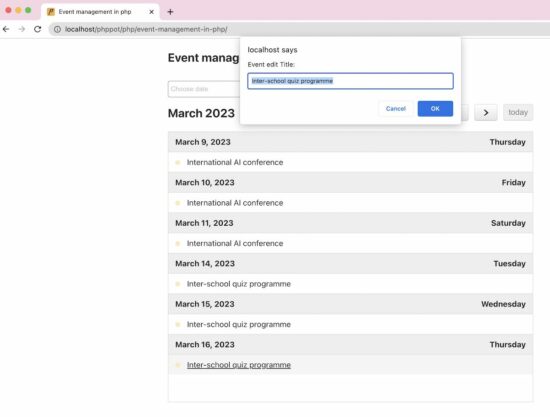
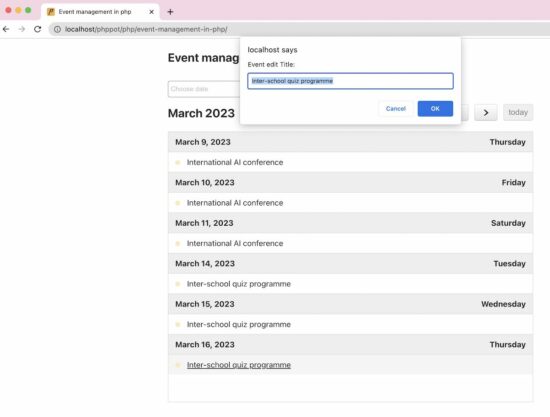
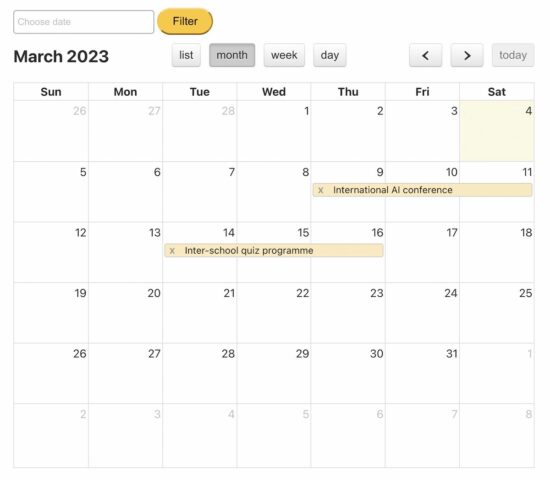
Event management calendar output

event management in php

Download

↑ Back to Top

Posted on Leave a comment

I Created My First DALL·E Image in Python OpenAI Using Four Easy Steps

5/5 – (1 vote)

I have a problem. I’m addicted to OpenAI. Every day I find new exciting ways to use it. It’s like somebody gave me a magic stick and I use it for stupid things like cleaning the kitchen. But I cannot help it! So, how to create images with OpenAI in Python? Easy, follow these four steps! 👇

Step 1: Install the OpenAI Python Library

The first step to using OpenAI’s DALL·E in Python is to install the OpenAI Python library. You can do this using pip, a package manager for Python.

Open your terminal and enter the following command:

pip install openai

I have written a whole tutorial on this topic in case this doesn’t work instantly.

💡 Recommended: How to Install OpenAI in Python?

Step 2: Create an OpenAI API Key

OpenAI is not free for coders — but it’s almost free. I only pay a fraction of a cent for a request, so no need to be cheap here. 🧑‍💻

Visit the page https://platform.openai.com/account/api-keys and create a new OpenAI key you can use in your code. Copy&paste the API key because you’ll need it in your coding project!

Step 3: Authenticate with OpenAI API Key

Next, you’ll need to authenticate with OpenAI’s API key. You can do this by importing the openai_secret_manager module and calling the get_secret() function. This function will retrieve your OpenAI API key from a secure location, and you can use it to authenticate your API requests.

import openai_secret_manager
import openai secrets = openai_secret_manager.get_secret("openai") # Authenticate with OpenAI API Key
openai.api_key = secrets["api_key"]

If this sounds too complex, you can also use the following easier code in your code script to try it out:

import openai # Authenticate with OpenAI API Key
openai.api_key = 'sk-...'

The disadvantage is that the secret API key is plainly visible to anybody with access to your code file. Never load this code file into a repository such as GitHub!

Step 4: Generate Your DALL·E Image

Now that you’re authenticated with OpenAI, you can generate your first DALL·E image. To do this, call the openai.Image.create() function, passing in the model name, prompt, and size of the image you want to create.

import openai # Authenticate with OpenAI API Key
openai.api_key = 'sk-...' # Generate images using DALL-E
response = openai.Image.create( model="image-alpha-001", prompt="a coder learning with Finxter", size="512x512"
) print(response.data[0]['url'])

In the code above, we specified the DALL·E model we wanted to use (image-alpha-001), provided a prompt for the image we wanted to create (a coder learning with Finxter), and specified the size of the image we wanted to create (512x512).

"a coder learning with Finxter"

Once you’ve generated your image, you can retrieve the image URL from the API response and display it in your Python code or in a web browser.

print(response.data[0]['url'])

Conclusion

Using OpenAI’s DALL·E to generate images is a powerful tool that can be used in various applications. So exciting! 🤩

With just a few lines of Python code, you can create unique images that match specific text descriptions. By following the four easy steps outlined in this article, you can get started generating your own DALL·E images today.

🚀 Recommended: OpenAI’s Speech-to-Text API: A Comprehensive Guide

Posted on Leave a comment

What’s new for the WinForms Visual Basic Application Framework

Klaus Loeffelmann

Melissa Trevino

.NET from version .NET Core 3.1 up to .NET 7 has plenty of advantages over .NET
Framework: it provides performance improvements in almost every area, and those
improvements were an ongoing effort over each .NET version. The
latest improvements in .NET
6
and
.NET
7
are
really worth checking out.

Migrating your Windows Forms (WinForms) Visual Basic Apps to .NET 6/7+ also
allows to adopt modern technologies which are not (or are no longer) supported in .NET
Framework. EFCore is one example: it is
a modern Entity Framework data access technology that enables .NET developers to
work with database backends using .NET objects. Although it is not natively
supported for VB by Microsoft, it is designed in a way that it is easy for the
community to build up on it and provide code generation support for additional
languages like Visual Basic
. In
that context there are also changes and improvements in the new WinForms
Out-of-Process Designer for .NET, especially around Object Data
Sources
.
For the WinForms .NET runtime, there are a series of improvements in different
areas which have been introduced with the latest releases of .NET:

The new Visual Basic Application Framework Experience

In contrast to the project property Application Framework Designer experience in
earlier versions of Visual Studio and for .NET Framework, you will noticed that
the project properties UI in Visual Studio has changed. It’s style is now in
parity with the project properties experience for other .NET project types: we
have invested into modernizing the experience for developers, focusing on
enhancing productivity and a modern look and feel.

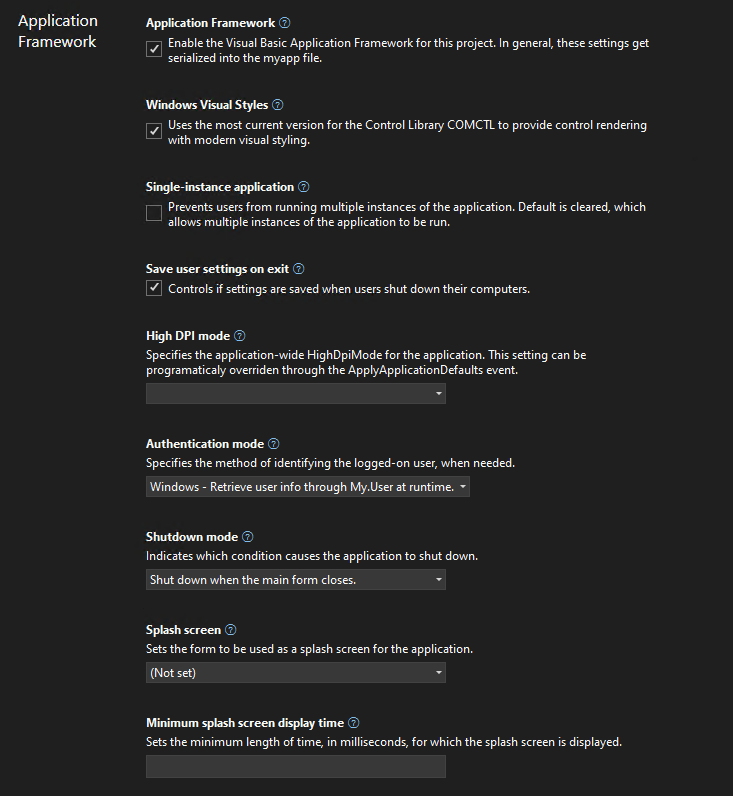
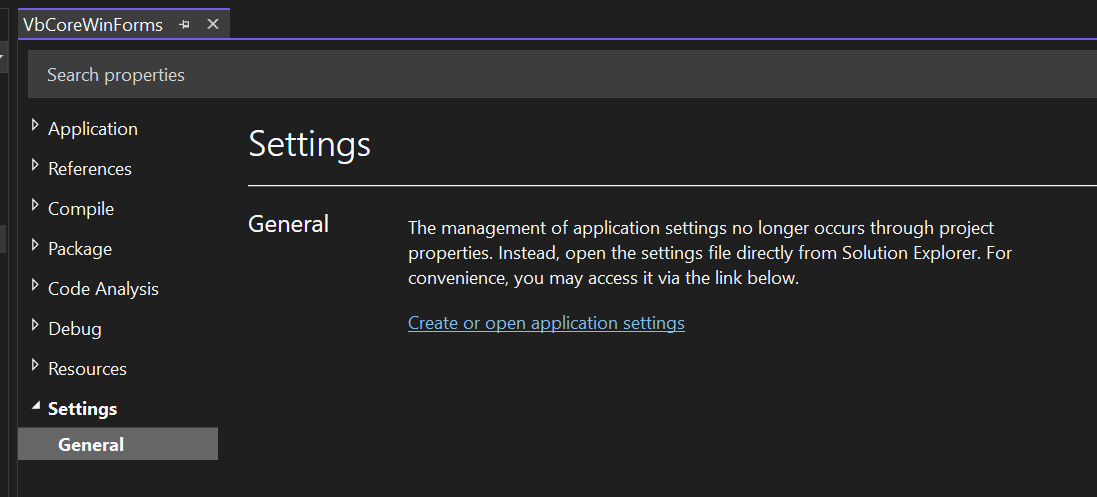
Screenshot of the new Visual Basic Application Framework project settings designer.

We’ve added theming and search to the new experience. If this is your first time
you’re working with the new project properties experience in Visual Studio, it’s
a good idea to read up on the the introductory
blog
.

In contrast to C# projects, Visual Basic Application Framework projects use a
special file for storing the Application Framework project settings: the
Application.myapp file. We’ll talk more about the technical details of how
this file connects the project settings to the VB project specific code
generation of the My namespace later, but one thing to keep in mind is how the
UI translates each property’s value to this file:

  • Windows Visual Styles is to determine if the application will use the most
    current version for the Control Library comctl.dll to provide control
    rendering with modern visual styling. This setting translates to the value
    EnableVisualStyles of type Boolean inside of Application.myapp.

  • Single-instance application is to determine if the application will prevent
    users from running multiple instances of the application. This setting is
    switched off by default, which allows multiple instances of the application to
    be run concurrently. This setting translates to the value SingleInstance of
    type Boolean.

  • Save user settings on exit is to determine if the application settings are
    automatically saved when an app is about to shut down. The settings can be
    changed with the settings editor. In contrast to .NET Framework, a new Visual
    Basic Application Framework App doesn’t contain a settings file by default,
    but you can easily insert one over the project properties, should you need
    one, and then manage the settings
    interactively
    .

    Screenshot of the Settings section in the Application Framework project's property pages

    Adding to the list of settings automatically generates respective code, which
    can be easily access over the My object in the Visual Basic Application
    Framework at
    runtime
    .
    This settings translates to the value SaveMySettingsOnExit of type
    Boolean.

  • High DPI mode is to identify the application-wide HighDpiMode for the
    application. Note that this setting can be programmatically overridden through
    the HighDpiMode
    property

    of the ApplyApplicationDefaultsEventArgs of the ApplyApplicationDefaults
    application event. Choose from the following setting:

    • DPI unaware (0): The application window does not scale for DPI changes and
      always assumes a scale factor of 100%. For higher resolutions, this will
      make text and fine drawings more blurry, but may impose the best setting for
      some apps which demand a high backwards compatibility in rendering content.
    • DPI unaware GDI scaled (4): similar to DPI unaware, but improves the
      quality of GDI/GDI+ based on content. Please note that this mode will not
      work as expected, when you have enabled double
      buffering

      for control rendering via OnPaint and related functionality.
    • Per monitor (2): Per-Monitor DPI allows individual displays to have their
      own DPI scaling setting. WinForms doesn’t optimize for this mode, and
      Per-Monitor V2 should be used instead.
    • Per monitor V2 (3): Per-Monitor V2 offers more advanced scaling features
      such as improved support for mixed DPI environments, improved display
      enumeration, and support for dynamically scaling on-client area of windows.
      In WinForms common controls are optimized for this high dpi mode. Please
      note the events
      Form.DpiChange,
      Control.DpiChangedAfterParent
      and
      Control.DpiChangeBeforeParent,
      when your app need to scale up or down content based on a changed DPI
      environment, for example, when the user of your app has dragged a Form from
      one monitor to another monitor with a different DPI setting.
    • System aware (1): The application queries for the DPI of the primary
      monitor once and uses this for the application on all monitors. When content
      in Forms is dragged from one monitor to another with a different HighDPI
      setting, content might become blurry. SystemAware is WinForm’s most
      compatible high-dpi rendering mode for all supported controls.
  • Authentication mode is to specify the method of identifying the logged-on
    user, when needed. The setting translates to the value AuthenticationMode as
    an enum value of type Integer:

    • 0: The WindowsFormsApplicationBase(AuthenticationMode) constructor does
      not automatically initialize the principal for the application’s main
      thread. It’s completely the developer’s task, to manage authentication for
      the user.
    • 1: The WindowsFormsApplicationBase(AuthenticationMode) constructor
      initializes the principal for the application’s main thread with the current
      user’s Windows user info.
  • Shutdown mode is to to indicate which condition causes the application to
    shut down. This setting translates to the value ShutdownMode as an enum
    value of type Integer (Note: Please also refer to the application event
    ShutDown
    and the further remarks down below.):

    • 0: When the main form closes.
    • 1: Only after the last form closes.
  • Splash screen represents the name of the form to be used as a splash screen
    for the application. Note that the file name does not need to include the
    extension (.vb). This setting translates to the value SplashScreen of type
    String.

    Note: you will may be missing the settings for the Splash dialog up to
    Visual Studio 2022 version 17.5. For a workaround, read the comments in
    the section “A look behind the scenes”. To recap: a “Splash” dialog is
    typically displayed for a few seconds when an application is launched.
    Visual Basic has an item template which you can use to add a basic splash
    dialog to your project. It usually displays the logo or name of the
    application, along with some kind of animation or visual effects, to give
    users the impression that the application is loading or initializing. The
    term “splash” in this context is used because the dialog is designed to
    create a splash or impact on the user, drawing their attention to the
    application while it loads.

  • Application Framework is saved both in the Application.myapp file and the
    .vbproj file:

    • Application.myapp saves the setting MySubMain of type Boolean to
      identify if the Application Framework is enabled.
    • .vbproj uses the setting MyType for identifying the usage of the
      Application Framework for a VB project. If the Application Framework is
      enabled, the value is WindowsForms; if the Application Framework is
      disabled, the value is WindowsFormsWithCustomSubMain.
  • Startup object is the name of the form that will be used as the entry
    point, without its filename extension. Note: this property is found in the
    project property Settings under the General section, and not in the
    Application Framework section. This setting translates to the value MainForm of type
    String, when the Application Framework is activated. The start object setting in
    the .vbproj file is ignored in that case – see also the comments below on this
    topic.

Custom constants new look

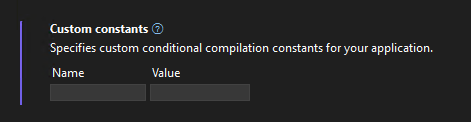
Screenshot of the new custom constants editor in the project properties UI.

We are introducing a new custom constants-control in the modernized Project
Property Pages for VB Projects, that allows to encode the input to the format
key=”value”. Our goal is that users will be able to input their custom constants
in a more streamlined key-value pair format, thus enhancing their productivity.
Feedback is welcomed – if you have any comments or suggestions, feel free to
reach out to the project system
team
by filing a new issue or
comment on existing ones.

A look behind the scenes of the WinForms VB Application Framework

The way basic properties and behaviors of a WinForms app are controlled and configured is fundamentally different between C# and Visual Basic. In C#, every app
starts with a static method called main which can usually be found in a file
called Program.cs, and in that main method all the setting get applied.

That is different in Visual Basic. Since VB Apps in WinForms are based on the
Application Framework runtime, there are a few features, which aren’t
intrinsically available to C# WinForms apps to begin with, like configuring to
automatically show Splash dialogs (see below) or ensure a single instance
application start. Since you configure most of the parts of your app
interactively in VB with the settings described above at design time, the actual
code which honors or ensures those settings later at runtime is mostly
code-generated and somewhat hidden behind the scenes. The starting point of a VB
app is therefore not so obvious. There are also a series of differences in .NET
Visual Basic apps when it comes to hooking up event code which is supposed to
run, for example when a VB WinForms app starts, ends, or runs into an unhandled
exception – just to name a few examples.

That all said, technically Visual Basic doesn’t break any fundamental rules.
Under the hood, there is of course a Shared Sub Main when you activate the
Application Framework. You just do not write it yourself, and you don’t see it,
because it is generated by the VB compiler and then automatically added to your
Start Form. This is done by activating the VB compiler switch
/main.

At the same time, when you are activating the Application Framework, a series of
conditional compiler constants are defined. One of the constants is called
_mytype. If that constant is defined as Windows then the VB compiler
generates all the necessary infrastructure code to support the Application
Framework. If that constant is defined as WindowsFormsWithCustomSubMain
however, the VB compiler just generates the bare minimum infrastructure code and
doesn’t apply any settings to the WinForms app on startup. The latter happens,
when you deactivate the Application Framework. This setting is stored in the
vbproj project file, along with the Start Form. What’s important to know
though in this context: only in the case of WindowsFormsWithCustomSubMain, so
with the Application Framework deactivated, is the Start Form definition
actually taken from the vbproj file. When the Application Framework is
activated however then that is the case when the aforementioned
Application.myapp file is used as the settings container. Note, that by
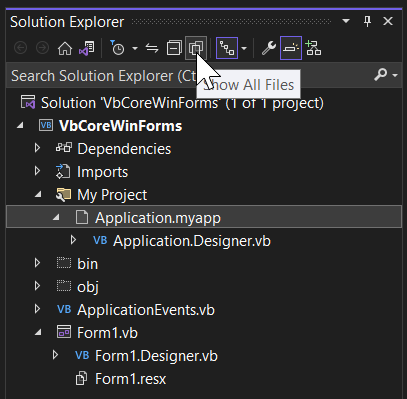
default you cannot find that file in the solution explorer.

Screenshot of solution explorer showing the Application.myapp file.

You need to make sure first to show all files for that project (see screenshot
above). Then you can open the My Project-folder and show that setting file in
the editor by double-clicking it in the solution explorer. The content of that
file looks something like this:

<?xml version="1.0" encoding="utf-16"?>
<MyApplicationData xmlns:xsi="http://www.w3.org/2001/XMLSchema-instance" xmlns:xsd="http://www.w3.org/2001/XMLSchema"> <MySubMain>true</MySubMain> <MainForm>Form1</MainForm> <SingleInstance>false</SingleInstance> <ShutdownMode>0</ShutdownMode> <EnableVisualStyles>true</EnableVisualStyles> <AuthenticationMode>0</AuthenticationMode> <SaveMySettingsOnExit>true</SaveMySettingsOnExit> <HighDpiMode>3</HighDpiMode>
</MyApplicationData>

Note: Visual Studio 2022 before version 17.6 (Preview 3) won’t have the
option to pick a Splash Dialog interactively, as mentioned above. We will have
an interactive designer for setting the splash form only from that version on
on. Up to then, you can manually patch the Application.myapp file to trigger
the code generation for the Splash dialog. Insert the following line of code in
that file and save the changes.

<SplashScreen>SplashDialog</SplashScreen>

When you do this, make sure not to include the filename extension (.vb) in
that definition, because otherwise the required code does not get generated.

Application.myapp as the source for code generation

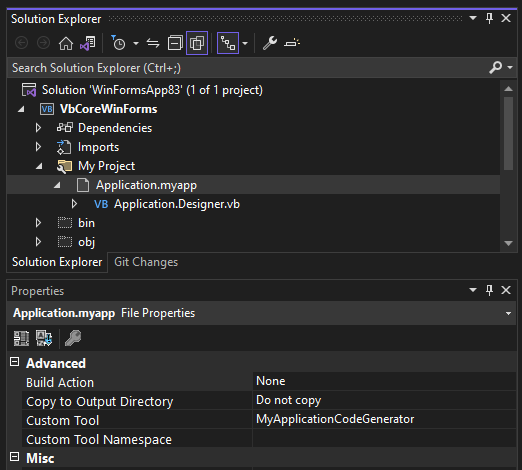
Now, if you take a closer look at that file’s properties in the property
browser, you’ll see that it is triggering a custom tool which is invoked
whenever that file is saved.

Screenshot of solution explorer showing the properties for the Application.myapp file.

And that custom tool generates VB code which you
can find under the Application.myapp node in the Solution Explorer in
Application.Designer.vb. It does the following:

  • It defines a Friend Partial Class MyApplication. With the Application
    Framework enabled, that class is inherited from
    WindowsFormsApplicationBase.
    You don’t see that Inherits statement here and the reason is that the major
    part of that Class’
    definition

    is injected by the Visual Basic compiler based on the earlier defined
    conditional constant _myapp.
  • It generates the code to apply all the settings which were saved in
    Application.myapp file.
  • It creates code for a method which overrides
    OnCreateMainForm.
    In that method, it assigns the Form, which is defined as the start form in the
    Application.myapp file.

Warning: The Application.Designer.vb is not supposed to be edited, as it’s
auto-generated. Any changes will be lost as soon as you make changes to Application.myapp. Instead, use the project properties UI.

Now, the class which is injected by the compiler is also responsible for
generating everything which the Visual Basic Application Framework provides you
via the My namespace. The My namespace simplifies access to frequently used
information about your WinForms app, your system, or simplifies access to
frequently used APIs. Part of the My namespace for an activated Application
Framework is the Application property, and its return type is of exactly that
type which is defined by the class generated based on your Application Settings
and then merged with the injected Visual Basic compiler file mentioned earlier.
So, if you access My.Application you are basically accessing a single instance
of the My.MyApplication type which the generated code defines.

With this context understood, we can move on to how two additional features of
the Application Framework work and can be approached. The first one is extending
the My namespace with additional function areas. We won’t go too much into
them, because there are detailed docs about the My namespace and how to
extend
it
.

An even more important concept to understand are the Application Events which are
provided by the Application Framework. Since there isn’t a good way to intercept
the startup or shut down of an app (since that code gets generated
and sort of hidden inside the main Form) Application Events are the way to be
notified of certain application-global occurrences.

Note in this context, that there is a small breaking change in the UI: while in
.NET Framework, you had to insert a code file named ApplicationEvents.vb via
the Property Settings of the VB project, in a .NET Core App this file will be
there from the start when you’ve created a new Application Framework project.

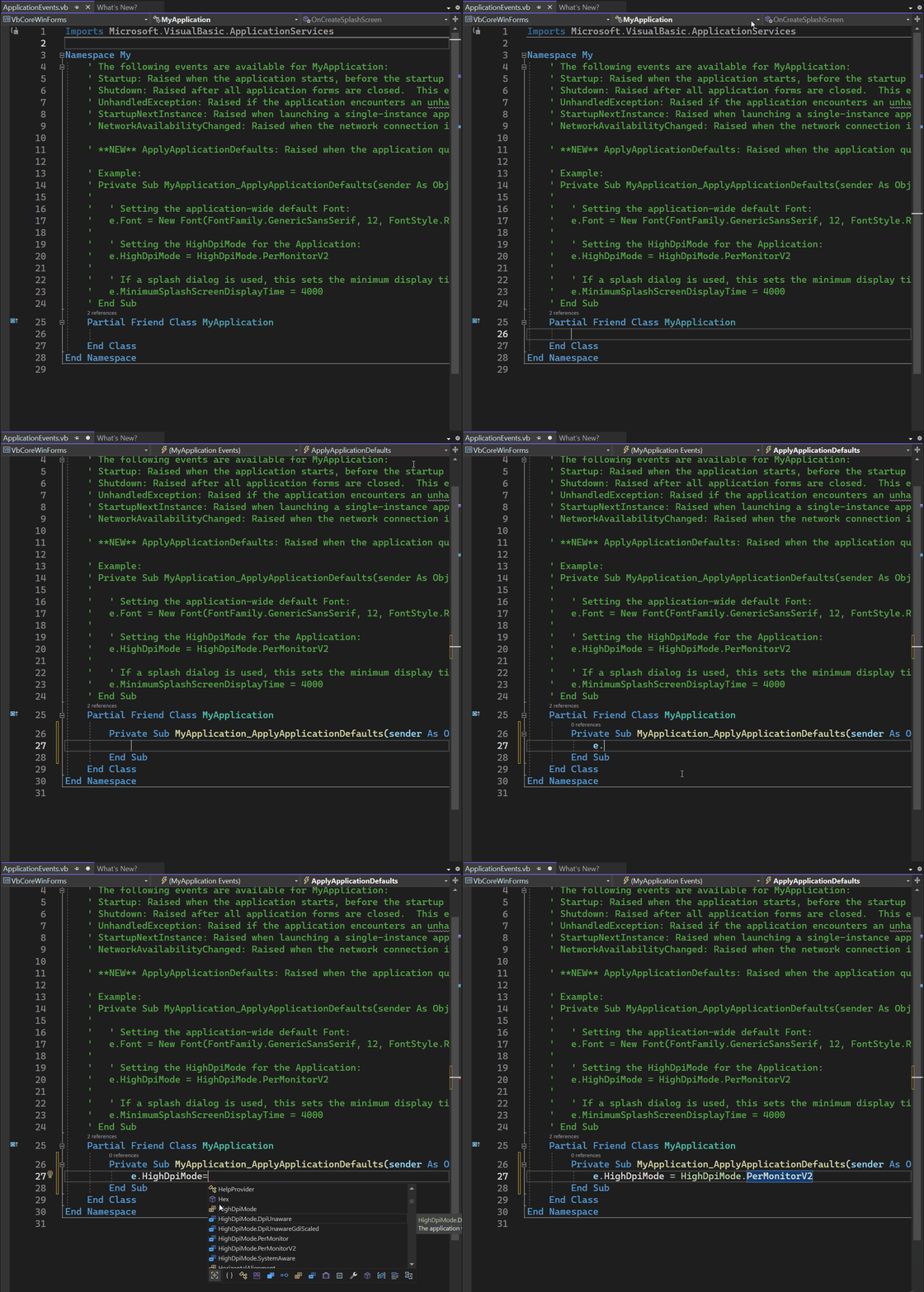
To wire up the available Application events, you open that ApplicationEvent.vb
code file, and then you select ApplicationEvents from the Object drop-down list,
and the application event you want to write up from the events list:

Animated gif showing how to wire app Application Events in the ApplicationEvent.vb code file

As you can see, the ApplicationEvent.vb code file again extends the MyApplication class – this time by the events handler you place there on demand. The options you have here are:

  • Startup: raised when the application starts, before the start form is created.
  • Shutdown: raised after all application forms are closed. This event is not raised if the application terminates abnormally.
  • UnhandledException: raised if the application encounters an unhandled exception.
  • StartupNextInstance: raised when launching a single-instance application and the application is already active.
  • NetworkAvailabilityChanged: raised when the network connection is connected or disconnected.
  • ApplyApplicationDefaults: raised when the application queries default values to be set for the application.

Note: More general information about the Visual Basic Application Model is provided through the Microsoft Learn Docs about this topic. Also note, that, on top of the extensibility of the My namespace, this Application Model also has extensibility points which are also described in great detail by the respective docs.

Summary

With the new and modernized project properties pages, WinForm’s Application
Framework is ready for new, .NET 6,7,8+ based Visual Basic Apps to develop. It’s
also the right time to think about modernizing your older .NET Framework based
VB Apps and bring them over to .NET 6,7,8+. WinForms and the .NET runtime
deliver countless new features and provide considerable performance improvements
for your apps in almost every area. Visual Basic and the Visual Basic
Application Framework are and continue to be first class citizens and are fully
supported in WinForms. Our plans are to continue modernizing around the VB App
Framework in the future without breaking code for existing projects.

And, as always: Feedback about the subject matter is really important to us, so
please let us know your thoughts and additional ideas! Please also note that the
WinForms .NET and the Visual Basic Application Framework runtime is open source,
and you can contribute! If you have general feature ideas, encountered bugs, or
even want to take on existing issues around the WinForms runtime and submit PRs,
have a look at the WinForms Github repo.
If you have suggestions around the WinForms Designer feel free to file new
issues there as well.

Happy coding!

Posted on Leave a comment

Solidity Scoping – A Helpful Guide with Video

5/5 – (1 vote)

As promised in the previous article, we’ll get more closely familiar with the concept of scoping next. We’ll explain what scoping is, why it exists, and how it helps us in programming.

YouTube Video

It’s part of our long-standing tradition to make this (and other) articles a faithful companion, or a supplement to the official Solidity documentation.

Scopes Overview

Scope refers to the context in which we can access a defined variable or a function. There are three main types of scope specific to Solidity:

  • global,
  • contract, and
  • function scope.

In the global scope, variables, and functions are defined at the global level, i.e., outside of any contract or function, and we can access them from any place in the source code.

In the contract scope, variables and functions are defined within a contract, but outside of any function, so we can access them from anywhere within the specific contract. However, these variables and functions are inaccessible from outside the contract scope.

In the function scope, variables and functions are defined within a function and we can access them exclusively from inside that function.

💡 Note:

The concept of scopes in Solidity is similar and based on the concept of scopes in the C99 programming language. In both languages, a “scope” refers to the context in which a variable or function is defined and can be accessed.

In C99 (a C language standard from 1999), variables and functions can be defined at either the global level (i.e., outside of any function) or within a function. There is no “contract” scope in C99.

Global Scope

Let’s take a look at a simple example of the global scope:

pragma solidity ^0.6.12; uint public globalCounter; function incrementGlobalCounter() public { globalCounter++;
}

In this example, the globalCounter variable is defined at the global level and is, therefore, in the global scope. We can access it from anywhere in the code, including from within the incrementGlobalCounter(...) function.

✅ Reminder: Global variables and functions can be accessed and modified by any contract or function that has access to them. We can find this behavior useful for sharing data across contracts or functions, but it can also present security risks if the global variables or functions are not properly protected.

Contract Scope

As explained above, variables and functions defined within a contract (but outside of any function) are in contract scope, and we can access them from anywhere within the contract.

Contract-level variables and functions are useful for storing and manipulating data that is specific to a particular contract and is not meant to be shared with other contracts or functions.

Let’s take a look at a simple example of the contract scope:

pragma solidity ^0.6.12; contract Counter { uint public contractCounter; function incrementContractCounter() public { contractCounter++; }
}

In this example, the contractCounter variable is defined within the Counter contract and is, therefore, in contract scope. It is available for access from anywhere within the Counter contract, including from within the incrementContractCounter() function.

⚡ Warning: We should be aware that contract-level variables and functions are only accessible from within the contract in which they are defined. They cannot be accessed from other contracts or from external accounts.

Function Scope

Variables and functions that are defined within a function are in the function scope and can only be accessed from within that function.

Function-level variables and functions are useful for storing and manipulating data that is specific to a particular function and is not meant to be shared with other functions or with the contract as a whole.

Let’s take a look at the following example of the function scope:

pragma solidity ^0.6.12; contract Counter { function incrementCounter(uint incrementAmount) public { uint functionCounter = 0; functionCounter += incrementAmount; }
}

In this example, the functionCounter variable is defined within the incrementCounter(...) function and is, therefore, in the function scope. It can only be accessed from within the incrementCounter function and is not accessible from other functions or from outside the contract.

C99 Scoping Rules

Now, let’s take a look at an interesting example showing minimal scoping by using curly braces:

// SPDX-License-Identifier: GPL-3.0
pragma solidity >=0.5.0 <0.9.0;
contract C { function minimalScoping() pure public { { uint same; same = 1; } { uint same; same = 3; } }
}

Each of the curly braces pair forms a distinct scope, containing a declaration and initialization of the variable same.

This example will compile without warnings or errors because each of the variable’s lifecycles is contained in its own disjoint scope, and there is no overlap between the two scopes.

Shadowing

In some special cases, such as this one demonstrating C99 scoping rules below, we’d come across a phenomenon called shadowing.

💡 Shadowing means that two or more variables share their name and have intersected scopes, with the first one as the outer scope and the second one as the inner scope.

Let’s take a closer look to get a better idea of what’s all about:

// SPDX-License-Identifier: GPL-3.0
pragma solidity >=0.5.0 <0.9.0;
// This will report a warning
contract C { function f() pure public returns (uint) { uint x = 1; { x = 2; // this will assign to the outer variable uint x; } return x; // x has value 2 }
}

There are two variables called x; the first one is in the outer scope, and the second one is in the inner scope.

The inner scope is contained in or surrounded by the outer scope.

Therefore, the first and the second assignment assign the value 1, and then value 2 to the outer variable x, and only then will the declaration of the second variable x take place.

In this specific case, we’d get a warning from the compiler, because the first (outer) variable x is being shadowed by the second variable x.

⚡ Warning: in versions prior to 0.5.0, Solidity used the same scoping rules as JavaScript: a variable declared at any location within the function would be visible through the entire function’s scope. That’s why the example below could’ve been compiled in Solidity versions before 0.5.0:

// SPDX-License-Identifier: GPL-3.0
pragma solidity >=0.5.0 <0.9.0;
// This will not compile
contract C { function f() pure public returns (uint) { x = 2; uint x; return x; }
}

The code above couldn’t compile in today’s versions of Solidity because an assignment to variable x is attempted before the variable itself is declared. In other words, the inner variable x‘s scope starts with the line of its declaration.

Conclusion

In this article, we learned about variable and function scopes.

  • First, we made a scope overview, introducing ourselves to three different scopes in Solidity.
  • Second, we investigated the global scope by studying an appropriate example.
  • Third, we looked at the contract scope through an appropriate example.
  • Third, learned about the function scope on an appropriate example.
  • Fourth, we glanced at C99 scoping rules based on C99 – a C language standard.
  • Fifth, we also learned about shadowing and got an idea of why we should be careful about it.

What’s Next?

This tutorial is part of our extended Solidity documentation with videos and more accessible examples and explanations. You can navigate the series here (all links open in a new tab):

Posted on Leave a comment

My Journey to Help Build a P2P Social Network – Database Code Structure

5/5 – (1 vote)

Welcome to part 3 of this series, and thank you for sticking around!

I’ve come to realize this might become a rather long series. The main reason for that is that it documents two things. This is the birth of an application and my personal journey in developing that application. I know parts 1 and 2 have been very wordy. This will change now. I promise that you will see a lot of code in this episode :-).

Database Code

So after that slight philosophical tidbit, it is time to dive into the actual database code. As I mentioned in the previous article, I chose to use Deta Space as the database provider. There are two reasons for this. The first is the ease of use and the second are its similarities to my favorite NoSQL database MongoDB.

💡 Recommended: Please check my article on creating a shopping list in Streamlit on how to set it up. It takes only a few minutes.

For reference, the server directory with all the code to get the FastAPI server working looks as follows:

server
├── db.py
├── main.py
├── models.py
├── requirements.txt
├── .env

All the database code will live in the db.py file. For the Pydantic models, I’ll use models.py.

Database Functions

The database functions are roughly divided into three parts.

  • We first need functionality for everything related to users.
  • Next, we need to code that handles everything related to adding and managing friends.
  • The third part applies to all the code for managing thoughts. Thoughts are Peerbrain’s equal of messages/tweets.

The file will also contain some helper functions to aid with managing the public keys of users. I’ll go into a lot more detail on this in the article about encryption.

To set up our db.py file we first need to import everything needed. As before, I’ll show the entire list and then explain what everything does once we write code that uses it.

"""This file will contain all the database logic for our server module. It will leverage the Deta Base NoSQL database api.""" from datetime import datetime
import math
from typing import Union
import os
import logging
from pprint import pprint #pylint: disable=unused-import
from uuid import uuid4
from deta import Deta
from dotenv import load_dotenv
from passlib.context import CryptContext

The #pylint comment you can see above is used to make sure pylint skips this import. I use pprint for displaying dictionaries in a readable way when testing. As I don’t use it anywhere in the actual code, pylint would start to fuss otherwise.

💡 Tip: For those interested, pylint is a great tool to check your code for consistency, errors and, code style. It is static, so it can’t detect errors occurring at runtime. I like it even so🙂.

After having imported everything, I first initialize the database. The load_dotenv() below, first will load all my environment variables from the .env file. 

load_dotenv() #---DB INIT---#
DETA_KEY = os.getenv("DETA_KEY")
deta = Deta(DETA_KEY)
#---#
USERS = deta.Base("users")
THOUGHTS = deta.Base("thoughts")
KEYS = deta.Base("keys_db")

Once the variables are accessible, I can use the Deta API key to initialize Deta. Creating Bases in Deta is as easy as defining them with deta.Base. I can now call the variable names to perform CRUD operations when needed.

Generate Password Hash

The next part is very important. It will generate our password hash so the password is never readable. Even if someone has control of the database itself, they will not be able to use it. Cryptcontext itself is part of the passlib library. This library can hash passwords in multiple ways.🙂.

#---PW ENCRYPT INIT---#
pwd_context = CryptContext(schemes =["bcrypt"], deprecated="auto")
#---#
def gen_pw_hash(pw:str)->str: """Function that will use the CryptContext module to generate and return a hashed version of our password""" return pwd_context.hash(pw)

User Functions

The first function of the user functions is the easiest. It uses Deta’s fetch method to retrieve all objects from a certain Base, deta.users, in our case.

#---USER FUNCTIONS---#
def get_users() -> dict: """Function to return all users from our database""" try: return {user["username"]: user for user in USERS.fetch().items} except Exception as e: # Log the error or handle it appropriately print(f"Error fetching users: {e}") return {}

The fact that the function returns the found users as a dictionary makes them easy to use with FastAPI. As we contact a database in this function and all the others in this block, a tryexcept block is necessary. 

The next two functions are doing the same thing but with different parameters. They accept either a username or an email.

I am aware that these two could be combined into a single function with an if-statement. I still do prefer the two separate functions, as I find them easier to use. Another argument I will make is also that the email search function is primarily an end user function. I plan to use searching by username in the background as a helper function for other functionality.

def get_user_by_username(username:str)->Union[dict, None]: """Function that returns a User object if it is in the database. If not it returns a JSON object with the message no user exists for that username""" try: if (USERS.fetch({"username" : username}).items) == []: return {"Username" : "No user with username found"} else: return USERS.fetch({"username" : username}).items[0] except Exception as error_message: logging.exception(error_message) return None def get_user_by_email(email:str)->Union[dict, None]: """Function that returns a User object if it is in the database. If not it returns a JSON object with the message no user exists for that email address""" try: if (USERS.fetch({"email" : email}).items) == []: return {"Email" : "No user with email found"} else: return USERS.fetch({"email" : email}).items[0] except Exception as error_message: logging.exception(error_message) return None

The functions above both take a parameter that they use to filter the fetch request to the Deta Base users.

If that filtering results in an empty list a proper message is returned. If the returned list is not empty, we use the .items method on the fetch object and return the first item of that list. In both cases, this will be the user object that contains the query string (email or username).

The entire sequence is run inside a try-except block as we are trying to contact a database.

Reset User Password

When working with user creation and databases, a function to reset a user’s password is required. The next function will take care of that.

def change_password(username, pw_to_hash): """Function that takes a username and a password in plaintext. It will then hash that password> After that it creates a dictionary and tries to match the username to users in the database. If successful it overwrites the previous password hash. If not it returns a JSON message stating no user could be found for the username provided.""" hashed_pw = gen_pw_hash(pw_to_hash) update= {"hashed_pw": hashed_pw } try: user = get_user_by_username(username) user_key = user["key"] if not username in get_users(): return {"Username" : "Not Found"} else: return USERS.update(update, user_key), f"User {username} password changed!" except Exception as error_message: logging.exception(error_message) return None 

This function will take a username and a new password. It will first hash that password and then create a dictionary. Updates to a Deta Base are always performed by calling the update method with a dictionary. As in the previous functions, we always check if the username in question exists before calling the update. Also, don’t forget the try-except block!

Create User

The last function is our most important one :-). You can’t perform any operations on user objects if you have no way to create them! Take a look below to check out how we’ll handle that.

def create_user(username:str, email:str, pw_to_hash:str)->None: """Function to create a new user. It takes three strings and inputs these into the new_user dictionary. The function then attempts to put this dictionary in the database""" new_user = {"username" : username, "key" : str(uuid4()), "hashed_pw" : gen_pw_hash(pw_to_hash), "email" : email, "friends" : [], "disabled" : False} try: return USERS.put(new_user) except Exception as error_message: logging.exception(error_message) return None

The user creation function will take a username, email, and password for now. It will probably become more complex in the future, but it serves our purposes for now. Like the Deta update method, creating a new item in the database requires a dictionary. Some of the necessary attributes for the dictionary are generated inside the function.

The key needs to be unique, so we use Python’s uuid4 module. The friend’s attribute will contain the usernames of other users but starts as an empty list. The disabled attribute, finally, is set to false. 

After finishing the initialization, creating the object is a matter of calling the Deta put method. I hear some of you thinking that we don’t do any checks if the username or email already exists in the database. You are right, but I will perform these checks on the endpoint receiving the post request for user creation.

Some Coding Thoughts and Learnings

GitHub 👈 Join the open-source PeerBrain development community!

One thing that never ceases to amaze me is the amount of documentation I like to add. I do this first in the form of docstrings as it helps me keep track of what function does what. I find it boring most of the time, but in the end, it helps a lot!

The other part of documenting that I like is type hints. I admit they sometimes confuse me still, but I can see the merit they have when an application keeps growing. 

We will handle the rest of the database function in the next article. See you there!

Participate in Building the Decentralized Social Brain Network 👇

As before, I state that I am completely self-taught. This means I’ll make mistakes. If you spot them, please post them on Discord so I can remedy them 🙂

As always, feel free to ask me questions or pass suggestions! And check out the GitHub repository for participation!

👉 GitHub: https://github.com/shandralor/PeerBrain

Posted on Leave a comment

Convert PHP JSON to CSV

by Vincy. Last modified on March 7th, 2023.

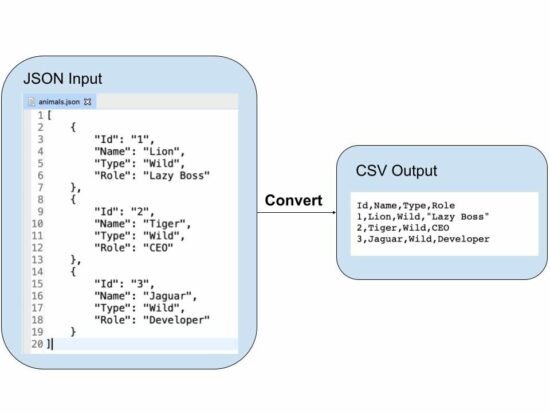
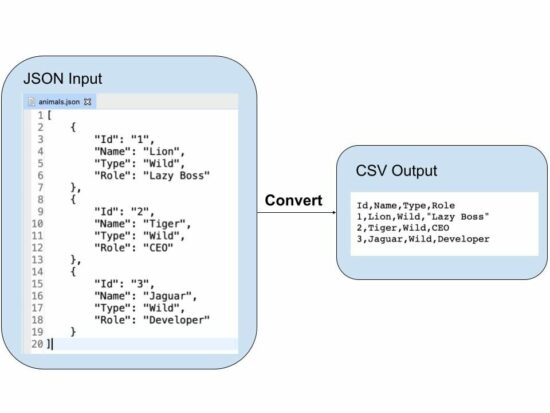
This tutorial gives examples for converting a PHP JSON variable content into a CSV file.

This quick example achieves it in a few steps. It uses the PHP fputcsv() method to prepare the CSV output.

  1. It reads the input JSON and decodes it into an array.
  2. Iterate the JSON array to read the line of the record.
  3. Apply PHP fputcsv() to write the array keys in the header, followed by array values.

Quick example

<?php function convertJsonToCSV($jsonFile, $csvFile)
{ if (($json = file_get_contents($jsonFile)) == false) { die('Unable to read JSON file.'); } $jsonString = json_decode($json, true); $fp = fopen($csvFile, 'w'); fputcsv($fp, array_keys($jsonString[0])); for ($i = 0; $i < count($jsonString); $i ++) { fputcsv($fp, array_values($jsonString[$i])); } fclose($fp); return;
}
$jsonFile = 'animals.json';
$csvFile = 'animals.csv'; convertJsonToCSV($jsonFile, $csvFile);
echo 'JSON to CSV converted. <a href="' . $csvFile . '" target="_blank">Download CSV file</a>';

The input JSON file is in the local drive and specified to a PHP variable $jsonFile.

This example creates a custom function convertJsonToCSV(). It requires the input JSON and the target CSV file names.

It converts the input JSON object to a PHP array. Then, it iterates the PHP array to read the row.

This function uses the PHP fputcsv() function to write each row into the target CSV file.

Output:

The above program will return the following CSV content in a file. In a previous tutorial, we have seen how to export to a CSV file using the PHP fputcsv() function.

Id,Name,Type,Role
1,Lion,Wild,"Lazy Boss"
2,Tiger,Wild,CEO
3,Jaguar,Wild,Developer

Note: The input JSON must be a one-dimensional associative array to get a better output.

php json to csv

JSON string to CSV in PHP

This example has a different approach to dealing with PHP JSON to CSV conversion.

It uses a JSON string as its input instead of reading a file. The JSON string input is initiated in a PHP variable and passed to the convertJSONtoCSV() function.

It reads the JSON string and converts it into a JSON array to prepare CSV. The linked article has an example of reading CSV using PHP.

Then, it iterates the JSON array and applies PHP fputcsv() to write the CSV row.

It reads the array_keys to supply the CSV header. And this will be executed only for the first time. It writes the column names as the first row of the output CSV.

json-string-to-csv.php

<?php
function convertJsonToCSV($jsonString, $csvFile)
{ $jsonArray = json_decode($jsonString, true); $fp = fopen($csvFile, 'w'); $header = false; foreach ($jsonArray as $line) { if (empty($header)) { $header = array_keys($line); fputcsv($fp, $header); $header = array_flip($header); } fputcsv($fp, array_merge($header, $line)); } fclose($fp); return;
}
$jsonString = '[ { "Id": "1", "Name": "Lion", "Type": "Wild", "Role": "Lazy Boss" }, { "Id": "2", "Name": "Tiger", "Type": "Wild", "Role": "CEO" }, { "Id": "3", "Name": "Jaguar", "Type": "Wild", "Role": "Developer" }
]';
$csvFile = 'animals.csv'; convertJsonToCSV($jsonString, $csvFile);
echo 'JSON to CSV converted. <a href="' . $csvFile . '" target="_blank">Download CSV file</a>';

Upload CSV file to convert into JSON in PHP

This example is to perform the JSON to CSV with a file upload option.

This code will be helpful if you want to convert the uploaded JSON file into a CSV.

It shows an HTML form with a file input field. This field will accept only ‘.json’ files. The restriction is managed with the HTML ‘accept’ attribute. It can also be validated with a server-side file validation script in PHP.

The $_FILES[‘csv-file’][‘tmp_name’] contains the posted CSV file content. The JSON to CSV conversion script uses the uploaded file content.

Then, it parses the JSON and converts it into CSV. Once converted, the link will be shown to the browser to download the file.

upload-json-to-convert-to-csv.php

<?php
if (! empty($_FILES["csv-file"]["tmp_name"])) { $csvFile = 'animal.csv'; if (($json = file_get_contents($_FILES["csv-file"]["tmp_name"])) == false) { die('Unable to read JSON file.'); } $jsonString = json_decode($json, true); $fp = fopen($csvFile, 'w'); fputcsv($fp, array_keys($jsonString[0])); for ($i = 0; $i < count($jsonString); $i ++) { fputcsv($fp, array_values($jsonString[$i])); } fclose($fp); echo 'JSON to CSV converted. <a href="' . $csvFile . '" target="_blank">Download CSV file</a>';
}
?>
<HTML>
<head>
<title>Convert JSON to CSV</title>
<style>
body { font-family: arial;
} input[type="file"] { padding: 5px 10px; margin: 30px 0px; border: #666 1px solid; border-radius: 3px;
}
input[type="submit"] { padding: 8px 20px; border: #232323 1px solid; border-radius: 3px; background: #232323; color: #FFF;
}
</style>
</head> <body> <form method="post" enctype="multipart/form-data"> <input type="file" name="csv-file" accept=".json" /> <input type="submit" name="upload" value="Upload"> </form>
</body>
</HTML>

Download

↑ Back to Top