The Iodyne Pro Data 24TB delivers enormous uninterrupted transfer speed, isn’t network attached, and it isn’t limited to one user. It’s also a $14,995 wallet-breaking money-saver for the right audience.
It’s not every day we get a second loaner for a review product years after the fact.
The market has changed, workflows have changed, since we first reviewed the Iodyne Pro Data. Video workflows are getting bigger and bigger with 8K HDR 3D, and so forth. A single iPod like the Lord of the Rings dailies were shuttled around on are a thing of the past.
Thunderbolt 5 isn’t as fast as it could be. The media inside is impacted by cache and slow writes as that cache fills up with large transfers.
The Iodyne Pro Data aims to let the user have their cake and eat it too. It is, in effect, a giant external drive that can be accessed by multiple Macs at the same time.
All at Thunderbolt speeds, uninterrupted by full caches, and not throttled by transferring over a network.
It’s costly, of course. It’s also a money-saver if you’re moving enormous files around.
Iodyne Pro Data 24TB review: Physical design
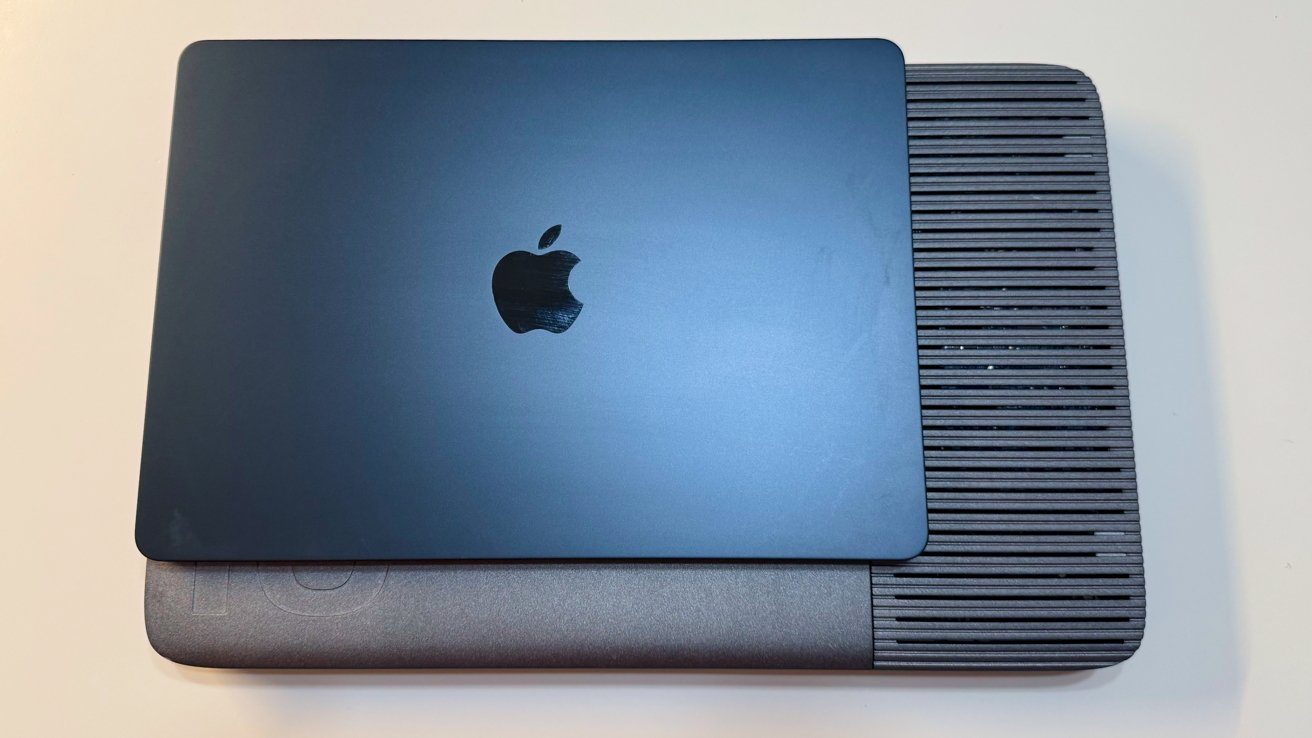
The Pro Data is hefty. At 15.39 inches long by 10 inches wide, it has a considerable footprint on any desk. It’s also 1.22 inches thick, or 1.4 inches including the feet.
So, it’s fortunate that there’s a vertical stand included.
Iodyne Pro Data 24TB review: 13-inch MacBook Air for scale
It’s physically larger than a 16-inch MacBook Pro. It also happens to be heavier than a MacBook Pro, at 7.3 pounds. Its aluminum enclosure, which helps with thermal management, certainly counts a lot towards that figure.
I tested putting it into the ebags Pro Slim Laptop Backpack, a pretty typical tech bag capable of holding a 17-inch notebook. It fits, but only barely. If your bag is thick enough, you can cram in your 16-inch MacBook Pro, too, but don’t try this with one of the thinner bags.
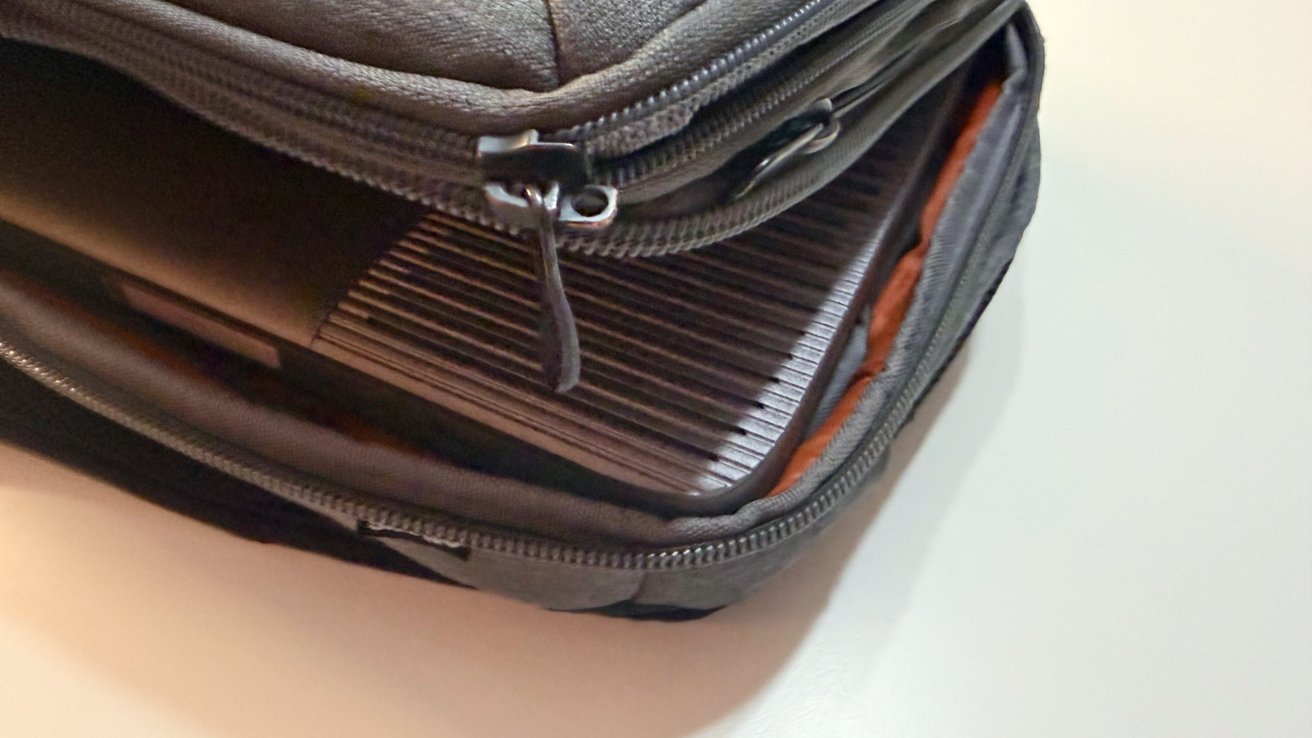
Iodyne Pro Data 24TB review: It just about fits in a backpack.
For single-person use, this is really impractical compared to a much smaller and lighter external drive. And, a single person can store data locally.
But, in the context of being used by a group of people on a project, this is still relatively portable. At least, it’s better than your typical boxy NAS in this respect.
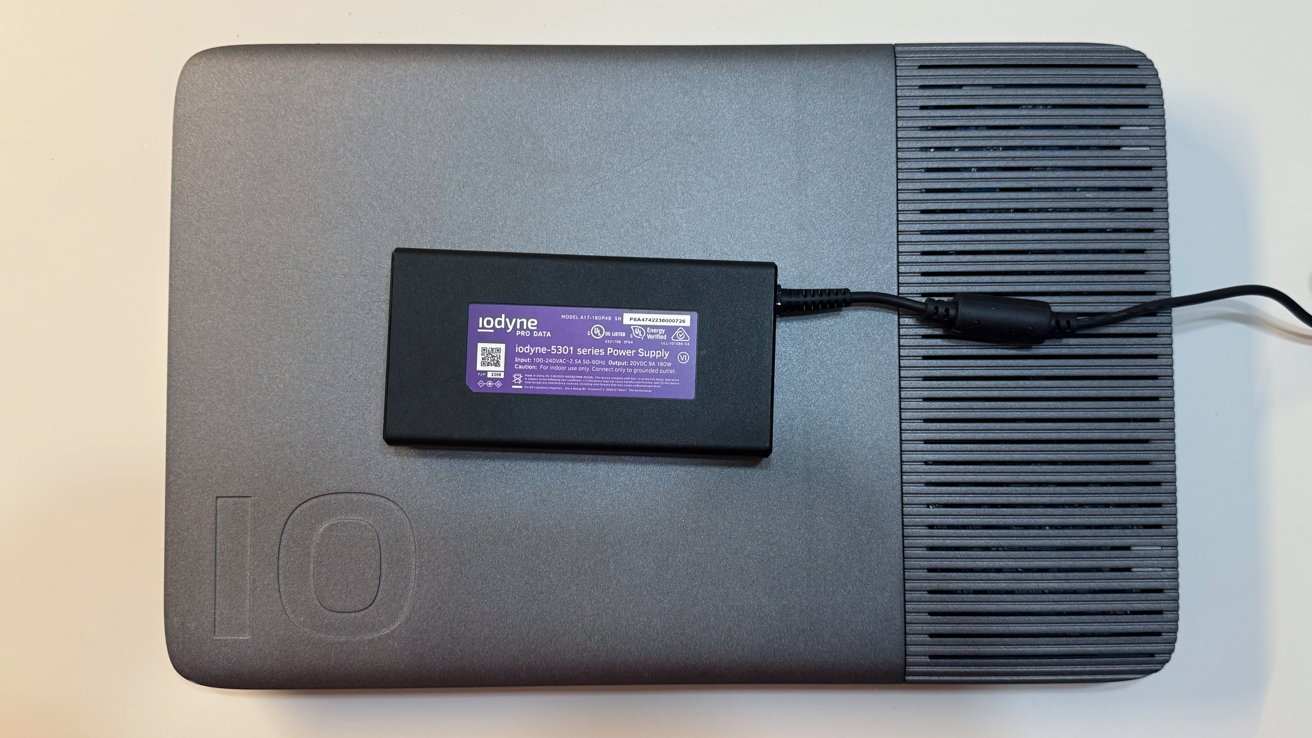
Iodyne Pro Data 24TB review: A relatively small power brick
The supplied power brick is relatively small and is a 180W Gallium Nitride (GaN) charger. It’s a merciful addition, given the overall mass of the unit.
Iodyne Pro Data 24TB review: Connectivity
The interesting thing about the Iodyne Pro Data is that it is intended as a fast storage device that runs off Thunderbolt, for multiple users. That lends itself to the relatively lean connection setup at hand here.
On one edge, there are eight Thunderbolt ports, each of which connects at 40Gbps. They are divided up into pairs, with each consisting of an upstream to a Mac and a downstream for other hardware to be connected.
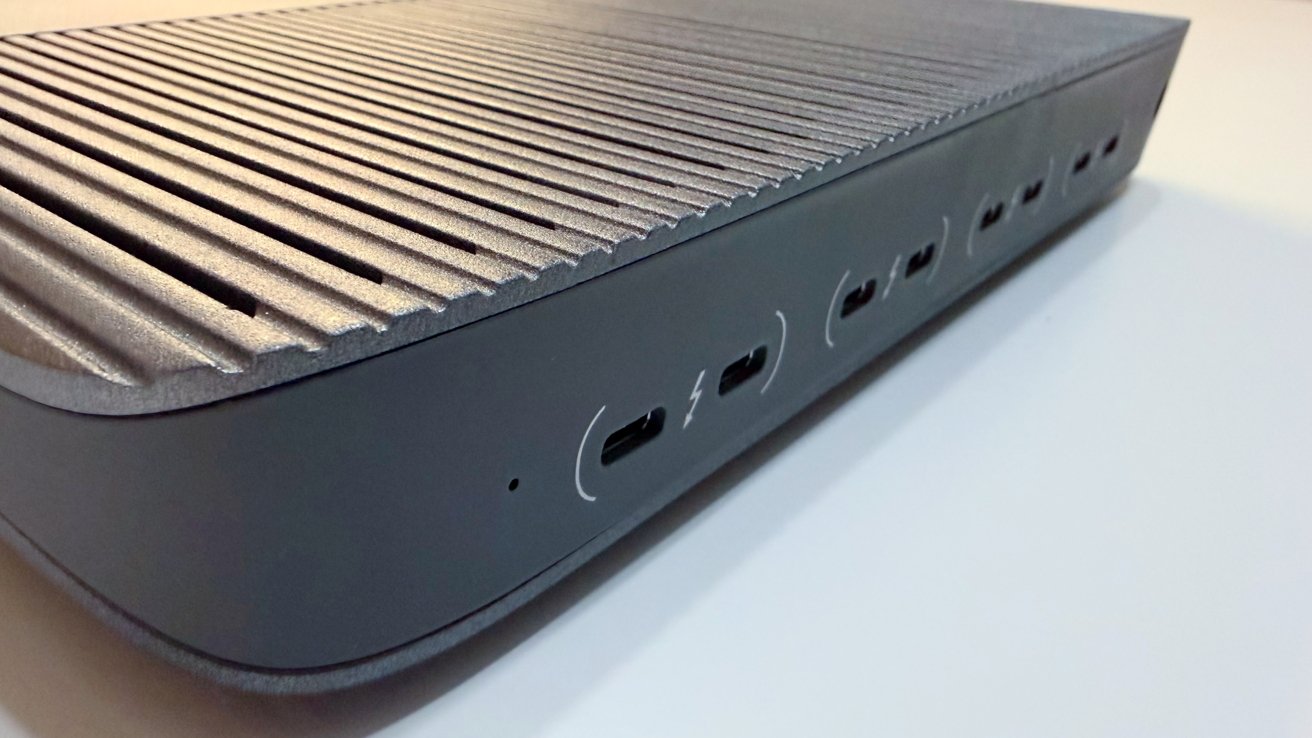
Iodyne Pro Data 24TB review: Port pairs
For the upstream, you’ve got two options. One: four users can access the storage.
And two, the more interesting use case: if you need even more speed, you can connect two of the upstream ports to one Mac.
As originally reviewed, and is still the case today, each port is 40Gbps.
As for the downstream ports, each can be used to daisy-chain more Thunderbolt devices. You can connect up to six devices as a daisy-chain for each Thunderbolt pair, though that chain only works with the host connected to that pair’s upstream port.
That means if you have two upstream connections to one Mac, the host can also use two of the daisy chains, in what is called by Iodyne as Thunderbolt Multipathing.
It’s possible to use all four Thunderbolt connections with one host Mac. That’s really only practical if you want to maximize the daisy-chaining capability, and it isn’t possible at all on the MacBook Pro, since there are only three Thunderbolt ports now.
And yes, to be clear, all computers connected to the upstream ports can access the storage in the device.
As for host connectivity, a pair of 1-meter (3.2-feet) Thunderbolt cables is included. You are going to need to get more — and longer — cables if you want to connect more Macs.
There’s support for macOS 13.0 or later, with Windows 10 version 21H2 and Ubuntu 22.04 or later also capable of connecting to the device.
Iodyne Pro Data 24TB review: Storage
The Pro Data includes 12 NVMe SSDs, with supplied capacities between 12TB and 192TB. The version supplied to the review is 24TB in capacity, holding 12 2TB drives.
However, it is possible to expand the storage considerably, with Iodyne claiming it can go up to 6.9 petabytes. However, really, it’s a maximum of 576TB using built-in drives, with the petabyte level achieved using daisy-chaining.
This would be an astronomically expensive thing to do, but at least there’s headroom.
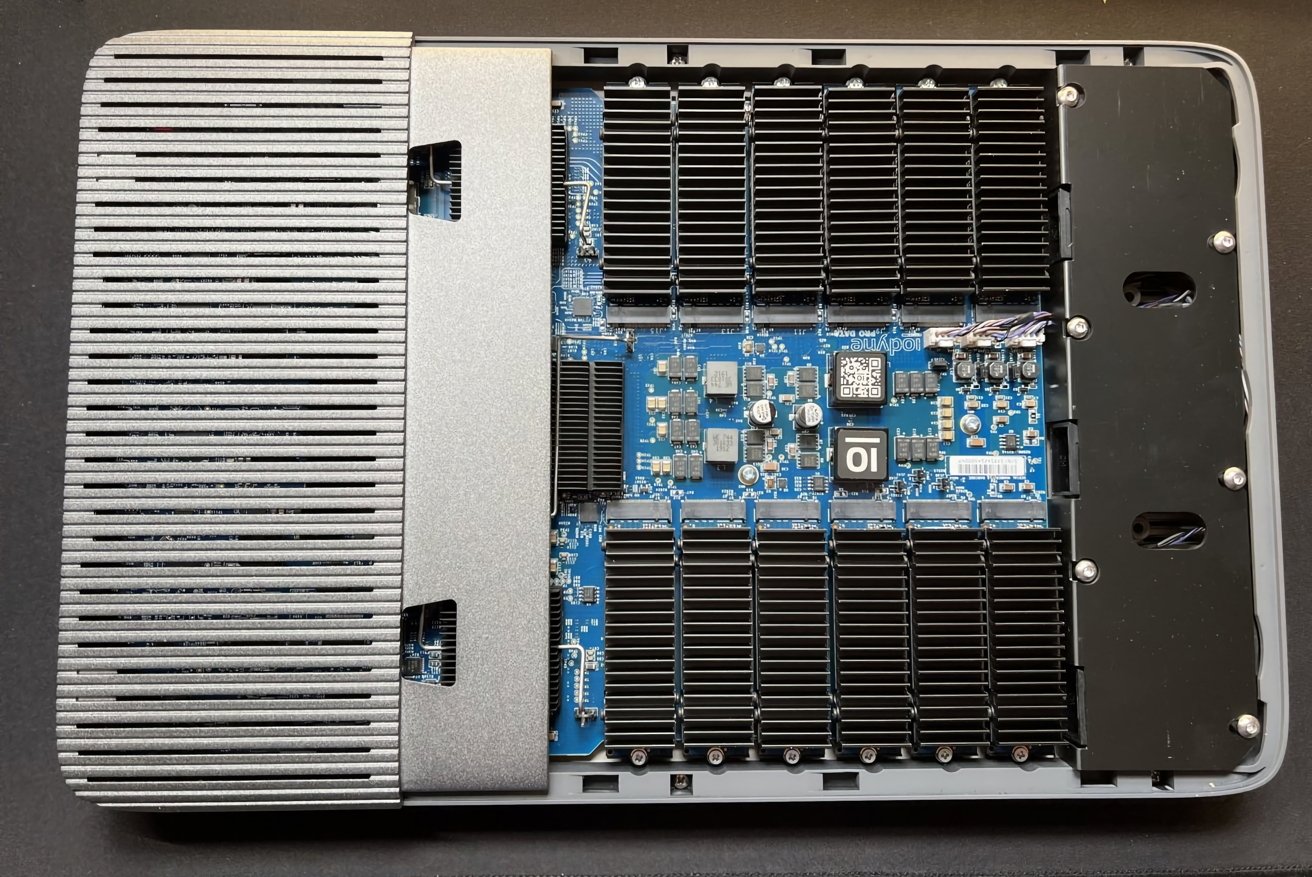
Iodyne Pro Data 24TB review: You can take the cover off to access the drives.
If you do want to add more, it is possible to take the enclosure off and replace the NVMe drives yourself. There’s no fixed-in-place storage here.
The panel can be removed by loosening just two screws, with each NVMe M.2 SSD able to be pulled after removing one more. Each module also has its own heatsink to help cool each drive.
All of these drives are connected and configured under RAID-0 or RAID-6. RAID-0 stripes data across all drives with no redundancy, so it’s full-speed but without a failsafe option.
RAID-6 is the more favorable one, as it uses dual parity to allow for two drives in the array to fail and still keep the data intact, while sacrificing some capacity. This provides robust redundancy, which, for the kind of projects this sort of drive would be used for, is the best option.
For the 24TB version supplied to us, that equates to 20 terabytes of usable storage.
The supplied software to manage and configure the device lets you set up separate containers with different properties. For example, one container could have RAID-6 and a large capacity as well as a password, while another could be a RAID-0 scratch disk without a password.
Practically speaking, you can configure storage for specific users or Macs, or for multiple Macs to use, depending on the task.
You can enable per-container passwords, using XTS-AES-256 encryption and a hardware Secure Enclave. Up to 15 containers can be set up per unit, which should be more than enough for small teams.
The software management in the app is also used to monitor the health of each installed SSD, warning of hardware issues when they come up.
You can also register the unit with the Iodyne Cloud, though it’s not a cloud storage service. Really, it takes telemetry reports on the health of the Pro Data itself and the SSD modules, not stored data.
This is very handy since replacements for under-warranty drives can be sent to users automatically at no charge. Users are also guided on how to replace the drive to minimize downtime.
I want to get this in front of this section, as it is key to the entire product, and why it exists.
This unit will run at maximum speed, essentially until the drive is full. You won’t be held back by slow SSD caches as the transfer size increases.
According to Iodyne, it is capable of up to 5.2 gigabytes per second for read speeds and up to 2.4 gigabytes per second for writes.
This sounds impressive, and it is. It’s also something we observed for ourselves, with 5.2 GBps on reads and 2.2 GBps for writes under multi-path RAID-0.
Single-path connections will be a little limited by the 40Gbps Thunderbolt connectivity. However, at 3.1 GBps for reads and 1.8GBps for writes, also under RAID-0, it’s still more than adequate for a single transfer.
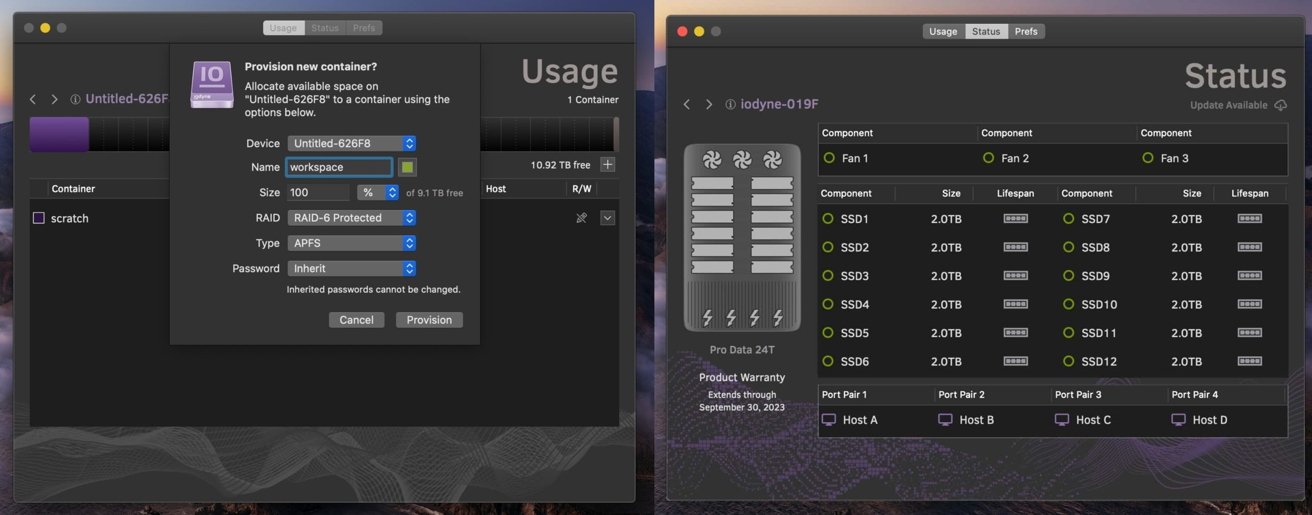
Iodyne Pro Data 24TB review: Management software.
If you were to throw multiple users at it, the bandwidth will hit a bottleneck as all that bandwidth will be consumed. But even that is an extreme case.
In our testing, the speeds aren’t linearly cut, but you do see a bit of a drop as more devices connect up. Connecting two Macs using two Thunderbolt cables each and with different containers, reads reached 2.6 gigabytes per second, and writes were at 950 megabytes per second.
At three devices, we saw 2.1 gigabytes per second reads and 700 megabytes per second writes.
Changing over to RAID-6 instead of RAID-0, performance does dip a tiny bit. But, at about 200 megabytes per second down for both reads and writes, and under single- and multi-path modes, this is still a pretty speedy connection here.
One key point to clarify here is that the connection speeds are sustained over several hours. The bandwidth doesn’t dip over time as data is thrown at it.
Single- or dual-drive units will hit a transfer wall quickly. Each SSD has an onboard cache, which absorbs as much of the inbound data as possible and feeds it into the main storage element over time.
Normally, this results in a fast transfer at first, either to DRAM or relatively faster flash media, before slowing as the cache gets full. However, since we’re talking about 12 drives and therefore 12 cache allocations, that’s constant cache availability, especially since the data is striped across drives.
The sheer number of drives and caches means that you’re just about always going to have this high level of transfer speed.
And that’s the key to the Iodyne Pro Data. If you’re moving 20TB of data, it can take half a day on a dual-drive enclosure. It will just take a few hours on this unit.
If you buy one, take advantage of the container capabilities. There’s no versioning in play here, just bare RAID storage, so you have to be careful of users potentially overwriting the work of others if they are all working collaboratively on the same file.
Iodyne Pro Data 24TB review: It’s expensive and probably not for you
The idea of a massive and fast data store is a very appealing thought for most computer users. That said, the vast majority of people have no real need for this sort of device in the first place.
Partly because of the price, partly because of its utility.
It is safe to say that the cost is prohibitive for your average home user. To get the cheapest configuration at 12TB, you would have to pay $5,995.
The version sent to us, 24TB, would set you back a steep $14,995, with 48TB at $29,995, and 96TB for $58,995. The top-spec option, 192TB, is $117,995. The two new capacities were released after our first review, and the price of the smaller ones was half of what it is now.
Again, thanks AI data farms buying up all the flash media that’s made. This is your fault.
The key to remember here is that it is really specialized gear. It’s Thunderbolt storage designed to work with multiple hosts, with consistent data speeds, which really is something designed for a really narrow use case.
In the course of this second review, I’ve spoken to animation houses that have produced movies you have seen, some military and federal folks that need consistent transfer speeds, and filmmakers who have made movies that you’ve watched. I even threw in a few large YouTube channels to boot.
To a person, they all salivated at the hardware. They uniformly said that this would fix one workflow or another, where data ingestion speeds and access to that data by more than one user were major, major bottlenecks for production.
That said, home users working on just one Mac at home would find getting a NAS or a normal external drive to be a much more fiscally prudent approach.
Really, this sort of hardware is made for groups of people with a need to deal with a ton of data, and therefore need consistently high speed. That, as well as the pricing, puts it firmly into enterprise, federal, and creative industry offices.
If you’re producing a video and need to offload tons of video to a central store, so it can then be worked on by editors who are also on location, this device makes perfect sense. It’s more than fast enough to ingest footage and have that data available instantly for editors to immediately work on it.
Its size is also an advantage, as you can also imagine that same team of people being used to carrying around a lot of other equipment. A seven-pound storage appliance that is shaped like a very large notebook wouldn’t be much of a burden in that instance.
The mention of small teams working closely together on location is also apt, since it’s all based on Thunderbolt connections. If you want to connect at the maximum speed the 40Gbps Thunderbolt connections can manage, you’re going to be limited to keeping your Mac within about nine feet of the device.
A NAS device using Ethernet can cover a very large area, but in 2026 and probably through 2035, will not come close to delivering this speed. If you want the speed, you’re going to have to play within the limitations of the Thunderbolt specifications, and shell out for some expensive cables too.
As it stands, the Iodyne Pro Data 24TB is a great tool for YouTubers and others with data needs in both capacity and speed, and can afford it. In that respect, there’s no complaint to be made.
Calling it overkill for a home user who happens to have the spare cash lying around for it is an understatement. Unless they happen to be working on projects that require high-speed storage access in a locally collaborative fashion, there’s no need for this.
For the kind of groups and situations where it is useful to employ the Iodyne Pro Data, it is worth the weight of your choice of precious metal.
The average user, or even the most prosumer user, should not even begin to think about getting one.
Iodyne Pro Data 24TB review pros
- Massive bandwidth, massive fast storage
- User serviceable
- Per-host daisy-chaining
Iodyne Pro Data 24TB review cons
- Usage range is limited by Thunderbolt cable specifications
- Massively expensive
Rating: 4.5 out of 5
I hate giving scores because they will never be universal. It’s clear that this product is not for the home, not for the small office, and not even for most large companies.
To be clear, the score here is based on it being useful for the target market, its intended purpose being to move mass quantities of data around, as fast as possible, for as long as possible.
For that, it is an incredible product. For that, it is best in class, and it is not close right now.
There’s no better product in this capacity to do that. You know if you need it already, and if you’re on the fence, you probably don’t, and have better options.
It’s been incredibly fun showing this off to people, and having that kind of consistent speed has been a joy to play around with. I’m going to miss it when it goes back.
Where to buy the Iodyne Pro Data 24TB
Iodyne sells the Pro Data directly, starting from $5,995 for 12TB. The 24TB model loaned for this review costs $14,995.
It’s also available from B&H Photo, with the 12TB priced at $5,995 and the 24TB at $14,495.