Posted on Leave a comment

Craig Federighi dragged into Musk’s Apple-OpenAI lawsuit

Apple software chief Craig Federighi will be taking part in xAI’s antitrust lawsuit against Apple and OpenAI over Grok’s treatment in the App Store, but Tim Cook seemingly won’t be.

In August 2025, Elon Musk’s xAI sued Apple and OpenAI, claiming that a partnership between the two affected Grok’s standings in the App Store. Specifically, Musk’s xAI accused Apple of bias in its App Store rankings, preventing Grok and X from getting the top spot in favor of ChatGPT.

As the antitrust lawsuit rolls on, it has now brought Apple SVP of Software Engineering Craig Federighi into the matter.

In a filing with the U.S. District Court for the Northern District of Texas on May 13, spotted by 9to5Mac, X Corp and xAI attempted to make Craig Federighi and CEO Tim Cook custodians. This refers to parties who are most likely to have pertinent information or sufficient access to details for the lawsuit to proceed.

The argument was that both Cook and Federighi had made “high-level, strategic decisions about the Apple-OpenAI Agreement,” the filing states.

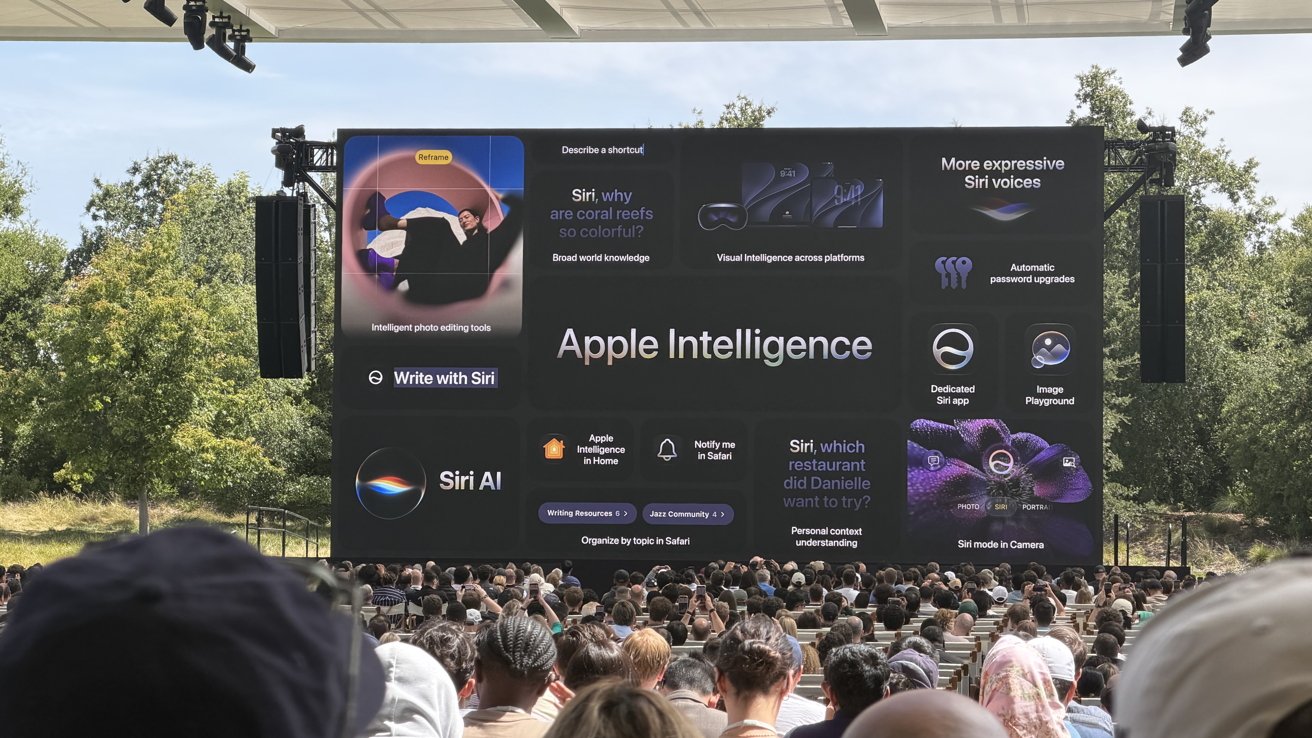
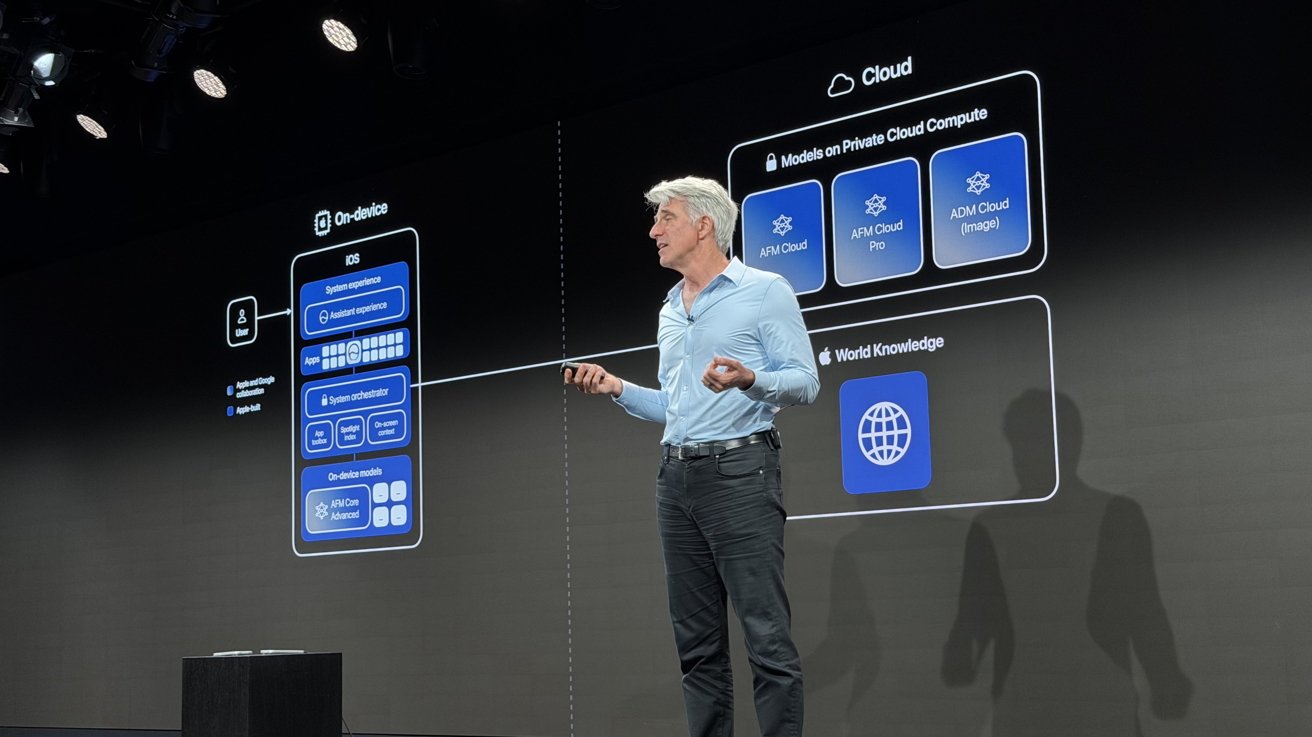
The court granted that Federighi should be a custodian, and that the plaintiffs successfully argued he may have “unique relevant evidence.” This includes information relating to Apple’s integration of OpenAI services into Apple Intelligence, because the SVP was almost certainly a key decision maker.

However, while there is an attempt to make Cook a custodian too, the court rejects this. The court says there’s no explanation for how Cook would have any unique relevant evidence that hasn’t already been produced, nor that Federighi would be able to provide.

Following this designation, Federighi has to provide responsive discoverable documents by June 17, 2026.

Employee rules, consumer use

While xAI was partially successful in its demands, it certainly wasn’t in others.

Late in the filing, the court explains it was asked by xAI to force Apple to produce all documents about internal policies concerning employee usage of generative AI and chatbots.

However, the court disputes the need for this, since it is unclear how Apple’s internal policies relating to employee AI usage would relate to the antitrust claims. Employee AI usage doesn’t directly impact App Store rankings, the court proposes.

The reasoning from xAI was that Apple touted the safety of OpenAI’s products, but was concerned enough to impose limits and rules on how employees used them. The court disagrees because Apple’s imposition of guardrails on employee usage doesn’t mean Apple is “misrepresenting” the safety and privacy of programs to the public.

As such, the court denied the document demand.

Not all demands were from xAI either. OpenAI moved to require Musk to present emails at Tesla and SpaceX, as well as other communications, by June 3.

That demand was granted by the court.

Posted on Leave a comment

iPadOS 26 review – iPad finally feels more like the computer it should be

iPadOS 26 is the first iPad update in years that makes the device feel meaningfully closer to a real primary computer, even if it still isn’t consistent enough to fully replace a Mac.

Apple has continually enhanced the iPad’s hardware, yet the software remains tethered to an iPhone-like design. The design has always imposed strict sandboxing, limits background activity, and restricted multitasking capabilities.

Those choices prioritize security and efficiency but prevent apps from behaving like they do on a Mac, which has long limited the iPad in more complex work. With iPadOS 26, Apple addresses some of those limits, as well as giving it a facelift with its new Liquid Glass design.

As part of that new design, the update introduces a new windowing system and a refreshed interface that push the iPad closer to desktop-style workflows without turning it into macOS.

I used my iPad Pro as my primary computer before iPadOS 26, even with a MacBook Air nearby. The iPad fits how I prefer to work, but iPadOS has often forced compromises that macOS does not, and this update reduces some of those gaps without fully eliminating them.

iPadOS 26 review – Liquid Glass offers a new look

Liquid Glass certainly gives iPadOS 26 a distinctive look, and I like it overall, but it matters less than the workflow changes and occasionally it even gets in the way. Liquid Glass is predominantly a visual style and emphasizes translucency, depth, and motion.

So controls adjust their color and contrast based on what’s behind them, meaning that the same buttons can appear lighter over dark content and darker over bright areas. There are also changes to how menus and options appear, some of which is definitely a positive:

  • Common actions move closer to where you interact
  • Icons, widgets, and panels adapt to your wallpaper

That last is best exemplified by the Weather app, which is a particularly attractive design. However, even in that case, there is a tradeoff in simple readability with Liquid Glass.

For instance, with iPadOS 26 you are much more likely to have overlapping windows, because you can, and because it is definitely a boon to be able to see multiple apps. But the readability issues were enough that Apple added more controls in the iPadOS 26.1 update, that let you choose between Clear and Tinted appearances.

There’s also Reduce Transparency, an option that is tucked away under Settings, Accessibility, and Display & Text Size. That removes most translucency across the interface, improving contrast when Liquid Glass becomes distracting.

Liquid Glass definitely does enhances the iPad’s appearance by adding depth and motion to the interface. Yet some elements can even distract when scrolling through content because the glassy distortion effect moves across the material underneath.

Consequently, those improved controls in iPadOS 26.1 are needed to tone down when Liquid Glass gets in the way.

But then Liquid Glass, for all the attention paid to its visual style, is also a productivity aid. It’s the overall Liquid Glass look and feel that makes the iPad just that much more like a Mac.

iPadOS 26 review – The iPad works more like a Mac

Most significantly, iPadOS 26’s Liquid Glass redesign introduces resizable, movable windows that finally let you arrange apps around the task instead of forcing the task into the system’s layout. You can now open multiple windows at once and keep everything in view.

Safari can sit next to Pages, Notes, Messages, and Files without forcing everything into a fixed Split View layout or a Stage Manager group.

So apps and their windows can be arranged around the task instead of the other way around. Plus iPadOS 26 remembers where each window was placed, so your layout stays intact across tasks.

iPad screen showing overlapping multitasking windows: a news article in Safari, a Reminders Today list with task Clean litter box, and multitasking settings in the background, above the dock iconsWindows can be arranged around the task instead of the other way around

Returning to a project brings back the same workspace instead of forcing you to rebuild it. The best part for me is drag and drop, because moving text, images, or files from one app to another feels much more natural when both apps can stay visible.

Apple also adds more direct ways to organize windows. Apps can snap into halves and quarters instead of being locked into the previous Split View or Slide Over options. Then, too, an Expose-style view now shows every open window at once instead of your having to group them together in Stage Manager.

As good as all of this is, I use the 11-inch iPad Pro, and the smaller screen makes the new windowing feel cramped faster than you’d expect. Smaller iPads don’t benefit from freeform windowing as much as larger models, so tiling often works better than trying to manage several floating windows.

But then windows can also minimize when you want to clear screen to concentrate on something. That alone makes the iPad feel closer to a traditional desktop.

You’ll need time to learn how to place, resize, and manage multiple windows, though, and early on it’s easy to misplace apps, trigger the wrong layout, or fight resizing behavior that isn’t always consistent.

Arranging apps is still less smooth than on macOS, especially when you’re trying to maintain a clean layout across tasks. Resizing isn’t consistent, and it’s one of the first things you notice when you start working this way.

Plus all these months after iPadOS 26 came out, you will still run into apps that jump between sizes, break layouts, or don’t fully support the new system.

Nonetheless, daily work is more flexible with this windowing because opening a document from Files or Mail simply creates a new window on screen instead of entirely replacing the previous app. You can keep your existing layout intact and return to it after checking a document, rather than rebuilding your workspace each time.

As a result, the iPad finally supports more complex work without constantly reminding you that the operating system is in the way.

Windowing gets most of the attention, but ultimately it’s only as good as it is, though, because the rest of the system finally starts catching up with the Mac.

iPadOS 26 review – desktop-style workflows finally mature

The new menu bar adds a Mac-style layer on top of existing app controls rather than replacing them. I like it because it surfaces controls you may have forgotten about or never even knew existed, and the Help menu is especially useful when you want to search for an action instead of hunting through the interface.

Older iPad apps often hid commands in toolbars, popovers, and gestures, which made them harder to find. Command search fixes that by letting you type what you want to do instead of hunting through the interface.

Then, too, the Dock now plays a larger role in iPadOS 26 by acting more like a workspace than a simple app launcher. You can pin folders from the Files app, including locations like On My iPad, iCloud Drive, or external storage, then open them and drag files directly into apps like Mail, Messages, or Notes.

You can also drag apps from the Dock to tile them on screen or place them into Slide Over. This makes multitasking feel more direct and useful than before. It means you can keep documents, conversations, and reference material within reach during active work and not have to constantly think about switching apps.

iPad Files app showing iCloud Drive folders in list view, with sidebar locations on the left and a sort options popover open on the right side of the screenFiles in iPadOS 26 expands its list view to show more metadata

In another way that the iPad now benefits from Mac-like features, there’s the updated Files app. In iPadOS 26, Files becomes much more useful by expanding its old list view to show more metadata at a glance, including file size, kind, date modified, and tags.

You can also sort by each column directly from the header, which makes Files feel less frustrating when you are working through a large folder.

Plus collapsible folders expand inline, so you can click a disclosure triangle next to one folder and see its contents without having to open it first. Consequently, it’s now possible to look through nested directories without ever leaving your current location.

It makes large project structures easier to navigate, because you are no longer constantly going into and out of folders. Then, too, resizable columns let you prioritize names, dates, or sizes, meaning you can see more, and you can drill down into just what you need.

That’s a boon by itself, but then there’s how the new Files app remembers my layout and sort order for each location. Returning to the same folders no longer requires resetting how files are displayed.

iPadOS 26 also makes background work more visible and dependable, especially for file transfers, exports, and downloads. The update introduces persistent progress indicators in the Files app and system UI, such as real-time transfer bars and status badges.

Previously, large exports, copies, or downloads would feel tied to the app that started them. If you’ve ever exported a video from Final Cut Pro for iPad, you know that you simply have to walk away until it’s done, because there was nothing else you could do.

Now operations like that can continue in the background — if the app supports this feature — while you move between apps, open documents, or rearrange windows.

So now, at last, I can start a file transfer, jump into Messages, and come back without losing progress. It removes an annoyance more than it radically changes my workflow, but, still, if you’re a Mac user, this is something that seems so basic.

Also, to facilitate this new flexibility, completed tasks surface clear confirmations or notifications. So now you immediately know when large operations finish and you’re not left having to check manually.

In another Mac-like move, the iPad’s cursor now behaves more like a standard pointer, with more precise control and familiar interactions across buttons, menus, and text fields. iPadOS 26 moves away from the circular, morphing cursor used in earlier versions and adopts a more traditional pointer model.

Tablet screen showing ChatGPT image creation interface, with a glowing purple planet on black background and circular suggestion icons like Desert, Space, Love, Spring, Stadium, Volcano, Forest along bottom.Background tasks in iPadOS 26 show persistent progress indicators in the Files app and system UI

Moving that pointer quickly back and forth enlarges the pointer so it’s easier to find on larger displays, just as it does on the Mac.

It’s not that the iPad should become a Mac, though. There are still iPad-specific features and a particularly welcome new one concerns the menus that apps can now display. A system-wide menu bar appears at the top of the screen when using a keyboard and trackpad, giving you consistent access to app commands.

It all makes longer workflows more practical.

iPadOS 26 review – external displays show progress and remaining gaps

If you are going to be using your iPad for extended work, though, you’ve long been able to use an external monitor and that has seen an improvement too. iPadOS 26 extends the new windowing system across displays and lets each screen host its own set of apps with independent window placement.

Now windows can be moved between displays, and each screen keeps its layout instead of resetting when you switch focus.

So you can easily keep a document on one display and reference material on the other, which cuts down on how often you have to bounce between apps.

Earlier versions of iPadOS could do something of this with Stage Manager, but it was limited and it forced you into building groups of apps. Those setups often fell back to mirroring or constrained resolutions depending on the display.

iPadOS 26 removes those constraints and makes multi-display use more flexible.

iPad settings screen showing Multitasking and Gestures options, with Stage Manager selected, various toggles enabled, and a sidebar listing categories like Accessibility, Display, and Home ScreenEarlier versions of iPadOS relied on Stage Manager for extended display support

However, external display support still has limitations that affect how the system works across screens.

System controls like Control Center, notifications, and certain system menus, for instance, remain on the iPad’s built-in display. So there’s no equivalent of the way with a MacBook Pro that you can shut the laptop’s lid while you work.

You still have to keep the iPad screen to hand in order to accessing system menus or managing certain actions.

Plus external display behavior still depends on app support. So some apps will still open at fixed sizes, ignore certain layouts, or jump between sizes when you move them between displays.

Placement and resizing still feel inconsistent in practice. So there are improvements and they are good, but it’s inconsistent. Which is also something you can say about how Apple Intelligence now works in iPadOS 26.

iPadOS 26 review – Apple Intelligence adds capability, but not consistency

Apple Intelligence adds useful features across iPadOS 26, but it’s variable enough that you still can’t rely on it the way you might expect.

Just as on the Mac and the iPhone, there isn’t an Apple Intelligence app. Instead, it powers specific tasks inside all other apps, and that means it can be more limited than full-blown third-party software.

But then that means that Apple Intelligence’s Live Translation can provide real-time text translation right inside in Messages. It can provide spoken translation within a FaceTime call.

Similarly, Apple Intelligence can summarize text, and do so within other apps. In Mail, for instance, I can scan a long thread and get a quick overview before deciding whether to dig into the full conversation, which saves time when messages stack up.

iPad screen showing a Safari article on AppleInsider titled What the analysts said about Apples record-breaking second quarter with a gray summary box and toolbar icons along the topIn Safari, summaries are more deliberate

In Safari, summaries are more deliberate, since you have to choose to turn them on when you open a site. But they still help when I only need the gist of an article before moving on.

Summaries handle straightforward content well, though they can miss nuance or gloss over specifics in longer or more complex threads. I don’t rely on summaries for detail, but they’re good enough to decide whether something is worth reading in full.

The system processes many requests on the device, so tasks like rewriting text, summarizing messages, and responding to on-screen content happen quickly and without sending that data off your iPad. Local models keep everyday interactions fast and avoid pushing drafts, emails, or documents to external servers by default.

More demanding requests move to Private Cloud Compute, which runs on Apple-managed servers when the iPad can’t handle the task locally. The handoff happens automatically, so simple tasks stay fast on-device while more complex ones depend on that shift and can take longer to complete.

This means that Apple Intelligence can handle those more complex tasks, but it does not mean that Apple Intelligence suddenly becomes less secure. Instead, through Apple’s Private Cloud Compute, your prompts are sent with only the minimum necessary data in encrypted form to Apple-run servers built on Apple Silicon.

That then processes prompts and responses in memory without retaining it. It’s all designed so that even Apple cannot access user data.

Apple also publishes verifiable system images, which means that security researchers can inspect how the servers operate. You don’t see this process directly, but it gives those outside experts a way to absolutely confirm that your data isn’t being improperly stored or misused.

Note, though, that access to Apple Intelligence depends heavily on hardware and configuration. Most features, for instance, require iPads with Apple Silicon such as M1 and newer chips, along with devices like the iPad mini with A17 Pro.

Many Apple Intelligence features run directly on the device, including Writing Tools, summarization, Siri‘s on-screen awareness, and parts of Live Translation. Those features rely on the memory and neural performance those chips provide.

Capabilities vary based on language support and regional availability. For example, features like on-device Siri requests and Apple Intelligence summaries can be limited or delayed in certain regions, and Apple Intelligence features in China face additional regulatory hurdles that affect how and when they launch.

Differences in language support also affect accuracy and feature availability, especially for tools like Live Translation and Writing Tools.

Even within US English, though, there are differences depending on what iPad you have. On-device models take up storage space and may require additional downloads, so availability and performance can vary.

In practice, this means some features arrive later, don’t appear at all, or behave differently depending on where and how you’re using the iPad. Writing Tools is a good example of how that plays out in daily use.

Writing Tools

Writing Tools, one of Apple Intelligence’s most prominent features, doesn’t generate content like other large language models. Instead, it helps you refine and enhance you existing writing, rather than creating new text from scratch.

iPad screen showing a notes app with a long article draft, while a floating Writing Tools panel offers proofreading, rewriting, tone options, summaries, lists, tables, and compose controlsWriting Tools, one of Apple Intelligence’s most prominent features

Short edits like proof-reading a sentence or a paragraph, are processed instantly, while longer rewrites take a few seconds to process. Despite that noticeable delay, the editing experience still feels local, and the speed ensures that you don’t lose your place while working.

Proof-reading is the part I trust most. The rewrite and tone tools might be useful as optional helpers, but I don’t rely on them for anything that needs a strong point of view.

Writing Tools arguably works best as refinement, an option that tightens sentences, smooths awkward phrasing, and cuts repetition. The “Concise” option is the most useful in practice, while tone presets like “Professional” and “Friendly” tend to overcorrect and flatten the voice.

That’s where the limits show, since rewrites often lose nuance in longer or more opinionated passages and I don’t trust it with original writing or complex arguments. I still check every change, which limits how useful it actually is for real writing.

Writing Tools isn’t better than dedicated AI tools because it focuses on short edits and refinements rather than generating or restructuring longer pieces of content. It’s useful because it’s built into the system and always within reach, even if it doesn’t replace more capable tools for complex writing.

Live Translation

Whereas Live Translation is startling. It extends Apple Intelligence into real-time communication across Messages, FaceTime, and calls.

The feature works directly inside these apps, so conversations translate in place without switching tools. So you can talk or message across languages without breaking the flow or copying text between apps.

It’s in Messages that Live Translation offers the most immediate benefit in daily use because incoming and outgoing text appears translated inline. The interface keeps the original message visible below the translation, which makes it easier to follow longer conversations and verify meaning when phrasing is ambiguous.

FaceTime call on tablet with black screen, small caller video bottom left, and call options panel on right showing audio, live captions, screen sharing, SharePlay, and end-call controlsLive Translation extends Apple Intelligence into real-time communication

FaceTime and calls bring the same idea to spoken language. The system generates live captions on screen as people talk, translating speech in real time so each side can follow along in their preferred language.

Some scenarios also support spoken output for translated audio, though availability depends on language support. Live Translation handles language detection automatically in most cases.

The system identifies the language each person uses during a conversation. It adjusts translation direction automatically and removes the need to switch languages manually.

I don’t need use Live Translation in my daily workflow, but the value is obvious for people who regularly message or call across languages. In my experience, accuracy holds up well for simple exchanges, but it does breaks down once conversations get more complex.

Strong accents, background noise, and technical language make mistakes more likely, too. So the feature works best for casual communication rather than precise or specialized discussions.

Genmoji and Image Playground

That’s also true for Genmoji and Image Playground, which aren’t entirely new to iPadOS 26, but are expanded. They are still for lighter, more casual use like messages, reactions, and quick visuals, but now Apple has expanded both with more customization options and deeper integration into system apps.

I rarely use Genmoji or Image Playground, and they feel more like occasional novelties than tools that change how I use the iPad. Still, the changes make them easier to access, although they remain incremental rather than defining additions to the update.

You’ll soon find limitations, too. Imaging limitations in particular become clear when I try more specific requests that require detail, tone, or realism. Image Playground relies on a narrow set of styles and produces flattened results with minimal variation.

Tablet screen showing a glowing, colorful digital painting of a black cat lying on a tiled floor indoors, surrounded by dark interface background and circular art style suggestions belowImage Playground relies on a narrow set of styles

Genmoji follows the same pattern in everyday use. I can generate personalized emoji on demand, though the results rarely capture subtle expressions or context with accuracy.

Apple prioritizes safety, speed, and system-level integration across these features, but that approach limits flexibility and output quality.

Genmoji and Image Playground offer visible examples of Apple’s AI strategy, though they play a smaller role in sustained work. Apple focuses on integrating AI into familiar system features instead of introducing a single dominant interface.

Although you might think that Siri would be the perfect example of a single, dominant interface for everything.

Siri

Siri has not had its promised radical improvements yet, but it does now understand and respond to what’s on your screen. So you can ask it to summarize an email thread, pull details from a message, or answer questions about a document without switching apps. Apple calls this on-screen awareness.

It works best in apps like Mail, Notes, and Safari where content is clearly structured, and it’s less reliable in more complex or dynamic interfaces.

Siri no longer takes over the full screen and instead uses a soft, multicolor gradient glow around the edges of the display, with shifting tones like blue, purple, and pink. I like it better than the old interface because it keeps the app in view and makes interactions feel quicker and less disruptive.

The interface also shows a compact response panel that keeps the current app visible. Results show inline, which keeps the original content visible and makes it easier to reference what you are asking about in real time.

iPad screen showing App Library with neatly organized app folders for categories like Suggestions, Recently Added, Social, Utilities, Entertainment, Creativity, Shopping, Health, Games, and TestFlight on a blue gradient backgroundSiri no longer takes over the full screen and instead uses a soft, multicolor gradient glow around the edges

Typing plays a larger role alongside voice input, with a persistent text field that lets users enter requests at any time. The interface supports typing and speaking in the same place.

That means Siri becomes easier to use in shared spaces or situations where speaking out loud is not practical. And then whichever way you use it, Siri can hand off more complex or open-ended requests to ChatGPT when it isn’t able to provide answers directly.

Just as with all of Apple Intelligence remaining secure even when it uses ChatGPT, Siri prompts you for permission before it sends anything externally.

Simple requests run on-device, and more demanding tasks route to Private Cloud Compute. The transition happens automatically with faster responses for basic actions and no visible indication when a request moves to cloud processing.

All of this means that Siri is less annoying in iPadOS 26, but it still needs a lot of work. Most of the improvement comes from better context awareness and presentation rather than a fundamental shift in how much Siri can actually do, and hopefully iPadOS 27 will push that further.

iPadOS 26 review – apps and additions fill overdue gaps

Siri, and especially windowing are noticeably improved in iPadOS 26, but this update also focuses on closing long-standing gaps that have limited the iPad in everyday workflows. New apps and system features bring native support for tasks like PDF editing, phone calls, journaling, gaming management, and structured content consumption.

Many of these tasks previously required workarounds or third-party apps, so these additions reduce friction across common tasks. More work happens without relying on external tools, and that makes the iPad feel more complete as a primary computing device.

Preview

The iPad now gets a dedicated Preview app, bringing Apple’s macOS PDF viewer and editor to iPadOS 26. It can open documents directly from Files and replaces Quick Look as the default viewer for supported file types.

Performance can be slower than Quick Look, Apple’s instant file preview feature, when opening files for viewing, especially when speed matters more than editing. You can change the default behavior by right-clicking a PDF in Files and selecting a different viewer for faster access.

iPad screen displaying Preview app with large title, options for New Document and Scan Documents, a sidebar of file locations, blurred thumbnails, and a magnifying glass icon on the leftThe iPad’s Preview app now integrates a native PDF viewer and editor

You can open PDFs directly, add annotations with Apple Pencil or touch, highlight text, insert signatures, and fill out forms within the same workflow.

Preview includes an autofill system for PDF forms that cuts down on repetitive data entry across documents. It recognizes common fields like name, address, email, and phone number and fills them in using your saved contact information.

However, Preview can sometimes misread form fields and suggest autofill where it doesn’t belong. You may need to clear or override those suggestions and enter information manually when the layout isn’t recognized correctly.

You can review and adjust each field before confirming, though, which keeps the process accurate without slowing it down. Autofill works best with standard form layouts and becomes less reliable with complex or poorly structured PDFs.

The interface resembles the Mac version in a simplified form, with a sidebar for page thumbnails and a markup toolbar for drawing, shapes, text boxes, and signatures. You can open a PDF from the Files app, make edits like annotating, filling forms, or signing documents, and save changes in place without switching apps.

Preview is good enough for most people because it covers the PDF jobs that come up most often. It replaces several common third-party workflows by handling tasks like signing forms, marking up documents, and making quick edits, even if it doesn’t attempt to match the advanced tools and depth found in full desktop apps.

Phone

The Phone app comes to iPad through Continuity and mirrors calls from a nearby iPhone using the same Apple ID and Wi-Fi network. Calls, voicemail, contacts, and recent activity appear in a unified interface alongside Messages and FaceTime, though reliability still depends on your connection and proximity to the iPhone.

Incoming calls ring on the iPad, and you can answer, decline, or start new calls directly from the app or from contact cards across the system. The interface mirrors the iPhone with tabs for Favorites, Recents, Contacts, and Voicemail.

Then, too, Visual Voicemail shows messages with playback controls and transcriptions. Contact integration pulls names, photos, and linked information directly from the system address book.

Tablet screen showing a large phone dial pad overlay with numeric buttons and green call button, plus call history, missed call timestamp, and add name options on a blurred backgroundIncoming calls ring on the iPad, and users can answer, decline, or start new calls

Call Screening is a great feature that can answer unknown callers, prompt them to identify themselves, and show a live transcript before you choose whether to pick up or not. Hold Assist can stay on a call, detect when a live agent returns, and send a notification so you can rejoin without listening to hold music.

Live Translation offers real-time translation of conversations during supported calls, providing practical value for multilingual communication. While I don’t personally use this feature, I appreciate its availability.

The app still depends on an iPhone nearby because the iPad doesn’t place cellular calls on its own, so all activity routes through the paired device. Consequently, for me, it is nice to have rather than essential, but it does make the tablet feel more like a general-purpose computer.

Journal

Journal, one of my favorite Apple apps, arrives on iPad with iPadOS 26 after launching on iPhone and takes advantage of the larger display and Apple Pencil support. The layout gives entries more room to expand, which makes it easier to combine typed text, handwriting, photos, videos, locations, and mood logs in a single view.

Entries build as a continuous timeline with media embedded inline instead of attached separately. Photos and videos sit alongside text, location data appears as maps within the entry, and handwriting can be added directly between paragraphs.

Journal surfaces prompts and suggested moments based on recent photos, places, and activity captured on the device. Suggestions appear directly in the interface and can turn into new entries with minimal effort, making it easier to start writing without needing to come up with an idea.

Tablet screen showing colorful journaling app dashboard with statistics cards: current 45week streak, entry counts, calendar, word totals, visited places, and journal categories listed along the left sidebarJournal creates a dedicated space for personal writing that encourages regular use

Journal on iPad makes me use the app more often because long-form writing is easier with a hardware keyboard than it is on the iPhone. Organization also plays a larger role than it does in Apple Notes, which is where I previously stored journal entries.

Multiple journals, timeline navigation, map views, and insights like streaks and totals make it easier to sort entries and revisit them later.

Apple Pencil support gives handwriting and sketching a natural place inside entries instead of forcing everything through a keyboard. You can write, draw, or annotate media within the same entry.

Journal creates a dedicated space for personal writing that encourages regular use through prompts, structure, and tracking. The app supports longer, more intentional entries and turns journaling into a more consistent habit instead of an occasional task.

Games

Another new app introduced in iPadOS 26 is Games, giving the iPad a central gaming hub that Apple never really had before. It shows a full library, including past downloads, and lets you launch titles directly while sorting by category, size, or install status.

Since I’m not a heavy gamer, I don’t use Games often. However, having a central place for the library makes much more sense than burying Game Center in Settings.

A Continue Playing section brings recent games back to the surface, while achievements and leaderboards track progress across titles. Notifications can highlight when a friend beats your score or completes a challenge, which gives Game Center activity more visibility than before.

iPad Apple Arcade home screen showing achievement progress for Owl-Rounder at 66 percent, message encouraging completion, and a row of colorful game icons under Continue PlayingAnother new app introduced in iPadOS 26 is Games

Games mostly organizes what was already there, but that still helps. It suggests titles based on your and your friends’ gaming habits, highlights new releases, shows top charts and upcoming games, and includes demos so you can try some games before purchasing.

The social layer runs through Game Center. You can track friend activity, take part in challenges, and compete through leaderboards, even in games that are not built around multiplayer.

Invites and challenge prompts make gaming more active without requiring a full multiplayer session. Apple Arcade has its own dedicated space with easier access to its catalog and updates.

Controller support improves the experience in games that support it, with iPadOS recognizing external controllers and allowing navigation without touch. However, support is inconsistent across titles, and some games still ship with incomplete mappings or control quirks.

Apple News

Apple News also sees refinement in iPadOS 26, especially in News+ Food, which Apple introduced earlier as part of its expansion into recipes and cooking content. The core experience remains the same, but it feels more polished and better suited to the iPad’s larger screen and multitasking workflow.

Tablet screen showing a recipe app with a centered Customize Units settings panel, including toggles for units, temperature in Fahrenheit, abbreviations, and advanced options over blurred ingredient and instruction listsEach recipe includes ingredients, directions, nutrition facts, and ratings

Recipes function as interactive tools rather than static pages, with features like Cook mode, recipe scaling, unit conversion, timers, and saved notes working together in a more fluid way. Those features aren’t new, but they feel more usable here, especially when moving between steps or keeping a recipe open alongside other apps.

The result is a feature that finally works like a practical cooking tool instead of just a reading experience.

Apple Music

Apple Music in iPadOS 26 focuses on refinement rather than major structural changes. The app introduces AutoMix, which builds on crossfade to blend songs together with more dynamic transitions that adjust to each track.

I like AutoMix, and it works best with electronic music and other steady beats. It can fall apart or fail to trigger with more traditional songs built around vocals, guitars, drums, or more varied rhythms.

Apple Music’s new features also include lyrics translation and pronunciation, allowing you to follow along with songs in various languages directly from the Now Playing view. Library management has seen practical improvements.

You can now pin albums, playlists, artists, or songs to the top of the Library tab for quicker access. Playlists can also be organized into folders directly on the iPad without needing a Mac.

The interface shifts to full-screen artwork that mirrors album and playlist art. It replaces the flat white backgrounds with something that feels more connected to the music you are playing.

Apple Music’s design fits into Apple’s visual direction across iPadOS 26 and keeps the focus on content. The company also expands discovery and utility features around the edges.

Three tablet screens show Apple Music playing different Weezer albums: red album on a red background, teal album on teal, and green album on bright green, with tracklists and controls visibleBoring white backgrounds are replaced by full-screen artwork on album and playlist pages that mirror the cover art

Next, you can now find nearby concerts for artists in your library directly within the app, with tour dates, venue details, and ticket links tied to your listening history. Apple Music highlights shows based on your location, but coverage can be uneven, and listings don’t always reflect what’s actually closest or most relevant in your area.

The feature links listening activity to live events, letting you view details, get directions, or open ticket links without leaving the app.

Music Haptics adds optional tactile feedback that maps elements of a track like rhythm, bass, and intensity to vibration patterns on the device. The system syncs those vibrations in real time with playback and gives users who are deaf or hard of hearing a way to experience music through touch.

Settings let users adjust or disable the haptics, and it works automatically with supported tracks in Apple Music.

iPadOS 26 review – more capable, still inconsistent

There’s a lot to say about iPadOS 26 because it does deliver meaningful improvements across multitasking, system design, and core apps, and it handles more everyday tasks without workarounds. However, some of the same issues that have limited the iPad as a primary computer still show up in daily use.

  • Connectivity is uneven for a device positioned as a primary computer, with Photos pausing sync over cellular and claiming a poor connection even on strong 5G
  • iCloud Backup can require manual intervention after long gaps, even when all cellular settings are enabled
  • Third-party apps still lag, with missing or inconsistent keyboard shortcuts
  • Window resizing and layouts vary between apps, and some still don’t adapt well to landscape or multi-window use

Nonetheless, iPadOS 26 finally makes the iPad feel like the computer it has been trying to be, even if it still breaks down in some familiar places. It’s the most usable version of iPadOS yet, and I would use it as my only computer, but it still relies on Apple and third-party developers to close gaps that shouldn’t exist anymore.

iPadOS 26 review – Pros

  • New windowing system makes multitasking more flexible
  • Liquid Glass modernizes the interface
  • Preview adds a native PDF editor
  • Phone and Continuity expand communication
  • Journal provides a dedicated space for writing
  • iPad handles more daily tasks as a primary computer

iPadOS 26 review – Cons

  • Apple Intelligence features remain inconsistent across apps and tasks
  • Liquid Glass can reduce readability in complex or high-contrast layouts
  • Third-party apps lack consistent support for keyboard shortcuts and layouts

Rating – 4 out of 5

Posted on Leave a comment

Unexpected US carrier joint venture fires up to expand iPhone cell coverage

Unlikely partners AT&T, T-Mobile, and Verizon have announced a joint venture that will help ensure iPhone users can get a signal even in previous cellular dead spots.

Working together for once, the companies have announced an agreement in principle to use satellite-based technologies to help reduce their gaps in coverage. They expect those in unserved and underserved communities to benefit the most.

Once up and running, the new venture should help people maintain a connection even in areas that normally have limited service. It’s also hoped that the days of remote areas having no cell service will be a thing of the past.

Direct-to-device technology

Announced via a press release, the joint venture will use satellite-based, direct-to-device (D2D) technologies. T-Mobile was the first to launch the D2D tech for both text and data, the company notes, while AT&T announced similar functionality in 2024.

Apple has long given iPhone owners the ability to use satellite communications in the case of emergencies. However, it was limited to short text messages to emergency services.

In the case of this new joint venture, D2D technology will be used “when existing ground-based networks are unavailable due to extreme natural disasters or other unusual disruptions.”

Notably, the announcement doesn’t confirm which services (data, text, or voice) will be available via the D2D connection. It’s also not clear on which devices will support the technology, given variances in cellular modems.

Posted on Leave a comment

EU’s artificial intelligence requirements are profoundly risky, says Apple

The European Union wants Google to allow any AI company to use its services, and the company hates the idea. Apple agrees with Google.

Apple doesn’t seem to be listened to by the European Union when it complains about its own experiences trying to work within the Digital Markets Act (DMA). But since the EU has asked for responses to its proposals for Google to open up to rival AI firms, Apple has tried again.

“The DMs [draft measures] raise urgent and serious concerns,” said Apple in a submission to the EU, as seen by Reuters.

For instance, Apple is expressly concerned about the idea that any AI firm could in theory send emails or order food via Android, without Google’s or perhaps the user’s knowledge.

“If confirmed, they would create profound risks for user privacy, security, and safety as well as device integrity and performance,” continued Apple.

Apple doubtlessly has its own platforms in mind when it is now objecting to rival firms having full access to Android. But it also makes the point that the EU has specified AI firms in its proposals, and Apple points out how poor and error-strewn AI apps are.

“These risks are especially acute in the context of rapidly evolving AI systems whose capabilities, behaviours, and threat vectors remain unpredictable,” said Apple, “as we are now seeing time and again.”

Anyone can submit their opinion to the EU when there is an open call like this, and everyone who does is really looking to protect their own interests. So Apple is clearly concerned that it, too, may be forced to allow the same rival access in iOS.

However, Apple does also have the experience of what it has previously claimed to be “hundreds of thousands of engineering hours” in complying with the DMA. And as part of its new submission, questioned the EU’s technological expertise.

“The EC is redesigning an OS… it is substituting judgments made by Google’s engineers for its own judgment based on less than three months of work,” said Apple. “It is all the more dangerous given the only value that can be discerned from the [draft measures] guiding this work appears to be open and unfettered access.”

Separately, in May 2026, the EU concluded that its DMA has made a positive impact, thereby ignoring Apple’s lobbying for it to be revised.

What happens next

It’s not clear when Apple submitted its filing to the EU, but it was during the consultation period that ran from April 27, 2026, to May 13, 2026.

The European Commission states that it will “carefully assess” submissions from both Google and what it calls interested parties. It does say that there may be adjustments made to the proposed measures because of the submissions.

However, it also mandates that its final decision “must be adopted within six months” of the opening of the specification proceedings. In this case, that means July 27, 2026.

Posted on Leave a comment

Intel Inside and out: Apple’s four decade long relationship

Apple relationship with Intel goes far beyond ads mocking the chipmaker, and a high-profile CPU shift in 2006. Here are all the ups and downs in Apple and Intel’s relationship going back over 40 years.

Apple is currently in the middle of its Apple Silicon era, using its own-designed chips in its Mac lineup and other products. Before Apple Silicon, it relied on Intel to provide processors for its Macs.

There’s a chance that it could happen again.

That was a relationship that spanned multiple decades, from Apple’s 68000-series processor days, through PowerPC, all the way to the release of the first M1 chip under Apple Silicon.

It was one that was profitable for both sides, but also turbulent at times. Ultimately, directly or indirectly, Intel is one of the reasons why Apple’s Mac lineup is the powerhouse that it is now in May 2026.

Early fumbles

The Apple-Intel story starts back in 1985. After co-founder Steve Jobs had left the company, there was a proposal to shift Apple away from the Motorola 68000 series, and onto Intel chips.

Apple leadership shot that down. Instead, it was an idea that stuck around in the background, waiting to resurface. The next effort didn’t wait 40 years to 2026.

That next time turned out to be just a few years later, in 1992, with the wildly popular release of Microsoft Windows 3.1. The operating system was a serious threat to Apple and Novell, with the latter fearing potential issues with NetWare.

For Apple, Windows served as a different danger. Windows PCs were cheaper for corporate customers and consumers to buy versus Macs. And, a WYSIWYG graphical interface changed everything for users who were still shifting away from Linotype typesetting machines, and typewriters.

Novell’s initial response was to modernize Digital Research’s GEM, a GUI for the Atari ST, and to make it a rival operating system to Windows. That project was canned due to what they saw as a risk of being sued by Apple.

Darrell Miller, Novell’s VP of marketing, then proposed to Apple CEO John Sculley that Mac OS could be ported to work on Intel’s chip architecture. Sculley took the bait, since making Apple a software company had the potential to be profitable, especially when turning away from the relatively expensive hardware side.

Square IBM PowerPC 601 microprocessor from 1992, blue top with central black chip area and white labeling, surrounded by fine metallic pins along all four edges

IBM’s PowerPC 601 CPU – the first PowerPC CPU used in Macs.

The project started on Valentine’s Day, 1992. It was codenamed “Star Trek,” with the goal of porting Mac OS to Intel’s 486 architecture. Even Intel CEO Andy Grove was interested, since it could cut Microsoft’s dominant power in the PC market.

The engineers working on the project had a tough time, since a lot of Mac OS was written in 680×0 assembly code, and had to be rewritten to work on the 486. There was also the problem of Mac OS relying on ROMs for Macs, which were too cost-prohibitive to recreate on PC.

Eventually, this was done by recreating the ROMs in software. They got it to work then, and then dusted off again as part of the 1998 iMac.

For “Star Trek,” there was an initial deadline of October 31, 1992, to get the project working as a prototype. They didn’t quite make that deadline. By December 1, 1992, the team had completed a functional demo and even ported QuickDraw GX and QuickTime, too.

Despite the seeming success of the team, the project was put on hold. By then, Sculley was out and Michael Spindler was in as CEO, and decided to instead put Apple’s resources into System 7.

“Star Trek” worked. Apple execs said no.

The second attempt

The transition picked up again following the acquisition of NeXT by Apple. The 1997 purchase heralded a number of changes at Apple, including the return of Steve Jobs, but also Apple’s sudden ownership of the NeXT operating system, NeXTSTEP.

While Apple hadn’t ported Mac OS to Intel at the time, it did have NeXTSTEP on hand, which it started to turn into the successor of Mac OS.

At the time, Jobs had pitched PC maker Dell on the concept of making a Dell Intel PC that would run Mac OS. While Dell was receptive to the idea of paying a license fee for every PC sold with the Mac OS, Jobs decided that it would be better to install both Windows and Mac OS everywhere, and for licenses to be bought for every single PC sold by Dell.

Dell declined. This, and killing off clones, prodded Apple into reworking the Mac lineup. This effort culminated in the brightly-colored Mac lineup that launched in 1998.

This didn’t stop Apple from continuing to iterate the concept, including talking to Sony in 2001 about its Vaio line.

The work to embrace Intel intensified in 2002. Engineers started working on project “Marklar,” to improve the internal Mac OS X builds compatible with X86 architecture.

Bunny People and snails

This was all against the backdrop of Intel intensifying its marketing campaigns against Apple. This included stunts like marketing to Apple users in MacWorld and other publications for years. However, Intel struck gold in 1997 with the Bunny People.

Vintage Intel advertisement showing large

An Intel ad in MacWorld, December 1993

The colorful clean suit-wearers became a major marketing tool for the chip maker for years, thanks to its impactful Super Bowl ad. It led to mountains of ads, showing dancing wafer handlers promoting the Pentium chip range.

Apple took on this advertising juggernaut with its own parody. The “Toasted Bunny” ad from 1998 used a smoldering version of the Intel character, declaring its Power Mac G3 was twice the speed of Intel’s Pentium II chip.

This ad aired during ABC’s prime time and was made by TBWA Chiat/Day, the same people behind the famous 1984 commercial.

This wasn’t the only attempt at attacking Intel’s Pentium II launch with retaliatory advertising. A second “Intel Snail” spot also made by TBWA Chiat/Day had, predictably, a snail wearing the Pentium II as a visual representation of how slow the chip was versus the G3.

While Apple took aim with the Bunny People to attack Intel, it wasn’t the last time either. Years later, an ad reused them to promote Intel chips in Macs, albeit in a much more serious and less colorful fashion.

Finally, a transition to Intel chips

It was around this time that rumors floated about Apple making the transition over to Intel for its own hardware. Apple held off, but eventually made the announcement in June 2005 at WWDC.

In announcing the change, Jobs was clear about reservations he had about PowerPC’s pipeline. Instead, he praised the product roadmap Intel had. It was very much a play to try and get the Apple faithful to accept the change, despite Intel’s inherent closeness to Microsoft and Windows.

Two men on stage: one in a black turtleneck, the other in a white Intel cleanroom suit holding a large circular silicon wafer against a plain dark background

Steve Jobs announcing the Intel switch in 2005

The transition took place over two years, and started with Apple introducing a Developer Transition Kit. This included a prototype Mac with an Intel chip and initial versions of Mac OS X Tiger.

The kit was accompanied in 2005 by Rosetta, a translation tool that could run PowerPC apps on Intel Macs without recompilation. Initially, Rosetta didn’t match PowerPC performance, but that only lasted about two years, until Core 2 Duo machines advanced.

There were some issues with the transition. Without delving too deeply into them, there were some Endian issues that caused some early incompatibility issues and some developer workload in porting PowerPC software to the Intel version of macOS. Also, the Core Duo processor was 32-bit, when the G5 was 64-bit until that Core 2 Duo shipped.

Over 2006, Apple rapidly brought out versions of its hardware using Intel chips, including an iMac, 15-inch MacBook Pro, Mac mini, and a 17-inch MacBook Pro.

There was also the April 2006 introduction of Boot Camp, software that allowed owners of Intel Macs to install Windows on their devices.

Despite the speed of the transition, Apple didn’t give up on PowerPC for a while. Three years after the end of the transition in 2009, Apple released Mac OS X Snow Leopard, which required an Intel Mac to function.

By the release of Mac OS X Lion in July 2011, Apple removed Rosetta support, forcing current-gen Mac users to fully embrace the architecture.

Turbulence and rumors

In the following years, the Intel-Apple relationship went reasonably well, with Apple regularly including Intel’s new chips in its Mac lineup. It was enough to help Intel recover from the dot-com crash and give the chip maker more strength in the market.

It even benefited enough to make a $1.4 billion acquisition of Infineon’s wireless division. The deal made Intel a component supplier for the iPhone, though Apple later shifted its baseband supplies to Qualcomm not long after.

It was also around the time when Intel had issues with its Sandy Bridge chips, which also affected shipments to Apple for use in its Mac lineup.

In 2011, the relationship deepened with Apple deciding to adopt Thunderbolt, Intel’s cable-based communications technology that boasted massive amounts of bandwidth. That was a connection that Apple has since continued to use in its products.

Apple laptop side view highlighting a Thunderbolt port and cable, with text and chart comparing highspeed I/O performance, emphasizing Thunderbolt's 10 Gbps bidirectional data transfer advantage over USB and FireWire

An early promotional image for Thunderbolt

That same year, there were the fvery first rumors that Apple was considering a move to ARM-based chips instead of using Intel processors. Its mobile A-series chips were impressive enough on iPhone, but it wasn’t the time for Apple to switch chip tech again.

This happened around the same time as Apple found the power consumption of Intel’s chips to be too much. Apple told Intel that power usage had to be cut, or else Apple would look elsewhere for its chips. And, then there was the massive heat issues, exacerbated by Apple’s need for thinner and quieter hardware.

The following year saw Intel field more complaints, including claims from ARM that Intel’s Atom chips were underwhelmingfor mobile use.

Early in that year, CEO Tim Cook hinted that Apple wasn’t happy with its Intel partnership, and that moving to ARM CPUs on Mac was a possibility. The same chips as used in the iPad and iPhone at the time.

This prompted Intel into declaring it would make mobile chips that Apple simply “can’t ignore.” It wanted to compete against the A-series chips Apple was using in the iPad, which was rising in popularity at the time.

It wasn’t enough to quell the rumors that Apple deliberated moving away from Intel, though. A change was viewed as “inevitable” by analysts, but was still far away from becoming a reality.

As the years rolled on, Intel insisted it was getting closer to Apple and the relationship was positive. It was also pushing to try and gain orders for baseband chips from Apple, but the Qualcomm connection was too great.

By 2015, Ming-Chi Kuo was forecasting Apple could ship A-series Macs within two years. That was a prediction that was a little bit optimistic, and both too early and four years later than the first rumors, but did eventually come true.

Intel CEO Brian Krzanich responded by reiterating the “strong” relationship and that Intel would retain Apple’s custom by innovating. All to a backdrop of massive billion-dollar mobile losses on Intel’s side, which it hid by changing how it reported its financials.

While the rumors of Apple jumping ship were well-grounded speculation, Intel couldn’t cover up a series of problems towards the end of the relationship.

This included switching from its famous tick-tock development strategy to a tick-tock-tock version, optimizing the chip production process so generations could last for longer.

And frankly, tick-tock-tock was optimistic.

Sidebyside comparison of Intel chip development: left labeled Yesterday with Tick Process and Tock Architecture; right labeled Today with stages Process, Architecture, Optimization under Process Technology.

Tick-Tock disappeared in favor of Tick-Tock-Tock for Intel’s architectures.

Later on, there was the infamous delays of Cannon Lake, Intel’s 10nm generation. This was an issue for Apple, as it harmed its plans to sell a MacBook Pro with 32GB of memory, without needing a dedicated memory controller.

It did eventually ship in 2019.

That was followed by the 2018 chip kernel flaw, which required Apple and others to make an OS-level fix, affecting the performance of all Macs. More flaws were later found, making the situation even worse for Intel.

However, by early 2019, even Intel had admitted that the writing was on the wall. Officials believed that ARM Macs were destined to arrive as soon as 2020, and there was little Intel could do about it.

That year also saw yet another chip vulnerability that Apple had to mitigate, forming another nail in the coffin.

It was also around this time that Apple made a considerable acquisition from Intel. After repeatedly trying to convince Apple to buy its modems for the iPhone, Intel effectively gave up and sold its modem arm to Apple for $1 billion.

The purchase was a massive change for Apple, which has slowly been bringing the design of its important components in-house. The fruits of Apple’s labor would take years to emerge.

Apple Silicon and a rumored return

The introduction of Apple Silicon and the two-year transition in WWDC 2020 was not quite the death knell for Intel’s work with Apple. While Apple was moving over to Apple Silicon, Intel insisted it would still be friendly to Apple throughout the period.

The actual process of rolling out Apple Silicon closely echoed the introduction of Intel Macs. This included Apple rapidly bringing out models that used its new chips, gradually replacing Intel counterparts on the roster.

Man in dark clothing speaking onstage in front of a large black screen displaying the white text Apple Silicon

Apple CEO Tim Cook introducing Apple Silicon in WWDC 2020

There was also the Developer Transition Kit that included an A12Z chip inside a Mac mini. There was also Rosetta 2, which was used to allow apps made for Intel Macs to run on Apple Silicon, which will be going away in 2027.

The Mac Pro was the last Intel Mac on the roster, and eventually that left in favor of a short-lived Apple Silicon counterpart.

Losing Apple and changes in the market in general, including Microsoft making noises about making its own chips, forced Intel to consider alternative pathways beyond selling its own chips.

Of course, this introspection wasn’t just internal. It also involved public attempts to win back Apple by saying it can do better.

In January 2021, just after the first public Apple Silicon releases, Intel CEO Pat Gelsinger declared to employees that the company had to do better with its own chips than “a lifestyle company in Cupertino.”

What followed were attempts to smear the well-received Apple Silicon, including releasing presentation slides with carefully-chosen benchmarks showing that Intel was better in very specific ways.

There was also the odd “You’re not on a Mac” advertising campaign, which also roped in Justin Long.

Despite the public tantrum, Intel was still working on a way to compete with chip foundry rivals like TSMC, which was Apple’s chief partner. Intel created a Foundry Services arm in 2021 to produce chips designed by others, under a $20 billion investment.

This was obviously a play to secure business from Apple. If it can’t sell chips of its own design, Intel would instead make what Apple creates.

Intel first got business from Qualcomm and Amazon, which was a healthy start.

Of course, while it was trying to court Apple, Intel couldn’t help but to deliver potshots with a weird “social experiment.” All while CEO Gelsinger insisted it could win Apple back with a “better chip.”

Along with a plan to build a $20 billion chip factory in Ohio, Intel was still so keen to make things for Apple that leadership said it would “never stop trying to get Apple to be a customer again.”

By 2025, rumors were circulating that it was actually happening, including murmurs of a joint venture between TSMC and Intel in the United States. Apple was also tipped by Ming-Chi Kuo to be tapping Apple for the M7 chip in one late 2025 forecast.

There was even talk of Intel’s foundry producing A-series chips for the iPhone, as Apple considered spreading the risk instead of sticking to just TSMC.

This became more of a reality at the start of 2026. The demand for chips by the AI industry meant that foundries like TSMC were fully booked up, limiting the capacity for Apple’s chip production runs.

It forced Apple into looking elsewhere, and to seriously consider using Intel’s services once again. This time on its own chip designs.

With a greater push for U.S.-based manufacturing, as well as the U.S. government buying a 10% stake in Intel for $9 billion, the terms are more attractive for Apple to take up Intel’s offer.

Sure, there’s the very real prospect of having Intel-fabricated chips in Macs once again. But for the first time, it certainly won’t be using Intel’s chip design.

Posted on Leave a comment

New Apple ad pitches college students on buying a Mac

Most US schools aren’t out for the summer yet, and Apple is already looking at back to school computer purchase time with a new ad showing college students achieving success with MacBooks, rest, and possibly a shower.

Apple has tried being straight with just listing Mac features in its ads for students. It’s tried being funny about talking parents into buying Macs, which did not go well.

Now with a 93-second ad on YouTube, Apple is going for conveying how hard working college students have to be. And so therefore how hard-working all Mac laptops are.

The ad follows half a dozen students working across screenwriting, robotics, and art. Unusually, every one of them is first shown to be failing despite using Macs, with each one repeatedly throwing projects into the trash.

But then with deadlines looming, some take breaks, some take showers, and then they all come back to their laptops. It’s not clear whether they are using the MacBook Pro, MacBook Air, or MacBook Neo, but it is clear that all of them make their deadlines because of their Apple device.

The ad clearly follows on from Apple’s previous ones about how the Mac enables creatives, and like every single one of those, it does not credit whoever wrote this. Or acted in it. Or directed it.

One creative person does get a credit, if only in the YouTube description. It’s musician Willow Kayne, whose track “I’VE GOT THIS ALL UNDER CONTROL,” plays throughout. The track, stylized in all caps like the singer is panicking, is available now on Apple Music.

While the college students are all exasperated by problems at the start, none of it appears to be to do with Liquid Glass. If it was meant to contribute to their difficulties, it’s being at least mildly redesigned for clarity in macOS 27.

Posted on Leave a comment

Safari 27 will use AI to automatically group your browser tabs

Likely debuting at WWDC, Safari users will soon find it will be easier to create groups of tabs, with a test version of the browser for the 27 operating systems using AI to group them for you.

Apple introduced Tab Groups in Safari 15 back in 2021, to help users organize and save groups of frequently-used browser tabs. Five years later, it is planning another change to the feature.

A test version of Safari for iOS 27, iPadOS 27, and macOS 27 has updated the Tab Groups to include an automated organization feature, says Mark Gurman in his “Power On” newsletter for Bloomberg. The center-top button for moving between tab groups has a new test option, appropriately titled “Organize Tabs.”

This feature is used to tell Safari to automatically group tabs together, or to leave them be manually collated by the user. When selected, Safari says that “tabs will group into topics you browse.”

Apple apparently hasn’t labeled it as a feature that uses Apple Intelligence, but it is using some form of AI. This sounds similar in concept to the Reminders feature, which can group items from a list into categories, such as product types in a shopping list.

Posted on Leave a comment

Denon Home series speakers review: Siri smarts with superior sound

Denon’s new line of Siri-enabled Apple Home smart speakers may be what users are looking for in the absence of updated HomePod and HomePod mini. Let’s take a listen.

Japanese audio brand Denon is out with its latest range of speakers: the Denon Home 200, Denon Home 400, and Denon Home 600. While all different sizes and price points, the entire line caters to Apple users with support for conversing with Siri and AirPlay.

The new devices launch in what has been a prolonged pause in Apple’s HomePod product cycle. The second-generation full-sized HomePod launched in 2023, and HomePod mini has gone even longer without an update, hitting shelves in 2020.

This makes Denon’s new lineup even more enticing with few alternatives available. I’ve been testing both the Denon Home 200 and Denon Home 400 for the last couple of months.

Let’s see how they perform and compare to HomePod.

Denon Home speakers review: Design

All three speakers in the range share a clear identity. They’re wrapped in mesh fabric, with obvious buttons and metal accents.

Smart speaker on a wooden dresser beside framed wedding photos and a small jar, against a light-colored wall with a white electrical switch visible

Denon Home series speakers review: The smaller, Denon Home 200 looks sleek and elegant

The Denon Home 200 and Denon Home 400 are most similar, with a curved anodized aluminum base and the mesh-covered top. The tops are flat, with buttons on the top or side and extra IO on the back.

The Denon Home 600 is the biggest departure as the contoured speaker body appears to sit angled on top of the base. This provides better sound direction for spatial support, sending audio up, to the sides, and forward.

Close-up of a Denon smart speaker with a light gray fabric body, white base, and soft blue accent lighting glowing beneath it on a dark surface

Denon Home series speakers review: Status light on the bottom of the Denon Home 400

I love the metal accents in particular, as they create an elegant upscale look beyond the HomePod. They’re available in both light grey and black, with the former being shown here.

Close-up of a cylindrical smart speaker with fabric sides and a smooth top surface featuring touch controls for play, pause, volume, and numbered buttons against a blurred background.

Denon Home series speakers review: Controls on the top of the Denon Home 200

Unlike with HomePod that has a touch-sensitive surface, the buttons are physical and have a subtle *click* when depressed. There’s a combo play/pause button, volume controls, three user-designated shortcuts, and a multi-function button that can invoke your virtual assistant of choice.

Two modern smart speakers in light gray fabric on a desk, one tall and cylindrical, the other wider and oval-shaped, with subtle controls on top and blurred background electronics

Denon Home series speakers review: Differences in design between the Denon Home 200 and Denon Home 400

The Denon Home 400 is just over twice as wide and instead of the buttons on the top, has a metal grille that helps with Spatial Audio. The buttons are relocated to the ride side for easy access but you don’t see them from the front.

Close-up of a modern speaker's back panel showing connected power cable, USB-C port, AUX jack, control buttons, and mesh fabric grille on a smooth metallic surface

Denon Home series speakers review: Rear ports shared across the Denon home speaker line

For the bonus IO, there are both USB-C and auxiliary audio inputs, a Bluetooth toggle, and a physical toggle that will disable the mic if you don’t want a smart speaker listening in.

Finally, the speakers have a soft light that glows out of the bottom. It acts as a bit of a status light and can change color.

Denon Home speakers review: Easy setup for Apple users

There are multiple methods of setup for the new Denon speakers. I think for Apple users, though, it’s easiest when using Apple Home.

The speakers can be set up just like any other Apple Home accessory. You open the Home app, tap the + button, and scan the pairing code on the speaker.

Hand holding a smartphone showing a smart home app screen, highlighting a Speaker device setup card with an Add to Home button, against a blurred indoor background

Denon Home series speakers review: Scan the pairing code to add to the Home app

This opens a popup modal at the bottom of the screen to walk you through the onboarding process, like giving the speaker a name and assigning it a room in your home. Behind the scenes, it also adds your Wi-Fi credentials.

I’d say this is basically an ideal setup process. You don’t need to do some convoluted pairing process where you connect to a temporary network, download any third-party apps, or even manually enter any credentials.

The only way Denon could have made this any easier would be if they used NFC for commissioning rather than scanning the QR code. That means the whole setup process could be started with a tap versus opening the Home app first.

That’s something still seldom seen, even on dedicated smart home products. Companies probably skip it due to the added cost of the NFC chip that’s used merely once during that initial setup process.

Close-up of a Denon smart speaker with a glowing light at its base, sitting on a wooden tabletop above a light-colored cabinet in a modern, minimal room

Denon Home series speakers review: The status light can change colors

While we’re talking about the setup and wireless, so far in my testing, I’ve not encountered any instances of the speakers going offline. Both speakers have remained online, available, and responsive when I cast audio to them.

The speakers support Wi-Fi 6, including not only 2.4GHz and 5GHz, but 6GHz, too. With strong Wi-Fi in my home, I was able to enable the high-fidelity mode for uncompressed high bitrate audio that used during multi-room playback.

Denon Home speakers review: Smart home powers

What makes these speakers so appealing to me compared to others in their weight class is that they support Apple Home. This doesn’t just make the setup process easier, but allows them to act almost identical to a HomePod.

Since it appears in the Home app as a Home accessory, you can include it in your home automations. Simple ones, for example, like automatically pausing audio playback when you or the last person leaves the home, are quite useful.

These speakers can be used in more complex scenes and automations, too. You could have the speakers play your “get ready” playlist in the morning when your alarm goes off, you could have a “pump up” playlist when you set a workout scene, or play white noise with a sleep timer when setting your “Goodnight” scene.

Screenshots of the Denon Home 200 speaker in the Apple Home app

Denon Home series speakers review: The Denon Home 200 showing in the Home app

Another benefit is that it can be used as an intercom with other Apple Home speakers, including HomePods. If I’m in my studio, my partner can call me over the intercom from the kitchen HomePod to my studio Denon Home 400, and I can talk back to them.

If you have an Apple Home doorbell, the Denon Home speakers can act as wireless chimes. That way, if someone presses the doorbell on the front door, the Denon speaker down in the studio can chime to let me know someone is there.

iPhone displaying a smart home control screen with multiple room speakers listed, resting on a colorful background of teal, light blue, and bright pink overlapping shapes

Denon Home series speakers review: Use AirPlay to cast audio to the Denon speakers, including multiple at once

This brings support for AirPlay, too. You can cast audio from nearly any Apple device to the Denon Home speakers.

That’s what allows Apple-native multi-room support. You can play to multiple AirPlay speakers at once, which can be any combination from HomePods and third-party speakers.

Hand holding an iPhone displaying a Speak to Siri setup screen with a large blue Turn On button, against a blurred indoor background with electronics in soft lighting

Denon Home series speakers review: During setup, you can turn on Siri on the speakers

My favorite is just using Siri for this. I can ask Siri on my iPhone to play my Jams playlist on the Denon Home 400, or if I say to play in a certain room, it will go to all speakers in that location.

Biggest of all is full support for Siri, though the implementation is a little confusing. Apple does allow third-party speakers to build in Siri, but so far, Denon and Ecobee are the only major players to do so.

Denon Home speakers review: Siri, but not on HomePod

The catch with Siri support is that the queries aren’t processed directly on the third-party speaker, but instead require a HomePod or HomePod mini. What happens is that when you ask Siri a question, it listens on that third-party speaker, routes the question to a nearby HomePod, then gives you the answer back on the original speaker.

This major caveat is likely why some of the big players, like Sonos, prefer to cozy up to other virtual assistants like Amazon Alexa, Google Assistant, or its own assistants instead. They don’t want you to have to buy a HomePod, but rather you buy more of their speakers.

Close-up of a Denon smart speaker on a wooden surface, its lower edge glowing with a soft blue and purple light, emphasizing the brand logo and textured fabric exterior

Denon Home series speakers review: The status light can change to Siri colors when you invoke Apple’s assistant

For many Apple users, they likely already have some version of HomePod or two in the Home, so I don’t consider this a huge downside. It is something to be aware of though, before purchasing the speaker with the anticipation of using Siri.

As far as utility, Siri is basically in feature parity with HomePod. Anything you can ask a HomePod, you can ask your Denon speaker.

You can ask it to control your smart home accessories, to text someone, to check the weather, convert units of measurement, and more. That said, there are some ways that they differ.

Two modern smart speakers on a gray surface, one rounded white mesh speaker beside a taller cylindrical Denon speaker, with a softly lit, colorful blurred background.

Denon Home series speakers review: Denon Home 200 is still larger than the base HomePod

HomePod, for example, can act as a full Home Hub. A Home Hub helps run scenes and automations when you aren’t at home and is a Thread Border Router.

Apple’s HomePod has handoff using ultra-wideband to automatically transfer audio as your phone approaches. The Denon still gets suggested in the Dynamic Island when you open the Music app nearby, though.

A Home Hub is also what processes the AI video for HomeKit Secure Video, such as people, car, or package detection. Plus, HomePod and HomePod mini have built-in environmental sensors for temperature and humidity.

This is a bit of reading the tea leaves, but because of how Siri works on third-party speakers, I expect Apple Intelligence to arrive sooner rather than later.

Apple has been working on these next-generation HomePod and HomePod mini for seemingly quite some time. If they do launch in the fall of 2026 as expected, Apple Intelligence will certainly be supported.

Again, another leap here, but that would mean if you purchased a new HomePod or HomePod mini with Apple Intelligence, Siri on your Denon speaker would be upgraded. Hopefully, that isn’t wishful thinking, but it’s not a big jump to make.

While I do strongly believe that’s how it will play out, I also strongly caution against buying a product today with the promise of an update in the future. If you buy these speakers now, be comfortable with how they work now, and count future upgrades as a bonus.

Denon Home speakers review: HEOS app

To be crystal clear, users can absolutely set up and use these speakers without any extra apps. But the Denon HEOS app has some added benefits for users that want to use it.

Two smartphone screens showing a HEOS app: one listing Denon Home speakers under My Devices, the other displaying Add More Music with selectable streaming service buttons like Pandora, Spotify, and others

Denon Home series speakers review: The Denon HEOS app has more controls and direct streaming options

This app can guide through a bit more of a convoluted setup process for non-Apple users, plus has direct streaming from various platforms. Users can directly stream from a number of different services, including Tidal, Spotify, Deezer, iHeartRadio, and more.

You can stream from these services, adjust volume, perform updates, and adjust the track queue. It’s similar to the Sonos experience, though maybe a bit more limiting.

Two smartphone screens display a sound settings app, showing Sound Mode options like Auto and Pure on the left, and adjustable Bass, Treble, Width, and Height sound controls on the right

Denon Home series speakers review: You can adjust audio quality and balance from the HEOS app

Within HEOS, there are sound controls for the speakers. You can turn on “pure” mode to remove any processing or get into the weeds and manually adjust the bass, treble, or width (physical spaciousness of the soundstage).

Denon Home speakers review: Audio quality

As we turn to audio quality, I want to make sure to split it between the two that I have on hand to test. I also want to compare them to the competition, such as Apple and Sonos.

Starting with the smaller of the two, the Denon Home 200 has three drivers. There are two smaller drivers positioned towards the top that angle slightly outwards and a 4-inch front-facing woofer.

Compared directly to HomePod, which is available for $100 less, the Denon Home 200 absolutely sounds better. It’s fuller, with a larger emphasis on the midrange.

Hand holding a smartphone showing a music player screen with song controls, in front of a blurred smart speaker on a wooden surface in a softly lit room.

Denon Home series speakers review: Controlling audio playback direct from Apple Music

Personally, at times, I find the bass on HomePod to be a bit overpowering or even sloppy, and I think Denon did an excellent job at filling out the midrange.

That isn’t to say the bass is lacking in any way on the 200. Both Denon and Apple speakers have 4-inch woofers, and it definitely puts out some oomph. It’s also much higher volume than the HomePod, with it being arguably too loud in my home to ever go past 75%.

The best way I can describe the sound is very warm, which is something I like. It also maintains this consistency, even at the high volumes.

Three modern smart speakers on a gray surface, two Sonos speakers and one Denon, against a softly lit background with blue and pink hues and a blurred brick wall

Denon Home series speakers review: Comparing the Denon Home 200 against the Sonos Era 100 and Sonos Era 300

I’d also say that the Denon Home 200 sounds better than the Sonos Era 100, though there isn’t a perfect comparison to Sonos. This performance should be expected, given the significantly higher price tag of the Denon.

Personally, I even preferred the Denon Home 200 to the Sonos Era 300, to a degree. The Era 300 is larger and more expensive, but I think the Denon Home 200 has a warmer profile that I liked and has a smaller footprint.

Again, the comparison is tough. The Denon Home 200 lacks the upward-firing driver of the Sonos Era 300, but if you move to the Denon Home 400, it’s far more expensive, while being even bigger still.

Listening to “The Mountain Song” by Tophouse, I can very much feel the music build and swell with that full, wide sound. Similarly, “World’s Smallest Violin” by AJR has a ton of detail as the music morphs between musical instruments that make the song very cool to listen to.

Modern Denon smart speaker on a shelf, flanked by a potted plant and a glowing orb lamp, with a smartwatch resting nearby against a pink brick wall backdrop

Denon Home series speakers review: Denon Home 400 on a shelf in my studio

Moving to the Denon Home 400, it has six total drivers. There are two outward-firing tweeters, dual 4.5-inch woofers, and two more upward-firing drives.

This one gets even louder and is overkill for any small to medium room. It has better stereo separation as well and a broader soundstage.

I can’t emphasize how much this can really fill out a room. Thinking about the Denon Home 600, that must be wild.

When I first started listening to the Denon Home 400, the most noticeable change was the bass. It was far more powerful, but still tightly controlled.

You can feel this bass in your chest before even having to turn up the volume. It was amazing.

Theoretically, the Denon Home 400 will provide more accurate Dolby Atmos Spatial Audio than the 200. I say theoretically because I wasn’t able to test it.

Close-up of the back panel of a Denon Home 400 speaker showing the brand name, model label, a central gold threaded mounting insert, and a small white barcode sticker

Denon Home series speakers review: The bottom of the speaker has a silicone foot and a thread for mounting on a traditional speaker stand or bracket

Currently, Dolby Atmos content is only supported when streaming directly from Tidal or Amazon Music Ultra HD. I don’t subscribe to either of these as an Apple Music listener.

Denon says it is working on Apple Music Dolby Atmos support, but there’s no promise on when that feature will be delivered.

Denon Home speakers review: Siri-ous audio quality for Apple users

In an increasingly competitive space, Denon has excelled here. I’m very pleased with the entire ecosystem.

The base model, while more expensive than a HomePod, has notably better audio quality. It also offers better on-device controls, multiple wired inputs, and still retains Siri support.

Smart speakers, a small orange speaker on wooden legs, a potted plant, and a smartwatch on a shelf against a red brick wall with soft blue accent lighting

Denon Home series speakers review: Denon Home 400 is an amazing-sounding premium speaker with Siri support

Moving up the lineup, users can choose the speaker that suits their environment, upgrading to the larger, more powerful, and louder models. If you ever found that HomePod wasn’t loud enough or the audio wasn’t good enough, there were zero alternatives that let you keep Siri.

While I’m a massive Sonos fan, the Denon Home 200, 400, and 600 offer more than competitive audio quality with native Apple features. As an Apple user, Denon is offering a better experience.

Small points are subtracted for having a HomePod as a requirement for a full experience, but that onus lies on Apple, not Denon. With so few alternatives here, Denon did the absolute best it was able to, all around.

Right now, I think Denon put out the best all around smart speaker, if you’re willing to pony up for superior sound. For Apple users, it’s the premium option to choose, at least while we wait for the possibility of a refreshed HomePod.

Denon Home speakers review: Pros

  • Sleek, premium, modern designs
  • Built-in Siri, and smart home features like doorbell chime, and intercom
  • Fantastic audio quality
  • Dolby Atmos support
  • Easy setup through Apple Home

Denon Home speakers review: Cons

  • Requires HomePod or HomePod mini for Siri
  • Somewhat expensive
  • No Dolby Atmos via Apple Music yet

Denon Home 200 & Denon Home 400 Rating: 4 out of 5 stars

Where to buy Denon Home 200 & Denon Home 400

The Denon Home 200 sells for $399 and can be ordered from Amazon and B&H Photo, while the Denon Home 400 retails for $599.

That model, which comes in your choice of Charcoal or Stone, can also be purchased at Amazon and B&H Photo.

The robust Denon 600, meanwhile, will run you $799 at Amazon and B&H.

Posted on Leave a comment

Mac shortages, iPhone rumors, and ‘Schmigadoon!’ on the AppleInsider Podcast

Apple is having even greater success with the MacBook Neo than expected, and also startling success with its great but cancelled “Schmigadoon!” show, plus there are so many new iPhone rumors, all on the AppleInsider Podcast.

It was predicted before, but now it appears to be absolutely true. The MacBook Neo is so much of a hit that Apple wasn’t ready for it and is having to spin back up production lines for its processor.

Then, too, Apple presumably didn’t expect “Schmigadoon!” to be such a hit on Broadway, or it wouldn’t have cancelled the original TV show. Nonetheless, TV’s loss is theater’s gain and Apple has stumbled into a dozen Tony nominations for the show.

If you believe the rumors, Apple is also stumbling forward with a Dynamic Island that might be smaller, or might not. It’s reportedly preparing rounder buttons for the iPhone 20, and it’s said to be to keeping production going on the iPhone 17.

Nobody ever said Apple wasn’t a busy, busy, company. And it’s legal team doesn’t get to dawdle much either, especially not in its neverending battle with Epic Games.

BONUS: Subscribe via Patreon or Apple Podcasts to hear AppleInsider+, the extended edition. This week, it does seem as if that busy Apple legal team is the most productive part of the company these days, but what does the torrent of trials and cases mean for users?

More AppleInsider podcasts

Tune in to our Smart Home Insider podcast covering the latest news, products, apps and everything HomeKit related. Subscribe in Apple Podcasts, Overcast, or just search for HomeKit Insider wherever you get your podcasts.

Podcast artwork from Basic Apple Guy. Download the free wallpaper pack here.

Those interested in sponsoring the show can reach out to us at: [email protected].

Subscribe to AppleInsider on:

Keep up with everything Apple in the weekly AppleInsider Podcast. Just say, “Hey, Siri,” to your HomePod mini and ask for these podcasts, and our latest HomeKit Insider episode too. If you want an ad-free main AppleInsider Podcast experience, you can support the AppleInsider podcast by subscribing for $5 per month through Apple’s Podcasts app, or via Patreon if you prefer any other podcast player.

Posted on Leave a comment

Price war: AirPods Max 2 drop to record low $509 ahead of Mother’s Day

Apple’s new AirPods Max 2 have dropped to the lowest price ever, making now a great time to pick up the over-ear headphones as a gift for Mom this Mother’s Day.

AirPods Max 2 are now $40 off at Amazon and Walmart, as both retailers compete for your business this week.

With Mother’s Day on May 10, there’s still time to pick up a pair for Mom and have them delivered by Sunday (check the ETA for your individual shipping address, though, to confirm).

Apple AirPods Max 2 features

AirPods Max 2, which were announced in March 2026, are equipped with Apple’s H2 chip. The chip offers enhanced sound quality and better Active Noise Cancellation (ANC) compared to the first-generation AirPods Max.

About AirPods Max 2

  • Powered by Apple’s H2 chip
  • Up to 1.5x more Active Noise Cancellation than first-gen AirPods Max
  • Transparency mode
  • Adaptive EQ
  • Lossless Audio and ultra-low latency audio via a wired USB-C connection (requires a supported service)

In our hands-on 1-month AirPods Max 2 review, the latest model received a solid four-star rating out of five.

If you’re open to buying the first-gen AirPods Max, closeout deals are in effect on remaining inventory, with Amazon running a $100 discount on the purple colorway, bringing the price down to $449.

You can also compare prices across retailers in our AirPods Max Price Guide and peruse the week’s best AirPods deals in our dedicated roundup.