Posted on Leave a comment

M2 Macs keep Apple near-flat as PC market declines in 2022

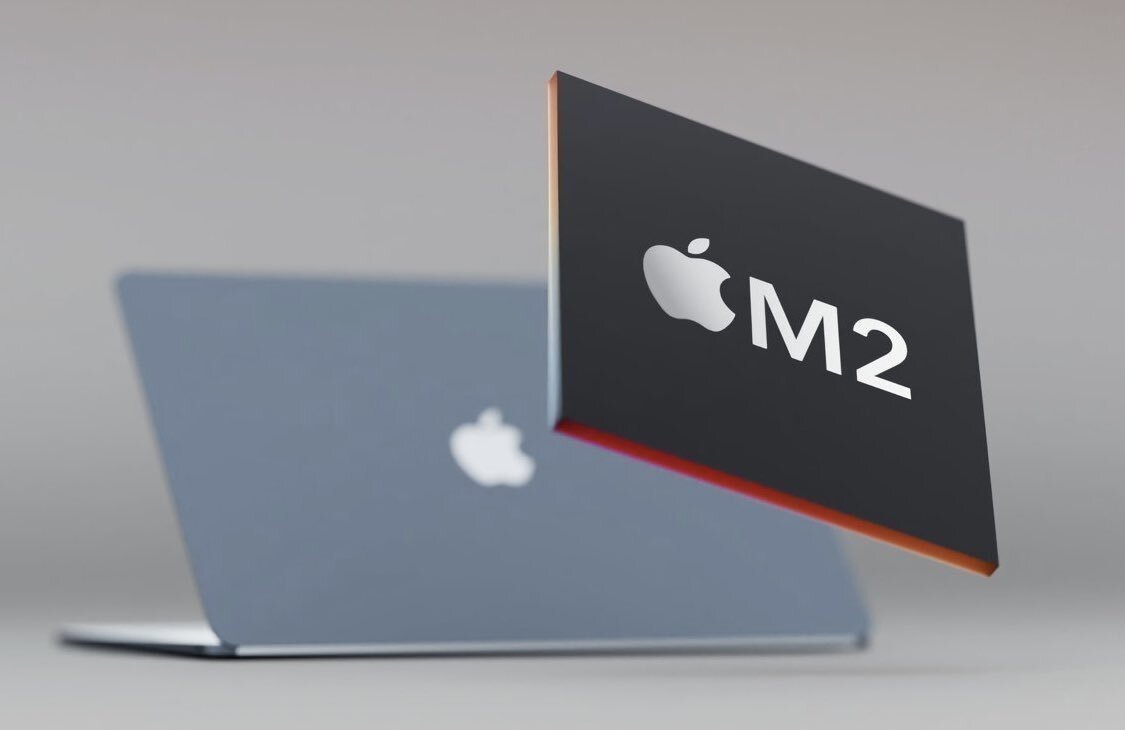
M2 MacBook Air

AppleInsider may earn an affiliate commission on purchases made through links on our site.

An analyst report for the United States shows iPad still dominates the tablet market, and Mac shipments dropped only 1.1% in a declining PC market.

According to a report from Canalys, Apple saw the lowest shipment decline across 2022 compared to other top PC vendors in the United States thanks to the M2 processor refresh. It declined by 1.1% compared to 2021, with 9.9 million shipments.

This placed Apple in fourth place for US PC market share at 13.5% across 2022. The data shows Dell in first at 26.3% market share, with HP and Lenovo following at 23.9% and 15.9%, respectively.

“The US PC market is in a period of prolonged declines as it grapples with inflation and demand stabilizes after the record highs of the pandemic,” said Canalys Research Analyst Brian Lynch. “While consumer spending on PCs has been weak for several quarters, commercial shipments faced an even greater decline in Q4 as businesses struggled with higher interest rates and budget cuts.”

PC shipments were down 23% year-over-year in Q4 2022 to 16.1 million units. For the entire year, PC shipments were down 18.3% at 73.3 million units.

Apple was also fourth for quarterly shipments at 2 million units. That equates to a 27.8% decline annually for the quarter or an 800k shipment difference.

PC shipment forecast for 2022 through 2025. Source: Canalys

PC shipment forecast for 2022 through 2025. Source: Canalys

Comparatively, Apple continues to dominate the tablet market with iPad. It has 41.8% of the tablet market share for all of 2022, with 18.8 million shipments. The second-place company is Amazon, with 11 million shipments.

Canalys expects PC shipments to fall by 12% and tablet shipments to fall by 15% in 2023. The US PC market is predicted to recover in 2024 as businesses make Windows 11 upgrades and education markets drive large-scale refreshes.

Posted on Leave a comment

Uze 100W GaN Charger review: A lot of power in a small body

Uze 100W GaN Charger


AppleInsider may earn an affiliate commission on purchases made through links on our site.

Lately, chargers have become more powerful by outputting more power in a smaller and lighter form factor. The Uze 100W GaN Charger fits into this trend by offering high power in a compact design.

In a traditional format, a 100W GaN Charger can charge multiple devices at once. It does so at high speeds while still fitting into the palm of your hand.

The Uze 100W GaN Charger certainly fits this bill, complete with support for multiple devices and fast and efficient charging. If you’re in the market, this may be worth looking at.

Uze 100W GaN Charger design

The Uze 100W GaN Charger is designed like nearly any other charging brick, with it having the company’s name on the side, the outlet prongs located in the front, and the charging ports stationed on the back.

UZE 100W GaN Charger outlet prongs

Uze 100W GaN Charger outlet prongs

There are four ports to charge from — three USB-C ports and one USB-A port. You can charge up to four devices at once.

Each port is labeled, which is handy if you want to know the max power each port can output since that information is detailed on the bottom of the charging brick.

PPS (Programmable Power Supply) is built into the 100W GaN Charger, which allows the charging brick to control the output voltage and current characteristics for each port. This allows it to be compatible with a wide variety of smart devices.

Uze 100W GaN Charger charging capabilities

The Uze 100W GaN Charger has fast charging capabilities, but not all ports charge at the same speeds or wattage.

The top two USB-C ports can output the most power at up to 100W each, but the USB-C3 port can only output up to 22.5W of power. The USB-A port can also output 22.5W of power, but does come with quick charge 3.0.

UZE 100W GaN Charger charging ports

Uze 100W GaN Charger charging ports

Multiple devices are compatible with the 100W GaN Charger, so you do not need to worry about if it can produce enough power to charge all of your devices. It can charge laptops, tablets, smartphones, cameras, gaming devices, action cameras, and USB rechargeable devices too.

The Uze 100W GaN Charger can output a total of 100W max.

Big power in a small design

The Uze 100W GaN Charger is a great portable charging brick to take around with you if you need to charge multiple devices at high speed.

The minimalistic and traditional design fits with the compact body that houses all of the charging output power it holds. All the information you need is on the bottom of the charging brick, there if you ever need it.

UZE 100W GaN Charger

Uze 100W GaN Charger

Pulling up to 100W of power from the USB-C ports is a nice touch, and being able to get a quick charge from the USB-A port is very convent as well.

The downside is that, even though it looks like they can be swapped out, the outlet prongs are stationed and cannot be switched out to fit other outlet designs. This is a small flaw, and we have seen other charging bricks that offer this capability.

Another problem area is the high price tag that accompanies this 100W GaN Charger. The charging brick is nearly $100, which may be too high for most people despite offering a nice and quick charging session for your devices.

If you are looking for a good charging brick that is lightweight, portable, and offers a lot of power output, then the Uze 100W GaN Charger may be worth checking out. It will meet your charging needs and will continue to be ready every time your devices need to be charged.

Uze 100W GaN Charger pros

  • Compact design
  • Lightweight
  • Multiple ports
  • Charge multiple devices at once
  • Fast charging speeds

Uze 100W GaN Charger cons

  • Can not change outlet prongs
  • High price tag

Rating: 3.5 out of 5

Where to buy the Uze 100W GaN Charger

You can purchase the Uze 100W GaN Charger from their website for $99.99, but it is currently on sale for $89. It is available in black and white.

Posted on Leave a comment

BenQ e-Reading lamp review: screen-friendly desk lighting

Review: BenQ e-Reading lamp


AppleInsider may earn an affiliate commission on purchases made through links on our site.

If you are a fan of Night Shift or True Tone on your Apple devices, you can get a version of that in the form of a desk light with the BenQ e-Reading lamp.

When working on your Mac or reading hardcopy documents, you need a lamp that illuminates your surroundings to reduce eye strain and to see what you are doing. Lighting options are numerous, but you don’t have to settle for a lamp that causes sharp screen glare, which can damage your eyesight.

The BenQ e-Reading lamp allows you to adjust color temperatures and brightness for optimal lighting without changing lightbulbs. Its lamp head and arms are adjustable, so you can angle it to light up your workspace sufficiently.

BenQ e-Reading lamp — lighting controls

Unlike traditional desk lamps, the BenQ e-Reading lamp allows you to adjust the color temperature from 2700 kelvins to 5700 kelvins. This feature allows for flexibility to optimize your lighting from morning to night.

The BenQ e-Reading lamp has a built-in light sensor that detects ambient brightness levels in your office. When activated, the lamp will dynamically adjust the color temperature and brightness to provide the appropriate lighting for you.

A green or orange light on the lamp head will indicate when Screen Reading or Book Reading mode is activated. Additionally, you can also adjust the color temperature and brightness manually.

BenQ e-Reading lamp's Screen Reading mode reduces screen glare

BenQ e-Reading lamp’s Screen Reading mode reduces screen glare

A noteworthy feature of this lamp is when Screen Reading mode is on, the amount of light in the center of the light source lowers. The reduced lighting in the center limits screen glare and can make things easier for your eyes during long hours on your Mac.

Another element that makes it easier on your eyes is the zero-flicker technology. The BenQ e-Reading lamp has a non-flicker driver chip to stabilize the light source.

Although the zero-flicker technology is likely unnoticeable to most users, this can make reading a more pleasant experience.

BenQ e-Reading lamp – adjustable arms and lamp head

Setting up the BenQ e-Reading lamp was simple and can be a one-person job. Insert the lamp’s arm into the base, tighten a few screws, connect it to the power adapter, and plug it in.

Setting up the BenQ e-Reading lamp was easy

Setting up the BenQ e-Reading lamp is easy

The BenQ e-Reading desk lamp is slender and minimal and will take up little space on your desk. It has a slim but heavy base to keep it securely in place.

The arms are thin but have durable torque springs to keep them from sagging at different angles.

It’s topped off with a curved lamp head mimicking a gentle smile. This curved design extends the lighting further across your desk and evenly distributes light across your desk.

However, this functions as a task lamp, so do not expect it to illuminate an entire room.

The BenQ e-Reading lamp head has a ball joint for various angles

The BenQ e-Reading lamp head has a ball joint for various angles

The lamp head is on a ball joint, so you can tilt and move it in various directions. Touch the metal ring lightly to power it on or off.

Since the metal ring is sensitive to touch, you have to be careful when moving the angle of the lamp because you may accidentally turn it on or off.

The BenQ e-Reading lamp is customizable according to your needs. You can transform it into a desk lamp, or floor lamp, or even clamp it to your desk.

For instance, if you get the BenQ e-Reading desk lamp for your desk but decide to make it into a floor lamp, you can buy an attachment to enable that to happen, one sold separately.

Get the floor stand extension to make the BenQ e-Reading desk lamp into a floor lamp

Get the floor stand extension to make the BenQ e-Reading desk lamp into a floor lamp

Depending on your style preferences, the BenQ e-Reading lamp may seem lanky with a somewhat gawky stance. However, it can win over users by delivering powerful yet gentle lighting that’s remarkably easy on the eyes.

BenQ e-Reading lamp — pros

  • Color temperature and brightness control
  • Screen Reading mode reduces screen glare
  • Curved lamp head evenly distributes light across a desk
  • Flexible lamp head and arms
  • Customizable — desk lamp, floor lamp, or use with a clamp
  • Easy to set up and use

BenQ e-Reading lamp — cons

  • Touch control makes it easy to accidentally power on/off when adjusting angles

Rating: 4 out of 5

Where to buy

You’ve got options when it comes to the BenQ e-Reading lamp.

Posted on Leave a comment

Get Apple’s 2023 MacBook Pro 14-inch for $1,849, plus $60 off AppleCare

Save on Apple’s 2023 MacBook Pro.

Apple’s standard 14-inch MacBook Pro is in stock and discounted to $1,849. Every upgraded configuration is also up to $250 off on top of a new price drop on AppleCare.

Featuring the new M2 Pro chip with a 10-core CPU and 16-core GPU, along with 16GB of memory and a 512GB SSD, this laptop is the perfect companion for business meetings or attending class thanks to it weighing just 3.5 pounds.

And with promo code APINSIDER, AppleInsider readers can save $150 on the standard configuration in your choice of Space Gray or Silver at Apple Authorized Reseller Adorama. Need more storage or extra memory? The same APINSIDER code discounts every other configuration by as much as $250. The full list of deals can be found in our 14-inch MacBook Pro Price Guide.

In addition to the savings on the systems themselves, AppleCare for the 14-inch MacBook Pro is $60 off with the APINSIDER coupon as well, bringing the cost of the 3-year protection plan down to $219.

Don’t miss out on these awesome savings with exclusive coupon code – just head over to Adorama.com and add your desired laptop to your cart. At checkout, enter coupon code APINSIDER during Step 3 (Payment), taking advantage of unprecedented discounts across every configuration. Here are step-by-step activation instructions:

Posted on Leave a comment

Wireless Apple CarPlay now available in Lucid Air

Wireless CarPlay now in Lucid Air

The Lucid Air electric vehicle has been updated with support for wireless Apple CarPlay.

On Thursday, Lucid Motors announced that support for wireless Apple CarPlay and Android Auto is now standard on every Lucid Air. It integrates with the Glass Cockpit display and uses touchscreen controls.

Users can invoke Siri, make calls, check their Calendar, or view Apple Maps directions from the display. It is built to reduce distractions for drivers while providing a limited UI for simple interactions.

Posted on Leave a comment

Apple employees face reprisals, possible termination over return to office policy

Return to office policy enforcement continues to escalate

Apple reportedly escalates enforcement of its return-to-office policies by tracking badge records to ensure in-person attendance three times a week.

The COVID-19 pandemic forced most companies to embrace work from home, even Apple. Since risks surrounding the virus have decreased, and vaccines are readily available, the corporate world has been pushing for a return to office — but not without some resistance.

According to a tweet from Platformer’s Zoe Schiffer, which was first reported by 9to5Mac, Apple is tracking in-person employee attendance via badge records. Those who do not come in three times per week are given escalating warnings.

While it isn’t a direct policy from Apple, some organizations within the company say failure to comply could result in termination, reports Schiffer.

That means if an employee is terminated due to failure to comply with the return to office mandate, Apple has one less employee to pay. However, since termination due to a failure of compliance isn’t an official Apple policy, the company is unlikely to use this as a serious cost-cutting measure.

Posted on Leave a comment

No, Google Bard is not trained on Gmail data

Bard is a generative AI tool that can get things wrong

Google’s large language model tool named Bard says that it was trained with Gmail — but Google has denied that is the case.

Bard is a generative AI or Large Language Model (LLM) which can provide information based on its large data set. Like ChatGPT and similar tools, it isn’t actually intelligent and will often get things wrong, which is referred to as “hallucinating.”

A tweet from Kate Crawford, author and principal researcher at Microsoft Research, shows a Bard response suggesting Gmail was included in its dataset. This would be a clear violation of user privacy, if true.

But, Google’s Workspace Twitter account responded, stating that Bard is an early experiment and will make mistakes — and confirmed that the model was not trained with information gleaned from Gmail. The pop-up on the Bard website also warns users that Bard will not always get queries right.

These generative AI tools aren’t anywhere near foolproof, and users with access often try to pull out information that would otherwise be hidden. Queries such as Crawford’s can sometimes provide useful information, but in this case, Bard got it wrong.

Users are urged, even by Google itself, to fall back onto web search whenever an LLM like Bard provides a response. While it might be interesting to see what it will say, it is not guaranteed to be accurate.

Posted on Leave a comment

Apple Pay now available in South Korea

Apple Pay launches in South Korea

Following regulatory hurdles, Apple Pay was expected to launch in South Korea at any time, which has only been recently confirmed by Apple. Now, it seems the feature is live, according to a couple of sources.

A Twitter user, only known as “Aaron,” or user @aaronp613, has shared an image of code indicating Apple Pay is live in South Korea. Alongside this, he’s also shared a link to a Korean Apple support document with more information.

These lists are maintained by Apple, but aren’t always up to date, so users will need to check with their card providers for support. For example, despite this indicating a launch of Apple Pay in the region, Apple’s support document for where Apple Pay is available hasn’t been updated to show South Korea.

Posted on Leave a comment

Oura Ring review: love the feature changes, hate the new subscription


AppleInsider may earn an affiliate commission on purchases made through links on our site.

We’re taking a second look at the Oura Ring, a fitness tracker packed into a discreet piece of jewelry, to see how the third generation compares to its predecessors.

Like many people, I got the Apple Watch because I was excited to use it to track and record health-related data. And, when it comes to collecting health data, the Apple Watch is king — with a caveat.

As much as I love the idea of the Apple Watch, it isn’t an excellent fit for me. For one, adding a screen that is physically attached to me can be a huge distraction. I feel compelled to check it obsessively, even if I’ve turned off all notifications.

There’s also the comfort issue. I write for a living, meaning my wrists spend a fair amount of time on the desk under my keyboard. For whatever reason, this leads to nearly any Apple Watch band pinching the skin of my wrist almost constantly.

Then, the pinching leads to an eventual bruise that grows until I take a break from the Apple Watch. So, between the bruising and the constant distractions, I wound up trading in my Apple Watch for store credit.

Still, I wanted another way to track my health data. I wanted something I could constantly wear to get as much data about my health as possible.

It’s equipped with new sensors, comes in a new style, and has a completely revamped app. So we decided to revisit Oura Ring, now in its third generation.

Design, sizing, and comfort

Whenever you order an Oura Ring, you’ll have the option first to receive a sizing kit that allows you to find the perfect size ring for you. I highly suggest you take them up on this offer, as the Oura Ring fits slightly differently than a typical ring.

The sizing kit contains eight different-sized plastic Oura Ring stand-ins. Unfortunately, they are available in whole sizes only, so it may take some trial and error to find out what finger Oura Ring works best on.

Oura suggests using your index finger for best results but says using your middle or ring fingers is okay.

It’s also essential to wear your plastic sizing ring for a while, as your fingers will change sizes throughout the day.

The pill-shaped dimple helps you keep the ring properly aligned

When it comes time to choose your Oura Ring, you can pick from two styles: Horizon or Heritage.

Heritage is the classic Oura Ring design, which features a flattened design at the top of the ring, which helps you ensure the sensors are in the correct area. Heritage is available in Silver, Black, Stealth, and Gold, and pricing starts at $299.

Horizon is more traditional with a uniform design, with a small pill-shaped dimple on the underside of the ring. The dimple ensures that you’ve got the sensors properly aligned to your finger.

Horizon is available in Silver, Black, Stealth, Gold, and Rose Gold, and pricing starts at $349.

The Oura Ring is made of titanium, making it both durable and incredibly light. In addition, it’s water resistant up to 100 meters, so you can wear it in the shower or pool if you so choose.

Oura does warn against wearing the ring while doing anything that would repeatedly knock it around — such as handling heavy pots and pans. — or you could lead to some surface scratching.

I knock my hands against things regularly, so my ring has a couple of scratches. However, this is true for any jewelry I wear; honestly, the Oura Ring has faired better than most.

The sensors in the Oura Ring

The sensors in the Oura Ring

As far as comfort goes, it’s not uncomfortable, though it takes a little getting used to. The sensors are a little noticeable at first, but like with all jewelry, eventually, you stop noticing them.

The only downside I’ve personally experienced is that the Oura Ring can be difficult to wear during workouts. I consistently scored low on the activity rating because I found it impossible to wear the Oura Ring while weight training or using resistance bands.

And, because it’s still winter where I live, I’m walking less than usual. So, obviously, your mileage will vary.

Charging and battery life

The Oura Ring is charged via a proprietary charger, which correlates to your ring’s size. This isn’t great news if you routinely lose chargers, as you’ll have to order a replacement at $58 a pop.

The good news is that the Oura Ring can last up to 7 days on a single charge, meaning you don’t need to worry about packing — and subsequently forgetting — your charger for a long weekend trip.

Battery life is determined primarily by whether or not you enable the blood oxygen sensor and use the workout heart rate feature. If you use those, your battery life will decrease pretty significantly.

I left the blood oxygen sensor enabled, and I can manage about three and a half to four days before recharging my Oura Ring.

Charging takes a little over an hour if you fully run out the battery. However, Oura suggests you don’t let the battery dip below 30%, as it will auto-disable the blood oxygen sensor to preserve battery life.

Oura app and tracked metrics

The Oura Ring tracks a few different things. It tracks your heart rate, blood oxygen level while sleeping, and movement. It also tracks your nightly body temperature, which it uses for period prediction.

By using the metrics above, the Oura app gives you three main categories for you to look at over the course of a day.

The first is your overall readiness score. Your readiness score tells you how hard you can push yourself over the next day.

The second is your activity score, which tracks your overall activity for the day. You can choose to display this as either calorie burn or set steps.

Oura calculates your activity score by classifying your movements into regular and irregular movements and measuring your heart rate for each type.

Each category can be tapped, and you can view detailed information, such as past scores, insights, and explanations of how Oura calculates each score.

For me, the sleep category is the most interesting. The Oura app will tell you how much you’ve moved during the night, any breathing disturbances it’s noticed, and your blood oxygen saturation while asleep.

This is a powerful tool if you’ve got a sleep disorder you’re trying to control.

Bonus content

While I’m not the biggest fan of guided meditation, I realize many people are.

That’s why Oura includes a selection of guided meditation exercises you can follow. This includes activities geared toward meditation and reflection, breathing, and even ones to help you drift off to sleep.

Good, but not perfect

Mostly, I’m pretty impressed with the Oura Ring’s ability to keep track of the health metrics I care about. I wanted it to help me identify things that may be exacerbating existing sleep problems I have.

The activity data also seemed accurate when compared with a more traditional pedometer. Of course, there wasn’t a 1-to-1 between the pedometer and the Oura Ring, as Oura doesn’t detect “steps” in a conventional way.

Still, it seemed to know when I exerted myself running errands around town or moving heavy boxes up and down the stairs.

Really, the only flaw I found was that because I fall on the lower end of an average heart rate, the Oura Ring was keen to think I’d fallen asleep before I actually had.

I noticed this most often when sitting in bed, reading before sleeping. Sure enough, Oura would note that I’d fallen asleep about 10 minutes after I began reading, woke up when I put my book away, and then started tracking my sleep again once I laid down.

Other users have also reported this problem, with some claiming that the sleep metrics are entirely useless. I do not believe that this is true in my case.

Oura sleep tracking

Oura sleep tracking

One night I’d wound up with food poisoning, and Oura could tell that I spent more than ten hours in bed, but only seven were spent sleeping.

On another night when I’d had a particularly bad night of sleep, Oura could tell I was awake from 3:30 am until nearly 6:00 am.

So, while it isn’t perfect, it did well for me. Unfortunately, like many commercially available sleep-tracking devices, getting a one-size-fits-all solution is impossible.

Fortunately, Oura offers a 30-day return and refund policy, so if it doesn’t track your metrics the way you’d like, you have a whole month to return it to the company.

Perpetual payments

There is a pretty big downside — the recurring subscription. While you don’t have to pay the $6 monthly subscription to use the Oura Ring, the ring is severely lacking without it.

The only metrics the Oura Ring will show without a subscription are your readiness, sleep, and activity scores. You won’t get to see detailed information in any category, nor will you be able to see past data within the app.

If you’ve got subscription fatigue, you may not be thrilled to spend an additional monthly fee to unlock features natively tracked by the device you’ve already purchased.

What you give up compared to the Apple Watch

Of course, if you choose an alternative health tracker, you’ll give up some of the benefits you’d get from staying in the Apple ecosystem.

The most obvious is the inability to use the Apple Fitness rings. What I loved most about Apple Watch was its encouragement to ensure I closed all three rings daily.

You also lose the ability to see your heart rate in real-time during a workout. While this may not be a big deal for casual users, the Apple Watch would probably serve athletes and those serious about their workouts better.

But, if — like me — you find a fitness tracker with a screen too distracting and don’t want to wear one on your wrist, the Oura Ring is a great alternative.

Oura Ring pros

  • Discreet
  • Multi-day battery life
  • Tracks sleep, activity, and overall readiness
  • Easy to use App
  • Built-in period prediction

Oura Ring cons

  • Expensive
  • Reoccuring subscription
  • Can’t be used in a meaningful way without a subscription
  • No half-sizes
  • Sleep tracking may be more inaccurate for some users

Rating: 3.5 out of 5

Where to buy

Oura Ring is available directly through Oura on their website. It is available in two different styles and starts at $299, with pricing up to $549.

Posted on Leave a comment

Logitech MK270 Keyboard and Mouse review: Good for budget buyers

The MK270 Keyboard combo is an affordable full-size package.


AppleInsider may earn an affiliate commission on purchases made through links on our site.

If you are in need of a set of budget peripherals for your Mac, the Logitech MK270 Keyboard Combo will work well with both your desktop and your wallet’s needs.

We desperately needed an ergonomic keyboard and mouse for our MacBook Pro that didn’t break the bank. At $28, Logitech’s MK270 arrived in two days from Amazon and seemed to fit the bill.

We could have spent hundreds on Apple’s name-brand Magic Keyboard and mouse, but not everyone has that kind of money for accessories. We certainly don’t, and Logitech’s MK270 is a budget alternative to higher-end products that make some big promises.

Now that some time has passed, we can confirm whether or not Logitech’s budget keyboard and mouse combo is worth buying. Here’s what we experienced after a couple of weeks of full-time use.

Functional keyboard with few missing features

The MK270 combo has a full-size keyboard, including a numerical keypad and some media controls. Logitech prints the keyboard with a Windows layout, but it functions with our MacBook Pro just fine, despite having to learn which keys activate the Command, Option, and Control buttons.

The MK270 keyboard works but could be improved.

The MK270 keyboard works but could be improved.

The Logitech keyboard has a low-profile design and doesn’t feel like it sits sky-high above the desk. There are kickstands that elevate the keyboard to an angle, but it isn’t customizable to any other angle, making it somewhat challenging to find the most comfortable typing position.

Logitech claims the keys are quiet, but we found that typing on the MK270 keyboard is louder than the MacBook Pro’s keys. The typing sensation is about average, as Logitech’s quieting materials make each keystroke squishy, feeling less satisfying than other keyboards.

Although some media control buttons exist, we’re somewhat disappointed with the lack of track control features. The play/pause, volume controls, and other random buttons are useful and all, yet we rarely use those buttons, and some customizability here would be nice.

Like most keyboards on the market, Logitech’s MK270 is plastic, and initial quality is about what you would expect from a product costing only $28. Nothing was falling apart, but structurally, the plastic gives more than we would like, given the amount of time we spend on it.

A simple yet quality mouse

Logitech’s MK270 keyboard comes with the M185 compact wireless mouse that’s about as basic as mice come. It has two buttons and a scroll wheel, and the battery compartment has space for the included USB receiver.

The M185 mouse is simple but performs well.

The M185 mouse is simple but performs well.

Pairing the set to our MacBook was straightforward, requiring only a single USB receiver and a USB-C adapter (or dock). After plugging it in, the removal of battery plastic, and powering it on, our MacBook instantly recognized that we wanted to pair devices.

Our M185 mouse needed some calibration under the settings before the cursor and scroll speed were to our liking, yet even that process took mere seconds. Like other mice, Logitech’s M185 has a natural crisp click for both the right and left buttons, and the middle scroll wheel has a hearty feedback click.

The mouse is lightweight but doesn’t feel cheap. Unlike the keyboard, using the M185 mouse doesn’t make us feel like we’ll break it after a long workday at the computer.

Even after several weeks of use, it still doesn’t bear any scuffs or blemishes, and the laser tracks like new.

The Logitech MK270 Keyboard Combo

Prices continue to skyrocket and the average user doesn’t have massive amounts of cash to spend on accessories for their computers. The Logitech MK270 Keyboard combo is a budget option for those needing a somewhat ergonomic setup that pairs well with Apple devices.

The Logitech combo is simple to connect to a MacBook Pro.

The Logitech combo is simple to connect to a MacBook Pro.

We wish the keyboard was of better quality, as typing is neither quiet nor overly enjoyable. The lack of customizability for positioning and the give in the plastic is frustrating and feels very cheap.

Additionally, the MK270 keyboard doesn’t have emoji options, media track control options, or key mapping customizability, making it about as rudimentary a keyboard as you can get. Although a wired keyboard would be a step down, Logitech’s budget keyboard isn’t far behind.

On the other hand, the Logitech M185 mouse that comes in the combo performs admirably. Despite being lightweight, the build quality is nice, and the button clicks are satisfying. It saves the score for the whole package.

Amazon rates this combo set as the best bang for your buck, and because of the Logitech name, we’re inclined to agree. Even though the keyboard isn’t great, the whole package performs as one would expect, and the price point makes it a good buy.

Logitech MK270 pros

  • Full-size keyboard and mouse
  • Simple to connect and use
  • Affordable price for wireless

Logitech MK270 cons

  • Cheap plastic for keyboard
  • Missing additional media control buttons
  • Mac users can’t customize button mapping

Rating: 3.5 out of 5

Where to buy the Logitech MK270

You can find the Logitech MK270 Keyboard and Mouse combo set on Amazon for only $28.