Posted on Leave a comment

Upcoming changes to the App Store receipt signing certificate

Starting January 18, 2023, the App Store receipt signing certificate will use a new WWDR intermediate certificate. The existing intermediate certificate expires on February 7, 2023. In most cases, this certificate change won’t require changes to apps. However, we recommend reviewing how you verify the sale of your apps and in-app purchases from the App Store to make sure your apps aren’t impacted.
If you verify App Store transactions using the AppTransaction and Transaction APIs, or the verifyReceipt web service endpoint, no action is required.

If you validate App Store receipts on device using the App Store receipt signing certificate, make sure you haven’t hardcoded the intermediate certificate and verify that the chain of trust for the container’s signature matches the Apple Inc. Root Certificate.

Additional details on App Store receipt validation:

Validating receipts with the App Store

Choosing a receipt validation technique

Posted on Leave a comment

Spotlight on: Apple Pencil hover

When it comes to designing creative interactions, the Procreate team knows how to get the job done.

The illustration app kicked off in 2011 with touch-based controls — “just five fingers of input,” says CEO James Cuda — and won a rare pair of Apple Design Awards over the next decade for their innovative approaches to digital drawing, sketching, and painting.

While finger painting remains a core part of the app, Apple Pencil has become a significant part of Procreate’s story. Apple Pencil gives artists customization and control of their line width and opacity, stroke style, and quick-access controls. And with the introduction of Apple Pencil hover, the Procreate team is investing even more heavily in the stylus. “It’s truly made a profound impact in our design phase,” says Cuda.

Hover over your canvas, and X marks the spot.

Hover over your canvas, and X marks the spot.

As with pretty much any other digital or analog drawing tool, Apple Pencil operates on the X and Y axes of a canvas, requiring direct input from the stylus nib to draw a line or select a tool. The second-generation Apple Pencil also adds support for direct input along the side of the stylus — which gives developers an option to add shortcuts within their apps. Now, Apple Pencil hover is bringing tool and previewing shortcuts into an entirely new dimension. (The Z-axis, specifically.)

“[It’s] a whole new layer of interaction,” says Cuda. “Everything springs to life as your Apple Pencil comes near.”

With ColorDrop, you can precisely preview your colors before tapping your canvas.

With ColorDrop, you can precisely preview your colors before tapping your canvas.

Apple Pencil hover activates when the nib is up to 12 mm above the display on iPad Pro with the M2 chip. Developers can customize what the feature does within their app, including offering tool variations, menu selection, and even previewing lines themselves — so artists can draw, sketch, and color with even greater control. “The ability to not make a commitment or damage the artwork is transformative,” Cuda says.

And the feature’s functionality is only half the fun. “It makes everything feel so playful,” says Claire d’Este, Procreate’s chief product officer. “I find myself rolling up and down menus just to see it responding. There’s something so nice about everything lighting up as I’m thinking about what to do next.”

The ability to not make a commitment or damage the artwork is transformative.

James Cuda, Procreate CEO

The Procreate team has hidden these sorts of playful moments throughout the entire app. In the gallery view, hovering over thumbnails expands the image or previews animations. Tools like the color picker or menu buttons react as you move across them. And then, of course, there’s the canvas.

With your iPad on a desk or table, hover works in conjunction with Multi-Touch capabilities.

With your iPad on a desk or table, hover works in conjunction with Multi-Touch capabilities.

‘Your mind starts racing’

“There are two phases with something like this,” says Procreate chief technology officer Lloyd Bottomley. “The first is the initial, ‘Wow, this is cool.’ But then your mind starts racing because you’re trying to think of all the things you could do with it.”

With so many possibilities open to them, the Procreate team had to approach each idea with care and scrutiny to ensure they were aiding and improving design and creation workflows rather than hindering them. “We’re obsessed with keeping people focused on that point of interaction,” Bottomley says.

One area that proved surprisingly challenging: the brush cursor. “Honestly, we thought we’d have just one design through the entire brush library,” says Cuda. “The problem was there’s not one singular representation of that hover mark, because our brushes can do anything — you can have brushes inside brushes; you can have brushes that move across each other. To represent all that in a hover state was really challenging.”

We’re obsessed with keeping people focused on that point of interaction.

Lloyd Bottomley, Procreate chief technology officer

After a few weeks of back and forth, the team landed on a solution: customizable cursors that change with different brushes. “We needed to move away from that idea of ‘one thing to rule them all’ to a series of settings that could get us there,” says Cuda. “Now, all the brush-makers out there can customize what their hover state will look like.”

A second target was the app’s ColorDrop feature, which instantly fills a section of your artwork when you drag and drop a color on it, paint-by-numbers style. Using Apple Pencil hover, people can preview of what the artwork will look like before committing to a color, speeding up the process dramatically. “If you’re doing inking — comic book art, for instance — it’s huge,” says d’Este.

If you’re doing inking — comic book art, for instance — it’s huge.

Claire d’Este, Procreate chief product officer

It’s also a timely example of how a small change can make a massive improvement in an artistic workflow. “Those kinds of interactions take a surprising amount of time,” says Bottomley. “Even moving your arm across the screen takes time. Now you barely have to move.”

Hover over your color, then drop it on your canvas.

Hover over your color, then drop it on your canvas.

The saga of the sliders

While the Procreate team delighted in improving interactions for brush cursors and ColorDrop, they had a much bigger problem they hoped Apple Pencil hover would solve: a little piece of UI that had been bothering the team since the app’s very first days.

“Our goal is to put absolute focus on the artist’s content,” says Cuda. Procreate’s interface has long championed minimalistic tool windows and intuitive gestures like tap-to-undo to keep the canvas clear for the work. But they hit a proverbial artistic wall when trying to build UI for repetitive interactions like adjusting brush size or opacity.

Iterations came and went; the pair tried variations on pinching and zooming and tapping and holding, but nothing felt properly connected to the rest of the Procreate experience. “We ditched it all,” says Bottomley, “and went with that very conventional set of sliders you see on the left hand side of the screen.”

The sliders were functional. They were intuitive enough. But whenever the team thought about features they really liked about the app, the sliders were conspicuously absent — until Apple Pencil hover. “Once hover was announced, we realized we could work with Multi-Touch like we couldn’t before,” says Cuda.

With Apple Pencil hover, could they at last kill the sidebar? “We developed a gesture we thought would be just so ubiquitous and approachable,” says Cuda. “The idea was you would use two fingers to pinch and zoom while you’ve got hover up, so you could clearly see where your brush is and how it changes in size before you mark the screen. We were convinced it would be the way of the future.”

And then they began testing.

Place iPad on a surface to use hover with MultiTouch gestures…

Place iPad on a surface to use hover with MultiTouch gestures…

“We realized we were wrong as soon as we put it in practice,” says Cuda. The gesture worked brilliantly when iPad was sitting on a table or against a stand — a common-enough use case — but anyone using the tablet on a couch had a different experience. “You’re clutching the device with two hands,” he says. “And as soon as you pinch and hover, the device is no longer, uh, in your clutches.”

We had to put our egos aside and go, ‘OK, maybe we were wrong.’

James Cuda, Procreate CEO

The challenge was enough to send the team back to the drawing board. “The gesture is useful; it’s just not the singular interface methodology were hoping to create,” says Cuda. “We had to put our egos aside and go, ‘OK, maybe we were wrong.’ And we had to think about what was best for the customer.”

For customers holding the device, it meant the return of the sliders. “We’re keeping them for mobile drawing,” Cuda says. “On a desk or stand, when you’ve got both hands free, the sidebar goes away and we get exactly what we wanted. So it was a wild ride for a couple of weeks making those calls.”

… or use the sliders on the edge of the screen.

… or use the sliders on the edge of the screen.

‘It’s hard to go back’

People using iPad Pro with the M2 chip and the second-generation Apple Pencil, can explore Procreate’s Apple Pencil hover features now. But Cuda and the team are focused strongly on the future, regarding hover as an important new tool in the shed — enough so that Cuda says it already “solves a bunch of things” in regards to upcoming projects.

“It doesn’t feel like we’re tapping into a technology but creating a natural extension of what you could already do,” d’Este says. “Once you’ve experienced this, it’s hard to go back.”

Read Behind the Design with Procreate

Download Procreate from the App Store

Posted on Leave a comment

A new week of Ask Apple starts December 12

Join us for another exciting week of Ask Apple, where you can connect directly with Apple experts to get your latest technical and design questions answered — or just hang out and learn from the conversation. Ask about using the latest frameworks, improving your app’s UI design, developing with beta OS software and tools, and so much more.

Online one-on-one consultations and group Q&As will run December 12 to 16, with activities in multiple languages and time zones. Registration is open now to current members of the Apple Developer Program and Apple Developer Enterprise Program.

Learn more

Posted on Leave a comment

Apple announces biggest upgrade to App Store pricing, adding 700 new price points

Developers will also gain new flexibility to manage pricing globally

Apple today announced the most comprehensive upgrade to pricing capabilities since the App Store first launched, providing developers with 700 additional price points and new pricing tools that will make it easier to set prices per App Store country or region, manage foreign exchange rate changes, and more.

Since the App Store’s inception, its world-class commerce and payments system has empowered developers to conveniently set up and sell their products and services on a global scale. The App Store’s commerce and payments system offers developers an ever-expanding set of capabilities and tools to grow their businesses, from frictionless checkout and transparent invoicing for users to robust marketing tools, tax and fraud services, and refund management.

Pricing has been foundational to these capabilities, enabling developers to choose from a variety of business models, such as one-time purchases and multiple subscription types. These new pricing enhancements will be available for apps offering auto-renewable subscriptions starting today, and for all other apps and in-app purchases in spring 2023, giving all developers unprecedented flexibility and control to price their products in 45 currencies throughout 175 storefronts.

Under the updated App Store pricing system, all developers will have the ability to select from 900 price points, which is nearly 10 times the number of price points previously available for most apps. This includes 600 new price points to choose from, with an additional 100 higher price points available upon request. To provide developers around the world with even more flexibility, price points — which will start as low as $0.29 and, upon request, go up to $10,000 — will offer an enhanced selection of price points, increasing incrementally across price ranges (for example, every $0.10 up to $10; every $0.50 between $10 and $50; etc.). See the table below for details.

In each of the App Store’s 175 storefronts, developers will be able to leverage additional pricing conventions, including those that begin with two repeating digits (e.g., ₩110,000), and will be able to price products beyond $0.99 or €X.99 endings to incorporate rounded price endings (e.g., x.00 or x.90), which are particularly useful for managing bundles and annual plans.

Starting today, developers of subscription apps will also be able to manage currency and taxes across storefronts more effortlessly by choosing a local storefront they know best as the basis for automatically generating prices across the other 174 storefronts and 44 currencies. Developers will still be able to define prices per storefront if they wish. The pricing capability by storefront will expand to all other apps in spring 2023.

For developers distributing their apps around the world, the App Store’s global equalization tools have given them a simple and convenient way to manage pricing across international markets. Today’s enhancements expand upon these capabilities, allowing developers to keep their local currency constant in any storefront of their choice, even as foreign exchange and taxes fluctuate. This means, for example, a Japanese game developer who gets most of their business from Japanese customers can set their price for the Japan storefront, and have their prices outside of the country update as foreign exchange and tax rates change. All developers will also be able to define availability of in-app purchases by storefront.

Periodically, Apple updates prices in certain regions based on changes in taxes and foreign exchange rates. This is done using publicly available exchange rate information from financial data providers to help ensure prices for in-app purchases stay equalized across all storefronts. Currently, developers can adjust pricing at any time to react to tax and foreign currency adjustments. Coming in 2023, developers with paid apps and in-app purchases will be able to set local territory pricing, which will not be impacted by automatic price adjustments.

These newly announced tools, which will begin rolling out today and continue throughout 2023, will create even more flexibility for developers to price their products while staying approachable to the hundreds of millions of users Apple serves worldwide, and in turn help developers continue to thrive on the App Store.

Learn more about auto-renewable subscriptions

Learn about pricing for auto-renewable subscriptions

Posted on Leave a comment

Get your apps ready for the holidays

The busiest season on the App Store is almost here! Make sure your apps and product pages are up to date and ready in advance of the upcoming holidays. We’re pleased to remain open throughout the season again this year and look forward to accepting your submissions. On average, 90% of submissions are reviewed in less than 24 hours. However, reviews may take a bit longer to complete from December 23 to 27.

Learn about submitting apps

Get tips to prevent review issues

Posted on Leave a comment

App Store Awards 2022

For over a decade, the App Store editorial team has taken a moment at the end of the year to celebrate the very best apps and games. We’ve heralded the work of individual self-taught developers and huge international teams.

With so many wonderful apps on the App Store all over the world, selecting just a few award winners is no easy task. As always, we focus on technical innovation, user experience, and design. Then we consider the impact these apps have had on our lives.

It’s our honor to celebrate this year’s winners. Enjoy!

iPhone App of the Year: BeReal

A social media sensation that gave us an authentic look into the lives of our friends and family.

Download BeReal from the App Store

iPhone Game of the Year: Apex Legends Mobile

This thoughtfully reengineered groundbreaking battle royale is its best version to date.

Download Apex Legends Mobile from the App Store

iPad App of the Year: GoodNotes 5

With best-in-class Apple Pencil support and powerful collaboration tools, the gold standard of digital notetaking got even better.

Download GoodNotes 5 from the App Store

iPad Game of the Year: Moncage

A stunningly fresh spin on mobile puzzling that expanded our minds and got us thinking in thrilling new ways.

Download Moncage from the App Store

Mac App of the Year: MacFamilyTree

We loved documenting and visualizing our family history with this comprehensive genealogy app.

Download MacFamilyTree from the Mac App Store

Mac Game of the Year: Inscryption

The surprises never stop in this deep deck-building adventure.

Download Inscryption from the Mac App Store

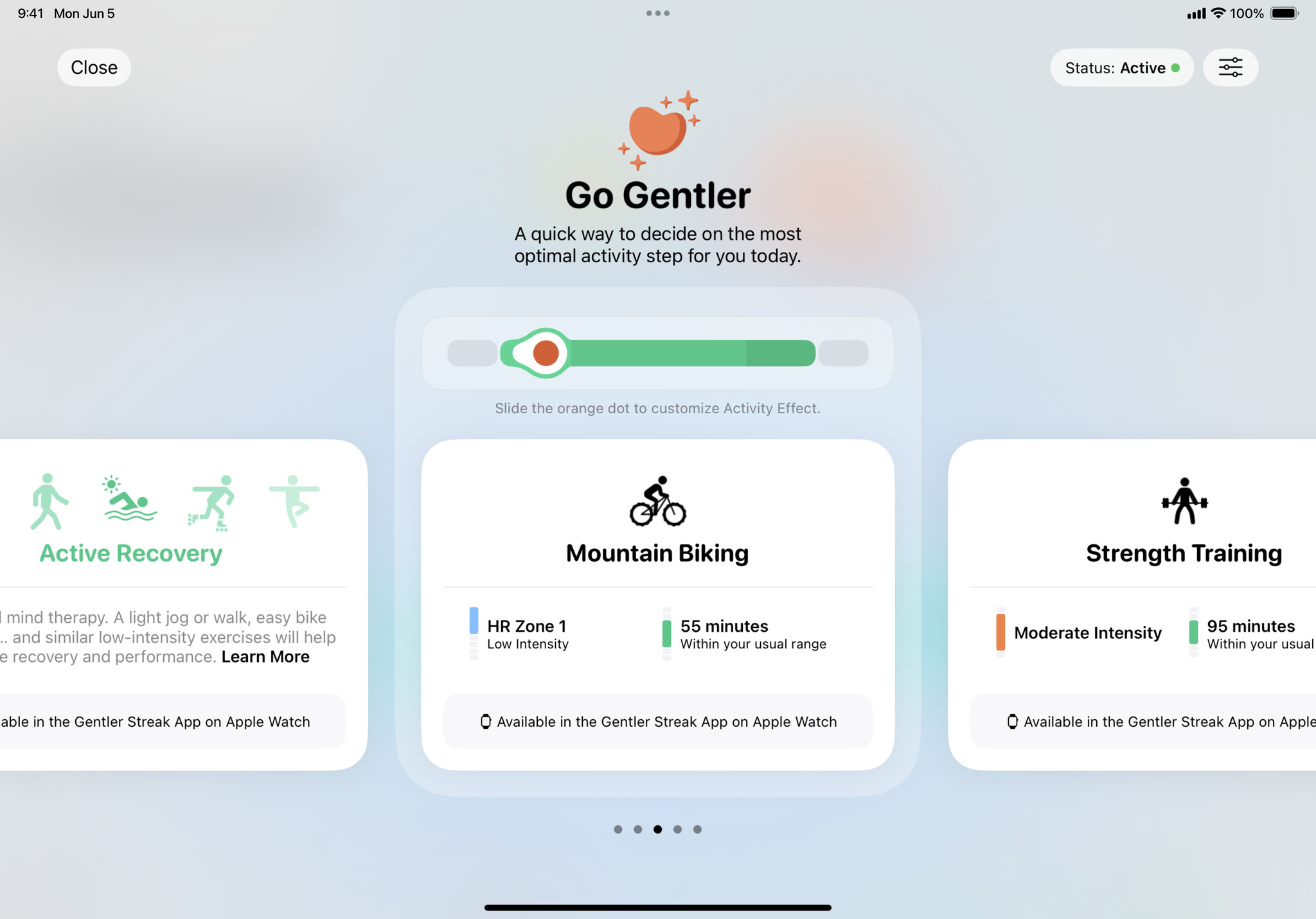
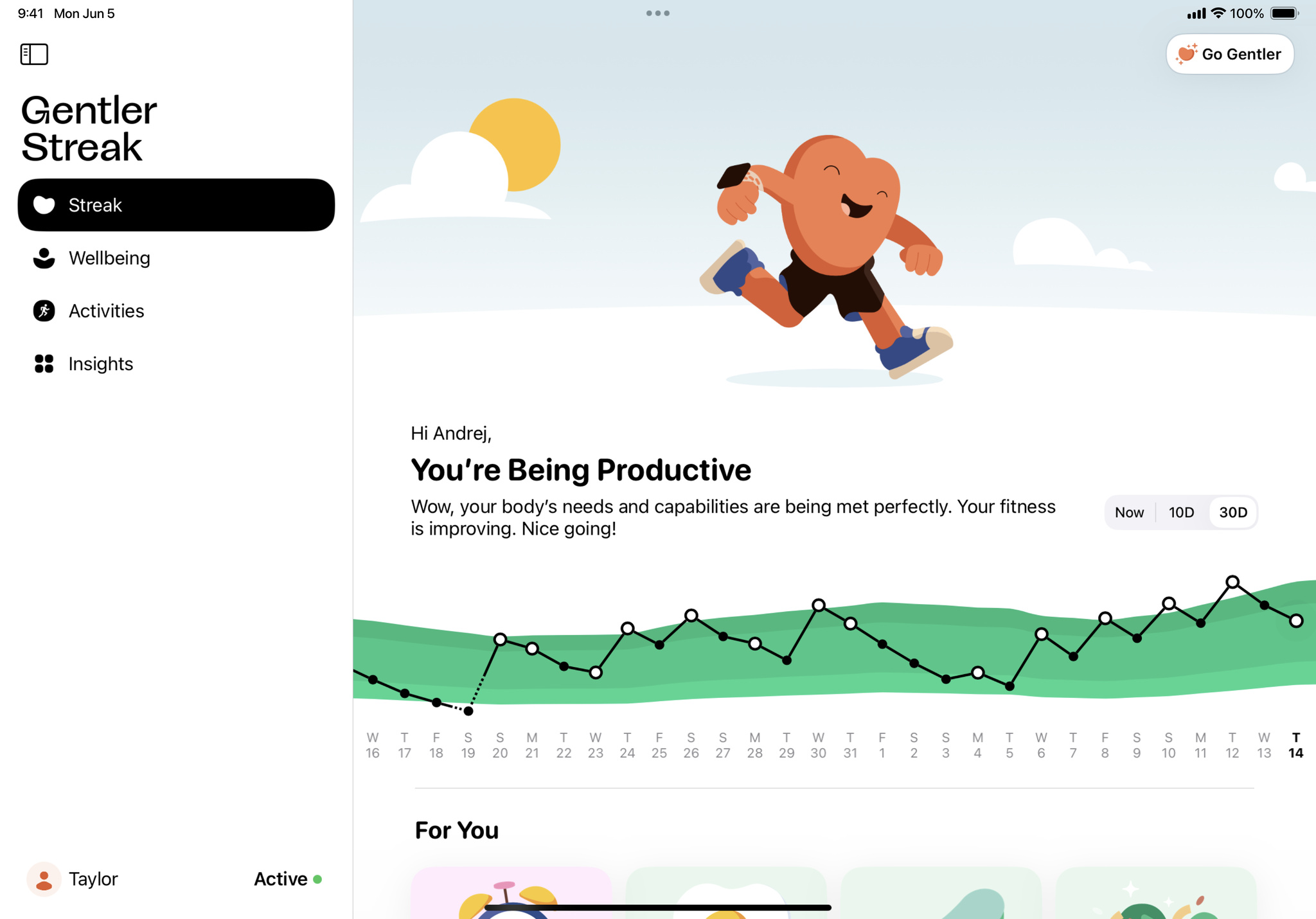
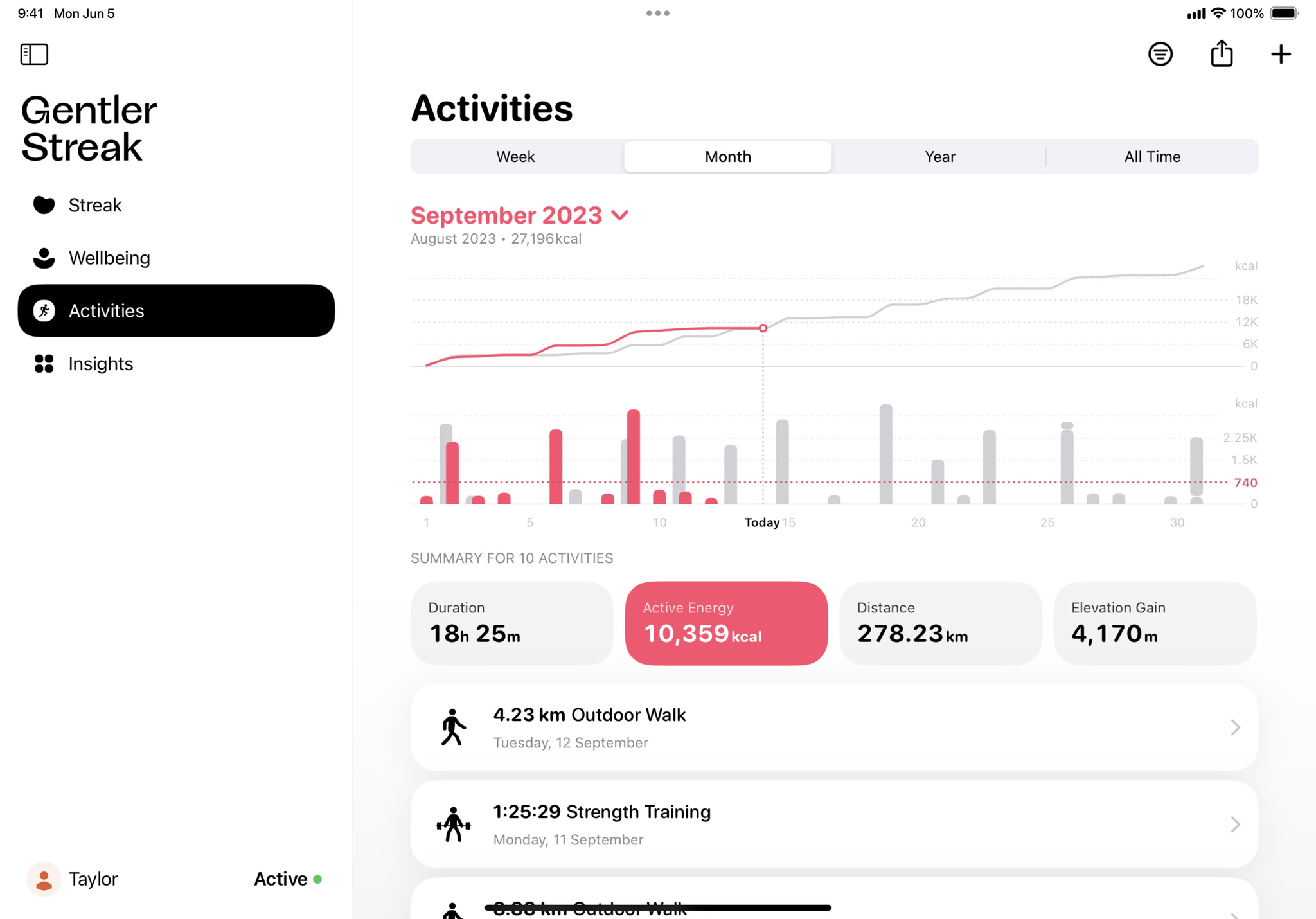
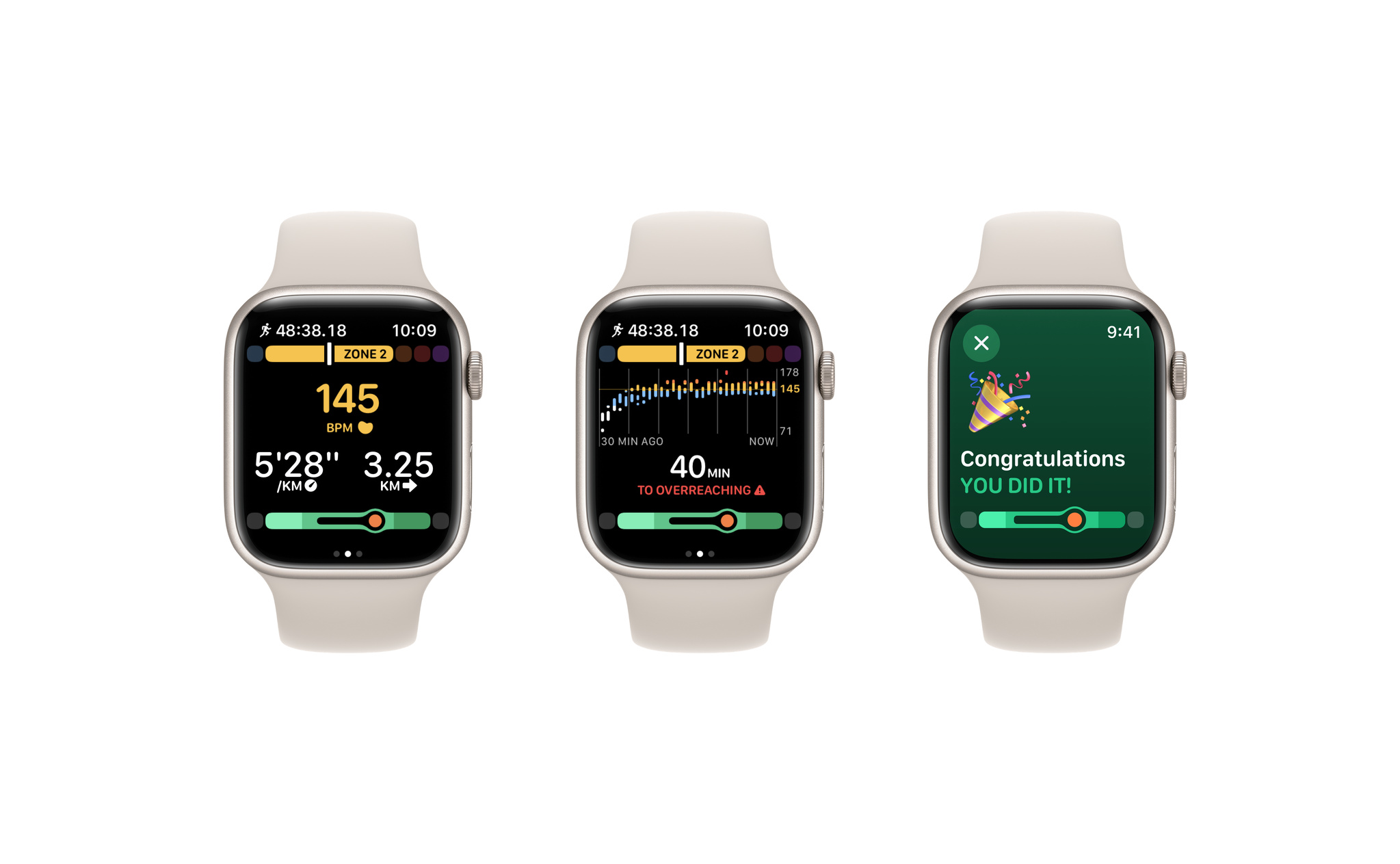
Apple Watch App of the Year: Gentler Streak

A fitness tracker that encouraged us to tune in to our bodies—and take a rest when we needed.

Download Gentler Streak from the App Store

Apple TV App of the Year: ViX

A Spanish-language streamer that brought together the drama we love and the sports that get our heart pumping.

Download ViX from the App Store

Apple TV Game of the Year: El Hijo

We loved how this spirited stealth adventure values brains over brawn—and looks stunning on the big screen.

Download El Hijo from the App Store

Arcade Game of the Year: Wylde Flowers

With remarkably authentic diversity, this life sim’s idyllic world makes free expression (and casting spells) incredibly fun.

Download Wylde Flowers from Apple Arcade

Cultural Impact Winners:

Dot’s Home

Shining a spotlight on historical injustices through a compelling time-travel tale.

Download Dot’s Home

How We Feel

Helping us engage more deeply with our emotions—and providing strategies for addressing them in the moment.

Download How We Feel from the App Store

Inua

Honoring the heritage of the Inuit, whose folklore gives a breathtaking tale its beating heart.

Download Inua from the App Store

Locket Widget

Bringing friends and family closer by helping us see the small moments we otherwise might miss.

Download Locket Widget from the App Store

Waterllama

Encouraging everyone to stay hydrated through a winning combination of gentle guidance and adorable characters.

Download Waterllama from the App Store

Originally published on November 28, 2022 on the App Store Today tab.

Posted on Leave a comment

Q&A: 10 Questions with Design Evangelism

For the inaugural edition of Ask Apple, members of our Design Evangelism team got together to answer your Slack questions about design philosophy, color guidelines, keyboard shortcuts, and much more. Here are a few highlights from that conversation, including guidance about the HIG, tips on reducing clutter, and a very important message about the tab bar.

Do you ever feel like your design isn’t quite right, but you’re not sure why?

All the time! In fact, “Feeling like the design isn’t quite right” can sometimes seem like an everyday mood. When this happens, there are a few strategies we find helpful, and the first is: Phone a friend! Sometimes it takes another person to gut-check why we’re feeling uncertain about a design, and it’s always great to engage in a conversation and critique. Plus, this not only requires you to explain the problem (which alone can help you identify what’s not working), it also allows you to personally step away from it — at least for a moment.

How do you know when to start cutting features to make your app less cluttered and more user-friendly?

This is a great exercise for a whiteboard or sticky notes. First, write down all the features/areas of your app. Then, bucket them into what fulfills the goals your users will have. If something feels superfluous, consider whether you need that feature. There’s a balance between what you need visible all the time, what can be a few taps away, and what doesn’t need to be there at all. (It’s also a helpful way to prioritize the most important functionality of your app — which can help you better organize your app’s hierarchy!)

Is is considered best practice to limit device orientation on iPhone?

You should really leave device orientation up to users. We love when apps support both portrait and landscape and would only recommend limiting orientation in certain app scenarios, such as when movement or device mounting would make orientation-switching feel distracting.

What are some guidelines for colors and shades?

Using color for actions is a subtle way to brand the interface without being distracting or intrusive. Start by selecting a main tint color, establishing your workflows and actions, then sketching those out with the tint color representing actions. (You’ll notice our first-party apps all have one key tint color; for instance, Mail is blue and Podcasts is purple.) When you’re working on high-fidelity visual designs, use a palette that complements that color.

Is it necessary to include tab bar labels for common tabs like Home, Search, or Profile?

In many cases, labels are recommended for clarity and accessibility. Home, Search, and Profile are generally sufficient for communicating meaning on their own, but they’re exceptions to the rule. Many icons are not as widely understood. Tab bar labels create a stronger distinction from toolbars, which don’t have labels. Plus, removing the labels doesn’t provide much benefit to users. It doesn’t save any space, nor does it significantly reduce visual information from the interface.

How should I think about keyboard shortcuts that feel intuitive and don’t interfere with system shortcuts? When should I use one modifier over another (for instance, Option vs. Shift vs. Command)?

In general, the go-to modifier key is Command because it’s easiest to reach with your left thumb. And speaking of, here are a few more rules of thumb:

  • The fewer modifier keys, the better.
  • Using the first letter of the action name helps people remember the shortcut.
  • From an ergonomic standpoint, keys nearest modifiers and easily reachable using one’s index and middle fingers — Q, W, E, A, S, D, O, and P — tend to be more successful as shortcuts.

Want to dive in a little deeper? You’ll find lots of good information in the HIG.

Human Interface Guidelines – Keyboards

How large are the specified margins for the iOS and iPadOS safe areas?

On iOS and iPadOS, the layout margins are 16pt in the compact width size class and 20pt in the regular width size class. But we typically think of safe areas as distinct things that work in tandem with margins. Safe areas are highly dynamic and change with device orientation, screen size, and a variety of other factors (like whether navigation bars, toolbars, or tab bars are displayed). You’ll find lots of information in the HIG.

Human Interface Guidelines – Layout

When designing for lists, how can I stop rows and cells from feeling overcrowded?

Think about progressive disclosure and hierarchy. What information do people need at each level of your app? When cells feel overcrowded, question the purpose of each element. Maybe a photo or icon isn’t beneficial, or maybe the secondary text can be a description on the detail view.

Do you always try to adhere as much as possible to the HIG, or do you try to do something different with every design?

Great question! We do try to adhere to our foundations and follow our own design patterns for the benefit of consistency and understanding. (We also try to use system components because they’re so efficient to build with.) But that being said, we’re also willing to push on the HIG where it makes sense — if it means an overall benefit for users. We’re pretty adamant that the HIG shouldn’t be a set of rules, but very good suggestions. And we evolve it constantly based on what we’re seeing in the community and how we want to push our own aesthetics and interactions for the future.

Is it good practice to hide the tab bar when navigating to sub-pages?

Nope. 🙂

(It’s OK to cover it for brief periods when a modal sheet is displayed. Otherwise, hiding a tab bar can make people feel lost.)

Posted on Leave a comment

A new week of Ask Apple starts November 14

Join us for another exciting week of the Ask Apple developer series, where you can connect directly with Apple experts. Ask about integrating the latest technologies into your apps, designing intuitive UIs, testing on the latest software, and so much more.

Online one-on-one consultations and group Q&As will run November 14 to 18, with activities in multiple languages and time zones. Registration is open now to current members of the Apple Developer Program and Apple Developer Enterprise Program.

And stay tuned for details on the next round of the Ask Apple developer series taking place in December.

Learn more

Posted on Leave a comment

Spotlight on: The Dynamic Island

Shape-shifting animations. Effervescent effects. And a downright playful name. “I genuinely wasn’t expecting [the Dynamic Island],” says Christian Selig, developer of popular Reddit client Apollo. “That’s what blew me away: It’s just not something that’s been around.”

The feature brings liveliness — and Live Activities — to the status bar on iPhone 14 Pro and iPhone 14 Pro Max, transforming notifications, alerts, and activities into a fluid and interactive piece of animation. Whether tracking a delivery, following the game, or checking the status of an upcoming flight, the Dynamic Island helps keep people up to date without distraction.

“(The Dynamic Island is) perfect for us,” says Ryan Jones, developer of the travel-tracking app Flighty. “For travel, which can make you stress about missing something, it offers easy background reassurance.”

We caught up with five developers — including Selig and Jones — to learn how they’re designing and building for Live Activities and the Dynamic Island.

Citymapper: ‘It’s what we’ve been dreaming about for years’

If you’re an app that wants to help people move around a city, it’s hard to overstate the power of live updating in the Dynamic Island. “Live Activities changes everything here,” says Victor Wang, head of product for route-planning app Citymapper. “It’s what we’ve been dreaming about for years, and it’s a big step toward our vision of being a personal assistant in your pocket.”

For Citymapper, the Dynamic Island is less about transit and more about comfort. On iPhone 14 Pro and iPhone 14 Pro Max, the app’s signature GO feature — which helpfully lays out the path of your entire journey or commute — uses the Dynamic Island in place of notifications or simply checking the app.

It offers a single live-updating view that communicates key information: how long you’ll have to wait for the next bus, how many more stops until you disembark, and when you need to get off the train or bus (and, by association, your phone). “[The Dynamic Island] will show a countdown so you can understand, ‘OK the bus will be here in 10 minutes — now 5 — now 2,” says Wang. “Our hope is that you’ll feel more comfortable waiting.”

Citymapper’s Dynamic Island shifts based on where you are in your journey, in this case on your train (left), at your stop (center), and walking to your destination (right).

Citymapper’s Dynamic Island shifts based on where you are in your journey, in this case on your train (left), at your stop (center), and walking to your destination (right).

iOS designer Jason Hibbs shares that the Citymapper team initially thought Live Activities would function as an enhanced set of notifications. “But we’re actually able to say not just ‘Turn left,’ but also ‘Here’s how many minutes you have until the bus arrives.’”

Live Activities can help you feel more on top of things.

Victor Wang, Citymapper

Citymapper breaks each trip into four phases: walking to a stop, waiting at a stop, riding, and then walking to your destination. In each phase, Dynamic Island will show a small icon — like a bus, train, or walking person — with a countdown to your next destination or transfer. The team discarded other ideas in pursuit of that simplicity — eschewing, among other things, turn-by-turn directions. “We didn’t want it to get in your way,” says Wang. “The idea is that you can still read or play your game or do whatever you’re doing.”

In short, you can do anything you like — save for worry about your trip. “Live Activities can help you feel more on top of things,” says Wang. “You can plan better and have sufficient confidence for the next step.”

Download Citymapper from the App Store

Apollo for Reddit: ‘It’s kind of hard not to go wild’

When he first learned about the Dynamic Island, Christian Selig pounced. “The way the engineers built the APIs, it’s kind of hard not to go wild,” Selig laughs. “It’s like you write four lines and the widgets are done. It’s pretty magical.”

Ideas for Apollo, his Reddit client, came almost immediately: “Say a new episode comes out, and you’re following a subreddit and reacting with other fans,” Selig says. “The Dynamic Island will auto-refresh and show you new content and comments as they come in.”

Apollo’s Dynamic Island shows new content and comments — like fun Easter eggs in TV shows — as they come in.

Apollo’s Dynamic Island shows new content and comments — like fun Easter eggs in TV shows — as they come in.

If so moved, you could stream the show in one app while tracking new posts on the subreddit through updates in the Dynamic Island. “In compact presentation, you’ll see the current number of comments. When you go to (the expanded presentation), you’ll see high-performing comments — like if someone caught a reference you missed.”

Outside of the Dynamic Island, Apollo’s Live Activities are robust as well: You can keep tabs on what’s trending, follow your Reddit karma, and — this is true — track the actual physical distance you’ve scrolled in Apollo (measured in feet, miles, or by the Eiffel tower). “This has been one of the more fun experiences I’ve had doing iOS development in quite a while,” Selig says, “and it’s a fun job, so that says a lot.”

Download Apollo for Reddit from the App Store

SmartGym: ‘I had to focus on staying out of the way’

SmartGym’s Matt Abras sees the Dynamic Island more as a coach than a static feature: His app is exploring something that displays both your current workout and the rests between each set — so you know when it’s time to get back to work.

“It’s easy to be distracted by your phone during rests, right? A 30- or 45-second break can become a few minutes,” Abras says. “This is way better than getting a notification that says, ‘Hey, rest ended.’”

SmartGym’s Dynamic Island shows the type and duration of your current workout — and prepares you for your next one.

SmartGym’s Dynamic Island shows the type and duration of your current workout — and prepares you for your next one.

Abras went through a number of iterations when designing Live Activities for SmartGym. He’d initially tried using the Dynamic Island to display heart rate and calories during a workout, but it felt superfluous. “In order to track health data, you need Apple Watch, which is already showing that information,” he says. “What’s really important to show at that time? Health metrics? A large countdown? How many sets you’ve done and how many you have left? There’s a lot of potential information.”

What’s really important to show at that time?

Matt Abras, SmartGym

Instead, Abras refocused, using the Dynamic Island to share metrics and reps. “When someone’s working out, they need to do what they need to do without realizing the app is there,” he says. “I had to focus on staying out of the way.”

How did he keep that balance between practicality and invisibility? “It’s all about taste,” he says, with a smile.

Download SmartGym from the App Store

Flighty: ‘We really have to shine when things go awry’

Apps can easily take advantage of the Dynamic Island to quickly spotlight a single nugget of key information. When it came to Flighty, however, Ryan Jones wanted to tackle a slightly more daunting project: showcasing multiple nuggets of information — departure times, gate changes, baggage claim numbers, and the like — that could all change on the fly.

Flighty is at its best when dealing with such “IRROPS” — the industry abbreviation for irregular operations. “We really have to shine when things go awry,” says Jones. But that meant accounting for every thunderstorm, equipment delay, or late plane into Dallas.

“People want different data points [like]… what time is a flight leaving, where is it leaving from, how long until you land,” says Jones. But this information is almost always time-dependent; after your flight departs, for example, you likely won’t need information about your departure gate.

Flighty’s Dynamic Island helps guide your travel every step of the way, from before you board (above) to after you take off (below).

Flighty’s Dynamic Island helps guide your travel every step of the way, from before you board (above) to after you take off (below).

After exploring a few possibilities for the Dynamic Island and Live Activities, Jones and the team decided to make the information within the Dynamic Island — well — dynamic. Before your gate departure, for example, Flighty’s information within the Dynamic Island will operate like a departure sign at a big airport. “That’s our real-world analogy,” Jones says. “Those signs have one line per flight, and that’s a good guiding light — they’ve had 50 years of figuring out what’s important.”

In addition to the unpredictable nature of travel, Jones and team must also account for how every single person will, at some point, lose their connection. “Whenever [someone] takes off, we have to assume that we won’t see them again until they land,” says Jones.

The solve: Once a plane pushes back, Flighty is ready to go offline at any minute. From that point on, the Dynamic Island switches over to flight progress bars and counters; the minimal presentation is a simple circular chart that tracks your flight’s duration.

No matter where someone is in their flight, the Dynamic Island can help them feel confident and comfortable in their travel routine. “That’s a big change from ‘I’ve gotta be listening for notifications all the time,’” Jones says. And it’s one that Flighty welcomes.

Download Flighty from the App Store

Wakeout: ‘Like a healthy work coach’

Workout-anywhere app Wakeout encourages regular breaks during the day — not only for brief bursts of aerobic exercise, but also for pauses to reduce eye strain, grab a sip of water, or simply clear your mind. “It’s all about: How can we help people break up their sedentary moments but stay in their flow states?” says developer Pedro Wunderlich.

Many of these activities take as little as 15 seconds, making the Dynamic Island a reliable resource for helping people using the app. “I want to find the teams behind the Dynamic Island and Live Activities and ask, ‘Were you thinking of us? Is this a love letter?’” he laughs.

Wakeout's Dynamic Island nudges you to exercise and encourages you to focus.

Wakeout’s Dynamic Island nudges you to exercise and encourages you to focus.

Wakeout has long used push notifications, but the ActivityKit framework in iOS 16 gave Wunderlich a new way to help people stay on top of their routines. “Our customers have actually told us they want more notifications, not fewer,” says Wunderlich. “We hear, ‘Wakeout is really helpful, but only if it interrupts me.’ So Live Activities is what our customers have been asking for without knowing it.”

When designing for the Dynamic Island, Wunderlich kept both tiny tasks and longer aerobic breaks in mind. “[It’s] such a great way to maintain a presence and let people know when it’s a good time to hydrate, move, close your eyes for 30 seconds, and do all these healthy little breaks that add up.”

For smaller pauses, Wakeout’s compact presentation in the Dynamic Island shows a countdown along with a small icon (like a water bottle) to remind you about your next task. If that upcoming rest is a brief one and you’re locked into what you’re doing, you can ignore the countdown with no consequence; the alert will simply slip away “like a ship in the night,” says Wunderlich.

It’s all about: How can we help people break up their sedentary routines but stay in their flow states?

Pedro Wunderlich, Wakeout

But if the break is major and there’s a walk, squats, or a set of pushups in your future, the Dynamic Island will spur you to action more insistently. “An actual exercise break — which is Wakeout’s speciality — does stop that timer. Our customers generally do 45-minute focus sessions, so that’s the limit of the sedentary period. After that, we say, ‘OK, it’s time to move your neck, move your shoulders, or stand up.’”

Wunderlich considers the two approaches entirely separate. “The healthy moments are passive; if you don’t pay attention, they dismiss themselves,” he says. “The exercise break is more of a big state change on screen.”

It’s notifications versus interruptions, or reminders versus celebrations. But they all tie back into Wakeout’s goal to keep you firmly on a healthy track throughout your day. “We’re shifting our focus toward healthy work in a more holistic way,” Wunderlich says. “Wakeout has become almost like a healthy work coach.”

Download Wakeout from the App Store

Explore Live Activities and the Dynamic Island