
Posted on Leave a comment

Feature: Nintendo Switch Year In Review 2025 – Our Most Played Games

Nintendo Life Switch Year In Review 2024
Image: Nintendo Life

Fashionably late to the party, Nintendo has finally arrived on the Year in Review scene, humbling us all by sharing our gaming stats from the entirety of 2025.

In case you missed it, the ‘Switch Wrapped’ site is now live, providing a rundown of every game you played this year, the three that you spent the most time with, and a pie-chart examination of your genre habits. There’s also a nice little bonus feature this time, which details your stats from all the way back in 2017.

To get in on the fun and see your playtime, just head over to the official Nintendo website that we’ve linked below and sign in — easy peasy!

As you might imagine, there have been quite a few big titles for us to sink our teeth into over the last 12 months (a console launch will do that to you), so read on to find out which games captured team NL for the longest.

Jim Norman, Staff Writer
Donkey Kong Bananza
Image: Nintendo Life

Most played games of 2025:

Okay, I was expecting to see two of these, but how the hell did I spend 34 hours in the NSO Game Boy library? I played a lot of Mario’s Picross last year (what can I say? It makes me happy!), but surely not that much. Hey ho, welcome to the podium, little guy.

68 hours in Mario Kart World doesn’t completely surprise me, given how long I spent searching for those damn P-Switches, Peach Medallions and ? Panels. Maybe one day I’ll be able to come back to it with an open mind and an open heart… but I’ll leave it another couple of months.

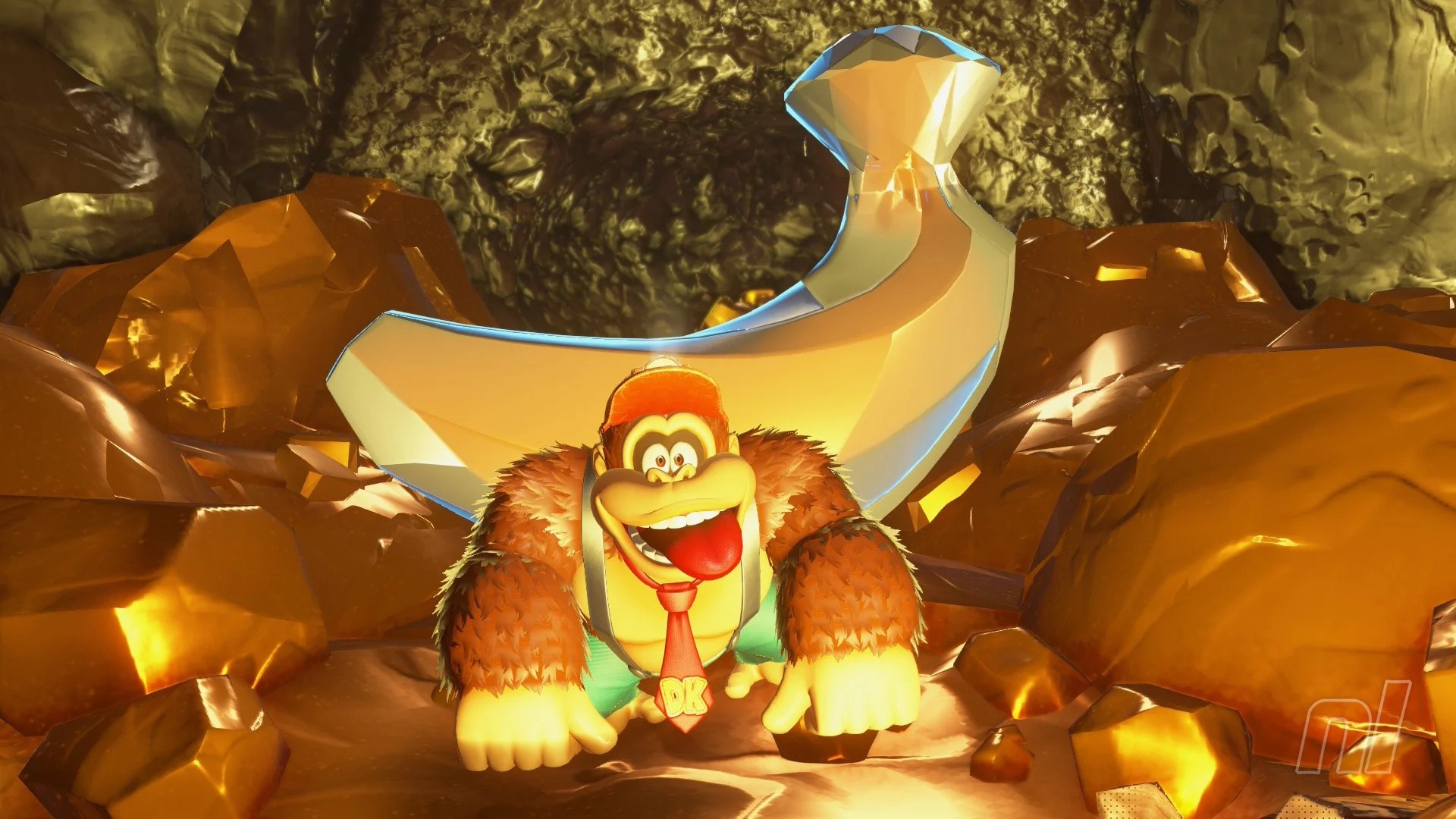
And finally, the least surprising of them all: Donkey Kong Bananza. It turns out that reviewing and guiding a game like this one takes quite a bit of time, and I poured 112 hours into this bad boy to make sure that it was 100% wrapped up. An absolutely sublime reintroduction into the 3D platforming space for the prized primate.

All in all, a somewhat meatier year — though one where I still racked up triple figures on my PS5 with some tasty releases that haven’t come our way yet. I put 456 hours into 51 games, with Silksong and Pokémon Legends: Z-A just missing out on a top-three ranking. Bring on 2026 and another ~500 hours of gaming!

Ollie Reynolds, Staff Writer

Metroid Prime 4
Image: Nintendo

Most played games of 2025:

Is it really any surprise that my most played game of 2025 is Metroid Prime 4: Beyond? Having written our review for Retro Studios’ latest, along with a 100% completion guide campaign, yes, Beyond managed to completely dominate my life for a good few weeks there.

The Hundred Line – Last Defense Academy isn’t too far behind, mind you. This is still my favourite game of 2025, and to be honest, even with all of the time I put into Prime 4, I’m kinda shocked The Hundred Line didn’t bag the top spot. I’m really tempted to play through it again from scratch in 2026, so we’ll have to see if it winds up on my top three again this time next year.

Finally, I’ve been dipping in and out of Street Fighter 6 so often in 2025 that it’s just about managed to nab third place. I’ve been testing and reviewing a whole bunch of arcade controllers for the Switch 2 recently, and SF6 is the go-to game to really put them through their paces. More of the same this year, please!

I also feel compelled to mention that none other than Resident Evil 6 just missed out on the top three. Look, I love this game, and I spent so much time in The Mercenaries No Hope mode. I just can’t get enough.

Alana Hagues, Deputy Editor

Hello Kitty Island Adventure
Image: Sunblink

Most played games of 2025:

…well, one of these is not like the others, eh? I’m not sure what happened at the beginning of the year, but I apparently couldn’t put down Hello Kitty and friends, which I played for *gulp* 173 hours. Was I okay for the first half of 2025? I think so?

Otherwise, my other two games I actually predicted would pop in my 2024 write-up — unsurprising given that Xenoblade Chronicles X is absolutely massive, and I rolled credits at the 112-hour mark. And between reviewing, the DLC, and guiding it, Pokémon Legends: Z-A clocked in at 94 hours. Woof. Some of that is donut farming, idling, and taking screenshots, of course.

Hollow Knight: Silksong was close to the top three at 83 hours, while Fantasy Life i is nipping at Hornet’s ankles at over 70 hours. Otherwise, Mario Kart World, Donkey Kong Bananza, and Animal Crossing: New Horizons are all around 50 hours.

Overall, a darn good year! 2025 was a much busier year for my Nintendo consoles than 2024 was — I’ve clocked in 1029 hours between the Switch 1 and Switch 2. I have a feeling that’ll slip a little in 2026 for life reasons, but we’ll see!

Gavin Lane, Editor

Hollow Knight
Image: Team Cherry

Most played games of 2025:

I was mainly channelling the ‘Oh crap, I need to finish that before the sequel drops’ energy in 2025.

I’d escaped Hades several times before, naturally, I just hadn’t gotten to the surface the 10 times needed to get the proper ending. One thing led to another, and yep, another 28 hours on the clock. As for Hollow Knight, I bought it on sale years ago but never got to it. I’m now sitting on 86% completion with 35 hours on the clock, and I imagine the NS2 Edition will encourage me to push that higher.

And sandwiched between those two, there’s Bananza, a game I like a little less every time I return, but I’ve still managed 32 hours and counting. Probably time to call it a day, unless the kids badger me for more “Ooo, banana!” and the Zebra Bananza music.

Bubbling under that, it was a bitty year – 272 hours across 61 games, including a first-play of Metal Gear Solid and a big ol’ chunk of time with both Mario Kart World and that hot new 2025 release, Katamari Damacy REROLL. Give the kids what they want, I say. Naaa na-na na-na-na na-na…

Mai Ladyman, Video Producer

Stardew Valley
Image: ConcernedApe

Most played games of 2025:

In all honesty, I didn’t do too much gaming in 2025 due to that age-old excuse of life (and work) getting in the way. Oh… and playing on other platforms, primarily PC (sorry!). 2025 began with me starting yet another Stardew save in an attempt to reach Perfection, and even though I’m nowhere near that milestone, it was a nice routine of mine before and after work.

Saying that, getting my hands on the Switch 2 gave me a kick up the bum to finally get some games from my backlog completed. I mostly sank my teeth into indies, cosy games and generally games with shorter runtimes. I often got lost in Night City (or found myself recklessly speeding in the outskirts) and creating a new ACNH island just for kicks, whilst abandoning my OG island on my old Switch. Although I’m over 850 hours on ACNH, I’m itching to up them even more now that the update is here.

Considering I played a bit of catch-up in December with Pokémon Legends: Z-A and Persona 5 Royal, I honestly thought they’d make the cut! I guess they must have been a wee bit behind, so here’s hope for next year’s review. I’m hoping now that I’ve joined the Nintendo Life team, I can get my hours back up and finally have time for games!

PJ O’Reilly, Staff Writer
Final Fantasy Tactics: The Ivalice Chronicles
Image: Nintendo Life

Most played games of 2025:

I’m surprisingly happy with how my top three has ended up this year, as it pretty much reflects my actual faves overall for 2025. Just about.

Usually there’s a little bit of review time cross-contamination (and XCX is defo there for this reason), but these are all worthy of top three spots in terms of how much I love ’em, too. Hades 2, although I don’t adore it quite as much as the OG, is still a masterclass and head and shoulders above most examples of its genre in terms of overall quality of gameplay and narrative.

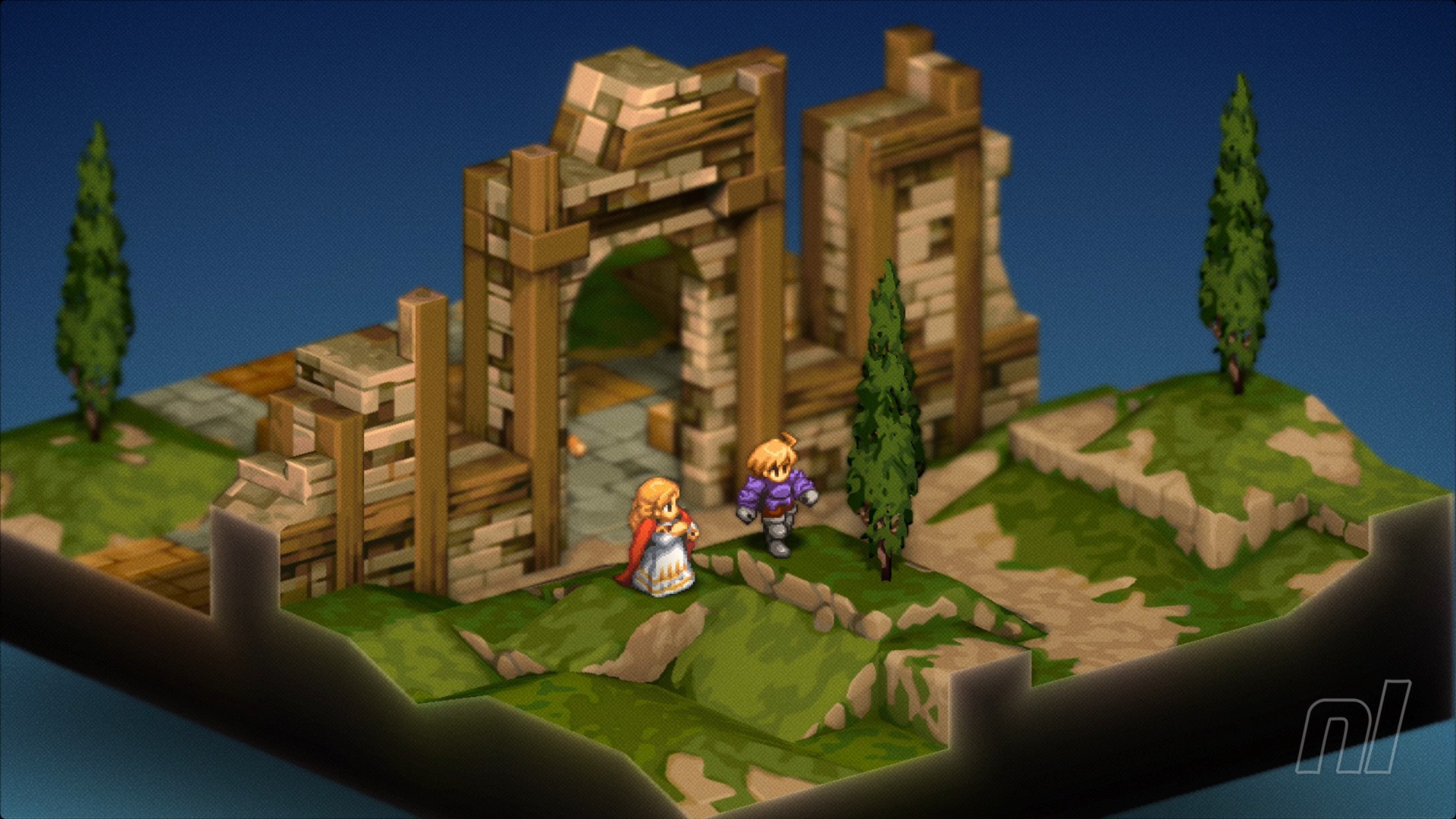
XCX, I’ve ranted and raved enough about by now, you can check out my 10/10 review if you don’t believe me, and The Ivalice Chronicles, well, besides being so far up my street it’s moved into my house, it’s a wonderfully well-realised and endlessly endearing thing.

What else was up top for me in terms of playtime? Bananza, Mario Kart World and Silksong are all in there, obviously, but so is Fast Fusion, Axiom Verge 2 (back on that replay vibe) and Divinity Original Sin 2, which is just one of those games that I’m forever and always mucking about in!


Those are our Years in Review most-played games, but what about yours? Vote in our poll below and let us know your favourite stats in the comments.
Posted on Leave a comment

Guide: Animal Crossing: New Horizons Guide – Walkthrough, Tips And Hints

Animal Crossing Tips and Tricks
Image: Nintendo Life

Update []: Well, would you look at that: ACNH’s big free update is out now, with a Nintendo Switch 2 Edition to follow. Who needs free time in 2026, hey?

We’re currently updating our New Horizons guides to reflect the new content and changes in due course. Keep your eyes peeled!


Original Story: Animal Crossing: New Horizons slowly but surely took over many of our lives when it launched in 2020, but if you’re at a loss for what to do next in the game, then you should check out the tips and hints we’ve outlined below.

So, sit back and relax as we’ll take away the stress of your new island. Let’s begin.

Animal Crossing: New Horizons Walkthrough

Getting started in Animal Crossing: New Horizons

Given how much there is to do in New Horizons, just knowing where to begin is quite intimidating.

Not only do you have to deal with a seemingly deep question right at the beginning, but you also have to pick a spot to place your tent, acquire essential tools like the axe, shovel and ladder and unlock vital amenities like the Museum and upgraded Resident Services.

Then there’s the process of bringing villagers to your island and attracting key talent, like the one and only K.K. Slider. Fear not, for here we answer your most pressing early-game questions:

Best Tools and Best Gear

Animal Crossing Tool Ring
Image: Nintendo Life

You’re not going to get very far in New Horizons unless you have the best gear and tools. You can buy tools from various sellers in the game using Bells but you can also craft them yourself using components scattered around the island.

Make sure you unlock the tool ring early on as it makes switching between tools a little bit easier, and be sure to upgrade your axe and shovel as soon as possible – the more advanced the tool, the longer you’ll be able to use it before it breaks.

Unlock And Upgrade Buildings And Amenities

There are several amenities and shops for island residents to unlock and upgrade as you play. To get the most out of your island getaway experience, you’ll want to add the following buildings and characters to your deserted island.

Manage Your Resources

Resources are essential in Animal Crossing: New Horizons when it comes to crafting and upgrading items, and pretty much anything you can pick up on the island can be sold for Bells.

However, items like wood, rocks, nuggets (both iron and gold) and clay are used in the construction of important items and structures. Make sure you have plenty of them in your pockets at all times!

Fishing, Bugs and Fossils

Animal Crossing Fish
Image: Nintendo Life

There’s a whole ecosystem of critters living inside New Horizons, and you’ll want to collect as many as possible to donate to Blathers in the island’s museum (which also accepts artwork donations, too). Some of these can only be acquired at certain times of the year, so you’ll need to keep checking back constantly!

Special Days and Events

Throughout the year special holidays and events take place in Animal Crossing: New Horizons to coincide with real-world festivals and holidays. Here they are in the order they occur throughout a calendar year.

Special Characters

Redd Animal Crossing New Horizons
Image: Nintendo Life

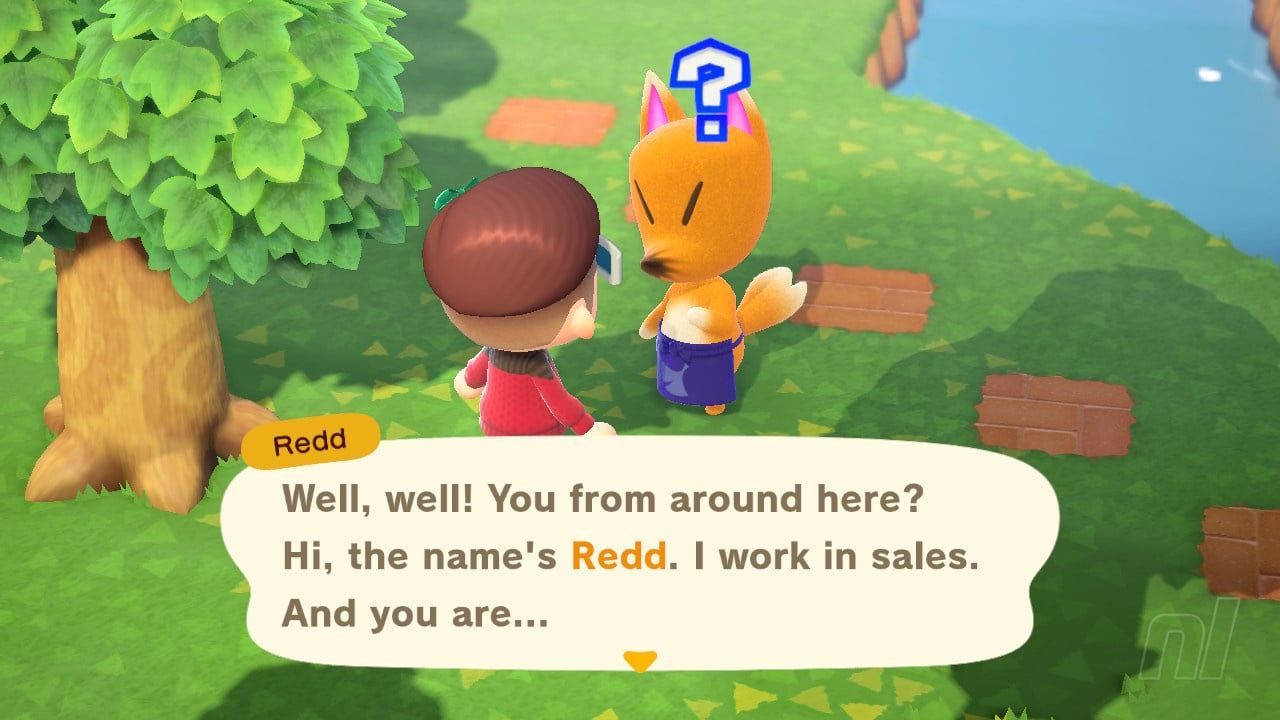
Special characters — many recognisable to series fans from previous Animal Crossing games — periodically pop up around your island or even set up shop. These beloved characters invariably bring opportunities to expand your catalog with special items, so it’s well worth chatting with them when they turn up.

General Help, Tips, Advice, How-Tos, FAQs

Here are some general tips and tricks to make your life in New Horizons that little bit easier. From earning Bells quickly to making use of amiibo cards and figures, we’ve got you covered!

How to Time Travel – What Happens when you Time Travel

Animal Crossing: New Horizons: Happy Home Paradise DLC Walkthrough

The Happy Home Paradise DLC — available for purchase separately or bundled as part of the Nintendo Switch Online Expansion Pack subscription — unlocks a whole range of possibilities in Animal Crossing: New Horizons, including various expanded decoration abilities, new furniture, new and returning characters, the ability to change the time of day and the season and much more.

Animal Crossing: New Horizons: 3.0 Update & Nintendo Switch 2 Edition – NEW

On 14th January 2026, Animal Crossing: New Horizons got a brand new update to coincide with the Nintendo Switch 2 Edition‘s launch, which is out on 15th January.

There are a ton of new features available via the update, so we’ll cover all of these here, such as the brand new Hotel, Resetti’s services, and Luna’s brand new Slumber Isle.

Where to buy Animal Crossing: New Horizons

If you are completely new to the series, you might want to give our Animal Crossing: New Horizons review a read, where we concluded that the game is an “accessible and addictive masterpiece – 10/10.” Alternatively, find out everything that’s in the Happy Home Paradise DLC.

If you don’t currently own the game, check out Where To Buy Animal Crossing: New Horizons On Nintendo Switch and How To Buy The Happy Home Paradise DLC.


Thanks for reading! That concludes our walkthrough guide for Animal Crossing: New Horizons. We’ll continue to update this page and all our other articles on the game.

Posted on Leave a comment

An Overlooked Disney Collection From Digital Eclipse Has Been Rated For Switch

Disney Afternoon Collection
Image: Digital Eclipse

Digital Eclipse has done some pretty stellar compilations over the years, but one of its most overlooked efforts came in 2017 with The Disney Afternoon Collection.

Originally available on PC, PS4, and Xbox One, the compilation has now been rated by the ESRB for the Switch and Switch 2, though when we can expect to see it launch is anybody’s guess. The rating itself is attached to Atari which, as you’ll no doubt be aware at this point, wholly owns Digital Eclipse as a subsidiary.

The Disney Afternoon Collection contains a total of six titles from the NES (so why it’s taken this long to come to Switch is beyond us), including:

Our pals over at Push Square gave the compilation a score of 8/10 back in 2017, stating that “the production values and accuracy of these emulations are second-to-none” while noting that rewind features and art galleries make it an essential purchase.

Would you be happy to finally see The Disney Afternoon Collection on Switch and Switch 2? Let us know your thoughts with a comment in the usual place.

Posted on Leave a comment

Boom! The Animal Crossing: New Horizons 3.0 Update Is Now Available

Well, that’s a nice surprise! In what is likely a move to align all regions with New Zealand (where it’s now gone 1am on the 15th), Animal Crossing: New Horizons‘ 3.0 update is available for download.

You might need to manually apply the update – in which case you simply press ‘+’ on the game’s icon and select ‘Software Update’ – but otherwise, you should be good to go.

There are no official patch notes at the time of writing as we can see, but if you’ve been eagerly anticipating this new update, then you’ll likely already know the gist. Version 3.0 contains the following:

  • Resort Hotel
  • Island Speciality Requests
  • Slumber Island
  • Resetti’s Reset Service
  • Collaborations (LEGO and The Legend of Zelda amiibo)

To be crystal clear, the Nintendo Switch 2 Edition of the game is not yet live. This is available to purchase separately or via an Upgrade Pack. If you’ve pre-ordered the Upgrade Pack, you may see the ‘Nintendo Switch 2 Edition’ icon on your home screen, but the original Switch 1 version will boot up when you open it.

Have you already downloaded the 3.0 update for New Horizons? Or is that on your to-do list for today? Let us know with a comment.

Posted on Leave a comment

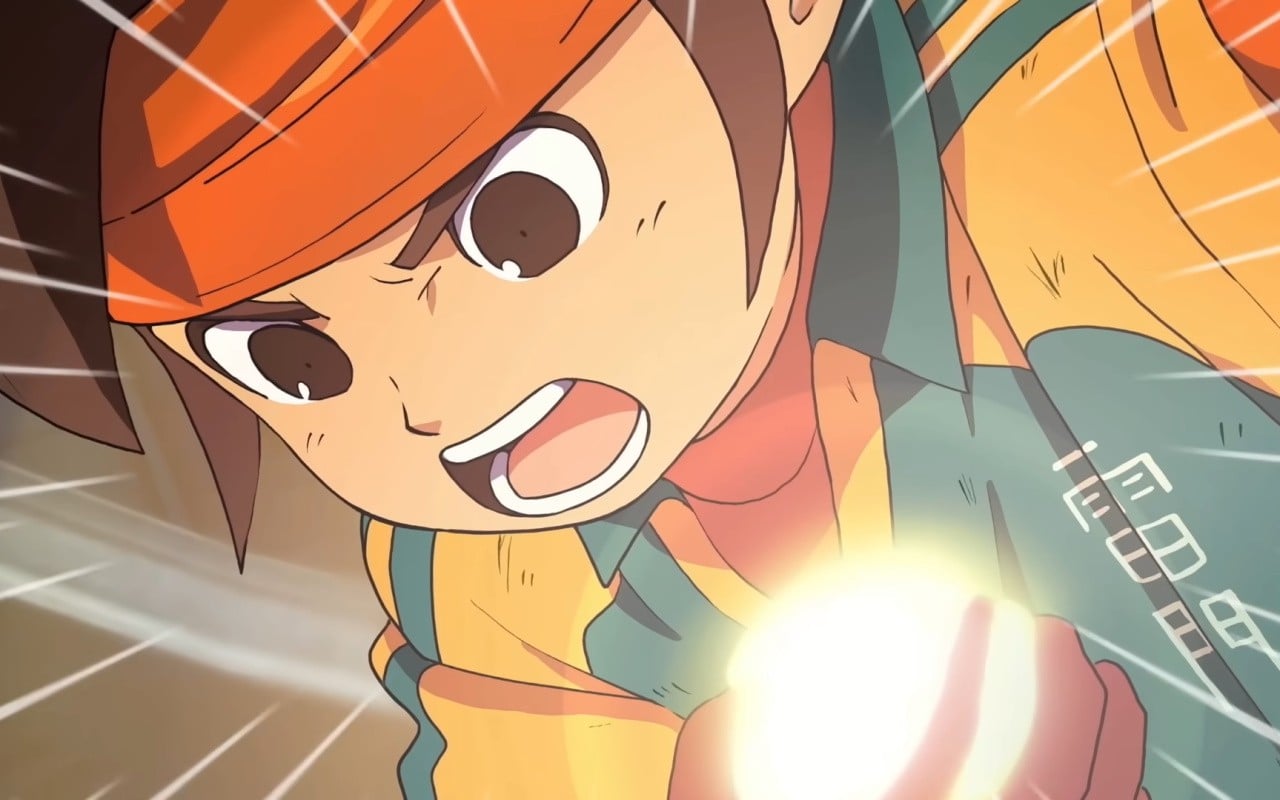
Level-5 CEO Says He’s Already Started Work On The Next Inazuma Eleven Game

Inazuma Eleven
Image: Level-5

After many years of waiting, fans of the Inazuma Eleven series were beginning to question if Inazuma Eleven: Victory Road would ever see the light of day. Fortunately, Level-5 dug deep and was able to finally release the title on the Switch and Switch 2 in November last year.

It’s already getting some updates (with more to come), but that’s not all – with the Level-5 president and CEO Akihiro Hino mentioning how he’s already started writing the scenario for a “sequel” to Inazuma Eleven: Victory Road. Yep, you read that correctly! We’ve even got a little detail about it.

Here’s the rundown from the latest Ina-Dai broadcast via Gematsu:

Akihiro Hino: “As for the sequel to Inazuma Eleven: Victory Road, I have already started writing the scenario. As a ‘new Inazuma Eleven‘ that begins in the Reiwa era, I will do my best to deliver surprise and excitement to everyone once again. Please look forward to future announcements.”

The source also notes how “despite its recent release, Inazuma Eleven: Victory Road was announced in July 2016-during the Heisei era. The Reiwa era began on May 1, 2019”.

It’s worth noting how the Level-5 CEO previously mentioned how a “potential sequel” would support the “Player Bank” data from this current release. Of course, this “sequel” could still be years out, and it isn’t exactly uncommon for developers within the games industry to jump straight into the next title like this (or even have some sort of overlap between projects).

Still, we’re almost exhausted just hearing this, as it took so long for Victory Road to arrive on the Switch – with multiple name changes and revisions along the way (with the latest one taking place in 2022), and the game also launching on the Switch 2 in the end.

For now, fans of the current release (that’s Victory Road) can look forward to the second major free update, which will roll out on 28th January 2026. You can find out a little more about this in our previous story here on Nintendo Life.

What would you like to see from a new entry in the Inazuma Eleven series? Tell us below.

Posted on Leave a comment

Ubisoft Layoffs At Two Swedish Studios Expected To Impact 55 Jobs

Ubisoft
Image: Zion Grassl / Ubisoft

A week after we heard about Ubisoft’s closure of its mobile game-focused studio Ubisoft Halifax, news has now surfaced about the third-party publisher laying off people at two other teams as part of ongoing cost-cutting measures.

According to a report from IGN, Ubisoft “expects 55 jobs” to be impacted at the Swedish Studios Massive Entertainment and Ubisoft Stockholm following a voluntary leave program in fall 2025 that apparently fell short of its target.

Massive is known for The Division and Ubisoft Stockholm has been working on an unannounced (and new) IP as well as cloud computing technology.

Here’s the lengthy statement from Ubisoft, highlighting these studio restructuring measures:

Ubisoft: Earlier today, we informed all employees in our Swedish studios (Massive Entertainment and Ubisoft Stockholm) about a proposed organizational restructure that may affect approximately 55 roles across Malmö and Stockholm.

This restructure follows the completion of the Voluntary Leave Program launched during the fall of 2025, a finalized long-term roadmap, and a completed staffing and appointment process, which together have provided clearer visibility into the structure and capacity required to support the two studios’ work and sustainably over time.

These proposed changes are forward-looking and structural, they are not related to individual performance, recent deliveries, or the quality of the work produced by the teams.

The long-term direction for the studios remains unchanged, and we will continue to serve as the global home and lead for to The Division franchise, move forward with an unannounced innovative tech project with a refined team setup, and play a central role in the development of Snowdrop and Ubisoft Connect.

The proposed restructuring will begin with a focus on individual agreements and impacted employees are being informed directly and supported with care and respect inline with local regulations.

Development on The Division series is still expected to continue “as a matter of priority”, and as noted, the “long-term direction” for both of these studios “remains unchanged”.

The Malmö-based developer Massive also happens to be behind the Snowdrop engine, which powered Star Wars Outlaws – a game released on Switch 2 last year.

Once again, our thoughts go out to all the people impacted by this, and if we hear any updates, we’ll let you know.

Posted on Leave a comment

Hazelight Founder Josef Fares On EA: “Let’s Be Honest, There’s Not A Publisher In The World That Hasn’t F****d Up”

It Takes Two
Image: EA, Hazelight Studios

Electronic Arts has been in the headlines for all sorts of reasons over the years, but Hazelight Studios founder and director Josef Fares (who is known for expressing his honest opinion) can’t help but feel the third-party video game giant is still “getting more s**t” than it deserves.

His team’s award-winning games (including It Takes Two and more recently Split Fiction) have been backed by EA and during the same interview with Christopher Dring at The Game Business, Fares took a moment to defend the company – acknowledging how it’s actually been a “super good collaboration” between the two parties, even if it hasn’t been completely perfect at all times.

He goes on to state how every publisher has its moments, while calling out Nintendo and the other two major players in the console industry:

Josef Fares: “Let’s be honest, there’s not a publisher in the world that hasn’t f*****d up now and then. Sometimes I feel that EA is getting more s**t than they deserve. I mean, come on, Nintendo, Microsoft, Sony, everybody’s done something that’s not good. But for some reason, EA has become this bad guy.”

Despite EA being labelled a “bad guy”, Fares insists there are still “a lot of great people at EA” and they know how Hazelight operates and respects this. He adds how he’s “surrounded” by people at EA who “love games” and it doesn’t feel like he’s with a bunch of corporate suits. And if the situation does ever change, Fares says he’s got no worries because Hazelight will always do “what it wants”.

If you want to read more about the Hazelight founder’s thoughts, he’s also shared his opinion on the future of AI in games. And as for his work, his studio’s latest release Split Fiction was one of the Switch 2’s launch titles last year.

Would you say this is a fair take from Fares? How would you compare EA’s track record to certain other industry giants? Give us your thoughts in the comments.
Posted on Leave a comment

How to master the Camera app on iPhone Air

With one camera, it’s more important than ever to know every tip and trick to help you get the best photos and videos on iPhone Air. Let’s take a look at everything you need to know to master the Camera app.

On the iPhone Air, there is a single 48MP rear-facing camera. It’s similar to the primary camera on the iPhone 17, iPhone 17 Pro, and iPhone 17 Pro Max.

Flipping the phone over reveals an additional front-facing camera. This Center Stage camera packs 18MP and features a distinctive square sensor.

This hardware, combined with Apple’s newly redesigned Camera app, can yield some amazing shots. Let’s dig in, and as a bonus, we’ll also give you our recommended settings, too.

Opening the Camera app

It may seem rudimentary, but there are at least a half-dozen ways of opening the Camera app. Knowing them all can help create a more personalized experience and make launching the app faster.

Starting from the Lock Screen, you can swipe to the left to launch the Camera app. This is one of the oldest methods of opening the app.

A smartphone displays camera settings with toggles for lens cleaning hints, lock screen swipe, and saving captures; a finger points at the screen.

We’re thrilled Apple added an option to disable the swipe gesture on the Lock Screen

Personally, we’ve found ourselves inadvertently triggering the Camera app with this gesture. Luckily, with iOS 26.1, Apple added a new option to disable this by visiting Settings > Camera > Lock Screen Swipe to Open Camera.

Another option is to tap the default shortcut in the lower-right corner of the Lock Screen. If you don’t use it, you can disable it or replace it with any other shortcut by customizing the Lock Screen.

Smartphone screen displaying camera activation interface with a yellow button, moon icon, and symbol for photo mode. Blurred background with purple lighting and a fingertip slightly visible.

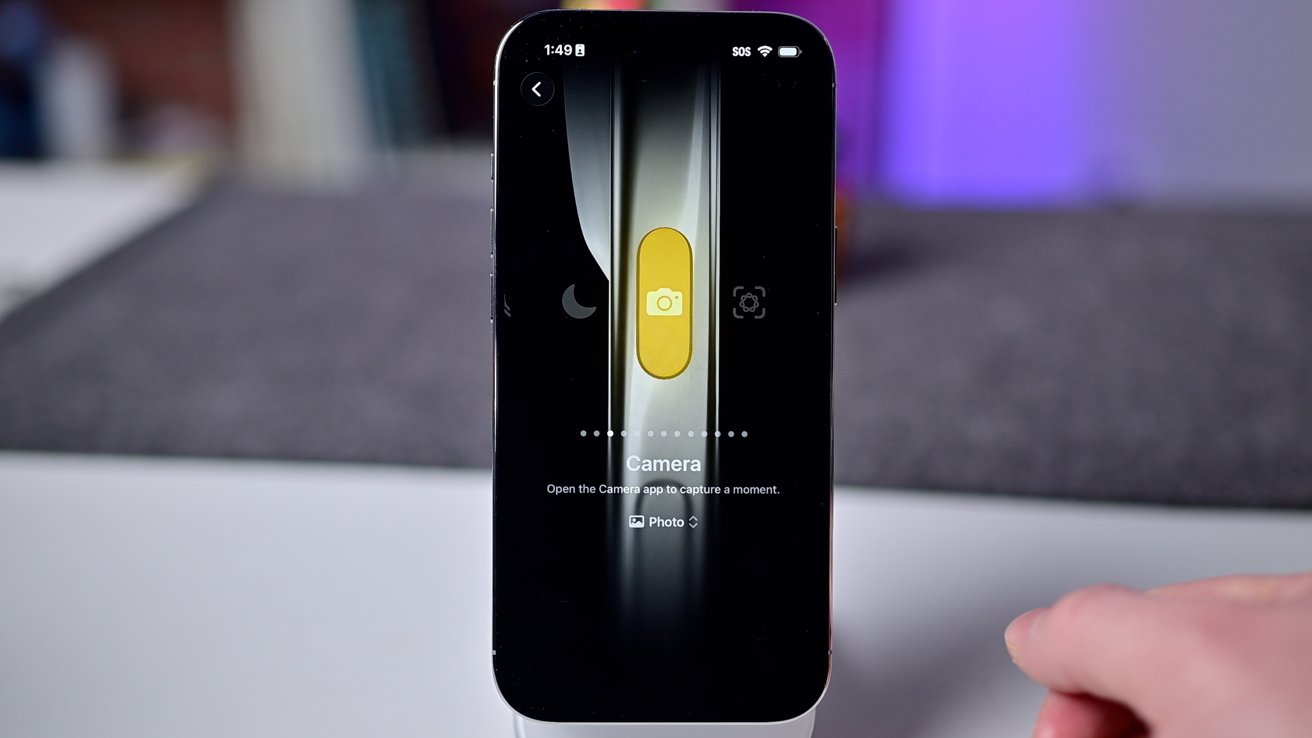
Action Button can be set to open the Camera

Then we have the Action Button, located on the top-left side of the iPhone Air. In Settings, you can set this button to several different tasks, including opening the Camera or a third-party camera app.

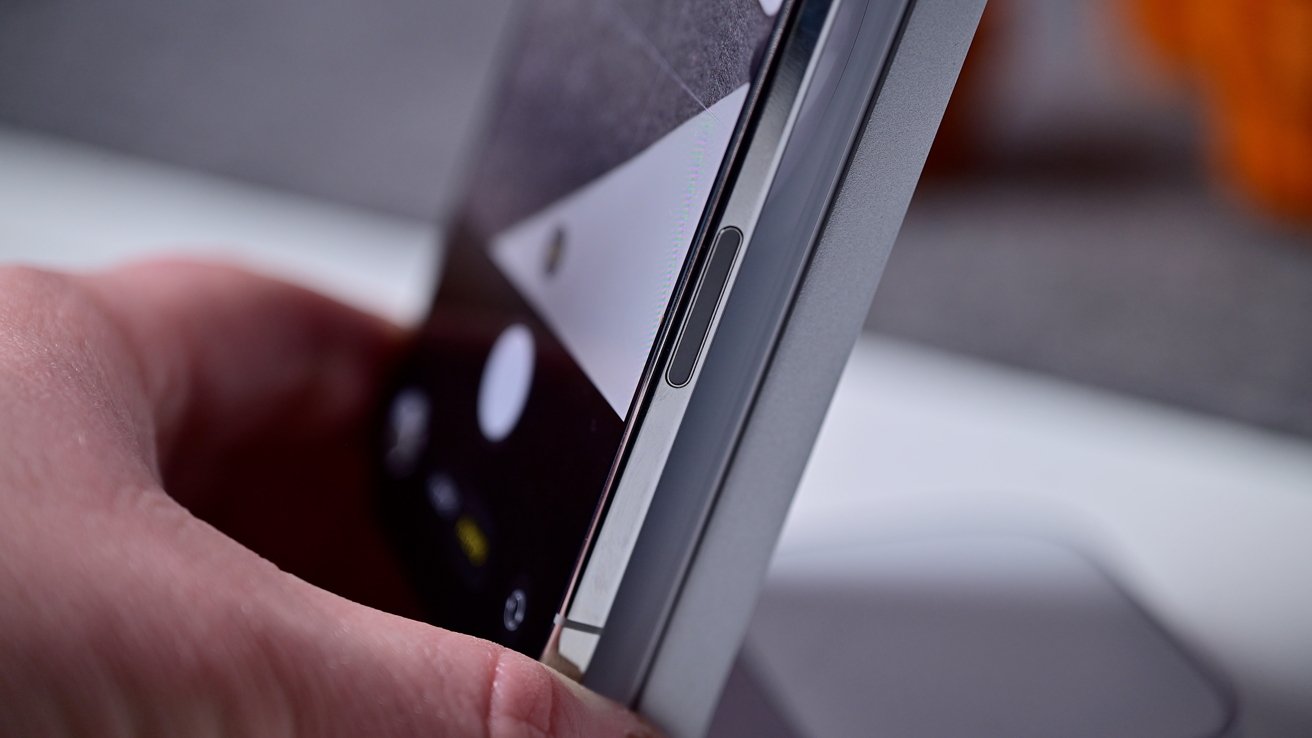
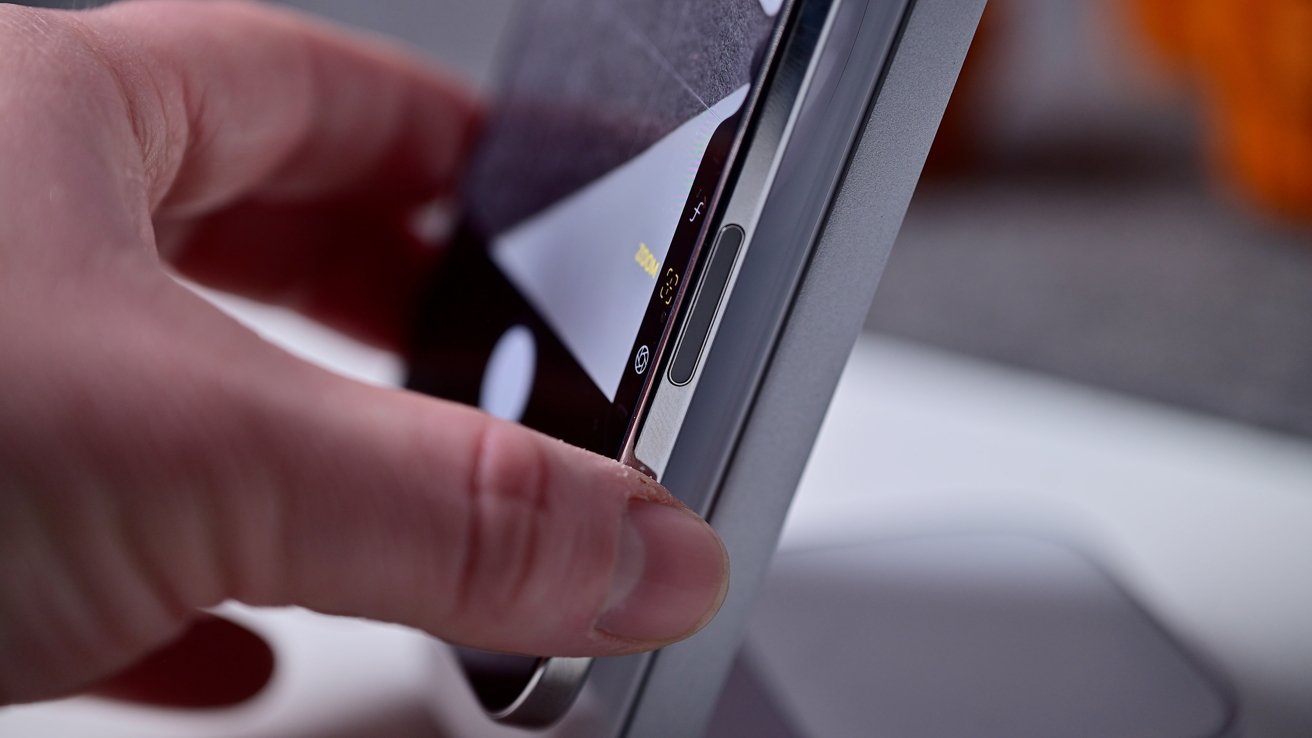
Speaking of physical buttons, the lower-right edge of the iPhone Air has the Camera Control, which first debuted with the iPhone 16 line. It can be pressed at any time to jump into the Camera app.

Settings app for Camera on an iPhone

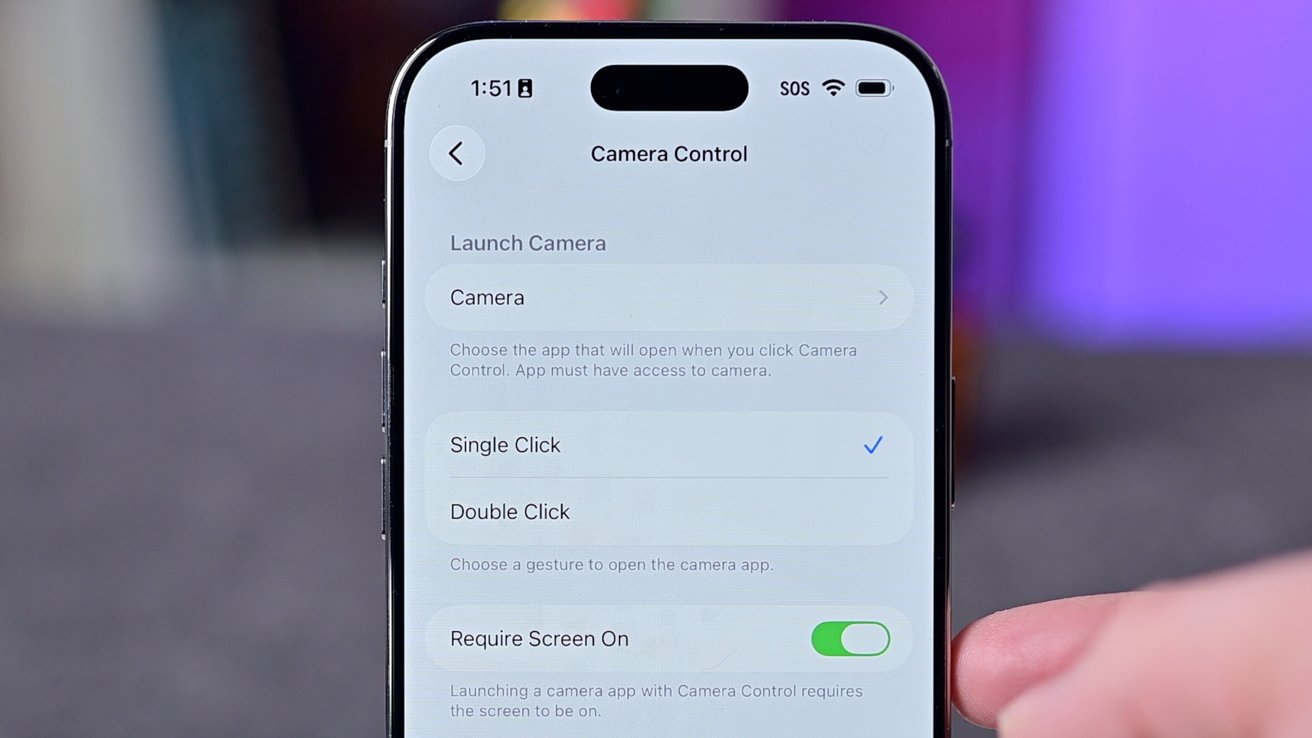
Camera Control presses can be customized to reduce false presses

Using this button can be customized further, such as requiring the screen to be active first or needing a double press to launch the app. If you prefer using a third-party camera app, you can program it to launch instead.

Finally, you can just tap the app icon. If you long-press the icon, you get bonus options like launching into the selfie camera or portrait mode.

Taking a photo

It may seem obvious, but there are several options when it comes to triggering a photo. You’ve got a lot more options than just tapping the shutter button.

Person holding a smartphone with a focus on the side button and partially visible screen displaying a camera app.

The Camera Control is on the lower-right edge

One of the new ways is, once more, the Camera Control. So you can press the button once on iPhone Air to launch the app, then a second time to take a photo.

We think it is absolutely the quickest way to take a photo, as you can already have the app open by the time your phone is raised, then your finger is already placed to take the photo when you’re ready.

This isn’t the only physical control, though. Both volume up and volume down will work to take photos, too.

A hand holding a phone recording a close-up video of potted toy plants with colorful flowers in the background.

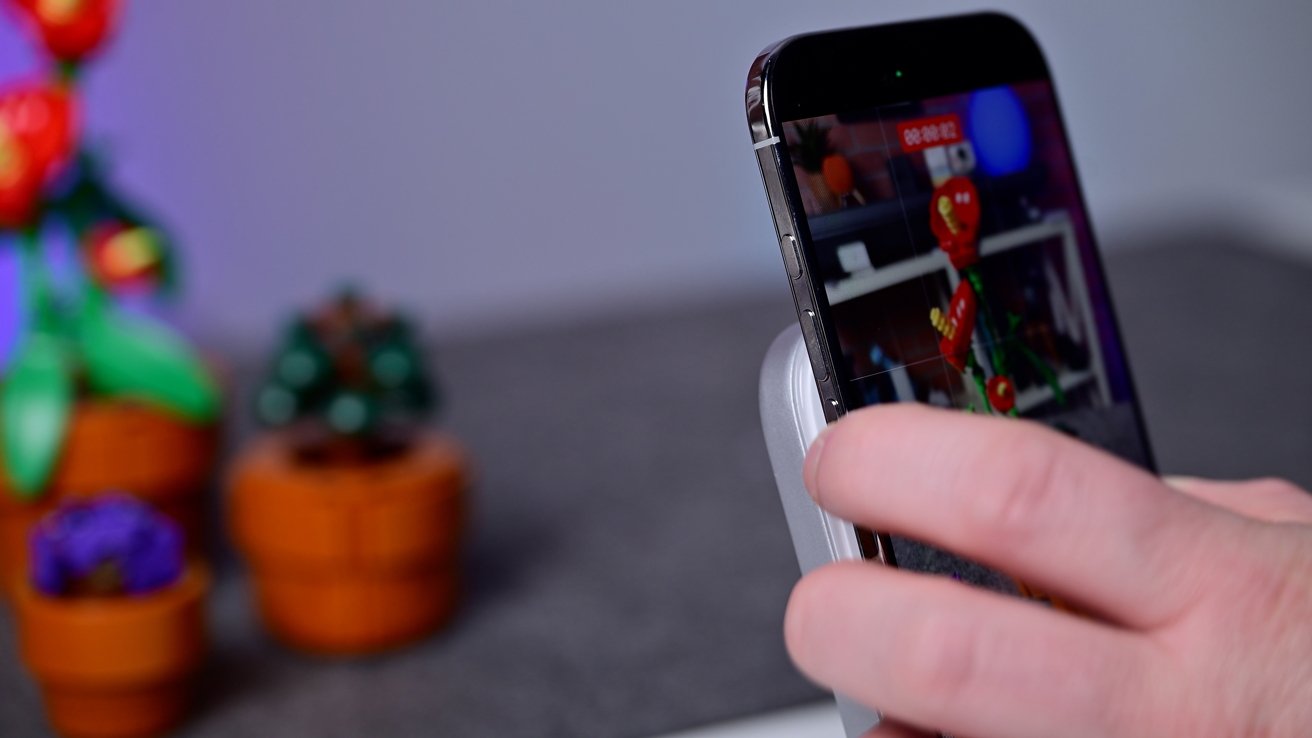
Press the volume button to take a photo, or hold to record a video

Press either button once to take a photo. Holding the volume down button starts recording video, while holding volume up captures burst photos.

If you go into settings, you can change this. You can opt to have both buttons record video if you don’t use burst photos often.

Finger touching a smartphone screen displaying a photo of small LEGO plant pots in various colors on a gray surface.

Hold the shutter button to record a video

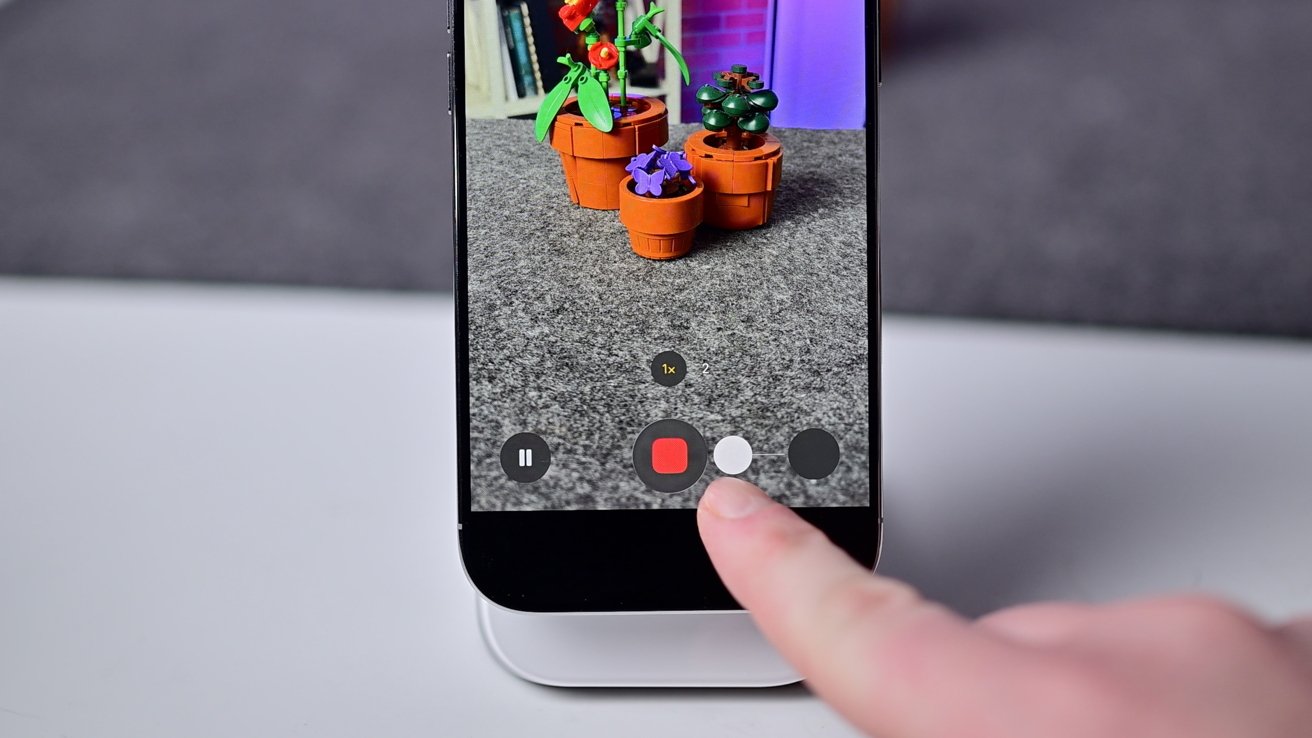
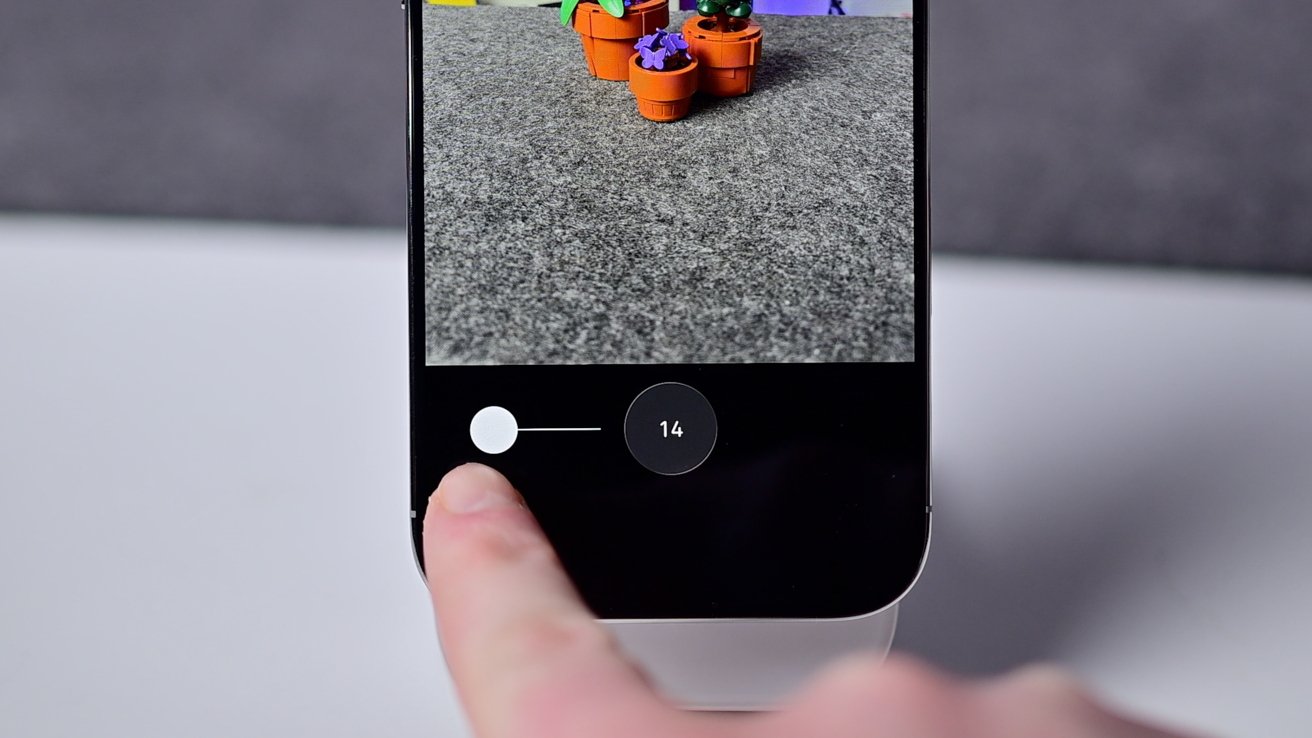
Apple offers a neat feature in the Camera app called QuickTake. By pressing and holding the on-screen shutter button, you will start to record a video.

When you lift your finger, the video recording stops. If you want to keep recording, you can drag your finger to the right to lock it.

Smartphone screen displaying augmented reality with potted plants on a grey surface, finger adjusting a slider labeled fourteen.

Drag the shutter to the left to capture burst photos

Similarly, if you tap the button and instantly pull to the left, it will start capturing burst photos again. Once you let go, burst photos will stop.

Controlling the zoom

When taking a photo or video, sometimes you will swipe to zoom in or out. The most common way we see people do this is by pinching in and out on the display.

This works, but it isn’t ideal. It moves the phone, which can be especially problematic for video. Fortunately, there is an alternative.

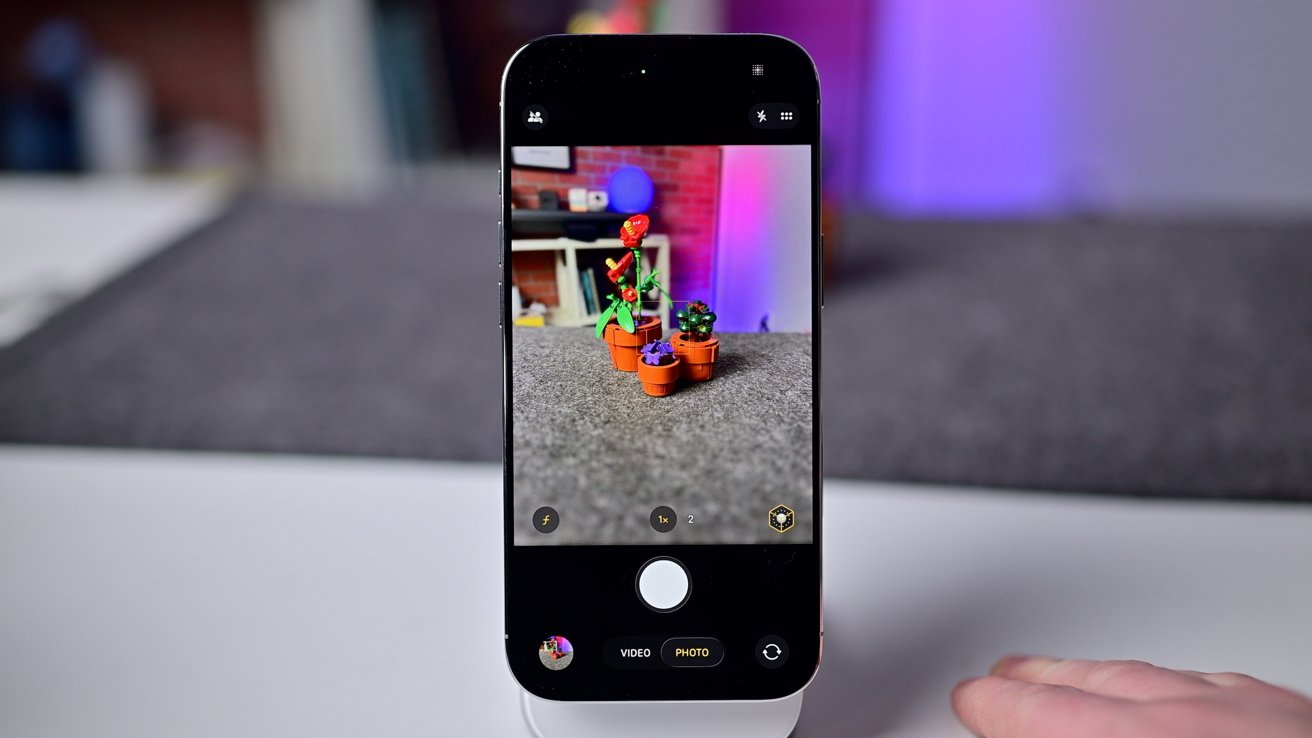
You can tap the 1x or 2x designators right above the shutter. This will quickly jump to those intervals.

Finger adjusts zoom on smartphone camera focused on colorful LEGO plants in small pots.

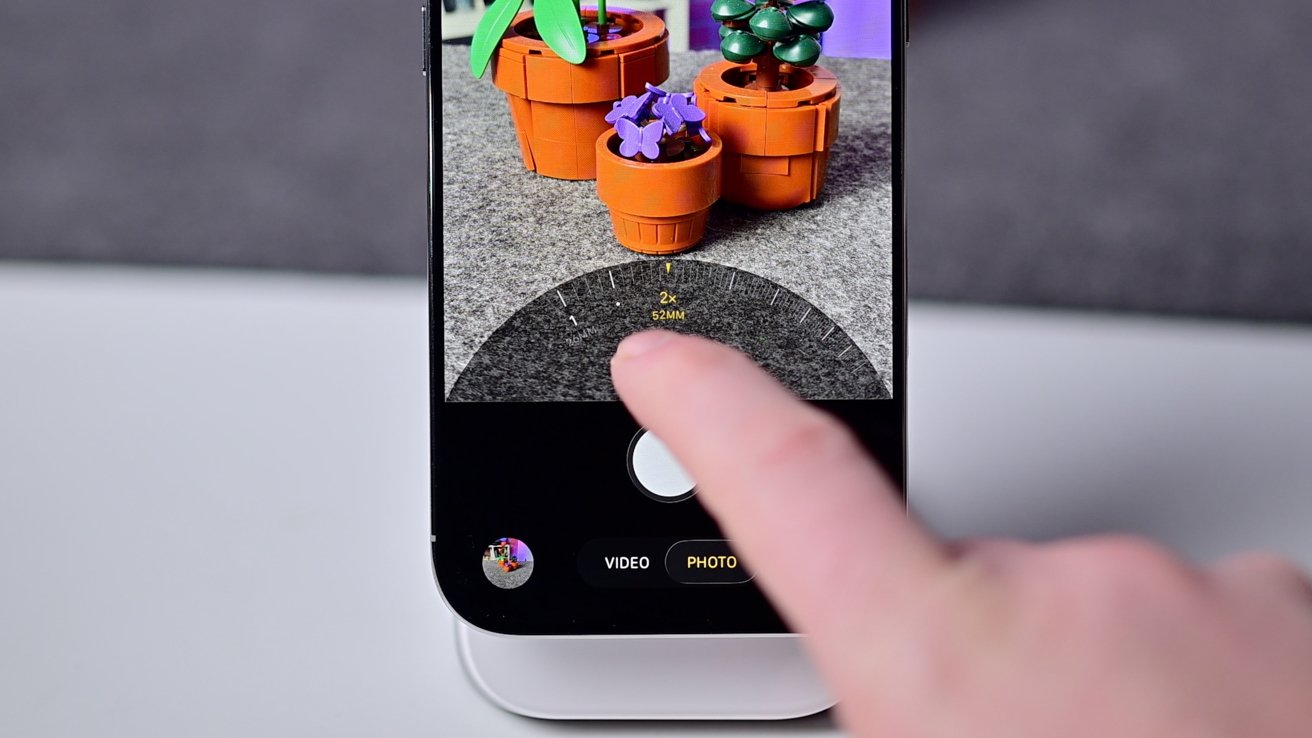
Adjust the zoom by sliding the default levels

If you need to go more granular, you can tap either of those numbers and slide your finger left or right. This opens up a flywheel to adjust the zoom level on a much finer level.

When you’re done, you can release your finger to let the wheel recede, or you can pull it down to dismiss it.

Camera app controls

There are many controls within the Camera app that can help boost your image quality and proficiency. Here’s what to know about those controls, how to access them, and what they do.

The most basic is switching modes. Just swipe left or right in the interface to move between the different photo and video modes available.

You can also tap on the next visible one to the left or right of the current mode at the bottom. Photo modes are to the right, video modes are located to the left.

While in photo or video mode, you can tap the screen, which will set the exposure and focus to where you touched. If you tap and hold, it will lock it.

A person points at a smartphone screen displaying augmented reality potted flowers on a table, with a bookshelf and colorful background in the room.

You can tap and hold on the screen to lock exposure and focus

When locked, if you slide your finger on the screen up or down, you can manually adjust the exposure. Sometimes the photo may be too dark, and you can just slide up to quickly lighten it instead of going into the dedicated exposure compensation control.

In the app, the top-left corner will show your shared library status if you use one. If you don’t use the shared library feature, it won’t show anything.

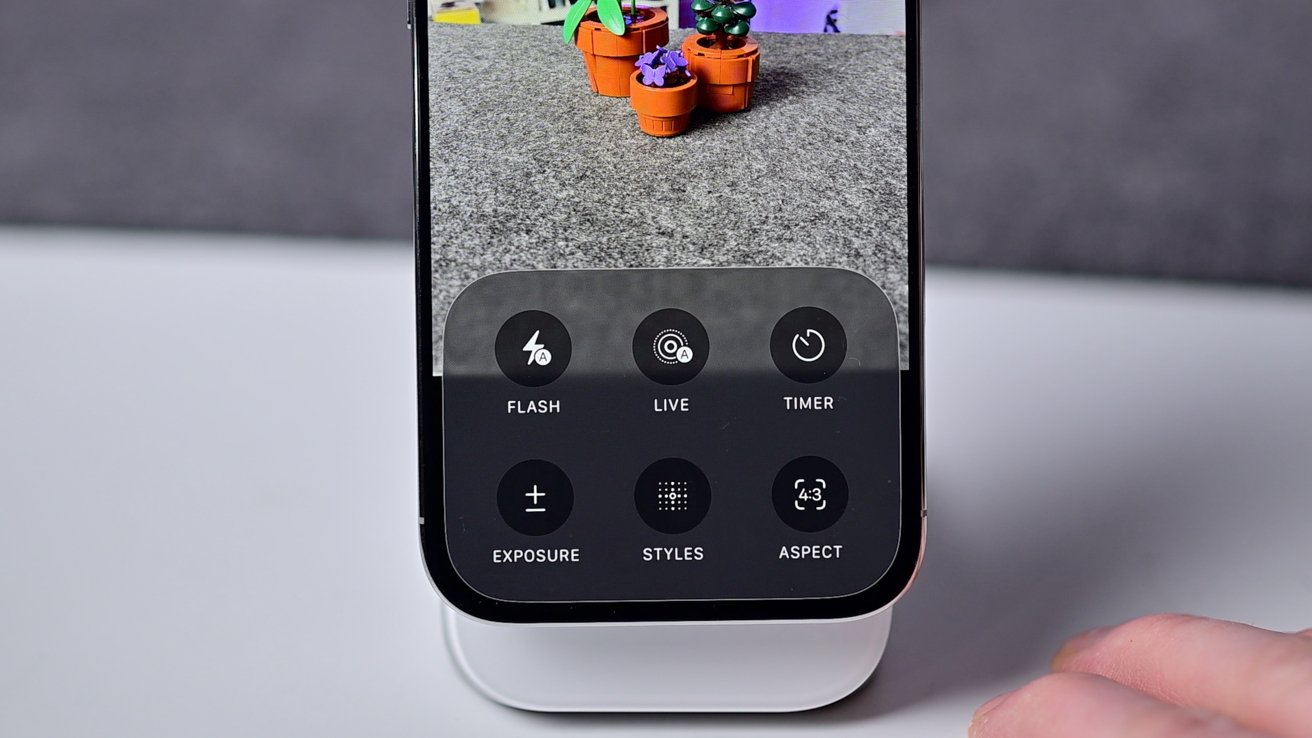
The top-right side is home to the flash and the menu button. When you tap the six circles, it opens up the settings drawer at the bottom of the app interface.

Smartphone displaying camera app settings overlay with live view of toy plants on grey surface.

Tap the six circles in the top-right to open the Camera’s in-app settings

Some controls can be displayed in two locations, such as the Night Mode or the flash, but when they are in the settings drawer, they have more options available. Like the flash can only be toggled to auto or off when at the top, but also has a forced “on” option in the settings drawer.

Live Photos can be toggled to auto, on, or off. There is the self-timer, with 3, 5, or 10-second options, too.

Smartphone held by a hand displays a camera view of colorful toy plants in pots on a gray surface, with editing options visible on the screen.

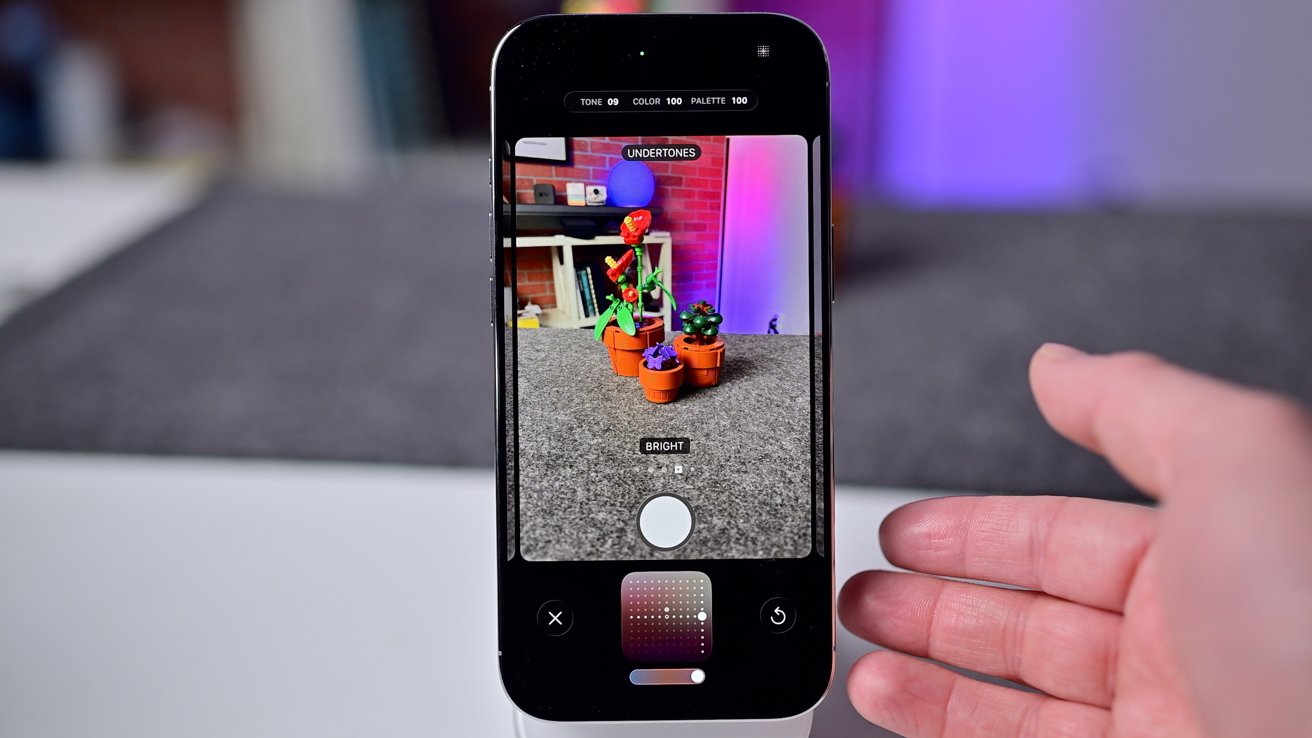
Photographic Styles can adjust the look of your images

You have an exposure slider, allowing you to adjust the exposure both up and down for your shot. Photographic Styles can be set here, which differ from filters as they are applied at the time of capture, and adjust different parts of the photo based on the shot.

Aspect ratios can be configured here, with 4:3, 16:9, or square 1:1 options. Lastly, there is Night Mode, with various intervals that dynamically change based on the brightness in the scene and your phone’s stability.

Camera Control

We’ve already touched on the Camera Control for both opening the Camera app and taking photos, but this button does much more. It’s a touch-sensitive surface that can adjust many facets of a photo or video.

Half-press the button to open up the controls. Double half-press to open up the settings switcher.

Person holding a smartphone in landscape orientation, displaying a camera or video recording interface, with a blurred background.

Use the Camera Control to zoom

You can choose between several different options, including the zoom level, which camera you’re using, the style, exposure, and more. When selected, you can slide your finger along the button to adjust.

While some may find these controls fiddly, there is no denying that the Camera Control is by far the fastest way to open and take a photo. If you don’t want the added controls, you can disable them in Settings and still use the button for launching and capturing.

As a bonus, you can tie the Camera Control to third-party apps. That way, you could launch Halide or the just-launched Moment Pro Camera 2.

Other photo modes

Briefly, we want to at least touch on the other photo modes. You access them by swiping to the right, and you largely have the same settings as the regular photo mode.

The other modes are:

  • Portrait
  • Panorama

Portrait shots apply a faux blur to the background, mimicking that of a wide aperture lens. On iPhone Air, it does this using software, rather than with stereoscopic lenses.

A smartphone screen displays a photo of colorful toy flowers in pots, with blurred background showing a room and hand nearby.

Portrait Mode applies a background blur around the subject

It’s mildly confusing, but portrait shots don’t have to be taken in the Portrait Mode. When a subject (person or animal) is detected, an italicized f appears in the lower-left corner of the regular photo mode.

When you tap this, it will also capture a portrait shot at the same time it captures a Live Photo. Afterward, you can opt to turn Live Photos on or off, and you can turn the portrait effect on or off.

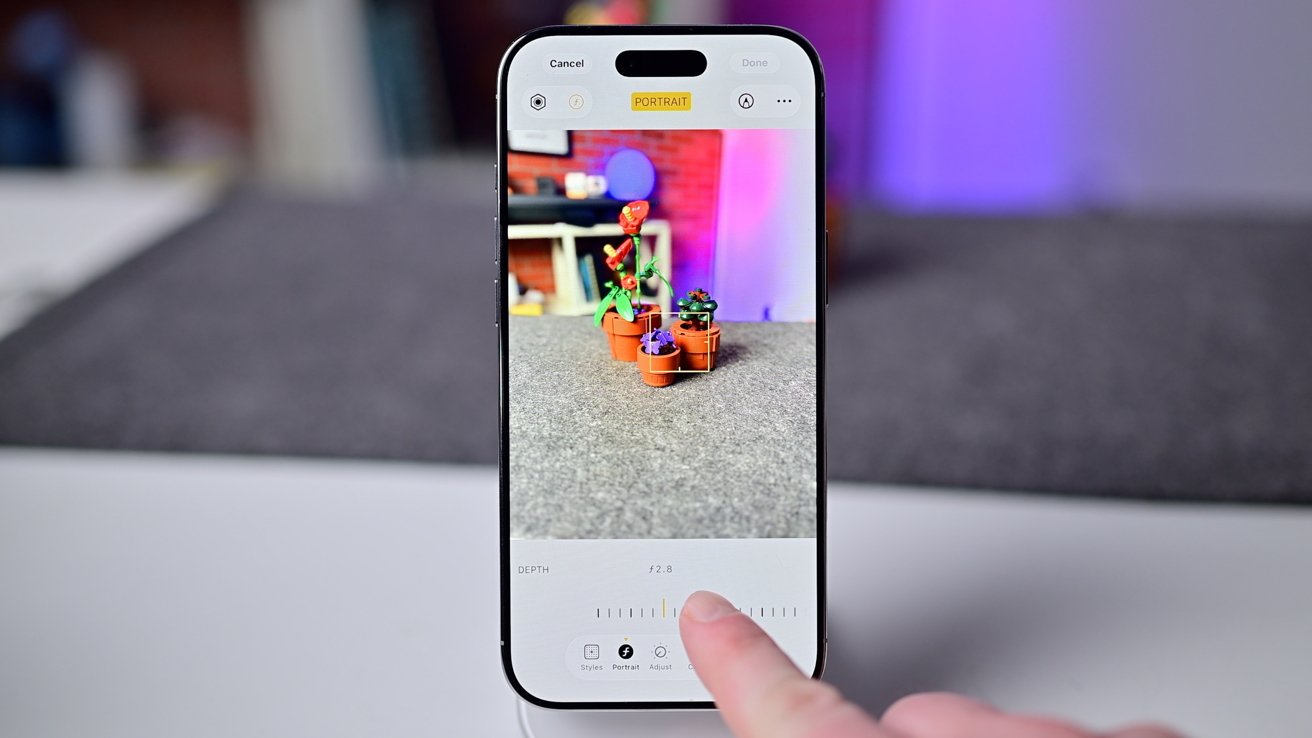
Smartphone display with portrait mode enabled shows colorful toy plants in small pots on a gray surface, finger adjusting depth settings.

Once you take a portrait shot, you can adjust the aperture blur after in the Photos app

When editing a portrait shot, you can also change the Portrait Lighting effect and the amount of blur. If you take the shot in the standard photo mode, you cannot adjust these at the time of capture.

If you switch to the dedicated Portrait Mode, though, you can adjust the aperture and lighting on the spot. The dedicated Portrait Mode will also work on other objects, like food, drinks, and more.

Panorama photos get captured by moving the camera left-to-right or right-to-left, where the phone will record a series of photos and stitch them together. You can change the direction by tapping the arrow on the screen.

When you are moving the camera, it will guide you to let you know how to keep the camera level. Our best tip here is instead of moving with your arms, lock your arms and upper body, and rotate from the hips instead for a smoother pan.

Selfie Camera

One of the big upgrades for the 2025 iPhone lineup was the front-facing camera. The new Center Stage camera has a large 18MP square sensor.

You can switch to this camera by using the app icon shortcut, the Camera Control, or tapping the reverse arrow on the lower-right corner of the app interface.

Smartphone camera interface displaying flash, live, timer, exposure, styles, and aspect controls, with small colorful potted plants shown on the screen.

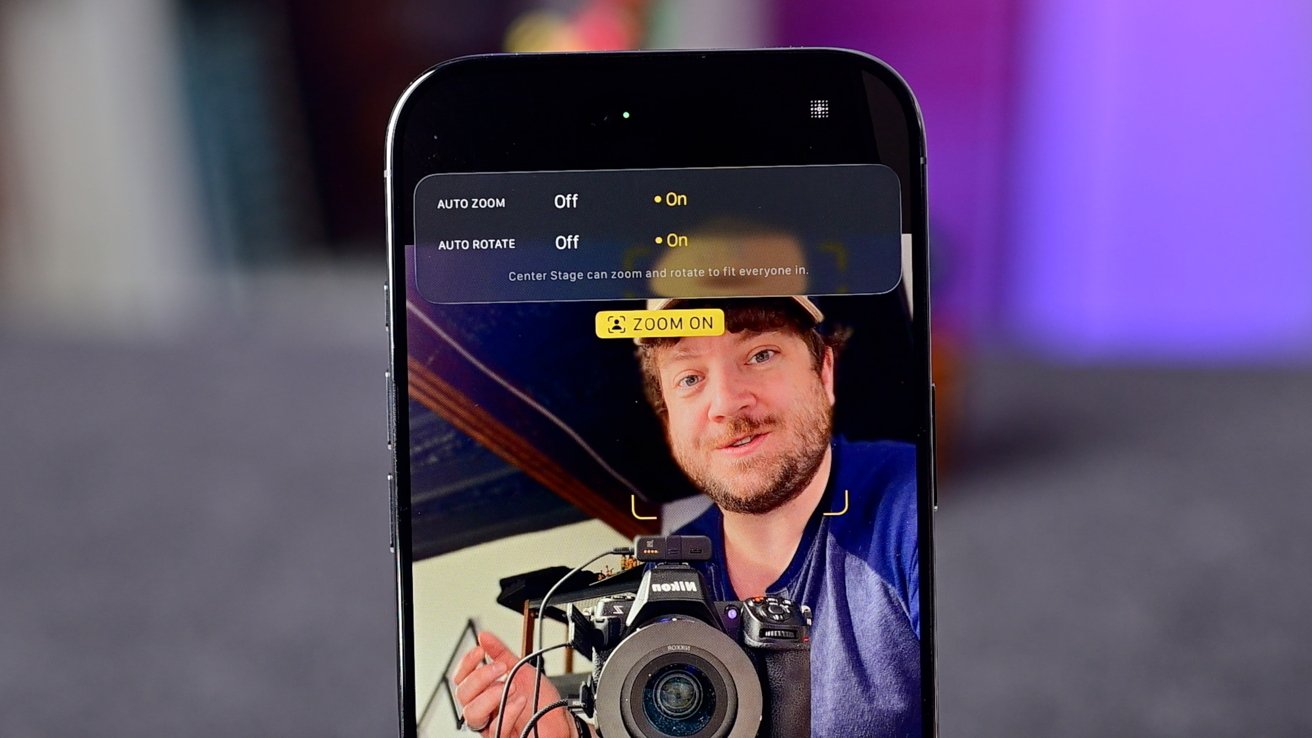
The new Center Stage camera can automatically zoom in and out based on how many people are in frame, and can take landscape photos while vertical

By default, the Center Stage camera will automatically zoom in or out to keep you in frame. You can also adjust the zoom in or out by tapping the expanding arrows at the bottom.

Next to that is the option to adjust the orientation. Thanks to the square sensor, you can tap this button to take a landscape photo while the phone is still vertical.

The front-facing camera also captures portrait shots, both in standard mode and in Portrait Mode. Tapping the Center Stage button at the top — the person icon in a frame — lets you toggle auto-rotate and auto-zoom on or off.

Formats and resolutions

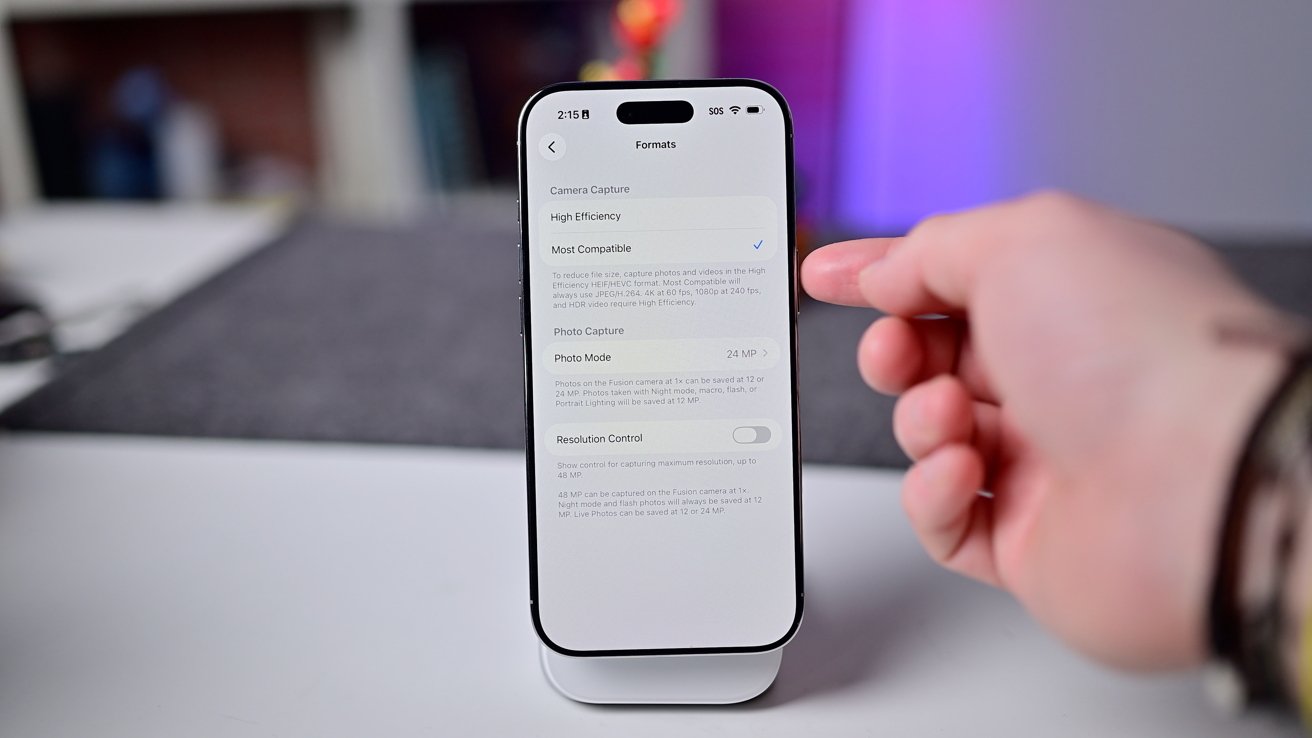
For photos, we recommend shooting in standard HEIF. You can switch to standard JPG, but it’s largely unnecessary.

Whenever you share a photo to a non-iPhone or Mac, it will automatically convert it to JPG for you to retain compatibility. HEIF works great and takes up less space than JPGs.

Smartphone screen showing camera settings, including lens cleaning hints and lock screen swipe options. A hand points to the screen, highlighting the Save Captures to Photo Library toggle.

We recommend shooting 24MP in HEIF

If you are worried about space, you can also change the resolution to 12MP. By default, it is 24MP, which is what we recommend keeping it on.

For those who change these with any frequency, you can opt to have them show in the Camera app interface so you can adjust them on the fly.

Video modes

Video is also a primary function of the Camera app. Apple offers regular video mode, Action Mode, slo-mo, and time-lapse.

We shoot our video in 4K resolution at 24 frames per second. It’s the default setting Apple applies, with HDR on.

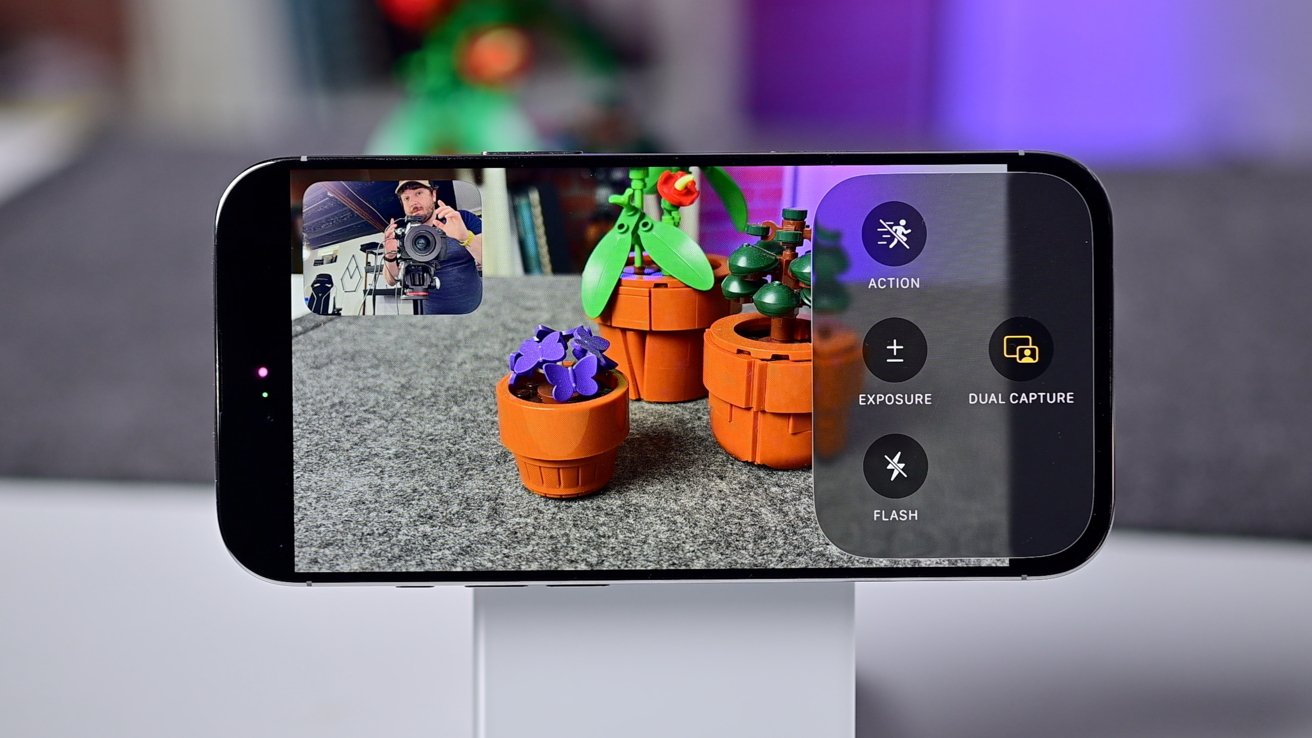
Smartphone screen displays a camera app interface with miniature plant models in focus. Inset shows person holding a camera. Options include action, exposure, dual capture, and flash.

Video mode with settings open

While slow-mode and timelapse have dedicated tabs in the app, Action Mode does not. It is enabled in standard video mode by tapping the running icon at the top.

Resolution in Action Mode drops to 2.8K, but it is great for fast-moving shots. We’ve found it works great while playing and filming kids or pets.

Slo-mo captures high-frame-rate video clips. The options are 120 frames per second at 4K or 240 frames per second at 1080P.

Time-lapse is largely self-contained. You just start taking a time-lapse video, and it automatically adjusts the frequency of the frames based on the duration of the clip.

Finally, Apple has added a new Dual Capture mode. This mode captures video using the rear-facing camera and overlays footage from the front-facing Center Stage camera at the same time.

While in this mode, both cameras get stabilized, which looks surprisingly smooth in use. You can also change where the overlaid video is located, picking between the four corners.

Get shooting

This covers nearly everything you need to know about Apple’s stock Camera app. It’s shockingly capable, even for a stock app.

Continue to play around to get your settings dialed in, and you can take amazing photos and videos on the single-camera iPhone Air.

Posted on Leave a comment

PSA: Tomb Raider: Definitive Edition On Switch 2 And Switch Has Been Updated To Version 1.0.2

Tomb Raider: Definitive Edition
Image: Aspyr, Crystal Dynamics

Following the surprise release of Tomb Raider: Definitive Edition for the Switch and Switch 2 last November, Aspyr said it would continue to update the Nintendo versions with patches over time to provide the “best possible experience for all players”.

With this in mind, it seems an update has been recently released, bumping the game from Version 1.0.1 up to Version 1.0.2 (thanks for the heads up Nintendo Life user canaryfarmer). The official patch notes don’t appear to be available just yet, but this hasn’t stopped fans from investigating what’s changed.

Based on early impressions (and as you might expect), there are at least some tweaks and adjustments to improve the overall experience on Nintendo’s platforms. Players have also apparently uncovered a few other details, claiming there are adjustments to “shadows” and “foliage”, but other fan reports suggest gyroscope controls and certain other control methods still aren’t working with the game.

Famiboards
Image: Famiboards

Again, when we get the official patch notes from Aspyr, we’ll provide an update about what exactly has changed, but for now you can at least update your game and hopefully experience an improved version.

When this title shadow dropped on the Switch 2 last year, we thought the overall experience on the Switch 2 was “great” (awarding it 8 out of 10 stars), even if it’s not quite as ‘Definitive’ as the name suggests. Thankfully, the core gameplay experience is still a thrilling action romp:

“Crystal Dynamics’ 2013 reinvention of Lara Croft just might be the best entry in this decades-old franchise, and for the asking price, you’re getting a thrilling action romp that’ll keep you hooked until the credits.”

Have you downloaded this latest update for Tomb Raider: Definitive Edition yet? How are you finding it so far? Let us know in the comments.
Posted on Leave a comment

Fantasy Life i’s Latest Switch 1 & 2 Update Is Now Live, Here Are The Full Patch Notes

Fantasy Life
Image: Level-5

Level-5 has continued to roll out updates for Fantasy Life i: The Girl Who Steals Time, and the latest one is now officially available.

It bumps the game up to Version 2.0.4 on the Switch, Switch 2 and multiple other platforms. This includes some fixes specific to Nintendo’s hybrid platforms (which had already been fixed on other platforms). Here’s the full rundown, courtesy of Level-5’s support page:

Fantasy Life i: The Girl Who Steals Time – Version 2.0.4 (13th Jan 2026)

Feature Additions/ Adjustments

Adjusted Remake Settings for Armor

  • Adjusted Version 2.0.0 armor items exchangeable at Don’s Dreamy Deals to allow Remake.

Bug Fixes

  • Fixed an issue in Snoozaland where controls could become unresponsive if the player touched a gatherable item at the moment the effect ended during the “Bam Headbang Dream,” which is triggered by interacting with a Drowsy Mimic.

Only for Switch 2 | Switch (These issues has already been fixed in the PS5® / PS4® / Xbox / Steam versions):

  • Fixed an issue where items would sometimes not appear in multiplayer on Snoozaland when flying with Skelegon to an Alchemy Robot after alchemy was completed.

  • Fixed an issue in multiplayer on Snoozaland where guest players could not move to the boss area during the mission “Trimming the Divine Beard” when the party attempted to enter it together, if the host had acquired the Woodcutter Life.

  • Fixed an issue in the Snoozaland tutorial where, if the time of day changed before the Tropic Toads in the first area was defeated, players were unable to proceed to the next area afterward.

  • Fixed an issue in the Snoozaland tutorial where, if a field enemy’s attack hit the player immediately after opening the supply box, event progression could become blocked.

  • Fixed an issue where crafting could sometimes start without switching Lives upon returning to Base Camp after collecting gatherable items in the “Bam Headbang Dream” triggered by touching a Drowsy Mimic in Snoozaland.

  • Fixed an issue where the Snoozaland unlock tutorial could be started during multiplayer through a specific sequence of actions. Ending multiplayer in that state could save progress and prevent further progression in Snoozaland.


This follows last week’s announcement that Fantasy Life i: The Girl Who Steals Time would be receiving another major update in February. The previous major update The Sinister Broker Bazario’s Schemes update, was released in December 2025. You can find out more about this content update in our previous post:

How has your experience been with Fantasy Life on the Switch and Switch 2 so far? Let us know in the comments.