Posted on Leave a comment

What’s new in Fedora Workstation 38

Fedora Workstation 38 is the latest version of the leading-edge Linux desktop OS, made by a worldwide community, including you! This article describes some of the user-facing changes in this new version of Fedora Workstation. Upgrade today from GNOME Software, or use dnf system-upgrade in a terminal emulator!

GNOME 44

Fedora Workstation 38 features the newest version of the GNOME desktop environment. GNOME 44 features subtle tweaks and revamps all throughout, most notably in the Quick Settings menu and the Settings app. More details about can be found in the GNOME 44 release notes.

File chooser

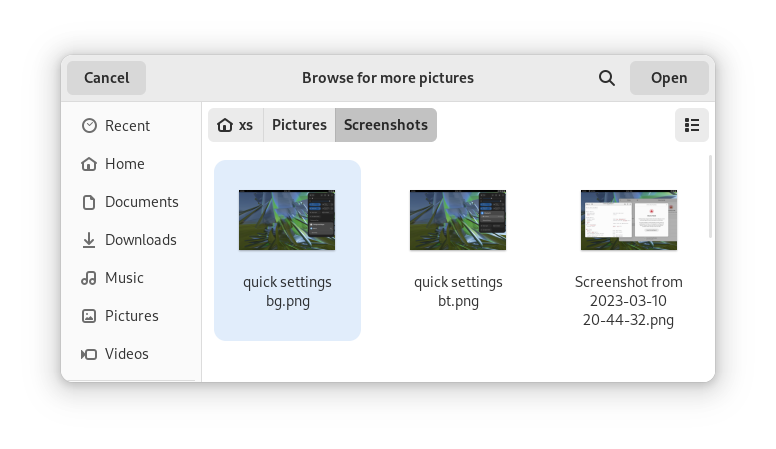
Most of the GNOME applications are built on GTK 4.10. This introduces a revamped file chooser with an icon view and image previews.

GTK 4.10's new file chooser, showing the icon view with image previews.
Icon view with image previews, new in GTK 4.10

Quick Settings tweaks

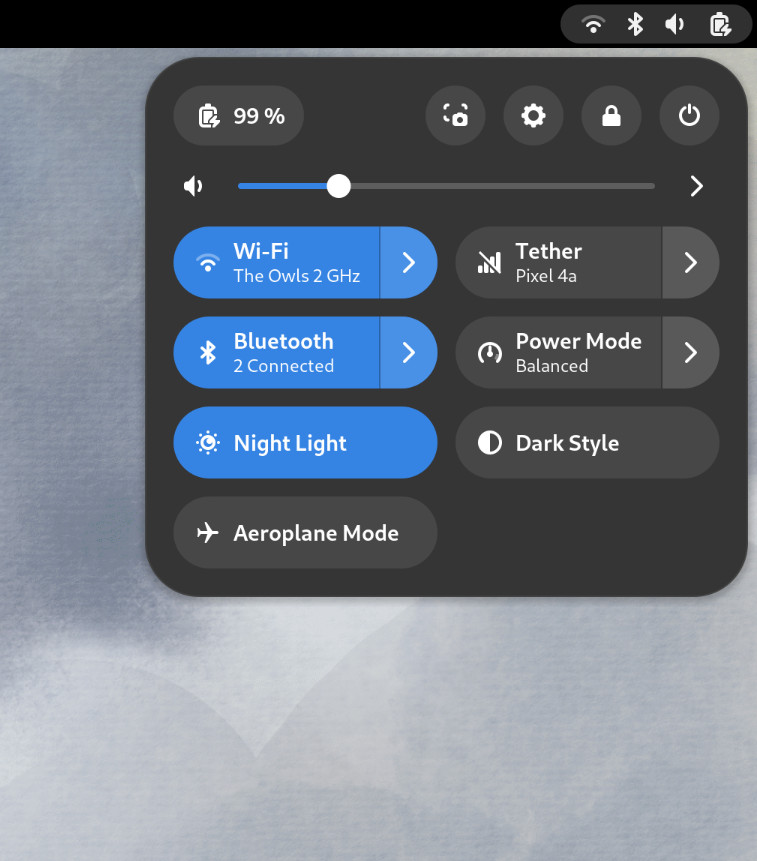
For GNOME 44 There have been a number of improvements to the Quick Settings menu. The new version includes a new Bluetooth menu, which introduces the ability to quickly connect and disconnect known Bluetooth devices. Additional information is available in each quick settings button, thanks to new subtitles.

The Bluetooth menu can now be used to connect to known devices

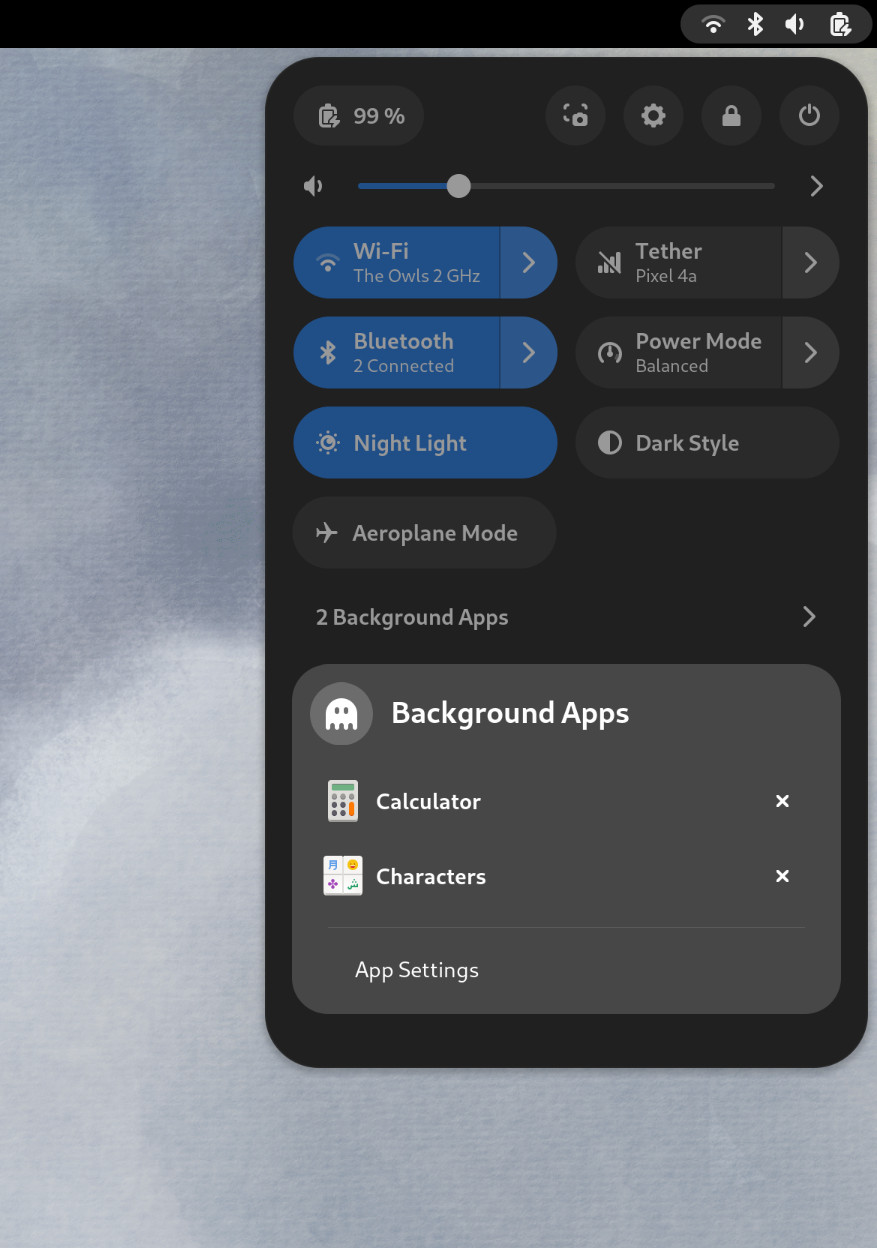
Also in the quick settings menu, a new background apps feature lists Flatpak apps which are running without a visible window.

Background Apps lets you see sandboxed apps running without a visible window and close them

Core applications

GNOME’s core applications have received significant improvements in the new version.

Settings has seen a round of updates, focused on improving the experience in each of the settings panels. Here are some notable changes:

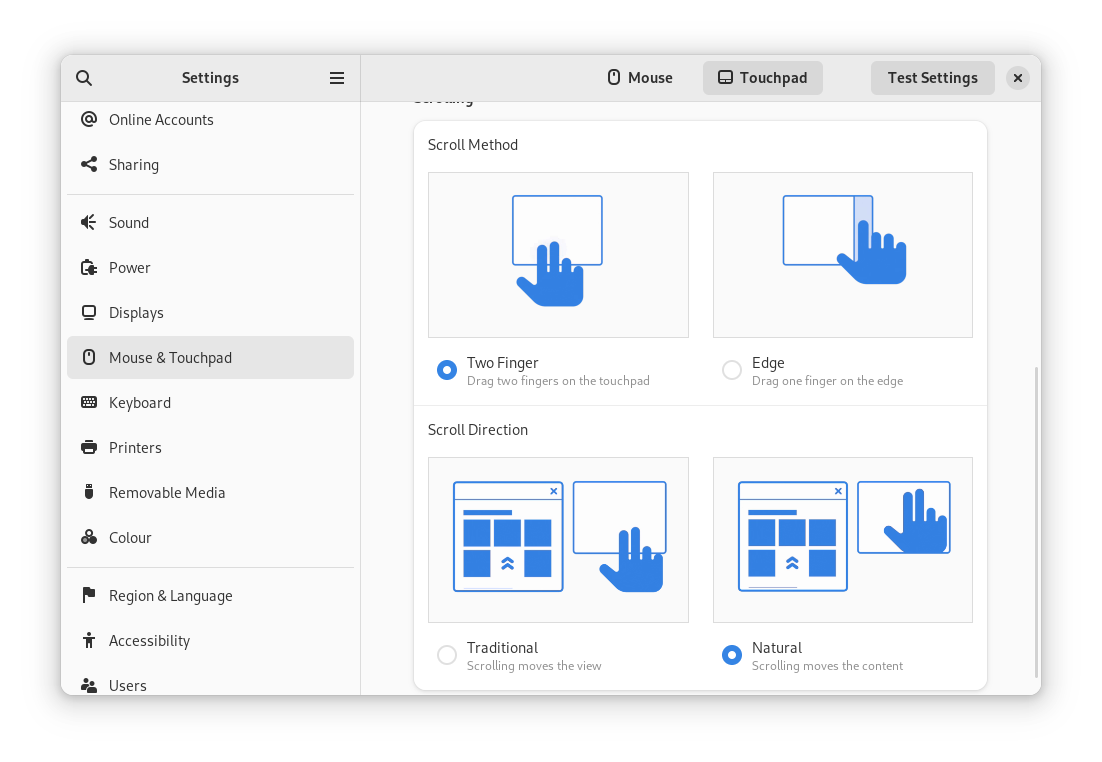
  • Major redesigns of Mouse & Touchpad and Accessibility significantly improves usability.
  • Updated Device Security now uses clearer language.
  • Redesigned sound now includes new windows for the volume mixer and alert sound.
  • You can now share your Wi-Fi credentials to another device through a QR code.
The Mouse & Touchpad panel in the GNOME Settings app, showing the Touchpad settings.
The revamped Mouse & Touchpad panel in Settings

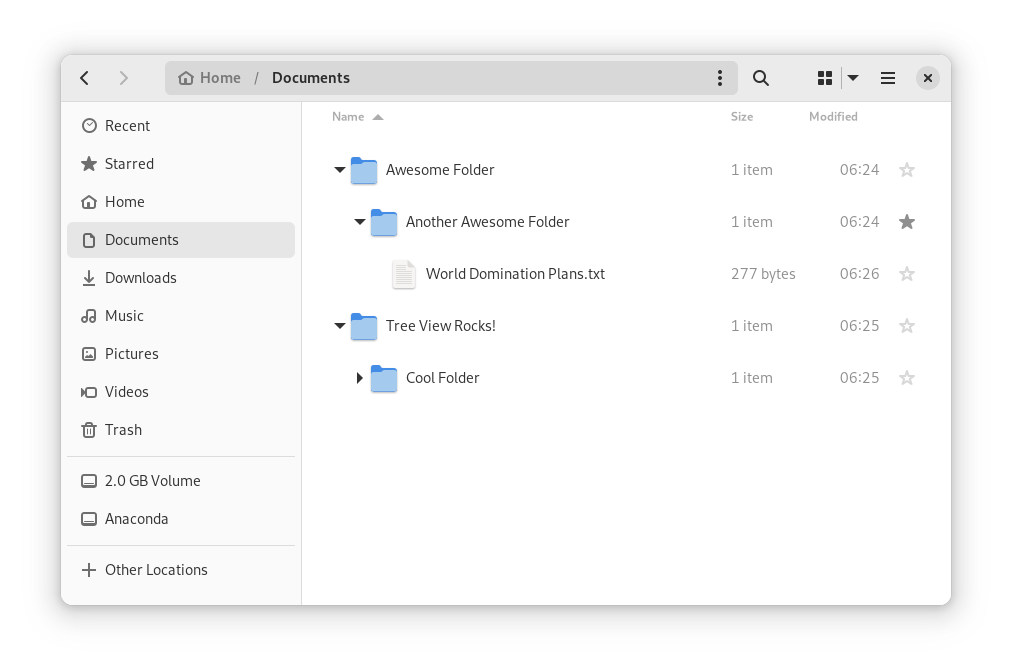
In Files, there is now an option to expand folders in the list view.

The tree view can be turned on in Files’ settings

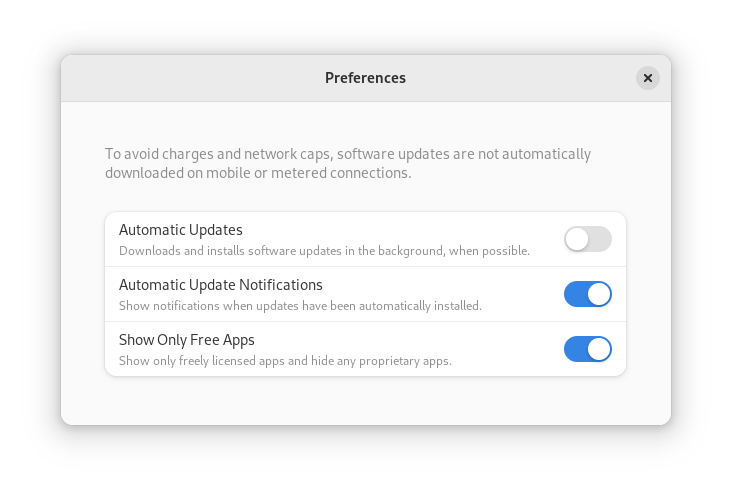
GNOME Software now automatically checks for unused Flatpak runtimes and removes them, saving disk space. You can also choose to only allow open source apps in search results.

In Contacts, you can now share a contact through a QR code, making it super easy to share a contact from your desktop to your phone!

Third-party repositories

Fedora’s third-party repositories feature makes it easy to enable a selection of additional software repos. Previous versions included a filtered version of Flathub, which included a small number of apps. For Fedora 38, filtering of Flathub content no longer occurs. This means that the third party repos now provide full access to all of Flathub.

The third party repos must still be manually enabled, and individual repositories may be disabled from the GNOME Software settings. If you want to keep proprietary apps from showing up in your search results, you can also do that in GNOME Software’s preferences menu.

You are in control.

Under-the-hood changes throughout Fedora Linux 38

Fedora Linux 38 features many under the hood changes. Here are some notable ones:

  • The latest Linux kernel, version 6.2, brings extended hardware support, bug fixes and performance improvements.
  • The length of time that system services may block shutdown has been reduced. This means that, if a service delays your machine from powering off, it will be much less disruptive than in the past.
  • RPM now uses the Rust-written Sequoia OpenGPG parser for better security.
  • The Noto fonts are now the default for Khmer and Thai. The variable versions of the Noto CJK fonts are now used for Chinese, Japanese, and Korean. This reduces disk usage.
  • Profiling will be easier from Fedora 38, thanks to changes in its default build configuration. The expectation is that this will result in performance improvements in future versions.

Also check out…

Official spins for the Budgie desktop environment and Sway tiling Wayland compositor are now available!

Posted on Leave a comment

What’s new in Fedora Workstation 37

Fedora Workstation 37 is the latest version of the Fedora Project’s desktop operating system, made by a worldwide community dedicated to pushing forward innovation in open source. This article describes some of the new user-facing features in Fedora Workstation 37. Upgrade today from GNOME Software, or by using dnf system-upgrade in your favourite terminal emulator!

GNOME 43

Fedora Workstation 37 features the latest version of the GNOME desktop environment which sees more core applications ported to GTK 4, user interface tweaks, and performance tune-ups. Check out the GNOME 43 release notes for more information!

Redesigned Quick Settings menu

No need to open Settings just to change to and from Dark Mode

The new Quick Settings menu offers more control and convenience. You can now easily switch your Wi-Fi network in the menu instead of being taken to a full-screen dialogue box, change between default and dark modes, and enable Night Light without opening the Settings app. A convenient button for taking screenshots and screencasts is also now present.

Core applications

The GNOME core applications included in Fedora Workstation 37 have seen a round of tweaks and improvements.

  • Files has been ported to GTK 4, and the user interface has seen many improvements. Here are just some of them:
    • It is now adaptive – meaning it automatically adjusts to a narrower size, making better use of the available space.
    • The list view has been re-architected to make rubber-band selections easier.
    • The “Properties” and “Open With…” dialogues have been redesigned.
Rubber-band selection in Files 43
  • Calendar features a new sidebar that shows your upcoming events at a glance. It, along with Contacts, now feature adaptive user interfaces.
  • Characters now shows you different skin tone, hair colour, and gender options for emoji.
  • The package source selector in Software has been redesigned and moved to a more visible location.
  • Maps has been ported to GTK 4.
  • Settings includes a new Device Security panel, allowing you to easily see the hardware security features your devices offers – or lacks!
Uh oh!

New supplemental default wallpapers

Fedora Workstation 37 ships with a new set of supplemental wallpapers. See how they were made here!

The six new wallpapers come in both light and dark variants

Under-the-hood changes throughout Fedora Linux 37

Fedora Linux 37 features many under-the-hood changes. Here are some notable ones:

  • The Raspberry Pi 4 single-board computer is now officially supported, including 3D acceleration!
  • New installs on BIOS systems will use the GPT disk layout instead of the legacy MBR layout. The installer images will also now use GRUB instead of syslinux to boot on BIOS systems.
  • If you disable and then re-enable SELinux, or run the fixfiles onboot command, the file system relabelling processes will now be done in parallel, allowing for a significant speed boost.
  • The default fonts for Persian has been changed from DejaVu and Noto Sans Arabic to Vazirmatn, providing a more consistent experience for those who use Fedora Linux in Persian.

Also check out…

Cool happenings throughout the Fedora Project!

  • Fedora CoreOS and Fedora Cloud Base have been promoted to Edition status!
  • Preview installer images with a new GUI for Anaconda, the Fedora Linux system installer, will become available in about a week. An article will be published with more details, so watch this space!
Posted on Leave a comment

Fedora and Parental Controls

We all have people around us, whom we hold dear. Some of them might even rely on you to keep them save. And since the world is constantly changing, that can be a challenge. No more is this apparent than with children, and Linux has long been lacking simple tools to help parents. But that is changing, and here we’ll talk about the new parental controls that Fedora Linux provides.

Users and permissions

First, it’s important to know that any Linux system has a lot of options for user, group, and permission management. Many of these advanced tools are aimed at professional users, though, and we won’t be talking about those here. In this article we’ll focus on home users.

Additionally, parental controls are not just useful for parents. You can use them when helping family members who are technically illiterate. Or perhaps you want to configure a basic workstation for simple administrative tasks. Either way, parental control can offer many security and reliability benefits.

Creating users

From the Settings panel, you can navigate to Users and from there you can select Add User… (after unlocking) to add a new user. You can give them a personal name, a username and their own icon. You can even decide if somebody else should also be an administrator.

Adding a user to your machine is as simple as going to settings, users, and clicking Add User…

You can also set a default password, or even allow a computer to automatically log in. You should help others understand digital security and the value of passwords, but for some people it might be better to just auto-login.

Admin rights

When you give somebody administrator rights, that user will have the same powers as you have on the system. They will be able to make any system change they prefer, and they can also add and remove users themselves.

Users who do not have admin rights, will not be able to make fundamental changes to the computer. They can still use all applications that are already on the system, and they can even download applications from the internet to their home folder. Still, they are ultimately blocked from doing anything that could damage the system.

Accessing the user-directories of others. Only administrator users will be able to do this.

Don’t forget that as an administrator, you can always reset a password. You can also enter another user’s home directory in case you have to. As with all ‘sudo’ rights, you should be careful and you should be considerate of other’s privacy.

Application control

Once one or multiple users are created, you can choose to tweak and control what applications somebody can use. This is done from within Settings > Users by selecting the new user then selecting Parental Controls and then Restrict Applications. Other options are available there, as well.

changing Parental Controls for a single user.

However, there is a big caveat

Parental controls come with a big caveat: If you want a simple home-user solution, you MUST use Flatpaks.

The problem is as follows. The existing Linux application landscape is quite complex, and it would be almost impossible to introduce a new user-friendly application-control system this late into its life cycle. Thus, the second best solution is to ensure that the next generation of packaging has such functionality from the start.

To use Flatpaks, you can use the Fedora’s repository, or the Flathub repository. If you want to know all the fine details about those projects, then don’t forget to read this recent comparison.

Compromise and limitations

No article would be complete without mentioning the inherit limitations of the parental controls. Besides all the obvious limits of computers not knowing right from wrong, there are also some technical limits to parental controls.

Parental Control’s limits

The security that Parental Controls provides will only work as long as Fedora Linux is running in working order. One could easily bypass all controls by flashing Fedora on a USB stick and starting from a clean, root-powered, installation image. At this point, human supervision is still superior to the machine’s rules.

Adding to that, there are the obvious issues of browsers, store fronts like Steam, and other on-line applications. You can’t block just parts of these applications. Minecraft is a great game for children, but it also allows direct communication with other people. Thus, you’ll have to constantly juggle permissions. Here too, it is better to focus on the human element instead of relying to much on the tools.

Finally, don’t forget about protecting the privacy and well-being of others online. Blocking bad actors with Ublock Origin and/or a DNS based blocker will also help a lot.

Legacy applications

As mentioned before, Fedora and Parental Controls only work with Flatpaks. Every application that is already on the system can be started by users who otherwise don’t have the permissions.

As a rule of thumb; If you want to share a computer with vulnerable family members, don’t install any software that’s inappropriate using the RPM Repositories. Instead, consider using a Flatpak.

Starting the system-wide installation of Firefox from the Terminal. The Flatpak version of Firefox though, will not start.

Summary

There is much that you can do to help those who are less experienced with computers. By simply giving these users their own account and using Flatpaks, you can make their lives a lot easier. Age restrictions can even offer additional benefits. But it’s not all perfect, and good communication and supervision will still be important.

The Parental Controls will improve over time. They have been given more priority in the past few years and there are additional plans. Time-tracking is, for example planned. As the migration to Flatpaks continues, you can expect that more software will respect age-restrictions in the future.

Additional US and UK resources

Sharing Fedora Linux with Parental Controls

So, let’s start a small collaboration here. We’ve all been younger, so how did you escape your parents’ scrutiny? And for those who are taking care of others… how are you helping others? Let’s see what we can learn from each other.

Posted on Leave a comment

What’s new in Fedora Workstation 36

The latest release of Fedora Workstation 36 continues the Fedora Project’s ongoing commitment to delivering the latest innovations in the open source world. This article describes some of the notable user-facing changes that appear in this version.

GNOME 42

Fedora Workstation 36 includes the latest version of the GNOME desktop environment. GNOME 42 includes many improvements and new features. Just some of the improvements include:

  • Significantly improved input handling, resulting in lower input latency and improved responsiveness when the system is under load. This is particularly beneficial for games and graphics applications.
  • The Wayland session is now the default for those who use Nvidia’s proprietary graphics driver.
  • A universal dark mode is now available.
  • A new interface has been added for taking screenshots and screen video recordings.

In addition, many of the core apps have been ported to GTK 4, and the shell features a number of subtle refinements.

Refreshed look and feel

GNOME 42 as featured in Fedora Workstation 36

GNOME Shell features a refreshed look and feel, with rounder and more clearly separated elements throughout. All the symbolic icons have been updated and the top bar is no longer rounded.

Universal dark mode option

In Settings > Appearance, you can now choose a dark mode option which applies a dark theme to all supported applications. In addition, the pre-installed wallpapers now include dark mode variants. Dark themes can help reduce eye-strain when there is low ambient light, can help conserve battery life on devices with OLED displays, and can reduce the risk of burn-in on OLED displays. Plus, it looks cool!

New screenshot interface

Taking screenshots and screen video recordings is now easier than ever

Previously, pressing the Print Screen key simply took a screenshot of the entire screen and saved it to the Pictures folder. If you wanted to customize your screenshots, you had to remember a keyboard shortcut, or manually open the Screenshots app and use that to take the screenshot you wanted. This was inconvenient.

Now, pressing Print Screen presents you with an all-new user interface that allows you to take a screenshot of either your entire screen, just one window, or a rectangular selection. You can also choose whether to hide or show the mouse pointer, and you can also now take a screen video recording from within the new interface.

Core applications

Apps made in GTK 4 + libadwaita feature a distinct visual style

GNOME’s core applications have seen a number of improvements. A number of them have been ported to GTK 4 and use libadwaita, a new widget library that implements GNOME’s Human Interface Guidelines.

  • Files now includes the ability to sort files by creation date, and includes some visual refinements, such as a tweaked headerbar design and file renaming interface.
  • The Software app now includes a more informative update interface, and more prominently features GNOME Circle apps.
  • The Settings app now has a more visually appealing interface matching the visual tweaks present throughout GNOME Shell.
  • Text Editor replaces Gedit by default. Text Editor is an all-new app built in GTK 4 and libadwaita. You can always reinstall Gedit by searching for it in the Software app.

Wayland support on Nvidia’s proprietary graphics driver

In previous versions, Fedora Workstation defaulted to the X display server when using Nvidia’s proprietary graphics driver – now, Fedora Workstation 36 uses the Wayland session by default when using Nvidia’s proprietary graphics driver.

If you experience issues with the Wayland session, you can always switch back to the Xorg session by clicking the gear icon at the bottom-right corner of the login screen and choosing “GNOME on Xorg”.

Under-the-hood changes throughout Fedora Linux 36

  • When installing or upgrading packages with DNF or PackageKit, weak dependencies that have been manually removed will no longer be reinstalled. That is to say: if foo is installed and it has bar as a weak dependency, and bar is then removed, bar will not be reinstalled when foo is updated.
  • The Noto fonts are now used by default for many languages. This provides greater coverage for different character sets. For users who write in the Malayalam script, the new Meera and RIT Rachana fonts are now the default.
  • systemd messages now include unit names by default rather than just the description, making troubleshooting easier.
systemd messages shows unit names by default

Upgrade now!

You can upgrade your system through GNOME Software, via dnf system-upgrade in the terminal, or download the live ISO image from the official website.

Also check out…

There are always cool things happening in the Fedora Project!

Posted on Leave a comment

Comparison of Fedora Flatpaks and Flathub remotes

In the previous article in this series, we looked at how to get started with Fedora Flatpaks and how to use it. This article compares and contrasts between the Fedora Flatpaks remote and the Flathub remote. Flathub is the de-facto standard Flatpak remote, whereas Fedora Flatpaks is the Fedora Project’s Flatpak remote. The things that differ between the remotes include but are not limited to their policies, their ways of distribution, and their implementation.

Goals and motivation

Fedora Flatpaks and Flathub share the same goals but differ in motivation. The goal is to make applications accessible in their respective field, maximize convenience and minimize maintenance.

Fedora Flatpaks’s motivation is to push RPMs that come directly from the Fedora Project and make them accessible throughout Fedora Linux regardless of the versions, spin, etc. So, in theory, it would be possible to get the latest and greatest applications from the Fedora Project without needing to upgrade to the latest version of Fedora Linux. Of course, it’s always advisable to keep everything up-to-date.

Flathub’s motivation is to simply make applications and tools as accessible as possible regardless of the distribution in use. Hence, all tools are available on GitHub. Filing issues for applications provided by Flathub is the same as filing issues on any project on GitHub.

Packages

Fedora Flatpaks and Flathub create Flatpak applications differently. First and foremost, Fedora Flatpaks literally converts existing RPMs to Flatpak-compatible files where developers can then easily bundle as Flatpak and redistribute them. Flathub, on the other hand, is more open when it comes to how developers bundle applications.

Types of packages published

Fedora Flatpaks only publishes free and open source software, whereas Flathub publishes free and open source software as well as proprietary software. However, Flathub plans to separate proprietary applications from free and open source applications, as stated by a recent blog post from GNOME.

Sources

Flathub is open with what source a Flatpak application (re)uses, whereas Fedora Flatpaks strictly reuses the RPM format.

As such, Flathub has tons of applications that reuse other package formats. For example, the Chrome Flatpak reuses the .deb package, the UnityHub Flatpak reuses the AppImage, the Spotify Flatpak reuses the Snap package, the Android Studio Flatpak uses a tar.gz archive, etc.

Alternatively, Flathub also compiles directly from source. Sometimes from a source archive, from running git clone, etc.

Number of applications

Fedora Flatpaks has fewer applications than Flathub. To list the applications available from a remote, run flatpak remote-ls --app $REMOTE. You can go one step further and get the number of applications by piping to wc -l:

[Terminal ~]$ flatpak remote-ls --app fedora | wc -l
86
[Terminal ~]$ flatpak remote-ls --app flathub | wc -l
1518

Here, at the time of writing this article, we can see that Flathub has 1518 applications available, whereas Fedora Flatpaks has only 86.

OSTree and OCI formats

Implementations are quite different too. Both Fedora Flatpaks and Flathub use Flatpak to help you install, remove, and manage applications. However, in terms of how these applications are published, they fundamentally work differently. Flathub uses the OSTree format to publish applications, whereas Fedora Flatpaks uses the OCI format.

OSTree format

OSTree (or libostree) is a tool to keep track of system binaries. Developers consider OSTree as “Git for binaries” because it is conceptually analogous to git. The OSTree format is the default format for Flatpak, which Flathub uses to publish packages and updates.

When downloading an application, OSTree checks the differences between the installed application (if installed) and the updated application, and intelligently downloads and changes the differences while keeping everything else unchanged, which reduces bandwith. We call this process delta updates.

OCI format

Open Container Initiative (OCI) is an initiative by several organizations to standardize certain elements of containers. Fedora Flatpaks uses the OCI format to publish applications.

This format is similar to how Docker works, which makes it fairly easy to understand for developers who are already familiar with Docker. Furthermore, the OCI format allows the Fedora Project to extend the Fedora Registry, the Fedora Project’s Docker registry, by creating Flatpak applications as Docker images and publishing them to a Docker registry.

This avoids the burden and complications of having to use additional tools to maintain an additional infrastructure just to maintain a Flatpak remote. Instead, the Fedora Project simply reuses the Fedora Registry, to make maintenance much easier and manageable.

Runtimes

Flatpak runtimes are core dependencies where applications reuse these dependencies without duplicating data, also known as “deduplication”. Runtimes may be based on top of other runtimes, or built independently.

Flathub decentralizes these runtimes, meaning runtimes are only available for specific types of applications. For example GTK applications use the GNOME runtime (org.gnome.Platform), Qt applications use the KDE runtime (org.kde.Platform), almost everything else uses the freedesktop.org runtime (org.freedesktop.Platform). The respective organizations maintain these runtimes, and publish them on Flathub. Both the GNOME and KDE runtimes are built on top of the freedesktop.org runtime.

Fedora Flatpaks, on the other hand, uses one runtime for everything, regardless the size of the application. This means, installing one application from Fedora Flatpaks will download and install the whole Fedora runtime (org.fedoraproject.Platform).

Conclusion

In conclusion, we can see that there are several philosophical and technical differences between Fedora Flatpaks and Flathub.

Fedora Flatpaks focuses on fully taking advantage of the existing infrastructure by providing more to an average user without using more resources. In contrast, Flathub strives to make distributing/publishing applications and using them as painless as possible for the developers and for users.

Both remotes are quite impressive with how rapid they improved in very little time. We hope both remotes get better and better, and become the standard across the majority of desktop Linux distributions.

Posted on Leave a comment

Contribute at the Fedora Test Week for Btrfs

The Fedora Project is changing the default file system for desktop variants, including Fedora Workstation, Fedora KDE, and more, for the first time since Fedora 11. Btrfs will replace ext4 as the default filesystem in Fedora 33. The Change is code complete, and has been testable in Rawhide as the default file system since early July. The Fedora Workstation working group and QA team have organized a test week from Monday, Aug 31, 2020 through Monday, Sep 07, 2020. Refer to the wiki page for links to the test images you’ll need to participate. Read below for details.

How does a test week work?

A test week is an event where anyone can help make sure changes in Fedora work well in an upcoming release. Fedora community members often participate, and the public is welcome at these events. If you’ve never contributed before, this is a perfect way to get started.

To contribute, you only need to be able to do the following things:

  • Download test materials, which include some large files
  • Read and follow directions step by step

The wiki page for the kernel test day has a lot of good information on what and how to test. After you’ve done some testing, you can log your results in the test day web application. If you’re available on or around the day of the event, please do some testing and report your results.

Happy testing, and we hope to see you during the test week!

Posted on Leave a comment

Control the firewall at the command line

A network firewall is more or less what it sounds like: a protective barrier that prevents unwanted network transmissions. They are most frequently used to prevent outsiders from contacting or using network services on a system. For instance, if you’re running a laptop at school or in a coffee shop, you probably don’t want strangers poking around on it.

Every Fedora system has a firewall built in. It’s part of the network functions in the Linux kernel inside. This article shows you how to change its settings using firewall-cmd.

Network basics

This article can’t teach you everything about computer networks. But a few basics suffice to get you started.

Any computer on a network has an IP address. Think of this just like a mailing address that allows correct routing of data. Each computer also has a set of ports, numbered 0-65535. These are not physical ports; instead, you can think of them as a set of connection points at the address.

In many cases, the port is a standard number or range depending on the application expected to answer. For instance, a web server typically reserves port 80 for non-secure HTTP communications, and/or 443 for secure HTTPS. The port numbers under 1024 are reserved for system and well-known purposes, ports 1024-49151 are registered, and ports 49152 and above are usually ephemeral (used only for a short time).

Each of the two most common protocols for Internet data transfer, TCP and UDP, have this set of ports. TCP is used when it’s important that all data be received and, if it arrives out of order, reassembled in the right order. UDP is used for more time-sensitive services that can withstand losing some data.

An application running on the system, such as a web server, reserves one or more ports (as seen above, 80 and 443 for example). Then during network communication, a host establishes a connection between a source address and port, and the destination address and port.

A network firewall can block or permit transmissions of network data based on rules like address, port, or other criteria. The firewall-cmd utility lets you interact with the rule set to view or change how the firewall works.

Firewall zones

To verify the firewall is running, use this command with sudo. (In fairness, you can run firewall-cmd without the sudo command in environments where PolicyKit is running.)

$ sudo firewall-cmd --state
running

The firewalld service supports any number of zones. Each zone can have its own settings and rules for protection. In addition, each network interface can be placed in any zone individually The default zone for an external facing interface (like the wifi or wired network card) on a Fedora Workstation is the FedoraWorkstation zone.

To see what zones are active, use the –get-active-zones flag. On this system, there are two network interfaces, a wired Ethernet card wlp2s0 and a virtualization (libvirt) bridge interface virbr0:

$ sudo firewall-cmd --get-active-zones
FedoraWorkstation interfaces: wlp2s0
libvirt interfaces: virbr0

To see the default zone, or all the defined zones:

$ sudo firewall-cmd --get-default-zone
FedoraWorkstation
$ sudo firewall-cmd --get-zones
FedoraServer FedoraWorkstation block dmz drop external home internal libvirt public trusted work

To see the services the firewall is allowing other systems to access in the default zone, use the –list-services flag. Here is an example from a customized system; you may see something different.

$ sudo firewall-cmd --list-services
dhcpv6-client mdns samba-client ssh

This system has four services exposed. Each of these has a well-known port number. The firewall recognizes them by name. For instance, the ssh service is associated with port 22.

To see other port settings for the firewall in the current zone, use the –list-ports flag. By the way, you can always declare the zone you want to check:

$ sudo firewall-cmd --list-ports --zone=FedoraWorkstation
1025-65535/udp 1025-65535/tcp

This shows that ports 1025 and above (both UDP and TCP) are open by default.

Changing zones, ports, and services

The above setting is a design decision.* It ensures novice users can use network facing applications they install. If you know what you’re doing and want a more protective default, you can move the interface to the FedoraServer zone, which prohibits any ports not explicitly allowed. (Warning: if you’re using the host via the network, you may break your connection — meaning you’ll have to go to that box physically to make further changes!)

$ sudo firewall-cmd --change-interface=<ifname> --zone=FedoraServer
success

* This article is not the place to discuss that decision, which went through many rounds of review and debate in the Fedora community. You are welcome to change settings as needed.

If you want to open a well-known port that belongs to a service, you can add that service to the default zone (or use –zone to adjust a different zone). You can add more than one at once. This example opens up the well-known ports for your web server for both HTTP and HTTPS traffic, on ports 80 and 443:

$ sudo firewall-cmd --add-service=http --add-service=https
success

Not all services are defined, but many are. To see the whole list, use the –get-services flag.

If you want to add specific ports, you can do that by number and protocol as well. (You can also combine –add-service and –add-port flags, as many as necessary.) This example opens up the UDP service for a network boot service:

$ sudo firewall-cmd --add-port=67/udp
success

Important: If you want your changes to be effective after you reboot your system or restart the firewalld service, you must add the –permanent flag to your commands. The examples here only change the firewall until one of those events next happens.

These are just some of the many functions of the firewall-cmd utility and the firewalld service. There is much more information on firewalld at the project’s home page that’s worth reading and trying out.


Photo by Jakob Braun on Unsplash.

Posted on Leave a comment

A quick introduction to Toolbox on Fedora

Toolbox allows you to sort and manage your development environments in containers without requiring root privileges or manually attaching volumes. It creates a container where you can install your own CLI tools, without installing them on the base system itself. You can also utilize it when you do not have root access or cannot install programs directly. This article gives you an introduction to toolbox and what it does.

Installing Toolbox

Silverblue includes Toolbox by default. For the Workstation and Server editions, you can grab it from the default repositories using dnf install toolbox.

Creating Toolboxes

Open your terminal and run toolbox enter. The utility will automatically request permission to download the latest image, create your first container, and place your shell inside this container.

$ toolbox enter
No toolbox containers found. Create now? [y/N] y
Image required to create toolbox container.
Download registry.fedoraproject.org/f30/fedora-toolbox:30 (500MB)? [y/N]: y

Currently there is no difference between the toolbox and your base system. Your filesystems and packages appear unchanged. Here is an example using a repository that contains documentation source for a resume under a ~/src/resume folder. The resume is built using the pandoc tool.

$ pwd /home/rwaltr $ cd src/resume/ $ head -n 5 Makefile all: pdf html rtf text docx pdf: init pandoc -s -o BUILDS/resume.pdf markdown/* $ make pdf
bash: make: command not found
$ pandoc -v
bash: pandoc: command not found

This toolbox does not have the programs required to build the resume. You can remedy this by installing the tools with dnf. You will not be prompted for the root password, because you are running in a container.

$ sudo dnf groupinstall "Authoring and Publishing" -y && sudo dnf install pandoc make -y
... $ make all #Successful builds
mkdir -p BUILDS
pandoc -s -o BUILDS/resume.pdf markdown/*
pandoc -s -o BUILDS/resume.html markdown/*
pandoc -s -o BUILDS/resume.rtf markdown/*
pandoc -s -o BUILDS/resume.txt markdown/*
pandoc -s -o BUILDS/resume.docx markdown/*
$ ls BUILDS/
resume.docx resume.html resume.pdf resume.rtf resume.txt

Run exit at any time to exit the toolbox.

$ cd BUILDS/
$ pandoc --version || ls
pandoc 2.2.1
Compiled with pandoc-types 1.17.5.4, texmath 0.11.1.2, skylighting 0.7.5
...
for a particular purpose.
resume.docx resume.html resume.pdf resume.rtf resume.txt
$ exit logout
$ pandoc --version || ls
bash: pandoc: command not found...
resume.docx resume.html resume.pdf resume.rtf resume.txt

You retain the files created by your toolbox in your home directory. None of the programs installed in your toolbox will be available outside of it.

Tips and tricks

This introduction to toolbox only scratches the surface. Here are some additional tips, but you can also check out the official documentation.

  • Toolbox –help will show you the man page for Toolbox
  • You can have multiple toolboxes at once. Use toolbox create -c Toolboxname and toolbox enter -c Toolboxname
  • Toolbox uses Podman to do the heavy lifting. Use toolbox list to find the IDs of the containers Toolbox creates. Podman can use these IDs to perform actions such as rm and stop. (You can also read more about Podman in this Magazine article.)

Photo courtesy of Florian Richter from Flickr.

Posted on Leave a comment

Announcing the release of Fedora 30 Beta

The Fedora Project is pleased to announce the immediate availability of Fedora 30 Beta, the next big step on our journey to the exciting Fedora 30 release.

Download the prerelease from our Get Fedora site:

Or, check out one of our popular variants, including KDE Plasma, Xfce, and other desktop environments, as well as images for ARM devices like the Raspberry Pi 2 and 3:

Beta Release Highlights

New desktop environment options

Fedora 30 Beta includes two new options for desktop environment. DeepinDE and Pantheon Desktop join GNOME, KDE Plasma, Xfce, and others as options for users to customize their Fedora experience.

DNF performance improvements

All dnf repository metadata for Fedora 30 Beta is compressed with the zchunk format in addition to xz or gzip. zchunk is a new compression format designed to allow for highly efficient deltas. When Fedora’s metadata is compressed using zchunk, dnf will download only the differences between any earlier copies of the metadata and the current version.

GNOME 3.32

Fedora 30 Workstation Beta includes GNOME 3.32, the latest version of the popular desktop environment. GNOME 3.32 features updated visual style, including the user interface, the icons, and the desktop itself. For a full list of GNOME 3.32 highlights, see the release notes.

Other updates

Fedora 30 Beta also includes updated versions of many popular packages like Golang, the Bash shell, the GNU C Library, Python, and Perl. For a full list, see the Change set on the Fedora Wiki. In addition, many Python 2 packages are removed in preparation for Python 2 end-of-life on 2020-01-01.

Testing needed

Since this is a Beta release, we expect that you may encounter bugs or missing features. To report issues encountered during testing, contact the Fedora QA team via the mailing list or in #fedora-qa on Freenode. As testing progresses, common issues are tracked on the Common F30 Bugs page.

For tips on reporting a bug effectively, read how to file a bug.

What is the Beta Release?

A Beta release is code-complete and bears a very strong resemblance to the final release. If you take the time to download and try out the Beta, you can check and make sure the things that are important to you are working. Every bug you find and report doesn’t just help you, it improves the experience of millions of Fedora users worldwide! Together, we can make Fedora rock-solid. We have a culture of coordinating new features and pushing fixes upstream as much as we can. Your feedback improves not only Fedora, but Linux and free software as a whole.

More information

For more detailed information about what’s new on Fedora 30 Beta release, you can consult the Fedora 30 Change set. It contains more technical information about the new packages and improvements shipped with this release.

Posted on Leave a comment

4 tips for better tmux sessions

The tmux utility, a terminal multiplexer, lets you treat your terminal as a multi-paned window into your system. You can arrange the configuration, run different processes in each, and generally make better use of your screen. We introduced some readers to this powerful tool in this earlier article. Here are some tips that will help you get more out of tmux if you’re getting started.

This article assumes your current prefix key is Ctrl+b. If you’ve remapped that prefix, simply substitute your prefix in its place.

Set your terminal to automatically use tmux

One of the biggest benefits of tmux is being able to disconnect and reconnect to sesions at wilI. This makes remote login sessions more powerful. Have you ever lost a connection and wished you could get back the work you were doing on the remote system? With tmux this problem is solved.

However, you may sometimes find yourself doing work on a remote system, and realize you didn’t start a session. One way to avoid this is to have tmux start or attach every time you login to a system with in interactive shell.

Add this to your remote system’s ~/.bash_profile file:

if [ -z "$TMUX" ]; then tmux attach -t default || tmux new -s default fi

Then logout of the remote system, and log back in with SSH. You’ll find you’re in a tmux session named default. This session will be regenerated at next login if you exit it. But more importantly, if you detach from it as normal, your work is waiting for you next time you login — especially useful if your connection is interrupted.

Of course you can add this to your local system as well. Note that terminals inside most GUIs won’t use the default session automatically, because they aren’t login shells. While you can change that behavior, it may result in nesting that makes the session less usable, so proceed with caution.

Use zoom to focus on a single process

While the point of tmux is to offer multiple windows, panes, and processes in a single session, sometimes you need to focus. If you’re in a process and need more space, or to focus on a single task, the zoom command works well. It expands the current pane to take up the entire current window space.

Zoom can be useful in other situations too. For instance, imagine you’re using a terminal window in a graphical desktop. Panes can make it harder to copy and paste multiple lines from inside your tmux session. If you zoom the pane, you can do a clean copy/paste of multiple lines of data with ease.

To zoom into the current pane, hit Ctrl+b, z. When you’re finished with the zoom function, hit the same key combo to unzoom the pane.

Bind some useful commands

By default tmux has numerous commands available. But it’s helpful to have some of the more common operations bound to keys you can easily remember. Here are some examples you can add to your ~/.tmux.conf file to make sessions more enjoyable:

bind r source-file ~/.tmux.conf \; display "Reloaded config"

This command rereads the commands and bindings in your config file. Once you add this binding, exit any tmux sessions and then restart one. Now after you make any other future changes, simply run Ctrl+b, r and the changes will be part of your existing session.

bind V split-window -h bind H split-window

These commands make it easier to split the current window across a vertical axis (note that’s  Shift+V) or across a horizontal axis (Shift+H).

If you want to see how all keys are bound, use Ctrl+B, ? to see a list. You may see keys bound in copy-mode first, for when you’re working with copy and paste inside tmux. The prefix mode bindings are where you’ll see ones you’ve added above. Feel free to experiment with your own!

Use powerline for great justice

As reported in a previous Fedora Magazine article, the powerline utility is a fantastic addition to your shell. But it also has capabilities when used with tmux. Because tmux takes over the entire terminal space, the powerline window can provide more than just a better shell prompt.

Screenshot of tmux powerline in git folder

If you haven’t already, follow the instructions in the Magazine’s powerline article to install that utility. Then, install the addon using sudo:

sudo dnf install tmux-powerline

Now restart your session, and you’ll see a spiffy new status line at the bottom. Depending on the terminal width, the default status line now shows your current session ID, open windows, system information, date and time, and hostname. If you change directory into a git-controlled project, you’ll see the branch and color-coded status as well.

Of course, this status bar is highly configurable as well. Enjoy your new supercharged tmux session, and have fun experimenting with it.


Photo by Pamela Saunders on Unsplash.