Posted on Leave a comment

.NET 10.0.5 Out-of-Band Release – macOS Debugger Fix

We are releasing .NET 10.0.5 as an out-of-band (OOB) update to address a regression introduced in .NET 10.0.4.

What’s the issue?

.NET 10.0.4 introduced a regression that causes the debugger to crash when debugging applications on macOS using Visual Studio Code. After installing .NET SDK 10.0.104 or 10.0.200, the debugger could crash when attempting to debug any .NET application on macOS (particularly affecting ARM64 Macs).

This regression is unrelated to the security fixes included in 10.0.4.

Who is affected?

This issue specifically affects:

  • macOS users (particularly Apple Silicon/ARM64)
  • Using Visual Studio Code for debugging
  • Who have installed .NET SDK 10.0.104 or 10.0.200 or .NET 10.0.4 runtime

Important

If you are developing on macOS and use Visual Studio Code for debugging .NET applications, you should install this update. Other platforms (Windows, Linux) and development environments are not affected by this regression.

Download .NET 10.0.5

Installation guidance

For macOS users with VS Code:

  1. Download and install .NET 10.0.5
  2. Restart Visual Studio Code
  3. Verify the installation by running dotnet --version in your terminal

For other platforms:
You may continue using .NET 10.0.4 unless you prefer to stay on the latest patch version. This release addresses a specific crash issue and does not include additional fixes beyond what was released in 10.0.4.

Share your feedback

If you continue to experience issues after installing this update, please let us know in the Release feedback issue.

Thank you for your patience as we worked to resolve this issue quickly for our macOS developer community.

Posted on Leave a comment

Extend your coding agent with .NET Skills

Coding agents are becoming part of everyday development, but quality of responses
and usefulness still depends on the best context as input. That context comes in
different forms starting from your environment, the code in the workspace, the
model training knowledge, previous memory, agent instructions, and of course
your own starting prompt. On the .NET team we’ve really adopted coding agents as
a part of our regular workflow and have, like you, learned the ways to improve
our productivity by providing great context. Across our repos we’ve adopted our
agent instructions and have also started to use agent skills to improve our
workflows. We’re introducing dotnet/skills,
a repository that hosts a set of agent skills for .NET developers from the team
who is building the platform itself.

What is an agent skill?

If you’re new to the concept, an agent skill is a lightweight package with specialized knowledge an agent can discover and use while solving a task. A skill bundles intent,
task-specific context, and supporting artifacts so the agent can choose better
actions with less trial and error. This work follows the
Agent Skills specification, which defines a common
model for authoring and sharing these capabilities with coding agents. GitHub Copilot CLI, VS Code, Claude Code and other coding agents support this specification.

What we are doing with dotnet/skills

With dotnet/skills, we’re publishing skills from the team that ships the platform.
These are the same workflows we’ve used ourselves, with first-party teams, and
in engineering scenarios we’ve seen in working with developers like yourself.

So what does that look like in practice? You’re not starting from generic
prompts. You’re starting from patterns we’ve already tested while shipping
.NET.

Our goal is practical: ship skills that help agents complete common .NET tasks
more reliably, with better context and fewer dead ends.

Does it help?

While we’ve learned that context is essential, we also have learned not to assume
more is always better. The AI models are getting remarkably better each release
and what was thought to be needed even 3 months ago, may no longer be required
with newer models. In producing skills we want to measure the validity if an
added skill actually improves the result. For each of our skills merged, we run
a lightweight validator (also available in the repo) to score it. We’re also learning the best graders/evals for this type…and so is the ecosystem as well.

Think of this as a unit test for a skill, not an integration test for the
whole system. We measure (using a specific model each run) against a baseline (no skill present) and try to score if the specific skill improved the intended behavior, and by how much. Some of this is taste as well so we’re careful not to draw too many hard lines on a specific number, but look at the result, adjust and re-score.

Each skill’s evaluation lives in the repository as well, so
you can inspect and run them. This gives us a practical signal on usefulness
without waiting for large end-to-end benchmark cycles. We will continue to learn in this space and adjust. We have a lot of partner teams trying different evaluation techniques as well at this level. The real test is you telling us if they have improved.

A developer posted this just recently on Discord sharing what we want to see:

The skill just worked with the log that I’ve with me, thankfully it was smartter[sic] than me and found the correct debug symbol. At the end it says the crash is caused by a heap corruption and the stack-trace points to GC code, by any chance does it ring a bell for you?

This is a great example of how a skill accelerated to the next step rapidly in this particular investigation for this developer. This is the true definition of success in unblocking and accelerating productivity.

Discovery, installation, and using skills

Popular agent tools have adopted the concept of
plugin marketplaces
which simply put are a registry of agent artifacts, like skills. The
plugin definition
serves as an organizational unit and defines what skills, agents, hooks, etc.
exist for that plugin in a single installable package. The dotnet/skills repo
is organized in the same manner, with the repo serving as the marketplace and we
have organized a set of plugins by functional areas. We’ll continue to define
more plugins as they get merged and based on your feedback.

While you can simply copy the SKILL.md files directly to your environment, the
plugin concept in coding agents like GitHub Copilot aim to make that process simpler.
As noted in the
README,
you can register the repo as a marketplace and browse/install the plugins.

/plugin marketplace add dotnet/skills

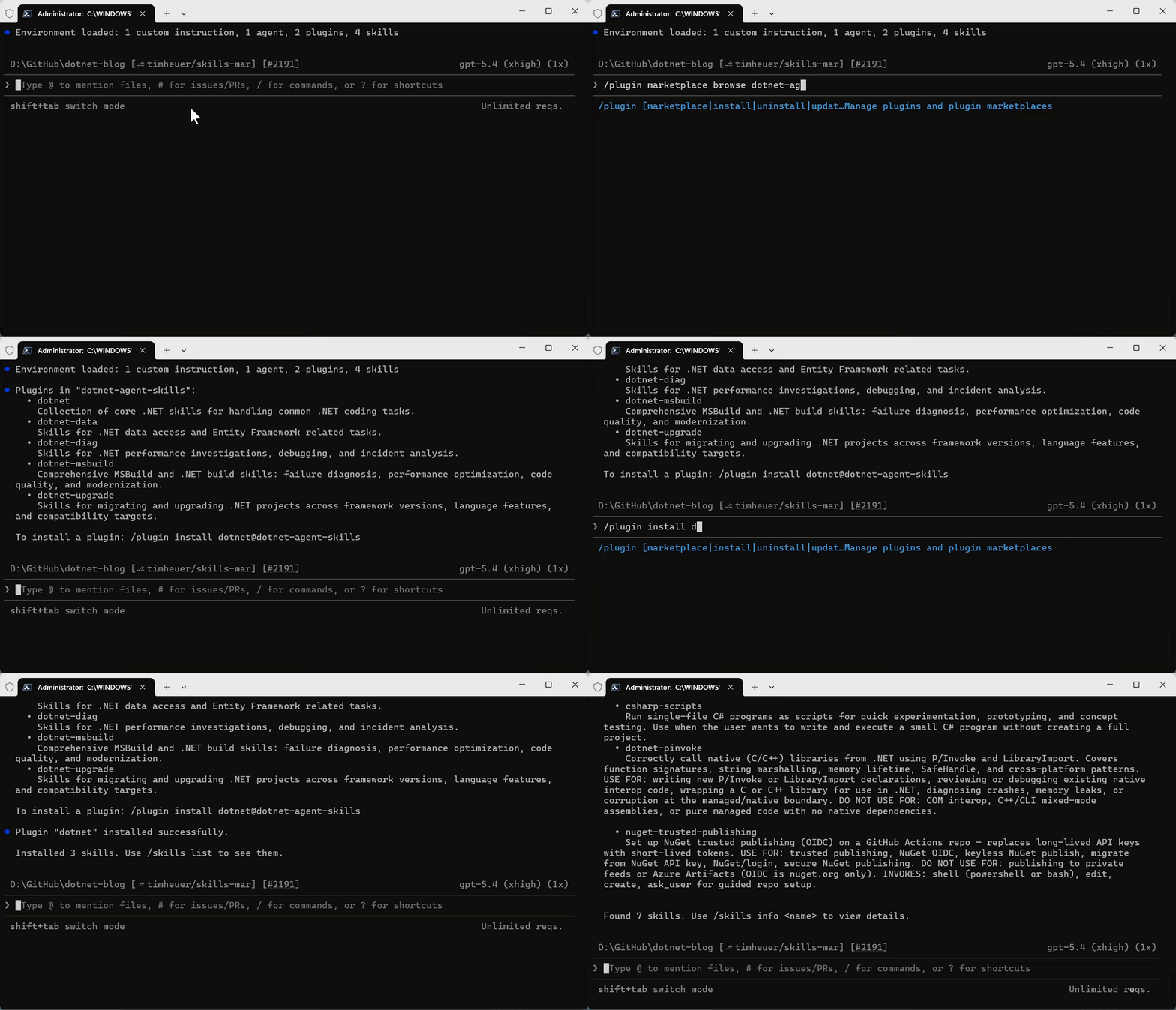
Once the marketplace is added, then you can browse any marketplace for a set of plugins to install and install the named plugin:

/plugin marketplace browse dotnet-agent-skills
/plugin install <plugin>@dotnet-agent-skills

Copilot CLI browsing plugin marketplace and installing a plugin via the CLI

They are now available in your environment automatically by your coding agent, or you can also invoke them explicitly.

/dotnet:analyzing-dotnet-performance

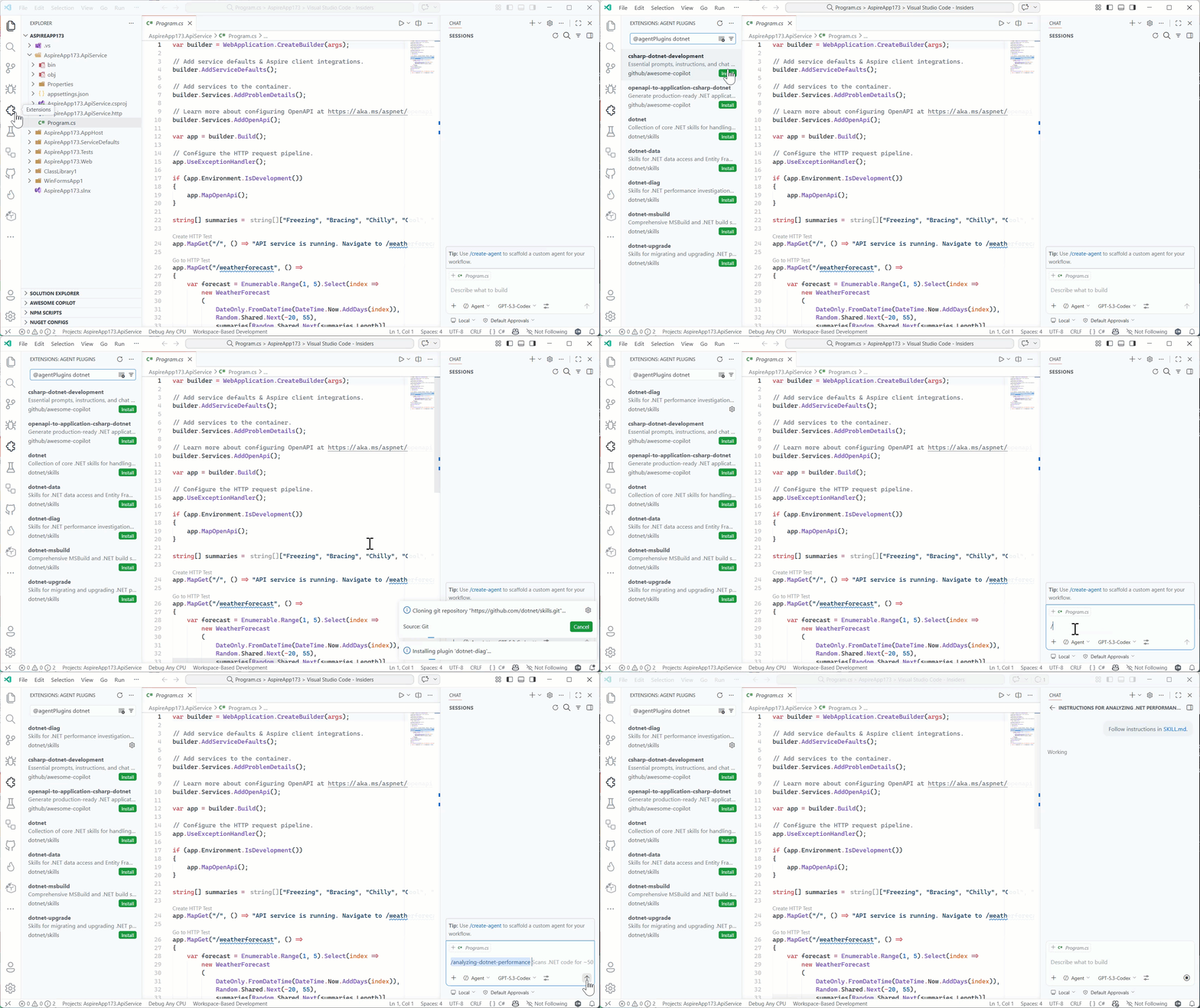
And in VS Code you can add the marketplace URL into the Copilot extension settings for Insiders, adding https://github.com/dotnet/skills as the location and then you can browse in the extensions explorer to install, and then directly execute in Copilot Chat using the slash command:

Browsing agent plugins in the Extension marketplace

We acknowledge that discovery of even marketplaces can be a challenge and are
working with our own Copilot partners and ecosystem to better understand ways to
improve this discovery flow — it’s hard to use great skills if you don’t know
where to look! We’ll be sure to post more on any changes and possible .NET
specific tools to help identify skills that will make your project and developer
productivity better.

Starting principles

Like evolving standards in the AI extensibility space, skills is fast moving. We
are starting with the principle of simplicity first. We’ve seen in our own uses
that a huge set of new tools may not be needed with well scoped skills
themselves. Where we need more, we’ll leverage things like MCP or scripts, or
SDK tools that already exist and rely on them to enhance the particular skill
workflow. We want our skills to be proven, practical, and task-oriented.

We also know there are great community-provided agent skills that have evolved,
like github/awesome-copilot which
provide a lot of value for specific libraries and architectural patterns for .NET
developers. We support all these efforts as well and don’t think there is a ‘one
winner’ skills marketplace for .NET developers. We want our team to keep focused
closest to the core runtime, concepts, tools, and frameworks we deliver as a
team and support and learn from the community as the broader set of agentic
skills help all .NET developers in many more ways. Our skills are meant to
complement, not replace any other marketplace of skills.

What’s next

The AI ecosystem is moving fast, and this repository will too. We’ll iterate
and learn in the open with the developer community.

Expect frequent updates, new skills, and continued collaboration as we improve
how coding agents work across .NET development scenarios.

Explore dotnet/skills, try the skills in your own workflows, and share
feedback
on things that can improve or new ideas we should consider.

Posted on Leave a comment

Trace code in Fedora with bpftrace

bpftrace is a new eBPF-based tracing tool that was first included in Fedora 28. It was developed by Brendan Gregg, Alastair Robertson and Matheus Marchini with the help of a loosely-knit team of hackers across the Net. A tracing tool lets you analyze what a system is doing behind the curtain. It tells you which functions in code are being called, with which arguments, how many times, and so on.

This article covers some basics about bpftrace, and how it works. Read on for more information and some useful examples.

eBPF (extended Berkeley Packet Filter)

eBPF is a tiny virtual machine, or a virtual CPU to be more precise, in the Linux Kernel. The eBPF can load and run small programs in a safe and controlled way in kernel space. This makes it safer to use, even in production systems. This virtual machine has its own instruction set architecture (ISA) resembling a subset of modern processor architectures. The ISA makes it easy to translate those programs to the real hardware. The kernel performs just-in-time translation to native code for main architectures to improve the performance.

The eBPF virtual machine allows the kernel to be extended programmatically. Nowadays several kernel subsystems take advantage of this new powerful Linux Kernel capability. Examples include networking, seccomp, tracing, and more. The main idea is to attach eBPF programs into specific code points, and thereby extend the original kernel behavior.

eBPF machine language is very powerful. But writing code directly in it is extremely painful, because it’s a low level language. This is where bpftrace comes in. It provides a high-level language to write eBPF tracing scripts. The tool then translates these scripts to eBPF with the help of clang/LLVM libraries, and then attached to the specified code points.

Installation and quick start

To install bpftrace, run the following command in a terminal using sudo:

$ sudo dnf install bpftrace

Try it out with a “hello world” example:

$ sudo bpftrace -e 'BEGIN { printf("hello world\n"); }'

Note that you must run bpftrace as root due to the privileges required. Use the -e option to specify a program, and to construct the so-called “one-liners.” This example only prints hello world, and then waits for you to press Ctrl+C.

BEGIN is a special probe name that fires only once at the beginning of execution. Every action inside the curly braces { } fires whenever the probe is hit — in this case, it’s just a printf.

Let’s jump now to a more useful example:

$ sudo bpftrace -e 't:syscalls:sys_enter_execve { printf("%s called %s\n", comm, str(args->filename)); }'

This example prints the parent process name (comm) and the name of every new process being created in the system. t:syscalls:sys_enter_execve is a kernel tracepoint. It’s a shorthand for tracepoint:syscalls:sys_enter_execve, but both forms can be used. The next section shows you how to list all available tracepoints.

comm is a bpftrace builtin that represents the process name. filename is a field of the t:syscalls:sys_enter_execve tracepoint. You can access these fields through the args builtin.

All available fields of the tracepoint can be listed with this command:

bpftrace -lv "t:syscalls:sys_enter_execve"

Example usage

Listing probes

A central concept for bpftrace are probe points. Probe points are instrumentation points in code (kernel or userspace) where eBPF programs can be attached. They fit into the following categories:

  • kprobe – kernel function start
  • kretprobe – kernel function return
  • uprobe – user-level function start
  • uretprobe – user-level function return
  • tracepoint – kernel static tracepoints
  • usdt – user-level static tracepoints
  • profile – timed sampling
  • interval – timed output
  • software – kernel software events
  • hardware – processor-level events

All available kprobe/kretprobe, tracepoints, software and hardware probes can be listed with this command:

$ sudo bpftrace -l

The uprobe/uretprobe and usdt probes are userspace probes specific to a given executable. To use them, use the special syntax shown later in this article.

The profile and interval probes fire at fixed time intervals. Fixed time intervals are not covered in this article.

Counting system calls

Maps are special BPF data types that store counts, statistics, and histograms. You can use maps to summarize how many times each syscall is being called:

$ sudo bpftrace -e 't:syscalls:sys_enter_* { @[probe] = count(); }'

Some probe types allow wildcards to match multiple probes. You can also specify multiple attach points for an action block using a comma separated list. In this example, the action block attaches to all tracepoints whose name starts with t:syscalls:sys_enter_, which means all available syscalls.

The bpftrace builtin function count() counts the number of times this function is called. @[] represents a map (an associative array). The key of this map is probe, which is another bpftrace builtin that represents the full probe name.

Here, the same action block is attached to every syscall. Then, each time a syscall is called the map will be updated, and the entry is incremented in the map relative to this same syscall. When the program terminates, it automatically prints out all declared maps.

This example counts the syscalls called globally, it’s also possible to filter for a specific process by PID using the bpftrace filter syntax:

$ sudo bpftrace -e 't:syscalls:sys_enter_* / pid == 1234 / { @[probe] = count(); }'

Write bytes by process

Using these concepts, let’s analyze how many bytes each process is writing:

$ sudo bpftrace -e 't:syscalls:sys_exit_write /args->ret > 0/ { @[comm] = sum(args->ret); }'

bpftrace attaches the action block to the write syscall return probe (t:syscalls:sys_exit_write). Then, it uses a filter to discard the negative values, which are error codes (/args->ret > 0/).

The map key comm represents the process name that called the syscall. The sum() builtin function accumulates the number of bytes written for each map entry or process. args is a bpftrace builtin to access tracepoint’s arguments and return values. Finally, if successful, the write syscall returns the number of written bytes. args->ret provides access to the bytes.

Read size distribution by process (histogram):

bpftrace supports the creation of histograms. Let’s analyze one example that creates a histogram of the read size distribution by process:

$ sudo bpftrace -e 't:syscalls:sys_exit_read { @[comm] = hist(args->ret); }'

Histograms are BPF maps, so they must always be attributed to a map (@). In this example, the map key is comm.

The example makes bpftrace generate one histogram for every process that calls the read syscall. To generate just one global histogram, attribute the hist() function just to ‘@’ (without any key).

bpftrace automatically prints out declared histograms when the program terminates. The value used as base for the histogram creation is the number of read bytes, found through args->ret.

Tracing userspace programs

You can also trace userspace programs with uprobes/uretprobes and USDT (User-level Statically Defined Tracing). The next example uses a uretprobe, which probes to the end of a user-level function. It gets the command lines issued in every bash running in the system:

$ sudo bpftrace -e 'uretprobe:/bin/bash:readline { printf("readline: \"%s\"\n", str(retval)); }'

To list all available uprobes/uretprobes of the bash executable, run this command:

$ sudo bpftrace -l "uprobe:/bin/bash"

uprobe instruments the beginning of a user-level function’s execution, and uretprobe instruments the end (its return). readline() is a function of /bin/bash, and it returns the typed command line. retval is the return value for the instrumented function, and can only be accessed on uretprobe.

When using uprobes, you can access arguments with arg0..argN. A str() call is necessary to turn the char * pointer to a string.

Shipped Scripts

There are many useful scripts shipped with bpftrace package. You can find them in the /usr/share/bpftrace/tools/ directory.

Among them, you can find:

  • killsnoop.bt – Trace signals issued by the kill() syscall.
  • tcpconnect.bt – Trace all TCP network connections.
  • pidpersec.bt – Count new procesess (via fork) per second.
  • opensnoop.bt – Trace open() syscalls.
  • vfsstat.bt – Count some VFS calls, with per-second summaries.

You can directly use the scripts. For example:

$ sudo /usr/share/bpftrace/tools/killsnoop.bt

You can also study these scripts as you create new tools.

Links


Photo by Roman Romashov on Unsplash.