Posted on Leave a comment

PHP QR Code Generator with chillerlan-php-qrcode Library

by Vincy. Last modified on June 15th, 2023.

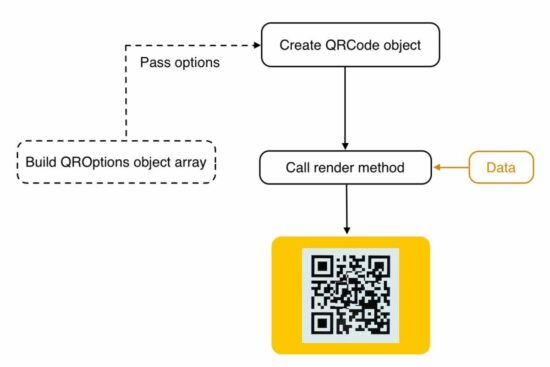
This tutorial will create an example for generating a QR code using PHP. This example uses the Chillerlan QR code library. It is a PHP library with advanced features for creating QR codes, bar codes, and more.

There are two examples in this project. The first is a basic use-case scenario, and the second is an advanced example.

Both will help familiarize this library to send data for QR code rendering.

Quick Example

<?php
require_once '../vendor/autoload.php'; use chillerlan\QRCode\QRCode; // Core class for generating the QR code
$qrCode = new QRCode(); // data for which the QR code will be generated
$data = 'www.phppot.com'; // QR code image generation using render function
// it returns the an image resource.
$qrCodeImage = $qrCode->render($data); // Show the generated QR code image on screen
// following header is necessary to show image output
// in the browser
header('Content-Type: image/png');
imagepng($qrCodeImage);
imagedestroy($qrCodeImage);

The above code is a quick example of generating a Chillerlan QR code. You should use Composer to download the chillerlan dependency.

This example imports the library class and gives the data to generate the QR code.

The render() function passes the data to the library with which it will output the QR code image. This output can be returned to a browser or can be saved as a file.

In a previous article, we learned how to render the generated QR code to the browser.

chillerlan php qrcode

Download via composer

Run the following command in your terminal to install this Chillerlan PHP library.

composer require chillerlan/php-qrcode

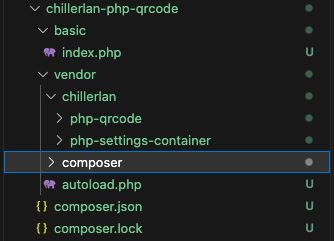
qrcode project structure

Example 2 – How to configure size, EC level, scale

More configurations help to adjust the QR code quality without affecting readability.  The below parameters are used, which override the default configurations.

  • The version is to set the size of a QR code.
  • ECC level to set the possible values(L, M, Q, H). It is the damage tolerance percentage. We have seen it when coding with phpqrcode library.
  • Scale sets the size of a QR code pixel. The maximum size increases the QR code’s quality.

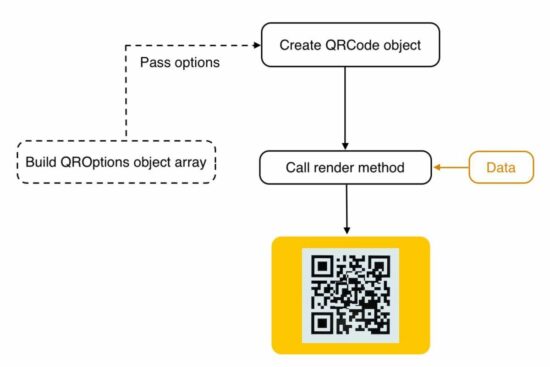
This library has the QROptions class to set the configurations explicitly. When initiating this class, the code below prepares an array of {version, eccLeverl …} options.

This QROptions instance generates the QRCode object to call the render() action handler. As in the above example, the render() uses the data and bundles it into the QR code binary.

<?php
require_once '../vendor/autoload.php'; use chillerlan\QRCode\QRCode;
use chillerlan\QRCode\QROptions; // data to embed in the QR code image
$data = 'www.phppot.com'; // configuration options for QR code generation
// eccLevel - Error correction level (L, M, Q, H)
// scale - QR code pixe size
// imageBase64 - output as image resrouce or not
$options = new QROptions([ 'version' => 5, 'eccLevel' => QRCode::ECC_H, 'scale' => 5, 'imageBase64' => true, 'imageTransparent' => false, 'foregroundColor' => '#000000', 'backgroundColor' => '#ffffff'
]); // Instantiating the code QR code class
$qrCode = new QRCode($options); // generating the QR code image happens here
$qrCodeImage = $qrCode->render($data); header('Content-Type: image/png');
imagepng($qrCodeImage);
imagedestroy($qrCodeImage);

Chillerlan PHP library

This is one of the popular QR Code generators in PHP. It has clean and easily understandable code with proper modularity.

Some of its features are listed below. This feature list represents the capability of being a component of a PHP application.

Features

  • Creates QR Codes with an improved Model, Version, ECC level, and more configuration
  • It supports encoding numeric, alphanumeric, 8-bit binary, and more.
  • It supports QR code output in GD, ImageMagick, SVG markup, and more formats.
  • It provides QR code readers using GD and ImageMagick libraries.

More about QR code

Hereafter we will see more about the QR code and its evolution,  advantages, and usage scenarios.

The QR code, or the quick response code, is a two-dimensional (2D) bar code. The linked article has the code to generate a barcode using PHP.

The QR code is a Japanese invention for the automotive industry. Later it spreads to more domains. Some of the commonly used places are,

  • Marketing
  • Linking to service providers
  • Information sharing
  • Online payments.

It provides easy access to online information through digital scanners. The QR code contains encoded data that can be decoded with digital scanning. It shares the information, links the service provider or prompts for the payment initiation after scanning.

Example usages of QR code generation and scanning

  • It shows payee details to ensure and allows one to enter the amount to make a mobile payment.
  • It facilitates storing location and contact details. It is for marking locations in the Google map while scanning.
  • When reading the QR code, the application will download v-cards using the contact details stored.
  • The app developing company shows QR codes in the app store to download mobile apps.

Download

↑ Back to Top

Posted on Leave a comment

Web Scraping with PHP – Tutorial to Scrape Web Pages

by Vincy. Last modified on July 21st, 2023.

Web scraping is a mechanism to crawl web pages using software tools or utilities. It reads the content of the website pages over a network stream.

This technology is also known as web crawling or data extraction. In a previous tutorial, we learned how to extract pages by its URL.
View Demo

There are more PHP libraries to support this feature. In this tutorial, we will see one of the popular web-scraping components named DomCrawler.

This component is underneath the PHP Symfony framework. This article has the code for integrating and using this component to crawl web pages.

web scraping php

We can also create custom utilities to scrape the content from the remote pages. PHP allows built-in cURL functions to process the network request-response cycle.

About DomCrawler

The DOMCrawler component of the Symfony library is for parsing the HTML and XML content.

It constructs the crawl handle to reach any node of an HTML tree structure. It accepts queries to filter specific nodes from the input HTML or XML.

It provides many crawling utilities and features.

  1. Node filtering by XPath queries.
  2. Node traversing by specifying the HTML selector by its position.
  3. Node name and value reading.
  4. HTML or XML insertion into the specified container tag.

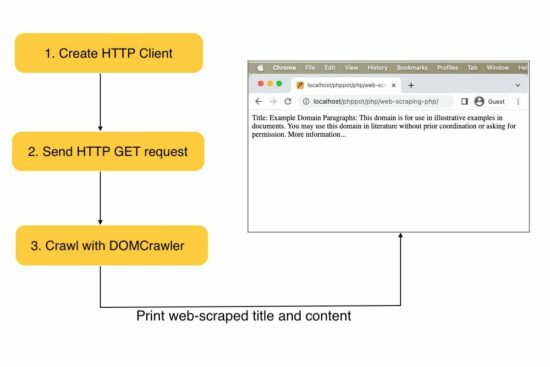
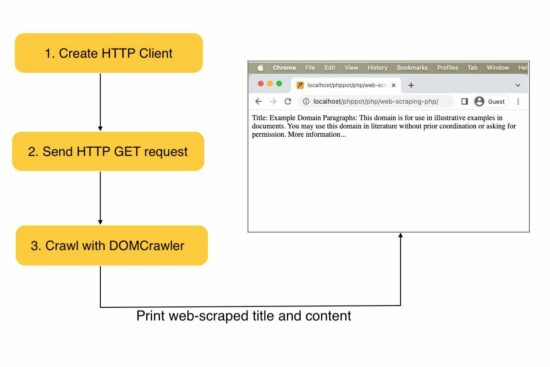
Steps to create a web scraping tool in PHP

  1. Install and instantiate an HTTP client library.
  2. Install and instantiate the crawler library to parse the response.
  3. Prepare parameters and bundle them with the request to scrape the remote content.
  4. Crawl response data and read the content.

In this example, we used the HTTPClient library for sending the request.

Web scraping PHP example

This example creates a client instance and sends requests to the target URL. Then, it receives the web content in a response object.

The PHP DOMCrawler parses the response data to filter out specific web content.

In this example, the crawler reads the site title by parsing the h1 text. Also, it parses the content from the site HTML filtered by the paragraph tag.

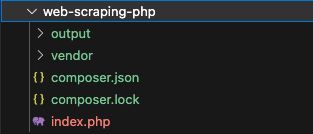
The below image shows the example project structure with the PHP script to scrape the web content.

web scraping php project structure

How to install the Symfony framework library

We are using the popular Symfony to scrape the web content. It can be installed via Composer.
Following are the commands to install the dependencies.

composer require symfony/http-client symfony/dom-crawler
composer require symfony/css-selector

After running these composer commands, a vendor folder can map the required dependencies with an autoload.php file. The below script imports the dependencies by this file.

index.php

<?php require 'vendor/autoload.php'; use Symfony\Component\HttpClient\HttpClient;
use Symfony\Component\DomCrawler\Crawler; $httpClient = HttpClient::create(); // Website to be scraped
$website = 'https://example.com'; // HTTP GET request and store the response
$httpResponse = $httpClient->request('GET', $website);
$websiteContent = $httpResponse->getContent(); $domCrawler = new Crawler($websiteContent); // Filter the H1 tag text
$h1Text = $domCrawler->filter('h1')->text();
$paragraphText = $domCrawler->filter('p')->each(function (Crawler $node) { return $node->text();
}); // Scraped result
echo "H1: " . $h1Text . "\n";
echo "Paragraphs:\n";
foreach ($paragraphText as $paragraph) { echo $paragraph . "\n";
}
?>

Ways to process the web scrapped data

What will people do with the web-scraped data? The example code created for this article prints the content to the browser. In an actual application, this data can be used for many purposes.

  1. It gives data to find popular trends with the scraped news site contents.
  2. It generates leads for showing charts or statistics.
  3. It helps to extract images and store them in the application’s backend.

If you want to see how to extract images from the pages, the linked article has a simple code.

Caution

Web scraping is theft if you scrape against a website’s usage policy.  You should read a website’s policy before scraping it. If the terms are unclear, you may get explicit permission from the website’s owner. Also, commercializing web-scraped content is a crime in most cases. Get permission before doing any such activities.

Before crawling a site’s content, it is essential to read the website terms. It is to ensure that the public can be subject to scraping.

People provide API access or feed to read the content. It is fair to do data extraction with proper API access provision. We have seen how to extract the title, description and video thumbnail using YouTube API.

For learning purposes, you may host a dummy website with lorem ipsum content and scrape it.
View Demo

↑ Back to Top

Posted on Leave a comment

jQuery AJAX AutoComplete with Create-New Feature

by Vincy. Last modified on July 25th, 2023.

Autocomplete textbox feature shows the suggestion list when the user enters a value. The suggestions are, in a way, related to the entered keyword.

For example, when typing in a Google search box, it displays auto-suggested keywords in a dropdown.

View Demo

This tutorial will show how to add this feature to a website. The code uses the JQuery library with PHP and MySQL to show dynamic auto-suggestions on entering the search key.

It allows typing the start letter of the country name to get suggested with the list of country names accordingly. See the linked code for enabling autocomplete using the jQuery-Ui library.

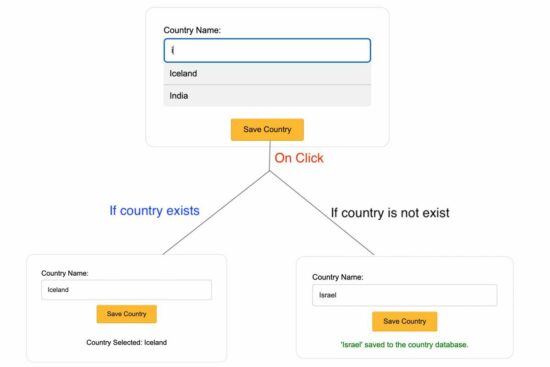
The specialty of this example is that it also allows adding a new option that is not present in the list of suggestions.

jquery ajax autocomplete create new

On key-up, a function executes the Jquery Autocomplete script. It reads suggestions based on entered value. This event handler is an AJAX function. It requests PHP for the list of related countries from the database.

When submitting a new country, the PHP will update the database. Then, this new option will come from the next time onwards.

Steps to have a autocomplete field with a create-new option

  1. Create HTML with a autocomplete field.
  2. Integrate jQuery library and initialize autocomplete for the field.
  3. Create an external data source (database here) for displaying suggestions.
  4. Fetch the autocomplete suggestions from the database using PHP.
  5. Insert a newly created option into the database.

1. Create HTML with a autocomplete field

This HTML is for creating an autocomplete search field in a form. It is a suggestion box that displays dynamic auto-suggestions via AJAX.

On the key-up event of this input field, the AJAX script sends the request to the PHP.  The PHP search performs database fetch about the entered keyword.

This HTML form also posts data not chosen from the suggestions. This feature allows adding new options to the source of the search suggestions.

index.php

<!DOCTYPE html>
<html>
<head>
<meta name="viewport" content="width=device-width, initial-scale=1">
<link rel="stylesheet" type="text/css" href="style.css" />
</head>
<body> <div class="outer-container"> <div class="row"> <form id="addCountryForm" autocomplete="off" method="post"> <div Class="input-row"> <label for="countryName">Country Name:</label><input type="text" id="countryName" name="countryName" required> <div id="countryList"></div> </div> <input type="submit" class="submit-btn" value="Save Country"> <div id="message"></div> </form> </div> </div>
</body>
</html>

2. Integrate the jQuery library and initialize autocomplete for the field

This code uses AJAX to show the dynamic autocomplete dropdown. This script sends the user input to the PHP endpoint.

In the success callback, the AJAX script captures the response and updates the auto-suggestions in the UI. This happens on the key-up event.

The suggested options are selectable. The input box will be filled with the chosen option on clicking each option.

Then, the form input is posted to the PHP via AJAX on the form-submit event.

This jQuery script shows the fade-in fade-out effect to display and hide the autocomplete dropdown in the UI.

index.php(ajax script)

$(document).ready(function() { $('#countryName').keyup(function() { var query = $(this).val(); if (query != '') { $.ajax({ url: 'searchCountry.php', type: 'POST', data: { query: query }, success: function(response) { $('#countryList').fadeIn(); $('#countryList').html(response); } }); } else { $('#countryList').fadeOut(); $('#countryList').html(''); } }); $(document).on('click', 'li', function() { $('#countryName').val($(this).text()); $('#countryList').fadeOut(); }); $('#addCountryForm').submit(function(event) { event.preventDefault(); var countryName = $('#countryName').val(); $.ajax({ type: 'POST', url: 'addCountry.php', data: { countryName: countryName }, success: function(response) { $('#countryList').hide(); $('#message').html(response).show(); } }); });
});

3. Create an external data source (database here) for displaying suggestions

Import this SQL to create to database structure to save the autocomplete suggestions. It has some initial data that helps to understand the autocomplete code during the execution.

database.sql

CREATE TABLE IF NOT EXISTS `democountries` (
`id` int NOT NULL AUTO_INCREMENT, `countryname` varchar(255) NOT NULL, PRIMARY KEY (id)
); INSERT INTO `democountries` (`countryname`) VALUES
('Afghanistan'),
('Albania'),
('Bahamas'),
('Bahrain'),
('Cambodia'),
('Cameroon'),
('Denmark'),
('Djibouti'),
('East Timor'),
('Ecuador'),
('Falkland Islands (Malvinas)'),
('Faroe Islands'),
('Gabon'),
('Gambia'),
('Haiti'),
('Heard and Mc Donald Islands'),
('Iceland'),
('India'),
('Jamaica'),
('Japan'),
('Kenya'),
('Kiribati'),
('Lao Peoples Democratic Republic'),
('Latvia'),
('Macau'),
('Macedonia');

4. Fetch the autocomplete suggestions from the database using PHP

The PHP code prepares the MySQL select query to fetch suggestions based on the search keyword.

It fetches records by searching for the country names that start with the keyword sent via AJAX.

This endpoint builds the HTML lists of autocomplete suggestions. This HTML response is used to update the UI to render relevant suggestions.

searchCountry.php

<?php
$conn = new mysqli('localhost', 'root', '', 'db_autocomplete'); if (isset($_POST['query'])) { $query = "{$_POST['query']}%"; $stmt = $conn->prepare("SELECT countryname FROM democountries WHERE countryname LIKE ? ORDER BY countryname ASC"); $stmt->bind_param("s", $query); $stmt->execute(); $result = $stmt->get_result(); if ($result->num_rows > 0) { while ($row = $result->fetch_assoc()) { echo '<li>' . $row['countryname'] . '</li>'; } }
}
?>

5. Insert a newly created option into the database

The expected value is not in the database if no result is found for the entered keyword. This code allows you to update the existing source with your new option.

The form submits action calls the below PHP script. It checks if the country name sent by the AJAX form submit is existed in the database. If not, it inserts that new country name.

After this insert, the newly added item can be seen in the suggestion box in the subsequent autocomplete search.

addCountry.php

<?php
$conn = new mysqli('localhost', 'root', '', 'db_autocomplete'); if (isset($_POST['countryName'])) { $countryName = "{$_POST['countryName']}"; $stmt = $conn->prepare("SELECT * FROM democountries WHERE countryname =?"); $stmt->bind_param("s", $countryName); $stmt->execute(); $result = $stmt->get_result(); if ($result->num_rows > 0) { echo '<p>Country Selected: ' . $countryName . '</p>'; } else { $stmt = $conn->prepare("INSERT INTO democountries (countryname) VALUES (?)"); $stmt->bind_param("s", $countryName); $stmt->execute(); $result = $stmt->insert_id; if (! empty($result)) { echo $countryName . ' saved to the country database.</br>'; } else { echo '<p>Error adding ' . $countryName . ' to the database: ' . mysqli_error($conn) . '</p>'; } }
}
?>

Different libraries providing Autocomplete feature

In this script, I give a custom autocomplete solution. But, many libraries are available to provide advanced feature-packed autocomplete util for your application.

  1. The jQueryUI provides autocomplete feature to enable an HTML field.
  2. One more library is the jQuery Autocompleter plugin that captures more data from the options to be chosen.

These libraries give additional features associated with the autocomplete solution.

  1. It allows to select single and multiple values from the autocomplete dropdown.
  2. It reads the option index or the key-value pair of the chosen item from the list.

Advantages of autocomplete

Most of us experience the advantages of the autocomplete feature. But, this list is to mention the pros of this must-needed UI feature intensely.

  1. It’s one of the top time-saving UI utilities that saves users the effort of typing the full option.
  2. It’s easy to search and get your results by shortlisting and narrowing. This is the same as how a search feature of a data table narrows down the result set.
  3. It helps to get relevant searches.

View Demo Download
↑ Back to Top

Posted on Leave a comment

Chart JS Candlestick

by Vincy. Last modified on March 30th, 2023.

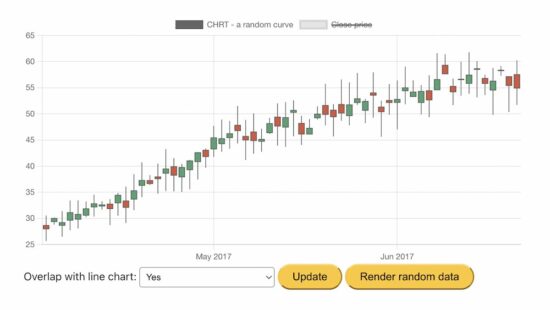
The ChartJS library provides modules for creating candlestick charts. It also supports generating OHLC (Open High Low Close) charts.

The candlestick and OHLC charts are for showing financial data in a graph. Both these charts look mostly similar but differ in showing the ‘open’ and ‘close’ points.

In this article, we will see JavaScript code for creating a candlestick chart using ChartJs.

This example generates the random data for the candlestick graph on loading the page.

We have seen many examples of creating ChartJS JavaScript charts. If you are new to the ChartJS library, how to create a bar chart is a simple example for getting started.

View Demo

What is a Candlestick chart?

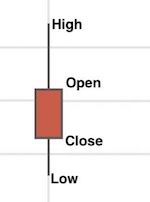
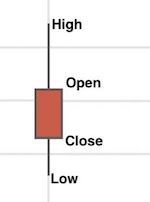
The candlestick chart represents the price movement between Open, High, Low, and Close points.

The candlestick chart shows these 4 points as described below. See the screenshot below to get more clarity.

  • Open and Close – in the two top and the bottom extreme of the candle body.
  • High and Low- in the two top and the bottom extreme of the candlewick.

candlestick price movement
chart js candlestick

HTML target to include ChartJs plugin to show a candlestick chart

This HTML code imports the following libraries for accessing the ChartJS candlestick module.

  • Luxon
  • ChartJS
  • ChartJS adaptor luxon

It also includes the chartjs-chart-finanicial.js JavaScript that inherits the required financial chart controller and elements classes.

An HTML canvas layer has been created to render the output candlestick chart.

JavaScript initiates the financial class instance to generate a candlestick chart by pointing to this canvas as a target.

index.html

<html> <head> <meta charset="utf-8"> <meta name="viewport" content="width=device-width, initial-scale=1"> <title>Chart JS Candlestick</title> <script src="https://cdn.jsdelivr.net/npm/luxon@1.26.0"></script> <script src="https://cdn.jsdelivr.net/npm/chart.js@3.0.1/dist/chart.js"></script> <script src="https://cdn.jsdelivr.net/npm/chartjs-adapter-luxon@1.0.0"></script> <script src="chartjs-chart-financial.js"></script> <link rel="stylesheet" type="text/css" href="style.css"> <link rel="stylesheet" type="text/css" href="form.css">
</head> <body> <div class="phppot-container"> <h1>Chart.js - CandleStick chart</h1> <canvas id="candlestick-chart"></canvas> <div> Overlap with line chart: <select id="mixed"> <option value="true">Yes</option> <option value="false" selected>No</option> </select> <button id="update">Update</button> <button id="randomizeData">Render random data</button> </div> </div> <script type="text/javascript" src="chart-data-render.js"></script>
</body> </html>

How to get and plot candlestick random data via JavaScript?

This JavaScript code uses the chartjs.chart.financial.js script functions to create a candlestick chart.

It generates and uses random bar data for the chart. The random data of each bar includes a horizontal coordinate, x, and four vertical coordinates, o, h, l, and c (open, high, low, close).

It performs the below steps during the chart generation process.

  1. It makes random bar data by taking the initial date and the number of samples.
  2. It makes ChartJS line chart data using each bar element’s close points.
  3. It initiates the ChartJS class to set the chart type, dataset, and options as we did in other ChartJS examples.
  4. It sets the random bar data to the ChartJS dataset property and updates the chart instance created in step 3.
  5. It checks if the user sets the “Mixed” option and adds the close points to the dataset if yes.

Step 5 overlaps a line chart of close points on the rendered candlestick chart.

chart-data-render.js

var barCount = 60;
var initialDateStr = '01 Apr 2017 00:00 Z'; var ctx = document.getElementById('candlestick-chart').getContext('2d');
ctx.canvas.width = 800;
ctx.canvas.height = 400; var barData = getRandomData(initialDateStr, barCount);
function lineData() { return barData.map(d => { return { x: d.x, y: d.c } }) }; var chart = new Chart(ctx, { type: 'candlestick', data: { datasets: [{ label: 'Random Curve', data: barData }] }
}); function randomNumber(min, max) { return Math.random() * (max - min) + min;
} function randomBar(date, lastClose) { var open = +randomNumber(lastClose * 0.95, lastClose * 1.05).toFixed(2); var close = +randomNumber(open * 0.95, open * 1.05).toFixed(2); var high = +randomNumber(Math.max(open, close), Math.max(open, close) * 1.1).toFixed(2); var low = +randomNumber(Math.min(open, close) * 0.9, Math.min(open, close)).toFixed(2); return { x: date.valueOf(), o: open, h: high, l: low, c: close }; } function getRandomData(dateStr, count) { var date = luxon.DateTime.fromRFC2822(dateStr); var data = [randomBar(date, 30)]; while (data.length < count) { date = date.plus({ days: 1 }); if (date.weekday <= 5) { data.push(randomBar(date, data[data.length - 1].c)); } } return data;
}
var update = function () { var mixed = document.getElementById('mixed').value; var closePrice = { label: 'Close Price', type: 'line', data: null }; // put data in chart if (mixed === 'true') { closePrice = { label: 'Close Price', type: 'line', data: lineData() }; } else { } chart.config.data.datasets = [ { label: 'Random Curve', data: barData }, closePrice ] chart.update();
};
document.getElementById('update').addEventListener('click', update); document.getElementById('randomizeData').addEventListener('click', function () { barData = getRandomData(initialDateStr, barCount); update();
});

More functionalities and features are there in the ChartJS module. It allows customizing the output candlestick chart.  This example enables two of them.

  • Overlap line data over the close points of the candlestick bars.
  • I am reloading the candlestick with a new set of random bar data.

ChartJS candlestick functionalities

Some possible customization options for the candlestick chart are listed below.

  • To change the bar type between candlestick and OHLC. The OHLC chart will display the ‘open’ and ‘close’ points by horizontal lines on the candle body.
  • To change the scale type, border, and color.
  • To allow overlapping line charts with the rendered candlestick chart to highlight the close points of the bar data.

View DemoDownload

↑ Back to Top

Posted on Leave a comment

PHP QR Code Generator with phpqrcode Library

by Vincy. Last modified on March 28th, 2023.

QR code (Quick Response code) is a machine-readable pictorial format containing black and white squares. It is used for storing information like URLs, product ID, etc. It is a type of matrix barcode or a two-dimensional barcode.

It is a convenient form of storing and retrieving simple data and has become even more popular with the advent of smartphones. The camera in the smartphone can act as a reader and read the QR code and help to decipher the data stored in it.

This article gives many examples if you want a solution to generate QR codes in PHP. There are a lot of PHP libraries available to generate QR codes. This article uses the PHP QR code library.

1. Quick example

This quick example returns the QR code to the browser in one line. It produces the output as a PNG stream.

<?php
require_once __DIR__ . '/vendor/phpqrcode/qrlib.php'; // Displays QR Code image to the browser
QRcode::png('PHP QR Code :)');

Installing PHP QR code library

Download the latest library version and extract it into your application vendor folder. The source code downloadable in this article has the library.

All the examples in this article have the code to include the suitable library file to use its feature.

In a previous article, we have seen code for a PHP QR code generator using the tc-lib-barcode library.

qr code data

2. Display the QR code using an HTML image

To display the QR code using an HTML image tag, link the HTML image source to the PHP file that returns the QR code PNG data.

The generate.php file returns the QR code in the below code using the PHP QrCode library. The HTML image refers to this file to show the QR code in the browser.

show-qr-code-in-HTML-img/generate.php

<?php
require_once __DIR__ . '/vendor/phpqrcode/qrlib.php'; // Displays QR Code image to the browser
QRcode::png('PHP QR Code :)');
<?php
require_once __DIR__ . '/../vendor/phpqrcode/qrlib.php'; // outputs image as PNG that can be refered to a HTML image 'src'
QRcode::png('PHP QR Code :)');
?>

show-qr-code-in-HTML-img/view.php

<img src="generate.php" />

2. Passing arguments to the QR code generator

Passing parameters to a QR code generator helps to perform dynamic processing about the parameter.

For example, we can pass a contact id to retrieve contact information to bundle it with the QR code output.

This example shows how to send parameters and process them in the QR generator.

The view.php file prepares the QR code parameter in PHP. Then, it sends it to the generate.php in query. This URL with the QR code parameter is specified to an HTML image source.

show-qr-code-in-html-img/view.php

<?php
// initialize PHP parameter to send to the QR code generator
$QRParameter = 1234;
?>
<img src="generate.php?id=<?php echo $QRParameter; ?>" />

In this generate.php file, it does simple manipulation to the passed argument. It prefixes a string with the GET parameter received and bundles the manipulated line to the QR code PNG.

show-qr-code-in-html-img/generate.php

<?php
if (empty($_GET['id'])) { echo "<b>ERROR:</b> Bad request. Required parameters are missing."; exit;
} else { require_once __DIR__ . '/../vendor/phpqrcode/qrlib.php'; $inputString = $_GET['id']; // Do not return anything to the browser ob_start("callback"); // Process the input string $codeText = 'DEMO - ' . $inputString; // end of processing $debugLog = ob_get_contents(); ob_end_clean(); // outputs QR code as a PNG data QRcode::png($codeText);
}
?>

3. Save the QR code on the server

This example saves the generated QR code on the server.

It defines the QR code data and the png file name suffix in an array. Then, it uses them while creating the target to save the QR code.

save-qr-code-in-server.php

<?php
require_once __DIR__ . '/vendor/phpqrcode/qrlib.php'; // how to configure silent zone (frame) size
$qrContent = array('content' => 'Contact information', 'slug' => 'contact-info'); $target = "uploads/qr-code-dir/";
$filePath = $target . 'ouput-qr-code-' . $qrContent['slug'] . '.png'; if (!file_exists($filePath)) { QRcode::png($qrContent['content'], $filePath);
}
?>
<img src="<?php echo $filePath; ?>" />

4. Configure QR code ECC Level, Zoom factor, and Frame size

The PHP QRCode Library defines constants for different ECC levels, Zoom factor, and Frame size. These factors are used for the following purposes when generating a QR code.

This program creates QR codes in L, M, Q, and H levels with appropriate QR constants.

  • ECC level is the allowed percentage of damage without affecting reading data.
  • Zoom factor is the allowed resolution that can be changed based on the use cases.
  • Silent zone Frame size – The silent or quiet zone frame size varies based on different matrices. Setting the QR code above or equal to 4 blocks is recommended.

qr-code-ecc-level.php

<?php
require_once __DIR__ . '/vendor/phpqrcode/qrlib.php';
require_once __DIR__ . '/vendor/phpqrcode/qrconst.php'; $qrContent = 'Demo data to bundle into a QR code'; $target = "uploads/ecc-level/"; // generating QR code in the 4 ECC level
QRcode::png($qrContent, $target . 'l.png', QR_ECLEVEL_L);
QRcode::png($qrContent, $target . 'm.png', QR_ECLEVEL_M);
QRcode::png($qrContent, $target . 'q.png', QR_ECLEVEL_Q);
QRcode::png($qrContent, $target . 'h.png', QR_ECLEVEL_H); ?>
<img src="<?php echo $target; ?>l.png" />
<img src="<?php echo $target; ?>m.png" />
<img src="<?php echo $target; ?>q.png" />
<img src="<?php echo $target; ?>h.png" />

This program adds the zoom factor 1 to 4 with the QR_ECLEVEL_L ECC constant.

qr-code-pixel-zoom-factor.php

<?php
require_once __DIR__ . '/vendor/phpqrcode/qrlib.php'; $qrContent = 'Demo data to bundle into a QR code with zoom factor'; $target = "uploads/pixel-zoom-qr-code/"; // generating QR code with 4 ECC level and zoom factor
QRcode::png($qrContent, $target . 'l_1.png', QR_ECLEVEL_L, 1);
QRcode::png($qrContent, $target . 'l_2.png', QR_ECLEVEL_L, 2);
QRcode::png($qrContent, $target . 'l_3.png', QR_ECLEVEL_L, 3);
QRcode::png($qrContent, $target . 'l_4.png', QR_ECLEVEL_L, 4); ?>
<img src="<?php echo $target; ?>l_1.png" />
<img src="<?php echo $target; ?>l_2.png" />
<img src="<?php echo $target; ?>l_3.png" />
<img src="<?php echo $target; ?>l_4.png" />

This program creates QR codes with all these factors ECC, Zoom, and Frame constants of the library.

silent-zone-frame-size.php

<?php
require_once __DIR__ . '/vendor/phpqrcode/qrlib.php'; $qrContent = 'Demo data to bundle into a QR code with frame size'; $target = "uploads/pixel-zoom-qr-code/"; // generating // frame config values below 4 are not recommended !!!
QRcode::png($qrContent, $target . 'l_3_4.png', QR_ECLEVEL_L, 3, 4);
QRcode::png($qrContent, $target . 'l_3_6.png', QR_ECLEVEL_L, 3, 6);
QRcode::png($qrContent, $target . 'l_3_10.png', QR_ECLEVEL_L, 3, 10); // displaying
?>
<img src="<?php echo $target; ?>l_3_4.png" />
<img src="<?php echo $target; ?>l_3_6.png" />
<img src="<?php echo $target; ?>l_3_10.png" />

5. Add phone, email, and contact info to a QR code

This section has PHP examples to create QR codes to attach contact information.  It prepares the QR code content with the “tel:”. “sms:” and “mail:” links and attaches it to the QR code.

add-phone-to-call.php

<?php
require_once __DIR__ . '/vendor/phpqrcode/qrlib.php';
$target = "uploads/qr-code-phone/";
$phone = '(091)700-001-710';
// attache phone to call
$qrContent = 'tel:' . $phone;
QRcode::png($qrContent, $target . 'phone-to-call.png', QR_ECLEVEL_L, 3);
?>
<img src="<?php echo $target; ?>phone-to-call.png" /> 

add-phone-to-text.php

<?php
require_once __DIR__ . '/vendor/phpqrcode/qrlib.php';
$target = "uploads/qr-code-phone/";
$phone = '(091)700-001-710';
// Attach the phone to text
$qrContent = 'sms:' . $phone;
// generating
QRcode::png($qrContent, $target. 'phone-to-text.png', QR_ECLEVEL_L, 3);
?>
<img src="<?php echo $target; ?>phone-to-text.png" />

Attaching an email adds the mail subject and body as part of the mail recipient data. But the subject and the body parameters are optional.

add-recipient-to-send-mail.php

<?php
require_once __DIR__ . '/vendor/phpqrcode/qrlib.php';
$target = "uploads/qr-code-phone/";
$recipient = 'vincy@example.com';
$mailSubject = 'Enquiry';
$mailBody = 'Post enquiry content';
// Prepare QR content with email recipient, subject and body
$qrContent = 'mailto:' . $recipient . '?subject=' . urlencode($mailSubject) . '&body=' . urlencode($mailBody);
// Attach maileto link to the QRCode
QRcode::png($qrContent, $target. 'mail.png', QR_ECLEVEL_L, 3);
?>
<img src="<?php echo $target; ?>mail.png" /> 

This QR code example creates a v-card to bundle with the QR code. It includes basic details with the v-card.

This library allows adding more details to the QR code. For example, it can attach a contact avatar to a QR code.

In a previous article, we have seen how to generate and download a v-card for contact information.

save-vcard-to-qr-code.php

<?php
require_once __DIR__ . '/vendor/phpqrcode/qrlib.php';
$target = "uploads/qr-code-phone/";
// Contact details
$name = 'Example1';
$phone = '(091)700-001-711';
// QR code content with VACARD
$qrCode = 'BEGIN:VCARD' . "\n";
$qrCode .= 'FN:' . $name . "\n";
$qrCode .= 'TEL;WORK;VOICE:' . $phone . "\n";
$qrCode .= 'END:VCARD';
// Attaching VCARD to QR code
QRcode::png($qrCode, $target. 'vcard-qr-code.png', QR_ECLEVEL_L, 3);
?>
<img src="<?php echo $target; ?>vcard-qr-code.png" /> 

Download

↑ Back to Top

Posted on Leave a comment

Contact Us Page Design – HTML Form

by Vincy. Last modified on March 23rd, 2023.

This article has HTML templates for contact form pages. All these templates are responsive to fit any viewports.

On a responsive page, the site header menu can be toggled. Template 1 and 2 of this example has JavaScript function to perform the toggle events for a sliding menu in the mobile view.

Contact Form Template 1

This template has the contact form in the site footer. The footer contains three columns to show the contact form details.

If you are creating a contact form page, it should clearly show the location and the contact details.

In this template, the footer columns show these details with a contact form.

The site header contains menu links and a hamburger icon. The hamburger icon can be seen in the mobile view only.

The header dropdown menu will be shown on clicking that icon in the site banner.

contact form template1

template-1/index.html

<html>
<head>
<meta name="viewport" content="width=device-width, initial-scale=1">
<link href="style.css" rel="stylesheet" type="text/css">
</head>
<body> <div class="container"> <div class="site-banner"> <div class="header-menu"> <a href="">Logo</a> <span id="menu-icon" onClick="toggleMenu()"><img src="images/menu.svg" /></span> <span id="header-right-menu"> <a href="#">Our work</a> <a href="#">About</a> <a href="#">News</a> <a href="#" class="header-active">Contact</a> </span> </div> <h1 class="heading">Contact Us</h1> </div><div class="footer"> <div class="footer-column"><img class="map-image" src="images/location.jpg" /></div> <div class="footer-column"> <div class="tile-content"> <h1>Meet Us</h1> <div class="contact-row"> <img src="images/phone.svg"><span class="tile-field">+466723723666</span> </div> <div class="contact-row"> <img src="images/at-sign.svg"><span class="tile-field">contact@admin.com</span> </div> <div class="contact-row"> <img src="images/map-pin.svg"><span class="tile-field">1784 Griffin Street, Alabama</span> </div> </div> </div> <div class="footer-column contact-form-container"> <div class="tile-content"> <form method="POST"> <h1>Contact</h1> <div class="contact-row"> <input type="text" class="form-field" placeholder="Name"> </div> <div class="contact-row"> <textarea rows="5" class="form-field" placeholder="Message"></textarea> </div> <button class="button">Send</button> </form> </div> </div> </div> </div> <script> function toggleMenu() { var menuElement = document.getElementById("header-right-menu"); if (menuElement.style.display === "block") { menuElement.style.display = "none"; } else { menuElement.style.display = "block"; } } </script>
</body>
</html>

The below CSS is created for this contact form template. It contains media queries for the responsiveness of the contact form page.

template-1/style.css

body { font-family: Arial;
} .container { max-width: 1180px; margin: 0 auto; line-height: 1.5;
}
/* header style starts */
.site-banner { min-height: 400px; background-image: url('images/header-image.jpg'); background-size: cover; background-position: center; color: #ffffff;
} .site-banner a { color: #ffffff; text-decoration: none; font-weight: bold; padding: 12px;
} .header-menu { padding: 40px 20px;
} #header-right-menu { float: right;
} .header-active { background: rgba(0, 0, 0, 0.5); border-radius: 25px;
} .heading { color: #ffffff; text-align: center; font-family: cursive; padding: 40px 0px; font-size: 3em; margin: 0px;
}
/* header style ends */ .footer { display: flex;
} .footer-column { width: 33.3%; float: left;
} .map-image { width: 100%;
} .contact-form-container { background-color: #eaeaea;
} img { vertical-align: middle;
} .tile-content { padding: 20px 40px;
} .tile-content .contact-row { margin-bottom: 20px;
} .tile-field { margin-left: 20px;
} .form-field { width: 100%; padding: 10px 8px; border-radius: 4px; border: #d9d8d8 1px solid;
} .button { color: #ffffff; padding: 10px 30px 10px 30px; border-radius: 20px; background: linear-gradient(to right, #08a9df, #12054a); border: 0px;
} #menu-icon { display: none; float: right;
} @media screen and (max-width: 1000px) { .footer-column { width: 50%; } .contact-form-container { width: 100%; } .footer { display: block; }
} @media screen and (max-width: 540px) { #header-right-menu { float: none; display: none; } #header-right-menu a { display: block; } .heading { padding: 0px; } .tile-content { padding: 0px 20px; } .footer-column { width: 100%; } #menu-icon { display: block; float: right; }
}

Contact Form Template 2

This contact template shows the contact details, address, phone, and email. It offers a form with primary fields to let the user communicate with the site owner.

This template has two columns in the site content area. The contact details and the contact form are shown in these two columns, respectively.

contact form template2

template-2/index.html

<!DOCTYPE html>
<html>
<head>
<title>Contact - Form</title>
<meta name="viewport" content="width=device-width, initial-scale=1">
<link rel="stylesheet" type="text/css" href="style.css">
</head>
<body> <div class="container"> <div class="text-center"> <h1>Contact Us</h1> <div> Lorem ipsum dolor sit amet, consectetur adipisicing elit, sed do eiusmod tempor incididunt ut labore <div>et dolore magra aliqua. Ut enim ad minim veniam.</div> </div> </div> <div class="content"> <div class="col-1"> <div class="address-line"> <img alt="location" src="image/marker.png" class="icon"> <div class="contact-info"> <div class="contact-info-title">Address</div> <div>1002 West 5th Ave,</div> <div>Alaska, New York,</div> <div>55060.</div> </div> </div> <div class="address-line"> <img alt="location" src="image/phone.png" class="icon"> <div class="contact-info"> <div class="contact-info-title">Phone</div> <div>12523-4566-8954-8956.</div> </div> </div> <div class="address-line"> <img alt="location" src="image/mail.png" class="icon"> <div class="contact-info"> <div class="contact-info-title">Email</div> <div>contactemail@gmail.com</div> </div> </div> </div> <div class="col-2"> <form> <div class="form-container"> <h2>Send Message</h2> <div class="form-row"> <label>Full Name</label> <div> <input type="text" class="form-field"> </div> </div> <div class="form-row"> <label>Email</label> <div> <input type="text" class="form-field"> </div> </div> <div class="form-row"> <label>Type your message...</label> <div> <input type="text" class="form-field"> </div> </div> <input type="button" class="send-btn" value="Send"> </div> </form> </div> </div> </div>
</body>
</html>

See the below CSS and include it in the template 2 HTML.

template-2/style.css

body { font-family: Arial; background-image: url('image/bg.png'); background-size: cover; background-position: center; background-repeat: no-repeat; background-attachment: fixed;
} .container { width: 950px; margin: 80px auto; color: white; line-height: 1.5;
} .text-center { text-align: center;
} .content { display: flex; margin-top: 40px;
} .icon { background-color: white; border-radius: 30px; padding: 15px; vertical-align: top;
} .contact-info { display: inline-block; padding: 4px 20px 0px 20px;
} .address-line { margin-top: 40px;
} .col-1 { width: 530px;
} .col-2 { flex: 1 1 auto; background-color: white;
} .form-container { color: #000; padding: 30px;
} .contact-info-title { color: #01bdd4;
} .form-row { padding-bottom: 30px;
} .form-field { width: 100%; border: none; border-bottom: 1px solid #000;
} .send-btn { border: 0px; padding: 12px 26px; background-color: #01bdd4; color: white;
} @media all and (max-width: 1024px) { .container { width: auto; padding: 30px; } .col-1 { width: 360px; } } @media all and (max-width: 700px) { .content { display: block; } .col-2 { margin-top: 40px; } .col-1{ width:100%; }
} @media all and (max-width: 500px) { .container { padding: 10px; }
}

Contact Form Template 3

Template 3 is a simple and clean theme for a contact form page. It displays a contact form with a few primary fields. Also, it shows only the vital contact details on the page.

A simple contact template will encourage the end user to connect with you and increase the conversion rate.

contact form template3

template-3/index.html

<html> <head> <meta name="viewport" content="width=device-width, initial-scale=1"> <link href="style.css" rel="stylesheet" type="text/css">
</head> <body> <div class="container"> <div class="header-content"> <a href="">Logo</a> <span id="menu-icon" onClick="toggleMenu()"><img src="images/menu.svg" /></span> <span id="header-right-menu"> <a href="#">Services</a> <a href="#">Products</a> <a href="#">Pricing</a> <a href="#" class="header-active">Contact Us</a> </span> </div> <div class="inner-container"> <div class="tile1"> <div class="tile1-heading">Get in touch</div> <div class="form-row">We are here for you! How can we help?</div> <form> <div class="form-row"> <input type="text" class="form-field" placeholder="Enter your name"> </div> <div class="form-row"> <input type="text" class="form-field" placeholder="Enter your email address"> </div> <div class="form-row"> <textarea class="form-field" placeholder="Go ahead we are listening..."></textarea> </div> <div class="form-row"> <input type="button" class="form-field btn" value="Submit"> </div> </form> </div> <div class="tile2"> <div class="tile2-image"> <img src="images/contact.png"> </div> <div> <div class="form-row"> <img src="images/loaction.png" class="contact-image"><span>564 Alabama Avenue</span> </div> <div class="form-row"> <img src="images/phone.png" class="contact-image"><span>+466723723666</span> </div> <div class="form-row"> <img src="images/mail.png" class="contact-image"><span>contact@admin.com</span> </div> </div> </div> </div> </div> <script> function toggleMenu() { var menuElement = document.getElementById("header-right-menu"); if (menuElement.style.display === "block") { menuElement.style.display = "none"; } else { menuElement.style.display = "block"; } } </script> </body> </html>

And the styles of this template three are shown below.

template-3/style.css

body { font-family: Arial; background-image: url('images/bg.jpg'); background-position: center; background-size: cover; background-repeat: no-repeat; background-attachment: fixed;
} .container { border-radius: 16px; max-width: 1180px; margin: 0 30px;
} a { color: #ffffff; text-decoration: none;
} .header-content { font-weight: bold; width: 800px; margin: 20px auto;
} #header-right-menu { float: right;
} #header-right-menu a { padding: 12px;
} .header-active{ color:#000;
} .inner-container { width: 750px; margin: 80px auto; display: flex; background-color: white; border-radius: 12px; padding: 30px
} .tile1 { width: 350px;
} .tile2 { flex: 1 1 auto; padding: 0px 40px;
} .tile1-heading { background: -webkit-linear-gradient(#0aa6bd, #f126bd); -webkit-background-clip: text; -webkit-text-fill-color: transparent; font-weight: bold; font-size: 1.5em;
} .form-row { padding: 20px 0px 0px 0px;
} .form-field { border-radius: 4px; width: 100%; padding: 15px; background-color: #f5f4fa; border: 0px;
} .contact-image { padding: 10px; border-radius: 35px; border: 1px solid #a8a4a4; vertical-align: middle; margin-right: 20px; width: 16px; height: 16px;
} textarea { height: 100px; font-family: Arial;
} .btn { color: white; background: linear-gradient(to right, #0aa6bd, #f126bd);
} .tile2-image img { width: 321px; height: 211px;
} #menu-icon { display: none; float: right;
} @media all and (max-width: 900px) { .inner-container { width: auto; display: block; margin: 30px auto; } .header-content { width: auto; } .tile1 { width: 100%; } .tile2 { padding: 0px; } .tile2-image img { width: 100%; height: auto; }
} @media all and (max-width: 540px) { #header-right-menu { float: none; display: none; } #header-right-menu a { display: block; padding: 10px 0px; } #menu-icon { display: block; float: right; }
} @media all and (max-width: 400px) { .container { padding: 10px; }
}

Download

↑ Back to Top

Posted on Leave a comment

Convert PHP CSV to JSON

by Vincy. Last modified on March 17th, 2023.

JSON format is a widely used format while working with API development. Most of the existing API responses are in JSON format.

Converting CSV content into a JSON format is simple in PHP. In this article, we will see different methods of achieving this conversion.

Quick example

<?php $csvFileContent= file_get_contents("animals.csv");
// Converts the CSV file content into line array $csvLineArray = explode("\n", $csvFileContent);
// Forms row results in an array format
$result = array_map("str_getcsv", $csvLineArray);
$jsonObject = json_encode($result);
print_r($jsonObject);
?>

The above quick example in PHP converts the CSV file content into JSON with few lines of code.

  1. First, it reads the .csv file content using the PHP file_get_contents() function.
  2. It explodes the CSV row by the new line (\n) escape sequence.
  3. Then, it iterates the line array and reads the line data of the CSV row.
  4. Finally, the resultant CSV row array is converted to JSON using the json_encode() function.

In step 3, the iteration happens with a single line of code. This line maps the array to call  PHP str_getcsv to parse and convert the CSV lines into an array.

When we saw the methods of reading a CSV file, we created an example using str_getcsv function.

The below input file is saved and used for this PHP example.

Input CSV

Id,Name,Type,Role
1,Lion,Wild,"Lazy Boss"
2,Tiger,Wild,CEO
3,Jaguar,Wild,Developer

Output JSON

This PHP quick example displays the below JSON output on the browser.

[["Id","Name","Type","Role"],["1","Lion","Wild","Lazy Boss"],["2","Tiger","Wild","CEO"],["3","Jaguar","Wild","Developer"]]

In the following sections, we will see two more examples of converting CSV files into JSON.

  1. Method 2: Convert CSV (containing header) into a JSON (associating the column=>value pair)
  2. Method 3: Upload a CSV file and convert it into JSON

upload and convert csv to json

Method 2: Convert CSV (containing header) into a JSON (associating the column=>value pair)

This example uses a CSV string as its input instead of a file.

It creates the header column array by getting the first row of the CSV file.

Then, the code iterates the CSV rows from the second row onwards. On each iteration, it associates the header column and the iterated data column.

This loop prepares an associative array containing the CSV data.

In the final step, the json_encode() function converts the associative array and writes it into an output JSON file.

<?php
$csvString = "Id,Name,Type,Role
1,Lion,Wild,Boss
2,Tiger,Wild,CEO
3,Jaguar,Wild,Developer"; $lineContent = array_map("str_getcsv", explode("\n", $csvString)); $headers = $lineContent[0];
$jsonArray = array();
$rowCount = count($lineContent);
for ($i=1;$i<$rowCount;$i++) { foreach ($lineContent[$i] as $key => $column) { $jsonArray[$i][$headers[$key]] = $column; }
} header('Content-type: application/json; charset=UTF-8');
$fp = fopen('animals.json', 'w');
fwrite($fp, json_encode($jsonArray, JSON_PRETTY_PRINT));
fclose($fp);
?>

Output – The animal.json file

This is the output written to the animal.json file via this PHP program.

{ "1": { "Id": "1", "Name": "Lion", "Type": "Wild", "Role": "Boss" }, "2": { "Id": "2", "Name": "Tiger", "Type": "Wild", "Role": "CEO" }, "3": { "Id": "3", "Name": "Jaguar", "Type": "Wild", "Role": "Developer" }
}

Method 3: Upload a CSV file and convert it into JSON

Instead of using a fixed CSV input assigned to a program, this code allows users to choose the CSV file.

This code shows an HTML form with a file input to upload the input CSV file.

Once uploaded, the PHP script will read the CSV file content, prepare the array, and form the JSON output.

In a previous tutorial, we have seen how to convert a CSV into a PHP array.

upload-and-convert-csv-to-json.php

<?php
if (isset($_POST["convert"])) { if ($_FILES['csv_file_input']['name']) { if ($_FILES['csv_file_input']["type"] == 'text/csv') { $jsonOutput = array(); $csvFileContent = file_get_contents($_FILES['csv_file_input']['tmp_name']); $result = array_map("str_getcsv", explode("\n", $csvFileContent)); $header = $result[0]; $recordCount = count($result); for ($i = 1; $i < $recordCount; $i++) { // Associates the data with the string index in the header array $data = array_combine($header, $result[$i]); $jsonOutput[$i] = $data; } header('Content-disposition: attachment; filename=output.json'); header('Content-type: application/json'); echo json_encode($jsonOutput); exit(); } else { $error = 'Invalid CSV uploaded'; } } else { $error = 'Invalid CSV uploaded'; }
}
?>
<!DOCTYPE html>
<html> <head> <title>Convert CSV to JSON</title> <style> body { font-family: arial; } input[type="file"] { padding: 5px 10px; margin: 30px 0px; border: #666 1px solid; border-radius: 3px; } input[type="submit"] { padding: 8px 20px; border: #232323 1px solid; border-radius: 3px; background: #232323; color: #FFF; } .validation-message { color: #e20900; } </style>
</head>
<body> <form name="frmUpload" method="post" enctype="multipart/form-data"> <input type="file" name="csv_file_input" accept=".csv" /> <input type="submit" name="convert" value="Convert"> <?php if (!empty($error)) { ?> <span class="validation-message"><?php echo $error; ?></span> <?php } ?> </form>
</body>
</html>

Output:

This program writes the output JSON into a file and downloads it automatically to the browser.

Note: Both methods 2 and 3 require CSV input with a header column row to get good results.
output json file
Download

↑ Back to Top

Posted on Leave a comment

phpMyAdmin – How to Connect a Remote Database?

by Vincy. Last modified on March 16th, 2023.

Do you want to connect a remote server from the phpMyAdmin installed on a local or test server? This article gives the steps needed to achieve it.

There are many database clients, most of which support connecting a database server. But, working with phpMyAdmin to connect to a remote database server is heavenly easier than with other clients.

We have seen many tutorials for phpMyAdmin to create a database and perform the operations around it.

Configure remote server details in the phpMyAdmin application config file

A configuration file config.inc.php is there for the phpMyAdmin application. Open that file and add the below settings into it.

This setting is to add the remote database details, host, username, and password. The database port is optional if it is the default.

Before setting the database details, it increments the existing config array index. We can add as many configurations as following the current batch of settings.

$i++;
$cfg['Servers'][$i]['host'] = 'DATABASE_HOST:PORT';//set the database hostname.
$cfg['Servers'][$i]['user'] = 'DATABASE_USER';// set the remote database user
$cfg['Servers'][$i]['password'] = 'DATABASE_PASSWORD';// database password
$cfg['Servers'][$i]['auth_type'] = 'config';

After adding these details, the phpMyAdmin application lists the configured database hostnames.

The list is a dropdown of selectable database hosts that appears above the left navigation menu.

The below figure shows the dropdown options of the current localhost and the RemoteHost server.

It allows navigation between these two database servers to manage their assets.

Note: The RemoteHost:port is a test configuration data. Replace it with the remote database IP and port to be connected.

phpmyadmin remote database

These guidelines assume that you have the PHP and MySQL environment with the phpMyAdmin application installed.

If you newly create the environment or install the phpMyAdmin, ensure the required privileges and security measures. We have seen steps to install phpMyAdmin on a windows machine via the WAMP package installer.

Security measures needed for the machine connecting the remote database

(1) Use a Linux environment

Before connecting the remote database via phpMyAdmin, we must be confident about the security.

Linux-based machines are safe for proceeding with the remote connection.

If you are using a Windows machine, there are settings to enable WSL to let it be secure while working with the remote database servers.

(2) Let login configuration empty

When setup the remote database server configuration, let the username and password empty.

Set only the remote database server IP address to show in the phpMyAdmin web interface.

Choosing the remote server to connect will redirect to the phpMyAdmin login panel to enter the details.

Directly access the remote phpMyAdmin web application URL

If you know the URL of the phpMyAdmin web application installed on the remote server, we can visit and land on its login page.

The login page prompts the MySQL database host, username, and password. Entering and submitting these details allows access to the remote database.

Thus, we have seen the possible ways of connecting the remote database server using the phpMyAdmin application.

↑ Back to Top

Posted on Leave a comment

Event Management System Project in PHP

by Vincy. Last modified on March 10th, 2023.

When managing events, the date and time come into the picture. So, the calendar component is the best to render events in a viewport. It is convenient compared to other views like card-view or list-view.

This example uses the JavaScript library FullCalendar to render and manage events. The events are from the database by using PHP and MySQL.

The following script gives you a simple event management system in PHP with AJAX. The AJAX handlers connect the PHP endpoint to manage events with the database.

In a previous tutorial, we have seen how to create a PHP event management system with Bootstrap.

create edit delete events in php

Step 1: Create an HTML base with the FullCalendar library

The client-side script has the HTML with the required dependencies. This HTML uses CDN to import the JS and CSS. It uses the following libraries

  1. FullCalendar.
  2. MomentJS.
  3. jQuery and jQuery UI.

It has an empty DIV target that will display the calendar UI after initiating the FullCalendar JavaScript library class.

index.php

<!DOCTYPE html>
<html>
<head>
<title>Event management in php</title> <script type="text/javascript" src="https://cdnjs.cloudflare.com/ajax/libs/moment.js/2.22.2/moment.js"></script>
<script src="https://cdnjs.cloudflare.com/ajax/libs/jquery/3.3.1/jquery.min.js" type="text/javascript"></script>
<script src="https://cdnjs.cloudflare.com/ajax/libs/jqueryui/1.12.1/jquery-ui.min.js"></script>
<script src="https://cdnjs.cloudflare.com/ajax/libs/fullcalendar/3.9.0/fullcalendar.min.js"></script>
<script src="https://cdnjs.cloudflare.com/ajax/libs/fullcalendar/3.9.0/locale-all.js"></script>
<link href="https://cdnjs.cloudflare.com/ajax/libs/fullcalendar/3.9.0/fullcalendar.min.css" rel="stylesheet">
<link rel="stylesheet" href="//code.jquery.com/ui/1.13.2/themes/base/jquery-ui.css">
<link rel="stylesheet" href="assets/css/style.css">
<link rel="stylesheet" href="assets/css/form.css">
<script src="assets/js/event.js"></script>
<style>
.btn-event-delete { font-size: 0.85em; margin: 0px 10px 0px 5px; font-weight: bold; color: #959595;
}
</style>
</head> <body> <div class="phppot-container"> <h2>Event management in php</h2> <div class="response"></div> <div class="row"> <input type="text" name="filter" id="filter" placeholder="Choose date" /> <button type="button" id="button-filter" onClick="filterEvent();">Filter</button> </div> <div class="row"> <div id='calendar'></div> </div> </div>
</body>
</html>

Step 2: Create MySQL Structure in phpMyAdmin

This example creates a persistent event management system in PHP. The newly created or modified event data are permanently stored in the database.

This script has the CREATE STATEMENT and indexes of the tbl_events database. Do the following steps to set up this database in a development environment.

  1. Create a database and import the below SQL script into it.
  2. Configure the newly created database in config/db.php of this project.

Database script

sql/structure.sql

--
-- Database: `full_calendar`
-- -- -------------------------------------------------------- --
-- Table structure for table `tbl_events`
-- CREATE TABLE `tbl_events` ( `id` int(11) NOT NULL, `title` varchar(255) CHARACTER SET utf8 COLLATE utf8_bin DEFAULT NULL, `start` date DEFAULT NULL, `end` date DEFAULT NULL
) ENGINE=InnoDB DEFAULT CHARSET=latin1; --
-- Indexes for dumped tables
-- --
-- Indexes for table `tbl_events`
--
ALTER TABLE `tbl_events` ADD PRIMARY KEY (`id`); --
-- AUTO_INCREMENT for dumped tables
-- --
-- AUTO_INCREMENT for table `tbl_events`
--
ALTER TABLE `tbl_events` MODIFY `id` int(11) NOT NULL AUTO_INCREMENT;

Database configuration

db.php

<?php
$conn = mysqli_connect("localhost", "root", "", "full_calendar"); if (! $conn) { echo "Failed to connect to MySQL: " . mysqli_connect_error();
}
?>

Step 3: Initiate Fullcalendar and create listeners to manage events

This section initiates the JavaScript calendar library with suitable settings. For example, the below script enables the following directives to allow mouse events to make changes in the calendar.

  1. editable – It will enable event editing on the calendar by switching it on.
  2. droppable – It supports event drag and drops to change the date.
  3. eventResize – It supports inline extending or reducing the event period by resizing.
  4. eventLimit – It allows limiting the number of events displayed on a date instance.
  5. displayEventTime – It shows event time if added.

The Fullcalendar property “events” specifies the array of events rendered download. In this example, it has the PHP endpoint URL to read calendar events dynamically from the database.

This script maps the calendar event’s select, drag, drop, and resize with the defined AJAX handlers.

$(document).ready(function() { var calendar = $('#calendar').fullCalendar({ editable: true, eventLimit: true, droppable: true, eventColor: "#fee9be", eventTextColor: "#232323", eventBorderColor: "#CCC", eventResize: true, header: { right: 'prev, next today', left: 'title', center: 'listMonth, month, basicWeek, basicDay' }, events: "ajax-endpoint/fetch-calendar.php", displayEventTime: false, eventRender: function(event, element) { element.find(".fc-content").prepend("<span class='btn-event-delete'>X</span>"); element.find("span.btn-event-delete").on("click", function() { if (confirm("Are you sure want to delete the event?")) { deleteEvent(event); } }); }, selectable: true, selectHelper: true, select: function(start, end, allDay) { var title = prompt('Event Title:'); if (title) { var start = $.fullCalendar.formatDate(start, "Y-MM-DD HH:mm:ss"); var end = $.fullCalendar.formatDate(end, "Y-MM-DD HH:mm:ss"); addEvent(title, start, end); calendar.fullCalendar('renderEvent', { title: title, start: start, end: end, allDay: allDay }, true ); } calendar.fullCalendar('unselect'); }, eventClick: function(event) { var title = prompt('Event edit Title:', event.title); if (title) { var start = $.fullCalendar.formatDate(event.start, "Y-MM-DD HH:mm:ss"); var end = $.fullCalendar.formatDate(event.end, "Y-MM-DD HH:mm:ss"); editEvent(title, start, end, event); } }, eventDrop: function(event) { var title = event.title; if (title) { var start = $.fullCalendar.formatDate(event.start, "Y-MM-DD HH:mm:ss"); var end = $.fullCalendar.formatDate(event.end, "Y-MM-DD HH:mm:ss"); editEvent(title, start, end, event); } }, eventResize: function(event) { var title = event.title; if (title) { var start = $.fullCalendar.formatDate(event.start, "Y-MM-DD HH:mm:ss"); var end = $.fullCalendar.formatDate(event.end, "Y-MM-DD HH:mm:ss"); editEvent(title, start, end, event); } } }); $("#filter").datepicker();
});
function addEvent(title, start, end) { $.ajax({ url: 'ajax-endpoint/add-calendar.php', data: 'title=' + title + '&start=' + start + '&end=' + end, type: "POST", success: function(data) { displayMessage("Added Successfully"); } });
} function editEvent(title, start, end, event) { $.ajax({ url: 'ajax-endpoint/edit-calendar.php', data: 'title=' + title + '&start=' + start + '&end=' + end + '&id=' + event.id, type: "POST", success: function() { displayMessage("Updated Successfully"); } });
} function deleteEvent(event) { $('#calendar').fullCalendar('removeEvents', event._id); $.ajax({ type: "POST", url: "ajax-endpoint/delete-calendar.php", data: "&id=" + event.id, success: function(response) { if (parseInt(response) > 0) { $('#calendar').fullCalendar('removeEvents', event.id); displayMessage("Deleted Successfully"); } } });
}
function displayMessage(message) { $(".response").html("<div class='success'>" + message + "</div>"); setInterval(function() { $(".success").fadeOut(); }, 5000);
} function filterEvent() { var filterVal = $("#filter").val(); if (filterVal) { $('#calendar').fullCalendar('gotoDate', filterVal); $("#filter").val(""); }
}

Step 4: Create AJAX endpoints to create, render and manage event data

This section shows the PHP code for the AJAX endpoint. The Fullcalendar callback handlers call these endpoints via AJAX.

This endpoint receives the event title, start date, and end date. It processes the requested database operation using the received parameters.

ajax-endpoint/fetch-calendar.php

<?php
require_once "../config/db.php"; $json = array();
$sql = "SELECT * FROM tbl_events ORDER BY id"; $statement = $conn->prepare($sql);
$statement->execute();
$dbResult = $statement->get_result(); $eventArray = array();
while ($row = mysqli_fetch_assoc($dbResult)) { array_push($eventArray, $row);
}
mysqli_free_result($dbResult); mysqli_close($conn);
echo json_encode($eventArray);
?>

ajax-endpoint/add-calendar.php

<?php
require_once "../config/db.php"; $title = $_POST['title'];
$start = $_POST['start'];
$end = $_POST['end'];
$statement = $conn->prepare('INSERT INTO tbl_events (title,start,end) VALUES (?,?,?)');
$statement->bind_param('sss', $title, $start, $end);
$rowResult = $statement->execute();
if (! $rowResult) { $result = mysqli_error($conn);
}
?>

ajax-endpoint/edit-calendar.php

<?php
require_once "../config/db.php"; $id = $_POST['id'];
$title = $_POST['title'];
$start = $_POST['start'];
$end = $_POST['end'];
$statement = $conn->prepare('UPDATE tbl_events SET title = ?, start= ?, end=? WHERE id = ?');
$statement->bind_param('sssi', $title, $start, $end, $id);
$rowResult = $statement->execute();
mysqli_close($conn);
?>

ajax-endpoint/delete-calendar.php

<?php
require_once "../config/db.php"; $id = $_POST['id'];
$statement = $conn->prepare('DELETE from tbl_events WHERE id= ?');
$statement->bind_param('i', $id);
$rowResult = $statement->execute();
echo mysqli_affected_rows($conn);
mysqli_close($conn);
?>

Event management calendar output

event management in php

Download

↑ Back to Top

Posted on Leave a comment

Convert PHP JSON to CSV

by Vincy. Last modified on March 7th, 2023.

This tutorial gives examples for converting a PHP JSON variable content into a CSV file.

This quick example achieves it in a few steps. It uses the PHP fputcsv() method to prepare the CSV output.

  1. It reads the input JSON and decodes it into an array.
  2. Iterate the JSON array to read the line of the record.
  3. Apply PHP fputcsv() to write the array keys in the header, followed by array values.

Quick example

<?php function convertJsonToCSV($jsonFile, $csvFile)
{ if (($json = file_get_contents($jsonFile)) == false) { die('Unable to read JSON file.'); } $jsonString = json_decode($json, true); $fp = fopen($csvFile, 'w'); fputcsv($fp, array_keys($jsonString[0])); for ($i = 0; $i < count($jsonString); $i ++) { fputcsv($fp, array_values($jsonString[$i])); } fclose($fp); return;
}
$jsonFile = 'animals.json';
$csvFile = 'animals.csv'; convertJsonToCSV($jsonFile, $csvFile);
echo 'JSON to CSV converted. <a href="' . $csvFile . '" target="_blank">Download CSV file</a>';

The input JSON file is in the local drive and specified to a PHP variable $jsonFile.

This example creates a custom function convertJsonToCSV(). It requires the input JSON and the target CSV file names.

It converts the input JSON object to a PHP array. Then, it iterates the PHP array to read the row.

This function uses the PHP fputcsv() function to write each row into the target CSV file.

Output:

The above program will return the following CSV content in a file. In a previous tutorial, we have seen how to export to a CSV file using the PHP fputcsv() function.

Id,Name,Type,Role
1,Lion,Wild,"Lazy Boss"
2,Tiger,Wild,CEO
3,Jaguar,Wild,Developer

Note: The input JSON must be a one-dimensional associative array to get a better output.

php json to csv

JSON string to CSV in PHP

This example has a different approach to dealing with PHP JSON to CSV conversion.

It uses a JSON string as its input instead of reading a file. The JSON string input is initiated in a PHP variable and passed to the convertJSONtoCSV() function.

It reads the JSON string and converts it into a JSON array to prepare CSV. The linked article has an example of reading CSV using PHP.

Then, it iterates the JSON array and applies PHP fputcsv() to write the CSV row.

It reads the array_keys to supply the CSV header. And this will be executed only for the first time. It writes the column names as the first row of the output CSV.

json-string-to-csv.php

<?php
function convertJsonToCSV($jsonString, $csvFile)
{ $jsonArray = json_decode($jsonString, true); $fp = fopen($csvFile, 'w'); $header = false; foreach ($jsonArray as $line) { if (empty($header)) { $header = array_keys($line); fputcsv($fp, $header); $header = array_flip($header); } fputcsv($fp, array_merge($header, $line)); } fclose($fp); return;
}
$jsonString = '[ { "Id": "1", "Name": "Lion", "Type": "Wild", "Role": "Lazy Boss" }, { "Id": "2", "Name": "Tiger", "Type": "Wild", "Role": "CEO" }, { "Id": "3", "Name": "Jaguar", "Type": "Wild", "Role": "Developer" }
]';
$csvFile = 'animals.csv'; convertJsonToCSV($jsonString, $csvFile);
echo 'JSON to CSV converted. <a href="' . $csvFile . '" target="_blank">Download CSV file</a>';

Upload CSV file to convert into JSON in PHP

This example is to perform the JSON to CSV with a file upload option.

This code will be helpful if you want to convert the uploaded JSON file into a CSV.

It shows an HTML form with a file input field. This field will accept only ‘.json’ files. The restriction is managed with the HTML ‘accept’ attribute. It can also be validated with a server-side file validation script in PHP.

The $_FILES[‘csv-file’][‘tmp_name’] contains the posted CSV file content. The JSON to CSV conversion script uses the uploaded file content.

Then, it parses the JSON and converts it into CSV. Once converted, the link will be shown to the browser to download the file.

upload-json-to-convert-to-csv.php

<?php
if (! empty($_FILES["csv-file"]["tmp_name"])) { $csvFile = 'animal.csv'; if (($json = file_get_contents($_FILES["csv-file"]["tmp_name"])) == false) { die('Unable to read JSON file.'); } $jsonString = json_decode($json, true); $fp = fopen($csvFile, 'w'); fputcsv($fp, array_keys($jsonString[0])); for ($i = 0; $i < count($jsonString); $i ++) { fputcsv($fp, array_values($jsonString[$i])); } fclose($fp); echo 'JSON to CSV converted. <a href="' . $csvFile . '" target="_blank">Download CSV file</a>';
}
?>
<HTML>
<head>
<title>Convert JSON to CSV</title>
<style>
body { font-family: arial;
} input[type="file"] { padding: 5px 10px; margin: 30px 0px; border: #666 1px solid; border-radius: 3px;
}
input[type="submit"] { padding: 8px 20px; border: #232323 1px solid; border-radius: 3px; background: #232323; color: #FFF;
}
</style>
</head> <body> <form method="post" enctype="multipart/form-data"> <input type="file" name="csv-file" accept=".json" /> <input type="submit" name="upload" value="Upload"> </form>
</body>
</HTML>

Download

↑ Back to Top