Posted on Leave a comment

React Charts and Graphs with Recharts: Visualize Data Beautifully

by Vincy. Last modified on December 3rd, 2025.

Representing data in a chart view is a huge subject in Mathematics and Computer Science. If you have the skill to transform raw numbers into a chart view, it’s a brilliant representation that makes users understand any complex data quickly.

Learning to build a chart in React will elevate your UI and make your application feel truly professional.

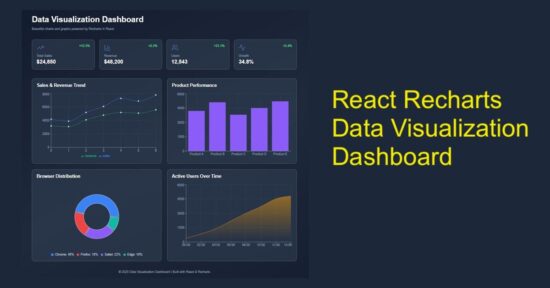
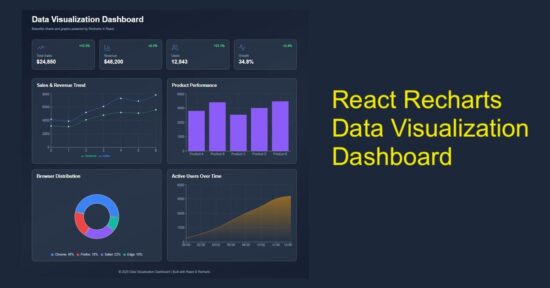
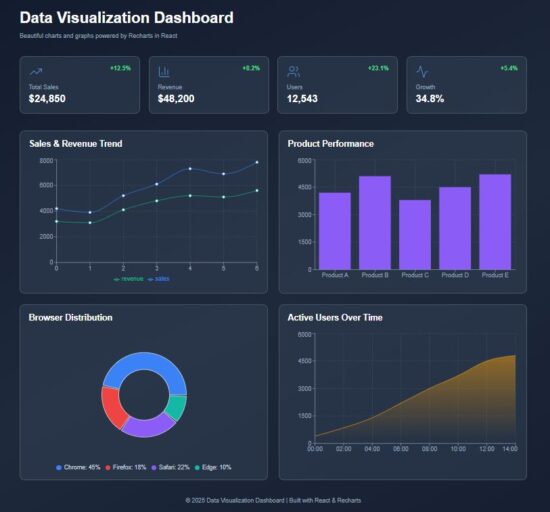
This React example includes dashboard visualization to display the following chart view.

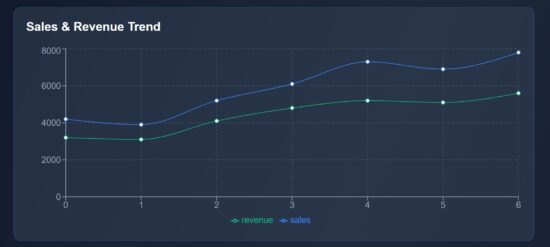
  1. Sales & revenue trend in the form of line chart.
  2. Product-wise performance using column chart.
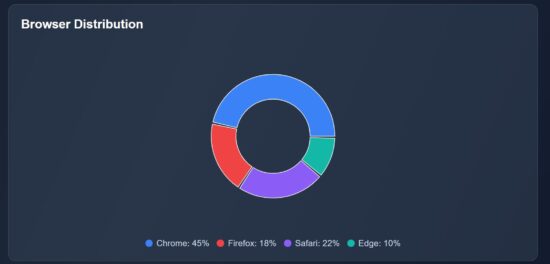
  3. Browser distribution in pie chart.
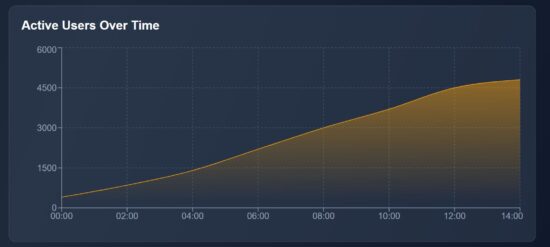
  4. Area chart to visualize users’ active time.

It uses Recharts library to show the raw data in a graph or chart form, as shown below.

React Charts Graphs Recharts Data Visualization

Main React component containing chart components

The DataVisualization component manages React states and useEffect. It manages the separate state variables for each type of charts.

The React useEffect fetches the JSON data and set them to bind for the charts.

The chart UI are created as separate components and used in the dashboard wrapper.

src/components/DataVisualization.jsx

import { useState, useEffect } from "react";
import Header from "../components/Header";
import StatsCards from "../components/StatsCards";
import LineChartBox from "../components/LineChartBox";
import BarChartBox from "../components/BarChartBox";
import PieChartBox from "../components/PieChartBox";
import AreaChartBox from "../components/AreaChartBox";
import Footer from "../components/Footer"; const DataVisualization = () => { const [lineData, setLineData] = useState([]); const [barData, setBarData] = useState([]); const [pieData, setPieData] = useState([]); const [areaData, setAreaData] = useState([]); useEffect(() => { fetch("/data/dashboard.json") .then((res) => res.json()) .then((data) => { setLineData(data.lineData); setBarData(data.barData); setPieData(data.pieData); setAreaData(data.areaData); }) .catch((err) => console.error("Error loading data:", err)); }, []); return ( <div className="dashboard-wrapper"> <div className="dashboard-container"> <Header /> <StatsCards /> <div className="charts-grid"> <LineChartBox data={lineData} /> <BarChartBox data={barData} /> <PieChartBox data={pieData} /> <AreaChartBox data={areaData} /> </div> <Footer /> </div> </div> );
};
export default DataVisualization;

Chart visualization header with trending data cards

In this code, the chart components are created for rendering in a dashboard. Added to the chart representation, the dashboard shows cards to display trending data.

You can replace it with your applications progressive data in this cards. For demonstration purpose, they are all static data from the client-side. It’s a matter of minute to plug your dynamic data from the database.

react chart graph visualization header

src/components/Header.jsx

const Header = () => ( <header className="dashboard-header"> <h1>Data Visualization Dashboard</h1> <p>Beautiful charts and graphs powered by Recharts in React</p> </header>
);
export default Header;

react chart graph statscards

src/components/StatsCards.jsx

import { TrendingUp, BarChart3, Users, Activity } from "lucide-react";
const StatsCards = () => { const stats = [ { icon: <TrendingUp strokeWidth={1} />, label: "Total Sales", value: "$24,850", change: "+12.5%" }, { icon: <BarChart3 strokeWidth={1} />, label: "Revenue", value: "$48,200", change: "+8.2%" }, { icon: <Users strokeWidth={1} />, label: "Users", value: "12,543", change: "+23.1%" }, { icon: <Activity strokeWidth={1} />, label: "Growth", value: "34.8%", change: "+5.4%" }, ]; return ( <div className="stats-grid"> {stats.map((stat, index) => ( <div key={index} className="stat-card"> <div className="stat-top"> <span className="stat-icon">{stat.icon}</span> <span className="stat-change">{stat.change}</span> </div> <p className="stat-label">{stat.label}</p> <p className="stat-value">{stat.value}</p> </div> ))} </div> );
};
export default StatsCards;

Line chart to show the sales revenue graph

This script imports the Recharts component required for rendering a line chart. The following components are mostly required for all the charts.

  • XAxis, YAxis
  • Tooltip and Legend
  • CartisanGrid
  • ResponsiveContainer

The chart is rendered in a ResponsiveContainer block which support chart scaling based on the viewport size. The Tooltip and CartisanGrid will be shown on hovering the chart. The X,Y axis and chart legend are very usual part of the chart view.

The LineChart and Line components are exclusive to this type of chart. It accepts Recharts attributes to set the stroke width and color of the line graph.

react data visualization line chart

src/components/LineChartBox.jsx

import { LineChart, Line, XAxis, YAxis, Tooltip, CartesianGrid, Legend, ResponsiveContainer } from "recharts";
const LineChartBox = ({ data }) => ( <div className="chart-card"> <h2>Sales & Revenue Trend</h2> <ResponsiveContainer width="100%" height={300}> <LineChart data={data}> <CartesianGrid strokeDasharray="3 3" stroke="#475569" /> <XAxis stroke="#94a3b8" /> <YAxis stroke="#94a3b8" /> <Tooltip /> <Legend /> <Line type="monotone" dataKey="sales" stroke="#3b82f6" strokeWidth={1} /> <Line type="monotone" dataKey="revenue" stroke="#10b981" strokeWidth={1} /> </LineChart> </ResponsiveContainer> </div>
);
export default LineChartBox;

Bar chart fir showing performance graph

The BarChart and Bar component of the Recharts library are used in this script. The BarChart accepts chart data and Bar element requires the color specification to fill the column bar.

src/components/BarChartBox.jsx

import { BarChart, Bar, XAxis, YAxis, Tooltip, CartesianGrid, ResponsiveContainer } from "recharts";
const BarChartBox = ({ data }) => ( <div className="chart-card"> <h2>Product Performance</h2> <ResponsiveContainer width="100%" height={300}> <BarChart data={data}> <CartesianGrid strokeDasharray="3 3" stroke="#475569" /> <XAxis dataKey="category" stroke="#94a3b8" /> <YAxis stroke="#94a3b8" /> <Tooltip /> <Bar dataKey="value" fill="#8b5cf6" /> </BarChart> </ResponsiveContainer> </div>
);
export default BarChartBox;

Pie chart – Recharts – showing browser distribution

This Recharts component accepts the inner-radius, outer-radius, cy, cx properties to draw the pie chart.

This chart type will have a Pie component which is to draw the pie wedges in the wrapper. The Cell is to draw each pie slices.

It receives the data and datakey in the <Pie /> component of this Recharts library.

react data visualization pie chart

src/components/PieChartBox.jsx

import { PieChart, Pie, Tooltip, ResponsiveContainer, Cell } from "recharts";
const PieChartBox = ({ data }) => ( <div className="chart-card"> <h2>Browser Distribution</h2> <ResponsiveContainer width="100%" height={300}> <PieChart> <Pie data={data} dataKey="value" innerRadius={60} outerRadius={100} paddingAngle={2} cx="50%" cy="50%" > {data.map((entry, i) => ( <Cell key={i} fill={entry.color} /> ))} </Pie> <Tooltip /> </PieChart> </ResponsiveContainer> <div className="pie-legend"> {data.map((item, i) => ( <div key={i} className="legend-item"> <span className="legend-color" style={{ background: item.color }} /> <span>{item.name}: {item.value}%</span> </div> ))} </div> </div>
);
export default PieChartBox;

Area chart using the Recharts library

In this graph, it shows the active users count by time. It represents how many users are actively using your app at a particular point of time. It will help to monitor the spikes and drop in the traffic, product or services usages and more.

The AreaChart is the wrapper that contains the Area element which is to show the shaded part of the chart as shown below.

The JSON data contains the time and user count for each level of the graph. The area is highlighted within a LinearGadient definition.

react data visualization area chart

src/components/AreaChartBox.jsx

import { AreaChart, Area, XAxis, YAxis, Tooltip, CartesianGrid, ResponsiveContainer } from "recharts";
const AreaChartBox = ({ data }) => ( <div className="chart-card"> <h2>Active Users Over Time</h2> <ResponsiveContainer width="100%" height={300}> <AreaChart data={data}> <defs> <linearGradient id="colorUsers" x1="0" y1="0" x2="0" y2="1"> <stop offset="5%" stopColor="#f59e0b" stopOpacity={0.8} /> <stop offset="95%" stopColor="#f59e0b" stopOpacity={0} /> </linearGradient> </defs> <CartesianGrid strokeDasharray="3 3" stroke="#475569" /> <XAxis dataKey="time" stroke="#94a3b8" /> <YAxis stroke="#94a3b8" /> <Tooltip /> <Area type="monotone" dataKey="users" stroke="#f59e0b" fill="url(#colorUsers)" /> </AreaChart> </ResponsiveContainer> </div>
);
export default AreaChartBox;

react chart graph data visualization

Conclusion

The React charts provide graphical view to understand your trending data. The line chart plots the performance range over time, the pie chart slices down browser distribution at a quick view, and the area chart visualizes the user activity patterns. By using Recharts responsive wrapper, each graph fit for different screen size. Overall, these charts transform raw numbers into visual stories to help efficient decision making.

References:
  1. Recharts library documentation
  2. Best chart libraries for React

Download

Vincy
Written by Vincy, a web developer with 15+ years of experience and a Masters degree in Computer Science. She specializes in building modern, lightweight websites using PHP, JavaScript, React, and related technologies. Phppot helps you in mastering web development through over a decade of publishing quality tutorials.

↑ Back to Top

Posted on Leave a comment

Upload and Display Image in PHP

by Vincy. Last modified on July 5th, 2023.

PHP upload is a single-line, built-in function invocation. Any user inputs, especially files, can not be processed without proper filtering. Why? Because people may upload harmful files to the server.

After file upload, the status has to be shown in the UI as an acknowledgment. Otherwise, showing the uploaded image’s preview is the best way of acknowledging the end user.

View Demo
Earlier, we saw how to show the preview of images extracted from a remote URL.

This article will provide a short and easy example in PHP to upload and display images.

upload and display image php

Steps to upload and display the image preview on the browser

  1. Show an image upload option in an HTML form.
  2. Read file data from the form and set the upload target.
  3. Validate the file type size before uploading to the server.
  4. Call the PHP upload function to save the file to the target.
  5. Display the uploaded image on the browser

1. Show an image upload option in an HTML form

This code is to show an HTML form with a file input to the user. This form is with enctype="multipart/form-data" attribute. This attribute is for uploading the file binary to be accessible on the PHP side.

<form action="" method="post" enctype="multipart/form-data"> <div class="row"> <input type="file" name="image" required> <input type="submit" name="submit" value="Upload"> </div>
</form>

Read file data from the form and set the upload target

This section shows a primary PHP condition to check if the form is posted and the file binary is not empty.

Once these conditions return true, further steps will be taken for execution.

Once the image is posted, it sets the target directory path to upload. The variable $uploadOK is a custom flag to allow the PHP file upload.

If the validation returns false, this $uploadOK variable will be turned to 0 and stop uploading.

<?php
if (isset($_POST["submit"])) { // Check image using getimagesize function and get size // if a valid number is got then uploaded file is an image if (isset($_FILES["image"])) { // directory name to store the uploaded image files // this should have sufficient read/write/execute permissions // if not already exists, please create it in the root of the // project folder $targetDir = "uploads/"; $targetFile = $targetDir . basename($_FILES["image"]["name"]); $uploadOk = 1; $imageFileType = strtolower(pathinfo($targetFile, PATHINFO_EXTENSION)); // Validation here }
}
?>

Validate the file type size before uploading to the server

This example applies three types of validation criteria on the server side.

  1. Check if the uploaded file is an image.
  2. Check if the image has the accepted size limit (0.5 MB).
  3. Check if the image has the allowed extension (jpeg and png).
<?php
// Check image using getimagesize function and get size // if a valid number is got then uploaded file is an image if (isset($_FILES["image"])) { // directory name to store the uploaded image files // this should have sufficient read/write/execute permissions // if not already exists, please create it in the root of the // project folder $targetDir = "uploads/"; $targetFile = $targetDir . basename($_FILES["image"]["name"]); $uploadOk = 1; $imageFileType = strtolower(pathinfo($targetFile, PATHINFO_EXTENSION)); $check = getimagesize($_FILES["image"]["tmp_name"]); if ($check !== false) { echo "File is an image - " . $check["mime"] . "."; $uploadOk = 1; } else { echo "File is not an image."; $uploadOk = 0; } } // Check if the file already exists in the same path if (file_exists($targetFile)) { echo "Sorry, file already exists."; $uploadOk = 0; } // Check file size and throw error if it is greater than // the predefined value, here it is 500000 if ($_FILES["image"]["size"] > 500000) { echo "Sorry, your file is too large."; $uploadOk = 0; } // Check for uploaded file formats and allow only // jpg, png, jpeg and gif // If you want to allow more formats, declare it here if ( $imageFileType != "jpg" && $imageFileType != "png" && $imageFileType != "jpeg" && $imageFileType != "gif" ) { echo "Sorry, only JPG, JPEG, PNG & GIF files are allowed."; $uploadOk = 0; }
?>

4. Call the PHP upload function to save the file to the target

Once the validation is completed, then the PHP move_uploaded_file() the function is called.

It copies the file from the temporary path to the target direct set in step 1.

<?php
// Check if $uploadOk is set to 0 by an error
if ($uploadOk == 0) { echo "Sorry, your file was not uploaded.";
} else { if (move_uploaded_file($_FILES["image"]["tmp_name"], $targetFile)) { echo "The file " . htmlspecialchars(basename($_FILES["image"]["name"])) . " has been uploaded."; } else { echo "Sorry, there was an error uploading your file."; }
}
?>

5. Display the uploaded image on the browser.

This section shows the image preview by setting the source path.

Before setting the preview source, this code ensures the upload status is ‘true.’

<h1>Display uploaded Image:</h1>
<?php if (isset($_FILES["image"]) && $uploadOk == 1) : ?> <img src="<?php echo $targetFile; ?>" alt="Uploaded Image">
<?php endif; ?>

Create a directory called “uploads” in the root directory of the downloaded example project. Uploaded images will be stored in this folder.

Note: The “uploads” directory should have sufficient file permissions.
View Demo Download

↑ Back to Top

Posted on Leave a comment

PHP Upload Image to Database with MySql

by Vincy. Last modified on July 2nd, 2023.

Do you want to upload an image to the database? Most application services move the uploaded files to a directory and save their path to the database.

Earlier, we saw code for storing uploaded images to the database using MySQL BLOB fields. BLOB(Binary Large Data Object) is one of the MySql data types. It can have the file binary data. MySQL supports four types of BLOB datatype as follows.
View demo

  1. TINYBLOB
  2. BLOB
  3. MEDIUMBLOB
  4. LONGBLOB

For this example, we created one of the above BLOB fields in a MySQL database to see how to upload an image. Added to that, this code will fetch and BLOB data from the database and display the image to the browser.

Database script

Before running this example, create the required database structure on your server.

CREATE TABLE images ( id INT(11) AUTO_INCREMENT PRIMARY KEY, image LONGBLOB NOT NULL );

php upload image to database output

HTML form with an image upload option

This is a usual file upload form with a file input. This field restricts the file type to choose only the images using the accept attribute.

On submitting this form, the upload.php receives the posted file binary data on the server side.

<!DOCTYPE html>
<html> <head> <title>PHP - Upload image to database - Example</title> <link href="style.css" rel="stylesheet" type="text/css" /> <link href="form.css" rel="stylesheet" type="text/css" />
</head> <body> <div class="phppot-container"> <h1>Upload image to database:</h1> <form action="upload.php" method="post" enctype="multipart/form-data"> <div class="row"> <input type="file" name="image" accept="image/*"> <input type="submit" value="Upload"> </div> </form> <h2>Uploaded Image (Displayed from the database)</h2> </div>
</body> </html>

Insert an image into the database using PHP and MySql

This PHP script gets the chosen file data with the $_FILES array. This array contains the base name, temporary source path, type, and more details.

With these details, it performs the file upload to the database. The steps are as follows,

  1. Validate file array is not empty.
  2. Retrieve the image file content using file_get_contents($_FILES[“image”][“tmp_name”]).
  3. Prepare the insert and bind the image binary data to the query parameters.
  4. Execute insert and get the database record id.
<?php
// MySQL database connection settings
$servername = "localhost";
$username = "root";
$password = "admin123";
$dbname = "phppot_image_upload"; // Make connection
$conn = new mysqli($servername, $username, $password, $dbname); // Check connection and throw error if not available
if ($conn->connect_error) { die("Connection failed: " . $conn->connect_error);
} // Check if an image file was uploaded
if (isset($_FILES["image"]) && $_FILES["image"]["error"] == 0) { $image = $_FILES['image']['tmp_name']; $imgContent = file_get_contents($image); // Insert image data into database as BLOB $sql = "INSERT INTO images(image) VALUES(?)"; $statement = $conn->prepare($sql); $statement->bind_param('s', $imgContent); $current_id = $statement->execute() or die("<b>Error:</b> Problem on Image Insert<br/>" . mysqli_connect_error()); if ($current_id) { echo "Image uploaded successfully."; } else { echo "Image upload failed, please try again."; }
} else { echo "Please select an image file to upload.";
} // Close the database connection
$conn->close();

Fetch image BLOB from the database and display to UI

This PHP code prepares a SELECT query to fetch the image BLOB. Using the image binary from the BLOB, it creates the data URL. It applies PHP base64 encoding on the image binary content.

This data URL is set as a source of an HTML image element below. This script shows the recently inserted image on the screen. We can also show an image gallery of all the BLOB images from the database.

<?php // Retrieve the uploaded image from the database $servername = "localhost"; $username = "root"; $password = ""; $dbname = "phppot_image_upload"; $conn = new mysqli($servername, $username, $password, $dbname); if ($conn->connect_error) { die("Connection failed: " . $conn->connect_error); } $result = $conn->query("SELECT image FROM images ORDER BY id DESC LIMIT 1"); if ($result && $result->num_rows > 0) { $row = $result->fetch_assoc(); $imageData = $row['image']; echo '<img src="data:image/jpeg;base64,' . base64_encode($imageData) . '" alt="Uploaded Image" style="max-width: 500px;">'; } else { echo 'No image uploaded yet.'; } $conn->close(); ?>

View demo Download

↑ Back to Top

Posted on Leave a comment

Gauge Chart JS – Speedometer Example

A gauge chart is a scale to measure performance amid the target. Yeah! My attempt at defining ‘Gauge.’ This article uses the ChartJS JavaScript library to create a gauge chat.

The below example creates a speedometer in the form of a gauge change. It achieves this with type=doughnut. The other options, cutout, rotation, and circumference, make the expected gauge chart view.
View Demo

<!DOCTYPE html>
<html> <head> <title>Gauge Chart Example using Chart.js</title> <script src="https://cdn.jsdelivr.net/npm/chart.js"></script>
</head> <body> <canvas id="gaugeChart"></canvas> <script> // data for the gauge chart // you can supply your own values here // max is the Gauge's maximum value var data = { value: 200, max: 300, label: "Progress" }; // Chart.js chart's configuration // We are using a Doughnut type chart to // get a Gauge format chart // This is approach is fine and actually flexible // to get beautiful Gauge charts out of it var config = { type: 'doughnut', data: { labels: [data.label], datasets: [{ data: [data.value, data.max - data.value], backgroundColor: ['rgba(54, 162, 235, 0.8)', 'rgba(0, 0, 0, 0.1)'], borderWidth: 0 }] }, options: { responsive: true, maintainAspectRatio: false, cutoutPercentage: 85, rotation: -90, circumference: 180, tooltips: { enabled: false }, legend: { display: false }, animation: { animateRotate: true, animateScale: false }, title: { display: true, text: data.label, fontSize: 16 } } }; // Create the chart var chartCtx = document.getElementById('gaugeChart').getContext('2d'); var gaugeChart = new Chart(chartCtx, config); </script>
</body> </html>

The above quick example script follows the below steps to render a gauge chart with the data and the options.

Many of the steps are similar to that of creating any other chart using this library. We have seen many examples in the ChartJS library. You can start with the ChartJS bar chart example if you are new to this JavaScript library.

The data and options are the main factors that change the chart view. This section has short notes for more information about the data and the options array created in JavaScript.

This JavaScript example uses an array of static data to form a gauge chart. You can supply dynamic data from the database or any external source instead.

The data array has the chart label, target, and current value. The target value is the maximum limit of the gauge chart scale. The current value is an achieved point to be marked.

Using these values, this script prepares the gauge chart dataset.

The options array is a configuration that affects the chart’s appearance.

The ChartJS allows featured configurations to experience the best chart views. Some of those options exclusive to the gauge chart are listed below.

Posted on Leave a comment

JavaScript – How to Open URL in New Tab

by Vincy. Last modified on June 25th, 2023.

Web pages contain external links that open URLs in a new tab. For example, Wikipedia articles show links to open the reference sites in a new tab. This is absolutely for beginners.

There are three ways to open a URL in a new tab.

  1. HTML anchor tags with target=_blank  attribute.
  2. JavaScript window.open() to set hyperlink and target.
  3. JavaScript code to create HTML link element.

HTML anchor tags with target=_blank  attribute

This is an HTML basic that you are familiar with. I added the HTML with the required attributes since the upcoming JavaScript example works with this base.

<a href="https://www.phppot.com" target="_blank">Go to Phppot</a>

Scenarios of opening URL via JavaScript.

When we need to open a URL on an event basis, it has to be done via JavaScript at run time. For example,

  1. Show the PDF in a new tab after clicking generate PDF link. We have already seen how to generate PDFs using JavaScript.
  2. Show product page from the gallery via Javascript to keep track of the shopping history.

The below two sections have code to learn how to achieve opening URLs in a new tab using JavaScript.

javascript open in new tab

JavaScript window.open() to set hyperlink and target

This JavaScript one-line code sets the link to open the window.open method. The second parameter is to set the target to open the linked URL in a new tab.

window.open('https://www.phppot.com', '_blank').focus();

The above line makes opening a URL and focuses the newly opened tab.

JavaScript code to create HTML link element.

This method follows the below steps to open a URL in a new tab via JavaScript.

  • Create an anchor tag (<a>) by using the createElement() function.
  • Sets the href and the target properties with the reference of the link object instantiated in step 1.
  • Trigger the click event of the link element dynamically created via JS.
var url = "https://www.phppot.com";
var link = document.createElement("a");
link.href = url;
link.target = "_blank";
link.click();

Browsers support: Most modern browsers support the window.open() JavaScript method.

↑ Back to Top

Share this page

Posted on Leave a comment

File Upload using Dropzone with Progress Bar

by Vincy. Last modified on June 30th, 2023.

Most of the applications have the requirement to upload files to the server. In previous articles, we have seen a variety of file upload methods with valuable features.

For example, we learned how to upload files with or without AJAX, validate the uploaded files, and more features.

This tutorial will show how to code for file uploading with a progress bar by Dropzone.

View demo

If the file size is significant, it will take a few nanoseconds to complete. Showing a progress bar during the file upload is a user-friendly approach.

To the extreme, websites start showing the progressing percentage of the upload. It is the best representation of showing that the upload request is in progress.

dropzone progress bar

About Dropzone

The Dropzone is a JavaScript library popularly known for file uploading and related features. It has a vast market share compared to other such libraries.

It provides a massive list of features. Some of the attractive features are listed below.

  • It supports multi-file upload.
  • It represents progressing state and percentage.
  • It allows browser image resizing. It’s a valuable feature that supports inline editing of images.
  • Image previews in the form of thumbnails.
  • It supports configuring the uploaded file’s type and size limit.

How to integrate dropzone.js to upload with the progress bar

Integrating Dropzone into an application is simple. It is all about keeping these two points during the integration.

  1. Mapping the UI element with the Dropzone initiation.
  2. Handling the upload event callbacks effectively.

Mapping the UI element with the Dropzone initiation

The below code has the HTML view to show the Dropzone file upload to the UI. It includes the Dropzone JS and the CSS via a CDN URL.

<!DOCTYPE html>
<html> <head> <title>File Upload using Dropzone with Progress Bar</title> <link rel="stylesheet" type="text/css" href="https://cdnjs.cloudflare.com/ajax/libs/dropzone/5.9.2/dropzone.min.css"> <style> .progress { width: 300px; border: 1px solid #ddd; padding: 5px; } .progress-bar { width: 0%; height: 20px; background-color: #4CAF50; } </style> <link rel="stylesheet" type="text/css" href="style.css" /> <link rel="stylesheet" type="text/css" href="form.css" />
</head> <body> <div class="phppot-container tile-container text-center"> <h2>File Upload using Dropzone with Progress Bar</h2> <form action="upload.php" class="dropzone" id="myDropzone"></form> </div> <script src="https://cdnjs.cloudflare.com/ajax/libs/dropzone/5.9.2/min/dropzone.min.js"></script>
</body> </html>

The file upload form element is mapped to the DropzoneJS while initiating the library.

The form action targets the PHP endpoint to handle the file upload.

Dropzone.options.myDropzone = { //Set upload properties init: function () { // Handle upload event callback functions }; };

Handling the upload event callbacks

This section has the Dropzone library script to include in the view. This script sets the file properties and limits to the upload process. Some of the properties are,

  • maxFilesize – Maximum size allowed for the file to upload.
  • paramName – File input name to access like $_FILE[‘paramName here’].
  • maxFiles – File count allowed.
  • acceptedFiles – File types or extensions allowed.

The init property of this script allows handling the upload event. The event names are listed below.

  • uploadprogress – To track the percentage of uploads to update the progress bar.
  • success – When the file upload request is completed. This is as similar to a jQuery AJAX script‘s success/error callbacks.

Dropzone options have the upload form reference to listen to the file drop event. The callback function receives the upload status to update the UI.

The dropzone calls the endpoint action when dropping the file into the drop area.

The drop area will show thumbnails or a file preview with the progress bar.

Dropzone.options.myDropzone = { paramName: "file", // filename handle to upload maxFilesize: 2, // MB maxFiles: 1, // number of files allowed to upload acceptedFiles: ".png, .jpg, .jpeg, .gif", // file types allowed to upload init: function () { this.on("uploadprogress", function (file, progress) { var progressBar = file.previewElement.querySelector(".progress-bar"); progressBar.style.width = progress + "%"; progressBar.innerHTML = progress + "%"; }); this.on("success", function (file, response) { var progressBar = file.previewElement.querySelector(".progress-bar"); progressBar.classList.add("bg-success"); progressBar.innerHTML = "Uploaded"; }); this.on("error", function (file, errorMessage) { var progressBar = file.previewElement.querySelector(".progress-bar"); progressBar.classList.add("bg-danger"); progressBar.innerHTML = errorMessage; }); } };
PHP file upload script

This a typical PHP file upload script suite for any single file upload request. But, the dependent changes are,

  1. File handle name ($_FILES[‘File handle name’]).
  2. Target directory path for $uploadDir variable.
<?php if ($_SERVER['REQUEST_METHOD'] === 'POST' && isset($_FILES['file'])) { $file = $_FILES['file']; // file to be uploaded to this directory // should have sufficient file permissions $uploadDir = 'uploads/'; // unique file name generated for the uploaded file $fileName = uniqid() . '_' . $file['name']; // moving the uploaded file from temp directory to uploads directory if (move_uploaded_file($file['tmp_name'], $uploadDir . $fileName)) { echo 'File uploaded successfully.'; } else { echo 'Failed to upload file.'; }
}

How to hide the progress bar of uploaded files

By default, the Dropzone JS callback adds a dz-complete CSS class selector to the dropzone element. It will hide the progress bar from the preview after a successful upload.

This default behavior is by changing the progress bar opacity to 0. But the markup will be there in the source. Element hide and show can be done in various ways.

If you want to remove the progress bar element from the HTML preview, use the JavaScript remove() function. This script calls it for the progress bar element on the success callback.

Dropzone.options.myDropzone = { ... ... init: function () { ... ... this.on("success", function (file, response) { var progressBar = file.previewElement.querySelector(".progress-bar"); progressBar.remove(); }); ... ... }
};

View demo Download

↑ Back to Top

Posted on Leave a comment

AJAX File Upload with Progress Bar using JavaScript

by Vincy. Last modified on June 30th, 2023.

If you want to upload a file using AJAX and also need to show a progress bar during the upload, you have landed on the right page.

This article has an example code for JavaScript AJAX file upload with a progress bar.

An AJAX-based file upload is a repeatedly needed requirement for a web application.

It is for providing an inline editing feature with the uploaded file content. For example, the following tasks can be achieved using the AJAX file upload method.

  1. Photo or banner update on the profile page.
  2. Import CSV or Excel files to load content to the data tables.

View demo
ajax file upload with progress bar javascript

HTML upload form

This HTML shows the input to choose a file. This form has a button that maps its click event with an AJAX handler.

In a previous tutorial, we have seen a jQuery example for uploading form data with a chosen file binary.

But in this example, the HTML doesn’t have any form container. Instead, the form data is created by JavaScript before processing the AJAX.

This HTML has a container to show the progress bar. Once the progress is 100% complete, a success message is added to the UI without page refresh.

<div class="phppot-container tile-container text-center"> <h2>AJAX File Upload with Progress Bar using JavaScript</h2> <input type="file" id="fileUpload" /> <br> <br> <button onclick="uploadFile()">Upload</button> <div class="progress"> <div class="progress-bar" id="progressBar"></div> </div> <br> <div id="uploadStatus"></div>
</div>

AJAX file upload request with progress bar

This section is the core of this example code. This example’s HTML and PHP files are prevalent, as seen in other file upload examples.

The script below follows the steps to achieve the AJAX file upload.

  1. It reads the file binary chosen in the file input field.
  2. It instantiates JavaScript FormData and appends the file binary into it.
  3. It creates an XMLHttpRequest handle.
  4. This handle uses the ‘upload’ property to get XMLHttpRequestUpload object.
  5. This XMLHttpRequestUpload object tracks the upload progress in percentage.
  6. It creates event listeners to update the progressing percentage and the upload status.
  7. Then finally, it posts the file to the PHP endpoint like usual AJAX programming.
function uploadFile() { var fileInput = document.getElementById('fileUpload'); var file = fileInput.files[0]; if (file) { var formData = new FormData(); formData.append('file', file); var xhr = new XMLHttpRequest(); xhr.upload.addEventListener('progress', function (event) { if (event.lengthComputable) { var percent = Math.round((event.loaded / event.total) * 100); var progressBar = document.getElementById('progressBar'); progressBar.style.width = percent + '%'; progressBar.innerHTML = percent + '%'; } }); xhr.addEventListener('load', function (event) { var uploadStatus = document.getElementById('uploadStatus'); uploadStatus.innerHTML = event.target.responseText; }); xhr.open('POST', 'upload.php', true); xhr.send(formData); }
}

PHP endpoint to move the uploaded file into a directory

This PHP  has a standard code to store the uploaded file in a folder using the PHP move_uploaded_file(). The link has the code if you want to store the uploaded file and save the path to the database.

This endpoint creates a unique name for the filename before upload. It is a good programming practice, but the code will work without it, also.

It is for stopping file overwriting in case of uploading different files in the same name.

Note: Create a folder named “uploads” in the project root. Give sufficient write permissions.

<?php if ($_SERVER['REQUEST_METHOD'] === 'POST' && isset($_FILES['file'])) { $file = $_FILES['file']; // file will be uploaded to the following folder // you should give sufficient file permissions $uploadDir = 'uploads/'; // unique file name generated $fileName = uniqid() . '_' . $file['name']; // moving the uploaded file from temp location to our target location if (move_uploaded_file($file['tmp_name'], $uploadDir . $fileName)) { echo 'File uploaded successfully.'; } else { echo 'Failed to upload file.'; }
}

View demo Download

↑ Back to Top

Posted on Leave a comment

PHP QR Code Generator with chillerlan-php-qrcode Library

by Vincy. Last modified on June 15th, 2023.

This tutorial will create an example for generating a QR code using PHP. This example uses the Chillerlan QR code library. It is a PHP library with advanced features for creating QR codes, bar codes, and more.

There are two examples in this project. The first is a basic use-case scenario, and the second is an advanced example.

Both will help familiarize this library to send data for QR code rendering.

Quick Example

<?php
require_once '../vendor/autoload.php'; use chillerlan\QRCode\QRCode; // Core class for generating the QR code
$qrCode = new QRCode(); // data for which the QR code will be generated
$data = 'www.phppot.com'; // QR code image generation using render function
// it returns the an image resource.
$qrCodeImage = $qrCode->render($data); // Show the generated QR code image on screen
// following header is necessary to show image output
// in the browser
header('Content-Type: image/png');
imagepng($qrCodeImage);
imagedestroy($qrCodeImage);

The above code is a quick example of generating a Chillerlan QR code. You should use Composer to download the chillerlan dependency.

This example imports the library class and gives the data to generate the QR code.

The render() function passes the data to the library with which it will output the QR code image. This output can be returned to a browser or can be saved as a file.

In a previous article, we learned how to render the generated QR code to the browser.

chillerlan php qrcode

Download via composer

Run the following command in your terminal to install this Chillerlan PHP library.

composer require chillerlan/php-qrcode

qrcode project structure

Example 2 – How to configure size, EC level, scale

More configurations help to adjust the QR code quality without affecting readability.  The below parameters are used, which override the default configurations.

  • The version is to set the size of a QR code.
  • ECC level to set the possible values(L, M, Q, H). It is the damage tolerance percentage. We have seen it when coding with phpqrcode library.
  • Scale sets the size of a QR code pixel. The maximum size increases the QR code’s quality.

This library has the QROptions class to set the configurations explicitly. When initiating this class, the code below prepares an array of {version, eccLeverl …} options.

This QROptions instance generates the QRCode object to call the render() action handler. As in the above example, the render() uses the data and bundles it into the QR code binary.

<?php
require_once '../vendor/autoload.php'; use chillerlan\QRCode\QRCode;
use chillerlan\QRCode\QROptions; // data to embed in the QR code image
$data = 'www.phppot.com'; // configuration options for QR code generation
// eccLevel - Error correction level (L, M, Q, H)
// scale - QR code pixe size
// imageBase64 - output as image resrouce or not
$options = new QROptions([ 'version' => 5, 'eccLevel' => QRCode::ECC_H, 'scale' => 5, 'imageBase64' => true, 'imageTransparent' => false, 'foregroundColor' => '#000000', 'backgroundColor' => '#ffffff'
]); // Instantiating the code QR code class
$qrCode = new QRCode($options); // generating the QR code image happens here
$qrCodeImage = $qrCode->render($data); header('Content-Type: image/png');
imagepng($qrCodeImage);
imagedestroy($qrCodeImage);

Chillerlan PHP library

This is one of the popular QR Code generators in PHP. It has clean and easily understandable code with proper modularity.

Some of its features are listed below. This feature list represents the capability of being a component of a PHP application.

Features

  • Creates QR Codes with an improved Model, Version, ECC level, and more configuration
  • It supports encoding numeric, alphanumeric, 8-bit binary, and more.
  • It supports QR code output in GD, ImageMagick, SVG markup, and more formats.
  • It provides QR code readers using GD and ImageMagick libraries.

More about QR code

Hereafter we will see more about the QR code and its evolution,  advantages, and usage scenarios.

The QR code, or the quick response code, is a two-dimensional (2D) bar code. The linked article has the code to generate a barcode using PHP.

The QR code is a Japanese invention for the automotive industry. Later it spreads to more domains. Some of the commonly used places are,

  • Marketing
  • Linking to service providers
  • Information sharing
  • Online payments.

It provides easy access to online information through digital scanners. The QR code contains encoded data that can be decoded with digital scanning. It shares the information, links the service provider or prompts for the payment initiation after scanning.

Example usages of QR code generation and scanning

  • It shows payee details to ensure and allows one to enter the amount to make a mobile payment.
  • It facilitates storing location and contact details. It is for marking locations in the Google map while scanning.
  • When reading the QR code, the application will download v-cards using the contact details stored.
  • The app developing company shows QR codes in the app store to download mobile apps.

Download

↑ Back to Top

Posted on Leave a comment

Web Scraping with PHP – Tutorial to Scrape Web Pages

by Vincy. Last modified on July 21st, 2023.

Web scraping is a mechanism to crawl web pages using software tools or utilities. It reads the content of the website pages over a network stream.

This technology is also known as web crawling or data extraction. In a previous tutorial, we learned how to extract pages by its URL.
View Demo

There are more PHP libraries to support this feature. In this tutorial, we will see one of the popular web-scraping components named DomCrawler.

This component is underneath the PHP Symfony framework. This article has the code for integrating and using this component to crawl web pages.

web scraping php

We can also create custom utilities to scrape the content from the remote pages. PHP allows built-in cURL functions to process the network request-response cycle.

About DomCrawler

The DOMCrawler component of the Symfony library is for parsing the HTML and XML content.

It constructs the crawl handle to reach any node of an HTML tree structure. It accepts queries to filter specific nodes from the input HTML or XML.

It provides many crawling utilities and features.

  1. Node filtering by XPath queries.
  2. Node traversing by specifying the HTML selector by its position.
  3. Node name and value reading.
  4. HTML or XML insertion into the specified container tag.

Steps to create a web scraping tool in PHP

  1. Install and instantiate an HTTP client library.
  2. Install and instantiate the crawler library to parse the response.
  3. Prepare parameters and bundle them with the request to scrape the remote content.
  4. Crawl response data and read the content.

In this example, we used the HTTPClient library for sending the request.

Web scraping PHP example

This example creates a client instance and sends requests to the target URL. Then, it receives the web content in a response object.

The PHP DOMCrawler parses the response data to filter out specific web content.

In this example, the crawler reads the site title by parsing the h1 text. Also, it parses the content from the site HTML filtered by the paragraph tag.

The below image shows the example project structure with the PHP script to scrape the web content.

web scraping php project structure

How to install the Symfony framework library

We are using the popular Symfony to scrape the web content. It can be installed via Composer.
Following are the commands to install the dependencies.

composer require symfony/http-client symfony/dom-crawler
composer require symfony/css-selector

After running these composer commands, a vendor folder can map the required dependencies with an autoload.php file. The below script imports the dependencies by this file.

index.php

<?php require 'vendor/autoload.php'; use Symfony\Component\HttpClient\HttpClient;
use Symfony\Component\DomCrawler\Crawler; $httpClient = HttpClient::create(); // Website to be scraped
$website = 'https://example.com'; // HTTP GET request and store the response
$httpResponse = $httpClient->request('GET', $website);
$websiteContent = $httpResponse->getContent(); $domCrawler = new Crawler($websiteContent); // Filter the H1 tag text
$h1Text = $domCrawler->filter('h1')->text();
$paragraphText = $domCrawler->filter('p')->each(function (Crawler $node) { return $node->text();
}); // Scraped result
echo "H1: " . $h1Text . "\n";
echo "Paragraphs:\n";
foreach ($paragraphText as $paragraph) { echo $paragraph . "\n";
}
?>

Ways to process the web scrapped data

What will people do with the web-scraped data? The example code created for this article prints the content to the browser. In an actual application, this data can be used for many purposes.

  1. It gives data to find popular trends with the scraped news site contents.
  2. It generates leads for showing charts or statistics.
  3. It helps to extract images and store them in the application’s backend.

If you want to see how to extract images from the pages, the linked article has a simple code.

Caution

Web scraping is theft if you scrape against a website’s usage policy.  You should read a website’s policy before scraping it. If the terms are unclear, you may get explicit permission from the website’s owner. Also, commercializing web-scraped content is a crime in most cases. Get permission before doing any such activities.

Before crawling a site’s content, it is essential to read the website terms. It is to ensure that the public can be subject to scraping.

People provide API access or feed to read the content. It is fair to do data extraction with proper API access provision. We have seen how to extract the title, description and video thumbnail using YouTube API.

For learning purposes, you may host a dummy website with lorem ipsum content and scrape it.
View Demo

↑ Back to Top

Posted on Leave a comment

jQuery AJAX AutoComplete with Create-New Feature

by Vincy. Last modified on July 25th, 2023.

Autocomplete textbox feature shows the suggestion list when the user enters a value. The suggestions are, in a way, related to the entered keyword.

For example, when typing in a Google search box, it displays auto-suggested keywords in a dropdown.

View Demo

This tutorial will show how to add this feature to a website. The code uses the JQuery library with PHP and MySQL to show dynamic auto-suggestions on entering the search key.

It allows typing the start letter of the country name to get suggested with the list of country names accordingly. See the linked code for enabling autocomplete using the jQuery-Ui library.

The specialty of this example is that it also allows adding a new option that is not present in the list of suggestions.

jquery ajax autocomplete create new

On key-up, a function executes the Jquery Autocomplete script. It reads suggestions based on entered value. This event handler is an AJAX function. It requests PHP for the list of related countries from the database.

When submitting a new country, the PHP will update the database. Then, this new option will come from the next time onwards.

Steps to have a autocomplete field with a create-new option

  1. Create HTML with a autocomplete field.
  2. Integrate jQuery library and initialize autocomplete for the field.
  3. Create an external data source (database here) for displaying suggestions.
  4. Fetch the autocomplete suggestions from the database using PHP.
  5. Insert a newly created option into the database.

1. Create HTML with a autocomplete field

This HTML is for creating an autocomplete search field in a form. It is a suggestion box that displays dynamic auto-suggestions via AJAX.

On the key-up event of this input field, the AJAX script sends the request to the PHP.  The PHP search performs database fetch about the entered keyword.

This HTML form also posts data not chosen from the suggestions. This feature allows adding new options to the source of the search suggestions.

index.php

<!DOCTYPE html>
<html>
<head>
<meta name="viewport" content="width=device-width, initial-scale=1">
<link rel="stylesheet" type="text/css" href="style.css" />
</head>
<body> <div class="outer-container"> <div class="row"> <form id="addCountryForm" autocomplete="off" method="post"> <div Class="input-row"> <label for="countryName">Country Name:</label><input type="text" id="countryName" name="countryName" required> <div id="countryList"></div> </div> <input type="submit" class="submit-btn" value="Save Country"> <div id="message"></div> </form> </div> </div>
</body>
</html>

2. Integrate the jQuery library and initialize autocomplete for the field

This code uses AJAX to show the dynamic autocomplete dropdown. This script sends the user input to the PHP endpoint.

In the success callback, the AJAX script captures the response and updates the auto-suggestions in the UI. This happens on the key-up event.

The suggested options are selectable. The input box will be filled with the chosen option on clicking each option.

Then, the form input is posted to the PHP via AJAX on the form-submit event.

This jQuery script shows the fade-in fade-out effect to display and hide the autocomplete dropdown in the UI.

index.php(ajax script)

$(document).ready(function() { $('#countryName').keyup(function() { var query = $(this).val(); if (query != '') { $.ajax({ url: 'searchCountry.php', type: 'POST', data: { query: query }, success: function(response) { $('#countryList').fadeIn(); $('#countryList').html(response); } }); } else { $('#countryList').fadeOut(); $('#countryList').html(''); } }); $(document).on('click', 'li', function() { $('#countryName').val($(this).text()); $('#countryList').fadeOut(); }); $('#addCountryForm').submit(function(event) { event.preventDefault(); var countryName = $('#countryName').val(); $.ajax({ type: 'POST', url: 'addCountry.php', data: { countryName: countryName }, success: function(response) { $('#countryList').hide(); $('#message').html(response).show(); } }); });
});

3. Create an external data source (database here) for displaying suggestions

Import this SQL to create to database structure to save the autocomplete suggestions. It has some initial data that helps to understand the autocomplete code during the execution.

database.sql

CREATE TABLE IF NOT EXISTS `democountries` (
`id` int NOT NULL AUTO_INCREMENT, `countryname` varchar(255) NOT NULL, PRIMARY KEY (id)
); INSERT INTO `democountries` (`countryname`) VALUES
('Afghanistan'),
('Albania'),
('Bahamas'),
('Bahrain'),
('Cambodia'),
('Cameroon'),
('Denmark'),
('Djibouti'),
('East Timor'),
('Ecuador'),
('Falkland Islands (Malvinas)'),
('Faroe Islands'),
('Gabon'),
('Gambia'),
('Haiti'),
('Heard and Mc Donald Islands'),
('Iceland'),
('India'),
('Jamaica'),
('Japan'),
('Kenya'),
('Kiribati'),
('Lao Peoples Democratic Republic'),
('Latvia'),
('Macau'),
('Macedonia');

4. Fetch the autocomplete suggestions from the database using PHP

The PHP code prepares the MySQL select query to fetch suggestions based on the search keyword.

It fetches records by searching for the country names that start with the keyword sent via AJAX.

This endpoint builds the HTML lists of autocomplete suggestions. This HTML response is used to update the UI to render relevant suggestions.

searchCountry.php

<?php
$conn = new mysqli('localhost', 'root', '', 'db_autocomplete'); if (isset($_POST['query'])) { $query = "{$_POST['query']}%"; $stmt = $conn->prepare("SELECT countryname FROM democountries WHERE countryname LIKE ? ORDER BY countryname ASC"); $stmt->bind_param("s", $query); $stmt->execute(); $result = $stmt->get_result(); if ($result->num_rows > 0) { while ($row = $result->fetch_assoc()) { echo '<li>' . $row['countryname'] . '</li>'; } }
}
?>

5. Insert a newly created option into the database

The expected value is not in the database if no result is found for the entered keyword. This code allows you to update the existing source with your new option.

The form submits action calls the below PHP script. It checks if the country name sent by the AJAX form submit is existed in the database. If not, it inserts that new country name.

After this insert, the newly added item can be seen in the suggestion box in the subsequent autocomplete search.

addCountry.php

<?php
$conn = new mysqli('localhost', 'root', '', 'db_autocomplete'); if (isset($_POST['countryName'])) { $countryName = "{$_POST['countryName']}"; $stmt = $conn->prepare("SELECT * FROM democountries WHERE countryname =?"); $stmt->bind_param("s", $countryName); $stmt->execute(); $result = $stmt->get_result(); if ($result->num_rows > 0) { echo '<p>Country Selected: ' . $countryName . '</p>'; } else { $stmt = $conn->prepare("INSERT INTO democountries (countryname) VALUES (?)"); $stmt->bind_param("s", $countryName); $stmt->execute(); $result = $stmt->insert_id; if (! empty($result)) { echo $countryName . ' saved to the country database.</br>'; } else { echo '<p>Error adding ' . $countryName . ' to the database: ' . mysqli_error($conn) . '</p>'; } }
}
?>

Different libraries providing Autocomplete feature

In this script, I give a custom autocomplete solution. But, many libraries are available to provide advanced feature-packed autocomplete util for your application.

  1. The jQueryUI provides autocomplete feature to enable an HTML field.
  2. One more library is the jQuery Autocompleter plugin that captures more data from the options to be chosen.

These libraries give additional features associated with the autocomplete solution.

  1. It allows to select single and multiple values from the autocomplete dropdown.
  2. It reads the option index or the key-value pair of the chosen item from the list.

Advantages of autocomplete

Most of us experience the advantages of the autocomplete feature. But, this list is to mention the pros of this must-needed UI feature intensely.

  1. It’s one of the top time-saving UI utilities that saves users the effort of typing the full option.
  2. It’s easy to search and get your results by shortlisting and narrowing. This is the same as how a search feature of a data table narrows down the result set.
  3. It helps to get relevant searches.

View Demo Download

↑ Back to Top