Simple Answer: To check your Python version, run python --version in your command line or shell.
This general method works across all major operating systems (Windows, Linux, and macOS).
Do you need to google important Python keywords again and again? Simply download this popular Python cheat sheet, print the high-resolution PDF, and pin it to your office wall:
In the following video, I’ll show you how to check your Python version for each operating system (Windows, macOS, Linux, Ubuntu) and programming framework (Jupyter). Or scroll down to read the step-by-step instructions on how to check your Python version.
The Python version output consists of three numbers major:minor:micro. For example, version 3.7.2 means that
the major version is 3,
the minor version is 7, and
the micro version is 2.
[ATTENTION] Different major versions are NOT fully compatible. Different minor versions are compatible.
For example, you can execute code written in Python 3.6.4 in Python 3.7.2 because they are the same major version — Python 3. But you cannot execute code written in Python 2.7.4 in Python 3.7.2 because they are different major versions.
Note that new minor versions can add changes to the language. For example, in Python 3.8 they introduced the reversed() function with dictionaries. You cannot use the reversed() function in older versions of Python. But the vast majority of the language is the same.
Check Python Version Windows 10 (Exact Steps)
Three steps to check the Python version on your Win 10 operating system:
Open the Powershell application: Press the Windows key to open the start screen. In the search box, type âpowershellâ. Press enter.
Execute command: type python --version and press enter.
The Python version appears in the next line below your command.
Check Python Version Windows 7 (Exact Steps)
Three steps to check the Python version on your Win 7 operating system.
Open the command prompt application: Press the Windows key to open the start screen. In the search box type âcommandâ. Click on the command prompt application.
Execute command: type python --version and press enter.
The Python version appears in the next line right below your command.
Check Python Version Mac (Exact Steps)
Four steps to check the Python version on your Mac operating system.
Press CMD + Space to open Spotlight.
Type âterminalâ and press enter.
Execute command: type python --version or python -V and press enter.
The Python version appears in the next line below your command.
Check Python Version Linux (Exact Steps)
Three steps to check the Python version on your Linux operating system.
Open the terminal application (for example, bash).
Execute command: type in python --version or python -V and press enter.
The Python version appears in the next line below your command.
Check Python Version Ubuntu (Exact Steps)
Four steps to check the Python version on your Ubuntu operating system.
Open Dash: click the upper left symbol.
Open terminal: type “terminal”, click on the terminal app.
Execute command: type python --version or python -V and press enter.
The Python version appears in the next line right below your command.
Check Python Version Jupyter (Exact Steps)
Three steps to check the Python version in a Jupyter notebook.
Open the Jupyter notebook: type jupyter notebook in your terminal/console.
Write the following Python code snippet in a code cell:
from platform import python_version
print(python_version())
3. Execute the script.
As an alternative, you can also use the following Python code snippet to check your Python version in a Jupyter notebook:
>>> import sys
>>> sys.version
Here is a screenshot on my computer:
How to Check Which Python Version Runs Your Script?
Sometimes, you want to check Python’s version in your Python program.
To achieve this, simply import the sys module and print the sys.version attribute to your Python shell:
>>> import sys
>>> print(sys.version)
3.7.2 (tags/v3.7.2:9a3ffc0492, Dec 23 2018, 23:09:28) [MSC v.1916 64 bit (AMD64)]
Import the built-in sys module and print sys.version for human-readable output.
What are the Different Python Versions?
Python has three main versions: version 1, version 2, and version 3. Version 4 is currently (2019) under development.
As there are some significant differences in syntax, you should always install the latest version in Python. Keep yourself updated on the official Python website here.
How to Upgrade to a Newer Version?
If you are not using a virtual environment, go to python.org/downloads to download and install whatever version you need. It’s the easiest way to upgrade Python.
But now youâll run into the following problem: how do I run a specific Python version? Check out this StackOverflow answer to learn the exact steps.
Or you can make your life easier by using virtual environments. These let you have multiple versions of Python installed on your system. Plus, you can switch between them instantaneously. One option is to use the built-in module venv. If you’re a Data Scientist, the industry standard is Anaconda.
If you’ve installed multiple installations of Python, running python --version may give you only the version of Python 2. To check which version of Python 3 is installed on your computer, simply run the command python3 --version instead of python --version.
How to Check Python Version – Detailed
Not only does Python have major, minor and micro versions. Each of those versions has further versions, namely the release level and serial.
Most of the time, you will only care about the major, minor and micro releases. Release level and serial are usually for the core Python Dev team to work on changes to the language.
The possible release levels are âalphaâ, âbetaâ, âcandidateâ, or âfinalâ. Alpha contains the first updates made to the language. Beta means the language can be tested with some users but still wonât work perfectly. This is where the phrase âbeta testersâ comes from. A âcandidateâ has only a few small bugs left to fix. Final is the last version and the one released to the general public. If you want to try out new features before anyone else, you can download these release levels. However, if you just want a version of Python that works, you should choose âfinalâ. When you download any version of Python, it will be a âfinalâ release unless stated otherwise.
Serial is for the smallest changes. The Python Dev team increments it as they make changes to the alpha, beta and candidate versions. All final versions have serial=0. They add future changes to the next major/minor/micro releases.
How to Make Sure My Script Runs a Specific Python Version?
Letâs say youâve just installed Python 3.8. Your script, my_file.py, uses a brand new feature: reversed() when iterating over a dictionary. For other people to run this script, they must also run Python 3.8. So you should put a check at the start to let other users know this.
We do this by adding an assert statement at the top of my_file.py
# my_file.py
import sys
assert sys.version_info >= (3, 8) my_dict = dict(a=1, b=2, c=3)
for key in reversed(my_dict): print(key)
The assert statement raises an AssertionError if the statement is False. If the statement is True, the script continues to run.
For example, if I am running Python 3.7 and execute my_file.py from the terminal, this happens
But if I am running Python 3.8, the assert statement does not raise an error, and it executes the rest of the script.
# Running Python 3.8
$ python my_file.py
c
b
a
Note: I have used the Anaconda virtual environment to install and quickly switch between multiple Python versions.
Where to Go From Here?
In summary, you can check the Python version by typing python --version in your operating system shell or command line.
Do you struggle with Python? And Python source code sometimes feels like a closed book to you?
If this applies to you, check out my free email course! The course guides you step-by-step to a deeper and deeper Python level of code understanding. Here is what my readers say:
Thank you for your newsletter. I find these newsletters highly informative.
Collen
As a fellow educator and fellow (former) Ph.D. student, I just wanted to let you know that I’m really impressed with your teaching materials. You’re doing a really good job!
A new preview update of Blazor WebAssembly is now available! Hereâs whatâs new in this release:
Integration with ASP.NET Core static web assets
Token-based authentication
Improved framework caching
Updated linker configuration
Build Progressive Web Apps
Get started
To get started with Blazor WebAssembly 3.2.0 Preview 2 install the latest .NET Core 3.1 SDK.
NOTE: Version 3.1.102 or later of the .NET Core SDK is required to use this Blazor WebAssembly release! Make sure you have the correct .NET Core SDK version by running dotnet --version from a command prompt.
Once you have the appropriate .NET Core SDK installed, run the following command to install the update Blazor WebAssembly template:
dotnet new -i Microsoft.AspNetCore.Components.WebAssembly.Templates::3.2.0-preview2.20160.5
Thatâs it! You can find additional docs and samples on https://blazor.net.
Upgrade an existing project
To upgrade an existing Blazor WebAssembly app from 3.2.0 Preview 1 to 3.2.0 Preview 2:
Update your package references and namespaces as described below:
Update all Microsoft.AspNetCore.Components.WebAssembly.* package references to version 3.2.0-preview2.20160.5.
In Program.cs add a call to builder.Services.AddBaseAddressHttpClient().
Rename BlazorLinkOnBuild in your project files to BlazorWebAssemblyEnableLinking.
If your Blazor WebAssembly app is hosted using ASP.NET Core, make the following updates in Startup.cs in your Server project:
Rename UseBlazorDebugging to UseWebAssemblyDebugging.
Remove the call to services.AddResponseCompression (response compression is now handled by the Blazor framework).
Replace the call to app.UseClientSideBlazorFiles<Client.Program>() with app.UseBlazorFrameworkFiles().
Replace the call to endpoints.MapFallbackToClientSideBlazor<Client.Program>("index.html") with endpoints.MapFallbackToFile("index.html").
Hopefully that wasnât too painful!
Integration with ASP.NET Core static web assets
Blazor WebAssembly apps now integrate seamlessly with how ASP.NET Core handles static web assets. Blazor WebAssembly apps can use the standard ASP.NET Core convention for consuming static web assets from referenced projects and packages: _content/{LIBRARY NAME}/{path}. This allows you to easily pick up static assets from referenced component libraries and JavaScript interop libraries just like you can in a Blazor Server app or any other ASP.NET Core web app.
Blazor WebAssembly apps are also now hosted in ASP.NET Core web apps using the same static web assets infrastructure. After all, a Blazor WebAssembly app is just a bunch of static files!
This integration simplifies the startup code for ASP.NET Core hosted Blazor WebAssembly apps and removes the need to have an assembly reference from the server project to the client project. Only the project reference is needed, so setting ReferenceOutputAssembly to false for the client project reference is now supported.
Building on the static web assets support in ASP.NET Core also enables new scenarios like hosting ASP.NET Core hosted Blazor WebAssembly apps in Docker containers. In Visual Studio you can add docker support to your Blazor WebAssembly app by right-clicking on the Server project and selecting Add > Docker support.
Token-based authentication
Blazor WebAssembly now has built-in support for token-based authentication.
Blazor WebAssembly apps are secured in the same manner as Single Page Applications (SPAs). There are several approaches for authenticating users to SPAs, but the most common and comprehensive approach is to use an implementation based on the OAuth 2.0 protocol, such as OpenID Connect (OIDC). OIDC allows client apps, like a Blazor WebAssembly app, to verify the user identity and obtain basic profile information using a trusted provider.
Using the Blazor WebAssembly project template you can now quickly create apps setup for authentication using:
ASP.NET Core Identity and IdentityServer
An existing OpenID Connect provider
Azure Active Directory
Authenticate using ASP.NET Core Identity and IdentityServer
Authentication for Blazor WebAssembly apps can be handled using ASP.NET Core Identity and IdentityServer. ASP.NET Core Identity handles authenticating users while IdentityServer handles the necessary protocol endpoints.
To create a Blazor WebAssembly app setup with authentication using ASP.NET Core Identity and IdentityServer run the following command:
dotnet new blazorwasm --hosted --auth Individual -o BlazorAppWithAuth1
If youâre using Visual Studio, you can create the project by selecting the âASP.NET Core hostedâ option and the selecting âChange Authenticationâ > âIndividual user accountsâ.
Run the app and try to access the Fetch Data page. Youâll get redirected to the login page.
Register a new user and log in. You can now access the Fetch Data page.
The Server project is configured to use the default ASP.NET Core Identity UI, as well as IdentityServer, and JWT authentication:
// Add the default ASP.NET Core Identity UI
services.AddDefaultIdentity<ApplicationUser>(options => options.SignIn.RequireConfirmedAccount = true) .AddEntityFrameworkStores<ApplicationDbContext>(); // Add IdentityServer with support for API authorization
services.AddIdentityServer() .AddApiAuthorization<ApplicationUser, ApplicationDbContext>(); // Add JWT authentication
services.AddAuthentication() .AddIdentityServerJwt();
The Client app is registered with IdentityServer in the appsettings.json file:
In the Client project, the services needed for API authorization are added in Program.cs:
builder.Services.AddApiAuthorization();
In FetchData.razor the IAccessTokenProvider service is used to acquire an access token from the server. The token may be cached or acquired without the need of user interaction. If acquiring the token succeeds, it is then applied to the request for weather forecast data using the standard HTTP Authorization header. If acquiring the token silently fails, the user is redirected to the login page:
protected override async Task OnInitializedAsync()
{ var httpClient = new HttpClient(); httpClient.BaseAddress = new Uri(Navigation.BaseUri); var tokenResult = await AuthenticationService.RequestAccessToken(); if (tokenResult.TryGetToken(out var token)) { httpClient.DefaultRequestHeaders.Add("Authorization", $"Bearer {token.Value}"); forecasts = await httpClient.GetJsonAsync<WeatherForecast[]>("WeatherForecast"); } else { Navigation.NavigateTo(tokenResult.RedirectUrl); }
}
Authenticate using an existing OpenID Connect provider
You can setup authentication for a standalone Blazor WebAssembly using any valid OIDC provider. Once youâve registered your app with the OIDC provider you configure the Blazor WebAssembly app to use that provider by calling AddOidcAuthentication in Program.cs:
You can also setup Blazor WebAssembly apps to use Azure Active Directory (Azure AD) or Azure Active Directory Business-to-Customer (Azure AD B2C) for authentication. When authenticating using Azure AD or Azure AD B2C authentication is handled using the new Microsoft.Authentication.WebAssembly.Msal library, which is based on the Microsoft Authentication Library (MSAL.js).
To learn how to setup authentication for Blazor WebAssembly app using Azure AD or Azure AD B2C see:
Additional authentication resources
This is just a sampling of the new authentication capabilities in Blazor WebAssembly. To learn more about how Blazor WebAssembly supports authentication see Secure ASP.NET Core Blazor WebAssembly.
Improved framework caching
If you look at the network trace of whatâs being download for a Blazor WebAssembly app after itâs initially loaded, you might think that Blazor WebAssembly has been put on some sort of extreme diet:
Whoa! Only 159kB? Whatâs going on here?
When a Blazor WebAssembly app is initially loaded, the runtime and framework files are now stored in the browser cache storage:
When the app loads, it first uses the contents of the blazor.boot.json to check if it already has all of the runtime and framework files it needs in the cache. If it does, then no additional network requests are necessary.
You can still see what the true size of the app is during development by checking the browser console:
Updated linker configuration
You may notice with this preview release that the download size of the app during development is now a bit larger, but build times are faster. This is because we no longer run the .NET IL linker during development to remove unused code. In previous Blazor previews we ran the linker on every build, which slowed down development. Now we only run the linker for release builds, which are typically done as part of publishing the app. When publishing the app with a release build (dotnet publish -c Release), the linker removes any unnecessary code and the download size is much more reasonable (~2MB for the default template).
If you prefer to still run the .NET IL linker on each build during development, you can turn it on by adding <BlazorWebAssemblyEnableLinking>true<BlazorWebAssemblyEnableLinking> to your project file.
Build Progressive Web Apps with Blazor
A Progressive Web App (PWA) is a web-based app that uses modern browser APIs and capabilities to behave like a native app. These capabilities can include:
Working offline and always loading instantly, independently of network speed
Being able to run in its own app window, not just a browser window
Being launched from the host operating system (OS) start menu, dock, or home screen
Receiving push notifications from a backend server, even while the user is not using the app
Automatically updating in the background
A user might first discover and use the app within their web browser like any other single-page app (SPA), then later progress to installing it in their OS and enabling push notifications.
Blazor WebAssembly is a true standards-based client-side web app platform, so it can use any browser API, including the APIs needed for PWA functionality.
Using the PWA template
When creating a new Blazor WebAssembly app, youâre offered the option to add PWA features. In Visual Studio, the option is given as a checkbox in the project creation dialog:
If youâre creating the project on the command line, you can use the --pwa flag. For example,
dotnet new blazorwasm --pwa -o MyNewProject
In both cases, youâre free to also use the âASP.NET Core hostedâ option if you wish, but donât have to do so. PWA features are independent of how the app is hosted.
Installation and app manifest
When visiting an app created using the PWA template option, users have the option to install the app into their OSâs start menu, dock, or home screen.
The way this option is presented depends on the userâs browser. For example, when using desktop Chromium-based browsers such as Edge or Chrome, an Add button appears within the address bar:
On iOS, visitors can install the PWA using Safariâs Share button and its Add to Homescreen option. On Chrome for Android, users should tap the Menu button in the upper-right corner, then choose Add to Home screen.
Once installed, the app appears in its own window, without any address bar.
To customize the windowâs title, color scheme, icon, or other details, see the file manifest.json in your projectâs wwwroot directory. The schema of this file is defined by web standards. For detailed documentation, see https://developer.mozilla.org/en-US/docs/Web/Manifest.
Offline support
By default, apps created using the PWA template option have support for running offline. A user must first visit the app while they are online, then the browser will automatically download and cache all the resources needed to operate offline.
Important: Offline support is only enabled for published apps. It is not enabled during development. This is because it would interfere with the usual development cycle of making changes and testing them.
Warning: If you intend to ship an offline-enabled PWA, there are several important warnings and caveats you need to understand. These are inherent to offline PWAs, and not specific to Blazor. Be sure to read and understand these caveats before making assumptions about how your offline-enabled app will work.
To see how offline support works, first publish your app, and host it on a server supporting HTTPS. When you visit the app, you should be able to open the browserâs dev tools and verify that a Service Worker is registered for your host:
Additionally, if you reload the page, then on the Network tab you should see that all resources needed to load your page are being retrieved from the Service Worker or Memory Cache:
This shows that the browser is not dependent on network access to load your app. To verify this, you can either shut down your web server, or instruct the browser to simulate offline mode:
Now, even without access to your web server, you should be able to reload the page and see that your app still loads and runs. Likewise, even if you simulate a very slow network connection, your page will still load almost immediately since itâs loaded independently of the network.
To learn more about building PWAs with Blazor, check out the documentation.
Known issues
There are a few known issues with this release that you may run into:
When building a Blazor WebAssembly app using an older .NET Core SDK you may see the following build error:
error MSB4018: The "ResolveBlazorRuntimeDependencies" task failed unexpectedly.
error MSB4018: System.IO.FileNotFoundException: Could not load file or assembly '\BlazorApp1\obj\Debug\netstandard2.1\BlazorApp1.dll'. The system cannot find the file specified.
error MSB4018: File name: '\BlazorApp1\obj\Debug\netstandard2.1\BlazorApp1.dll' error MSB4018: at System.Reflection.AssemblyName.nGetFileInformation(String s)
error MSB4018: at System.Reflection.AssemblyName.GetAssemblyName(String assemblyFile)
error MSB4018: at Microsoft.AspNetCore.Components.WebAssembly.Build.ResolveBlazorRuntimeDependencies.GetAssemblyName(String assemblyPath)
error MSB4018: at Microsoft.AspNetCore.Components.WebAssembly.Build.ResolveBlazorRuntimeDependencies.ResolveRuntimeDependenciesCore(String entryPoint, IEnumerable`1 applicationDependencies, IEnumerable`1 monoBclAssemblies)
error MSB4018: at Microsoft.AspNetCore.Components.WebAssembly.Build.ResolveBlazorRuntimeDependencies.Execute()
error MSB4018: at Microsoft.Build.BackEnd.TaskExecutionHost.Microsoft.Build.BackEnd.ITaskExecutionHost.Execute()
error MSB4018: at Microsoft.Build.BackEnd.TaskBuilder.ExecuteInstantiatedTask(ITaskExecutionHost taskExecutionHost, TaskLoggingContext taskLoggingContext, TaskHost taskHost, ItemBucket bucket, TaskExecutionMode howToExecuteTask)
To address this issue, upgrade to version 3.1.102 or later of the .NET Core 3.1 SDK.
You may see the following warning when building from the command-line:
CSC : warning CS8034: Unable to load Analyzer assembly C:\Users\user\.nuget\packages\microsoft.aspnetcore.components.analyzers\3.1.0\analyzers\dotnet\cs\Microsoft.AspNetCore.Components.Analyzers.dll : Assembly with same name is already loaded
This issue will be fixed in a future update to the .NET Core SDK. To workaround this issue, add the <DisableImplicitComponentsAnalyzers>true</DisableImplicitComponentsAnalyzers> property to the project file.
Feedback
We hope you enjoy the new features in this preview release of Blazor WebAssembly! Please let us know what you think by filing issues on GitHub.
Python is one of the most popular coding languages out there. Although it may not take long for you to learn the basics, it takes a lot of time and effort to become an expert.
The best way to get there? Practice, practice, practice!
In this article, we’ve put together 13 of the best Python newsletters out there, useful Python news and information you’ll receive to your inbox every single week or more often. We think they’re a great way to keep updated and stay serious with your continuous learning. We hope you find your next favorite Python newsletter on this list!
In my view (but I’m a bit biased), these are the three goto resources for optimal Python development
Why is this the number one on this list? Because it’s the best email academy in the area of computer science (with focus Python) that allows you to choose courses in various areas such as Python basics, data science, machine learning, Python freelancing, and many more. You decide what you want to learn in this email series (by clicking links in the email course). It’s by far the most thorough (and free!) email academy in the area of computer science and coding.
Import Python is a weekly Python newsletter that collects the best content out there to help you in your learning process. You’ll find articles, video tutorials, howtos, easy guides, and even tweets delivered straight to your inbox. We really like this Python newsletter because it gives you access to a good range of material that can help you get better at coding, no matter your learning style. So whether you learn best by watching a video or by reading some in-depth guide, you’re likely to find the material you need in the Import Python newsletter.
The Python Email Academy is a Python Newsletter that offers something a little different from any of the others on the list. By subscribing to it, you’ll be getting hand-made Python cheat sheets, developed by a leading Python coder. Simple, well-organized, and easy to follow, these cheat sheets are a great way to take your Python coding to the next level and get a bit of a workout along the way.
Real Python is a weekly programming newsletter that offers some exclusive content to subscribers. You can use this Python newsletter to learn new skills, refresh your Python knowledge, and get some tips on improving your coding. We also like that they provide career tips for programmers, helping you see where learning Python could eventually take you!
Python weekly, as you may be able to guess, is a weekly Python newsletter. What stands it out from all the other ones? This newsletter offers a really wide range of curated content that can help you stay up to date with the latest developments in the field. The writers select news and articles from all over the web and link to the very best of the best in their newsletter. Basically, it’s the stuff you’d find after hours of searching on the internet, but in a very simple, accessible format. Python Weekly also has job offers in its weekly newsletter, so watch out for that if you’re in search of a new programming job!
The Python freelancer webinar also includes an email series that teaches you how to learn to code in the most practical environment possible: as a Python freelancer. No-BS Python learning resource with a high focus on practical Python coding in the real world.
This Python newsletter is delivered every Friday and covers pretty much everything you can think of about Python. You’ll find out more about techniques, tips, and some guides that can help you get more confident with the coding language. We like how Pycoder’s weekly focus on simple-to-understand, up-to-date content, with a Python newsletter that’s really easy to unsubscribe from if you want to.
Dan’s Python newsletter is pretty similar to others on the list, with the exception that it’s delivered to your inbox a bit more often. While other newsletters come one day of the week, you’ll be receiving Dan’s Python newsletter every 3 to 4 days when you subscribe. Filled with super useful tips and tricks, it’s a great newsletter for those who are already familiar with Python but want to keep building on top of their existing knowledge.
This newsletter gives you a weekly batch of news articles, guides, and how-tos that can help you improve your Python skills. They do a lot of the same things as other newsletters on the list, but one thing is certain, they do it well! This is a very news-oriented newsletter, so it can be perfect for you if you want to learn more about what’s going on in the community. Not to mention, anyone can benefit from constantly updating their knowledge of this fast-moving coding language!
This Python newsletter is a great option if you want to keep on learning more about Python, but you’re no longer a beginner. Written by Aaron Maxwell, it’s a newsletter that keeps you up to date with the latest developments of Python. It also offers tips and tricks, tools, and techniques you can use to build applications with Python. If you’ve been familiar with this coding language for a while and you’re sick and tired of always seeing the same tips and tricks going around, this is the newsletter for you! And if you’re still a beginner, why not subscribe and get a glimpse into what the lives of advanced Python coders look like?
The PYnative newsletter is a weekly newsletter full of articles, tutorials, tips, tricks, and exercises to help you learn Python. Like others on this list, it’s entirely focused on Python language. But the main difference with this one is that it doesn’t take web content from other pages on the internet. Instead, it’s full of exclusive content created by the owner of the PYnative blog. One thing we really like about this newsletter is the number of interactive activities you’ll receive. For example, expect to get quizzed to test your knowledge of Python, exercises you can follow along, and even projects you could begin working on.
Just like on his blog, the PYnative is eager to interact with his audience. So if you need any clarifications or to make any suggestions, you can actually send a reply to the email newsletter. Pretty cool to think it’s a two-way street!
Bite Python is a weekly newsletter all about the Python language and surrounding community. This Python newsletter is put together and curated by Muhammad Yasoob from pythontips.com. In it, he shares the newest developments in the world of Python, tips, tutorials, articles, how-tos, and everything he finds on the web. When you subscribe to this Python newsletter, you’ll be receiving a newsletter every Sunday, which you can unsubscribe from at any time.
Solving puzzles is a proven method to learn and master any skill. Python is no exception: puzzle-based learning belongs to the most effective “active learning” strategies in existence. The Finxter newsletter contains many specialized courses that focus on Python puzzles and interactive modules (all free). All you have to do is to create an account at Finxter.com and participate in the regular Python puzzle challenges in your INBOX.
This concludes our top 13 of the best Python newsletters out there. We’ve selected them for the quality that they offer, and because each and every one of them has something a little different. These are all serious newsletters with valuable, trustworthy information. And because they’re all run by actual Python developers and coders, they’re not spammy, and you can unsubscribe from them easily.
The Best Python Podcasts
We also wanted to mention a couple of Python podcasts because we think they may be of interest as well. Think about it: a podcast is basically a newsletter you get in audio form! Here are some of our favorites you can find on popular apps like Spotify or Google Podcasts:
Talk Python To Me is a weekly Python newsletter in the form of a podcast. It covers a really wide range of Python-related topics, all in a format that’s easy to follow along. On this podcast, Michael Kennedy brings in Python experts as guests and talks with them about anything from Python news to techniques, tips and tricks, and career advice.
Test & Code is a great weekly podcast Python newsletter all about software developments. It’s host Brian Okken is a keen Python user who wants to answer some simple questions: How do I know this program will work? What makes a program work? We like this podcast a lot because it gets very deep into topics that are essential to using Python correctly. And in every episode, Brian Okken brings in a new guest who helps open up our perspective on what it means to be a Python developer. To anyone looking for advice, knowledge, or even inspiration, it’s a great Python newsletter in an easy-to-follow audio format.
Python Bytes have a great newsletter, and they also make a podcast! The Python Bytes podcast is hosted by Michael Kennedy of Talk Python To Me, and his friend Brian Okken. This one is more news-focused, bringing you the latest developments in the world of the Python coding language. It’s a great Python newsletter in the form of a podcast, perfect for those who want curated news but don’t want to read about them on a screen.
The teaching Python podcast offers a little something different and will be perfect for anyone who teaches Python to others. It’s run by two teachers who currently teach Python to middle schoolers. In their episodes, they share some exclusive tips on how to make Python accessible to all, how to explain Python concepts to students, and how to make Python understandable without dumbing it down.
These four podcasts and 13 newsletters are some of the best you can find. Of course, with the developments of Python and its popularization, we can expect to see many more coming soon! But for the time being, these are the ones you’ll need to stay up to date on everything Python.
Where to Go From Here?
In my view (but I’m a bit biased), these are the three goto resources for optimal Python development
So you have two or more lists and you want to glue them together. This is called list concatenation. How can you do that?
These are six ways of concatenating lists:
List concatenation operator +
List append() method
List extend() method
Asterisk operator *
Itertools.chain()
List comprehension
a = [1, 2, 3]
b = [4, 5, 6] # 1. List concatenation operator +
l_1 = a + b # 2. List append() method
l_2 = [] for el in a: l_2.append(el) for el in b: l_2.append(el) # 3. List extend() method
l_3 = []
l_3.extend(a)
l_3.extend(b) # 4. Asterisk operator *
l_4 = [*a, *b] # 5. Itertools.chain()
import itertools
l_5 = list(itertools.chain(a, b)) # 6. List comprehension
l_6 = [el for lst in (a, b) for el in lst]
If you’re busy, you may want to know the best answer immediately. Here it is:
To concatenate two lists l1, l2, use the l1.extend(l2) method which is the fastest and the most readable.
To concatenate more than two lists, use the unpacking (asterisk) operator [*l1, *l2, ..., *ln].
You’ll find all of those six ways to concatenate lists in practical code projects so it’s important that you know them very well. Let’s dive into each of them and discuss the pros and cons.
1. List Concatenation with + Operator
If you use the + operator on two integers, you’ll get the sum of those integers. But if you use the + operator on two lists, you’ll get a new list that is the concatenation of those lists.
The problem with the + operator for list concatenation is that it creates a new list for each list concatenation operation. This can be very inefficient if you use the + operator multiple times in a loop.
Performance:
How fast is the + operator really? Here’s a common scenario how people use it to add new elements to a list in a loop. This is very inefficient:
import time start = time.time() l = []
for i in range(100000): l = l + [i] stop = time.time() print("Elapsed time: " + str(stop - start))
Output:
Elapsed time: 14.438847541809082
The experiments were performed on my notebook with an Intel(R) Core(TM) i7-8565U 1.8GHz processor (with Turbo Boost up to 4.6 GHz) and 8 GB of RAM.
I measured the start and stop timestamps to calculate the total elapsed time for adding 100,000 elements to a list.
The result shows that it takes 14 seconds to perform this operation.
This seems slow (it is!). So let’s investigate some other methods to concatenate and their performance:
Here’s a similar example that shows how you can use the append() method to concatenate two lists l1 and l2 and store the result in the list l1.
l1 = [1, 2, 3]
l2 = [4, 5, 6]
for element in l2: l1.append(element)
print(l1)
Output:
[1, 2, 3, 4, 5, 6]
It seems a bit odd to concatenate two lists by iterating over each element in one list. You’ll learn about an alternative in the next section but let’s first check the performance!
Performance:
I performed a similar experiment as before.
import time start = time.time() l = []
for i in range(100000): l.append(i) stop = time.time() print("Elapsed time: " + str(stop - start))
Output:
Elapsed time: 0.006505012512207031
I measured the start and stop timestamps to calculate the total elapsed time for adding 100,000 elements to a list.
The result shows that it takes only 0.006 seconds to perform this operation. This is a more than 2,000X improvement compared to the 14 seconds when using the + operator for the same problem.
While this is readable and performant, let’s investigate some other methods to concatenate lists.
3. List Concatenation with extend()
You’ve studied the append() method in the previous paragraphs. A major problem with it is that if you want to concatenate two lists, you have to iterate over all elements of the lists and append them one by one. This is complicated and there surely must be a better way. Is there?
You bet there is!
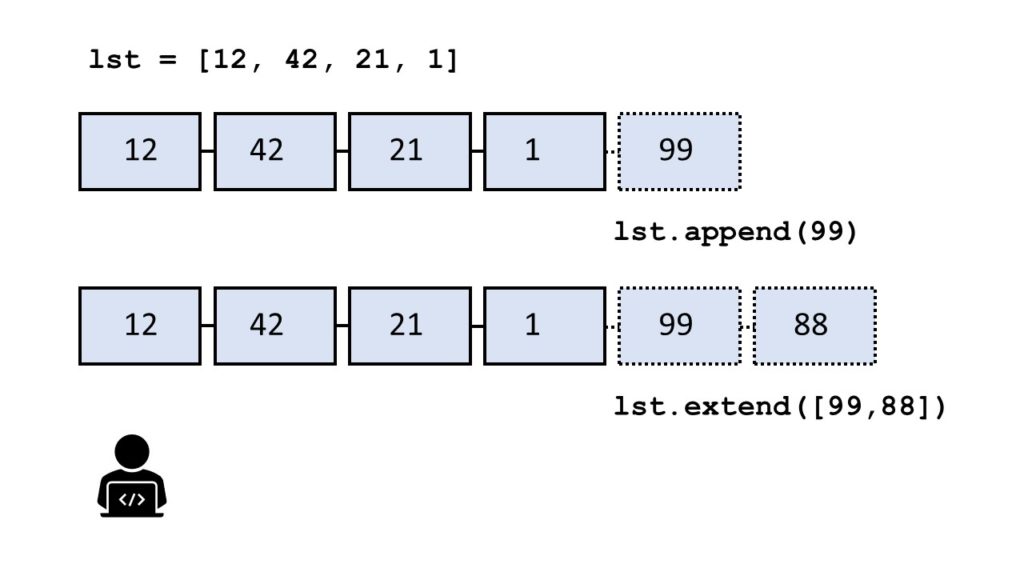
The method list.extend(iter) adds all elements in iter to the end of the list.
The difference between append() and extend() is that the former adds only one element and the latter adds a collection of elements to the list.
Here’s a similar example that shows how you can use the extend() method to concatenate two lists l1 and l2.
The code shows that the extend() method is more readable and concise than iteratively calling the append() method as done before.
But is it also fast? Let’s check the performance!
Performance:
I performed a similar experiment as before for the append() method.
import time start = time.time() l = []
l.extend(range(100000)) stop = time.time() print("Elapsed time: " + str(stop - start))
Output:
Elapsed time: 0.0
I measured the start and stop timestamps to calculate the total elapsed time for adding 100,000 elements to a list.
The result shows that it takes negligible time to run the code (0.0 seconds compared to 0.006 seconds for the append() operation above).
The extend() method is the most concise and fastest way to concatenate lists.
But there’s still more…
4. List Concatenation with Asterisk Operator *
There are many applications of the asterisk operator (read this blog article to learn about all of them). But one nice trick is to use it as an unpacking operator that “unpacks” the contents of a container data structure such as a list or a dictionary into another one.
Here’s a similar example that shows how you can use the asterisk operator to concatenate two lists l1 and l2.
The code shows that the asterisk operator is short, concise, and readable (well, for Python pros at least). And the nice thing is that you can also use it to concatenate more than two lists (example: l4 = [*l1, *l2, *l3]).
But how about its performance?
Performance:
You’ve seen before that extend() is very fast. How does the asterisk operator compare against the extend() method? Let’s find out!
I measured the start and stop timestamps to calculate the total elapsed time for concatenating two lists of 1,000,000 elements each.
The result shows that the extend method is 32% faster than the asterisk operator for the given experiment.
To merge two lists, use the extend() method which is more readable and faster compared to unpacking.
Okay, let’s get really nerdy—what about external libraries?
5. List Concatenation with itertools.chain()
Python’s itertools module provides many tools to manipulate iterables such as Python lists. Interestingly, they also have a way of concatenating two iterables. After converting the resulting iterable to a list, you can also reach the same result as before.
Here’s a similar example that shows how you can use the itertools.chain() method to concatenate two lists l1 and l2.
I measured the start and stop timestamps to calculate the total elapsed time for concatenating two lists of 1,000,000 elements each.
The result shows that the extend() method is 5.6 times faster than the itertools.chain() method for the given experiment.
Here’s my recommendation:
Never use itertools.chain() because it’s not only less readable, it’s also slower than the extend() method or even the built-in unpacking method for more than two lists.
So let’s go back to more Pythonic solutions: everybody loves list comprehension…
6. List Concatenation with List Comprehension
List comprehension is a compact way of creating lists. The simple formula is [ expression + context ].
Expression: What to do with each list element?
Context: What list elements to select? It consists of an arbitrary number of for and if statements.
The example [x for x in range(3)] creates the list [0, 1, 2].
Here’s a similar example that shows how you can use list comprehension to concatenate two lists l1 and l2.
l1 = [1, 2, 3]
l2 = [4, 5, 6]
l3 = [ x for lst in (l1, l2) for x in lst ]
print(l3)
Output:
[1, 2, 3, 4, 5, 6]
What a mess! You’d never write code like this in practice. And yet, tutorials like this one propose this exact same method.
The idea is to first iterate over all lists you want to concatenate in the first part of the context lst in (l1, l2) and then iterate over all elements in the respective list in the second part of the context for x in lst.
Do we get a speed performance out of it?
Performance:
You’ve seen before that extend() is very fast. How does the asterisk operator compare against the extend() method? Let’s find out!
import time l1 = list(range(4000000,5000000))
l2 = list(range(6000000,7000000)) start = time.time()
l1.extend(l2)
stop = time.time() print("Elapsed time extend(): " + str(stop - start))
# Elapsed time extend(): 0.015620946884155273 start = time.time()
l3 = [ x for lst in (l1, l2) for x in lst ]
stop = time.time() print("Elapsed time list comprehension: " + str(stop - start))
# Elapsed time list comprehension: 0.11590242385864258
I measured the start and stop timestamps to calculate the total elapsed time for concatenating two lists of 1,000,000 elements each.
The result shows that the extend() method is an order of magnitude faster than using list comprehension.
Summary
To concatenate two lists l1, l2, use the l1.extend(l2) method which is the fastest and the most readable.
To concatenate more than two lists, use the unpacking operator [*l1, *l2, ..., *ln].
Want to use your skills to create your dream life coding from home? Join my Python freelancer webinar and learn how to create your home-based coding business.
How can you add more elements to a given list? Use the append() method in Python. This tutorial shows you everything you need to know to help you master an essential method of the most fundamental container data type in the Python programming language.
Definition and Usage
The list.append(x) method—as the name suggests—appends element x to the end of the list.
Here’s a short example:
>>> l = []
>>> l.append(42)
>>> l
[42]
>>> l.append(21)
>>> l
[42, 21]
In the first line of the example, you create the list l. You then append the integer element 42 to the end of the list. The result is the list with one element [42]. Finally, you append the integer element 21 to the end of that list which results in the list with two elements [42, 21].
Syntax
You can call this method on each list object in Python. Here’s the syntax:
list.append(element)
Arguments
Argument
Description
element
The object you want to append to the list.
Code Puzzle
Now you know the basics. Let’s deepen your understanding with a short code puzzle—can you solve it?
# Puzzle
nums = [1, 2, 3]
nums.append(nums[:]) print(len(nums))
# What's the output of this code snippet?
You can check out the solution on the Finxter app. (I know it’s tricky!)
You can see that the append() method also allows for other objects. But be careful: you cannot append multiple elements in one method call. This will only add one new element (even if this new element is a list by itself). Instead, to add multiple elements to your list, you need to call the append() method multiple times.
Python List append() At The Beginning
What if you want to use the append() method at the beginning: you want to “append” an element just before the first element of the list.
Well, you should work on your terminology for starters. But if you insist, you can use the insert() method instead.
The insert(i, x) method inserts an element x at position i in the list. This way, you can insert an element to each position in the list—even at the first position. Note that if you insert an element at the first position, each subsequent element will be moved by one position. In other words, element i will move to position i+1.
Python List append() Multiple or All Elements
But what if you want to append not one but multiple elements? Or even all elements of a given iterable. Can you do it with append()? Well, let’s try:
>>> l = [1, 2, 3]
>>> l.append([4, 5, 6])
>>> l
[1, 2, 3, [4, 5, 6]]
The answer is no—you cannot append multiple elements to a list by using the append() method. But you can use another method: the extend() method:
>>> l = [1, 2, 3]
>>> l.extend([1, 2, 3])
>>> l
[1, 2, 3, 1, 2, 3]
You call the extend() method on a list object. It takes an iterable as an input argument. Then, it adds all elements of the iterable to the list, in the order of their occurrence.
Python List append() vs extend()
I shot a small video explaining the difference and which method is faster, too:
The method list.append(x) adds element x to the end of the list.
The method list.extend(iter) adds all elements in iter to the end of the list.
The difference between append() and extend() is that the former adds only one element and the latter adds a collection of elements to the list.
You can see this in the following example:
>>> l = []
>>> l.append(1)
>>> l.append(2)
>>> l
[1, 2]
>>> l.extend([3, 4, 5])
>>> l
[1, 2, 3, 4, 5]
In the code, you first add integer elements 1 and 2 to the list using two calls to the append() method. Then, you use the extend method to add the three elements 3, 4, and 5 in a single call of the extend() method.
Which method is faster — extend() vs append()?
To answer this question, I’ve written a short script that tests the runtime performance of creating large lists of increasing sizes using the extend() and the append() methods.
Our thesis is that the extend() method should be faster for larger list sizes because Python can append elements to a list in a batch rather than by calling the same method again and again.
I used my notebook with an Intel(R) Core(TM) i7-8565U 1.8GHz processor (with Turbo Boost up to 4.6 GHz) and 8 GB of RAM.
Then, I created 100 lists with both methods, extend() and append(), with sizes ranging from 10,000 elements to 1,000,000 elements. As elements, I simply incremented integer numbers by one starting from 0.
Here’s the code I used to measure and plot the results: which method is faster—append() or extend()?
import time def list_by_append(n): '''Creates a list & appends n elements''' lst = [] for i in range(n): lst.append(n) return lst def list_by_extend(n): '''Creates a list & extends it with n elements''' lst = [] lst.extend(range(n)) return lst # Compare runtime of both methods
list_sizes = [i * 10000 for i in range(100)]
append_runtimes = []
extend_runtimes = [] for size in list_sizes: # Get time stamps time_0 = time.time() list_by_append(size) time_1 = time.time() list_by_extend(size) time_2 = time.time() # Calculate runtimes append_runtimes.append((size, time_1 - time_0)) extend_runtimes.append((size, time_2 - time_1)) # Plot everything
import matplotlib.pyplot as plt
import numpy as np append_runtimes = np.array(append_runtimes)
extend_runtimes = np.array(extend_runtimes) print(append_runtimes)
print(extend_runtimes) plt.plot(append_runtimes[:,0], append_runtimes[:,1], label='append()')
plt.plot(extend_runtimes[:,0], extend_runtimes[:,1], label='extend()') plt.xlabel('list size')
plt.ylabel('runtime (seconds)') plt.legend()
plt.savefig('append_vs_extend.jpg')
plt.show()
The code consists of three high-level parts:
In the first part of the code, you define two functions list_by_append(n) and list_by_extend(n) that take as input argument an integer list size n and create lists of successively increasing integer elements using the append() and extend() methods, respectively.
In the second part of the code, you compare the runtime of both functions using 100 different values for the list size n.
In the third part of the code, you plot everything using the Python matplotlib library.
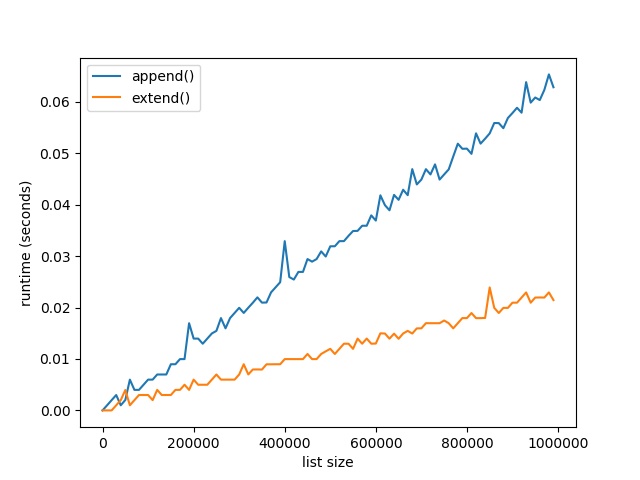
Here’s the resulting plot that compares the runtime of the two methods append() vs extend(). On the x axis, you can see the list size from 0 to 1,000,000 elements. On the y axis, you can see the runtime in seconds needed to execute the respective functions.
The resulting plot shows that both methods are extremely fast for a few tens of thousands of elements. In fact, they are so fast that the time() function of the time module cannot capture the elapsed time.
But as you increase the size of the lists to hundreds of thousands of elements, the extend() method starts to win:
For large lists with one million elements, the runtime of the extend() method is 60% faster than the runtime of the append() method.
The reason is the already mentioned batching of individual append operations.
However, the effect only plays out for very large lists. For small lists, you can choose either method. Well, for clarity of your code, it would still make sense to prefer extend() over append() if you need to add a bunch of elements rather than only a single element.
Python List append() vs insert()
Python List append() vs concatenate()
Python List append() If Not Exists
Python List append() Return New List
Python List append() Time Complexity, Memory, and Efficiency
A profound understanding of Python lists is fundamental to your Python education. Today, I wondered: what’s the difference between two of the most-frequently used list methods: append() vs. extend()?
I shot a small video explaining the difference and which method is faster—you can play it as you read over this tutorial:
Here’s the short answer — append() vs extend():
The method list.append(x) adds element x to the end of the list.
The method list.extend(iter) adds all elements in iter to the end of the list.
The difference between append() and extend() is that the former adds only one element and the latter adds a collection of elements to the list.
You can see this in the following example:
>>> l = []
>>> l.append(1)
>>> l.append(2)
>>> l
[1, 2]
>>> l.extend([3, 4, 5])
>>> l
[1, 2, 3, 4, 5]
Then, you use the extend method to add the three elements 3, 4, and 5 in a single call of the extend() method.
Which Method is Faster — extend() or append()?
To answer this question, I’ve written a short script that tests the runtime performance of creating large lists of increasing sizes using the extend() and the append() methods.
My thesis is that the extend() method should be faster for larger list sizes because Python can append elements to a list in a batch rather than by calling the same method again and again.
I used my notebook with an Intel(R) Core(TM) i7-8565U 1.8GHz processor (with Turbo Boost up to 4.6 GHz) and 8 GB of RAM.
Then, I created 100 lists with both methods, extend() and append(), with sizes ranging from 10,000 elements to 1,000,000 elements. As elements, I simply incremented integer numbers by one starting from 0.
Here’s the code I used to measure and plot the results: which method is faster—append() or extend()?
import time def list_by_append(n): '''Creates a list & appends n elements''' lst = [] for i in range(n): lst.append(n) return lst def list_by_extend(n): '''Creates a list & extends it with n elements''' lst = [] lst.extend(range(n)) return lst # Compare runtime of both methods
list_sizes = [i * 10000 for i in range(100)]
append_runtimes = []
extend_runtimes = [] for size in list_sizes: # Get time stamps time_0 = time.time() list_by_append(size) time_1 = time.time() list_by_extend(size) time_2 = time.time() # Calculate runtimes append_runtimes.append((size, time_1 - time_0)) extend_runtimes.append((size, time_2 - time_1)) # Plot everything
import matplotlib.pyplot as plt
import numpy as np append_runtimes = np.array(append_runtimes)
extend_runtimes = np.array(extend_runtimes) print(append_runtimes)
print(extend_runtimes) plt.plot(append_runtimes[:,0], append_runtimes[:,1], label='append()')
plt.plot(extend_runtimes[:,0], extend_runtimes[:,1], label='extend()') plt.xlabel('list size')
plt.ylabel('runtime (seconds)') plt.legend()
plt.savefig('append_vs_extend.jpg')
plt.show()
The code consists of three high-level parts:
In the first part, you define two functions list_by_append(n) and list_by_extend(n) that take as input argument an integer list size n and create lists of successively increasing integer elements using the append() and extend() methods, respectively.
In the second part, you compare the runtime of both functions using 100 different values for the list size n.
In the third part of, you plot everything using the Python matplotlib library.
Here’s the resulting plot that compares the runtime of the two methods append() vs extend(). On the x axis, you can see the list size from 0 to 1,000,000 elements. On the y axis, you can see the runtime in seconds needed to execute the respective functions.
The resulting plot shows that both methods are extremely fast for a few tens of thousands of elements. In fact, they are so fast that the time() function of the time module cannot capture the elapsed time.
But as you increase the size of the lists to hundreds of thousands of elements, the extend() method starts to win:
For large lists with one million elements, the runtime of the extend() method is 60% faster than the runtime of the append() method.
The reason is the already mentioned batching of individual append operations.
However, the effect only plays out for very large lists. For small lists, you can choose either method. Well, for clarity of your code, it would still make sense to prefer extend() over append() if you need to add a bunch of elements rather than only a single element.
Your Coding Skills – What’s the Next Level?
If you love coding and you want to do this full-time from the comfort of your own home, you’re in luck:
I’ve created a free webinar that shows you how I started as a Python freelancer after my computer science studies working from home (and seeing my kids grow up) while earning a full-time income working only part-time hours.
The most important collection data type in Python is the list data type. You’ll use lists basically in all your future projects so take 3-5 minutes and study this short guide carefully.
You can also play my short video tutorial as you read over the methods:
Method
Description
lst.append(x)
Appends element x to the list lst.
lst.clear()
Removes all elements from the list lst–which becomes empty.
lst.copy()
Returns a copy of the list lst. Copies only the list, not the elements in the list (shallow copy).
lst.count(x)
Counts the number of occurrences of element x in the list lst.
lst.extend(iter)
Adds all elements of an iterable iter(e.g. another list) to the list lst.
lst.index(x)
Returns the position (index) of the first occurrence of value x in the list lst.
lst.insert(i, x)
Inserts element x at position (index) i in the list lst.
lst.pop()
Removes and returns the final element of the list lst.
lst.remove(x)
Removes and returns the first occurrence of element x in the list lst.
lst.reverse()
Reverses the order of elements in the list lst.
lst.sort()
Sorts the elements in the list lst in ascending order.
If you’ve studied the table carefully, you’ll know the most important list methods in Python. Let’s have a look at some examples of above methods:
>>> l = []
>>> l.append(2)
>>> l
[2]
>>> l.clear()
>>> l
[]
>>> l.append(2)
>>> l
[2]
>>> l.copy()
[2]
>>> l.count(2)
1
>>> l.extend([2,3,4])
>>> l
[2, 2, 3, 4]
>>> l.index(3)
2
>>> l.insert(2, 99)
>>> l
[2, 2, 99, 3, 4]
>>> l.pop()
4
>>> l.remove(2)
>>> l
[2, 99, 3]
>>> l.reverse()
>>> l
[3, 99, 2]
>>> l.sort()
>>> l
[2, 3, 99]
Today, I stumbled upon this beautiful regex problem:
Given is a multi-line string and a regex pattern. How to find all lines that do NOT contain the regex pattern?
I’ll give you a short answer and a long answer.
The short answer is to use the pattern '((?!regex).)*' to match all lines that do not contain regex pattern regex. The expression '(?! ...)' is a negative lookahead that ensures that the enclosed pattern ... does not follow from the current position.
So let’s discuss this solution in greater detail. (You can also watch my explainer video if you prefer video format.)
Detailed Example
Let’s consider a practical code snippet. I’ll show you the code first and explain it afterwards:
import re
s = '''the answer is 42
the answer: 42
42 is the answer
43 is not
the answer
42''' for match in re.finditer('^((?!42).)*$', s, flags=re.M): print(match) '''
<re.Match object; span=(49, 58), match='43 is not'>
<re.Match object; span=(59, 69), match='the answer'> '''
You can see that the code successfully matches only the lines that do not contain the string '42'.
How can you do it?
The general idea is to match a line that doesn’t contain the string ‘42', print it to the shell, and move on to the next line.
The re.finditer(pattern, string) accomplishes this easily by returning an iterator over all match objects.
Finally, you need to define the re.MULTILINE flag, in short: re.M, because it allows the start ^ and end $ metacharacters to match also at the start and end of each line (not only at the start and end of each string). You can read more about the flags argument at this blog tutorial.
Together, this regular expression matches all lines that do not contain the specific word '42'.
In case you had some problems understanding the concept of lookahead (and why it doesn’t consume anything), have a look at this explanation from the matching group tutorial on this blog:
Positive Lookahead (?=…)
The concept of lookahead is a very powerful one and any advanced coder should know it. A friend recently told me that he had written a complicated regex that ignores the order of occurrences of two words in a given text. It’s a challenging problem and without the concept of lookahead, the resulting code will be complicated and hard to understand. However, the concept of lookahead makes this problem simple to write and read.
But first things first: how does the lookahead assertion work?
In normal regular expression processing, the regex is matched from left to right. The regex engine “consumes” partially matching substrings. The consumed substring cannot be matched by any other part of the regex.
Figure:A simple example of lookahead. The regular expression engine matches (“consumes”) the string partially. Then it checks whether the remaining pattern could be matched without actually matching it.
Think of the lookahead assertion as a non-consuming pattern match. The regex engine goes from the left to the right—searching for the pattern. At each point, it has one “current” position to check if this position is the first position of the remaining match. In other words, the regex engine tries to “consume” the next character as a (partial) match of the pattern.
The advantage of the lookahead expression is that it doesn’t consume anything. It just “looks ahead” starting from the current position whether what follows would theoretically match the lookahead pattern. If it doesn’t, the regex engine cannot move on. Next, it “backtracks”—which is just a fancy way of saying: it goes back to a previous decision and tries to match something else.
Positive Lookahead Example: How to Match Two Words in Arbitrary Order?
What if you want to search a given text for pattern A AND pattern B—but in no particular order? If both patterns appear anywhere in the string, the whole string should be returned as a match.
Now, this is a bit more complicated because any regular expression pattern is ordered from left to right. A simple solution is to use the lookahead assertion (?.*A) to check whether regex A appears anywhere in the string. (Note we assume a single line string as the .* pattern doesn’t match the newline character by default.)
Let’s first have a look at the minimal solution to check for two patterns anywhere in the string (say, patterns ‘hi’ AND ‘you’).
>>> import re
>>> pattern = '(?=.*hi)(?=.*you)'
>>> re.findall(pattern, 'hi how are yo?')
[]
>>> re.findall(pattern, 'hi how are you?')
['']
In the first example, both words do not appear. In the second example, they do.
Let’s go back to the expression (?=.*hi)(?=.*you) to match strings that contain both ‘hi’ and ‘you’. Why does it work?
The reason is that the lookahead expressions don’t consume anything. You first search for an arbitrary number of characters .*, followed by the word hi. But because the regex engine hasn’t consumed anything, it’s still in the same position at the beginning of the string. So, you can repeat the same for the word you.
Note that this method doesn’t care about the order of the two words:
>>> import re
>>> pattern = '(?=.*hi)(?=.*you)'
>>> re.findall(pattern, 'hi how are you?')
['']
>>> re.findall(pattern, 'you are how? hi!')
['']
No matter which word “hi” or “you” appears first in the text, the regex engine finds both.
You may ask: why’s the output the empty string? The reason is that the regex engine hasn’t consumed any character. It just checked the lookaheads. So the easy fix is to consume all characters as follows:
Now, the whole string is a match because after checking the lookahead with ‘(?=.*hi)(?=.*you)’, you also consume the whole string ‘.*’.
Negative Lookahead (?!…)
The negative lookahead works just like the positive lookahead—only it checks that the given regex pattern does not occur going forward from a certain position.
Here’s an example:
>>> import re
>>> re.search('(?!.*hi.*)', 'hi say hi?')
<re.Match object; span=(8, 8), match=''>
The negative lookahead pattern (?!.*hi.*) ensures that, going forward in the string, there’s no occurrence of the substring 'hi'. The first position where this holds is position 8 (right after the second 'h'). Like the positive lookahead, the negative lookahead does not consume any character so the result is the empty string (which is a valid match of the pattern).
You can even combine multiple negative lookaheads like this:
>>> re.search('(?!.*hi.*)(?!\?).', 'hi say hi?')
<re.Match object; span=(8, 9), match='i'>
You search for a position where neither ‘hi’ is in the lookahead, nor does the question mark character follow immediately. This time, we consume an arbitrary character so the resulting match is the character 'i'.
Where to Go From Here?
Summary: You’ve learned that you can match all lines that do not match a certain regex by using the lookahead pattern ((?!regex).)*.
Now this was a lot of theory! Let’s get some practice.
In my Python freelancer bootcamp, I’ll train you how to create yourself a new success skill as a Python freelancer with the potential of earning six figures online. The next recession is coming for sure and you want to be able to create your own economy so that you can take care of your loved ones.
Both Python and Go are still relevant today. Both languages are still widely used. However, many people have been switching from Python to the newer and faster language Golang, also known as Go. Go is a much newer language than Python, released by Google in 2009, and it has many advantages over many other programming languages. Golang is an excellent language, although not so one-sidedly better than Python that Python will go away any time soon.
Python, released back in 1991, still has its advantages. Despite how fast computer technology changes, programming languages do not become obsolete quickly. Many languages much older than Python are still in common use today. Since Go is already well established as a successful language, Go may also last for decades.
Go is Both Easy to Learn and Fast
Many programming languages are either fast and difficult (for example, C++) or easier to use but too slow for many types of applications (for example, Javascript). While an application coded in a slow language may still run very smoothly, there are limits on what one can do with a slow language. Golang manages to be both fast and easy.
Golang is as fast as languages such as C++, which is no small achievement. Compared to Go, Python is sluggish. It can take tens of times less processing power to run code in Golang than it takes to run programs in Python. Sometimes, this doesn’t matter – an application might take so little processing power to run that it executes fast even if written in a slow language. Programs coded in slow, high-level languages may work perfectly fine. For other types of applications, speed is vital. This difference gives Golang quite an advantage over Python, though there is no reason to use a fast language if the application does not require speed.
Since a large company like Google created Golang, one might expect it to be impressive, and it is. A programmer will not usually start with a more difficult language like C, C++, or assembler. Instead, they will begin with a programming language that is easier to learn and then learn a more difficult language at a later date. Golang is accessible to novices. One could argue that it is even easier than Python, perhaps even more accessible than Javascript.
Go Lets You Get the Job Done With Less Code
Not only is Go faster than Python, but a program written in Go will require fewer lines of code. Many Python programs re-written in Golang take only half or a third as many lines. The less code there is, the easier it is to debug. This element gives Golang another significant advantage. It is no wonder that the popularity of Golang has increased by so much over the last few years.
Python Includes More Libraries
One of the best things about Python is how easy it is to find code for whatever purpose you need. You will easily be able to find code to add to your program without having to create it yourself. Python comes with a very large number of code libraries created by its users since the language first appeared in 1991. For tasks that the libraries the language comes with cannot handle, there are also free third party libraries. The official libraries may not be good enough for all web development tasks, but you can rely on third-party libraries such as Django for web development. Go also has a great deal of free code for you to use and learn from, but it does not quite beat Python in this case. Go has plenty of useful libraries, but Python’s free libraries are even better.
With Python, there is plenty of help available if you want to learn to code an entire application with graphics and animation. You can easily download an open-source app and modify it to learn how to create commercial applications in Python. No other programming language gives its users as much free source code as Python.
Python is Easy
While Python does not manage to be both fast and easy, it is not both slow and challenging either. It is a relatively easy language, only arguably less accessible than Go is. Python’s free libraries and good commonly used tutorials make it easy to learn. The syntax is also easy to learn in Python. Most languages require you to use an unnecessarily large number of symbols. This requirement can frustrate a novice coder very much, as they will place a semicolon or some other symbol in the wrong place and break their program. Python minimizes the number of brackets, commas, and other symbols required.
Which Language Pays Better?
An expert in the Python language can make almost twice as much money as an expert in Go. While a Go developer in the United States earns only $64000 per year, a Python developer makes $120000. Higher pay is not an advantage of the language per se, but it is a significant reason to learn it. Python does not seem to be obsolete; new jobs for Python developers will continue to appear in the future. You probably want to go with Python if you are interested in learning to do one or the other professionally. Go might be a better language in most ways, but Python programming pays better. For someone hiring software developers, Go is, of course, the better programming language if developers cost much less.
Is Python More Object-Oriented?
Most programmers prefer object-oriented languages. Go is only, to a limited extent, object-oriented. Python is much better in this regard. Programming languages have been shifting more towards being object-oriented over the last few decades, and Go seems old fashioned if it is not fully object-oriented.
With an object-oriented language, code is divided into reusable chunks, instead of being a long sequence. Bugs are much easier to find in object-oriented languages, as an error is likely to break only one portion of the code and not the program as a whole. Data is kept separate from instructions. The C languages, javascript, and visual basic are all object-oriented. The lack of object-orientation does not mean that go is hard to learn, but some programmers may find more advanced projects more difficult due to the lack of it.
Different Languages for Different Purposes
Programmers use Python for web development. Go, on the other hand, is what you could call a system language. A system language is used for creating software that one must pay a monthly fee for, engines for video games, and operating systems. A system language is also for industrial machinery and robotics.
System languages are less likely to be for applications that focus on user interaction. Programmers do not create games, word processors, and media players in system languages. Python and Golang have different purposes. However, it is still possible for programmers to have to choose between one or the other for a specific project.
Python is probably better if you are looking for a general-purpose language. While only a small fraction of game development uses Python, it is nonetheless possible to create a commercial-grade game in Python.
Python is Still More Popular in 2020
Even though many people have switched from Python to Go over the last ten years, Python is still at the top. Python is the most popular programming language today, with Go only being the seventh most widely used [2]. While there is no way to know or even define what the most popular programming language is, Python comes out on top according to a variety of different metrics. C++, C#, and Java are the only languages that are near to Python in popularity.
Languages such as Scala and R have become more popular over the last few years and might be able to overtake Python in the future [3]. The PHP, R, Go, and Assembly languages are also among the most popular. However, Python has remained arguably the most popular programming language for a while and may continue to be the most popular for a while longer.
Here are some Google Trends searching for different keywords:
So no matter how you look—Python is not only the larger programming language, it’s also growing at a much faster pace.
Is Python or Go better for AI Programming?
Today, artificial intelligence is everywhere. The economy runs on it, as advertisers use it to make predictions about what consumers will buy. Artificial intelligence is vital to real estate developers and stock traders. AI also makes predictions for medical purposes. Both Go and Python are relevant to artificial intelligence. In fact, they are probably the two most popular languages for AI developers. The two languages’ usefulness for creating AI will help them continue to be popular in the future, as AI becomes increasingly relevant.
Python for AI Programming
Advantages: Availability of libraries
Python has been around since 1991, and since Python appeared, programmers have built vast numbers of free libraries. Many of these libraries are useful for AI programmers. Python libraries include code for datasets, for creating new algorithms, and for processing the most complex data. The TensorFlow library, the most popular library for AI programmers, is for the Python language.
Advantages: The python community matters
The size of the community that works on a language certainly matters. If a programming language is commonly used, then one can easily find people to work with as well as plentiful source code. Tools like Github make it easier to develop Python code than it ever was before.
Advantages: Python is easy to use
Not only is python code easy to write, but it is also easy to debug and edit. Python code is split into small, manageable chunks. This is less true for most other languages.
Since AI projects often involve large teams, it must be easy for one programmer to understand code written by another. With Python, there is little risk of a programmer not being able to understand the purpose of code they did not write themselves.
Disadvantages: Unsuitable for massive projects
While Python’s ease of use an object orientation can help a mid-sized project succeed, there are some problems with using Python for the most significant projects. If hundreds or even more programmers are involved, Python is not always the right way to go. Python does not use a static type system. The lack of static typing means that the code can be unsure of whether you are trying to put two words together or do a mathematical operation. Type errors happen more commonly in Python than in other languages. If programmers with plenty of experience in coding but relatively little experience in Python work on a Python project, they are annoyed by the syntax, which is in odd ways different from other languages.
Disadvantages: Too many versions of the language exist
Many different versions of Python are used. Python 3 did not fully replace Python 2, which is still commonly used today. This mix of versions results in all sorts of confusion and problems, especially if a large team is working on a project.
Part of the reason why programmers still use older versions of Python is that the libraries are for Python 2 and have not been updated to Python 3 yet. Some programmers also prefer the older version, if only because it is what they have the most experience with. Libraries built for different versions of the programming language are not compatible with each other.
Disadvantages: Cannot take full advantage of new technology
While Golang is for the age of multi-core CPUs, Python is not. Python cannot take advantage of the new technology nearly to the extent that Golang can. There are ways to tap into modern multi-core computing using Python, but even with newer versions of the language, these are workarounds.
Is Go Better for AI Programming?
Advantages: Go is very fast
While speed is not as crucial in AI programming as one might assume, speed is nonetheless relevant. Go is much faster than Python, mainly because it is a compiled language rather than an interpreted language.
With a compiled language, the program is first translated into bytecode that a computer can run directly, and then executed. Every line of text that a programmer writes in Golang is converted into binary before the machine runs it. With a compiled language, instructions are carried out very fast because the code does not have to be translated into binary while the program is running.
Many languages, including many older languages such as C++, are compiled. Many other languages, on the other hand, are interpreted. Python is an interpreted language that has to translate the code into binary and then execute it in real-time. Many programs, including many programs in artificial intelligence, do not require speed, so Python is still usable in AI programming. However, Go has quite an advantage here.
Advantages: Golang supports concurrency
Concurrency is the ability of a programming language to run multiple scripts at the same time. Concurrency is more important than it used to be, including when coding artificial intelligence projects. Python is not truly a concurrent language. At best, it is weakly concurrent.
Advantages: Go has many libraries for AI-related code
While Python is well known for how many free libraries it has, Golang’s libraries are rapidly growing. Many of these free libraries contain AI-related code written in Go. These libraries make it much faster and cheaper for programmers to develop new artificial intelligence projects.
Advantages: Go is better for massive projects
If hundreds of programmers are working on an AI project together, they are more likely to use Go than to use Python. Finding small bugs in massive programs can be a nightmare. Go is better for minimizing the number of errors. It is also easier to debug in Go than in Python.
Advantages: Go is vastly better for mathematical calculations
Go is a faster language in general, and this is particularly true if you are talking about mathematics. A Go program can do math 20 or 50 times faster than a Python program [4]. Many artificial intelligence projects require plenty of mathematical calculations.
Disadvantages: Golang’s libraries are less extensive
While there are many excellent libraries for the Go language, including for Artificial intelligence-related projects, the libraries are not yet as extensive as they are for Python. Python still has an advantage in terms of how much free high-quality code there is available.
Disadvantages: Coding AI in Golang is difficult
If you want to code AI in Golang, you need a team of experts. While Golang can be a fairly easy language to learn for many purposes, this is not the case if you are coding AI. Some features such as multithreading work against Golang when programmers are working on an AI project. Python AI projects can include programmers that do not have such specialized skills.
Overall, both languages are good for AI programming. They may be the two most popular languages for this purpose.
Why do Programmers Choose to Use the Go Language in 2020?
The syntax is familiar to many programmers
The syntax of Go makes it easy for programmers who know other languages to use. Anyone who knows how to program in a C language or in any other language that uses something similar to the C syntax can quickly learn Go. Go is particularly similar to C for more elementary tasks. It becomes more significantly different if more advanced tasks are attempted.
Go has an excellent team behind it
While Google does not back the Go language with the full weight of its resources, there is still an excellent team working on Go. Go is actively being improved by top-end software engineers all the time. Some of the best software engineers in the world are currently working on making the already popular Go language even better.
The number of commands in Go is not enormous
Someone who works with Go for years will pretty much know the whole language and no longer have to look anything up. Languages that contain an enormous number of commands are not likely to be fully learned, so even experienced programmers look up documentation. If programmers have to look everything up, things tend to slow down. When one is learning to code in Go and does not yet know it by heart, it is easy to find a complete list of commands for the language on the official website. The website organizes the commands in a way that makes it easy to find what you are looking for. Despite its power, the Go language is easy to learn, and to a lesser extent, may even be easy to master.
Go programs compile almost instantly
One advantage of using an interpreted language like Python instead of a compiled language like C is that the code can be tested right away without having to be compiled. If one makes a small change to a large program in a compiled language, they must compile it before they can test it. Having to wait for the program to compile before they can test a small change can be quite a hassle.
Thankfully, modern technology makes the compiling process much faster than it was decades ago, and the Go language is designed to compile faster than C does. Often, a Go program will compile effectively instantly. Therefore, programmers are not likely to use Python over Go because one does not have to compile it. The delay in compiling a program is less relevant than ever before.
The Go language has good auto-formatting tools
If every programmer is writing code with their own formatting style, it becomes a chore to read code you didn’t write yourself. With good auto-formatting tools, everyone can use the same style without having to agree on which type of formatting is the best. Auto-formatting can also save you time, as you can write code without worrying about the format and then have the computer automatically format it for you.
The Go language encourages programmers to use a similar style
With Python, there is far more risk of different programmers arguing over what the best programming practices for their language are. This is less of an issue with Go. Go is designed to encourage programmers to use a similar style.
More than one variable can be declared on each line
With most languages, you can only declare a single variable on each line and need separate lines to do math with your variables. With the Go language, one can set the value of X, set the value of Y, add a number to the value of Y, and then multiply X by Y to get Z on the same line of code. This feature reduces the number of lines and makes the code easier to read.
Why Do Programmers Use the Python Language in 2020?
Despite the speed and accessibility of the Go language, Python remains the most popular. As long as the program does not have to be very fast, Python is an excellent language. Speed is not always crucial; this is proven by the fact that the most popular programming language in the world is one of the slower programming languages.
Python has excellent tutorials
If one is new to programming, the early stages are going to be a challenge, and slowly working your way through a lengthy tutorial might be the right way to go. Python has plenty of accessible free tutorials, more than at least most other languages. The active Python community also helps new users get their questions answered as well as possible. Experienced programmers can also find more advanced tutorials. There are also complex program templates available for free.
Python has an excellent integrated development environment
The integrated development environment allows you to not only run but debug your code with a graphical interface. Python’s integrated development environment is particularly good, above the usual standard for programming languages.
The Python community is helpful to amateurs
The Python community on google groups, Reddit, and elsewhere will not have any problem answering the type of questions that new programmers are likely to ask. You will find a supportive and encouraging community if you work with Python.
Experienced programmers can also benefit from the Python community. It is easy to figure out how to build more advanced projects, including client-server architecture, and applications where graphics play an essential role. There will be open source examples for you to learn from, and people willing to help you build these projects. Widely available explanations of how to build a certain type of application tend to be better than their equivalents in Java and other languages.
Python is a general-purpose language
While Python is most strongly associated with web development, it is nonetheless a general-purpose language and not a web development language. Python is general-purpose to the extent that C++ is general-purpose. Python can be used to create anything, games included. Scientists, artificial intelligence researchers, and people building social networks all use Python.
There are always lots of jobs and always lots of workers
Since Python is more popular than at least most other languages, one can easily find high paying work if they know how to code in Python. Developers can also find skilled programmers to work on their projects with ease. There are neither too few nor too many people learning to write code in Python.
Python programmers may make more money than not only Go programmers but programmers in any other language. Python may be the only language where most coders earn six-figure salaries [5]. Those who know many other programming languages approach the six-figure mark, but only with Python do most programmers exceed it.
Python works equally well on many different operating systems
The python language work on Windows, on Mac OS, and on Linux equally well. This cross-platform compatibility helps it remain the world’s most popular language.
Modified versions of the python language exist
If you want a language similar to Python but with faster running speed or more support for concurrency, there is PyPy, which is an alternative implementation of the Python language. Instead of using an interpreter, as regular Python does, PyPy uses something closer to a compiler. PyPy is also much better for multitasking than standard Python is.
It’s easy to get into amateur game development with Python
Amateur game development with C++ can feel like a daunting task unless you already have a lot of programming experience. With Python, you can easily find free templates for games, which you can modify to create your own games. Amateur game design is the most fun way to learn a new programming language.
How Do Python and Go Compare?
Go
Python
Speed
Faster
Slower
Execution
Compiled
Interpreted
Programmers pay
Lower
Higher
Year released
2009
1991
Object-oriented
Not really
Yes
Concurrent
Yes
Not per default
Memory management
Yes
No
Popularity
Popular
Even more popular
Ease of use
Easy
Slightly less easy
Which Language Should I Use in 2020?
It depends on whether or not speed is key in the applications you are trying to develop. The single largest difference between the two languages is that Go is quite a lot faster than Python. If speed matters a lot, Python is not good enough for the task.
If, however, speed is not critical, then Python may be slightly better than Go in most ways. The free source code and application templates available to Python developers are fantastic. It will take a while before the Go libraries catch up to the quality of the Python libraries.
Python is more likely to be used in data science than Go is. If a scientist is interested in converting a great deal of raw data into useful statistics, they will use either Python or the R language [6]. Go is much less likely to be used to create programs that interpret raw data.
If you are unsure of which language to learn, Python pays considerably better. While a good Go programmer will earn a six-figure salary and a mediocre Python programmer will not, typical Python programmers may be better paid than those in any other language.
This morning, I read over an actual Quora thread with this precise question. While there’s no dumb question, the question reveals that there may be some gap in understanding the basics in Python and Python’s regular expression library.
So if you’re an impatient person, here’s the short answer:
How to match an exact word/string using a regular expression in Python?
You don’t! Well, you can do it by using the straightforward regex 'hello' to match it in 'hello world'. But there’s no need to use an expensive and less readable regex to match an exact substring in a given string. Instead, simply use the pure Python expression 'hello' in 'hello world'.
So far so good. But let’s dive into some more specific questions—because you may not exactly have looked for this simplistic answer. In fact, there are multiple ways of understanding your question and I have tried to find all interpretations and answered them one by one:
(You can also watch my tutorial video as you go over the article)
How to Check Membership of a Word in a String (Python Built-In)?
This is the simple answer, you’ve already learned. Instead of matching an exact string, it’s often enough to use Python’s in keyword to check membership. As this is a very efficient built-in functionality in Python, it’s much faster, more readable, and doesn’t require external dependencies.
Thus, you should rely on this method if possible:
>>> 'hello' in 'hello world'
True
The first example shows the most straightforward way of doing it: simply ask Python whether a string is “in” another string. This is called the membership operator and it’s very efficient.
You can also check whether a string does not occur in another string. Here’s how:
>>> 'hi' not in 'hello world'
True
The negative membership operator s1 not in s2 returns True if string s1 does not occur in string s2.
But there’s a problem with the membership operator. The return value is only a Boolean value. However, the advantage of Python’s regular expression libraryre is that it returns a match object which contains more interesting information such as the exact location of the matching substring.
So let’s explore the problem of exact string matching using the regex library next:
How to Match an Exact String (Regex)?
Here’s how you can match an exact substring in a given string:
After importing Python’s library for regular expression processing re, you use the re.search(pattern, string) method to find the first occurrence of the pattern in the string. If you’re unsure about this method, check out my detailed tutorial on this blog.
This returns a match object that wraps a lot of useful information such as the start and stop matching positions and the matching substring. As you’re looking for exact string matches, the matching substring will always be the same as your searched word.
But wait, there’s another problem: you wanted an exact match, right? But this also means that you’re getting prefix matches of your searched word:
What if you want to match only whole words—not exact substrings? The answer is simple: use the word boundary metacharacter '\b'. This metacharacter matches at the beginning and end of each word—but it doesn’t consume anything. In other words, it simply checks whether the word starts or ends at this position (by checking for whitespace or non-word characters).
Here’s how you use the word boundary character to ensure that only whole words match:
In both examples, you use the same regex '\bno\b' that searches for the exact word 'no' but only if the word boundary character '\b' matches before and after. In other words, the word 'no' must appear on its own as a separate word. It is not allowed to appear within another sequence of word characters.
As a result, the regex doesn’t match in the string 'nobody knows' but it matches in the string 'nobody knows nothing - no?'.
Note that we use raw string r'...' to write the regex so that the escape sequence '\b' works in the string. Without the raw string, Python would assume that it’s an unescaped backslash character '\', followed by the character 'b'. With the raw string, all backslashes will just be that: backslashes. The regex engine then interprets the two characters as one special metacharacter: the word boundary '\b'.
But what if you don’t care whether the word is upper or lowercase or capitalized? In other words:
How to Match a Word in a String (Case Insensitive)?
You can search for an exact word in a string—but ignore capitalization. This way, it’ll be irrelevant whether the word’s characters are lowercase or uppercase. Here’s how:
All three ways are equivalent: they all ignore the capitalization of the word’s letters. If you need to learn more about the flags argument in Python, check out my detailed tutorial on this blog. The third example uses the in-regex flag (?i) that also means: “ignore the capitalization”.
How to Find All Occurrences of a Word in a String?
Okay, you’re never satisfied, are you? So let’s explore how you can find all occurrences of a word in a string.
In the previous examples, you used the re.search(pattern, string) method to find the first match of the pattern in the string.
Next, you’ll learn how to find all occurrences (not only the first match) by using the re.findall(pattern, string) method. You can also read my blog tutorial about the findall() method that explains all the details.
>>> import re
>>> re.findall('no', 'nononono')
['no', 'no', 'no', 'no']
Your code retrieves all matching substrings. If you need to find all match objects rather than matching substrings, you can use the re.finditer(pattern, string) method:
The re.finditer(pattern, string) method creates an iterator that iterates over all matches and returns the match objects. This way, you can find all matches and get the match objects as well.
How to Find All Lines Containing an Exact Word?
Say you want to find all lines that contain the word ’42’ from a multi-line string in Python. How’d you do it?
The answer makes use of a fine Python regex specialty: the dot regex matches all characters, except the newline character. Thus, the regex .* will match all characters in a given line (but then stop).
Here’s how you can use this fact to get all lines that contain a certain word:
>>> import re
>>> s = '''the answer is 42
the answer: 42
42 is the answer
43 is not'''
>>> re.findall('.*42.*', s)
['the answer is 42', 'the answer: 42', '42 is the answer']
Three out of four lines contain the word '42'. The findall() method returns these as strings.
How to Find All Lines Not Containing an Exact Word?
In the previous section, you’ve learned how to find all lines that contain an exact word. In this section, you’ll learn how to do the opposite: find all lines that NOT contain an exact word.
This is a bit more complicated. I’ll show you the code first and explain it afterwards:
import re
s = '''the answer is 42
the answer: 42
42 is the answer
43 is not
the answer
42''' for match in re.finditer('^((?!42).)*$', s, flags=re.M): print(match) '''
<re.Match object; span=(49, 58), match='43 is not'>
<re.Match object; span=(59, 69), match='the answer'> '''
You can see that the code successfully matches only the lines that do not contain the string '42'.
How can you do it?
The general idea is to match a line that doesn’t contain the string ‘42', print it to the shell, and move on to the next line. The re.finditer(pattern, string) accomplishes this easily by returning an iterator over all match objects.
Finally, you need to define the re.MULTILINE flag, in short: re.M, because it allows the start ^ and end $ metacharacters to match also at the start and end of each line (not only at the start and end of each string).
Together, this regular expression matches all lines that do not contain the specific word '42'.
Where to Go From Here?
Summary: You’ve learned multiple ways of matching an exact word in a string. You can use the simple Python membership operator. You can use a default regex with no special metacharacters. You can use the word boundary metacharacter '\b' to match only whole words. You can match case-insensitive by using the flags argument re.IGNORECASE. You can match not only one but all occurrences of a word in a string by using the re.findall() or re.finditer() methods. And you can match all lines containing and not containing a certain word.
Pheww. This was some theory-heavy stuff. Do you feel like you need some more practical stuff next?
Then check out my practice-heavy Python freelancer course that helps you prepare for the worst and create a second income stream by creating your thriving coding side-business online.