Posted on Leave a comment

Stop Testing LLMs with Poetry: Use Blackjack Instead

šŸ™ Image and research source: Thomas Taylor (GitHub)

If you want to see what an LLM is really good at (and where it still slips), don’t ask it to write a poem or generate code. Ask it to make the same small decision again and again under clear rules.

That is why blackjack basic strategy is such a useful lens.

Basic strategy is basically a decision table. Given your hand and the dealer’s upcard, there is a best move for a given rule set. Hit, stand, double, split, surrender. It is not a vibe. It is a lookup problem.

So you would expect modern models to nail it. And some do. But what makes this benchmark interesting is not ā€œwho got the highest score.ā€ It is how the models fail.

The result that matters is not the winner, it is the pattern of mistakes
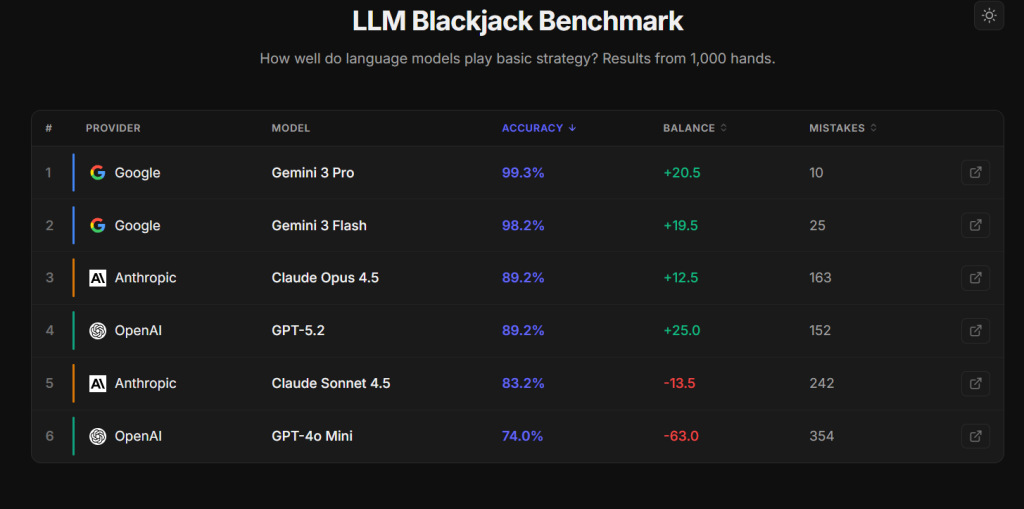
⚔ Check out Thomas’ Page: https://thomasgtaylor.com/blackjack/

When models get decisions wrong in blackjack, they do not usually fail randomly. They tend to develop a consistent style of mistakes.

One model might double too often. Another might be overly cautious and miss good doubles. Another might surrender in spots where it should fight on. That is a big deal because it mirrors what many developers see in real products: the model is mostly reliable, but it has a few recurring blind spots.

This is the key point for builders. LLMs do not fail like buggy programs. They fail like inconsistent policies.

Accuracy and outcomes are not the same thing

The benchmark tracks two things that people often confuse:

  • decision accuracy: did the model pick the basic strategy move?
  • outcome: did the bankroll go up or down over the run?

These can diverge. Blackjack has asymmetric payouts. A single bad double can hurt more than a small hit/stand mistake. And over a limited number of hands, luck still matters. So you can see a model that is slightly less accurate end up with a better balance simply because variance went its way.

This is not just gambling trivia. It is a reminder that your evaluation metric shapes what looks ā€œbest.ā€ If your product cares about costly failures, you should measure cost-weighted errors, not just raw accuracy.

Why this matters outside blackjack

A blackjack hand is a tiny state with a clear action set. Software is full of the same structure:

  • incident triage rules
  • retry and backoff policies
  • access control and permissions
  • billing and pricing logic
  • feature rollout rules
  • compliance checks

In all of these, you often have clear policies you want followed. If a model struggles to consistently follow a small decision table, it will also drift when it is asked to follow your company’s rules unless you design around that.

The better mental model: LLMs behave like learned heuristics

A traditional program executes rules. A plain LLM often imitates rules and sometimes improvises. That is why you see those ā€œerror personalities.ā€ The model is not just retrieving the correct table cell every time. It is applying a learned pattern that is usually right, and occasionally biased.

This is the important angle for the Finxter community: treat the model like a policy learner, not a calculator.

What to do with this insight

The engineering move is not to argue with the model harder. It is to change the shape of the task so the model cannot drift.

A few practical approaches:

  • Put the strategy table in code and have the model call it.
  • If you keep it in the prompt, force a structured lookup format and validate the output.
  • Log mistakes by category (too many doubles, early surrenders, split errors) because that tells you what to fix.

A simple Finxter challenge you can copy

The real win here is not blackjack itself. It is the idea of a small, repeatable benchmark.

Pick any domain where ground truth exists as a clear set of rules or a decision table. Generate a lot of reproducible test cases. Score both accuracy and cost-weighted outcomes. Then look for recurring error patterns, not just the overall score.

That gives you something far more useful than ā€œmodel A feels smarter than model B.ā€ It tells you how a model behaves under repetition, which is what matters when you are building real systems.

✨ Join the Finxter AI Newsletter to be on the right side of change – with 130k readers!

The post Stop Testing LLMs with Poetry: Use Blackjack Instead appeared first on Be on the Right Side of Change.

Posted on Leave a comment

Play Arcade Tennis Online (Free, No Signup)

The post Play Arcade Tennis Online (Free, No Signup) appeared first on Be on the Right Side of Change.

Posted on Leave a comment

Python Snake Made Easy

5/5 – (1 vote)

This code creates a simple Snake game using the Pygame library in Python.

The game starts with a small snake moving around the screen, controlled by arrow keys, eating randomly placed food items. Each time the snake eats food, it grows longer, and the game gets faster.

The game ends if the snake collides with itself or the screen borders, and the player’s goal is to keep the snake growing as long as possible.

import pygame
import sys
import random # Initialize pygame
pygame.init() # Set screen dimensions
WIDTH = 640
HEIGHT = 480
CELL_SIZE = 20 # Colors
WHITE = (255, 255, 255)
GREEN = (0, 255, 0)
RED = (255, 0, 0) # Create the game screen
screen = pygame.display.set_mode((WIDTH, HEIGHT)) # Set the game clock
clock = pygame.time.Clock() def random_food_position(): return (random.randint(0, (WIDTH-CELL_SIZE)//CELL_SIZE) * CELL_SIZE, random.randint(0, (HEIGHT-CELL_SIZE)//CELL_SIZE) * CELL_SIZE) def draw_snake(snake_positions): for pos in snake_positions: pygame.draw.rect(screen, GREEN, pygame.Rect(pos[0], pos[1], CELL_SIZE, CELL_SIZE)) def draw_food(food_position): pygame.draw.rect(screen, RED, pygame.Rect(food_position[0], food_position[1], CELL_SIZE, CELL_SIZE)) def main(): snake_positions = [(100, 100), (80, 100), (60, 100)] snake_direction = (20, 0) food_position = random_food_position() game_speed = 10 while True: for event in pygame.event.get(): if event.type == pygame.QUIT: pygame.quit() sys.exit() if event.type == pygame.KEYDOWN: if event.key == pygame.K_UP and snake_direction != (0, 20): snake_direction = (0, -20) elif event.key == pygame.K_DOWN and snake_direction != (0, -20): snake_direction = (0, 20) elif event.key == pygame.K_LEFT and snake_direction != (20, 0): snake_direction = (-20, 0) elif event.key == pygame.K_RIGHT and snake_direction != (-20, 0): snake_direction = (20, 0) new_head = (snake_positions[0][0] + snake_direction[0], snake_positions[0][1] + snake_direction[1]) if new_head in snake_positions or new_head[0] < 0 or new_head[0] >= WIDTH or new_head[1] < 0 or new_head[1] >= HEIGHT: break snake_positions.insert(0, new_head) if new_head == food_position: food_position = random_food_position() game_speed += 1 else: snake_positions.pop() screen.fill(WHITE) draw_snake(snake_positions) draw_food(food_position) pygame.display.update() clock.tick(game_speed) if __name__ == "__main__": main()

This simple implementation of the classic Snake game uses the Pygame library in Python — here’s how I quickly lost in the game:

Here’s a brief explanation of each part of the code:

  1. Import libraries:
    • pygame for creating the game window and handling events,
    • sys for system-specific parameters and functions, and
    • random for generating random numbers.
  2. Initialize pygame with pygame.init().
  3. Set screen dimensions and cell size. The WIDTH, HEIGHT, and CELL_SIZE constants define the game window size and the size of each cell (both snake segments and food).
  4. Define color constants WHITE, GREEN, and RED as RGB tuples.
  5. Create the game screen with pygame.display.set_mode((WIDTH, HEIGHT)).
  6. Set the game clock with pygame.time.Clock() to control the game’s frame rate.
  7. Define the random_food_position() function to generate a random food position on the grid, ensuring it’s aligned with the CELL_SIZE.
  8. Define draw_snake(snake_positions) function to draw the snake’s body segments at their respective positions using green rectangles.
  9. Define draw_food(food_position) function to draw the food as a red rectangle at its position.
  10. Define the main() function, which contains the main game loop and logic.
    • Initialize the snake’s starting position, direction, food position, and game speed.
    • The while True loop is the main game loop that runs indefinitely until the snake collides with itself or the screen borders.
    • Handle events like closing the game window or changing the snake’s direction using arrow keys.
    • Update the snake’s position based on its current direction.
    • Check for collisions with itself or the screen borders, breaking the loop if a collision occurs.
    • If the snake’s head is at the food position, generate a new food position and increase the game speed. Otherwise, remove the last snake segment.
    • Update the game display by filling the screen with a white background, drawing the snake and food, and updating the display.
    • Control the game speed using clock.tick(game_speed).
  11. Run the main() function when the script is executed by checking if __name__ == "__main__".
Posted on Leave a comment

Battletoads return for new gaming adventures

Summary

  • Battletoads launches today with Xbox Game Pass and on Xbox One, Windows 10 and Steam.
  • Celebrate with crossover goodies, new merchandise, free comics and more!
  • Hear from the ’Toads themselves in an exclusive new interview with a familiar face.

26 years after their last game hit the arcades, the wait is finally over: Zitz, Rash and Pimple are leaping back into action today, August 20, with Xbox Game Pass and on Xbox One, Windows 10 PC and Steam worldwide! Just like in the original Battletoads games, they’re embarking on an outer-space adventure packed full of gameplay that takes in everything from brawling action to precision platforming, space battles and more.

There’s no need to take on these challenges alone – not when up to three players can team up for some drop-in couch co-op. That’s exactly what some of the Battletoads team did in our Gameplay Showcase earlier this week, and if you missed it, you can watch them in action here:

[embedded content]

In the weeks leading up to our launch extravaganza we’ve been providing players with plenty of ways to get more Battletoads in their lives. Our art contest to win a hand-drawn animation cel used in the game is already underway, and we also added a Battletoads EP to streaming and download services so you can rock out to the game’s soundtrack whenever you please.

Keen to support the amphibians’ arrival, the Sea of Thieves team recently unveiled the in-game Fightin’ Frogs Ship Set – it’s due to go on sale in the Sea of Thieves Pirate Emporium later this year, but you can plunder it for yourself right now, free of charge, by completing the first act of Battletoads! Check out the video for more specifics on how to snag the set.

[embedded content]

Now that the game’s available to play, it doesn’t mean we’re out of surprises. Not only is there an official Battletoads Xbox One controller design incoming from Xbox Design Lab, we’re happy to unveil a whole new range of Battletoads merchandise over at the official Rare store, with new product types featuring the redesigned logo, the cast of wild new characters that the ’Toads will be butting heads with during the game’s cartoon-style story, and much more.


Speaking of stories, we know Battletoads fans will have been wondering what the iconic trio have been up to between games. To answer that, we’ve teamed up with our friends at Titan Comics to create a three-part comic series that chronicles a ā€˜lost adventure’, helping to bridge the gap between our heroes’ last starring role in Battletoads Arcade and the present day. All three issues will be made available to read for free over at comiXology – so make sure you’re following Rare on Twitter, Facebook or Instagram so you don’t miss out when the first instalment lands!

We teased another upcoming collaboration with iam8bit last week, and today’s the day we pull back the curtain on two new premium Battletoads items. Firstly, there’s the Smash Hits vinyl soundtrack, comprising two LPs featuring music from the 8-bit original as well as the latest instalment in the series. Secondly, there’s the Legacy Cartridge Collection – physical editions of the original game, newly amped up with deluxe packaging and two ’Toad-themed color variants. Both items are limited runs and are live for pre-order now on iam8bit’s website!

We’re incredibly excited to launch this brand new Battletoads for a new generation of gamers, but what about Zitz, Rash and Pimple themselves? To find out, we sent Larry Hryb, Xbox Live’s Major Nelson, halfway across the galaxy to an intergalactic premiere where he got the chance to meet the ’Toads in person. Check out that lively interview here:

[embedded content]

Whether you’re a Battletoads veteran from the ’90s or this is your first time experiencing the multi-genre mayhem of the series, we hope you enjoy the new game as much as Dlala Studios and Rare have enjoyed bringing Zitz, Rash and Pimple brawling, leaping and quipping headlong into 2020. We couldn’t be happier to say it: yes, we have Battletoads, and so do you. Get it with Xbox Game Pass now or buy it from the Microsoft Store page or through Steam. The Battletoads are back!

Posted on Leave a comment

Play Stadia Games from Fedora

Do you enjoy playing games on your Fedora system? You might be interested to know that Stadia is available to play via a Google Chrome browser on your Fedora desktop. Additionally, Stadia is free for two months starting April 8th. Follow these simple steps to install the Google Chrome web browser in Fedora and enjoy the new world of cloud-based gaming on your Fedora Linux PC!

  1. Go to https://www.google.com/chrome using any available web browser and click the big blue button labeled Download Chrome.
  2. Select the 64 bit .rpm (For Fedora/openSUSE) package format and then click Accept and Install.
  3. You should be presented with a prompt asking what you want to do with the file. Choose the Open with Software Install option if you see this prompt.
  4. Click Install in the Software Install application to install Google Chrome. You may be prompted for your password to authorize the installation.

If you don’t see the Open with Software Install option at step 3, choose to save the installer to your Downloads folder instead. Once you have the installer downloaded, enter the following command in a terminal using sudo:

$ sudo dnf install ~/Downloads/google-chrome-*.rpm

Once you have Google Chrome installed, use it to browse to https://stadia.google.com/ and follow the directions there to create your user profile and try out the games.

Chrome installation demonstration

Chrome installation on Fedora 31

Additional resources


Photo by Derek Story on Unsplash.

Posted on Leave a comment

Play Windows games on Fedora with Steam Play and Proton

Some weeks ago, Steam announced a new addition to Steam Play with Linux support for Windows games using Proton, a fork from WINE.Ā This capability is still in beta, and not all games work. Here are some more details about Steam and Proton.

According to the Steam website, there are new features in the beta release:

  • Windows games with no Linux version currently available can now be installed and run directly from the Linux Steam client, complete with native Steamworks and OpenVR support.
  • DirectX 11 and 12 implementations are now based on Vulkan, which improves game compatibility and reduces performance impact.
  • Fullscreen support has been improved. Fullscreen games seamlessly stretch to the desired display without interfering with the native monitor resolution or requiring the use of a virtual desktop.
  • Improved game controller support. Games automatically recognize all controllers supported by Steam. Expect more out-of-the-box controller compatibility than even the original version of the game.
  • Performance for multi-threaded games has been greatly improved compared to vanilla WINE.

Installation

If you’re interested in trying Steam with Proton out, just follow these easy steps. (Note that you can ignore the first steps to enable the Steam Beta if you have the latest updated version of Steam installed. In that case you no longer need Steam Beta to use Proton.)

Open up Steam and log in to your account. This example screenshot shows support for only 22 games before enabling Proton.

Now click on Steam option on top of the client. This displays a drop down menu. Then select Settings.

Now the settings window pops up. Select the Account option and next toĀ Beta participation, click on change.

Now change None to Steam Beta Update.

Click on OK and a prompt asks you to restart.

Let Steam download the update. This can take a while depending on your internet speed and computer resources.

After restarting, go back to the Settings window. This time you’ll see a new option. Make sureĀ the check boxes for Enable Steam Play for supported titles, Enable Steam Play for all titles and Use this tool instead of game-specific selections from Steam are enabled. The compatibility tool should be Proton.

The Steam client asks you to restart. Do so, and once you log back into your Steam account, your game library for Linux should be extended.

Installing a Windows game using Steam Play

Now that you have Proton enabled, install a game. Select the title you want and you’ll find the process is similar to installing a normal game on Steam, as shown in these screenshots.

After the game is done downloading and installing, you can play it.

Some games may be affected by the beta nature of Proton. The game in this example, Chantelise, had no audio and a low frame rate. Keep in mind this capability is still in beta and Fedora is not responsible for results. If you’d like to read further, the community has created a Google docĀ with a list of games that have been tested.