Posted on Leave a comment

Microsoft Innovative Educators share tips for teachers in podcast series

Welcome to the Microsoft Innovative Educator (MIE) Expert Spotlight Series Podcast, a partnership between Microsoft Education and the TeacherCast Educational Network.  In each episode, host Jeff Bradbury, a Microsoft Innovative Educator Expert, interviews other MIEs to share and showcase what they are doing in their classrooms using Microsoft tools and applications.

If you’ve wondered about how other teachers have brought Minecraft: Education Edition, virtual field trips, and even Hip Hop into their classrooms, you’ll probably pick up a few pointers in this playlist!

The podcast can be found on all podcasting platforms in both audio and video formats – just pick one below, or listen to individual episodes from our full playlist below. Most episodes are between 30 and 60 minutes long.

Full YouTube Playlist

[embedded content]

Season 2 Episodes

Episode 1: 3 Ways to Participate in Skype-a-Thon

We take a look at the Hack the Classroom event with California educator Tammy Dunbar and learn how you can prepare your students for the 2017 Skype-a-Thon, with help from Paul Watkins and Gina Ruffcorn.


Episode 2: Looking Back at 2017 and Reflecting on Amazing Moments with Microsoft Education

We speak to Principal Product Manager Mike Tholfsen from the Microsoft Education Team about his favorite moments from 2017.

Episode 3: Computer Science Education for All Students

We learn from MIE Doug Bergman how any school can create an exceptional Computer Science program that includes all students.

Episode 4: Calling All Educators: Applications for the 2018 #MIEExpert Program are Now Open!

We welcome Sonja and Robyn back on the podcast to discuss the 2018 MIE Program.  Together, we discuss the reasons why hundreds of thousands of educators call the MIE program their second family and we discuss how you can become an MIE Expert in 2018!  

Episode 5: @Skype in the Classroom: Giving Your Students the Field Trip of a Lifetime

We speak with MIEExperts Amy and Valerie about innovative ways they create virtual field trips for their students, using Skype in the Classroom.

Episode 6: Microsoft Innovative Educator: Toney Jackson Shares How to Bring Hip-Hop into the Classroom 

We welcome MIEExpert Toney Jackson from New Jersey to discuss how he uses Hip Hop to motivate and engage his 4th-grade students.

Episode 7: Microsoft Showcase Schools

We invite Josh Sawyer, Senior Manager for US Education for Microsoft, and educators Scott Bricker and Alyson Dame  to discuss the Microsoft Showcase Schools Program.  

Episode 8: What Can You Do with Windows 10 This School Year?

At ISTE,  Shindy and Javier joined the podcast to discuss the power of inking and what advantages it brings to the classroom.

Episode 9: Learn What 20,000 Educators Were Talking About at the Microsoft EDU Booth During the ISTE Conference

Learn why educators today are all catching #FlipgridFever!

Episode 10: Microsoft Education Releases Two Major Updates for Minecraft: Education Edition

Jeff sits down with Sara Cornish and Trish Cloud from the Minecraft Education team at the Microsoft Education booth. The big announcement at the  ISTE Conference revolved around the two new updates for Minecraft Education Edition.

Episode 11: Microsoft Education News: Summertime Updates from Microsoft Office 365, Teams and OneNote

I had the opportunity to sit down with Tricia Van Hollebeke, Justin Chando and Mike Tholfsen from the Microsoft Education team at the Microsoft Education booth at ISTE.

Season 1 Episodes

Episode 0: Introducing the Microsoft Innovative Educator Expert: Spotlight Series Podcast

Jeff sits down with Sonja Delafosse and Robyn Hrivnatz from the Microsoft Education team to discuss what makes the MIE program special and how you can become an MIE yourself.

Episode 1: How Can We Use Office 365 for Professional Development in Our Schools?

Jeff sits down with Cal Armstrong to discuss how his school district is using Office 365 to provide dynamic and collaborative professional development.

Episode 2: College and Career Ready: How to Set Your Students Up for Success

Jeff sits down with David Harcrow to discuss how he is providing a college- and career-ready curriculum that can not be felt in K-12, but well beyond graduation day.

Episode 3: Tech Coaches: How Can We Create a Safe Learning Environment for Our Struggling Learners?

Jeff talks to MIE Master Trainer Laura Stanner to discuss how we can help our struggling readers.

Episode 4: How Can We Use Technology To Raise The Bar in Special Education Classrooms?

Jeff sits down with Microsoft Innovative Educator Expert and Special Education Educator Lauren Pittman to discuss how technology can be used in the classroom to assist in teaching our exceptional learners.

Episode 5: Using Skype Video Conferencing to Connect Our Classrooms

Jeff speaks to Microsoft Innovative Educator Expert Stacey Ryan to discuss how Skype video conferencing is being used to connect her classrooms worldwide.

Episode 6: What makes the Microsoft Education Community So Special?

Jeff talks to Pennsylvania educator Michael Soskil (@msoskil) about why YOU should participate in Skype-a-Thon.

Episode 7: Keeping Professional Development Fun and Exciting for Your Teachers

Jeff sits down with Microsoft Innovative Educator Expert and MIE Trainer Alex Handy to discuss how he has turned professional development into a successful and enjoyable experience for his teachers and his school district.

Episode 8: How Do We Teach Our Students Practical Entrepreneurship?

We welcome MIE Expert Ole Johnny Devik onto the program to discuss how he brings the world of business and marketing into the classroom.

Episode 9: What Makes a Great Data Assessment Tool?

We welcome MIE Expert Mick Hellgren onto the program to discuss a fantastic (and free) tool from Microsoft called Power BI.

Thanks for listening!

Posted on Leave a comment

Project xCloud: Gaming with you at the center

YouTube Video

The future of gaming is a world where you are empowered to play the games you want, with the people you want, whenever you want, wherever you are, and on any device of your choosing. Our vision for the evolution of gaming is similar to music and movies — entertainment should be available on demand and accessible from any screen. Today, I’m excited to share with you one of our key projects that will take us on an accelerated journey to that future world: Project xCloud.

Today, the games you play are very much dictated by the device you are using. Project xCloud’s state-of-the-art global game-streaming technology will offer you the freedom to play on the device you want without being locked to a particular device, empowering YOU, the gamers, to be at the center of your gaming experience.

Content and community

Ultimately, Project xCloud is about providing gamers — whether they prefer console or PC — new  choices in when and where they play, while giving mobile-only players access to worlds, characters and  immersive stories they haven’t been able to experience before.

To realize this vision, we know we must make it easy for developers to bring their content to Project xCloud. Developers of the more than 3,000 games available on Xbox One today, and those building the thousands that are coming in the future, will be able to deploy and dramatically scale access to their games across all devices on Project xCloud with no additional work.

About Project xCloud

Scaling and building out Project xCloud is a multi-year journey for us. We’ll begin public trials in 2019 so we can learn and scale with different volumes and locations. Our focus is on delivering an amazing added experience to existing Xbox players and on empowering developers to scale to hundreds of millions of new players across devices. Our goal with Project xCloud is to deliver a quality experience for all gamers on all devices that’s consistent with the speed and high-fidelity gamers experience and expect on their PCs and consoles.

We’ve enabled compatibility with existing and future Xbox games by building out custom hardware for our datacenters that leverages our years of console and platform experience. We’ve architected a new customizable blade that can host the component parts of multiple Xbox One consoles, as well as the associated infrastructure supporting it. We will scale those custom blades in datacenters across Azure regions over time.

[embedded content]

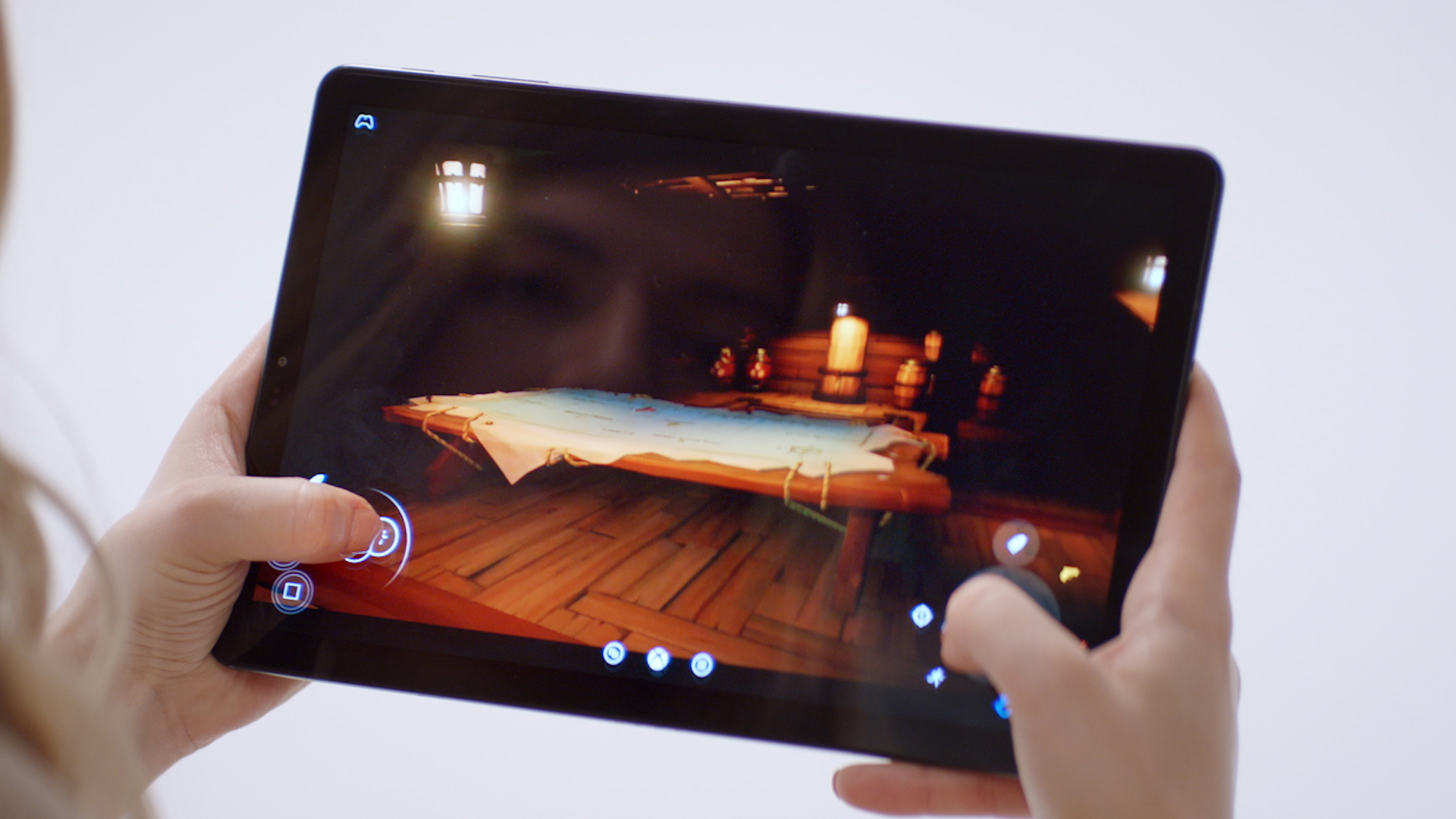
We are testing Project xCloud today. The test runs on devices (mobile phones, tablets) paired with an Xbox Wireless Controller through Bluetooth, and it is also playable using touch input. The immersive nature of console and PC games often requires controls that are mapped to multiple keys, buttons, sticks and triggers. We are developing a new, game-specific touch input overlay that provides maximum response in a minimal footprint for players who choose to play without a controller.

Photo of a tablet in someone's hands
A game runs via Project xCloud with a prototype touch overlay.

Cloud game-streaming is a multi-faceted, complex challenge. Unlike other forms of digital entertainment, games are interactive experiences that dynamically change based on player input. Delivering a high-quality experience across a variety of devices must account for different obstacles, such as low-latency video streamed remotely, and support a large, multi-user network. In addition to solving latency, other important considerations are supporting the graphical fidelity and framerates that preserve the artist’s original intentions, and the type of input a player has available.

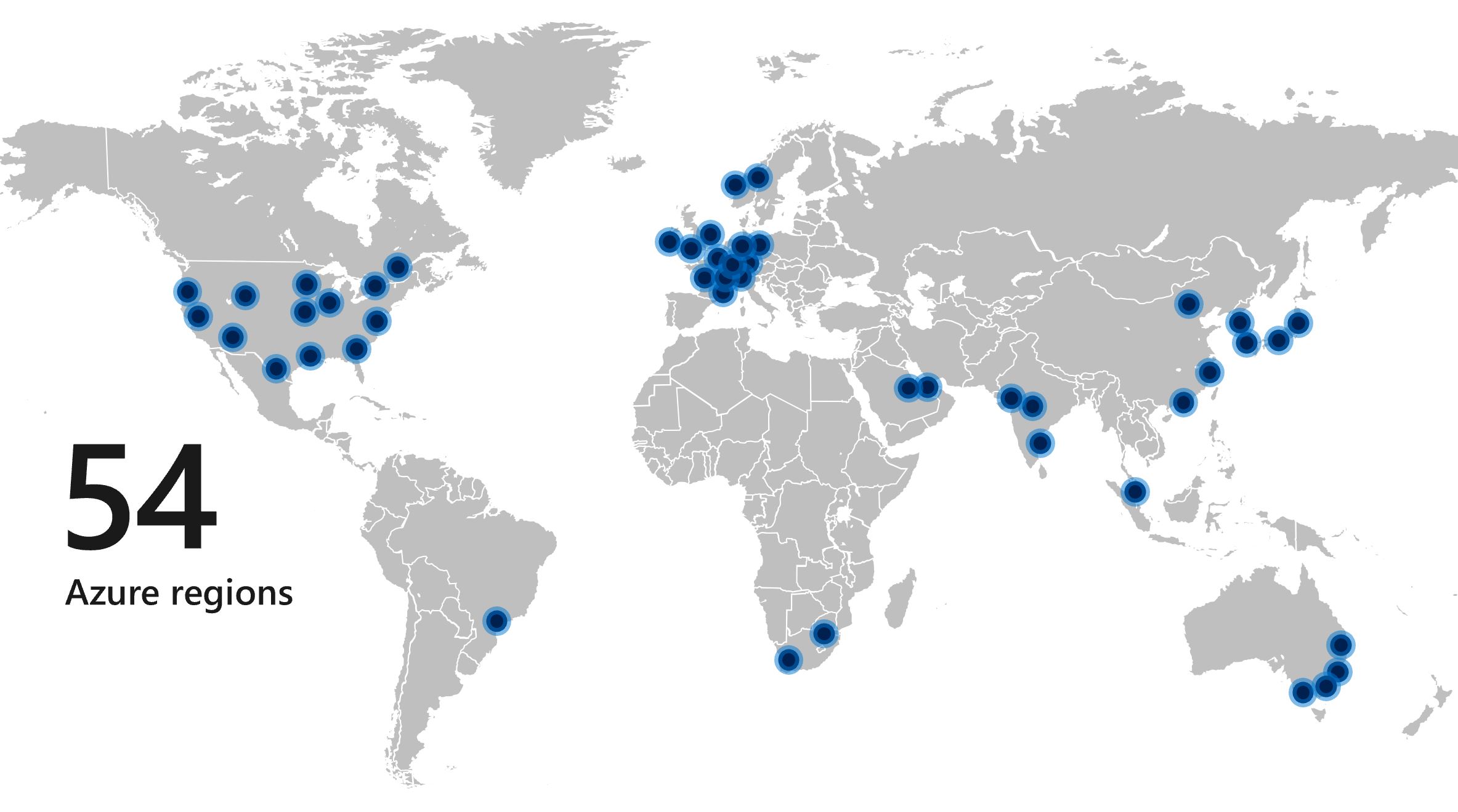
Microsoft — with our nearly 40 years of gaming experience starting with PC, as well as our breadth and depth of capabilities from software to hardware and deep experience of being a platform company — is well equipped to address the complex challenge of cloud game-streaming. With datacenters in 54 Azure regions and services available in 140 countries, Azure has the scale to deliver a great gaming experience for players worldwide, regardless of their location.

Map shows 54 dots around the world and is labeled "54 Azure regions"

Developers and researchers at Microsoft Research are creating ways to combat latency through advances in networking topology, and video encoding and decoding. Project xCloud will have the capability to make game streaming possible on 4G networks and will dynamically scale to push against the outer limits of what’s possible on 5G networks as they roll out globally. Currently, the test experience is running at 10 megabits per second. Our goal is to deliver high-quality experiences at the lowest possible bitrate that work across the widest possible networks, taking into consideration the uniqueness of every device and network.

We are looking forward to learning with you during our public trials next year and sharing more details as we continue on this journey to the future of gaming with you at the center. Stay tuned!

Thanx,

Kareem

Posted on Leave a comment

Announcing the first AI for Accessibility grantee: Zyrobotics

By Wendy Chisholm, Principal Accessibility Architect

In May, Microsoft CEO Satya Nadella announced AI for Accessibility to put AI tools in the hands of developers, universities, NGOs and inventors to accelerate the development of accessible and intelligent AI solutions to benefit people with disabilities around the world.

Today, we are announcing the first AI for Accessibility grantee, Zyrobotics. They are developing unique solutions for accessible science, technology, engineering and math (STEM) education, like ReadAble Storiez, that are adaptive to the diverse needs of students. We are thrilled to have them as part of our program and we can’t wait to see the impact they will have!

Zyrobotics CEO Dr. Johnetta MacCalla and CTO Dr. Ayanna Howard alongside Microsoft CTO Satya Nadella

ReadAble Storiez is a reading fluency program for students with diverse learning needs, which also helps fill in the gaps for students from low-income homes who may not have access to speech-language or occupational therapists. By creating custom speech models with Microsoft Cognitive Services and Azure Machine Learning, they aim to identify when a student needs feedback, much like an occupational therapist would recognize and provide.

Zyrobotics is a team of educators and developers who have a passion for creating technology that will enhance the quality of life for children. Last week, Satya had the opportunity to meet with Zyrobotics CEO Dr. Johnetta MacCalla and CTO Dr. Ayanna Howard in Atlanta, Georgia, and learn more about their work and passion for helping all students become better readers.

As Dr. Howard shared with us, “In our experience, because every child is different, you have to let them look at technology in different ways, more than just visual and auditory. Our focus is to incorporate interaction and personalization. The usage of AI/machine learning algorithms ensures that our apps are accessible and can be adapted to the personal needs of each child. We are excited about how this grant and partnership with Microsoft will help us address significant gaps for engaging each child based on their unique strengths and abilities.”

Look out for more grant-winning projects to be announced on the Accessibility Blog, the AI for Accessibility website and our social channels in the coming months. For those getting started, here are three of the top questions we have received from applicants:

When can I apply?
Now! We are accepting submissions on a rolling basis over the next five years. Grant proposals can be submitted via the online application form. Applicants will receive a follow up email within 30-60 days.

What is Microsoft looking for in applications?
We are looking for revolutionary ideas that use AI and align with any of our three areas of focus:

  • Employment. How can we positively impact the employment rate for people with disabilities through more intelligent technology?
  • Daily Life. How can we increase access to technology for people with disabilities while also decreasing the cost of such technology?
  • Communication & Connection. How can AI help improve the speed, accuracy, and convenience of communication for people with disabilities?

We are looking for individuals or teams who are not only passionate about making the world more inclusive, but also firmly rooted in the communities they intend to benefit. We want to see ideas that are developed by or with people with disabilities, not just for us.

What can I receive through the program?
First, check that your idea meets the following criteria:

  • Relevance: AI and/or machine learning are core to the project success;
  • Impact: Clearly elevates either employment, daily life, or communication & connection for someone with a disability;
  • Feasible: Is deliverable in a one-year timeframe—this could be phase 1 of the project but there should be tangible deliverables completed each quarter that are wrapped up in one year;
  • Capable: Your team should have the knowledge and skill to deliver the idea OR you partner with someone who can fill in the gaps;
  • Sustainable: The project has room to grow beyond the first year of funding;
  • Showcase-able: We want to talk about whatever you deliver!

The AI for Accessibility program provides monetary grants as well as technology and expertise depending on the potential impact and needs of each project. This can include:

  • Access to Microsoft Azure AI resources and Developer Support. To estimate the Azure computing resources you need, use the Azure calculator;
  • The costs of crowd-sourcing and cleaning data needed to get your project up and running;
  • Guidance from a Microsoft team of AI, project management, and accessibility experts who can help guide you to scale to a wide audience and deliver the impact you envision.

If you have additional questions about the awards program or the application process, please visit the AI for Accessibility FAQ.

Remember: anyone can apply! From a tinkerer in a basement to an established corporation, from students to professionals. If you are worried you don’t have what it takes, find someone who does and partner with them on an application. So, no excuses. 😊

Over the past eighteen months, Microsoft has fostered a growing $115 million AI for Good initiative that puts AI in the hands of inspired individuals developing real-world outcomes that tackle some of society’s most critical challenges. Comprised of AI for Accessibility, AI for Earth and AI for Humanitarian Action, we are hopeful the world will see what a compelling force for good AI can be.

We cannot wait to see what you create by or with people with disabilities to empower everyone to achieve more. 

Posted on Leave a comment

Building blocks for classroom success

“What if I never learn to read?”

This question was posed by eight-year old Fatima to her mom, Tasneem, after coming home from school in tears because she was struggling to read aloud in class.

Fatima has dyslexia, a term used to describe disorders that involve difficulty learning to read or interpret words, letters, and other symbols. She was diagnosed with dyslexia at an early age after her teachers noticed that she was mispronouncing certain names and words.

Fatima’s mom explained to her that children learn in different ways and having dyslexia doesn’t mean she is “stupid” or “dumb”.  She assured Fatima that she is just as intelligent as the other children, and explained that many people who struggled with dyslexia had gone on to have successful careers, like Albert Einstein, who became the world’s most renowned physicist.

That was nine years ago.

Now Fatima reads with the assistance of sophisticated technology called Immersive Reader. Immersive Reader is a Microsoft Learning Tool that empowers students with challenges like dyslexia, dysgraphia (the inability to write coherently) and Attention Deficit Disorders (ADD) to improve their reading and writing skills. It’s currently used by more than 13 million students around the world and has been shown to increase student test scores by as much as 10 percent.

[embedded content]

Technology gives all students a leg up

It’s clear that our world is changing faster than ever. Just a decade ago, a child such as Fatima, who struggled to read or write, didn’t have the opportunities technology provides now.

For countries in the Middle East and Africa, where vast disparities in educational opportunities exist, technology offers many teachers and students access to tools and content that would otherwise be out of reach. Mobile technology in particular is poised to revolutionise education in the region, as more students in emerging economies use their cell phones as learning devices.

At the Likoni School for the Blind in Kenya, over 500 visually impaired children are using assistive technology to access richer digital learning content.  And in Sharjah City in the United Arab Emirates, the Al Amal School for the Deaf is also using technology to help teachers build more engaging lessons, create sign-language videos and facilitate independent learning.

According to Afaf Haridi, principal of Al Amal School for the Deaf, “The children are gaining skills that they can use in the professional world. All in all, the initiative we rolled out with the help of Microsoft hasn’t just improved classroom learning—it has also created an amazing bond between the school and our students.”

[embedded content]

No one-size-fits-all approach to teaching and learning

However, the benefits of integrating technology in the classroom don’t only apply to children who have disabilities. Technology is improving overall learning outcomes by meeting the needs of different learning styles of students.

The days of the “one-size-fits-all” educational model are numbered. Today’s educators have more tools and resources at their disposal than ever before, meeting the diverse needs of their students and helping them succeed both inside and outside the classroom.

Teaching for success: Integrating tech into the different learning styles

Students enter the classroom with a wide range of learning styles and abilities, as well as their own unique personalities. To help them grasp new concepts, a fundamental understanding of the learning styles is essential. But it’s sometimes difficult for teachers to accommodate each student individually within the traditional classroom setting.

Fortunately, technology is providing teachers with accessible solutions that support a more personalised and inclusive approach to learning.

In general terms, learning styles refer to the ways in which learners understand, process and remember new information. The most popular learning styles include: visual, auditory, tactile and kinesthetic

Girl looking through a Blaster

For example, visual learners respond best to pictures and videos. Incorporating a tool like Picture Dictionary into the classroom gives these learners the ability to see a picture and hear the word simultaneously aiding reading comprehension.

Nikki Heyman, a speech and language therapist in South Africa, uses technology to visually represent concepts to children. “Having material at hand because of access to technology is fantastic. There may be a word or a concept that a child doesn’t understand, and technology allows you to provide the child with an immediate visual image of the word,” she says.

Auditory learners, on the other hand, learn best through audible signals, storytelling and music. A tool like Dictation in Office is a simple yet transformative tool that helps students of all abilities write freely by speaking into a microphone. In addition, with Skype, students can connect with classrooms around the world. Foreign language teachers can also use Skype to connect their class with native speakers of the language which can help students develop their conversational skills.

Kinesthetic learners prefer acting and role-playing. A great way to enhance the learning outcomes of these types of learners is to incorporate mixed reality into the classroom. Mixed reality helps transform classrooms by enabling students to experience curricula in completely new ways. Students can immerse themselves in the subject matter in a truly engaging way.

For example, with Microsoft’s mixed reality HoloTour, students can explore the beauty and history of Rome or uncover the hidden secrets of Machu Picchu. They can experience a whole new world with a unique combination of 360-degree video, spatial sound, and holographic scenery.

For tactile students who prefer to learn by touch, mixed reality lets them experience 3D content creation. With Masterpiece VR, students can sculpt and paint using intuitive and dynamic features that assist students build tangible objects, colourful environments and high quality models.

Minecraft: Education Edition is another great tool for all types of learners as it teaches creativity, collaboration and even coding. Minecraft: Education Edition is used to teach all types of subjects, from mathematics and physics to history and languages. Today, the game has more than four million licensed users in 115 countries. Educators have created more than 250 free lesson plans spanning a variety of subjects and over 300 educators around the world are trained as Minecraft mentors to help others get started.

Giving a voice to more children

According to Heyman, “The biggest revolution in technology for me is the ability to give more children a voice. In the past children with complex needs were written off because they could not communicate.”

However, she believes that there are still challenges that need to be overcome before technology can be used to its full potential in the classroom. “There are many teachers who are reluctant to change from the ‘old school’ style of teaching for fear of the unknown and having to learn new skills. Also, placing a device in front of a child and expecting them to just use it, is not going to happen. They need to be taught how to use it, and this takes time, resources and practice. It needs buy-in from everyone in the environment to be successful,” she says.

This sentiment is echoed by Michele Botha, a primary school assessment specialist for the Independent Examinations Board in South Africa. Botha believes that using technology in teaching to enhance the learning experience demands a high level of understanding and skill – it cannot be left to intuition.

She also believes that the reason education is still playing catch up with the digital world, particularly in the MEA region, is because education is generally more conservative in its approach to change than other workplaces.

“By its very nature education is dependent on a deeply personal relationship of trust and care. Additionally, there is sometimes a lack of money, teacher training, confidence in use of technology, inadequate infrastructure and poor connectivity, which are also contributing factors,” she says.

Technology now for students in the future

The role of the teacher is to prepare the future generations. The biggest question facing educators now is what skills today’s children will need to be ready by the time they graduate, and how can technology support their educational journey?

Happy Graduates screaming

To answer these critical questions, Microsoft launched a key piece of research: “The class of 2030 and life-ready learning: The technology imperative.” The research interviewed more than 70 thought leaders around the world, reviewed 150 pieces of existing research, and surveyed 2 000 teachers and 2 000 students.

The research highlights personalised learning as an approach which supports skills development — both cognitive as well as social and emotional. The students were also clear: they want to develop these skills to navigate their own learning – to explore and make choices that unlock their curiosity and potential – and they want teachers who know and understand them as individuals.

Three technologies were highlighted in the research as showing great promise to support social and emotional skill development and personalised learning. These are collaborative platforms, mixed reality and analytics powered by Artificial Intelligence (AI).

Technology can’t substitute the teacher

According to Botha, technology is not the silver bullet with which to solve all education problems. “It’s just another tool in a teacher’s toolbox. A teacher’s power lies in the opportunities he or she creates for learners to solve problems in an environment grounded in strong interpersonal relationships.”

“Good teachers have always finessed the technology available to them to create spaces where learning to think, learning to learn and creativity are paramount. Technology is only an asset when it’s added into this mix,” she concludes.

Posted on Leave a comment

Water Music: Blind and low vision paddlers make waves using Soundscape

By: Amos Miller, Microsoft AI & Research

Imagine you’re paddling on the lake, you feel the warm sun on your face, listen quietly to the calm ripples of the water. You can hear a sound beacon, in 3D, on the water, just in front of you and over to the right; you know exactly where it is, you steer the kayak towards it, paddle like crazy and catch it, collecting 25 points.

When your ability to perceive the space around you is enhanced in a natural, intuitive way, the urge to get out and enjoy that heightened sense of independence is irresistible. We experienced that feeling a few weeks ago on a beautiful sunny day on Lake Sammamish at the Microsoft Soundscape kayaking PaddlePalooza. What was that all about? Let me share the story.two kayaks on lake Sammamish

In my June post, I noted the continued excitement about the Soundscape beacon from people who are blind or have low vision. Many of you have asked to be able to place the Soundscape audio beacon anywhere. In response, we recently introduced Soundscape markers. With Soundscape you can now quickly and easily mark-up anything in your surroundings that you care about. That could be, for example, your front door or the post box at the top of your street, or you can mark-up key landmarks in your area to help with learning a route. You might even mark the entrance to the park or the picnic spot on the lawn.

With your markers in place you can hear them through Soundscape or set a beacon to them, so you can always know where they are. This is a wonderful way for you to personalize the areas you walk in and build up confidence to go beyond what you are familiar with, always knowing that you have your markers for orientation. Do give it a try and tell us what you think. It’s a lot of fun.

We then thought, well, if you can place a marker anywhere what if we marked up a lake and used the markers for orientation on the water while kayaking? Hmmm. Ok, so this sounds new, and we figured it would be something that takes empowerment to a completely new level!

As part of the Microsoft One Week hackathon, we marked up seven virtual beacons on the lake. In partnership with Outdoors For All, we invited a group of people with blindness or low vision to join us for a kayaking scavenger hunt.

[embedded content]

Click here for the audio description of the Soundscape Kayaking Scavenger Hunt video.

Wow! What an extraordinary day. When you wake up in the morning and by the end of the day realize you have done something you never imagined would be possible.

Now for the cool statistics! Of the 13 competing teams, 3 had only sighted paddlers, and 10 had blind or low vision paddlers. 11 of the 13 teams successfully found all seven beacons (covering an area roughly within a circle of 1000 meters in diameter) and scored the maximum points. The winning team completed the course in just 16 minutes!! The best sighted team came in sixth place at 25 minutes!

people with their kayaks on the shoreline of Lake Sammamish

“We were having a blast, the sun was shining, the water was calm and warm, I had an attentive partner, and I was independently captaining a kayak and successfully found all seven beacons, earning the maximum 140 points in 25 minutes…the exhilaration of being able to compete, to experience the freedom of paddling on the water, and truly being the navigator of our team is something I’ll remember always,” noted Cindy Van Winkle, a participant from the Seattle Lighthouse. You can read more about her experience on her blog.

The kayaking experience motivated us to reflect, once again, on what we mean by the sense of independence and about presence and empowerment. Have people who are blind kayaked before? Sure, they do all the time. However, are they really the driver? On this occasion they indeed were the driver in every sense of the term.

Firstly, in the teams with a paddler who is blind, only the blind participant knew where the beacons were located; the sighted companions had no indication where they were, and therefore they were not able to help. That meant that the paddler who is blind didn’t even need to ask for that independence, it was built into the game. Secondly, the participants didn’t have an agent whispering in their ear, go left a bit, straight, right, nor did they receive any form of instructions they had to listen to and process. Instead, Soundscape, using 3D audio, enabled the participant to effortlessly hear exactly where the beacons were, leaving it for them to decide where to steer. This transfer of control not only creates a true sense of independence, but the participants in fact performed much better. I talk about this phenomenon in my TedX talk where I describe the feeling I had flying a glider.

A few months ago, at an event in Montana I had the pleasure of meeting Sharon. As we made our way out to learn how to use the Soundscape beacon, I noticed that Sharon stayed back. When I checked with her I understood she chose not to join because she is hard of hearing. After we established that she was still able to hear the high pitch of the Soundscape beacon, she gave it a try, and, with her husband walking along with her, off they went and within a few minutes made it to her destination. When I caught up with them I noticed she was overcome with emotion, this had been the first time in many years she truly felt that sense of independence and that she was in the driver’s seat. For her, this is what mattered at that moment, that sense of joy and empowerment; and, knowing that her life would now be different.

There is no greater gift that technology can provide than a true sense of independence.

I must say that the impact the kayak hack has really surprised and motivated us to think about how we can bring Soundscape to more people and more organizations to really benefit from the value it provides and the empowering changes it has started to enable for people. This is something that we are looking into, and if you, or an organization you know, run programs or activities in which you believe Soundscape can help then do get in touch with us at soundscapefeed@microsoft.com.

Before wrapping up let me highlight some of the other recent updates we made to Soundscape:

  • We’ve been working to light up the experience while you’re travelling, whether in a bus, a car, or a train. To minimize interruptions and avoid getting in the way of whatever else you may be doing, Soundscape now identifies when you are in a moving vehicle and adjusts callouts to include only major landmarks, and update you only when you change roads.
  • Battery savings! You no longer need to close Soundscape to save battery; you can now just select the “Sleep” button on the home screen to stop Soundscape from using GPS and your data plan.
  • For our low vision users, you no longer need to hold the phone flat when pressing buttons; instead, you can now bring the phone right up close and press buttons, and everything will continue working correctly.

screenshot of the Soundscape homescreen

We can’t wait to hear what you make of them, please do continue to write to us on soundscapefeed@microsoft.com and of course, check our FAQ’s on our website for more detailed information and guidance.

In closing we welcome our friends from down under to the Soundscape community! Soundscape was launched in Australia on September 12, 2018, with a great partnership with Vision Australia and the extended community of people who are blind. Based on our learnings from the launch in Australia we continue to look at how we can bring Soundscape to other countries and aim to support the local language where possible. We will be sure to provide further updates as soon as we can.

We continue to be humbled by the response to Soundscape, we recognize that this is just the start and there is more work to be done; but please keep the feedback coming, on anything from the app, to the content we produce, to the way we can engage with you. Let’s continue to empower everyone, everywhere with the benefits of technology.

Amos and the Soundscape team.

Microsoft Soundscape is available for free on iOS and iPhone in the US, UK and Australia.

Posted on Leave a comment

How OneNote and Immersive Reader are helping students with autism

It all started last October. I was well into my first year of teaching second, third and fourth grade in a self-contained classroom for students with autism. My focus was to equip students with the social, academic and emotional skills needed to be members of their community. I was implementing eight behavior plans, three reading interventions, two math interventions, and was responsible for eight Individualized Education Plans (IEPs). It was a lot.

When I received an email that said my district was transitioning to the Microsoft Education suite, I wasn’t thrilled. In my mind, the Microsoft products were just another tool that would not meet the changing needs of the autistic students I taught.

I went to a Microsoft training, but still questioned how these products would meet the needs of my students. We only had three computers in my classroom, and my students were still learning how to type. How were they going to navigate complex programs like OneNote, PowerPoint, and Sway? How was I going to fit in the time to teach my students to use technology when they had more pressing social and academic needs? I decided I wasn’t going to implement the products.

Technology as a tool, not a barrier

Fast forward a few weeks and my class was working on a writing assignment. The goal of the assignment was simple—use visuals and adapted writing strategies, state an opinion, and support it with at least three reasons using complete sentences. I had graphic organizers, Picture Exchange Communication System (PECS) pieces, adapted lined paper, and a plan.

My students wrote two drafts with one-on-one support and explicit modeling, but one student was struggling. This student had a difficult time expressing his thoughts verbally, let alone on paper. He’d written two sentences in one week. It was difficult for me to figure out how to help him.

Then I thought of the Microsoft products that had been shared with me. It couldn’t hurt to try out OneNote with this student. So I put a computer in front of him and was blown away.

Without any prompting, he started typing. Not random letters, not a few simple words. He was able to write full, grammatically correct sentences. I couldn’t believe it.

The first time I used OneNote with the student who started the technology takeover in my classroom.

Seven months later, he’s made strides that are nothing short of incredible. His reading has increased nine levels. He’s gone from doing single-digit addition to multiplication. He’s playing at recess, talking to his peers, and smiling from ear to ear.

None of that would have been possible without the tools that Microsoft put into my classroom.

Here’s how OneNote and Immersive Reader help my students find success and give them access to the world around them.

Increased independence in reading

OneNote and Microsoft Learning Tools – like the picture dictionary and Immersive Reader – help my students read independently. They experience difficulty decoding words using traditional phonics strategies because English isn’t a consistent language. Microsoft Learning Tools provides my students with appropriate supports that can be increased or decreased to meet their needs.

For example, I have a student who benefits from visual prompts to read because he has difficulties applying decoding strategies on his own. I turned on his picture dictionary in Immersive Reader and taught him how to use it as a decoding strategy. During guided reading or independent reading, he is able to use the picture dictionary as a decoding tool, increasing his independence and access to the material.

If a student needs fewer prompts, I turn the picture dictionary off and teach my students how to use Immersive Reader when they are stuck on a tricky word.


A student uses Immersive Reader’s picture dictionary to decode a word.

After practicing technology decoding strategies in guided reading, we focus on comprehension. After multiple readings of a text, students answer questions using Forms in OneNote. I create a form unique to students’ needs and IEP goals, with the option to use them later with another student. These forms include pictures, answer choices, fill-in-the-blank statements – the possibilities are endless.

When students answer the questions, I immediately get the data in an Excel sheet that I can use to plan future instruction, update progress notes, and write IEP goals. Forms decreases the time I spend planning questions, increases my data collection, and creates a sustainable and economic way to test comprehension (no more copies!).

Forms can include accessibility supports such as pictures, answer choices, and read aloud features.


Writing

OneNote provides a way for me to differentiate writing materials to help my students be more successful. OneNote is not just an add-on or finishing tool my students use to type their final draft. I use OneNote to create personalized graphic organizers so my students can access writing independently. I highlight text, provide sentence stems, or write questions that promote independence for my students. For my pre-readers, these supports help because Immersive Reader reads them the supports.

Making a differentiated writing prompt in OneNote takes two minutes, saving me time and resources (like ink and paper) and can be the difference between a student having access or struggling with the assignment.


Examples of differentiated writing prompts. From left to right: A student uses a text in OneNote and a speech to text application to complete a graphic organizer. An example of a differentiated prompt that includes sentence stems and highlighting to indicate where students need to write. An example of another prompt that includes numbers to prompt the student to write the sentences in order.

Self-regulation

OneNote promotes self-regulation in my classroom when we use it to display visual schedules that help students transition to different parts of the room independently. My students use the “to do” feature in OneNote to check off centers as they transition, and they reset their to do list at the end of the day. In addition to promoting self-regulation, this is teaching a crucial life skill that my students need—how to make a list and cross off completed items.

An example of a visual schedule in OneNote that increases self-regulation and independence.

Parent communication

One of the best things about OneNote is the parent link share. I use this feature to show parents exactly what their kids are doing in the classroom. This link provides parents view-only access to their child’s notebook, and they can see everything they are reading in guided reading, notes from science, and any notes I leave in the parent communication tab.

This keeps parents up to date, involves them in their child’s learning, and provides an instant answer to the “What should I be working on at home?” question. It’s easy for parents to navigate, and even easier for them to help their child at home.

Technology in the real world

Microsoft OneNote and Immersive Reader give my students tools to be successful in the classroom, in the community, and in college and career. Regardless of their reading level, they can access books, newspaper articles, news updates, and job applications with Immersive Reader. OneNote provides them the platform to self-regulate and organize their daily schedules, assignments, and calendars.

Remember that student who began this technology transformation in my classroom? He is now my go-to technology expert when other students have questions or difficulties using Microsoft technologies. With the help of my principal, my classroom is now one-to-one with technology.

Our school’s first Skype a Scientist session that promoted inclusion between my class and a general education fourth grade class.

Students are able to use the Microsoft products in personalized ways that meet their needs. I am now a Microsoft Innovative Educator Expert who is passionate about using technology to promote accessibility and inclusion for students with disabilities. My school is on our way to becoming a Microsoft Showcase school and is a more inclusive school as Microsoft Learning Tools allows all students to work side-by-side, regardless of ability. Thanks to Microsoft, my students’ lives are better because they have access to 21st Century tools that will help them navigate the world.

Megan Callahan is a special education teacher in Washington, D.C. She writes about how she includes technology in her classroom at thespedcreative.com

Posted on Leave a comment

Tech is flourishing in Vancouver. Here are 5 reasons why.

Canada’s Digital Technology Supercluster consortium

The supercluster, a consortium that includes some of the world’s most recognized names in tech, healthcare and natural resources, hopes to create 50,000 jobs over the next 10 years, boosting the regional economy in many sectors. Microsoft is one the more than 300 participants in this group. An initiative of the Canadian Federal government, the Digital Technology Supercluster was one of five winning recipients of a $950 million award nationwide, and is focused on accelerating growth by bringing some of the biggest names in the industry together to advance technologies.

According to its CEO, Sue Paish, one of the goals of the consortium is to create an environment that will help develop, grow and ultimately sustain innovation and talent in the area.

“In British Columbia, we have a long history of producing a lot of start-ups and lots of innovative minds,” she says. “If we can take some of these creative minds and their technologies and put them in an environment where they are surrounded by like-minded people and medium and large companies that have the expertise and resources to help redefine and refine ideas and bring it to market, that’s essential to their success. We need the shot putters, sprinters and the long-distance runners to make a track team.”

A training ground for augmented, virtual and mixed reality

The British Columbia Institute of Technology offers a first-of-its-kind Mixed Reality curriculum.

At the British Columbia Institute of Technology, students are being equipped with tools for the real world. Studies at this institute of applied education focus on integrating student learning with industry projects, applied research and entrepreneurship so graduates head out to the workforce with the right mix of skills to create breakthroughs in the field.

“We know that people and organizations will work very differently in the future, as technology evolves fast and furiously,” says Kathy Kinloch, president of BCIT. “As an applied education institute, BCIT believes that people will be the driving force of success through this disruptive change and their own evolving career needs. We provide young people and lifelong learners with a diverse set of the latest technical and human skills, as and when they need them, to create innovative leaders and resilient individuals.

BCIT students graduate with a broad perspective, making them the right people to advance the field of augmented reality, virtual reality and mixed reality. Microsoft has partnered with BCIT to develop a first-of-its-kind mixed-reality curriculum, with the goal of training students for careers in the field of digital media and entertainment. Graduates are also able to make an impact in their own communities as they don’t have to go too far to find work, whether in the city of Vancouver or further south along the Cascadia Corridor.

Posted on Leave a comment

Whats new in Windows 10 accessibility in the October 2018 Update

At Microsoft, we believe our technology should reflect the diversity of the people that use our products.

We are excited to share how the Windows 10 October 2018 update delivers on that mission by giving you more accessibility features than ever before to enhance your personal computing experience. These features include Ease of Access updates to make Windows 10 easier to see, Narrator improvements to make Windows 10 easier to use without a screen, and Learning Tools and text suggestions updates to make it easier to read and write.

Ease of Access Updates

You now have more ways to see Windows 10 your way, with the addition of text size customization across the platform. From the “Display” page in Ease of Access settings or by typing “larger text” in the search bar, you can adjust a single global text size slider to make text bigger across Windows, efficiently making just the words bigger without affecting the entire visual layout. You can customize text size in conjunction with DPI scaling, otherwise known as the “Make Everything Bigger” setting. As the name implies, this feature makes everything on the screen larger, which can sometimes reduce productivity for users with low vision by requiring more panning or scrolling. By complementing DPI customization with text size customization, users now have more options to tailor their Windows 10 display.

We realize many users with low vision not only prefer more levers to customize their experience, but they also prefer using multiple tools together. The custom text size works great with Magnifier, which provides new ways for you to optimize your experience. You can choose to keep your mouse centered on the screen, which can be particularly helpful at higher magnification levels, so you do not lose your mouse or focus when trying to navigate. We have also added smaller increments of 5 percent and 10 percent for adjusting zoom level, so you can have even more control of your magnifier experience.

Narrator Improvements

We have continued to make Narrator, our built-in screen reader, easier to learn and use.

We have made narrator easier to learn with two key updates.

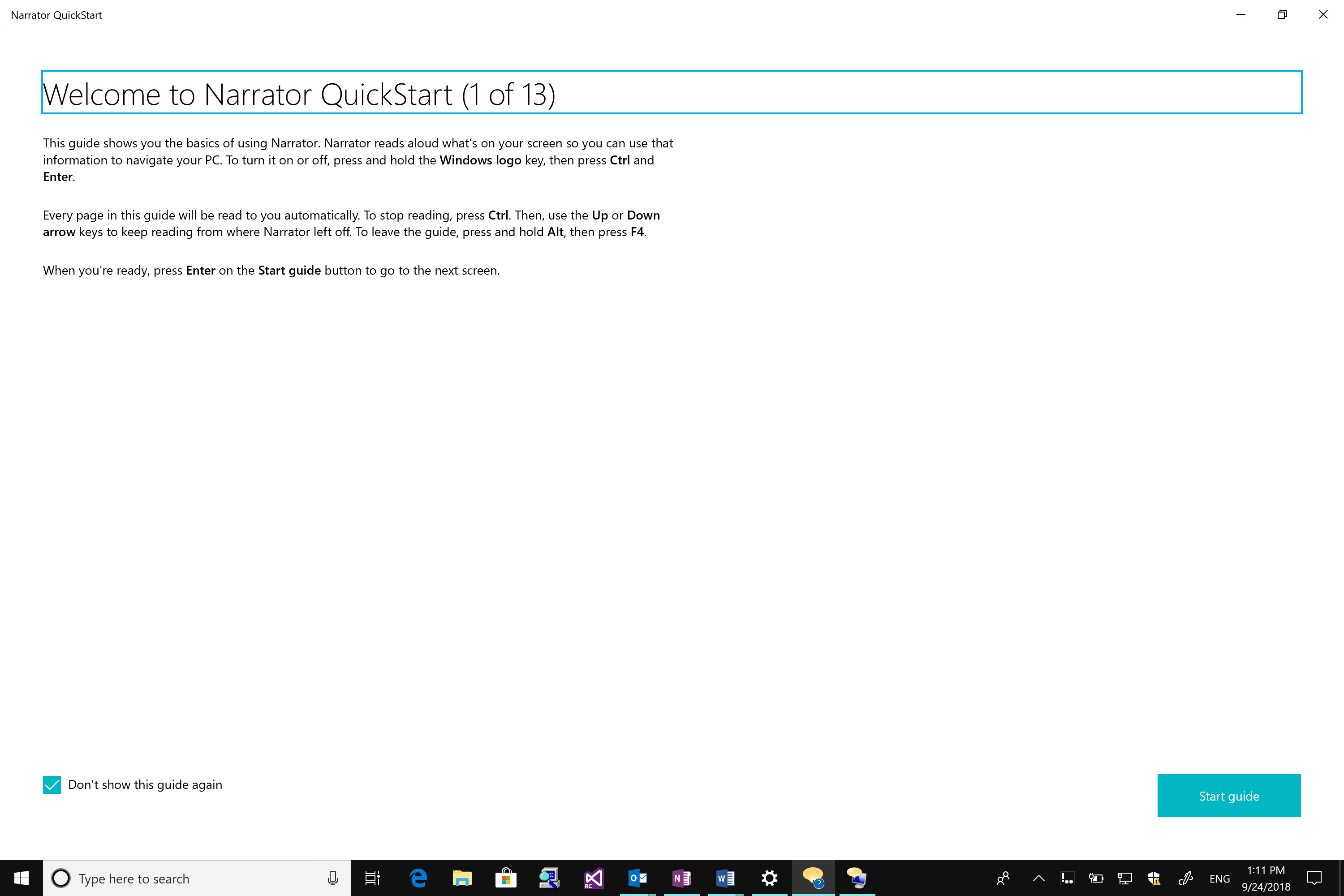
  • Narrator QuickStart: When Narrator launches, a new QuickStart tutorial experience will be available to teach you Narrator basics such as keyboarding, navigation and editing. At the end of the QuickStart there is a link to the User Guide where you can continue learning about Narrator.
  • Narrator screenshot

  • Improved and more familiar keyboard: Narrator now ships with a new keyboard layout designed to be more familiar to screen reader users. Differences in the keyboard layout are designed to improve keyboard ergonomics and usability, e.g. with improved mnemonics. Check out the Narrator user guide for more details on these changes.

We have also made narrator easier to use with improved navigation and efficiency.

  • Easier navigation: With Narrator Find, you now can search for specific text, which Narrator will then move to if found. Narrator can also now present a list of objects, such as links, headings, or landmarks that you can quickly filter to find what you want. Refer to the Narrator user guide for command mapping.
  • Increased efficiency: Narrator will now automatically read dialog boxes, such as the Word dialog box that appears when you try to close a document with unsaved changes. We have also made two key improvements to Scan Mode, a narrator feature that simplifies navigation by primarily using just the up and down arrow keys, to enable a more seamless experience:

o   Narrator stops on interactive elements like links so you can more easily interact with them, or you can continue reading with just a press of the down arrow.

o You have more options for selecting text while in Scan Mode including commands to copy an entire block of text without holding down the Shift key. Narrator’s selection commands will copy the format of the text being copied such as headings, lists and more. You can also now speak the selected text using a Narrator command. Refer to the Narrator user guide for additional information on Narrator selection commands or use the Show Commands List Narrator command by pressing Caps + F1.

Reading and Writing Improvements

In addition to Ease of Access and Narrator updates, the October 2018 Update also brings more ways to improve reading fluency and comprehension and author text.

Within Microsoft Edge, you now have more flexibility with web browsing and reading with new ways to customize your learning experience with Learning Tools. First rolled out in the Fall Creator’s Update a year ago, we added Learning Tools like read aloud to the web browsing experience. The April 2018 update then came with the addition of grammar tools, enabling you to break words into syllables and highlight parts of speech.

We are making Learning Tools even more powerful with the October 2018 update. With any ePub or webpage in reading view, you can customize the page theme color with Irlen colors that make it easier to decode text. You can also turn on line focus for a webpage in Reading view to help you concentrate. Additionally, you now have more ways to personalize grammar tools: you can customize the highlight color for parts of speech or turn on labels within the text if you find it difficult to disambiguate between colors. Should you run into words you are unfamiliar with, you can quickly look them up in the built-in dictionary that also works offline*.

Writing experiences are also improving. Text suggestions, which suggests the top three word candidates as you type, is now expanding to 50+ languages** since its debut in the April 2018 update.

Thanks and keep the feedback coming

Thank you to the many people who help shape the accessibility of Windows 10 experiences. Through channels like the feedback hub and the Windows Insider Program, we get your feedback that directly informs product development. That includes not only the features in this latest release but also throughout our work this past year in the Fall Creator’s Update and April 2018 Update.

Additionally, if you are a customer with a disability of any kind and need technical assistance, the Disability Answer Desk is there to assist via phone and chat. In the United States, we also have an ASL option for our customers with hearing loss: +1 503-427-1234.

Thanks again and please keep your thoughts coming! Whether you join the Windows Insider Program or activate the feedback hub by just pressing the Windows + F keys, we want to know what is top of mind so that we can continue to evolve the accessibility of Windows 10.

*Offline dictionary supported in English, Spanish, German, Italian, French

**Text suggestions languages include: Afrikaans​, Albanian​, Armenian​, Azerbaijani – Latin​, Basque​, Bulgarian​, Catalan​, Croatian, Czech​, Danish​, Dutch​, English (US, UK, AU, CA, IE, IN)​, Estonian​, Finnish​, French (CA, FR, BE, CH), Galician​, Georgian, German​, German (Switzerland)​, Greek​, Hausa (Latin), Hungarian​, Indonesian​, Italian​, Kazakh​, Latvian​, Lithuanian​, Macedonian​, Norwegian​, Polish​, Portuguese (Brazil)​, Portuguese (Portugal)​, Romanian​, Russian​, Serbian​, Serbian – Cyrillic​, Slovak​, Slovenian​, Spanish (Spain)​, Spanish (Mexico)​, Swedish​, Turkish​, Ukrainian​, Uzbek – Latin​, Filipino/Tagalog, Welsh, Icelandic, Maltese, Hawaiian, Greenlandic, Kinyarwanda, Xhosa, Zulu, Yoruba, Setswana, Maori, Turkmen (Latin), Bosnian (Latin), Mongolian (Cyrillic), Belarusian, Kyrgyz, Tajik (Cyrillic), Tatar (Cyrillic), Bashkir, Sakha

Posted on Leave a comment

Chicago to pilot new project to make cities more accessible

Microsoft believes accessibility and inclusion are essential to delivering on our mission to empower everyone, everywhere. Technology can play a powerful role to empower people with disabilities. Across Microsoft, we are working to make technology more accessible – whether that is built-in accessibility features in Windows and Office 365, new tools and resources like Soundscape, Seeing AI and Learning Tools, or collaborating with organizations on initiatives to help make the world more inclusive.

In Chicago, we have an opportunity to further the Smart Cities for All global initiative, a partnership between G3ict and World Enabled to help cities empower people with disabilities. The City of Chicago will become the first city in the world to pilot the Smart City Digital Inclusion Maturity Model, an assessment tool created by G3ict and World Enabled with support from Microsoft.

Designed to help city leaders and urban planners better understand the needs of and empower people with disabilities, the new Maturity Model helps cities measure digital inclusion and track progress. Focused on a broad range of functions important to all cities, such as communications, procurement, training, and technology standards, it defines key performance indicators and metrics to support advancing accessibility. Five levels of digital inclusion maturity guide cities in assessing and tracking progress across multiple Smart Cities dimensions, e.g. technology, data, culture, and strategy.

We are honored to collaborate with the City of Chicago and two nonprofits with a history of leadership in inclusive and accessible design that are actively working to help cities advance how they utilize technology to build more inclusive communities. The leadership of Mayor Rahm Emanuel, Commissioner of the Mayor’s Office for People with Disabilities Karen Tamley, and CIO and Commissioner of the Department of Innovation and Technology Danielle DuMerer, will create an important legacy of inclusion in Chicago. The new pilot demonstrates their continued focus of building inclusive practices into their planning and development process, a model that cities around the world will benefit from as we look at ways we can empower the more than 1 billion people with disabilities in the world.

Throughout October, we are celebrating National Disability Employment Awareness Month.

Initiatives like Smart Cities for All and the pilot project in the City of Chicago are great examples of how we can work together to help change the unemployment rate for people with disabilities, which is nearly double that of those without disabilities. Check out the blog, Empowering all people in the workplace, to learn more about our work to make technology more accessible.

We all have the responsibility to come together – across industries, sectors and geographies – to create a more inclusive world. Together we can support cities in using innovative technology to advance opportunities for everyone.

Posted on Leave a comment

Xbox brings ‘Forza Horizon 4’ to life at Goodwood House

I was dying to get back to the fun stuff, and Xbox obliged. We were heading to the next event in a 60-year-old Land Rover Discovery (the other vehicle on the front of the Forza Horizon 4 box), and I would be behind the wheel. Yes! This was more like it.

It only had four gears but I barely used first: “This vehicle’s got so much torque you should be pulling away in second,” my co-driver, who worked for Goodwood House, said. A plaque on the dashboard said the Land Rover could reach 122mph, but the engine sounded like it was going to explode at 60mph. I had a hard time slowing it down at that speed, as the brakes are as “classic” as the steering, and I nearly hit the car in front a couple of times (sorry to whomever was driving that red Fiat Punto).

We soon headed off-road and took a chalk track that used to be the main route from Chichester to London for horse-drawn carriages. Keeping the Land Rover in a low gear was essential here, as was concentration, as the ride was bumpy, to say the least.

“Take your foot off the clutch and brake and let it go on its own, it won’t stall,” my co-driver said. I was used to driving a modern car with the constant fear that I would stall it. No such problems in the Land Rover – it effortlessly rolled downhill without even thinking about stalling.