Posted on Leave a comment

Microsoft unveils genomics innovation and new partners at ASHG 2018

The world’s leading geneticists will converge in San Diego October 16-20 for the American Society of Human Genetics (ASHG) Annual Meeting. This year’s event will showcase some amazing new advances in genomics, and Microsoft Genomics will have exciting news and updates to share.

The latest in genome analysis

The strength of any analytical insight will always depend on the strength of the data used to generate it. If you want to perform repeatable genomic analysis that generates durable datasets, you should rely on industry standards that are constantly validated, versioned and properly curated.

With that in mind, Microsoft is deepening its commitment to genomics with the fourth iteration of the open source Genome Analysis Toolkit (GATK4). The toolkit update is designed to optimize performance for researchers as they strengthen data pipelines and power successful genomic analyses, so they can reduce the risk of noise or artifacts within the data set and extract more insight from the genome.

A growing partner network

To ensure that genomics researchers have access to a broad array of tertiary analysis and orchestrated cloud technology options, Microsoft is working with several new partners:  BizData, Eagle Genomics, Genoox, Gentera Biotechnology, L7 Informatics, Parabricks, Qiagen and Veritas Genetics. They will be with us at ASHG 2018, sharing their insights and demonstrating how their data tools and services will help broaden and deepen what researchers can achieve in genomics. We continue to expand our genomics partner ecosystem, with now more than 20 partners, from wet lab sequencing prep out to interpretation.

“We are very excited to partner with Microsoft Genomics and utilize Whole Genome Sequencing and the Arvados platform to answer the most interesting and difficult questions in genomics.” notes Ward Vandewege, Veritas’ VP of Engineering,  “Running on Microsoft Azure, we can demonstrate the possibilities of genomic analyses at scale by taking advantage of Veritas’ sequencing capabilities and Arvados’ open-source federated platform bringing the analyses to data.”

Anthony Finbow, CEO of Eagle Genomics commented: “We are delighted to partner with Microsoft Healthcare on its Genomics service and look forward to working together to unlock the potential of the microbiome and solve some of the grand challenges of our age. We are seeing strong demand for our knowledge discovery platform amongst enterprise customers in the biotech and pharma, food and personal care industries as they embrace the digital reinvention of Life Sciences R&D. Microsoft Genomics will help tackle the computing and scaling challenges, accelerating the adoption of the technologies and the launch of new products and therapies, heralding a new era in scientific discovery.”

A promising research study at The Icahn School of Medicine at Mount Sinai

Dr. Robert Klein from the Klein Lab at the Icahn School of Medicine at Mount Sinai is leading a team of bioinformaticians and geneticists seeking evidence for how our genes are involved in cancer risks, assisted by new technologies and the cloud to analyze the largest “big data” sets.

The Mount Sinai research team had been successful in gene sequencing, but they were starting to run into a bottleneck. “We weren’t getting enough space on the computer to store the data as we’re downloading it, running it, and working with it,” Dr. Klein said. “The data was just getting too big.”

With the Microsoft Genomics service, Dr. Klein added, “I give it the input data that would come from the sequencers, it can uniformly realign everything and let me do the joint calling for the analysis I want.” Microsoft Genomics enables “a way to try the large re-analysis of whole genome sequencing data.”

A powerful new way to analyze long-read bio data

In what’s likely to be our most exciting development at the event, we plan to demonstrate a completely new method for analyzing long-read genomic data and capturing major structural rearrangements.

Through collaborative research with Stanford University, we’ve developed a powerful new genomics algorithm that runs on an Intel Altera field-programmable gate array (FPGA) infrastructure within Microsoft Azure. It is an entirely new way of utilizing and understanding long-read genetic data, and will also be one of the first public-facing services based on FPGAs—the same board-level architecture that underpins the incredible machine learning capabilities of Microsoft Project Brainwave.

This revolutionary genomics service will make it easier for researchers to build and complete a whole new set of explorations using long-read data in the cloud. We can’t wait to see what the genetics community makes of it and hear how you plan to apply these powerful new capabilities when the service formally launches.

An exciting genomics success

At last year’s ASHG annual meeting, we presented a summary of how Microsoft Genomics was supporting collaborative pediatric cancer research at St. Jude Children’s Research Hospital.

This year, Microsoft and St. Jude are pleased to share early global adoption of the hospital’s global data sharing and research initiative. The St. Jude Cloud is using Microsoft cloud technology to successfully deliver pediatric cancer data to more than 2,000 clinicians and researchers among 300 organizations in 28 countries. St. Jude is using collaborative research in the cloud to make the genome more actionable, and it’s taking powerful steps forward in the understanding and treatment of pediatric cancer.

What the future holds

At ASHG, you can hear a poster presentation from Microsoft data scientist Erdal Cosgun, Ph.D. on research he conducted with his intern Min Oh. They explored the consistency of the quality scores with machine learning for next-generation sequencing experiments. He will present a machine learning approach for estimating quality scores of variant calls derived from BWA+GATK best practice powered by the Microsoft Genomics service.

You can also try out our Public Preview of Microsoft Genomics service GATK4. Between now and December 31, 2018, bring your Azure account and 20 whole genome samples to run with Microsoft Genomic Service at no cost. Let us know if you need to open a free trial Azure account and we can help you get started.

Stop by Microsoft Genomics at ASHG 2018 and find out more how we’re making deep genomic analysis easier and more accessible.

Posted on Leave a comment

How to get the Windows 10 October 2018 Update


People enjoying the latest tech

Earlier today, Yusuf Mehdi announced the Windows 10 October 2018 Update, the newest feature update for Windows 10. I’m excited to share our October 2018 Update rollout plans, how you can get the update today, plus some new update experience enhancements.

As with prior Windows 10 feature rollouts, our goal is to deliver the October 2018 Update in a phased and controlled rollout to provide a great update experience for all. We are beginning the global rollout out via Windows Update in the coming weeks.  As with previous rollouts, we will use real-time feedback and telemetry to update your device when data shows your device is ready and will have a great experience. You don’t have to do anything to get the update; it will roll out automatically to you through Windows Update.

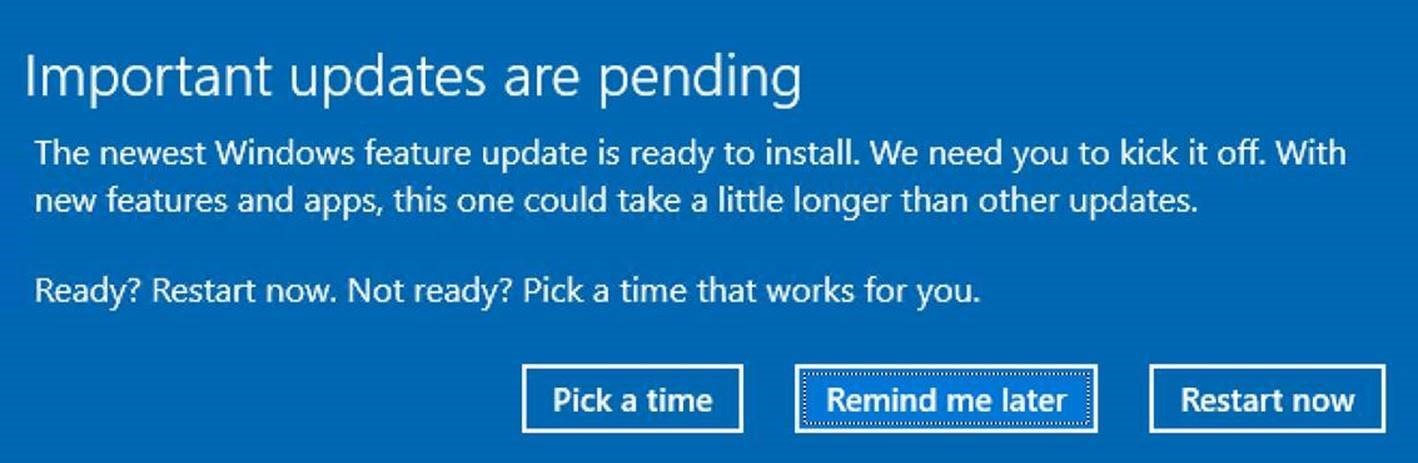
Once the update is downloaded to your device and ready to be installed we’ll notify you.  You are then able to pick a time that won’t disrupt you to finish the installation and reboot.   We are continually working to improve the update experience with each new release of Windows 10.

The last Windows 10 feature update rollout, the April 2018 Update, utilized machine learning (ML) to identify devices that were ready to update, incorporating key attributes like compatibility data. By leveraging machine learning we were able to safely rollout quickly, and as a result the April 2018 Update is now the most widely used version of Windows 10.  Further, our artificial intelligence/ML targeted rollout approach led to the lowest call and online support requests for any release of Windows 10.

With the October 2018 Update, we are expanding our use of machine learning and intelligently selecting devices that our data and feedback predict will have a smooth update experience. We will be further enhancing the performance of our machine learning model by incorporating more device signals such as improved driver telemetry and weighting of key features such as anti-malware software as we broaden the phased rollout. As we did with the April 2018 Update, we will be proactively monitoring all available feedback and update experience data, making the appropriate product updates when we detect issues, and adjusting the rate of rollout as needed to assure all devices have the best possible update experience.

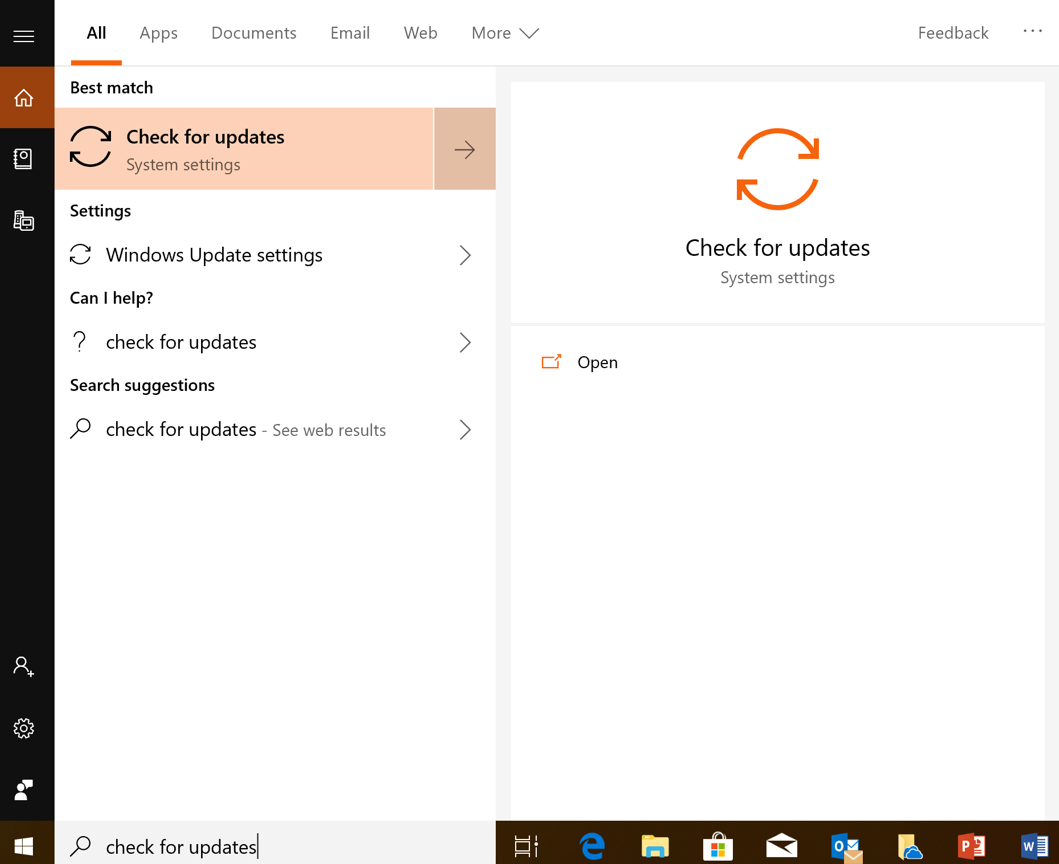
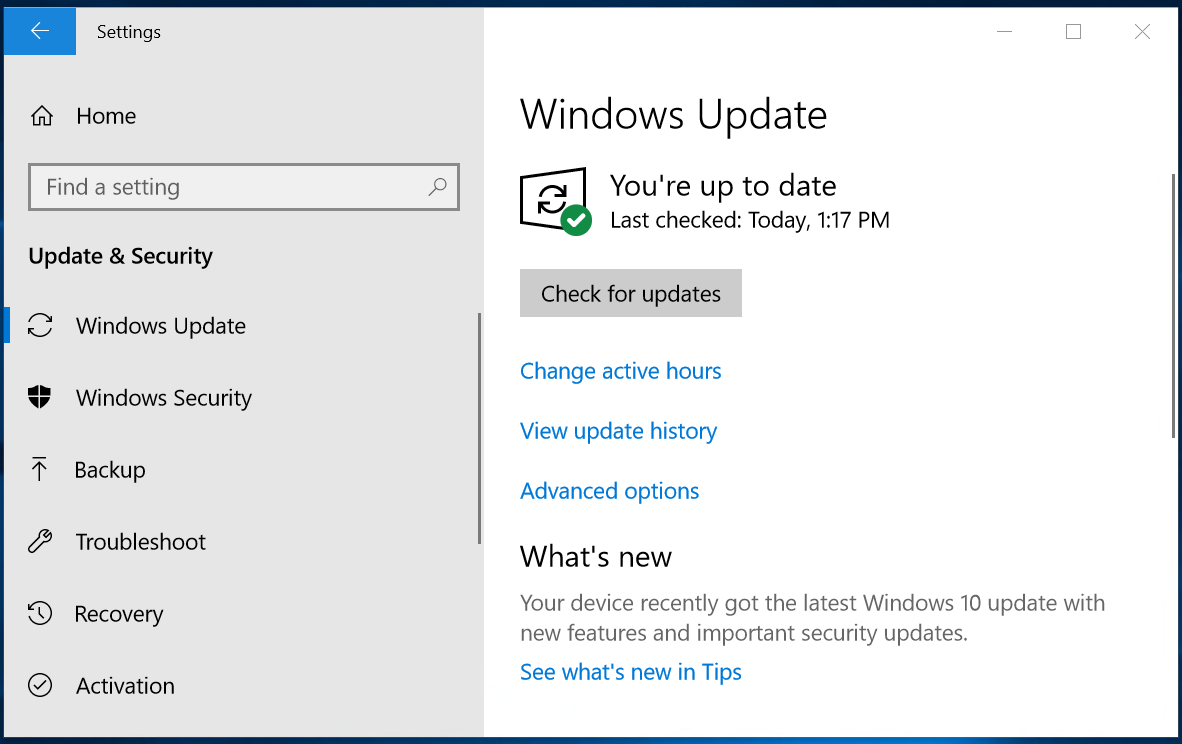
While we encourage you to wait until the update is offered to your device, if you’re an advanced user on an actively serviced version of Windows 10 and would like to install the Windows 10 October 2018 Update now, you can do so by manually checking for updates. In the Search box in the taskbar, type “Check for updates.” Once there, simply click “Check for updates” to begin the download and installation process. We are also streamlining the ability for users who seek to manually check for updates by limiting this to devices with no known key blocking issues, based on our ML model.  If we detect that your device has a compatibility issue, we will not install the update until that issue is resolved, even if you “Check for updates.”  You can also watch this video that outlines how to get the October 2018 Update.

If you’re using a Windows 10 PC at work, you will need to check with your IT administrator for details on your organization’s specific plans to update.

Improving the update experience

We have heard clear feedback that while our users appreciate that updates keep their devices secure, they find the update experience can sometimes be disruptive.  The October Update includes several improvements to the update experience to offer more control and further reduce disruptions.

Intelligent scheduling of update activity: For our many mobile users on laptops and 2-in-1 devices, we have improved Window’s ability to know when a device will not be in use and perform certain update activities then, so as not to disrupt the user. This ability to update at night when plugged in and not on battery power will help hide update activity and minimize user disruption from updates. To further minimize disruption (in case your system is updating overnight), Windows also silences audio when it wakes for Windows Updates.   If your device hasn’t updated for several nights, we will then suggest you plug in your device so that we can update at night.

Intelligent reboot scheduling:  Windows Update will now automatically determine the least disruptive opportunity, outside of Active Hours, and will use an enhanced machine-learning-powered activity check that can determine if a user is going to be away for a while or is only stepping away temporarily.

Faster updates, less down time:  We’ve also made further improvements to the feature update installation process and are targeting to further shorten the amount of time your device is offline during updates by up to 31% compared to the Windows 10 April 2018 Update (based on results from the Windows Insider Program) during the rollout of the October Update.

Smaller downloads:  In the October Update we are introducing a new update package delivery design for monthly quality updates that creates a compact update package for easier and faster deployment.  Users will benefit from the new small update size when installing applicable quality updates as they are 40% more efficient.

Enhanced privacy controls

We continue to focus on putting our customers in control so in the October Update we are enhancing the privacy choice and controls available to users to manage their privacy.  We are now enabling each new account on a device to personally tailor the main privacy settings, instead of only the initial user who sets up the device.   Furthermore, during new device setup, we now offer an activity history page that allows users the opportunity to opt in to sending activity history to Microsoft, to help improve cross device experiences.  This allows users to pick up where they left off in various activities (such as a working on a Word document) on their other devices (Learn more about activity history).

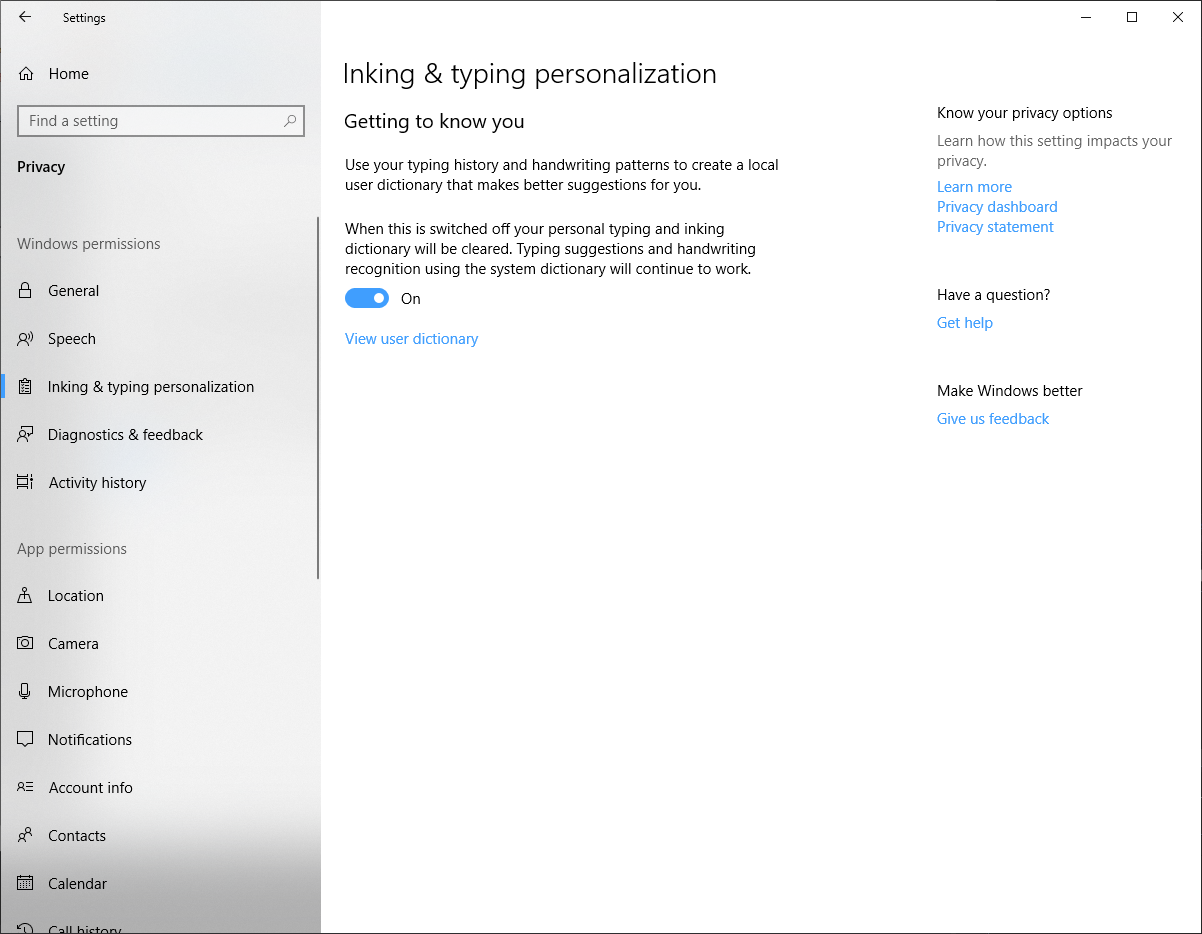
Additionally, we are splitting Inking & typing personalization out from the Speech privacy page.  This enables more granular control of your inking and typing personalization data by managing it separately from your online speech recognition data. Learn more about online speech recognition and inking & typing personalization.

Semi-Annual Channel (Targeted) released

For our commercial customers, the release of the Windows 10, version 1809 on October 2, 2018 marks the start of the servicing timeline for the Semi-Annual Channel (“Targeted”) release; and beginning with this release, all future feature updates of Windows 10 Enterprise and Education editions that release around September will have a 30 month servicing timeline.  Just as we’re immediately beginning rolling out the October Update in phases to consumers, we recommend IT administrators do the same within their organizations to validate that apps, devices, and infrastructure used by their organization work well with the new release before broadly deploying. We use data to guide our phased consumer rollout and encourage commercial customers to do the same through Windows AnalyticsThe update is now available through Windows Server Update Services (WSUS), Windows Update for Business (WUfB) and System Center Configuration Manager’s (SCCM) phased deployment.  For an overview of what’s new and what’s changed, please see What’s new for IT pros in Windows 10, version 1809.

Continuously evolving Windows 10 and the update experience

We’re excited to bring you the latest Windows 10 Features and improvements and hope that you enjoy the improved update experience.    Please provide us feedback as we continue our journey to evolve the update experience, so that our great new product and security features and other enhancements arrive without disruption.

Updated October 2, 2018 4:40 pm

Posted on Leave a comment

Find out what’s new in Windows and Office in October

TheWindows 10 October 2018 Update is available now, and we’re also releasing new innovations in Office 365, To-Do and Outlook.com. These updates were designed to help you make the most of your time across work, home and everywhere in between.

Offering tools for your whole life has never been more important as the lines between work and life have never been more blurred. Whether you are juggling a career and family, running a family as head of household, or growing your career or education, you tell us your greatest need is simply more time and the tools to do what matters most to you.

You can get the Windows October 2018 Update in a couple different ways. If you already have a Windows 10 PC and have automatic updates enabled, the update will be delivered to you when it’s ready for your machine. That roll out begins on Oct. 9. If you are an advanced user and would like to get the update sooner, visit this blog post to learn how. Office updates will roll out over the coming months, and more details are below.

Our favorite new features in Windows & Office

Your Phone app

No need to dig for your phone to text. And you can finally stop emailing yourself photos. With the new Your Phone app you get instant access to your Android phone’s photos and texts on your computer. Snap a pic on your Android phone, see it on your PC. You can also drag and drop photos from your phone onto your PC. And you can copy, edit or ink that photo, right from your PC. Text your friends, group message and type with a keyboard — Your Phone app allows you to view, send and receive the SMS from your Android, on your PC. Android 7.0+ are compatible with Your Phone app[1], which also helps link iPhones to your PC.

For iPhone users, you can surf the web on your phone, then send the webpage instantly to your computer to pick up where you left off. Then you can read, watch or browse with all the benefits of a bigger screen. With a linked phone, continuing on your PC is always just one share away.

For quicker access to your phone’s content, pin Your Phone app to your desktop or your taskbar. You can also fire it up through the All Apps list in Start Menu, or by clicking the Windows key and searching for Your Phone app.

Timeline on phone

In April, we introduced you to Timeline on your Windows 10 PC. It aims to end the frustration we’ve all encountered digging through emails and file folders for a document we just can’t find. Timeline makes it way easier to find what matters to you across your devices. You can also pick up what you were doing  — even if it was on your iOS or Android device — on your Windows 10 PC when you’re ready to get back to it.

Now, your PC’s timeline is available on your phone, so you can scroll back in time to find the files and websites you were using on your phone, computer and tablet. Basically, you can pick up where you left off, wherever you left off[2]. Go back and forth in time by easily scrolling back to find things you were working on earlier today or earlier this week[3]. Share or remove activities whenever you want from a specific day or hour. Available in preview starting today on Android phone via Microsoft Launcher app, coming soon to preview for iPhone.

Inking and 3D in PowerPoint and Word

PowerPoint[4] is a powerful tool for visually telling your story, and Word[5] is a canvas for organizing and collaborating on ideas. Whether you’re pitching a concept, teaching a lesson or writing a paper, today we’re making it even easier to showcase your thoughts with new AI-powered inking features and 3D updates that help you find creative flow and design beautiful content.

  • Because some prefer to sketch out their thoughts first, now, you can ink[6] your ideas and we’ll use AI to transform them into perfectly formatted slides. An inked bulleted list will transform into perfectly formatted text. Or, if you’re inking a flow chart or diagram, you can draw both words and shapes, and PowerPoint will easily convert them into text and snapped shapes in one fell swoop.
  • Our AI-powered design engine, PowerPoint Designer, is getting smarter. Designer can now recommend slide designs based on handwritten ink. Or, if typing is more your style, Designer can take a simple block of text, understand the context using AI, and then provide design ideas using icons and Smart Art. To provide even more design options, we’re also adding 350 new icons to our library.

We’re adding built-in animations to 3D models in PowerPoint and Word. New 3D Embedded Animations make it faster and easier for anyone to add movement and animation to slides and

  • To give you even more creative flexibility, we’re also adding over 30 new animated 3D models.
  • If you like the flexibility of editing Word documents using digital pen, we also have some great updates for you. Using Ink Editor[7], you can already do things like remove and highlight text. Today, we’ve added new pen gestures that make editing a document from start to finish easier, including adding line breaks, inserting new words as well as splitting and joining words.

For the last few years, we’ve been on a mission to transform Office[8], and use AI to make everyday tasks easier. June, we revealed a fresh, new design for our Office apps and just last month we announced new AI-powered features in Excel and PowerPoint. We’re excited to show you what more there is to come.

Most updates to PowerPoint and Word will begin rolling out to Office 365 subscribers on Windows today. The ink to Designer feature will roll out next month. 3D Embedded Animations will roll out to Office Insiders first, and will become generally available in the coming weeks. Text to Smart Art and icons will also be available for PowerPoint Online and Mac. 

Microsoft To-Do

Our task app, To-Do helps you manage, prioritize and complete the most important things you need to achieve each day. To help you keep track of tasks using whatever mode is most comfortable to you, today we’re announcing the ability to update your tasks using ink. With your digital pen and a touch enabled Windows device, simply add a task to your list using ink, and then strike out when complete. By signing in with your Microsoft Account, your tasks are then conveniently synced with the To-Do app across iOS, Android and Windows and the web.

Outlook.com

Over one year ago, we updated Outlook.com to give our millions of users a faster, smarter and more personalized inbox. Today, we’re making two new updates that make staying on top of tasks easier and interacting with brands you love, better.

  • The new Tasks experience in Outlook.com helps you manage tasks without breaking your flow or leaving your inbox. Powered by To-Do, you can now create tasks by dragging and dropping an email to your task list. Or, easily schedule items by dragging a task to your calendar. Your tasks then travel with you on the To-Do app.
  • Is your inbox overflowing with offers and newsletters from brands? Today, we’re launching a new experience in Outlook.com to help you sort through the noise and interact more easily with the brands you love. Brands now can obtain a verified icon, making it easier for you to identify legitimate businesses in your inbox. And with the new profile card, you quickly have access to contact information, package deliveries, reservations, store locations and more. You’ll also be able to easily see what newsletters you’re enrolled in, and unsubscribe in one click with the new subscription portal. Finally, we are making it easy to find promotions in your inbox by surfacing offer details right in your message list, so you don’t have to open the email to see the deal. These new features will begin rolling out to Outlook.com customers in the US in the coming months.

Snip & Sketch (previously known as Screen Sketch) is now an app.

You can now update Snip & Sketch (originally introduced as part of the Windows Ink Workspace under the name “Screen Sketch”) via the Microsoft Store. It will now appear in the list when you press Alt + Tab. You can also set the window size now, and it even supports multiple windows.

Easy snipping is just a single step away. We’ve heard that you want to be able to quickly snip and share a screenshot, and we’re making it happen! Pressing the Windows key + Shift + S will now bring up a snipping toolbar – use it to snip a rectangle, something a bit more freeform, or full screen and it will go straight to your clipboard. If that’s all you need, you can take it from there.

But say you want more. Immediately after taking a snip, you’ll now get an invitation to take you and your snip to the Snip & Sketch app where you can annotate and share away.

But wait, there’s more! Is the Windows key + Shift + S keyboard shortcut too long to remember? We’ve added easy entry options:

  • Just click the pen tail button. If you have a digital pen, go into Pen & Windows Ink Settings – you’ll find Screen Snipping is now an option for single click. This will launch you directly into our snipping experience below.

  • Press Print Screen. You heard it right, just one button! It’s not enabled by default, so go to Keyboard Settings, where you’ll see a new option that says “Use the Print Screen key to launch screen snipping.” Opening Settings and searching for “print screen” will take you to the right page.
  • Press the quick action button in Action Center, labelled “Screen snip.” It should be there as soon as you upgrade, but if not you can always enable it via Notifications & Actions Settings.

A note about Snipping Tool: As part of the process of consolidating and modernizing our snipping experiences in Windows, when you upgrade to the October 2018 Update you’ll see a note about this in the Snipping Tool.

Snipping Tool is still available, and will continue to be available until our data and user feedback indicate people don’t need both experiences.

Other updates in Windows & Office

Microsoft Edge General Improvements

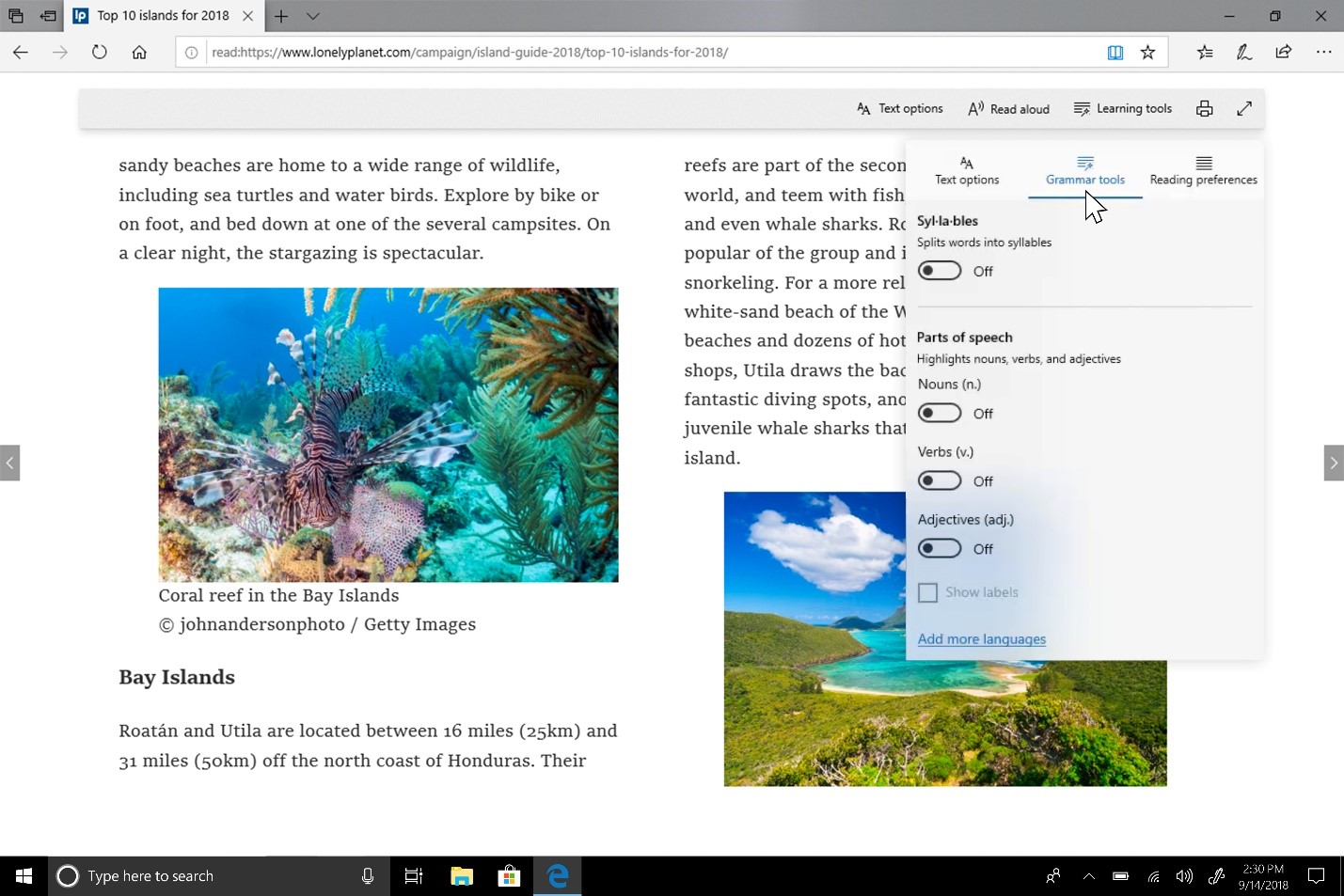
There are now more ways to improve reading and focus, also an improved look/design of Microsoft Edge and more control via customization:

  • Learning Tools: Microsoft Edge is the only browser with Microsoft Learning Tools built-in that help improve reading and focus.
  • Themes: Select a theme or choose custom colors that work best for you.
  • Grammar Tools: Identify parts of speech with different colors.
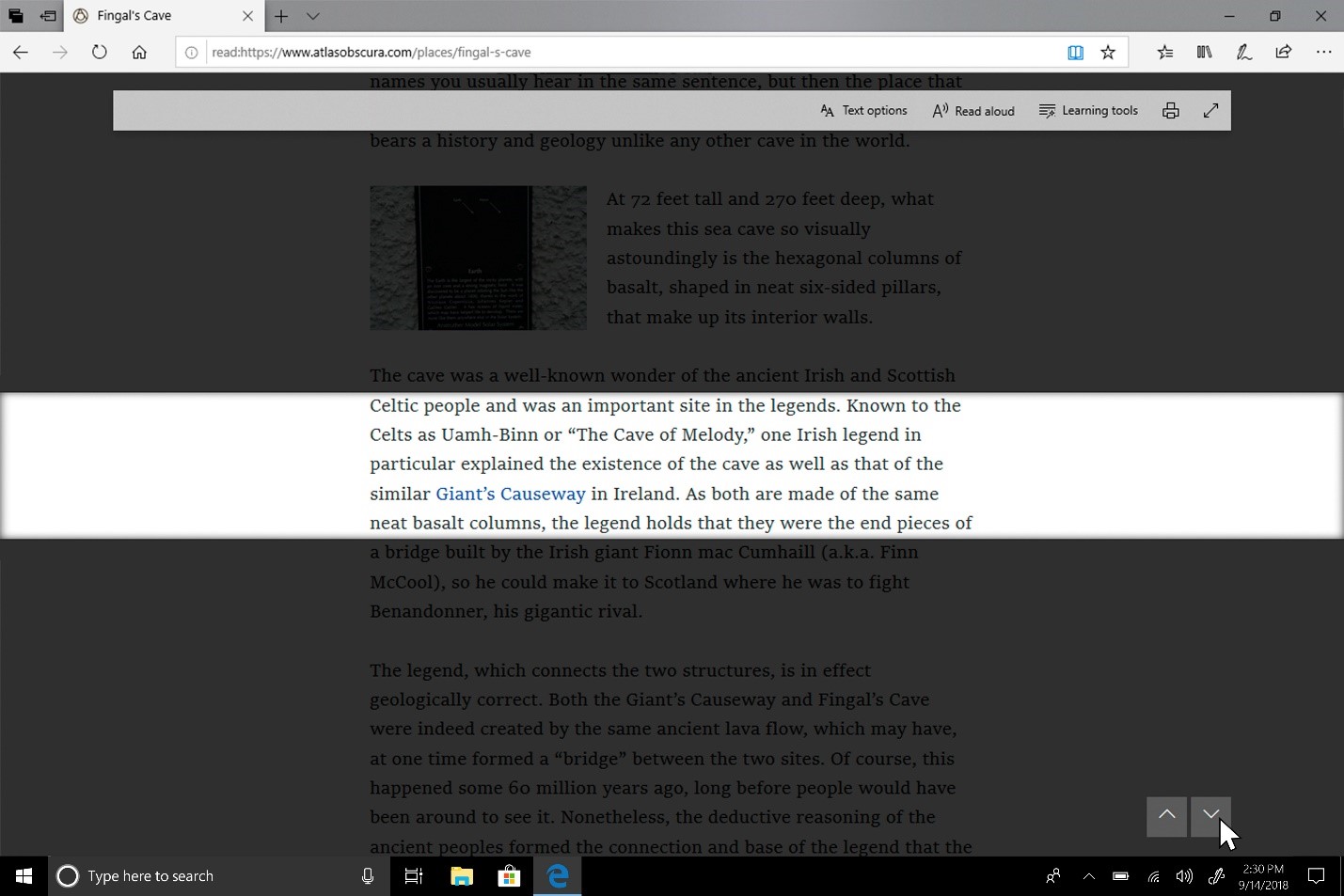
  • Line Focus: Like a reading ruler, this feature highlights lines of text, which helps focus your eyes and attention.
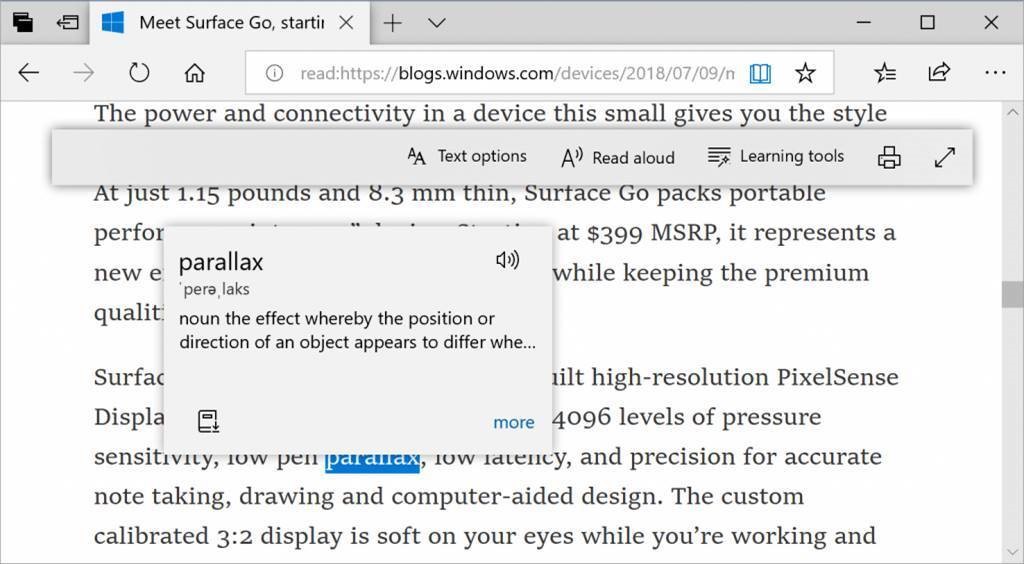
  • Offline dictionary. Highlight a word and the definition automatically pops up.

Learning tools get richer: Under the learning tools available in Reading View, you can see additional themes. Choose the theme color that’s easiest for you to see.

Grammar Tools: Now you can separate words into syllables and highlight parts of speech, such as nouns, verbs and adjectives. Along with highlighting parts of speech, you can now also change the color as well as turn on an indicator right over what you’ve highlighted, making it much easier to identify the part of speech.

Line focus: Helps improve focus while reading an article by highlighting sets of one, three or five lines.

Once you’ve set your preference, you can easily scroll down the page and the line focus moves as you read.

Look up definitions for words in Reading View for web pages, books and PDFs: We’ve added a new dictionary function, so you can look up definitions for key words when reading a page or document, even when you are offline. Simply select a single word to see the definition appear above your selection.

You can also choose to have a word read aloud so you can hear the correct pronunciation or expand more details from the definition. You can also toggle to choose whether definitions appear and which types of content they work in under the “General” tab of the Microsoft Edge settings menu.

Microsoft Edge PDF Improvements

Improved toolbar options: The PDF toolbar can now be invoked by just hovering at the top, making the tools more easily accessible. The toolbar, available whenever a PDF document is opened in Microsoft Edge, will now show text descriptions for the icons to make them quickly understandable. New options like “Add notes” make these handy tools available when you need them.

Pin/unpin PDF toolbar: The toolbar can now be pinned at the top of the document, making all the PDF tools easily accessible if you need them. You can also unpin the toolbar for an immersive reading experience. If the toolbar is unpinned, it will hide itself – just hover over the top area to bring it back.

Rendering improvements: Now you will see less of the white pages when you navigate through PDF files in Microsoft Edge.

New design improvements: As we continue to evolve how Microsoft Edge leverages the Fluent Design System for a more natural and usable experience, you may notice some subtle tweaks to the look of the tab bar. In the October 2018 Update, we’re adding a new depth effect to help emphasize the active tab.

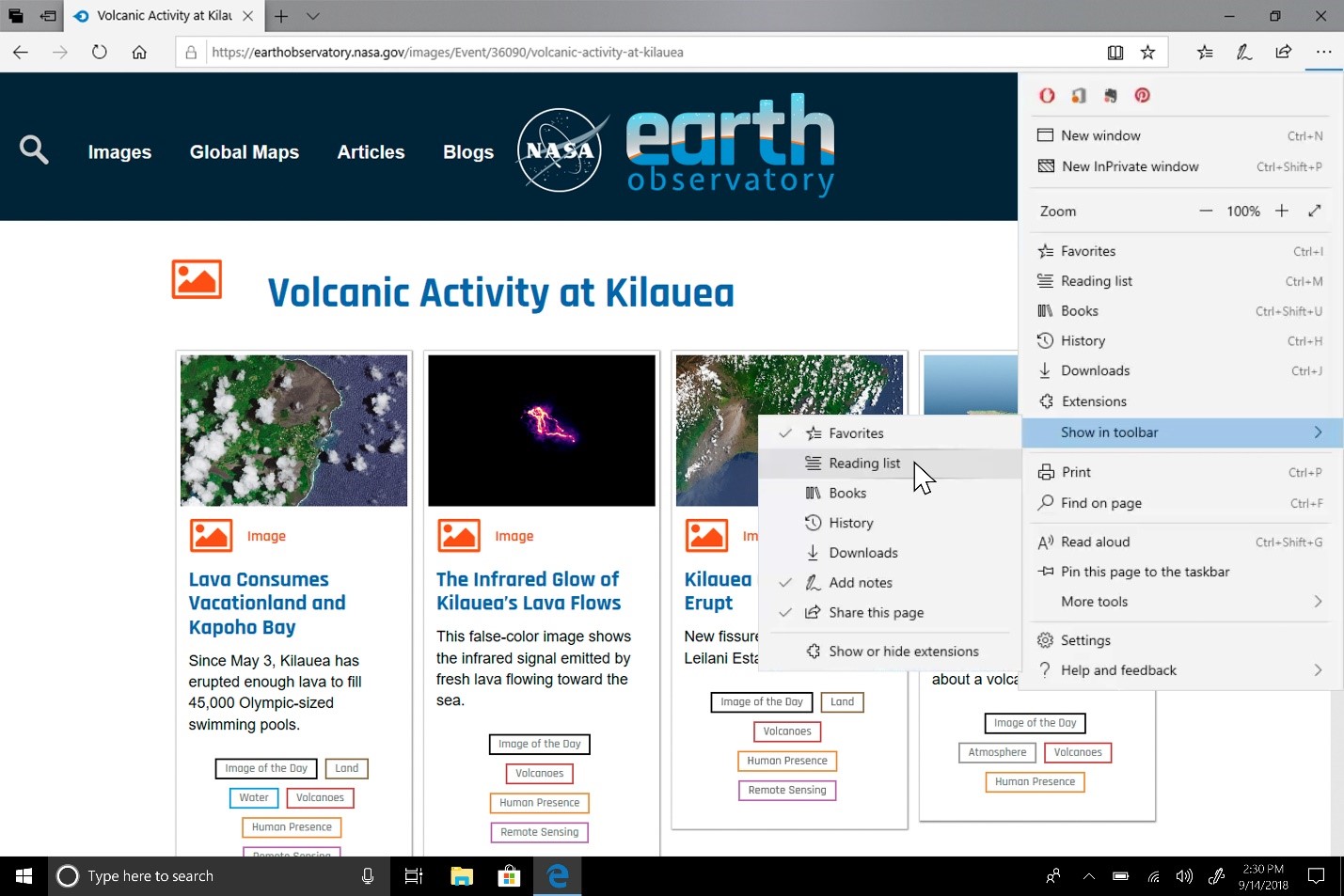
Redesigned “…” menu and Settings: We’ve heard your feedback that the Microsoft Edge settings were getting a little complex for a single page. In this release, we’re making Settings easier to navigate, putting commonly used actions front and center, and providing more ways to customize. The menu options are now organized into groups, with icons for each entry and keyboard shortcuts (where applicable). Click the “…” button in the top-right corner of Microsoft Edge to see what’s new.

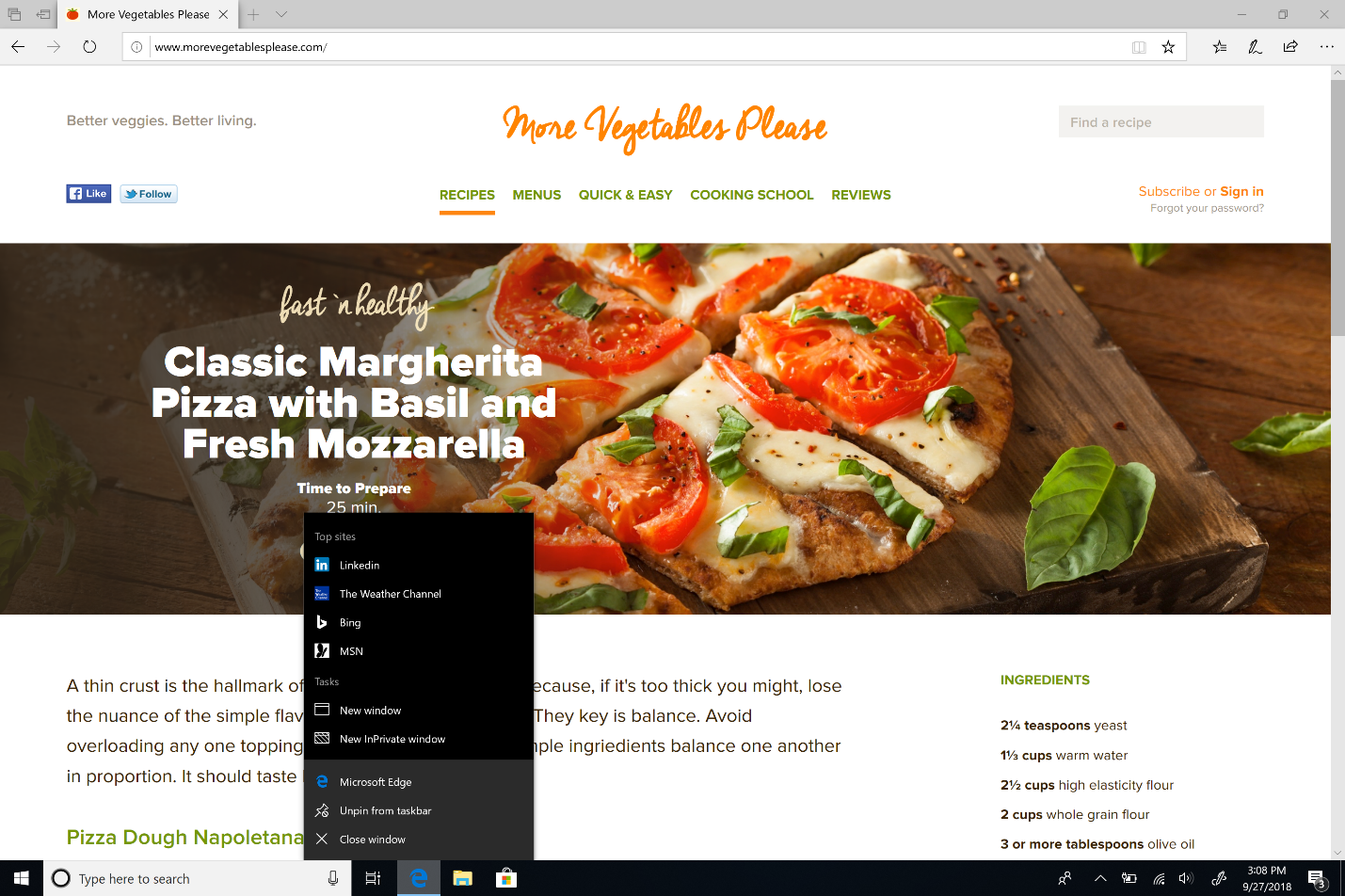
Customize toolbar items for Microsoft Edge: When you click “…” in the toolbar, you’ll find a refined menu that puts common commands like “New window” and “New InPrivate window” front and center. We’ve also added the much-requested ability to customize which icons appear in the Microsoft Edge toolbar – you can remove them all for a tidier look or add as many as you like to bring your favorite functionality to your fingertips.

See your top sites in the Jump List: You can now see your top sites in the Jump List on the Windows taskbar or Start menu. Just right-click the Microsoft Edge icon to see a list of your most-visited sites and pin the ones that matter most to you. Right-click on any entry to remove it from the list.

Do more from the “Downloads” pane: We’ve added options for “Show in folder” and “Copy link” to the right-click menu for items in the “Downloads” pane.

Last (but not least), the October Update breaks Settings out into subpages by category, with better-organized options and less clutter on each page. The new Settings experience is designed to match the Microsoft Edge Favorites, for a quicker and more familiar experience.

Microsoft Edge Platform and Enterprise Management Updates

Web Authentication API: Microsoft Edge now includes unprefixed support for the new Web Authentication API (a.k.a. WebAuthN). Web Authentication provides an open, scalable and interoperable solution to facilitate authentication, which replaces passwords with stronger hardware-bound credentials. The implementation in Microsoft Edge allows the use of Windows Hello (via PIN or biometrics) and external authenticators, like FIDO2 Security Keys or FIDO U2F Security Keys, to securely authenticate to websites.

Microsoft WebDriver is now a Feature on Demand: We’ve made Microsoft WebDriver a Feature on Demand (FoD) so it’s easier to get the right version for your device. You can install WebDriver by turning on Developer Mode, or by going to Settings > Apps > Apps & features > Manage optional features and installing it as a standalone.

New Microsoft Edge Group Policies: The Microsoft Edge team has introduced new Group Policies and MDM settings for IT administrators to manage Microsoft Edge. The new policies include enabling/disabling full-screen mode, printing, favorites bar and saving history; prevent certificate error overrides; configuring the Home button and startup options; setting the New Tab page and Home button URL and managing extensions. Learn more about the new Microsoft Edge policies.

Users can control whether media can play automatically: In the October 2018 Update, we’ve added a new setting in Microsoft Edge to allow you to control whether sites can automatically play videos. You can find this setting under Advanced settings > Media autoplay, with options to customize the behavior according to your preferences:

When “Allow” is selected, sites can play videos when you first browse to the site in an active tab. When “Limit” is elected, sites can only autoplay silent videos, so users are never surprised by sound; once the user clicks anywhere on the page, autoplay is re-enabled for that domain for the duration of that tab. When “Block” is selected, sites cannot autoplay until you interact with the media content.

Users can also enable or block autoplay at any time, or change autoplay permissions on a per-site basis, by clicking the information icon or lock icon on the left side of the address bar and selecting “manage permissions” to get started.

Retired XSS Filter: We are retiring the XSS filter in Microsoft Edge beginning with the October 2018 Update. Our customers remain protected thanks to modern standards like Content Security Policy, which provide more powerful, performant and secure mechanisms to protect against content injection attacks, with high compatibility across modern browsers.

Stay productive

SwiftKey intelligence comes to Windows

SwiftKey gives you more accurate autocorrections and predictions by learning your writing style – including the words, phrases and emoji that matter to you. It’s available for Android and iOS, and starting with the October 2018 Update, SwiftKey will now power the typing experience on Windows when using the touch keyboard to write in English (United States), English (United Kingdom), French (France), German (Germany), Italian (Italy), Spanish (Spain), Portuguese (Brazil), or Russian.

Windows now shows you insights about how its AI has been helping you type with efficiency. If you use the software keyboard on Windows, there are many features built into the typing experience that leverage AI and machine learning to help you be more efficient. Some examples include autocorrecting your spelling mistakes, prediction of the next word you would type, word suggestions as you start typing so you don’t have to type the full word, and displaying the number of words you’ve typed by swiping over the letters on the software keyboard (yes, you can do that, try it out if you haven’t yet).

Windows now shows you stats about each of these features. Go to Settings > Devices > Typing and click on “View typing insights” link to see them.

If you have any feedback, please send it via this support form.

Say hello to your new clipboard experience! (Cloud Clipboard)

Copying and pasting is something we all do, multiple times a day. But what do you do if you need to copy the same few things again and again? How do you copy content across your devices? We’re addressing that and taking the clipboard to the next level. Simply press the Windows key + V and you’ll be presented with our brand-new clipboard experience.

Not only can you paste from the clipboard history, but you can also pin the items you find yourself using all the time. This history is roamed using the same technology that powers Timeline, which means you can access your clipboard across any PC with the October 2018 Update of Windows or higher.

Our new settings page for enabling this experience is under Settings > System > Clipboard.

Roamed text on the clipboard is only supported for clipboard content less than 100kb. Currently, the clipboard history supports plain text, HTML and image less than 1MB.

Here comes Emoji 11

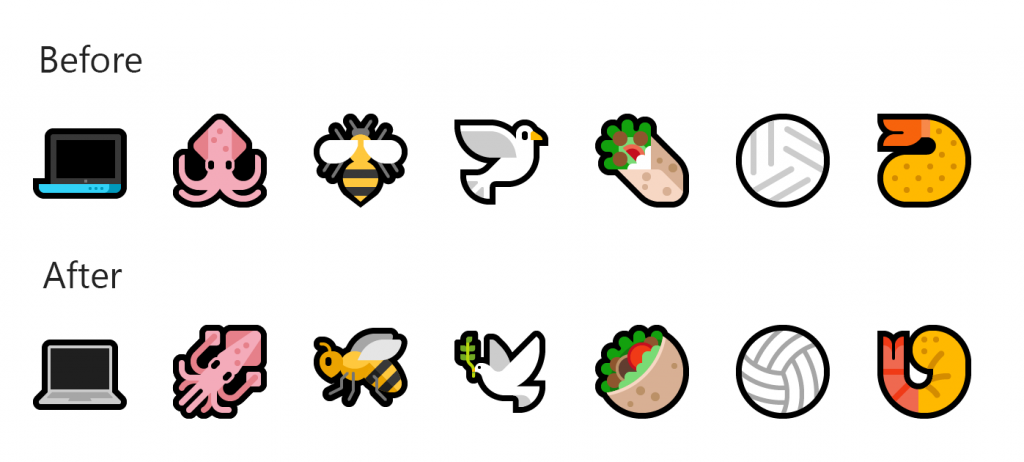
Unicode 11 comes with 157 new emoji and they’re now available in the October 2018 Update. These include superheroes, redheads, a softball, a pirate flag and a llama. You can get to them using the Emoji Panel (“Windows key + .”) or the touch keyboard.

When you get the October 2018 Update, you’ll also find tweaks to some of our existing emoji – such as:

Our ninja cats got a bit of love too – can you spot the difference?

If you have any feedback about our emoji and emoji typing experiences, please let us know! We’d love to hear it.

The Emoji Panel is currently available for 190+ locales.

Start tile folder naming

We’re now adding the ability to name your tile folders. To create a tile folder in Start, just drag one tile on top of another for a second, then release. Continue dropping as many tiles into the folder as you’d like. When you expand the folder, you’ll see a new option to name it.

Search Improvements

Save time with Search Previews

Thank you for the positive feedback on the web previews we added last year. With this release, we’re happy to share our latest improvements to Search:

  1. Enhanced home screen

We’ve redesigned the home screen to get you to your content faster. Save time and keystrokes by scanning the ‘Pick up where you left off’ section for your recently accessed items. Focus your search with a filter to quickly find content from your PC and the cloud. Cloud-search enhancements include email from Outlook.com, and documents from OneDrive.

  1. Previews for all search results

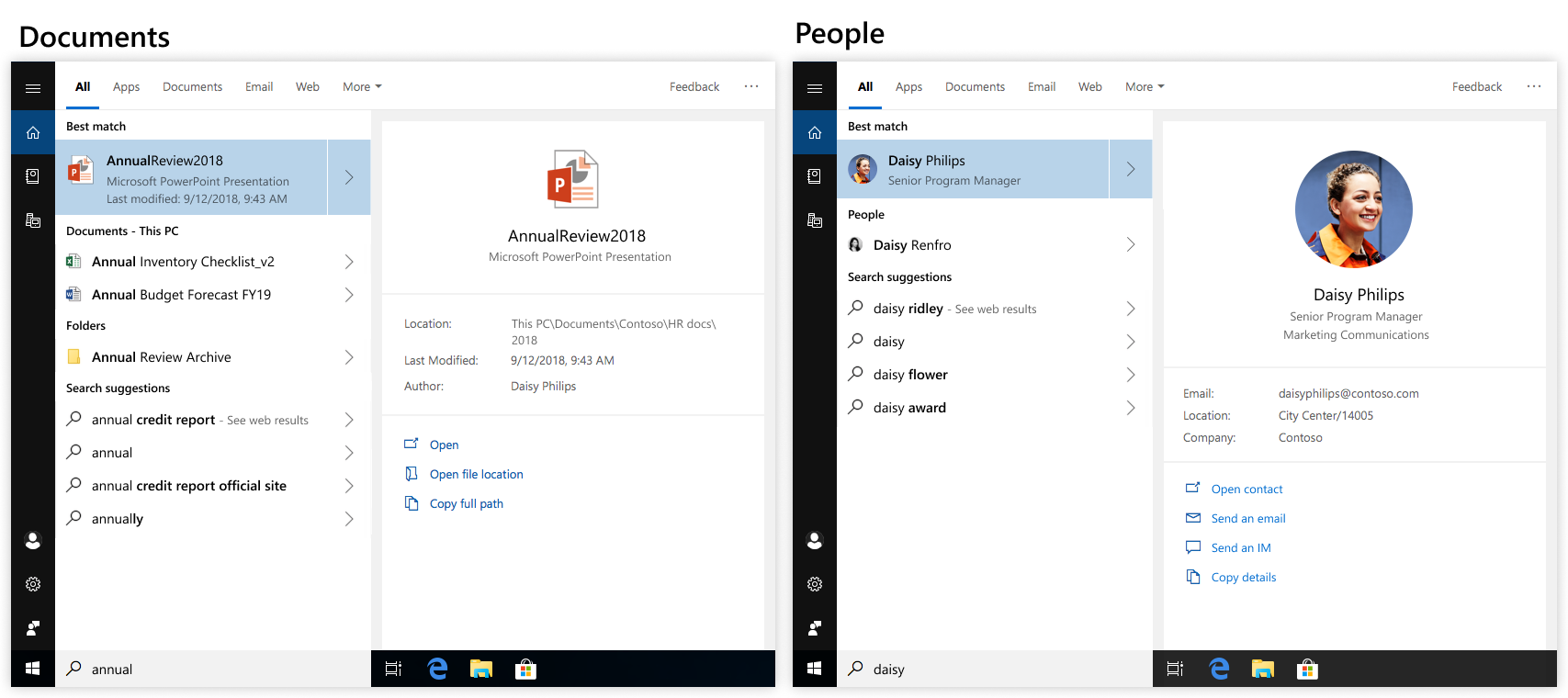
We’ve expanded previews to include apps, documents, email, people, and more. Previews save you time and give you the information you need, making it faster to start and finish your task.

Use Search previews to:

  • Get back to what you were doing with fast access to your recent files. Just search for an app to select a file from the Recent list, like a Word doc or Remote Desktop session.
  • Jump-start your tasks with quick actions in previews. Create an Outlook meeting, send an IM, run PowerShell as Administrator, open a file’s location, and much more.
  • Easily distinguish between files with details including location, last modified date, and author all shown in the preview.
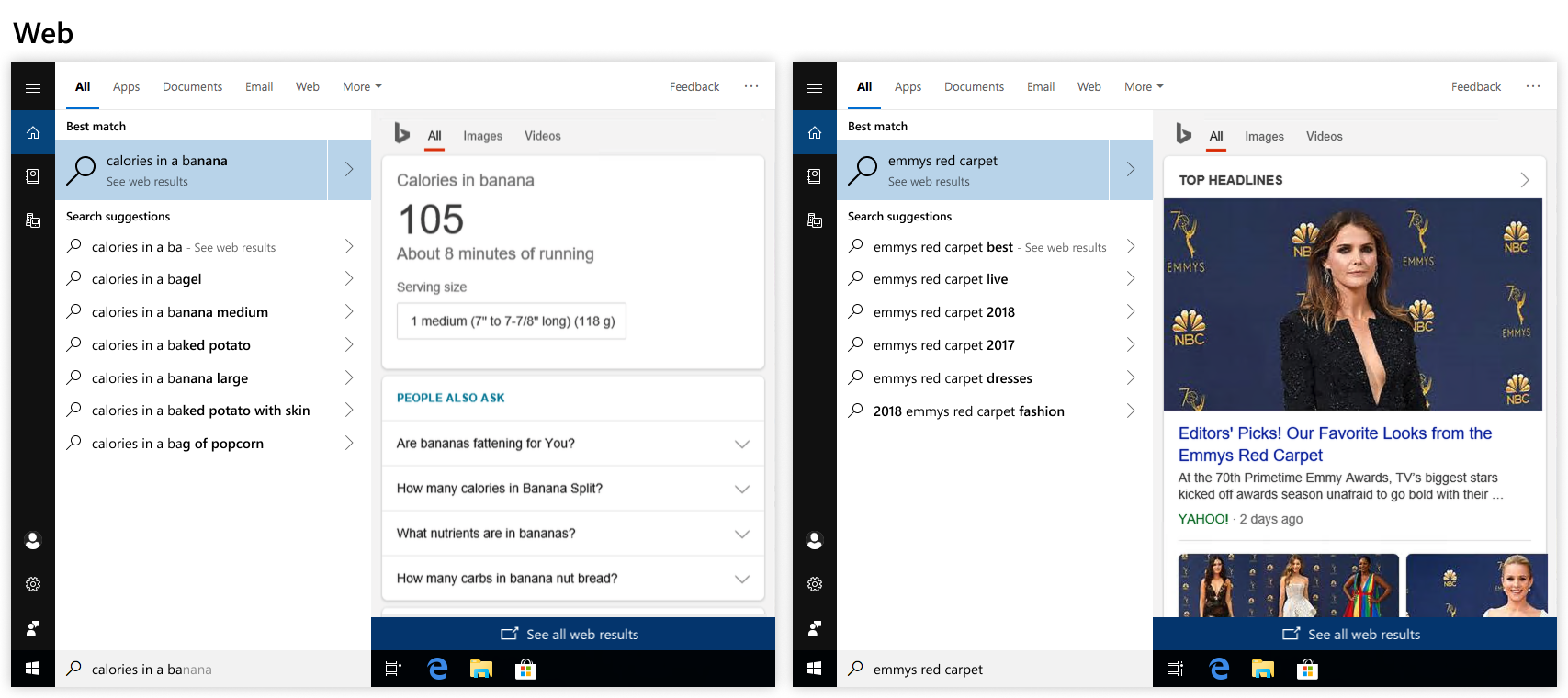
  • Get web search results like quick answers, news, and websites, without opening a browser. To find image and video results for a web search, select an option at the top of the preview.

We’ll be updating and improving the Search experience over time as we develop and add features. Stay tuned!

Search is now available in the Calendar app for Windows 10!

Now you can find past or future events by searching for the name, location, people included or words in the event body. Events that match your search will be clearly visible on your calendar, while those that don’t will be dimmed so you can find what you need quickly.

Search works for Outlook.com and Office 365 accounts.

Windows Mixed Reality Improvements

Introducing Mixed Reality Flashlight

How many times have you been immersed in a captivating virtual experience and wanted to take a quick glance at your friend in the same room; or reach for a drink, your phone or a keyboard; or needed to find a surface to set down your controllers?

You’ve probably fumbled about as you were removing your headset, which can be really fun if you have controllers in your hands.

But now that awkwardness may become a thing of the past, as you can now peer into your physical environment through Flashlight – without removing your headset! With the October 2018 Update, you can open a portal into your real world at any time via the Start menu, a button shortcut or a voice command. . This opens a low-latency pass-through camera feed connected to your controller. It’s comfortable, intuitive and keeps you immersed.

Flashlight finally allows you to mix your physical and virtual realities.

Introducing Quick Actions

While using an Immersive Application, you can easily Go Home, view the time or launch Mixed Reality Capture tools (Photo, Video and more) with Quick Actions. To launch Immersive Application Quick Actions, simply press the Windows key.

Stream audio to both the headset and the PC speakers simultaneously

Now you can hear sound from your normal PC speakers when not running the Mixed Reality Portal (MRP) and from the headset’s audio jack or built-in headphones when mixed reality is running. Close all apps, including MRP, and go to Settings > Mixed reality > Audio and speech to turn on “When Mixed Reality Portal is running, mirror headset audio to desktop.” You will now hear audio from both the headset and PC speakers when running mixed reality.

Other improvements for Windows Mixed Reality users

  • With the October 2018 Update, Windows no longer requires a physical monitor to be connected while running Mixed Reality in cases such as backpack PCs. Setting up WMR for the first time[9] in Mixed Reality Portal and unlocking the PC on the sign-in screen still requires a monitor to be connected initially. However, you can configure auto login to prevent needing to sign in for subsequent usage. Remember to set up a room boundary if you’re using Windows Mixed Reality while standing.
  • We’ve also made some adjustments to the mixed reality video capture experience in the October 2018 Update to make it easier to stop videos from the Start menu.

PC Gaming Improvements

Game bar Improvements

We’re now rolling out more functionality to the Game bar:

  • New look: Enjoy a cleaner new look and layout.
  • New audio controls: With the new audio control panel, get more control out of individual audio channels without ever having to leave your game.
  • Game bar is now an app: Launching Game bar is now easier than ever, whether through the desktop, apps, the Start menu, or task bar.

Game Mode Improvements

  • Fewer gaming interruptions: Based on feedback from gamers, we’ve simplified the way Game Mode works. Now auto-enabled for all games with a master On/Off toggle in Windows Settings, Game Mode suppresses Windows Update driver installs and blocks Windows Update interruptions such as restart notifications while you’re gaming. You may also see improved game performance with less FPS variability depending on the specific game and system.


Notable App Updates

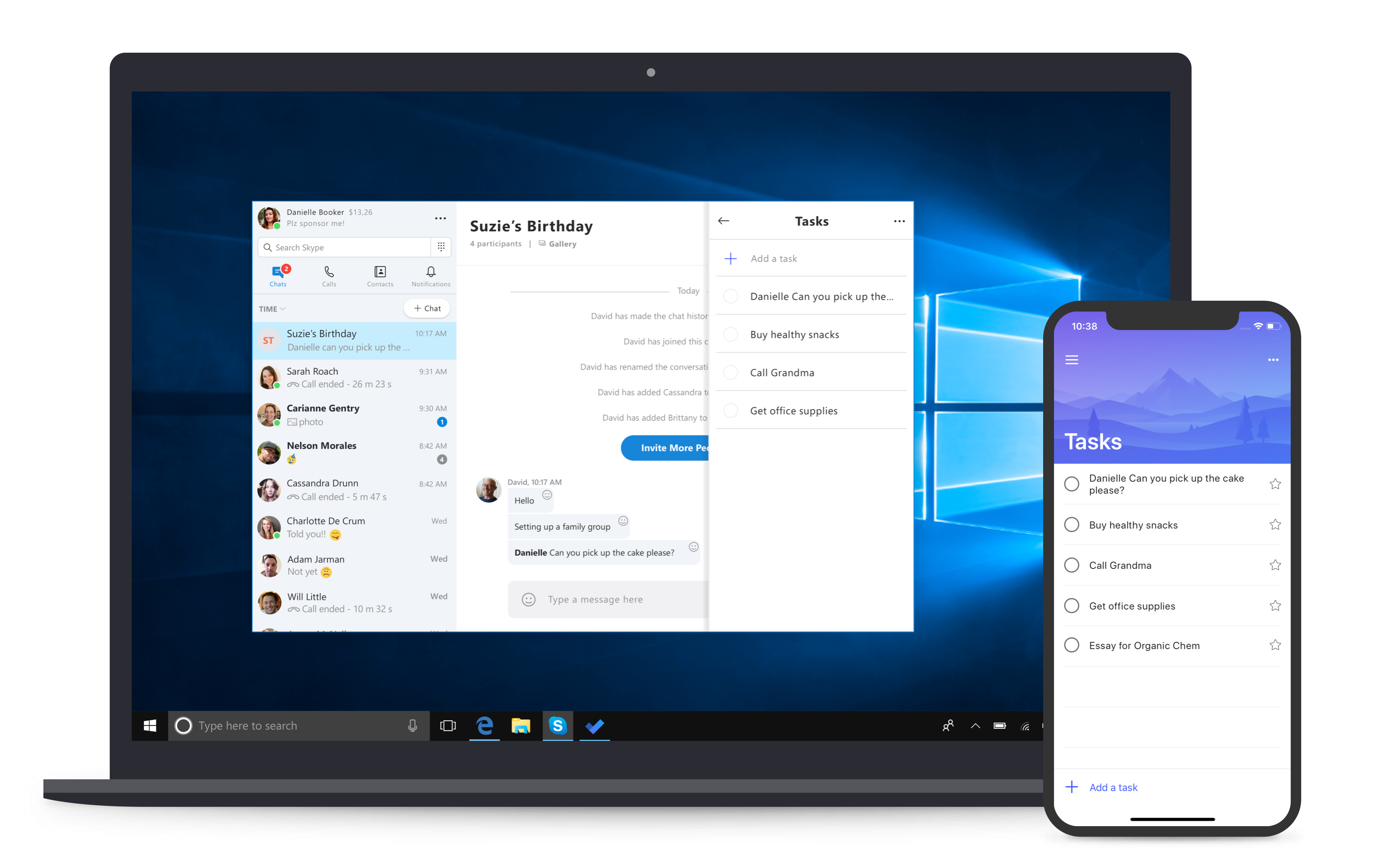
Skype for Windows 10 gets a big update

This new Skype for Windows 10 update brings all the latest and greatest Skype capabilities to Windows 10 users. Customers will enjoy the same consistent experience across all devices and platforms – iOS, Android, Mac and Windows. Exclusive to Windows 10, you can now use the Share Charm to quickly share content directly with your Skype contacts. If you’re browsing in Microsoft Edge or looking for a document in File Explorer and find something you want to share, just tap the Share icon and select a Skype contact to share with – there’s no need to launch Skype.

Here are some more new things you can do in Skype for Windows 10:

  • To-Do—Add tasks to your To-Do list directly from Skype. Select the message and then tap “Create a task” to open the tasks pane. From here, you can add, edit and check off tasks. Tasks will be saved and available in Skype, or in the To-Do app.
  • Call recording — With call recording, you can save a call to the chat and return to it later, so you won’t forget something important.  Missed a meeting? No problem, now you can find and replay key moments or decisions, just as they were made by those on the call.
  • Private Conversations — Have end-to-end encrypted Skype audio calls, send text messages, image, audio and video files. The content is hidden in chat list notifications to keep the information you share private.
  • Themes — You can now customize your chat bubbles. Give them color to make your chats more festive or stick with our classic colors when you need to get down to business.
  • And much more — Archive conversations, ability to mute others in a group call, @mentions and more.

If you’ve chosen to have updates installed automatically on your Windows 10 device, you don’t have to do anything — these new features will be available to you automatically through Microsoft Store updates. As always, please join us in the Skype Community and send us your feedback by opening your settings and selecting Help & Feedback.

Microsoft Forms

Microsoft Forms is a simple, lightweight tool for creating surveys and quizzes. Millions of people have used Forms since we released it for education and commercial organizations. Today, we’re extending the Forms Public Preview to consumers as well. With Forms, you can easily create, run and analyze results from surveys and quizzes. Simply share a link or QR code, and your friends and family can access your form from virtually anywhere, on any device and at any time. With real-time responses and automatically generated charts, Forms makes it easy for creators to quickly understand the results and take the right next step. To get started, you can sign in using a free Microsoft Account here.

Microsoft Font Maker app

With the Microsoft Font Maker app you can use your digital pen to create a custom font based on the nuances of your own handwriting[10] – currently available via the Microsoft Store and we’d love to hear your feedback! Install the fonts you create to add a personal touch to everything you do.

Currently you can use the app to create a basic English font.

Security

Remote Desktop with Windows Hello Biometrics

With the October 2018 Update, Azure Active Directory and Active Directory users using Windows Hello for Business can use biometrics[11] to authenticate to a remote desktop session.

This feature works with Windows Hello PIN, however it does not work with convenience PIN.

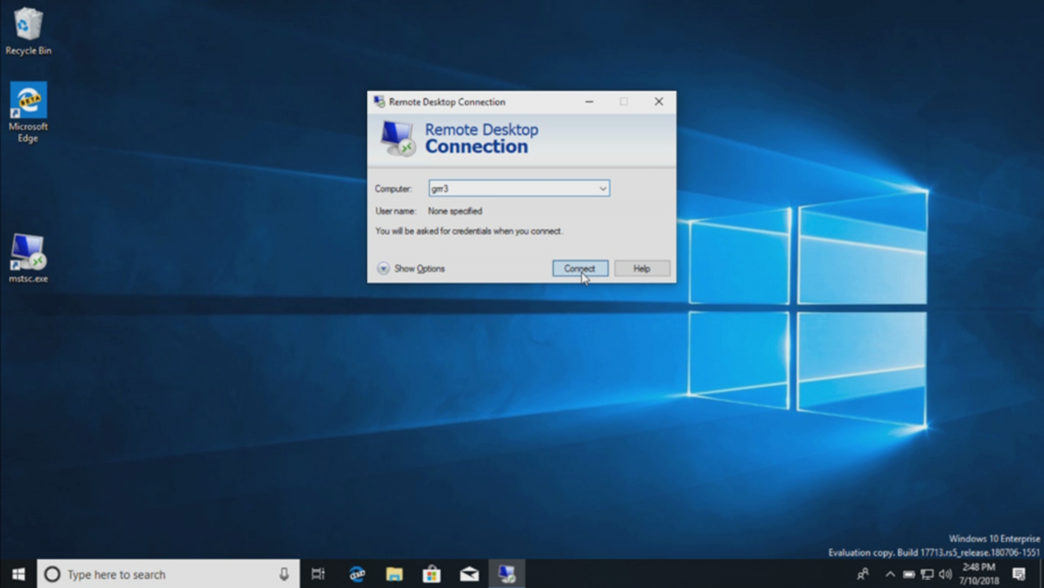
To get started, bring up Remote Desktop Connection (mstsc.exe), type the name of the computer to which you want to connect and click Connect.

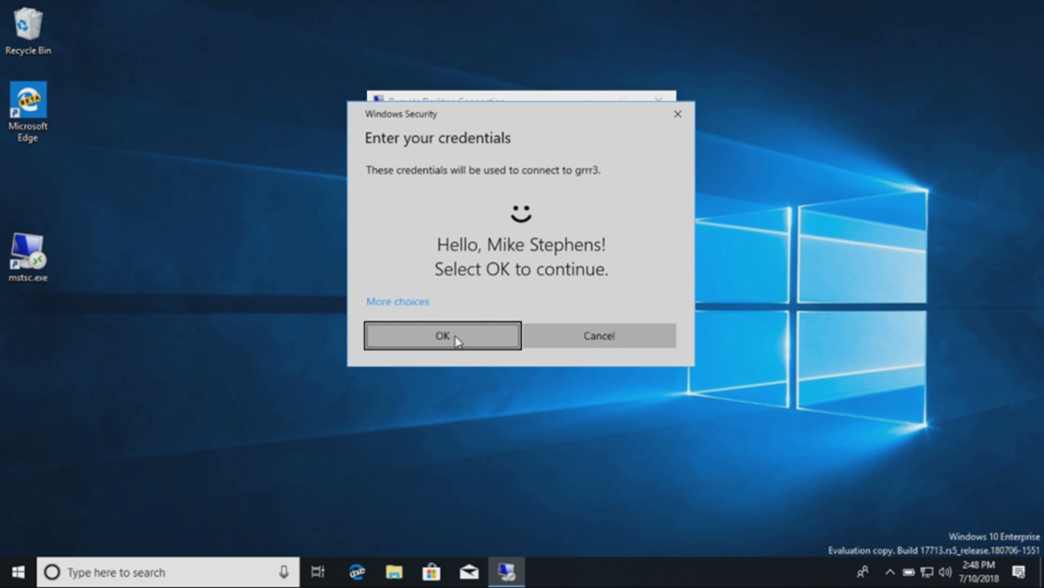
Because you signed using Windows Hello for Business, Windows remembers how you signed in and automatically selects Windows Hello for Business to authenticate you to your RDP session, but you can click More choices to choose alternate credentials.

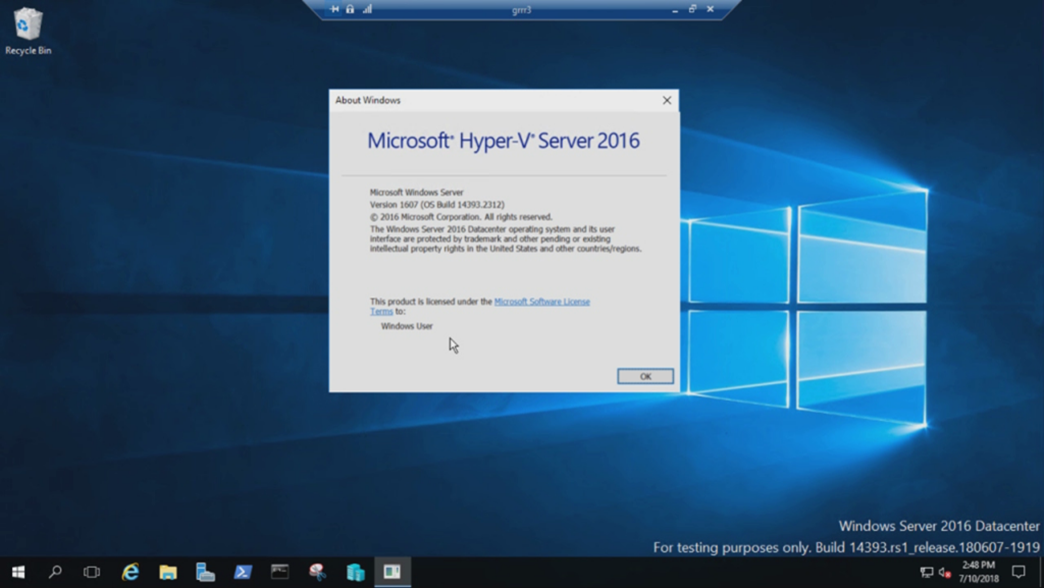
In this example, Windows uses facial recognition to authenticate the RDP session to the Windows Server 2016 Hyper-V server. You can continue to use Windows Hello for Business in the remote session, but you must use your PIN.

Have feedback? We’d love to hear it! Head to the Feedback Hub to share your thoughts about Windows Hello with face, fingerprint or PIN.

Web Sign-in to Windows 10

Until now, Windows logon only supported the use of identities federated to ADFS or other providers that support the WS-Fed protocol. We are introducing “Web Sign-in,” a new way of signing into your Windows PC. Web Sign-in enables Windows logon support for non-ADFS federated providers (e.g. SAML).

To try out Web Sign-in:

  1. Azure AD Join your Windows 10 PC. (Note: Web Sign-in is only supported on Azure AD Joined PCs).

  1. Set the following policy to enable Web Sign-in (Policy CSP/Authentication/EnableWebSignIn).
  2. On the lock screen, select Web Sign-in under Sign-in options.
  3. Click on the “Sign in” button to continue.

Faster sign-in to a Windows 10 shared PC

Do you have shared PCs deployed in your work place? Do you wish that signing in to a PC with your account was faster? Starting with the October 2018 Update, we are introducing “Fast Sign-in,” which enables users to sign in to a shared Windows 10 PC in a flash.

To enable Fast Sign-in:

  1. Set up a shared or guest PC with Windows 10.
  2. Set the following policy to enable Fast Sign-in (Policy CSP/Authentication/EnableFastFirstSignIn).
  3. With the policy enabled, sign-in to a shared PC with your account, and check out the difference.

Windows Defender Security Center is now called Windows Security

You can still get to the app in all the usual ways – simply ask Cortana to open Windows Security or interact with the taskbar icon. Windows Security lets you manage all your security needs, including Windows Defender Antivirus and Windows Defender Firewall.

General Windows Security improvements

More easily understand current threats: We’ve listened to feedback and continued to improve the Virus & threat protection section. We’ve changed the location of the Current threats area, which displays all threats that need action. You can quickly take action on threats straight from this screen.

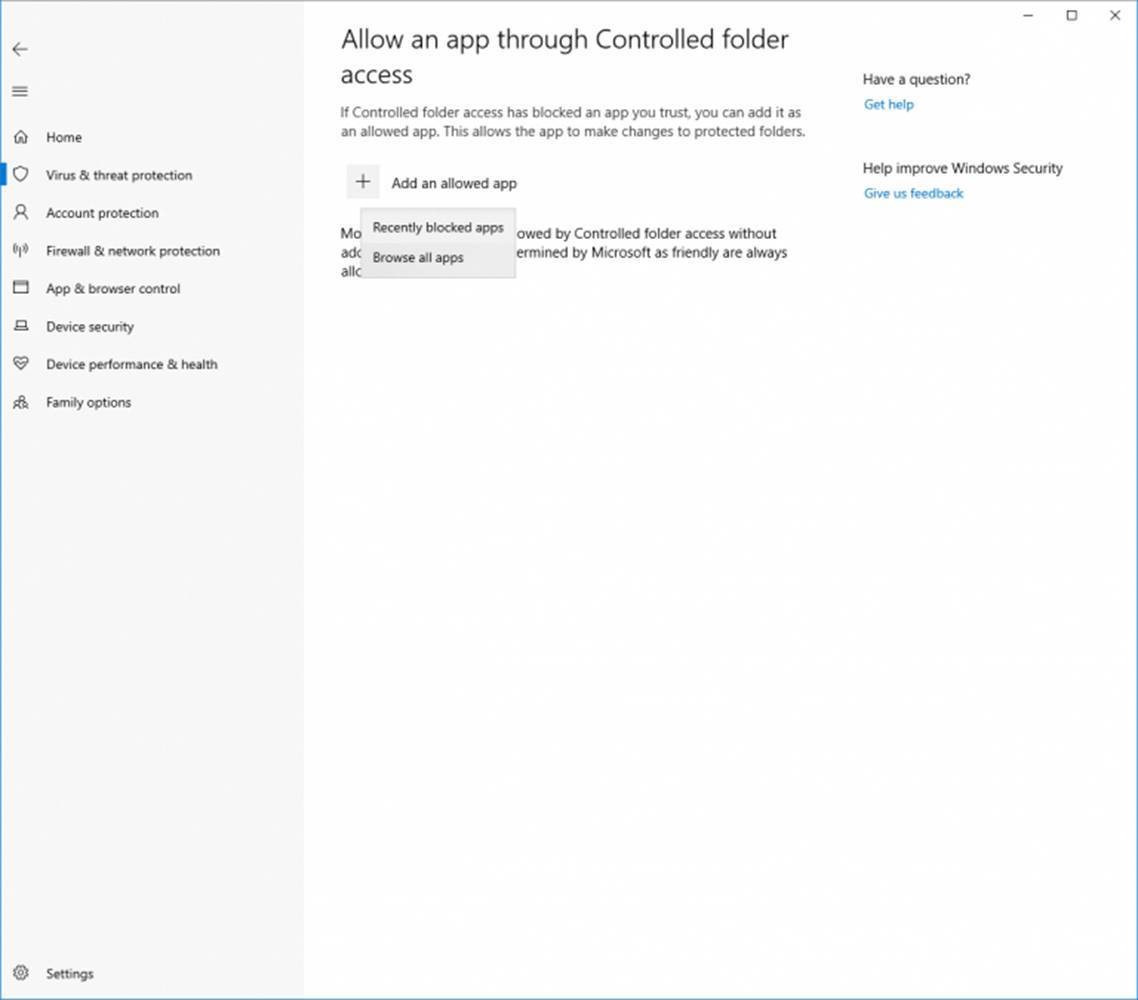
Controlled folder access improvements: Controlled folder access can help prevent ransomware and other destructive malware from changing your personal files. Sometimes apps that you normally use might be blocked from making changes to common folders like Documents and Pictures, and we’ve listened to feedback and made it easier for you to allow apps that were recently blocked so you can stay productive while using this great feature.

To allow a recently blocked app to make changes to your protected folders, open the Virus & threat protection section, then click Ransomware protection, and Allow an app through Controlled folder access.  From there you can click the plus button to allow an app, and you’ll see the new option to add Recently blocked apps.  This will open a list where you can easily choose which blocked items you’d like to trust to make changes.  Alternately you can still browse for an app to allow.

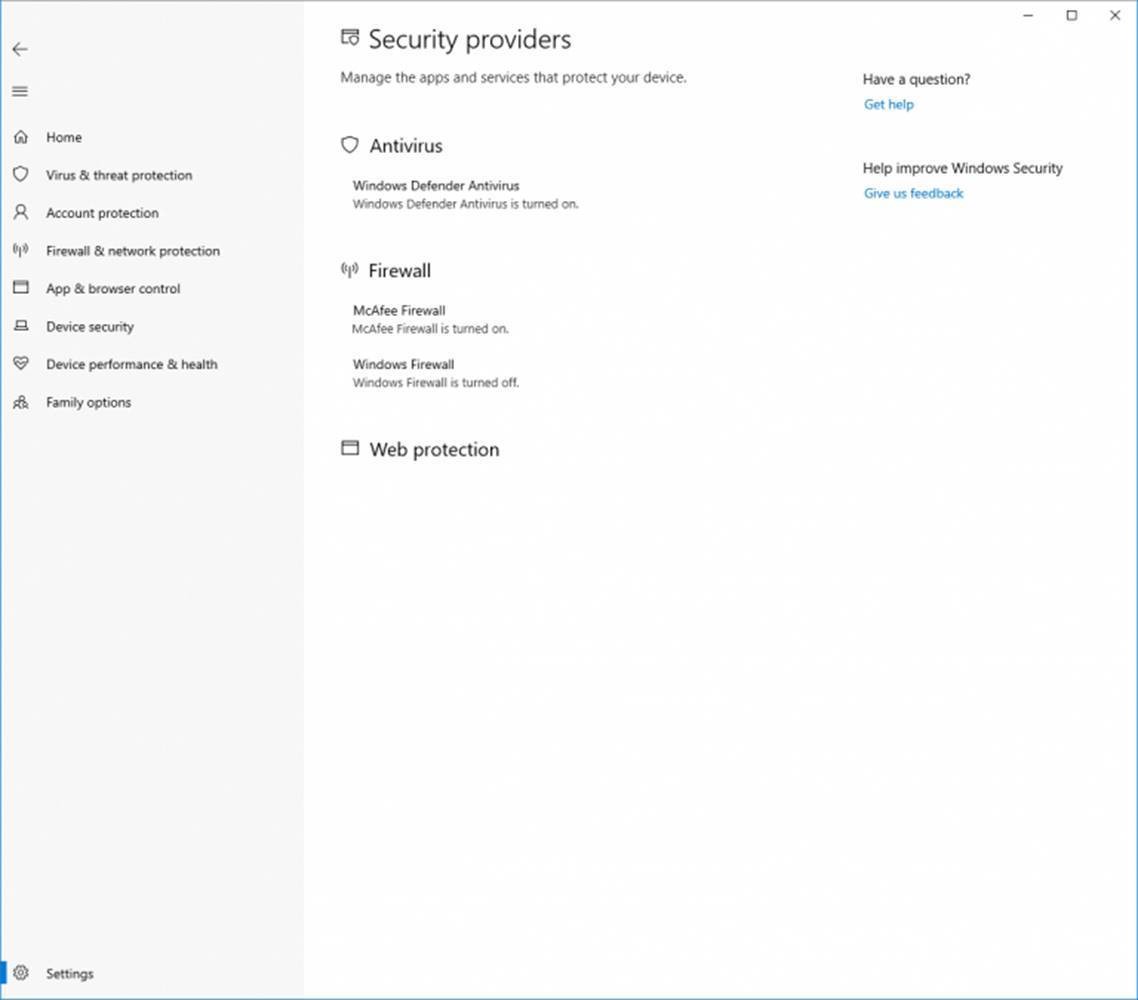
A more complete view of your security: We’re continuing to work on how other security apps you’ve installed show up in the Windows Security app. There’s a new page called Security providers that you can find in the Settings section of the app. Click Manage providers to see a list of all the security providers (including antivirus, firewall and web protection) that are running on your device. Here you can easily open the providers’ apps, or get more information on how to resolve any issue that they have reported to you through the Windows Security app.

This also means you’ll see more links to other security apps within the Windows Security app. For example, if you open the Firewall & network protection section, you’ll see the firewall apps that are running on your device under each firewall type (domain, private and public networks).

New device health assessment: In the Device performance & health section, we’ve added a new assessment for the Windows time service. If we detect that your device’s time is not properly synced with our time servers and the time-syncing service is disabled, we’ll provide the option for you to turn it back on.

Windows Security gets a Fluent Design refresh

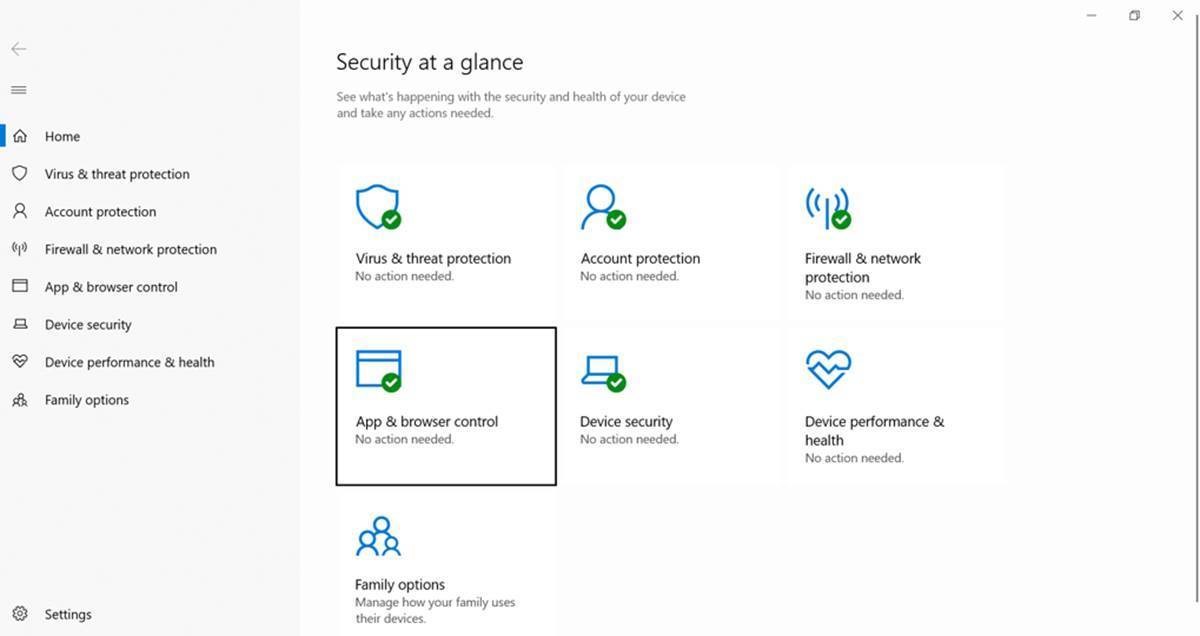
We’ve heard your feedback, and when you install the October 2018 Update you’ll find we’ve updated Windows Security to include the Fluent Design elements you know and love. You’ll also notice we’ve adjusted the spacing and padding around the app and will now dynamically size the categories on the main page if more room is needed for extra info. Last but not least, we’ve also updated the title bar of the app so that it will now use your accent color if you’ve enabled that option in Color Settings.

Windows Defender Firewall now supports Windows Subsystem for Linux (WSL) processes

You can add specific rules for a WSL process in Windows Defender Firewall, just as you would for any Windows process. Also, Windows Defender Firewall now supports notifications for WSL processes. For example, when a Linux tool wants to allow access to a port from the outside (like SSH or a web server like nginx), the Windows Defender Firewall will prompt to allow access just like it would for a Windows process when the port starts accepting connections.

Antivirus products required to run as a protected process

The Windows Security Center (WSC) service now requires antivirus products to run as a protected process to register. Products that have not yet implemented this will not appear in the Windows Security UI, and Windows Defender Antivirus will remain enabled side-by-side with these products.

Windows Defender Application Guard Improvements

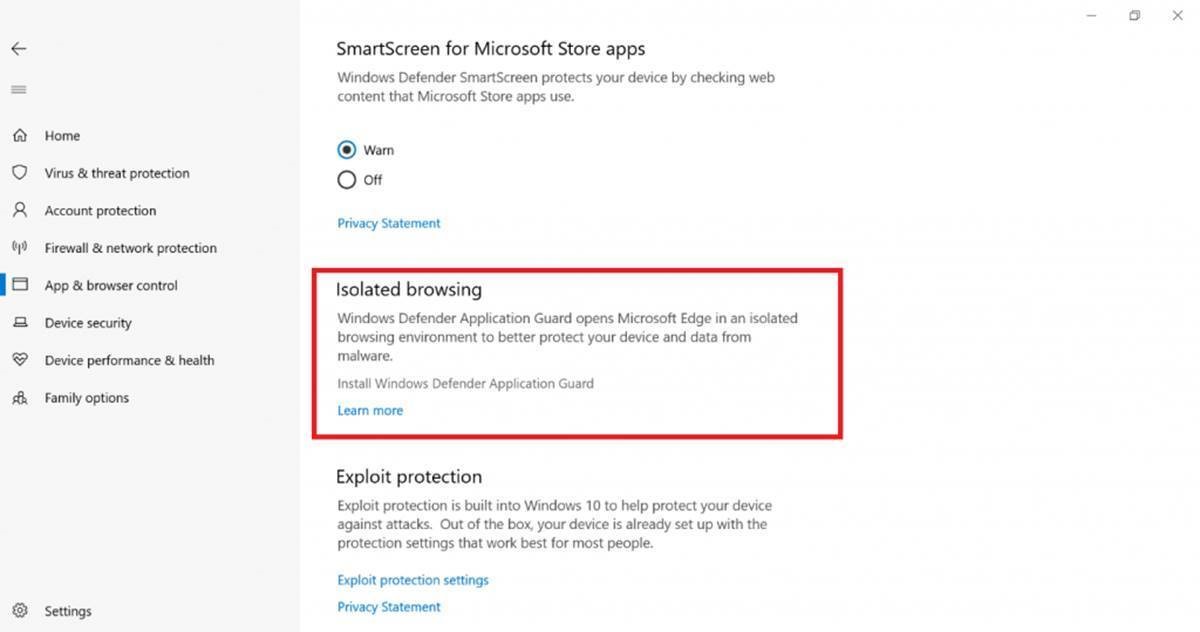
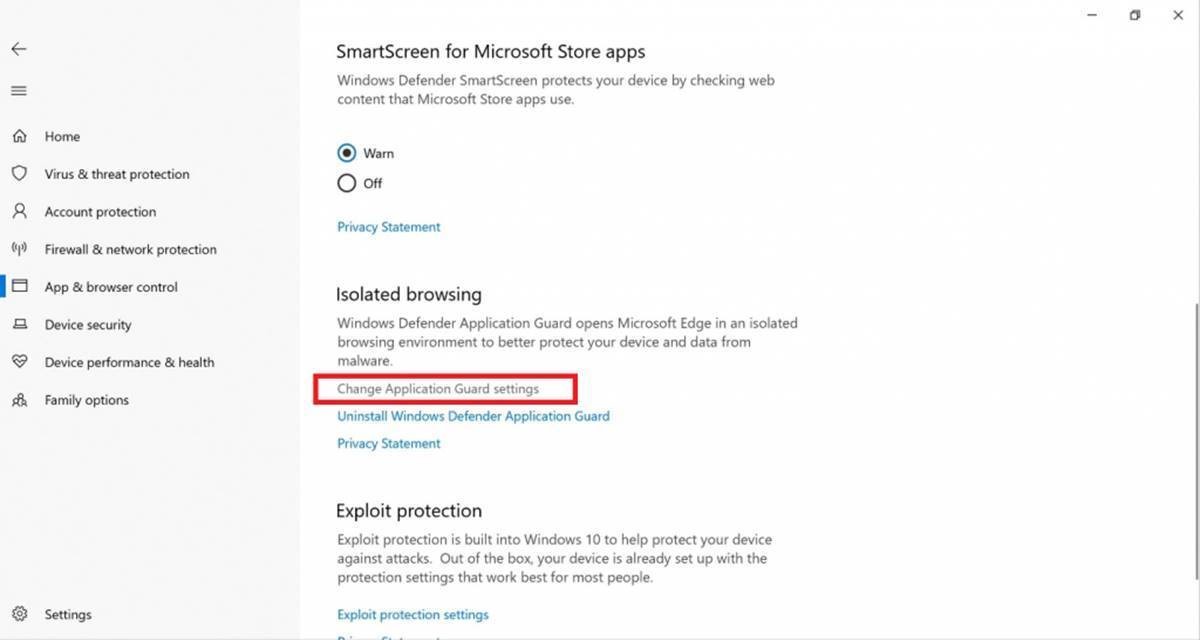
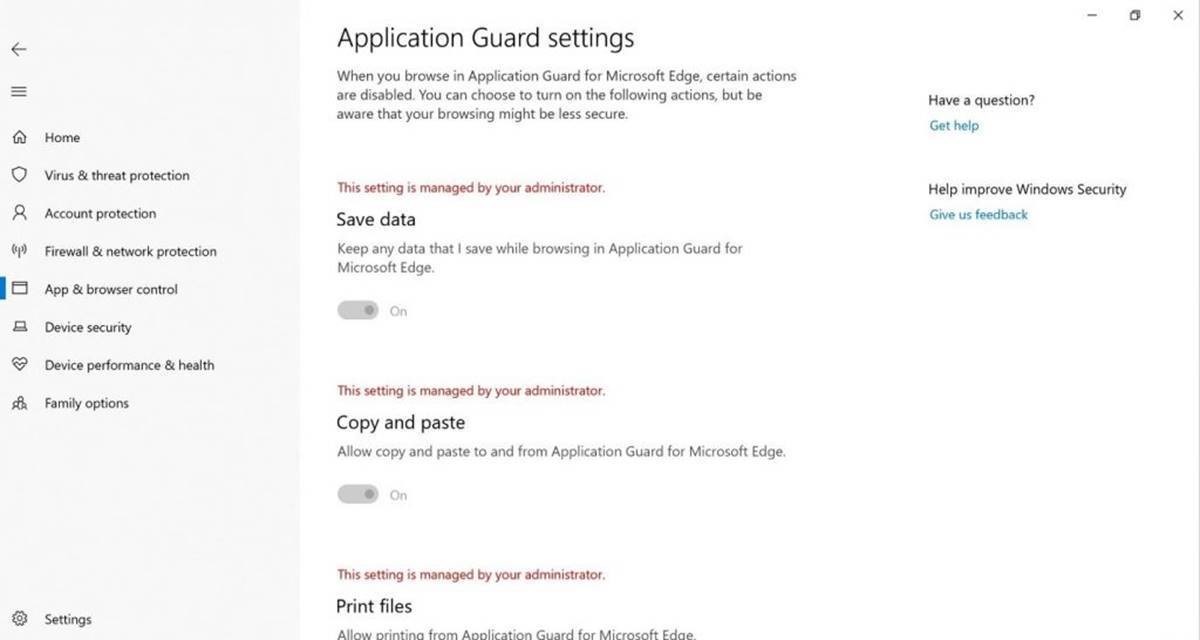
Windows Defender Application Guard introduced a new user interface inside Windows Security in the October 2018 Update. Standalone users can now install and configure their Windows Defender Application Guard settings in Windows Security without needing to change Registry key or Group policy settings. Additionally, users who are managed by enterprise policies will be able to check their settings to see what their administrators have configured for their machines to better understand the behavior of Windows Defender Application Guard. This new UI aims to improve the overall experience for users to manage and check their Windows Defender Application Guard settings. As long as devices meet the minimum requirements, these settings will appear in Windows Security.

Find details here.

To check this out, go to Windows Security and select App & browser control.

Under Isolated browsing select Install Windows Defender Application Guard.  After installation restart the device (only for standalone users).

To view or change Application Guard settings select Change Application Guard settings.

Windows Account Protection Improvements

In October 2018 Update, the Account Protection section in Windows Security Center now identifies the paired device that is being monitored for Dynamic lock. In cases where you have multiple devices paired to the PC, this UI indicator will help you easily determine which device is being monitored to lock your PC if you walk away.

You can learn more about the benefits of account protection through a video that is available on the page via the link on “Learn more about account protection.”

Ease of Access (Accessibility) Improvements

You can access Ease of Access settings by going to Settings > Ease of Access.

Make Text Bigger

Now, when you go to Settings > Ease of Access > Display in the October 2018 Update, you’ll find a new setting called “Make everything bigger.” This slider will adjust text across the system, Win32 apps and Universal Windows Platform apps.

That means you can now make text bigger in the Start menu, File Explorer, Settings, etc., without having to change the overall scaling of your system.

Magnifier Improvements

Choose where to keep the mouse cursor: We’ve heard your feedback asking us for a way to keep your mouse centered on the screen in Full-Screen mode, and with the October 2018 Update, we’re making it happen. This new option under Settings > Ease of Access > Magnifier > “Keep your mouse…” > “centered on the screen” enables easier tracking and use of the mouse, especially helpful at higher magnification levels.

More options for increments: You’ve also been asking for even more control of your zoom level increments, so we’ve taken a moment to add two new increments to the list: 5 percent and 10 percent.

Narrator Improvements

Selection commands in Narrator Scan Mode: Narrator’s scan mode now supports selecting content in Microsoft Edge, Word, Outlook, Mail and most text surfaces. Standard Shift- selection commands can be used as well as Control + A for the entire document. Caps + Shift + Down Arrow will speak the current selection. For a full list of selection commands, you can refer to Narrator’s Show Commands List by pressing Caps + F1. Once you select content, copy it to the clipboard by pressing Control + C. Formatting information will also be retained.

Narrator Standard Keyboard Layout: Narrator now ships with a new keyboard layout that is designed to be more familiar to screen reader users. For details on these changes, check out Intro to New Narrator Keyboard Layout.

Automatic Dialog Reading: Narrator will now automatically read the contents of a dialog box when brought to the foreground. The experience is for Narrator to speak the title of the dialog, the focused element within the dialog and the static text, if any, at the top of the dialog. For example, if you try to close a document in Word with unsaved changes, Narrator will speak the title “Microsoft Word,” the focus “Save button” and the static text within the dialog.

Narrator Keyboard improvements: We have added the Scan Mode secondary action command and Spell current selection command. Please refer to Intro to New Narrator Keyboard Layout doc for more information.

Microsoft Store offerings

Check out great Windows 10 devices, and discover what the October 2018 Update has to offer with free demos and workshops at your local Microsoft Store or online.  Get a free consultation from expert Service Advisors to determine if your device is eligible for the update, or get assistance setting up a new device.

[1] Users must link their mobile phone to their PC in PC settings or through Your Phone app from the Microsoft Store. Users will receive an app from Microsoft which they must download to their mobile phone and follow the setup prompts. For PCs tied to the China region, Your Phone app services will be enabled in the future. Back to top

[2] Timeline shows 7 days of past activities, including activities done on a tablet and laptop when users are signed into their Microsoft accounts. Back to top

[3] Timeline shows 7 days of past activities, including activities done on a tablet and laptop when users are signed into their Microsoft accounts.Back to top

[4] Office sold separately. Back to top

[5] Office sold separately. Back to top

[6] Touch capable tablet or PC required. Pen accessory may be sold separately. Back to top

[7] Touch capable tablet or PC required. Pen accessory may be sold separately. Back to top

[8] Office sold separately. Back to top

[9] Minimum system requirements for WMR can be found here. Back to top

[10] Touch capable tablet or PC required. Pen accessory may be sold separately. Back to top

[11] Compatible biometric hardware required. Back to top

Updated October 5, 2018 11:35 am

Posted on Leave a comment

Meet Surface Pro 6, Surface Laptop 2, Surface Studio 2 and Surface Headphones

New Surface devices, along with new innovations in Windows and Office 365, offer more performance and productivity across your whole life.

Today we are proud to share four new Surface products with the world. Products built for people.

We put our hearts and souls into making these products, for people who want to do more, dream more, and achieve more. We understand the way people work and live is changing, with different areas of our lives are blending together, and the need to spend our valuable time on the things that really matter is increasing. With that understanding, we build Surface products to empower people to accomplish these great things. And to do this, the technology needs to fade to the background so you can get into your most creative state, your flow. You need the right devices and technology that can travel with you, be ready when you are – whenever and wherever inspiration strikes.

That’s the power of Surface, Windows, and Office connected together through the cloud, creating the right instrument for you. We’ve designed them together to optimize every ounce, every pixel, and every line of code to empower you to be more productive and more creative. As you watch the videos below, you’ll see this… we obsess over every detail, every line of the device, every sound, every fit, finish and feel, creating a symphony with our hardware, software and intelligence experiences.

We’re pumped about our next generation of incredible Surface products and experiences.

Introducing Surface Pro 6 and Surface Laptop 2
We love to hear from our customers about why they love Surface. With Surface Pro and Surface Laptop we hear time and again how their lightweight and thin designs make them easy to carry, while the performance capabilities mean they can use their Surface for a huge range of activities whether they’re designing a PowerPoint for school, crunching numbers in Excel at work, or watching Netflix at home on the couch. We wanted to keep all the things we know customers love about Surface while giving them even more performance. Both of these incredible products come in an all new finish, a timeless and sophisticated matte black.

Surface Pro 6

Surface Pro 6 is the most powerful Surface Pro yet, introducing the latest 8th generation Intel® Quad Core™ processor. At more than 67 percent faster than 5th generation Surface Pro, we’ve redesigned Surface Pro 6 to pack in power but keep the portability, versatility and all-day battery we know our fans love.

Featuring our PixelSense™ Touch Display, Surface Pro 6 adapts to help you take your ideas to the next level and create your best work with Office 365* on Windows and features like intelligent inking. And to get more in their flow, customers can take advantage of helpful time savers, including password-free Windows Hello sign-in and Windows Timeline.

Surface Laptop 2

With boosted performance from the new Quad Core 8th generation Intel® processor, Surface Laptop 2 is an astounding 85 percent faster than the original Surface Laptop. Meticulously crafted with its premium design, PixelSense™ Touch Display, and best in class keyboard and trackpad, this new generation delivers the perfect balance of quiet beauty, performance and portability, without sacrificing the 14.5 hours of battery life you need to get through your day.

Every detail optimized for black
As a team we explore different finishes. And when we modeled our devices in this beautiful matte black, we fell in love. We knew we had to bring it to life for our customers. We obsess about the way this finish looks and feels in the same way we obsess about the sound of the kickstand and the quality of every pixel of the display. This is what brings the element of beauty to the product.
Every connector, radius, port, hinge, come together to bring an elegance that is stunning.

Introducing Surface Studio 2

Surface Studio 2 is the most powerful Surface ever. It’s built for creators who need vibrancy, high graphics performance, and fast processing, providing them with an immersive experience as the tech fades into the background allowing for space to focus. People who use Studio need high end performance, especially graphics performance. And Surface Studio 2 delivers with next generation Pascal graphics and 50 percent faster GPU.

One of the things we hear most from our fans is how much they love the vibrancy of the luminous display – an incredible floating sheet of pixels. And the new Surface Studio is 38 percent brighter, with 22 percent more contrast, ensuring whatever you create looks amazing. With 4,096 levels of pressure, tilt sensitivity for drawing and sketching, and best-in-class ink latency, Surface Studio 2 and Surface Pen were designed together to deliver the ultimate creative canvas.

Surface Headphones

We built Surface Headphones to complete the Surface experience. To help you get into your flow, wherever you are. Whether you’re in an open work space, a café or on the go, Surface Headphones help tune out or tune in wherever you are. They slip comfortably over your ears to surround you with spectacular sound quality and 13 levels of ambient noise control. Designed with collaboration in mind, there are 2 beam-forming microphones on each ear cup, 8 microphones in total, all helping you focus on the sounds you want to capture allowing for excellent call experiences. You can easily adjust volume and noise cancellation levels with new, intuitive on-ear dials.

And while Surface Headphones are optimized for Surface devices, they will pair with any Bluetooth enabled device so when you’re switching between PC and phone, you can stay connected to your music, meeting or call seamlessly. And voice-activated Cortana, available in the U.S. built in, is ready to assist for whatever you need.

Availability details + Surface All Access
Surface Pro 6, Surface Laptop 2 and Surface Studio 2, are available for preorder in select markets beginning today with additional market availability expected in 2019*. Surface Headphones will be available in both the US and UK in time for the holidays. And we’re pleased to offer Surface All Access through our Microsoft Stores in the US where you can begin purchasing these new products starting Oct. 16. Surface All Access is a new way to purchase your favorite Surface product with accessories, Office 365, dedicated support, and Microsoft Store benefits for a single low monthly payment, starting at $24.99. We hope this allows you to choose the product that will best help you achieve your goals and ambitions.

Surface + Windows + Office built together for you
We all have goals, values, causes we care about and things we need to get done. In any given day we’re balancing all these factors across work, home, and everywhere in between – across all of your devices. In doing this we have moments of greatness – moments where everything lines up. And you need software and hardware that can adapt to your life, that’s perfectly tuned and ready when you are.

With features like Microsoft Launcher, the Your Phone App and Windows Timeline on Surface you can move seamlessly across all your devices and bridge the gap between your phones and your PC. We’re also evolving Office to ensure your ability to get things done is not limited by where you are, the time of day, or the device you’re using. Saving you time and allowing you to quickly collaborate with your co-workers with @mentions. While new intelligent inking, contextually aware PowerPoint Designer suggestions, new Ink Editor in Word features, and Ideas in Excel help you understand and visualize your data, allowing you to skip steps and save time.

These experiences are enabled by innovations across Office 365, Surface and Windows. Many can be accessed through the Windows 10 October 2018 Update — available today.

The Surface Journey
For six years, we’ve been on a journey with Surface. We’re so proud of the way people use our products and what they create with them on their own journeys. It’s inspiring to hear how they’re using Surface to change the world in all kinds of ways, realizing their inspiration, their goals, their dreams so they never have to miss an opportunity to achieve more. We can’t wait to see what you do with these new Surface products.

*Surface Studio 2 available to preorder Oct 2 in US, Canada, Australia, New Zealand.
Surface Pro 6 and Surface Laptop 2 available to preorder Oct 2 in US, Canada, Australia, Austria, China, Germany, Ireland, Japan, New Zealand, UK.

Updated October 3, 2018 11:36 am
Posted on Leave a comment

Oct. 16 TweetMeet will help educators prep students for global Skype-a-Thon

In celebration of the 48-hr Skype-a-Thon event beginning on November 13, our 22 educators and experts are going the extra (virtual) mile and preparing a new #MSFTEduChat TweetMeet on Global Collaboration. Paired with the resources made by our Skype in the Classroom team, this event will help you prepare your students to travel far and wide and learn everything in-between during Skype-a-Thon.

You can join our special #MSFTEduChat TweetMeet on Tuesday, October 16, at 10:00 a.m. PDT (check your time zone here) and start absorbing ideas from our hosts – they’re well-seasoned travelers as far as Skype-a-Thon goes! (Sounds great, but what’s a TweetMeet?)

In the spirit of collaboration across continents, we have 3 brand-new language tracks this month: Русский (Russian), বাংলা (Bangla) and 日本語 (Japanese). We also offer Español (Spanish), Français (French), Italiano (Italian), Polski (Polish), Português (Portuguese), Svenska (Swedish),اللغة العربية   (Arabic), sprski (Serbian), Tiếng Việt (Vietnamese), Deutsch (German) and Nederlands (Dutch).

For each language track, we have one or more hosts to post the translated questions and respond to educators. As always, we’re super grateful to all current and former hosts who are collaborating closely to provide this service.

The #TweetMeetXX hashtags for non-English languages are to be used together with #MSFTEduChat so that everyone can find the conversations back in their own language. For example: French-speaking people use the combination #TweetMeetFR #MSFTEduChat. English-speaking educators may all use #MSFTEduChat on its own.

Our #MSFTEduChat TweetMeet is getting ready to go ’round the globe with Skype-a-Thon. Join us on Tuesday, Oct. 16 from 10 a.m. to 11 a.m. PDT. #skypeathon #globaled Click To Tweet

New this month

  • Post-event summary: Starting this month, we will publish a new post after each #MSFTEduChat event to summarize the key learnings from the conversations during the TweetMeet. The hosts will collaborate to curate a top selection of the tweets and trends  they found most significant. For even more highlights from the TweetMeet, the blog post will offer multiple Twitter Moments – curated stories and conversations from Twitter.
  • TweetMeet fan? Show it off on your Twitter profile: Every month more people discover the unique nature of the TweetMeets and become passionate about them. Well, you can now show your passion for the TweetMeets right from your Twitter page. The dimensions of our Twitter Header Photo are 1500×500 – the perfect size for your Twitter profile. Get this month’s image here: #MSFTEduChat Twitter Header Photo.

Why join the #MSFTEduChat TweetMeets?

TweetMeets are monthly recurring Twitter conversations about themes relevant to educators, facilitated by Microsoft Education. The purpose of these events is to help professionals in education to learn from each other and inspire their students while they are preparing for their future. The TweetMeets also nurture personal learning networks among educators from across the globe.

We’re grateful to have a support group made up exclusively of former TweetMeet hosts, who volunteer to translate communication and check the quality of our questions and promotional materials. They also help identify the best candidates for future events, provide relevant resources, promote the events among their networks, and, in general, cheer everybody on.

When and how can I join?

Join us Tuesday, October 16 from 10 a.m. to 11 a.m. PDT on Twitter using the hashtags #MSFTEduChat, #skypeathon, #globaled and #MicrosoftEDU (which you can always use to stay in touch with us). To find the event time for your specific location, use this time zone announcer.

From our monthly surveys we know that you may be in class at event time, busy doing other things or maybe even asleep – well, no problem! All educators are most welcome to join after the event. Simply take a look at the questions below and respond to these at a day and time that suit you best. You can also schedule your tweets in advance. In that case, be sure to quote the entire question and mention the hashtag #MSFTEduChat, so that everyone knows the right question and conversation to which you are responding.

How can I best prepare?

To prepare for the #MSFTEduChat TweetMeet, have a look at the questions we crafted this time.

You can also equip yourself with a special Skype-a-Thon Teacher Toolkit in OneNote, and get a free activity plan to get your whole class primed for the global event.

Later in the month, join a training webinar on Monday, October 22 with VP of Education Anthony Salcito and Skype Master Teacher Stacey Ryan to learn how your class can participate and how you can organize your Skype-a-Thon activities from start to finish. REGISTER HERE.

If this time doesn’t work for you, please register so we can send you the on-demand video.

Our TweetMeet hosts have also assembled a great Flipgrid to help – and don’t forget that you can add your own video as well.

TweetMeet Questions

Time # Question
10:05 1 What does it take to be a global collaborator?
10:16 2 Why is global collaboration important for teaching and learning?
10:27 3 How do you embrace cultural differences and similarities?
10:38 4 Which resources and tools should be in any global collaborator’s toolkit?
10:49 5 Where will you be taking your students during
Skype-a-Thon on Nov 13-14?

Hosts

All hosts have been carefully recruited from across the globe based on their expertise in and passion for engaging their students in Skype-a-Thon, Skype in the Classroom, Mystery Skype and other global collaboration projects.

  • Arnaud Perrier @arperrier (MIE Expert, Skype Master Teacher, eTwinning ambassador, Flipgrid Certified Educator, 4th Grade Teacher – Montauroux, France)
  • Atef Elbatal @battal_teacher (MIE Expert, MIE Fellow, Skype Master Teacher, Global Minecraft Mentor2018, Ministry of Education Certified Trainer  – Doha , Qatar)
  • Elena Degtyareva @leadegtyareva (MIE Expert, Skype Master Teacher, Global Minecraft Mentor 2018 – Verkhoturye, Russia)
  • Flor Irod @Flor_Irod (MIE Expert, Skype in the classroom passionate, Class Dojo Mentor, Flip Grid fever and eTwinning teacher – Valencia, Spain)
  • Gudrun Edhofer @GudrunEdhofer (MIE Expert, passionate 5th – 12th grade Math and History Teacher, Hollabrunn, Austria)
  • Gustavo Calderón @gustavocdeanda (Skype Master Teacher, Director of Technology and Learning Innovation / AP Computer Science Principles Teacher – Guadalajara, Mexico)
  • Joanna Waszkowska @joawaszka (MIE Expert, Edmodo Ambassador and Certified Trainter, 9th – 12th grade Polish Language Teacher, Superbelfrzy and eTwinning member – Katowice, Poland)
  • Josie McKay @MrsJosieMcKay (MIE Expert, Skype Master Teacher, PBS Digital Innovator, Flipgrid Certified Educator, Class Dojo Mentor, and 4th grade Teacher – Indiana, United States)
  • Karin Ericson @kelisabet1 (MIE Expert, CINO and teacher at MTH Utbildning, a Microsoft Showcase School. I am also leading international Erasmusplus projects – Hudiksvall, Sweden)
  • Kimee Reed @msclift (MIE Expert, Skype Master Teacher, Flipgrid Certified Educator, Epic! Certified Teacher, avid reader- Arkadelphia, Arkansas, USA)
  • Loretta Proietto @LorettaProietto (MIE Expert, Math and Science teacher, Carbonia, Italy)
  • Manuela Correia @musicadc2013 (Skype Master Teacher, MIEExpert, awarded eTwinner and an Erasmus+ project overall coordinator, Music teacher, Skype in the Classroom fan – Espinho, Portugal)
  • Megan Lipinczyk @LipEdTech (MIE Expert, Skype Master Teacher, ScreenBeam Expert, District Reading Resource Teacher, Tampa, Florida, United States)
  • Mio Horio @mibra_mio (MIE Expert, Skype Master Teacher, Flipgrid Certified Educator, hundrED Ambassador English Teacher – Shiga, Japan)
  • Ngoc Dieu Nguyen @NgocDieuNguyen4 (MIE Expert, Skype Master Teacher, English Instructor – Hanoi, Vietnam)
  • Odeogbola Ayodele @Ebunayo (Global Teacher Prize Finalist, Forbes List Top African Educator 2018, MIE Expert, Skype Master Teacher – Abeokuta, Nigeria)
  • Olivier Dijkmans @OlivierDijkmans (Passionate Teacher in P5 in Omnimundo,  MIEE, E2 Toronto Winner Gamification, Telly Award Winner 2018, Surface Expert, i3 All Star, Antwerp, Belgium)
  • Raihana Haque @HaqueRaihana (MIE Expert, MIE Trainer,  National Geography Certified teacher – Kishoreganj, Bangladesh.)
  • Seema Duggal @seemaduggal1 (MIE Expert, MIE Fellow, Skype Master Teacher, Minecraft Global Mentor, Microsoft Certified Educator, Math Teacher –  Delhi, India)
  • Shannon Miller @ShannonMMiller (Future Ready Librarian Spokesperson, Skype Master Teacher, Flipgrid Certified Educator, Canva TL Advisor & K12 Teacher Librarian in Van Meter – Iowa, United States)
  • Todd Flory @Todd_Flory (MIE Expert, Skype Master Teacher, 2018 Kansas Master Teacher, Buncee Ambassador, PBS Digital Innovator, TeachSDGs Ambassador, 4th grade teacher – Andover, Kansas, USA)

Special thanks to Francisco Texeira (@fcotexeira), who helps us coordinate the TweetMeet every month. 

What are #MSFTEduChat TweetMeets?

Every month Microsoft Education organizes social events on Twitter targeted at educators globally. The hashtag we use is #MSFTEduChat. A team of topic specialists and international MIE Expert teachers prepare and host these TweetMeets together. Our team of educator hosts first crafts several questions around a certain topic. Then, before the event, they share these questions on social media. Combined with a range of resources, a blog post and background information about the events, this allows all participants to prepare themselves to the full. Afterwards we make an archive available of the most notable tweets and resources shared during the event.

Please connect with TweetMeet organizer Marjolein Hoekstra @OneNoteC on Twitter if you have any questions about TweetMeets or helping out as a host.

Next month’s topics: Computer Science and Hour of Code

Posted on Leave a comment

Microsoft New England teams up with customers to create high-impact product features

Microsoft Garage has been a force in affecting positive change within the company, practicing new ways of thinking and spreading a growth mindset culture to employees as well as partners outside the company. Microsoft’s global Hackathon is a key player in CEO Satya Nadella’s culture change priorities driving innovations that empower customers to achieve more. The Garage at NERD, located in Cambridge, MA is one of many Garage locations worldwide making big strides in challenging conventional ways while furthering business impact.

Garage NERD Hackathon 2018 Science Fair

The Garage at NERD during the Hackathon 2018 Science Fair

The New England Research and Development Center (NERD) is steeped in a rich community of forward-thinking institutions that are molding some of the best minds of the future. One of the newer Garage locations, The Garage – NERD is in a unique position of having the perfect vantage point to measure the pulse of research giants like MIT right next door and invite these institutions and local Boston communities into the Garage space to collaborate and share learnings.

“It’s about the people,” said Linda Thackeray, Director of The Garage at NERD. “We’re here to help employees and teams drive employee-led innovation at the company, for products and other areas employees are passionate about. We do that by creating opportunities to experiment and collaborate, not only within the Microsoft family, but with the local community as well. Look where we are! The greater Boston area is loaded with unique and robust talent and industry tech.”

The product development teams at NERD are at the forefront of the customer obsession initiative. The Docs Collaboration team took advantage of Microsoft’s annual Hackathon to create a proof of concept that could change the way Office builds app features. Ben Wilde, principal program manager on the Docs team, led the hack project which focused on adding key features to Office apps to enable richer and smarter collaboration. “A handful of us have been on a bit of a crusade to ensure that we’re solving real, high-impact customer problems that we’ve identified during actual conversations with our users, understanding what challenges they face when collaborating and coming up with creative solutions to eliminate their friction.” Though the project was about Office collaboration features, their team’s journey started months before Hackathon when the Docs team as a larger group began talking with customers in a more concentrated effort to get to the root of customer needs.

“For me personally the Hackathon has emboldened me and proved that the process works – I feel even more convinced now. This is something we’re all passionate about and we truly believe this is how we should be driving features.”

Wilde and team documented all their learnings and research, including customer conversations, and how they approached customer research as a process. A playbook of how to build features that solve actual customer problems, with data and feedback to validate what features should be prioritized. “At a high level, the process we went through started with building empathy and understanding user needs – the foundational sit-down-and-talk-to-customers approach. And more important than talking is listening, understanding where they feel friction, where things work and don’t work,” Wilde explained. From those conversations the team created feature concepts that they showed to customers and investigated which were the most impactful for collaboration. Those ideas became the key features that were prototyped during Hackathon and showcased at The Garage NERD Science Fair at the end of Hackathon, where their project won the Business Impact award.

Hackathon Project Team Photo- Cambridge, MA Science Fair

Hackathon 2018 Science Fair, Business Impact award winners at Cambridge, MA: Terrell Cox (NERD Site GM), Lyndsy Stopa, Ben Wilde, Daniel Chattan, Anunaya Pandey, Garrigan Stafford, with David Ku, CVP

Lyndsy Stopa, a senior software engineer on the Docs team, was excited to talk about how the work they did began a larger conversation around what would need to happen to get these customer-backed features into product. “The more people that see this successful proof of concept the better. If you asked us, we’d love to build these features into the product tomorrow. At the same time, we also know the limitations.” While details of the features can’t be revealed, the work they did exploring the existing codebase and hooking up other Microsoft technologies for a working prototype, in true hack fashion, allowed them to think about possible implementation paths.

Anunaya Pandey, software engineer on the project, recalled the many discussions they had while showing their work to colleagues. “The fact that it was a hackathon meant that we could focus on what the experience for the customer was going to be like, versus how this was all to be implemented as part of a product. And that’s generally the opposite of how we traditionally do things. We wanted to be able to show how this was going to look inside of an app.”

“Hackathon for us is one step in a larger journey where we’re trying to shift culture and get people on board with this approach to building features.” Daniel Chattan, principal software engineer also on the Docs team, shared other takeaways. “We had an intern, Garrigan Stafford, who jumped in to work on the hack project. He was from a different product team, didn’t know our code base at all – and he was able to make changes very quickly. It challenged a lot of our preconceptions that there was a big on-ramp to be able to do these things and for new people to get into this space.”

The project also used Microsoft cognitive services and machine learning to interpret and infer user intent while collaborating and suggest actions at opportune moments. More recently as a larger group, the Docs team has expanded to include more data scientists with a machine learning focus. Chattan explained how they got more out of cognitive services than functional impact. “This was a great way to demonstrate thinking differently about how you can pull these things like AI and ML into thinking about a feature. Rather than think, ‘OK, we have this feature, now how do we fit cognitive services into it?’ the approach that we presented is ‘We have a feature we’re building that’s trying to accomplish something specific for the user, how can cognitive services help the user as opposed to helping the feature?’ It leads to a more natural connection of those two things.”

Project team photo, casual talking in Garage Maker space

Garrigan Stafford, Anunaya Pandey, Ben Wilde, and Daniel Chattan in the Garage – NERD Maker space

It’s about a different mindset, open to change, embracing experimentation, and validating with customers. All are values that the project team is championing within their immediate organization, and values that Garage continues to foster within the company.

Post-hackathon, the team is also seeing a shift happening in their work group in how people are approaching feature development by being more incremental. “Let’s get to a minimum bar functionality,” explained Chattan, “then iterate again, then iterate again, which allows us to move very quickly and see the results of what we’re building and do fast course-corrections. We’re building more incrementally to incorporate user learning into the process, so we can learn as we go instead of creating a big monolith that a user sees for the first time only after it’s finished.”

It may sound like a simple idea, practicing this level of customer-obsession, but when trying to steer feature development there are other factors that come into play, such as demand for resources, and prior commitments that must be brought to completion before any new work can begin. The project team will continue their customer-validation approach for new iterations of the hack project, while relentlessly pursuing the same in their day jobs for current features they’re working on.

“For me personally the Hackathon has emboldened me and proved that the process works – I feel even more convinced now. This is something we’re all passionate about and we truly believe this is how we should be driving features.” Wilde explained. This begs the question then – how does management feel about it? “Management is in spiritual agreement. Everyone we’ve talked to is supportive and clearly sees the value of the features and the approach. But it’s difficult to say right now if we can pull together the necessary resources.”

With time, the team remains optimistic that their features, and their processes, will be embraced more widely as they continue their journey. Just as Wilde and his team are on a mission to affect culture-change in product development within Office, The Garage pursues culture-change for the entire company, so individuals, groups and organizations can provide greater business impact using Garage programs. This week, The Garage at NERD opened its doors to HUBWeek, a weeklong Boston festival where entrepreneurs, artists, and academics come together to collaborate on creating an inclusive and diverse future for art, science, and tech. Another example of the connective force of The Garage, and how a vibrant community continues to grow, full of doers, thinkers, and change-makers that will shape the next big ideas.

Read more about The Garage – NERD, check out a project shipped by Garage interns, and learn more about internship opportunities.

Posted on Leave a comment

Relaunched Modern Muse website helps young women find their perfect career

A website that aims to help young women find their perfect career has been relaunched with help from Microsoft.

Modern Muse contains more than 100 female role models, who share their experiences of work in the hope of inspiring youngsters to find a path to their dream job.

It was founded in 2009 by Maxine Benson MBE and Karen Gill MBE, and has now been revamped by interns and apprentices at Microsoft to mark this year’s International Day of the Girl on October 11.

Donna Robertson, a Director at Modern Muse, said: “Raising aspirations and empowering girls to make informed career decisions by showcasing a diverse array of female role models is what Modern Muse is all about.


“This website is the gateway to help girls, from all backgrounds explore all the opportunities available to them, so they can aim high and have rewarding futures. The idea behind having this tool designed by young women is in line with our unique ‘led by girls for girls’ approach and keeping girls and young women at the heart of all we do, ensures we stay relevant to our audience.

“We are eternally grateful to Microsoft, one of our founding partners, for their investment in time and resources to help us achieve our social objectives.”

Girls can use the Modern Muse website to explore subject choices and where those decisions may lead. They can also learn about the muses’ responsibilities, career paths and the subjects they studied while at school, what it’s like to work at certain companies and career opportunities at a variety of firms.

Six women and three men from Microsoft worked on the redesign, taking ideas from female students at a range of schools.

Girl at home looking at tablet
Teachers and parents have a five-year window (between 11 and 16) to grow girls’ interest in STEM before it starts to wane

Ellen Murley, a Microsoft intern who is studying for a degree in Information Management and Business at Loughborough University, was one of the women who worked on the project. She said: “In my role as Website Design Lead I’ve developed key project management skills, learned how to work with stakeholders and felt my confidence grow. I have now become a member of the Modern Muse youth ambassador board.”

The site has reached more than 1,000 young women, who have gained an insight into over 20 companies, including Lloyds Bank, Tesco, British Airways, BP and Microsoft.

Ella Cockerell, a Business Development Manager at Microsoft, was named Muse of the Month for October.


“It has been amazing to help these young women develop the new Modern Muse website,” she said. “It’s so important to inspire the next generation and I recognise from my own experience that there is a lack of role models, particularly in the science, technology, engineering and maths [STEM] sectors.”

A Microsoft study last year found that teachers and parents in the UK have a five-year window (between 11 and 16) to grow girls’ interest in STEM before it starts to wane. Less than half (43%) of those surveyed said they would consider a career in those fields.

International Day of the Girl is run by the United Nations to highlight the most pressing needs and opportunities for girls to gain skills for employability. The organisation said that of the one billion young people – including 600 million adolescent girls – who will enter the workforce in the next decade, more than 90% of those living in developing countries will work in the informal sector, where low or no pay, abuse and exploitation are common.

Tags: , , , , ,

Posted on Leave a comment

Mary Snapp: Ensuring more Americans can benefit from the digital economy

Advancements in technology like cloud computing and artificial intelligence are transforming our economy and reshaping the future of work as profoundly as the Industrial Revolution did a century ago. Technology is creating a new digital economy, full of new economic opportunities, but for too many people, those opportunities remain out of reach because they lack the skills these jobs require. Earlier this year, an OECD report showed automation will have a major impact on nearly one out of every two jobs. According to the report, 1 in 10 jobs in the U.S. is at high risk of becoming automated, and approximately 28 percent of jobs will be significantly changed by automation.

Addressing this issue involves changing the way we educate and train people, while also changing the way companies hire and support their employees. We need to ensure all workers are empowered to gain relevant skills – both technical and foundational or “soft-skills” – for jobs in the new economy, no matter where they are in their careers. Most importantly, we need to increase the pathways to connect job-seekers to employers. We need to ensure the skills, knowledge and abilities individuals possess and those that employers need are demonstrated in new ways, whether it is a certificate, apprenticeship, or college degree, and must create better systems to validate these credentials. This new skills-based approach will create greater opportunity and equity for individuals and employers. We believe corporations like ours have a chance to make sure the future we’re building is for everyone.

Over the past year, Microsoft and LinkedIn partnered with the Markle Foundation to develop Skillful, a model involving key players across the labor market, so more Americans can benefit from the digital economy. Our work has focused on creating change to shift to a more skills-based labor market, ensuring people across all skill levels and geographies have greater access to opportunities and connections to employment as the economy evolves. In the first year of our partnership, we began our work in Colorado, where we have seen a significant impact, helping more than 3,000 individuals onto a better career pathway. Skillful not only helps individuals gain the skills necessary for jobs in in-demand industries like advanced manufacturing, healthcare and tech, but just as importantly, it enables employers to more quickly find the talent needed in a tight labor market by considering a new employment pool. Skillful’s success in Colorado provided us with a proof of concept, but we also know that every community is distinct and has unique needs.

This is why we are expanding our work. For example, over the next decade, Indiana will need one million skilled workers to fill open jobs and support economic growth. Today, with Governor Eric Holcomb, we expanded Skillful to the state where we are tailoring Skillful Indiana’s programs to its unique strengths and needs: employer programs for Indiana’s distinctive mix of large and small, and urban and rural employers; education initiatives tailored to Indiana’s innovative higher education system; and investment in career coaches as an important support for Hoosiers navigating educational and job opportunities.

As we sought to build on the program’s success and expand Skillful, we knew we needed to have local partners at the table. We have learned over the years that change, and more importantly, sustainable change is driven by developing trust and having the work owned by the local community and organizations who know the needs and assets of their communities most deeply. We are excited to have key Indiana partners like the Lumina Foundation and Purdue University join this important work and play a vital role in the program’s impact in the state.

As technology continues to evolve quickly, those of us who create AI, cloud, and other innovations know we must be intentional in our work to ensure the digital transformation creates economic opportunity for all. This requires partnering with government, academia, business, civil society, and other interested stakeholders to come together to help shape this future. Each of us has a responsibility to participate and ensure everyone is empowered with the digital skills they need to pursue the jobs of today and tomorrow.

Tags: , ,

Posted on Leave a comment

Goodyear mobilizes with Microsoft 365 to lead in a new mobility ecosystem

Today’s post was written by Sherry Neubert, chief information officer at The Goodyear Tire & Rubber Company.

Goodyear has a 120-year history of being at the forefront of an ever-changing mobility industry. From bicycles, carriages, and the first Ford Model Ts off the production line, to blimps, airplanes, and even the first tire on the moon—Goodyear has always delivered innovative solutions that keep the world moving.

Today, our industry faces even more disruption through shifting consumer behaviors and expectations, digital transformation, and breakthroughs in technology that are accelerating change at speeds unlike anything we’ve ever experienced. This is creating a new mobility ecosystem shaped by shared mobility fleets, autonomous vehicles, connected vehicles, and electric vehicles.

Harnessing the power of our associates is key to competing—and continuing to lead—in this new world. With 64,000 associates selling products in around 150 countries, we need workplace productivity tools that enable innovation and bring together all of Goodyear’s diverse knowledge and capabilities. In 2014, we began to adopt Office 365 to modernize our workplace. Since then, we’ve empowered our associates worldwide with Microsoft 365 productivity and security tools and reached the halfway point in our global rollout of Windows 10. This cloud-connected modern desktop has given us the right tools to allow our teams to be as collaborative, agile, and productive as possible, while providing a highly secure digital environment.

[embedded content]

Enhancing collaboration is crucial to us for improved decision making and to drive innovation, both in tires and beyond tires. Connecting associates via Microsoft 365 tools such as Outlook, SharePoint Online, OneDrive, Yammer, and Skype for Business Online helps us take better advantage of our cross-functional and geographically dispersed teams. Our multigenerational and multicultural global workforce is now sharing perspectives and ideas more quickly and easily than ever.

Another focus for Goodyear is driving productivity and greater efficiencies so we can deliver the right products to the right place at the right time—faster than ever. With Microsoft 365, we stay connected and access shared content from anywhere, at any time, on any device, which allows us to innovate with greater speed. We also have an Internet of Things (IoT) proof of concept with Azure hosting big data from sensors in our factories. This allows us to use machine-learning capabilities to improve our predictive maintenance.

It is critically important for Goodyear to keep our information and systems safe so we can help protect our customers, associates, and the company and keep our focus on the changing needs of the marketplace. We safeguard our people, devices, data, and IP better with Windows 10 and Enterprise Mobility + Security. This has greatly improved our security capabilities, while at the same time continuously hardening our devices by providing updates as a service.

As our Microsoft 365 environment continues to mature, we’re evaluating the use of other Microsoft technologies. We’ve been using Microsoft HoloLens in exploration mode—it represents exciting possibilities for virtual tire modeling and design as well as remote knowledge transfer. We are also making strides advancing the AI infused in Microsoft 365, including Cortana, Azure-powered chatbots, and Focused Inbox, to amplify skills and democratize knowledge. The next big initiative on our horizon is adopting Microsoft Teams—we expect this to become our associates’ go-to social and collaboration platform.

The digital world is changing fast, and we must lead with digital innovation. For Goodyear, it’s all about how we can enable everyone in the company to put the customer at the center of everything we do and ensure that we maintain our leadership position in the new mobility ecosystem of tomorrow. When you find and deploy solutions that bring out the best in your people, the possibilities are endless.

—Sherry Neubert