
If your Mac’s alerts are becoming a distraction, macOS Tahoe 26 includes simple settings that let you fine-tune how and when notifications appear.
If you’re like the rest of us, chances are you’re getting a little tired of constant notifications from your devices. While this mostly happens on iPhone, you still can get quite a few notifications on Mac.
There aren’t too many settings to change on Mac, but there are a few you should be aware of. Here’s how you can customize your notification preferences.
Choose when your notifications are displayed
Your Mac has some pretty robust settings options as far as when to display notifications. This is great if you happen to have a computer in your bedroom or a shared room in the house, or if you don’t want sensitive information flashed on the screen when you’re not using the computer.
- Open System Settings
- In the sidebar, click Notifications
- Under a section titled Notification Center customize the settings as you like
It’s here that you can choose when — or if — previews are shown. Click Show Previews and choose from Always, When Unlocked, or Never.
You can also choose to show whether or not notifications appear while the display is sleeping, locked, or while mirroring or sharing the display. All you’ll need to do is toggle the corresponding option.
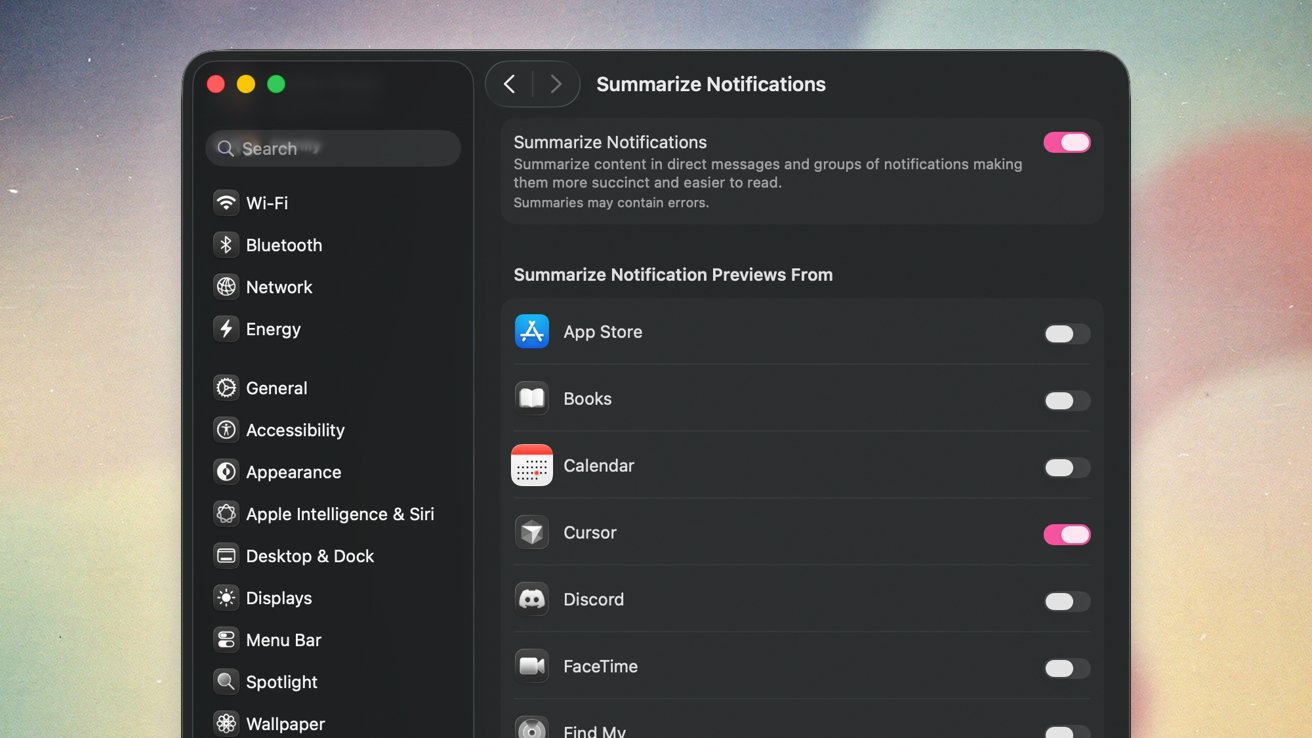
You can also choose whether or not to summarize notifications. To do this, you’ll need to have Apple Intelligence enabled.
Setting up notification summaries on macOS Tahoe
How to enable and disable notifications for apps on macOS Tahoe
If you’ve got a particularly persistent app you’d like to quiet, or any app you’d like to start receiving notifications for, this is how you’ll do it.
- Open System Settings
- In the sidebar, click Notifications
- Under the section titled Application Notifications look for the app you want to change notification settings for
- Toggle Allow notifications on or off
- If turned on, you’re able to customize additional options, like alert syle, whether its time sensitive, or if you’d like to see previews and notifications badges
And, that’s really it. There are nowhere near as many settings as there are for iPhone, but it’s still helpful to cull notifications you don’t need.