Posted by: xSicKxBot - 01-14-2023, 07:34 AM - Forum: Lounge
- No Replies
Top 10 Best-Selling Games Of 2022 In The US
The NPD Group has announced the top 10 best-selling games of December 2022 and the full year, and Call of Duty: Modern Warfare II was No. 1 for both periods.
For the full-year charts, Call of Duty: Modern Warfare II was No. 1, followed by Elden Ring, Madden NFL 23, God of War Ragnarok, and Lego Star Wars: The Skywalker Saga. NPD's Mat Piscatella predicted Elden Ring would outsell Modern Warfare II to rank No. 1 for 2022, but this didn't happen.
The list combines physical and digital sales, except in some cases. For example, Nintendo doesn't share digital sales with the NPD, and digital sales for the Xbox and Switch versions of MLB The Show 22 are not included. Despite that, Nintendo's Pokemon Scarlet/Violet ranked No. 6 for the year and Pokemon Legends: Arceus finished as the eighth best-selling game of 2022 in the US. Sony's MLB The Show 22, meanwhile finished 10th for the year despite no Xbox or Switch digital sales included.
Join this brand-new RPG featuring new character and monster designs produced by Eiichiro Oda, the author of ONE PIECE. The game is also complemented by the beautiful music of Motoi Sakuraba, a composer well known for his various contributions to video games such as the Dark Souls and Tales of series.
During their voyage, the Straw Hats, led by Monkey D. Luffy are swallowed by a huge storm at sea. They end up on a mysterious island full of nature amidst the storm and become separated from each other. The crew sets out on a new adventurous journey filled with wonders of a raging nature, powerful enemies, and strange encounters with island locals.
Work together with Luffy and his crew to set sail once again!
Do you have issues with long deploy cycles? Your updates require some form of downtime. Are you losing money by keeping code already developed collecting dust in repositories instead of providing value and functionality for your users? Delivering the best software fast is what separates software com...
Hentai Avenger Bundle & Twin Sails Interactive Sale
Hentai Avenger Bundle | 8 Adult Games | 93% OFF
[www.indiegala.com] ?Vengeance may come in many shapes and forms, but in eroge form, not as often. Start this new year with a sensual & titillating erotic anime / hentai DRM-FREE game selection.
Posted by: xSicKxBot - 01-13-2023, 11:35 AM - Forum: Lounge
- No Replies
3 Free Games Are Available At The Epic Games Store
The Epic Games Store continues to give away free games each week, more than three years after the digital storefront launched its awesome weekly freebies program. Every Thursday at the same time 8 AM PT / 11 AM ET--Epic gives up between one and three free games. You merely need to create a free Epic account and enable two-factor authentication to start snagging freebies. At this point, Epic has given away well over 100 free games, and there's no sign that the program will stop any time soon. We keep this article up to date weekly to highlight both the current free games and next week's offerings.
Current free game at Epic
Gamedec - Definitive Edition
From now until January 19 at 8 AM PT / 11 AM ET, you can claim Divine Knockout, First Class Trouble, and Gamedec - Definitive Edition. Divine Knockout is online multiplayer platforming game that released in December. Meanwhile, First Class Trouble is a social deduction game that tasks players with uncovering which combatant is actually a killer robot. Gamedec is a an isometric RPG set in a cyberpunk world. Unlike the other two freebies, Gamedec is a solo experience with a rich and lengthy campaign.
LONE RUIN is a spell-based roguelike twin-stick shooter with a focus on replayability. Play as an explorer who seeks a mysterious ancient power and venture in a ruined magical city, built atop a source of magic used by olden mages to power and transform themselves.
Dive deeper and deeper, battling your way through twisted creatures, utilising your very own magic abilities to ultimately reach the center of the Lone Ruin.
Posted by: MMOexp2023 - 01-13-2023, 05:11 AM - Forum: Lounge
- No Replies
Youth gamers might have been generated with unrealistically proportioned arms.Youth participant names and numbers did now no longer seem on their kits at some stage in fits. In participant profession, the Pro’s OVR and positions may be by accident modified after modifying them.When approaching as a sub in participant profession, the crew’s procedures, play fashion, and trouble degree should get reset.Youth Players born after 2005 had been displaying a 1980 delivery date while being edited.Youth Player development should every now and then turn out to be by accident caught.In a few instances, renewed contracts should observe to gamers with 1 12 months much less than what turned into agreed upon in negotiations.Editing a participant’s boots should every now and then bring about them sporting gloves.Post Title Update #four – Career Mode Thoughts - buy FIFA 23 Coins.
FIFA 23 Guide: Best 4231 Custom Tactics Post Patch - New Formation and Tactics
In this article we’re going to have some fun with the Ethereum blockchain, RxJava and web3j. Background During the past year, the technology and financial press has been full of talk about blockchain and it’s disruptive potential. A blockchain is an decentralised, immutable data store. As it is immu...
In my university days, I often came across scenarios where I needed to convert image files to PDF files and then merge all the PDF files together to submit my assignments. Now, you will find tons of online resources to convert images to PDFs and also merge PDFs. But the big question is – “Are they all safe?”
That is why I decided to take things into my hands and create a script that would not only convert my image files to PDFs but also merge those PDFs together. That is exactly what I will be demonstrating in this project.
So we will be performing a couple of tasks in this project –
Convert all the images to PDF files.
Merge all the converted PDF files into a single PDF file.
So, without further delay, let us dive into our project.
Step 1: Install and Import the Necessary Libraries
We will need to install a couple of libraries that will help us to complete our task. The first library is the PIL (Python Imaging Library) which is Python’s de facto image processing package. To install it, open your terminal and type the following command:
pip install pillow
The next library that you need to install is known as PyPDF2. PyPDF2 is a free and open-source pure-python PDF library capable of splitting, merging, cropping, and transforming the pages of PDF files. It can also add custom data, viewing options, and passwords to PDF files. PyPDF2 can retrieve text and metadata from PDFs as well. To install it, open your terminal and type the following command:
pip install PyPDF2
Once you have installed the necessary libraries, go ahead and import them into your script. Note that you will also need to import the os module to open the required files from their respective paths.
Code:
import os

from PIL import Image

from PyPDF2 import PdfMerger
Step 2: Fetch the Path of the Source and Destination Directories
You need to fetch the path of the source folder where you have stored the images and also the path of the destination folder where you will save the PDF files.
Code:
img_dir = './image_files'

pdf_dir = './pdf_files'
In my case, I have created two different directories by the name ‘image_files‘ and ‘pdf_files‘ within my project folder and then stored them in two different variables which I will be using later on in my code.
Step 3: Converting Image to PDF
We are all set to create the image to PDF converter function that will convert an image into a PDF. The idea is to navigate the image folder with the help of the os.listdir method and grab all the image files within it. If an image file is located we open it up using the Image module of the PIL package.
You then have to specify the color profile of the PDF and you can mention that to be RGB. You can do this with the help of the convert function. Then you can directly save this converted RGB image to the destination folder in the PDF format using the save method. To save it as a PDF file you can pass the extension as .pdf as '{0}.pdf'.format(file.split('.')[-2]). That’s it. This should convert all the images in the images folder to individual PDF files.
Code:
def img_to_pdf_converter(): for file in os.listdir(img_dir): if file.split('.')[-1] in ('png', 'jpg', 'jpeg'): image = Image.open(os.path.join(img_dir, file)) coneverted_image = image.convert('RGB') coneverted_image.save(os.path.join(pdf_dir, '{0}.pdf'.format(file.split('.')[-2]))) print("PDF Created!")
Step 4: Merge the PDFs
Once you have all the PDF versions of the image files, you can then merge them using the PyPDF2 library. Go ahead and create an empty list that will store the names of all the PDFs that were created from the image files. Then create an instance of the PdfMerger class that resides with the PyPDF2 module.
Then navigate the PDF folder and fetch all the PDF files and merge them together using a for loop and within the for loop use the append method to merge them together. As simple as that!
Code:
def merger(): pdfs = [] merge = PdfMerger() for file in os.listdir(pdf_dir): pdfs.append(pdf_dir+"/"+file) for pdf in pdfs: merge.append(pdf) merge.write('merged_pdf.pdf') merge.close() print("PDFs Merged!")
Putting It All Together
We have successfully created both functions to convert images to PDFs and then merge them. All that remains to be done is to call these functions and your script should work like a charm.
Finally, when you put everything together, this is how the complete script looks like –
import os

img_dir = './image_files'

pdf_dir = './pdf_files' def img_to_pdf_converter(): from PIL import Image for file in os.listdir(img_dir): if file.split('.')[-1] in ('png', 'jpg', 'jpeg'): image = Image.open(os.path.join(img_dir, file)) coneverted_image = image.convert('RGB') coneverted_image.save(os.path.join(pdf_dir, '{0}.pdf'.format(file.split('.')[-2]))) print("PDF Created!") def merger(): pdfs = [] from PyPDF2 import PdfMerger merge = PdfMerger() for file in os.listdir(pdf_dir): pdfs.append(pdf_dir+"/"+file) for pdf in pdfs: merge.append(pdf) merge.write('merged_pdf.pdf') merge.close() print("PDFs Merged!") img_to_pdf_converter()

merger()
Conclusion
Woohoo!!! We have successfully completed our fun project, and now we do not need the aid of any third-party application to convert our images to PDFs or merge our PDFs. I hope this project added some value and helped you in your coding quest. Stay tuned and subscribe for more interesting projects and tutorials.
In this tutorial, we will see examples of using the Chartjs JavaScript library to create bar charts.
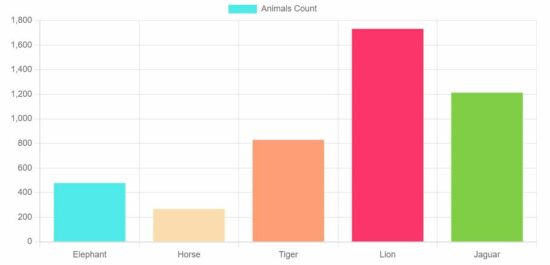
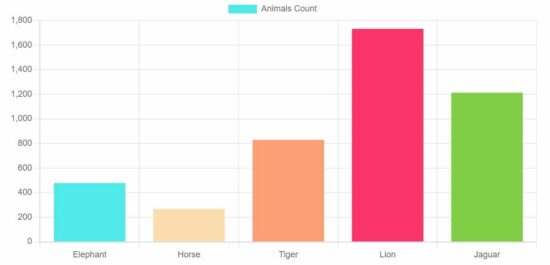
This quick example gives you the code to display a simple bar chart on the browser.
The below JavaScript code shows how to include and initiate the ChartJS library. It uses static data to set the bar chart labels and dataset in JavaScript.
Quick example – Simple bar chart example via ChartJS
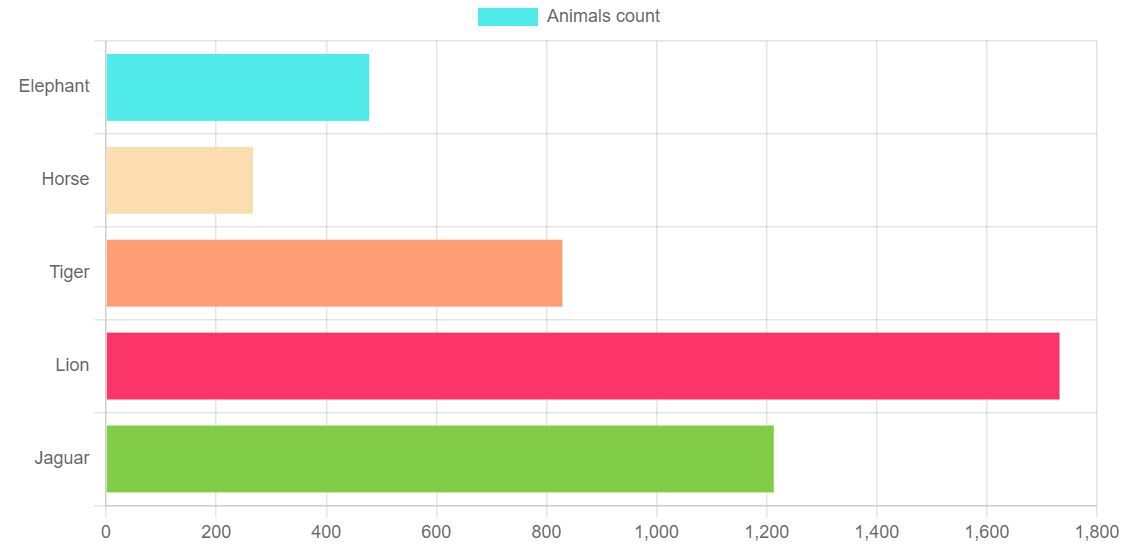
This output screenshot plots the bar chart data index on the ‘y’ axis and has the readings on the ‘x-axis.
Previously, we used this JS library to create a pie chart using this ChartJS library. But, it is not supporting to display of 3D pie charts. See the linked article that uses Google charts for creating the 3D pie chart.
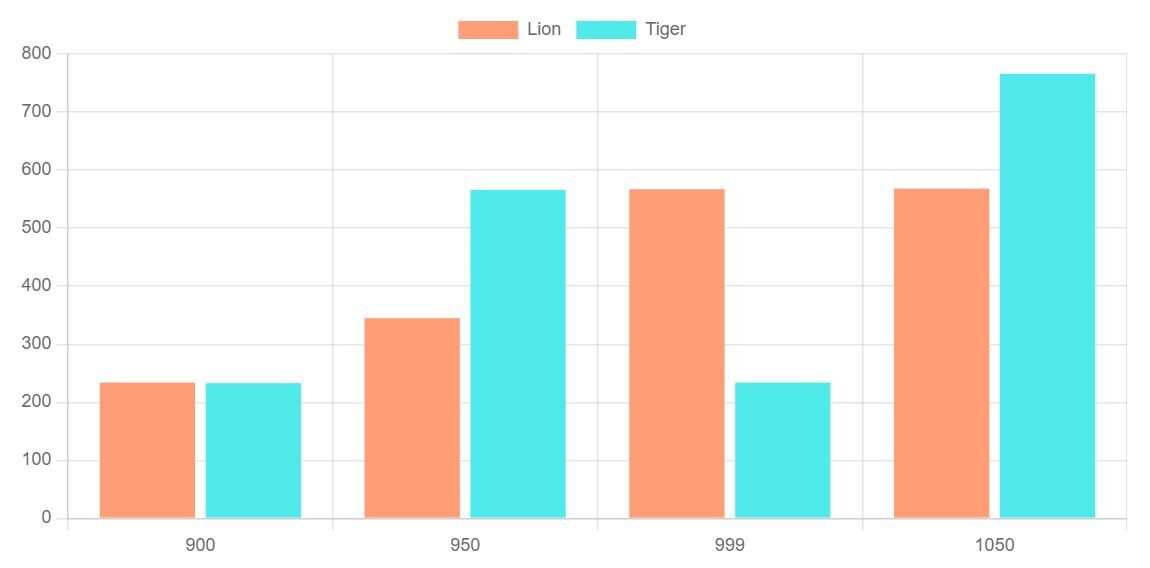
Example 3: Grouped bar chart
Grouped bar charts are useful for showing a comparative reading.