Welcome to Next Week on Xbox, where we cover all the new games coming soon to Xbox One! Every week the team at Xbox aims to deliver quality gaming content for you to enjoy on your favorite gaming console. To find out what’s coming soon to Xbox One, read on below and click on each of the game profiles for pre-order details (dates are subject to change).
Xbox One X Enhanced – With online play and couch co-op support, as well as a large roster full of characters each with their own unique style of play, Brawlout looks to effectively blend platform and traditional fighting gameplay into a stylish, aerobatic game the whole family can enjoy, but is a deep enough challenge for veterans of the genre.
Two classics return in a classic tale of revenge and mystery with Shenmue I & II featuring an updated interface, control options, and Japanese audio – a first for a global audience. Become immersed in a fully interactive world of 1980s Japan and Hong Kong, China as you track down the man who killed Ryo Hazuki’s father.
Drift through looping bends, soar over monumental jumps and defy gravity itself around tubular tracks in this colorful racer. Pick your favorite character and battle across a series of championships as you race nine other racers. Features online racing as well as support for up to four-player local split-screen action.
Take on the role of Tyler, a spunky miniature robot who after many years of powering down has accidentally come back online in the midst of a thunderstorm – and to find his creator missing. Navigate your surroundings, collect objects, and solve puzzles along the way in this platforming adventure.
In this narrative-focused adventure game, pick a side in the growing conflict between man and ape. Based on the recent films in this fabled sci-fi series, Last Frontier aims to deliver a tale of conquest, betrayal, and survival that will send you either towards establishing a fragile peace or a bloody war.
Spectrum describes itself as taking place in a stunning, abstract world where players can jump, dive, and flow through 80 levels of unique shapes and colors. Combined with an atmospheric soundtrack, Spectrum aims to create an immersive, zen-like platforming experience.
Xbox One X Enhanced – Become immersed in the world of Formula 1 racing by building your reputation on and off the track as you navigate not only racing at lightning speed, but with time-pressured interviews that will influence your driver’s career path. Featuring more classic F1 cars than ever before, as well as the series most accurate simulation model to date.
Inspired by “The Thing,” a helicopter crash has left a group of explorers stranded near an arctic base. Not only do they need to find ways to survive but also find out how to combat a terrifying force that aims to suck the life from their bodies. It’s up to you to guide these survivors through a randomly-generated base and overcome the deadly climate and a mysterious force.
This side-scrolling, platforming, beat ’em up sequel to Haunted: Halloween ’85 comes with a completely overhauled combat system with new attack, defensive, and evasive moves as well as improved graphics that feature split-screen side scrolling and animated backgrounds, aiming to be an incredibly faithful 8-bit gaming experience in 2018.
Capture islands, sink ships, defend your towns, and discover an exciting world full of adventure in this sandbox adventure pirate RPG that lets you explore a massive world full of unique islands, colorful landscapes, and the open sea while keeping your crew alive (and your ship afloat).
A turn-based strategy game set during the Cold War, Phantom Doctrine looks to draw its inspiration from classic spy films and novels as you carry out secret missions, investigate classified intel, and interrogate your enemies in this spy vs spy thriller told across an epic 40-hour single-player campaign.
Review: Night Trap – 25th Anniversary Edition (Switch eShop)
“In the past years, some very violent and offensive games have reached the market, and of course I’m speaking about Mortal Kombat and Night Trap.” It was 9th December 1993, and the then-president of Nintendo of America, Howard Lincoln, was giving a statement at a US congressional hearing on violent video games. Mortal Kombat had already been released on the SNES, but it was a heavily censored version: the blood had been replaced with sweat and its notorious fatality moves had been removed.
As for Night Trap – the Mega CD game that featured full-motion video (FMV) of scantily-clad teenagers in mild peril – Lincoln was more scathing. “Let me say that for the record,” he told the hearing, “I want to state that Night Trap will never appear on a Nintendo system. Obviously, it would never pass our guidelines.”
In hindsight, Lincoln’s speech was less a moral crusade and more an attempt to keep the senators happy and make Nintendo look like the good guys. As soon as it became clear that the blood-soaked Mega Drive version of Mortal Kombat was vastly outselling the censored SNES one, those guidelines Lincoln spoke of were changed pronto. Mortal Kombat 2 was released fully uncut on Nintendo’s system, with fatalities and gore a-plenty.
Night Trap, meanwhile, never did make it to a Nintendo console during Lincoln’s reign, but that was more likely due to technical reasons: the company’s refusal to embrace CD-ROM meant neither the SNES or the N64 would have really been able to handle a game that consisted entirely of video clips. By the time the GameCube launched and Nintendo had a system with adequate storage, the FMV genre was already dead and Night Trap was ancient history. That was then, though. They say you should never say never, and what we have here is a shining example of this. An entire quarter of a century later, despite what Howard Lincoln promised, Night Trap has appeared on a Nintendo system, in a 25th anniversary remaster.
If you’re unfamiliar with it, the game puts you in charge of a bank of eight security cameras, each set up in a different room of the Martin household. A bunch of teenagers recently disappeared after a trip to the Martins’, so it’s up to you to figure out what’s going on by using the cameras to keep an eye on a second group spending the night there (one of whom is an undercover agent working for you).
It quickly becomes clear that the house is swarming with Augers, a group of shambling, toothless vampires who need to use a special claw tool to extract blood from their victims. It’s up to you to catch the Augers by activating one of the many traps littered around the house. Press the trap button just as an Auger passes over the right spot and they’ll be caught: miss too many of them and it’s game over.
The trick, then, is scanning through each room, attempting to catch as many Augers as you can while still trying to eavesdrop on the various conversations going on throughout the house. It’s important you do so, too, because sometimes the residents – suspicious that someone’s onto them – will change the security colour code for the traps and you’ll need to change yours accordingly in order to keep catching the blood-sucking bad guys.
Since it’s essentially just made up of a bunch of video clips, Night Trap is an extremely linear game and a short one at that: a perfect run takes around half an hour. The fun comes in trying to achieve that level of perfection, though, by slowly but surely memorising the sequence of events and learning which dialogue scenes you should watch and which can be ignored. If you prefer your games to be a completely different experience each time you play, then Night Trap certainly isn’t for you. This is about playing the events of one evening over and over, GroundhogDay-style, until you figure out how to handle it flawlessly. There’s a brilliant reason for doing so in this version, but we’ll get to that in a bit.
This 25th anniversary edition of Night Trap – originally developed by one-man team Screaming Villains and ported to Switch by Limited Run – delivers by far the best-looking version of the game. At the time it was originally released on Mega CD (and later PC and 3DO), CD-ROM video technology was still in its infancy and the extreme compression meant the video quality was horrendous. Footage was blocky and grainy, the video window was tiny and the frame rate was cut heavily in order to fit everything in.
For this version, the developer was given access to the original tapes containing all the footage shot at the time. This meant the game had to be rebuilt almost from scratch, but the result is picture quality that absolutely demolishes the ‘90s versions: the video window is satisfyingly big, the detail is far greater than before and the frame rate has been brought up to movie standard.
There are some issues, though. The game over scenes – in which your commander gives you a piece of his mind for messing up – were shot years after the other footage, and so high-quality versions of them don’t exist. As a result, these scenes appear in a tiny window in the corner of the screen, which is disappointing. The original tapes have also suffered some damage over the years, so there’s some visible picture tearing and interference in some scenes near the end – though it could be argued that this just adds to the cheesy ‘80s VHS aesthetic.
The Switch port, in particular, has its own quirks not present in the previously released PS4 version. Video can occasionally be a little janky in handheld mode and a couple of the longer scenes – the infamous ‘party’ scene where the actors all ham it up to the official Night Trap theme tune being the most notable example – are noticeably more compressed, presumably to help the Switch handle them a little better.
That’s the game itself, then: ultimately, it remains as divisive as it was when it first launched back in 1993. You’re either going to love the way it cleverly uses and interconnects video clips to give the impression you’re genuinely analysing the goings-on in this house, or you’re going to hate its linear gameplay and the fact that every game plays out exactly the same way. What’s less arguable, though, is the quality of everything else you get in this anniversary edition.
As well as the remastered version of the game itself, this shiny new Night Trap package also includes a bunch of bonus features. Some are fairly throwaway: the Survival mode randomly arranges clips of Augers in the house and tasks you with catching as many as possible, which should amuse you for a while but is a bit soulless. Far better are the other goodies. Theater mode appears when you beat the game and lets you replay any of the dialogue scenes you stumbled upon, giving you the chance to enjoy them uninterrupted without the need to jump to another room to trap someone. Meanwhile, there are two brilliant documentaries – one recorded in the ‘90s shortly after the congressional hearings and a more recent one shot in 2017 for this new edition – which are well worth a watch.
Even better, get a perfect game by capturing all the Augers and you’ll unlock Scene Of The Crime, the unreleased 1986 prototype of Night Trap that was created as a sort of proof-of-concept when the idea was being pitched to toy company Hasbro for the NEMO game system. This is an absolutely incredible addition: for years Night Trap fans had only seen tiny, seconds-long snippets of Scene Of The Crime, so to not only see the full thing but actually be able to play it too is beyond belief.
As a game it’s fair to say Night Trap is an acquired taste: on one hand, it has limited interactivity and B-movie acting that’s cheesier than Wallace and Gromit’s fridge, but on the other, its inventive use of FMV and unique trapping mechanic has earned it a cult following. There’s no denying the quality of the surrounding package, though, and regardless of your thoughts on Night Trap itself, the addition of a pair of lengthy documentaries and a playable version of its fabled prototype make it fascinating for gaming historians.
Following the footsteps of the successful titles MU Online and MU Origin, MU Legend offers an authentic alternative to the dungeon crawler gaming experience.
A game with its own unique signature, MU Legend blends the dark fantasy world of an MMO with the richness of hack ‘n’ slash gaming.
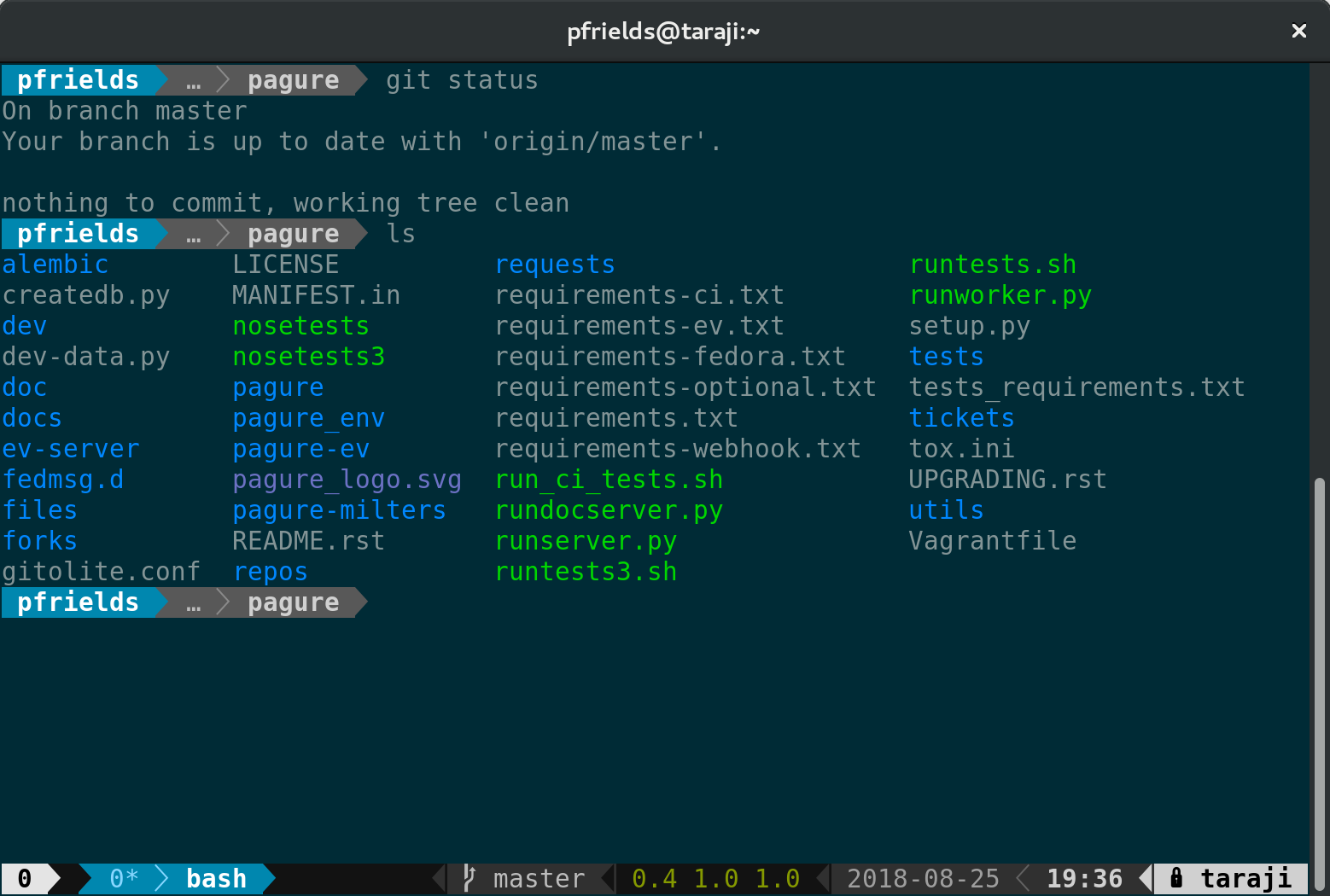
In other operating systems, the nature of a file is often determined by its extension. If a file has a .jpg extension, the OS guesses it is an image; if it ends in .wav, it is an audio file; and if it has an .exe tacked onto the end of the file name, it is a program you can execute.
This leads to serious problems, like trojans posing as documents. Fortunately, that is not how things work in Linux. Sure, you may see occasional executable file endings in .sh that indicate they are runnable shell scripts, but this is mostly for the benefit of humans eyeballing files, the same way when you use ls --color, the names of executable files show up in bright green.
The fact is most applications have no extension at all. What determines whether a file is really program is the x (for executable) bit. You can make any file executable by running
chmod a+x some_program
regardless of its extension or lack thereof. The x in the command above sets the x bit and the a says you are setting it for all users. You could also set it only for the group of users that own the file (g+x), or for only one user, the owner (u+x).
Although we will be covering creating and running scripts from the command line later in this series, know that you can run a program by writing the path to it and then tacking on the name of the program on the end:
path/to/directory/some_program
Or, if you are currently in the same directory, you can use:
./some_program
There are other ways of making your program available from anywhere in the directory tree (hint: look up the $PATH environment variable), but you will be reading about those when we talk about shell scripting.
Copying, Moving, Linking
Obviously, there are more ways of modifying and handling files from the command line than just playing around with their permissions. Most applications will create a new file if you still try to open a file that doesn’t exist. Both
nano test.txt
and
vim test.txt
(nano and vim being to popular command line text editors) will create an empty test.txt file for you to edit if test.txt didn’t exist beforehand.
You can also create an empty file by touching it:
touch test.txt
Will create a file, but not open it in any application.
You can use cp to make a copy of a file in another location or under a new name:
cp test.txt copy_of_test.txt
You can also copy a whole bunch of files:
cp *.png /home//images
The instruction above copies all the PNG files in the current directory into an images/ directory hanging off of your home directory. The images/ directory has to exist before you try this, or cp will show an error. Also, be warned that, if you copy a file to a directory that contains another file with the same name, cp will silently overwrite the old file with the new one.
You can use
cp -i *.png /home//images
If you want cp to warn you of any dangers (the -i options stands for interactive).
You can also copy whole directories, but you need the -r option for that:
cp -rv directory_a/ directory_b
The -r option stands for recursive, meaning that cp will drill down into directory_a, copying over all the files and subdirectories contained within. I personally like to include the -v option, as it makes cpverbose, meaning that it will show you what it is doing instead of just copying silently and then exiting.
The mv command moves stuff. That is, it changes files from one location to another. In its simplest form, mv looks a lot like cp:
mv test.txt new_test.txt
The command above makes new_test.txt appear and test.txt disappear.
mv *.png /home//images
Moves all the PNG files in the current directory to a directory called images/ hanging of your home directory. Again you have to be careful you do not overwrite existing files by accident. Use
mv -i *.png /home//images
the same way you would with cp if you want to be on the safe side.
Apart from moving versus copying, another difference between mv and cpis when you move a directory:
mv directory_a/ directory_b
No need for a recursive flag here. This is because what you are really doing is renaming the directory, the same way in the first example, you were renaming the file*. In fact, even when you “move” a file from one directory to another, as long as both directories are on the same storage device and partition, you are renaming the file.
You can do an experiment to prove it. time is a tool that lets you measure how long a command takes to execute. Look for a hefty file, something that weighs several hundred MBs or even some GBs (say, something like a long video) and try copying it from one directory to another like this:
$ time cp hefty_file.mkv another_directory/

real 0m3,868s user 0m0,016s sys 0m0,887s
In bold is what you have to type into the terminal and below what time outputs. The number to focus on is the one on the first line, real time. It takes nearly 4 seconds to copy the 355 MBs of hefty_file.mkv to another_directory/.
Now let’s try moving it:
$ time mv hefty_file.mkv another_directory/

real 0m0,004s

user 0m0,000s sys 0m0,003s
Moving is nearly instantaneous! This is counterintuitive, since it would seem that mv would have to copy the file and then delete the original. That is two things mv has to do versus cp‘s one. But, somehow, mv is 1000 times faster.
That is because the file system’s structure, with all its tree of directories, only exists for the users convenience. At the beginning of each partition there is something called a partition table that tells the operating system where to find each file on the actual physical disk. On the disk, data is not split up into directories or even files. There are tracks, sectors and clusters instead. When you “move” a file within the same partition, what the operating system does is just change the entry for that file in the partition table, but it still points to the same cluster of information on the disk.
Yes! Moving is a lie! At least within the same partition that is. If you try and move a file to a different partition or a different device, mv is still fast, but is noticeably slower than moving stuff around within the same partition. That is because this time there is actually copying and erasing of data going on.
Renaming
There are several distinct command line rename utilities around. None are fixtures like cp or mv and they can work in slightly different ways. What they all have in common is that they are used to change parts of the names of files.
In Debian and Ubuntu, the default rename utility uses regular expressions (patterns of strings of characters) to mass change files in a directory. The instruction:
rename 's/\.JPEG$/.jpg/' *
will change all the extensions of files with the extension JPEG to jpg. The file IMG001.JPEG becomes IMG001.jpg, my_pic.JPEG becomes my_pic.jpg, and so on.
Another version of rename available by default in Manjaro, a derivative of Arch, is much simpler, but arguably less powerful:
rename .JPEG .jpg *
This does the same renaming as you saw above. In this version, .JPEG is the string of characters you want to change, .jpg is what you want to change it to, and * represents all the files in the current directory.
The bottom line is that you are better off using mv if all you want to do is rename one file or directory, and that’s because mv is realiably the same in all distributions everywhere.
Learning more
Check out the both mv and cp‘s man pages to learn more. Run
man cp
or
man mv
to read about all the options these commands come with and which make them more powerful and safer to use.
DRAGON QUEST XI: Echoes of an Elusive Age tells a captivating tale of a hunted hero and is the long-awaited role-playing game from series creator Yuji Horii, character designer Akira Toriyama and composer Koichi Sugiyama. While it is the eleventh mainline entry in the critically acclaimed series, DRAGON QUEST XI is a completely standalone experience that features entirely new characters, a beautifully detailed world, finely tuned turn-based combat, and an immersive story that promises to appeal to longtime fans and franchise newcomers alike.
Donut County is a story-based physics puzzle game where you play as an ever-growing hole in the ground. Meet cute characters, steal their trash, and throw them in a hole.
Posted by: xSicKxBot - 08-28-2018, 08:30 AM - Forum: Lounge
- No Replies
Battlefield 5 Open Beta: Dates And Early Access Details
Fans eager to test the historical accuracy of Battlefield V won't have to wait much longer, as EA's announced the game's open beta start date. Battlefield V's open beta is scheduled to start at the beginning of September, with those who pre-order or are members of Origin Access Premier, Origin Access Basic, or EA Access getting two whole days to play before everyone else.
Battlefield V's open beta will kick off on September 4 for those who pre-order and/or are subscribers of EA's services, while everyone else will get access to it on September 6 on all platforms. The open beta will feature the new Rotterdam map for Conquest, as well as the Arctic Fjord map for both Conquest and Grand Operations. Pre-loading the open beta starts on September 3.
According to the press release, the Rotterdam map will put players in "a battle fought throughout the streets of Holland where the game's dynamic physicality and destruction will be on full display." Grand Operations makes its Battlefield V debut and is "a multiplayer experience across multiple maps and modes that takes players through a powerful narrative journey inspired by historical events," as stated in the press release. In addition to the new map and mode, a five-part Tides of War chapter--an ever-evolving journey through World War II featuring a new story every few months--will be available during the open beta, and those that complete it will receive an exclusive in-game Dog Tag when the game launches.
EA DICE recently dropped a new trailer for Battlefield V ahead of Gamescom 2018. The trailer, called Devastation of Rotterdam, shows an amalgam of cutscenes and gameplay footage. Toward the end of the trailer, we get a potential tease of Battlefield V's new Battle Royale mode, which was announced during E3 2018. We expect to see more Battlefield V footage during Gamescom and hopefully learn more about this new Battle Royale mode. Nvidia also partnered with EA DICE and used Battlefield V to showcase the newly-announced RTX video cards.
Those who pre-order Battlefield V will not only get early access to the open beta but will also be able to play the full game three days ahead of its release, on October 16. Origin Access Premier members on PC can play the full game on October 11, while Origin Access Basic members on PC and EA Access members on Xbox One get access to the Play First Trial on the same day.
Battlefield V will be available for PC, PlayStation 4, and Xbox One on October 19, 2018.
The tmux utility, a terminal multiplexer, lets you treat your terminal as a multi-paned window into your system. You can arrange the configuration, run different processes in each, and generally make better use of your screen. We introduced some readers to this powerful tool in this earlier article. Here are some tips that will help you get more out of tmux if you’re getting started.
This article assumes your current prefix key is Ctrl+b. If you’ve remapped that prefix, simply substitute your prefix in its place.
Set your terminal to automatically use tmux
One of the biggest benefits of tmux is being able to disconnect and reconnect to sesions at wilI. This makes remote login sessions more powerful. Have you ever lost a connection and wished you could get back the work you were doing on the remote system? With tmux this problem is solved.
However, you may sometimes find yourself doing work on a remote system, and realize you didn’t start a session. One way to avoid this is to have tmux start or attach every time you login to a system with in interactive shell.
Add this to your remote system’s ~/.bash_profile file:
if [ -z "$TMUX" ]; then tmux attach -t default || tmux new -s default fi
Then logout of the remote system, and log back in with SSH. You’ll find you’re in a tmux session named default. This session will be regenerated at next login if you exit it. But more importantly, if you detach from it as normal, your work is waiting for you next time you login — especially useful if your connection is interrupted.
Of course you can add this to your local system as well. Note that terminals inside most GUIs won’t use the default session automatically, because they aren’t login shells. While you can change that behavior, it may result in nesting that makes the session less usable, so proceed with caution.
Use zoom to focus on a single process
While the point of tmux is to offer multiple windows, panes, and processes in a single session, sometimes you need to focus. If you’re in a process and need more space, or to focus on a single task, the zoom command works well. It expands the current pane to take up the entire current window space.
Zoom can be useful in other situations too. For instance, imagine you’re using a terminal window in a graphical desktop. Panes can make it harder to copy and paste multiple lines from inside your tmux session. If you zoom the pane, you can do a clean copy/paste of multiple lines of data with ease.
To zoom into the current pane, hit Ctrl+b, z. When you’re finished with the zoom function, hit the same key combo to unzoom the pane.
Bind some useful commands
By default tmux has numerous commands available. But it’s helpful to have some of the more common operations bound to keys you can easily remember. Here are some examples you can add to your ~/.tmux.conf file to make sessions more enjoyable:
bind r source-file ~/.tmux.conf \; display "Reloaded config"
This command rereads the commands and bindings in your config file. Once you add this binding, exit any tmux sessions and then restart one. Now after you make any other future changes, simply run Ctrl+b, r and the changes will be part of your existing session.
bind V split-window -h bind H split-window
These commands make it easier to split the current window across a vertical axis (note that’s Shift+V) or across a horizontal axis (Shift+H).
If you want to see how all keys are bound, use Ctrl+B, ? to see a list. You may see keys bound in copy-mode first, for when you’re working with copy and paste inside tmux. The prefix mode bindings are where you’ll see ones you’ve added above. Feel free to experiment with your own!
Use powerline for great justice
As reported in a previous Fedora Magazine article, the powerline utility is a fantastic addition to your shell. But it also has capabilities when used with tmux. Because tmux takes over the entire terminal space, the powerline window can provide more than just a better shell prompt.
Now restart your session, and you’ll see a spiffy new status line at the bottom. Depending on the terminal width, the default status line now shows your current session ID, open windows, system information, date and time, and hostname. If you change directory into a git-controlled project, you’ll see the branch and color-coded status as well.
Of course, this status bar is highly configurable as well. Enjoy your new supercharged tmux session, and have fun experimenting with it.
Posted by: xSicKxBot - 08-28-2018, 02:29 AM - Forum: Windows
- No Replies
What’s next in your smart city evolution?
For most cities, becoming a smart city is no longer a question. It’s an imperative. Your city is likely well underway on its digital transformation journey. You’ve been investing in IT for years. And you’re looking to get the most out of those investments. So what’s next in your smart city evolution?
For many of the municipalities our CityNext team works with, it’s connecting everything. City leaders are looking to weave the fabric of a connected society. Ultimately, they want to bring together local and national governments with commercial businesses so that all systems are working together to improve urban experiences and citizens’ quality of life.
And they’re getting there step by step. Together with our partners, we help them navigate those steps in the context of their technology continuum.
That continuum often started sometime in the 80s, when individual city departments purchased their own on-premises, siloed solutions. Then came the 90s and the internet, which enabled cities to use webpages and portals that could present data from across departments in a singular view. But the data wasn’t really connected—it was just a presentation layer over those myriad, siloed systems.
The 2000s first brought the cloud, which made it easier to connect systems and data. Then it brought the Internet of Things (IoT) with sensors and devices—generally referred to as “the edge”—for everything from detecting water quality, to tracking hyper-local weather patterns, to enabling self-driving cars.
In other words, rather than an autonomous car having to send a message to the cloud and wait for a response to acknowledge a red light and stop, the car and the traffic light can communicate with each other directly.
So for many cities, using the intelligent cloud and intelligent edge to start connecting everything is how they’re taking that next step in their smart city evolution. That way, they can enable cohesive experiences and computing capabilities wherever data exists. It’s also vital to helping them get the most out of advanced analytics and emerging technologies such as artificial intelligence (AI).
Read the report to learn the three rules and six action items Gartner recommends for your city to get the most out of IoT and AI. Gartner’s research includes real-world use cases that illustrate how the synergy of IoT and AI can help cities better serve their citizens and achieve their desired outcomes.
Posted by: xSicKxBot - 08-28-2018, 02:29 AM - Forum: Windows
- No Replies
Windows 10 Tip: Find out how to get HDR video on your PC
When you’re watching high dynamic range (HDR) video on your PC, colors are more vivid. You find more details in the darkest and brightest parts of a scene, such as dimly lit rooms or a blazing fire. You notice more contrast, with a pronounced difference between lights and shadows.
To see how HDR video compares to traditional content (SDR), look at the images below. The SDR version, in general, is more flat and washed out. With an actual video on an HDR-capable PC, the difference is like night and day – literally.
HDR video still
SDR video still
Simulation of HDR content vs. SDR content
Windows HD Color is a set of features bringing HDR content to Windows PCs. Our team works hard to improve the quality of every pixel on your display, including better colors and more vivid scenes. The goal is to help you get ultra-realistic movie, gaming and creative experiences in Windows 10.
To enjoy HDR video, you need the right content, hardware and software. As more HDR hardware and content come to market, we’re committed to giving you the best HDR experiences.
In settings, you’ll be able to choose “Stream HDR Video” in the Video Playback if your display supports HDR video
HDR is a dramatic improvement over traditional SDR (standard dynamic range) content in two ways: light and color.
When it comes to light, HDR video takes advantage of new hardware that can show much higher contrast between the brightest whites and the darkest blacks on your screen. HDR video encodes additional information into your content (and allows for a much higher peak brightness) so you can see much more detail across the entire spectrum of display capabilities. For example, in a single frame of HDR video, the sun will appear distinctly brighter, details on the brightest surfaces will be sharper, and the darkest shadows will appear with terrific detail.
With respect to color, HDR video also improves over traditional content in two ways. First, it typically uses wider color gamut (WCG) when encoding information, meaning that it shows a wider range of colors compared to traditional SDR content. This results in, for example, increasingly saturated hues of color. Second, color is more precise with HDR. This is because it can represent many more unique shades even within the same range of color. On new HDR-capable hardware, these two color-related improvements result in much deeper and more vivid reds, greens, and blues, and allows for more gradations of color in-between.
How can I get HDR video?
With Windows HD Color, our goal is to make HDR video look as good as possible using the fullest extent of your PC’s capabilities. Since fully HDR-capable, built-in displays aren’t on laptops today, our efforts are focused on:
1. Playing HDR video on external HDR10displays
In the Windows 10 Fall Creators update, Windows supports external HDR TVs and monitors. Among other features, this allows Windows to consume HDR video and show full HDR quality (i.e., HDR features described above like higher peak brightness, wider color gamut, and more accurate color). You will also need a modern graphics card and updated drivers.
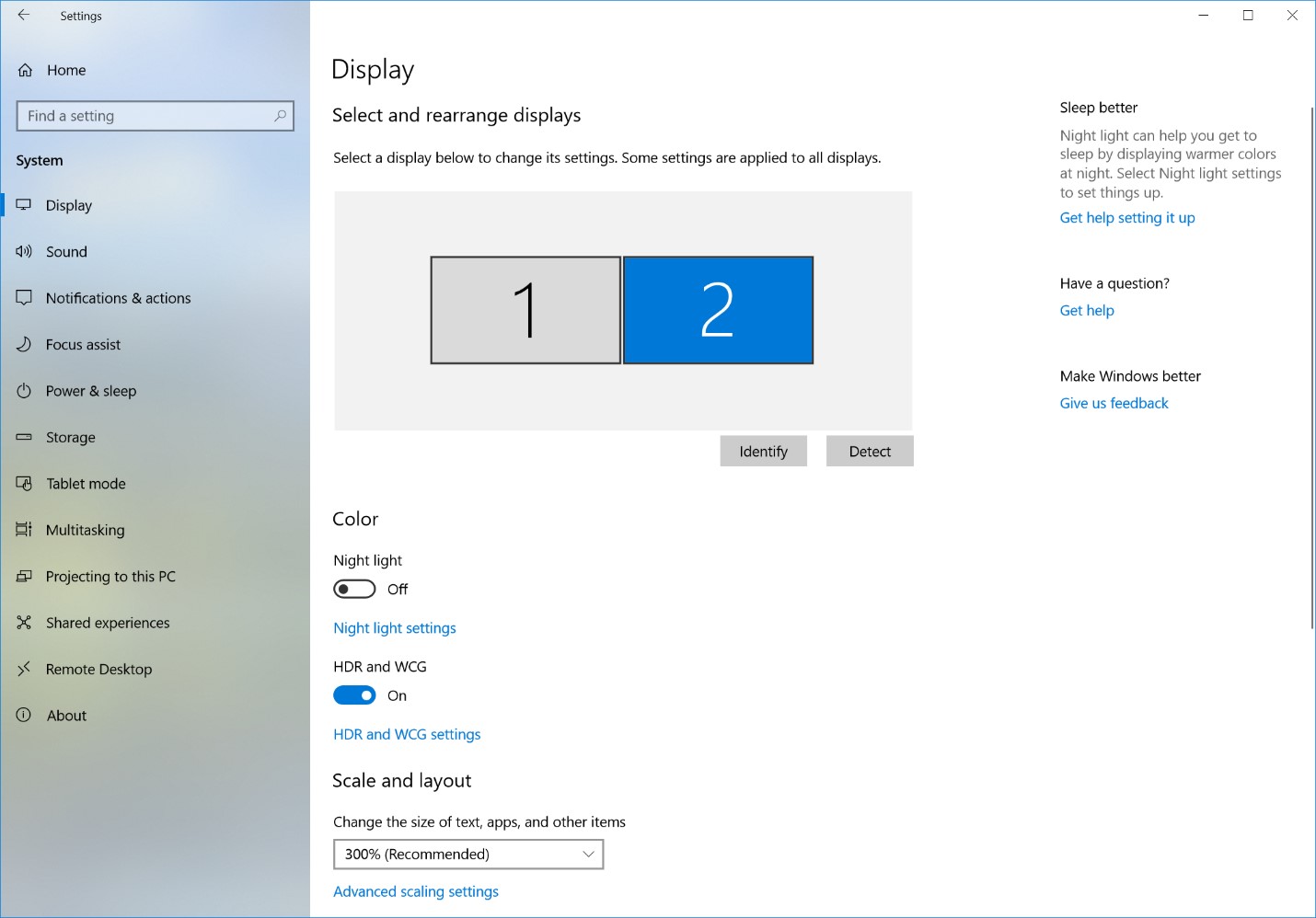
To get HDR, go to Settings > System > Display, and turn on “HDR and WCG.”
2. Improving video on current generation built-in displays (i.e., laptops)
Currently, most laptop displays don’t truly support HDR content, particularly when it comes to color (they do not have wider color gamuts nor higher color precision). Nevertheless, medium- to high-end models tend to have bright screens. We can combine these bright screens with the expanded range of brightness information available in HDR video formats so that Windows plays HDR video at its best for that display.
Playback quality of HDR content on these devices is noticeably better than the SDR version of the same content. This is particularly apparent in scenes where movie creators have mastered their content to fully exploit new HDR technologies.
While this update for built-in displays focused on the better brightness of HDR content, in the future we are working on bringing you better color.
Only devices that meet certain hardware requirements will be capable of playing HDR video.
There is a lot of free HDR content available online. You can find some good examples if you open Microsoft Edge on your Windows 10 PC, go to YouTube, and then search for “HDR.”
Netflix has HDR content as well, but you need to be on the “Premium” tier plan to have access. If you are on this plan, either download the Netflix app from the Store or go to Netflix.com in Microsoft Edge and search for “HDR.” Check out “Chef’s Table: France.”
(Side effects of this last show in HDR include uncontrollable hunger and impulse-purchase plane tickets to Paris.)
We are working with other content providers to expand the scope of HDR content on Windows.