Posted on Leave a comment

Python List Concatenation: Add (+) vs INPLACE Add (+=) vs extend()

A wildly popular operation you’ll find in any (non-trivial) code base is to concatenate lists—but there are multiple methods to accomplish this. Master coders will always choose the right method for the right problem.

This tutorial shows you the difference between three methods to concatenate lists:

  • Concatenate two lists with the + operator. For example, the expression [1, 2, 3] + [4, 5] results in a new list [1, 2, 3, 4, 5]. More here.
  • Concatenate two lists with the += operator. This operation is inplace which means that you don’t create a new list and the result of the expression lst += [4, 5] is to add the elements on the right to the existing list object lst. More here.
  • Concatenate two lists with the extend() method of Python lists. Like +=, this method modifies an existing list in place. So the result of lst.extend([4, 5]) adds the elements 4 and 5 to the list lst. More here.

To summarize: the difference between the + method and the += and extend() methods is that the former creates a new list and the latter modify an existing list object in-place.

You can quickly compare those three methods in the following interactive code shell:

Puzzle: Can you already figure out the outputs of this code snippet?

Fear not if you can’t! I’ll explain you each detailed example next.

Method 1: Add (+)

The standard way of adding two lists is to use the + operator like this:

# METHOD 1: ADD +
lst = ['Alice', 'Bob', 'Ann']
lst_new = lst + [42, 21]
print(lst)
print(lst_new)

While the + operator is the most readable one (especially for beginner coders), it’s not the best choice in most scenarios. The reason is that it creates a new list each time you call it. This can become very slow and I’ve seen many practical code snippets where the list data structure used with the + operator is the bottleneck of the whole algorithm.

In the above code snippet, you create two list objects in memory—even though your goal is probably just to update the existing list ['Alice', 'Bob', 'Ann'].

This can be nicely demonstrated in the code visualization tool:

Just keep clicking “Next” until the second list appears in memory.

Method 2: INPLACE Add (+=)

The += operator is not well understood by the Python community. Many of my students (join us for free) believe the add operation lst += [3, 4] is just short for lst = lst + [3, 4]. This is wrong and I’ll demonstrate it in the following example:

# METHOD 2: INPLACE ADD +=
lst = ['Alice', 'Bob', 'Ann']
lst_old = lst
lst += [42, 21]
print(lst)
print(lst_old)

Again, you can visualize the memory objects with the following interactive tool (click “Next”):

The takeaway is that the += operation performs INPLACE add. It changes an existing list object rather than creating a new one. This makes it more efficient in the majority of cases. Only if you absolutely need to create a new list, you should use the + operator. In all other cases, you should use the += operator or the extend() method.

Speaking of which…

Method 3: Extend()

Like the previous method +=, the list.extend(iterable) method adds a number of elements to the end of a list. The method operators in-place so no new list object is created.

# METHOD 3: EXTEND()
lst = ['Alice', 'Bob', 'Ann']
lst_old = lst
lst.extend([42, 21])
print(lst)
print(lst_old)

Here’s the interactive memory visualization:

Click “Next” and explore how the memory allocation “unfolds” as the execution proceeds.

Speed Comparison Benchmark

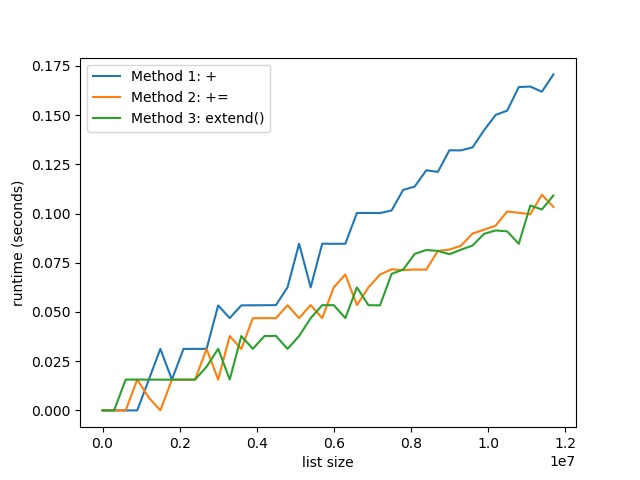
Having understood the differences of the three methods + vs += vs extend(), you may ask: what’s the fastest?

To help you understand why it’s important to choose the best method, I’ve performed a detailed speed benchmark on my Intel i7 (8th Gen) Notebook (8GB RAM) concatenating lists with increasing sizes using the three methods described previously.

Here’s the result:

The plot shows that with increasing list size, the runtime difference between the + method (Method 1), and the += and extend() methods (Methods 2 and 3) becomes increasingly evident. The former creates a new list for each concatenation operation—and this slows it down.

Result: Thus, both INPLACE methods += and extend() are more than 30% faster than the + method for list concatenation.

You can reproduce the result with the following code snippet:

import time # Compare runtime of three methods
list_sizes = [i * 300000 for i in range(40)]
runtimes_1 = [] # Method 1: + Operator
runtimes_2 = [] # Method 2: += Operator
runtimes_3 = [] # Method 3: extend() for size in list_sizes: to_add = list(range(size)) # Get time stamps time_0 = time.time() lst = [1] lst = lst + to_add time_1 = time.time() lst = [1] lst += to_add time_2 = time.time() lst = [1] lst.extend(to_add) time_3 = time.time() # Calculate runtimes runtimes_1.append((size, time_1 - time_0)) runtimes_2.append((size, time_2 - time_1)) runtimes_3.append((size, time_3 - time_2)) # Plot everything
import matplotlib.pyplot as plt
import numpy as np runtimes_1 = np.array(runtimes_1)
runtimes_2 = np.array(runtimes_2)
runtimes_3 = np.array(runtimes_3) print(runtimes_1)
print(runtimes_2)
print(runtimes_3) plt.plot(runtimes_1[:,0], runtimes_1[:,1], label='Method 1: +')
plt.plot(runtimes_2[:,0], runtimes_2[:,1], label='Method 2: +=')
plt.plot(runtimes_3[:,0], runtimes_3[:,1], label='Method 3: extend()') plt.xlabel('list size')
plt.ylabel('runtime (seconds)') plt.legend()
plt.savefig('speed.jpg')
plt.show()

If you liked this tutorial, join my free email list where I’ll send you the most comprehensive FREE Python email academy right in your INBOX.

Join the Finxter Community Now!

Where to Go From Here?

Enough theory, let’s get some practice!

To become successful in coding, you need to get out there and solve real problems for real people. That’s how you can become a six-figure earner easily. And that’s how you polish the skills you really need in practice. After all, what’s the use of learning theory that nobody ever needs?

Practice projects is how you sharpen your saw in coding!

Do you want to become a code master by focusing on practical code projects that actually earn you money and solve problems for people?

Then become a Python freelance developer! It’s the best way of approaching the task of improving your Python skills—even if you are a complete beginner.

Join my free webinar “How to Build Your High-Income Skill Python” and watch how I grew my coding business online and how you can, too—from the comfort of your own home.

Join the free webinar now!

Posted on Leave a comment

[Free PDF Download] Coffee Break Python – Mastery Workout

Want to boost your Python skills to the next level as an intermediate coder? Want to know how to overcome being stuck at average coding level? Do you enjoy solving puzzles?

We’re excited to release a new fresh, and tough Finxter book with 99 never-seen Python puzzles. It’s the hardest one in our Coffee Break Python series.

IF YOU CAN DO IT THERE, YOU CAN DO IT EVERYWHERE!

If you want to download a 50-page sample of the book for FREE, you’re on the right spot:

Title: Coffee Break Python – Mastery Workout

Subtitle: 99 Tricky Python Puzzles to Push You to Programming Mastery

Download link PDF (sample): https://drive.google.com/open?id=1bBH0-Eu2fsF2U31xucd75IpjJxnBxz3z

Related articles:

Posted on Leave a comment

[Top 6] What’s the Best YouTube Channel to Learn Python? Channel #1 Will Surprise You

YouTube is a great way of learning Python. But those channels top all others. In this article, you’ll find a list of the top YouTube Channels — in reverse order!


Corey Schäfer #6

Channel link: https://www.youtube.com/user/schafer5/

37,444,096 channel views

Channel Description: This channel is focused on creating tutorials and walkthroughs for software developers, programmers, and engineers. We cover topics for all different skill levels, so whether you are a beginner or have many years of experience, this channel will have something for you.

We’ve already released a wide variety of videos on topics that include: Python, Git, Development Environments, Terminal Commands, SQL, Programming Terms, JavaScript, Computer Science Fundamentals, and plenty of other tips and tricks which will help you in your career.


Clever Programmer #5

Channel link: https://www.youtube.com/channel/UCqrILQNl5Ed9Dz6CGMyvMTQ

13,893,366 channel views

Channel Description: You can find awesome programming lessons here! Also, expect programming tips and tricks that will take your coding skills to the next level.


Real Python #4

Channel Link: https://www.youtube.com/channel/UCI0vQvr9aFn27yR6Ej6n5UA

2,166,889 channel views

Channel Description: On this channel you’ll get new Python videos and screencasts every week. They’re bite-sized and to the point so you can fit them in with your day and pick up new Python skills on the side:


CS Dojo #3

Channel Link: https://www.youtube.com/channel/UCxX9wt5FWQUAAz4UrysqK9A

36,733,368 channel views

Channel Description: The videos are mostly about programming and computer science (but also some interviews).


Socratia #2

Channel Link: https://www.youtube.com/user/SocraticaStudios

23,042,289 channel views

Channel Description: Socratica makes high-quality educational videos on math and science. The videos are …. different. Check them out to see what I mean!


Sentdex #1

Channel Link: https://www.youtube.com/user/sentdex

67,432,457 channel views

Channel Description: Python Programming tutorials, going further than just the basics. Learn about machine learning, finance, data analysis, robotics, web development, game development and more.


These are the best Python channels on YouTube. Check them out, there’s an infinite number of YT videos that will make you a better coder — for free!

The Finxter Channel

You may also check out the Finxter channel which is a small Python Business related channel. If you want to improve your Python business skills, this channel is for you!

Channel Link: https://www.youtube.com/channel/UCRlWL2q80BnI4sA5ISrz9uw

Subscribe to the Python email list for continuous improvement in computer science. It’s free!

Posted on Leave a comment

Python One-Liner Webserver HTTP

Want to create your own webserver in a single line of Python code? No problem, just use this command in your shell:

$ python -m http.server 8000

The terminal will tell you:

Serving HTTP on 0.0.0.0 port 8000

To shut down your webserver, kill the Python program with CTRL+c.

This works if you’ve Python 3 installed on your system. To check your version, use the command python --version in your shell.

You can run this command in your Windows Powershell, Win Command Line, MacOS Terminal, or Linux Bash Script.

You can see in the screenshot that the server runs on your local host listening on port 8000 (the standard HTTP port to serve web requests).

Note: The IP address is NOT 0.0.0.0—this is an often-confused mistake by many readers. Instead, your webserver listens at your “local” IP address 127.0.0.1 on port 8000. Thus, only web requests issued on your computer will arrive at this port. The webserver is NOT visible to the outside world.

Python 2: To run the same simple webserver on Python 2, you need to use another command using SimpleHTTPServer instead of http:

$ python -m SimpleHTTPServer 8000
Serving HTTP on 0.0.0.0 port 8000 ...

If you want to start your webserver from within your Python script, no problem:

import http.server
import socketserver PORT = 8000 Handler = http.server.SimpleHTTPRequestHandler with socketserver.TCPServer(("", PORT), Handler) as httpd: print("serving at port", PORT) httpd.serve_forever()

You can execute this in our online Python browser (yes, you’re creating a local webserver in the browser—how cool is that)!

This code comes from the official Python documentation—feel free to read more if you’re interested in setting up the server (most of the code is relatively self-explanatory).

Where to Go From Here?

Enough theory, let’s get some practice!

To become successful in coding, you need to get out there and solve real problems for real people. That’s how you can become a six-figure earner easily. And that’s how you polish the skills you really need in practice. After all, what’s the use of learning theory that nobody ever needs?

Practice projects is how you sharpen your saw in coding!

Do you want to become a code master by focusing on practical code projects that actually earn you money and solve problems for people?

Then become a Python freelance developer! It’s the best way of approaching the task of improving your Python skills—even if you are a complete beginner.

Join my free webinar “How to Build Your High-Income Skill Python” and watch how I grew my coding business online and how you can, too—from the comfort of your own home.
Join the free webinar now!

Posted on Leave a comment

Tilde Python Pandas DataFrame

Python’s Tilde ~n operator is the bitwise negation operator: it takes the number n as binary number and “flips” all bits 0 to 1 and 1 to 0 to obtain the complement binary number. For example, the tilde operation ~1 becomes 0 and ~0 becomes 1 and ~101 becomes 010.

Read all about the Tilde operator in my detailed tutorial on this blog.

Sometimes, you’ll see the tilde operator in a Pandas DataFrame for indexing. Here’s an example:

import pandas as pd # Create a DataFrame
df = pd.DataFrame([{'User': 'Alice', 'Age': 22}, {'User': 'Bob', 'Age': 24}])
print(df) ''' User Age
0 Alice 22
1 Bob 24 ''' # Use Tilde to access all lines where user doesn't contain 'A'
df = df[~df['User'].str.contains('A')]
print(df) ''' User Age
1 Bob 24 '''

To improve your practical understanding, feel free to run this code in your browser in our interactive Python shell:

The tilde operator negates the Boolean values in the DataFrame: True becomes False and False becomes True.

You can see this in action when printing the result of different operations:

This is the original DataFrame in the code:

print(df) ''' User Age
0 Alice 22
1 Bob 24 '''

Now apply the contains operation to find all user names that contain the character 'A'.

print(df['User'].str.contains('A')) '''
0 True
1 False
Name: User, dtype: bool '''

The result is a DataFrame with Boolean values that indicate whether a user contains the character 'A' or not.

Let’s apply the Tilde operator on the result:

print(~df['User'].str.contains('A')) '''
0 False
1 True
Name: User, dtype: bool '''

Now, we use this DataFrame to access only those rows with users that don’t contain the character 'A'.

df = df[~df['User'].str.contains('A')]
print(df) ''' User Age
1 Bob 24 '''

Where to Go From Here?

Enough theory, let’s get some practice!

To become successful in coding, you need to get out there and solve real problems for real people. That’s how you can become a six-figure earner easily. And that’s how you polish the skills you really need in practice. After all, what’s the use of learning theory that nobody ever needs?

Practice projects is how you sharpen your saw in coding!

Do you want to become a code master by focusing on practical code projects that actually earn you money and solve problems for people?

Then become a Python freelance developer! It’s the best way of approaching the task of improving your Python skills—even if you are a complete beginner.

Join my free webinar “How to Build Your High-Income Skill Python” and watch how I grew my coding business online and how you can, too—from the comfort of your own home.
Join the free webinar now!

Posted on Leave a comment

How to Add an Element to a Python List at an Index?

To add an element to a given Python list, you can use either of the three following methods:

  1. Use the list insert method list.insert(index, element).
  2. Use slice assignment lst[index:index] = [element] to overwrite the empty slice with a list of one element.
  3. Use list concatenation with slicing lst[:2] + ['Alice'] + lst[2:] to create a new list object.

In the following, you’ll learn about all three methods in greater detail. But before that, feel free to test those yourself in our interactive Python shell (just click “Run” to see the output):

Method 1: insert(index, element)

The list.insert(i, element) method adds an element element to an existing list at position i. All elements j>i will be moved by one index position to the right.

Here’s an example with comments:

# Create the list
lst = [2, 4, 6, 8] # Insert string at index 2
lst.insert(2, 'Alice') # Print modified list object
print(lst)
# [2, 4, 'Alice', 6, 8]
Properties of insert()
Operates on existing list object
Simple
Fast

Check out the objects in memory while executing this code snippet (in comparison to the other methods discussed in this article):

Click “Next” to move on in the code and observe the memory objects creation.

Related article: Python List insert() Method

Method 2: Slice Assignment

Slice assignment is a little-used, beautiful Python feature to replace a slice with another sequence.

Simply select the slice you want to replace on the left and the values to replace it on the right side of the equation.

For example, the slice assignment list[2:4] = [42, 42] replaces the list elements with index 2 and 3 with the value 42.

Here’s another example that shows you how to insert the string 'Alice' into a list with four integers.

Let’s have a look at the code:

# Create the list
lst = [2, 4, 6, 8] # Insert string at index 2
lst[2:2] = ['Alice'] # Print modified list object
print(lst)
# [2, 4, 'Alice', 6, 8]
Properties of Slice Assignment
Operates on existing list object
Slightly more complex
Fast

Related article: Python Slice Assignment

Method 3: List Concatenation

If you use the + operator on two integers, you’ll get the sum of those integers. But if you use the + operator on two lists, you’ll get a new list that is the concatenation of those lists.

Here’s the same example, you’ve already seen in the previous sections:

# Create the list
lst = [2, 4, 6, 8] # Insert string at index 2
lst = lst[:2] + ['Alice'] + lst[2:] # Print modified list object
print(lst)
# [2, 4, 'Alice', 6, 8]
Properties of List Concatenation
Creates a new list object
Slightly more complex
Slower

Related article: How to Concatenate Lists in Python? [Interactive Guide]

Where to Go From Here?

Enough theory, let’s get some practice!

To become successful in coding, you need to get out there and solve real problems for real people. That’s how you can become a six-figure earner easily. And that’s how you polish the skills you really need in practice. After all, what’s the use of learning theory that nobody ever needs?

Practice projects is how you sharpen your saw in coding!

Do you want to become a code master by focusing on practical code projects that actually earn you money and solve problems for people?

Then become a Python freelance developer! It’s the best way of approaching the task of improving your Python skills—even if you are a complete beginner.

Join my free webinar “How to Build Your High-Income Skill Python” and watch how I grew my coding business online and how you can, too—from the comfort of your own home.

Join the free webinar now!

Posted on Leave a comment

Google’s FooBar Challenge | See How I Passed Levels 1 to 5 in Real-Time

I just got invited to perform Google’s FooBar challenge. In this article, I want to share with you how I solved the problems in real-time. The purpose of this article is to educate you—and to have some fun. So, are you ready?

Level 1: Prime Numbers

The first goal was to find an identifier for a new employee at the “minions” company.

The identifier is selected base on a random number i. How do we come from the random integer i to the identifier of the new minion employee?

  • Create a sequence of prime numbers '23571113...'.
  • The identifier is the subsequence starting from index i and ending in index i+4 (included).
  • The value i is an integer between 0 and 10000.

Here’s the solution I implemented in the video:

def solution(i): # Determine prime sequence primes = getPrimeNumbers() return primes[i:i+5] def getPrimeNumbers(): '''Returns the string of prime numbers up to 10k+5 positions.''' s = '' prime = 2 while len(s) < 10005: # Add new prime to s s += str(prime) # Calculate next prime prime += 1 while not is_prime(prime): prime += 1 return s def is_prime(n): '''Tests if a number is prime. ''' for i in range(2,n): if n % i == 0: return False return True print(solution(0))
# 23571 print(solution(3))
# 71113

Level 2 | Part 1: Sequence Sum

Here’s the problem posed by Google:

Numbers Station Coded Messages
When you went undercover in Commander Lambda's organization, you set up a coded messaging system with Bunny Headquarters to allow them to send you important mission updates. Now that you're here and promoted to Henchman, you need to make sure you can receive those messages - but since you need to sneak them past Commander Lambda's spies, it won't be easy! Bunny HQ has secretly taken control of two of the galaxy's more obscure numbers stations, and will use them to broadcast lists of numbers. They've given you a numerical key, and their messages will be encrypted within the first sequence of numbers that adds up to that key within any given list of numbers. Given a non-empty list of positive integers l and a 
target positive integer t, write a function solution(l,
 t) which verifies if there is at least one consecutive
 sequence of positive integers within the list l (i.e. 
a contiguous sub-list) that can be summed up to the 
given target positive integer t (the key) and returns 
the lexicographically smallest list containing the 
smallest start and end indexes where this sequence can 
be found, or returns the array [-1, -1] in the case 
that there is no such sequence (to throw off Lambda's spies, not all number broadcasts will contain a coded message). For example, given the broadcast list l as [4, 3, 5, 7, 8] and the key t as 12, the function solution(l, t) would return the list [0, 2] because the list l contains the sub-list [4, 3, 5] starting at index 0 and ending at index 2, for which 4 + 3 + 5 = 12, even though there is a shorter sequence that happens later in the list (5 + 7). On the other hand, given the list l as [1, 2, 3, 4] and the key t as 15, the function solution(l, t) would return [-1, -1] because there is no sub-list of list l that can be summed up to the given target value t = 15. To help you identify the coded broadcasts, Bunny HQ has agreed to the following standards: - Each list l will contain at least 1 element but never more than 100.
- Each element of l will be between 1 and 100.
- t will be a positive integer, not exceeding 250.
- The first element of the list l has index 0.
- For the list returned by solution(l, t), the start index must be equal or smaller than the end index. Remember, to throw off Lambda's spies, Bunny HQ might include more than one contiguous sublist of a number broadcast that can be summed up to the key. You know that the message will always be hidden in the first sublist that sums up to the key, so solution(l, t) should only return that sublist. Languages
To provide a Python solution, edit solution.py
To provide a Java solution, edit Solution.java Test cases
Your code should pass the following test cases.
Note that it may also be run against hidden test cases not shown here. -- Python cases --
Input:
solution.solution([1, 2, 3, 4], 15)
Output:
-1,-1
Input:
solution.solution([4, 3, 10, 2, 8], 12)
Output:
2,3 -- Java cases --
Input:
Solution.solution({1, 2, 3, 4}, 15)
Output:
-1,-1
Input:
Solution.solution({4, 3, 10, 2, 8}, 12)
Output:
2,3 Use verify [file] to test your solution and see how it does. When you are finished editing your code, use submit [file] to submit your answer. If your solution passes the test cases, it will be removed from your home folder.

Here’s the first code that I tried:

def solution(l, t): start = 0 while start < len(l): for stop in range(start, len(l)): s = sum(l[start:stop+1]) if s == t: return [start, stop] elif s > t: break start += 1 return [-1, -1] 

The code solves the problem but it takes quadratic runtime so I though—can we do better? Yes, we can! There’s a linear runtime solution:

def solution(l, t): start = stop = 0 while start <= stop and stop < len(l): s = sum(l[start:stop+1]) if s == t: return [start, stop] elif s < t: stop += 1 else: start += 1 stop = max(start, stop) return [-1, -1]

Both solutions work—but the latter is much faster. Here’s the output and the test cases:

print(solution([250,0,0], 250))
print(solution([1,2,3,4], 15))
print(solution([4, 3, 10, 2, 8], 12))
print(solution([4, 3, 5, 7, 8], 12))
print(solution([260], 260)) '''
[0, 0]
[-1, -1]
[2, 3]
[0, 2]
[0, 0] '''

After submitting the solution in my browser shell, Google tells me that there is one more challenge to go to reach the next level:

Posted on Leave a comment

Matplotlib Animation – A Helpful Illustrated Guide

Creating animations in matplotlib is reasonably straightforward. However, it can be tricky when starting, and there is no consensus for the best way to create them. In this article, I show you a few methods you can use to make amazing animations in matplotlib.

Matplotlib Animation Example

The hardest thing about creating animations in matplotlib is coming up with the idea for them. This article covers the basic ideas for line plots, and I may cover other plots such as scatter and 3D plots in the future. Once you understand these overarching principles, you can animate other plots effortlessly.

There are two classes you can use to create animations: FuncAnimation and ArtistAnimation. I focus on FuncAnimation as this is the more intuitive and more widely used one of the two.

To use FuncAnimation, define a function (often called animate), which matplotlib repeatedly calls to create the next frame/image for your animation.

To create an animation with FuncAnimation in matplotlib, follow these seven steps:

  1. Have a clear picture in your mind of what you want the animation to do
  2. Import standard modules and FuncAnimation
  3. Set up Figure, Axes, and Line objects
  4. Initialize data
  5. Define your animation function – animate(i)
  6. Pass everything to FuncAnimation
  7. Display or save your animation

Let’s create a sin wave that matplotlib ‘draws’ for us. Note that this code may look strange to you when you first read it. Creating animations with matplotlib is different from creating static plots.

# Standard imports
import numpy as np
import matplotlib.pyplot as plt
from matplotlib.animation import FuncAnimation

Import NumPy and matplotlib using their standard aliases and FuncAnimation from matplotlib.animation.

# Set up empty Figure, Axes and Line objects
fig, ax = plt.subplots()
# Set axes limits so that the whole image is included
ax.set(xlim=(-0.1, 2*np.pi+0.1), ylim=(-1.1, 1.1))
# Draw a blank line
line, = ax.plot([], []) 

Set up the Figure and Axes objects using plt.subplots() and – using ax.set() – set the x- and y-axis limits to the same size as a normal sine curve – from 0 to 2π on the x-axis and from -1 to 1 on the y-axis. Note that I included padding of 0.1 on each axis limit so that you can see the whole line matplotlib draws.

Then, I did something you have probably never done before: I drew a blank line. You need to do this because animate modifies this line, and it can only modify something that already exists. You can also think of it as initializing an empty line object that you will soon fill with data.

Note that you must include a comma after line,! The plot method returns a tuple, and you need to unpack it to create the variable line.

# Define data - one sine wave
x = np.linspace(0, 2*np.pi, num=50)
y = np.sin(x)

Next, define the data you want to plot. Here, I am plotting one sine wave, so I used np.linspace() to create the x-axis data and created y by calling np.sin() on x. Thanks to numpy broadcasting, it is easy to apply functions to NumPy arrays!

# Define animate function
def animate(i): line.set_data(x[:i], y[:i]) return line,

Define the animate(i) function. Its argument i is an integer starting from 0 and up to the total number of frames you want in your animation. I used the line.set_data() method to draw the first i elements of the sine curve for both x and y. Note that you return line, with a comma again because you need to return an iterable and adding a comma makes it a tuple.

# Pass to FuncAnimation
anim = FuncAnimation(fig, animate, frames=len(x)+1, interval=30, blit=True)

Create a FuncAnimation object. First, pass the Figure and animate function as positional arguments.

Next, set the number of frames to len(x)+1 so that it includes all the values in x. It works like the range() function, and so even though x has length 50, python only draws frames 0 to 49 and not the 50th member. So, add on one more to draw the entire plot.

The interval is how long in milliseconds matplotlib waits between drawing the next part of the animation. I’ve found that 30 works well as a general go-to. A larger number means matplotlib waits longer between drawing and so the animation is slower.

Finally, set blit=True so that it only redraws parts that have not been drawn before. It doesn’t make much difference for this example, but once you create more complex plots, you should use this; it can take quite a while for matplotlib to create animations (waiting several minutes is common for large ones).

# Save in the current working directory
anim.save('sin.mp4')

I saved the animation as a video called ‘sin.mp4’ to the current working directory.

Open your current working directory, find the saved video, and play it. Congratulations! You’ve just made your first animation in matplotlib!

Some of the steps you take to create animations are unique and may feel unusual the first time you try them. I know I felt strange the first time I used them. Don’t worry, the more you practice and experiment, the easier it becomes.

Here’s the full code:

# Standard imports
import numpy as np
import matplotlib.pyplot as plt
from matplotlib.animation import FuncAnimation # Set up empty Figure, Axes and Line objects
fig, ax = plt.subplots()
# Set axes limits so that the whole image is included
ax.set(xlim=(-0.1, 2*np.pi+0.1), ylim=(-1.1, 1.1))
# Draw a blank line
line, = ax.plot([], []) # Define data - one sine wave
x = np.linspace(0, 2*np.pi, num=50)
y = np.sin(x) # Define animate function
def animate(i): line.set_data(x[:i], y[:i]) return line, # Pass to FuncAnimation
anim = FuncAnimation(fig, animate, frames=len(x)+1, interval=30, blit=True) # Save in the current working directory
anim.save('sin.mp4')

Note that if this final step did not work for you, it’s probably because you don’t have the right libraries installed – I’ll show you what to install right now.

Related:

Matplotlib Animation Save

To save your animation in matplotlib, use the .save() method on your FuncAnimation object. You can either save them as mp4 videos or gifs.

Matplotlib Animation Save Mp4

To save animations as mp4 videos, first, install the FFmpeg library. It’s an incredibly powerful command-line tool, and you can download it from their official site, Github, or, if you use anaconda, by running conda install ffmpeg.

Once you have created your animation, run anim.save('name.mp4', writer='ffmpeg'), and python saves your animation as the video ‘name.mp4’ in your current working directory.

Note that the default writer is FFmpeg, and so you don’t have to explicitly state it if you don’t want to.

Matplotlib Animation Save Gif

To save animations as gifs, first, install the ImageMagick library. It is a command-line tool, and you can download it from their official site, GitHub, or if you use anaconda, by running conda install -c conda-forge imagemagick.

Once you have created your animation, run anim.save('name.gif', writer='imagemagick'), and python saves your animation as the gif ‘name.gif’ in your current working directory.

anim.save('sin.gif', writer='imagemagick')

Note that both ImageMagick and FFmpeg are command-line tools and not python libraries. As such, you cannot install them using pip. There are some python wrappers for those tools online, but they are not what you need to install.

Matplotlib Animation Jupyter

If you write your code in Jupyter notebooks (something I highly recommend), and don’t want to save your animations to disk every time, you may be disappointed to hear that your animations do not work out of the box. By default, Jupyter renders plots as static png images that cannot be animated.

To fix this, you have a couple of options to choose from:

  1. The %matplotlib notebook magic command, or
  2. Changing the plt.rcParams dictionary

If you run %matplotlib notebook in a code cell at the top of your notebook, then all your plots render in interactive windows.

# Run at the top of your notebook
%matplotlib notebook

As I cannot show you interactive Jupyter windows in a blog post, the above video shows you the result of running the sin drawing curve above.

This method is by far the simplest but gives you the least control. For one thing, the buttons at the bottom do nothing. Plus, it keeps running until you click the off button at the top… but when you do, you have no way to turn it on again!

I much prefer using the default %matplotlin inline style for all my plots, but you are free to choose whichever you want.

The other option is to change the plt.rcParams dictionary. This dictionary controls the default behavior for all your matplotlib plots such as figure size, font size, and how your animations should display when you call them.

If you print it to the screen, you can see all the parameters it controls.

The one you are interested in is animation.html, which is none by default. The other options are: 'html5' and 'jshtml'.

Let’s see what happens when you set plt.rcParams to those options. First, let’s look at 'html5'.

plt.rcParams['animation.html'] = 'html5'
anim

Now the animation is rendered as an HTML5 video that plays as a loop. You can start/stop it using the play/pause buttons, but that’s about it. In my experience, this video plays much smoother than the interactive windows produced by %matplotlib notebook.

Now let’s look at the much more powerful option: 'jshtml' which stands for Javascript HTML.

plt.rcParams['animation.html'] = 'jshtml'
anim

Now your animations are displayed in interactive javascript windows! This option is by far the most powerful one available to you.

Here are what each of the keys do (starting from the far left):

  • speed up/slow down: + / –
  • jump to end/start: |<< / >>|
  • move one frame backwards/forwards: |< / >|
  • play it backwards/forwards: < / >
  • pause with the pause key

Moreover, you can choose to play it ‘Once’, ‘Loop’ infinitely or play forwards and backward indefinitely using ‘Reflect’.

To have all your animations render as either HTML5 video or in interactive javascript widgets, set plt.rcParams at the top of your code.

Conclusion

Excellent! You now know how to create basic animations in matplotlib. You know how to use FuncAnimaton, how to save them as videos or gifs, and plot animations in Jupyter notebooks.

You’ve seen how to create ‘drawing’ plots, but there are many other things you can do, such as creating moving plots, animating 3D plots, and even scatter graphs. But we’ll leave them for another article.

Where To Go From Here?

Do you wish you could be a programmer full-time but don’t know how to start?

Check out the pure value-packed webinar where Chris – creator of Finxter.com – teaches you to become a Python freelancer in 60 days or your money back!

https://tinyurl.com/become-a-python-freelancer

It doesn’t matter if you’re a Python novice or Python pro. If you are not making six figures/year with Python right now, you will learn something from this webinar.

These are proven, no-BS methods that get you results fast.

This webinar won’t be online forever. Click the link below before the seats fill up and learn how to become a Python freelancer, guaranteed.

https://tinyurl.com/become-a-python-freelancer

Posted on Leave a comment

How to Find the Max of List of Lists in Python?

Problem: Say you have a list of lists (nested list) and you want to find the maximum of this list. It’s not trivial to compare lists—what’s the maximum among lists after all? To define the maximum among the inner lists, you may want to consider different objectives.

  1. The first element of each inner list.
  2. The i-th element of each inner list.
  3. The sum of inner list elements.
  4. The maximum of inner list elements.
  5. The minimum of inner list elements.

Example: Given list of lists [[1, 1, 1], [0, 2, 0], [3, 3, -1]]. Which is the maximum element?

  1. The first element of each inner list. The maximum is [3, 3, -1].
  2. The i-th element of each inner list (i = 2). The maximum is [1, 1, 1].
  3. The sum of inner list elements. The maximum is [3, 3, -1].
  4. The maximum of inner list elements. The maximum is [3, 3, -1].
  5. The minimum of inner list elements. The maximum is [3, 3, -1].

So how do you accomplish this?

Solution: Use the max() function with key argument.

Syntax: The max() function is a built-in function in Python (Python versions 2.x and 3.x). Here’s the syntax:

max(iterable, key=None)

Arguments:

Argument Description
iterable The values among which you want to find the maximum. In our case, it’s a list of lists.
key (Optional. Default None.) Pass a function that takes a single argument and returns a comparable value. The function is then applied to each element in the list. Then, the method find the maximum based on the key function results rather than the elements themselves.

Let’s study the solution code for our different versions of calculating the maximum “list” of a list of lists (nested list).

lst = [[1, 1, 1], [0, 2, 0], [3, 3, -1]] # Maximum using first element
print(max(lst, key=lambda x: x[0]))
# [3, 3, -1] # Maximum using third element
print(max(lst, key=lambda x: x[2]))
# [1, 1, 1] # Maximum using sum()
print(max(lst, key=sum))
# [3, 3, -1] # Maximum using max
print(max(lst, key=max))
# [3, 3, -1] # Maximum using min
print(max(lst, key=min))
# [1, 1, 1]

Try it yourself in our interactive code shell:

Related articles:

Where to Go From Here?

Enough theory, let’s get some practice!

To become successful in coding, you need to get out there and solve real problems for real people. That’s how you can become a six-figure earner easily. And that’s how you polish the skills you really need in practice. After all, what’s the use of learning theory that nobody ever needs?

Practice projects is how you sharpen your saw in coding!

Do you want to become a code master by focusing on practical code projects that actually earn you money and solve problems for people?

Then become a Python freelance developer! It’s the best way of approaching the task of improving your Python skills—even if you are a complete beginner.

Join my free webinar “How to Build Your High-Income Skill Python” and watch how I grew my coding business online and how you can, too—from the comfort of your own home.

Join the free webinar now!

Posted on Leave a comment

How to Do a Backslash in Python?

The Python backslash ('\') is a special character that’s used for two purposes:

  1. The Python backslash can be part of a special character sequence such as the tab character '\t', the newline character '\n', or the carriage return '\r'.
  2. The Python backslash can escape other special characters in a Python string. For example, the first backslash in the string '\\n' escapes the second backslash and removes the special meaning so that the resulting string contains the two characters '\' and 'n' instead of the special newline character '\n'.

Try it yourself in our interactive Python shell (just click “Run”):

The backslash \ is an escape character–if used in front of another character, it changes the meaning of this character. For example, the character 'n' is just that a simple character, but the character '\n' (yes, it’s one character consisting of two symbols) is the new line character. We say that it is escaped.

So how do we define a string consisting of the backslash? The problem is that if we use the backslash, Python thinks that the character that follows the backslash is escaped. Here’s an example:

We want to print a string consisting of a single backslash, but the backslash escapes the end of string literal \’. Hence, the interpreter believes the string was never closed and throws an error.

The correct way of accomplishing this is to escape the escape character itself:

print('\\')
>>> \

This is exactly what we want to accomplish. the first character \ escapes the second character \ and therefore removes its meaning. The second character \ is therefore interpreted as a simple backslash.