Everybody’s different but there are some tools that help us all. Apple makes plenty of them and is getting better at including most on the phone but there are more. AppleInsider picks the apps that should be on your new iPhone.
This has the word legal written all over it. For years, Apple made certain key iPhone apps yet didn’t install them. You had to know they existed and then deliberately go download them yourself. It’s probably a legacy of when some of these apps were paid purchases and now they’re free, but whatever the reason, it was a pain.
Things are much better since the iPhone 6 and in particular phones with greater storage capacity. Starting with the 64GB version of the 6, Apple installed the iWork apps on larger iPhones. Today it officially installs them on everything.
That’s officially, though. In practice you may not notice if you’re an existing iPhone user. Unless you choose to setup your shiny iPhone XR, XS or XS Max as a new phone, each time you move to a new one you bring along your previous apps.
And it’s not as if the days of Apple choosing to hide great apps is over: just try looking for the Siri Shortcuts app on your new phone.
Then alongside the Apple-made apps, there are some essential apps —or categories of app —to get every iPhone ready for serious use.
About that Shortcuts app
It’s a mystery why Apple would tout this app as one of the key new features of iOS 12 and then not give it to you. Go get it yourself from here.
To be fair, Shortcuts is a slightly schizophrenic feature for iOS 12 in that it’s deeply embedded into Siri whether you have this app or not. It’s just that without it, you’re severely limited as to what you can create a shortcut to do.
Specifically, you’re limited to what Siri believes would be useful and then offers to you. Many apps include features to help setup Siri Shortcuts but the sole way to create one from scratch is via this Apple app that you haven’t got.
[embedded content]
You’ll take a time to really grasp all Shortcuts can do for you: first you have to notice something you do repeatedly and that takes several steps. Then you need to see how you can tell Shortcuts those steps.
If you’ve used Workflow on iOS or something like Automator on Mac then this will be familiar. If you haven’t, you’ll just have to experiment. Open the Shortcuts app and tap on Gallery at bottom right. This will show you what uses other people have found for the feature —and how they did it.
Hidden or ignored
If that iPhone XR, XS or XS Max is your very first iPhone then you’re lucky in so many ways. One of them, though, is that you definitely escape an issue that can affect those of us who move from iPhone to iPhone. If you always choose Restore from Backup then you won’t have the iWork apps installed on your phone.
These are the word processor Pages, the spreadsheet Numbers and the presentation software Keynote
Ironically, when you do have these apps you tend to ignore them specifically because they’re pre-installed. There is a perception that Pages, for instance, is inferior to Microsoft Word. That’s partly because it genuinely isn’t as powerful and partly because Apple hides features to avoid distractions. Yet it’s also because it’s provided free just like the Weather and Stocks apps.
You can see why Apple might have left the iWork apps off back when it used to sell iPhones with just 8GB of storage space, which it did until the iPhone 6 in 2014. Then, too, you could easily argue that it wasn’t practical to run Pages, Numbers or Keynote on an iPhone with a small screen.
We did, though, and especially with an external keyboard we did it often. Now that we have the iPhone X range’s size and quality of display, however, you can genuinely do all the work you used to do on a laptop.
Get them while you can
If you haven’t got them, download all three the next time you’re on Wi-Fi. These are the apps that will help you get serious work done when you find yourself stuck without a MacBook.
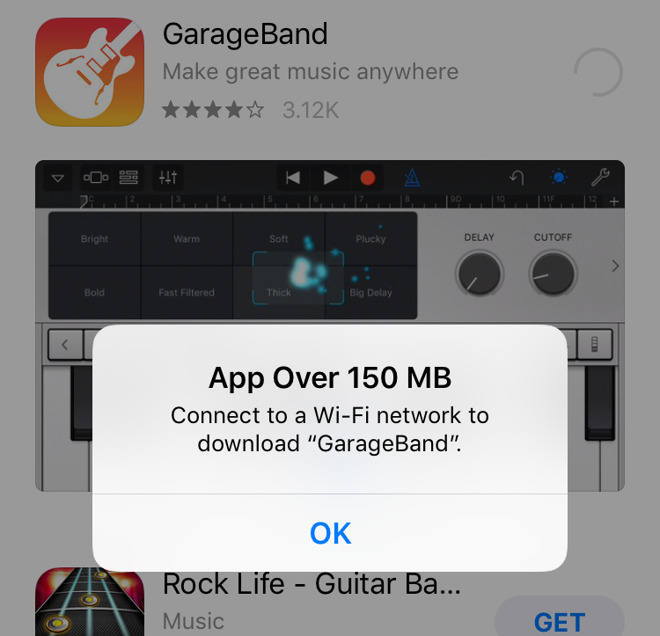
Only, you must get them when you’re on Wi-Fi. Numbers, for instance, is currently 476.7MB which is astonishingly small for a spreadsheet —but it’s more than Apple will let you download over cellular. The ceiling for that is 150MB so you can’t download Pages (511MB) or Keynote (691MB) either.
Apple’s oddities
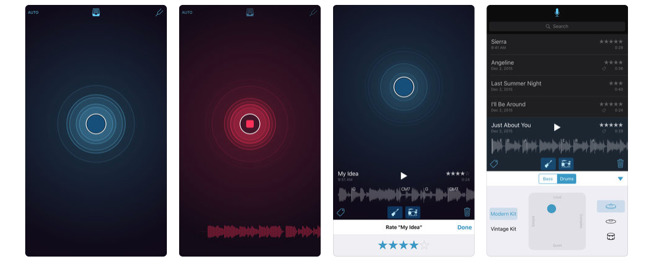
You could download Apple’s Music Memos app which comes in at just 102.2MB. It’s not an essential for everyone: this is an app that lets you quickly take down ideas for songs or other music by recording yourself humming or playing an instrument.
However, it’s also an app that is like the iWork ones: made by Apple specifically for iPhones and free. It’s more like Siri Shortcuts, though: it is still not installed with iOS.
If you are a musician then also check that GarageBand has been installed on your iPhone: if it isn’t there, you can get it now. Note that it’s 1.7GB, though.
That is substantial and if you also had to grab iMovie you’d need another 707.1MB. Get iMovie, GarageBand, Music Memos plus the iWork trio and you’re looking at 4.2GB.
If you have them but just never launch any of them, you could save yourself some room on your iPhone. It’s just that as 4.2GB goes, these are very productive apps.
They’re also ones that typically provide most people with most things they need to do to get working. You can write any document you need in Pages, and export it to Word later it you want. You can do any spreadsheet work and export to Excel,
You can do any presentation work in Keynote and then later regret exporting it to PowerPoint when you see how bad Microsoft’s software is.
If it’s about getting maximum use for your iPhone then we’d want Siri Shortcuts installed and make the Stocks app be one you have to download.
Maximum use
There are apps that will show off what your iPhone can do and there are ones that you will simply relish using. However, there are two more that you must look at: two that we would see baked into iPhones if we possibly could.
It’s really two categories of app and the first is a password manager. We didn’t say these were exciting. What we said was that you must look at them and we mean you must pick one and install it.
A password manager is a secure app that creates strong passwords for you and remembers them, too. Increasingly Safari is doing this but a password manager app can also hold your bank details, your credit card ones and all your app login or licence details.
Security is one great thing but the sheer speed and convenience of access to your private details is another. Password managers make logging into a site or paying for something with your credit card be startlingly fast.
It’s still a couple of steps but your new iPhone comes with iOS 12 which has added a feature called AutoFill to help you use password managers more readily.
The four main password managers for iOS are 1Password, LastPass, Dashlane and Keeper.
Have iPhone, will travel
You are not going to confine your iPhone to your home or office. It is a tool you’ll carry with you everywhere and, what’s more, that you’ll use everywhere too. With having that great technology at your display, though, comes an issue of security.
That airport Wi-Fi network you just joined could belong to the airline. However, it could belong to the suspicious person who’s been sitting in Departures for a long time. Before you do anything on your phone that sends sensitive information like logins and passwords out across Wi-Fi, get a VPN.
It stands for Virtual Private Network but it’s a case where knowing what the words are doesn’t explain what it does. VPNs often get described instead as tunnels: they connect you from your iPhone to the site or service you want to use and they do it in such a way that nobody else can see.
Really, they encrypt all the data you’re sending or receiving over the internet. So you could be using that fake airport Wi-Fi to check your online banking and you’d still be safe.
A byproduct of this security is that VPNs also mask where you are. To the site or service you’re using, you’re logging in from one of the VPN company’s servers and that could be anywhere across the world.
That means you can escape geographic restrictions. Say you’re a US Hulu subscriber just waiting for the new series of Veronica Mars but you’re currently visiting the UK on an extended holiday. You’re paying Hulu so you should be able to watch it, but because you’re outside your home region, it won’t work.
Unless you use a VPN.
It’s not guaranteed: Netflix now tries to identify and block traffic coming in from a VPN but then this is a byproduct of the tunnelling technology, it’s not the main aim.
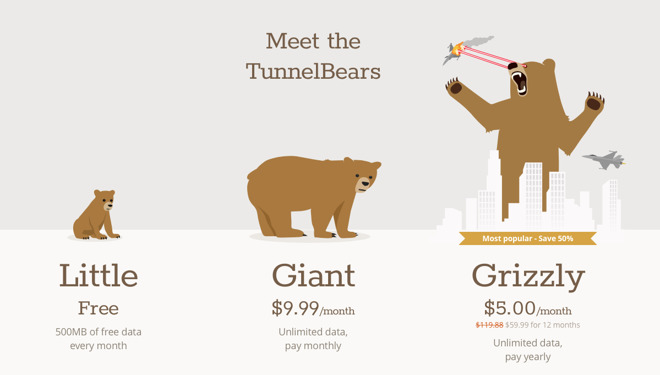
There are dozens of VPN services for iOS and Mac. Try NordVPN which provides this service for $3.99 per month or TunnelBear which is free for light use with in-app purchases starting at $6.99.
The main aim
You should be able to get your iPhone set up and letting you do serious work on it right from the start. That means being secure and having the best apps available.
Seriously, we wonder about why Siri Shortcuts isn’t pre-installed. Still, we’re relieved to see that Apple’s main iWork apps now usually are.
Keep up with AppleInsider by downloading the AppleInsider app for iOS, and follow us on YouTube, Twitter @appleinsider and Facebook for live, late-breaking coverage. You can also check out our official Instagram account for exclusive photos.