Posted on Leave a comment

Matplotlib Scatter Plot – Simple Illustrated Guide

Scatter plots are a key tool in any Data Analyst’s arsenal. If you want to see the relationship between two variables, you are usually going to make a scatter plot. 

In this article, you’ll learn the basic and intermediate concepts to create stunning matplotlib scatter plots.

Matplotlib Scatter Plot Example

Let’s imagine you work in a restaurant. You get paid a small wage and so make most of your money through tips. You want to make as much money as possible and so want to maximize the amount of tips. In the last month, you waited 244 tables and collected data about them all.

We’re going to explore this data using scatter plots. We want to see if there are any relationships between the variables. If there are, we can use them to earn more in future. 

  • Note: this dataset comes built-in as part of the seaborn library. 

First, let’s import the modules we’ll be using and load the dataset.

import matplotlib.pyplot as plt
import seaborn as sns # Optional step
# Seaborn's default settings look much nicer than matplotlib
sns.set() tips_df = sns.load_dataset('tips') total_bill = tips_df.total_bill.to_numpy()
tip = tips_df.tip.to_numpy()

The variable tips_df is a pandas DataFrame. Don’t worry if you don’t understand what this is just yet. The variables total_bill and tip are both NumPy arrays

Let’s make a scatter plot of total_bill against tip. It’s very easy to do in matplotlib – use the plt.scatter() function. First, we pass the x-axis variable, then the y-axis one. We call the former the independent variable and the latter the dependent variable. A scatter graph shows what happens to the dependent variable (y) when we change the independent variable (x). 

plt.scatter(total_bill, tip)
plt.show()

Nice! It looks like there is a positive correlation between a total_bill and tip. This means that as the bill increases, so does the tip. So we should try and get our customers to spend as much as possible. 

Matplotlib Scatter Plot with Labels

Labels are the text on the axes. They tell us more about the plot and is it essential you include them on every plot you make.

Let’s add some axis labels and a title to make our scatter plot easier to understand.

plt.scatter(total_bill, tip)
plt.title('Total Bill vs Tip')
plt.xlabel('Total Bill ($)')
plt.ylabel('Tip ($)')
plt.show()
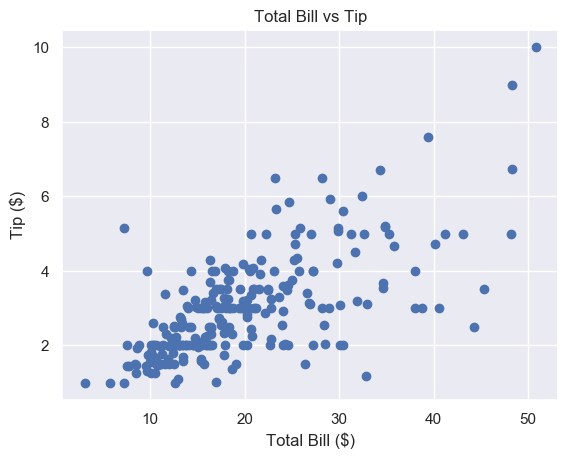
Much better. To save space, we won’t include the label or title code from now on, but make sure you do.

This looks nice but the markers are quite large. It’s hard to see the relationship in the $10-$30 total bill range. 

We can fix this by changing the marker size.

Matplotlib Scatter Marker Size

The s keyword argument controls the size of markers in plt.scatter(). It accepts a scalar or an array. 

Matplotlib Scatter Marker Size – Scalar

In plt.scatter(), the default marker size is s=72.

The docs define s as:

    The marker size in points**2.

This means that if we want a marker to have area 5, we must write s=5**2

The other matplotlib functions do not define marker size in this way. For most of them, if you want markers with area 5, you write s=5. We’re not sure why plt.scatter() defines this differently. 

One way to remember this syntax is that graphs are made up of square regions. Markers color certain areas of those regions. To get the area of a square region, we do length**2.  For more info, check out this Stack Overflow answer.

To set the best marker size for a scatter plot, draw it a few times with different s values. 

# Small s
plt.scatter(total_bill, tip, s=1)
plt.show()
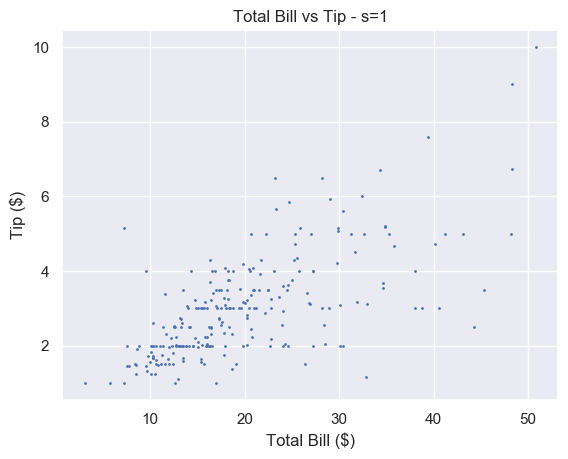
A small number makes each marker small. Setting s=1 is too small for this plot and makes it hard to read. For some plots with a lot of data, setting s to a very small number makes it much easier to read. 

# Big s
plt.scatter(total_bill, tip, s=100)
plt.show()

Alternatively, a large number makes the markers bigger. This is too big for our plot and obscures a lot of the data.

We think that s=20 strikes a nice balance for this particular plot.

# Just right
plt.scatter(total_bill, tip, s=20)
plt.show()
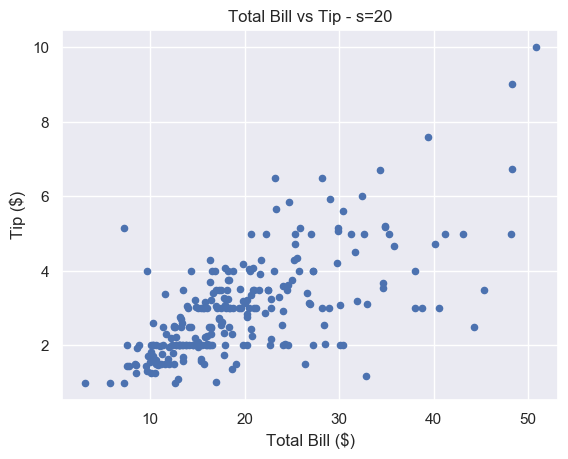
There is still some overlap between points but it is easier to spot. And unlike for s=1, you don’t have to strain to see the different markers. 

Matplotlib Scatter Marker Size – Array

If we pass an array to s, we set the size of each point individually. This is incredibly useful let’s use show more data on our scatter plot. We can use it to modify the size of our markers based on another variable. 

You also recorded the size of each of table you waited. This is stored in the NumPy array size_of_table. It contains integers in the range 1-6, representing the number of people you served.

# Select column 'size' and turn into a numpy array
size_of_table = tips_df['size'].to_numpy() # Increase marker size to make plot easier to read
size_of_table_scaled = [3*s**2 for s in size_of_table] plt.scatter(total_bill, tip, s=size_of_table_scaled)
plt.show()
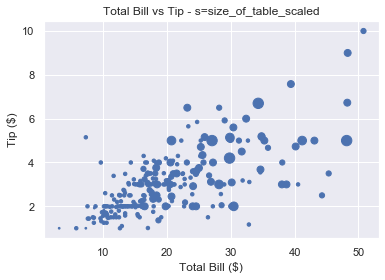
Not only does the tip increase when total bill increases, but serving more people leads to a bigger tip as well. This is in line with what we’d expect and it’s great our data fits our assumptions.

Why did we scale the size_of_table values before passing it to s? Because the change in size isn’t visible if we set s=1, …, s=6 as shown below.

So we first square each value and multiply it by 3 to make the size difference more pronounced. 

We should label everything on our graphs, so let’s add a legend.

Matplotlib Scatter Legend

To add a legend we use the plt.legend() function. This is easy to use with line plots. If we draw multiple lines on one graph, we label them individually using the label keyword. Then, when we call plt.legend(), matplotlib draws a legend with an entry for each line. 

But we have a problem. We’ve only got one set of data here. We cannot label the points individually using the label keyword.

How do we solve this problem?

We could create 6 different datasets, plot them on top of each other and give each a different size and label. But this is time-consuming and not scalable.

Fortunately, matplotlib has a scatter plot method we can use. It’s called the legend_elements() method because we want to label the different elements in our scatter plot. 

The elements in this scatter plot are different sizes. We have 6 different sized points to represent the 6 different sized tables. So we want legend_elements() to split our plot into 6 sections that we can label on our legend.

Let’s figure out how legend_elements() works. First, what happens when we call it without any arguments?

# legend_elements() is a method so we must name our scatter plot
scatter = plt.scatter(total_bill, tip, s=size_of_table_scaled) legend = scatter.legend_elements() print(legend)
# ([], [])

Calling legend_elements() without any parameters, returns a tuple of length 2. It contains two empty lists.

The docs tell us legend_elements() returns the tuple (handles, labels). Handles are the parts of the plot you want to label. Labels are the names that will appear in the legend. For our plot, the handles are the different sized markers and the labels are the numbers 1-6.  The plt.legend() function accepts 2 arguments: handles and labels. 

The plt.legend() function accepts two arguments: plt.legend(handles, labels). As scatter.legend_elements() is a tuple of length 2, we have two options. We can either use the asterisk * operator to unpack it or we can unpack it ourselves.

# Method 1 - unpack tuple using *
legend = scatter.legend_elements()
plt.legend(*legend) # Method 2 - unpack tuple into 2 variables
handles, labels = scatter.legend_elements()
plt.legend(handles, labels)

Both produce the same result. The matplotlib docs use method 1. Yet method 2 gives us more flexibility. If we don’t like the labels matplotlib creates, we can overwrite them ourselves (as we will see in a moment). 

Currently, handles and labels are empty lists. Let’s change this by passing some arguments to legend_elements().

There are 4 optional arguments but let’s focus on the most important one: prop.

Prop – the property of the scatter graph you want to highlight in your legend. Default is 'colors', the other option is 'sizes'.

We will look at different colored scatter plots in the next section. As our plot contains 6 different sized markers, we set prop='sizes'.

scatter = plt.scatter(total_bill, tip, s=size_of_table_scaled) handles, labels = scatter.legend_elements(prop='sizes')

Now let’s look at the contents of handles and labels.

>>> type(handles)
list
>>> len(handles)
6 >>> handles
[<matplotlib.lines.Line2D object at 0x1a2336c650>,
<matplotlib.lines.Line2D object at 0x1a2336bd90>,
<matplotlib.lines.Line2D object at 0x1a2336cbd0>,
<matplotlib.lines.Line2D object at 0x1a2336cc90>,
<matplotlib.lines.Line2D object at 0x1a2336ce50>,
<matplotlib.lines.Line2D object at 0x1a230e1150>]

Handles is a list of length 6. Each element in the list is a matplotlib.lines.Line2D object. You don’t need to understand exactly what that is. Just know that if you pass these objects to plt.legend(), matplotlib renders an appropriate 'picture'. For colored lines, it’s a short line of that color. In this case, it’s a single point and each of the 6 points will be a different size. 

It is possible to create custom handles but this is out of the scope of this article. Now let’s look at labels.

>>> type(labels)
list
>>> len(labels)
6 >>> labels
['$\\mathdefault{3}$', '$\\mathdefault{12}$', '$\\mathdefault{27}$', '$\\mathdefault{48}$', '$\\mathdefault{75}$', '$\\mathdefault{108}$']

Again, we have a list of length 6. Each element is a string. Each string is written using LaTeX notation '$...$'. So the labels are the numbers 3, 12, 27, 48, 75 and 108. 

Why these numbers? Because they are the unique values in the list size_of_table_scaled. This list defines the marker size. 

>>> np.unique(size_of_table_scaled)
array([ 3, 12, 27, 48, 75, 108])

We used these numbers because using 1-6 is not enough of a size difference for humans to notice. 

However, for our legend, we want to use the numbers 1-6 as this is the actual table size. So let’s overwrite labels

labels = ['1', '2', '3', '4', '5', '6']

Note that each element must be a string.

We now have everything we need to create a legend. Let’s put this together. 

# Increase marker size to make plot easier to read
size_of_table_scaled = [3*s**2 for s in size_of_table] # Scatter plot with marker sizes proportional to table size
scatter = plt.scatter(total_bill, tip, s=size_of_table_scaled) # Generate handles and labels using legend_elements method
handles, labels = scatter.legend_elements(prop='sizes') # Overwrite labels with the numbers 1-6 as strings
labels = ['1', '2', '3', '4', '5', '6'] # Add a title to legend with title keyword
plt.legend(handles, labels, title='Table Size')
plt.show()

Perfect, we have a legend that shows the reader exactly what the graph represents. It is easy to understand and adds a lot of value to the plot.

Now let’s look at another way to represent multiple variables on our scatter plot: color.

Matplotlib Scatter Plot Color

Color is an incredibly important part of plotting. It could be an entire article in itself. Check out the Seaborn docs for a great overview. 

Color can make or break your plot. Some color schemes make it ridiculously easy to understand the data. Others make it impossible. 

However, one reason to change the color is purely for aesthetics. 

We choose the color of points in plt.scatter() with the keyword c or color

You can set any color you want using an RGB or RGBA tuple (red, green, blue, alpha). Each element of these tuples is a float in [0.0, 1.0]. You can also pass a hex RGB or RGBA string such as '#1f1f1f'. However, most of the time you’ll use one of the 50+ built-in named colors. The most common are:

  • 'b' or 'blue'
  • 'r' or 'red'
  • 'g' or 'green'
  • 'k' or 'black'
  • 'w' or 'white'

Here’s the plot of total_bill vs tip using different colors

For each plot, call plt.scatter() with total_bill and tip and set color (or c) to your choice

# Blue (the default value)
plt.scatter(total_bill, tip, color='b') # Red
plt.scatter(total_bill, tip, color='r') # Green
plt.scatter(total_bill, tip, c='g') # Black
plt.scatter(total_bill, tip, c='k')

Note: we put the plots on one figure to save space. We’ll cover how to do this in another article (hint: use plt.subplots())

Matplotlib Scatter Plot Different Colors

Our restaurant has a smoking area. We want to see if a group sitting in the smoking area affects the amount they tip.

We could show this by changing the size of the markers like above. But it doesn’t make much sense to do so. A bigger group logically implies a bigger marker. But marker size and being a smoker don’t have any connection and may be confusing for the reader. 

Instead, we will color our markers differently to represent smokers and non-smokers. 

We have split our data into four NumPy arrays: 

  • x-axis – non_smoking_total_bill, smoking_total_bill
  • y-axis – non_smoking_tip, smoking_tip

If you draw multiple scatter plots at once, matplotlib colors them differently. This makes it easy to recognize the different datasets.

plt.scatter(non_smoking_total_bill, non_smoking_tip)
plt.scatter(smoking_total_bill, smoking_tip)
plt.show()

This looks great. It’s very easy to tell the orange and blue markers apart. The only problem is that we don’t know which is which. Let’s add a legend. 

As we have 2 plt.scatter() calls, we can label each one and then call plt.legend().

# Add label names to each scatter plot
plt.scatter(non_smoking_total_bill, non_smoking_tip, label='Non-smoking')
plt.scatter(smoking_total_bill, smoking_tip, label='Smoking') # Put legend in upper left corner of the plot
plt.legend(loc='upper left')
plt.show()
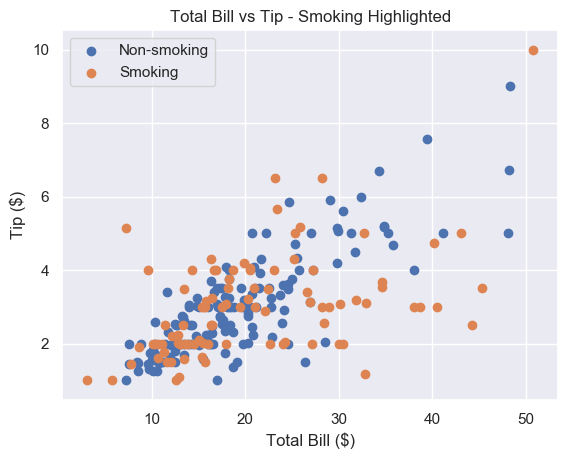
Much better. It seems that the smoker’s data is more spread out and flat than non-smoking data. This implies that smokers tip about the same regardless of their bill size. Let’s try to serve less smoking tables and more non-smoking ones.

This method works fine if we have separate data. But most of the time we don’t and separating it can be tedious. 

Thankfully, like with size, we can pass c an array/sequence.

Let’s say we have a list smoker that contains 1 if the table smoked and 0 if they didn’t.

plt.scatter(total_bill, tip, c=smoker)
plt.show()

Note: if we pass an array/sequence, we must the keyword c instead of color. Python raises a ValueError if you use the latter.

ValueError: 'color' kwarg must be an mpl color spec or sequence of color specs.
For a sequence of values to be color-mapped, use the 'c' argument instead.

Great, now we have a plot with two different colors in 2 lines of code. But the colors are hard to see. 

Matplotlib Scatter Colormap

A colormap is a range of colors matplotlib uses to shade your plots. We set a colormap with the cmap argument. All possible colormaps are listed here

We’ll choose 'bwr' which stands for blue-white-red. For two datasets, it chooses just blue and red.

If color theory interests you, we highly recommend this paper. In it, the author creates bwr. Then he argues it should be the default color scheme for all scientific visualizations. 

plt.scatter(total_bill, tip, c=smoker, cmap='bwr')
plt.show()

Much better. Now let’s add a legend.

As we have one plt.scatter() call, we must use scatter.legend_elements() like we did earlier. This time, we’ll set prop='colors'. But since this is the default setting, we call legend_elements() without any arguments. 

# legend_elements() is a method so we must name our scatter plot
scatter = plt.scatter(total_bill, tip, c=smoker_num, cmap='bwr') # No arguments necessary, default is prop='colors'
handles, labels = scatter.legend_elements() # Print out labels to see which appears first
print(labels)
# ['$\\mathdefault{0}$', '$\\mathdefault{1}$']

We unpack our legend into handles and labels like before. Then we print labels to see the order matplotlib chose. It uses an ascending ordering. So 0 (non-smokers) is first. 

Now we overwrite labels with descriptive strings and pass everything to plt.legend().

# Re-name labels to something easier to understand
labels = ['Non-Smokers', 'Smokers'] plt.legend(handles, labels)
plt.show()

This is a great scatter plot. It’s easy to distinguish between the colors and the legend tells us what they mean. As smoking is unhealthy, it’s also nice that this is represented by red as it suggests 'danger'

What if we wanted to swap the colors? 

Do the same as above but make the smoker list 0 for smokers and 1 for non-smokers. 

smokers_swapped = [1 - x for x in smokers]

Finally, as 0 comes first, we overwrite labels in the opposite order to before.

labels = ['Smokers', 'Non-Smokers']

Matplotlib Scatter Marker Types

Instead of using color to represent smokers and non-smokers, we could use different marker types.

There are over 30 built-in markers to choose from. Plus you can use any LaTeX expressions and even define your own shapes. We’ll cover the most common built-in types you’ll see. Thankfully, the syntax for choosing them is intuitive. 

In our plt.scatter() call, use the marker keyword argument to set the marker type. Usually, the shape of the string reflects the shape of the marker. Or the string is a single letter matching to the first letter of the shape. 

Here are the most common examples:

  • 'o' – circle (default)
  • 'v' – triangle down
  • '^' – triangle up
  • 's' – square
  • '+' – plus
  • 'D' – diamond
  • 'd' – thin diamond
  • '$...$' – LaTeX syntax e.g. '$\pi$' makes each marker the Greek letter π. 

Let’s see some examples

For each plot, call plt.scatter() with total_bill and tip and set marker to your choice

# Circle
plt.scatter(total_bill, tip, marker='o') # Plus
plt.scatter(total_bill, tip, marker='+') # Diamond
plt.scatter(total_bill, tip, marker='D') # Triangle Up
plt.scatter(total_bill, tip, marker='^')

At the time of writing, you cannot pass an array to marker like you can with color or size. There is an open GitHub issue requesting that this feature is added. But for now, to plot two datasets with different markers, you need to do it manually.

# Square marker
plt.scatter(non_smoking_total_bill, non_smoking_tip, marker='s', label='Non-smoking') # Plus marker
plt.scatter(smoking_total_bill, smoking_tip, marker='+', label='Smoking') plt.legend(loc='upper left')
plt.show()
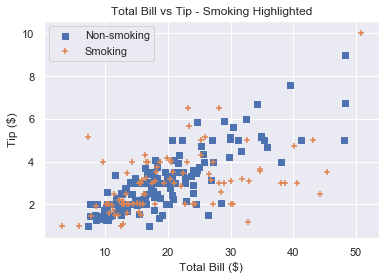
Remember that if you draw multiple scatter plots at once, matplotlib colors them differently. This makes it easy to recognise the different datasets. So there is little value in also changing the marker type. 

To get a plot in one color with different marker types, set the same color for each plot and change each marker. 

# Square marker, blue color
plt.scatter(non_smoking_total_bill, non_smoking_tip, marker='s', c='b' label='Non-smoking') # Plus marker, blue color
plt.scatter(smoking_total_bill, smoking_tip, marker='+', c='b' label='Smoking') plt.legend(loc='upper left')
plt.show()
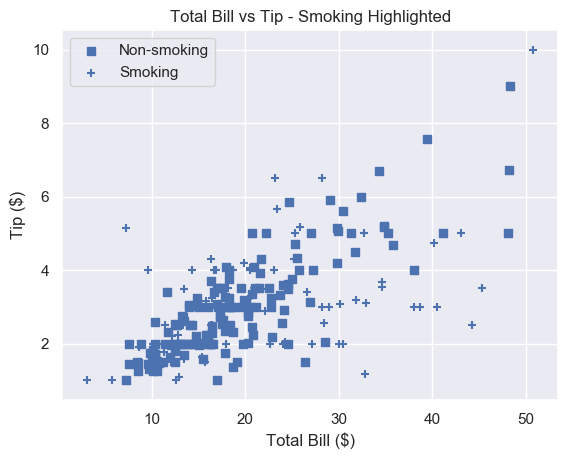
Most would agree that different colors are easier to distinguish than different markers. But now you have the ability to choose.

Summary

You now know the 4 most important things to make excellent scatter plots. 

You can make basic matplotlib scatter plots. You can change the marker size to make the data easier to understand. And you can change the marker size based on another variable. 

You’ve learned how to choose any color imaginable for your plot. Plus you can change the color based on another variable. 

To add personality to your plots, you can use a custom marker type.

Finally, you can do all of this with an accompanying legend (something most Pythonistas don’t know how to use!). 

Where To Go From Here

Do you want to earn more money? Are you in a dead-end 9-5 job? Do you dream of breaking free and coding full-time but aren’t sure how to get started? 

Becoming a full-time coder is scary. There is so much coding info out there that it’s overwhelming. 

Most tutorials teach you Python and tell you to get a full-time job. 

That’s ok but why would you want another office job?

Don’t you crave freedom? Don’t you want to travel the world? Don’t you want to spend more time with your friends and family?

There are hardly any tutorials that teach you Python and how to be your own boss. And there are none that teach you how to make six figures a year.

Until now. 

We are full-time Python freelancers. We work from anywhere in the world. We set our own schedules and hourly rates. Our calendars are booked out months in advance and we have a constant flow of new clients. 

Sounds too good to be true, right?

Not at all. We want to show you the exact steps we used to get here. We want to give you a life of freedom. We want you to be a six-figure coder.

Click the link below to watch our pure-value webinar. We show you the exact steps to take you from where you are to a full-time Python freelancer. These are proven, no-BS methods that get you results fast.

https://tinyurl.com/python-freelancer-webinar

It doesn’t matter if you’re a Python novice or Python pro. If you are not making six figures/year with Python right now, you will learn something from this webinar.

Click the link below now and learn how to become a Python freelancer.

https://tinyurl.com/python-freelancer-webinar

References

The post Matplotlib Scatter Plot – Simple Illustrated Guide first appeared on Finxter.
Posted on Leave a comment

How to Catch and Print Exception Messages in Python

Python comes with an extensive support of exceptions and exception handling. An exception event interrupts and, if uncaught, immediately terminates a running program. The most popular examples are the IndexError, ValueError, and TypeError.

An exception will immediately terminate your program. To avoid this, you can catch the exception with a try/except block around the code where you expect that a certain exception may occur. Here’s how you catch and print a given exception:

To catch and print an exception that occurred in a code snippet, wrap it in an indented try block, followed by the command "except Exception as e" that catches the exception and saves its error message in string variable e. You can now print the error message with "print(e)" or use it for further processing.

try: # ... YOUR CODE HERE ... #
except Exception as e: # ... PRINT THE ERROR MESSAGE ... # print(e)

Example 1: Catch and Print IndexError

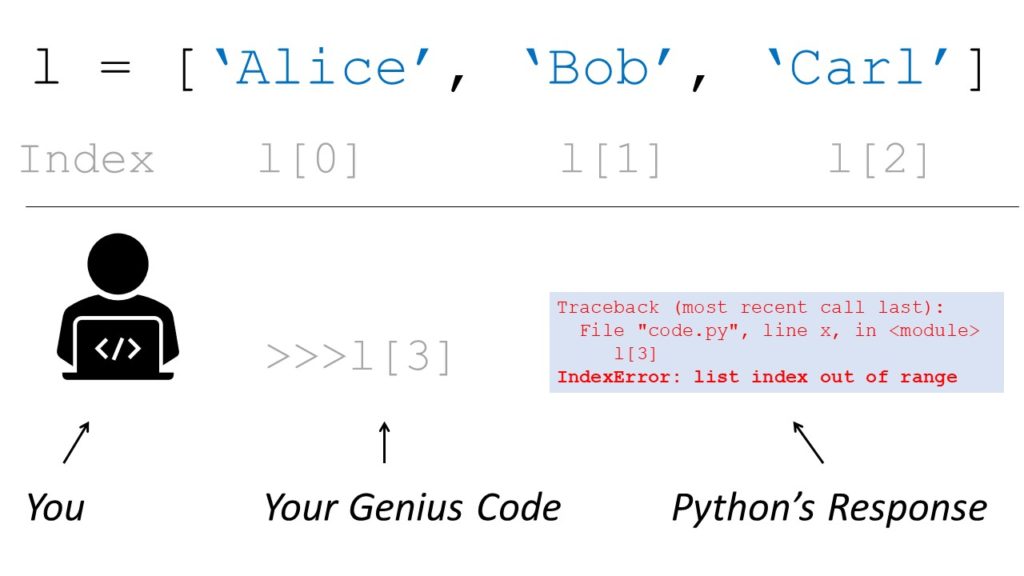
If you try to access the list element with index 100 but your lists consist only of three elements, Python will throw an IndexError telling you that the list index is out of range.

try: lst = ['Alice', 'Bob', 'Carl'] print(lst[3])
except Exception as e: print(e) print('Am I executed?')

Your genius code attempts to access the fourth element in your list with index 3—that doesn’t exist!

Fortunately, you wrapped the code in a try/catch block and printed the exception. The program is not terminated. Thus, it executes the final print() statement after the exception has been caught and handled. This is the output of the previous code snippet.

list index out of range
Am I executed?

Example 2: Catch and Print ValueError

The ValueError arises if you try to use wrong values in some functions. Here’s an example where the ValueError is raised because you tried to calculate the square root of a negative number:

import math try: a = math.sqrt(-2)
except Exception as e: print(e) print('Am I executed?')

The output shows that not only the error message but also the string 'Am I executed?' is printed.

math domain error
Am I executed?

Example 3: Catch and Print TypeError

Python throws the TypeError object is not subscriptable if you use indexing with the square bracket notation on an object that is not indexable. This is the case if the object doesn’t define the __getitem__() method. Here’s how you can catch the error and print it to your shell:

try: variable = None print(variable[0])
except Exception as e: print(e) print('Am I executed?')

The output shows that not only the error message but also the string 'Am I executed?' is printed.

'NoneType' object is not subscriptable
Am I executed?

I hope you’re now able to catch and print your error messages.

Summary

To catch and print an exception that occurred in a code snippet, wrap it in an indented try block, followed by the command "except Exception as e" that catches the exception and saves its error message in string variable e. You can now print the error message with "print(e)" or use it for further processing.

Where to Go From Here?

Enough theory, let’s get some practice!

To become successful in coding, you need to get out there and solve real problems for real people. That’s how you can become a six-figure earner easily. And that’s how you polish the skills you really need in practice. After all, what’s the use of learning theory that nobody ever needs?

Practice projects is how you sharpen your saw in coding!

Do you want to become a code master by focusing on practical code projects that actually earn you money and solve problems for people?

Then become a Python freelance developer! It’s the best way of approaching the task of improving your Python skills—even if you are a complete beginner.

Join my free webinar “How to Build Your High-Income Skill Python” and watch how I grew my coding business online and how you can, too—from the comfort of your own home.

Join the free webinar now!

The post How to Catch and Print Exception Messages in Python first appeared on Finxter.

Posted on Leave a comment

How Does Pandas Concat Work?

The pandas.concat( ) function combines the data from multiple Series and/or DataFrames fast and in an intuitive manner. It is one of the most basic data wrangling operations used in Pandas. In general, we draw some conclusions from the data by analyzing it. The confidence in our conclusions increases as we include more variables or meta-data about our data. This is achieved by combining data from a variety of different data sources. The basic Pandas objects, Series, and DataFrames are created by keeping these relational operations in mind. For example, pd.concat([df1, df2]) concatenates two DataFrames df1, df2 together horizontally and results in a new DataFrame.

Pandas Concat Two or More DataFrames

The most important and widely used use-case of Pandas concat – pd.concat( ) is to concatenate DataFrames.

For example, when you’re buying a new smartphone, often you might like to compare the specifications and price of the phones. This makes you take an informed decision. Such a comparison can be viewed below as an example from the amazon website for recent OnePlus phones.

In the above image, the data about four different smartphones are concatenated with their features as an index.

Let us construct two DataFrames and combine them to see how it works.

>>> import pandas as pd
>>> df1 = pd.DataFrame(
... {"Key": ["A", "B", "A", "C"], "C1":[1, 2, 3, 4], "C2": [10, 20, 30, 40]})
>>> df1.index = ["L1", "L2", "L3", "L4"]
>>> print(df1) Key C1 C2
L1 A 1 10
L2 B 2 20
L3 A 3 30
L4 C 4 40
>>> df2 = pd.DataFrame(
... {"Key": ["A", "B", "C", "D"], "C3": [100, 200, 300, 400]})
>>> df2.index = ["R1", "R2", "R3", "R4"]
>>> print(df2) Key C3
R1 A 100
R2 B 200
R3 C 300
R4 D 400

From the official Pandas documentation of Pandas concat;

The two major arguments used in pandas.concat( ) from the above image are,

  • objs – A sequence of Series and/or DataFrame objects
  • axis – Axis along which objs are concatenated

Out of the two arguments, objs remains constant. But, based on the value of the axis, the concatenation operation differs. Possible values of the axis are,

  • axis = 0 – Concatenate or stack the DataFrames down the rows
  • axis = 1 – Concatenate or stack the DataFrames along the columns

Remember this axis argument functionality, because it comes in many other Pandas functions. Let us see them in action using the above created Dataframes.

1. Row-Wise Concatenation (axis = 0 / ’index’)

>>> df3 = pd.concat([df1, df2], axis=0)
>>> print(df3) Key C1 C2 C3
L1 A 1.0 10.0 NaN
L2 B 2.0 20.0 NaN
L3 A 3.0 30.0 NaN
L4 C 4.0 40.0 NaN
R1 A NaN NaN 100.0
R2 B NaN NaN 200.0
R3 C NaN NaN 300.0
R4 D NaN NaN 400.0
>>> df3_dash = pd.concat([df1, df2])
>>> print(df3_dash) Key C1 C2 C3
L1 A 1.0 10.0 NaN
L2 B 2.0 20.0 NaN
L3 A 3.0 30.0 NaN
L4 C 4.0 40.0 NaN
R1 A NaN NaN 100.0
R2 B NaN NaN 200.0
R3 C NaN NaN 300.0
R4 D NaN NaN 400.0
>>> print(len(df3) == len(df1) + len(df2))
True

Any number of DataFrames can be given in the first argument which has a list of DataFrames like [df1, df2, df3, ..., dfn].

Some observations from the above results:

  • Note the outputs of df3 and df3_dash are the same. So, we need not explicitly mention the axis when we want to concatenate down the rows.
  • The number of rows in the output DataFrame = Total number of rows in all the input DataFrames.
  • The columns of the output DataFrame = Combination of distinct columns of all the input DataFrames.
  • There are unique columns present in the input DataFrames. The corresponding values at the row labels of different input DataFrames are filled with NaNs (Not a Number – missing values) in the output DataFrame.

Let’s visualize the above process in the following animation:

2. Column-Wise Concatenation (axis = 1 / ’columns’)

>>> df3 = pd.concat([df1, df2], axis=1)
>>> print(df3) Key C1 C2 Key C3
L1 A 1.0 10.0 NaN NaN
L2 B 2.0 20.0 NaN NaN
L3 A 3.0 30.0 NaN NaN
L4 C 4.0 40.0 NaN NaN
R1 NaN NaN NaN A 100.0
R2 NaN NaN NaN B 200.0
R3 NaN NaN NaN C 300.0
R4 NaN NaN NaN D 400.0
>>> print("The unique row indexes of df1 and df2:", '\n\t', df1.index.append(df2.index).unique())
The unique row indexes of df1 and df2: Index(['L1', 'L2', 'L3', 'L4', 'R1', 'R2', 'R3', 'R4'], dtype='object')
>>> print("The row indexes of df3:", "\n\t", df3.index)
The row indexes of df3: Index(['L1', 'L2', 'L3', 'L4', 'R1', 'R2', 'R3', 'R4'], dtype='object')
>>> print("The column indexes of df1 and df2:", "\n\t", df1.columns.append(df2.columns))
The column indexes of df1 and df2: Index(['Key', 'C1', 'C2', 'Key', 'C3'], dtype='object')
>>> print("The column indexes of df3:", "\n\t", df3.columns)
The column indexes of df3: Index(['Key', 'C1', 'C2', 'Key', 'C3'], dtype='object')

Some observations from the above results:

  • The DataFrames are concatenated side by side.
  • The columns in the output DataFrame = Total columns in all the input DataFrames.
  • Rows in the output DataFrame = Unique rows in all the input DataFrames.
  • There are unique rows present in all the input DataFrames. The corresponding values at the column labels of different input DataFrames are filled with NaNs (Not a Number – missing values) in the output DataFrame.

Let’s visualize the above process in the following animation:

Pandas Concat Columns

Please take a look at the initial OnePlus phones comparison table from the amazon website. A column in that table constitutes all the specifications of a given smartphone. Such all equivalent specifications (row labels) of all varieties (phones – column labels) are concatenated as columns to form the final comparison table.

So, to concatenate columns, we should have the same row indexes. In Pandas, the Series data structure is exactly designed to represent the columns and their combination forms the DataFrame data structure.

Let us construct two Series and concatenate them as columns to form a resultant DataFrame.

>>> ser1 = pd.Series([10, 20, 30, 40], name='C1')
>>> ser2 = pd.Series([100, 200, 300, 400], name='C2')
>>> print("Series 1:", "\n", ser1, "\n\n", "Series 2:", "\n", ser2)
Series 1:
0 10
1 20
2 30
3 40
Name: C1, dtype: int64 Series 2:
0 100
1 200
2 300
3 400
Name: C2, dtype: int64
>>> df = pd.concat([ser1, ser2], axis=1)
>>> print("DataFrame:", "\n", df)
DataFrame: C1 C2
0 10 100
1 20 200
2 30 300
3 40 400

Pandas Concat MultiIndex

Let us consider a use-case where we have hourly weather data for 4 hours about two cities. The data that we have are only the temperature (degC) and wind speed (kmph). One way of storing their data is to store them in different DataFrames per city. It can be done the following way,

>>> Date_Hourly = pd.date_range(start = '2020-11-20', periods = 4, freq = 'H')
>>> df_city1 = pd.DataFrame(
... {"temp(degC)": [27, 24, 22, 20],
... "windspeed(kmph)": [18, 17, 17, 18]},
... index = Date_Hourly
... )
>>> df_city2 = pd.DataFrame(
... {"temp(degC)": [30, 33, 33, 34],
... "windspeed(kmph)": [23, 25, 27, 30]},
... index = Date_Hourly
... )
>>> print("Weather Data of City 1:", "\n", df_city1)
Weather Data of City 1: temp(degC) windspeed(kmph)
2020-11-20 00:00:00 27 18
2020-11-20 01:00:00 24 17
2020-11-20 02:00:00 22 17
2020-11-20 03:00:00 20 18
>>> print("Weather Data of City 2:", "\n", df_city2)
Weather Data of City 2: temp(degC) windspeed(kmph)
2020-11-20 00:00:00 30 23
2020-11-20 01:00:00 33 25
2020-11-20 02:00:00 33 27
2020-11-20 03:00:00 34 30

Now, we might want to collect data of two cities into one DataFrame for easier analysis. MultiIndex keys serve as identifiers to specify the source of the data. This can be achieved by MultiIndex concatenation.

Multi-Index Concatenation is done in two ways;

1. Row-Wise Concatenation (axis = 0 / ’index’)

>>> df_concat_rowwise = pd.concat([df_city1, df_city2], axis=0, keys=['City1', 'City2'])
>>> print("Row-Wise Multi-Index Concatenation:", "\n", df_concat_rowwise)
Row-Wise Multi-Index Concatenation: temp(degC) windspeed(kmph)
City1 2020-11-20 00:00:00 27 18 2020-11-20 01:00:00 24 17 2020-11-20 02:00:00 22 17 2020-11-20 03:00:00 20 18
City2 2020-11-20 00:00:00 30 23 2020-11-20 01:00:00 33 25 2020-11-20 02:00:00 33 27 2020-11-20 03:00:00 34 30

2. Column-Wise Concatenation (axis = 1 / ’columns’)

>>> df_concat_rowwise = pd.concat([df_city1, df_city2], axis=1, keys=['City1', 'City2']) >>> print("Column-Wise Multi-Index Concatenation:", "\n", df_concat_colwise)
Column-Wise Multi-Index Concatenation: City1 City2 temp(degC) windspeed(kmph) temp(degC) windspeed(kmph)
2020-11-20 00:00:00 27 18 30 23
2020-11-20 01:00:00 24 17 33 25
2020-11-20 02:00:00 22 17 33 27
2020-11-20 03:00:00 20 18 34 30

The same can be achieved for many cities. After concatenation, all of the data is in one single DataFrame. This makes us analyze the weather efficiently instead of fetching data from multiple sources.

Pandas concat vs append

Concatenation along the rows (axis = 0) is very common. If you observe the weather data scenario after each hour data gets appended in the next row. So, for that purpose, a method called append( ) is built on top of DataFrame to append another DataFrame row-wise. This makes you achieve the same results as pd.concat( ) with few keystrokes.

It can be implemented as follows,

>>> df1 = pd.DataFrame({'C1': ['A', 'B', 'C', 'D']})
>>> df2 = pd.DataFrame({'C1': ['E', 'F', 'G', 'H']})
>>> print("DataFrame 1:", "\n", df1)
DataFrame 1: C1
0 A
1 B
2 C
3 D
>>> print("DataFrame 2:", "\n", df2)
DataFrame 2: C1
0 E
1 F
2 G
3 H
>>> pd.concat([df1, df2]) C1
0 A
1 B
2 C
3 D
0 E
1 F
2 G
3 H
>>> df1.append(df2) C1
0 A
1 B
2 C
3 D
0 E
1 F
2 G
3 H

You can observe above the same results for pd.concat([df1, df2]) and df1.append(df2).

Pandas concat slow

Each and every time we do a concatenation operation, it creates a new DataFrame. DataFrame concatenation operates equivalent to an SQL join operation. So, the output DataFrame’s index is formed first by join operation. Resolving all the mismatches between indexes of input DataFrames makes it slow. In some scenarios, indexes might not be of importance. In such cases, we can ignore indexes to make the concat operation faster.

Ignoring the index is done by the following way,

>>> df = pd.DataFrame({'C1': [10, 20, 30, 40]}, index=['R1', 'R2', 'R3', 'R4'])
>>> df C1
R1 10
R2 20
R3 30
R4 40
>>> df.reset_index(drop=True) C1
0 10
1 20
2 30
3 40

Along with concat, all other Pandas functions are executed by utilizing only a single core in the CPU. Operations on smaller datasets run in a seamless manner. As the dataset size increases, the functions of Pandas start to throttle because they do only one operation at once.

Modin is the python package created to speed up the execution of Pandas functions. It distributes the computation load to all the available cores. It does so by fragmenting the DatFrame and making the function run on DataFrame fragments in other cores parallelly. Please look after this article to know about it in detail.

The post How Does Pandas Concat Work? first appeared on Finxter.

Posted on Leave a comment

Python next()

The next(iterator) function is one of Python’s built-in functions—so, you can use it without importing any library. It returns the next value from the iterator you pass as a required first argument. An optional second argument default returns the passed default value in case the iterator doesn’t provide a next value.

Python next()

Syntax:

next(iterator, <default>)

Arguments:

  • iterator – the next element is retrieved from the iterator
  • default (optional) – return value if iterator is exhausted (it doesn’t have a next element)

Related Tutorials:

Example 1: No Default Value

The following example shows the next() function in action—without using a default value in case the iterator is empty.

users = ['Alice', 'Bob', 'Carl', 'David'] # convert the list to an iterator
users_iterator = iter(users) x = next(users_iterator)
print(x)
# Output: 'Alice' x = next(users_iterator)
print(x)
# Output: 'Bob' x = next(users_iterator)
print(x)
# Output: 'Carl' x = next(users_iterator)
print(x)
# Output: 'David'

Each time you call next(iterator), the iterator returns the next element in the iterator over the Python list users.

But what happens if you call the next() function once more on the now empty users_iterator object?

x = next(users_iterator)
print(x) '''
Traceback (most recent call last): File "C:\Users\xcent\Desktop\Finxter\Blog\HowToConvertBooleanToStringPython\code.py", line 22, in <module> x = next(users_iterator)
StopIteration '''

Python throws a StopIteration error.

Let’s learn how to fix this!

Example 2: With Default Value

Not providing Python a solution to the problem that the iterator may be empty is a common source of errors! You can fix the errors by passing the optional default argument:

x = next(users_iterator, 42)
print(x)
# 42

Now, you cannot crash the next(...) function anymore! Go ahead and try it…

Interactive Shell

The interactive code shell offers you a way to try your newly gained skill—understanding the next() function. Can you crash the script by changing the default value?

Exercise: Run the code in the interactive shell. Now, change the default value & run again!

Where to Go From Here?

Enough theory, let’s get some practice!

To become successful in coding, you need to get out there and solve real problems for real people. That’s how you can become a six-figure earner easily. And that’s how you polish the skills you really need in practice. After all, what’s the use of learning theory that nobody ever needs?

Practice projects is how you sharpen your saw in coding!

Do you want to become a code master by focusing on practical code projects that actually earn you money and solve problems for people?

Then become a Python freelance developer! It’s the best way of approaching the task of improving your Python skills—even if you are a complete beginner.

Join my free webinar “How to Build Your High-Income Skill Python” and watch how I grew my coding business online and how you can, too—from the comfort of your own home.

Join the free webinar now!

The post Python next() first appeared on Finxter.

Posted on Leave a comment

Python Math Domain Error (How to Fix This Stupid Bug)

You may encounter a special ValueError when working with Python’s math module.

ValueError: math domain error

Python raises this error when you try to do something that is not mathematically possible or mathematically defined.

To understand this error, have a look at the definition of the domain:

The domain of a function is the complete set of possible values of the independent variable. Roughly speaking, the domain is the set of all possible (input) x-values which result in a valid (output) y-value.” (source)

The domain of a function is the set of all possible input values. If Python throws the ValueError: math domain error, you’ve passed an undefined input into the math function. Fix the error by passing a valid input for which the function is able to calculate a numerical output.

Here are a few examples:

Python Math Domain Error Sqrt

The math domain error appears if you pass a negative argument into the math.sqrt() function. It’s mathematically impossible to calculate the square root of a negative number without using complex numbers. Python doesn’t get that and throws a ValueError: math domain error.

Graph square root

Here’s a minimal example:

from math import sqrt
print(sqrt(-1)) '''
Traceback (most recent call last): File "C:\Users\xcent\Desktop\Finxter\Blog\code.py", line 2, in <module> print(sqrt(-1))
ValueError: math domain error '''

You can fix the math domain error by using the cmath package that allows the creation of complex numbers:

from cmath import sqrt
print(sqrt(-1))
# 1j

Python Math Domain Error Log

The math domain error for the math.log() function appears if you pass a zero value into it—the logarithm is not defined for value 0.

Graph logarithm

Here’s the code on an input value outside the domain of the logarithm function:

from math import log
print(log(0))

The output is the math domain error:

Traceback (most recent call last): File "C:\Users\xcent\Desktop\Finxter\Blog\code.py", line 3, in <module> print(log(0))
ValueError: math domain error

You can fix this error by passing a valid input value into the math.log() function:

from math import log
print(log(0.000001))
# -13.815510557964274

This error can sometimes appear if you pass a very small number into it—Python’s float type cannot express all numbers. To pass a value “close to 0”, use the Decimal module with higher precision, or pass a very small input argument such as:

math.log(sys.float_info.min)

Python Math Domain Error Acos

The math domain error for the math.acos() function appears if you pass a value into it for which it is not defined—arccos is only defined for values between -1 and 1.

Graph arccos(x)

Here’s the wrong code:

import math
print(math.acos(2))

The output is the math domain error:

Traceback (most recent call last): File "C:\Users\xcent\Desktop\Finxter\Blog\code.py", line 3, in <module> print(math.acos(2))
ValueError: math domain error

You can fix this error by passing a valid input value between [-1,1] into the math.acos() function:

import math
print(math.acos(0.5))
# 1.0471975511965979

Python Math Domain Error Asin

The math domain error for the math.asin() function appears if you pass a value into it for which it is not defined—arcsin is only defined for values between -1 and 1.

Graph Arcsin

Here’s the erroneous code:

import math
print(math.asin(2))

The output is the math domain error:

Traceback (most recent call last): File "C:\Users\xcent\Desktop\Finxter\Blog\code.py", line 3, in <module> print(math.asin(2))
ValueError: math domain error

You can fix this error by passing a valid input value between [-1,1] into the math.asin() function:

import math
print(math.asin(0.5))
# 0.5235987755982989

Python Math Domain Error Pow

The math domain error for the math.pow(a,b) function to calculate a**b appears if you pass a negative base value into it and try to calculate a negative power of it. The reason it is not defined is that any negative number to the power of 0.5 would be the square number—and thus, a complex number. But complex numbers are not defined by default in Python!

import math
print(math.pow(-2, 0.5))

The output is the math domain error:

Traceback (most recent call last): File "C:\Users\xcent\Desktop\Finxter\Blog\code.py", line 3, in <module> print(math.pow(-2, 0.5))
ValueError: math domain error

If you need a complex number, ab must be rewritten into eb ln a. For example:

import cmath
print(cmath.exp(0.5 * cmath.log(-2)))
# (8.659560562354932e-17+1.414213562373095j)

You see, it’s a complex number!

NumPy Math Domain Error — np.log(x)

import numpy as np
import matplotlib.pyplot as plt # Plotting y = log(x)
fig, ax = plt.subplots()
ax.set(xlim=(-5, 20), ylim=(-4, 4), title='log(x)', ylabel='y', xlabel='x')
x = np.linspace(-10, 20, num=1000)
y = np.log(x) plt.plot(x, y)

This is the graph of log(x). Don’t worry if you don’t understand the code, what’s more important is the following point. You can see that log(x) tends to negative infinity as x tends to 0. Thus, it is mathematically meaningless to calculate the log of a negative number. If you try to do so, Python raises a math domain error.

>>> math.log(-10)
Traceback (most recent call last): File "<stdin>", line 1, in <module>
ValueError: math domain error

Where to Go From Here?

Enough theory, let’s get some practice!

To become successful in coding, you need to get out there and solve real problems for real people. That’s how you can become a six-figure earner easily. And that’s how you polish the skills you really need in practice. After all, what’s the use of learning theory that nobody ever needs?

Practice projects is how you sharpen your saw in coding!

Do you want to become a code master by focusing on practical code projects that actually earn you money and solve problems for people?

Then become a Python freelance developer! It’s the best way of approaching the task of improving your Python skills—even if you are a complete beginner.

Join my free webinar “How to Build Your High-Income Skill Python” and watch how I grew my coding business online and how you can, too—from the comfort of your own home.

Join the free webinar now!

The post Python Math Domain Error (How to Fix This Stupid Bug) first appeared on Finxter.

Posted on Leave a comment

Minimum Viable Product (MVP) in Software Development — Why Stealth Sucks

This chapter from my upcoming book “From One to Zero” (to appear with NoStarch 2021) teaches you a well-known but still undervalued idea. The idea is to build a minimum viable product (in short: MVP) to test and validate your hypotheses quickly without losing a lot of time in implementation. In particular, you’ll learn how to apply the idea of radically reducing complexity in the software development cycle when creating value through software.

Stealth Mode of Programming

If you’re like me, you know what may be called the “stealth mode” of programming (see Figure 4-1). Many programmers fall victim to it, and it goes as follows: you come up with a wonderful idea of a computer program that will change the world—with the potential to become the next Google. Say you discovered that more and more people start coding, and you want to serve those by creating a machine-learning-enhanced search engine for code discovery. Sounds great? You think so—and you start coding enthusiastically on your idea a few nights in a row.

Figure 4-1: The stealth mode of programming.

But does this strategy work? Here’s a likely outcome of following the stealth mode of programming:

You quickly develop the prototype, but it doesn’t look right. So, you dive into design and optimize the design. Then, you try the search engine, and the recommendation results are not relevant for many search terms. For example, when searching for “Quicksort”, you obtain a “MergeSort” code snippet with a comment "# This quickly sorts the list". So, you keep tweaking the models. But each time you improve the results for one keyword, you create new problems for other search results. You’re never quite happy with the result, and you don’t feel like you can present your crappy code search engine to the world for three reasons. First, nobody will find it useful. Second, the first users will create negative publicity around your website because it doesn’t feel professional and polished. And third, if competitors see your poorly implemented concept, they’ll steal it and implement it in a better way. These depressing thoughts cause you to lose faith and motivation, and your progress on the app drops significantly.

Let’s analyze what can and will go wrong in the stealth mode of programming shown in Figure 4-2.

Figure 4-2: Common pitfalls in the stealth mode of programming

Pitfalls

There are many common pitfalls in the stealth mode of programming. Here are four of the more common ones:

  • Losing Motivation: As long as you’re in stealth mode, nobody can see you. Nobody knows about the great tool you’re implementing. You’re alone with your idea, and doubts will pop up regularly. Maybe you’re strong enough to resist the doubts initially—while your initial enthusiasm for the project is big enough. But the longer you’ll work on your project the more doubts will come into your mind. Your subconsciousness is lazy and seeks reasons not to do the work. You may find a similar tool. Or you may even doubt that your tool will be useful in the first place. You may start to believe that it cannot be done. If only one early adopter of your tool would have provided you some encouraging words, you’d probably stayed motivated. But, as you’re in stealth mode, nobody is going to encourage you to keep working. And, yes, nobody is paying you for your work. You have to steal time from your friends, your kids, your wife. Only a minority of people will sustain such a psychological drain. Most will simply lose motivation—the longer the stealth mode, the smaller the motivation to work on the project.
  • Getting Distracted: Even if you manage to stay motivated to work on the project for an extended period without any real-world feedback—there’s another powerful enemy: your daily distractions. You don’t live in a vacuum. You work in your day job, you spend time with family and friends, and other ideas will pop into your mind. Today, your attention is a rare good sought by many devices and services. While you work on one project, you’ll have ideas for other projects, and the grass-is-greener effect will kick in: many other projects seem to be so much more attractive! It takes a very disciplined person to manage these distractions, protect their working time, and stay focused on one project until they reach completion.
  • Taking Longer: Another powerful enemy is wrong planning. Say you initially plan that the project takes one month if you work on it for two hours every day. That’s 60 hours of estimated working time. Lost motivation and distractions will probably cause you to average only one hour every day, so it already doubles the project’s duration. However, other factors are responsible for underestimating the project duration: unexpected events and bugs take much more time than anticipated. You must learn new things to finish the project—and learning takes time. Especially when you mix learning time with answering Smartphone messages and notifications, emails, and phone calls. It’s tough to estimate how much learning time you need correctly. And even if you already know everything you need to know to finish the project, you likely run into unforeseen problems or bugs in your code. Or other features may pop into your mind that demand to be implemented. An infinite number of factors will increase your anticipated project duration—and hardly any will reduce it. But it is getting worse: if your project takes longer than anticipated, you’ll lose even more motivation, and you’ll face even more distractions causing a negative spiral towards project failure.
  • Delivering Too Little Value: Say you manage to overcome the phases of low motivation. You learn what you need, stay focused, and avoid any distraction for as long as it takes to finish the code. You finally launch your project, and—nothing happens. Only a handful of users even check out your project, and they’re not enthusiastic about it. The most likely outcome of any software project is silence—an absence of positive or negative feedback. You’ll wonder why nobody writing in with some constructive or even destructive feedback. Nobody seems to care. There are many reasons for this. A common reason is that your product doesn’t deliver the specific value the users demand. It’s almost impossible to find the so-called product-market-fit in the first shot. Well, even if you’d have found product-market-fit and users would generally value your software, you don’t yet have a marketing machine to sell it. If 5% of your visitors would buy the product, you could consider it a huge success. However, a 5% conversion rate means that 19 out of 20 people won’t buy the product! Did you expect a million-dollar launch? Hardly so; your software sells to one person in the first 20 days leading to an ultimate income of $97. And you’ve spent hundreds of hours implementing it. Discouraged by the results, you quickly give up the idea of creating your own software and keep working for your boss.

The likelihood of failure is high in the stealth mode of programming. There’s a negative feedback loop in place: if you stumble because of any of the discussed reasons, the code project will take you longer to finish—and you’ll lose even more motivation, which increases your chances of stumbling. Don’t underestimate the power of this negative feedback loop. Every programmer knows it very well, and it is why so many code projects never see the light of the day. So much time, effort, value is lost because of it. Individual and even teams of programmers may spend years of their lives working in the stealth mode of programming—only to fail early or find out that nobody wants their software product.

Reality Distortion

You would think that if programmers spend so much time working on a software project, they’d at least know that their users will find the end product valuable. But this is not the case. When they are sunk in the stealth mode of programming, programmers don’t get any feedback from the real world—a dangerous situation. They start to drift away from reality, working on features nobody asked for, or nobody will use.

You may ask: how can that happen? The reason is simple: your assumptions make it so. If you work on any project, you have a bunch of assumptions such as who the users will be, what they do for a living, what problems they face, or how often they will use your product. Years ago, when I was creating my Finxter.com app to help users learn Python by solving rated code puzzles, I assumed that most users are computer science students because I was one (reality: most users are not computer scientists). I assumed that people would come when I released the app (reality: nobody came initially). I assumed that people would share their successes on Finxter via their social media accounts (reality: only a tiny minority of people shared their coding ranks). I assumed that people would submit their own code puzzles (reality: from hundreds of thousands of users, only a handful submitted code puzzles). I assumed that people wanted a fancy design with colors and images (reality: a simple geeky design lead to improved usage behavior). All those assumptions lead to concrete implementation decisions. Implementing each feature—even the ones nobody wanted—had cost me tens, sometimes hundreds of hours. If I knew better, I could have tested these assumptions before spending lots of time working on them. I could have asked for feedback and prioritized implementing the features valued by the highly engaged users. Instead, I spent one year in stealth mode to develop a prototype with way too many features to test some of those hypotheses or assumptions.

Complexity — A Productivity Killer

There’s another problem with the stealth mode of programming: unnecessary complexity. Say you implement a software product consisting of four features (see Figure 4-3). You’ve been lucky—the market accepted it. You’ve spent considerable time implementing those four features, and you take the positive feedback as a reinforcement for all four features. All future releases of the software product will contain those four features—in addition to the future features you’ll add to the software product.

Figure 4-3: A valuable software product consisting of four features

However, by releasing the package of four features at once, you don’t know whether the market would’ve accepted any subset of features (see Figure 4-4).

Figure 4-4: Which subsets of features would have been accepted by the market?

Feature 1 may be completely irrelevant—even though it took you the most time to implement. At the same time, Feature 4 may be a highly valuable feature that the market demands.  There are 2n different combinations of software product packages out of n features. How can you possibly know which is value and which is waste if you release them as feature bundles?

The costs of implementing the wrong features are already high. However, releasing feature bundles leads to cumulative costs of maintaining unnecessary features for all future versions of the product. Why? There are many reasons:

  • Every line of code slows down your understanding of the complete project. You need more time to “load” the whole project in your mind, the more features you implement.
  • Each feature may introduce a new bug in your project. Think of it this way: a given feature will crash your whole code base with a certain likelihood.
  • Each line of code causes the project to open, load, and compile more slowly. It’s a small but certain cost that comes with each new line of code.
  • When implementing Feature n, you must go over all previous Features 1, 2, …, n-1 and ensure that Feature n doesn’t interfere with their functionality.
  • Every new feature results in new (unit) tests that must compile and run before you can release the next version of the code.
  • Every added feature makes it more complicated for a new coder to understand the codebase, which increases learning time for new coders that join the growing project.

This is not an exhaustive list, but you get the point. If each feature increases your future implementation costs by X percent, maintaining unnecessary features can result in orders of magnitude difference in coding productivity. You cannot afford to systematically keep unnecessary features in your code projects!

So, you may ask: How do you overcome all these problems? If the stealth mode of programming is unlikely to succeed—then what is?

Minimum Viable Product — Release Early and Often

The solution is simple—quite literally. Think about how you can simplify the software, how you can get rid of all features but one, and how you can build a minimum viable product that accomplishes the same validation of your hypotheses as the “full” implementation of your ideas would have accomplished. Only if you know what features the marketplace accepts—and which hypotheses are true—should you add more features and more complexity. But at all costs, avoid complexity. Formulate an explicit hypothesis—such as users enjoy solving Python puzzles—and create a product that validates only this hypothesis. Remove all features that don’t help you validate this hypothesis. After all, if users don’t enjoy solving Python puzzles, why even proceed with implementing the Finxter.com website? What would have been the minimum viable product for Finxter? Well, I’ve thought about this, and I’d say it would have been a simple Instagram account that shares code puzzles and checks if the Python community enjoys solving them. Instead of spending one year writing the Finxter app without validation, I should’ve spent a few weeks or even months sharing puzzles on a social network. Then, I should’ve taken the learnings from interacting with the community and build a second MVP (the first one being the social media account) with slightly more functionality. Gradually, I’d built the Finxter app in a fraction of the time and with a fraction of the unnecessary features I’ve implemented and removed again in a painful process of figuring out which features are valuable and which are waste. The lesson of building a minimum viable product stripped from all unnecessary features is one I’ve learned the hard way.

Figure 4-5 sketches this gold standard of software development and product creation. First, you find product-market-fit through iteratively launching minimum viable products until users love it. The chained launches of MVPs build interest over time and allow you to incorporate user feedback to gradually improve the core idea of your software. As soon as you’ve reached product-market fit, you add new features—one at a time. Only if a feature can prove that it improves key user metrics, it remains in the product.

Figure 4-5: Two phases of software development: (1) Find product-market-fit through iterative MVP creation & build interest over time. (2) Scale-up by adding and validating new features through carefully designed split tests.

The term minimum viable product (MVP) was coined by Frank Robinson in 2001. Eric Ries popularized the term in his best-selling book Lean Startup. Since then, the concept has been tested by thousands of very successful companies in the software industry (and beyond). A famous example is the billion-dollar company Dropbox. Instead of spending lots of time and effort on an untested idea to implement the complicated Dropbox functionality of synchronizing folder structures into the cloud—that requires a tight integration in different operating systems and a thorough implementation of burdersome distributed systems concepts such as replica synchronization—the founders validated the idea with a simple product video even though the product they made a video about didn’t even exist at the time. Countless iterations followed on top of the validated Dropbox MVP to add more helpful features to the core project that simplify the lives of their users.

MVP Concept

Let’s have a more in-depth look at the MVP concept next, shall we?

A minimum viable product in the software sense is code that is stripped from all features to focus on the core functionality. For Finxter, it would have been a social media account centered around code puzzles. After that validation was successful, the next MVP would have been a simple app that does nothing but present code puzzles. You’d successively add new features such as videos and puzzle selection techniques extending the MVP functionality based on user need and early adopters’ feedback. For Dropbox, the first MVP was the video—and after successful validation, the second MVP was created building on the customer insight from the first MVP (e.g., a cloud storage folder for Windows but no more). For our code search engine example, the MVP could be a video shared via paid advertisement channels. I know you want to start coding right away on the search engine—but don’t do it until you have a clear concept that differentiates itself from other code search engines and you have a clear plan on how to focus. By working on your MVP concept before you dive into the code, you’ll not only save lots of time, but you stay nimble enough to find product-market-fit. Even the minimal form of your software will already satisfy your market’s needs and desires if you find product-market-fit. The market signals that they love and value your product, and people tell each other about your software product. Yes, you can achieve product-market-fit with a simple, well-crafted MVP—and by iteratively building and refining your MVPs. The term to describe this strategy of searching for the right product via a series of MVPs is called rapid prototyping. Instead of spending one year to prepare your big one-time launch, you launch 12 prototypes in 12 months. Each prototype builds on the learnings from the previous launches, and each is designed to bring you maximal learning in minimal time and with minimum effort. You release early and often!

Product-Market-Fit

One idea of building your MVPs to find product-market-fit is based on the theory that your product’s early adopters are more forgiving than the general market. Those people love new and unfinished products because it makes them feel special—they’re part of a new and emerging technology. They value products more based on their potential than the actual implementation. After all, they identify with being early adopters, so they must accept half-baked products. This is what you’re providing them with: rough, sketchy products with a great story on what this product could be. You reduce functionality, sometimes even fake the existence of a specific feature. Jeff Bezos, the founder of Amazon, initially faked to have individual books in stock to satisfy his customers and start the learning loop. When people ordered these books, he bought them manually from his local book publisher and forwarded them to his customers. True MVP-thinking!

Pillars MVP

If you’re building your first software based on MVP thinking, consider these four pillars: functionality, design, reliability, and usability.[1]

  • Functionality: The product provides a clearly-formulated function to the user, and it does it well. The function doesn’t have to be provided with great economic efficiency. If you sold a chat bot that was really you chatting with the user yourself, you’d still provide the functionality of high-quality chatting to the user—even though you haven’t figured out how to provide this functionality in an economically feasible way.
  • Design: The product is well-designed and focused, and it supports the value proposition of the product. This is one of the common mistakes in MVP generation—you create a poorly-designed MVP website and wonder why you never achieve product-market-fit. The design can be straightforward, but it must support the value proposition. Think Google search—they certainly didn’t spend lots of effort on design when releasing their first version of the search engine. Yet, the design was well-suited for the product they offered: distraction-free search.
  • Reliability: Only because the product is supposed to be minimal; this doesn’t mean it can be unreliable. Make sure to write test cases and test all functions in your code rigorously. Otherwise, your learnings from the MVP will be diluted by the negative user experience that comes from bad reliability. Remember: you want to maximize learning with minimal effort. But if your software product is full of bugs—how can you learn anything from the user feedback? The negative emotions could’ve all come from the error messages popping up in their web browsers.
  • Usability: The MVP is easy to use. The functionality is clearly articulated, and the design supports it. Users don’t need a lot of time figuring out what to do or on which buttons to click. The MVP is responsive and fast enough to allow fluent interactions. It is usually simpler to achieve superb usability with a focused, minimalistic product because a page with one button and one input field is easy to use. Again, the Google search engine’s initial prototype is so usable that it lasted for more than two decades.

A great MVP is well-designed, has great functionality (from the user’s perspective), is reliable and well-tested, and provides good usability. It’s not a crappy product that doesn’t communicate and provide unique value. Many people frequently misunderstand this characteristic of MVPs: they wrongly assume that an MVP provides little value, bad usability, or a lazy design. However, the minimalist knows that the reduced effort comes from a rigorous focus on one core functionality rather than from lazy product creation. For Dropbox, it was easier to create a stunning video than to implement the stunning service. The MVP was a high-quality product with great functionality, design, reliability, and usability nonetheless. It was only easier to accomplish these pillars in a video than in a software product!

Advantages

Advantages of MVP-driven software design are manifold. You can test your hypotheses as cheaply as possible. Sometimes, you can avoid writing code for a long time—and even if you do have to write code, you minimize the amount of work before gathering real-world feedback. This not only gives you clues on which features provide the best value for your users, but it also reduces waste and provides you with fast learning and a clear strategy for continuous improvement. You need much less time writing code and finding bugs—and if you do, you’ll know that this activity is highly valuable for your users. Any new feature you ship to users provides instant feedback, and the continuous progress keeps you and your team motivated to crank out feature after feature. This dramatically minimizes the risks you’re exposed to in the stealth mode of programming. Furthermore, you reduce the maintenance costs in the future because it reduces the complexity of your code base by a long shot—and all future features will be easier and less error prone. You’ll make faster progress, and implementation will be easier throughout the life of your software—which keeps you in a motivated state and on the road to success. Last but not least, you’ll ship products faster, earn money from your software faster, and build your brand in a more predictable, more reliable manner.

Split Testing

The final step of the software creation process is split testing: you not simply launch a product to the user base and hope that it delivers the value. Instead, you launch the new product with the new feature to a fraction of your users (e.g., 50%) and observe the implicit and explicit response. Only if you like what you see—for example, the average time spent on your website increases—you keep the feature. Otherwise, you reject it and stay with the simpler product without the feature. This is a sacrifice because you spend much time and energy developing the feature. However, it’s for the greater good because your product will remain as simple as possible, and you remain agile, flexible, and efficient when developing new features in the future—without the baggage of older features that nobody needs. By using split tests, you engage in data-driven software development. If your test is successful, you’ll ship more value to more people. You add one feature at a time if adding this feature leads to your vision—You’re on a path to progress with incremental improvements by doing less.

Low-Hanging Fruits & Rapid Greedy Progress

Figure 4-6: Two different ways of creating a software project by implementing a set of features: (Good) High-value low-effort features first; (Bad) Low-value, high-effort features first

Figure 4-6 shows two different ways of approaching a software project. Given is a fixed set of features—the horizontal length of a feature defines the time duration of implementing the feature, and the vertical length defines the value the feature delivers to the user. You can now either prioritize the high-value, low-effort features or prioritize the low-value, high-effort features. The former leads to rapid progress at the beginning of the project phase. The latter leads to rapid progress towards the end of the project phase. Theoretically, both lead to the same resulting software product delivering the same value to users. However, life is what happens if you plan—it’ll play out differently: the team that prioritizes the low-value, high-effort features won’t get any encouragement or feedback from the real world for an extended period. Motivation drops, progress comes to a halt, the project will likely die. The team that prioritizes high-value, low-effort features develops a significant momentum towards more value, gets user feedback quickly, and is far more likely to push the project to completion. They may also decide to skip the low-value, high-effort features altogether, replacing them with new high-value features obtained from the feedback of early adopters. It is surprising how far you can go by reaping only the low-hanging fruits!

Is Your Idea Special? You May Not Like The Truth

A common counterarguments against rapid prototyping and for the stealth mode of programming is that people assume their idea is so special and unique that if they release it in the raw form, as a minimum viable product, it will get stolen by larger and more powerful companies—that implement it in a better way. Frankly, this is such a poor way of thinking. Ideas are cheap; execution is king. Any given idea is unlikely to be unique. There are billions of people with trillions of ideas in their collective minds. And you can be quite sure that your idea has already been thought of by some other person. The ideas are out there, and nobody can stop their spread. Instead of reducing competition, the fact that you engage in the stealth mode of programming may even encourage others to work on the idea as well—because they assume like you that nobody else has already thought of it. For an idea to succeed, it takes a person to push it into reality. If you fast forward a few years, the person that will have succeeded will be the one who took quick and decisive action, who released early and often, incorporated feedback from real users and gradually improved their software by building on the momentum of previous releases. Keeping the idea “secret”—even if you could accomplish this in the first place—would simply restrict its growth potential and reduces its chances for success because it cannot be polished by dynamic execution and real-world feedback.

Summary

Envision your end product and think about the need of your users before you write any line of code. Work on your MVP and make it valuable, well-designed, responsive, and usable. Remove all features but the ones that are absolutely necessary to maximize your learnings. Focus on one thing at a time. Then, release an MVP quickly and often—improve it over time by gradually testing and adding more features. Less is more! Spend more time thinking about the next feature to implement than actually implementing each feature. Every feature incurs not only direct but also indirect implementation costs for all features to come in the future. Use split testing to test the response to two product variants at a time and quickly discard features that don’t lead to an improvement in your key user metrics such as retention, time on page, or activity.  This leads to a more holistic approach to business—acknowledging that software development is only one step in the whole product creation and value delivery process.

In the next chapter, you’ll learn why and how to write clean and simple code—but remember: not writing unnecessary code is the surest way to clean and simple code!


[1] Further reading: https://pixelfield.co.uk/blog/mvp-what-is-it-and-why-is-it-crucial-for-your-business/

Where to Go From Here

Do you want to develop the skills of a well-rounded Python professional—while getting paid in the process? Become a Python freelancer and order your book Leaving the Rat Race with Python on Amazon (Kindle/Print)!

Leaving the Rat Race with Python Book

The post Minimum Viable Product (MVP) in Software Development — Why Stealth Sucks first appeared on Finxter.

Posted on Leave a comment

np.shape()

This tutorial explains NumPy’s shape() function.

numpy.shape(a)

Return the shape of an array or array_like object a.

Argument Data Type Description
a array_like NumPy array or Python list for which the shape should be returned. If it is a NumPy array, it returns the attribute a.shape. If it is a Python list, it returns a tuple of integer values defining the number of elements in each dimension if you would’ve created a NumPy array from it.

Return Value: shape — a tuple of integers that are set to the lengths of the corresponding array dimensions.

Examples

The straightforward example is when applied to a NumPy array:

>>> import numpy as np
>>> a = np.array([[1, 2], [3, 4]])
>>> np.shape(a)
(2, 2)

You import the NumPy library and create a two-dimensional array from a list of lists. If you pass the NumPy array into the shape function, it returns a tuple with two values (=dimensions). Each dimension stores the number of elements in this dimension (=axis). As it is a 2×2 quadratic matrix, the result is (2,2).

The following shape is another example of a multi-dimensional array:

>>> b = np.array([[1, 2, 3, 4], [5, 6, 7, 8]])
>>> b
array([[1, 2, 3, 4], [5, 6, 7, 8]])
>>> b.shape
(2, 4)
>>> np.shape(b)
(2, 4)

The shape is now (2, 4) with two rows and four columns.

np.shape() vs array.shape

Note that the result of np.shape(b) and b.shape is the same if b is a NumPy array. If b isn’t a NumPy array but a list, you cannot use b.shape as lists don’t have the shape attribute. Let’s have a look at this example:

>>> b = [[1, 2, 3, 4], [5, 6, 7, 8]]
>>> np.shape(b)
(2, 4)

The np.shape() function returns the same shape tuple—even if you pass a nested list into the function instead of a NumPy array.

But if you try to access the list.shape attribute, NumPy throws the following error:

>>> b.shape
Traceback (most recent call last): File "<pyshell#9>", line 1, in <module> b.shape
AttributeError: 'list' object has no attribute 'shape'

So, the difference between np.shape() and array.shape is that the former can be used for all kinds of array_like objects while the latter can only be used for NumPy arrays with the shape attribute.


Do you want to become a NumPy master? Check out our interactive puzzle book Coffee Break NumPy and boost your data science skills! (Amazon link opens in new tab.)

Coffee Break NumPy

References

The post np.shape() first appeared on Finxter.

Posted on Leave a comment

np.ployfit() — Curve Fitting with NumPy Polyfit

The .polyfit() function, accepts three different input values: x, y and the polynomial degree. Arguments x and y correspond to the values of the data points that we want to fit, on the x and y axes, respectively. The third parameter specifies the degree of our polynomial function. For example, to obtain a linear fit, use degree 1.

What is Curve Fitting?

Curve fitting consists in building a mathematical function that is able to fit some specific data points. Most of the times, the fitting equation is subjected to constraints; moreover, it is also possible to make initial guess for providing useful starting points for the estimation of the fitting parameters, this latter procedure has the advantage of lowering the computational work. In this article we will explore the NumPy function .polyfit(), which enables to create polynomial fit functions in a very simple and immediate way.

Linear fit

The simplest type of fit is the linear fit (a first-degree polynomial function), in which the data points are fitted using a straight line. The general equation of a straight line is:

y = mx + q

Where “m” is called angular coefficient and “q” intercept. When we apply a linear fit, we are basically searching the values for the parameters “m” and “q” that yield the best fit for our data points. In Numpy, the function np.polyfit() is a very intuitive and powerful tool for fitting datapoints; let’s see how to fit a random series of data points with a straight line. 

In the following example, we want to apply a linear fit to some data points, described by the arrays x and y. The .polyfit() function, accepts three different input values: x, y and the polynomial degree. While x and y correspond to the values of the data points that we want to fit, on the x and y axes, respectively; the third parameter specifies the degree of our polynomial function. Since we want a linear fit, we will specify a degree equal to 1. The outputs of the polyfit() function will be a list containing the fitting parameters; the first is the one that in the function is multiplied by the highest degree term; the others then follow this order. 

import numpy as np
from numpy import random #it will be useful for generating some random noise (on purpose) in the data points that we want to fit
import matplotlib.pyplot as plt #for plotting the data #---LINEAR FIT---- #generate the x array
x = np.linspace(0,60,60) # generate an array of 60 equally space points #generate the y array exploiting the random.randint() function to introduce some random noise
y = np.array([random.randint(i-2, i+2) for i in x]) #each element is a random number with value between +-2 the respective x axis value #Applying a linear fit with .polyfit()
fit = np.polyfit(x,y,1)
ang_coeff = fit[0]
intercept = fit[1]
fit_eq = ang_coeff*x + intercept #obtaining the y axis values for the fitting function #Plotting the data
fig = plt.figure()
ax = fig.subplots()
ax.plot(x, fit_eq,color = 'r', alpha = 0.5, label = 'Linear fit')
ax.scatter(x,y,s = 5, color = 'b', label = 'Data points') #Original data points
ax.set_title('Linear fit example')
ax.legend()
plt.show()

As mentioned before, the variable fit will contain the fitting parameters. The first one is the angular coefficient, the last one the intercept. At this point, in order to plot our fit, we have to build the y-axis values from the obtained parameters, using the original x-axis values. In the example, this step is described by the definition of the fit_eq variable. The last remaining thing is to plot the data and the fitting equation. The result is:

Polynomial fit of second degree

In this second example, we will create a second-degree polynomial fit. The polynomial functions of this type describe a parabolic curve in the xy plane; their general equation is:

y = ax2 + bx + c

where a, b and c are the equation parameters that we estimate when generating a fitting function. The data points that we will fit in this example, represent the trajectory of an object that has been thrown from an unknown height. Exploiting the .polyfit() function, we will fit the trajectory of the falling object and we will also obtain an estimate for its initial speed in the x-direction, v0.

#-----POLYNOMIAL FIT----
x = np.array([1.2,2.5,3.4,4.0,5.4,6.1,7.2,8.1,9.0,10.1,11.2,12.3,13.4,14.1,15.0]) # x coordinates
y = np.array([24.8,24.5,24.0,23.3,22.4,21.3,20.0,18.5,16.8,14.9,12.8,10.5,8.0,5.3,2.4]) # y coordinates
fit = np.polyfit(x, y, 2)
a = fit[0]
b = fit[1]
c = fit[2]
fit_equation = a * np.square(x) + b * x + c
#Plotting
fig1 = plt.figure()
ax1 = fig1.subplots()
ax1.plot(x, fit_equation,color = 'r',alpha = 0.5, label = 'Polynomial fit')
ax1.scatter(x, y, s = 5, color = 'b', label = 'Data points')
ax1.set_title('Polynomial fit example')
ax1.legend()
plt.show()

Once initialized the x and y arrays defining the object trajectory, we apply the function .polyfit(), this time inserting “2” as degree of the polynomial fit function. This is because the trajectory of a falling object can be described by a second-degree polynomial; in our case the relation between the x and y coordinates is given by:

y = y0 – ½ (g/ v02)x2

where y0 is the initial position (the height from which the object has been thrown), g the acceleration of gravity (  ̴9.81 m/s2) and v0 the initial speed (m/s) in the x-direction (visit: https://en.wikipedia.org/wiki/Equations_for_a_falling_body for more details). We then assign at the variables a, b and c the value of the 3 fitting parameters and we define fit_equation, the polynomial equation that will be plotted; the result is:

If we now print the three fitting parameters, a,b and c, we obtain the following values: a = -0.100 , b = 0.038, c = 24.92. In the equation describing the trajectory of a falling body there is no b term; since the fit is always an approximation of the real result, we will always get a value for all the parameters; however we shall notice that the value of our b term is much smaller than the others and can be somehow neglected, when comparing our fit with the equation describing the physics of the problem. The c term represents the initial height (y0) while the a term describes the quantity – ½ (g/ v02). Hence, the initial velocity v0 is given by:

v0=2-g2a

Yielding the final value of v0 = 6.979 m/s.

The post np.ployfit() — Curve Fitting with NumPy Polyfit first appeared on Finxter.

Posted on Leave a comment

Python Int to String with Leading Zeros

To convert an integer i to a string with leading zeros so that it consists of 5 characters, use the format string f'{i:05d}'. The d flag in this expression defines that the result is a decimal value. The str(i).zfill(5) accomplishes the same string conversion of an integer with leading zeros.

Challenge: Given an integer number. How to convert it to a string by adding leading zeros so that the string has a fixed number of positions.

Example: For integer 42, you want to fill it up with leading zeros to the following string with 5 characters: '00042'.

In all methods, we assume that the integer has less than 5 characters.

Method 1: Format String

The first method uses the format string feature in Python 3+. They’re also called replacement fields.

# Integer value to be converted
i = 42 # Method 1: Format String
s1 = f'{i:05d}'
print(s1)
# 00042

The code f'{i:05d}' places the integer i into the newly created string. However, it tells the format language to fill the string to 5 characters with leading '0's using the decimal system. This is the most Pythonic way to accomplish this challenge.

Method 2: zfill()

Another readable and Pythonic way to fill the string with leading 0s is the string.zfill() method.

# Method 2: zfill()
s2 = str(i).zfill(5)
print(s2)
# 00042

The method takes one argument and that is the number of positions of the resulting string. Per default, it fills with 0s.

Python How to Pad Zeros to a String?

You can check out the following video tutorial from Finxter Adam:

Method 3: List Comprehension

Many Python coders don’t quite get the f-strings and the zfill() method shown in methods 2 and 3. If you don’t have time learning them, you can also use a more standard way based on string concatenation and list comprehension.

# Method 3: List Comprehension
s3 = str(i)
n = len(s3)
s3 = '0' * (5-len(s3)) + s3
print(s3)

You first convert the integer to a basic string. Then, you create the prefix of 0s you need to fill it up to n=5 characters and concatenate it to the integer’s string representation. The asterisk operator creates a string of 5-len(s3) zeros here.

Where to Go From Here?

Enough theory, let’s get some practice!

To become successful in coding, you need to get out there and solve real problems for real people. That’s how you can become a six-figure earner easily. And that’s how you polish the skills you really need in practice. After all, what’s the use of learning theory that nobody ever needs?

Practice projects is how you sharpen your saw in coding!

Do you want to become a code master by focusing on practical code projects that actually earn you money and solve problems for people?

Then become a Python freelance developer! It’s the best way of approaching the task of improving your Python skills—even if you are a complete beginner.

Join my free webinar “How to Build Your High-Income Skill Python” and watch how I grew my coding business online and how you can, too—from the comfort of your own home.

Join the free webinar now!

The post Python Int to String with Leading Zeros first appeared on Finxter.
Posted on Leave a comment

Python Function Call Inside List Comprehension

Question: Is it possible to call a function inside a list comprehension statement?


Background: List comprehension is a compact way of creating lists. The simple formula is [expression + context].

  • Expression: What to do with each list element?
  • Context: What elements to select? The context consists of an arbitrary number of for and if statements.

For example, the code [x**2 for x in range(3)] creates the list of square numbers [0, 1, 4] with the help of the expression x**2.

Related article: List Comprehension in Python — A Helpful Illustrated Guide


So, can you use a function with or without return value as an expression inside a list comprehension?

Answer: You can use any expression inside the list comprehension, including functions and methods. An expression can be an integer 42, a numerical computation 2+2 (=4), or even a function call np.sum(x) on any iterable x. Any function without return value, returns None per default. That’s why you can even call functions with side effects within a list comprehension statement.

Here’s an example:

[print('hi') for _ in range(10)] '''
hi
hi
hi
hi
hi
hi
hi
hi
hi
hi '''

You use the throw-away underscore _ because you want to execute the same function ten times. If you want to print the first 10 numbers to the shell, the following code does the trick:

[print(i) for i in range(10)] '''
0
1
2
3
4
5
6
7
8
9 '''

Let’s have a look at the content of the list you just created:

lst = [print(i) for i in range(10)]
print(lst)
# [None, None, None, None, None, None, None, None, None, None]

The list contains ten None values because the return value of the print() function is None. The side effect of executing the print function within the list comprehension statement is that the first ten values from 0 to 9 appear on your standard output.

Walrus Operator

Python 3.8 has introduced the walrus operator, also known as the assignment expression. This operator is useful if executing a certain function has side effects that you don’t want. For example, if you have a string creation method inside the list comprehension statement, conditioned by some filtering criterion in the if suffix. Without the walrus operator, Python would execute this same routine multiple times—even though this is highly redundant. You can avoid this redundancy by assigning it to a variable s once using the walrus operator and reusing this exact variable in the expression.

import random def get_random_string(): return f'sss {random.randrange(0, 100)}' # Goal: Print all random strings that contain 42 # WRONG
lst = [get_random_string() for _ in range(1000) if '42' in get_random_string()]
print(lst)
# ['sss 74', 'sss 13', 'sss 76', 'sss 13', 'sss 92', 'sss 96', 'sss 27', 'sss 43', 'sss 80'] # CORRECT
lst = [s for _ in range(1000) if '42' in (s := get_random_string())]
print(lst)
# ['sss 42', 'sss 42', 'sss 42', 'sss 42', 'sss 42', 'sss 42', 'sss 42', 'sss 42', 'sss 42', 'sss 42', 'sss 42', 'sss 42', 'sss 42']

With the walrus operator s := get_random_string(), you store the result of the function call in the variable s and retrieve it inside the expression part of the list comprehension. All of this happens inside the list comprehension statement.

I teach these concepts in my exclusive FINXTER email academy—join us, it’s free!

Related Video: List Comprehension

The post Python Function Call Inside List Comprehension first appeared on Finxter.