Posted on Leave a comment

How to Convert an Integer List to a Float List in Python

The most pythonic way to convert a list of integers fs to a list of floats is to use the one-line fs = [float(x) for x in fs]. It iterates over all the elements in the list fs using list comprehension and converts each element of the list x to an integer value using the float (x) constructor.

This article shows you the simplest ways to convert a one-dimensional list consisting only of int to a list of float.

Problem: Given a list of ints [1, 2, 3]. How to convert it to a list of floats [1.0, 2.0, 3.0]?

The methods are not applicable to lists of lists, they contain rounding errors that are different in each method. If necessary, you can add cycles or define custom functions.

Method 1: List Comprehension

Suppose we have a list:

a = [1, 3, 2, 1, 5, -2]

Now, check the type of the list numbers:

print(type(a[0]))
# <class 'int'>

Let’s apply the built-in function float, and get a list of floats:

print([float(i) for i in a])
# [1.0, 3.0, 2.0, 1.0, 5.0, -2.0]

Check the type of numbers in the new list:

A = [float(i) for i in a]
print(type(A[0]))
# <class ‘int’>

Thus, using the built-in float function, we can get a new list of floats in one line of code.

Method 2: Map Function

The built-in function map is well optimized and efficient, when it is called, the elements of the list are retrieved upon access. Therefore, one element is stored and processed in memory, which allows the program not to store the entire list of elements in the system memory.

Apply to the same list a the following code:

print(list(map(float, a)))
# [1.0, 3.0, 2.0, 1.0, 5.0, -2.0]

We will not check the type of the elements of the resulting list, because when calling the ‘map’ function, we passed the ‘float’ function already described in method 1 as an argument, and wrapped the result in a list using the ‘list’ function.

Method 3: Enumerate Function

Using the built-in function ‘enumerate’, we can loop through the elements of the list and process not only the value of the element, but also its index number in the list:

for i, item in enumerate(a): a[i] = float(item)
#[1.0, 3.0, 2.0, 1.0, 5.0, -2.0]

Method 4: NumPy

Here’s a look at converting a list from an int to an array using the NumPy module. The difference between an array and a list is that all elements of an array must be of the same type, like “float” and “int”. Numeric operations with large amounts of data can be performed with arrays much faster and more efficiently than with lists.

Let’s turn our first list a into an array:

import numpy as np
N = np.array(a, float)
#[1., 3., 2., 1., 5., -2.]

We pass two arguments to the array function, the name of the list to convert to an array and the type for each element.

Сheck the type of elements:

print(type(N[0]))
#<class 'numpy.float64'>

Unlike the ‘float’ type of numbers in Python, the numpy module defines them slightly differently and is divided into several subgroups. For example, ‘float64’ is a numpy numeric data type used to store double precision real numbers, in which 1 bit is assigned to the sign, 11 bits for the exponent and 52 for the mantissa, ‘float32’ contains 1 bit for the sign, 8 bits for exponent and 23 for mantissa, ‘float16’ – 1 bit for the sign, 5 bits for exponent and 10 for mantissa. This must be taken into account when calculating with arrays.

The post How to Convert an Integer List to a Float List in Python first appeared on Finxter.

Posted on Leave a comment

Fitting Data With Scipy’s UnivariateSpline() and LSQUnivariateSpline()

This article explores the use of the functions .UnivariateSpline() and .LSQUnivariateSpline(), from the Scipy package.

What Are Splines?

Splines are mathematical functions that describe an ensemble of polynomials which are interconnected with each other in specific points called the knots of the spline.

They’re used to interpolate a set of data points with a function that shows a continuity among the considered range; this also means that the splines will generate a smooth function, which avoid abrupt changes in slope.

Compared to the more classical fitting methods, the main advantage of splines is that the polynomial equation is not the same throughout the whole range of data points.

Instead, the fitting function can change from one interval to the subsequent one, allowing for fitting and interpolation of very complicated point distributions. In this article we will see:

  • i) how to generate a spline function to fit a given set of data points,
  • ii) which functions we can then use to extrapolate the value of points within the fitted range,
  • iii) how to improve the fitting, and
  • iv) how to calculate the related error.   

Splines — A Mathematical Perspective

In mathematics, splines are functions described by an ensemble of polynomials.

Even if splines seem to be described by a single equation, they are defined by different polynomial functions which holds over a specific range of points, whose extremes are called knots. Each knot hence represents a change in the polynomial function that is describing the shape of the spline in that specific interval.

One of the main characteristics of splines is their continuity; they are continuous along the entire interval in which they are defined; this allows for the generation of a smooth curve, that fit our set of data points.

One of the main advantages of using splines for fitting problems, instead of single polynomials, is the possibility of using lower degree polynomial functions to describe very complicated functions.

Indeed, if we wanted to use a single polynomial function, the degree of the polynomial usually increases with the complexity of the function that has to be described; increasing the degree of the fitting polynomial could introduce unwanted errors in the problem.

Here is a nice video that explain in simple terms this issue:

Splines avoid this by varying the fitting equation over the different intervals that characterize the initial set of data points. From an historical point of view, the word “Spline” comes from the flexible spline devices that were exploited by the shipbuilders to draw smooth shapes in the designing of vessels. Nowadays they also find large application as fundamental tools in lots of CAD software (https://en.wikipedia.org/wiki/Spline_(mathematics) ). 

Scipy.UnivariateSpline

In the first part of this article we explore the function .UnivariateSpline(); which can be used to fit a spline of a specific degree to some data points.

To understand how this function works, we start by generating our initial x and y arrays of data points. The x array (called “x”), is defined by using the np.linspace() function; the y array is defined by exploiting the np.random function called .randn(), which return a sample from the standard normal distribution.

See: https://numpy.org/devdocs/reference/random/generated/numpy.random.randn.html for additional documentation.

import matplotlib.pyplot as plt
from scipy.interpolate import UnivariateSpline, LSQUnivariateSpline
import numpy as np #x and y array definition (initial set of data points)
x = np.linspace(0, 10, 30)
y = np.sin(0.5*x)*np.sin(x*np.random.randn(30))

Once we have defined the initial set of data points, we can call the function .UnivariateSpline(), from the Scipy package and calculate the spline that best fits our points.

While the procedure is rather simple, understanding the fundamental parameters that define the spline function that we want to create, might generate some confusion; to this purpose, it is better to analyze in detail the main input parameters that can be defined when calling the function in our code.

As can be also seen in the documentation (https://docs.scipy.org/doc/scipy/reference/generated/scipy.interpolate.UnivariateSpline.html), the .UnivariateSpline() function accepts as mandatory inputs the x and y arrays of data points that we want to fit.

In most cases, our aim is to fit complicated functions and to this purpose, other parameters must be specified.

One of the most important parameters is “k”, which refers to the degree of the polynomials that define the spline segments. “k” can vary between one and five; increasing the degree of the polynomials allows a better fitting of more complicated functions; however, in order not to introduce artifacts in our fit; the best practice is to use the lower degree that allows for the better fitting procedure.

Another relevant parameter is “s”, it’s a float number which defines the so-called smoothing factor, which directly affects the number of knots present in the spline. More precisely, once we fix a specific value of “s”, the number of knots will be increased until the difference between the value of the original data points in the y array and their respective datapoints along the spline is less than the value of “s” (see documentation for the mathematical formula). It can be understood that the lower the value of “s”, the higher the fitting accuracy and (most of the times) the n° of knots, since we are asking for a smaller difference between the original points and the fitted ones.

Now that the parameters that governs the shape of our spline are clearer, we can return to the code and define the spline function. In particular, we will give as input arrays the “x” and “y” arrays previously defined; the value of the smoothing factor is initially set to five while the parameter “k” is left with the default value, which is three.

#spline definition spline = UnivariateSpline(x, y, s = 5) 

The output of the .UnivariateSpline() function is the function that fit the given set of data points. At this point, we can generate a denser x array, called “x_spline” and evaluate the respective values on the y axis using the spline function just defined; we then store them in the array “y_spline” and generate the plot.

x_spline = np.linspace(0, 10, 1000)
y_spline = spline(x_spline)
#Plotting
fig = plt.figure()
ax = fig.subplots()
ax.scatter(x, y)
ax.plot(x_spline, y_spline, 'g')
plt.show()

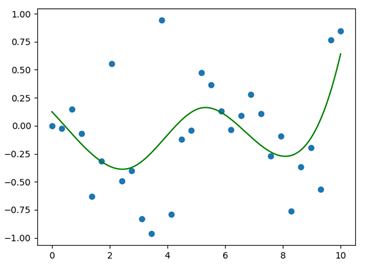
The result of this procedure is displayed in Figure 1.

Figure 1: Initial set of data points (blue points) and spline function generated for the fitting (green curve). As can be easily guessed, the spline function is not able to follow with sufficient accuracy the data points.

As can be seen from Figure 1, the obtained spline gives a really bad fit of our initial data points; the main reason is the relatively high value that was assigned to the smoothing factor; we will now explore a possible strategy for improving our spline, without introducing exaggerated alterations.

One of the best way to improve this situation is to exploit the method .set_smoothing_factor(s); which continues the spline calculation according to a new smoothing factor (“s”, given as the only input), without altering the knots already found during the last call. This represents a convenient strategy, indeed, splines might be very sensitive to changes in the smoothing factor; this means that changing the smoothing function, directly in the .UnivariateSpline() calling, might alter significantly the output result in term of the spline shape (keep in mind that our goal is always to obtain the best fit with the simplest spline possible). The following code lines describe the definition of a new and more accurate spline function, with a smoothing factor equal to 0.5.

After the application of the above-mentioned method, the procedure is identical to the one described for generating the first spline.

# Changing the smoothing factor for a better fit
spline.set_smoothing_factor(0.05)
y_spline2 = spline(x_spline)

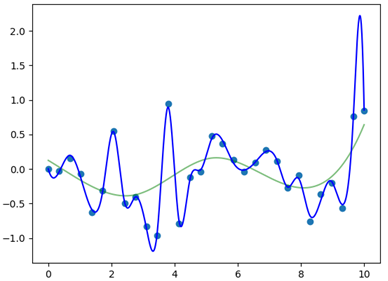
We conclude by plotting the result; Figure 2 display the final output, the new spline is the blue curve, plotted together with the old one (green curve) and the initial data points (light blue points).

#Plotting
fig = plt.figure()
ax = fig.subplots()
ax.scatter(x, y)
ax.plot(x_spline, y_spline, 'g', alpha =0.5)
ax.plot(x_spline, y_spline2, 'b')
plt.show()
Figure 2: New spline function (blue curve), plotted together with the old spline (green curve) and the initial data points (light blue points). After setting the smoothing factor to a lower value, the fit improves significantly; this is because we forced the initial points in the y array and the ones along the spline to have a smaller difference.

As can be seen from Figure 2, the newly generated spline function well describes the initial data points and still pass by the knots that were found in the initial call (data points common to both the two spline functions)

We conclude this part by illustrating some useful methods that can be used after the generation of the correct spline function, for describing our data points. The first of these methods is called “.__call__(x)”, which allows evaluating the value of specific points on the spline, given in the form of a list or single number. The following lines describe the application of this methods (we evaluate the the spline for a value of 2 in the x-axis).

#evaluate point along the spline
print(spline.__call__(2))

The result of the print command is 0.5029480519149454. Another important method is .get_residual(), which allows obtaining the weighted sum of squared residuals of the spline approximation (more simply, an evaluation of the error in the fitting procedure).

#get the residuals
print(spline.get_residual())

The result for this case is 0.049997585478530546. In some applications, it could be of some interest to calculate the definite integral of the spline (i.e. the area underneath the spline curve between a specific range along the x-axis); to do this, the method .integral(a,b) represents the simplest solution; “a” and “b” are the lower and upper limits along the x-axis between which we want to evaluate the area (in this case we calculate the area underneath the spline, between 1 and 2). Application of this method is illustrated in the following lines.

#definite integral of the spline
print(spline.integral(1,2))

The result of the integration is -0.2935394976155577. The last method allows obtaining the values of the points in which the spline crosses the x-axis, i.e. the solutions to the equations defining the spline function. The method is called .roots(), its application is shown in the following lines.

#finding the roots of the spline function
print(spline.roots())

The output of this last line is an array containing the values of the points for which the spline crosses the x-axis, namely:

[1.21877130e-03 3.90089909e-01 9.40446113e-01 1.82311679e+00 2.26648393e+00 3.59588983e+00 3.99603385e+00 4.84430942e+00 6.04000192e+00 6.29857365e+00 7.33532448e+00 9.54966590e+00]

Scipy.LSQUnivariateSpline

In the last part of this article, we introduce .LSQUnivariateSpline(), another function that can be used for spline generation. From a practical point of view, it works similarly to .UnivariateSpline(), indeed as we will see, there are very few differences in how we call and define it in our script.

The fundamental difference between this function and the previous one, is that .LSQUnivariateSpline() allows generating spline curves by directly controlling the number and the position of the knots.

This means that we have the full control of the knots that will define the spline; differently, in the previous case, the number of knots was indirectly regulated through the choice of the smoothing factor. In order to appreciate how our spline will change by increasing the number of knots, we start by defining two different arrays, “t” and “t1”, t1 is the denser array.

#LSQUnivariateSpline
t = np.array([0.5, 1, 2.5])
t1 = np.linspace(1, 9, 20)

The function .LSQUnivariateSpline() accepts as mandatory input, the x, y arrays and the array “t”, which contains the coordinates of the knots that will define our spline. An important condition that has to be kept in mind is that the coordinates of the knots must be located within the range of the x array.

In our case, we will use the same x and y arrays employed for the previous case. At this point we have to call the function twice, in order to show the difference between the two set of knots arrays. In addition, we specify the parameter “k”, which again refers to the degree of the polynomials that describe the spline.

LSQUspline = LSQUnivariateSpline(x, y, t1, k = 4)
LSQUspline1 = LSQUnivariateSpline(x, y, t, k = 4)

Our final task is to plot the two splines, together with the original data points. We will generate the arrays containing the y values of the two splines directly in the plotting command.

#Plotting
plt.scatter(x, y, s=8)
plt.plot(x_spline, LSQUspline(x_spline), color = 'b')
plt.plot(x_spline, LSQUspline1(x_spline), color = 'g')
plt.show()

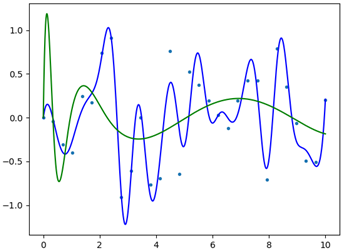
The final result is displayed in Figure 3; as can be seen, by increasing the number of knots, the spline function better approximates our data points. If we check carefully, both the splines pass for the knots specified in the “t” and “t1” arrays, respectively. Most of the methods previously shown for .UnivariateSpline() work on this function too (for additional documentation please refer to https://docs.scipy.org/doc/scipy/reference/generated/scipy.interpolate.LSQUnivariateSpline.html ).

Figure 3: Representation of the two splines defined through the function LSQUnivariateSpline. Both the splines pass for the previously specified knots.

Conclusion

To conclude, in this article, we explored spline functions, their power and versatility.

One thing that is important to keep in mind is that when we are using splines for fitting and interpolating a given set of data points, we should never exceeds with the degree of the polynomials that define the spline; this is to avoid unwanted errors and incorrect interpretation of the initial data.

The process has to be accurately refined, possibly through repetitive iterations to double check the validity of the generated output.

The post Fitting Data With Scipy’s UnivariateSpline() and LSQUnivariateSpline() first appeared on Finxter.

Posted on Leave a comment

Python range() Function — A Helpful Illustrated Guide

The Python range() function creates an iterable of subsequent integers within a given range of values. You can pass either only a stop argument in which case the range object will include all integers from 0 to stop (excluded). Or you can pass start, stop, and step arguments in which case the range object will go from start to step using the given step size. For example, range(3) results in 0, 1, 2 and range(2, 7, 2) results in 2, 4, 6.


Here are some examples of how to use the range() built-in function:

>>> range(10)
range(0, 10)
>>> print(range(10))
range(0, 10)
>>> print(*range(10))
0 1 2 3 4 5 6 7 8 9
>>> range(1, 10, 3)
range(1, 10, 3)
>>> print(*range(1, 10, 3))
1 4 7

Note that in any case, a range object is returned. The range object is an iterable of values—but the values are only generated as they’re actually needed. You can use the asterisk operator to unpack all values into the print function with print(*range(10)). Python waits as long as possible to generate the values of the iterable.

Syntax Range Function

You can use the range() function with three different argument lists: (i) with the stop argument only, (ii) with the start and stop arguments, or (iii) with the start, stop, and step arguments.

Syntax: 
range(stop)
range(start, stop)
range(start, stop, step)
Arguments start An integer defining the first element of the range iterable
stop An integer defining the last element. However, this element is not included in the range iterable.
step An integer defining the difference between two subsequent elements in the range iterable.
Return Value range Returns an iterable range object that allows you to iterate over all values from start to step using the step size.

Interesting fact: the range() “function” is technically not a normal function but a constructor method of the range class. Thus, it creates a new range object.

How Math Genius Gauss Hacked His Teacher’s Exercise With the Range Function

Do you know the following story of the brilliant mathematician Carl Friedrich Gauss? When 8-year old Gauss went to school, his math teacher sought a few minutes of breathing pause. He told his class to solve the problem of adding all subsequent numbers from 1-100: 1+2+3+...+100.

But as little Gauss promptly reported the solution, the short pause was over before it began.

Surprised (and a bit grumpy as the story goes), the teacher asked the boy how he had come up with a solution so quickly. Gauss explained his simple solution. He organized the sequence into pairs of numbers each summing up to 101: 1+100,2+99,3+98,...,50+51. There are 50 such pairs, so the total result was 50*101=5050.

Yet, the modern-time little Gauss would be even lazier. He would type the following one-liner into his mobile Python app: sum(range(1,101)).

The range() function returns a sequence starting from the first value (inclusive) and ending in the second value (exclusive). The sum function sums up the values of this sequence. Combining both functions sums up the sequence from 1-100—faster than the brilliant Carl Friedrich Gauss.


Python range() With One Argument Stop

You can use the range() function with one argument stop. In this case, the range object goes from start=0 to the stop argument (excluded) by using the default step size of one.

Python range() With One Argument Stop

Here’s the example:

for i in range(5): print(i)

The output is:

0
1
2
3
4

Python range() With Two Arguments Start + Stop

You can use the range() function with two arguments start and stop. In this case, the range object goes from start to the stop integer value (excluded) by using the default step size of one.

Python range() With Two Arguments Start + Stop

Here’s the example:

for i in range(1, 5): print(i)

The output is:

1
2
3
4

Python range() With Three Arguments Start + Stop + Step

You can use the range() function with three arguments start, stop, and step. In this case, the range object goes from start to the stop integer value (excluded) by using the default step size of step.

Python range() With Three Arguments Start + Stop + Step

Here’s the example:

for i in range(1, 5, 2): print(i)

The output is:

1
3

Interactive Shell Exercise About The Range Function

The following code snippet matches men with women—the idea is to match the i-th man with the i-th woman, assuming that both lists have the same size. How to change the code to accomplish this task?

Exercise: Replace the XXXX placeholder in the code to match the i-th man with the i-th woman!

You’ll find the solution… after the advertisement! 🙂


But before we move on, I’m excited to present you my brand-new Python book Python One-Liners (Amazon Link).

If you like one-liners, you’ll LOVE the book. It’ll teach you everything there is to know about a single line of Python code. But it’s also an introduction to computer science, data science, machine learning, and algorithms. The universe in a single line of Python!

The book is released in 2020 with the world-class programming book publisher NoStarch Press (San Francisco).

Link: https://nostarch.com/pythononeliners


Solution: The following code solves the exercise.

men = ['Bob', 'Carl', 'Frank']
women = ['Ann', 'Alice', 'Liz'] for i in range(len(men)): print(men[i] + ' dances with ' + women[i])

The idea is to use the len() function to determine the stop argument automatically with range(len(men)). Note that range(len(women)), range(3), and range(0, 3), and range(0, 3, 1) would all solve the problem equally well.

Python range() With Negative Step Size

You can also use the range() function with negative step size. The meaning is “move from right to the left using the negative step size as the difference between two subsequent values. In this case, the start argument should be larger than the stop argument.

Python Range With Negative Step Size

Here’s an example:

for i in range(4,0,-2): print(i)

The output is:

4
2

Note that the stop argument is still not included in the range object.

Range Puzzle

Puzzles are a great and effective way to improve your Python skills. Can you solve this range puzzle?

# Python Puzzle
print(sum(range(0,7)))

What is the output of this code snippet?

You can check whether you solved this puzzle correctly, and determine whether you’re a master coder on our Puzzle app Finxter.com:

Range Puzzle

Are you a master coder?
Test your skills now!

Summary

The Python range() function creates an iterable of subsequent integers within a given range of values.

You can pass either only a stop argument in which case the range object will include all integers from 0 to stop (excluded). For example, range(3) results in 0, 1, 2:

for i in range(3): print(i) '''
OUTPUT:
0
1
2 '''

As an alternative, you can pass start, stop, and step arguments in which case the range object will go from start to step using the given step size. For example, range(2, 7, 2) results in 2, 4, 6:

for i in range(2, 7, 2): print(i) '''
OUTPUT:
2
4
6 '''

I hope you enjoyed the article! To improve your Python education, you may want to join the popular free Finxter Email Academy:


Do you want to boost your Python skills in a fun and easy-to-consume way? Consider the following resources and become a master coder!

Where to Go From Here?

Enough theory, let’s get some practice!

To become successful in coding, you need to get out there and solve real problems for real people. That’s how you can become a six-figure earner easily. And that’s how you polish the skills you really need in practice. After all, what’s the use of learning theory that nobody ever needs?

Practice projects is how you sharpen your saw in coding!

Do you want to become a code master by focusing on practical code projects that actually earn you money and solve problems for people?

Then become a Python freelance developer! It’s the best way of approaching the task of improving your Python skills—even if you are a complete beginner.

Join my free webinar “How to Build Your High-Income Skill Python” and watch how I grew my coding business online and how you can, too—from the comfort of your own home.

Join the free webinar now!

The post Python range() Function — A Helpful Illustrated Guide first appeared on Finxter.

Posted on Leave a comment

Pandas apply() — A Helpful Illustrated Guide

The Pandas apply( ) function is used to apply the functions on the Pandas objects. We have so many built-in aggregation functions in pandas on Series and DataFrame objects. But, to apply some application-specific functions, we can leverage the apply( ) function. Pandas apply( ) is both the Series method and DataFrame method.

Pandas apply function to one column – apply( ) as Series method

Let’s construct a DataFrame in which we have the information of 4 persons.

>>> import pandas as pd
>>> df = pd.DataFrame(
... {
... 'Name': ['Edward', 'Natalie', 'Chris M', 'Priyatham'],
... 'Sex' : ['M', 'F', 'M', 'M'],
... 'Age': [45, 35, 29, 26],
... 'weight(kgs)': [68.4, 58.2, 64.3, 53.1]
... }
... ) >>> print(df) Name Sex Age weight(kgs)
0 Edward M 45 68.4
1 Natalie F 35 58.2
2 Chris M M 29 64.3
3 Priyatham M 26 53.1

pandas.Series.apply takes any of the below two different kinds of functions as an argument.  They are:

  • Python functions
  • Numpy’s universal functions (ufuncs)

1. Python functions

In Python, there are 3 different kinds of functions in general;

  • Built-in functions
  • User-defined functions
  • Lambda functions

a) Applying Python built-in functions on Series

If we would like to know the length of the names of each person, we can do so using the len( ) function in python.

For example, if we want to know the length of the “Python” string, we can get by the following code;

>>> len("Python")
6

A single column in the DataFrame is a Series object. Now, we would like to apply the same len( ) function on the whole “Name” column of the DataFrame.  This can be achieved using the apply( ) function in the below code;

>>> df['Name'].apply(len)
0 6
1 7
2 7
3 9
Name: Name, dtype: int64

If you observe the above code snippet, the len inside the apply( ) function is not taking any argument. In general, any function takes some data to operate on them. In the len(“Python”) code snippet, it’s taking the “Python” string as input data to calculate its length. Here, the input data is directly taken from the Series object that called the function using apply( ).

When applying the Python functions, each value in the Series is applied one by one and returns the Series object.

The above process can be visualised as:

In the above visualisation, you can observe that each element of Series is applied to the function one by one.

b) Applying user-defined functions on Series

Let’s assume that the data we have is a year old. So, we would like to update the age of each person by adding 1. We can do so by applying a user-defined function on the Series object using the apply( ) method.

The code for it is,

>>> def add_age(age):
... return age + 1 >>> df['Age'].apply(add_age)
0 46
1 36
2 30
3 27
Name: Age, dtype: int64 >>> df['Age'] = df['Age'].apply(add_age) >>> df Name Sex Age weight(kgs)
0 Edward M 46 68.4
1 Natalie F 36 58.2
2 Chris M M 30 64.3
3 Priyatham M 27 53.1

From the above result, the major point to be noted is,

  • The index of the resultant Series is equal to the index of the caller Series object. This makes the process of adding the resultant Series as a column to the DataFrame easier.

It operates in the same way as applying built-in functions. Each element in the Series is passed one by one to the function.

  •  User-defined functions are used majorly when we would like to apply some application-specific complex functions.

c) Applying Lambda functions on Series

Lambda functions are used a lot along with the apply( ) method. We used a user-defined function for an easy addition operation in the above section. Let’s achieve the same result using a Lambda function.

The code for it is,

>>> df['Age'].apply(lambda x: x+1)
0 46
1 36
2 30
3 27
Name: Age, dtype: int64 >>> # Comparing the results of applying both the user-defined function and Lambda function
>>> df['Age'].apply(lambda x: x+1) == df['Age'].apply(add_age)
0 True
1 True
2 True
3 True
Name: Age, dtype: bool

From the above result, you can observe the results of applying the user-defined function and Lambda function are the same.

  • Lambda functions are used majorly when we would like to apply some application-specific small functions.

2. Numpy’s universal functions (ufuncs)

Numpy has so many built-in universal functions (ufuncs). We can provide any of the ufuncs as an argument to the apply( ) method on Series. A series object can be thought of as a NumPy array.

The difference between applying Python functions and ufuncs is;

  • When applying the Python Functions, each element in the Series is operated one by one.
  • When applying the ufuncs, the entire Series is operated at once.

Let’s choose to use a ufunc to floor the floating-point values of the weight column. We have numpy.floor( ) ufunc to achieve this.

The code for it is,

>>> import numpy as np >>> df['weight(kgs)']
0 68.4
1 58.2
2 64.3
3 53.1
Name: weight(kgs), dtype: float64 >>> df['weight(kgs)'].apply(np.floor)
0 68.0
1 58.0
2 64.0
3 53.0
Name: weight(kgs), dtype: float64

In the above result, you can observe the floored to the nearest lower decimal point value and maintain its float64 data type.

We can visualise the above process as:

In the above visualisation, you can observe that all elements of Series are applied to the function at once.

  • Whenever we have a ufunc to achieve our functionality, we can use it instead of defining a Python function.

Pandas apply( ) as a DataFrame method

We will take a look at the official documentation of the apply( ) method on DataFrame:

pandas.DataFrame.apply has two important arguments;

  • func – Function to be applied along the mentioned axis
  • axis – Axis along which function is applied

Again the axis also has 2 possible values;

  1. axis=0 – Apply function to multiple columns
  2. axis=1 – Apply function to every row

1. Pandas apply function to multiple columns

Let’s say the people in our dataset provided their height (in cms) information. It can be added using the following code,

>>> df['height(cms)'] = [178, 160, 173, 168]
>>> df Name Sex Age weight(kgs) height(cms)
0 Edward M 45 68.4 178
1 Natalie F 35 58.2 160
2 Chris M M 29 64.3 173
3 Priyatham M 26 53.1 168

We’ll make the “Name” column the index of the DataFrame. Also, we’ll get the subset of the DataFrame with “Age”, “weight(kgs)”, and “height(cms)” columns.

>>> data = df.set_index('Name')
>>> data Sex Age weight(kgs) height(cms)
Name Edward M 45 68.4 178
Natalie F 35 58.2 160
Chris M M 29 64.3 173
Priyatham M 26 53.1 168 >>> data_subset = data[['Age', 'weight(kgs)', 'height(cms)']]
>>> data_subset Age weight(kgs) height(cms)
Name Edward 45 68.4 178
Natalie 35 58.2 160
Chris M 29 64.3 173
Priyatham 26 53.1 168

If we would like to get the average age, weight, and height of all the people, we can use the numpy ufunc numpy.mean( ).

The code for it is,

>>> import numpy as np
>>> data_subset.apply(np.mean, axis=0)
Age 33.75
weight(kgs) 61.00
height(cms) 169.75
dtype: float64

We directly have a Pandas DataFrame aggregation function called mean( ) which does the same as above;

>>> data_subset.mean()
Age 33.75
weight(kgs) 61.00
height(cms) 169.75
dtype: float64

If you observe the results above, the results of Pandas DataFrame aggregation function and applying ufunc are equal. So, we don’t use the apply( ) method in such simple scenarios where we have aggregation functions available.

  • Whenever you have to apply some complex functions on DataFrames, then use the apply( ) method.

2. Pandas apply function to every row

Based upon the height and weight, we can know whether they’re fit or thin, or obese. The fitness criteria are different for men and women as setup by international standards. Let’s grab the fitness criteria data for the heights and weights of the people in our data.

This can be represented using a dictionary;

>>> male_fitness = {
... #height : (weight_lower_cap, weight_upper_cap)
... 178 : ( 67.5 , 83 ),
... 173 : ( 63 , 70.6 ),
... 168 : ( 58 , 70.7 )
... }
>>> female_fitness = {
... #height : (weight_lower_cap, weight_upper_cap)
... 160 : ( 47.2 , 57.6 )
... }

In the above dictionary, the keys are the heights and the values are tuples of the lower and upper limit of ideal weight respectively.

If someone is below the ideal weight for their respective height, they are “Thin”. If someone is above the ideal weight for their respective height, they are “Obese”. If someone is in the range of ideal weight for their respective height, they are “Fit”.

Let’s build a function that can be used in the apply( ) method that takes all the rows one by one.

>>> def fitness_check(seq):
... if seq.loc['Sex'] == 'M':
... if (seq.loc['weight(kgs)'] > male_fitness[seq.loc['height(cms)']][0]) & (seq.loc['weight(kgs)'] < male_fitness[seq.loc['height(cms)']][1]):
... return "Fit"
... elif (seq.loc['weight(kgs)'] < male_fitness[seq.loc['height(cms)']][0]):
... return "Thin"
... else:
... return "Obese"
... else:
... if (seq.loc['weight(kgs)'] > female_fitness[seq.loc['height(cms)']][0]) & (seq.loc['weight(kgs)'] < female_fitness[seq.loc['height(cms)']][1]):
... return "Fit"
... elif (seq.loc['weight(kgs)'] < female_fitness[seq.loc['height(cms)']][0]):
... return "Thin"
... else:
... return "Obese"

The function returns whether a given person is “Fit” or “Thin” or “Obese”. It uses the different fitness criteria dictionaries for male and female created above.

Finally, let’s apply the above function to every row using the apply( ) method;

>>> data.apply(fitness_check, axis=1)
Name
Edward Fit
Natalie Obese
Chris M Fit
Priyatham Thin
dtype: object

From the above result, we got to know who is Fit or Thin or Obese.

Conclusion and Next Steps

Using the apply( ) method when you want to achieve some complex functionality is preferred and recommended. Mostly built-in aggregation functions in Pandas come in handy. If you liked this tutorial on the apply( ) function and like quiz-based learning, please consider giving it a try to read our Coffee Break Pandas book.

The post Pandas apply() — A Helpful Illustrated Guide first appeared on Finxter.

Posted on Leave a comment

How to Reverse/Invert a Dictionary Mapping

In Python, a dictionary is an implementation of a data structure known most commonly as an associative array.

This collection of key-values pairs maps the key to the associated value that can be implemented in many ways from knowing the price of apples and peas to put into the grocery store app that is used on your phone all the way to wanting to know which Major League Baseball team belongs in which state! It is a versatile way of finding the information you need, it is mutable, dynamic, and can be nested! Accessing the values in a dictionary means you need to have the key for the proper value to be printed.

Problem: There are times, however when you will need to have the reverse the dictionary. You will not only have to put the last key-value pair in the first index, but you will have to reverse the value and key pairs around inside the dictionary!

As difficult as this sounds it is actually quite simple and we are going to go through 3 different solutions on how this can be done I your code with an explanation on each step. I will write 3 separate pieces of code that will show you how this can be done with various pieces of data that can be used for inverting a dictionaries mapping.

In this first example, I am going to use an everyday dictionary for the prices of fruits at the local super-market. I am going to use a for loop to iterate through my dictionary and switch the values with their respective keys. First things first, know what data you are going to be using. In this case, we are getting the prices of fruits to place in our associative array. I am going to use the fruits as my keys and the prices as values.

for_sale = {'Apple': 0.69, 'Coconut': 1.69, 'Tangerine': 0.75, 'Banana': 1.25}

Well this is great! We have our keys and their prices stored in our dictionary for_sale. Now it is time to make a new empty dictionary to place the new keys and values into!

new_sale = {}

Now it is time to iterate through the dictionary and reverse the keys and values! We are going to use a for loop!

for key, value in for_sale.items(): new_sale[value] = key

Let’s run the new dictionary!

print(new_sale)

Here is the new outcome!

{0.69: 'Apple', 1.69, 'Coconut', 0.75:'Tangerine', 1.25:'Banana'}

Now, lets put the entire code together!

for_sale ={'Apple': 0.69, 'Coconut': 1.69,'Tangerine': 0.75, 'Banana': 1.25}
new_sale = {} for key, value in for_sale.items(): new_sale[value] = key print(new_sale)
# {0.69: 'Apple', 1.69: 'Coconut', 0.75: 'Tangerine', 1.25: 'Banana'}

There! That is all it took! This is a simple 8 lines way to get this done. The expression new_sale[value] = key, did all the hard work for you! Please note that this does not sort your dictionary! It only reverses the key and values around! Starting from the top of our code, we can see that our dictionary has the fruits in the keys and the prices in the values. We created an empty list to place the new dictionary. After we walked through the dictionary, switching the key and value pairs around for each instance of a pair. We, then asked the dictionary to run with its new name. The new dictionary now has the prices as the keys and the fruits as the values! There is one small problem with this 8 small lines of code, however. As beautifully as it works, it’s messy and marks you as a beginner.

In Python, we want beautiful pythonic code that is easy to comprehend and does not take up too many lines in our code especially since we just need to change around the key-value pairs! So, the best thing to use is a dictionary comprehension approach. Knowing how to work a dictionary comprehensively is not only a testament to your skills but will also make it easier when you want to insert a couple lines of code to make a correction without having to rewrite parts of your code. What is dictionary comprehension, you may wonder? Well, it is a very useful feature if you would like to construct a dictionary in one line of code! This reduces your dictionary to a single line, saving space and memory in your code. Using the {key:value} mapping directly from an iterable object, like a list we can construct our dictionary, even use conditional statements!

In this next example, we are going to use a one-liner to do what we did above. This time we are going to use the pet store and find out the prices of some small pets to buy! We are going to use the pets as our keys and prices again for the values.

small_pets = {'Goldfish':0.50, 'Gerbil':1.0, 'Parakeet':2}

In the next line, I will use a dictionary comprehensive approach to reverse the values for the keys:

inverted_pets = {values: key for key, value in dict.items(small_pets)}

Then I will print the new dictionary:

print(inverted_pets)

And my outcome is:

inverted_pets = {0.5:'Goldfish', 1.0:'Gerbil', 2:'Parakeet'}

Now let us walk through this step by step. I created a dictionary called small_pets. Next, I created a new dictionary, inverted_pets and at the same time asked it to go through each item in the dictionary, and switch the values for the keys in the dictionary small_pets. On the following line, I asked it to print the new dictionary. Now to put it all together!

small_pets = {'Goldfish':0.50, 'Gerbil':1.0, 'Parakeet':2}
inverted_pets = {values: key for key, value in dict.items(small_pets)} print(inverted_pets)
# Outcome: {0.5:'Goldfish', 1.0:'Gerbil', 2:'Parakeet'}

When using this method, remember to pass in the argument in the new dictionary. Without it, your program will break and you will get an error telling you that dict.items() takes a positional argument and there are none given. Now this bit of code is much cleaner then the first one we wrote! It took 5 less lines than the previous code and it still gets the job done! This is a hallmark of a Pythonier who knows what he/she is doing in the real world! As you can see here again, this method does not sort the dictionary, just reverses the order of the key-value pairs. Yet a third way, to accomplish your goal of inversing a value for its key in a dictionary is 3 lines!

small_pets = {'Goldfish':0.69, 'Gerbil':1.5, 'Parakeet':2}
d = {v:[i for i in small_pets.keys() if small_pets[i] == v ] for k,v in small_pets.items()}
print(d)
# {0.69: ['Goldfish'], 1.5: ['Gerbil'], 2: ['Parakeet']}

As you can see by the method above this code is a bit longer than its predecessor, but it allows Python to be used in a very dynamic way showing the use of conditionals inside the dictionary construction and increasing the confusion as the dictionary small_pets is used several times. Be careful using this method if you are a beginner or just getting comfortable in dictionaries. If you wanted to you could rename the same dictionary to the same name as you are inverting the old one by its values and keys. These 3 examples are ones I was able to comprehend and write code based off of it. However, there are many ways to find your answers in Python and write out your code to fit your needs. I would say make sure you are comfortable working in dictionaries before trying anything outside your comfort zone. I would also say that it is better not to copy paste the first code you come across. This can break your program and make it hard to revert back to its original form and get it working properly again. Make sure to label your variable correctly and your program should work reversing the keys and their values!

Resources

I found my information on StackOverflow for writing my code with the link I used posted below. I also added the link to Real Python for iteration in dictionaries and turning keys in values and the link to one of my favorite resources: AskPython. As a Python junior developer, I find it crucial to have as many great resources as possible, just like Finxter to help me continue to learn and grow! I hope you will also see the value in these resources and more and I encourage you to seek them out, join up and upskill yourself! I know a certainly could not have found the information I need to write code if I didn’t have the resources that I do!

The post How to Reverse/Invert a Dictionary Mapping first appeared on Finxter.

Posted on Leave a comment

Python sorted() Function

If you work in a data driven career, odds are you will at some point have to perform sorting on your data. Rather than writing your own sorting algorithm (which will most likely be far less efficient), Python provides a built-in function called sorted(). This function allows you to do basic sorting, such as arranging in ascending or alphabetical order, but also has the ability for a custom sort, in which you can sort according to your own specifications. 

Definition

The sorted() function takes a specified iterable input and returns a sorted list

For example:

>>> x = [4, 1, 2]
>>> sorted(x)
[1, 2, 4]

It is important to note that the sorted() function does not mutate the original list x; it creates a new list which can be stored in a separate variable.

Parameters

The sorted() function takes at most 3 arguments:

sorted(iterable, key = None, reverse = False)
  • iterable: This is the sequence to be sorted. It accepts multiple data types such as a string, list, tuple, dictionary etc. and includes nested lists. No matter which type of data is entered however, the sorted() function will always return a list.
  • key: This is an optional argument in the sorted() function with the default being None. The key parameter allows you to input a function (built-in or your own function) in order to customise how your list is sorted.
  • reverse: This is an optional argument which indicates whether the data should be sorted in ascending or descending order. The default argument is False, meaning that the data will be sorted in ascending order. 

Sorting strings

When sorting strings, the default is to organise each character in the string in ascending order and return a list of those characters.

Example 1: A single word string

>>> word = 'Python'
>>> sorted(word)
['P', 'h', 'n', 'o', 't', 'y']

Example 2: A multiple word string

>>> sentence = 'I love Python!'
>>> sorted(sentence)
[' ', ' ', '!' 'I', 'P', 'e', 'h', 'l', 'n', 'o', 'o', 't', 'v', 'y']

As can be seen in the above example, when the sorted() function is called on a string of multiple words, each character in the string is treated as an element of a list, including the empty spaces. Python orders these elements using the Unicode Standard. What the Unicode Standard does is assign a unique code to every character in all human languages. This allows Python to compare non-numeric characters on a numerical basis as each character has its assigned integer value.

If, however, you want to order a string according to the words in the string rather than according to each character, the .split() string method can be used.

Example 3: Ordering words in a sentence

>>> phrase = 'The cat in the hat'
>>> sorted(phrase.split())
['The', 'cat', 'hat', 'in', 'the']

Example 4: Ordering words in a list

>>> words = ['Book', 'Bag', 'pencil', 'basket']
>>> sorted(words)
['Bag', 'Book', 'basket', 'pencil'] 

This example better demonstrates how the Unicode Standard is used. Python orders this data by initially comparing the first letters of each word, and if it finds them to be the same, will move on to compare the second letters and then third and so on. The sorting has put the word ‘Book’ before ‘basket’ telling us that uppercase and lowercase letters do not have the same unicode code point. In general, uppercase letters will have lower code points than the lowercase counterparts, and thus, the words ‘Bag’ and ‘Book’ are placed at the beginning of the list. Since the first letter, ‘B’, is the same in both words, Python goes on to compare the second letters.

Sorting lists and other complex data types

As stated previously, when sorting data of all numeric values, the default is to sort the values in ascending order. A new list of ordered values is created which can be stored in a new variable.

Example 1: Sorting a list of numeric values

>>> values = [3, 2, 6, 5]
>>> sorted_values = sorted(values)
>>> print(sorted_values)
[2, 3, 5, 6]

Example 2: Sorting a tuple of numeric values

>>> numbers = (9, 2, 6, 3, 1)
>>> sorted_numbers = sorted(numbers)
>>> print(sorted_numbers)
[1, 2, 3, 6, 9]

Take note that, although we inserted a tuple, the sorted() function always returns a list. If desired, you can convert the sorted list into a tuple using the tuple() function and store it in a new variable:

>>> sorted_numbers_tup = tuple(sorted_numbers)
>>> print(sorted_numbers_tup)
(1, 2, 3, 6, 9)

Example 3: Sorting a dictionary

>>> d = {4: 'a', 3: 'b', 1: 'c'}
>>> sorted(d)
[1, 3, 4]

Take note that only the dictionary keys are returned in a list because, in order to return both the dictionary key and value, the key argument in the sorted() function will have to be used. This will then return a list of tuples which can be converted to a dictionary using the function dict(). The usage of keys will be covered later on in this article.

Example 4: Sorting a set

>>> s = {10, 2, 7, 3}
>>> sorted_s = sorted(s)
>>> print(sorted_s)
[2, 3, 7, 10]

Attempting to convert this ordered list into a set however, will cause you to lose the ordering because a set, by definition, is unordered.

>>> set(sorted_s)
{10, 2, 3, 7}

Example 5: Sorting a nested list

>>> a = [[2, 4], [3, 2], [1, 5], [1, 1]]
>>> sorted(a)
[[1, 1], [1, 5], [2, 4], [3, 2]]

Here, Python follows the same method as when sorting a list of words. The initial ordering compares the first elements of the nested lists. Lists with the same first element are then compared using their second elements and so on. Shorter lists are also placed before longer lists given that their initial elements are the same.

>>> b = [[1, 2, 3], [2, 4], [1, 2]]
>>> sorted(b)
[[1, 2], [1, 2, 3], [2, 4]] 

Using the key argument 

The key argument in the sorted() function is an extremely useful tool because it allows you to sort the data according to your exact specifications. The function that you input tells Python how you want your data to be ordered. Python applies that function to each element and orders the results. For this you can use one of Python’s extensive built-in functions or create your own function according to your needs.

Example 1: Using an inbuilt function, sum()

>>> marks = [[1, 4, 5], [2, 1, 2], [2, 3, 5]]
>>> sorted(marks, key = sum)
[[2, 1, 2], [1, 4, 5], [2, 3, 5]]

This example orders the nested lists by the sum of each list, smallest to largest, instead of the default to order by elements. 

Example 2: Using your own function

>>> def temp(day): return day[1] >>> weather = [['Monday', 25], ['Tuesday', 21], ['Wednesday', 30]]
>>> sorted(weather, key = temp)
[['Tuesday', 21], ['Monday', 25], ['Wednesday', 30]]

This example demonstrates how you would sort a list according to the second element of each list rather than the first. We first define a function that returns the second element of each list and then use that function as our key. Of course, this is maybe not the most Pythonic way to get this result. The temp() function can be condensed into one line using lambda.

Example 3: Using lambda in the key

>>> sorted(weather, key = lambda day: day[1])
[['Tuesday', 21], ['Monday', 25], ['Wednesday', 30]]

Just these few examples demonstrate the power of the key argument. 

Using the reverse argument

The reverse argument is a fairly simple concept to understand. You use it when you want your data organised in descending instead of ascending order. It takes only a Boolean value, with True referring to descending order and False referring to ascending order. The default, of course, is False

Example: Sorting in descending order

>>> y = [2, 5, 1, 7]
>>> sorted(y, reverse = True)
[7, 5, 2, 1]

The same method is used, meaning that the first elements are compared, then the second and so on, to find the largest elements. The reverse argument can be combined with the key argument to create more complex sorts.

Trying to compare elements of different types

A limitation of the sorted() function is that it is unable to compare different data types. For example, trying to sort a list that contains both string types and int types results in a TypeError. This is fairly intuitive; how could we decide what should come first between the elements ‘apples’ and 23. 

A comparison that can be done between different types however, is comparing a numeric type (int or float) with a Boolean type. This is because the two Boolean values each have an inherent numeric value, True has the value 1 and False has the value 0. This means that we can compare lists that have numeric types as well as Boolean expressions as they will evaluate to True or False.

Example:

>>> z = [1, 'A' == 'B', 4 > 3, 0]
>>> sorted(z)
[False, 0, 1, True]

Sort stability

A helpful feature of the sorted() function is something called sort stability. What this means is that if you have an iterable with multiple elements of the same value, they will keep their original order relative to each other. This is very useful when you have two or more iterations through, for example, a list of tuples.

Example:

>>> books_read = [('Steve', 50), ('Dave', 20), ('Fiona', 37), ('Roger', 20)]
>>> sorted(books_read, key = lambda name: name[1])
[('Dave', 20), ('Roger', 20), ('Fiona', 37), ('Steve', 50)]

In this example, a list of tuples shows how many books each person read in a year. A simple lambda function was used to compare the tuples using the second value in each tuple rather than the first. You can see that Dave and Roger read the same amount of books but when the list was ordered, they kept their position relative to each other.

Difference between list.sort() and sorted() functions

As a final note, there is a similar function that exists for the sorting of lists called list.sort(). It works much the same as the sorted() function, however, there is a key difference between the two. When you call the function list.sort(), it mutates the original list that you are sorting and returns None.

>>> a = [5, 2, 6, 3]
>>> list.sort(a)
>>> a
[2, 3, 5, 6]

Therefore, when deciding which function to use, it’s important to consider whether you need to keep the original, unordered data. If there is a slight chance you will need it again, the sorted() function is a better option. Not only will it not mutate the original list, but, as mentioned previously, it will accept any iterable, making it a much more powerful function.

For interest’s sake, here is a link to the sorting algorithm used by Python: Timsort 


To boost your Python skills, download our hand-crafted Python cheat sheets and join our email academy (free):

The post Python sorted() Function first appeared on Finxter.

Posted on Leave a comment

Python callable() Function

Python’s built-in callable(object) returns True if you could call the object argument like a function with the trailing parentheses in object(). You can make any object callable by implementing the instance’s __call__() method. For example, callable(callable) returns True because callable is a function object. But callable(3) returns False because an integer is not a function you can call.

Here’s a minimal example:

>>> callable(callable)
True
>>> callable(3)
False

Note: The function callable() was first removed in Python 3.0 but then reintroduced in version 3.2 and above.

Syntax: callable(object)
Argument object Any Python object such as a custom object, a list, a function, a class, or any other object.
Return Value Boolean: True/False Returns True if the object can be called with object()
Returns False otherwise.

Here are some basic usages of the function:

Input : callable(42)
Output : False Input : callable(int)
Output : True Input : callable(callable)
Output : True

Want to learn more? We’re going to dive into more examples next!


But before we move on, I’m excited to present you my brand-new Python book Python One-Liners (Amazon Link).

If you like one-liners, you’ll LOVE the book. It’ll teach you everything there is to know about a single line of Python code. But it’s also an introduction to computer science, data science, machine learning, and algorithms. The universe in a single line of Python!

The book is released in 2020 with the world-class programming book publisher NoStarch Press (San Francisco).

Link: https://nostarch.com/pythononeliners

How to Check Whether a Function Object is Callable

The following code shows you how to use the callable() method to check whether an arbitrary object is a function, method, or another callable object:

def finxter(): return 'Python' print(callable(finxter))
# True f = finxter print(callable(f))
# True print(callable(finxter()))
# False

How to Create Your Own Callable Object

The following code shows you how to create your own callable object.

class Car: def __call__(self): print('brumm') porsche = Car() # Is it callable?
print(callable(porsche))
# True # Call it!
porsche()
# brumm

This is an interesting way to make any instance instantly callable so that it can be used as a function.

Summary

Python’s built-in callable(object) returns True if you can call the object argument like a function with the trailing parentheses in object().

Otherwise, it returns False.

For example, callable(callable) returns True because callable is a function object. But callable(3) returns False because an integer is not a function you can call.

You can make any object callable by implementing the instance’s __call__() method.


Do you want to boost your Python skills in a fun and easy-to-consume way? Consider the following resources and become a master coder!

Where to Go From Here?

Enough theory, let’s get some practice!

To become successful in coding, you need to get out there and solve real problems for real people. That’s how you can become a six-figure earner easily. And that’s how you polish the skills you really need in practice. After all, what’s the use of learning theory that nobody ever needs?

Practice projects is how you sharpen your saw in coding!

Do you want to become a code master by focusing on practical code projects that actually earn you money and solve problems for people?

Then become a Python freelance developer! It’s the best way of approaching the task of improving your Python skills—even if you are a complete beginner.

Join my free webinar “How to Build Your High-Income Skill Python” and watch how I grew my coding business online and how you can, too—from the comfort of your own home.

Join the free webinar now!

The post Python callable() Function first appeared on Finxter.
Posted on Leave a comment

Python bytes() Function

Python’s built-in bytes(source) function creates an immutable bytes object initialized as defined in the function argument source. A bytes object is like a string but it uses only byte characters consisting of a sequence of 8-bit integers in the range 0<=x<256. The returned byte object is immutable—you cannot change it after creation. If you plan to change the contents, use the bytearray() method to create a mutable bytearray object.

Here’s a minimal example that creates a byte from three integers stored in a list:

>>> bytes([1, 2, 3])
b'\x01\x02\x03'

The prefix \x escape sequence means the next two characters are interpreted as hex character codes. For instance, the hex code \x01 is the same as chr(0x01)=16*0+1=1 that’s simply a start of heading SOH character. (source, ASCII table)

Syntax: bytes([source[, encoding[, errors]]])
Argument source (Optional) Allows you to initialize the byte in four different ways (from simple to more complex):

🐍 integer –> array has this size and is initialized with 0 bytes:
>>> bytes(4)
b'\x00\x00\x00\x00'

🐍 iterable –> integers in the range 0 <= x < 256 are initial byte contents:
>>> bytes([1, 2, 3])
b'\x01\x02\x03'

🐍 string and you provide the encoding (and optionally, errors) arguments –> bytes() converts string to bytes using str.encode():
>>> bytes('hi', 'UTF-8')
b'hi'

🐍 object implementing the buffer interface –> initializes the byte object via a read-only object buffer.

Argument encoding (Optional) The encoding used in case you provide a string argument. Example: 'UTF-8'.
Argument errors (Optional) The action to take when the encoding conversion fails. Only makes sense if source argument is a string.
Return Value byte Returns a new object of type byte—a sequence of bytes that is immutable. For a mutable version, consider using the bytearray() function.
⭐ Without an optional argument, it returns a byte object with one byte 0:
>>> bytes()
b''

Here are some basic usages of the function:

Input : bytes(4)
Output : b'\x00\x00\x00\x00' Input : bytes([1, 2, 3])
Output : b'\x01\x02\x03' Input : bytes('hi', 'UTF-8')
Output : b'hi'

Want to learn more? We’re going to dive into more examples next!


But before we move on, I’m excited to present you my brand-new Python book Python One-Liners (Amazon Link).

If you like one-liners, you’ll LOVE the book. It’ll teach you everything there is to know about a single line of Python code. But it’s also an introduction to computer science, data science, machine learning, and algorithms. The universe in a single line of Python!

The book is released in 2020 with the world-class programming book publisher NoStarch Press (San Francisco).

Link: https://nostarch.com/pythononeliners

Create Bytes Object From Single Integer Argument — Examples

The following code shows you how to use the bytes() function on simple integer arguments.

# Single Integer Input Argument
print(bytes())
print(bytes(2))
print(bytes(4)) '''
b''
b'\x00\x00'
b'\x00\x00\x00\x00' '''

If you provide only one input argument, it uses this input argument to determine how many bytes should be created. It just uses bytes with value 0, in byte notation x00 to fill the byte.

Create Bytes Object From Iterable of Integers — Examples

You can also provide an iterable argument to obtain a new byte object:

# Iterable Input Argument
print(bytes([1, 1, 1]))
print(bytes([14]))
print(bytes({9, 8, 7})) '''
b'\x01\x01\x01'
b'\x0e'
b'\x08\t\x07' '''

The iterable must consist of a number of integers between 0 and 256. If you fail to do so, Python will throw a ValueError:

How to Fix “ValueError: byte must be in range(0, 256)”

If you use the bytes() function on an iterable that contains at least one integer greater than the maximum number representable by 8 bits, namely 256, or smaller than 0, Python will throw a ValueError: byte must be in range(0, 256). You can fix it by ensuring that each number in your iterable can actually be represented by 8 bits and falls into the interval 0 to 256.

Here’s an example of the ValueError where you use a number larger or equal than 256:

>>> bytes([999])
Traceback (most recent call last): File "<pyshell#15>", line 1, in <module> bytes([999])
ValueError: bytes must be in range(0, 256)

Another example when using a number smaller than 0:

>>> bytes([-10])
Traceback (most recent call last): File "<pyshell#16>", line 1, in <module> bytes([-10])
ValueError: bytes must be in range(0, 256)

Fix it by modifying the numbers to lie within the interval 0 to 256:

>>> bytes([255])
b'\xff'

Summary

Python’s built-in function bytes() allows you to initialize the byte in four different ways (from simple to more complex):

🐍 integer –> array has this size and is initialized with 0 bytes:

>>> bytes(4)
b'\x00\x00\x00\x00'

🐍 iterable –> integers in the range 0 <= x < 256 are initial byte contents:

>>> bytes([1, 2, 3])
b'\x01\x02\x03'

🐍 string and you provide the encoding (and optionally, errors) arguments –> bytes() converts string to bytes using str.encode():

>>> bytes('hi', 'UTF-8')
b'hi'

🐍 object implementing the buffer interface –> initializes the byte object via a read-only object buffer.

Do you want to boost your Python skills in a fun and easy-to-consume way? Consider the following resources and become a master coder!

Where to Go From Here?

Enough theory, let’s get some practice!

To become successful in coding, you need to get out there and solve real problems for real people. That’s how you can become a six-figure earner easily. And that’s how you polish the skills you really need in practice. After all, what’s the use of learning theory that nobody ever needs?

Practice projects is how you sharpen your saw in coding!

Do you want to become a code master by focusing on practical code projects that actually earn you money and solve problems for people?

Then become a Python freelance developer! It’s the best way of approaching the task of improving your Python skills—even if you are a complete beginner.

Join my free webinar “How to Build Your High-Income Skill Python” and watch how I grew my coding business online and how you can, too—from the comfort of your own home.

Join the free webinar now!

The post Python bytes() Function first appeared on Finxter.
Posted on Leave a comment

ASCII Table

The following table is an ASCII character table that translates different character codes—such as obtained by Python’s char() function— into the respective symbol. You can find the source of the description here. Note that you can define each number using the decimal, binary, octal, or hexadecimal system—it’s always the same value!

Decimal Binary Octal Hexadecimal Symbol Description
0 0 0 0 NUL Null char
1 1 1 1 SOH Start of Heading
2 10 2 2 STX Start of Text
3 11 3 3 ETX End of Text
4 100 4 4 EOT End of Transmission
5 101 5 5 ENQ Enquiry
6 110 6 6 ACK Acknowledgement
7 111 7 7 BEL Bell
8 1000 10 8 BS Back Space
9 1001 11 9 HT Horizontal Tab
10 1010 12 0A LF Line Feed
11 1011 13 0B VT Vertical Tab
12 1100 14 0C FF Form Feed
13 1101 15 0D CR Carriage Return
14 1110 16 0E SO Shift Out / X-On
15 1111 17 0F SI Shift In / X-Off
16 10000 20 10 DLE Data Line Escape
17 10001 21 11 DC1 Device Control 1 (oft.XON)
18 10010 22 12 DC2 Device Control 2
19 10011 23 13 DC3 Device Control 3 (oft.XOFF)
20 10100 24 14 DC4 Device Control 4
21 10101 25 15 NAK Negative Acknowledgement
22 10110 26 16 SYN Synchronous Idle
23 10111 27 17 ETB End of Transmit Block
24 11000 30 18 CAN Cancel
25 11001 31 19 EM End of Medium
26 11010 32 1A SUB Substitute
27 11011 33 1B ESC Escape
28 11100 34 1C FS File Separator
29 11101 35 1D GS Group Separator
30 11110 36 1E RS Record Separator
31 11111 37 1F US Unit Separator
32 100000 40 20 SPACE Space
33 100001 41 21 ! Exclamation mark
34 100010 42 22 Double quotes (or speech marks)
35 100011 43 23 # Number
36 100100 44 24 $ Dollar
37 100101 45 25 % Percent
38 100110 46 26 & Ampersand
39 100111 47 27 Single quote
40 101000 50 28 ( Open parenthesis (or open bracket)
41 101001 51 29 ) Close parenthesis (orclose bracket)
42 101010 52 2A * Asterisk
43 101011 53 2B + Plus
44 101100 54 2C , Comma
45 101101 55 2D Hyphen
46 101110 56 2E . Period, dot or full stop
47 101111 57 2F / Slash or divide
48 110000 60 30 0 Zero
49 110001 61 31 1 One
50 110010 62 32 2 Two
51 110011 63 33 3 Three
52 110100 64 34 4 Four
53 110101 65 35 5 Five
54 110110 66 36 6 Six
55 110111 67 37 7 Seven
56 111000 70 38 8 Eight
57 111001 71 39 9 Nine
58 111010 72 3A : Colon
59 111011 73 3B ; Semicolon
60 111100 74 3C < Less than (or open angled bracket)
61 111101 75 3D = Equals
62 111110 76 3E > Greater than (or closeangled bracket)
63 111111 77 3F ? Question mark
64 1000000 100 40 @ At symbol
65 1000001 101 41 A Uppercase A
66 1000010 102 42 B Uppercase B
67 1000011 103 43 C Uppercase C
68 1000100 104 44 D Uppercase D
69 1000101 105 45 E Uppercase E
70 1000110 106 46 F Uppercase F
71 1000111 107 47 G Uppercase G
72 1001000 110 48 H Uppercase H
73 1001001 111 49 I Uppercase I
74 1001010 112 4A J Uppercase J
75 1001011 113 4B K Uppercase K
76 1001100 114 4C L Uppercase L
77 1001101 115 4D M Uppercase M
78 1001110 116 4E N Uppercase N
79 1001111 117 4F O Uppercase O
80 1010000 120 50 P Uppercase P
81 1010001 121 51 Q Uppercase Q
82 1010010 122 52 R Uppercase R
83 1010011 123 53 S Uppercase S
84 1010100 124 54 T Uppercase T
85 1010101 125 55 U Uppercase U
86 1010110 126 56 V Uppercase V
87 1010111 127 57 W Uppercase W
88 1011000 130 58 X Uppercase X
89 1011001 131 59 Y Uppercase Y
90 1011010 132 5A Z Uppercase Z
91 1011011 133 5B [ Opening bracket
92 1011100 134 5C \ Backslash
93 1011101 135 5D ] Closing bracket
94 1011110 136 5E ^ Caret – circumflex
95 1011111 137 5F _ Underscore
96 1100000 140 60 ` Grave accent
97 1100001 141 61 a Lowercase a
98 1100010 142 62 b Lowercase b
99 1100011 143 63 c Lowercase c
100 1100100 144 64 d Lowercase d
101 1100101 145 65 e Lowercase e
102 1100110 146 66 f Lowercase f
103 1100111 147 67 g Lowercase g
104 1101000 150 68 h Lowercase h
105 1101001 151 69 i Lowercase i
106 1101010 152 6A j Lowercase j
107 1101011 153 6B k Lowercase k
108 1101100 154 6C l Lowercase l
109 1101101 155 6D m Lowercase m
110 1101110 156 6E n Lowercase n
111 1101111 157 6F o Lowercase o
112 1110000 160 70 p Lowercase p
113 1110001 161 71 q Lowercase q
114 1110010 162 72 r Lowercase r
115 1110011 163 73 s Lowercase s
116 1110100 164 74 t Lowercase t
117 1110101 165 75 u Lowercase u
118 1110110 166 76 v Lowercase v
119 1110111 167 77 w Lowercase w
120 1111000 170 78 x Lowercase x
121 1111001 171 79 y Lowercase y
122 1111010 172 7A z Lowercase z
123 1111011 173 7B { Opening brace
124 1111100 174 7C | Vertical bar
125 1111101 175 7D } Closing brace
126 1111110 176 7E ~ Equivalency sign – tilde
127 1111111 177 7F DEL Delete
Source

The post ASCII Table first appeared on Finxter.

Posted on Leave a comment

Python bool() Function

Python’s built-in bool(x) function converts value x to a Boolean value True or False. It uses implicit Boolean conversion on the input argument x. Any Python object has an associated truth value. The bool(x) function takes only one argument, the object for which a Boolean value is desired.

Argument x A Python object for which a Boolean value should be determined. Any Python object has an associated Boolean defined by the method object.__bool__().
Return Value True, False Returns a Boolean value associated to the argument x. The object will always return True, unless:
⭐ The object is empty, like [], (), {}
⭐The object is False
⭐The object is 0 or 0.0
⭐The object is None
Input : bool(1)
Output : True Input : bool(0)
Output : False Input : bool(True)
Output : True Input : bool([1, 2, 3])
Output : True Input : bool([])
Output : False

But before we move on, I’m excited to present you my brand-new Python book Python One-Liners (Amazon Link).

If you like one-liners, you’ll LOVE the book. It’ll teach you everything there is to know about a single line of Python code. But it’s also an introduction to computer science, data science, machine learning, and algorithms. The universe in a single line of Python!

The book is released in 2020 with the world-class programming book publisher NoStarch Press (San Francisco).

Link: https://nostarch.com/pythononeliners

Examples bool() Functions

The following code shows you how to use the bool(x) function on different input arguments that all lead to True results.

#####################
# True Boolean Values
##################### # All integers except 0
print(bool(1))
print(bool(2))
print(bool(42))
print(bool(-1)) # All collections except empty ones
# (lists, tuples, sets)
print(bool([1, 2]))
print(bool([-1]))
print(bool((-1, -2)))
print(bool({1, 2, 3})) # All floats except 0.0
print(bool(0.1))
print(bool(0.0000001))
print(bool(3.4)) # Output is True for all previous examples

The following list of executions of the function bool(x) all result in Boolean values of False.

#####################
# False Boolean Values
##################### # Integer 0
print(bool(0)) # Empty collections
# (lists, tuples, sets)
print(bool([]))
print(bool({}))
print(bool(())) # Float 0.0
print(bool(0.0)) # Output is False for all previous examples

You can observe multiple properties of the bool() function:

  • You can pass any object into it and it will always return a Boolean value because all Python objects implement the __bool__() method and have an associated implicit Boolean value. You can use them to test a condition: 0 if x else 1 (example ternary operator).
  • The vast majority of objects are converted to True. Semantically, this means that they’re non-empty or whole.
  • A minority of objects convert to False. These are the “empty” values—for example, empty lists, empty sets, empty tuples, or an empty number 0.

Summary

Python’s built-in bool(x) function converts value x to a Boolean value True or False.

It uses implicit Boolean conversion on the input argument x.

Any Python object has an associated truth value.

The bool(x) function takes only one argument, the object for which a Boolean value is desired.

Where to Go From Here?

Enough theory, let’s get some practice!

To become successful in coding, you need to get out there and solve real problems for real people. That’s how you can become a six-figure earner easily. And that’s how you polish the skills you really need in practice. After all, what’s the use of learning theory that nobody ever needs?

Practice projects is how you sharpen your saw in coding!

Do you want to become a code master by focusing on practical code projects that actually earn you money and solve problems for people?

Then become a Python freelance developer! It’s the best way of approaching the task of improving your Python skills—even if you are a complete beginner.

Join my free webinar “How to Build Your High-Income Skill Python” and watch how I grew my coding business online and how you can, too—from the comfort of your own home.

Join the free webinar now!

The post Python bool() Function first appeared on Finxter.