To open a URL in your standard browser (Win, macOS, Linux) from your Python script, e.g., call webbrowser.open('https://google.com') to open Google. Don’t forget to run import webbrowser first. But you don’t have to install the module because it’s already in Python’s standard library.
A new browser tab with your default browser (Chrome, Edge, Safari, Brave — whatever you set up as standard browser in your OS settings) opens, initialized with the URL provided as a string argument of the webbrowser.open() function:
About the Webbrowser Module
The webbrowser module is already part of the Python Standard Library, so you can import it without needing to install it first.
You can also run the module from your command line or terminal by using the following command:
python -m webbrowser -t "https://finxter.com"
Good to know if you ever want to open a URL from your operating system command line or terminal (Windows, macOS, Linux, Ubuntu) because the fact that you use Python makes it portable and operating system independent!
Webbrowser open()
You can specify additional arguments to get more control over which tab is opened by means of the new argument of the webbrowser.open() function.
webbrowser.open(url, new=0, autoraise=True)
The new argument allows you to control the browser window:
If you set new=0 (default), you open the URL in the same browser window.
If you set new=1, you open a new browser window.
If you set new=2, you open a new browser tab.
The autoraise argument allows you to raise the window (default behavior).
Webbrowser Open in New Tab
A short way of opening a given URL in a new tab from your Python script is to call webbrowser.open_new_tab() and pass your URL string as a single argument.
You can also return a controller object for a given browser by calling webbrowser.get() and passing the browser type into it. Now, you can call the open() or open_new_tab() methods on this controller object to open the URL in your desired web browser.
When learning how to program your Raspberry Pi Pico, you need to learn basic concepts of a limited version of the Python programming language known as MicroPython.
It’s a great way to learn Python, as it is much simpler than Python, which can be very complicated and take a long time to master.
For the purposes of using a microcontroller, you only need to know some basics to get started.
Before we jump in, let’s take a quick moment to familiarize you with your Python IDE, Thonny.
Using Thonny
To get started, there are three parts of the interface that you should be aware of — the toolbar, the editor, and the shell.
(1) Toolbar
The toolbar has icons that will help you do a few things, such as creating new files, opening existing ones, and saving, just like you see with most programs.
The other things you’ll want to notice are the green button, which will run your programs that you write in the editor and the stop button which will end programs that run forever.
We’ll get into that in the next tutorial.
(2) Editor
The editor is where you will write your programs that you will save and run by using the run button in the toolbar. You may also see or hear this referred to as the script area, as this is where you write your scripts.
(3) Shell
The Python shell has two purposes.
You can run individual instructions by hitting the Enter key without having to write them in the editor and run them, but this only really is good for simple instructions. You won’t use it to write complex code.
The second purpose is to provide information about scripts that you have written, including where errors might be in your code.
This is sometimes referred to as REPL, which stands for
Read,
Evaluate,
Print, and
Loop.
In the following tutorial and video, I’ll show you how to get started with the Thonny IDE—feel free to check it out!
Ok, so now that you know the parts of the interface, let’s try some code to get started.
We’ll begin with the universal first program, “Hello, World”. First, we’re going to try it in the shell since it’s only a one-line command.
Type the following command like so:
print("Hello, World!")
The results should be that the words "Hello, World!" print in the shell, but without quotation marks.
This is the syntax we use when we want to print something – print(), with whatever you want printed put inside the parentheses. If it’s words, we put them inside quotes.
Now, we’re going to run the program from the editor.
If you want to clear out anything you’ve done in the shell or just start fresh, then click in the shell and press either Command+k on a Mac or Control+k on a PC.
Personally, I like to keep my shell clean and clear when I’m doing something new.
Ok, so now that you’ve cleared the shell (if that’s what you chose to do), type the same command as before into the editor, then click the Save icon.
When prompted to decide where to save the file, choose the Raspberry Pi Pico and title your file "Hello_World.py". Don’t forget to add the ".py" to the end, as this is the file extension that denotes a Python file.
We’ll do that with every file we create with Thonny.
Once you’ve saved, click the green Run button in the toolbar, and you’ll see Hello, World! print in the shell as you did before.
There are two things going on here.
First, you are telling Thonny to print something out in the shell, and second, by using quotation marks, you are telling Thonny that what is to be printed is a string of text.
In programming languages like Python, there are what are known as “primitives”, which are basic data types to work with in your programming.
Those data types are:
Strings – just plain ol’ text, like "Hello World"
Integers – whole numbers, like 42
Floats – numbers with decimals, like 3.14
Booleans – choices between two options, like True or False
Loops and Indentation
Now you’re going to write your first loop, which is simply a term that refers to a set of instructions to be repeated.
You will be writing those instructions in a specific type of way. The reason for this is that Python programs run from top to bottom, but your interpreter is dumb.
It only knows what you tell it, so the way we give instructions to the Python interpreter is by grouping those instructions with indentations.
What we’re going to do is tell Thonny to print some text, run a loop, then print more text. When we give the instructions that are to be repeated by the loop, we will indent those instructions so that Thonny will “understand”.
There are two primary loop types, but today, we are only going to focus on what is called a “for loop”, which runs a defined number of times.
First, let’s start a new program by clicking the new file icon (the white piece of paper ) then writing some code in the editor like so:
print("Loop starting!")
for i in range(10):
Then hit the Enter (PC) or Return (Mac) key.
What you’re doing is assigning a variable, i, for the loop to use as a counter and telling it that i will be every number in the range of 10 as the loop is performed.
In other words, the instructions will be repeated 10 times, as defined by the range.
Info: Python is known as a 0-indexed language, which means the default start of the range is 0 rather than 1, so 10 is not included in the range. Therefore, numbers starting with 0 is the range 0-9, so i will be the numbers 0-9 in this example.
The other thing to notice here is the colon : at the end of the line.
That tells Thonny that you are about to give it instructions for the loop you just told it will be performed. When you hit the Enter or Return key, not only will a new line be created, but it will also automatically start at an indented 4 spaces in.
This is where you’re going to tell Thonny what instructions to repeat. For the sake of this exercise, we’re simply going to print to the shell.
However, this time, we’re going to print both a string and whatever number i happens to be for each repetition of the loop.
So to do that, type
print("Loop number", i)
We need to separate multiple data types being printed on the same line with a comma so that Thonny “knows” that there are separate things to interpret because again, your interpreter only knows what you tell it.
After that, hit Enter or Return for a new line, but this time, hit the backspace key.
We don’t want Thonny to repeat the next instructions, so we need to make sure they are outside of the loop.
Then type
print("Loop ended!")
Your whole program will look like this:
Here for copy&paste:
print("Loop starting!")
for i in range(10): print("Loop number", i)
print("Loop ended!")
Now go to the toolbar and click the save button. We’re going to call this “Indentation.py”. Once saved, click the green Run button, and you’ll see the results:
Ok, I think that’s enough for today. Try changing the range from 10 by adding a start and stop number like this:
for i in range(x, y):
With x and y being whatever numbers you choose.
For example, if you use range(3, 14), i will print as the numbers 3-13, since the last number is never included in the loop. If you want to print 1-10 instead of 0-9, you should use range(1, 11) and so on.
Thanks for Reading!
Next time, we will try a different kind of loop and explore what are known as “conditionals” that perform actions based on whether certain criteria are met. Until then, happy coding!
This article will show different ways to read and filter an Excel file in Python.
To make it more interesting, we have the following scenario:
Sven is a Senior Coder at K-Paddles. K-Paddles manufactures Kayak Paddles made of Kevlar for the White Water Rafting Community. Sven has been asked to read an Excel file and run reports. This Excel file contains two (2) worksheets, Employees and Sales.
To follow along, download the kp_data.xlsx file and place it into the current working directory.
Question: How would we write code to filter an Excel file in Python?
We can accomplish this task by one of the following options:
The first line in the above code snippet imports the Pandas library. This allows access to and manipulation of the XLSX file. Just so you know, the openpyxl library must be installed before continuing.
The following line defines the four (4) columns to retrieve from the XLSX file and saves them to the variable cols as a List.
Note: Open the Excel file and review the data to follow along.
Import the Excel File to Python
On the next line in the code snippet, read_excel() is called and passed three (3) arguments:
The name of the Excel file to import (kp_data.xlsx).
The worksheet name. The first worksheet in the Excel file is always read unless stated otherwise. For this example, our Excel file contains two (2) worksheets: Employees and Sales. The Employees worksheet can be referenced using sheet_name=0 or sheet_name='Employees'. Both produce the same result.
The columns to retrieve from the Excel workheet (usecols=cols).
The results save to df_emps.
Filter the DataFrame
The highlighted line applies a filter that references the DataFrame columns to base the filter on and the & operator to allow for more than one (1) filter criteria.
Give me the DataFrame rows for all employees who work in the Sales Department, and earn more than $55,000/annum.
These results save to sales_55.xlsx with a worksheet ‘Sales Salaries Greater Than 55K‘ and placed into the current working directory.
Contents of Filtered Excel File
Method 2: Use read_excel() and loc[]
This method uses the read_excel() function to read an XLSX file into a DataFrame and loc[] to filter the results. The loc[] function can access either a group of rows or columns based on their label names.
This example imports the above-noted Excel file into a DataFrame. The Employees worksheet is accessed, and the following filter is applied:
Give me the DataFrame rows for all employees who work in the IT Department, and live in the United States.
The first line in the above code snippet imports the Pandas library. This allows access to and manipulation of the XLSX file. Just so you know, the openpyxl library must be installed before continuing.
The following line imports openpyxl. This is required, in this case, to save the filtered results to a new worksheet in the same Excel file.
The following line defines the four (4) columns to retrieve from the XLSX file and saves them to the variable cols as a List.
Note: Open the Excel file and review the data to follow along.
Import the Excel File to Python
On the next line in the code snippet, read_excel() is called and passed three (3) arguments:
The name of the Excel file to import (kp_data.xlsx).
The worksheet name. The first worksheet in the Excel file is always read unless stated otherwise. For this example, our Excel file contains two (2) worksheets: Employees and Sales. The Employees worksheet can be referenced using sheet_name=0 or sheet_name='Employees'. Both produce the same result.
The columns to retrieve from the Excel worksheet (usecols=cols).
The results save to df_it.
Filter the DataFrame
The highlighted line applies a filter using loc[] and passes the filter to return specific rows from the DataFrame.
Give me the DataFrame rows for all employees who work in the IT Department, and live in the United States.
Saves Results to Worksheet in Same Excel File
In the bottom highlighted section of the above code, the Excel file is re-opened using load_workbook(). Then, a writer object is declared, the results filtered, and written to a new worksheet, called IT - US and the file is saved and closed.
Method 3: Use read_excel() and iloc[]
This method uses the read_excel() function to read an XLSX file into a DataFrame and iloc[] to filter the results. Theiloc[] function accesses either a group of rows or columns based on their location (integer value).
This example imports required Pandas library and the above-noted Excel file into a DataFrame. The Sales worksheet is then accessed.
This worksheet contains the yearly sale totals for K-Paddles paddles. These results are filtered to the first six (6) rows in the DataFrame and columns shown below.
This method uses the read_excel() function to read an XLSX file into a DataFrame in conjunction with index[] and loc[] to filter the results. The loc[] function can access either a group of rows or columns based on their label names.
This example imports the required Pandas library and the above-noted Excel file into a DataFrame. The Sales worksheet is then accessed. This worksheet contains the yearly sale totals for K-Paddles paddles.
These results are filtered to view the results for the Pinnacle paddle using index[] and passing it a start and stop position (stop-1).
This method uses the read_excel() function to read an XLSX file into a DataFrame using isin() to filter the results. The isin() function filters the results down to the records that match the criteria passed as an argument.
This example imports required Pandas library and the above-noted Excel file into a DataFrame. The Employees worksheet is then accessed.
These results are filtered to view the results for all employees who reside in Chicago.
This article has provided five (5) ways to filter data from an Excel file using Python to select the best fit for your coding requirements.
Good Luck & Happy Coding!
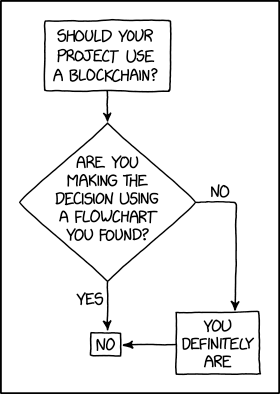
Programmer Humor – Blockchain
“Blockchains are like grappling hooks, in that it’s extremely cool when you encounter a problem for which they’re the right solution, but it happens way too rarely in real life.”source – xkcd
Question: Given a hexadecimal string such as '0xf' in Python. How to convert it to a hexadecimal number in Python so that you can perform arithmetic operations such as addition and subtraction?
The hexadecimal string representation with the '0x' prefix indicates that the digits of the numbers do have a hexadecimal base 16.
In this article, I’ll show you how to do some basic conversion and arithmetic computations using the hexadecimal format. So, let’s get started!
Convert Hex to Decimal using int()
You can convert any hexadecimal string to a decimal number using the int() function with the base=16 argument. For example, '0xf' can be converted to a decimal number using int('0xf', base=16) or simply int('0xf', 16).
>>> int('0xf', base=16)
15
>>> int('0xf', 16)
15
Hexadecimal Number to Integer Without Quotes
Note that you can also write the hexadecimal number without the string quotes like so:
>>> 0xf
15
The 0x prefix already indicates that it is a hexadecimal number.
Using the eval() Function
That’s why an alternative way to convert a hexadecimal string to a numerical value (integer, base 10) is to use the eval('0xf') function like so:
>>> eval('0xf')
15
However, I wouldn’t recommend it over the int() function as the eval() function is known to be a bit tricky and poses some security risks.
Hex Arithmetic Operators
You can simply add or subtract two hexadecimal numbers in Python by using the normal + and - operators:
>>> 0xf + 0x1
16
>>> 0xf - 0xa
5
>>> 0x1 + 0x1
2
The result is always shown in decimal values, i.e., with base=10.
You can display the result with base=16 by converting it back to a hexadecimal format using the hex() built-in function. For example, the expression hex(0x1 + 0x1) yields the hexadecimal string representation '0x2'.
In the last line, you multiply with the base 16 which essentially shifts the whole number one digit and inserts a 0 digit at the right—much like multiplying with base 10 in a decimal system.
Adding Two Hex Strings
In the following example, you add together two hex strings '0xf' and '0xf'—both representing the decimal 15 so the result is decimal 30:
>>> int('0xf', 16) + int('0xf', 16)
30
If you need the result as a hex string, you can pass the whole computation into the hex() built-in function to obtain a hexadecimal representation of the decimal 30:
>>> hex(int('0xf', 16) + int('0xf', 16)) '0x1e'
Subtracting and Multiplying Two Hex Strings
You can also subtract or multiply two hex strings by converting them to integers from their base 16 representations using int(hex_str, 16), doing the computation in the decimal system using the normal - and * operators, and converting back to hexadecimal strings using the hex() function on the result.
To print the hexadecimal string such as '0xffffff' without the '0x' prefix, you can simply use slicinghex_string[2:] starting from the third character and slice all the way to the right.
Summary: You can split a given string at a specific position/index using Python’s string–slicing syntax.
Minimal Example:
# Method 1:
s = "split string at position"
print(s[:12])
print(s[13:]) # Method 2:
import re
s = "split string at position"
pos = re.search('at', s)
l = s[:pos.start()]
r = s[pos.start():]
print(l)
print(r) # OUTPUT:
split string
at position
Problem Formulation
Problem: Given a string, how will you split the given string at any given position?
Let’s have a look at a couple of examples that demonstrate what the problem asks you to do:
◈Example 1
The following problem requires us to split the string into two parts. You have to cut the given string into two halves based on a certain index/position. The given cut position/index is 12.
# Input
s = "split string at position"
# Output
split string
at position
◈Example 2
The following problem asks us to split the string based on the position of a certain character (“,”) and a word (“or”) present in the string. Thus, in this case, you have not been given the exact position or index to split the string. Instead, you have to find the index/position of certain characters and then split the string accordingly based on the positions of the given characters and words and store the required sub-strings in different variables.
# Input
text = "Bob is the Relationship Manager, contact him at bob@xyz.abc or call him at 6546 "
# Output:
Personnel: Bob is the Relationship Manager
Email: contact him at bob@xyz.abc
Contact Info: call him at 6546
Now, let’s dive into the different ways of solving this problem.
Method 1: Using String Slicing
String slicing is the concept of carving a substring from a given string. Use slicing notation s[start :stop: step] to access every step-th element starting from index start (included) and ending in index stop (excluded). All three arguments are optional, so you can skip them to use the default values (start = 0, stop = len(string), step = 1.)
Approach: Use string slicing to cut the given string at the required position. To do this, you have to use the square-bracket syntax within which you can specify the starting and ending indices to carve out the required sub-strings as shown in the solution below.
Code:
s = "split string at position"
print(s[:12])
print(s[13:])
Output:
split string
at position
◈Example 2 Solution
Approach: Use the index() method of the given character, i.e., “,” and the substring “or” within the given string. Then use this index to extract the required chunks of substrings by splitting the given string with the help of string slicing.
Code:
text = "Bob is the Relationship Manager, contact him at bob@xyz.abc or call him at 6546 "
# get the position of characters where you want to split the string
pos_comma = text.index(',')
pos_or = text.index('or')
# Slice the string based on the position of comma
personnel, email, phone = text[:pos_comma], text[pos_comma+1:pos_or], text[pos_or+2:]
print(f'Personnel: {personnel}\nEmail: {email}\nContact Info: {phone}')
Output:
Personnel: Bob is the Relationship Manager
Email: contact him at bob@xyz.abc Contact Info: call him at 6546
Note: The index() method allows you to find the index of the first occurrence of a substring within a given string. You can learn more about Python’s index() method here: Python String index().
If a regular expression matches a part of your string, a lot of helpful information comes with it, for example, you can find out what’s the exact position of the match. The re.search(pattern, string) method is used to match the first occurrence of a specified pattern in the string and returns a match object. Thus, you can use it to solve the given problem.
Pre-requisite:match_object.start() is a method used to get the position of the first character of the match object and match_object.end() is the method to get the last character of the match object.
Import the regex module and then create a match object by using the re.search() method. You can do this by passing the substring/character that lies at the given split index/position. In this case, the substring that lies at the split index is “at“.
We can then split the string by accessing the start position of the matched string object by calling the method pos.start() where pos denotes the matched object.
Then to get the first half of the split string, you can use string slicing as s[:pos.start()]. Here, we sliced the original string from the start index of the given string until the index of the searched character (not included) that was extracted in the previous step.
Further, we need the second section of the split string. Thus, we will now slice the original string from the index of the searched character to the end of the string, like so: s[pos.start():]
Code:
import re s = "split string at position"
pos = re.search('at', s)
l = s[:pos.start()]
r = s[pos.start():]
print(l)
print(r)
Output:
split string
at position
◈Example 2Solution
The idea is pretty similar to the solution of example 1. You just need to adjust the start and stop indices within the slice syntax with the help of the start() and end() methods to extract the required split sub-strings one by one.
Code:
import re
text = "Bob is the Relationship Manager, contact him at bob@xyz.abc or call him at 6546"
# Look for the match objects
_comma = re.search(',', text)
_or = re.search('or', text)
# slice to get first substring
personnel = text[:_comma.start()]
# slice to get second substring
email = text[_comma.end()+1:_or.start()]
# slice to get third substring
phone = text[_or.end():]
# Final Output
print(f'Personnel: {personnel}\nEmail: {email}\nContact Info: {phone}')
Output:
Personnel: Bob is the Relationship Manager
Email: contact him at bob@xyz.abc or
Contact Info: call him at 6546
Conclusion
Woohoo! We have successfully solved splitting a string at the position using two different ways. I hope you enjoyed this article and it helps you in your coding journey. Please subscribe and stay tuned for more such interesting articles!
Google, Facebook, and Amazon engineers are regular expression masters. If you want to become one as well, check out our new book: The Smartest Way to Learn Python Regex(Amazon Kindle/Print, opens in new tab).
This article will show you how 6 ways to remove List elements in Python.
To make it more interesting, we have the following running scenario:
Suppose you have a Christmas Listcontaining everyone to buy a gift for. Once a gift is purchased, remove this person from the List. Once all gifts have been purchased, remove the entire List.
As shown on the first highlighted line, the pop() method is appended to the xmas_list. This lets Python know to remove a List element from said List. Since no element is specified, the last element is removed (Linn).
On the second highlighted line, the pop() method is appended to the xmas_list and passed one (1) argument: the element to remove (2). This action removes Inger.
When xmas_list is output to the terminal, the following displays.
['Anna', 'Elin', 'Asa', 'Sofie', 'Gunnel']
Note: Both Linn and Inger are no longer in xmas_list.
Remove All List Elements
In this scenario, all gifts have been purchased, and all List elements will be removed.
xmas_list = ['Anna', 'Elin', 'Inger', 'Asa', 'Sofie', 'Gunnel', 'Linn'] for i in xmas_list.copy(): xmas_list.pop()
print(xmas_list)
As shown on the first highlighted line, a for loop is instantiated. This loop declares a shallow copy of the List to iterate.
On each iteration, the pop() method is called. Since no argument is passed, the last element is removed.
When xmas_list is output to the terminal, an empty List displays.
[]
Method 5: Use List Comprehension
This method uses List Comprehension to remove all List elements that do not meet the specified criteria.
Remove One List Element
In this scenario, Gunnel's gift has been purchased and will be removed from the List.
xmas_list = ['Anna', 'Elin', 'Inger', 'Asa', 'Sofie', 'Gunnel', 'Linn']
xmas_list = [value for value in xmas_list if value != 'Gunnel']
print(xmas_list)
When xmas_list is output to the terminal, the following displays.
['Anna', 'Elin', 'Inger', 'Asa', 'Sofie', 'Linn']
Note: To remove all List elements, pass it empty brackets as shown follows: (xmas_list = []).
Method 6: Use clear()
This method uses clear() to remove all List elements.
In this scenario, all gifts have been purchased, and all List elements will be removed.
Summary: Use "given string".split() to split the given string by whitespace and store each word as an individual item in a list. Minimal Example: print("Welcome Finxter".split()) # OUTPUT: [‘Welcome’, ‘Finxter’]
Problem Formulation
Problem: Given a string, How will you split the string into a list of words using whitespace as a separator/delimiter?
Let’s understand the problem with the help of a few examples:
Example 1: Input: text = “Welcome to the world of Python” Explanation: Split the string into a list of words using a space ” ” as the delimiter to separate the words from the given string. Output: [‘Welcome’, ‘to’, ‘the’, ‘world’, ‘of’, ‘Python’]
Example 2: Input: text = “””Item_1 Item_2 Item_3″”” print(text.split(‘\n’)) Explanation: Split the string into a list of words using a newline “\n” as the delimiter to separate the words from the given string. Output: [‘Item_1’, ‘Item_2’, ‘Item_3’]
Example 3: text = “This is just a random text:\n New Line” Explanation: The given string contains a combination of whitespaces between the words, such as space, multiple-spaces, a tab and a new line character. All of these whitespace characters have to be considered as delimiters while separating the words from the given string and storing them as items in a list. Here’s how the output looks: Output: [‘This’, ‘is’, ‘just’, ‘a’, ‘random’, ‘text:’, ‘New’, ‘Line’]
So, we have two situations at hand. One, that has a single whitespace used as a delimiter and another that has multiple whitespace characters as delimiters in the same string. Let’s dive into the numerous ways of solving this problem.
Method 1: Using split()
split() is a built-in method in Python which splits the string at a given separator and returns a split list of substrings. Here’s a minimal example that demonstrates how the split function works – finxterx42'.split('x') will split the string with the character ‘x’ as the delimiter and return the following list as an output: ['fin', 'ter', '42']. The default separator, i.e., when no value is passed to the split function is considered as any whitespace character, i.e., it will take into account any whitespace such as ‘\n’, ” “, ‘\t’, etc.
Approach: Thus to split a string based on a given whitespace delimiter, you can simply pass the specific whitespace character as a separator/delimiter to the split('whitespace_character') function.
Code:
# Example 1:
text = "Welcome to the world of Python"
print(text.split(' '))
# OUTPUT: ['Welcome', 'to', 'the', 'world', 'of', 'Python'] # Example 2:
text = """Item 1
Item 2
Item 3"""
print(text.split('\n'))
# OUTPUT: ['Item_1', 'Item_2', 'Item_3'] # Example 3: text = "This is just a\trandom text:\nNew Line"
print(text.split()) # OUTPUT: ['This', 'is', 'just', 'a', 'random', 'text:', 'New', 'Line']
Note that to separate the words in the third example we did specify any separator within the split() function. This is because when you don’t specify the separator, then Python will automatically consider that any whitespace character that occurs within the given string is a separator.
Another extremely handy way of separating a string with whitespace characters as separators is to use the regex library.
Approach 1: Import the regex library and use its split method as re.split('\s+', text) where ‘\s+’ returns a match whenever the string contains one or more whitespace characters. Therefore, whenever any whitespace character is encountered, the string will be separated at that point.
Code:
import re
# Example 1:
text = "Welcome to the world of Python"
print(re.split('\s+', text))
# OUTPUT: ['Welcome', 'to', 'the', 'world', 'of', 'Python'] # Example 2:
text = """Item_1
Item_2
Item_3"""
print(re.split('\s+', text))
# OUTPUT: ['Item_1', 'Item_2', 'Item_3'] # Example 3:
text = "This is just a\trandom text:\nNew Line"
print(re.split('\s+', text))
# OUTPUT: ['This', 'is', 'just', 'a', 'random', 'text:', 'New', 'Line']
Approach 2: Another way of using the regex library to solve this question is to use the findall() method of the regex library. Import the regex library and use re.findall(r'\S+', text) where the expression returns all the characters/words in a list that do not contain any whitespace character. This essentially means that whenever Python finds and segregates a string that has no whitespace in it. As soon as a whitespace character is found it considers that as a breakpoint, therefore the next word that has a continuous sequence of characters without the presence of any whitespace character is taken into account.
Here’s a graphical representation of the above explanaton:
Code:
import re
# Example 1:
text = "Welcome to the world of Python"
print(re.findall(r'\S+', text))
# OUTPUT: ['Welcome', 'to', 'the', 'world', 'of', 'Python'] # Example 2:
text = """Item_1
Item_2
Item_3"""
print(re.findall(r'\S+', text))
# OUTPUT: ['Item_1', 'Item_2', 'Item_3'] # Example 3:
text = "This is just a random text:\n New Line"
print(re.findall(r'\S+', text))
# OUTPUT: ['This', 'is', 'just', 'a', 'random', 'text:', 'New', 'Line']
Do you want to master the regex superpower? Check out my new book The Smartest Way to Learn Regular Expressions in Python with the innovative 3-step approach for active learning: (1) study a book chapter, (2) solve a code puzzle, and (3) watch an educational chapter video.
Conclusion
We have successfully solved the given problem using different approaches. I hope you enjoyed this article and it helps you in your Python coding journey. Please subscribe and stay tuned for more interesting articles!
Google engineers are regular expression masters. The Google search engine is a massive text-processing engine that extracts value from trillions of webpages.
Facebook engineers are regular expression masters. Social networks like Facebook, WhatsApp, and Instagram connect humans via text messages.
Amazon engineers are regular expression masters. Ecommerce giants ship products based on textual product descriptions. Regular expressions rule the game when text processing meets computer science.
With this article, we’ll discover a new and fascinating world of bytes and strings, as well as ways to manipulate them, allocate memory arrays, and use array literals.
It’s part of our long-standing tradition to make this (and other) articles a faithful companion, or a supplement to the official Solidity documentation, starting with these docs for this article’s topics.
Types bytes and string
Besides the arrays we’ve already discussed, there are also some unique arrays, such as bytes and string arrays.
We have to note that the bytes type is very similar to bytes1[], however, the difference is that a bytes array is tightly packed in memory areas calldata and memory.
Furthermore, string is equal to bytes, but does not have a length property or support for index access.
Solidity doesn’t have string manipulation functions compared to other commonly used programming languages, but this can be worked around by including third-party string libraries.
With vanilla Solidity, we can concatenate two strings, e.g. string.concat(s1, s2), and compare two strings by using their keccak-256 hash, e.g.
Regarding the preferred use (we could consider this a design pattern), the bytes type is better than bytes1[], because bytes1[] is more expensive due to padding additional 31 bytes between the elements when used in memory.
The padding is absent in storage because of the tight packing used (docs).
Note: A rule of thumb says that bytes should be used for arbitrary-length raw byte data and string for arbitrary-length string data in UTF-8.
Note: If our data can be stored in a variable containing a number of bytes up to 32, it is better to use one of the value types bytes1 ... bytes32, due to their low cost.
To access a byte representation of a string s, we could use the following construct: bytes(s)[7] = 'x'; with regard to the string length, bytes(s).length, e.g.
// SPDX-License-Identifier: GPL-3.0 pragma solidity >=0.7.0 <0.9.0; /** * @title String modification * @dev Demonstrates how to modify a string represented as bytes. */
contract StringModification { string public s = "Some string"; function modifyString() public { bytes(s)[7]='Q'; }
}
Note: By using this approach, we’re accessing bytes of the UTF-8 representation, not the individual characters.
Functions bytes.concat() and string.concat()
Concatenation is a synonym for joining or gluing together.
The function string.concat() enables us to concatenate any number of string values.
The result of using the string.concat() function is a single-string memory array containing the concatenated strings without any added spacing or padding.
If we’d like to use function parameters of other types that are not implicitly convertible to the string type, we first have to convert them to the string type.
Byte Concatenation
In the same manner, the bytes.concat() function enables us to concatenate any number of bytes or bytes1 ... bytes32 values.
The function result is a single bytes memory array containing the arguments without padding.
If we’d like to use string parameters or other types not implicitly convertible to bytes type, we first convert them to the bytes type.
Example
Let’s use an example to show how a function performs both string and bytes concatenation:
By calling bytes.concat(...) and string.concat(...) without arguments, a result is an empty array.
Allocating Memory Arrays
We can dynamically resize the storage arrays by adding elements via the .push() member function.
In contrast, memory arrays cannot be dynamically resized and the .push() member function is not available.
However, by using the alternative approach, we can create dynamic-length memory arrays by using the new operator. Just before using the new operator, we have to calculate the required size in advance or create a new, empty array and populate it by copying all elements.
Note: Following the same rule of default values, the elements of freshly allocated arrays are initialized with their default values (docs).
Here we have an example showing arrays a and b, initialized by either a constant size or a parameter-given size.
// SPDX-License-Identifier: GPL-3.0
pragma solidity >=0.4.16 <0.9.0; contract C { function f(uint len) public pure { uint[] memory a = new uint[](7); bytes memory b = new bytes(len); assert(a.length == 7); assert(b.length == len); a[6] = 8; }
}
Array Literals
Array literal is represented by a comma-separated list of any number of expressions, which are listed in square brackets, e.g. [1, a, f(3)].
The array literal type is determined in the following way:
The array literal is a statically-sized memory array, and its length is the number of expressions listed in the brackets;
The base type of the array is determined by the type of the first expression T in the list that satisfies the condition: all other expressions must be implicitly convertible to T. If it’s not possible to find such an expression, a type error is thrown;
Besides the convertibility condition (point 2.), one of the expressions must be of the T type.
The following example will clarify what the points above mean; the type of an array literal [1, 2, 3] is uint8[3] memory, because each of the expressions is of type uint8.
If we want to change the result to type uint[3] memory, we have to convert the first element to uint.
// SPDX-License-Identifier: GPL-3.0
pragma solidity >=0.4.16 <0.9.0; contract C { function f() public pure { g([uint(1), 2, 3]); } function g(uint[3] memory) public pure { // ... }
}
In contrast, the array literal [1, -2] is invalid because it doesn’t comply with point 2., stating that the first expression’s type is a target type T for implicit conversion of other expressions.
Since our first expression is of type uint8, and the second expression is of type int8 (including the negative numbers), the second expression cannot be implicitly converted to uint8.
To avoid a type error, we can declare our array literal as [int8(1), -1], forcing the first expression to be of compatible type int8.
In a more specific case of using, e.g. two-dimensional array literals, we’d step on a problem of fixed-size memory arrays that cannot be converted into each other, regardless of the compatibility of base types.
We can get around this problem by explicitly specifying a common base:
// SPDX-License-Identifier: GPL-3.0
pragma solidity >=0.4.16 <0.9.0; contract C { function f() public pure returns (uint24[2][4] memory) { uint24[2][4] memory x = [[uint24(0x1), 1], [0xffffff, 2], [uint24(0xff), 3], [uint24(0xffff), 4]]; // The following does not work, because some of the inner arrays are not of the right type. // uint[2][4] memory x = [[0x1, 1], [0xffffff, 2], [0xff, 3], [0xffff, 4]]; return x; }
}
We cannot assign fixed-size memory arrays to dynamically-sized memory arrays, as shown by the example:
// SPDX-License-Identifier: GPL-3.0
pragma solidity >=0.4.0 <0.9.0; // This will not compile.
contract C { function f() public { // The next line creates a type error because uint[3] memory // cannot be converted to uint[] memory. uint[] memory x = [uint(1), 3, 4]; }
}
To initialize dynamically-sized arrays, we’d have to resort to assigning the elements individually, as in the example:
// SPDX-License-Identifier: GPL-3.0
pragma solidity >=0.4.16 <0.9.0; contract C { function f() public pure { uint[] memory x = new uint[](3); x[0] = 1; x[1] = 3; x[2] = 4; }
}
Conclusion
In this article, we learned even more about reference types, in particular, bytes and string arrays and concatenation, memory array allocation, and array literals.
First, we explained the uniqueness of the arrays based on bytes and string types, and also touched on some of the similarities with the akin types.
Second, we’ve peeked into how to do string concatenation, comparison, and bytes concatenation.
Third, we discovered the specifics of allocating memory arrays and got introduced to the new operator.
Fourth, we got to know array literals with rules for determining the array literal base type. We also became aware of the invalid array literals and what can be done to make them valid.
What’s Next?
This tutorial is part of our extended Solidity documentation with videos and more accessible examples and explanations. You can navigate the series here (all links open in a new tab):
Programming Challenge: Given a Pandas DataFrame or a Pandas Series object. How to convert them to a NumPy array?
In this short tutorial, you’ll learn (1) how to convert a 1D pandas Series to a NumPy array, and (2) how to convert a 2D pandas DataFrame to an array. Let’s get started with the first!
Attention: There is also the .values() method, but that is being deprecated now – when you look at the Pandas documentation, there is a warning “We recommend using DataFrame.to_numpy instead”.
With this method, only the values in the DataFrame or Series will return. The index labels will be removed.
Here’s how that’ll work:
print(df.values)
# [22 21 20 14]
This was a 1-dimensional array or a Series. Let’s move on to the 2D case next.
Convert DataFrame to NumPy Array
Question: Let’s try with a two-dimensional DataFrame — how to convert it to a NumPy array?
First, let’s print the dimension of the previous Series to confirm that it was, indeed, a 1D data structure:
Now, let’s dive into the conversion of this DataFrame to a NumPy array by using the DataFrame.to_numpy() method.
# Convert this DataFrame to a NumPy array
print(df2.to_numpy())
The output shows a NumPy array from the 2D DataFrame — great!
[[ 2 9 6 2] [14 2 1 0] [ 2 7 8 7] [ 4 3 5 5]]
You can see that all indexing metadata has been stripped away from the resulting NumPy array!
Convert Specific Columns from DataFrame to NumPy Array
You can also convert specific columns of a Pandas DataFrame by accessing the columns using pandas indexing and calling the .to_numpy() method on the resulting view object.
Here’s an example:
print(df2[['Djokovic', 'Federer']].to_numpy())
The output:
[[9 6] [2 1] [7 8] [3 5]]
Summary
You can convert a Pandas DataFrame or a Pandas Series object to a NumPy array by means of the df.to_numpy() method. The indexing metadata will be removed.
You can also convert specific columns of a Pandas DataFrame by accessing the columns using pandas indexing and calling the .to_numpy() method on the resulting view object.
The keyword return ends a function and passes a value to the caller.
The keyword break ends a loop immediately without doing anything else. It can be used within or outside a function.
return
break
Used to end a function
Used to end a for or while loop
Passes an optional value to the caller of the function (e.g., return 'hello')
Doesn’t pass anything to the “outside”
While they serve a different purpose, i.e., ending a function vs ending a loop, there are some cases where they can be used interchangeably.
Similar Use Cases
The following use case shows why you may have confused both keywords return and break. In both cases, you can use them to end a loop inside a function and return to the outside.
Here’s the variant using return:
def f(): for i in range(10): print(i) if i>3: return f()
And here’s the variant using break:
def f(): for i in range(10): print(i) if i>3: break f()
Both code snippets do exactly the same—printing out the first 5 values 0, 1, 2, 3, and 4.
Output:
0
1
2
3
4
However, this is where the similarity between those two keywords ends. Let’s dive into a more common use case where they both perform different tasks in the code.
Different Use Cases
The following example uses both keywords break and return. It uses the keyword break to end the loop as soon as the loop variable i is greater than 3.
So the line print(i) is never executed after variable i reaches the value 4—the loop ends.
But the function doesn’t end because break only ends the loop and not the function. That’s why the statement print('hi') is still executed, and the return value of the function is 42 (which we also print in the final line).
def f(): for i in range(10): if i>3: break print(i) print('hi') return 42 print(f())
Output:
0
1
2
3
hi
42
Summary
The keyword return is different and more powerful than the keyword break because it allows you to specify an optional return value. But it can only be used in a function context and not outside a function.
You use the keyword return to give back a value to the caller of the function or terminate the whole function.
You use the keyword break to immediately stop a for or whileloop.
Rule: Only if you want to exit a loop inside a function and this would also exit the whole function, you can use both keywords. In that case, I’d recommend using the keyword return instead of break because it gives you more degrees of freedom, i.e., specifying the return value. Plus, it is more explicit which improves the readability of the code.
Thanks for reading over the whole tutorial—if you want to keep learning, feel free to join my email academy. It’s fun!


 Recommended Tutorial:


 ) then writing some code in the editor like so:
 Info: Python is known as a 0-indexed language, which means the default start of the range is 0 rather than 1, so 10 is not included in the range. Therefore, numbers starting with 0 is the range 0-9, so i will be the numbers 0-9 in this example.


 Question: How would we write code to filter an Excel file in Python?
 Give me the DataFrame rows for all employees who work in the Sales Department, and earn more than $55,000/annum.




 Related Tutorial:


 Note: A rule of thumb says that
 Prev Tutorial
 Syllabus
 Next Tutorial
 Attention: There is also the

 Rule: Only if you want to exit a loop inside a function and this would also exit the whole function, you can use both keywords. In that case, I’d recommend using the keyword