Quick Fix: Python raises the ImportError: No module named 'readline' when it cannot find the library readline. The most frequent source of this error is that you haven’t installed readline explicitly with pip install readline. Alternatively, you may have different Python versions on your computer, and readline is not installed for the particular version you’re using.
Attention: This module is depreciated, you may want to install gnureadline instead:
pip install gnureadline
Problem Formulation
You’ve just learned about the awesome capabilities of the readline library and you want to try it out, so you start your code with the following statement:
import readline
This is supposed to import the readline library into your (virtual) environment. However, it only throws the following ImportError: No module named readline:
>>> import readline
Traceback (most recent call last): File "<pyshell#6>", line 1, in <module> import readline
ModuleNotFoundError: No module named 'readline'
Solution Idea 1: Install Library readline
The most likely reason is that Python doesn’t provide readline in its standard library. You need to install it first!
To fix this error, you can run the following command in your Windows shell:
$ pip install readline
This simple command installs readline in your virtual environment on Windows, Linux, and MacOS. It assumes that your pip version is updated. If it isn’t, use the following two commands in your terminal, command line, or shell (there’s no harm in doing it anyways):
Note: Don’t copy and paste the $ symbol. This is just to illustrate that you run it in your shell/terminal/command line.
Solution Idea 2: Fix the Path
The error might persist even after you have installed the readline library. This likely happens because pip is installed but doesn’t reside in the path you can use. Although pip may be installed on your system the script is unable to locate it. Therefore, it is unable to install the library using pip in the correct path.
To fix the problem with the path in Windows follow the steps given next.
Step 1: Open the folder where you installed Python by opening the command prompt and typing where python
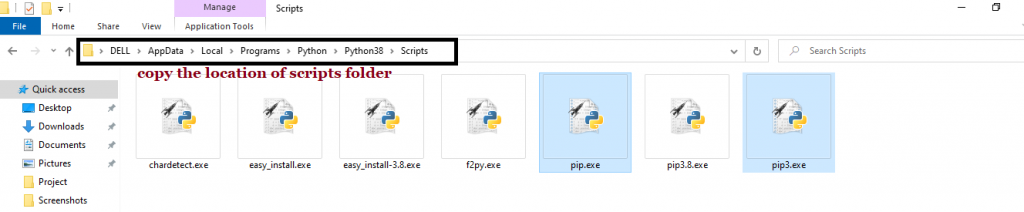
Step 2: Once you have opened the Python folder, browse and open the Scripts folder and copy its location. Also verify that the folder contains the pip file.
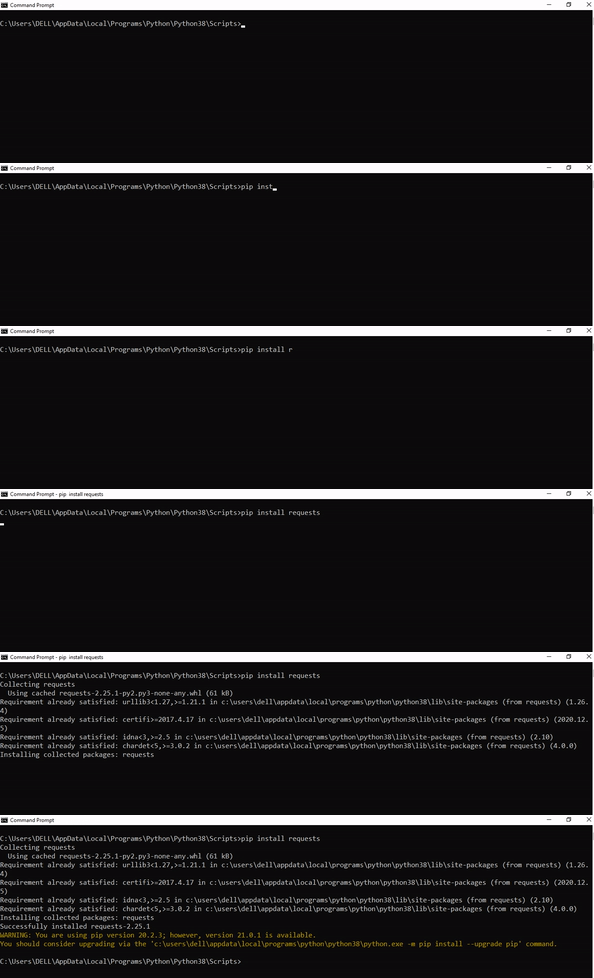
Step 3: Now open the Scripts directory in the command prompt using the cd command and the location that you copied previously.
Step 4: Now install the library using pip install readline command. Here’s an analogous example:
After having followed the above steps, execute our script once again. And you should get the desired output.
Other Solution Ideas
The ModuleNotFoundError may appear due to relative imports. You can learn everything about relative imports and how to create your own module in this article.
You may have mixed up Python and pip versions on your machine. In this case, to install readline for Python 3, you may want to try python3 -m pip install readline or even pip3 install readline instead of pip install readline
If you face this issue server-side, you may want to try the command pip install – user readline
If you’re using Ubuntu, you may want to try this command: sudo apt install readline
You can also check out this article to learn more about possible problems that may lead to an error when importing a library.
Understanding the “import” Statement
import readline
In Python, the import statement serves two main purposes:
Search the module by its name, load it, and initialize it.
Define a name in the local namespace within the scope of the import statement. This local name is then used to reference the accessed module throughout the code.
What’s the Difference Between ImportError and ModuleNotFoundError?
What’s the difference between ImportError and ModuleNotFoundError?
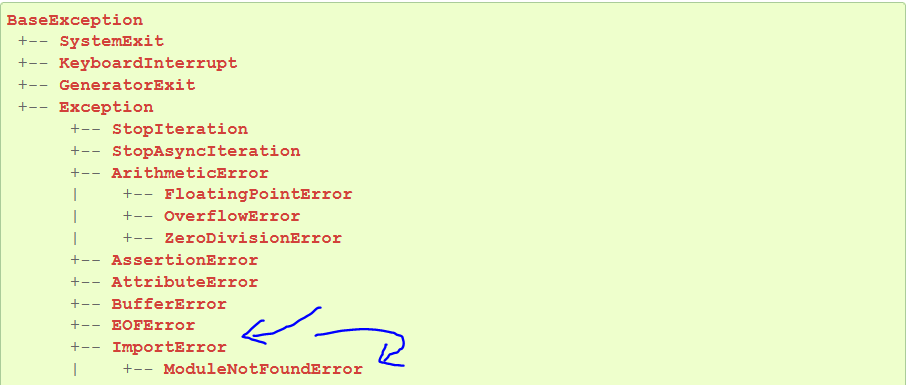
Python defines an error hierarchy, so some error classes inherit from other error classes. In our case, the ModuleNotFoundError is a subclass of the ImportError class.
You can see this in this screenshot from the docs:
You can also check this relationship using the issubclass() built-in function:
Specifically, Python raises the ModuleNotFoundError if the module (e.g., readline) cannot be found. If it can be found, there may be a problem loading the module or some specific files within the module. In those cases, Python would raise an ImportError.
If an import statement cannot import a module, it raises an ImportError. This may occur because of a faulty installation or an invalid path. In Python 3.6 or newer, this will usually raise a ModuleNotFoundError.
Related Videos
The following video shows you how to resolve the ImportError:
How to Fix “ModuleNotFoundError: No module named ‘readline’” in PyCharm
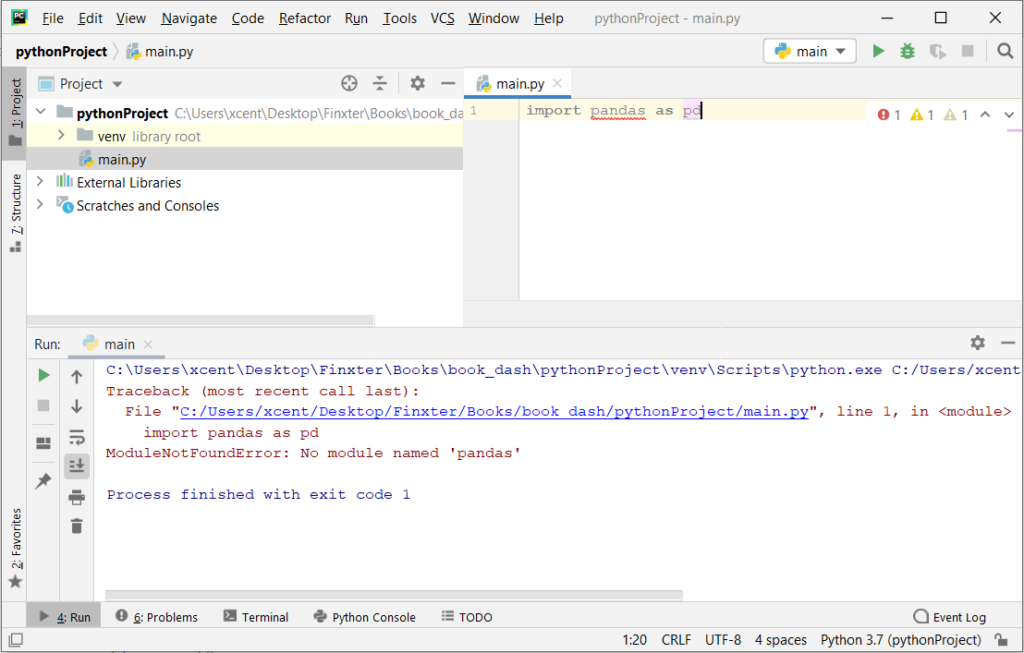
If you create a new Python project in PyCharm and try to import the readline library, it’ll raise the following error message:
Traceback (most recent call last): File "C:/Users/.../main.py", line 1, in <module> import readline
ModuleNotFoundError: No module named 'readline' Process finished with exit code 1
The reason is that each PyCharm project, per default, creates a virtual environment in which you can install custom Python modules. But the virtual environment is initially empty—even if you’ve already installed readline on your computer!
Here’s a screenshot exemplifying this for the pandas library. It’ll look similar for readline.
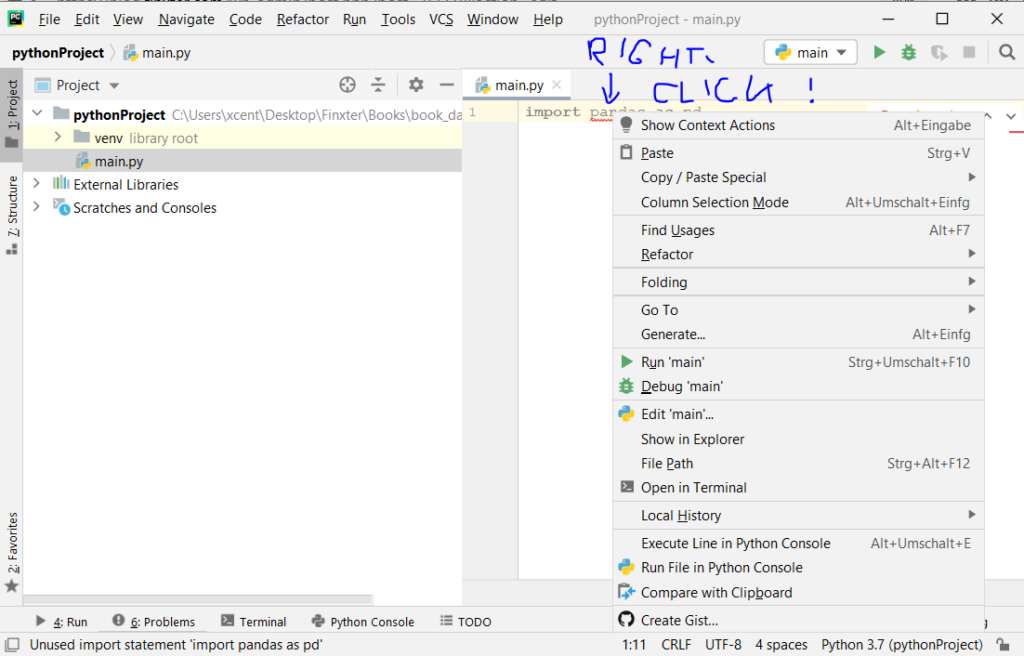
The fix is simple: Use the PyCharm installation tooltips to install Pandas in your virtual environment—two clicks and you’re good to go!
First, right-click on the pandas text in your editor:
Second, click “Show Context Actions” in your context menu. In the new menu that arises, click “Install Pandas” and wait for PyCharm to finish the installation.
The code will run after your installation completes successfully.
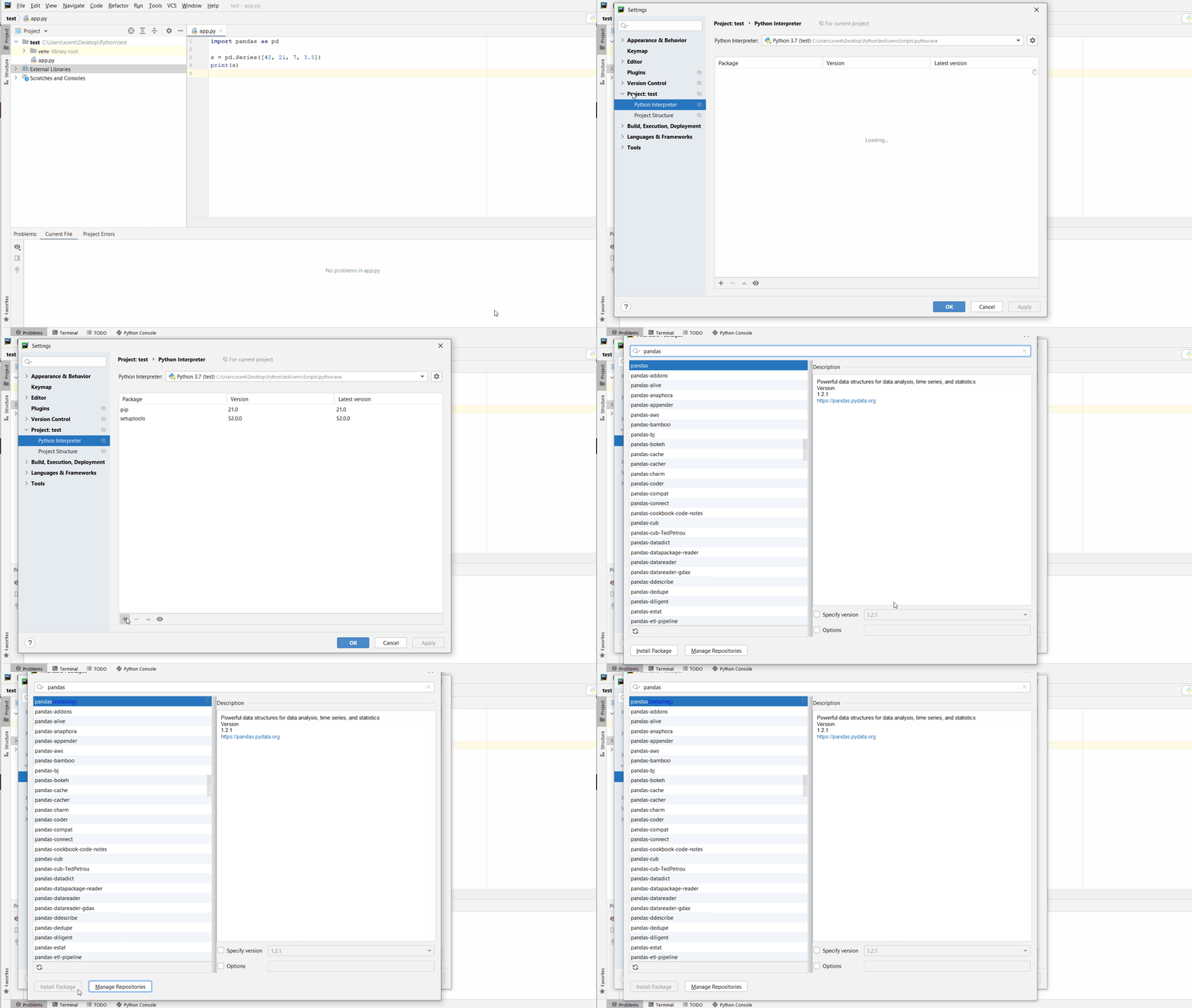
As an alternative, you can also open the Terminal tool at the bottom and type:
Summary: Use 'given_string'.splitlines(True) to split the string and also keep the new line character.
Minimal Example:
text = 'abc\nlmn\nxyz'
print(text.splitlines(True)) # OUTPUT: ['abc\n', 'lmn\n', 'xyz']
Problem Formulation
Problem: Given a string. How will you split the string into a list of substrings and keep the new line character intact?
Example: Let’s have a look at a test case to understand the given problem.
# Input
text = """Sun
Earth
Moon""" # Expected Output:
['Sun\n', 'Earth\n', 'Moon']
OR
['Sun', '\n', 'Earth', '\n', 'Moon']
Without further ado, let us now dive into the different solutions for the given problem.
Method 1: Use splitlines(True)
Approach: The splitlines() method is used to split the string at all line breaks. If you pass True as a parameter within the splitlines method, then the resultant list includes the newline character along with the substring/item.
The re.split(pattern, string) method matches all occurrences of the pattern in the string and divides the string along the matches resulting in a list of strings between the matches. For example, re.split('a', 'bbabbbab') results in the list of strings ['bb', 'bbb', 'b']. Read more here – Python Regex Split.
Approach: Use re.split('(\W)', 'given_string') where the brackets() ensure the separators/delimiters are also stored in the list along with the word characters and \W is a special sequence that returns a match where it does not find any word characters in the given string. Here it is used to find the delimiters while splitting the string.
Code:
import re
text = """Sun
Earth
Moon"""
print(re.split('(\W)', text)) # OUTPUT: ['Sun', '\n', 'Earth', '\n', 'Moon']
Note: Instead of “\W” you are free to use any other expression that suits your needs however, make sure to enclose it within brackets to ensure that the newline characters (delimiter) are also included.
In case you do not want to include the separators as independent items, instead, you want to include them along with the split substrings/items, then you can simply split the given string using “\n” as the separator and then append or concatenate the newline character to each substring/item one by one except the last item. This is what you can do:-
import re
text = """Sun
Earth
Moon"""
res = re.split('\n', text)
output = []
for i in range(len(res)-1): output.append(res[i]+"\n")
output.append(res[-1])
print(output) # Alternate Formulation
res = [x+"\n" for x in re.split('\n', text)]
res[-1] = res[-1].strip('\n')
print(res) # OUTPUT: ['Sun\n', 'Earth\n', 'Moon']
Do you want to master the regex superpower? Check out my new book The Smartest Way to Learn Regular Expressions in Python with the innovative 3-step approach for active learning: (1) study a book chapter, (2) solve a code puzzle, and (3) watch an educational chapter video.
Approach: Use a list comprehension to split the given string using a for loop and the split() method and return each substring as an item and concatenate the separator (“new line character” in this case) along with the item. Note that the resultant list will have an extra “\n” character at the end. You can simply strip this new line character from the last element of the list.
Code:
text = """Sun
Earth
Moon"""
# split string and keep "\n"
res = [x+"\n" for x in text.split()]
# remove the extra "\n" character from the last item of the list res[-1] = res[-1].strip('\n')
print(res) # OUTPUT: ['Sun\n', 'Earth\n', 'Moon']
If you want the separator as an independent item in the list then go for the following expression –
text = """Sun
Earth
Moon"""
res = [u for x in text.split('\n') for u in (x, '\n')]
res.pop(-1)
print(res) # OUTPUT: ['Sun', '\n', 'Earth', '\n', 'Moon']
Conclusion
We have successfully solved the given problem using different approaches. I hope this article helped you in your Python coding journey. Please subscribe and stay tuned for more interesting articles.
But before we move on, I’m excited to present you my new Python book Python One-Liners (Amazon Link).
If you like one-liners, you’ll LOVE the book. It’ll teach you everything there is to know about a single line of Python code. But it’s also an introduction to computer science, data science, machine learning, and algorithms. The universe in a single line of Python!
The book was released in 2020 with the world-class programming book publisher NoStarch Press (San Francisco).
This article will show you how to create and execute a batch file in Python.
Info: A batch or .bat file is a file that contains commands to be executed in the order specified. This file type can organize and automate tasks that need to be run regularly without requiring user input. These files can be created using a text editor, such as Notepad.
To make it more interesting, we have the following running scenario:
The Sales Manager of Suppliworks has asked you to create and send him a Monthly Sales Report. This file will arrive as an unsorted, unfiltered CSV. You will need to filter this criterion based on the current month and save it as an Excel file to the current working directory.
Download the sales.csv file to follow along with our article.
Question: How would we write code to create and execute a batch file in Python?
We can accomplish this task by completing the following steps:
Install the Batch Runner Extension
Create the Python Script
Create the .bat file
Execute
Install Batch Runner Extension
To run/execute a bat file, an extension will need to be installed in the IDE.
To install this extension, navigate to the IDE, Extensions area. In the VSC IDE, this can be found on the far left panel bar shown below.
In the Search textbox, enter Batch Runner. While entering this text, the IDE automatically searches for extensions that match the criteria entered.
Once the desired extension is found, click the Install button to the left of the Batch Runner extension to start the installation process.
Once the installation has been completed, the Install button converts to a Settings icon. The extension is now ready to use!
Note: Feel free to install the Batch Extension of your choosing.
Create Python Script
This section creates a Python file that reads in a CSV, sorts, filters and saves the output to an Excel file.
You can replace this with any Python file you want to run. For this example, we’ll need two libraries:
The pandas library will need to be installed for this example, as the code reads in and filters a CSV file.
The openpyxl library will need to be installed for this example, as the code exports the filtered DataFrame to an Excel file. To install this library, navigate to the IDE terminal command prompt. Enter and run the code snippet shown below.
To install those libraries, navigate to the IDE terminal command prompt. Enter and run the two commands to install both libraries:
pip install pandas
pip install openpyxl
In the current working directory, create a Python file called sales.py.
Copy and paste the code snippet below into this file and save it.
The first three (3) lines in the above code snippet import references to the libraries necessary to run this code error-free.
The following line retrieves the current date using datetime.now()from the datetime library. The results save to the variable today. If the contents were output to the terminal, the following displays:
2022-11-08 07:59:00.875656
The next line declares a List containing the DataFrame Columns to retrieve from the CSV file and export to the Excel file. The results save to cols.
Then, the sales.csv file is opened, and columns specified in cols are retrieved. The results save to the DataFrame df. If df was output to the terminal, the following snippet displays:
Top Five (5) Records of sales.csv
OrderDate
Region
Item
Units
0
11/6/2022
East
Pencil
95
1
11/23/2022
Central
Binder
50
2
11/9/2022
Central
Pencil
36
3
11/26/2022
Central
Pen
27
4
11/15/2022
West
Pencil
56
The next line converts the OrderDate into a proper Date format.
OrderDate
Region
Item
Units
0
2022-11-06
East
Pencil
95
1
2022-11-23
Central
Binder
50
2
2022-11-09
Central
Pencil
36
3
2022-11-26
Central
Pen
27
4
2022-11-15
West
Pencil
56
As you can see, the DataFrame, df, is not in any kind of sort order. The next line takes care of this by sorting on the OrderDate field in ascending order. The results save back to the DataFrame df.
OrderDate
Region
Item
Units
22
2022-01-15
Central
Binder
46
23
2022-02-01
Central
Binder
87
24
2022-02-18
East
Binder
4
25
2022-03-07
West
Binder
7
26
2022-03-24
Central
Pen Set
50
This script’s final two (2) lines filter the DataFrame, df, based on the current month. The results save to df_monthly. These results are then exported to Excel and placed into the current working directory.
If you run this code, you will see that the Excel file saved the appropriate filtered results into the monthly_rpt.xlsx file.
Great! Now let’s create a Batch file to run this script!
Create Batch File
In this section, a bat file is created to run the Python file sales.py.
In the current working directory, create a bat file called sales.bat.
Copy and paste the code snippet below into this file and save it.
@echo off "C:\Python\python.exe" "sales.py"
The first line of the code snippet turns off any output to the terminal.
The following line specifies the following:
The location of the python.exe file on your computer.
The Python script to execute.
Let’s see if this works!
Execute
This section executes the bat file, which calls and runs the code inside the sales.py file.
To run the bat file, navigate to the IDE, and click to select the sales.bat file.
Press the F5 key on the keyboard to execute.
If successful, the monthly_rpt.xlsx file will appear in the current working directory!
Summary
This article has shown you have to create and run a .bat file that executes a Python script. This file can execute a simple Python script as well as an intricate one.
You may experience the following error message in your Python code when trying to import urlparse:
ModuleNotFoundError: No module named 'urlparse'
>>> import urlparse
Traceback (most recent call last): File "<pyshell#3>", line 1, in <module> import urlparse
ModuleNotFoundError: No module named 'urlparse'
How to fix it and what is the reason this error occurs?
This error usually occurs because urlparse has been renamed to urllib.parse. So you need to pip install urllib and then import urllib and call urllib.parse to make it work.
To accomplish this, follow the tutorial outlined next or simply try running this command in your terminal, console, shell, or command line:
pip install urllib
After that, you can use urllib.parse like so (source):
from urllib.parse import urlparse
urlparse("scheme://netloc/path;parameters?query#fragment") o = urlparse("http://docs.python.org:80/3/library/urllib.parse.html?" "highlight=params#url-parsing")
print(o)
Summary: Use given_string.rsplit('sep', 1)[-1] to split the string and get the last element. Another approach is to use given_string.rpartition('sep', 1)[-1]
Problem: Given a string. How will you split the string and get the last element?
Let’s try to understand the given problem with the help of an example:
Example 1
# Input:
text = 'Java_C++_C#_Golang_Python'
# Expected Output:
Split String: ['Java_C++_C#_Golang', 'Python']
Last Element: Python
In the above example, “_” is the separator. However, not the entire string has been split. Only the last substring that comes after the separator has been extracted.
Example 2
# Input:
text = 'Java_C++_C#_Golang_Python_'
# Expected Output:
Split String: ['Java_C++_C#_Golang', 'Python']
Last Element: Python
Unlike the previous example, the input string ends with the separator itself. However, the output is similar. So, you have a different input string, but you have to generate a similar output by eliminating the separator.
Let’s dive into the different ways of solving the given problems.
Prerequisite: Simply put, the rsplit method splits a given string based on a given separator and stores the characters/substrings into a list. For example, finxterx42'.rsplit('x') will return the list ['fin', 'ter', '42'] as an output. rsplit can take two arguments –
sep – The separator string on which it is split.
maxsplit – The number of times the string is split.
Thus, you can use the maxsplit argument to your advantage and solve the given question by setting maxsplit = 1. This means the string will be split along the specified separator only once from the right end. Once the string is split into two parts from the right end, all that you need to do is extract the second element from the list created by the rsplit method.
Split String: ['Java_C++_C#_Golang', 'Python']
Last Element: Python
Solution to Example 2: In the second scenario, you must get rid of the separator that comes at the end of the string. Otherwise, simply using rsplit with the maxsplit argument will create a list that will create a list that will contain an empty character as the last item as shown below –
To avoid this problem, you can use the strip() function to get rid of the separator and then use rsplit as shown in the snippet below.
text = 'Java_C++_C#_Golang_Python_'
text = text.strip('_')
print("Split String: ", text.rsplit('_', 1))
print("Last Element: ", text.rsplit('_', 1)[-1])
Output:
Split String: ['Java_C++_C#_Golang', 'Python'] Last Element: Python
You can also use the rpartition method to solve the given problem. The rpartition method searches for a separator substring and returns a tuple with three strings: (1) everything before the separator, (2) the separator itself, and (3) everything after it. For example: finxterx42'.rpartition('x') will return the following tuple: ('finxter', 'x', '42')
Thus, you can simply extract the last item from the tuple after the string has been cut by the rpartition method.
Code:
# Solution to Example 1
text = 'Java_C++_C#_Golang_Python'
print("Split String: ", text.rpartition('_'))
print("Last Element: ", text.rpartition('_')[-1]) # Solution to Example 2
text = 'Java_C++_C#_Golang_Python_'
text = text.strip('_')
print("Split String: ", text.rpartition('_'))
print("Last Element: ", text.rpartition('_')[-1])
Output:
Split String: ('Java_C++_C#_Golang', '_', 'Python')
Last Element: Python
Coding Challenge
Before we wrap up this tutorial, here’s a coding challenge for you to test your grip on the concept you just learned.
Input: Consider the following IP Address – ip = 110.210.130.140 Challenge: Extract the network bit from the given class A ip address and convert it to its binary form. Expected Output: 10001100 Hint: – 140 is the network bit! – How to Convert a String to Binary in Python?
Solution:
ip = '110.210.130.140'
nw_bit = int(ip.rpartition('.')[-1])
print(bin(nw_bit)[2:])
Explanation: The solution is pretty straightforward. You first have to extract the network bit, i.e., 140. This happens to be the last item after the “.“. So, you can use rpartition and feed “.” as the separator and extract the last item (the network bit) from the tuple returned by the rpartition method. Since this will be a string, you must convert it to an integer and then typecast this integer to a binary number using the bin function to generate the final output.
I hope you enjoyed the numerous scenarios and challenges used in this tutorial to help you learn the two different ways of splitting a string and getting the last item. Please subscribe and stay tuned for more interesting tutorials and solutions.
This article will show you how to create and work with markdown files using Python.
Markdown is an excellent tool with many features to spice up a flat-text file, such as changing text colors, adding bullet points, tables, and much more. A terrific way to add pizzazz to an otherwise dull file.
To make it more interesting, we have the following running scenario:
Acme Spinners, manufacturer of the Spinner Widgets, has contacted you to create a README.md file for their software. They would like you to format the flat-text file to make it easier to navigate and more professional.
Each section of this article builds on the previous one. In the end, an entire README.md file will be created.
Question: How would we write code to create and populate an md file?
We can accomplish this task by performing the following steps:
Install Required Library
Create a Python File
Create a Markdown File
Preview Markdown File
Add Logo Image
Add a Paragraph
Add Heading
Add Table
Add Bullet Points
Add Table of Contents
Install Required Library
Before running the code in this article, the mdutils library must be installed.
To install this library, navigate to the command prompt and run the following code.
pip install mdutils
This library contains tools to assist in the creation of markdown files in Python, transforming a bland flat-text file into a fantastic-looking one!
Create Python File
Let’s start by creating a Python file called acme.py and placing this file into the current working directory.
In the IDE, navigate to and open acme.py and add the following lines.
from mdutils.mdutils import MdUtils
from mdutils import Html
These lines allow access to and manipulation of markdown features.
Save this file.
Create a Markdown File
The next step is to create a markdown file.
Open the acme.py file created earlier. At this point, this file should only contain two (2) lines of code.
from mdutils.mdutils import MdUtils
from mdutils import Html
The following code snippet appends two (2) additional lines to acme.py.
The first highlighted line calls the Mdutils() function and passes one (1) argument: a filename. This creates an object and saves it to mdAcme. If output to the terminal, an object similar to the one below would display.
<mdutils.mdutils.MdUtils object at 0x00000257FEB64940>
from mdutils.mdutils import MdUtils
from mdutils import Html mdAcme = MdUtils(file_name='acme') mdAcme.create_md_file()
The following line appends the create_md_file() function to the mdAcme object. When this code is run, the acmd.md file is created and saved to the current working directory.
Typically, the above line is only called once all the file contents have been finalized. From hereon in, all additional code will be placed above this line.
Save the acme.py file.
Note: A file extension is not required when passing a filename to the Mdutils() function. By default, md is assumed.
Preview a Markdown File
During the progression of our markdown file, we can preview the file in our IDE. These instructions assume you are using the VSC IDE.
In the IDE, hover over the acme.md file and right-mouse click. This action displays a pop-up.
From this pop-up, select Open Preview (or CTRL+SHIFT+V). This action displays a preview of the acme.md file. At this point, there is no data to display.
No worries! We’ll fix this in the next sections!
Note: Depending on the IDE, the Preview option may differ.
Add Logo Image
Let’s add a logo to the top of the Markdown file. Save the logo at the top of this article and place it in the current working directory.
The highlighted line calls the new_line() function, which adds a new line to the file. Then, new_inline_image() is called and passed one (1) argument: path (the full path to the image).
from mdutils.mdutils import MdUtils
from mdutils import Html mdAcme = MdUtils(file_name='acme')
mdAcme.new_line(mdAcme.new_inline_image(path='as_logo.png')) mdAcme.create_md_file()
Update acme.py, save and run.
If we preview acme.md, the logo displays on a new line (size: 411×117) and is left-aligned.
Option 2:
To change the image size and/or alignment, use the Html. image() function.
from mdutils.mdutils import MdUtils
from mdutils import Html mdAcme = MdUtils(file_name='acme')
mdAcme.new_paragraph(Html.image(path='as_logo.png', size='250', align='center')) mdAcme.create_md_file()
The highlighted line calls the new_paragraph() function, which adds a new line to the file. Then, Html_image() is called and passed three (3) arguments: path (image location/name), size (image size) and align (image alignment).
Update acme.py, save and run.
If we preview acme. md, the logo displays in its modified size and is center-aligned.
For this article, Option 2 is used.
Add a Paragraph
Earlier, new_paragraph() was used to add a logo. However, we can also use this to add plain text. Let’s add a new paragraph.
The highlighted line creates a new string. This string is formatted to bold, italics and is center-aligned.
from mdutils.mdutils import MdUtils
from mdutils import Html mdAcme = MdUtils(file_name='acme')
mdAcme.new_paragraph(Html.image(path='as_logo.png', size='250', align='center'))
mdAcme.new_paragraph('License and Installation Instructions', bold_italics_code='bi', align='center') mdAcme.create_md_file()
Update acme.py, save and run.
If we preview acme.md, the paragraph displays in bold italics and is center-aligned.
Add Heading and Text
A Level 1 Heading (level=1) called Overview and text is added.
In the highlighted area below, an Overview section is created.
This section shows how to use the write() and new_paragraph() functions to display text, change text colors and add hyperlinks.
from mdutils.mdutils import MdUtils
from mdutils import Html mdAcme = MdUtils(file_name='acme')
mdAcme.new_paragraph(Html.image(path='as_logo.png', size='250', align='center'))
mdAcme.new_paragraph('License and Installation Instructions', bold_italics_code='bi', align='center') mdAcme.new_header(level=1, title='Overview')
mdAcme.write("Welcome to <font color='red'>Acme Spinners</font>!\n\n")
mdAcme.new_paragraph("Visit our website at <a href='#'>acmespinners.ca</a> to view our videos on the latest spinner techniques.\n") mdAcme.create_md_file()
Update acme.py, save and run.
If we preview acme.md, the Overview heading and text displays.
Let’s open acme.md to review the code when not in Preview Mode.
Notice that the code in the acme.py file was converted to HTML.
Note: If you are unfamiliar with HTML, click here to learn more!
Add Table
A Level 2 Heading (level=2) called License, and a table is added.
In the highlighted area below, a License section was created.
This section displays details about the license in a table format. This example adds a line for each entry. However, a loop could also be used to populate the table.
from mdutils.mdutils import MdUtils
from mdutils import Html mdAcme = MdUtils(file_name='acme')
mdAcme.new_paragraph(Html.image(path='as_logo.png', size='250', align='center'))
mdAcme.new_paragraph('License and Installation Instructions', bold_italics_code='bi', align='center') mdAcme.new_header(level=1, title='Overview')
mdAcme.write("Welcome to <font color='red'>Acme Spinners</font>!\n\n")
mdAcme.new_paragraph("Visit our website at <a href='#'>acmespinners.ca</a> to view our videos on the latest spinner techniques.\n") mdAcme.new_header(level=2, title='License')
data = ["Item", "Description"]
data.extend(["License #", "ACS-3843-34-2217"])
data.extend(["Purchase Date", "Nov. 1, 2022"])
data.extend(["", ""])
mdAcme.new_table(columns=2, rows=4, text=data, text_align='left')
mdAcme.new_line()
Update, save and run the acme.py file.
If we preview acme.md, the following displays.
Add Bullet Points
A Level 3 Heading (level=3) called Instructions, and two (2) sets of bullet points are added.
from mdutils.mdutils import MdUtils
from mdutils import Html mdAcme = MdUtils(file_name='acme')
mdAcme.new_paragraph(Html.image(path='as_logo.png', size='250', align='center'))
mdAcme.new_paragraph('License and Installation Instructions', bold_italics_code='bi', align='center') mdAcme.new_header(level=1, title='Overview')
mdAcme.write("Welcome to <font color='red'>Acme Spinners</font>!\n\n")
mdAcme.new_paragraph("Visit our website at <a href='#'>acmespinners.ca</a> to view our videos on the latest spinner techniques.\n") mdAcme.new_header(level=2, title='License')
data = ["Item", "Description"]
data.extend(["License #", "ACS-3843-34-2217"])
data.extend(["Purchase Date", "Nov. 1, 2022"])
data.extend(["", ""])
mdAcme.new_table(columns=2, rows=4, text=data, text_align='left') mdAcme.new_header(level=3, title='Instructions')
list1 = ['Getting Started', 'Remove Battery', ['Add 2 AAA Batteries', 'Close and lock']]
mdAcme.new_list(list1)
list2 = ['1. Set Level', ['1. Scroll to view levels', '2. Press Select'], '2. Press Start', ]
mdAcme.new_list(list2) mdAcme.create_md_file()
Update, save and run the acme.py file.
If we preview acme.md, the following displays.
Note: There are additional ways to configure bullet points. For this article, the most commonly used was selected.
Add a Table of Contents
This sections combines the three (3) headings created earlier (different level for each) and from these lines, creates a Table of Contents.
On the highlighted line, the Table of Contents is created. For this function, a title (‘Table of Contents‘), and depth (3) was passed.
A depth of 3 was selected as each heading in this article was assigned a different level (example, level=1, level=2, level=3).
from mdutils.mdutils import MdUtils
from mdutils import Html mdAcme = MdUtils(file_name='acme')
mdAcme.new_paragraph(Html.image(path='as_logo.png', size='250', align='center'))
mdAcme.new_paragraph('License and Installation Instructions', bold_italics_code='bi', align='center') mdAcme.new_header(level=1, title='Overview')
mdAcme.write("Welcome to <font color='red'>Acme Spinners</font>!\n\n")
mdAcme.new_paragraph("Visit our website at <a href='#'>acmespinners.ca</a> to view our videos on the latest spinner techniques.\n") mdAcme.new_header(level=2, title='License')
data = ["Item", "Description"]
data.extend(["License #", "ACS-3843-34-2217"])
data.extend(["Purchase Date", "Nov. 1, 2022"])
data.extend(["", ""])
mdAcme.new_table(columns=2, rows=4, text=data, text_align='left') mdAcme.new_header(level=3, title='Instructions')
list1 = ['Getting Started', 'Remove Battery', ['Add 2 AAA Batteries', 'Close and lock']]
mdAcme.new_list(list1)
list2 = ['1. Set Level', ['1. Scroll to view levels', '2. Press Select'], '2. Press Start', ]
mdAcme.new_list(list2) mdAcme.new_table_of_contents(table_title='Table of Contents', depth=3) mdAcme.create_md_file()
Update, save and run the acme.py file.
If we preview acme.md, the following displays.
Summary
This article has shown you how to construct a fantastic-looking flat-text file!
Good Luck & Happy Coding!
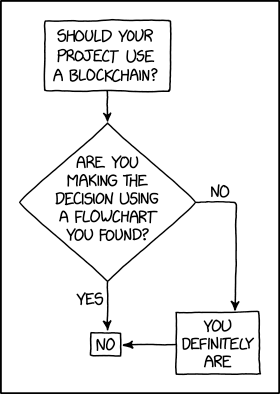
Programmer Humor – Blockchain
“Blockchains are like grappling hooks, in that it’s extremely cool when you encounter a problem for which they’re the right solution, but it happens way too rarely in real life.”source – xkcd
The unittest module is part of Python’s standard library for a long time. So in most cases, there’s no need to install it using something like pip install unittest. Simply run import unittest in your Python code and it works without installation.
In your Python code:
import unittest
If you try to pip install it, you’ll get the following error Could not find a version that satisfies the requirement unittest that you can fix by not installing it in the first place (it already is)!
PS C:\Users\xcent> pip install unittest
ERROR: Could not find a version that satisfies the requirement unittest (from versions: none)
ERROR: No matching distribution found for unittest
If you’re using Python 2, you can try installing the unittest2 package that is a backport for unit testing in Python 2.7. Then
pip install unittest2
Then add the following line to your Python code instead of import unittest:
import unittest2
Legacy Solutions to Install UnitTest Module
For some very old Python versions, you may want to try this approach:
Quick Fix: Python raises the ImportError: No module named 'unittest' when it cannot find the library unittest. The most frequent source of this error is that you haven’t installed unittest explicitly with pip install unittest. Alternatively, you may have different Python versions on your computer, and unittest is not installed for the particular version you’re using.
To fix this error, you can run the following command in your Windows shell:
$ pip install unittest
This simple command installs unittest in your virtual environment on Windows, Linux, and MacOS. It assumes that your pip version is updated. If it isn’t, use the following two commands in your terminal, command line, or shell (there’s no harm in doing it anyways):
Note: Don’t copy and paste the $ symbol. This is just to illustrate that you run it in your shell/terminal/command line.
The error might persist even after you have installed the unittest library. This likely happens because pip is installed but doesn’t reside in the path you can use. Although pip may be installed on your system the script is unable to locate it. Therefore, it is unable to install the library using pip in the correct path.
To fix the problem with the path in Windows follow the steps given next.
Step 1: Open the folder where you installed Python by opening the command prompt and typing where python
Step 2: Once you have opened the Python folder, browse and open the Scripts folder and copy its location. Also verify that the folder contains the pip file.
Step 3: Now open the Scripts directory in the command prompt using the cd command and the location that you copied previously.
Step 4: Now install the library using pip install unittest command. Here’s an analogous example:
After having followed the above steps, execute our script once again. And you should get the desired output.
Other Solution Ideas
The ModuleNotFoundError may appear due to relative imports. You can learn everything about relative imports and how to create your own module in this article.
You may have mixed up Python and pip versions on your machine. In this case, to install unittest for Python 3, you may want to try python3 -m pip install unittest or even pip3 install unittest instead of pip install unittest
If you face this issue server-side, you may want to try the command pip install – user unittest
If you’re using Ubuntu, you may want to try this command: sudo apt install unittest
You can also check out this article to learn more about possible problems that may lead to an error when importing a library.
Understanding the “import” Statement
import unittest
In Python, the import statement serves two main purposes:
Search the module by its name, load it, and initialize it.
Define a name in the local namespace within the scope of the import statement. This local name is then used to reference the accessed module throughout the code.
What’s the Difference Between ImportError and ModuleNotFoundError?
What’s the difference between ImportError and ModuleNotFoundError?
Python defines an error hierarchy, so some error classes inherit from other error classes. In our case, the ModuleNotFoundError is a subclass of the ImportError class.
You can see this in this screenshot from the docs:
You can also check this relationship using the issubclass() built-in function:
Specifically, Python raises the ModuleNotFoundError if the module (e.g., unittest) cannot be found. If it can be found, there may be a problem loading the module or some specific files within the module. In those cases, Python would raise an ImportError.
If an import statement cannot import a module, it raises an ImportError. This may occur because of a faulty installation or an invalid path. In Python 3.6 or newer, this will usually raise a ModuleNotFoundError.
Related Videos
The following video shows you how to resolve the ImportError:
Fasting has many scientifically proven benefits for your body and overall health:
Intermittent fasting improved blood pressure and resting heart rates as well as other heart-related measurements. Physical performance. Young men who fasted for 16 hours showed fat loss while maintaining muscle mass. Mice who were fed on alternate days showed better endurance in running. — Johns Hopkins Medicine
While Finxter is not a health blog and I am not a medical advisor, allow me to share this age-old wisdom from the book “The Fasting Cure” by Upton Sinclair.
Intermittent fasting has helped me and many other highly productive individuals create more value, stay more healthy, and maximize their productivity — in coding, business, or any other professional field.
Fasting can make you more money—so keep reading!
This short book summary is based on the original book that can be downloaded for free here. I’ll give many direct quotes from the book but only the ones that I think are useful for you so you don’t have to read the whole book by yourself. All highlights are my own.
Perfect Health
The Fasting Cure appeared in Cosmopolitan Magazine in the year 1910—you see: few things are as well-researched and well-understood as the benefits of fasting. More than 100 years later and scientists still agree on the benefits of fasting!
Like nobody would argue against the benefits of sleep, nobody can argue with the benefits of fasting.
Let that sink in.
The book starts with a strong opening paragraph about Perfect Health:
Have you any conception of what the phrase means? Can you form any image of what would be your feeling if every organ in your body were functioning perfectly? Perhaps you can go back to some day in your youth, when you got up early in the morning and went for a walk, and the spirit of the sunrise got into your blood, and you walked faster, and took deep breaths, and laughed aloud for the sheer happiness of being alive in such a world of beauty. And now you are grown older—and what would you give for the secret of that glorious feeling? What would you say if you were told that you could bring it back and keep it, not only for mornings, but for afternoons and evenings, and not as something accidental and mysterious, but as something which you yourself have created, and of which you are completely master? (source)
Everybody wants to be healthy, full of energy, and free from pain. Being healthy means not only a much better quality of life, but health is also the source of all human productivity.
The more you lose health, the less you get done. So spend some time on your health daily!
It is simply that for ten years I have been studying the ill health of myself and of the men and women around me. And I have found the cause and the remedy. I have not only found good health, but perfect health; I have found a new state of being, a new potentiality of life; a sense of lightness and cleanness and joyfulness, such as I did not know could exist in the human body. (source)
Next, the book goes into some personal stories of the health struggles of the author, while interesting, we’ll skip over them quickly—time is scarce.
Here’s the kicker story that made the author act on the fasting cure:
So matters stood when I chanced to meet a lady, whose radiant complexion and extraordinary health were a matter of remark to everyone. I was surprised to hear that for ten or fifteen years, and until quite recently, she had been a bed-ridden invalid. She had lived the lonely existence of a pioneer’s wife, and had raised a family under conditions of shocking ill-health. She had suffered from sciatica and acute rheumatism; from a chronic intestinal trouble which the doctors called “intermittent peritonitis”; from intense nervous weakness, melancholy, and chronic catarrh, causing deafness. […] And this woman, when she took the ride, had not eaten a particle of food for four days previously! […] That was the clue to her escape: she had cured herself by a fast. She had abstained from food for eight days, and all her troubles had fallen from her. Afterwards she had taken her eldest son, a senior at Stanford, and another friend of his, and fasted twelve days with them, and cured them of nervous dyspepsia. And then she had taken a woman friend, the wife of a Stanford professor, and cured her of rheumatism by a week’s fast. I had heard of the fasting cure, but this was the first time I had met with it. […] After another spell of hard work I found myself unable to digest corn-meal mush and milk; and so I was ready for a fast. (source)
Next, the author describes how he implemented his first fasting streak and how it helped him resolve his limitations of certain types of foods:
I had not taken what is called a “complete” fast—that is, I had not waited until hunger returned. Therefore I began again. I intended only a short fast, but I found that hunger ceased again, and, much to my surprise, I had none of the former weakness. I took a cold bath and a vigorous rub twice a day; I walked four miles every morning, and did light gymnasium work, and with nothing save a slight tendency to chilliness to let me know that I was fasting. I lost nine pounds in eight days, and then went for a week longer on oranges and figs, and made up most of the weight on these.
I shall always remember with amusement the anxious caution with which I now began to taste the various foods which before had caused me trouble. Bananas, acid fruits, peanut butter—I tried them one by one, and then in combination, and so realized with a thrill of exultation that every trace of my old trouble was gone. (source)
Let’s dive into some of the benefits of fasting and learn a couple of more insights into its working. Don’t forget that this was already figured out more than one hundred years ago!
The fast is to me the key to eternal youth, the secret of perfect and permanent health. I would not take anything in all the world for my knowledge of it. It is Nature’s safety-valve, an automatic protection against disease. I do not venture to assert that I am proof against virulent diseases, such as smallpox or typhoid. I know one ardent physical culturist, a physician, who takes typhoid germs at intervals in order to prove his immunity, but I should not care to go that far; it is enough for me to know that I am proof against all the common infections which plague us, and against all the “chronic” troubles. And I shall continue so just as long as I stand by my present resolve, which is to fast at the slightest hint of any symptom of ill-being—a cold or a headache, a feeling of depression, or a coated tongue, or a scratch on the finger which does not heal quickly.
Those who have made a study of the fast explain its miracles in the following way: Superfluous nutriment is taken into the system and ferments, and the body is filled with a greater quantity of poisonous matter than the organs of elimination can handle. The result is the clogging of these organs and of the blood-vessels—such is the meaning of headaches and rheumatism, arteriosclerosis, paralysis, apoplexy, Bright’s disease, cirrhosis, etc. And by impairing the blood and lowering the vitality, this same condition prepares the system for infection—for “colds,” or pneumonia, or tuberculosis, or any of the fevers. As soon as the fast begins, and the first hunger has been withstood, the secretions cease, and the whole assimilative system, which takes so much of the energies of the body, goes out of business. The body then begins a sort of house-cleaning, which must be helped by an enema and a bath daily, and, above all, by copious water-drinking. The tongue becomes coated, the breath and the perspiration offensive; and this continues until the diseased matter has been entirely cast out, when the tongue clears and hunger reasserts itself in unmistakable form.
Fasting and Weight
Now, you may ask: Can fasting help you lose weight?
Strange as it may seem, the fast is a cure for both emaciation and obesity. After a complete fast the body will come to its ideal weight. People who are very stout will not regain their weight; while people who are under weight may gain a pound or more a day for a month.
So fasting will help you reach your ideal weight, according to the author.
Next, he goes on with some more anecdotal material on how fasting has helped his wife and friends and thousands of readers who wrote in—the author became quite a celebrity on the subject of health and fasting. Fascinating!
While I skipped most of the anecdotes, I believe this excerpt from the book summarizes his enthusiasm quite well:
The reader may think that my enthusiasm over the fasting cure is due to my imaginative temperament; I can only say that I have never yet met a person who has given the fast a fair trial who does not describe his experience in the same way. I have never heard of any harm resulting from it, save only in cases of tuberculosis, in which I have been told by one physician that people have lost weight and not regained it.
I regard the fast as Nature’s own remedy for all other diseases. It is the only remedy which is based upon an understanding of the fundamental nature of disease. And I believe that when the glad tidings of its miracles have reached the people it will lead to the throwing of 90 per cent of our present materia medica into the waste-basket. This may be unwelcome to those physicians who are more concerned with their own income than they are with the health of their patients; but I personally have never met any such physicians, and so I most earnestly urge it upon medical men to investigate the extraordinary and almost incredible facts about the fasting cure.
Next, he goes over several anecdotes where readers of the author’s articles sent in some of their own positive experiences with fasting and how it helped them solve their health issues.
Even other medical doctors wrote in sharing their own supportive evidence of the benefits of fasting as observed in their own medical practices.
Water and Milk
While I don’t want to discuss possibly outdated implementation tactics on fasting — such as drinking lots of milk while doing it — here’s one that you cannot argue with:
One should drink all the water he possibly can while fasting, only not taking too much at a time. I take a glass full every hour, at least; sometimes every half hour.
And speaking of the suggested milk diet, the author did have mixed evidence of its benefits:
Also I tried on many occasions to take the milk diet after a short fast of three or four days, and always the milk has disagreed with me and poisoned me.
I take it as evidence that the concrete implementation of the fasting diet must be well-researched and you should read the latest research on it.
Fasting and Disease
Anyways, most implementations of fasting seems to be beneficial for your body’s long-term and sustainable well-being.
People ask me in what diseases I recommend fasting. I recommend it for all diseases of which I have ever heard, with the exception of one in which I have heard of bad results—tuberculosis.
The latter not being an issue in many parts of the developed world anymore (fortunately).
The diseases for which fasting is mos obviously to be recommended are all those of the stomach and intestines, which any one can see are directly caused by the presence of fermenting and putrefying food in the system. Next come all those complaints which are caused by the poisons derived from these foods in the blood and the eliminative organs: such are headaches and rheumatism, liver and kidney troubles, and of course all skin diseases. Finally, there are the fevers and infectious diseases, which are caused by the invasion of the organism by foreign bacteria, which are enabled to secure a lodgment because of the weakened and impure condition of the blood-stream. Such are the “colds” and fevers. In these latter cases nature tries to save us, for there is immediately experienced a disinclination on the part of the sick person to take any sort of food; and there is no telling how many people have been hurried out of life in a few days or hours, because ignorant relatives, nurses and physicians have gathered at their bedside and implored them to eat.
To summarize, this is the author’s view on the question: when is the best time to start fasting?
The fast is Nature’s remedy for all diseases, and there are few exceptions to the rule. When you feel sick, fast. Do not wait until the next day, when you will feel stronger, nor till the next week, when you are going away into the country, but stop eating at once.
Fasting as a Wage Slave
Can you fast if you are a “wage slave”, i.e., you work as an employee for an hourly or monthly rate, and you cannot stop?
Many of the people who wrote to me were victims of our system of wage slavery, who wrote me that they were ill, but could not get even a few days’ release in which to fast. They wanted to know if they could fast and at the same time continue their work. Many can do this, especially if the work is of a clerical or routine sort. On my first fast I could not have done any work, because I was too weak. But on my second fast I could have done anything except very severe physical labor. I have one friend who fasted eight days for the first time, and who did all her own housework and put up several gallons of preserves on the last day. I have received letters from a couple of women who have fasted ten or twelve days, and have done all their own work. I know of one case of a young girl who fasted thirty-three days and worked all the time at a sanatorium, and on the twenty-fourth day she walked twenty miles.
Fasting Study on Small Data
Next, a very interesting “Symposium on fasting” presents the results of a questionnaire with 277 data points — not much in today’s age of research and big data.
So, I give only the quick list of diseases benefited from the fasting cure, according to the small study (take it with a grain of salt):
Following is the complete list of diseases benefited—45 of the cases having been diagnosed by physicians: indigestion (usually associated with nervousness), 27; rheumatism, 5; colds, 8; tuberculosis, 4; constipation, 14; poor circulation, 3; headaches, 5; anæmia, 3; scrofula, 1; bronchial trouble, 5; syphilis, 1; liver trouble, 5; general debility, 5; chills and fever, 1; blood poisoning, 1; ulcerated leg, 1; neurasthenia, 6; locomotor ataxia, 1; sciatica, 1; asthma, 2; excess of uric acid, 1; epilepsy, 1; pleurisy, 1; impaction of bowels, 1; eczema, 2; catarrh, 6; appendicitis, 3; valvular disease of heart, 1; insomnia, 1; gas poisoning, 1; grippe, 1; cancer, 1.
The Ideal Fasting Diet
But what is the ideal fasting diet? The author goes on to discuss this exact question.
The general rules are mostly of a negative sort. There are many kinds of foods, some of them most generally favored, of which one may say that they should never be used, and that those who use them can never be as well as they would be without them. Such foods are all that contain alcohol or vinegar; all that contain cane sugar; all that contain white flour in any one of its thousand alluring forms of bread, crackers, pie, cake, and puddings; and all foods that have been fried—by which I mean cooked with grease, whether that grease be lard, or butter, or eggs or milk. It is my conviction that one should bar these things at the outset, and admit of no exceptions. I do not mean to say that healthy men and women cannot eat such things and be well; but I say that they cannot be as well as they would be without them; and that every particle of such food they eat renders them more liable to all sorts of infection, and sows in their systems the seeds of the particular chronic disease that is to lay them low sooner or later.
A perfectly normal and well person is, under the artificial conditions of our bringing up, a very great rarity; and so we all have to regard ourselves as more or less diseased, and work towards the ideal of soundness. We must do this with intelligence—there is no short cut, no way to save one’s self the trouble of thinking.
Eating Fruits
Okay, and now here’s my own gold standard of a healthy diet: mainly fresh fruits.
That’s super cheap, and it just has to be super healthy:
By way of setting an ideal, let me give you the example of a young lady who for six or seven months has been living in our home, and giving us a chance to observe her dietetic habits. This young lady three years ago was an anæmic school-teacher, threatened with consumption, and a victim of continual colds and headaches; miserable and beaten, with an exopthalmic goitre which was slowly choking her to death. She fasted eight days, and achieved a perfect cure. She is to-day bright, alert and athletic; and she lives on about twelve hundred calories of food a day—one half what I eat, and less than a third of the old-school dietetic standards. Occasionally she will eat nut butter, or sweet potato, or some whole wheat crackers with butter, or a dish of ice-cream; but at least ninety per cent of her food has consisted of fresh fruit. Meal after meal, day after day, I have seen her eat one or two bananas and two or three peaches, or say, a slice of watermelon or canteloupe; at some meals she will eat only the peaches, and then again she will eat nothing. A dollar a week would pay for all her food; and on this diet she laughs and talks, reads and thinks, walks and swims with my wife and myself—a kind of external dietetic conscience, which we would find it hard to get along without. And tell me, Dr. Woods Hutchinson, or other scoffer at the “food-faddists,” don’t you think that a case like this gives us some right to ask for patient investigation of our claims? Or will you stand by your pill boxes and your carving-knives and the rest of your paraphernalia, and compel us to cure all your patients in spite of you?
Speaking of fruits, let’s see what the book tells us about meat:
Eating Meat
I am asked many questions as to my attitude toward the question of meat-eating. I was brought up on a diet of meat, bread and butter, potatoes, and sweet things. Four years ago when I found myself desperately run down, suffering from nervousness, insomnia, and almost incessant headaches, I came upon various articles written by vegetarians, and I began to suspect that my trouble might be due to meat. I went away on a camping-trip for several weeks, taking no meat with me, and because I found that I was a great deal better, I believed that the meat had been responsible for my trouble. I then visited the Battle Creek Sanitarium, and became familiar with all their arguments against meat, and thereafter I did not use it for three years. I called myself a vegetarian; but at the same time I realized that I differed from most vegetarians in some important particulars.
Well, nothing surprising here. Vegetarians were much more uncommon back in the old days. But now we know without a shadow of a doubt that vegatarians are healthier and live longer. It has been proven by many studies that a vegetarian diet is much healthier:
In most countries, vegetarian diets were associated with a lower intake of energy and saturated fat, and a better cardiovascular profile (lower body weight, LDL cholesterol levels, blood pressure, fasting glucose, and triglycerides) — Hargreaves et al. International Journal Environ Res Public Health
Here’s an interesting take from the book on contamination of meat:
There have been numerous expositions of the greater liability of meat to contamination. Dr. Kellogg, for instance, has purchased specimens of meat in the butcher-shops, and has had them examined under the microscope, and has told us how many hundreds of millions of bacteria to the gram have been discovered. This argument has a tendency to appal one; I know it had great effect upon me for a long time, and I took elaborate pains to take into my system only those kinds of food which were sterilized, or practically so. This is the health regimen which is advocated by Professor Metchnikoff; one should eat only foods which have been thoroughly boiled and sterilized. I have come, in the course of time, to the conclusion that this way of living is suicidal, and that there is no way of destroying one’s health more quickly. I think that the important question is, not how many bacteria there are in the food when you swallow it, but how many bacteria there come to be in food after it gets into your alimentary canal. The digestive juices are apparently able to take care of a very great number of germs; it is after the food has passed on down, and is lodged in the large intestine, that the real fermentation and putrefaction begin—and these count for more, in the question of health, than that which goes on in the butcher-shop or the refrigerator or the pantry
Is meat good for physical labor jobs?
I have been accustomed all my life to think of meat as a very “heavy” article of food, an article of food suited for men doing hard physical labor; it is a curious fact that the view I am setting forth here is precisely the opposite. So long as I am doing hard physical labor, whether it is walking ten miles a day, or playing tennis, or building a house, I get along perfectly upon the raw food; but when I settle down for long periods of thinking and writing—often sitting for six hours without moving from one position—I find that I need something else, and nothing has answered that purpose quite so well as beef-steak. It appears to be, so far as I am concerned, the most easily digested and most easily assimilated of foods. And because the work that I am doing seems to me to be important, I am willing to make the sacrifice of money and time and trouble which it necessitates. My diet at such times will consist of beef or chicken, shredded wheat biscuit, and a little fruit. If any one is disposed to follow my example and make this experiment, I beg to call his attention especially to the fact that I name these three kinds of food, and none others; and that I mean these three kinds and none others. The main trouble with advising anybody to eat meat is that he proceeds to eat it in the everyday world, where it means not the eating of broiled lean beef, but also of bacon and eggs, and of bread and butter, and of potatoes with cream gravy, and of rice pudding and crackers and cheese and coffee. Please do not proceed to eat these things and then hold meat-eating responsible for the consequences.
The book ends with a couple of articles and testimonials submitted by avid readers of the author. I think we can skip those safely because they are mostly anecdotical.
Fasting – Conclusion, Benefits, and How to Start
Let’s finish up this book summary about the fasting diet with the top benefits of fasting as reported by Healthline:
Promotes Blood Sugar Control by Reducing Insulin Resistance
Promotes Better Health by Fighting Inflammation
May Enhance Heart Health by Improving Blood Pressure, Triglycerides and Cholesterol Levels
May Boost Brain Function and Prevent Neurodegenerative Disorders
Aids Weight Loss by Limiting Calorie Intake and Boosting Metabolism
Increases Growth Hormone Secretion, Which Is Vital for Growth, Metabolism, Weight Loss and Muscle Strength
Could Delay Aging and Extend Longevity
May Aid in Cancer Prevention and Increase the Effectiveness of Chemotherapy
All of those are backed by science (see article referenced). The article also points out the most common ways to start fasting:
Water fasting: Drinking only water
Juice fasting: Drinking vegetable or or fruit juice
Intermittent fasting: Limit your fasting period to a number of hours daily (e.g., 16 hours non-eating per day)
Partial fasting: Eliminate certain foods such as processed foods or sugar or alcoholic beverages.
Calorie restriction: Just eat fewer calories for a fixed time.
I personally prefer intermittent fasting as it can be integrated easily into your daily life and still has many of the benefits.
When working with data, you may encounter a string or list of strings containing two (2) double quotes. This article shows you how to remove one set of these double quotes.
Question: How would we write code to remove the extra set of double quotes?
We can accomplish this task by one of the following options:
This method uses startswith() and endswith() in conjunction with slicing to remove one set of double quotes from a string.
web_name = '""The Finxter Acadcemy""' if web_name.startswith('"') and web_name.endswith('"'): web_name = web_name[1:-1]
print(web_name)
The first line in the above code snippet declares a string containing two (2) sets of double quotes and saves this to the variable web_name.
The following line calls the if statement with the startswith() and endswith() functions. Both functions are passed the argument ('"').
This statement checks to see if web_name starts with and ends with the above argument. If true, the code moves to the next line and, using slicing, removes the specified character.
The results are output to the terminal.
"The Finxter Acadcemy"
Method 2: Use Regex
You can use the regex method re.sub() to remove one set of double quotes from a string.
import re msg = '""Boost Your Python Skills""'
msg = re.sub(r'^"|"$', '', msg)
print(msg )
The first line in the above code snippet imports the re library. This allows access to and manipulation of strings to extract the desired result.
The following line declares a string containing two (2) sets of double quotes and saves this to the variable msg.
The next line uses re.sub() to search this string for any occurrences of double quotes, removes the same and saves the result back to msg. This overwrites the original string.
The results are output to the terminal.
"Boost Your Python Skills"
Another option is to use re.sub() and pass this function two (2) arguments:
The above example imports the Pandas library. This library allows access to and manipulation of a Pandas DataFrame.
The following line reads in the CSV file, without the header row into the DataFrame, df.
If output to the terminal, the DataFrame appears as follows:
0
1
2
3
0
Shop
Category
Product
Number
1
Toronto””
Jeans””
10534″”
15″”
2
Montreal””
Tops””
5415″”
32″”
3
Ottawa””
Coats””
98341″”
22″”
Note: By default, when the CSV file was imported, the beginning double quotes were removed, thus leaving the trailing double quotes.
Next, all occurrences of trailing quotes are replaced (removed) from the DataFrame.
The output of the modified DataFrame, df are output to the terminal.
0
1
2
3
0
Shop
Category
Product
Number
1
Toronto
Jeans
10534
15
2
Montreal
Tops
5415
32
3
Ottawa
Coats
98341
22
Summary
This article has provided five (5) ways to remove one set of double quotes from a string and all double quotes to select the best fit for your coding requirements.
Good Luck & Happy Coding!
Programmer Humor – Blockchain
“Blockchains are like grappling hooks, in that it’s extremely cool when you encounter a problem for which they’re the right solution, but it happens way too rarely in real life.”source – xkcd
This article focuses on working with a JSON file. JSON is an acronym for JavaScript Object Notation. This is a flat-text file formatted based on JavaScript (JS) Syntax.
This file is most commonly noted for its ability to transmit data to/from web applications, such as sending/receiving data from a Server/Client to display or retrieve said data.
The JSON file structure has keys and values similar to a Python Dictionary.
This structure can contain strings, boolean, integers, floats, lists, and much more. This file structure can be as simple or complex as needed.
This article works with Rivers Clothing, a new start-up. They have hired their first three (3) employees. This employee data is displayed as a List of Dictionaries.
This example creates an empty JSON file if one does not exist in the current working directory.
import os filename = 'employees.json'
isFile = os.path.isfile(filename) if (not isFile): with open(filename, 'w') as fp: pass
else: print(f'The {filename} file exists.')
The first line in the above code snippet imports Python’s built-in os library. This allows access to and manipulation of files and folders.
The following line declares the JSON file name, employees.json and saves it to the variable filename.
The next line calls the os.path.isfile() function and passes it one (1) argument, filename. This function checks the current directory for the existence of the employees.json file
The first time this code runs, and this file is not found (isFile is False), an empty file is created and placed into the current working directory.
Note: The pass statement is a placeholder code and does nothing when executed. This is used here so a file is created, and nothing else occurs.
If this code is rerun or the file exists, the following message is output to the terminal.
The employees.json file exists.
To create this file in a sub-folder, you would modify the code as follows:
import os filename = 'files\\employees.json'
isFile = os.path.isfile(filename) if (not isFile): with open(filename, 'w') as fp: pass
else: print(f'The {filename} file exists.')
When this code runs, the files folder is checked for the existence of the employees.json file.
Python Create JSON String from List of Dictionaries
The above code snippet imports the json library. This library allows access to JSON functions.
The following three (3) lines construct a List of Dictionaries containing data for the new hires. The results save to emps.
Next, json.dumps()is called and passed two (2) arguments: a List of Dictionaries, emps, and for formatting, spaces to indent. The results save to json_str and output to the terminal.
In this example, the JSON file saved earlier is read back in.
import os
import json filename = 'employees.json'
json_str = '' with open(filename , 'r') as fp: for l in fp: l.replace('\n', '') json_str += l print(json_str)
This code snippet opens, reads the employees.json file and saves it to json_str. Upon each iteration, any additional newline (\n) characters are removed using the replace()function.
Once all lines have been read, the contents of json_str is output to the terminal and is the same as indicated above.
Python Access JSON Elements
This example reads in the previously saved JSON file and accesses the ID element from each hire.
import os
import json filename = 'employees.json'
json_str = '' with open(filename , 'r') as fp: for l in fp: l.replace('\n', '') json_str += l all_emps = json.loads(json_str)
alexa_id = all_emps['hires'][0]['ID']
sam_id = all_emps['hires'][2]['ID']
print(alexa_id, sam_id)
As outlined earlier in this article, the employees.json file is read in, parsed and saved to json_str.
Then, json_str is loaded using json_loads() and passed one (1) argument, the json_str created above. This gives us access to the elements.
The following lines access the Employee IDs for Alexa and Micah and outputs same to the terminal.
3243 3245
To iterate and display the ID and name for each new hire, run the following code:
import os
import json filename = 'employees.json'
json_str = '' with open(filename , 'r') as fp: for l in fp: l.replace('\n', '') json_str += l all_emps = json.loads(json_str) for item in all_emps['hires']: print(item['ID'], item['name'])
results = [item['ID'] for item in all_emps['hires']]
print(results)
Python Delete Elements
This example reads in the previously saved JSON file and deletes the new hire, Micah Jones.
import os
import json filename = 'employees.json'
json_str = '' with open(filename , 'r') as fp: for l in fp: l.replace('\n', '') json_str += l all_emps = json.loads(json_str)
idx = 0 for item in all_emps['hires']: if idx == 1: del all_emps['hires'][idx] idx += 1
print(all_emps)
Summary
We hope you enjoyed this article about converting a List of Dictionaries to JSON and everything in between!
Good Luck & Happy Coding!
Programmer Humor – Blockchain
“Blockchains are like grappling hooks, in that it’s extremely cool when you encounter a problem for which they’re the right solution, but it happens way too rarely in real life.”source – xkcd


 Attention: This module is depreciated, you may want to install
  Note: Don’t copy and paste the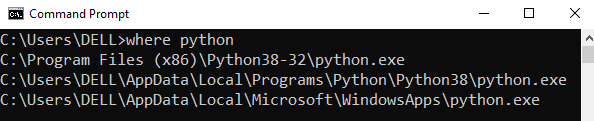



 Problem: Given a string. How will you split the string into a list of substrings and keep the new line character intact?
 Related Tutorial:
 Info: A batch or
  Question: How would we write code to create and execute a batch file in Python?


 Recommended Tutorial:
 Coding Challenge



 Recommended Tutorial:
 Fasting can make you more money—so keep reading!