Posted on Leave a comment

Taking a look at the rumors surrounding Apple’s ‘AirPods 2’

Apple’s AirPods are a highly popular accessory, but with the possibility of a second-generation on the way that could include health tracking-related features, the next version is likely to be both more useful and even more desirable. AppleInsider looks at the rumors surrounding the upcoming earwear.

Apple's AirPods

Familiar yet new

A recent report from Digitimes claimed Apple is set to release AirPods 2 sometime in the first half of 2019, packing some new health monitoring features and other upgrades, like wireless charging and Hey Siri support. The upgrades sound great and we’re all excited to see what’s in store for the next-generation of AirPods.

[youtube https://www.youtube.com/watch?v=pFLl5ZjKKq0&w=560&h=315]

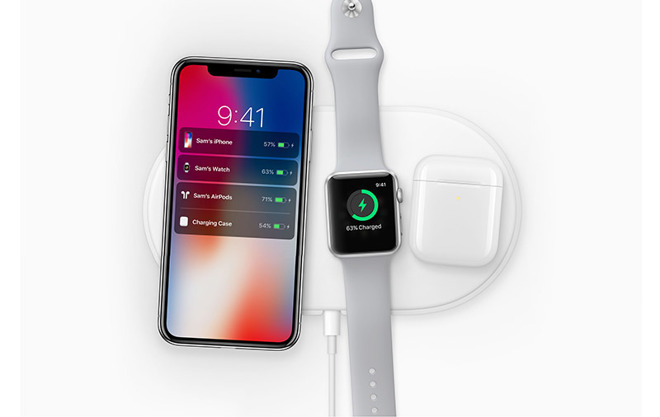
Wireless charging is coming to the AirPods, and we know that for a fact as Phil Schiller announced the optional AirPods wireless charging case alongside the AirPower charging mat at Apple’s 2017 September event. If the wireless charging case will still be an optional purchase for either the original or next-gen AirPods, then the new version of AirPods will surely maintain the same form factor as before.

In February of 2018, rumors came out of a new pair of AirPods featuring Hey Siri support, improved water resistance and an upgrade to the W2 chip. A few months later at Apple’s September Event, we were shown a short clip of one of Apple’s staff using the Hey Siri feature with AirPods and running through a shallow pool of water at Apple’s new headquarters, hinting at better water resistance.

An Apple illustration of a wireless charging AirPods case on the unreleased AirPower charging mat

An Apple illustration of a wireless charging AirPods case on the unreleased AirPower charging mat

We can surely expect those features to come, and I personally believe the new AirPods will feature Bluetooth 5 and the W3 chip instead of W2, since the Apple Watch Series 4 already packs the W3 chip.

On Thursday, a “Hey Siri” configuration tool was discovered in the first iOS 12.2 beta, seemingly confirming the addition of the function for AirPods, though not necessarily advising if it would work with the current generation or that a new iteration is required.

There have also been rumors concerning future AirPods gaining active noise-cancellation, but we haven’t heard much about that beyond whispers.

Healthy improvements

A big expected change for the next generation is the inclusion of health monitoring features.

Almost two years ago, Apple filed for three patents titled “Earbuds with biometric sensing.” A more recent revelation is a patent that describes ways to allow an earbud to fit more securely within the ear canal, allowing it to have better contact with the skin.

Considering their content, these patents are more than likely meant for the AirPods.

An image from an Apple patent showing how an earbud could be made to contact the ear, making it more useful for PPG measurements

An image from an Apple patent showing how an earbud could be made to contact the ear, making it more useful for PPG measurements

Given the existing patents, we can expect the integration of a photoplethysmogram (PPG) sensor, the same used in the Apple Watch to measure a user’s heart rate.

Interestingly, the patents talked about a temperature sensor which can possibly detect both the core temperature of the user and ambient temperature as well. The patents also mentioned a sensor to measure blood oxygen levels, which can be useful for things such as keeping track of your aerobic endurance.

Also alluded to was the use of electrodes that can cooperatively measure a number of different biometric parameters, like galvanic skin response or electrical activity of the heart, which is a different implementation of the same core technology that’s used in the Apple Watch Series 4 to perform an electrocardiogram (ECG).

An ECG test using AirPods would simply measure the impulses going to each ear and make sure they’re no irregularities.

But of course, there’s no guarantee that we’ll see this feature in the next-gen AirPods. Knowing Apple, better sound quality is likely as well.

The past is too good

Now, with all of those exciting features and updates coming to the new AirPods, what could possibly be the biggest threat to their sales? Well, none other than Apple’s current AirPods themselves.

If you think about, many people are extremely happy with their AirPods, and if they’re already satisfying your wireless earphone needs, why should you spend at least another $160 for an updated set?

Apple's current version of the AirPods.

Apple’s current version of the AirPods.

There is always something new coming. You can always wait for the next version of something —but that’s a harder wait if you don’t have a set, and don’t know exactly when the next version is arriving.

There is excitement surrounding the possibility of updated AirPods.However, when reality strikes and Apple announces the price of these new AirPods, a lot of current AirPods owners are going to have to decide if those new features will add enough value to their lives to make them worth spending the cash all over again.

It will probably come down to an individual judgement if the health monitoring features are worth it.

Posted on Leave a comment

New iPad and fifth-generation iPad mini on the way according to Russian regulatory filings


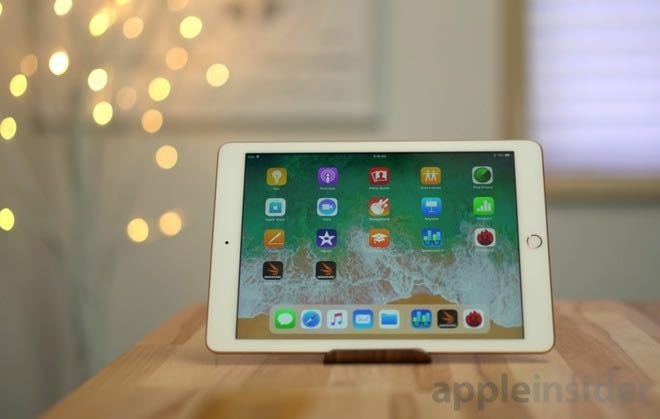
Filings with the Eurasian Economic Commission (EEC) appear to indicate new models of iPad could be on the way, with six model numbers potentially covering both a refresh of the standard-sized iPad as well as the rumored fifth-generation iPad mini.

The fourth-generation iPad mini

The fourth-generation iPad mini

The new filings with the EEC reveals the six model numbers are “tablet computers” and are registered to Apple. Published today, the notification advises the tablets are certified for sale in Russia, due to the inclusion of encryption-related features.

The six model numbers are A2123, A2124, A2133, A2152, A2153, and A2154, reports MySmartPrice. The sequential nature of the model numbers, and the grouping, suggests there are at least two different types of device they apply to, with the A2123 and S2124 likely to be for a different model to the rest.

EEC filings showing new model numbers for Apple

EEC filings showing new model numbers for Apple “tablet computers”

The presence of the filing suggests there could be a launch of new iPad models in the relatively near future, but doesn’t advise of when exactly it could be. Considering the last iPad launch took place in March 2018, excluding the iPad Pro refresh, it is likely that whatever Apple has planned for the iPad product family will be unveiled at around the same time.

The iPad refresh is rumored to include elements borrowed from the design of the iPad Pro, potentially incorporating a larger display in a similar-sized body and a thinner construction. A 10-inch display has been touted, though a shift to Face ID from Touch ID has yet to be suggested.

Little has been speculated about the new iPad mini, except that it would be a new low-priced model compared to the more recent release. If launched, it would be the first update to the product line in over three years.

Posted on Leave a comment

The next HomeKit could have very precise geofencing, accurate to within feet

HomeKit could be more responsive to a user’s needs depending on where they are in a future update, with Apple considering the possibility of adding hyper-local position tracking to the smart home platform with an accuracy of just feet to suggest what items a user wants to control based on their location in the home.

HomeKit enables users to control multiple devices from their iPhone or iPad

HomeKit enables users to control multiple devices from their iPhone or iPad

Apple’s Home app is the central focal point of a user’s HomeKit network, with it used to control automation functions and to remotely change settings and modes on a wide variety of compatible network-connected devices. It is a fairly straightforward system once it is set up, and could even be managed from the compact screen of an Apple Watch if required.

Home is able to divide up devices in a Smart Home into “Rooms,” giving users a quick and easy way to sort through their connected elements, and to trigger multiple items as a group. While using Rooms is simple, Apple believes the concept could be widened further.

In a patent application published by the U.S. Patent and Trademark Office on Thursday titled “Using in-home location awareness,” Apple suggests a future where users could be provided more items to control in the Home app, with it automatically populating items on the screen depending on the mobile device’s physical location, and without needing to select a specific room.

An example illustration from the patent application showing additional items appearing in the Home app.

An example illustration from the patent application showing additional items appearing in the Home app.

Apple notes that users perform the same or repeated actions with devices while in a particular location, such as closing the garage door from the kitchen when they return home, or changing the temperature on a thermometer while in the living room. However, since an item like a garage door wouldn’t necessarily be considered part of a kitchen, it may not be included within a designated kitchen “room.”

To solve this, the patent application suggests determining the physical location of the controlling device, and presenting items that are typically interacted with by the user while in that particular position.

The method involves the collection of data relating to various signals detected when users perform actions, such as MAC addresses of wirelessly-networked devices, Bluetooth device addresses and that device’s signal strength, IP addresses, universally unique identifiers (UUID) and truncated UUIDs.

A flowchart showing how HomeKit could determine if an accessory should be displayed (left), and graphs showing how location clusters can be determined based on signal strength and usage (right)

A flowchart showing how HomeKit could determine if an accessory should be displayed (left), and graphs showing how location clusters can be determined based on signal strength and usage (right)

In effect, by knowing what items it can sense and the signal strength, the mobile device can determine physically where it is within a home, and in turn which room it is located within. If the mobile device knows it is within range of accessories in a general location, it could also assume the user is in a usual place for specific interactions, if they have previously been performed in that area.

Once it detects the user is in a specific place, the Home app could then automatically offer up control of the usually-controlled items to the user.

The decision to provide more immediate access to certain device controls could also be influenced by other elements, such as if the user is near to a location rather than within it. Light sensors, temperature sensors, and weather sensing could also play a part in whether or not to offer controls, such as the system only automatically offering control of external lights if a light sensor says it’s dark, or the thermostat could be offered up if a temperature sensor says it’s cold.

As with other patents and applications, the publication of such filings is not a guarantee that the concepts described will make an appearance in future products or services, but do indicate where has recently put effort into research and development.

In this case, since Apple has the Home app already in existence, and does not require the need for additional hardware, it is entirely plausible for the features in the patent application becoming a reality in a future update.

HomeKit already includes support for geofencing, which can enable actions to be performed when a user is within or out of range of the home. For iOS 11, multi-person geofencing was introduced, allowing for conditional triggers to be applied if part or an entire group is out of the home, such as turning off all lights if the house is detected as empty.

It is also logical that, if Apple were able to implement location tracking in a home, it could also feasibly add hyper-local geofencing at the same time. This could take the form of lights turning on automatically when a user is in a particular room, or turning off fans or other devices if the user moves to a different floor.

One of the more recent changes made to HomeKit is the introduction of support for Siri Shortcuts, which allows users to enable various HomeKit routines via a custom Siri command.

Posted on Leave a comment

YouTube TV goes nationwide in time for Super Bowl, but some markets missing channels


Live streaming service YouTube TV is now officially available across the U.S., though some small gaps remain and other regions may lack access to one or more of the four major broadcasters.

YouTube TV

The service should be accessible by 98 percent of Americans, YouTube said in an announcement, promising that the remaining 2 percent will come onboard shortly. Prior to this week YouTube TV was already in the country’s “top 100” markets, but another 95 have been added.

The expansion is presumably geared towards becoming a destination for this year’s NFL Super Bowl, scheduled for Feb. 3. The game is one of the few remaining TV “events” in a world of on-demand streaming, attracting tens of millions of viewers and even more in advertiser dollars. Some Americans will even buy new TVs in prepartion for gameday parties.

Parts of YouTube’s coverage map lack ABC, Fox, and/or NBC, The Verge commented. That won’t interfere with the Super Bowl, which is on CBS, but one of the selling points of YouTube TV has been access to the “Big Four” broadcasters, something other streaming TV options can’t always offer.

Other features of the service include an unlimited cloud DVR and support for up to 6 accounts per household. It currently costs $40 per month after a free trial, with add-on packages for channels like Showtime and AMC Premiere. Conspicuously absent though is HBO, along with Viacom channels such as Comedy Central.

Supported Apple devices include Macs, iPhones, iPads, and Apple TVs.

Posted on Leave a comment

Apple exec admits Qualcomm was the only option for 4G in the iPhone for years


Potentially aiding Qualcomm’s trial defense against the U.S. Federal Trade Commission, Apple has admitted that for years, there was no other realistic option but Qualcomm when it wanted 4G modems for iPhones.

Apple iPhone 7 Plus

While the company considered alternatives like Broadcom, Ericsson, and Intel as far back as 2012, none of them could meet specifications, Apple’s director of cellular systems architecture Matthias Sauer said in testimony on Jan. 18, as reported by Bloomberg. The company relied on Qualcomm 4G modems until 2016’s iPhone 7.

Apple did consider using Intel for a 2014 iPad, Sauer added, but skipped the idea out of business reasons and a decision that it didn’t need the specifications it had been looking for, such as carrier aggregation.

The FTC’s lawsuit accuses Qualcomm of antitrust violations by forcing chip buyers to sign patent licenses at inflated rates. The Commission rested its case last week.

Qualcomm has defended its practices by a number of means, for example pointing to the high cost of innovation. Apple though has called the chipmaker’s demands “onerous,” at one point asking Apple to cross-license all its intellectual property to get a direct license for standards-essential patents, something Apple decided to skip.

COO Jeff Williams recently revealed that Apple wanted to return to a mix of Intel and Qualcomm modems for 2018 iPhones, but was shot down by Qualcomm CEO Steve Mollenkopf. The two companies have been engaged in a global legal war since 2017, instigated by Apple, which sued over nearly $1 billion in rebates allegedly withheld as retaliation for cooperation with antitrust investigators.

Posted on Leave a comment

Deals: $300-$700 off 2018 15″ MacBook Pros; $200-$300 off iMac 5Ks; up to $150 off 2018 Mac mini


Kicking off Monday morning, Apple authorized resellers are knocking hundreds off Macs, providing shoppers with the lowest prices anywhere. Save $300 to $700 on high-end 2018 MacBook Pros, with limited availability at the reduced prices. Apple’s new 2018 Mac mini is also on sale starting at $749, while current 27-inch iMac 5Ks are up to $300 off with prices as low as $1,599.

These deals, which offer shoppers cash savings of up to $700 off, deliver the lowest prices available from an Apple authorized reseller, according to our Apple Price Guide. Additional perks, such as free expedited shipping on orders shipped within the contiguous U.S. and no tax collected in a number of states, are also available at many retailers.

2018 MacBook Pro deals

Those in the market for a desktop can also save $200 to $300 instantly on popular 27-inch iMac 5K models.

iMac markdowns

Apple’s latest Mac mini is also marked down today, with discounts of up to $150 off.

2018 Mac mini on sale

Additional Apple Deals

AppleInsider and Apple authorized resellers are also running a handful of additional exclusive promotions this month on Apple hardware that will not only deliver the lowest prices on many of the items, but also throw in discounts on AppleCare, software and accessories. These deals are as follows:

Posted on Leave a comment

Apple again starts selling iPhone SE, this time on clearance for $249


Apple returned the iPhone SE to its U.S. online store on Saturday, but only as part of a clearance effort to seemingly liquidate the remaining stock of the discontinued handset.

At a new special price, those who are interested can grab a brand new, unopened iPhone SE for only $249 with 32GB or 128GB for $299. They come fully unlocked sporting the same specs as when it was introduced in 2016. As a refresher, the iPhone SE includes the A9 Apple processor, Touch ID, and the four-inch form factor.

Those current prices are $100 and $150 off respectively compared to Apple’s prices before the phone was removed from sale.

Currently, Apple is only selling phones with displays above 4.7-inches, much to the chagrin of small-handed iPhone lovers. MacRumors was first to spot the discounted offering.

Grab one while you can because, with the discount, these likely won’t last too long. Gadget reseller Gazelle has some used models available as well, though they are also selling through.

It isn’t clear how long the iPhone SE will remain supported by iOS. The A9 processor first shipped with the iPhone 6S in September 2015.

Posted on Leave a comment

How to get started with a new HomePod, and get more out of it

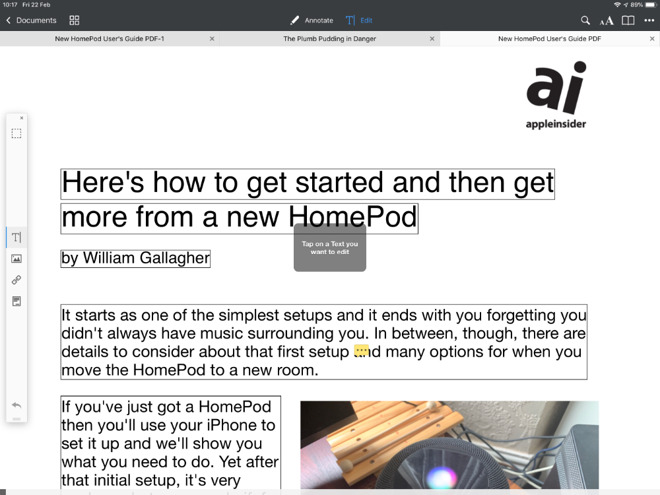
Apple’s HomePod starts with a simple setup and it ends with you forgetting you didn’t always have music surrounding you. In between, though, there are details to consider about that first setup and many options for when you move the HomePod to a new room. AppleInsider takes a dive into the use of Apple’s latest speaker.

If you’ve just got a HomePod then you’ll use your iPhone to set it up and we’ll show you what you need to do. Yet after that initial setup, it’s very unclear what you can do if, for instance, you move the HomePod to another room.

It’s not as if HomePods are difficult to carry around, though they are startlingly heavy. It’s also not as if you have to do anything to make a HomePod recognize that it’s been moved and should start adjusting its speakers to the new environment.

[youtube https://www.youtube.com/watch?v=fgyfGfjBOzo&w=560&h=315]

Rather, it’s that if you’ve initially identified the HomePod as being in your den and now it’s in your office, good luck figuring out how to change that label. We guarantee that across the nation there are HomePods in kitchens who are labelled Living Room and plenty of people who neither know nor care.

As long as they only use the HomePod to play tracks directly from Apple Music, that’s fine. It’s when you want to send audio from your iOS devices that it begins to be an issue. Even then, though, if you only have the one HomePod, you’ll cope. Yet it’s still a case of having to remember to choose Bedroom in AirPlay even though that HomePod is now in your study.

The problem is that HomePod doesn’t get its own app as the Apple Watch does and it’s also not found under Bluetooth the way AirPods are. Instead, it’s part of the Home app and each HomePod is a separate accessory that can be included in automation.

If you have two HomePods, for instance, you could have one set up as part of your evening routine so that at sunset, the HomePod in your den can start playing jazz. And the one in your kitchen can play some cool country. So long as you remember which one you’re asking to play this music.

However, we do get the ability to say what room of our house the HomePod is in —and we even get the option to give the speaker a name —so let’s use it.

Out of the box

Rip that HomePod out of its packaging and stumble a little as you find out just how densely heavy these little things are. Then, though, make sure your iPhone or iPad has been updated to the latest software.

Apple HomePod packaging

Apple HomePod packaging

There’s more. Your iOS device probably has all of this already set up but you need it. The device must be signed in to iCloud. If it isn’t, go to Settings, tap on your name at the top of the screen and then on iCloud.

Sign in if necessary and then scroll down to Keychain. That’s got to be switched on too.

Last, make sure that Bluetooth is switched on and also that the iOS device is on your Wi-Fi network.

This all takes far longer to say than to do. In the great majority of cases, your iPhone or iPad will already be setup for this and shortly you’re going to see just how fast Apple makes adding a HomePod.

Surface tension

In theory, you can place your HomePod anywhere you like. In practice, it’s got to be near a mains outlet. You can always add an extension socket but you’re stuck with Apple’s own cable as that’s hard-wired into the HomePod.

Apple also recommends that you leave six inches of space around it and that the HomePod isn’t pressed up against a wall.

HomePod on Wood

HomePod on Wood

We’d add that you should avoid wooden surfaces. This is not as big a deal as it appeared when the HomePods first came out, but it is possible that one will leave a white ring on the wood. It depends on how that wood was oiled but the surface can react with the silicone ring at the bottom of the HomePod.

If you happen to know that your wooden surface has been treated with a silicon type of polish, then you could place the HomePod somewhere else. If that’s the best spot, though, or if you have no earthly way of knowing what’s been done to the wood before, put the HomePod there anyway.

The worst that is likely to happen is that you will get such a ring after a few days but it can be removed by cleaning. Or, actually, you can just take the HomePod away and the ring may well disappear by itself over time.

This is fast

You’ll love this bit. Plug the HomePod into power and wait for it to chime. There’ll also be a white light that pulses on the top of the speaker. When there is, hold your iPhone next to the HomePod.

The initial setup screen you see on iPhone

The initial setup screen you see on iPhone

A popup dialog will appear showing the HomePod and displaying a Set Up button. This is the same as you get on the Apple Watch but the setup procedure that follows is, if anything, even easier.

Where are you?

The very first question you get after pressing Set Up is Where is the HomePod? and there’s a list of answers.

It only helps for identification later but pick the room you're going to put the speaker

It only helps for identification later but pick the room you’re going to put the speaker

That list includes choices such as Bedroom, Living Room, Entrance and Office. It makes zero difference which you pick as far as how the HomePod will work. Apple doesn’t automatically set the HomePod to be louder if you’ve picked the office and quieter in the bedroom, for instance. It’s solely for identification later.

So tap on one to choose it and then press Continue.

Getting personal

Next, the HomePod setup screen on your iPhone asks for a type of permission called Personal Requests. You’re going to say yes by tapping on Enable Personal Requests but it’s worth being clear about just what this means.

This page of the setup is quite straightforward about how saying yes means anyone can use this HomePod to do various things. What they will actually be using is your iPhone, they’re just talking to it via the HomePod.

So that’s why the setup says that it will allow anyone to read and send messages, and so on.

Allow Personal Requests unless you've great reason not to. It's just so handy.

Allow Personal Requests unless you’ve great reason not to. It’s just so handy.

This is genuinely one of the best things about HomePod because it means you come as close to a Star Trek-style of ambient computing as possible. Just say to the air that you want to place a call to someone and the HomePod will do it.

Yet it’s also the worst part of the HomePod because it is so specifically tied to you and your iPhone. If your partner tries to phone someone through the HomePod, it’s going on your cellular bill. Similarly, anyone can add a calendar event or a reminder but they’re adding it to you.

Add in that the HomePod is tied to your Apple Music account so it has only your playlists. Add in that any music anyone else asks it to play will have an impact on how Apple curates your weekly Favorites list, too.

Then the HomePod becomes this brilliant device for you and merely a great one for the rest of the household.

Still, you are you and this is your HomePod, you might as well get all the value you can out of the money you spent. So tap on Enable Personal Requests.

One more thing to note, incidentally. All of this using the HomePod to add things to your iPhone only works when that phone is on the same Wi-Fi network as your HomePod. If it isn’t, if you’ve switched Wi-Fi off for some reason, Siri on the HomePod will explain to you what’s wrong. Really irritatingly, though, it will sometimes explain it to you twice.

Maybe that’s covered under the next screen, Terms and Conditions, but we nod through that one just as fast you do.

Accounts and Settings

You noticed that this setup required your iPhone to have Bluetooth switched on. Everything you’ve done so far has been over Bluetooth and of course it has. There’s no control on the HomePod to tell it which is the right Wi-Fi network, let alone any keyboard to let you enter a password it.

Tap on Transfer Settings and your HomePod will pick up your Wi-Fi network, password and much more

Tap on Transfer Settings and your HomePod will pick up your Wi-Fi network, password and much more

All of that is handled by this next and final step. Accounts and Settings offers to pass details from your iPhone to your HomePod. Those details include which Wi-Fi network and what password, but also your iCloud account login and others such as your choice of Siri voice.

Tap the Transfer Settings button. You’ll hear a chime on the HomePod and the iPhone setup screen will change to show a picture of that HomePod.

When it’s done, that screen will change to one saying hello to you and the HomePod will speak. “Welcome to HomePod,” your new speaker will say. “You can’t tell, but I’m waving.”

If you can figure out why that’s gently amusing instead of irritating, you’re a better person than we are, but it is. It’s a make-you-smile moment that leads you into some training.

You’re being trained

Siri tells you that you can get the HomePod’s attention by saying “Hey, Siri”, and then it walks you through trying that out through a couple of examples.

The last example has you asking Siri to play some music, and it does. This is the moment when you’re going to realise that yes, you spent your money well. Siri will play some music based on what it believes you like from your previous Apple Music selections but if you want a suggestion, say “Hey, Siri, play Hymn Orchestrated by Midge Ure.”

It’s not such a loud song that it’s going to get the neighbors annoyed, but it will shake your floor. When you’ve jolted your head at how clear and strong the music is, say “Hey, Siri, turn it down”. Or be more specific and say “Hey, Siri, turn the volume to 20 percent.”

That’s it

Your HomePod is setup with all your details and what you won’t have noticed is that it is also setup for the specific room you’ve put it in. It’s setup for the exact position you’ve placed it within that room, too.

HomePod has scoped out the area and adjusted its speaker output to mean that you get its best possible sound regardless of where you are in the room.

Which just raises the first of several questions about what happens when you want to move rooms or make any other substantive changes.

Moving stories

If you want to move your HomePod to another part of your house or even another part of your room, unplug it and move it. When you then plug it back into power, it will automatically do its scanning to work out the best use of its many internal speakers.

You don’t have to do anything else at all. The HomePod will play music just as well in your office as in the living room, regardless of where it thinks it is.

Nonetheless, open the Home app on your iPhone. Under its Home section, there will be a button somewhere with an icon of a HomePod and the name of the room you said it’s in.

Tap and hold on that button. If you just tap it, the HomePod either starts playing or pauses its playback if it’s already working. Tapping and holding gets you a very bare screen with a small image of a HomePod and then two buttons.

Alarms is just like the alarms section of your iPhone’s Clock app and it’s where you can set new ones or see when your existing ones are going to sound.

Then there’s the Settings button and that’s the one to tap.

In the Home app, search for HomePod and then press and hold to get settings

In the Home app, search for HomePod and then press and hold to get settings

There are a lot of options within this HomePod settings app but you’re going to ignore most of them. They’re ones such as controlling how you can use Siri and what voice that will use. You’ll also find a section where you can specify whether HomePod will play music that has explicit lyrics or not.

This is one setting that was automatically taken from your iPhone so if you cared about explicit lyrics there, the HomePod already cares about them here.

Instead, the sections that you’re going to find useful when you’re moving the HomePod around are all at the top of the screen. First there’s one that just says HomePod. This is grayed-out as if you can’t edit it, but you can.

If you choose to, tap on that gray HomePod word and start typing a name for your HomePod.

Right beneath it, there’s a section called Room and on that same line there is the name of the room you’ve said your HomePod is in. Tap on that name and you get a list of alternatives.

Among the many things you can adjust there is a setting for what room the HomePod is in

Among the many things you can adjust there is a setting for what room the HomePod is in

The list is a standard one with items like Living Room, Master Bedroom and so on but it also takes all the ones you’ve ever set up in the Home.

Pick the room you’ve moved the HomePod into or tap on Create New if it’s not already on the list. When you do that, you get the option to give the room a name and also to pick a wallpaper for it.

This is moving away from HomePod-specific issues to how Home and HomeKit works so just briefly, if you assign the device to a room, you can later see it listed with everything else there.

On the main screen of Home, there is also a section called Rooms and this shows you all of the HomeKit devices room by room. It’s not the fastest system. Each room gets its own page and you have to swipe along to reach the right one.

Each room has its name at the top but to help you focus after you’ve got bored swiping, you can choose to have any or all rooms have their own wallpaper. This can mean any image you like but there’s also the option to take a photo. So if you move the HomePod into the den, you could take a photo of the den with it there.

Favorites

Back in the HomePod’s settings page, there is then a switch called Include in Favorites. In theory, switch this on would put the HomePod into Control Center. Or rather, Control Center can have a Home button and tapping on that gets you a grid of favorite devices that includes the HomePod but also, for instance, lightbulbs.

The trouble is that there’s only room for nine favorites. As the default is for Include in Favorites to be on, you very rapidly fill up all nine slots. And there’s nothing to tell you that you have.

You have to swipe down on your iPhone to get Control Center, tap the Home button and then see whether your HomePod is there. If it isn’t, you have to go back through all the devices in your Home app and switch off this Include in Favorites switch for some of them.

You can add HomePod to a Home button in Control Center

You can add HomePod to a Home button in Control Center

If you want to, that is. It is handy to be able to get Control Center and just tap to switch off the lights in the living room, kitchen and den then to switch on the ones for the landing and the bedroom.

It feels less handy to have a button to play or pause HomePod. Maybe you’ll sometimes leave the room and only remember later that it’s playing. Otherwise, skip adding HomePod to Favorites and instead just get in the habit of calling out “Hey, Siri, stop.”

Advantages

Maybe the Home app isn’t a quick one to use but if you list the HomePod in the right room, you could save time later. Say you’ve got it in your office and you’re heading there in the dark one cold winter morning. Call up the office room and you might be able to tap to switch on the lights, turn on the heating and set the HomePod playing.

It depends on what devices you have but HomePod can both be controlled by HomeKit and it can control it right back.

So it’s worth taking a moment to set all this up. Plus there is one more important part of this Home app’s setup for HomePod and it’s to do with the single best thing you can do to your speaker.

Get another one

Yes, HomePod is expensive. Nonetheless, when you’ve got one, you will soon want two. And then when you get that second HomePod, if you’re setting it up on the same Wi-Fi network as the first, it will know.

You’ll be prompted to set them up as a pair. If you do want them in the same room then you do want them as a pair.

Still, they are expensive and a single HomePod on its own is very good so you might well buy the second one for a different part of your house. In that case you would say no to creating a pair when you’re initially setting up the second one.

Later, though, you will either buy a third HomePod because these things are only as resistible as your bank account says, and you will then want to pair up two of them. Plus, if you haven’t already heard that two HomePods together sound incredible, let us be the first to tell you. Two HomePods together sound incredible.

To pair two up some time after the initial setup, go to the Home app. Press and hold on either of them to bring up settings. So long as the two are on the same Wi-Fi network, the settings page will now have an extra option.

Right underneath the Include in Favorites section there will be a new button called Create Stereo Pair.

The HomePod whose settings you’re adjusting will be one of the pair and you get to select any other HomePod you’ve got as the second. Then you can choose which is to be the left speaker and which the right, or swap them around again as you need.

It takes time

Initially you wonder if the HomePod is going to be worth the money, especially when it costs far more than rivals such as Amazon Echo. Then when you’ve got one, you hear how great it is and you get a kind of new-toy feel for a time.

Later you might add a second HomePod or you might not, but this is how you know that you’ve made a good buy. At some point you are going to be in a room without a HomePod and you’ll announce to the air that you want to play some music.

Posted on Leave a comment

Apple stock threatened by growing backlash against App Store revenue cut


Rumblings against Apple’s sizable take from App Store revenues could have an impact on the company’s stock, given the new focus on Services revenue, an analyst said on Friday.

Netflix on iPhone

“While the services segment grew 18 percent in the December quarter, we’ve now started to get investor questions worrying about whether the App Store will be the next shoe to drop,” wrote AB Bernstein’s Toni Sacconaghi in a note seen by AppleInsider. Specifically, he cited a series of headlines indicating that Spotify and Netflix have stopped offering in-app subscriptions, and that others like Fortnite developer Epic Games have threatened similar actions.

Apple claims 30 percent from the majority of App Store transactions, which Spotify and others have complained can force them to hike prices or take a major financial hit. For some time Spotify charged $3 extra to in-app Premium subscribers, ultimately deciding to end the discrepancy and direct iPhone and iPad owners to its website.

Apple’s revenue cut does shrink to 15 percent for subscriptions over a year long, but this doesn’t seem to have appeased developers.

“Unsurprisingly, this 30 percent cut has transformed the App Store into the largest single driver of Apple Services, accounting for about 40 percent of all Services growth in the last three years by our estimates,” Sacconaghi continued. “In recent years, however, discontent over this ‘Apple tax’ has been brewing among several major iOS app developers.”

The analyst cited Netflix’s action as the trigger for investor concerns. Apple Chief Financial Officer Luca Maestri has argued that Netflix represented “less than 0.3 percent of total services revenue” in 2018.

Sacconaghi also pointed out, however, that an ongoing U.S. case is weighing whether App Store practices constitute a monopoly. The App Store is the only place developers are normally allowed to sell iOS apps, and losing the case could break the company’s revenue streams. Developers on macOS, Windows, and Android are free to use third-party storefronts or their own.

However, Sacconaghi doesn’t seem to put any weight on any services that Apple will debut in the future, such as the expected video streaming service. Nor, does he seem to note that Services is more than the App Store, as Apple Music, AppleCare, and iCloud are all part of the revenue stream as well.

Posted on Leave a comment

Apple Watch could get more hands-free tilt controls in future watchOS update

The Apple Watch could include more gestures similar to Raise to Speak in the future, after the revelation Apple has explored the possibility of producing more hands-free ways to interact with wearable devices and other hardware.

Apple Watch

Apple Watch

Apple introduced Raise to Speak as part of a raft of updates in watchOS 5 last year. The gesture, where the user raises their wrist up and prepares to speak to the Apple Watch, is automatically treated as an intention to issue a command to Siri, all without saying the “Hey Siri” prompt beforehand.

The gesture is useful for more than dismissing the need for a verbal prompt, as it is a way of interacting with the Apple Watch without needing to use both hands. Most actions still require the use of the free hand, such as by touching the screen or turning the digital crown, and while voice commands are also useful, it may not be a desirable time to use them while the user’s hands are occupied with other tasks.

A patent application from Apple published by the U.S. Patent and Trademark Office on Thursday for “interacting with an electronic device through physical movement” describes how an Apple Watch could be controlled in a more elaborate manner than currently offered, just by tilting the wrist.

The concept relies on the Apple Watch detecting the user raising their wrist, in a similar way to the current Raise to Speak gesture, but the bulk of the filing details what the users do after the detected raise. By rotating their wrist or tilting their arm, it is suggested the user can select one from multiple different actions presented to them on the display.

While this could be used to prompt actions, it is more likely that such a system would be needed for when a user needs to respond to a notification, without needing to use both of their hands. One example offered is to either accept or reject an incoming call to the Apple Watch.

In one interpretation, the display has a three pronged image that works in a similar fashion to ball-in-maze puzzles. One prong of the M-shaped maze contains an indicator that can be moved to other two lanes, with each representing the response to answer the call or to hang up.

An example of the simple tilt maze used to answer calls in the proposed patent application

An example of the simple tilt maze used to answer calls in the proposed patent application

By rotating the wrist back, the user can shift the indicator in the relevant direction, then tilt to determine which operation they wish to perform, and then rotate the wrist back for a specific period of time to bring the indicator all the way along the path, to confirm the action.

In another way, a single-path lane with two corners can provide two different responses, such as muting a call and hanging up while in a call, with the duration appearing in the middle of the U-shaped path. The indicator can be kept between the two corners while the call is made, but can be tilted and made to reach one of the path’s ends if the user requires one of the two actions to be performed.

The two corner U-shaped path variant in the Apple Watch tilt control patent application

The two corner U-shaped path variant in the Apple Watch tilt control patent application

The concept can also be extended to allow for calls to be answered without the user even needing to see the screen.

When a call is received, the Apple Watch could play a special ringtone consisting of high and low notes in a specific short sequence, potentially for a specific user. To answer the call, the user could perform a series of rotating “flick” movements that matches the ringtone’s notes, rolling away from their face for a high note, and towards for a low note.

An example of the musical notes tilt-cue ringtone concept from the patent application

An example of the musical notes tilt-cue ringtone concept from the patent application

The lifting and rotating mechanic could be employed for selecting and sending pre-made instant messages to contacts. Once the right response is highlighted, the user could keep their wrist still for a few seconds to confirm they wish the message to be sent.

A further tilt mechanic could be used to answer calls by tilting towards the user and holding in place for a few seconds to start the conversation, or away and holding to reject. The same can also be performed by tilting the wrist forward or back, then holding to confirm.

Tilting and holding could be used to answer and reject calls on the Apple Watch

Tilting and holding could be used to answer and reject calls on the Apple Watch

While Apple does produce a large number of patent filings and applications on a weekly basis, their existence isn’t a guarantee that the concepts described will make their way into future products or services. They do however serve as an indication of areas where Apple has shown interest.

For this patent application, employing any of the ideas is plausible for Apple, as it would require only software changes made to watchOS. Since the Apple Watch has tilt sensors and accelerometers for fitness tracking and the aforementioned Raise to Speak, it already has the hardware required to implement such features in the future, if Apple decides to use them.

The application is the latest in a number of other filings where Apple has examined alternative ways for users to interact with devices. For the HomePod, it suggested the creation of a depth map for a room to detect a user’s hands, in order to perform gestures from anywhere in the room.

Gestures have also been considered as a way to control a self-driving vehicle, with actions performed within a designated “interaction zone” able to order a vehicle to do one of a selection of maneuvers. More recently, Apple has looked into force-sensing gloves, which could allow gestures to be performed without a touch-sensitive surface or cameras monitoring the hand itself.

This is also not the first time Apple has considered using wrist gestures with the Apple Watch. Dating back to October 2016, one idea involved adding detectors to the band to detect changes in wrist position and hand shape that alter the stress on the band, rather than using tilt sensors.