Posted on Leave a comment

The best PDF apps to use for editing, redacting, and for OCR in macOS Mojave

As much as we fail to give Apple’s free Preview app enough respect, it is true that there are PDF editing jobs it can’t do. Yet there are many third-party apps that will let you do the most remarkable changes to any PDF you have.

Top left: PDF Expert. Top Right: PDFpen. Bottom left: Acrobat. Bottom right: PDF Studio Pro

Top left: PDF Expert. Top Right: PDFpen. Bottom left: Acrobat. Bottom right: PDF Studio Pro

Every app on the Mac can make PDFs and Mojave’s Preview is capable of more than we usually give it credit for. Yet if Macs were that good with PDFs out of the box, there wouldn’t be any third-party apps doing the job. So if you do much more than create basic PDFs or definitely if you need to edit them and redact parts, you do need to look elsewhere.

We looked elsewhere. Starting with Adobe’s own app, Acrobat, we also tried out PDF Expert, PDFpen and PDF Studio Pro for the Mac.

The short version is that any of them will be good for more extensive work on PDFs. They’re not all Mac-like and some take more getting used to than others, but rather than looking at each one in turn, we’re putting them to use.

When you need to do anything more than read or annotate a PDF, you’re going to be editing text, redacting sections, altering graphics and using OCR. This is how you do each of these in the major PDF apps on the Mac.

Redaction

You know of highly sensitive information being apparently removed in a PDF yet people are then able to read it by just copying and pasting all the text into Word or Pages. What happened there is that someone did this redaction, as its called, by just highlighting the sensitive text and applying a black layer over it.

They didn’t realize there was anything wrong with that and we can realize that they weren’t using a Mac PDF app.

Redacting text in PDF Expert

Redacting text in PDF Expert

While they can all redact information more thoroughly than this highlighting option, PDF Expert is the most straightforward of these apps to do it in. You click on the Redact tool and then drag across the text you want hidden. By default, it puts that familiar, even infamous, black highlight over the words —but it also removes that text permanently.

There is an option to simply erase without leaving the highlighting, but whether you use that or not, the actual words are physically deleted from the document and they aren’t ever coming back.

That’s the case with all of these apps but, very surprisingly, we now wouldn’t use Adobe Acrobat for redaction. Adobe invented the PDF and this is their own app, but its redaction is too crude.

Notice how we've redacted one word but Acrobat has also taken a slice out of the sentence below

Notice how we’ve redacted one word but Acrobat has also taken a slice out of the sentence below

Adobe Acrobat for Mac lets you highlight what you want to redact, but it will also sometimes take more away than you intended.

Editing PDFs

Seriously, if you need to alter a PDF in any way, your single best bet is still to go back to the application the document was first created in. It’s not like it’s going to take you ages to go back to Pages or InDesign, make the change and export a PDF again.

We do find it hard to remember which PDFpen icon does what, but everything is available through the menus too

We do find it hard to remember which PDFpen icon does what, but everything is available through the menus too

However, maybe the PDF is a contract and the original was drawn up by the other side. You should still discuss it and get them to make the change but maybe the two of you agree that only a minor alteration is needed.

With PDFPen, you highlight the text you want to change and then click on Correct Text.

It’s quicker with PDF Expert, though. There you click on the Text button and then the app highlights each paragraph as you go through it the document. Stop at any paragraph and rewrite any text.

Editing text in PDF Expert

Editing text in PDF Expert

This is the remarkable thing about PDF apps. It is little short of spooky seeing how you can retype a line and have the PDF look like it was always that way.

Only, you are limited in any app. You can’t replace one sentence with a chapter of your novel. You could add in more pages and fill those but when you’re editing a document instead of creating a new one, you can realistically only make small alterations.

Reorganizing PDFs

If you were to want to add new pages to your PDF, Apple’s own Preview lets you do that and rearrange the order of pages too. There’s nothing in the major third-party apps to really substantially beat how Preview does it, but Acrobat and PDF Expert do both display the pages better.

Rather than the single column that Preview, PDFpen and PDF Studio Pro show you, these other two spread out the pages into columns and rows. That just makes it easier to see where your dragging pages to.

Changing graphics

You can drag a PDF around to put your favorite page first or simply remove it. You can make the text look as if the PDF always said your fee had a few extra zeroes on the end. What you can’t do is alter the images —or at least not to any useful extent.

Adobe Acrobat lets you crop or resize an image but if you do that, the rest of the PDF page stays as it was. So it’s useful for making small changes to tidy up the look of a document but you can’t get text to flow around the image’s new size.

Acrobat lets you send an image directly to Preview or another other graphics app

Acrobat lets you send an image directly to Preview or another other graphics app

It’s the same with all of these major apps, though each tends does the job in different ways. PDF Studio Pro lets you change the DPI of an image, which could be useful for reducing the size of your whole PDF.

Only Acrobat lets you send an image from inside a PDF to a graphics editor of your choice. It’s not round-tripping, though, or at least we could never figure out a way to automatically get the edited image back into the PDF. However, for extracting images to work on in other documents it’s particularly good —though PDF Studio Pro lets you export some or all graphics directly.

Each of these apps do let you replace an image, however, so if your company newsletter is just about to go out when the CEO is unexpectedly replaced, you can swap their image for whoever the new person is.

Compare the markup

There are a lot of people out there who do not realise you can edit PDFs like this. And unfortunately, there are also some people who rely on that fact to get away with changes. There are times when a contract has been negotiated and one party has made a substantial change to the PDF without informing the other.

You need to be able to compare versions of PDFs and that’s something else Preview can’t do.

You can compare different versions of PDFs to spot changes

You can compare different versions of PDFs to spot changes

Adobe Acrobat has a Compare Files feature which is thorough but needs to be used carefully. It requires you to call one copy of the PDF ‘new’ and a second one ‘old’. If you should get those two the other way around, then Acrobat’s annotations will tell you the differences but will be wrong about which came first.

PDF Studio Pro gives you the ability to show two PDFs side by side or overlay them with differences marked out in colors.

OCR

There is one last feature that makes third-party PDF apps useful and that’s their ability to use OCR. If you open a regular PDF in Preview, then you can usually select the text and copy it out.

That’s because the app that the PDF document was first created in has saved a text layer, it has facilitated this copying and pasting. If, instead, the PDF was made by scanning a paper document, it won’t have that copyable text —it will be just an image of text.

However, most of these apps can fix that.

PDFpen is by far the easiest to use for this. When you open an image document that’s got text on it, PDFpen recognizes this and offers to scan it for you. We’ve had mixed results over the years but usually the only issue is that it can take minutes.

Whereas it could take you that long to find your way through Acrobat’s menus to do the same thing. If you have Adobe Acrobat, open a PDF. Then click Enhanced Scans from the toolbar to the right of the document. Next from the toolbar that appears at the top of the document, click on Enhance and choose Scanned Document. From the new toolbar that appears under the first one at the top, click on Enhance.

In PDF Studio Pro, you open the document and choose Document, OCR – Create Searchable PDF. The first time you do it, you have to click through downloading the right language dictionary but thereafter it’s quick.

Surprisingly, PDF Expert from Readdle can’t yet do OCR and the company just says that it’s coming.

Mac-like

That omission is a shame because overall, PDF Expert is the most Mac-like and straightforward to use of the major PDF apps.

PDFpen is also Mac-like but we still find it fiddly to remember which icon does quite which task.

PDF Studio Pro presents a huge number of tools which does reflect that it’s full-featured, but it’s a little Windows-like in the way it displays these options.

Which leaves Adobe Acrobat. This doesn’t look like a Mac app and it doesn’t look like a Windows one either. It’s not even that familiar if you’re used to Adobe’s other apps such as InDesign and Photoshop. Instead, it’s its own little world and it’s colorful one.

Even with every icon also having explanations next to them, it's still a chore working your way around Acrobat

Even with every icon also having explanations next to them, it’s still a chore working your way around Acrobat

Unfortunately, it’s a toss-up whether you’ll spend longer trying to figure out which icon you need or then working through the multiple steps for every task.

Still, the chief argument against buying Acrobat used to be that it was very expensive and that has changed. You can still buy Acrobat Pro outright for $449 if you want. However, you can also get it as part of the Adobe Creative Cloud suite where you pay a regular subscription starting from $20.99 per month.

That’s still not a casual purchase and none of these apps are ones you’d buy without thought. PDF Expert for Mac costs $74.99 direct from the developer or via the Mac App Store while PDF Studio is in a regular version for $89 and a Pro one for $129, only from the maker.

PDFpen also has two versions, with the standard edition at $74.99 (Mac App Store, developer site) and Pro at $124.95, only from thedeveloper.

However, you can also get the regular PDFpen in the Setapp subscription service which costs you $9.99 per month.

It really is the case that Apple’s own Preview app does most of what most people will ever need with PDFs and of course that’s free on every Mac. Yet when you do need more, there are third-party tools for the Mac that are powerful.

Keep up with AppleInsider by downloading the AppleInsider app for iOS, and follow us on YouTube, Twitter @appleinsider and Facebook for live, late-breaking coverage. You can also check out our official Instagram account for exclusive photos.

Posted on Leave a comment

Apple in 2019 and the future of PCs

Over the past two decades, Apple has proven capable of exercising its rapidly lithe, innovating ability to take its existing technologies and create new computing forms that retain its influence over the most commercially successful and strategically important markets. That winning strategy of the past also appears to be the best suited for the future of PCs.

Source: Statistica.com

Apple’s innovative growth during legacy PC stagnation

IDC, Gartner and other firms have valiantly tried to minimize Apple’s real position in the PC industry, building unit sales charts like the one above, which make it appear that Apple is just a bit player in the computing industry dominated by HP, Lenovo, and Dell. These are created by adding up every computer these other vendors build and comparing them only against Apple’s Mac-branded systems, notably leaving out iPads.

However, the reality is that Apple’s unique ability to take its conventional Mac platform and simplify it into the more approachable and broadly usable iPad has paid off dramatically, both in the consumer and enterprise markets.

It’s also something that PC rivals haven’t been able to successfully do. Over the past four quarters, Apple sold 61.74 million iPads and Macs, making it the leader in PC unit shipments, ahead of second-place HP’s 57.16 million PCs shipped.

Apple not only created the only commerically successful tablet, but also maintained its Mac sales while PCs shrank

But Apple also brought in greater PC revenues and profits, enabling it to invest billions to radically enhance its own macOS and iOS platforms and develop custom A12 and T2 silicon that enhances and differentiates its offerings. In the future, Apple’s higher unit sales, revenues, and profits from PC sales will keep making it easier for Apple to innovate in the computing space while HP, Lenovo, Dell and others will continue to be stuck waiting on Microsoft and Intel to chart out their futures. Over the past decade, WinTel has been failing its hardware partners, with no sign of any turnaround on the horizon.

The ARM processors that will likely power an increasing number of PC devices in the future are not held back by Intel, but no other maker apart from Apple is benefitting from the vast economies of scale that iPads are contributing to mobile chips. So while Apple will be able to leverage its existing, highly profitable production of high-end ARM processors for iPads, PC and mobile makers will be starting from scratch, fragmenting the market for PC processors and diluting Intel’s existing x86 economies of scale.

A11X Bionic

Nobody else is selling premium tablets in volume. Apple’s iPad ARM chips are erasing the economies of scale that once propelled x86 PCs

One honest thing that you can see from the chart is that demand for conventional PCs has receded dramatically in the years since iPad appeared, with industry-wide shipments falling by about 25 million units quarterly. In part, that’s because conventional uses of PCs have been replaced by smartphones and other mobile technologies. But certainly, the roughly ten million iPads that Apple ships each quarter are also eroding into that demand. Note that Apple’s Macs are not suffering the same falloff in sales, meaning that Apple is indeed successfully targeting PCs with iPads, not pursuing a strategy of weaning its Mac users onto iPads.

Apple is currently pursuing a strategy that positions iPads as its accessible, affordable entry-level computing product; iPad Pro as a higher end version of that same computing model; Macs as its familiar, yet increasingly iOS-integrated version of conventional computing; and Mac Pro models delivering the high-end version of the Mac experience. Pundits pretend to be befuddled by why they can’t plug a mouse or a hard drive into an iPad, but consumers seem to have figured out which products fit their needs best and are having no problem buying them.

Microsoft’s Surface unable to say “no”

So who is troubled in PCs as the world enters 2019? Certainly Microsoft, which has proven unable to move beyond the conventional PC in either smartphones or mobile tablets or other form factors. Its PC platform shrank twice as fast as Apple’s iPad grew, and its own Surface vision of hybrid computing has remained tepidly flat for a decade at a number that’s only about a twelfth of the revenue Apple is generating from its range of non-phone computing hardware.

Yet the Surface lineup includes so many various experiments—Microsoft seems almost unable to say no—that the cost of developing and maintaining all those SKUs is significant, crushing any hope of profitability. That makes Surface a profit sink, a distraction away from things Microsoft could be doing.

Microsoft is spending tons of money to look cool but isn’t creating a viabile business

That’s the very types of projects that Jobs canceled when he took over Apple in 1997, yet today’s pundits demand that Apple take note of the whimsical things being done under the Surface brand and follow Microsoft, rather than pursuing the strategies that Jobs used to turn Apple around. Since 2011, Tim Cook has exercised the same strategies to dramatically grow Apple’s sales even as the industries around it continue to slide sideways with distractions that were a waste of resources.

Chrome OS, Android and ARM

Google has similarly shown that it has no real insight into building a PC platform, with Chromebook and Android both failing to deliver a conventional PC, a modern mobile tablet, or some other hybrid experience that any customers want to pay anything for. All it has done is spend tons of money building devices that nobody buys: Chromebook Pixel, Nexus 9, Pixel C, and PixelBook have all been flops.

Everyone else in the PC industry is lined up behind Microsoft and Google, waiting for one or both of them to provide the software needed to drive their hardware. They’re also largely waiting on Intel to provide the silicon to power it. Efforts to move conventional computing to ARM chips, where there’s more competition, have suggested the potential of a new wave driving PC demand. However, overall interest in PCs is clearly waning despite the latest attempts at ARM laptops and netbooks, and Apple is far ahead of anyone else in developing custom ARM silicon to power the next generations of PCs.

Pretty clearly, nobody wants “Google’s best in a laptop or tablet”

It’s also worth noting that any significant movement from PCs to ARM processors will come at the cost of fragmentation of the Windows platform. Those expenses will be incurred by software developers trying to target multiple platforms, as well as two sets of chip designers—Intel and ARM—spending resources to build the future of Windows PCs. On Apple’s side, the differences between Macs and iPads are narrowing, both for developers as Apple prepares to introduce the ability to bring iOS AppKit apps to the Mac, and for chip development as Apple moves more of its proprietary tech to custom T2 silicon and as the Ax architecture nears the point where Apple’s own SoCs will have the ability to power Macs.

Isn’t it curious that in 2019, a decade after iPad launched to the howls of embittered naysayers, Apple has continued to grow its Mac sales while at the same time building iPad into an equally large enterprise? And yet all pundits can think about is how Apple desperately needs to choose between them, pontificating about how Apple should either give up Macs, or turn iPads into a Mac in order to move Mac users to iPads, or some equally bizarre advice that makes no sense at all.

Meanwhile, they saw nothing but huge potential in Google’s parallel failures of Chromebooks and Android tablets, and still see some glimmer of hope for Microsoft’s stagnant Surface hobby and a new crop of ARM Windows machines. Microsoft’s in it for the long haul, they insist, just like Microsoft said it was for Zune and Windows Phone. The reality today is that Windows has never been less important, and grows ever more irrelevant every year even as Microsoft continues to expand support for its users on iOS and Macs.

It doesn’t matter if pundits refuse to acknowledge this. It does matter, however, that Apple is lining up broad industry support behind building custom enterprise software for iOS, software that will soon be easy to port to the Mac as well.

Even if absolutely nothing were to change across the next ten years in terms of market share shifts, Apple’s Mac and iPad businesses would continue to generate nearly half a trillion dollars in revenues for Apple while supporting the development of highly advanced silicon, OS, development frameworks and apps. Windows remains in maintenance mode, getting occasional patches as the market forces driving Intel chips and Windows development slow to a crawl.

Posted on Leave a comment

Get more familiar with your iPhone with this list of 30 easy to follow tips

Not everyone knows how to do everything on an iPhone, and sometimes it isn’t immediately obvious how some seemingly simple tasks could be performed. AppleInsider shows you how to do some of those tasks that are commonly searched for on Google, in just minutes.

Google query

People with their first iPhone or iPad, be they completely new to smartphones and mobile devices or switching over from Android, may have some idea how to do basic tasks on their devices. But, some things may not necessarily be as obvious to them as they are to seasoned users.

[youtube https://www.youtube.com/watch?v=m9qvPJtIaC0&w=560&h=315]

In many cases, users end up querying Google and hoping for a decent top result, or bother someone they know has experience in the area. For the latter, being the family tech support over small tasks can certainly be annoying, but it can also be quite embarrassing to be asked about something that you should know about in that “role,” but may not have needed to do it before.

AppleInsider has compiled a list of 30 different and often searched-for tips that fall into this frequently-asked category below, which you may wish to share with those who ask too many questions.

1. To mute group text notifications in iMessage, open the group text up, tap the icons at the top, tap info, and toggle Hide Alerts.

2. Continuing from the first tip, there is an option just below Hide Alerts called Leave This Conversation that stops further messages from arriving to you. However, this option is only available if every person in the group has an iPhone or is using iMessage.

Leaving the conversation to stop the mass of messages from group texts

Leaving the conversation to stop the mass of messages from group texts

3. To block a number from calling you, simply go to your recent calls, tap the “i” icon next to a number, and tap Block This Caller. When they call you after being blocked it will automatically go straight to voicemail, which you won’t receive either.

4. From the same “i” menu, you can instantly create a new contact without having to enter the number manually, like when you tap the + icon from the Contacts tab.

5. If your alarm goes off or you get a call at the worst possible moment, you can quickly mute it by pressing the side/power button. This way, you don’t have to fumble around with your phone as you try to tap the screen to get it to stop. A second press declines the call completely.

Creating a custom voicemail greeting

Creating a custom voicemail greeting

6. To create your own custom voicemail greeting, go to the Voicemail tab within the Phone app, tap Greeting, tap Custom, and tap Record. When you’re done recording, tap Stop. Tap Play to listen to it, and if you don’t like it, tap Record again to re-record. Once you’re happy with the greeting, tap Save.

7. To view every photo or attachment you’ve sent to someone within Messages, tap their contact icon then Info, and you will see all of them at the bottom of the page.

8. If you’re trying to tell your friend where you’re located in Messages, go to the same Info menu, tap Send my Current Location, and they will be able to instantly turn on GPS navigation from their own device to get to your position.

Sending your current location to your friends

Sending your current location to your friends

9. You can also tap Share my Location instead, and choose whether to share it for one hour, until the end of the day or share it indefinitely. The contact will be able to open their Find My Friends app and see where you’re located.

10. To go back to the top of any page, tap the top left corner of the display. This works globally across iOS, including third-party apps like Facebook. It’ll even bring you to the very first picture you’ve ever taken in Camera Roll, even if you’ve got thousands of images stored on your device.

11. To delete apps, tap and hold on the app icon on the home screen. After a brief period, the icons will begin to jiggle and show an “x” icon. Tap the “x” to remove the app.

12. To move multiple apps at a time, tap and hold an app for just a second, then tap on more apps with another finger before shifting them to the new location.

13. To delete Albums within Photos, tap See All within the Albums tab, tap Edit, and tap the minus icon.

14. If your Wi-fi keeps connecting to a bad wireless access point, tap on the network within the Wi-fi settings, tap the “i” icon, and tap Forget This Network.

Selecting the email provider in iOS

Selecting the email provider in iOS

15. Trying to delete an email account from the Mail app? Head to Settings then Passwords & Accounts, and you’ll see all of your accounts. Tap on one that says Mail below the title, then you can either disable Mail syncing or delete the entire account from your iPhone.

16. To add an email account, tap Add Account within the Passwords & Accounts section of Settings. Tap your email provider, such as Google if you’re using Gmail, and then sign in. Once logged in, tap Save, then you’ll see the new account in the Mailboxes menu within the Mail app.

17. To completely reset your iPhone before selling it or giving it away, go to Settings then General, Reset, and tap Erase All Content And Settings. Just make sure your iPhone is properly backed up before you do this, in case you have a change of heart after wiping the device.

18. iPhones ship with auto-brightness enabled from default. To disable it, go to Settings, General, Accessibility, then Display Accommodations, and turn off auto-brightness from there.

Turning off auto brightness

Turning off auto brightness

19. Within the Accessibility settings, you can also turn on reachability mode on iPhones without a home button. Once enabled, if you swipe down from the bottom of the screen, everything at the top of the screen will shift downward, making it easier to use with one hand without stretching too far.

20. To restart your iPhone, press and hold the volume up and side buttons at the same time. Then slide to power off. Once it’s off, press and hold the side button to turn it back on. For iPhones with Touch ID, simply hold the power button alone.

If your iPhone is frozen or unresponsive, press and quickly release the volume up and then the volume down button, followed by pressing and holding the side button until the Apple logo appears.

For Touch ID iPhones, press and hold the power button then the volume down button, and don’t release them until the Apple logo shows up.

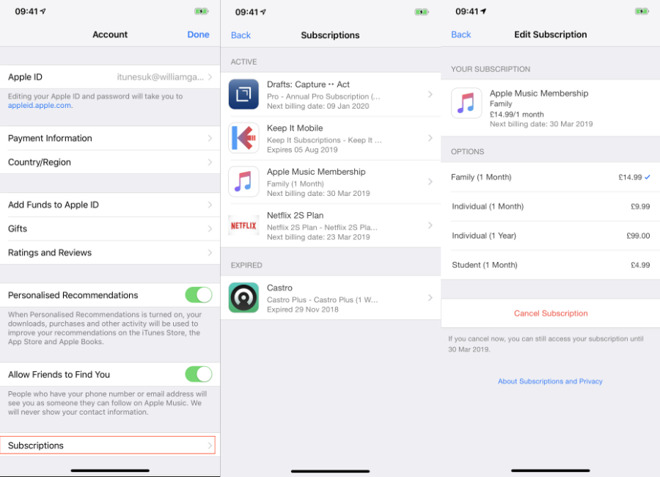
21. Is there an app that you suspect keeps charging your card every month? You can check your subscriptions by going to Settings, then tap your name at the top of the page, tap iTunes & App Store, tap your Apple ID at the top, then tap Vew Apple ID. Lastly, tap Subscriptions to see all active and expired subscriptions. Tap the active subscription you want stopped then press Cancel Subscription.

Reviewing active subscriptions on your iPhone

Reviewing active subscriptions on your iPhone

22. If you accidentally deleted a selection of text, you can shake your iPhone side to side to undo it. If you change your mind, you can shake it again to redo.

23. If you’re trying to find a specific text message from a friend, for example, the Netflix password they sent you, swipe down within the Messages app to reveal the search tool.

24. If a guest asks for your Wi-fi password and you can’t remember it, you can instantly share the password with their iOS device. Make sure both devices have Wifi and Bluetooth enabled, then unlock your iPhone and bring it close to theirs while they’re at the Enter Password screen. You should then get a pop-up asking you if you want to share your password.

Sharing your home Wi-Fi password with a friend

Sharing your home Wi-Fi password with a friend

25. Let’s say you just finished a photography session with a friend and you want to share all of the images with them at once. Within Photos, tap Select, and instead of tapping on a photo, just tap and drag your finger to select all of the photos. Then tap Share.

26. The best way to share photos & videos between iPhone users is Airdrop. To use it, make sure both iPhones or iOS devices have WiFi and Bluetooth enabled. On both devices, go to Settings, General, Airdrop and tap Everyone. Then your friends’ name should be visible when using Airdrop within an app’s sharing menu.

27. Is a friend asking for someone’s number? You can quickly share someone’s contact info, even using AirDrop. Just open the required contact’s page and tap Share Contact. The nearby user will be able to instantly save all of their contact info without manually typing in anything.

28. If you use iCloud Keychain to store your passwords, you can manually go in and find passwords that you’ve forgotten. Just head to Settings, Passwords & Accounts, then tap Website & App Passwords and authenticate yourself. You will then see a list of all of the websites that have stored passwords on the device, which can be searched through for specific sites. Tap a website to see your password.

29. Many people don’t realize they already have a voice recorder on their iPhone! Voice Memos comes pre-installed on your iPhone, and you don’t need to download an extra app from the App Store to use it.

30. Finally, if you have a family member that can’t figure out how to do something on their iPhone, and text isn’t enough, you can record your own iPhone’s display and send it to them. To do that, go to Settings, Control Center, Customize Controls, and add the icon for Screen Recording. Bring up Control Center and tap the record icon to start recording, then tap the red clock icon in the corner then “Stop” in the notification to cease recording. Videos are saved in the Photos app, and can be shared from there.

Posted on Leave a comment

iPhone, Android apps share sensitive health, financial data with Facebook without user’s knowledge

Facebook has been accused of taking advantage of its position to violate the privacy of its users, with an investigation claiming apps that deal with sensitive data, including financial and health-related information, is sharing some of that data with the social network.

Facebook HQ's road sign

Following the Cambridge Analytica fiasco and the subsequent government investigations, it would be expected Facebook would be more mindful about the information it compiles on its users. A new report suggests otherwise, accusing Facebook of acquiring information that users would not typically expect to share with the company willingly.

According to tests performed by the Wall Street Journal, Facebook’s software collects data from numerous apps within seconds of it being entered by the user, without any sign of a prominent or specific disclosure by the app. In these cases, it was also found the data was transmitted to Facebook if the user didn’t log into Facebook for authentication, or even if the user didn’t have a Facebook account in the first place.

At least 11 popular apps across both iOS and Android ecosystems were found to report data back to Facebook, with the apps downloaded tens of millions of times in total.

On the iOS side, the app Instant Heart Rate: HR Monitor by Azumio, deemed the most popular heart-rate app in the App Store, sent the user’s heart rate straight after a reading is performed. The Flo Period and Ovulation Tracker, said to have 25 million active users, advises Facebook when the user advises they wish to get pregnant, and when a user is having their period.

In another example, the Move Inc-owned Realtor.com sent Facebook the location and price of listings viewed by a user, as well as those marked as favorites.

Facebook claims some of the data sharing activities brought up in the tests seemed to violate its business terms, which asks developers to avoid sending “health, financial information or other categories of sensitive information.” The apps were flagged by Facebook to stop sending information that may be deemed sensitive, with the suggestion of additional action if the apps fail to comply with the demand.

A Facebook spokesperson advised “We require app developers to be clear with their users about the information they are sharing with us.”

The data shared by apps is usually brought into a Facebook tool that provides statistics about user activities. Facebook also uses the same data to serve advertising and for market research, but while its terms in theory allow for it to be used in other ways, the company insists it does not.

Apple advised to the report it requires apps to acquire “prior user consent” in order to collect data, as well as to move to prevent unauthorized access and usage by third-party firms. “When we hear of any developer violating these strict privacy terms and guidelines, we quickly investigate and, if necessary, take immediate action,” a spokesperson told the report.

The investigation is the latest in a string of events where Facebook’s attitude to privacy has been questioned.

In August, Facebook pulled its Onavo Protect VPN service from the iOS app store, after Apple found it was violating a number of just-implemented privacy policies, particularly surrounding data collection restrictions.

Another similar incident occurred in January, with the discovery Facebook was offering a Facebook Research app to users that installed a VPN on their iOS devices. Users were paid $20 plus referral fees, in exchange for nearly unfettered access to iOS usage patterns and activity.

In that case, it was also found Facebook was abusing Apple’s Enterprise Developer Certificates, which allowed apps to be sideloaded onto devices without having to abide by App Store guidelines, and so avoiding the data collection and privacy rules. The use of the Enterprise Developer Certificates was meant for within a company, not for those outside the organization like members of the public, with Facebook’s use violating Apple’s terms.

Shortly after reports of the app’s nature, Apple revoked Facebook’s certificate, reportedly throwing the company into chaos as Facebook’s employees were denied access to private versions of internal tools that also used it. Apple restored the certificate roughly 30 hours after it was pulled.

Facebook is currently in negotiations with the U.S. Federal Trade Commission over a privacy violations fine relating to the Cambridge Analytica scandal and its subsequent fallout. The talks, aimed at avoiding legal action, could result in a settlement with the FTC that extends to billions of dollars, far exceeding the current FTC settlement record holder Google’s $22.5 million payment.

On Thursday, Facebook advised it will shutter Onavo Protect fully and stop recruiting new users for Facebook Research, as it attempts to move to more transparent paid research programs.

Posted on Leave a comment

Untangling monitor resolution and size — how to pick the best display for home and office use

If you’re just diving into external monitors, the vast array of options and resolution spread before you can be enough to make you give up and buy an iMac just so that your monitor choice is made for you. AppleInsider talks about the three biggest and most important factors for a daily-use monitor for general use —screen size, resolution, and scaling.

Size, resolution and scaling all make huge differences to your display

Size, resolution and scaling all make huge differences to your display

As a general rule, the average consumer cannot pick a monitor off Amazon and know that it’s going to be perfect for him or her. It isn’t possible. You can tell what the physical size is going to be —though we all tend to underestimate how big something will be once it’s on our desk —and you’re rock solid clear about the price.

Even when the listing says it’s for a 4K monitor and you know 4K is good, that’s little to no help. It’s because 4K, like most monitor standards, is utterly useless on its own. You need to know that 4K on a 21-inch monitor will look great and that 4K on a 49-inch one will be bad.

And if only it were that simple. It’s easy to appreciate that 4K at 49-inches is going to be fuzzier than the sharpness of that 21-inch 4K monitor. But, that latter one is likely to make everything so small that it’s unusable too.

Much of the time, that’s going to be because you simply can’t read the display when it’s at maximum resolution —but often it’s also because your Mac can’t handle it either.

So the physical size of the screen is one fact. The resolution is a completely separate one. What your Mac can cope with is a third fact. Any one of these is at least reasonably easy to find out or understand, but you have to juggle all three.

What you can do, though, is go in armed with information, and know what to look for. Go in to searching any store or site’s monitors and know what the problems are, know where you need to spend time comparing —and knowing what you really have to compare.

A note before we go much further. This article doesn’t delve into color spaces, and calibration options on any given monitor —this piece is intended as a primer for the beginner monitor purchaser. Calibration and similar are topics for another day.

Jason and the monitor

If you’re buying an iMac or a particular MacBook, you’ve got no option about the physical size of the display. When you need a separate monitor, though, start with a 27-inch model such as the BenQ PD2710QC or Asus Designo MX27UC. We’ve included screen grabs from 23-inch and even 19-inch displays for comparison but there’s now not even a price benefit to buying a monitor that size.

For comparison, the text on the far left is from a 28-inch 4K monitor. Middle is a 23-inch display and on the right is a 19-inch one, both at their highest resolution.

For comparison, the text on the far left is from a 28-inch 4K monitor. Middle is a 23-inch display and on the right is a 19-inch one, all at their highest resolution.

A 27-inch model might be slightly overkill if you’re only ever going to be working on one Word document at a time. Nonetheless, the only times you’ll ever regret getting a larger monitor are when you have to pay for it and when it won’t fit on your desk.

Our illustration of different screens is really one of different resolutions. It happens that we took them across a complete range of monitor sizes but what a screenshot shows is the resolution, not how it looks stretched out over inches of glass.

Even so, there is one screen resolution that stands out by being practically invisible. Wedged between the screens from a MacBook Air and a MacBook Pro, you can see a thin sliver of what is actually a 4K display.

Where 4K displays used to be something you’d yearn for, now they’re distinctly lost in the pack and so should be considered a minimum. Rather than using the term 4K or its various synonyms like Ultra HD, let us be more specific. Don’t accept a monitor with a resolution of less than 1920×1080 pixels.

If this is to be your main monitor, regard 27 inches and 1920×1080 as the minimum requirements.

Resolution

Search Amazon for 27-inch monitors that run at 1920×1080 and you now know that they will all look the same to your eyes. There will differences in quality from different manufacturers and at different price points, but a Mac icon or menu on one will be the same size and clarity on all of them.

More importantly, you now also know that a 32-inch monitor at the same 1920×1080 resolution will be fuzzier, will show these Mac screen elements at a larger size.

You rather guessed that but it’s one thing understanding the numbers, it’s another when you see it in front of you.

Here’s an example of the difference resolution makes. This is a screenshot from an iMac 5K at its highest resolution of 6400×3600 pixels. Inset to the bottom right is the screen from a 2012 iMac which is 2560×1440. They’re both 27-inch screens.

Two images, both from 27-inch iMacs. The main one is a 5K iMac where the inset, at the same pixel scale, is a 2012 pre-Retina iMac

Two images, both from 27-inch iMacs. The main one is a 5K iMac where the inset, at the same pixel scale, is a 2012 pre-Retina iMac

When you’re comparing two monitors, do note the screen size but also calculate the dots per inch. You’re rarely given this information and that’s probably because it would make comparisons too easy. Yet somewhere in the details of every monitor’s listing on every store’s website, there will be the pixel dimensions.

They are always given as the horizontal number of pixels first, then the vertical. Unfortunately, screen sizes are done in a different way. They’re measured diagonally instead. You could use that or you could look for the physical dimensions of the monitor and just accept that any stated width and height includes some bezels.

There’s no way to be precise here, so use either figure and divide the number of inches you get by the horizontal number of pixels. Even though it won’t be the correct number of dots per inch, it will be a comparable one. You’ll be able to see that this monitor is going to be fuzzier than that one because it has significantly fewer dots per inch.

You could do the same calculation with the vertical number of pixels but it won’t be any more use. Vertical pixels are a concern, though, as any lack of height to the display is one of the first things you’ll notice when you use a new monitor.

Scaling

When you’ve picked a size of display and have chosen the highest-resolution monitor your budget can withstand, check that your Mac can drive it. It’s easiest to check when your Mac is one that’s currently on sale as Apple lists the specifications for what monitor sizes each machine can handle.

Apple is good at detailing the specifics of what displays different Macs can drive

Apple is good at detailing the specifics of what displays different Macs can drive

It’s surely got to be a waste buying a monitor when your Mac can’t drive it to its highest resolution. Except your monitor might outlast your current Mac. Plus that highest resolution is likely to get you icons, menus and so on that are far too small and finely detailed to be able to read easily.

In which case a monitor that displays more than you can usefully use is definitely a waste —except that there is this scaling.

The idea is easy enough to grasp but harder to visualise and apparently also harder for technology firms to handle. Windows is far less able to successfully alter the size it shows icons and text at than Macs, for instance.

Broadly speaking, you take your gorgeously high-resolution monitor and tell it to pretend it is a less gorgeous and less high-res display. The only thing that stays the same is the physical size of the monitor.

Apple does work to make this as easy to figure out as possible —but only once you’ve realised you need it. We’ve seen people squinting at their MacBook screens, unaware that with a click or two they could be saving an opticians’ bill.

Regardless of your size or resolution of monitor, you can go to System Preferences, Displays and chose Resolution: Scaled. Below a certain resolution, typically 4K, you’ll see a list of which resolutions the monitor can handle – probably. In that case you would pick from the list and examine how each one looked —but that try-and-see approach is hopefully behind us all now because we won’t buy a monitor under 4K.

When it is a 4K or better monitor, Apple shows you a graphical representation of how scaling works.

Depending on the monitor and the Mac, that representation will show you either four or five possible settings.

Above a certain high resolution, Apple shows a simplified system for choosing how much to scale down your display

Above a certain high resolution, Apple shows a simplified system for choosing how much to scale down your display

Apple doesn’t give any figures or pixel counts, it just has a range going from Larger Text to More Space.

The difference one stop on Apple's Larger Text to More Space makes

The difference one stop on Apple’s Larger Text to More Space makes

Don’t go getting a tape measure out on this one, but just to give you an idea of what difference scaling makes, here’s an example. It’s two side-by-side images from the LG 34-inch monitor and while they are cut down so you can see them, they’re displaying different scaled resolutions.

Specifically, it’s one step difference in the range from Larger Text to More Space and you can see that it’s significant.

This far and no further

What you can’t see, and nobody can show you, is precisely how all this looks on every monitor you consider. Armed with this knowledge and hopefully a decent returns policy, though, you’ll on your way to getting the ideal combination of size, resolution and scaling for your needs.

It may not be worth your trouble finding it, but there is an Open in Low Resolution option for every application

It may not be worth your trouble finding it, but there is an Open in Low Resolution option for every application

There is just one more thing, though. Maybe this is the most obscure feature in macOS or maybe we’ve just never needed it before, but you can tell an individual application to display in lower resolution. By itself.

Go to your Applications folder, right-click on any app and press Command-I choose File, Get Info.

You’ll find a tick-box marked Open in Low Resolution. As ever, Apple doesn’t give any pixel dimensions, but otherwise this does work. So if you need high res for your Final Cut Pro X work but that makes Microsoft Word too fine and small to use, you can get Word to open in lower res.

It does make a difference, but you have to be on a really high resolution monitor to see a significant change.

Keep up with AppleInsider by downloading the AppleInsider app for iOS, and follow us on YouTube, Twitter @appleinsider and Facebook for live, late-breaking coverage. You can also check out our official Instagram account for exclusive photos.

Posted on Leave a comment

Apple rolls out third public beta versions of iOS 12.2, tvOS 12.2


Made available just one day after the developer beta, participants of Apple’s public beta program are now able to update their iPhones, iPads, and iPod touch to a new third beta build of iOS 12.2, and the fourth generation Apple TV and Apple TV 4K to tvOS 12.2.

Four new Animoji are included in the iOS 12.2 beta

Four new Animoji are included in the iOS 12.2 beta

The betas are provided to everyone registered to Apple’s Beta Software Program, with the latest build downloadable as an over-the-air update directly to enrolled devices. The contents of the public beta are typically the same as the developer beta that precedes it, in this case one that was issued just one day in advance.

The third beta of iOS 12.2 makes a number of changes to what was seen in the second build, including a redesigned Remote widget in Control Center that makes the buttons at the bottom of the display larger as well as introducing a guide to the trackpad. The About page in Settings has also been rearranged, with the top section including the software version, model name, model number, and serial number of the device along with its set name, bringing the important details together instead of making users search for it elsewhere.

[youtube https://www.youtube.com/watch?v=CfhvYNewNMc&w=560&h=315]

The Wallet app gains an updated UI for recent transactions, as well as a refinement to the Apple Pay Cash card. The News app has a new “Apple News” logo above the date. The update also includes fixes, with the lock screen issue that perpetually showed the battery percentage reverted to show the current date below the time, and the reenabling of Group FaceTime.

AppleInsider, and Apple itself, strongly recommend users don’t install the betas on to “mission-critical” or primary devices, as there is the remote possibility of data loss or other issues. Instead, testers should install betas onto secondary or non-essential devices, and to make sure there are sufficient backups of important data before updating.

Find any changes in the new betas? Reach out to us on Twitter at @AppleInsider or @Andrew_OSU, or send Andrew an email at [email protected].

Posted on Leave a comment

Apple distributes third developer betas of iOS 12.2, watchOS 5.2, tvOS 12.2


Apple’s beta testing process has rolled on to its third releases, with new builds of iOS 12.2, tvOS 12.2, and watchOS 5.2 now available to download by developers enrolled in the program.

Four new Animoji are included in the iOS 12.2 beta

Four new Animoji are included in the iOS 12.2 beta

The new builds can be downloaded from the Apple Developer Center, or for devices that are already running developer beta versions of the operating systems, an over-the-air update is also available. The public beta variants typically arrive within a few days of the developer betas, and are accessible from the Apple Beta Software Program website.

The latest beta releases arrive one week after Apple distributed the second generation of all four of its main operating systems. Apple issued its third developer beta of macOS Mojave 10.14.4 on Monday.

The third iOS 12.2 beta is build number 16E5201e, replacing the second build, 16E5191d. Apple’s third build of watchOS 5.2 is build number 16T5201c, up from the last version, 16T5191d. The new third build of tvOS 12.2 is build 16L5201d, taking over from the second build 16L5181f.

The increment in version number suggests there to be some feature updates in each operating system as part of the new builds. While not the headline versions expected from the milestone releases, the changes are thought to be substantial enough for most users to notice.

For iOS 12.2’s second beta, Apple introduced four new Animoji characters, changes to Control Center, a change to the lock screen, and AT&T’s questionable “5G E” connectivity icon. The first beta introduced a redesigned Apple TV remote, alterations to the Wallet app, TV support in HomeKit, and other smaller changes.

AppleInsider, and Apple itself, strongly suggest users avoid installing betas on to “mission-critical” or primary devices, due to the potential for data loss or other issues. It is instead recommended to install betas onto secondary or non-essential devices, and to ensure there are sufficient backups of important data beforehand.

Find any changes in the new betas? Reach out to us on Twitter at @AppleInsider or @Andrew_OSU, or send Andrew an email at [email protected].

Posted on Leave a comment

Apple’s 2019 hardware roadmap calls for at least 11 new products

Apple is anticipated to update nearly every line of hardware it has in 2019. AppleInsider shows you what we’re expecting to see, including the “AirPods 2,” 2019 Mac Pro, Apple Pro displays, new iPhones, the “iPad mini 5,” and more.

Renders of the 2019 iPhones, fourth generation iPad mini, AirPower

As happens every year, Apple makes a large number of changes to its product portfolio, and 2019 is shaping up to feature a considerable amount of major upgrades.

TF International Securities' forecasts for Apple's hardware releases in 2019

TF International Securities’ forecasts for Apple’s hardware releases in 2019

Practically all corners of Apple’s hardware empire will see changes, including the iOS-based iPhone and iPad ranges, MacBook Pro and Mac Pro, and accessories such as AirPods and the long-awaited AirPower.

Custom-painted black first-generation AirPods

Custom-painted black first-generation AirPods

AirPods 2

Anticipated to launch in the first half of 2019, or at latest, the fall.

Health-related features reminiscent of the Apple Watch’s functions are touted, monitoring inside the ear for the user’s heart rate.

While similar in appearance to the originals, the second generation may ship with a black color option alongside white. Extra grip in the ear is expected, via a change in its coating rather than by physical design alterations.

The current 15-inch MacBook Pro

The current 15-inch MacBook Pro

16-inch MacBook Pro

A larger model of MacBook Pro is tipped for launch, with a 16 to 16.5-inch display.

Apple’s last 17-inch MacBook Pro shipped in late 2011. It is presently considered an obsolete product, and Apple isn’t offering service for it any longer.

The fourth-generation iPad mini

The fourth-generation iPad mini

iPad Mini 5

International regulatory filings indicate new models are on the way, potentially including the iPad mini and could arrive early in the year.

An early-2019 launch for the new fifth-generation iPad mini is expected.

The update is thought to be relatively similar to its previous form, including a headphone jack, 7.9-inch display, and the continued use of Touch ID instead of shifting to Face ID.

One big change is the possible addition of Smart Keyboard support, along with the Apple Pencil.

Render of what the 2019 iPhone could look like with a triple rear camera

Render of what the 2019 iPhone could look like with a triple rear camera

2019 iPhone

Apple is expected to release three iPhones this fall, following a similar pattern to the 2018 releases, with two OLED models joined by a cheaper iPhone XR-style LCD model.

This could be the last generation to use LCD before Apple moves completely over to OLED in 2020, though it is also possible the shift could happen this year.

A triple camera setup is tipped to appear on the rear, which could include the ability to produce depth maps similar to the front-facing TrueDepth camera in current-generation models.

The front TrueDepth camera could get an upgrade, making it capable of producing a 10-megapixel image.

It is suggested there could be bilateral wireless charging, allowing an iPhone to provide charge to another device. Other new additions could be larger batteries, a frosted glass casing, and support for UWB (ultra-wide band) for indoor positioning and navigation.

There have been some debate about whether Apple will stick to Lightning or shift to USB-C, just like the iPad Pro.

The current model of Mac Pro

The current model of Mac Pro

2019 Mac Pro

Expected for launch sometime in 2019, but it is unclear when in the year it will take place. Analyst Ming-Chi Kuo claims that it will be easy to upgrade, but Apple has only said that this model will be modular in design.

What that “modular” specifically means for the end-user isn’t clear at present.

LG's UltraFine 5K monitor, built in collaboration with Apple.

LG’s UltraFine 5K monitor, built in collaboration with Apple.

Apple Professional 6K Display

Anticipated to launch alongside the new Mac Pro, though it is unknown when that will be during the year.

Expected to be a 31.6-inch 6K3K display (6,144 x 3,072 resolution) and will use a “mini LED-like backlight design” to deliver outstanding picture quality.

After decades of continuous monitor production, Apple’s last display was the 27-inch Apple Thunderbolt Display. It was discontinued on June 23, 2016.

The 2018 iPad

The 2018 iPad

Seventh generation iPad

An early 2019 launch is expected for the model, based on rumors and the existence of regulatory model number filings.

A design refresh is tipped to take place, possibly borrowing elements from the iPad Pro design.

The well-known 9.7-inch display is expected to increase in size, possibly measuring 10.2 inches, though it is likely the overall device size won’t grow as much.

Smart Keyboard support is touted for the model, allowing the accessory to connect in a similar way to the iPad Pro range.

Even with the changes, it is probable that the iPad will continue to use Touch ID, not Face ID.

The 2018 iPad Pro

The 2018 iPad Pro

iPad Pro

Following the previous model updates, Apple is thought to ship two models of the iPad Pro as part of its usual refresh, with upgraded processors.

Apple last updated the iPad Pro in October 2018 with a new exterior design, and Face ID.

AirPower charging mat

AirPower charging mat

AirPower

Originally slated for launch in 2018, but now expected to ship in the first half of 2019.

Allows up to three devices to wirelessly charge at the same time, such as an iPhone, Apple Watch, and an AirPods charging case

Apple Watch Series 4

Apple Watch Series 4

Apple Watch Series 5

At present, there are few rumors discussing the Apple Watch —save one from Ming Chi Kuo.

The Apple Watch “Series 5” is thought to reintroduce the option for a ceramic body, after being dropped from the Series 4 roster.

iPod Touch

iPod Touch

iPod Touch

Tipped for launch at some point in 2019, but with no indication as to when the seventh-generation iPod Touch will make an appearance.

No details about changes have emerged, except for speculation it will have an upgraded processor.

All quiet regarding the Apple TV, the iMac, and the Mac mini

Very little has emerged on the Apple TV since the 4K version was launched. Similarly, the iMac 4K and iMac 5K are likely to get an update, but there hasn’t been anything of any substance in from the supply chain regarding the topic.

Apple has very recently updated the Mac mini, and probably won’t do so again in 2019.

Posted on Leave a comment

Apple crime blotter: Near-daily thefts from an Apple Store, and El Chapo-brand iPhone accessories & more

One man reportedly stole headphones and other items from the same Apple Store every day for months, in order to support an expensive drug habit. That and more, in the latest Apple-related crime roundup.

The Apple Store in downtown Portland

The Apple Store in downtown Portland

The latest in an occasional AppleInsider series, looking at the world of Apple crime.

Man stole from Portland Apple Store nearly every day for months

A man in Portland, Ore., stole from that city’s Apple Store on a nearly daily basis for several months, according to a probable-cause affidavit cited by Oregon Live. The man would wait for the store’s guard to take a break, at which point he would run into the store, steal around $700 worth of Bose headphones or other merchandise, and run back out.

The man, police said, stole in order to support a $150-a-day heroin habit.

Alaska man sentenced for stealing Apple computers

An Alaska man who worked as supervisor for the airline Ravn Alaska has been sentenced on federal charges that he abused his position to steal Apple computers bound for schools in Alaskan villages and then sold them. Breadoflife “Presley” Faiupu, according to the Justice Department statement, was sentenced to five years of probation, with six months of community confinement in a halfway house, in addition to restitution.

Thieves cut into Verizon Store wall to steal 50 iPhones

Two men cut into the wall of a Verizon Store in the Houston area to steal at least 50 iPhones, ABC 13 reported. Police told the station the two thieves cut through the drywall at a vacant adjacent business.

After a brief chase, the two men were arrested.

“Sophisticated” theft scheme resulted in Apple Store purchases

Three suspects are sought for carrying out a multipart theft scheme in Quincy, Mass. According to the Patriot Ledger newspaper, the scheme began with the suspects breaking into lockers at a local YMCA and stealing car keys. They then used the keys to break into cars to steal credit cards, returned the keys to the lockers, and then used the credit cards for fraudulent Apple Store purchases.

Man arrested for armed robbery of cell phone store

Police in Connecticut arrested a man who they say carried out an armed robbery of an AT&T/Sprint Mobile store. The man was one of two suspects who entered the store, pulled a gun, and filled a bag with phones from the store. According to NBC Connecticut, the suspect in custody was arrested outside, when he dropped both an iPhone 8 and a loaded handgun.

He’s been charged with robbery, larceny, theft of a firearm, criminal use of a weapon, carrying a pistol without a permit, and breach of peace.

El Chapo’s daughter plans iPhone accessories

The notorious Mexican drug kingpin Joaquin “El Chapo” Guzman was convicted last week on ten separate federal counts, including narcotics trafficking, using a firearm in furtherance of his drug crimes and participating in a money laundering conspiracy. But the conviction won’t stop Guzman’s daughter from selling El Chapo 701-branded products, including iPhone accessories, Complex reported. The line also includes shirts, hats, and cigar accessories.

Guzman, while on the run in 2015, texted with an associate over whether to buy an iPhone 6, Samsung Galaxy S6 Edge, or the BlackBerry Leap. The drug lord’s wife was caught sneaking an unauthorized cell phone into court during the trial in November, although it was never reported what model the phone was.

iPhone theft victim befriends the recipient of her stolen phone

This column has shared a lot of stories about iPhone owners using Find My iPhone to track down their stolen devices, but not many of them have become pen pals with the person who ended up with her stolen iPhone. But that, in fact, happened when Erica Buist had her iPhone stolen from a London bar. Soon after, she heard from someone claiming to be a 16-year-old boy in India who had ended up with her stolen phone.

According to The Next Web, the boy initiated an email correspondence to ask for the iTunes password, and the two traded emails for over a year. The correspondence appears to have ended, after the iPhone was stolen from the teen.

iPhone stolen from funeral directors

A man in the U.K. reportedly entered a funeral home waving a piece of paper and saying something about construction work and painting. Once the man left the funeral directors noticed an iPhone X was missing.

According to Brighton and Hove Independent, the theft has been linked to another incident in which a man entered a tanning salon and exposed himself to a woman.

T-Mobile store employee accused of stealing 14 iPhones

An employee at a T-Mobile store in Texas was reportedly caught stealing 14 iPhones from the store. According to KXAN, after the man was caught, he agreed to pay restitution in exchange for management not calling police.

When he didn’t pay, police were called.

Have a crime story for us? Email AppleInsider and tell us about it.

Posted on Leave a comment

Here are the vehicles and receivers with Apple CarPlay announced in 2018-2019

Once an expensive niche option — and still that way, in some cases — CarPlay is becoming increasingly common on new cars, trucks, and SUVs, as well as aftermarket receivers. Here’s a roundup of the introductions in 2018 and 2019, the latest being support in new Toyota trucks and SUVs.

carplay-honda2017accord

Feb. 7

Toyota 2020 Sequoia CarPlay

In advance of the Chicago Auto Show, Toyota has announced that 2020 models of the Tacoma, Tundra, Sequoia, and 4Runner will all have Apple CarPlay as a standard feature.

The only practical difference between trim levels will be screen size, Toyota indicated. The 2020 Tacoma for instance will come with a 7-inch screen by default, but people paying extra for an SR5 trim or better will get an 8-inch display. The same is true for drivers opting for TRD Pro trims of the Tundra, Sequoia, and 4Runner.

Pricing and launch dates aren’t yet ready, and the company hasn’t said whether any models will support wireless CarPlay. That’s unlikely though, since the feature is still rare industry-wide, and the only planned Toyota compatibility is in the 2020 Supra.

Volkswagen is meanwhile planning to add wireless CarPlay to the 2020 Passat, though it’s unknown if the technology will make it to U.S. models.

Jan. 14, 2019

2020 Toyota Supra

The 2020 Toyota Supra, coming in the first half of 2019, will not only be the first Supra sold in the U.S. in over 20 years, but a rare example of native wireless CarPlay. Buyers will have to spring for the $53,990 Premium trim, but this also includes an 8.8-inch touchscreen, 12-speaker JBL sound, and wireless phone charging.

Kia has separately announced the 2020 Telluride SUV, with wired CarPlay but on an optional 10.25-inch touchscreen. Fiat Chrysler is going even bigger, putting CarPlay on a 12-inch touchscreen for the 2019 Ram Heavy Duty. Neither Kia nor Fiat Chrysler have shared pricing or launch dates.

—–

Nov. 21

Mazda CarPlay

Mazda is offering dealer-installed CarPlay upgrades for some U.S. vehicles from the 2014 model year onwards, the main requirement being a Mazda Connect dash interface. The option costs $199, but also adds a 2.1-amp USB port and Android Auto support.

CarPlay and Android Auto will be natively supported in U.S. Mazda6 models built from this month on, an exception being the Sport trim. Other Mazda vehicles with native support include 2019 CX-5 and CX-9 models.

Sept. 26

2019 Range Rover PHEV

Jaguar and Land Rover have announced that beginning with the 2019 model year, all vehicles with InControl Touch Pro or Touch Pro Duo interfaces will support an optional connectivity package including CarPlay and Android Auto. New car buyers will have to pay $280 or more depending on the model and trim, but current U.S. owners will eventually be able to get a retroactive update, one which is already available to some drivers in the U.K.

Sept. 5

Acura 2019 ILX

Acura on Wednesday announced the 2019 ILX, its first version of the sedan with CarPlay, as well as Android Auto. Drivers will interact through an “enhanced” 7-inch capacitive touchscreen. The vehicle should reach dealerships in October.

Toyota meanwhile confirmed that CarPlay is a standard feature in the 2019 Toyota Camry.

2019 Toyota Camry and Apple CarPlay

Aug. 17

And now, a quick glimpse at what you can expect for CarPlay in iOS 12.

Aug. 16

2019 Toyota Sienna

Via its website, Toyota has indeed confirmed that the 2019 Sienna minivan will have Apple CarPlay and Amazon Alexa. It should come standard on LE, SE, and XLE trims, which have a 7-inch touchscreen.

Sony has meanwhile announced the XAV-AX210, a new 6.4-inch aftermarket receiver that supports CarPlay and Android Auto. It’s actually an update of a 2017 model, the main new feature being support for iDatalink Maestro, an audio system that bridges wheels controls, amp functions, and onscreen car settings – but only when outside of CarPlay. Pricing and a North American release date will be revealed sometime this fall.

Sony XAV-AX210

Aug. 15

2019 Nissan Sentra SR Turbo

In announcing U.S. pricing for the 2019 Sentra, now available, Nissan revealed that people will have to pay for the SV trim ($19,090) or higher to get Apple CarPlay and Android Auto standard. The base S trim starts at $17,790.

The approach is similar to that for other Nissan vehicles such as the 2018 Leaf. CarPlay is de facto on the Leaf SV or SL for example, but completely unavailable on the cheaper Leaf S. This is the first year the Sentra has had CarPlay.

Aug. 13

Toyota’s burgeoning CarPlay lineup will soon include the 2019 Camry and Sienna, according to car shopping site CarsDirect. The information hasn’t been announced publicly, but was uncovered by analysis of order guides. Interestingly, the vehicles may also support Amazon Alexa but not Android Auto, even though people will initially need an Android phone to make Alexa work. Alexa support for iPhone users is slated for early 2019.

Aug. 7

Mazda-CX-9

September’s Mazda CX-9 will begin at $32,280, but only have CarPlay standard in the Touring trim ($35,330) and above. That does also get owners an 8-inch screen, an upgrade from 7 inches on the base Sport.

July 31

Mazda CarPlay

Mazda said that as of September, people with a 2018 Mazda6 sedan will be able to get a free dealer-installed CarPlay upgrade, but only if they paid for a Touring, Grand Touring, Grand Touring Reserve, or Signature trim. Those trims will get the technology pre-installed as of November.

May 25

subaru-2019wrx""

CarPlay is coming to the Subaru WRX for the first time in 2019 models, launching soon. The technology will generally come standard, but on a 6.5-inch screen with the base trim ($28,080), and 7 inches with the Premium ($30,380) and STI ($37,480). Limited ($32,680) buyers will have to pick CarPlay as an upgrade.

May 24

pioneer-4400nex

Pioneer’s new AVH-W4400NEX and AVH-W8400NEX receivers each support wireless CarPlay, still a rare commodity. The former ($699.99) has a 7-inch resistive touchscreen, while the latter ($1,199.99) switches to a capacitive screen, making it more responsive.

Apr. 25

lexus-es

The 2019 ES will be the first Lexus with CarPlay, and ship in September. Models without onboard navigation will get an 8-inch display, but people who pay extra for the navigation package will get a whopping 12.3-inch display, bigger than most iPads.

March 28

Perhaps following Toyota’s lead, another CarPlay holdout — Mazda — revealed plans to add CarPlay to two upcoming vehicles, beginning with this summer’s 2018 Mazda6. That car will only have the platform standard on Touring, Grand Touring, Grand Touring Reserve, and Signature trims, but displayed on an 8-inch screen.

The technology should also hit the 2019 CX-9 crossover, but few details have been shared.

March 26

honda-insight-2019

Honda took the wraps off the 2019 Insight, saying the hybrid sedan will arrive this summer with CarPlay support through an “available” 8-inch dash interface. Toyota’s Lexus division meanwhile said that its UX compact crossover, due in December, will have CarPlay standard.

lexus-2019ux

March 23

toyota-corolla

The next Toyota to get CarPlay will be this summer’s 2019 Corolla Hatchback, offering the technology on an 8-inch touchscreen. Pricing hasn’t been revealed.

Feb. 16

subaru-ascent

The 2019 Subaru Ascent, coming this summer, will have CarPlay on all trims, starting at $31,995. That base model will use a 6.5-inch display however, forcing people to pay for more expensive trims if they want an 8-inch screen.

Jan. 31

acura-mdx-sport-hybrid

Acura’s 2018 MDX Sport Hybrid has CarPlay standard on all trims, presented on a 7-inch capactive touchscreen. The vehicle starts at $52,100.

Jan. 16

BMW is departing from the rest of the industry and switching to a subscription model for CarPlay. Beginning next year, BMW owners will have to pay $80 per year after their first, something the automaker defends as cheaper than the current one-time $300 price, at least if they have a three- or four-year lease.

Jan. 15

toyota-2019avalon

In a major concession, long-time holdout Toyota has announced plans to bring CarPlay to the 2019 Avalon, along with other 2019 models such as some Lexus vehicles. The Avalon is shipping in the spring and will have CarPlay standard on all trims.

In 2015 Toyota infamously declared that it intended to stick with proprietary platforms for the foreseeable future, even as other automakers were preparing or already adding CarPlay. Apple’s software began picking up traction in 2016 and is now on numerous vehicles, though availability on low-cost models remains an issue.

Jan. 11

The 2019 Honda Insight will have support for CarPlay as an add-on package, displayed on an 8-inch touchscreen. Honda is promising to ship the car later this year.

Jan. 9, 2018

alpine-carplay

At CES Alpine showed off the CarPlay-compatible iLX-F309, due in February. The $1,100 receiver is distinguished by having a “floating” 9-inch WVGA touchscreen, allowing it to fit in vehicles that might not otherwise have enough dash space.