Posted on Leave a comment

Apple Podcasts Preview redesigned with support for web playback, episode details, more


Apple this week pushed out a major revamp to the Apple Podcasts Preview webpage, providing users a refreshed design, the ability to play episodes directly in a web browser, granular episode details and more.

Similar to changes made to Apple’s iTunes and App Store websites, the new Podcasts Preview for the web features a clean layout that offers at-a-glance information on a given podcast and its episodes.

As seen above, a podcast’s landing page now displays that show’s logo in the top-left corner, beneath which is a counter denoting the number of available episodes and a link to begin playing the latest installment. The podcast title takes up space at the top of the page, while the show’s producer is listed below in smaller font.

Podcast category is also denoted, while a dynamically updated module displays star ratings. A dedicated iTunes button for downloading episodes in Apple’s centralized media hub is joined by a smaller icon for sharing a Podcasts Preview page to Twitter and Facebook. The page’s URL can also be quickly copied to the clipboard via the share button.

Notably, Podcasts Preview now supports web playback, meaning listeners can stream episodes directly in a web browser. Previously, the interface offloaded users to iTunes for content playback and management.

Along with a play button, each episode’s title, description, runtime and published date are available in the episodes column. Clicking on an episode’s box takes users to a “podcasts.apple.com” URL that includes a show description and options to open in iTunes, share or play in browser. When applicable, a link to a podcast’s website is also furnished.

The Podcasts Preview update comes on the heels of newly aired rumors claiming that Apple is preparing to break up iTunes in a future version of macOS. Last week, developer Steve Troughton-Smith said as-yet-undisclosed evidence points to development of standalone Music and Podcast apps for Mac, assets currently entangled in iTunes.

Apple could be planning to announce the new apps, and with it a dismantling of iTunes, at its Worldwide Developers Conference in June. AppleInsider will be providing live coverage of the event starting June 3.

Posted on Leave a comment

Hands on: Pixelmator Photo is king of the iPad photo editing apps

Since Pixelmator Photo is now available for iPad, AppleInsider takes you on a deep dive of the features and performance you can expect from the latest tablet-bound image editor.

Pixelmator Photo

Pixelmator Photo on iPad App Store

We’ve spent quite a bit of time using the original Pixelmator on our Mac, as well as the more powerful Pixelmator Pro. On iOS, we’ve utilized the original Pixelmator app but wanted more dedicated to photos —and with Pixelmator Photo, that’s just what we got.

Pixelmator Photo is a fast, capable photo editor that could easily handle anything we threw at it. Compared to other editors we’re fond of —such as Darkroom —Pixelmator Photo didn’t go from the iPhone to the iPad. It was designed from the beginning for Apple’s tablets.

We first saw Pixelmator Photo at Apple’s iPad Pro event last fall and have been eagerly awaiting the release ever since. For the past month or so we’ve been editing our best shots using the beta of Pixelmator Photo and were overwhelmingly impressed with its abilities.

UI and layout

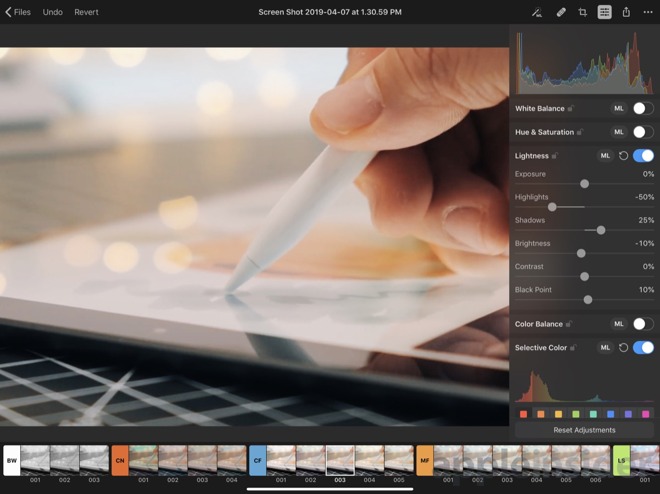
The app itself is very well arranged. Most controls appear on the right side, with occasional sliders and filters available along the bottom. This leaves the bulk of the display dedicated to content.

Pixelmator Photo

Pixelmator Photo

From the top left, you can head back to the file selector, undo, or revert. This is important because everything in Pixelmator Photo is non-destructive so no matter how much editing you do, you can always go back to the original.

On the top right, the auto button, repair control, crop function, adjustments, export, and more are placed.

As you open different controls, they elegantly slide over the image without being burdensome. They even make use of popover so multiple elements could be open at the same time such as the adjustments panel and the “more” menu. It all feels very natural and fluid.

Pixelmator Photo file picker

Pixelmator Photo iCoud-based file picker

When you launch the app, it will automatically have any recent images ready to go. That doesn’t necessarily mean recent images you’ve opened with Pixelmator, but rather any stored on iCloud Drive. As an example, as we prepared our iMac 5K review, we had screenshots and other images littered across our desktop. Those images were then instantly available the second we opened the Pixelmator Photo app. Saying this is handy is an understatement.

A proper image workflow has been a bit of a rough point for iOS users and Pixelmator has done a great job simplifying this. It is painless to manage images on our Mac, and as long as they are in iCloud, it is just as easy to edit them on our tablet. This has made our iPad Pro our preferred device for image editing. At least the bulk of the time.

Editing imagery

Pixelmator Photo supports over 500 RAW formats which means even our newer Nikon Z 7 was supported.

Pixelmator Photo

Pixelmator Photo

One of the biggest, flagship features of Pixelmator Photo is machine learning. Pixelmator has leaned on Core ML to automatically improve photos. In our time with Pixelmator Photo, this has been spot on more often than not. It really does an amazing job adjusting the image. Frequently we’d just hit that and be on our way. If there was a particular look or effect we were trying to achieve however, we went manual.

This even applies to crop, where ML will automatically crop it so the subject is perfectly framed.

As you dig into the manual adjustments, each section can be toggled on/off, adjusted, or automatically set with the Machine Learning button that does its best to make it look as it should. We appreciated the ability to not just automate the entire photo using ML, but each individual adjustment type.

All of the tools were designed for touch, rather than a desktop UI. A few of the most intuitive controls include the Color Balance, Selective Color, and the Curves. Color Balance has a color wheel you can drag the selector in as well as adjustments on either side to tint your image. Curves shows a live histogram as you move the line around and add inflection points.

When adjusting, there are several pre-designed filters along the bottom that were “inspired by pro photography” as well as your own that you create. The list is quite extensive, but it isn’t the most filters we’ve seen in an editing app. They all are pretty solid and of course, you can tweak them once applied to dial in your look.

Pixelmator Photo

Pixelmator Photo export interface

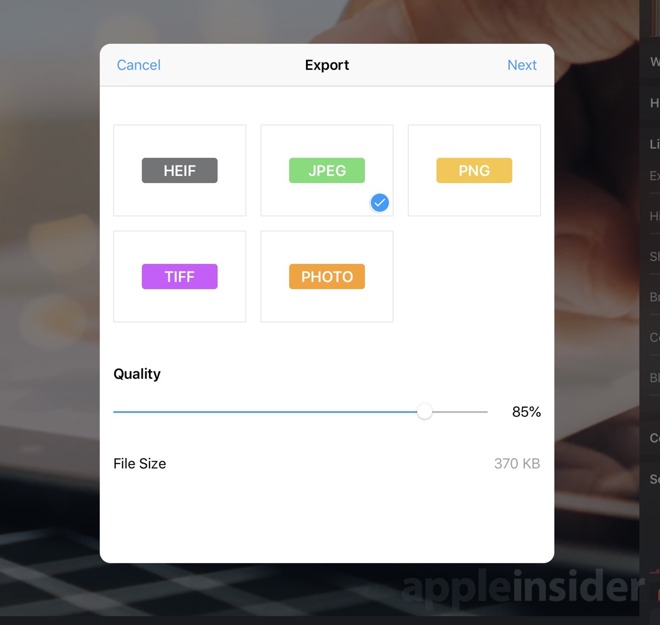
When you’re finished editing an image, you have three options —modify the original in the Photos app, save the image to photos, or export it via the Share Sheet. Using the first option is unavailable if you didn’t open the original from the Photos app, which was usually the case for us as we opened from iCloud Drive. When using the export option, you first get an export screen that allows you to choose the format (HEIF, JPEG, PNG, TIFF) and the quality. It even gives you a prediction of file size before you proceed. Then the Share Sheet appears with all the common destinations.

Should you buy it?

Yes. That is the easy, simple answer here. We consider the app to be cheap at only $4.99. That is also a one-time purchase, unlike Photoshop that requires the monthly subscription.

We love the layout, the abilities, and the amazing performance for such a low price. Editing on our tablet is much more convenient than always sitting down at our computer. In iOS 12, Apple really improved the camera import flow which makes getting photos from your shooter to your tablet all the easier.

If you want to try out Pixelmator Photo for yourself it is available now on the App Store.

Posted on Leave a comment

Everything new in iOS 12.3 beta 2


Video

AppleInsider is going hands-on with the latest beta of iOS 12.3 which includes the newly revamped TV app and several other smaller tweaks.

iOS 12.3 TV app with EPIX

iOS 12.3 TV app with EPIX channel

The first beta of iOS 12.3 contained the first iteration of the brand new TV app, future home of Apple’s original content. The second beta we saw the app get a new, though sparse, intro screen that signifies the TV app as the home to all of your content.

Apple also added Epix as an Apple TV channel alongside Showtime, Starz, Tastemade, and the Smithsonian. Apple TV channels are services you can subscribe to right from the TV app, though during the beta period they still kick you out to the third-party apps to watch anything. Once launched, this content will be available to watch right from within the TV app.

[youtube https://www.youtube.com/watch?v=TR4FPMFLMUI&w=560&h=315]

We’ve been using the TV app quite extensively since it launched in the first beta and were pleased to see how much more stable the app is here in beta two. In beta one, it would freeze constantly, making usage difficult.

The second beta also has more tweaks to the Wallet app in preparation for Apple Card’s launch. The empty icons to the left of your transactions has now been removed in this beta, with just the text available to designate where a purchase was made. This applies to third-party cards. On the Apple Pay Cash card —and forthcoming Apple Card —each transaction has an icon to the left that lines up with the person, business, or category a purchase falls into.

iOS 12.3 beta 2

iOS 12.3 beta 2

Lastly, the palm rejection bug on iPad has been corrected. Prior, the screen would jump around at the detection of your palm while using Apple Pencil. This has been fixed and it works as you’d expect in this latest beta.

Be sure to catch up with everything that changed in the first beta of iOS 12.3 on iPhone, iPad and Apple TV.

Find any changes or features we didn’t mention? Shoot me an email at [email protected] or reach out to me on Twitter at @Andrew_OSU.

Posted on Leave a comment

Review: The third-generation 2019 iPad Air is pro enough

The 2019 iPad Air is Apple’s newest mid-to-high tier tablet, and falls just below the Pro line and just above the sixth-generation iPad, making it unexciting, but arguably the go-to tablet for the general consumer.

2019 iPad Air

2019 iPad Air

Apple in 2019 currently sells five different iPads, in five different price points. There’s the 9.7-inch iPad which sells for $329, the iPad mini which sells for $399, this new iPad Air at $499, and the two iPad Pros at $799 and $999 respectively. On the surface, that looks like a lot of iPad in Apple’s lineup, but in 2019 maintaining a business that is just as large as the Mac, Apple has an iPad for everyone.

[youtube https://www.youtube.com/watch?v=Ud82k42JIFM&w=560&h=315]

The mini is aimed at those who prefer a smaller, more compact device. The 2018 9.7-inch iPad is the budget-friendly alternative that is aimed squarely at the education market. The iPad Pros are targeting those who want to get the most out of their tablet. Which leave the iPad Air —right in the middle.

This middle ground means at times it can feel underwhelming, and in certain areas, behind. That doesn’t make it any less a capable device, however. With solid specs, it will likely be —and should be —the tablet that most gravitate towards.

Specs

2019 iPad Air display

2019 iPad Air Retina Display

This iPad now features a 10.5-inch Retina Display with a P3 wide color gamut, it has an A12 Bionic processor inside —which is also inside Apple’s flagship smartphone the iPhone XS, and XS Max —and it also now supports the first generation Apple Pencil and the Smart Keyboard.

The A12 Processor on the 2019 iPad Air is ridiculously fast. It pairs well with iOS 12 —and soon iOS 13. For the past two weeks that we’ve had the device, we’ve never seen the iPad Air struggle one bit. Everything is so seamless and just works right out of the box.

2019 iPad Air playing Fortnite

2019 iPad Air playing Fortnite

Gaming, just as we saw with the new 2019 iPad mini, was great. Titles like ‘Fortnite’ played smooth, even at a quicker 60 FPS with seldom errant dropped frames.

The pair of speakers for stereo are decent. They’re nothing to brag about, but definitely are a lot louder than any other tablet we’ve used this year, apart from Apple’s own Pro lineup. There are only two of the speakers rather than four on the Pro line, which means when you hold the tablet it is fairly easy to accidentally cover the speaker while will limit the sound output.

The overall software experience on the new iPad Air has been really good, too. We haven’t run into any bugs or app crashes. It’s still an iPad running the same old iOS we’re used to over the past few years so we’re not really getting anything special here.

We’re hoping this coming WWDC we’ll see something amazing from Apple with iOS 13 that can visually overhaul this experience. It’s certainly due.

2019 iPad Air and Apple Pencil

2019 iPad Air with Apple Pencil

The Pencil support is a nice addition that a lot of people are going to appreciate. Unfortunately, the display doesn’t have Apple’s ProMotion technology which gives you a 120Hz refresh rate for a smoother experience. Slower refresh rates mean eagle-eyed artists will notice it to be slightly jumpy while using the Apple Pencil. Unless you are really particular about your drawing, you won’t notice this difference. Those who are that serious will likely prefer the iPad Pro and the second generation Apple Pencil instead, but for note taking and less demanding work, there are no problems to be found here.

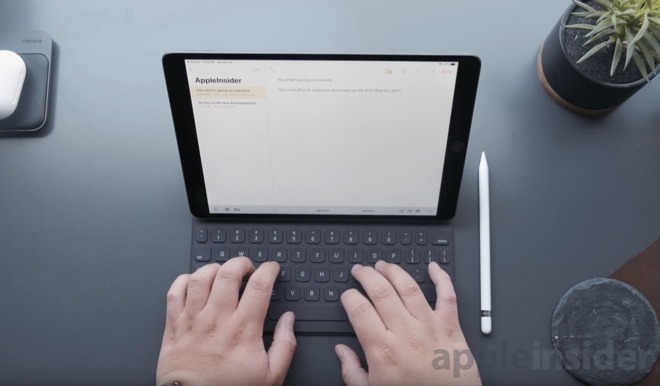
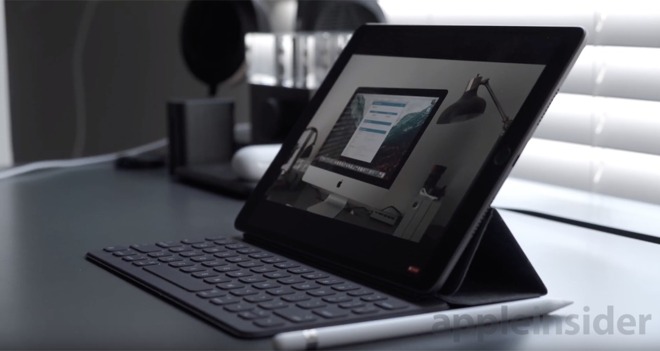
The smart connector is new here as well, it’s meant to be used for Apple’s own smart keyboard which in our opinion is the best keyboard that you can buy for the iPad. The keyboard is a bit stiff, and mushy at the same time, but once you use it long enough, it’ll start to wear down and soften up to a point where every keystroke feels great. There are hundreds of Bluetooth keyboards out in the market already, but the smart keyboard is what we’d highly recommend.

2019 iPad Air Smart Keyboard

2019 iPad Air Smart Keyboard

It is unfortunate that we still don’t have additional accessories to use the Smart Connector. When Apple debuted it originally, third-parties were going to be able to take advantage of it. Years later, we’ve only seen two or three others actually test the waters, leaving the connector mostly for Apple’s utility.

Should you grab one?

2019 iPad Air

2019 iPad Air

The iPad Air exists because it gives Apple an option to serve a bunch of different people who use an iPad for a bunch of different reasons. Some may want a smaller iPad that they can easily pack in their bag or a small tablet to give to their kid so they pick up the iPad mini. Some people want the most basic, and most affordable iPad so they go for the 9.7-inch iPad.

This exists because it gives Apple that happy medium option between the low-end iPad to the high-end Pro models, and that’s why it’s here. The new iPad Air gives you a big 10.5-inch display that is bright, and color accurate. It supports Apple Pencil, Smart Keyboard, and it has the same fast A12 Bionic processor from its $1000 smartphone, and you’re getting all of that for just $499, the same price that the original iPad shipped for nine years ago, and that is pretty impressive.

Again, this is a case where the AppleInsider audience varies a great deal from the target market —no Promotion is a potential issue, as is the need for the original Apple Pencil, versus the new one on the newer iPad Pro line. But, even all that considered, overall, the new iPad Air is a solid 4/5, with it a bit higher for most of the iPad-using public, and a hair lower for the “prosumer” market.

Where to buy

Apple’s 2019 iPad Air can be ordered from Apple authorized resellers with cash discounts of up to $10 off. To find the lowest prices, check out our iPad Air Price Guide, which is updated throughout the day.

Posted on Leave a comment

Here are the best ways to get radio broadcasts to play on your HomePod or iPhone

Tips: It’s easy to use AirPlay with a radio station’s stream, but with a few steps, and an app or two, you can turn Apple’s HomePod in conjunction with your iPhone or iPad into a fantastic, and flexible radio player.

That Sony World Radio used to go with us everywhere. Now you should've seen how much we had to clean it up.

That Sony World Radio used to go with us everywhere. Now you should’ve seen how much we had to clean it up.

It’s a very long time since you used to sit in front of a radio set, twiddling the dial and trying to get far-off stations. Now that radio set is gone, you have instant high-quality access to just about every station in existence around the world —and you don’t listen.

You have that HomePod and, if you’ve also got an Apple Music subscription, you can call up any song that comes to mind. Yet you can’t get your favorite local radio station on it.

Apple Music does come with an immense number of what it calls radio stations. However, with the exception of Beats 1, these are chiefly just curated playlists in different genres. Good luck getting the local news on WNYC or hearing about Brexit from the inside with the UK’s BBC Radio 4.

We need a way to join up the incredible availability of radio stations with the utterly great sound quality of HomePod. Amazon’s Echo does it with Skills, you can ask Alexa to play many different radio stations. Apple’s HomePod does not.

However, you can make HomePod do it. You can ask Siri to play you, for instance, KLAX FM and be listening to Mexican music interspersed with Los Angeles news. When the New York Philharmonic regularly performs for the British classical station BBC Radio 3, you can tune in.

Stream Misty to me

The simplest, if least satisfying way to hear radio on your HomePod, is to send it there. Find the station on the web on your iPhone and then route the audio to your HomePod.

Once you’ve got the station playing, swipe down to get Control Center. Tap on the small icon at top right of the Music tab. That brings up a list of all the devices your phone can play audio on, and it will include your HomePod.

Tap on that and, after some moments, the station will cease playing on your iPhone and instead be on your HomePod.

You can of course stream any audio from your iPhone to your HomePod.

You can of course stream any audio from your iPhone to your HomePod. In this example, the HomePod is named “WG Office.”

It works and it works fine, but it’s the modern-day equivalent of nudging that radio dial the smallest amount in order to get a stronger signal. You have to find the station’s website, which is usually easy, but then also find the page where it streams the audio. That’s oddly harder, sometimes.

And most recently, some radio station websites make you schlep through an image Captcha before they’ll let you reach the streaming feed. As if radio stations aren’t shedding listeners anyway, sometimes you don’t even get the Captcha, you just get denied access.

Radio apps

Instead of tying up a Safari page with the streaming radio station —and having it interrupted whenever you then go to another site with an autoplay ad —you can get a radio app.

There are many of these, but TuneIn Pro is good. Its pricing is confusing —Pro costs $9.99 while there’s a free version and both offer half a dozen different subscription options you can buy to get more. However, it’s a very long-standing app that works well.

Stream audio from the TuneIn Pro radio app to HomePod

Stream audio from the TuneIn Pro radio app to HomePod

You can search for a radio station through it and if it’s streaming on the web, you’ll get it. No Captcha, no taking up a page in Safari.

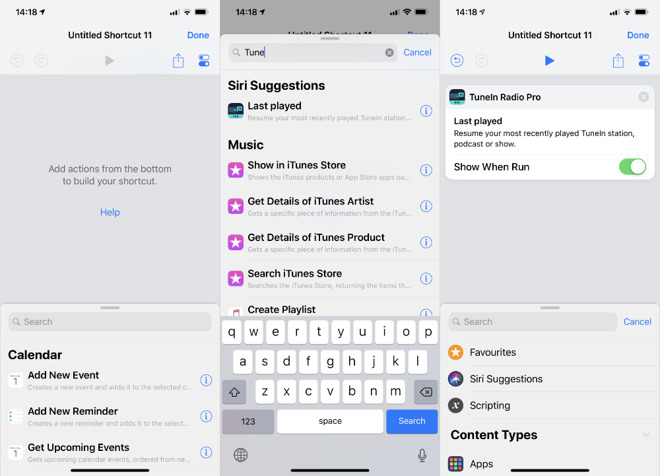
What’s more, TuneIn Pro comes with a Siri Shortcut. You first need to download Apple’s free Siri Shortcuts app, but then you can use it to command HomePod to play radio stations.

You can create a shortcut so that you need only say “Hey, Siri, play the radio,” or any other phrase you like, and it will start TuneIn Pro.

TuneIn Pro lets you create a Siri Shortcut to play whatever station you last listened to

TuneIn Pro lets you create a Siri Shortcut to play whatever station you last listened to

That’s superb, but it’s also limited. TuneIn Pro offers exactly one Siri Shortcut and it’s actually Last Played. You can call out to your HomePod and it can then launch TuneIn Pro. It automatically starts playing, too, so there’s no reaching for the app just to press the Play button.

However, what it plays is whatever you were last listening to. So if you’re a fan of just one station, this is usually great. Siri on HomePod occasionally flakes out and says you’ll have to continue this on your iPhone, but most of the time, it works.

When it’s working, this does turn your HomePod into a radio. However, it’s really more of a bonus on top of what TuneIn Pro is meant to do. Get TuneIn Pro because you like it or because you want to subscribe to get extra sports radio coverage.

Application solution

The first place for radio aficionados in the U.S. to turn is generally iHeartRadio. It’s usable, and free, but doesn’t take advantage of a handy iOS feature.

For maximum use of radio on your HomePod with more technologies to make things easier for you, buy Receiver Radio. It costs $3.99 and is simply a radio station player —but it comes with unlimited Siri Shortcuts.

That’s perfect for this. Find any station in Receiver Radio, play it, and then it’s available to you as a Shortcut.

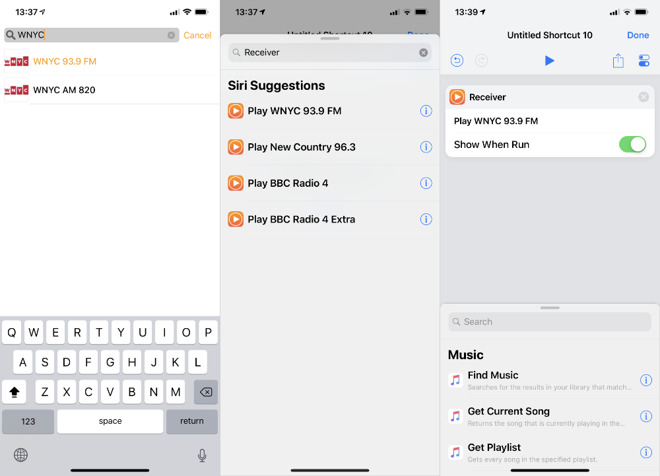
Open Siri Shortcuts, tap the plus sign to create a new one, and then search for the word Receiver. The last four stations you searched for will be presented to you as Siri Suggestions.

Tap on one, and you’re taken into a new Shortcut which is all set up to play that station. Just tap the settings-like icon under the word Done at top right, and you can name the shortcut —and record a voice command.

Receiver Radio makes it easy to create any number of Siri Shortcuts to play radio stations

Receiver Radio makes it easy to create any number of Siri Shortcuts to play radio stations

That command can be anything you like, but if you make it something like “Play WNYC” then you’re creating a natural phrase. From then on, you could just call out “Hey, Siri, play WNYC” and it will work.

Problems

We’ve had no problems at all with Receiver. We have with HomePod, though. While the Siri Shortcuts you create to run Receiver work on HomePod and iPhone, sometimes Siri has had difficulty. Just occasionally, you get a long delay and then “Sorry, there was a problem with the app.”

Naturally, we assumed the app was Receiver, but it never was. Instead, the app having problems was Siri Shortcuts. We’d go into that on our iPhone to see what was happening and it wouldn’t load any Shortcuts. After restarting the iPhone, Shortcuts worked —and so all of our radio stations did too.

You will also have to experiment with your voice commands. “Hey, Siri, play BBC Radio 2” keeps persuading Siri to instead play Apple Music’s Radio 2 playlist.

It’s great that there are all these playlists on Apple Music, but if you hanker for the days of having a real radio in your office, now you can have that back.

Keep up with AppleInsider by downloading the AppleInsider app for iOS, and follow us on YouTube, Twitter @appleinsider and Facebook for live, late-breaking coverage. You can also check out our official Instagram account for exclusive photos.

Posted on Leave a comment

Evidence of standalone Music, Podcasts apps for macOS surfaces, signals iTunes breakup


Noted developer Steve Troughton-Smith on Friday said he is confident that Apple is working on new, standalone Music, Podcast and potentially Books apps for macOS, suggesting the company plans to dismantle its lumbering iTunes giant.

Marzipan

Apple unveiled the start of its plan to bring iOS apps to the Mac at WWDC 2018.

Shared in a series of tweets, Troughton-Smith’s hypothesis lends credence to rumors that Apple intends to break up iTunes. The online music platform has over the years become bloated as it took on an increasing amount of responsibility, from iPod and iPhone management to video, podcasts and audiobooks.

Apple in March confirmed a new TV app for Mac would arrive later this year as the company rolls out Apple TV+, taking video out of the iTunes stable. New Music and Podcast apps would further relieve the overburdened platform, while a refreshed Books app could include audiobook support.

The developer did not share the source of his suspicions, but said the claims are based on concrete evidence.

“I am now fairly confident based on evidence I don’t wish to make public at this point that Apple is planning new (likely UIKit) Music, Podcasts, perhaps even Books, apps for macOS, to join the new TV app,” Troughton-Smith said in a tweet. “I expect the four to be the next wave of Marzipan apps. Grain of salt, etc[.]”

Troughton-Smith references Project Marzipan, Apple’s internal name for a project that will ultimately allow developers to easily port iOS apps to Mac. Shades of the initiative were shared during 2018’s Worldwide Developers Conference, when SVP Software Engineering Craig Federighi said Apple is working to incorporate iOS-only frameworks into macOS.

Apple’s macOS Mojave was first to benefit from Marzipan, with first-party apps Home, News, Voice Memos and Apple Books all being ports of their iOS counterparts. Developers were promised access to the cross-platform within the year, and an early SDK is expected to debut at WWDC 2019.

AppleInsider will be covering WWDC live from June 3 to June 7.

Posted on Leave a comment

Apple ceases iOS 12.1.4 code signing following release of iOS 12.2


Following the March release of iOS 12.2, Apple on Thursday stopped signing code for iOS 12.1.4, ensuring iPhone, iPad and iPod touch owners are running the latest, most secure version of the operating system.

iOS 12

In line with prior code signing stoppages, the end of iOS 12.1.4 signing arrives ten days after Apple issued iOS 12.2 late last month.

The latest iOS version delivers support for Apple News+, HomeKit TV compatibility, new Animoji characters and user interface updates for Wallet, Control Center and the lock screen.

With the change, iOS 12.1.4 can no longer be downloaded from Apple servers, meaning users are restricted to iOS 12.2 or higher.

[youtube https://www.youtube.com/watch?v=4mCj9dQBvIs&w=560&h=315]

Apple typically stops signing legacy code shortly after a new version of iOS is released in a bid to keep users safe from new threats. The practice also ensures devices are running the most up-to-date software.

Apple’s latest iOS 12.2 addresses a whopping 43 security issues involving WebKit, Contacts, FaceTime, GeoServices, Mail, Messages, Safari, the system kernel and other critical software.

A beta version of the company’s next iOS release, iOS 12.3, was seeded to developers last week for evaluation. Notably, the upcoming OS includes a sneak peek at the revamped Apple TV app that will host Apple TV Channels and Apple TV+.

Posted on Leave a comment

Apple promotes former M&A chief Adrian Perica to VP of corporate development


Apple on Wednesday updated its organizational chart with the addition of former mergers and acquisitions boss Adrian Perica, who now serves as the company’s vice president of corporate development under CEO Tim Cook.

Adrian Perica

Apple VP of Corporate Development Adrian Perica

Word of Perica’s nomination to the executive team arrived in a quiet refresh of Apple’s Leadership webpage.

As VP of corporate development, Perica is in charge of mergers, acquisitions and strategic investing efforts, Apple said. The position appears to be a newly created role, as Perica is not filling a vacancy.

Prior to his appointment as VP, Perica’s served as Apple’s Head of Mergers and Acquisitions, where he reportedly led a team that consisted of roughly a dozen people that at times grew to include more than 100 staff for larger deals. Under his operating principles, potential acquisition targets were often identified by Apple engineers, with product managers presenting findings to the executive and his team on a monthly basis.

Perica joined Apple in 2009 and has “overseen the successful integration of vital technologies and new businesses across hardware, software and services,” the company said. Apple’s purchase of Beats in 2014, the company’s largest acquisition to date, was accomplished with Perica at the helm.

The VP was recruited from Goldman Sachs to help streamline and expedite Apple’s acquisition process, according to a Bloomberg Businessweek profile published in 2014. Prior to Goldman, Perica worked at Deloitte Consulting and was an officer in the US Army. In addition to his duties at Apple, he is a member of Chinese ride sharing giant Didi Chuxing’s board.

Perica obtained a bachelor’s degree in Physics from the United States Military Academy at West Point and an MBA from the Massachusetts Institute of Technology.

Posted on Leave a comment

Apple employee assailed by U.S. Customs, ACLU complaint claims


Apple employee Andreas Gal, former executive of Apple acquisition Silk Labs, was allegedly harangued and penalized by U.S. Customs and Border Protection officials when he demurred to device search requests.

Silk Labs

Andreas Gal co-founded AI startup Silk Labs, which was acquired by Apple in 2018.

Gal’s run-in with CBP was detailed in an American Civil Liberties Union of Northern California complaint filed on Tuesday, reports Fast Company.

According to the filing, Gal was stopped at an unnamed checkpoint and questioned about his work and advocacy for online privacy. Whether officials followed the line of questioning before or after it was established that Gal was an Apple employee is unknown. It is also unclear where Gal was traveling to or from when he was stopped by CBP officers.

Officials subsequently requested passwords to access Gal’s Apple-issued phone and computer, presumably an iPhone and Mac. As the hardware, and contents therein, are covered by a nondisclosure agreement, Gal asked if he could speak with Apple or a lawyer prior to handing over the information. The request was declined and Gal was threatened with prosecution, the report said.

CBP allowed Gal to pass, but confiscated his Global Entry card and said he would be removed from the expedited screening program.

“CBP’s baseless detention and intrusive interrogation of Andreas Gal and the attempted search of his devices violated his Fourth Amendment rights,” said William Freeman, ACLU of Northern California senior counsel, in a statement. “Furthermore, CBP’s policies lack protections for First Amendment rights by allowing interrogation and device searches that may be based on a traveler’s political beliefs, activism, nation of origin, or identity.”

Gal came to Apple through the acquisition of Silk Labs, a startup focused on the development of on-device artificial intelligence technology. Previously Mozilla’s chief technology officer, Gal teamed up with fellow Mozilla platform engineer Chris Jones and Qualcomm alum Michael Vines to form Silk Labs in 2015.

Posted on Leave a comment

Apple to reveal Q2 2019 earnings on April 30


Apple on Monday announced plans to report quarterly earnings for the second fiscal quarter of 2019 at the end of trading on April 30, with company executives expected to detail the period’s highs and lows in an ensuing investor conference call.

Earnings

Announced in an update to Apple’s Investor Relations webpage, the forthcoming conference call is scheduled for Tuesday, April 30, at 2 p.m. Pacific, 5 p.m. Eastern.

Company CEO Tim Cook and CFO Luca Maestri are expected to provide an in-depth breakdown of segment financials for the three-month period ending in March, potentially offering an early look at the performance of newly released iPad and AirPods models. The pair is also anticipated to field questions from select analysts.

Following a rare guidance revision in January, Apple posted earnings of $84.3 billion in revenue on the back of $52 billion in iPhone sales. Despite a handset revenue contraction of 15 percent year-over-year, the company touted a 19 percent uptick in overall growth driven in large part by solid sales in other sectors.

“While it was disappointing to miss our revenue guidance, we manage Apple for the long term, and this quarter’s results demonstrate that the underlying strength of our business runs deep and wide,” Cook said during last quarter’s conference call.

In line with recent quarters, Apple’s services arm continued to follow an upward trajectory during the three-month period ending in December. The segment raked in $10.9 billion, an all-time high. Services are expected to boom throughout 2019 and 2020 as Apple introduces a slate of new products to its existing App Store, AppleCare, Apple Music, Apple Pay, iCloud and iTunes offerings.

Apple’s services roadmap was unveiled at a special event last week, with the first of the new products, subscription news service Apple News+, arriving as part of iOS 12.2. Other initiatives, like Apple TV Channels and Apple TV+, game subscription service Apple Arcade, and the Goldman Sachs-backed Apple Card, are due out later this year.

For the current quarter, Apple is forecasting revenue between $55 billion and $59 billion, with gross margin estimated to fall between 37 percent and 38 percent. Operating expenses are expected to lie between between $8.5 billion and $8.6 billion.

AppleInsider will offer full coverage of the earnings call on Tuesday, April 30, starting at 2 p.m. Pacific, 5 p.m. Eastern.