Posted on Leave a comment

‘iPhone XI’ and ‘iPhone XI Max’ case manufacturing dummies pop up on Chinese social media


A pair of images of an “iPhone XI” dummy for manufacturing purposes purports to show accurate dimensions of the 2019 iPhone lineup, including a square camera extrusion.

The images appear to be 3d prints or milled units from a CAD file. Discussion of the dummies suspects them to be iPhone “blanks” matching the dimensions of a future iPhone, used to engineer protective third-party cases.

Little can be gleaned from the blanks that hasn’t already been rumored. The camera penetration is square, with three areas where a camera lens would be located. A fourth smaller cutout in the camera extrusion suggests where the flash may end up on the final unit.

The second image shows that Apple may be planning to retain the notch. The notch shows four sensor penetrations, and a speaker hole.

The provenance of the images isn’t clear. They may in fact be dummies generated from leaked specifications, in much the same way that accurate enclosure dummies were available for the iPhone X and iPhone XS families in late April of 2017 and 2018, respectively. Notably, at the corresponding times, the names for the products were not accurate. However, they may also be pure speculation based on previous rumors.

Previous predictions about the 2019 iPhone lineup speculate that the rear cameras of the expected 6.5-inch OLED, 5.8-inch OLED, and 6.1- inch LCD 2019 iPhone models will likely upgrade to triple-camera and dual-camera, respectively. More specifically, a Sony-provided super-wide camera will be added to the model. A new black coating will be used to make the camera “inconspicuous,” but what precisely that entails is not presently known.

Ming-Chi Kuo has also speculated that the 2019 iPhone lineup will retain a Lightning connector rather than adopt USB-C, as the iPad Pro range has. iPhones are also expected to keep Apple’s TrueDepth camera and an associated display notch. All or part of the lineup is slated to get UWB (ultra-wide band) for indoor positioning and navigation, a frosted glass casing, and larger batteries. One interesting addition is so-called “bilateral” wireless charging, which would allow the phone to charge other devices wirelessly, acting as a charging pad of sorts.

TrueDepth may see an update with a higher-power flood illuminator for better Face ID recognition, Kuo said, while a new 6.1-inch LCD model might be upgraded to incorporate 4GB of RAM, up from the current 3GB in the iPhone XR.

The Slashleaks post on Saturday was sourced from social media venue Weibo.

Posted on Leave a comment

How to make the Apple Watch Raise to Speak feature work every time

The ability to just raise your wrist and speak to your Apple Watch without the words “Hey, Siri,” is brilliant. What was initially a convenience is now increasingly useful, too, and yet it’s extraordinarily unreliable. Here’s how to make it better —and why you need it to.

We must call out the phrase “Hey, Siri,” twenty times a day and there is not a single thing we don’t like about it —except those words. The ability to have your iOS device send messages, tell you the news, answer calls, play music and countless more things, without even touching it is astounding. Having to prefix every single request with “Hey, Siri,” is not.

If you’re a heavy user of Siri, those words become a chore and you end up saying them so often that they turn to meaningless syllables that you rush through. Don’t get us wrong, the idea of going back to pressing the Home button before you speak would be like returning to the Bronze Age.

Yet when Apple introduced Raise to Speak with watchOS 5, it was clearly the next step. Just raise your wrist, speak to your Watch and Siri would go do what you ask without you ever needing to say, “Hey, Siri.” Okay, Siri might misunderstand you, but that’s Siri, it’s nothing to do with how you invoke it.

When it works

If there’s anything more exasperating than Siri offering to send a text to your ex instead of playing the “Texas Essentials” playlist on Apple Music, it’s Raise to Speak doing nothing at all.

Before we were driven to figure this problem out, we were getting Raise to Speak reacting perhaps one out of twenty times. In regular use, we quickly got to the stage where we didn’t bother and instead just always said, “Hey, Siri,” regardless.

Now after practicing an awful lot, we’re getting it working about nineteen out of twenty times.

How to do it

You do have to have this feature switched on or you’ll be fruitlessly shouting into your Watch forever. On the Watch, go to Settings, scroll to General and tap on Siri. If your Watch can do this, so if it’s a Series 4 or later one, then you’ll have a Raise to Speak option.

You have to set up Raise to Speak before you can use it. Only Series 4 or later have this setting, though.

You have to set up Raise to Speak before you can use it. Only Series 4 or later have this setting, though.

Switch that on and many happy hours of trying to get it work lie ahead of you.

The trick is to remember that the Watch is not listening out all the time. It will listen for “Hey, Siri,” as soon as you turn your wrist, but that’s not Raise to Speak.

Clearly, given the name, it’s no surprise that you have to raise your arm in order to make this work. It’s the specific motion and perhaps also positioning that makes the Watch start listening to what you’re saying.

However, what is surprising is just how much you have to raise your arm. We find that it works most consistently when you raise it so high that the Watch is in front of your face.

It seems to help most if the Watch face is close to perpendicular to the ground. Raise it and tilt the Watch so that it is directly face-on to you, and then it works.

You have to raise it and start speaking pretty much immediately, but as you do so, you will get the screen changing to show the words “What can I help you with?” and the Siri symbol reacting to your voice.

Basically, act like you’re about to start dancing an Argentine Tango and you’re sorted.

Your first clue that Raise to speak is working is when the Watch changes from your regular face (left) to listening to what you're saying (right).

Your first clue that Raise to speak is working is when the Watch changes from your regular face (left) to listening to what you’re saying (right).

Practicality

Compare that to how you can just turn your wrist enough to light the screen and then say “Hey, Siri.” That always works and it always works quickly and you can do it without even raising your arm an inch.

As much as we like the idea of never saying that trigger phrase again, and as much as we will never change our mind about wanting that some day, we haven’t got it now. Not effectively, not practically.

Which is more than a pity, it’s increasingly a hindrance. Even when watchOS 5 was officially released to the public in September 2018, it was highly likely that you had many devices that could react to “Hey, Siri.”

It was remarkably easy to have a situation where you’re in a place with an iPhone, an iPad and even a Mac that are all listening out for the words. Then, of course, you could also have a HomePod or do, and the only difference with those is that they have better microphones. We have been two rooms away, talking to our Apple Watches, and the HomePod has reacted instead.

Consequently, we might, for instance, successfully set an alarm on our Apple Watch but the HomePod in our office is set too.

Left: using Hey, Siri. Right: using Raise to Speak. It doesn't look like much of a difference, but when you use Siri a lot, it really is.

Left: using Hey, Siri. Right: using Raise to Speak. It doesn’t look like much of a difference, but when you use Siri a lot, it really is.

Then we got AirPods 2 and now the very devices in our ears are listening out for the trigger phrase.

As good as these devices are at checking with each other and trying to reason which one you meant to call out to, they get it wrong. If you’re wearing AirPods 2 and for some reason decide to say “Hey, Siri,” into your Apple Watch, then the Watch, the AirPods and those nosy, eavesdropping HomePods are likely to respond.

All of that goes away when Raise to Speak works reliably. Use that to ask Siri something on your Apple Watch and no other device you’ve got will ever wrongly respond —because none of them will even hear you.

The future

Apple is reportedly working on extending Raise to Speak and finding more ways for us to interact with our Watches by voice without the trigger phrase.

Ultimately, it would be great if you could cease ever having to say “Hey, Siri” again. To anything. It won’t happen, and Raise to Speak won’t get better enough to be useable, unless the devices always listen to everything we ever say.

Apple’s not going to do that, not when there are such security issues around it.

Only, as good as Siri is and can be, there aren’t that many things you can ask it or that many different ways you can put the same question. Perhaps Apple could have it listen for a number of specific phrases, not just this one.

Perhaps Apple could let us choose our own phrase to invoke Siri. It’s already taken a step toward that with the way that you can record any phrase you like to trigger a Siri Shortcut.

True, we’re an ungrateful bunch. The ability to talk to any device and have it ever understand you in any way is less computer science and more alchemy. It was the impossible dream for such a long time, and now it’s an everyday or even every hour occurrence.

We just want more, and we don’t want to have to strike a pose to make Raise to Speak work.

Keep up with AppleInsider by downloading the AppleInsider app for iOS, and follow us on YouTube, Twitter @appleinsider and Facebook for live, late-breaking coverage. You can also check out our official Instagram account for exclusive photos.

Posted on Leave a comment

New Apple retail head Deirdre O’Brien joins Instagram, shares pics from trip to Hong Kong & Macau


In a rare move for an Apple executive, new retail head Deirdre O’Brien has joined Instagram, inaugurating her account with a handful of photos from a worldwide business tour.

Apple store in Hong Kong

O’Brien is on the service as @deirdre.at.apple. Two photos were shot in Hong Kong, including Apple IFC Mall, while a third was shot at Apple Cotai Central in Macau.

Any reason for the focus on Chinese territories is unknown. O’Brien is visiting many other retail teams in cities such as Austin, Cupertino, and Paris.

That would make sense, since predecessor Angela Ahrendts took a similar tour after joining Apple in 2014. Presumably O’Brien’s goal is to not only familiarize herself with locations but endear herself to the retail workforce.

Apple executives normally limit their social media activity to Twitter. There are exceptions, particularly with CEO Tim Cook, who periodically posts on China’s Weibo — likely with the help of Mandarin-speaking assistants.

O’Brien was appointed senior VP of “Retail + People” in February, combining her previous role with a new one.

Posted on Leave a comment

Facebook confirms plans for voice assistant to match Siri, Alexa & Google Assistant


Facebook on Wednesday confirmed that it’s working on its own voice assistant, carving out a space among competitors like Apple’s Siri and Amazon Alexa.

Facebook Portal

“We are working to develop voice and AI assistant technologies that may work across our family of AR/VR products including Portal, Oculus and future products,” a spokesperson told Reuters. Voice commands can be especially important for AR and VR headsets, since they’re typically not used in combination with a keyboard, mouse, or touchscreen.

Portal is actually the company’s video call hardware. Adding a voice assistant would naturally turn it into a video-capable smartspeaker akin to the Google Home Hub or Amazon Echo Show.

The assistant was first exposed earlier today by CNBC, which said that it’s being crafted by a Redmond, Wash., team typically assigned to long-term projects. Development began in early 2018, and Facebook has allegedly been contacting vendors in the smartspeaker supply chain, perhaps pointing to a dedicated product.

Any Facebook-branded smartspeaker would face an uphill battle. Amazon and Google are by far the dominant players in the market — Apple’s HomePod, backed by billions of dollars, is estimated to have claimed just 1.6% of the market in the December quarter. Facebook has also been wracked by scandals, which may only add to suspicions about the privacy of smartspeakers.

Posted on Leave a comment

Intel exits smartphone modem business on heels of Apple-Qualcomm settlement


Apple supplier Intel on Tuesday announced plans to exit the 5G smartphone modem business, with the decision arriving on the heels of a settlement reached in the wide sprawling Apple v. Qualcomm legal battle.

Intel

The news was announced in a brief press release posted to Intel’s website.

Along with a withdrawal from 5G modem development, the chipmaker will assess potential opportunities to integrate 4G and 5G modems in PCs, internet of things devices and other data-centric devices, the company said. Intel also expects to continue work in 5G network infrastructure.

“We are very excited about the opportunity in 5G and the cloudification’ of the network, but in the smartphone modem business it has become apparent that there is no clear path to profitability and positive returns,” said Intel CEO Bob Swan. “5G continues to be a strategic priority across Intel, and our team has developed a valuable portfolio of wireless products and intellectual property. We are assessing our options to realize the value we have created, including the opportunities in a wide variety of data-centric platforms and devices in a 5G world.”

The announcement comes after Apple and Qualcomm reached a surprise settlement in a long-running legal war over patent licensing and royalties. Revealed earlier today, the settlement allows Qualcomm to once again enter Apple’s iPhone supply chain, presenting a competitor to Intel’s 5G solution.

Prior to the Qualcomm agreement, Apple was solely reliant on Intel baseband chips for its mobile products, including its flagship iPhone lineup.

Developing

Posted on Leave a comment

Amazon in talks to launch free music streaming service for Echo devices, report says


In a bid to better compete against market competitors Spotify and Apple Music, Amazon is reportedly in negotiations to launch a free, ad-supported music streaming service that will accompany the retail giant’s Prime Music and Music Unlimited products.

Citing sources familiar with the project, Billboard reports Amazon is angling to make the as-yet-unannounced service available for free on Echo devices as soon as next week.

Like competing free-to-listen streaming services from Spotify and Pandora, ads will support Amazon’s offering. The company is initially offering to pay certain record labels on a per stream basis, regardless of advertising revenue generated in by the venture, the report said.

Beyond expectations that the service will launch on Echo devices with a limited catalog, exact programming details are unknown. Some ad-supported products allow users to search for and stream songs on-demand, while others offer a streaming radio-like experience punctuated by commercial breaks.

The service will join Amazon’s stable of music streaming products that include the subscription-based Amazon Music Unlimited and Prime Music, a value-added service for Amazon Prime members.

If and when the service goes live, Amazon would become the second major music streaming service to offer both free and for-pay tiers, at least for Echo owners. Segment leader Spotify currently markets an ad-supported tier used by more than 100 million users worldwide.

News of Amazon’s plans arrives about one month after Apple Music surpassed Spotify as America’s top subscription music service. In February, Apple Music hit 28 million U.S. subscribers, beating out Spotify’s 26 million for the same period.

Posted on Leave a comment

Which to buy: AirPods, AirPods 2, or AirPods 2 with the wireless charging case

It’s been about a month since Apple released these brand new AirPods. That means there are now three different options to choose from. AppleInsider helps you decide which route to go.

AirPods 2 perched on the original AirPods

AirPods 2 perched on the original AirPods

A trio of options

Let’s get these three options out of the way first before we get into any more of the technical stuff. Currently, there are three different options to choose from. There are the original AirPods which sell for $140 to $150, the new AirPods second generation without wireless charging at $159, and the new AirPods second generation with wireless charging at $199.

[youtube https://www.youtube.com/watch?v=HfqaAyyoyok&w=560&h=315]

That’s a lot of money for a pair of earphones. Yes, there are far more expensive earphones out there in the market but those other earphones are also not as small and convenient as Apple’s AirPods. That’s why they’ve gathered such an adoring fan base over the years.

These new AirPods haven’t changed much from its predecessor. It physically looks and feels the same on hand. The satisfying *click* when opening the case is still here despite the very small, and unnoticeable hinge redesign. And the way it charges inside the case is exactly the same.

Before we get into what does separate these out, let’s look again at the originals.

AirPods

AirPods

The still somewhat expensive AirPods first gen some people would say are just average sounding earphones, and while they’re right, it’s really not all that bad from a truly wireless earphones standpoint. Sound quality is decent, there’s plenty of bass here and it’s not overdone, mids and highs are just ok, although not the worst in the market. AirPods was one of the very first truly wireless earphones that didn’t have a huge clunky case, a design that didn’t make you look like a robot and it’s also the first pair of Bluetooth earphones that made connecting to a device so seamless thanks to that W1 chip. That alone made the AirPods such an iconic piece of tech. A simple and seamless way to connect to an Apple device.

With the second-generation AirPods, we get all of that, and a little bit more. Apple mentioned on their website “powered by the all-new Apple H1 headphone chip, AirPods deliver a faster and more stable wireless connection to your devices — up to 2x faster when switching between active devices, and a 1.5x faster connection time for phone calls. The H1 chip also drives voice-enabled Siri access and delivers up to 30 percent lower gaming latency so whether you’re playing games, listening to music, or enjoying podcasts, you’ll experience higher-quality sound.”

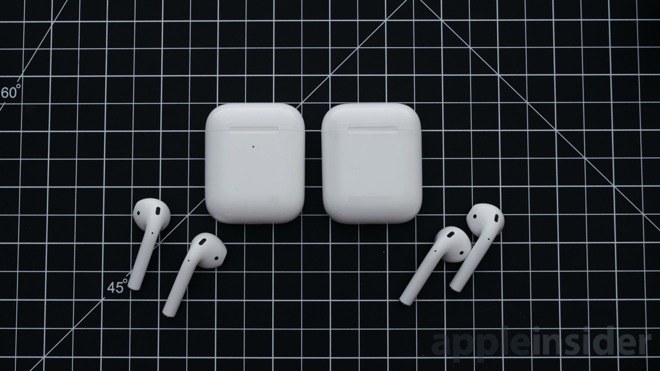
AirPods Second Generation (left) and original AirPods (right)

AirPods Second Generation (left) and original AirPods (right)

Those differences add up to a winning experience, as we explored in our full review.

What all of that means in the real world is that you should notice the new AirPods connect to your iPhone, Mac or other iOS devices a lot quicker and you should also see less latency between audio and the visuals you’re seeing on screen. You also now have access to Siri hands-free by saying “Hey Siri” and you can ask her to do the normal actions. All of that is thanks to the new H1 chip found on the new AirPods 2. You’ll also get longer battery life when taking phone calls, but that’s pretty much it in the battery department.

When it comes to sound quality, we haven’t noticed a huge difference in quality between the first generation AirPods and the newer AirPods 2. This could all just be a placebo effect, but we did notice a very slight, and I mean really small difference in clarity on the newer pair. But it’s nothing that you’ll really notice day to day. This difference could also disappear as the drivers are broken in.

Which to choose

Those are the main differences between the two. But which one should you pick up if you’re a first-time buyer? With three different options to choose from, it’s pretty hard to say what you’re looking for. With the $199 AirPods second generation, you get wireless charging, which if you haven’t fully adapted to the wireless charging life, it’s a game changer. But if wireless charging isn’t your method-of-choice and prefer to top off using Lightning, then there’s the $159 version is what you should look into, and if you ever change your mind about wireless charging, Apple sells just the wireless charging case for $79.

AirPods Second Generation (left) and original AirPods (right)

AirPods Second Generation (left) and original AirPods (right)

That pretty much leaves the original AirPods out of consideration unless you find them clearanced out well below that $159 price point or used on eBay for a decent savings. Still retailing at up to $150, it isn’t worth the $10 discount to miss out on the better features of the second generation.

Where to buy

First-generation AirPods are currently on sale for $147 at Amazon, while second-generation AirPods are shipping now at Walmart with free 2-day shipping. Those who prefer to shop on Amazon can also backorder a pair of the latest AirPods with a short wait. For up-to-date prices and product availability, be sure to check out our AirPods Price Guide, which is updated throughout the day.

Posted on Leave a comment

Cardhop contacts app comes to iOS with fast searching and powerful quick actions

A new iOS app, from the developer of Fantastical, aims to turn Contacts from something you rarely search into a tool you regularly exploit. Alongside fast search and sorting, it lets you rapidly start calling, texting and emailing directly from it.

Flexibits, the maker of long-standing Calendar app Fantastical, has brought its Mac Contacts app Cardhop to iOS. As with the Mac edition, the aim is to both speed up how you use Contacts —and to make you use them more. Rather than occasionally turning to Cardhop to check someone’s email address, you can begin the email right within the app. You can begin an email, start a text message or phone them. And where you have to be in a contact to do this when you’re using the regular iPhone Contacts app, Cardhop lets you do it all from the search field.

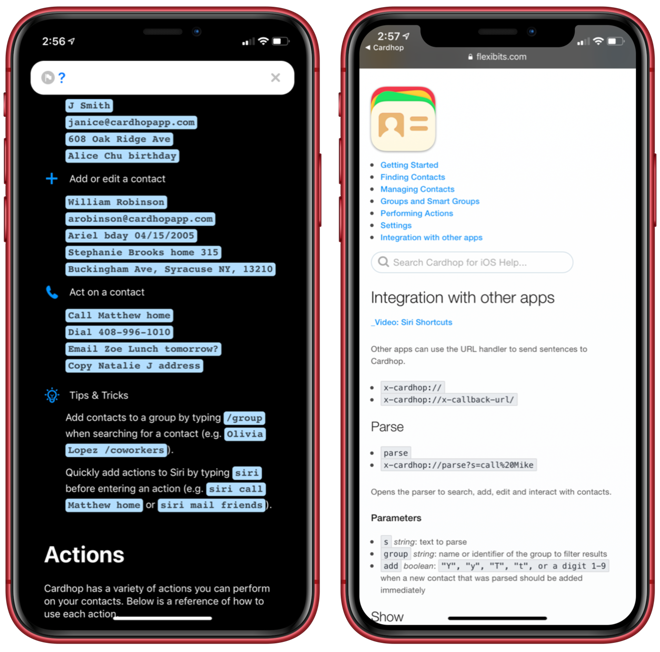
The search field is like a commandline, and you can use keyboard actions to act on contact cards

The search field is like a command line, and you can use keyboard actions to act on contact cards

It’s a development of the natural language parsing that originally marked Fantastical out as a unique calendar and let you enter an appointment by just typing a sentence about it, instead of tapping to enter each detail separately. While other calendars, including Apple’s own, have added this ability to understand or parse what you write, Fantastical remains particularly good at it and now Cardhop is similar.

Parsing in Cardhop works well, whether it's by voice or typing

Parsing in Cardhop works well, whether it’s by voice or typing

Also as with Fantastical, the benefit of the app is in how it handles your existing data. Fantastical uses the same calendar database that Apple provides and, in exactly the same way, Cardhop uses the same contacts. Make a change to a contact in Cardhop and the same change will be in Apple’s own Contacts app or vice versa. This means there’s no setting up and there’s no copying of contacts to a new app. You could go back and forth between Cardhop and Apple’s own at will and there would be no difference in your actual contacts list.

If you don’t use Apple’s Contacts app and instead just use the contacts list in your iPhone, it doesn’t matter. These and all major iOS contacts alternatives use the same core contacts database.

Trying out Cardhop will be easier if you are used to using Apple’s Contacts app, though. That’s because if you tend to use the Phone app when you want to call someone —or the Mail app to email, the Messages app to text —then it’s hard to remember to use anything else.

That said, it’s also hard to imagine that any other app could do more than Apple’s one. Yet Cardhop does, and what it brings you comes down to speed, organization and action.

Work your contacts app

Open Cardhop and you can see a list of your favorites —though note that this is not the same list of VIPs that you may have set up in Apple’s Phone or Contacts app. Apple’s privacy rules mean this, and this alone, is something a third-party app can’t see. If you want to have favorites for quick calling or emailing, you’ll set those up again in Cardhop.

When you do that or when you tap through your contacts list to a person you want, though, you can just go into the card for them and see whatever details you’ve got.

However, you can also search for them —but the search box where you would normally enter their name lets you do much more. It lets you take actions that range from calling an existing contact to adding a new one or updating a detail.

You start by typing in the name of a contact and Cardhop begins auto-filtering a list of existing contacts. If you type in the name to the point that it becomes unique, it displays the card for that contact.

Typing “Mike Wu” might be enough for it to display AppleInsider‘s Mike Wuerthele’s card, for instance. Or, if you’ve not entered this contact before, typing their name and one piece of information (phone or email for example) will add them to your contacts database. Rather than having to press a plus sign and tap through adding first name, surname, phone number and so on, you’ve just done it all in one go.

Similarly, if you enter an existing name and add some new information after it, that new detail will be added. So if you enter “William Gallagher [email protected]” and you’ve already got William in your contacts database, Cardhop will check to see if you have that email address too and will add it if you don’t. Or type in “call William G” and Cardhop will instantly start a phone call with William without you having to find his card and tap on the number.

Quick actions

Since you’re typically only ever going to be typing very similar things such as Call or Email, Cardhop comes with those set up in quick-action buttons. It defaults to this basic set, but there are many other Cardhop features that you can elect to include as quick actions. You can have it so that tapping on a Directions button and then typing someone’s name will get you all that contact’s addresses, for example.

Equally, you could have FaceTime Audio as a quick action. Or FaceBook Messenger, Twitter, Skype, WhatsApp and more. Cardhop understands these words and acts on them whether you add them to quick action buttons or not. So as you use the app more, you can decide which buttons will be most useful and change them as you need.

Sharing and not sharing

With Apple’s Contacts app, if you AirDrop your own contact details to someone, they get everything. They might only want your work email, but they get your home one, your cell number, office address, the lot. In comparison, Cardhop lets you specify a subset of information that you’re happy to share.

Whatever you’re doing in Cardhop —typing a quick action or looking up someone’s contact —you can turn your iPhone to horizontal and the screen swaps to show your business card.

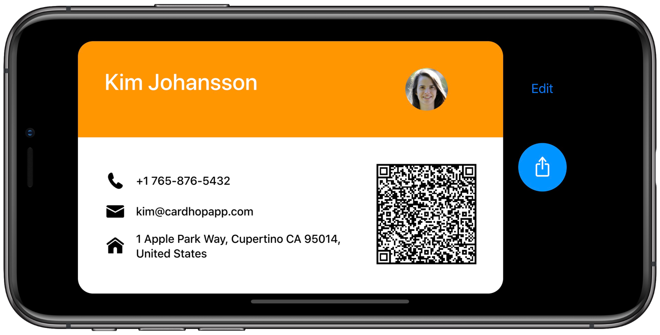
Your name, title, and three other fields of your choosing fit on this card —plus there’s a QR code that makes it easy for anyone with a reader to add your card to their own devices. Next to this business card image there’s an edit button that lets you specify just which bits of your information you want. And there’s a Share button for when you’re talking to a normal human being who doesn’t carry a QR code reader all day.

Cardhop creates a business card for sharing with reduced information from your personal contact card

Cardhop creates a business card for sharing with reduced information from your personal contact card

You’ll see the benefits of Cardhop as soon as you try it. However, if you then get into the habit of starting calls and emails and everything else to do with contacts there, you’ll feel the benefits too. From our experience with the Mac version, once you make it a habit, you come to like and rely on Cardhop hugely.

For an app that you need to use to appreciate, though, Cardhop doesn’t try to keep you to itself. You can use it via Siri Shortcuts and create workflows to show your favorites, for instance, or to show your recent contacts. That’s a particularly useful part of Cardhop —whether through Shortcuts or directly inside the app, you can see who you recently called, emailed or messaged. It’s no kind of Customer Relationship Manager, but it’s handy when you’re temporarily contacting someone a lot yet it’s not worth adding them to your favorites.

Help documentation is accessed by typing

Help documentation is accessed by typing “?” and there’s a full manual that documents use in Shortcuts

By default, Cardhop does all this with your regular iCloud contacts list. However, the new Cardhop for iOS and now also the updated Cardhop for Mac support Google Contacts, G Suite, and Microsoft Exchange’s Global Address List.

As it stands, Cardhop for iOS is excellent for turning your flat contacts list into a tool that you use to stay in touch with people. It’s great for acting on that contacts database and digging through it, but it doesn’t do anything about that database itself. It would be good to see features to make managing duplicate contacts easier.

And then there is the perennial problem that so many of us have email addresses that we only think we’ve saved in a contacts database. Apple’s Mail is so good at autocompleting addresses of people we’ve previously heard from that we don’t even realise it is doing that. We assume it’s autocompleting from our contacts database and since it isn’t, when we try to access a contact on another device or in another app, we don’t find them.

That’s systemic, it’s not something a third-party Contacts app could fix, but maybe Apple’s one should. In the meantime, as robust as Apple’s Contacts app is, Cardhop can make better, faster use of all those names and email addresses you’ve collected.

Cardhop for iPhone and iPad requires iOS 12 or later and after a launch period where it costs $3.99, it will be $4.99. There’s also the Mac version, which requires macOS El Capitan or later and costs $19.99 direct from the Flexibits“>developer’s site where you can download a 21-day trial.

Posted on Leave a comment

How to live with a Mac mini or MacBook Air with a small internal drive

Today’s SSD drives are so fast that they speed up your entire Mac —but unless you spend a lot of money, they’re also very small. You can manage on 128GB of space instead, but it takes discipline and apps to pull it off.

There’s no question: the more storage you have on your Mac, the happier you’ll be. Yet it’s easy to say that a decent minimum is a 512GB SSD, it’s harder to actually buy that.

You have to specify your drive size when you’re buying the Mac and you have to get it from Apple. That means both predicting what you’ll ever need with this machine —and paying well for it. A 512GB SSD adds $400 to the cost of a Mac mini, or practically half the price of the machine again.

A 1TB SSD is the same cost as a Mac mini, if you get it from Apple. And if you’re buying a MacBook Air, getting it with a 512GB SSD will make that cheapest Mac laptop cost $1,599.

You get the same or at least similar price issues with machines like the higher-cost, higher-spec iMac or MacBook Pro. And if you’re used to having a couple of terabytes of spinning hard drives on your old Mac, even a 512GB SSD is going to feel cramped.

On the one hand, though, that SSD is going to make your Mac feel faster than ever. If you have a Mac with a small drive —or one with just a lot less than you’re used to —then you’re going to have to change how you use that machine. There are, as ever, apps that can help you. There are settings that will be of use.

More than anything, however, you’re going to need discipline.

Discipline

There are certain things you have to have on your Mac’s internal drive, on its startup disk. There are others where through years of habit you think you have to have there. And then there are ones you don’t.

As soon as you can, buy external drives. It’s another outlay but it’s vastly cheaper than paying Apple for a bigger SSD. Get at least two, and train yourself to move documents to both when you’re done with them.

Archive everything when it doesn’t need to be on your boot drive. And if you can keep those drives permanently connected to your Mac, online services like Backblaze will back them up exactly as if they’re your internal drive.

And, Thunderbolt 3 is very fast, with theoretical maximums of 40 gbit/sec. Don’t be afraid to get an external USB 3.1 type C drive capable of 10 gbit/sec for things you need fast access from, like for Photoshop scratch files, or the like.

Little choice

It’s best to assume that applications must stay on your startup drive. That’s not entirely true, but for the great majority of applications, it is safest and wisest.

However, apps tend to use temporary space on your drive. If you’re editing video in any app, for instance, you’re going to get a low disk space warning very quickly because of this.

Check the app to see if you can have this temporary space on another drive, though. Final Cut Pro X, for example, lets you set any drive as the place for these temporary files. It will always be faster to be using your startup drive, but if the external is an SSD then the difference may not be noticeable.

It takes some thought, but you can move your iTunes library off your Mac's startup drive

It takes some thought, but you can move your iTunes library off your Mac’s startup drive

FCPX makes this easy but you can also do it with iTunes, which doesn’t.

It’s well worth the effort it takes to move iTunes’s libraries to another drive, but right now you should probably wait. It looks likely that Apple will split up iTunes into its constituent parts, separating music and video for instance. And while the technique for moving them to an external drive will be the same, you may decide you only want to do this for, say, books.

Apps to help get a grip

If you’re struggling right now with a drive that is complaining about how little room you’ve got left, use some apps to help you get a handle on it.

OmniDiskSweeper, for instance, is a very good and free utility from the makers of OmniFocus. It catalogues your drive and gives you a quick way to see what’s taking up space – and delete it, if you choose. It’s not for people who are new to the Mac, but it’s a great tool if you know you shouldn’t ever delete your Library.

For newer uses or just when you haven’t time to study every document’s file size, you can use Gemini. This app, included in Setapp, is a duplicate file finder and it’s peculiar how easily you end up with two or more copies of the same thing.

Apps to stay on top

Once you’ve got a decent amount of space on your drive, the most useful thing you can do is plan. Make a workflow for yourself, just a list of when you do what with your documents. Figure out when you are done with them and when you can archive them off.

Then think about downloads. Your downloads folder already has too many files in it and because you haven’t looked in a year, you can’t easily tell now what’s important and what isn’t.

So plan to delete or archive every download after you’ve downloaded it.

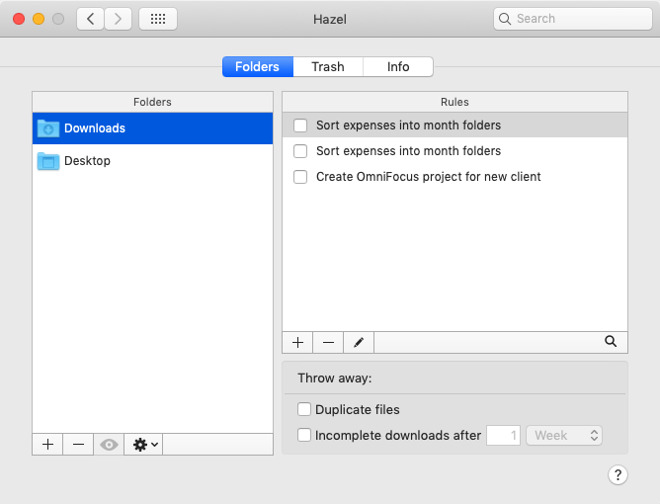
An extremely basic use of Hazel to stay on top of your Downloads folder

An extremely basic use of Hazel to stay on top of your Downloads folder

And if this all seems like too much trouble, it is —but you can get Hazel to help. Hazel is a reason to buy a Mac, it’s that good and useful. It monitors any folder you tell it to, and then it takes action on what it finds.

We have Hazel monitor our desktop for invoices which it archives off for us after a day. After a month, Hazel will collect up all the images we’ve created and not only move them to an external archive but rename and sort them to make it easy to find one later.

Archive or delete

There’s genuinely no question. If you have a Mac with a small drive then you are going to have to be conscious of what you Save and where you save it.

Yet if our Macs today come with smaller drives than we’re used to, they’re fantastically faster. If you move from an old iMac to a new Mac mini, well, you’ll likely miss the screen as well as the storage space, but you’d never go back either.

Keep up with AppleInsider by downloading the AppleInsider app for iOS, and follow us on YouTube, Twitter @appleinsider and Facebook for live, late-breaking coverage. You can also check out our official Instagram account for exclusive photos.

Posted on Leave a comment

New lawsuit alleges patent infringement by all Wi-Fi-enabled Apple products


A company called Red Rock Analytics in a new lawsuit charges that Apple is infringing a patent covering transceiver technology in Wi-Fi chips.

iPhone XR

The U.S. patent, No. 7,346,313 — “Calibration of I-Q Balance in Transceivers” — was issued to Red Rock in March 2008, and any Apple product compatible with 802.11n or later is in violation, according to a complaint submitted through a U.S. District Court for the Eastern District of Texas. That district is a notorious venue for patent lawsuits, since it has relatively little other traffic and its judges are thought to be friendly to patent holders.

Red Rock is asking for an injunction against further infringement, along with attorney fees and damage compensation, including pre- and post-judgment interest.

Details about Red Rock are otherwise difficult to come by, except that the firm officially operates out of Swampscott, Mass. It previously launched an Eastern District lawsuit against Samsung over the same patent, court documents say, but the state of that case is uncertain. Samsung did file a countersuit.

A notable inaccuracy in the Red Rock v. Apple submission is that it identifies Apple’s “principal place of business” as 1 Infinite Loop — the company’s official corporate address was switched to Apple Park in Feb. 2018.