



11-26-2024, 01:10 PM
To enhance your Warzone experience on PC and boost your chances of securing kills, it’s essential to fine-tune your graphics settings for smooth and responsive gameplay.
While Warzone’s system requirements aren’t the highest, the game can still put a strain on your PC, particularly your CPU and RAM. This can result in FPS drops, which directly impact your performance in Call of Duty’s battle royale. With the Black Ops 6 integration introducing omnimovement, ensuring smooth and responsive gameplay has become more important than ever.
The good news is that tweaking your settings to maximize FPS can make a world of difference. Done correctly, it can transform your experience from inconsistent and frustrating to smooth and seamless.
Here are the best PC settings for Warzone to ensure smooth performance while maintaining visual quality.
Best Warzone PC graphics settings
Graphics settings for low-end hardware
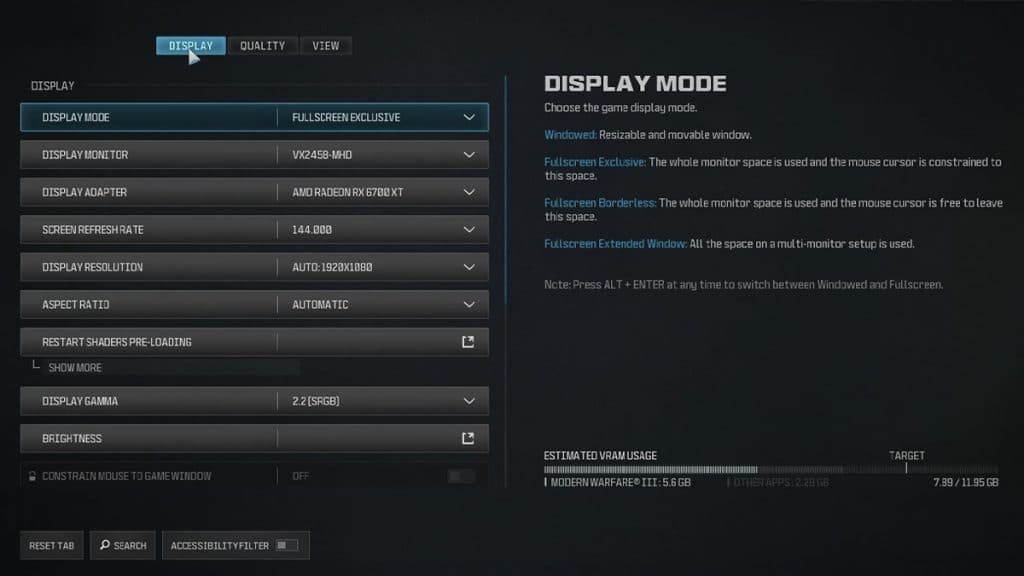
Option | Best setting
Display Mode | Fullscreen Exclusive
Display Monitor | Primary Monitor
Display Adapter | Primary Graphics Card
Screen Refresh Rate | Maximum for monitor (e.g 60hz/144hz/240hz)
Display Resolution | Maximum for monitor (e.g 1080p/1440p/4K)
Aspect Ratio | Automatic
Display Gamma | 2.2 [SRGB]
Brightness | 55
Constrain Mouse to Game Window | Preference
NVIDIA Reflex Low Latency | On + Boost
ECO Mode Preset | Custom
V-Sync (Gameplay) | Off
V-Sync (Menus) | Off
Custom Frame Rate Limit | Maximum for monitor (e.g 60hz/144hz/240hz)
Menu Render Resolution | Optimal
Reduce Quality When Inactive | 10 Minutes
Pause Game Rendering | On
Focused Mode | Preference
High Dynamic Range (HDR) | Off
Best Quality Settings
Option | Best setting
Graphic Preset | Custom
Render Resolution | 100
Dynamic Resolution | Off
Upscaling/Sharpening | FIDELITYFX CAS
FIDELITYFX CAS Strength | 85
VRAM Scale Target | 90
Variable Rate Shading | Off
Texture Resolution | Low
Texture Filter Anisotropic | Low
Depth of Field | Off
Detail Quality | Low
Particle Resolution | Very Low
Bullet Impacts | On
Persistent Effects | On
Shader Quality | Low
On-Demand Texture Streaming | Minimal, 16 GB Cache Size, Download Limits Off
Local Texture Streaming Quality | Low
Shadow Quality | Normal
Screen Space Shadows | Off
Ambient Occlusion | Off
Screen Space Reflections | Off
Static Reflection Quality | Low
Tessellation | Off
Volumetric Quality | Low
Deferred Physics Quality | Off
Weather Grid Volumes | Off
Water Quality | Off
Best View Settings
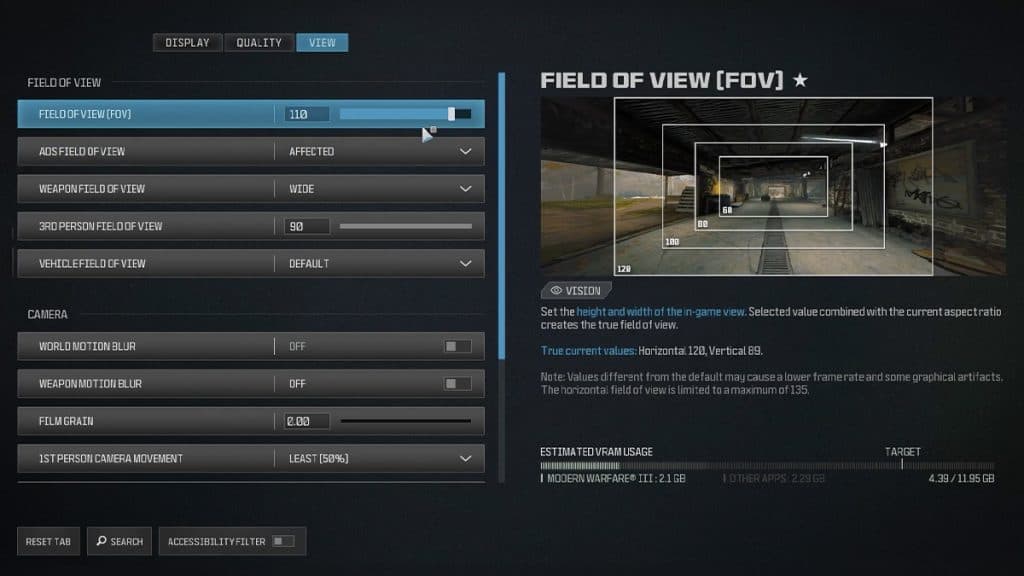
Option | Best setting
Motion Reduction Preset | Off
Field of View (FOV) | 100-115
ADS Field of View | Affected
Weapon Field of View | Wide
3rd Person Field of View | 90
Vehicle Field of View | Default
World Motion Blur | Off
Weapon Motion Blur | Off
Film Grain | 0.00
1st Person Camera Movement | Least (50%)
3rd Person Camera Movement | Least (50%)
3rd Person ADS Transition | Preference
Inverted Flashbang | On
How to get higher FPS in Warzone
To boost FPS in Warzone, adjust your display, quality, and view settings to align with the recommendations above. While some of these settings come down to personal preference, others are critical for ensuring optimal performance. If you’re still not satisfied with your FPS, there are additional steps you can take.
First, ensure your graphics card drivers are up to date. Use the official applications provided by Nvidia, AMD, or Intel to download the latest updates.
Next, close unnecessary background applications. Programs like Chrome can consume significant RAM and CPU resources, which may bottleneck your gameplay. Shutting down unused applications can free up resources and improve performance, especially since Warzone is demanding on system resources.
Lastly, if these adjustments don’t suffice, consider upgrading your graphics card. While this is the most expensive solution, a more powerful GPU can dramatically enhance performance.
Warzone PC system requirements
| CPU | GPU | Video Memory | RAM | Hi-Rez Assets Cache | Operating System
Minimum | Intel Core i3-6100 / Core i5-2500K or AMD Ryzen 3 1200 | NVIDIA GeForce GTX 960 or AMD Radeon RX 470 | 2 GB | 8 GB | Up to 32 GB | Windows 10 64 Bit (latest update
Recommended | Intel Core i5-6600K / Core i7-4770 or AMD Ryzen 5 1400 | NVIDIA GeForce GTX 1060 or AMD Radeon RX 580 | 4 GB | 12 GB | Up to 32 GB | Windows 10 64 Bit (latest update) or Windows 11 64 Bit (latest update)
Competitive | Intel Core i7-8700K or AMD Ryzen 7 1800X | NVIDIA GeForce RTX 3060Ti or AMD Radeon RX 5700XT | 8 GB | 16 GB
Up to 32 GB | Windows 10 64 Bit (latest update) or Windows 11 64 Bit (latest update)
Ultra 4K | Intel Core i9-9900K or AMD Ryzen 9 3900X | NVIDIA GeForce RTX 3080 or AMD Radeon RX 6800 XT | 10 GB | 16 GB
Up to 64 GB | Windows 10 64 Bit (latest update) or Windows 11 64 Bit (latest update)
How to update graphics drivers
How to update NVIDIA graphics drivers
If you have an NVIDIA graphics card, the GeForce Experience app will update your graphics drivers for you:
How to update AMD graphics driver
If you have an AMD GPU, you can use the Radeon Settings to update your drivers:
If you’re facing problems with your FPS or display, you might need to have the latest versions of your graphics drivers installed. Ensuring they’re up to date should avoid any problems running the game.
Why does Call of Duty keep restarting on PC?
Regular CoD players are likely familiar with the “Update Requires Restart” message that often appears upon launching the game, causing it to close and reopen. While this can be frustrating, there’s a valid reason for it.
When developers release an update or hotfix, the new data must be integrated into the game’s code. Since these changes cannot be applied while the application is running, the game temporarily closes to implement the updates before restarting. Though it might feel inconvenient, this process is crucial for improving the game, so let it do its work without too much frustration.
Pair these Warzone settings with the best guns and you’ll be all set to dominate, no matter the map or mode. Also, make sure to check our guides for the best audio and controller settings for a competitive edge in the battle royale.
While Warzone’s system requirements aren’t the highest, the game can still put a strain on your PC, particularly your CPU and RAM. This can result in FPS drops, which directly impact your performance in Call of Duty’s battle royale. With the Black Ops 6 integration introducing omnimovement, ensuring smooth and responsive gameplay has become more important than ever.
The good news is that tweaking your settings to maximize FPS can make a world of difference. Done correctly, it can transform your experience from inconsistent and frustrating to smooth and seamless.
Here are the best PC settings for Warzone to ensure smooth performance while maintaining visual quality.
Best Warzone PC graphics settings
Graphics settings for low-end hardware
Option | Best setting
Display Mode | Fullscreen Exclusive
Display Monitor | Primary Monitor
Display Adapter | Primary Graphics Card
Screen Refresh Rate | Maximum for monitor (e.g 60hz/144hz/240hz)
Display Resolution | Maximum for monitor (e.g 1080p/1440p/4K)
Aspect Ratio | Automatic
Display Gamma | 2.2 [SRGB]
Brightness | 55
Constrain Mouse to Game Window | Preference
NVIDIA Reflex Low Latency | On + Boost
ECO Mode Preset | Custom
V-Sync (Gameplay) | Off
V-Sync (Menus) | Off
Custom Frame Rate Limit | Maximum for monitor (e.g 60hz/144hz/240hz)
Menu Render Resolution | Optimal
Reduce Quality When Inactive | 10 Minutes
Pause Game Rendering | On
Focused Mode | Preference
High Dynamic Range (HDR) | Off
Best Quality Settings
Option | Best setting
Graphic Preset | Custom
Render Resolution | 100
Dynamic Resolution | Off
Upscaling/Sharpening | FIDELITYFX CAS
FIDELITYFX CAS Strength | 85
VRAM Scale Target | 90
Variable Rate Shading | Off
Texture Resolution | Low
Texture Filter Anisotropic | Low
Depth of Field | Off
Detail Quality | Low
Particle Resolution | Very Low
Bullet Impacts | On
Persistent Effects | On
Shader Quality | Low
On-Demand Texture Streaming | Minimal, 16 GB Cache Size, Download Limits Off
Local Texture Streaming Quality | Low
Shadow Quality | Normal
Screen Space Shadows | Off
Ambient Occlusion | Off
Screen Space Reflections | Off
Static Reflection Quality | Low
Tessellation | Off
Volumetric Quality | Low
Deferred Physics Quality | Off
Weather Grid Volumes | Off
Water Quality | Off
Best View Settings
Option | Best setting
Motion Reduction Preset | Off
Field of View (FOV) | 100-115
ADS Field of View | Affected
Weapon Field of View | Wide
3rd Person Field of View | 90
Vehicle Field of View | Default
World Motion Blur | Off
Weapon Motion Blur | Off
Film Grain | 0.00
1st Person Camera Movement | Least (50%)
3rd Person Camera Movement | Least (50%)
3rd Person ADS Transition | Preference
Inverted Flashbang | On
How to get higher FPS in Warzone
To boost FPS in Warzone, adjust your display, quality, and view settings to align with the recommendations above. While some of these settings come down to personal preference, others are critical for ensuring optimal performance. If you’re still not satisfied with your FPS, there are additional steps you can take.
First, ensure your graphics card drivers are up to date. Use the official applications provided by Nvidia, AMD, or Intel to download the latest updates.
Next, close unnecessary background applications. Programs like Chrome can consume significant RAM and CPU resources, which may bottleneck your gameplay. Shutting down unused applications can free up resources and improve performance, especially since Warzone is demanding on system resources.
Lastly, if these adjustments don’t suffice, consider upgrading your graphics card. While this is the most expensive solution, a more powerful GPU can dramatically enhance performance.
Warzone PC system requirements
| CPU | GPU | Video Memory | RAM | Hi-Rez Assets Cache | Operating System
Minimum | Intel Core i3-6100 / Core i5-2500K or AMD Ryzen 3 1200 | NVIDIA GeForce GTX 960 or AMD Radeon RX 470 | 2 GB | 8 GB | Up to 32 GB | Windows 10 64 Bit (latest update
Recommended | Intel Core i5-6600K / Core i7-4770 or AMD Ryzen 5 1400 | NVIDIA GeForce GTX 1060 or AMD Radeon RX 580 | 4 GB | 12 GB | Up to 32 GB | Windows 10 64 Bit (latest update) or Windows 11 64 Bit (latest update)
Competitive | Intel Core i7-8700K or AMD Ryzen 7 1800X | NVIDIA GeForce RTX 3060Ti or AMD Radeon RX 5700XT | 8 GB | 16 GB
Up to 32 GB | Windows 10 64 Bit (latest update) or Windows 11 64 Bit (latest update)
Ultra 4K | Intel Core i9-9900K or AMD Ryzen 9 3900X | NVIDIA GeForce RTX 3080 or AMD Radeon RX 6800 XT | 10 GB | 16 GB
Up to 64 GB | Windows 10 64 Bit (latest update) or Windows 11 64 Bit (latest update)
How to update graphics drivers
How to update NVIDIA graphics drivers
If you have an NVIDIA graphics card, the GeForce Experience app will update your graphics drivers for you:
- Download GeForce Experience through NVIDIA.com.
- Open GeForce Experience.
- Select the ‘Drivers’ tab.
- Click ‘check for updates’ in the upper right corner.
- If an update is available, follow the steps.
How to update AMD graphics driver
If you have an AMD GPU, you can use the Radeon Settings to update your drivers:
- Right-click on your desktop.
- Select AMD Radeon Settings.
- Click on the Home icon.
- Click ‘New Updates’ on the bottom left.
- Select ‘check for update.’
- If an update is available, follow the steps.
If you’re facing problems with your FPS or display, you might need to have the latest versions of your graphics drivers installed. Ensuring they’re up to date should avoid any problems running the game.
Why does Call of Duty keep restarting on PC?
Regular CoD players are likely familiar with the “Update Requires Restart” message that often appears upon launching the game, causing it to close and reopen. While this can be frustrating, there’s a valid reason for it.
When developers release an update or hotfix, the new data must be integrated into the game’s code. Since these changes cannot be applied while the application is running, the game temporarily closes to implement the updates before restarting. Though it might feel inconvenient, this process is crucial for improving the game, so let it do its work without too much frustration.
Pair these Warzone settings with the best guns and you’ll be all set to dominate, no matter the map or mode. Also, make sure to check our guides for the best audio and controller settings for a competitive edge in the battle royale.