Posted by: xSicKxBot - 09-03-2023, 09:49 AM - Forum: Minecraft
- No Replies
News - Minecraft Live: Voting for Your Mob
Mojang has released the 3 trailers for the mobs for this year’s mob vote. Players from around the world can vote on their favorite new mob trailer to get their new mob added to the game!
The vote opens on October 14, 12PM EDT and closes on October 15, 12PM EDT. You only get one vote, but you can change it as many times as you want during these 24 hours
This year, voting will be done through 3 different methods. These new methods will ensure players from around the world are all heard equally
– Minecraft Launcher
– Minecraft.net
– A special map for Bedrock Edition
Let’s meet our contestants:
Rascal
A mischievous mob that loves to play Hide & Seek! The rascal lurks in underground mines, waiting to be found. If you spot the same rascal three times, it will reward you with a prize so keep your eyes open!
Sniffer
This ancient creature was once part of the Overworld’s ecosystem, now you can bring back the sniffer if you can find its egg! Hatch new mobs, breed them, and figure out how to make the sniffer thrive once more. There are seeds out there that only the sniffer can find!
Tuff Golem
A statue with a twist – it comes alive! When the tuff golem awakens, it will walk around, pick up, and hold any item it comes across. Don’t worry, it will return to the same spot that you’ve placed it when it turns back into a statue. It may be a work of art, but you’re the designer.
Posted by: xSicKxBot - 09-03-2023, 09:49 AM - Forum: Lounge
- No Replies
Activision News - Overwatch League™ Opening Week Draws More Than 10 Million Viewers
Newly announced Twitch distribution deal drives an average audience per minute of 408,000 for the opening day broadcast
IRVINE, Calif.–(BUSINESS WIRE)– The Overwatch League roared to life last week at the Blizzard Arena Los Angeles, with four days of intense competition between all 12 teams of the world’s first major global city-based professional esports league.
Buoyed by a newly announced two-year deal with Twitch, the Overwatch League’s exclusive worldwide[1] third-party digital broadcast partner, opening day drew an impressive average audience per minute of 408,000, and 280,000 for the week. More than 10 million viewers tuned in over the four-day period via Twitch, MLG, and Chinese streaming partners ZhanQi TV, NetEase CC, and Panda TV—not to mention the countless additional viewers at watch parties worldwide. On Twitch and MLG alone, the peak concurrent online audience of 437,000 hit during the highly anticipated day-one matchup between Dallas Fuel and Seoul Dynasty. In addition, tickets to Blizzard Arena Los Angeles were sold out for the entirety of opening week.
“We’re thrilled by the overwhelming response to the Overwatch League’s opening week of play,” said Pete Vlastelica, president and CEO of Major League Gaming (MLG). “But this is only the beginning. With more than 35 million Overwatch® players, the Overwatch League has the potential to become one of the most-watched leagues—of any kind—in the world.”
“Since we announced Overwatch League at BlizzCon 2016, we’ve been eagerly awaiting the day when the global competitive Overwatch community could come together under one banner,” said Nate Nanzer, Overwatch League commissioner. “Opening week was that coming-out party—for the fans, both in-person at Blizzard Arena Los Angeles and tuned in by the millions all over the world, and for the players, whose love for the game came through crystal clear.”
“We had high expectations for the inaugural broadcast of the Overwatch League on Twitch, given our platform’s passionate fanbase for Overwatch,” said Kevin Lin, COO of Twitch. “They really put on an amazing show and fans showed up en masse to support and celebrate Overwatch. Based on the response from the community, Overwatch League is off to a great start and we look forward to watching how the season progresses. This league demonstrates the power and potential of esports, and we’re thrilled to continue expanding our partnership with Blizzard.”
Viewers can tune in to catch all the action on Twitch, www.mlg.com, the MLG app (on iOS and Android), www.overwatchleague.com, and the Overwatch League app, which launched last week for iOS and Android. Blizzard gamers also can get easy access to the Overwatch League via a new Overwatch League tab in the Blizzard Battle.net desktop app.
The first season of the Overwatch League runs until June, with playoffs and finals scheduled for July. For the inaugural season, all regular-season games will take place at Blizzard Arena Los Angeles, a state-of-the-art live-event venue in Burbank, California, custom-renovated for Blizzard Entertainment esports events. Fans can purchase tickets to attend matches, which will be played each Wednesday, Thursday, Friday, and Saturday. A full schedule and information about ticket sales can be found at www.overwatchleague.com.
About the Overwatch League™
The Overwatch League™ is the first major global professional esports league with city-based teams across Asia, Europe, and North America. Overwatch® was created by globally acclaimed publisher Blizzard Entertainment (a division of Activision Blizzard—Nasdaq: ATVI), whose iconic franchises have helped lay the foundations and push the boundaries of professional esports over the last 15 years. The latest addition to Blizzard’s stable of twenty-one #1 games,[2] Overwatch was built from the ground up for online competition, with memorable characters and fast-paced action designed for the most engaging gameplay and spectator experiences. To learn more about the Overwatch League, visit www.overwatchleague.com.
[1] Not including China. [2] Sales and/or downloads, based on internal company records and reports from key distribution partners
Cautionary Note Regarding Forward-looking Statements: Information in this press release that involves Blizzard Entertainment’s expectations, plans, intentions or strategies regarding the future, including statements about the dates, events and features of the Overwatch League, are forward-looking statements that are not facts and involve a number of risks and uncertainties. Factors that could cause Blizzard Entertainment’s actual future results to differ materially from those expressed in the forward-looking statements set forth in this release include unanticipated product delays and other factors identified in the risk factors sections of Activision Blizzard’s most recent annual report on Form 10-K and any subsequent quarterly reports on Form 10-Q. The forward-looking statements in this release are based upon information available to Blizzard Entertainment and Activision Blizzard as of the date of this release, and neither Blizzard Entertainment nor Activision Blizzard assumes any obligation to update any such forward-looking statements. Forward-looking statements believed to be true when made may ultimately prove to be incorrect. These statements are not guarantees of the future performance of Blizzard Entertainment or Activision Blizzard and are subject to risks, uncertainties and other factors, some of which are beyond its control and may cause actual results to differ materially from current expectations.
News - Great Scott! PowerWash Simulator Announces Back To The Future DLC
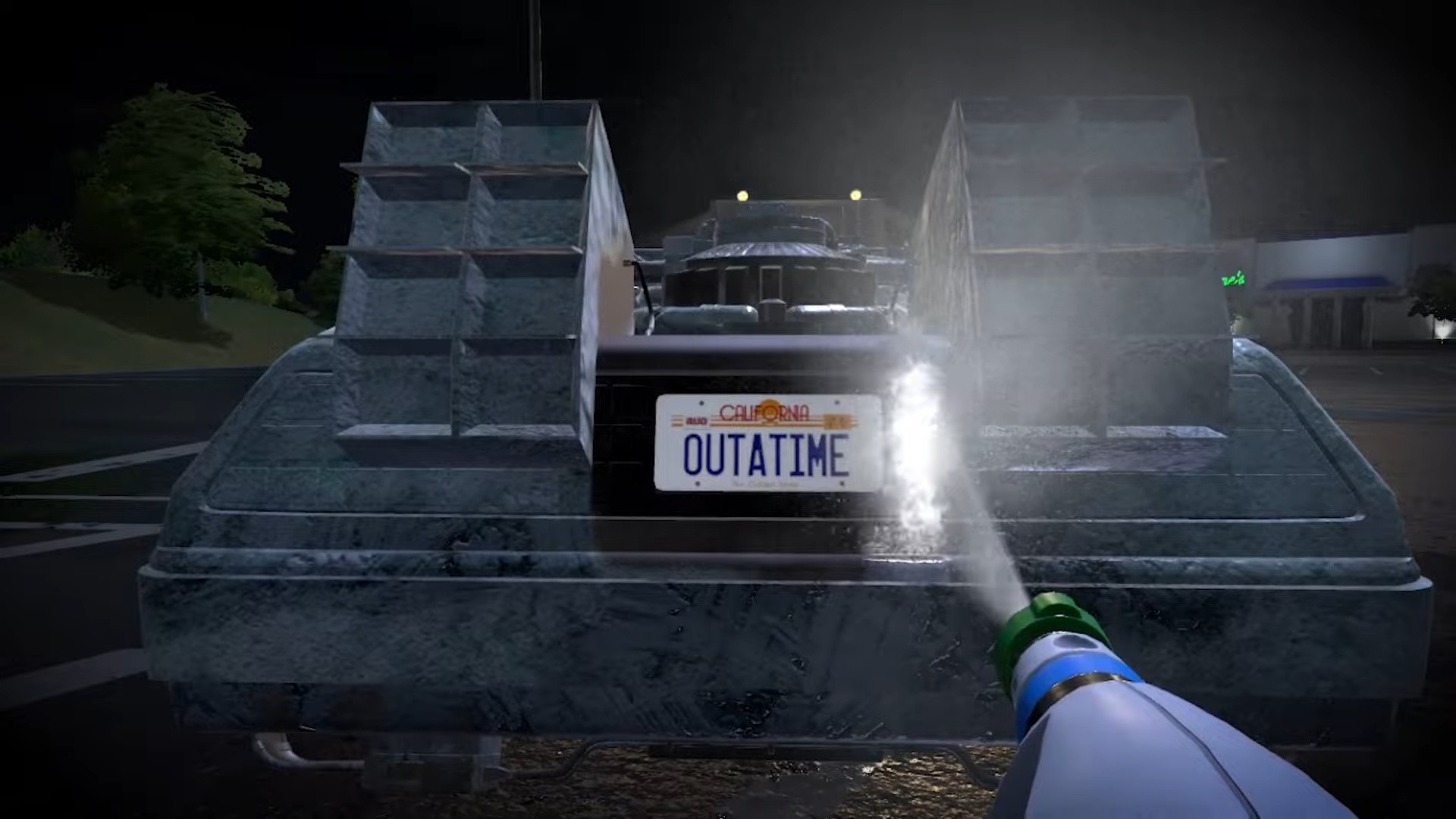
Some movie fans are going to go wild with this announcement — PowerWash Simulator is teaming up with Back to the Future for a brand new DLC pack later this year for $7.99 / €7.99 / £6.49.
Yes, you’re going to get to clean the DeLorean. Really. FuturLab made the announcement with a very short teaser trailer, featuring the iconic license plate of the time-travelling machine from the ’80s movie franchise.
It’s not just the DeLorean you’ll be setting your eyes — or your washer — on, though. You’ll be able to clean up Doc Brown’s van, Hill Valley Clocktower, the Holomax Theatre, and Doc’s Time Train.
FuturLab’s Co-CEO Kirsty Rigden is rightly excited about this collaboration saying that “Back to the Future is a dream IP.” It probably opens up the door for even more iconic movie cars — how about some of James Bond’s snazzy rides, next?
PowerWash Simulator’s Back to the Future pack will drop on the eShop later this year. Will you be picking this up? Travel down to the comments and let us know.
Xbox Wire - Call of Duty: Modern Warfare II Launch Details
Summary
Jump into an epic launch featuring a globe-trotting, single-player Campaign, innovative world-class Multiplayer, and the highly replayable and cooperative Special Ops.
Meet the newest operators under SpecGru and KorTac special forces in Multiplayer and Special Ops and add more to your arsenal with Weapon Platforms.
Get ready for Call of Duty: Warzone 2.0 and Season 01, dropping November 16 with Al Mazrah, a massive metropolitan area playing a pivotal role in the Modern Warfare II narrative.
Launch marks the start of content through the beginning of Season 01 and the release of Call of Duty: Warzone 2.0. Read on for a look at the highlights.
Campaign – Globe-Trotting, Single Player
Dive into the continuation of Modern Warfare’s (2019) storyline, which grows the in-game universe further with unprecedented global conflict. Check out the blog from last week for more details on the Campaign.
Multiplayer – Innovative, Immersive, and World Class
Modern Warfare II Multiplayer defines emergent gameplay with a focus on variety. On day one, there will be 12 unique modes: 10 traditional modes on Core Maps and two Ground War modes on Battle Maps.
These maps are grouped into one of three regional categories:
Al Mazrah
This metropolitan area and its outskirts within the Republic of Adal serve as the main region for Call of Duty: Warzone 2.0.
Several Core Maps and Battle Maps will be based in this region, making Multiplayer a phenomenal place to learn the various points of interest.
Las Almas
A major place of interest within the Modern Warfare II Campaign, Las Almas is a Central American region with a similar footprint to Al Mazrah.
In Multiplayer, the region will host a similar split of Core Maps and Battle Maps.
Other Locales
The last group of Multiplayer locales represents a mixture of Campaign environments and locations outside the main storyline, rounding out the universe with glimpses of what is happening in regions other than Al Mazrah and Las Almas.
Special Ops – Replayable Co-Op, Raids Coming in Season 01
An evolution of the Special Ops mode from Call of Duty: Modern Warfare (2019). It will feature three missions at launch, all taking place in Al Mazrah:
Bad Situation
Infiltrate a town in the dead of night to uncover intel and evidence left behind by Al Qatala before exfiltrating. Stealth is key to survival.
Vehicle Escape
Multiple SAM turrets are preventing reinforcements from entering Al Mazrah. Drive through the winding streets of a suburb to destroy them, and then speed over to the exfil plane to escape.
Observatory Defense
A bona fide survival mode. Defend the observatory from increasingly difficult waves of enemies attempting to detonate bombs. Between each wave, Operators can spend cash to get items such as Killstreaks, Self-Revive Kits, and armor plates.
In Special Ops, Operators will equip a Backpack to store equipment and choose from one of three available kits: Assault, Medic, and Engineer. Each offers a variety of items and abilities built for different strategies. Level up your Kits by earning Stars through missions and mission-related challenges.
We recommend completing all three Special Ops missions with three stars and leveling up at least one Kit to Rank 5 before Raids are introduced to Special Ops later in Season 01.
Prepare for Warzone 2.0 and Season 01, Dropping on November 16
Through Modern Warfare II Multiplayer and Special Ops, familiarize yourself with the core of Call of Duty:Warzone 2.0:
Operators – 25 Available at Launch. Eighteen can be unlocked during the Modern Warfare II pre-season. Plus, get two Mil-Sim Operators with four unique outfits unlocked by default and four unlocked via the Vault Edition.
Weapons – Over 30 Weapon Platforms at Launch for Over 50 Unique Weapons. Get anywhere from one to six unique weapons per platform. Vault Edition owners gain access to the FJX Cinder Weapon Vault (Weapon Vault design limited to Weapon Vault contents at launch), which contains all Receivers and attachments for one of the Weapon Platforms available at launch. Beta participants will have access to both their Weapon Blueprints, if unlocked during the Beta period.
Operators – Meet SpecGru and KorTac
Following the events of the Campaign, two private military contractors – SpecGru and KorTac – are founded as special forces for hire.
These two factions are ready to deploy in Modern Warfare II Multiplayer and Special Ops at launch. All players will automatically have access to the default Mil-Sim Operators for each faction.
Eighteen more Operators can be unlocked through Campaign, Multiplayer, and Special Ops challenges. In addition, four more Operators are available via the Vault Edition’s Red Team 141 pack.
Once unlocked, all these Operators will also be available in Call of Duty: Warzone 2.0, alongside new Operators arriving in Season 01 and beyond.
Weapons – Weapon Platforms and Gunsmith
At launch, there are over 30 unique Weapon Platforms available to unlock through the Military Ranks. Each Weapon Platform contains up to six weapons, which can be obtained by leveling up specific weapons within a Weapon Platform.
By unlocking all these Weapon Platforms and completing all applicable Weapon Platform progression thresholds, you will have 52 Primary and Secondary Weapons in your arsenal.
RICOCHET Anti-Cheat on Day One
Modern Warfare II launches with a new unified security platform that features new and returning mitigations to promote fair play.
Get exclusive Modern Warfare II content for free by watching your favorite streamers play Call of Duty: Modern Warfare II on Twitch! Simply link your Call of Duty/Activision account to your Twitch Prime account and earn up to seven item unlocks as you watch.
Also, visit the Call of Duty Shop for new Task Force 141 gear celebrating the release of Modern Warfare II, including an anime-inspired hoodie and dozens of other fits for the whole squad.
Squad Up Today
Modern Warfare II is available now on the Xbox Store. Purchase the Cross-Gen Bundle for $69.99 (MSRP) or the Vault Edition for $99.99 (MSRP). Players who buy the Vault Edition of Modern Warfare II will receive additional benefits including the Red Team 141 Operator Pack, FJX Cinder Weapon Vault, Season 01 Battle Pass, and 50 Tier Skips.
Stay frosty.
Note: Battle Pass and Tier skips, or equivalent versions, will be accessible in Modern Warfare II once the Season 01 Battle Pass, or equivalent system, is made available in game. Battle Pass redemption applies to one season of Modern Warfare II Battle Pass, or equivalent system only. For more information, please visit www.callofduty.com.
As a wise man once said, I like turtles, and I especially love turtles of the ‘mutant’ and ‘ninja’ variety. Well those radical reptiles are back with an update to their recent smash beat-em-up, as Dotemu announces the TMNT Shredder’s Revenge Dimension Shellshock DLC. One of the best Netflix games is getting even better!
While the thrilling action side scroller already features plenty of characters to play as and areas to explore, the Dimension Shellshock throws some madness into the mix, taking the heroes on an interdimensional adventure. There are even some new faces along for the ride, as the update brings in Karai and Miyamoto Usagi from the infamous Usagi Yojimbo comics. Considering the turtles are martial arts animals from comics, it’s a great fit.
So far Dotemu is only confirming the console release dates, as the TMNT Shredder’s Revenge Dimension Shellshock DLC hits Nintendo Switch, PS4/5, Xbox Series S/X, and PC on August 31, 2023. We’re not sure if or when the DLC is set to hit Netflix users, but we’ll keep you updated as soon as we get more details. Shredder’s Revenge is free to download on mobile for any user with an active Netflix account, and it’s one of the best games on the service.
Is there a TMNT Shredder’s Revenge Dimension Shellshock DLC trailer?
You’d better believe it, folks, there is a totally bodacious trailer ready to take your eyes for a trip across the dimensions below.
That’s all we have for now folks, but check back for more turtle-y awesome game news soon. For now, be sure to get a slice of the action with our guide to the best fighting games on Switch next.
[Tut] How to Convert MIDI to MP3 in Python – A Quick Overview
5/5 – (1 vote)
To convert MIDI to MP3 in Python, two great ways is using the pydub and fluidsynth libraries:
pydub is a high-level audio library that makes it easy to work with audio files.
fluidsynth is a software synthesizer for generating audio from MIDI.
Here are three easy steps to convert MIDI to MP3 in Python:
Step 1: Install the pydub and fluidsynth libraries:
pip install pydub
You also need to install fluidsynth (see below, keep reading this article). The installation process for fluidsynth varies by operating system. For example, on Ubuntu, you can install it via apt:
sudo apt-get install fluidsynth
Step 2: Download a SoundFont file.
SoundFont files contain samples of musical instruments, and are required by fluidsynth to generate audio from MIDI. A popular free SoundFont is GeneralUser GS, which can be downloaded from the schristiancollins website.
Step 3: Convert MIDI to MP3.
Use the following Python code to convert a MIDI file to MP3:
import os

from pydub import AudioSegment def midi_to_mp3(midi_file, soundfont, mp3_file): # Convert MIDI to WAV using fluidsynth wav_file = mp3_file.replace('.mp3', '.wav') os.system(f'fluidsynth -ni {soundfont} {midi_file} -F {wav_file} -r 44100') # Convert WAV to MP3 using pydub audio = AudioSegment.from_wav(wav_file) audio.export(mp3_file, format='mp3') # Remove temporary WAV file os.remove(wav_file) # Example usage:

midi_file = 'input.mid'

soundfont = 'path/to/GeneralUser GS.sf2'

mp3_file = 'output.mp3'

midi_to_mp3(midi_file, soundfont, mp3_file)
Replace 'input.mid', 'path/to/GeneralUser GS.sf2', and 'output.mp3' with the appropriate file paths. This script will convert the specified MIDI file to MP3 using the specified SoundFont.
Let’s explore some background information and alternatives next.
MIDI files store musical information as digital data, such as note sequences, instrument choices, and timing instructions. MIDI files are the digital representations of musical compositions and store essential data, such as notes, pitch, and duration. These files play a significant role in music production, education, and research.
In contrast, MP3 files store compressed audio data, typically captured from a live performance or created synthetically.
Converting MIDI files to MP3 files allows you to play music on various devices, share them easily, and store them in a more accessible format. Plus, MP3 files are typically smaller in size compared to MIDI files, making them more suitable for distribution.
When converting from MIDI to MP3, your computer uses a software synthesizer to generate audio based on the MIDI data and then compress it into an MP3 file.
To perform this conversion using Python, you can utilize libraries such as midi2audio and FluidSynth synthesizer to process MIDI files, generate audio, and eventually save it in a desired format, like MP3. The midi2audio library provides a convenient command-line interface for fast conversions and batch processing.
Note: There’s an essential difference in how MIDI and MP3 files store and represent audio data. While MIDI files provide instructions for recreating the music, MP3 files directly store the audio data, compressed for efficient storage and playback. This distinction shapes the conversion process, which requires synthesizing and compressing audio data from the digital instructions contained in the MIDI file.
Introduction to FluidSynth
FluidSynth Overview
FluidSynth is a powerful and easy-to-use software synthesizer that allows you to convert MIDI files into audio format with high-quality output. It is an open-source project and can be easily integrated into various applications, including Python projects, to generate music by processing MIDI events. With FluidSynth, you can load SoundFont files (usually with the extension .SF2) to define instruments and customize the sound generation process.
As a Python developer, you can leverage FluidSynth to add audio processing capabilities to your projects. By using a simple Python interface, you can create everything from command-line applications to more complex, GUI-based solutions. Example:
The core of FluidSynth is its software synthesizer, which works similarly to a MIDI synthesizer. You load patches and set parameters, and then send NOTEON and NOTEOFF events to play notes. This allows you to create realistic audio output, mimicking the sound of a live performance or an electronic instrument.
To get started with FluidSynth in Python, consider using the midi2audio package, which provides an easy-to-use interface to FluidSynth. With midi2audio, you can easily convert MIDI files into audio format, or even play MIDI files directly, through a simple yet powerful API.
In your Python code, you’ll import FluidSynth and midi2audio, then load a SoundFont file to define your instrument. Once that’s done, you can send MIDI events to the synthesizer and either play the generated audio immediately or save it to a file for later playback.
To get started with converting MIDI to MP3 files in Python, you’ll need to install a few essential packages. First, you will need the midi2audio package. You can install it using pip by running the following command in your terminal or command prompt:
pip install midi2audio
This package will provide you with the necessary tools to easily synthesize MIDI files and convert them to audio formats like MP3 1.
Command Line Usage
Once you have installed the midi2audio package, you can start using its command-line interface (CLI). The CLI allows you to perform MIDI to audio conversion tasks quickly without having to manually write a Python script.
Here’s an example of a basic command that converts a MIDI file to an audio file:
midi2audio input.mid output.wav
By default, the output file will be in WAV format. If you want to generate an MP3 file instead, you’ll need to add an extra step. First, install the FFmpeg utility on your system. You can find the installation instructions here.
After installing FFmpeg, you can convert the WAV file to MP3 using the following command:
ffmpeg -i output.wav output.mp3
Now you have successfully converted a MIDI file to MP3 using the command-line tools provided by midi2audio and FFmpeg. With these powerful packages and CLI, you can easily automate and batch process multiple MIDI to MP3 conversions as needed.
Converting Midi to Audio with Midi2Audio
Using Midi2Audio
Midi2Audio is a helpful Python library that simplifies converting MIDI to audio files using the FluidSynth synthesizer. To start using Midi2Audio, first, you need to install it by running pip install midi2audio. Once installed, you can use the library’s Python and command-line interface for synthesizing MIDI files to audio or for just playing them.
Here is an example of how to use Midi2Audio in a Python script:
from midi2audio import FluidSynth fs = FluidSynth()

fs.midi_to_audio('input.mid', 'output.wav')
In this example, you are configuring a FluidSynth instance and then using the midi_to_audio() method to convert an input MIDI file to an output WAV file.
Batch Processing
Midi2Audio shines when it comes to batch processing, allowing you to convert multiple MIDI files to audio in a single operation. To achieve this, you can simply iterate over a collection of MIDI files and call the midi_to_audio() method for each file.
For example:
from midi2audio import FluidSynth

import os input_folder = 'midifiles/'

output_folder = 'audiofiles/' fs = FluidSynth() for file in os.listdir(input_folder): if file.endswith('.mid'): input_file = os.path.join(input_folder, file) output_file = os.path.join(output_folder, file.replace('.mid', '.wav')) fs.midi_to_audio(input_file, output_file)
Here, you are iterating through all the MIDI files in the “midifiles” directory and converting them into WAV audio files within the “audiofiles” directory.
Converting Midi to MP3 using Timidity
TiMidity++ is a powerful tool that can handle various Midi formats and transform them into MP3 files. Here, you’ll find information on the pros and cons of using TiMidity++, followed by a step-by-step process for conversion.
Pros and Cons of Using Timidity
Pros:
Confidence in output quality: TiMidity++ is widely known for producing high-quality MP3 files from Midi input.
Cross-platform support: It works seamlessly on Windows, Linux, and macOS, making it accessible to many users.
Free and open-source: As a free and open-source tool, you don’t need to worry about licensing fees or limitations on its use.
Cons:
Command-line interface: TiMidity++ has a command-line interface (CLI) which might prove challenging for users unfamiliar with command line tools.
Less user-friendly: Due to the CLI nature of TiMidity++, it may not be as user-friendly as other software options that have a graphical user interface (GUI).
Step-by-Step Process
Install TiMidity++: Download and install TiMidity++ on your system. You can find installation instructions for various platforms on its official website.
Obtain your Midi file: Make sure you have the Midi file you’d like to convert to MP3 ready on your computer.
Open the command prompt or terminal: In your command prompt or terminal, navigate to the directory containing your Midi file.
Run the TiMidity++ command: Execute the following command in your command prompt or terminal, replacing <input.mid> with your Midi file and <output.mp3> with the desired output file name:
Enjoy your MP3 file: Once the process completes, you will find the converted MP3 file in the same directory as your original Midi file.
That’s it! You have now successfully converted a Midi file to MP3 using TiMidity++.
Additional Tools and Libraries
In this section, we’ll discuss some additional tools and libraries that can help you convert MIDI to MP3 in Python.
SOX and FFMPEG
SOX is a command-line utility that can process, play, and manipulate audio files. It supports various audio formats and can be used alongside other libraries to perform the MIDI to MP3 conversion. To use it in your project, you can either install its command line tool or use it as a Python library.
FFMPEG, on the other hand, is a powerful multimedia tool that can handle audio, video, and images. It also supports numerous formats, so you can use it to convert your MIDI files to MP3 or other formats.
Combine SOX and FFMPEG to effectively process and convert your MIDI files. First, use SOX to convert the MIDI files to an intermediary audio format, such as WAV. Then, utilize FFMPEG to convert the WAV files to MP3. This workflow ensures a smooth, efficient conversion process.
Libsndfile and Channels
Another useful library to consider is libsndfile, which is a C library for reading and writing files containing sampled sound. It supports many common audio formats, including WAV, AIFF, and more.
For Python developers, there is a wrapper library called pysoundfile that makes it easy to use libsndfile in your Python projects. Incorporating libsndfile with other MIDI processing libraries can help you build a complete MIDI to MP3 conversion solution.
When working with audio, you may also encounter different channels in audio files, such as mono, stereo, and surround sound. Libraries such as SOX, FFMPEG, and libsndfile can manage different channel configurations, ensuring your output MP3 files have the desired number of channels and audio quality.
Considerations for Different Operating Systems
When working with Python to convert MIDI to MP3 files, it’s essential to consider the differences and requirements for various operating systems. In this section, we’ll discuss specific considerations for Windows OS, Linux, and Ubuntu 20.04.
Windows OS
On Windows systems, you can use a package like midi2audio to easily convert MIDI files to audio formats like MP3. To install this package, run:
pip install midi2audio
Keep in mind that this package requires FluidSynth to work. You can install FluidSynth for Windows from here, and remember to set up your environment variables to enable the package to find FluidSynth’s libraries and executables. Finally, don’t forget to download a suitable soundfont file, as this will significantly impact the quality of the converted audio.
Linux
For Linux users, the process is similar to Windows. First, install midi2audio using pip:
pip install midi2audio
Next, you’ll need to install FluidSynth through your distribution’s package manager. For example, on Debian-based systems like Ubuntu, execute the following command:
sudo apt-get install fluidsynth
As with Windows, ensure you have a soundfont file that suits your needs. You can find several free soundfont files online. If you’re searching for an alternative command-line tool, consider using SoX – Sound eXchange as it’s versatile and well-suited for scripting and batch processing.
Ubuntu 20.04
In Ubuntu 20.04, the process is, for the most part, the same as other Linux distributions. Since Ubuntu is based on Debian, you can follow the installation process mentioned in the Linux section above.
To reiterate, install midi2audio using pip:
pip install midi2audio
Then, use the package manager to install FluidSynth:
sudo apt-get install fluidsynth
Remember to download your desired soundfont file to achieve the best audio quality for the converted MP3 files.
Frequently Asked Questions
How can I use FluidSynth to convert MIDI to MP3 in Python?
To use FluidSynth for MIDI to MP3 conversion in Python, first, you need to install the midi2audio library, which acts as a wrapper for FluidSynth. You can install this package using pip install midi2audio. Now, use the following code to perform the conversion:
from midi2audio import FluidSynth fs = FluidSynth()

fs.midi_to_audio('input.mid', 'output.mp3')
What are the best Python libraries for MIDI to MP3 conversion?
The most popular Python libraries for MIDI to MP3 conversion are FluidSynth, which can be used with the midi2audio package, and Timidity++. FluidSynth is known for its ease of use and non-realtime synthesis. Timidity++ usually requires additional setup and configuration, but it is a powerful solution that is often used in Linux-based systems.
How do I extract notes from MIDI files using Python?
To extract notes from MIDI files, you can use the mido library. First, install it via pip install mido. The following code will help you to extract notes from a MIDI file:
import mido midi_file = mido.MidiFile('input.mid')

for msg in midi_file.play(): if msg.type == 'note_on': print('Note:', msg.note, 'Velocity:', msg.velocity)
Can I convert MIDI to MP3 using VLC or Audacity with a Python script?
Yes, you can use VLC or Audacity for MIDI to MP3 conversion through a Python script. You can use the subprocess module to execute command-line arguments for both applications. However, these solutions require additional installations and might not be as streamlined as using dedicated Python libraries like FluidSynth.
Are there any free Python tools for MIDI to MP3 conversion?
There are several free Python libraries that offer MIDI to MP3 conversion. Some of the popular options include FluidSynth combined with the midi2audio package, Timidity++, and using subprocess to interact with command-line applications like VLC or Audacity.
How can I read text from MIDI files using Python?
To read text from MIDI files, you can again rely on the mido library. The following code snippet demonstrates how to extract text from a MIDI file:
import mido midi_file = mido.MidiFile('input.mid')

for track in midi_file.tracks: for msg in track: if msg.type == 'text': print(msg.text)
By using mido, you can access various types of MIDI messages, including text events, and manipulate the MIDI data as needed.
Python offers utilities like Mido to help you analyze and transform MIDI files seamlessly. Using Mido, you can read, write, and edit MIDI files effectively. It enables you to extract valuable information, such as note sequences, instrument details, and timing data.
Mido provides a powerful interface to work with MIDI data. It is well-suited for dealing with MIDI processing-related tasks and can be integrated seamlessly into your Python projects.










 Step 1: Install the
 MIDI files store musical information as digital data, such as note sequences, instrument choices, and timing instructions. MIDI files are the digital representations of musical compositions and store essential data, such as notes, pitch, and duration. These files play a significant role in music production, education, and research.
 Note: There’s an essential difference in how MIDI and MP3 files store and represent audio data. While MIDI files provide instructions for recreating the music, MP3 files directly store the audio data, compressed for efficient storage and playback. This distinction shapes the conversion process, which requires synthesizing and compressing audio data from the digital instructions contained in the MIDI file.


