Posted by: xSicKxBot - 01-20-2019, 02:50 AM - Forum: Lounge
- No Replies
New Mortal Kombat 11 Character, Geras, Revealed
NetherRealm gave fans a much closer look at its upcoming fighting game, Mortal Kombat 11, during its big livestream event. The developer showed off a load of brutal gameplay footage and revealed a handful of familiar characters who'll be returning in the game, as well as one entirely new one: Geras.
Described as the "powerful and loyal servant" of Kronika, the Keeper of Time and the first female boss in the Mortal Kombat series, Geras looks like a powerhouse of a character. As you can see in his character trailer above, Geras is able to conjure up objects made of sand, such as a bed of spikes that he can slam his foes onto. He also has the ability to manipulate time, which he can use to freeze foes in place.
Geras is one of eight fighters who have been confirmed for Mortal Kombat 11 thus far. In addition to Scorpion and Raiden, who were both revealed during The Game Awards this past December, we got our first look at Baraka, Sub-Zero, and Sonya Blade, who this time is being voiced by Ronda Rousey. NetherRealm also confirmed that Skarlet, the DLC character from Mortal Kombat 9, is set to return.
Mortal Kombat 11 is in development for PS4, Xbox One, PC, and Nintendo Switch. The game is slated to launch on April 23, and those who pre-order it will get a bonus character: Shao Kahn. Reserving the game for either PS4 and Xbox One will also get you access to an upcoming beta, which is scheduled to take place on March 28.
Piranha Plant Will Become Available In Smash Bros. Ultimate “Around” February
An update on the Nintendo Switch news feed has narrowed down the release date of the Piranha Plant fighter coming to Super Smash Bros. Ultimate.
According to the post – which is a reminder to claim your Gold Points before the end of January, so you can receive the Piranha Plant fighter for free – the classic Super Mario enemy will become available “around” February. Prior to this, the free DLC was locked in for early 2019.
If you haven’t already claimed Piranha Plant, the download code to redeem the character will be emailed to you within 72 hours once you’ve purchased Ultimate from the eShop or claimed your Gold Points manually with a physical copy of the game.
If for some reason you won’t have the chance to take advantage of this offer, there’s no need to worry. Nintendo will be making it available for standalone purchase once this promotion ends. Here’s the confirmation from the Nintendo support page:
The Piranha Plant DLC will be available as a standalone purchase in 2019 (exact date TBD). It is not included in the Fighters Pass.
Are excited about Piranha Plant being added to Ultimate? Tell us below.
The roguelike dungeon crawler Tangledeep, previously described as a tribute to the golden age of RPGs, is finally being released on the Nintendo Switch eShop later this month on 31st January after missing its Q2 2018 window.
The developer Impact Gameworks first showed interest in bringing the game to the Switch in October 2017. The dungeon-crawling elements draw from classics such as Secret of Mana and Chrono Trigger and the strategic turn-based gameplay has been inspired by roguelikes such as NetHack and Shiren the Wanderer.
Each playthrough promises a unique experience thanks to the ever-changing labyrinth, robust character job system and a large assortment of equipment. If that’s not convincing enough, the game also has two soundtrack styles – one that channels the SNES era and the other is a modern composition with live-recorded instrumentals. Some of the talent involved is Andrew “zircon” Aversa – who is also the game’s programmer and designer. Other contributions come from Hiroki Kikuta (Secret of Mana and Seiken Densetsu 3) and the legendary Grant Kirkhope (responsible for the music in GoldenEye 007, Yooka-Laylee and more recently Mario + Rabbids Kingdom Battle). Take a look at one of the existing trailers below:
Will you be adding this to your Switch library on release? Tell us below.
NetherRealm gave fans a much closer look at its upcoming fighting game, Mortal Kombat 11, during its big livestream event. The developer showed off a load of brutal gameplay footage and revealed a handful of familiar characters who'll be returning in the game, as well as one entirely new one: Geras.
Described as the "powerful and loyal servant" of Kronika, the Keeper of Time and the first female boss in the Mortal Kombat series, Geras looks like a powerhouse of a character. As you can see in his character trailer above, Geras is able to conjure up objects made of sand, such as a bed of spikes that he can slam his foes onto. He also has the ability to manipulate time, which he can use to freeze foes in place.
Geras is one of eight fighters who have been confirmed for Mortal Kombat 11 thus far. In addition to Scorpion and Raiden, who were both revealed during The Game Awards this past December, we got our first look at Baraka, Sub-Zero, and Sonya Blade, who this time is being voiced by Ronda Rousey. NetherRealm also confirmed that Skarlet, the DLC character from Mortal Kombat 9, is set to return.
Mortal Kombat 11 is in development for PS4, Xbox One, PC, and Nintendo Switch. The game is slated to launch on April 23, and those who pre-order it will get a bonus character: Shao Kahn. Reserving the game for either PS4 and Xbox One will also get you access to an upcoming beta, which is scheduled to take place on March 28.
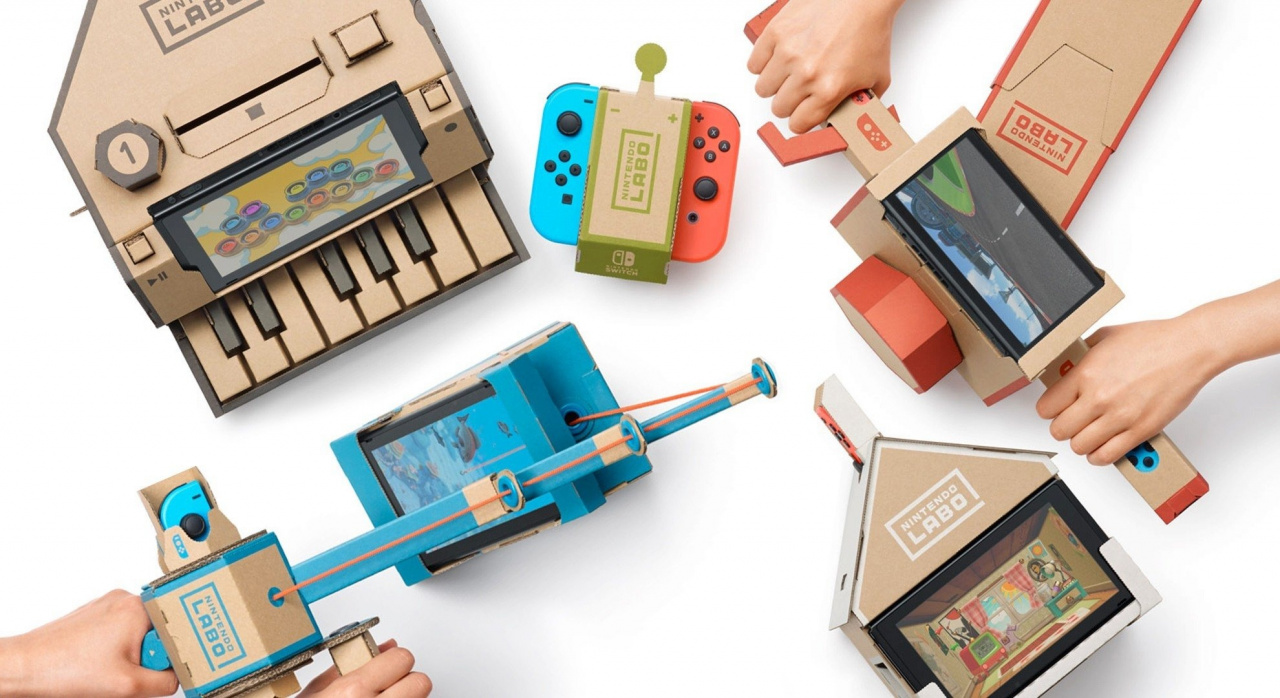
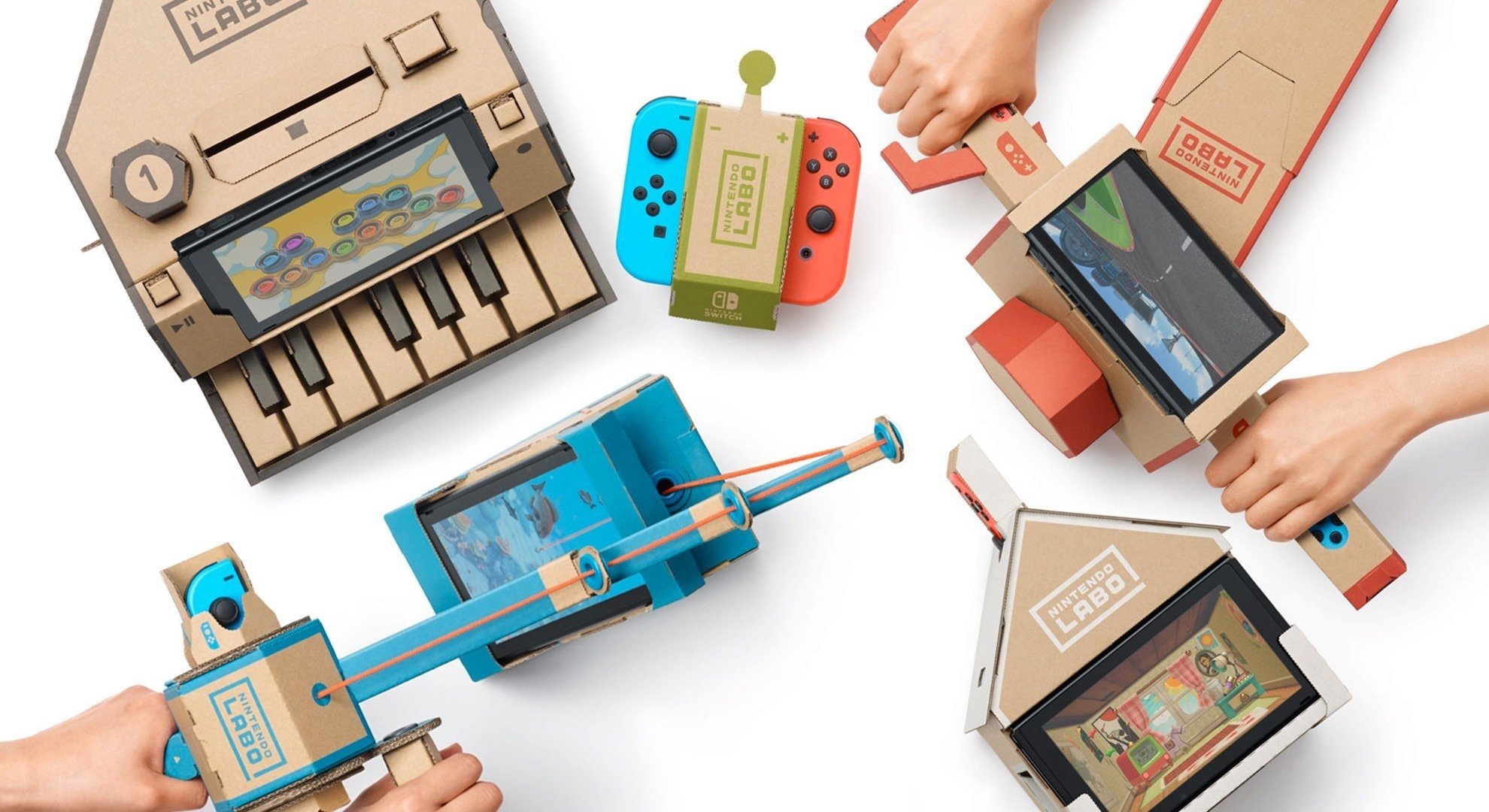
Nintendo President Says Company Is Working On “New Methods” For Nintendo Labo
It’s no secret that Nintendo Labo hasn’t quite managed to reach the lofty heights Nintendo may have hoped for or expected, but it certainly isn’t done just yet.
From the start, Labo has been a particularly intriguing venture for Nintendo; rather than the standard marketing process for games, Labo has been pushed as something different entirely, perhaps most prominently as a creative tool for education. Thanks to this, the typical gaming audience didn’t hoover it up at launch and it didn’t take long at all for it to disappear from the gaming charts, never to be seen again.
So what exactly is going on with Labo now, and what can we expect to see from it in the future? Well, Nintendo President Shuntaro Furukawa has touched on this very point in a recent interview with Kyoto Shimbun (translated by Nintendo Everything).
Nintendo Labo was an innovative, new set of games that incorporated aspects of engineering. How has it been going?
It hasn’t sold as well as our other hit games have, but we did have an increase in sales for Labo during the end of the year. There are many new ways to experience Labo, and we’re working on formulating new methods that convey its allure so Labo’s sales will have longer legs.
Whether “formulating new methods” for Labo means new Toy-Con packs, or simply new advertisement and marketing plans, isn’t 100% clear, although it wouldn’t be surprising to see more sets arrive at some point this year. The genius at work behind its design, and the pure creativity that can be born because of it, are clear for all to see; perhaps all it needs is a little refinement?
What do you think? Do you think Nintendo Labo has the potential to succeed further in the future? Do you own any kits yourself? Let us know in the comments below.
Langrisser Mobile launches next week, but you can pre-register right now
By Sponsored17 Jan 2019
Old-school strategy JRPG franchise Langrisser will be making its’ mobile debut next week via Langrisser Mobile – a freemium game that hopes to capture the free-to-play turn-based strategy crowd. Anyone looking for another game similar to Fire Emblem: Heroes will be able enjoy the full release version on January 22nd.
This is a sponsored article courtesy of Zlonggame.
Pre-registration is already live on both iTunes and the Google Play store, however, so if you want to sign up early you can do so via your app store of choice.
Langrisser Mobile looks to capture the spirit of the classic tactical JRPG franchise by hitting all of those key nostalgic beats. Over 300 levels from across the series return, on tactical maps that can go as large as a 24×29 grid, and all set on the familiar continent of El Sallia. You’ll also be able to collect and fight with (or against) plenty of familiar faces from across the series, including Elwin, Dieharte and Luna.
Zlong has also brought back the series’ original composer, Noriyuki Iwadare, who’s joined by a star-studded Japanese voice cast that includes Ryotaro Okiayu (Fire Emblem, Bleach, Fate/Apocrypha).
Battles in Langrisser follow a familiar ‘rock ,paper, scissors’ style of gameplay based on the class of your hero, although there are two elements to a unit. The hero has their own special class but there is also an accompanying ‘troop’ that battles first. These will follow a basic class system and come in three tiers. Your heroes can be customised via their own class/progression tree, as well as different troops types and equipment. Similar to Fire Emblem, heroes and equipment all come with a rating.
If you want to try and get up to speed on the game while you wait for release, there’s an official wiki online that’s already been populated with some initial information and stats, which may help in your squad planning.
Langrisser Mobile launches worldwide on iOS and Android on January 22nd, 2019.
Mortal Kombat 11's Character Customization Detailed In New Video
The long-awaited gameplay reveal of Mortal Kombat 11 revealed all sorts of new details about the upcoming fighting game from NetherRealm. As expected, one such aspect is customization options similar to Injustice 2, the studio's other hit fighting series.
In a video, director Ed Boon walks us through some of the customization options using Scorpion. Each character has three pieces of customizable gear, and in Scorpion's case that's his mask, katana, and spear. Each of the options themselves changed his look pretty significantly, but further "Kosmetic" options change his look even more dramatically. Tabs for "Abilities" and "AI Behavior" can also be seen in the customization menu. Boon also mentioned you can set intros and victory celebrations.
After that, the closer look treated us to a scene of Scorpion vs Baraka, cycling through several costume changes for both. The customization looks to be pretty in-depth, even from just a brief look at some of the menus and options.
How to get started with a new HomePod, and get more out of it
Apple’s HomePod starts with a simple setup and it ends with you forgetting you didn’t always have music surrounding you. In between, though, there are details to consider about that first setup and many options for when you move the HomePod to a new room. AppleInsider takes a dive into the use of Apple’s latest speaker.
If you’ve just got a HomePod then you’ll use your iPhone to set it up and we’ll show you what you need to do. Yet after that initial setup, it’s very unclear what you can do if, for instance, you move the HomePod to another room.
It’s not as if HomePods are difficult to carry around, though they are startlingly heavy. It’s also not as if you have to do anything to make a HomePod recognize that it’s been moved and should start adjusting its speakers to the new environment.
Rather, it’s that if you’ve initially identified the HomePod as being in your den and now it’s in your office, good luck figuring out how to change that label. We guarantee that across the nation there are HomePods in kitchens who are labelled Living Room and plenty of people who neither know nor care.
As long as they only use the HomePod to play tracks directly from Apple Music, that’s fine. It’s when you want to send audio from your iOS devices that it begins to be an issue. Even then, though, if you only have the one HomePod, you’ll cope. Yet it’s still a case of having to remember to choose Bedroom in AirPlay even though that HomePod is now in your study.
The problem is that HomePod doesn’t get its own app as the Apple Watch does and it’s also not found under Bluetooth the way AirPods are. Instead, it’s part of the Home app and each HomePod is a separate accessory that can be included in automation.
If you have two HomePods, for instance, you could have one set up as part of your evening routine so that at sunset, the HomePod in your den can start playing jazz. And the one in your kitchen can play some cool country. So long as you remember which one you’re asking to play this music.
However, we do get the ability to say what room of our house the HomePod is in —and we even get the option to give the speaker a name —so let’s use it.
Out of the box
Rip that HomePod out of its packaging and stumble a little as you find out just how densely heavy these little things are. Then, though, make sure your iPhone or iPad has been updated to the latest software.
Apple HomePod packaging
There’s more. Your iOS device probably has all of this already set up but you need it. The device must be signed in to iCloud. If it isn’t, go to Settings, tap on your name at the top of the screen and then on iCloud.
Sign in if necessary and then scroll down to Keychain. That’s got to be switched on too.
Last, make sure that Bluetooth is switched on and also that the iOS device is on your Wi-Fi network.
This all takes far longer to say than to do. In the great majority of cases, your iPhone or iPad will already be setup for this and shortly you’re going to see just how fast Apple makes adding a HomePod.
Surface tension
In theory, you can place your HomePod anywhere you like. In practice, it’s got to be near a mains outlet. You can always add an extension socket but you’re stuck with Apple’s own cable as that’s hard-wired into the HomePod.
Apple also recommends that you leave six inches of space around it and that the HomePod isn’t pressed up against a wall.
HomePod on Wood
We’d add that you should avoid wooden surfaces. This is not as big a deal as it appeared when the HomePods first came out, but it is possible that one will leave a white ring on the wood. It depends on how that wood was oiled but the surface can react with the silicone ring at the bottom of the HomePod.
If you happen to know that your wooden surface has been treated with a silicon type of polish, then you could place the HomePod somewhere else. If that’s the best spot, though, or if you have no earthly way of knowing what’s been done to the wood before, put the HomePod there anyway.
The worst that is likely to happen is that you will get such a ring after a few days but it can be removed by cleaning. Or, actually, you can just take the HomePod away and the ring may well disappear by itself over time.
This is fast
You’ll love this bit. Plug the HomePod into power and wait for it to chime. There’ll also be a white light that pulses on the top of the speaker. When there is, hold your iPhone next to the HomePod.
The initial setup screen you see on iPhone
A popup dialog will appear showing the HomePod and displaying a Set Up button. This is the same as you get on the Apple Watch but the setup procedure that follows is, if anything, even easier.
Where are you?
The very first question you get after pressing Set Up is Where is the HomePod? and there’s a list of answers.
It only helps for identification later but pick the room you’re going to put the speaker
That list includes choices such as Bedroom, Living Room, Entrance and Office. It makes zero difference which you pick as far as how the HomePod will work. Apple doesn’t automatically set the HomePod to be louder if you’ve picked the office and quieter in the bedroom, for instance. It’s solely for identification later.
So tap on one to choose it and then press Continue.
Getting personal
Next, the HomePod setup screen on your iPhone asks for a type of permission called Personal Requests. You’re going to say yes by tapping on Enable Personal Requests but it’s worth being clear about just what this means.
This page of the setup is quite straightforward about how saying yes means anyone can use this HomePod to do various things. What they will actually be using is your iPhone, they’re just talking to it via the HomePod.
So that’s why the setup says that it will allow anyone to read and send messages, and so on.
Allow Personal Requests unless you’ve great reason not to. It’s just so handy.
This is genuinely one of the best things about HomePod because it means you come as close to a Star Trek-style of ambient computing as possible. Just say to the air that you want to place a call to someone and the HomePod will do it.
Yet it’s also the worst part of the HomePod because it is so specifically tied to you and your iPhone. If your partner tries to phone someone through the HomePod, it’s going on your cellular bill. Similarly, anyone can add a calendar event or a reminder but they’re adding it to you.
Add in that the HomePod is tied to your Apple Music account so it has only your playlists. Add in that any music anyone else asks it to play will have an impact on how Apple curates your weekly Favorites list, too.
Then the HomePod becomes this brilliant device for you and merely a great one for the rest of the household.
Still, you are you and this is your HomePod, you might as well get all the value you can out of the money you spent. So tap on Enable Personal Requests.
One more thing to note, incidentally. All of this using the HomePod to add things to your iPhone only works when that phone is on the same Wi-Fi network as your HomePod. If it isn’t, if you’ve switched Wi-Fi off for some reason, Siri on the HomePod will explain to you what’s wrong. Really irritatingly, though, it will sometimes explain it to you twice.
Maybe that’s covered under the next screen, Terms and Conditions, but we nod through that one just as fast you do.
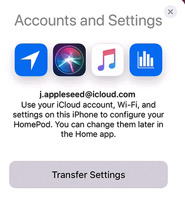
Accounts and Settings
You noticed that this setup required your iPhone to have Bluetooth switched on. Everything you’ve done so far has been over Bluetooth and of course it has. There’s no control on the HomePod to tell it which is the right Wi-Fi network, let alone any keyboard to let you enter a password it.
Tap on Transfer Settings and your HomePod will pick up your Wi-Fi network, password and much more
All of that is handled by this next and final step. Accounts and Settings offers to pass details from your iPhone to your HomePod. Those details include which Wi-Fi network and what password, but also your iCloud account login and others such as your choice of Siri voice.
Tap the Transfer Settings button. You’ll hear a chime on the HomePod and the iPhone setup screen will change to show a picture of that HomePod.
When it’s done, that screen will change to one saying hello to you and the HomePod will speak. “Welcome to HomePod,” your new speaker will say. “You can’t tell, but I’m waving.”
If you can figure out why that’s gently amusing instead of irritating, you’re a better person than we are, but it is. It’s a make-you-smile moment that leads you into some training.
You’re being trained
Siri tells you that you can get the HomePod’s attention by saying “Hey, Siri”, and then it walks you through trying that out through a couple of examples.
The last example has you asking Siri to play some music, and it does. This is the moment when you’re going to realise that yes, you spent your money well. Siri will play some music based on what it believes you like from your previous Apple Music selections but if you want a suggestion, say “Hey, Siri, play Hymn Orchestrated by Midge Ure.”
It’s not such a loud song that it’s going to get the neighbors annoyed, but it will shake your floor. When you’ve jolted your head at how clear and strong the music is, say “Hey, Siri, turn it down”. Or be more specific and say “Hey, Siri, turn the volume to 20 percent.”
That’s it
Your HomePod is setup with all your details and what you won’t have noticed is that it is also setup for the specific room you’ve put it in. It’s setup for the exact position you’ve placed it within that room, too.
HomePod has scoped out the area and adjusted its speaker output to mean that you get its best possible sound regardless of where you are in the room.
Which just raises the first of several questions about what happens when you want to move rooms or make any other substantive changes.
Moving stories
If you want to move your HomePod to another part of your house or even another part of your room, unplug it and move it. When you then plug it back into power, it will automatically do its scanning to work out the best use of its many internal speakers.
You don’t have to do anything else at all. The HomePod will play music just as well in your office as in the living room, regardless of where it thinks it is.
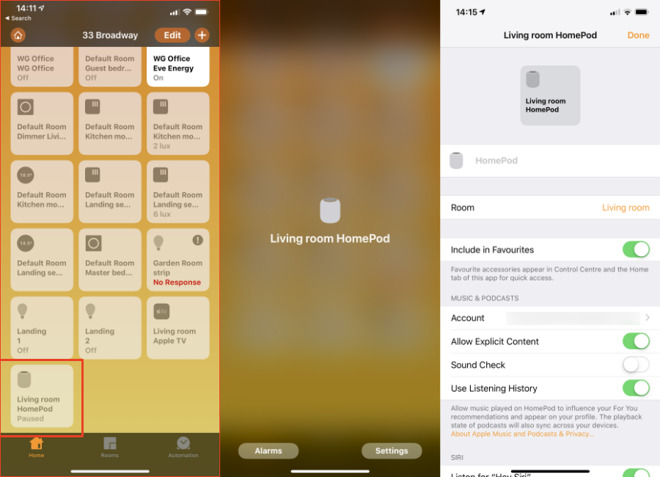
Nonetheless, open the Home app on your iPhone. Under its Home section, there will be a button somewhere with an icon of a HomePod and the name of the room you said it’s in.
Tap and hold on that button. If you just tap it, the HomePod either starts playing or pauses its playback if it’s already working. Tapping and holding gets you a very bare screen with a small image of a HomePod and then two buttons.
Alarms is just like the alarms section of your iPhone’s Clock app and it’s where you can set new ones or see when your existing ones are going to sound.
Then there’s the Settings button and that’s the one to tap.
In the Home app, search for HomePod and then press and hold to get settings
There are a lot of options within this HomePod settings app but you’re going to ignore most of them. They’re ones such as controlling how you can use Siri and what voice that will use. You’ll also find a section where you can specify whether HomePod will play music that has explicit lyrics or not.
This is one setting that was automatically taken from your iPhone so if you cared about explicit lyrics there, the HomePod already cares about them here.
Instead, the sections that you’re going to find useful when you’re moving the HomePod around are all at the top of the screen. First there’s one that just says HomePod. This is grayed-out as if you can’t edit it, but you can.
If you choose to, tap on that gray HomePod word and start typing a name for your HomePod.
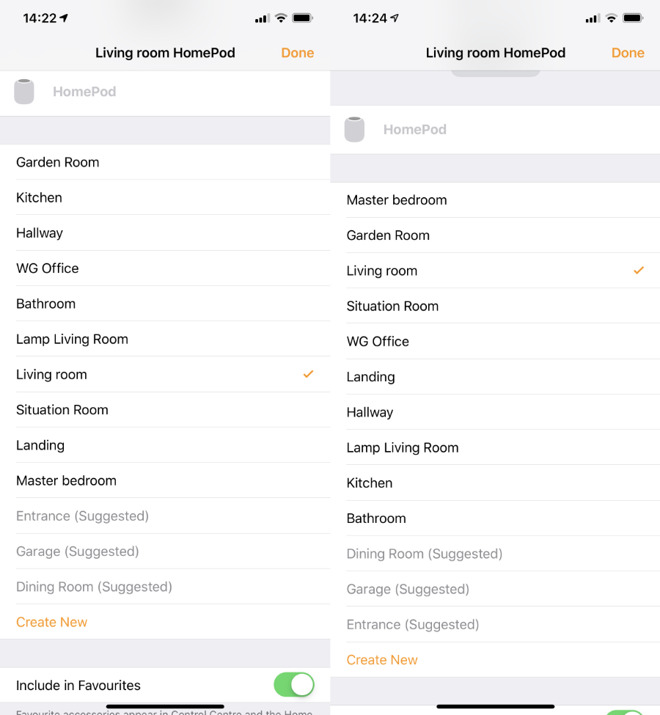
Right beneath it, there’s a section called Room and on that same line there is the name of the room you’ve said your HomePod is in. Tap on that name and you get a list of alternatives.
Among the many things you can adjust there is a setting for what room the HomePod is in
The list is a standard one with items like Living Room, Master Bedroom and so on but it also takes all the ones you’ve ever set up in the Home.
Pick the room you’ve moved the HomePod into or tap on Create New if it’s not already on the list. When you do that, you get the option to give the room a name and also to pick a wallpaper for it.
This is moving away from HomePod-specific issues to how Home and HomeKit works so just briefly, if you assign the device to a room, you can later see it listed with everything else there.
On the main screen of Home, there is also a section called Rooms and this shows you all of the HomeKit devices room by room. It’s not the fastest system. Each room gets its own page and you have to swipe along to reach the right one.
Each room has its name at the top but to help you focus after you’ve got bored swiping, you can choose to have any or all rooms have their own wallpaper. This can mean any image you like but there’s also the option to take a photo. So if you move the HomePod into the den, you could take a photo of the den with it there.
Favorites
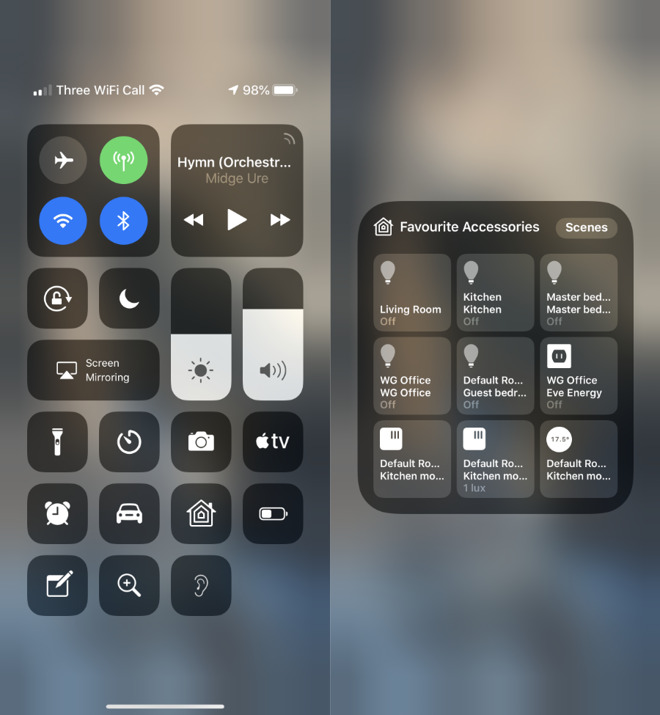
Back in the HomePod’s settings page, there is then a switch called Include in Favorites. In theory, switch this on would put the HomePod into Control Center. Or rather, Control Center can have a Home button and tapping on that gets you a grid of favorite devices that includes the HomePod but also, for instance, lightbulbs.
The trouble is that there’s only room for nine favorites. As the default is for Include in Favorites to be on, you very rapidly fill up all nine slots. And there’s nothing to tell you that you have.
You have to swipe down on your iPhone to get Control Center, tap the Home button and then see whether your HomePod is there. If it isn’t, you have to go back through all the devices in your Home app and switch off this Include in Favorites switch for some of them.
You can add HomePod to a Home button in Control Center
If you want to, that is. It is handy to be able to get Control Center and just tap to switch off the lights in the living room, kitchen and den then to switch on the ones for the landing and the bedroom.
It feels less handy to have a button to play or pause HomePod. Maybe you’ll sometimes leave the room and only remember later that it’s playing. Otherwise, skip adding HomePod to Favorites and instead just get in the habit of calling out “Hey, Siri, stop.”
Advantages
Maybe the Home app isn’t a quick one to use but if you list the HomePod in the right room, you could save time later. Say you’ve got it in your office and you’re heading there in the dark one cold winter morning. Call up the office room and you might be able to tap to switch on the lights, turn on the heating and set the HomePod playing.
It depends on what devices you have but HomePod can both be controlled by HomeKit and it can control it right back.
So it’s worth taking a moment to set all this up. Plus there is one more important part of this Home app’s setup for HomePod and it’s to do with the single best thing you can do to your speaker.
Get another one
Yes, HomePod is expensive. Nonetheless, when you’ve got one, you will soon want two. And then when you get that second HomePod, if you’re setting it up on the same Wi-Fi network as the first, it will know.
You’ll be prompted to set them up as a pair. If you do want them in the same room then you do want them as a pair.
Still, they are expensive and a single HomePod on its own is very good so you might well buy the second one for a different part of your house. In that case you would say no to creating a pair when you’re initially setting up the second one.
Later, though, you will either buy a third HomePod because these things are only as resistible as your bank account says, and you will then want to pair up two of them. Plus, if you haven’t already heard that two HomePods together sound incredible, let us be the first to tell you. Two HomePods together sound incredible.
To pair two up some time after the initial setup, go to the Home app. Press and hold on either of them to bring up settings. So long as the two are on the same Wi-Fi network, the settings page will now have an extra option.
Right underneath the Include in Favorites section there will be a new button called Create Stereo Pair.
The HomePod whose settings you’re adjusting will be one of the pair and you get to select any other HomePod you’ve got as the second. Then you can choose which is to be the left speaker and which the right, or swap them around again as you need.
It takes time
Initially you wonder if the HomePod is going to be worth the money, especially when it costs far more than rivals such as Amazon Echo. Then when you’ve got one, you hear how great it is and you get a kind of new-toy feel for a time.
Later you might add a second HomePod or you might not, but this is how you know that you’ve made a good buy. At some point you are going to be in a room without a HomePod and you’ll announce to the air that you want to play some music.
The following blog post, unless otherwise noted, was written by a member of Gamasutras community. The thoughts and opinions expressed are those of the writer and not Gamasutra or its parent company.
Welcome to my yearly blog post on crowdfunding and games, looking at how well games have performed on Kickstarter (and Fig) for the past year.
As usual, I have shared a lot of graphs here to go through, alongside my own comments in regards to the trends that can be observed.
Kickstarter is still raising more than half a billion dollars a year, but it is to be noted that in 2018, it raised the lowest amount of money since 2014. This is only a -6% change year-on-year, and not a lot lower than in 2015, the best year for Kickstarter, but still a drop.
Much more significant is the total number of projects launched on Kickstarter, a -17% change from 2017, and more than -40% from 2015, the best year. The novelty of Kickstarter has worn off, and the dream chasers are probably less naive about their chances with crowdfunding. Not necessarily a bad thing, as the next graph shows:
While the total number of projects has dropped by 17%, the number of funded projects only saw a -3% change. This could show the projects of a certain quality are not necessarily struggling more than before when trying their hand at crowdfunding.
If we see such a drop in the number of submitted projects, but a certain stability in the total number of projects funded, this would certainly indicate the platform is reaching a certain maturity, finding its place for projects suitable for crowdfunding.
Looking into the money raised per tier, the drop is about even across all of them, with the exception of the projects below $10k, which raised the same amount as in 2017; and with projects in the $100k to $500k range which saw a -10% change, compared to the -6% observed in the other ranges.
Not shown here is the fact that there were more projects funded in the $500k+ range overall, but also that there were significantly fewer projects raising more than the $2m than in 2017 (14 projects raised $2m+ in 2017 against 8 projects in 2018).
At a glance, the technology category saw the most significant drop in its numbers, and by itself carries most of the year-on-year drop in the money raised on the platform. The technology category is not the purpose of this blog post – but a quick look shows fewer funded projects (-26%), and less money raised across all the projects tiers of funding.
While there was a drop across all technology subcategories, the Wearable projects alone saw a -$16m drop year-on-year on Kickstarter.
Looking at the year-on-year variation by currency shows a few interesting trends. Ignoring the over-performance of the Yen that was only available by the end of 2017, the drop in both the amount of money raised and number of funded projects for campaigns ran in USD is interesting, especially as Kickstarter is seen as a very US-centric platform.
The growth for projects in EUR, GBP and CAD is also a strong sign that the notion that you need to run your campaign in USD to succeed is probably misguided.
With $192m raised by successful projects on Kickstarter in 2018, the Games category is going very strong. It now represents more than a third of the money raised that year on the platform, with a steady financial growth.
Alongside the trend observed across the whole of Kickstarter though, there were fewer projects launching.
The number of projects finding their funding is seeing a +10% change from 2017. While the number of projects failing is actually going down. This is a platform-wide trend. In the Games category, we are almost reaching the point where the projects have a 50% success ratio, up from 30% in 2015.
Games Subcategory Overview
Following the trends from the last few years, most of the Games category numbers are driven by the Tabletop Games projects, with Video Games representing about 1/10th of the money raised by them.
Playing Cards are still very popular, with more than 400 projects funded.
Mobile Games are the smallest subcategory for games in money raised and total number of funded projects, behind Puzzles. There were half as many Mobile Games projects funded last year than in 2017 (37 Mobile Games projects funded in 2017 against 14 in 2018).
The very steady and significant growth of the funding gathered by Tabletop Games is not showing any signs of slowing down.
+20% money raised in 2018 is nothing to scoff at, with a total of $165m raised. The tabletop games industry seems to have found its pace with crowdfunding.
The number of projects funded however shows the same scale of growth – with the number of projects failing to get funded staying stable. The ratio of projects getting financed is going up.
It is interesting to notice this goes against the trends for other types of project on Kickstarter, where the number of projects submitted is going down.
In 2018, there were exactly twice the number of projects raising $500k+ on Kickstarter in the Tabletop Games subcategory, from 34 in 2017 (a large number to start with) to 68.
What is also interesting is that the number of funded projects grew in all the different tiers of funding. There are more Tabletop Games projects of all scales succeeding on Kickstarter.
With $15m successfully raised for Video Games on Kickstarter in 2018, this is the lowest the subcategory raised since its explosion in 2012. This is, however, not a massive drop in funding. In the past 3 years, the amount of money raised in this subcategory has stayed in the +/-10% range. Considering how it can be hit driven, with massive projects weighing heavily on the total amount raised during a year, this doesn’t seem to be the sign of a downward trend.
What is a proven trend, is the drop in the total number of projects submitted here again: -15% year-on-year, the third year in a row with a double digit percentage drop.
The total number of projects funded is stable still though, reinforcing the platform-wide trend of fewer low quality projects trying their hands at crowdfunding there.
The tier of funding that saw the most significant drop in 2018 is the “$100k to $500k raised” tier, with the lowest number of project in that range since 2012.
The drop in number of projects in this tier makes for most of the difference in the total amount raised compared to the previous year.
After 2 years with very large projects bringing visibility and success to the platform, 2018 was a slow year for Fig, from a total amount of money raised point of view. Less than $500k was raised across all the projects on the platform, and about half that amount is thanks to the Soundfall campaign, at the end of the year.
With Fig curating the projects launched on the platform, seeing the success ratio in 2018 drop under 50% shows signs that Fig still has to prove it can consistently pick projects that are fit for crowdfunding.
This last graph also shows how Fig is dependent on its revenue-share scheme to raise significant amount of money. The total amount of money raised through the “For Reward” scheme is just under $120,000 for the year 2018.
Kickstarter and Fig numbers side-by-side
In 2016 and 2017, Fig managed to show significant numbers and position itself as a potential contender when it comes to crowdfunding video games. However, with a lack of strong titles to lead the way (and to be fair, there were not a lot of this type of project on Kickstarter in 2018 either), Fig’s model seems to struggle in finding a way to scale and perform consistently.
Looking at the data gathered on the past year, here are my main observations on the current trends for crowdfunding:
No growth for Kickstarter this year, but signs of the platform maturing with a drop in the number of projects submitted on the platform while the number of projects getting funded stays relatively stable.
The Games category is 34% of all the money raised on Kickstarter in 2018, and is the only main category growing.
A majority of that growth comes from the Tabletop Games subcategory, still going very strongly. Hard to say if the ecosystem can sustain this growth another year though. I would expect it to stabilize.
Video Games numbers are unimpressive, but they stay stable. 350+ games a year getting extra support through crowdfunding is a significant number. The drop in the number of projects launching on the platforms also suggests maturity and a better quality of the projects trying their hand at it.
In the weeks to come, I will be attending a number of events where I will talk about crowdfunding and video games:
Come say hi and share your crowdfunding experiences with me!
A note on methodology
We automatically gather projects data from Kickstarter, across all categories. This year, we have brought that tool internally after years of support on that front from Potion of Wit. It doesn’t change anything for us. We might even dedicate some resources to collect some data point that we were ignoring in the past.
A bigger change is on the way we use the data. I am no longer relying on a yearly average for currency exchange rates. If you notice some variation in the amount of money reported year-on-year in our blog posts, this is the reason why.
The Followers data on Kickstarter were collected manually (I am still gathering those – send me your numbers).
For the sake of the time invested, we haven’t created a master document with each categories key graphs like previous years. If you are looking for a specific data point, contact us.
Playtika continues push into casual market with Supertreat acquisition
Israel-based mobile developer Playtika has acquired Austrian casual card game studio Supertreat for an undisclosed fee.
The deal will see Playtika gain the rights to the Solitaire Grand Harvest, which the company’s chief marketing officer Nir Korczak claims is “one of the highest grossing solitaire games” on the market.
This isn’t the first time Playtika has splashed the cash in recent months. Back in December the studio purchased June’s Journey developer Wooga for a reported $100 million, and the developer hopes its spending spree will allow it further expand into the casual games market.
“Solitaire is one of the most evergreen single-player games and a very competitive category, but Supertreat cracked it and succeeded in creating one of the highest grossing solitaire games within just a year of its launch,” commented Korczak.
“We are confident that by leveraging our live-ops, game economy, and performance marketing expertise we will make Solitaire Grand Harvest the number one solitaire game in the market.”