If you want to consign your game to anonymity and a life of wandering aimlessly in the darkest depths of the App Store, then naming it Gem Rush should do the job nicely. To be fair, the horribly generic title is inherited from the physical board game, and in the world of tabletop games, the words ‘gem’ and ‘rush’ can actually be mentioned in the same breath without everyone’s eyes glazing over. Gem Rush does actually task the players with wandering dark depths. However, this is because the players are dwarves and we all know that they like nothing better than exploring underground caverns and collecting treasure.
Gem Rush is a game for one to seven players and can be played either cooperatively or competitively. At the start of the game, all of the players begin in the central cavern; the rest of the mine is unexplored. The starting cavern has several exits but to pass through one of them you will have to pay the correct combination of gems. Pass through an exit and the next room will be revealed. The dwarf who discovered the new room then has the option to rotate it to confirm its final orientation. Some exits will only require a single gem to pass through but score just one point. Other exits may require the player to spend half a dozen gems but the points rewarded will be far more impressive. The first person to reach the target score (which is usually twenty points but can be changed) is declared the winner.
You begin the game with four cards; each shows two different treasures, most of which will be coloured gems. You want to try and use your cards as efficiently as possible. If an exit requires a blue and a black gem, then playing a single card that shows both a blue and a black gem is the optimum way to go. You may have to spend two cards, one with a blue gem and one with a black but in this case, the other two depicted gems will be wasted.
Apart from gems, your cards may show other treasures. Diamond dust is a wild resource and can count as a gem of any other colour. Orichalcum has the potential to score extra points, whilst echoglass will copy the colour of another gem that was played at the same time. Finally, warp stones will let you immediately teleport and build at an exit of your choice.
All of the caverns have a special ability; some of these, like the mine carts, are free to use and let you rapidly move around the mine. Usually, your dwarf will have only three movement points, and later in the game when the mine expands in size, mine carts are an effective way of getting around. Most of the other special abilities will end your turn but they do offer ways of acquiring more gem cards. Some allow you to keep drawing from the deck until you uncover treasures of a specific type. Then there are rooms that require you to exchange treasures for different ones. Others are blind draws from the card deck and some are even more risky, causing you to draw a set number of cards and only keeping cards of a specific type.
This may mean that you end up empty-handed, which will have you knotting your beard in frustration. Overall, there are a wide variety of rooms and as the map expands you will have a satisfying range of options. The gem currency system is definitely more luck based than in a game like Splendor. There is certainly less opportunity for forward planning, but this unpredictability forms a big part of Gem Rush’s charm.
The cooperative game introduces a time limit, as at the end of each turn three cards are removed from the deck. This means that you have twenty-five turns to score as many points as possible. It works well enough; you can even invite AI players to help you out. However, it still feels like a missed opportunity to add some much-needed interaction to proceedings. Maybe if the players were allowed to swap cards or combine their abilities like in Pandemic it would have been more interesting.
The interface is very professional, allowing the user to spin and zoom the map to their heart’s content. It obligingly facilitates your actions; finding the quickest routes and automatically selecting the correct colours when you play echoglass cards. Graphically the game remains close to the board game. Discovering new caverns and watching the mine network grow in size feels very satisfying. The black gems can be difficult to make out and the icons are a little small. Thankfully, tapping on a card will bring up a full description of the room’s power so it isn’t really a big issue. The weedy music is more of a let down; it plays on a short loop and quickly becomes tedious. One glaring omission is that after the decent tutorial, you are left high and dry, as there isn’t a separate breakdown of the rules. I do not want to have to watch an entire tutorial just to clarify a single rule.
Even on the most difficult of the three levels, the AI doesn’t really put up that much of a fight. You will either want to play locally against friends or sign up to play online. Games can be either competitive or cooperative, and you will find an impressive range of options. You can choose to play real-time games with a range of different time limits. Or, you can play asynchronously with either twelve or twenty-four hour deadlines. It is just a pity that the online side of the game is so sparsely populated at the moment.
Gem Rush is easy to pick up and play, with games taking less than fifteen minutes to complete. The app has a comprehensive range of options and worked without any problems. Not many games have both cooperative and competitive modes of play, although some more content such as a campaign mode for the solo player would have been appreciated. The lack of player interaction and fairly high reliance on luck means that some turns can pass without you being able to accomplish anything. However, the game remains fun and satisfying with the last few turns growing increasingly tense.
Vectary is an online 3D application we covered late last year. Since that video, Vectary 3.0 has been released with several UI changes, new features and massive changes to their subscription model. The primary new features of Vectary 3.0 include:
An Updated and streamlined user interface
New getting started tutorial
New deformers (Symmetry, Bend, Array, Boolean, Twist, Stretch, Spherify)
New parametric primitive generation.
Dark mode option
You can read more about the new features in the Vectary blog. Perhaps the biggest change to Vectary is the new subscriptions, which are both more limited in the free form and vastly cheaper for the Premium plan. Details of the new subscription tiers:
Report: Xbox Game Pass headed to the Nintendo Switch
Rumors are circulating that Microsoft is looking to bring its pay-for-access game library Xbox Game Pass to a platform other than the Xbox One.
According to a report from Direct Feed Games (and later backed up by sources speaking to Game Informer), Microsoft is looking to announce its Xbox Game Pass Switch plans as early as this year.
But while the original Xbox Game Pass subscription allows its members to download and play any number of games featured in the Game Pass library, the Switch version is rumored to be a streaming service (similar to PlayStation Now or Google’s Project Stream).
It’s an interesting way to close the platform gap and, in a roundabout sort of way, provides a way for Xbox-minded game developers to get their creations in the hands of Switch owners without taking on the process of porting and releasing the games on a new platform.
This all comes only months after Xbox head Phil Spencer said that Microsoft intends to bring Xbox Game Pass to “every device”, though at the time most were speculating Spencer was referring to mobile devices rather than other, non-Microsoft consoles like the Switch.
According to these recent rumors, the Switch version of Xbox Game Pass would be powered by Microsoft’s own Project xCloud service it announced last year and would grant Game Pass subscribers the ability to stream and play Xbox games on their Switch across an internet connection.
The downside there is that the playability of cloud-based games is typically at the mercy of the quality of a player’s internet connection, but companies have been making strides in progressing the tech in just recent years. Nintendo, for one, has already hosted a few cloud-based games on its flagship platform (though only in Japan), including pay-as-you-play versions of Assassin’s Creed Odyssey and Resident Evil 7: Biohazard. In both of those cases, players downloaded a small 45MB application that streamed the rest of the game over an internet connection.
The original report also mentions that Microsoft has plans to publish some of its Xbox One- and PC-exclusive titles on the Switch in the near future, starting with Ori and the Blind Forest.
We know you’re busy and might miss out on all the exciting things we’re talking about on Xbox Wire every week. If you’ve got a few minutes, we can help remedy that. We’ve pared down the past week’s news into one easy-to-digest article for all things Xbox! Or, if you’d rather watch than read, you can feast your eyes on our weekly video show above. Be sure to come back every Friday to find out what’s happening This Week on Xbox!
It’s Time for Savings on All Things Xbox For the love of gaming, we are sharing Xbox One deals on consoles, accessories, and more! Starting February 17, you can save $50 on any Xbox One bundle, including Xbox One X, the world’s most powerful console, and Xbox One S, the best value in gaming and entertainment… Read more
8 Things You Need to Know When Starting Far Cry New Dawn Far Cry New Dawn is now available on Xbox One and enhanced for Xbox One X. This time around, the adventure takes place in a superbloom-covered post-apocalypse that’s as vibrant as it is chaotic, but a healthy coating of pink flowers and graffiti isn’t the only thing that’s different… Read more
Pipe Push Paradise’s Puzzle Purgatory Comes to Xbox One Hey! I’m Corey Martin. My pal Teodoro Zamudio and I made a small open-world puzzle game called Pipe Push Paradise, which I’m very excited to say will be available to download for Xbox One today! ‘Thinky’ puzzle games so seldom get console releases, and I’m proud to be a small part of changing that… Read more
Play Anthem Today on Xbox One with EA Access Prepare to climb into a javelin of your very own, rocket across the skies, plunge into the watery depths, and join in unforgettable battles. You can enter the beautiful and dangerous world of Anthem days before its worldwide February 22 launch by becoming an EA Access member… Read more
Gears of War: New Line of Collectibles and Books to Debut at New York Toy Fair Since its 2006 debut, Gears of War has established itself as one of the best-selling and most iconic video game franchises of all time, known for acclaimed gameplay, compelling characters, and visceral action. Now, with three new Gears of War games in development… Read more
Crackdown 3 Launches Worldwide Today with Xbox Game Pass It’s time to step up your boom, Agents! Crackdown 3 is now available with Xbox Game Pass on both Xbox One and Windows 10 PC. In the latest entry in the Crackdown franchise, longtime fans will feel right at home in the quest to take back New Providence… Read more
Soar to New Heights with The King’s Bird Today on Xbox One I co-founded Serenity Forge along with a couple of friends a few years ago; and since then we’ve co-developed games like Where the Water Tastes Like Wine and the upcoming Once Upon a Coma, as well as ported and published games like… Read more
Free Play Days: NBA 2K19 and Tom Clancy’s Rainbow Six Siege Here’s this weekend’s all-star lineup for Free Play Days! Xbox Live Gold members can celebrate all-star weekend with NBA 2K19 and play Tom Clancy’s Rainbow Six Siege in-between matches of the Six Invitational for free. The Free Play Days event begins… Read more
Get Famous with Your Sims on Xbox One It’s time to fulfill your Sims’ dreams of becoming famous! Now you can be crazy famous, like millions of fans, crazy awesome mansion, movie star famous — today’s the day your Sims will get that chance. The Sims 4 Get Famous expansion pack is available now on Xbox One… Read more
Make a Date with the Black Desert Open Beta February 14 – 17 This Valentine’s Day, you’re invited to gear up for Black Desert’s final open beta – click here to sign up on Xbox One. From February 14 12:00 a.m. PST to February 17 11:59 p.m. PST, Black Desert will be available for all North America and European players with Xbox Live Gold… Read more
Xbox Game Pass Brings the Boom to Extra Butter Gamers and sneaker enthusiasts rejoice! Xbox Game Pass and Extra Butter are working together to celebrate the launch of Crackdown 3 with games, shoes, and an in-store sweepstakes. We’ve set up demo stations at Extra Butter’s Lower East Side location in New York City… Read more
Games to Fall in Love with on Xbox Game Pass With Xbox Game Pass there’s no shortage of games for you to fall in love with this Valentine’s Day. From sailing to driving to jumping, even combine harvesting, there’s bound to be room in your heart for a few of these titles. We’ve highlighted some of our Xbox Game Pass… Read more
Tips & Tricks for the Fast-Paced Arena Brawler Hyper Jam On behalf of the Bit Dragon team, I am thrilled to announce that Hyper Jam has launched on Xbox One and is available for purchase right now on the Microsoft Store! For those of you who don’t know, Hyper Jam is a fast-paced arena brawler featuring a killer synthwave soundtrack… Read more
Inside Xbox One X Enhanced: Kingdom Hearts III Many of gaming’s most compelling stories come from those who’ve helped to create our favorite Xbox One games. In our Inside Xbox One X Enhanced series, these creators will share the behind-the-scenes accounts of the work involved in enhancing these epic games for Xbox One X… Read more
The Evoland Series: From Game Jam Project to Worldwide Success Hello, time traveler! I’m Nicolas, lead game developer at Shiro Games, a French independent studio. We released Evoland and Evoland 2 on PC few years ago and we’re now introducing the Evoland Legendary Edition on Xbox One which includes both titles… Read more
Xbox Sessions: Terry Crews Steps Up His Boom as Commander Jaxon in Crackdown 3 Terry Crews can do anything – he’s a talented actor, an activist, artist, and a former professional football player. He’s a man of many strengths (and muscles), but how are his gaming skills while playing as his in-game character, Commander Isaiah Jaxon, in the upcoming Crackdown 3? Tune-in to the next episode of Xbox Sessions, airing Thursday, February 14 at 4 p.m. PST on the Mixer Xbox Channel, Twitch Xbox Channel, and the Xbox YouTube Channel to find out! Ahead of Crackdown 3’s February 15… Read more
Adventure FPS Away: Journey to the Unexpected Available Now on Xbox One Hello everyone! Away: Journey to the Unexpected is a colorful first-person adventure game with rogue-lite elements, heavily inspired by anime from our childhood, and it’s available today on Xbox One. The game has evolved quite a bit since its prototype…. Read more
Jump Force Tips and Tricks The moment you’ve been waiting for is here! Those of you who have pre-ordered the Ultimate Edition of Jump Force get early access to the game starting tomorrow, February 12! We know that you’re excited to jump right into battle alongside your favorite manga heroes… Read more
R.B.I. Baseball 19 Coming to Xbox One March 5, Pre-Order Today Today is an exciting day for MLB fans. Not only are pitchers and catchers reporting for Spring Training, but R.B.I. Baseball 19 will launch March 5 on Xbox One and is available for pre-order on the Microsoft Store. Baseball is back, Spring is right around the corner… Read more
Next Week on Xbox: New Games for February 19 – 22 Welcome to Next Week on Xbox, where we cover all the new games coming soon to Xbox One! Every week the team at Xbox aims to deliver quality gaming content for you to enjoy on your favorite gaming console. To find out what’s coming soon to Xbox One, read on below and click on each of the game profiles for pre-order details (dates are subject to… Read more
Creating the Turned-Based RPG Dark Quest 2 Dark Quest 2 is a turn-based RPG inspired by legendary board game Hero Quest. The core idea of the game was to make a board game system while understanding that you are making a video game and not a board game… Read more
Fortnite World Cup Esports Tournament Splits $100 Million Prize Pool
Epic Games has announced the details of its Fortnite World Cup, including a whopping $100 million prize pool for the 2019 season. That chunk of money will be split among several prizes, with the largest single cash prize coming in at $3 million.
First, there will be 10 weekly Online Open qualifiers running from April 13 to June 16. Every week the company will distribute $1 million broadly among the top players. Then, the top 100 Solo players and top 50 Duos teams will take part in the World Cup Finals in New York City from July 26-28. That event will distribute $30 million. Each player will win at least $50,000 and the Solo World Champion will win $3 million. Plus, $1 million in weekly tournaments will continue through the end of the year.
Epic notes that to compete you need to be at least 13 years old, and players between 13-17 need a parent or guardian's permission. Players also need to be in good standing without any violations on their current or previous accounts.
Recently Fortnite has gotten a new challenger in the battle royale space with the release of Apex Legends, which quickly grew an audience. Epic Games pointed out that Fortnite is still doing fine for itself too, setting a new record for peak concurrent players.
Still, Fortnite appears to be shoring up its defenses against the new challenger. With Season 8 approaching, Epic announced that you can earn the Battle Pass for free by taking part in Overtime challenges. That was interpreted as a sign that the company is attempting to retain its users by giving them a reason to put their time into Fortnite. A major tournament with tons of cash on the line could also help entice players to stick around.
Doug Bowser Thanks Nintendo Fans For The “Warm Messages”
Just days ago, Reggie Fils-Aimé shocked the video game community, when he announced he would be stepping down from his role as Nintendo of America President after nearly 13 years to spend more time with his family. Replacing him is the appropriately-named Doug Bowser. While the majority of the spotlight is still on the current President, Doug has already received extra attention since the news dropped.
To show his appreciation, he took to Twitter to thank fans for the “warm messages” and stated how he had been taught so much by Reggie over the past number of years at Nintendo and would use all of this knowledge to fuel his own enthusiasm:
“Thanks everyone for your warm messages as I look ahead to this new adventure. I have learned so much from Reggie. His love and passion for Nintendo, along with yours, will never be far from my mind.”
Besides welcome messages, fans on social media were also quick acknowledge the fact Mario’s number one enemy had taken over Nintendo of America. As a result, it’s already turned into a bit of a meme (in more ways than one). Below is a round-up, courtesy of Eurogamer:
How do you feel about Bowser taking over Nintendo of America? Tell us down below.
Funko Eager To Produce Nintendo-Themed Pop Figures
Love them or hate them, the big-headed Funko Pop figures are seemingly here to stay. At this year’s New York Toy Fair, Newsweek sat down with the Funko CEO Brian Mariotti to discuss the future of the company.
One interesting comment made by Mariotta during the interview, was how one of Funko’s main goals is to secure the license for Nintendo’s IP.
“We still have to get those Nintendo characters.”
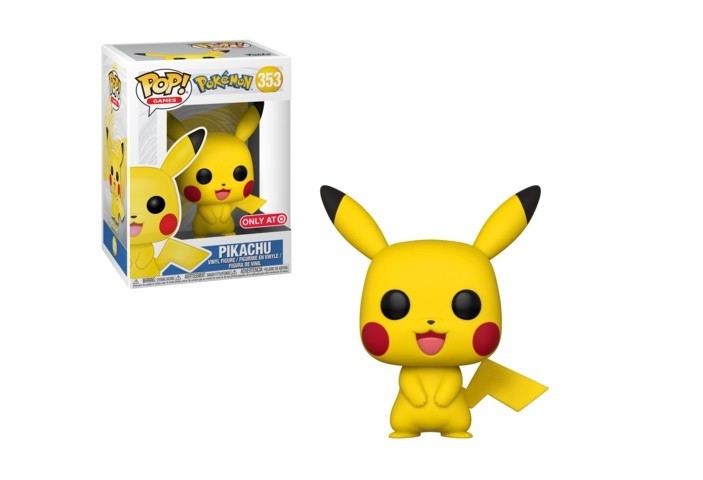
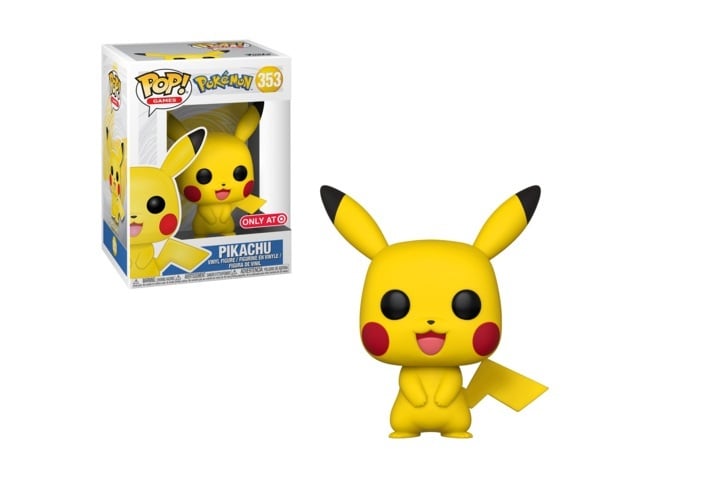
Funko had somewhat of a breakthrough in the past year with The Pokémon Company, allowing it to produce a Pokémon Funko Pop line, including a seasonal Pikachu run.
“To build that relationship is super important to us. We all grew up playing Pokémon, with so many fans around the world, it’s amazing to land that license finally.”
Mariotti believes this is just the beginning, stating how production is going to be increase this year, with the plan to make four Pokémon Pops for each quarter.
“We’re going to ramp it up a bit with what we did last year.”
Do you collect Funko Pops? Would you like to see Nintendo-themed ones? Tell us in the comments.
Explore challenging tracks around the world, from Yellowstone Park to the peaks of Mt. Everest and everywhere in between. New Tandem Bike mode allows two riders to control one bike. Hone your racing skills and level up from local backyard competitions to stadium races. Make a statement with customizable outfits and bike skins.
Posted by: xSicKxBot - 02-25-2019, 07:07 AM - Forum: Lounge
- No Replies
There Are Lots Of Games To Play Free This Weekend On PS4, Xbox One, And PC
If you're looking for something new to play but aren't quite ready to plunk down some cash on a game, you'll have plenty of options to choose from this weekend. A number of titles are free to play for the next few days on PC and Xbox One, and PS4 and Xbox One owners will be able to try a special demo of Dead or Alive 6.
PC players have the most choices this weekend, as four titles are holding free weekends on Steam. These include the sandbox games Boundless and TerraTech, the mech strategy game BattleTech, and the 3v3 competitive game Aftercharge. You'll be able to sample all four of these at no charge until Sunday, February 24, and each is also on sale in case you'd like to pick them up after the free period ends.
On Xbox One, Xbox Live Gold members can try both Halo Wars: Definitive Edition and its sequel, Halo Wars 2, at no charge as part of Microsoft's ongoing Free Play Days promotion. The trial period likewise runs through February 24. You can download them either from Microsoft's website or the Gold member area on Xbox One, and both games are on sale for 50% off from the Microsoft Store.
Beyond that, Team Ninja is holding a beta for its upcoming fighting game Dead or Alive 6 from February 22-24. The demo will be available on both PS4 and Xbox One, but you'll need to have either a PlayStation Plus or Xbox Live Gold subscription to participate. You can read more details about the beta on the Dead or Alive 6 website.
Separate from the free weekends, Epic is giving away another title for free through its storefront, the Epic Games Store. From now until March 7, PC players can claim a digital copy of the point-and-click adventure game Thimbleweed Park at no charge.